A Guide to Developing your Facebook Audience Sync Strategy
To walk you through developing your Facebook Audience sync strategy.
Prefer a shortcut? 16 free tools do parts of this for you.
Aim: To walk you through developing your Facebook Audience sync strategy.
Optimal Outcome: You will have an established strategy for targeting or re-targeting the audience for your Facebook ads.
What do you need to start: You’ll need Facebook Business Manager and audience data from your other marketing platforms
Why is this SOP Important: Developing a Facebook audience sync strategy can help you improve your targeting, efficiency, ROI, customer experience, and data insights.
When and Where to execute: Developing a Facebook audience sync strategy should be done as early as possible in your marketing strategy planning process, and can be done at any time when you want to improve your targeting, increase ad performance, or scale your advertising efforts.
Who Should Be Doing This: Marketing staff, Data analyst
What is Facebook Audience sync?
Facebook Audience Sync is a feature that allows businesses to synchronize their customer data, such as email addresses and phone numbers, with Facebook's advertising platform. By syncing this data, businesses can create more targeted and personalized advertising campaigns for their customers on Facebook, Instagram, and other platforms that use Facebook's advertising tools. This helps businesses to reach their intended audience more effectively and increase the chances of converting them into customers. The feature also ensures that the customer data is kept secure and private.
Execution
Resources/Tools & Set up
-
Set up your Facebook Ads account (Follow SOP 183: How to Create a Facebook Ads Account)
Set up your Facebook Audience Strategy
Create your audience segment using a third party platform and link your Facebook Ads account so you can use these segments for your Facebook ad campaigns. (Note: We’ll be using Klaviyo for this SOP as an example).
Login to Klaviyo and navigate to the left menu. Click List & Segments.
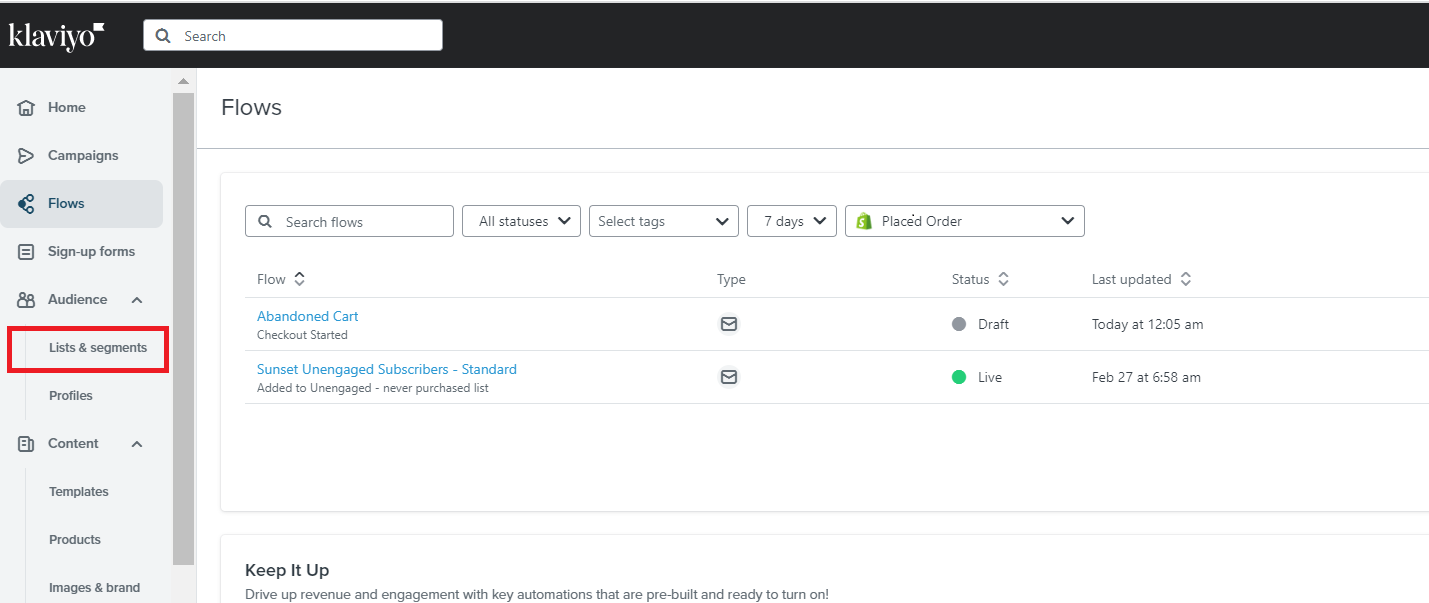
Click Create List/Segment.

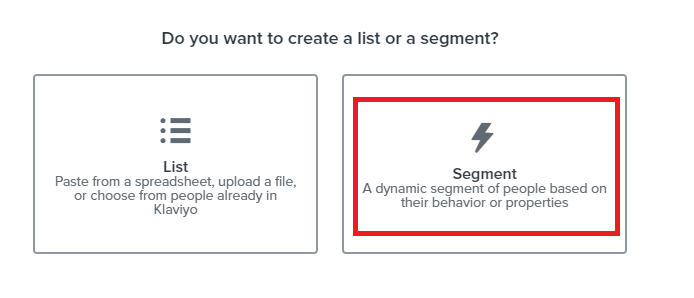
On the next page, select the Segment card.
Create audience segments based on engagement level
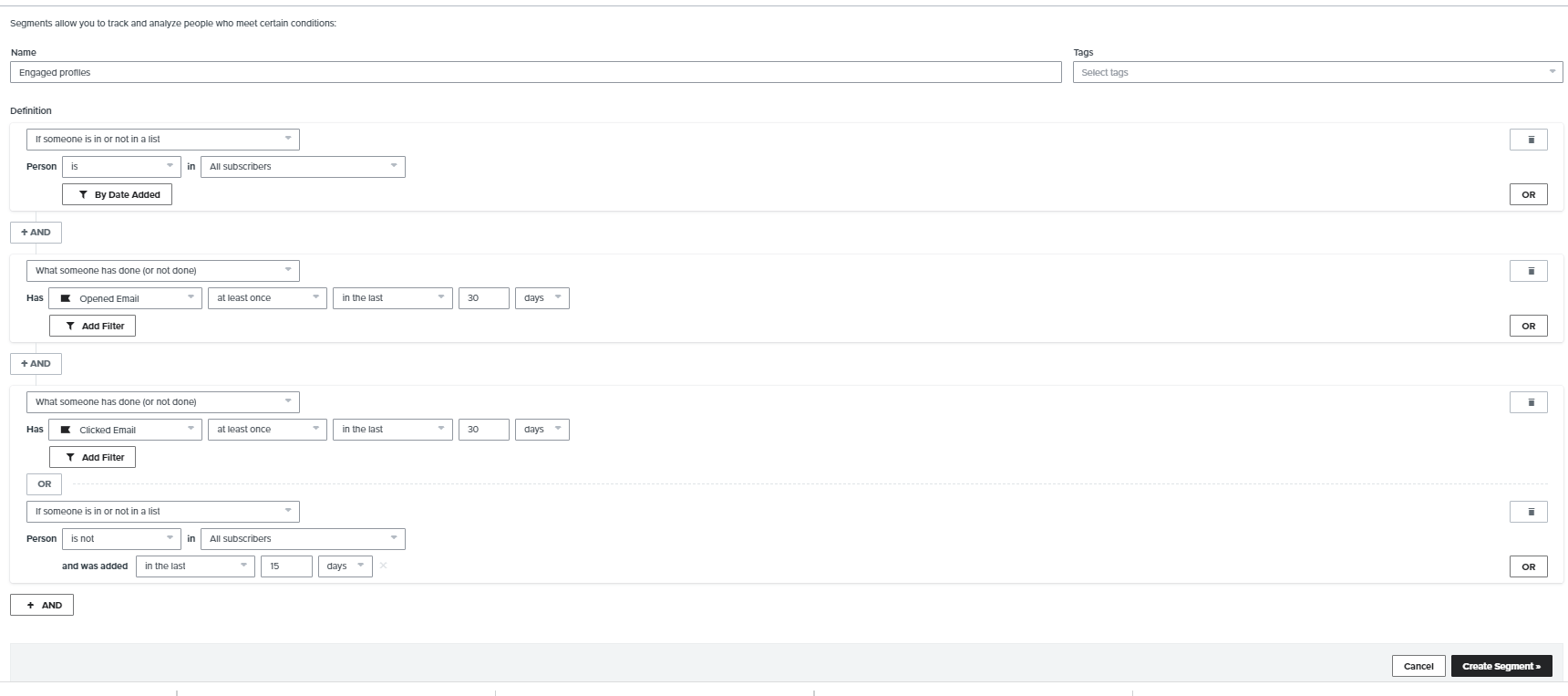
- Engaged profiles - use the following parameters when creating this segment.
If someone is in or not in a list→is→in [your main list]
and
What someone has done or not done→opened email→at least once→in the last→30 days
or
What someone has done or not done→clicked email→at least once→in the last→30 days
or
If someone is in or not in a list→is in [your main list]→and was added→in the last→15 days
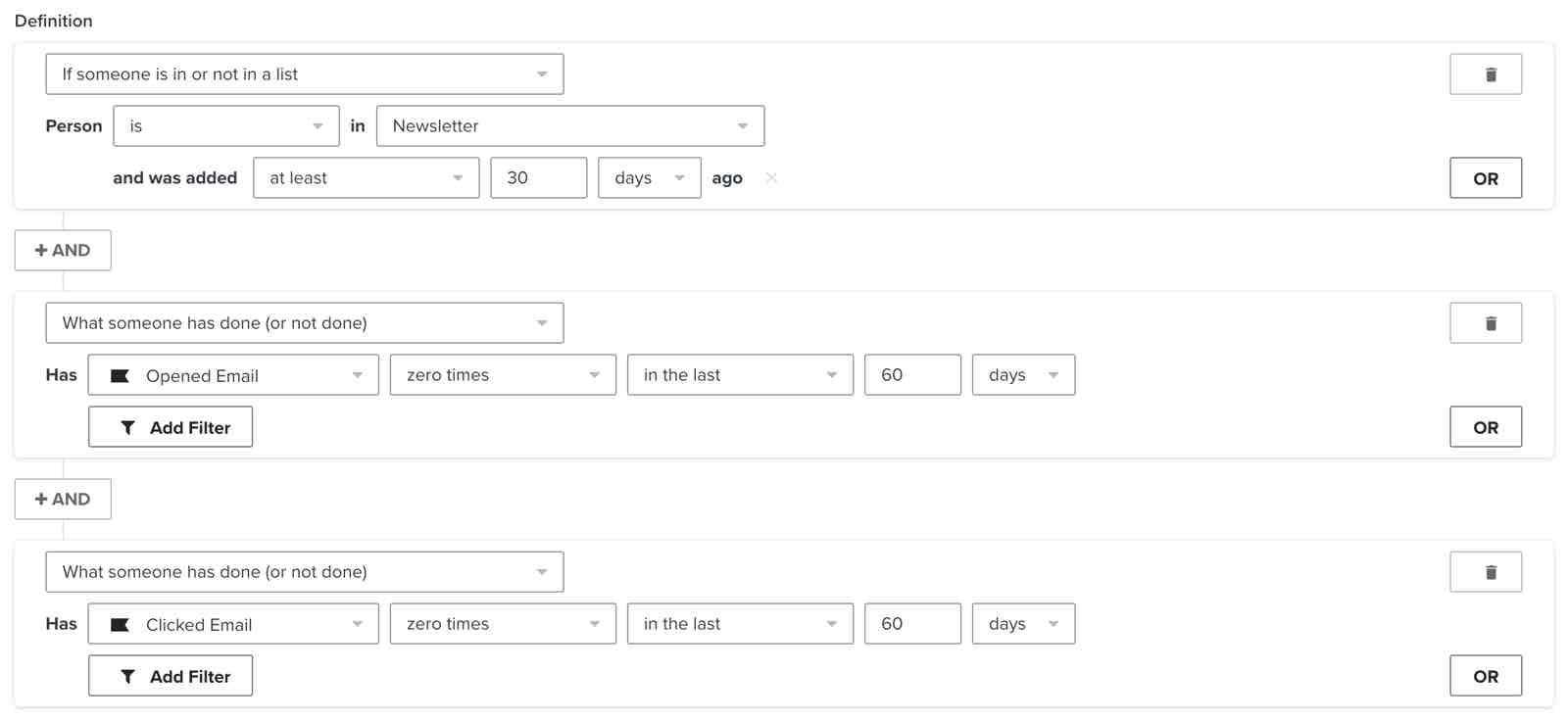
- Unengaged profiles - use the following parameters when creating this segment.
If someone is in or not in a list→is→in [your main list]→and was added→at least→30 days ago
and
What someone has done or not done→opened email→zero times→in the last→60 days
or
What someone has done or not done→clicked email→zero times→in the last→60 days
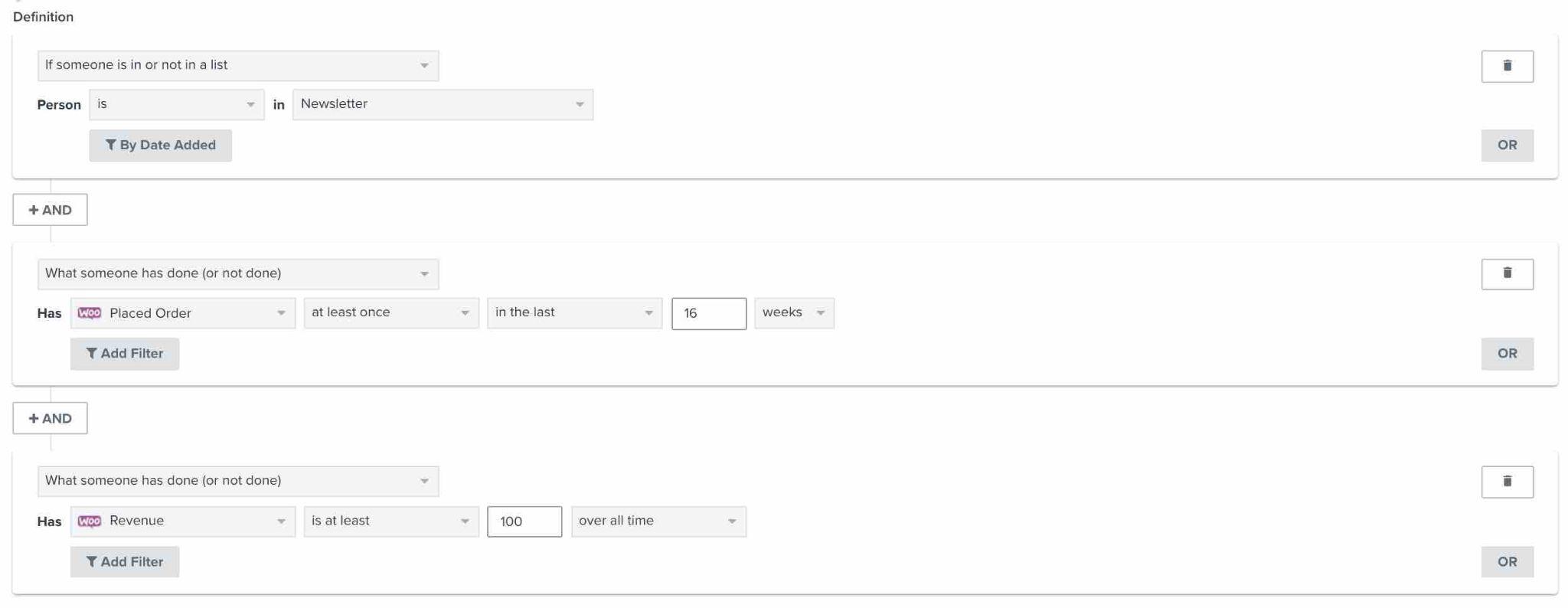
Identify product enthusiasts - This segment includes individuals who have subscribed to receive email communications, made a purchase within the last 4 months, but have not spent a significant amount of money on products (adjusted based on pricing). By syncing this segment to a Facebook Custom Audience, you can target these individuals and potentially convert them into loyal brand enthusiasts.
- Potential enthusiasts - use the following parameters when creating this segment.
If someone is in or not in a list→is→in [Newsletter]
and
What someone has done or not done→placed order→at least once→in the last→16 weeks
or
What someone has done or not done→has revenue→is at least→100→over all time
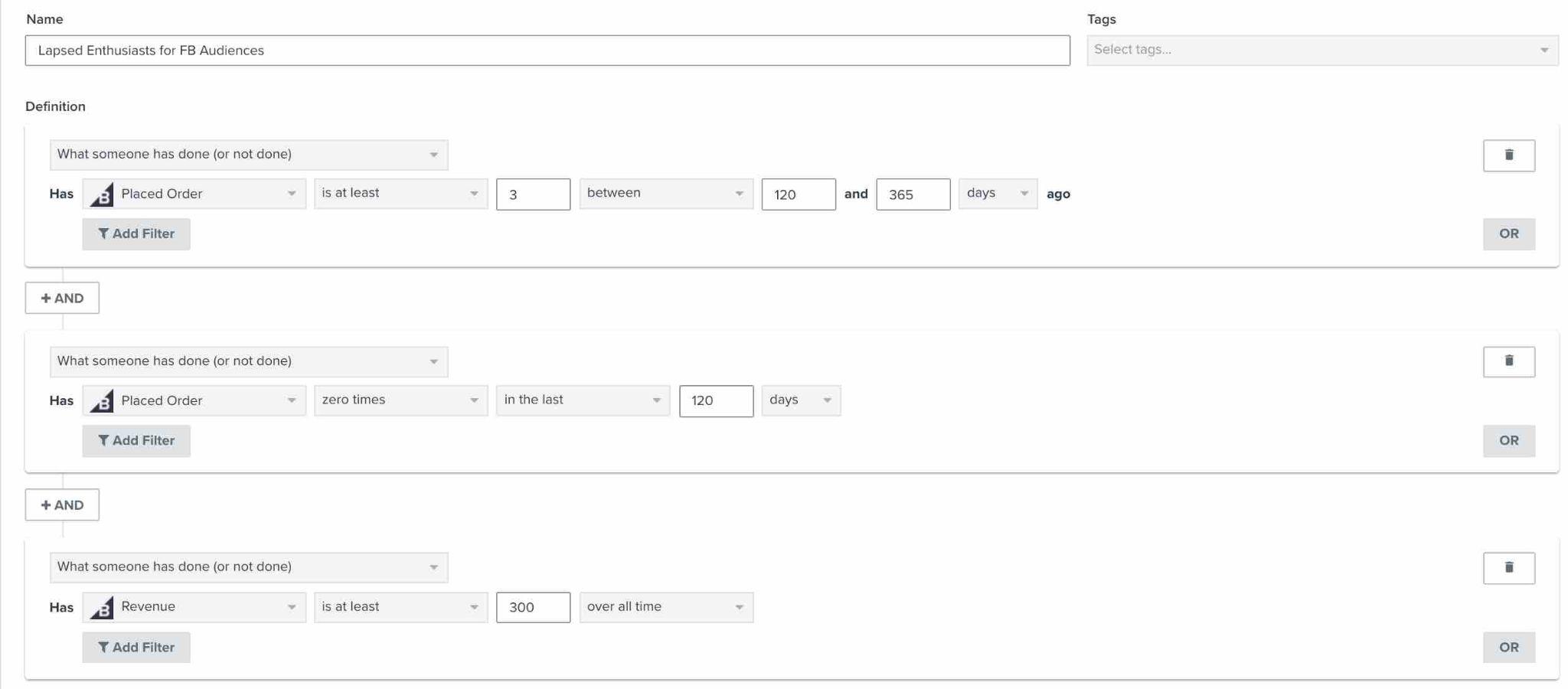
- Lapsed enthusiasts - use the following parameters when creating this segment.
What someone has done or not done→has placed order→is at least →3→ between → 120→and→365→days ago
and
What someone has done or not done→has placed order→zero times→in the last→120 days
and
What someone has done or not done→has revenue→is at least→300→over all time
Create segments for retargeting
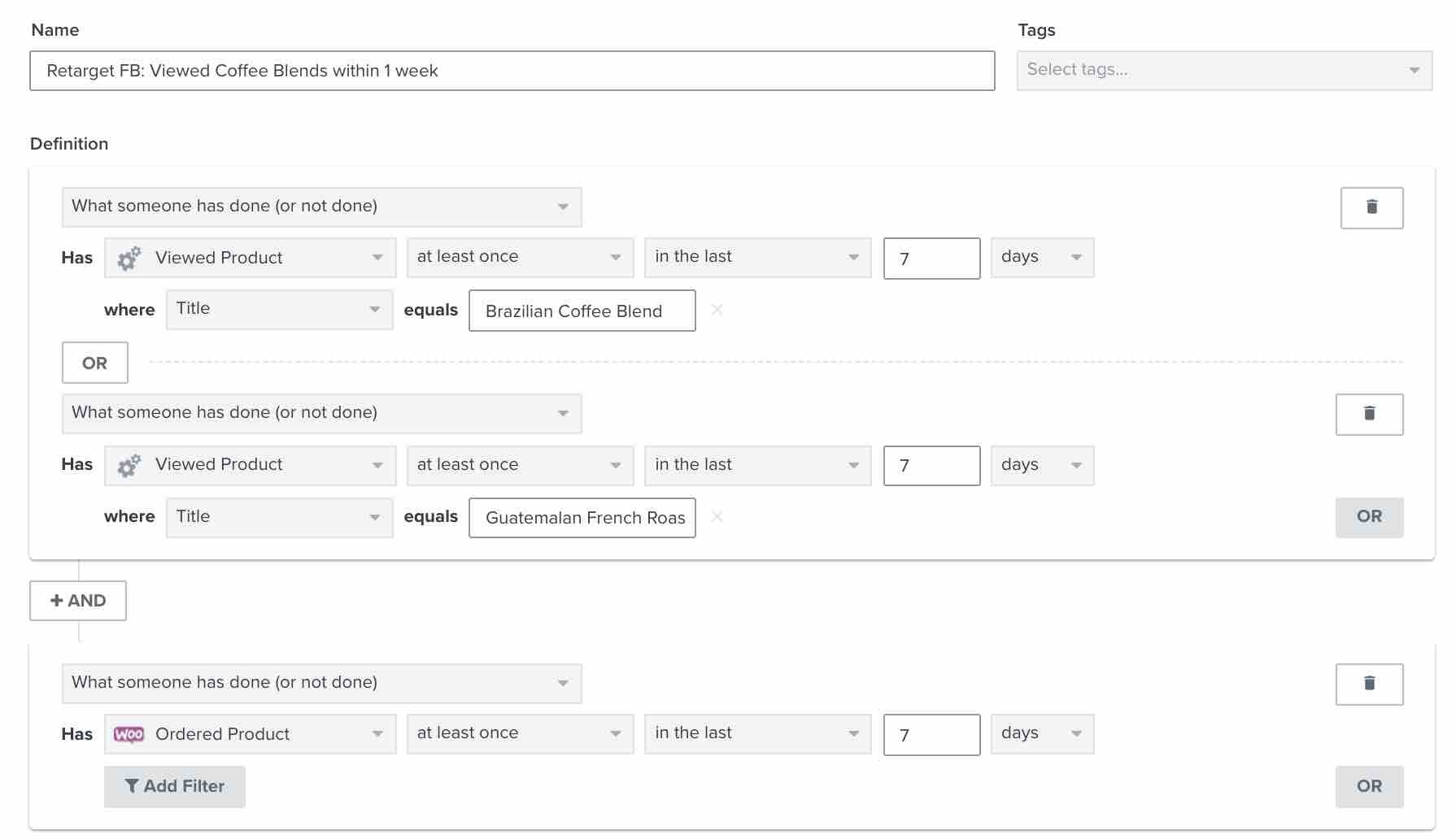
- Browse abandoners
What someone has done or not done→viewed product→at least →once→in the last→7 days→where→title equals→[name of product]
and
What someone has done or not done→ordered product→at least once→in the last→7 days
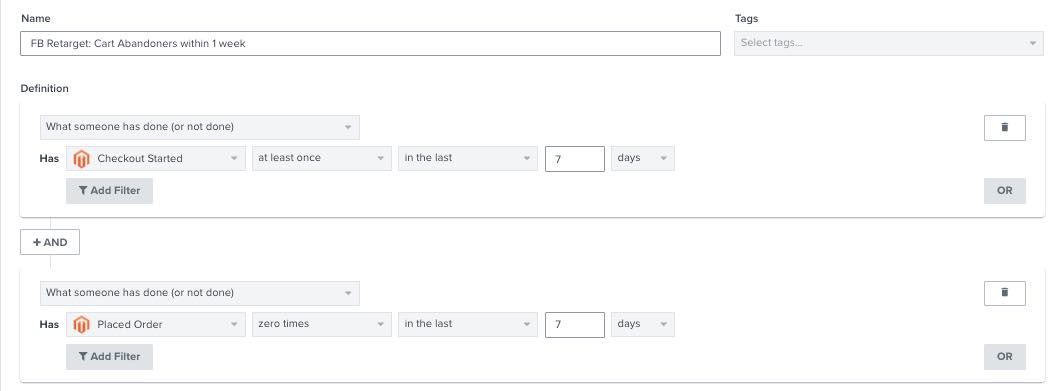
- Cart abandoners
What someone has done or not done→checkout started→at least →once→in the last→7 days
and
What someone has done or not done→placed order→zero times→in the last→7 days
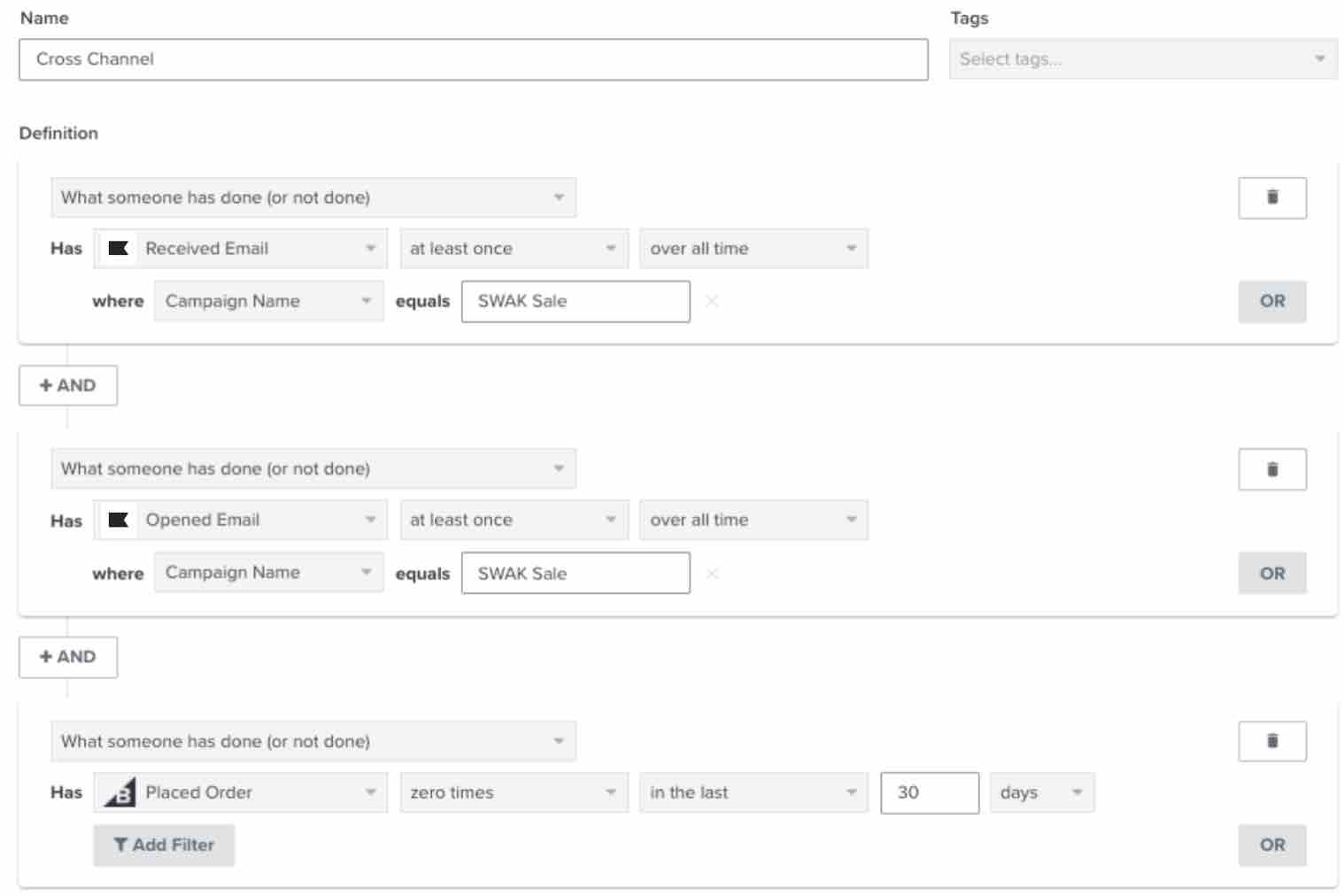
- Cross-channel
What someone has done or not done→received email→at least once →over all time→where→campaign name→equals→[name of your campaign]
and
What someone has done or not done→opened email→at least once →over all time→where→campaign name→equals→[name of your campaign]
and
What someone has done or not done→placed order→zero times →in the last→30 days
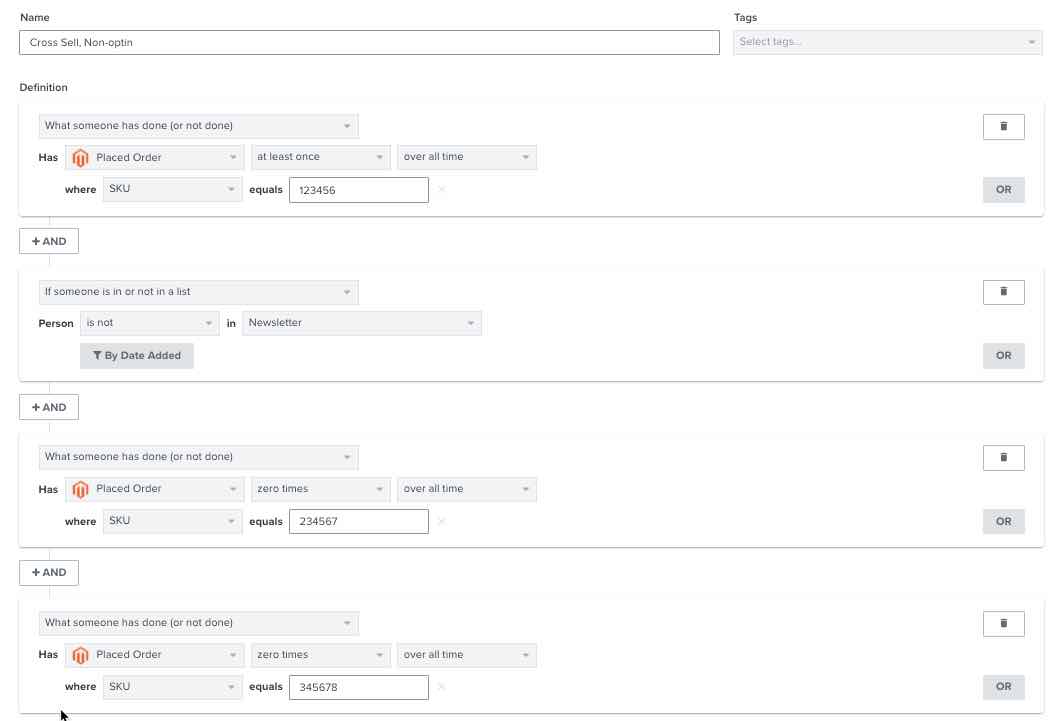
- Cross-sell / upsell
What someone has done or not done→placed order→at least once →over all time→where→SKU→equals→[SKU 1]
and
If someone is in or is not in a list→person→is not→in→Newsletter
and
What someone has done or not done→placed order→zero times →in the last→30 days
and
What someone has done or not done→placed order→zero times→over all time→where→SKU→equals→[SKU 2]
Create a segment based on subscriber type
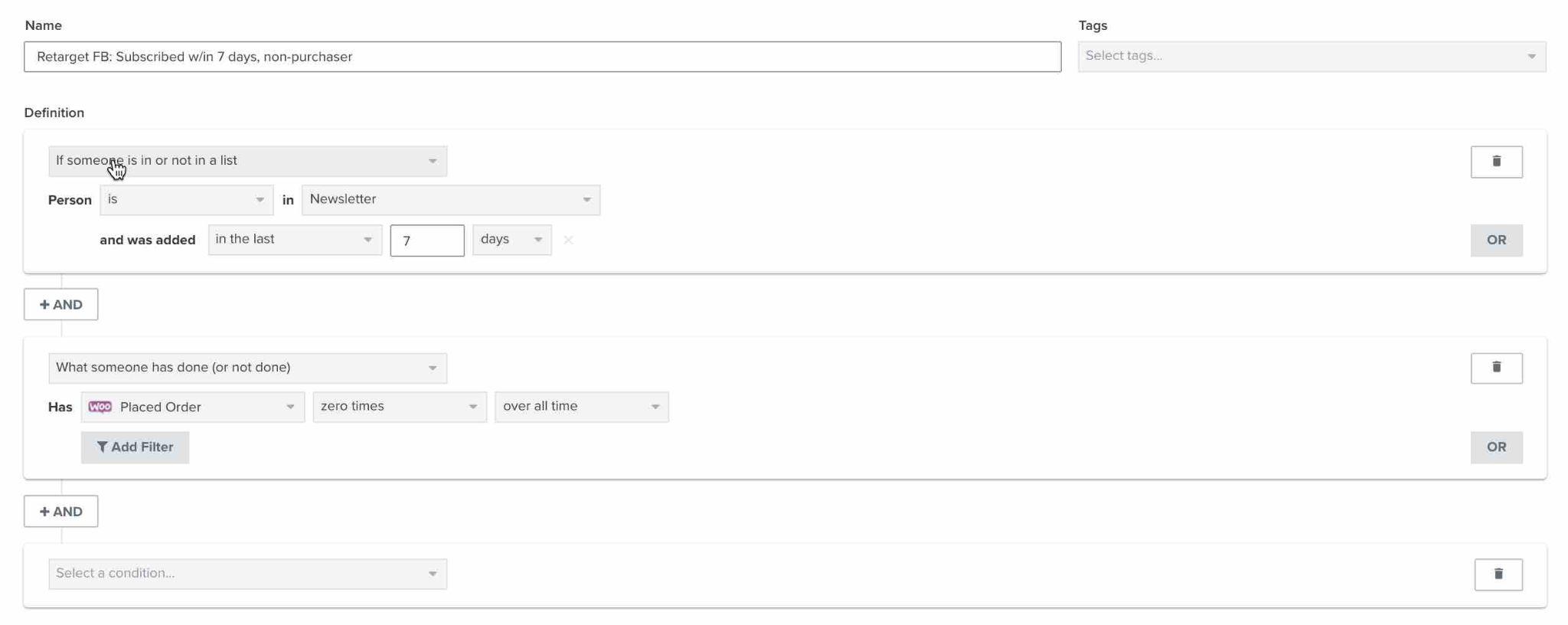
- Recent subscribers
If someone is in or is not in a list→person→is not→in→Newsletter→and was added→in the last→7 days
and
What someone has done or not done→placed order→zero times →over all time
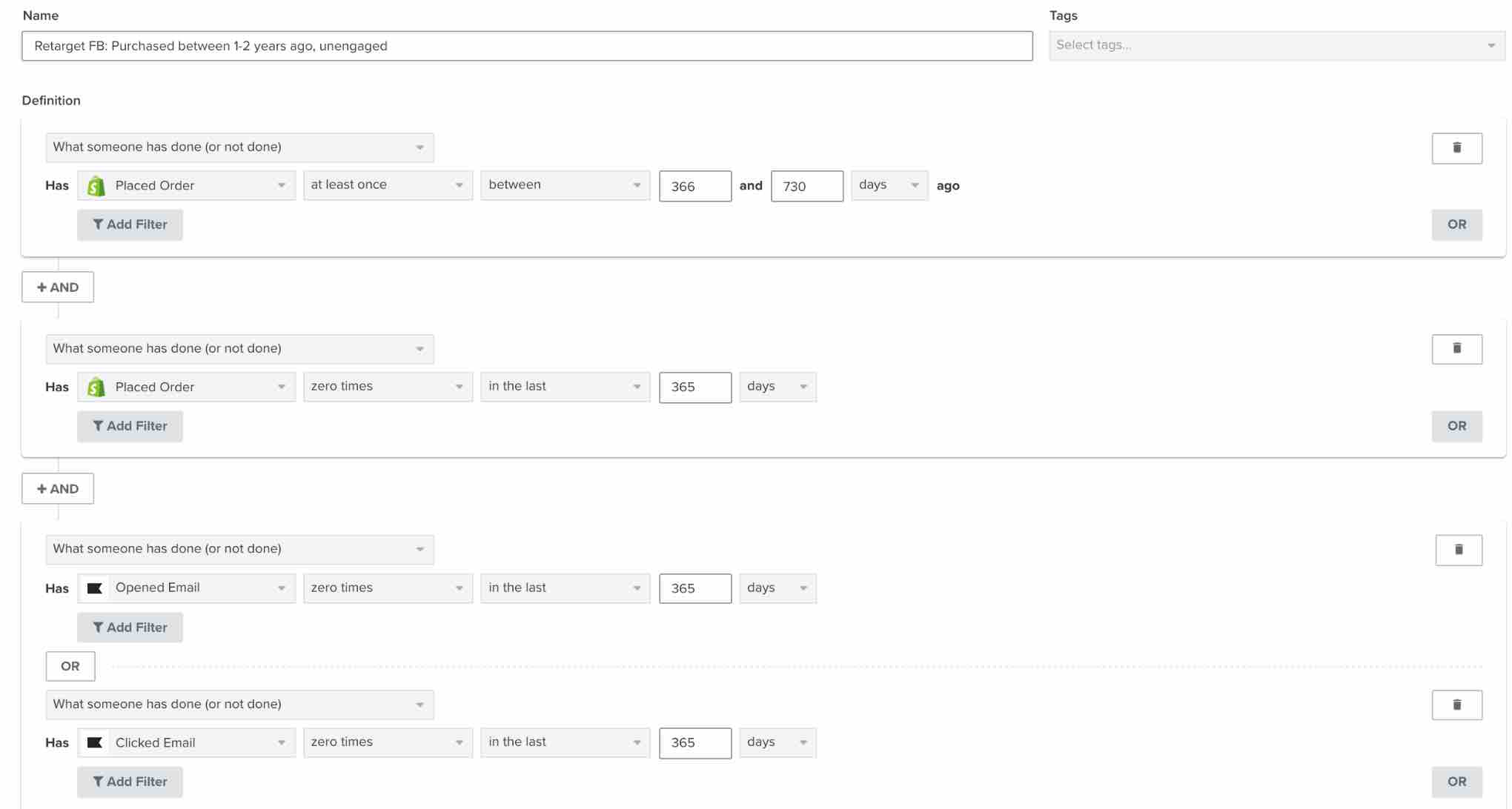
- Sunset segment
What someone has done or not done → has placed order → at least once→ between → 366→and→730 days
and
What someone has done or not done→has placed order→zero times→in the last→365 days
and
What someone has done or not done→opened email→zero times→in the last→365 days
or
What someone has done or not done→clicked email→zero times→in the last→365 days
Sync your Facebook Ads audience to Klaviyo
-
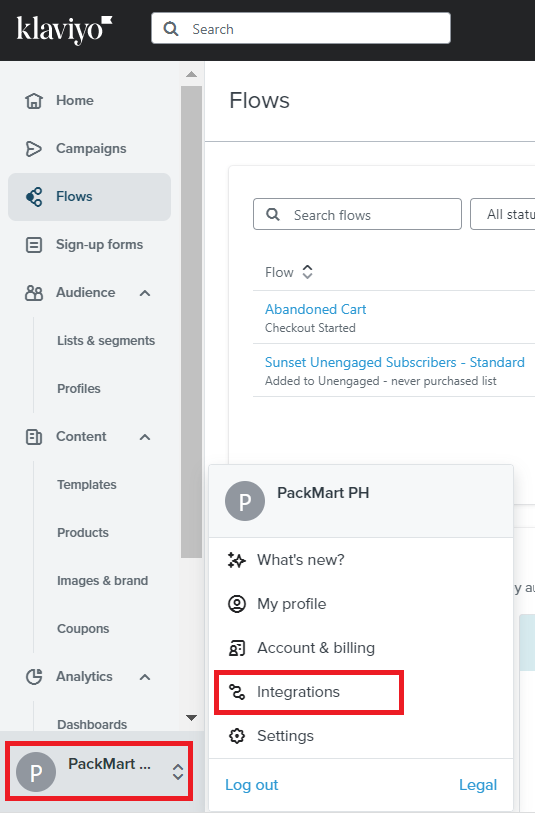
In Klaviyo, navigate to the left menu then scroll down to find your account name. Then click Integrations.
-
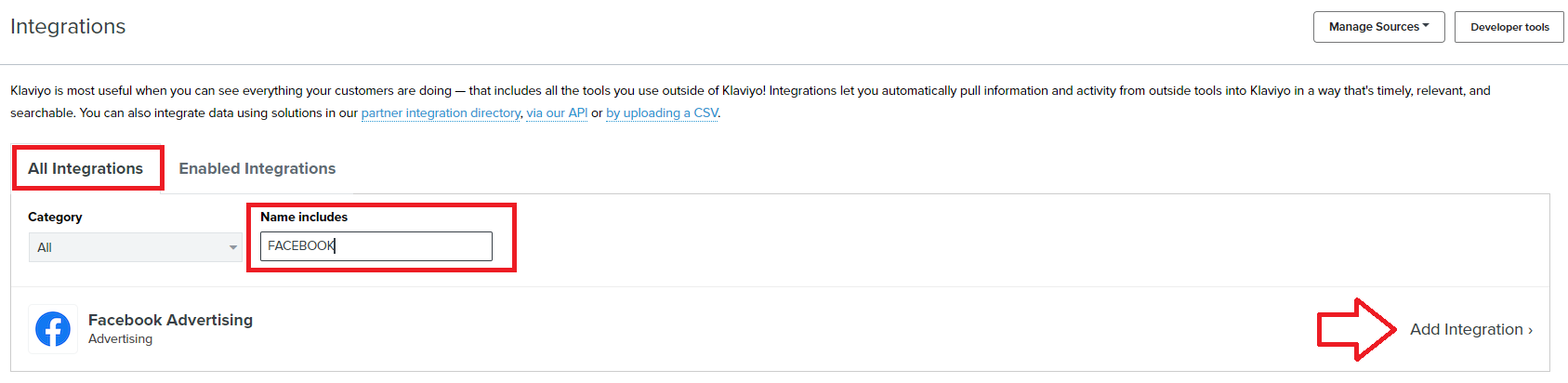
Go to All Integrations tab, then search for Facebook Advertising. Click Add Integration.
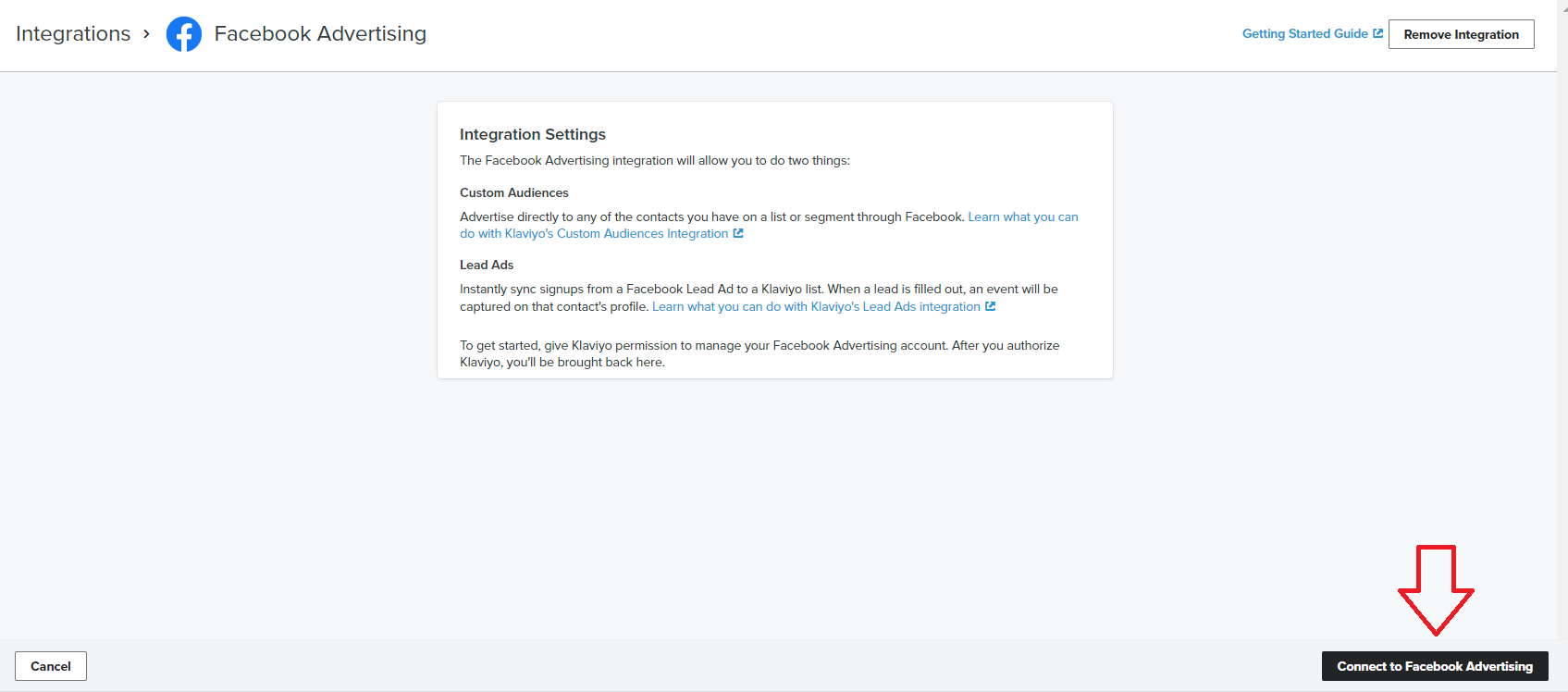
- The bottom of the page, click Connect to Facebook Advertising.
- Login to the Facebook account where you’ve set up for your ad account.
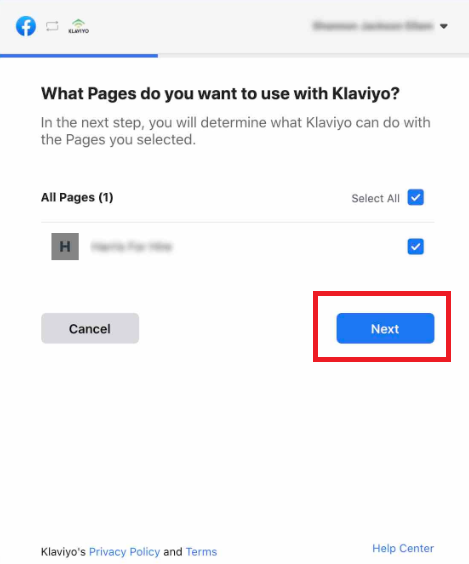
- Select the Facebook page for your business that you want to connect to Klaviyo then click Next.
-
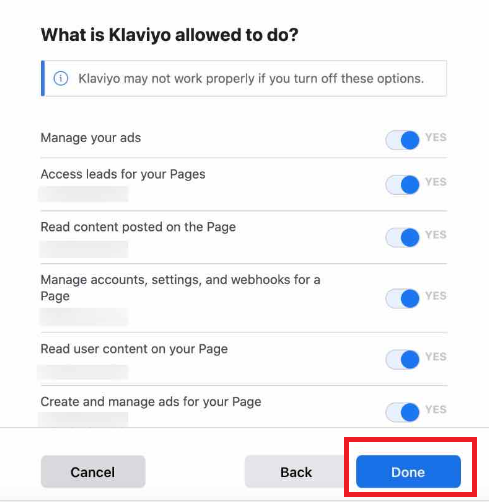
Allow access to manage your Facebook Ads settings, then click Done.
-
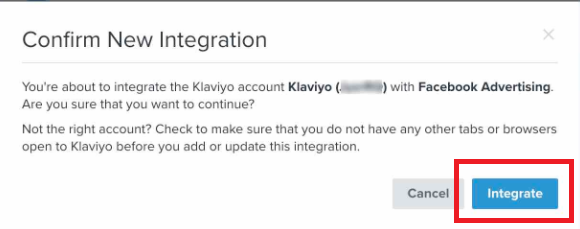
Click Integrate.
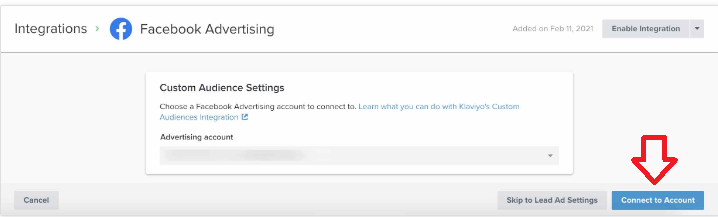
- Next, click Connect to Account to link Custom Audience Settings from Facebook.
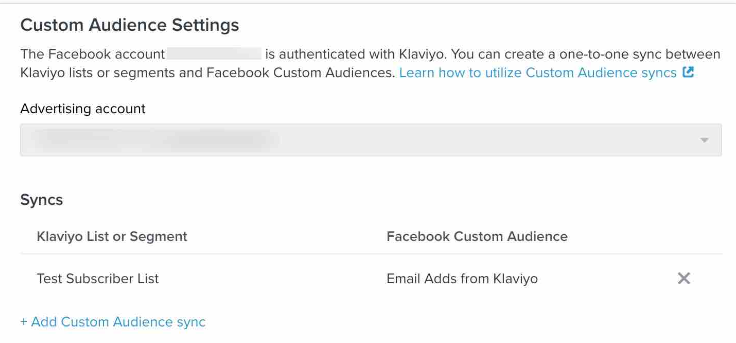
- Select the Facebook Custom Audience that you want to sync, then click Done.
Conclusion
That’s it! You now have an audience strategy that you can use for your Facebook Ads campaign.
Best Practices:
-
Investing in ads targeting engaged audience segments will result in much higher return on investment (ROI) than targeting unengaged customers.
-
It is recommended to invest a sizable portion of your ad spend on engaged audience and smaller portion on unengaged audience.
-
Match your ad design with your brand’s voice and style. People are more likely to respond to an ad if they recognize it and feel comfortable with it.
-
Use specific ads for warm audience and more generic ads for cooler audience segments
-
Keep retargeting frequency light. Study shows that people respond positively to 1 to 3 views of an ad. Any more than that and you risk annoying your potential customers.
Execution Checklist:
-
Link your Facebook Ads Manager to a third party marketing automation platform.
-
Set up your audience segments based on your customer behavior.
-
Monitor and track performance of your campaigns and continue to optimize your audience segments.