A Guide to Enhancing Your Email Campaigns with GIFS
To walk you through step-by-step process of enhancing your email campaigns using GIFs
Prefer a shortcut? 16 free tools do parts of this for you.

Aim: To walk you through step-by-step process of enhancing your email campaigns using GIFs
Optimal Outcome: To enhance the visual appeal of your email content by using GIFs in your email campaigns.
What do you need to start:
You’ll need the following:
-
GIF generating tools such as Canva, Giphy, and Adobe Animate
-
Email editing platform
Why is this SOP Important: Using GIFs in email campaigns can help increase engagement, enhance visual appeal, and provide a more dynamic and effective way to communicate with subscribers.
When and Where to execute: Add the gifs during email content creation
Who Should Be Doing This: Graphic Artist, Content Manager
What is GIF
GIF stands for Graphics Interchange Format. It is a type of file format used for images that support both static and animated images. Unlike other image formats, GIFs can contain multiple images or frames that are displayed in a sequence, creating the illusion of motion or animation. GIFs are commonly used in social media, messaging apps, and online communication because of their ability to convey complex ideas or emotions quickly and effectively. They are also popular for creating memes, sharing short videos, and providing visual interest in email campaigns and other forms of digital marketing.
Execution
Resources/Tools & Set up
-
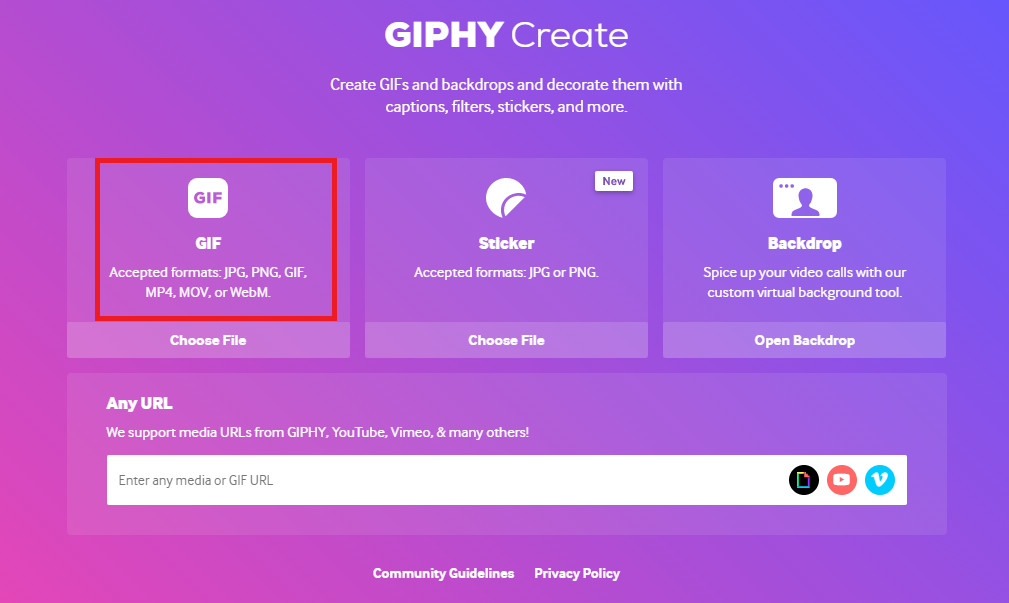
Create or generate your GIF (using Giphy)
Create or generate GIF
-
Upload your image or gif that you want to edit.
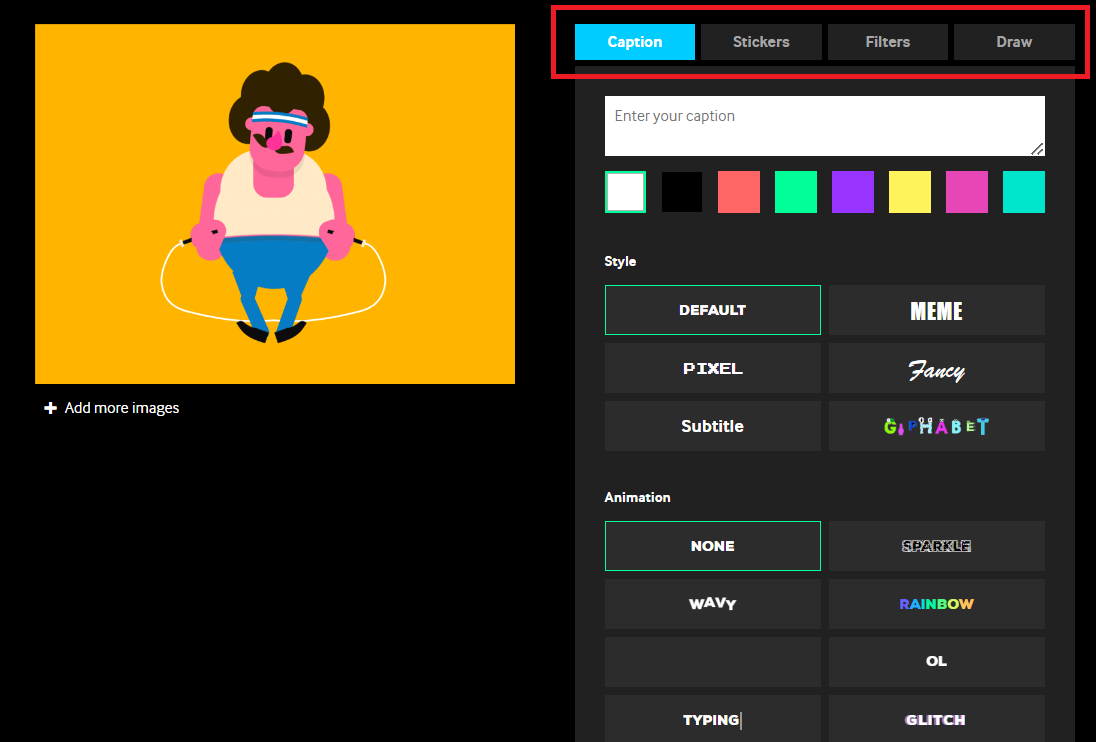
- Edit your image by adding caption, stickers, filters etc.
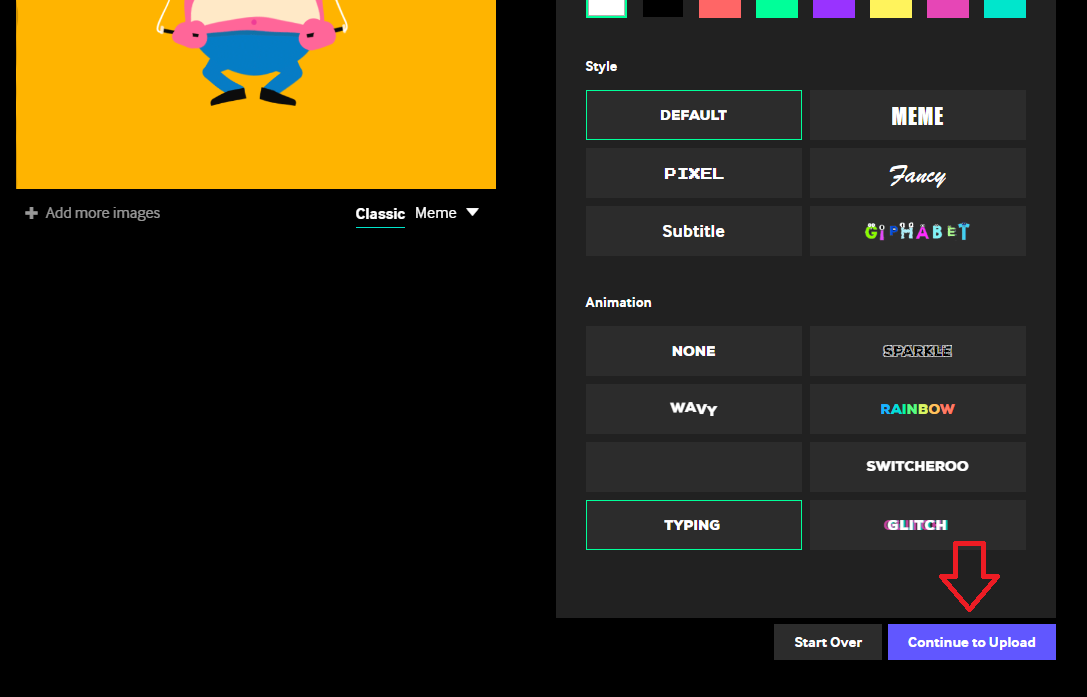
- Once you’re satisfied with your design, click Continue to Upload.
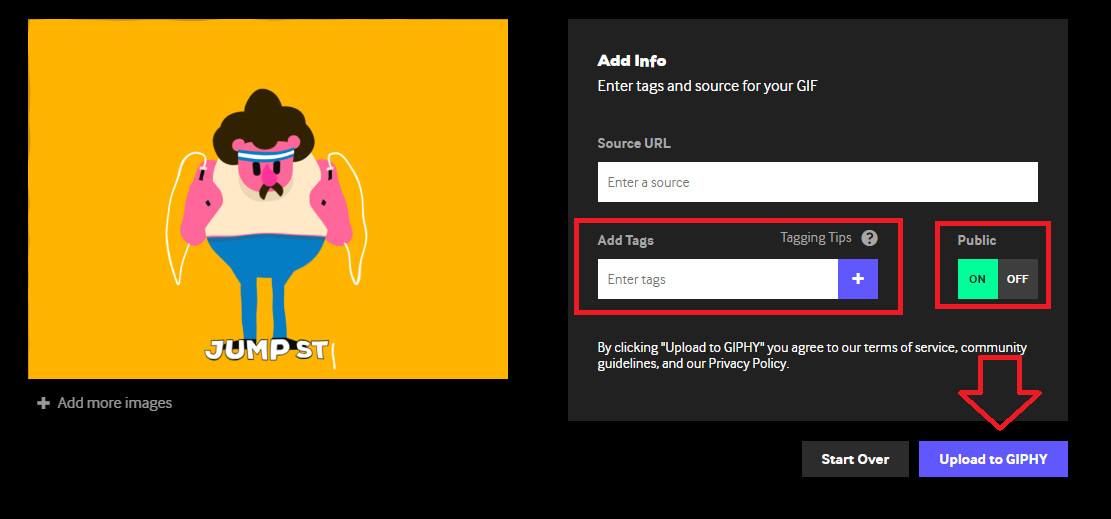
- Add tags and set public visibility to On. Click Upload to GIPHY.
- Click Embed.
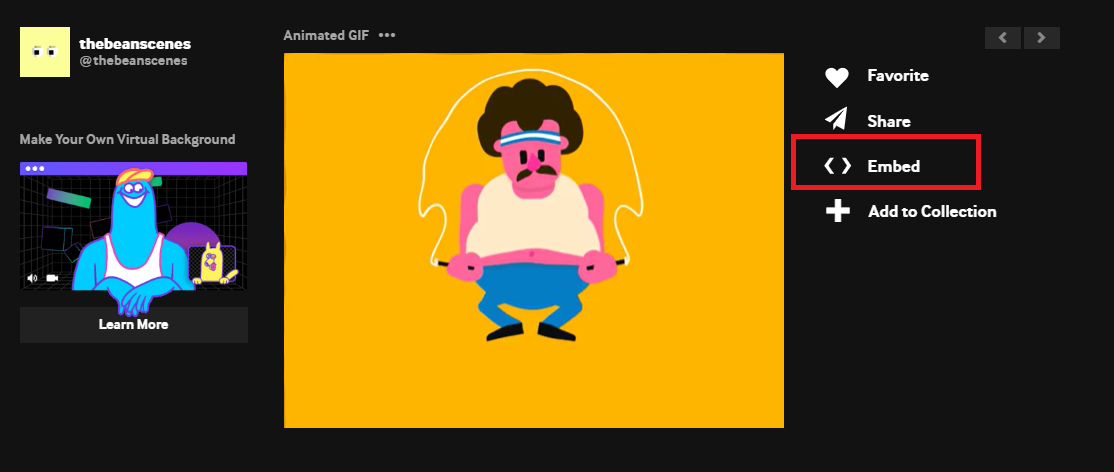
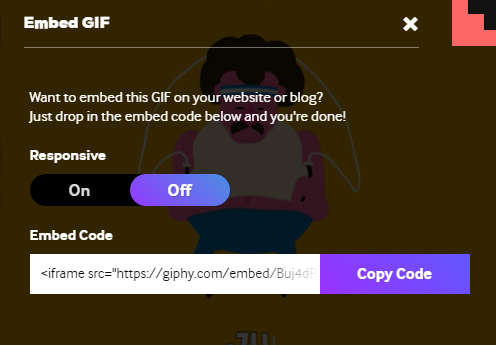
- If you are editing your email content using HTML, you can copy this code and insert it to your email content editor.
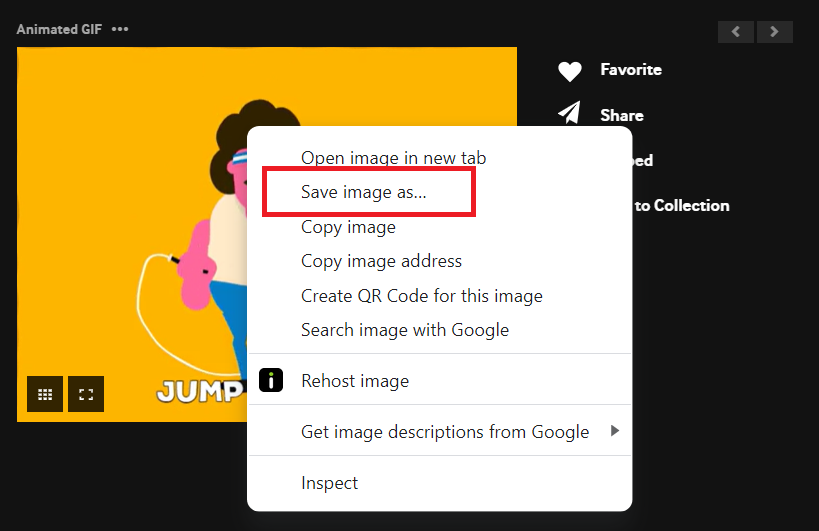
- If you want to save the GIF and insert it to your email block, right click on the image and click Save image as… and save it to your cloud or local drive.
Add your GIF to your email content
-
Depending on which platform you’re using to configure your email campaign, there are generally two ways to upload GIFs to your email campaign: drag and drop and html code. In this example, we’ll be using the Klaviyo email editor.
-
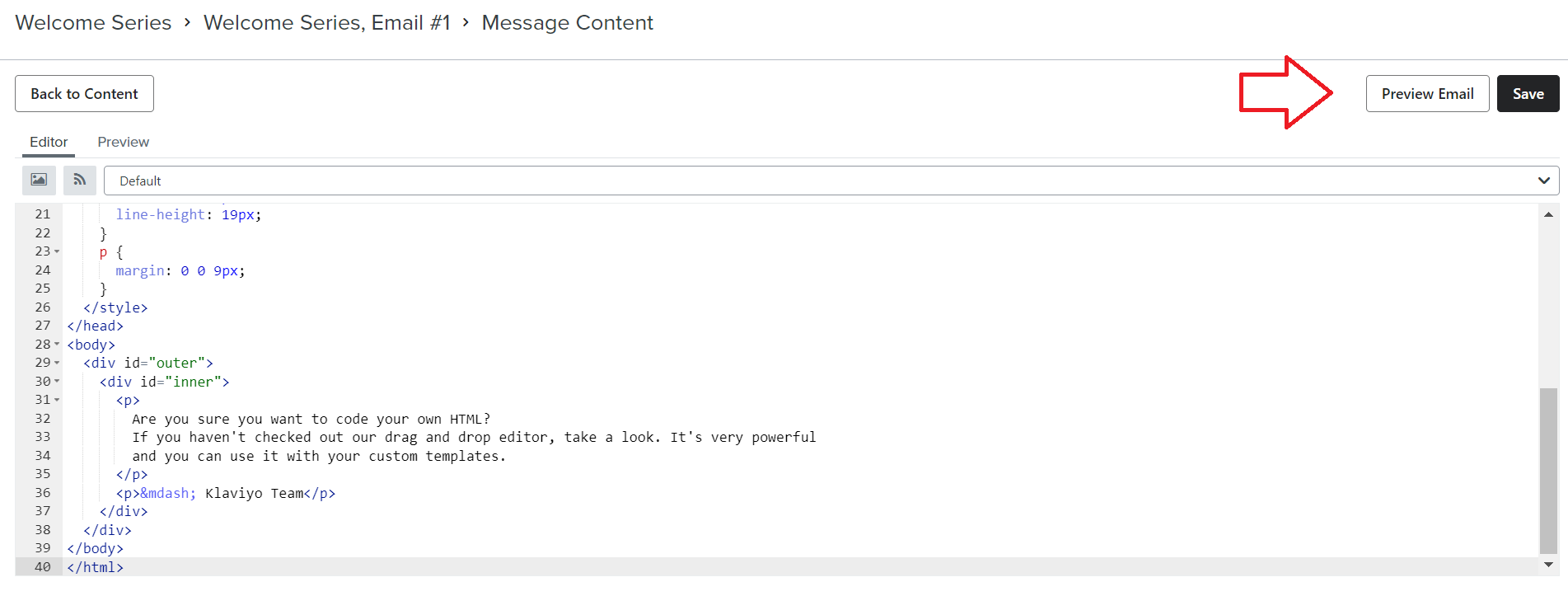
Determine if you’ll be editing your email content using HTML, or Drag and Drop option.
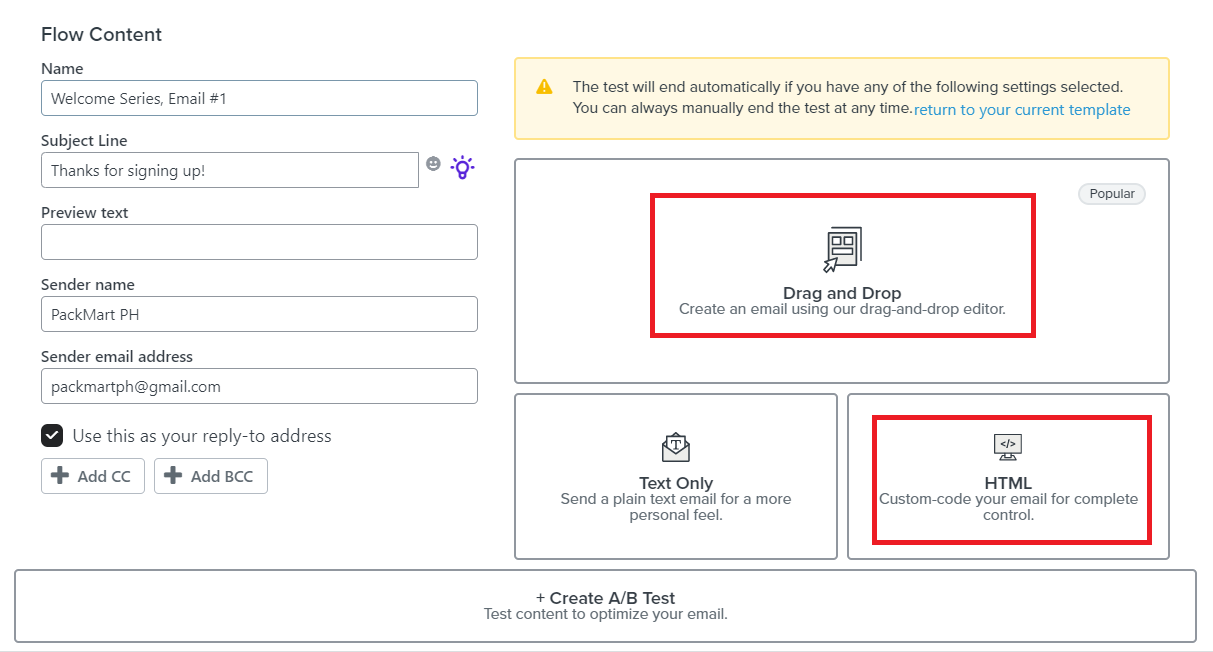
- If you choose to edit your email content using HTML, insert the code you copied (from step 7) in the HTML editor. Make sure to click Preview Email to check that the GIF is visible and working.
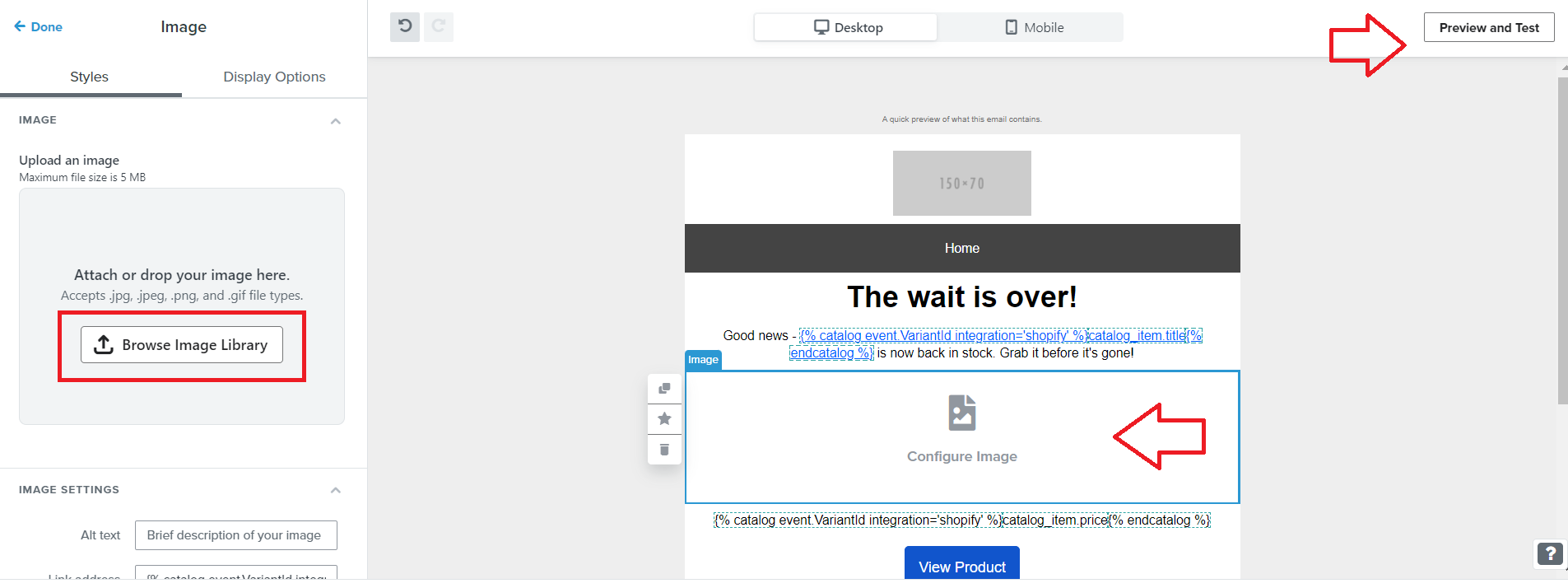
- If you choose to use the Drag and Drop option, click the block where you want to add your GIF, and click Browse Image Library. Find your GIF that you save in your drive and upload it to your email content.
Best Practices in using GIFs in your email campaigns
-
Avoid too many GIFs in one email. Using one or two well-placed GIFs can be more effective than bombarding your subscribers with too much movement.
-
Keep the file size of your GIFs as small as possible to avoid slowing down the loading time of your email. You can use tools or software to optimize the file size of your GIFs without losing quality.
-
Ensure that the GIFs you choose are relevant to your message and of high quality. Poorly chosen or low-quality GIFs can negatively impact the perceived quality of your brand.
-
Place your GIFs in a prominent position at the top of your email, ideally above the fold. This will ensure that they are seen by your subscribers without them having to scroll down.
-
Not all email clients support GIFs. In case the GIF doesn’t display, provide a fallback option such as a static image or text that conveys the message.
-
Before sending out your email, test it across multiple devices and email clients to ensure that the GIFs display properly and email looks good on all screens.
Conclusion
That’s it! You now know how to add GIFs to make your email campaigns more engaging and interesting.
-
GIFs can grab a subscriber’s attention and encourage them to engage with the email, leading to higher click-through rates and conversions.
-
GIFs can help break up text-heavy emails and add visual interest, making them more attractive and memorable to subscribers.
-
GIFs are easily viewable on mobile devices and can be used to create visually compelling content that is optimized for small screens.