Setting Up an Email Adress With Your Domain Name
To set up a professional, branded email address with your own domain name.
Prefer a shortcut? 16 free tools do parts of this for you.

Aim: To set up a professional, branded email address with your own domain name.
Optimal Outcome: You will be able to use a brand new email address with your domain name which can be used even without having to change your previous email program.
What do you need to start: For this SOP, we will learn how to create a professional email using 3 ways, depending on what you are using. So, you will need Dreamhost, cPanel, or Google Suite.
Why is this SOP Important: When running a business, having a professional email address that matches your domain name offers a lot of advantages. It is also more effective at establishing credibility and building trust among customers.
When and Where to execute: When you are launching an email marketing strategy, when you hire new members of the team, and/or when you want to restructure your email system.
Who Should Be Doing This: Persons in charge of IT.
What is a Professional Email?
A professional email address is one that contains the name of the company for which you work and is used exclusively for business purposes. Most people use free email services for personal communication, but when communicating for business purposes, using a professional email service can make you appear more professional and trustworthy.
Before you can set up a professional email account, you must first create a custom domain. A custom domain is a domain name that is unique to your brand and connects to your website's IP address. Several providers sell custom domain names, and you can select a word combination that best expresses your brand name while also being easy for customers to remember.
If you want your professional email address to show your organization's professionalism, it's helpful to be consistent with your business’ brand name.
Resources/Tools & Set up
-
Log in to your Dreamhost account, or cPanel account (Free)
-
Create an account using Google Suite (Paid)
Option 1: Use Dreamhost to create an email address
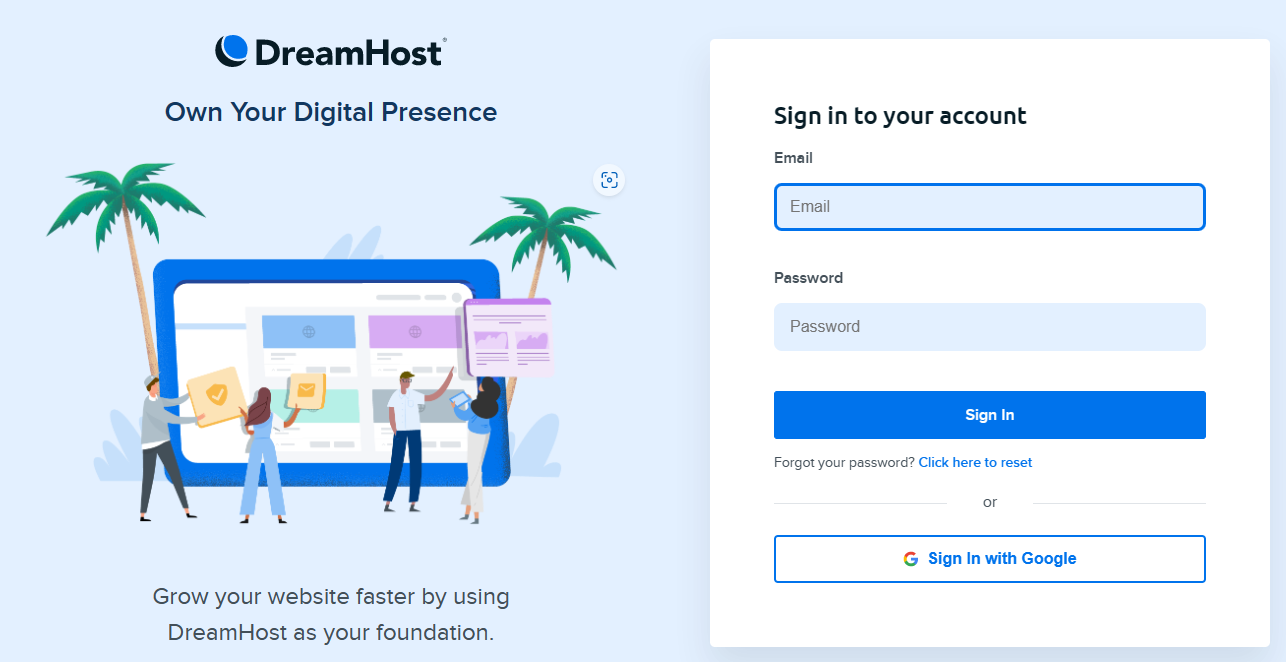
1.1. If you are using Dreamhost for your website, creating a professional email comes free. Log in to your Dreamhost account. Then, go to the Dreamhost panel.
1.2. Click ”Mail”. Then, go to “Manage mail”. Click on the “Create New Email Address” button. You can check out another SOP to learn more about this.
Using Dreamhost will let you create three types of email:
● Fully Hosted. You can communicate with your clients, business partners, and coworkers using this email inbox.
● Forward-Only. Typically, these email addresses are utilized for general queries (e.g. “sales@mystore.com”, “info@mystore.com”, etc.). Any email sent to this address will be forwarded to any additional email addresses you provide.
● Garbage. These email addresses delete all incoming messages automatically.
Option 2: Use cPanel to create an email address

2.1. If you use a hosting service other than Dreamhost, there's a good chance they use cPanel. It is used by Hostgator, Namecheap, Godaddy, Siteground, Bluehost, and many other web hosting companies. You can check out another SOP to learn more about this.
-
Go to the “Email” section of your cPanel account → “Email accounts”
-
Fill in the form and create a new email account associated with your domain name. You will provide an Email, choose your domain you want to associate with, enter a desired password to be able to create a professional account.
Option 3: Use Google Workspace.
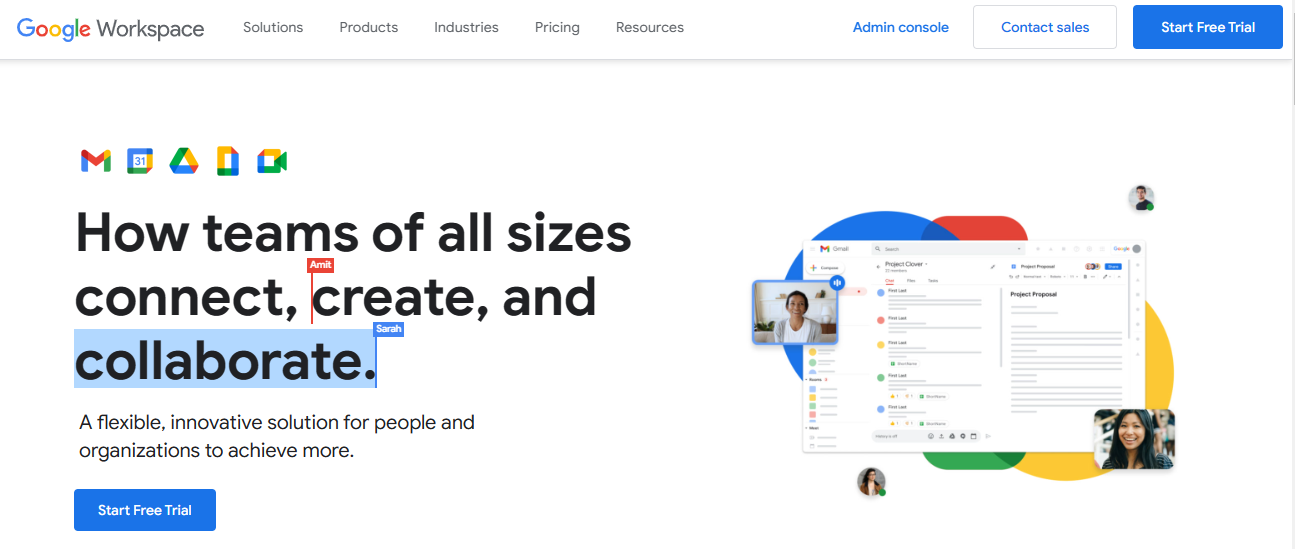
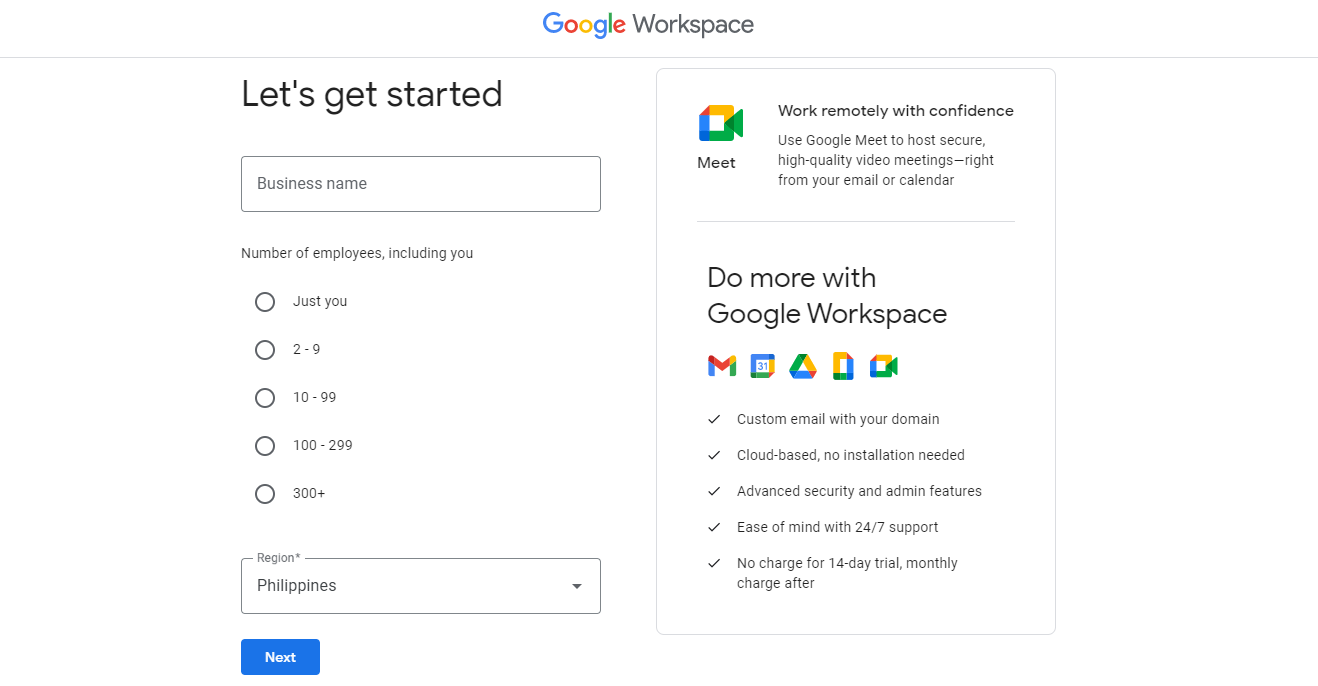
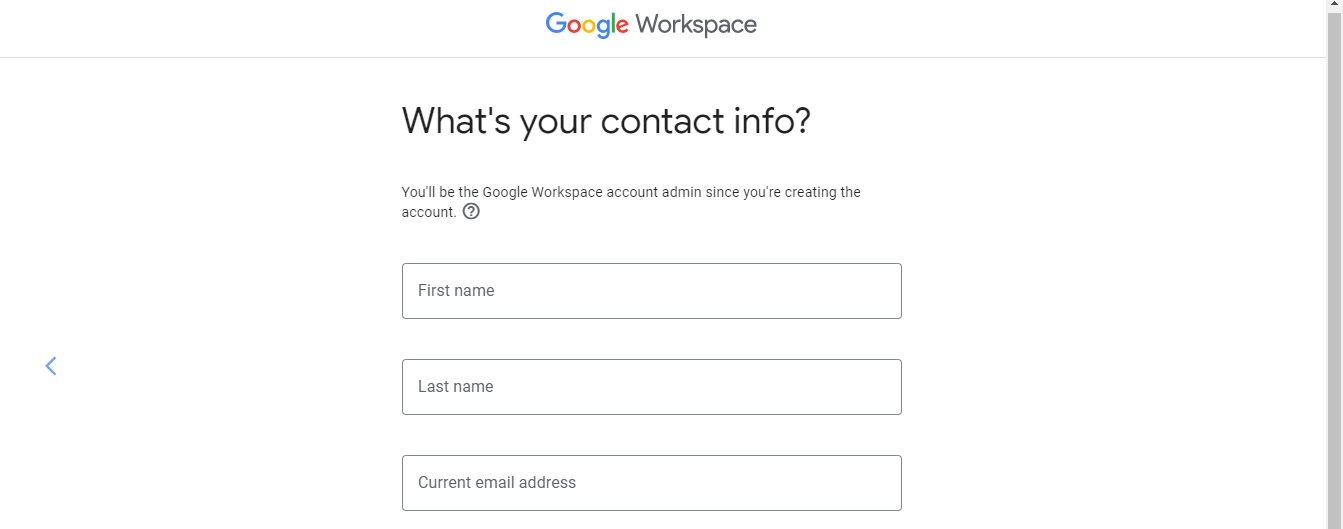

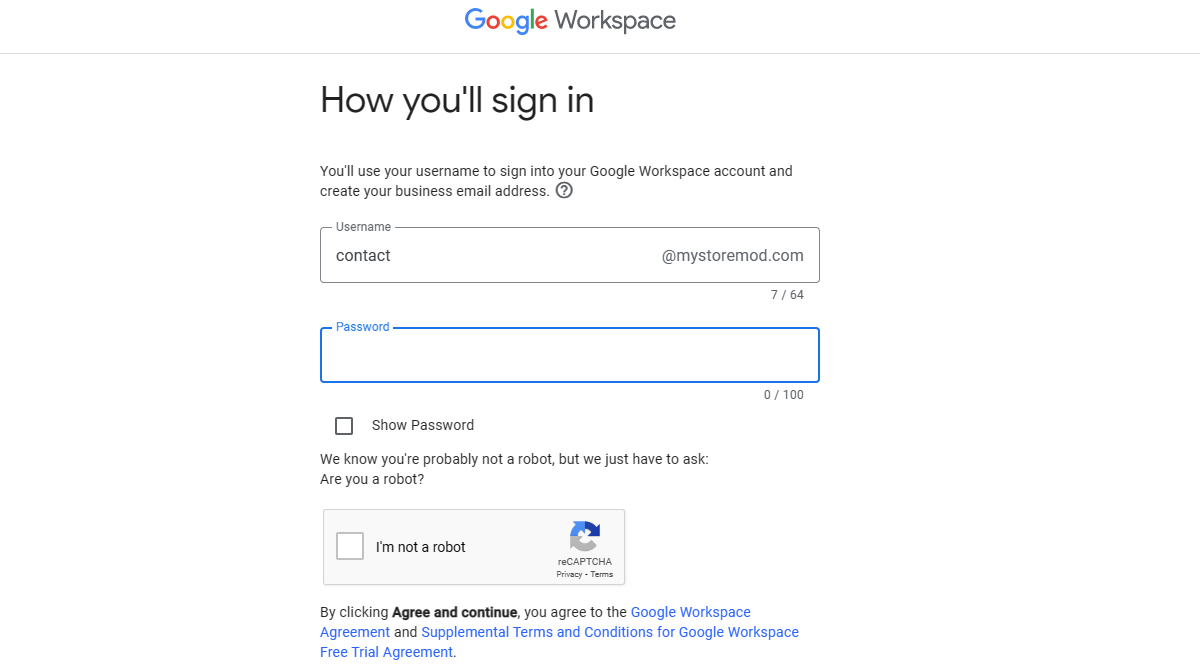
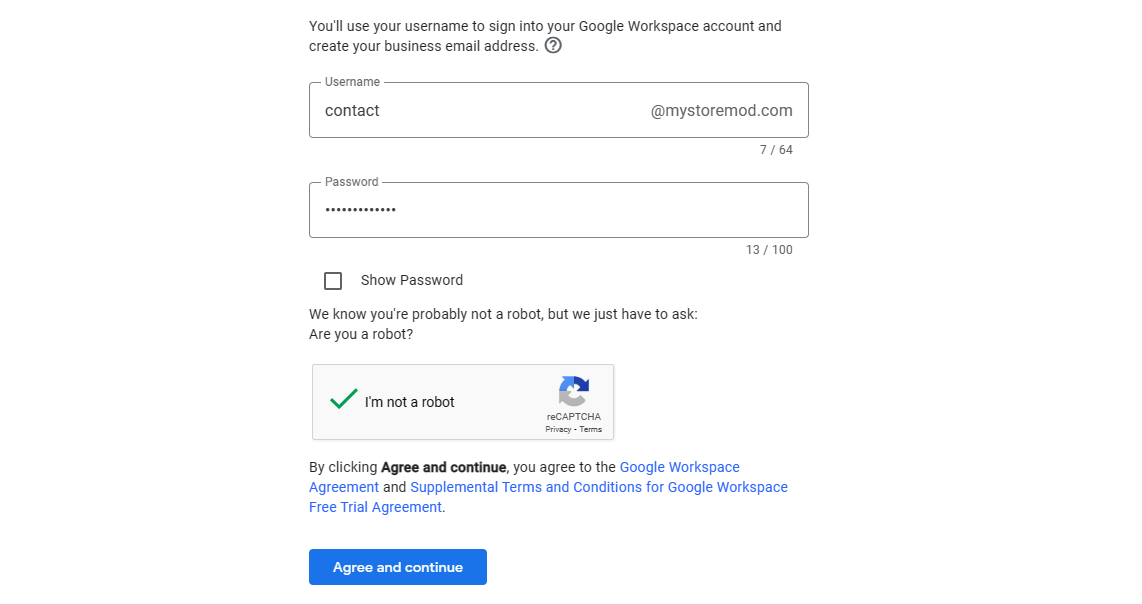
3.1. If you don’t have a domain name yet, you can register here. And proceed to making a professional email afterwards.
3.2. Set up your account starting with the number of employees and your contact info.
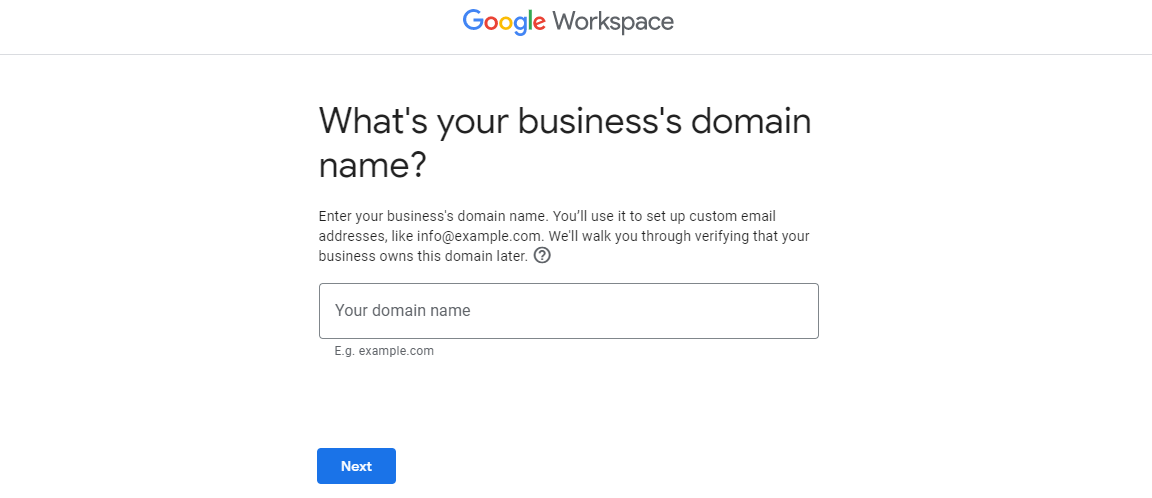
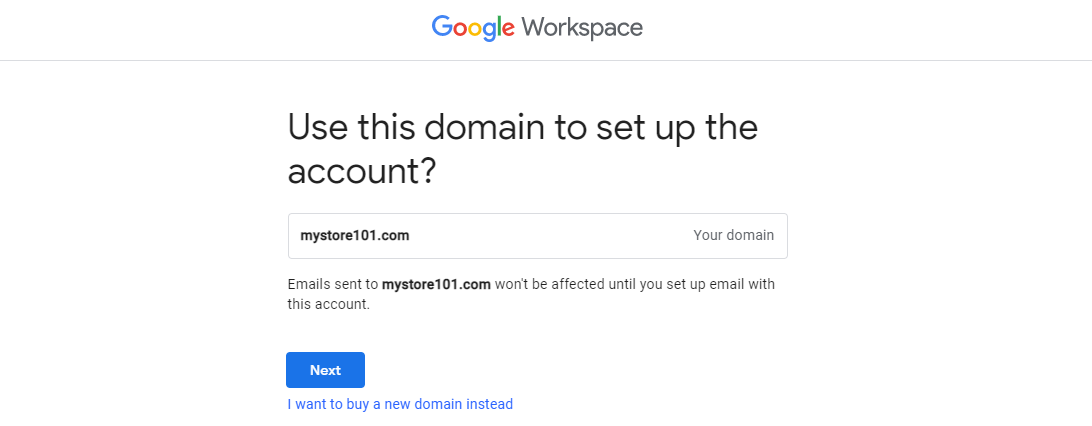
3.3. You now need to enter your domain name if you have one already or purchase one if you don’t have one yet. You can click which option applies to you.
3.4. After clicking “Yes, I have one I can use”, enter your domain name. Then, click “Next”.
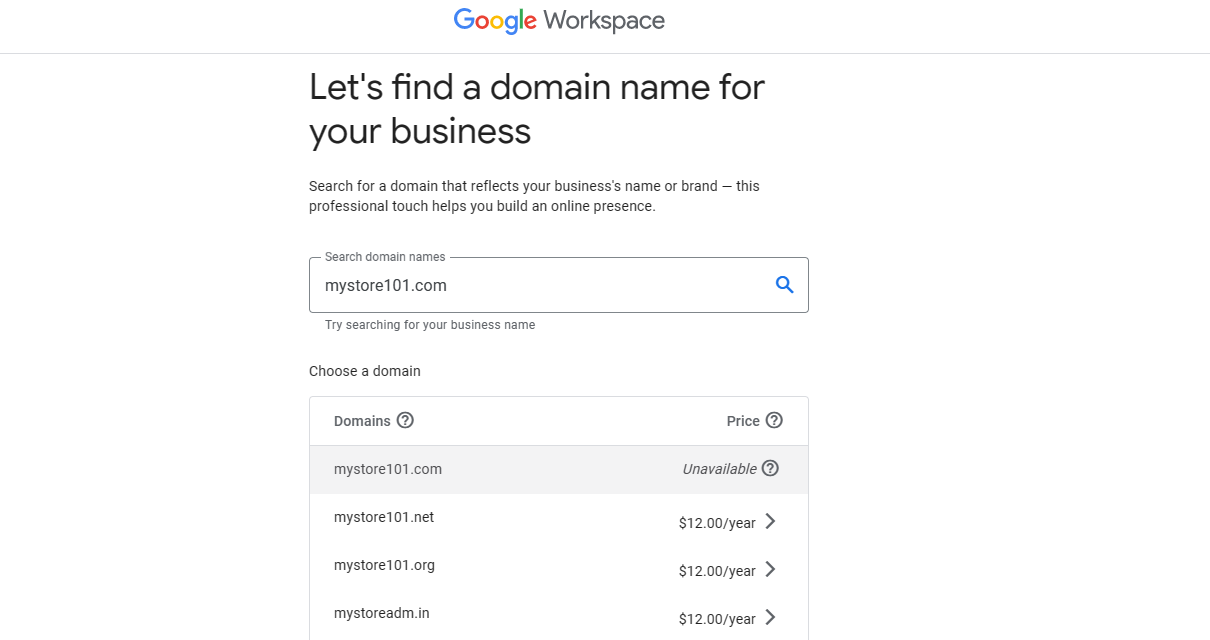
3.5. If you clicked, “No, I need one”, Google Workspace will help you find a domain name for your business.
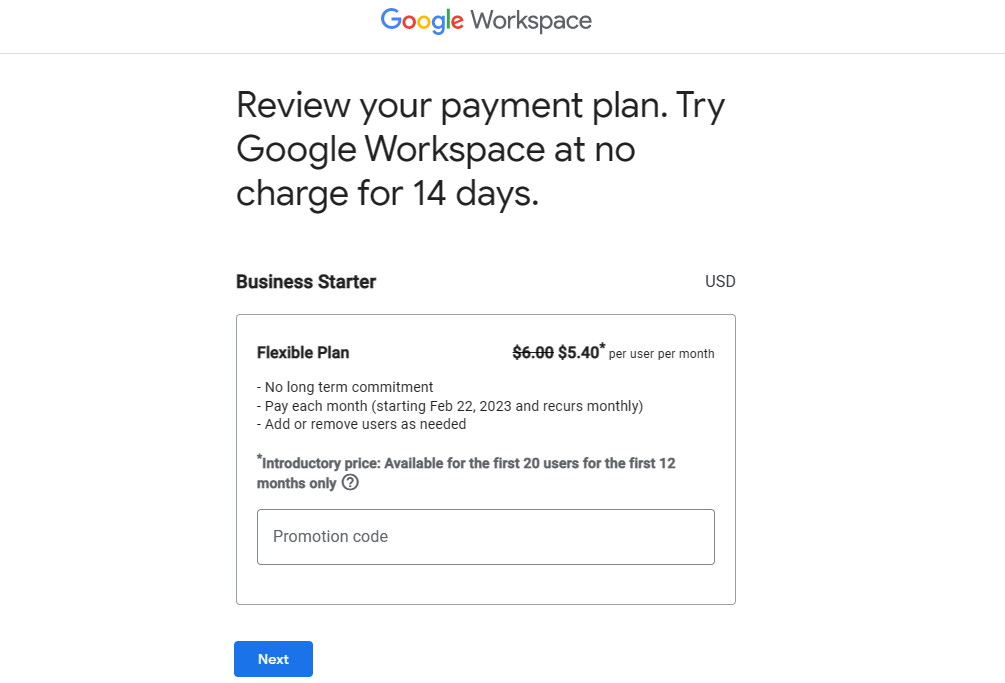
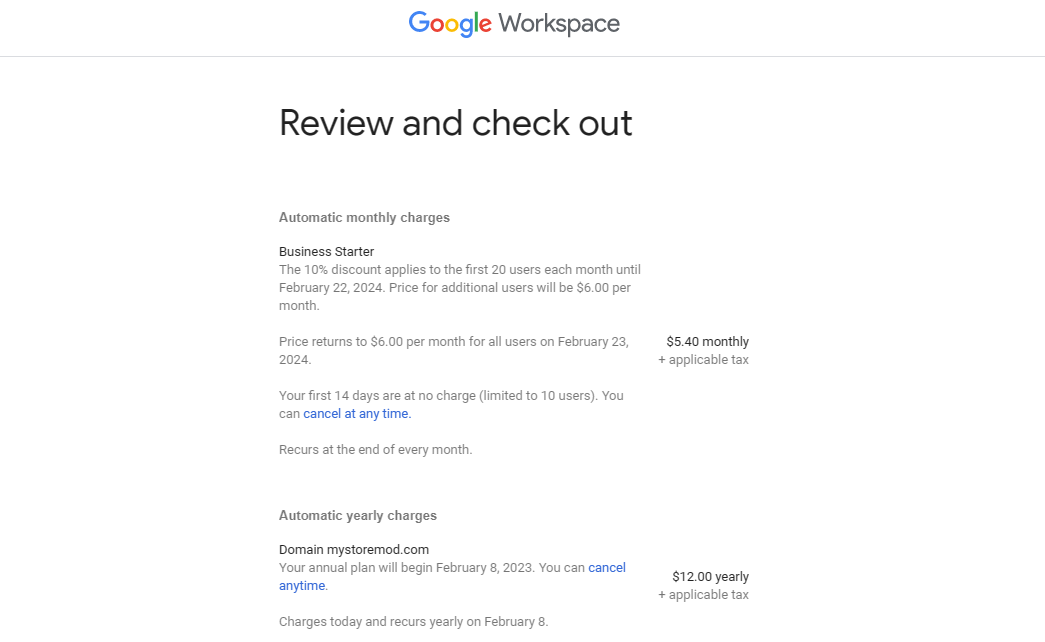
3.6. You will be given a chance to review your payment plan. Google workspace offers 14 days free of charge. This can be a good chance for you to test the use of the purchase.
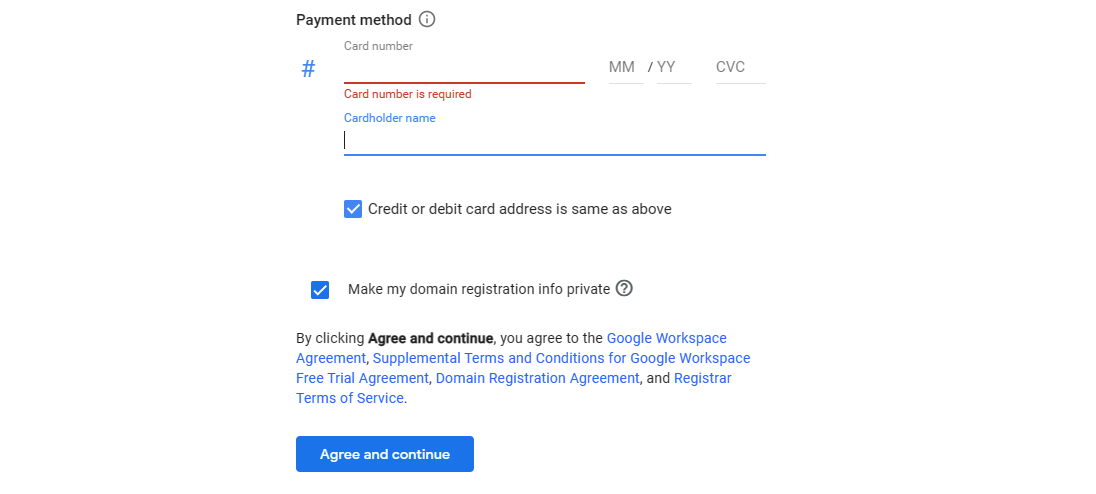
3.7. After thoroughly checking the purchase, provide your payment details. Then, click “ Agree and continue”. Make sure to double check your information.
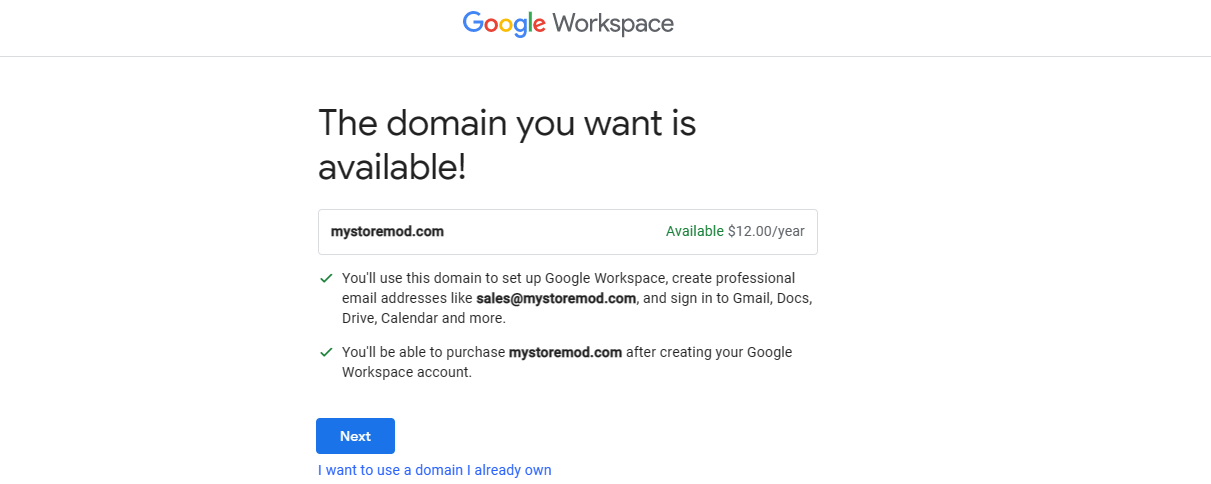
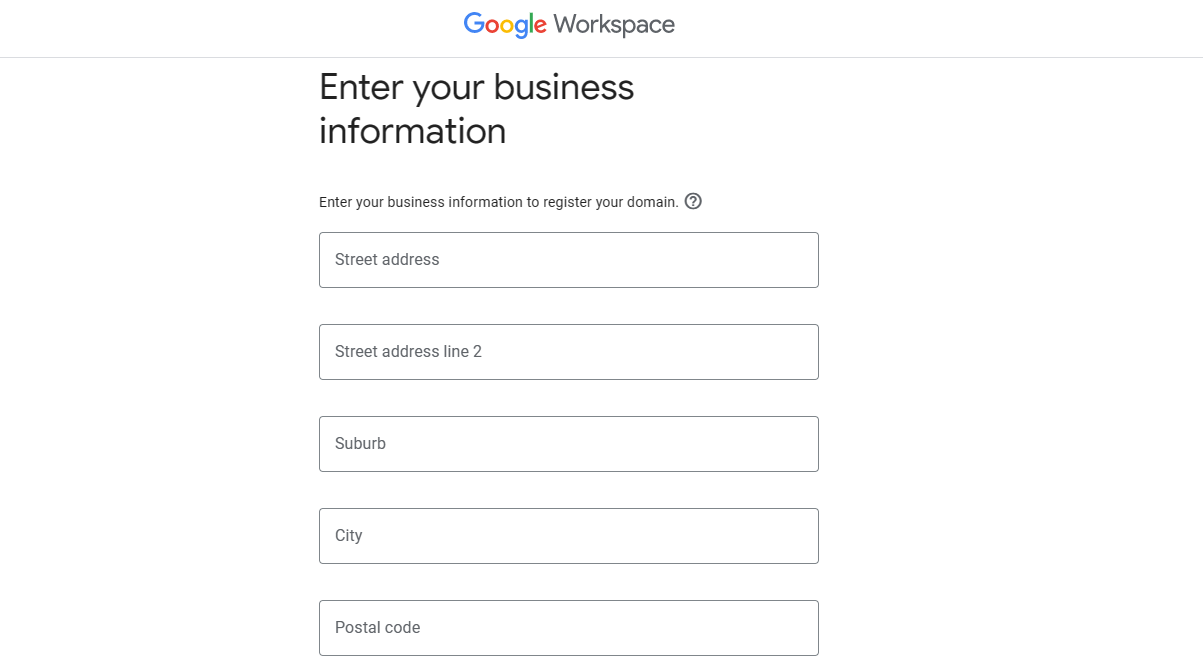
3.8. Now that your domain name is set, you can proceed by entering your business information.
3.9. With your domain name ready, you can set up your professional email now. You can choose to use words like “contact, info, apply, etc. as for “contact@mystoremod.com” or “info@mystoremod.com”. After finalizing your new professional email, click “Agree and continue”.
Email Forwarding with Google Workspace.
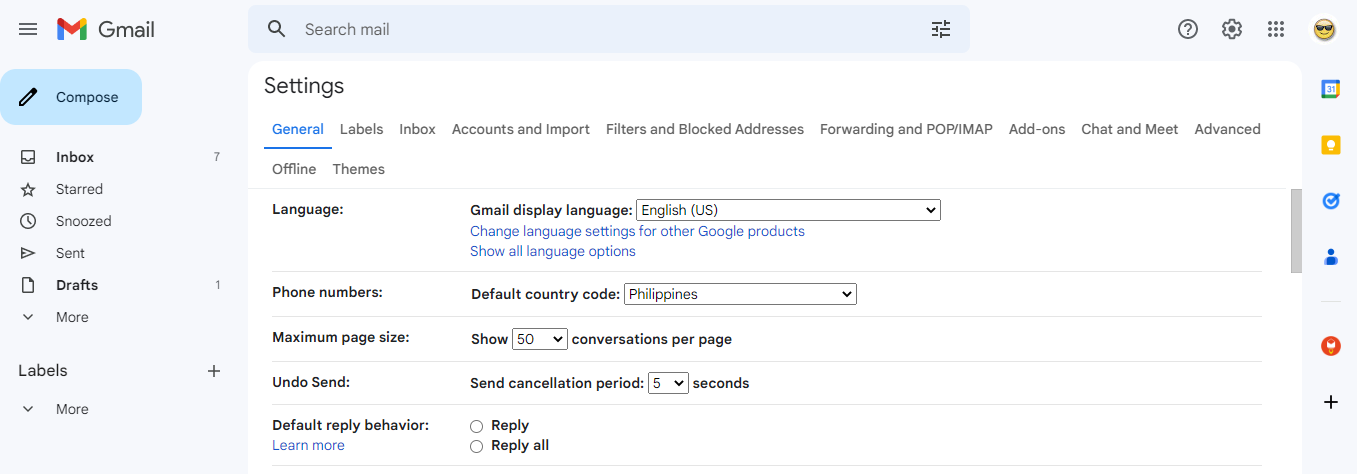
What is Email Forwarding? Email forwarding allows you to forward email from one of your domain's email addresses to another. Start by clicking the gear button for the Setting.
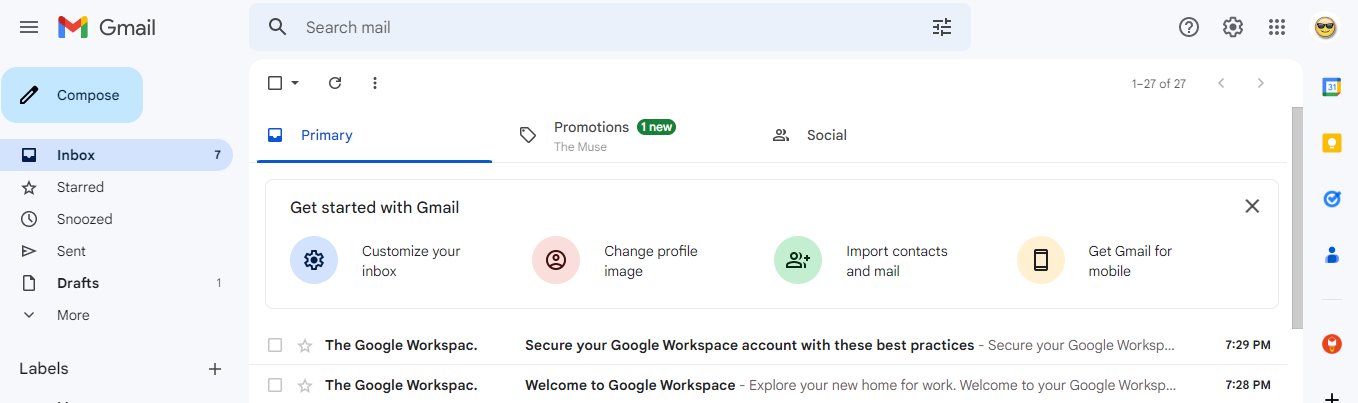
Then, click “See all settings”.
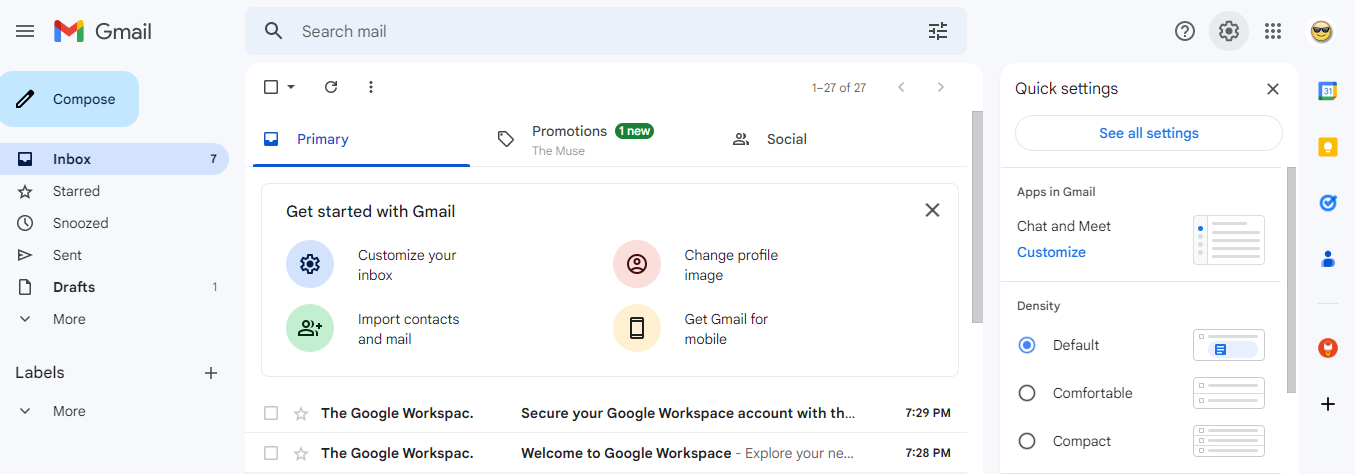
Select “Accounts and Import”.
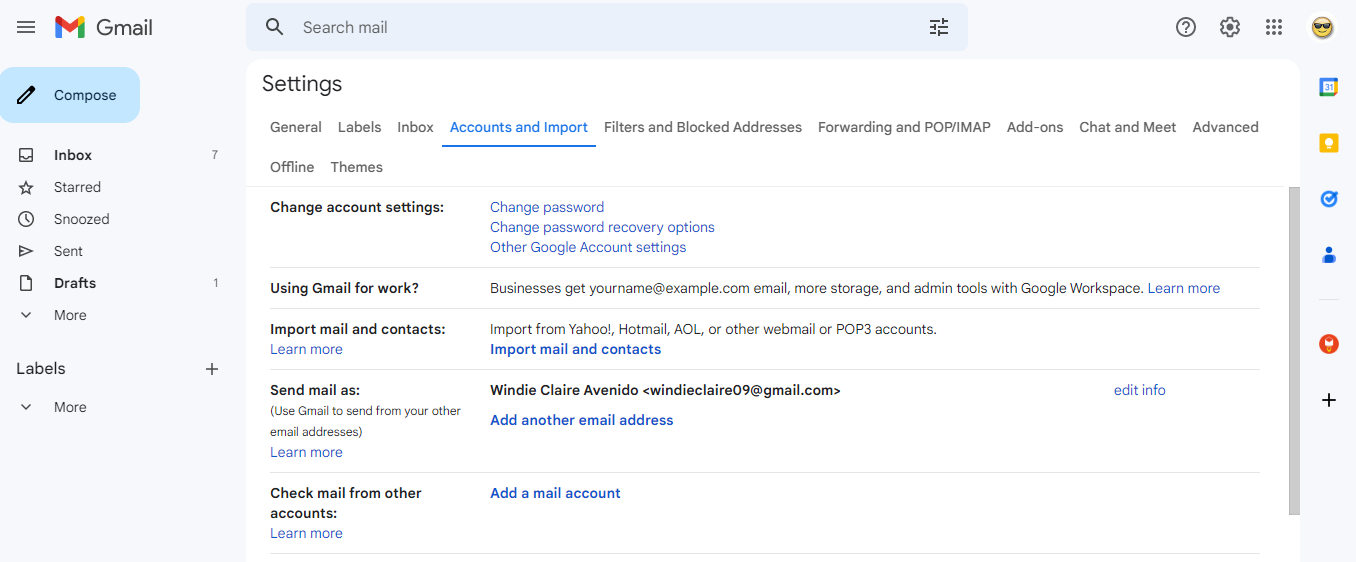
Under “Accounts and Import”, Click “Add another email address”
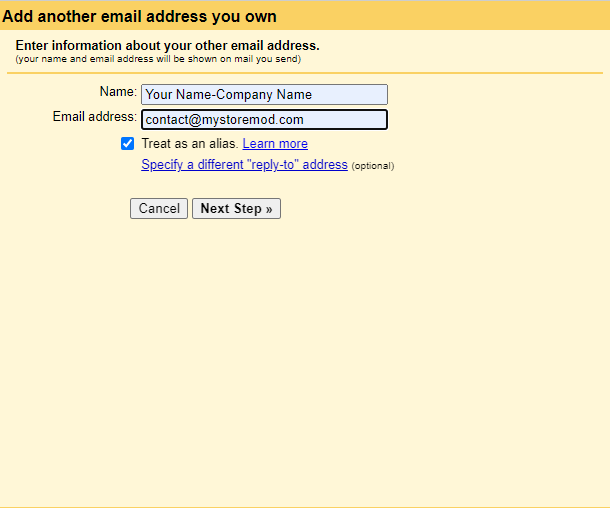
Enter your name and your business name (Business names is advisable). Then, enter the professional email we have created. Click “Next Step”.
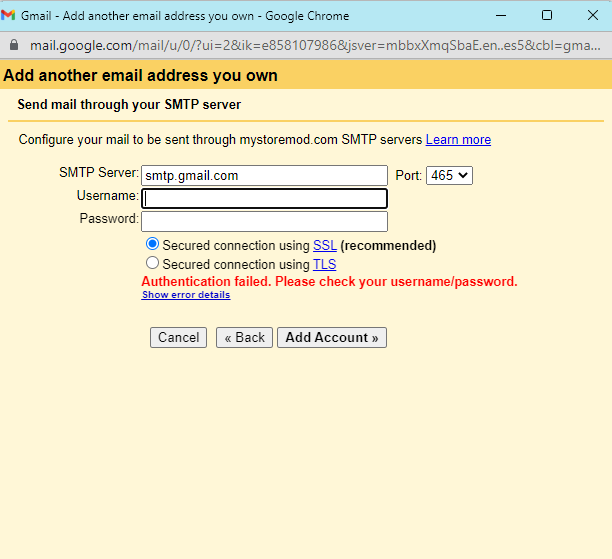
Copy the following details below for the SMTP Server and the port. Enter your current email and your password. Then, Click Add Account.
You will receive a code in your Gmail inbox. Enter the confirmation code to successfully use email forwarding.
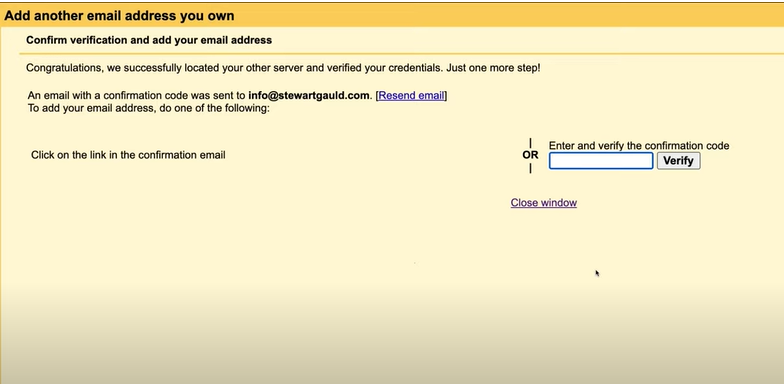

After successfully doing the email forwarding set up, you will now be able to use your Gmail to send emails using your professional email and vice versa. You just need to click the dropdown button to use between your personal and professional email.
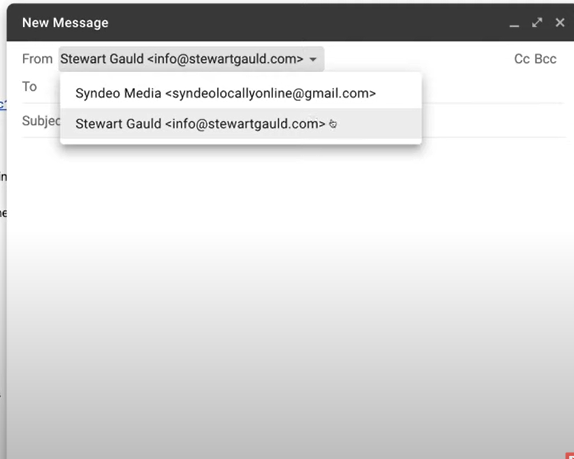
You’re done! Great job! Remember**,** having a professional email address with your domain name enables you to advertise your brand with each email sent. By doing so, you build your credibility while also helping recipients remember your name. Key points to remember:
A professional email address is more trustworthy and secure.
-
It indirectly promotes your brand name, thus, promotes your business.
-
It helps prevent your emails from being flagged as spam
-
A professional email address creates a sense of credibility which boosts your company’s potential to attract new customers.