Sending Bulk Outreach Emails Using Gmail
To create a system that enables you to send customized emails to multiple addresses directly from your Gmail.
Prefer a shortcut? 16 free tools do parts of this for you.

Aim: To create a system that enables you to send customized emails to multiple addresses directly from your Gmail.
Optimal Outcome: After learning how to send bulk outreach emails, you can now say goodbye to the hassle of sending personalized emails manually.
What do you need to start: To start this SOP, you need a Gmail address (can be easily created and it’s free🙂) and a copy of information about your contacts.
Why is this SOP Important: Email outreach is important for business and offers a number of advantages to organizations. For instance, link building may benefit from it. Email marketing is one of the most efficient strategies to create backlinks. But sending the same email to all your contacts may not be very effective. The more customized an email, the more personal it becomes. This SOP will save you the hassle of needing to send personalized email one by one.
When and Where to execute: You can send bulk outreach emails when announcing updates or changes to a company, promoting a service or product, or introducing new members to an existing group. You can execute this when collecting contact information or feedback.
Who Should Be Doing This: Persons in charge of digital marketing, your SEO, or your VA
What is Email Outreach?
Email outreach is the practice of sending emails to new clients or customers. It can be used for a variety of purposes, such as communicating company updates or changes, advertising a service or commodity, or welcoming new members to an existing organization.
It is another tool you can use to reach out or gather contact information. It simply means locating potential customers to whom you may market your brand and content by enticing them to interact with your website.
Practicing email outreach is important for business and offers a number of advantages to organizations. For instance, link building may benefit from it. Email marketing is one of the most efficient strategies to create backlinks.
Resources/Tools & Set up
-You need to log in to your Gmail account. If you don’t have one yet, click create.
-You also need to install Yet Another Email Merge. The steps will be explained in detail later on this SOP. This will allow you to merge your database spreadsheet with your Gmail to be able to send bulk emails.
Step 1: Make a database containing the details of your contacts.
You need to first create a database with your contact’s information to be able to send bulk customized emails. You may think it is very complicated and time consuming but trust me, it’s not. We made sure the following steps are easy and simple.
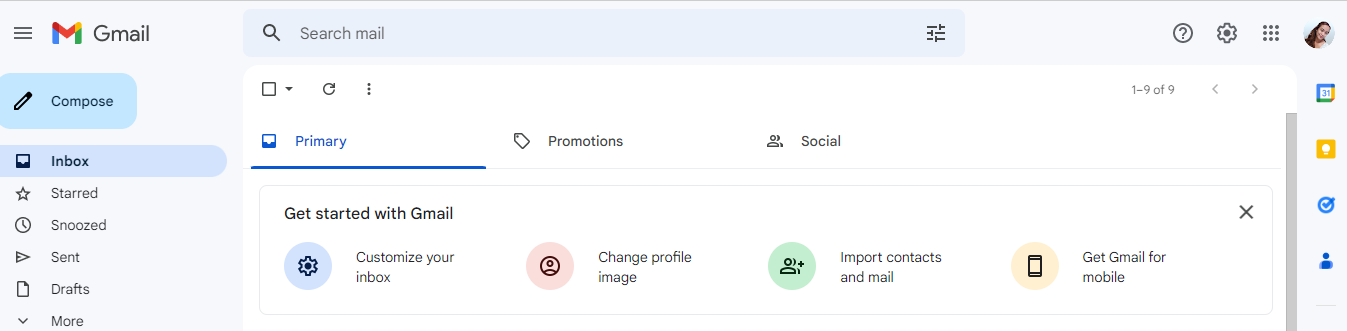

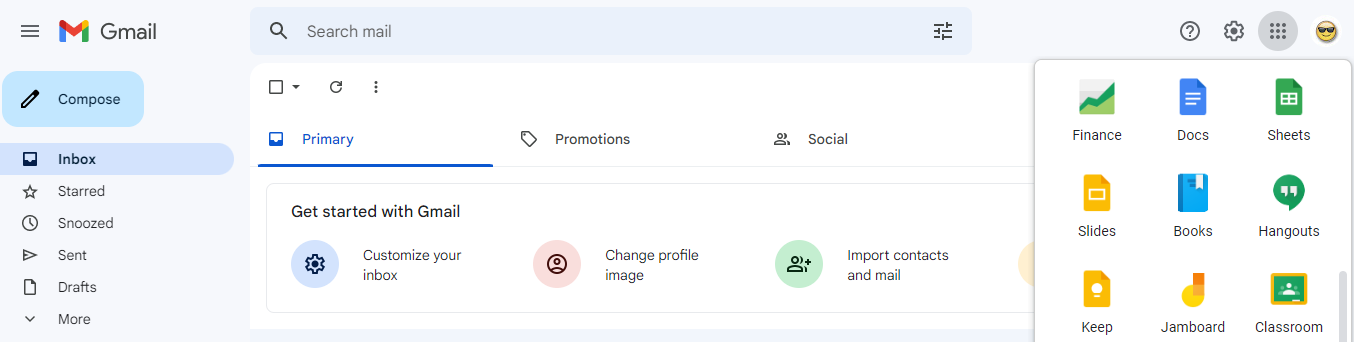
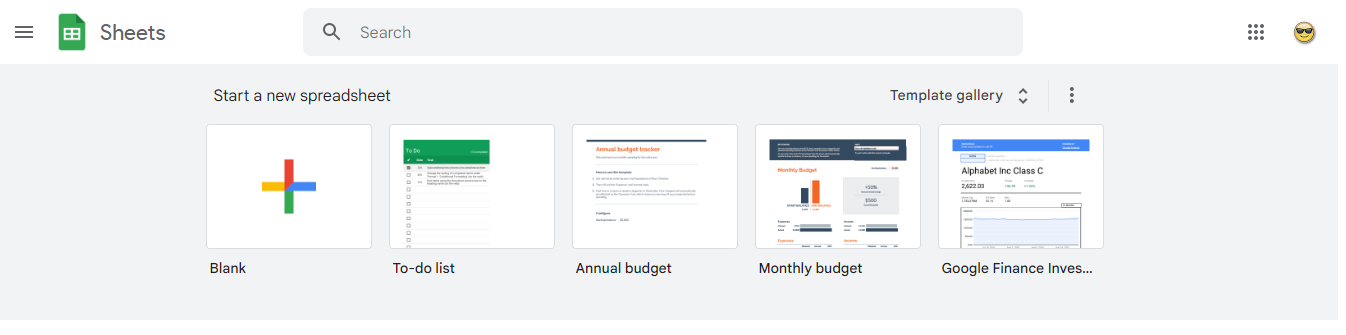

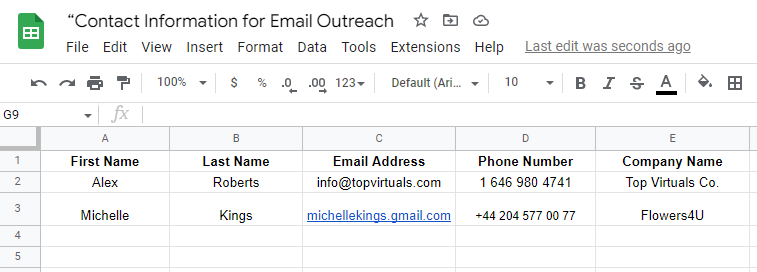
1.1. Using your Google Account, create a Google Sheet.
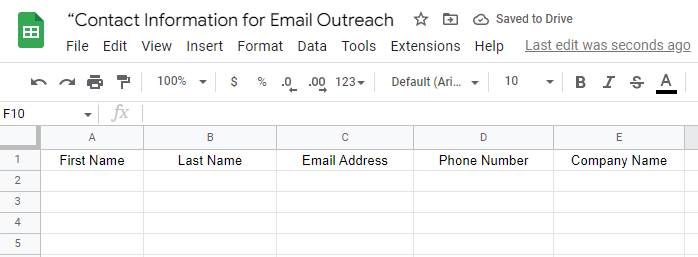
1.2. Start a new spreadsheet by clicking “Blank”. You may name it “Contact Information for Email Outreach”. You may create as many Google Sheets as needed, especially if you are targeting different sets of contacts. Just make sure to distinguish the file names when saving them to prevent confusion.
1.3. Create columns for the various types of information you have about your contacts: first name, last name, email, phone number, company name, etc.
1.4. Fill in the details in each column. Make sure you are placing the correct details for each contact in every row.
Step 2: Activate “Templates” in Gmail
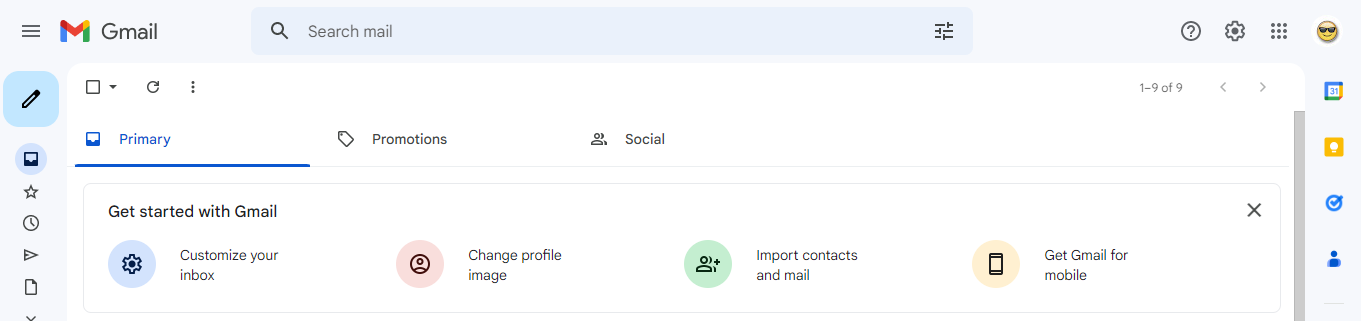
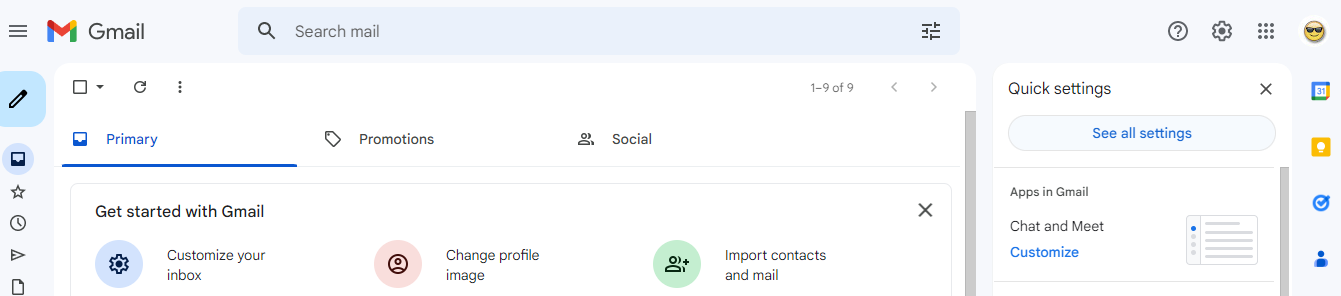
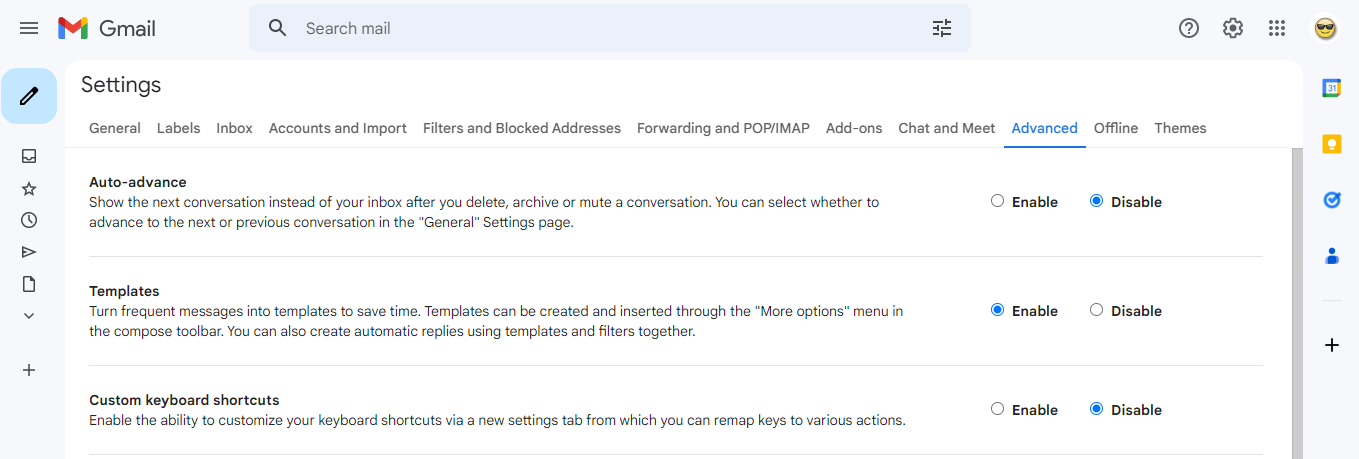
2.1. Template refers to a model document with certain information already in place. To activate this, you need to go back to your Gmail account.
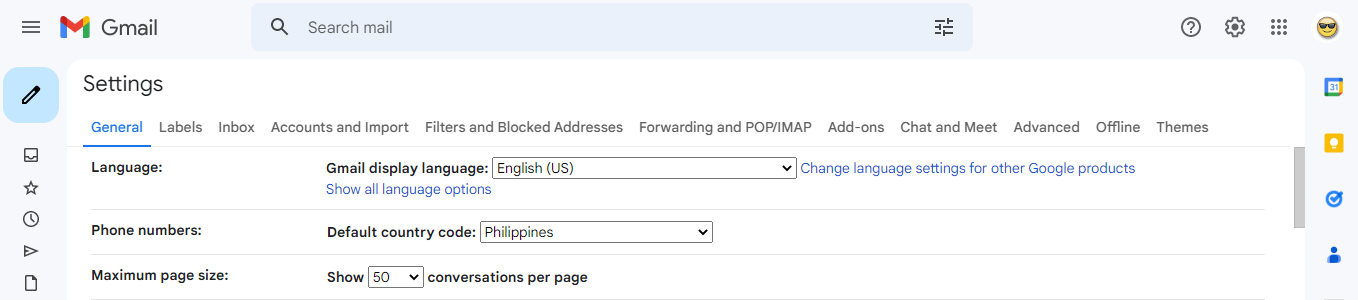
2.2. Click the gear icon to see the Settings. Then, click See all settings.
2.3. Look for “Advanced” tab.
2.4. Find the “Templates” option and select “Enable”.
2.5. Click on “Save changes.”
Step 3: Install Yet Another Mail Merge
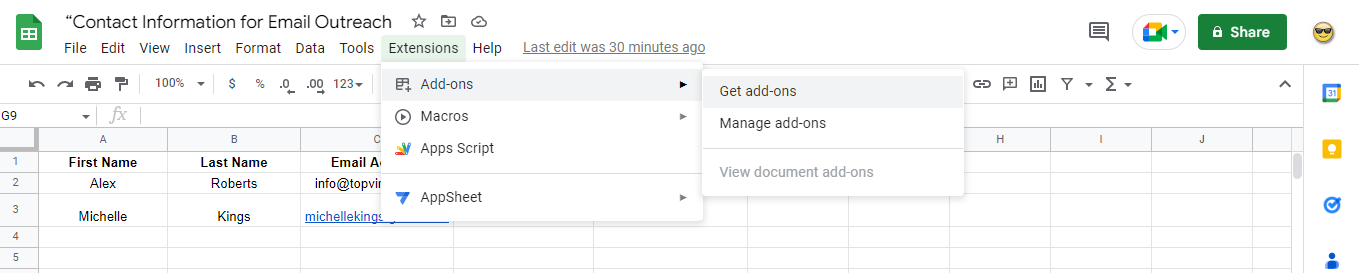
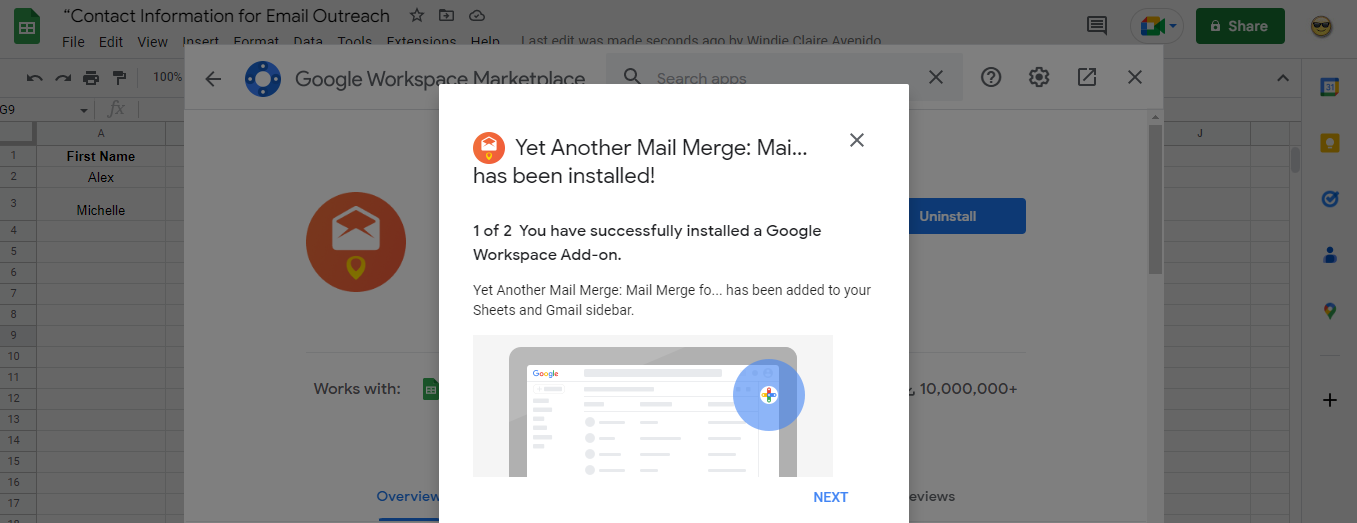
3.1. Go back to the Google Sheet you have created earlier.
3.2. Look for the “Extensions” Tab. Click “Add-ons”. Then, select “ Get add-ons.
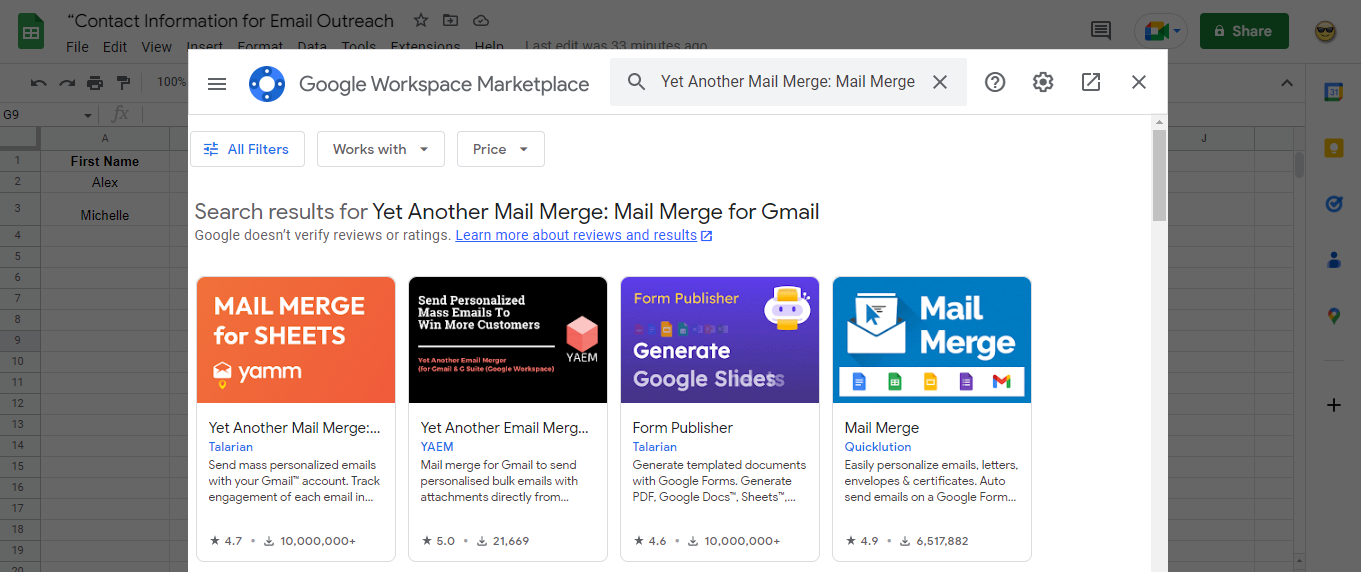
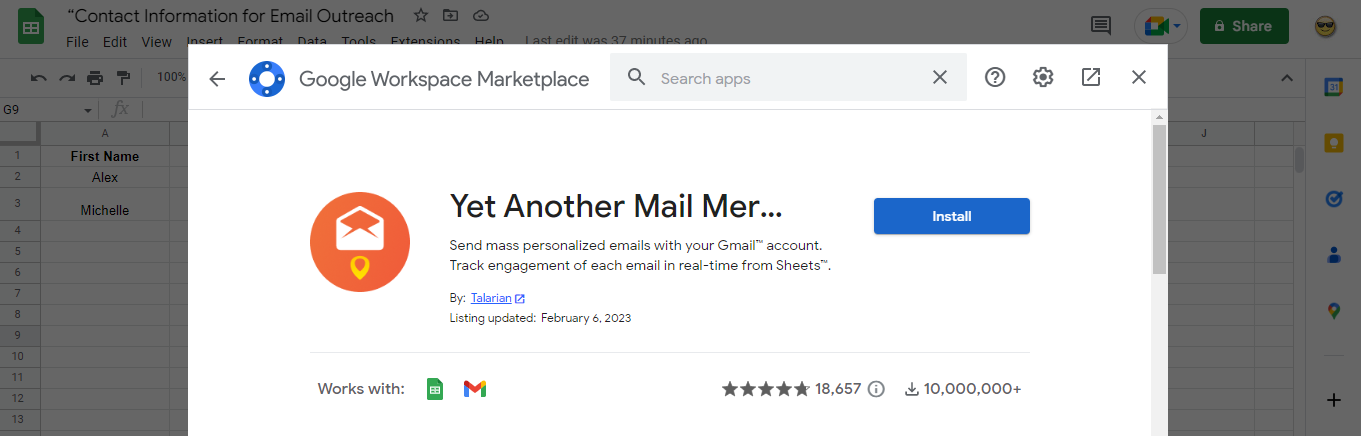
3.3. Search for “Yet Another Mail Merge.” Click “Mail Merge for Sheets.”
3.4. Install it.
Step 4: Make an email template
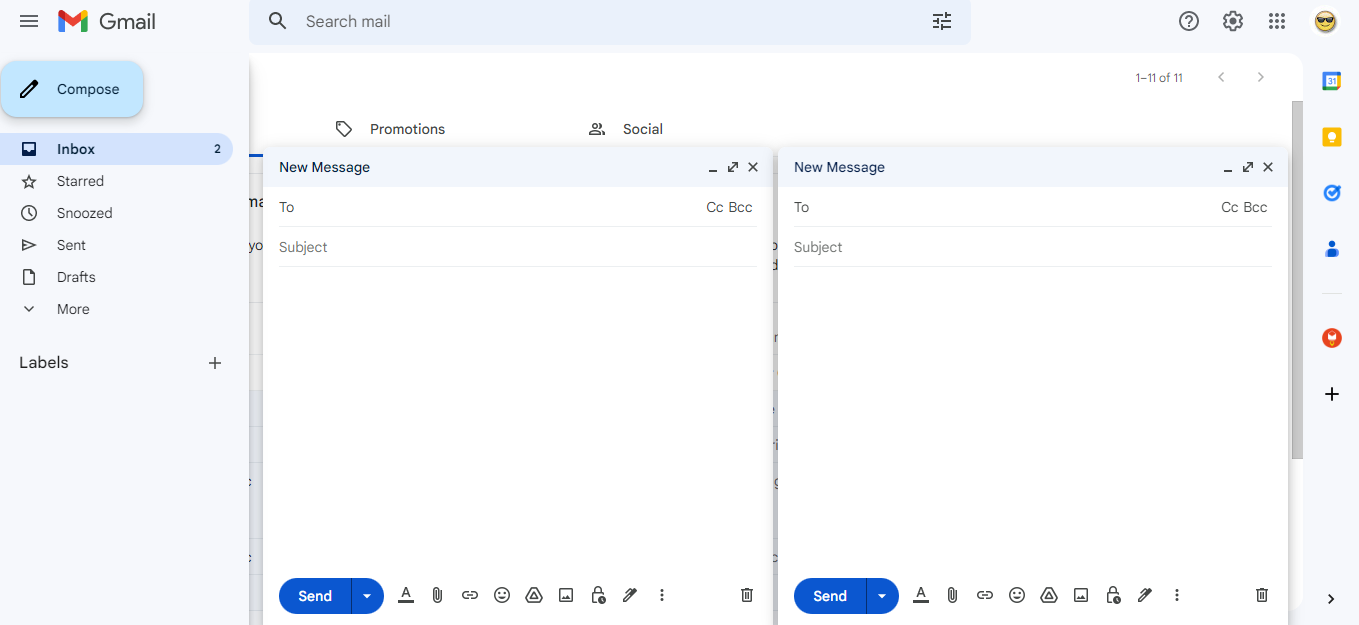
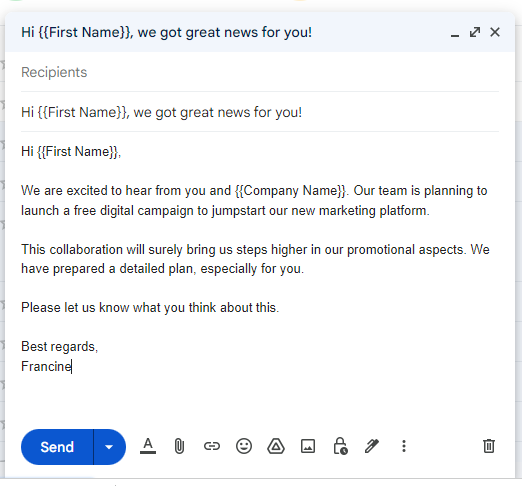
4.1. Go to your Gmail account. Start making your email template by clicking the “Compose” option.
4.2. Just like making any other email, start with the Subject. Use double curly brackets ( {{}} ) to include the merge fields containing the contact information you entered in the google sheet. For example, write {{First Name}} to have personalized emails with the contact’s name on it. Take note that the merge fields must be written the same way it was in the google sheet.
4.3. It is advisable to put an unsubscribe link just below the signature at the bottom of the email. Although you certainly want your recipients to receive your emails, you don't want to spam them. To do this, select a word or phrase and add the hyperlink to https://app.yamm.com/unsubscribe. You may follow the sample below:
Click here to unsubscribe from our emails.
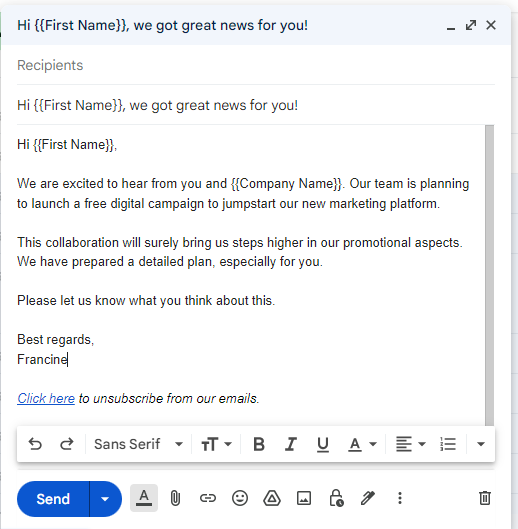
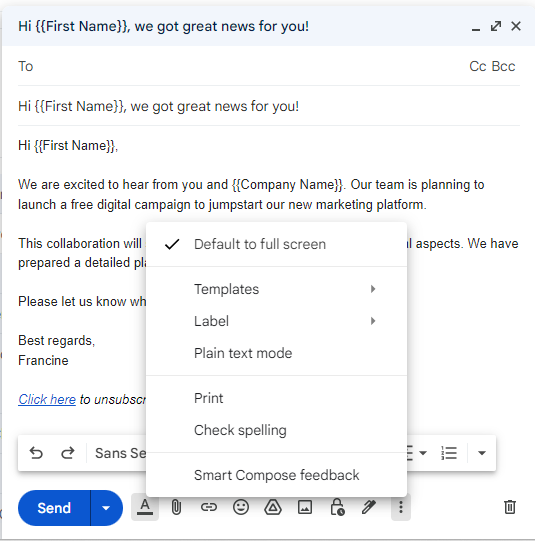
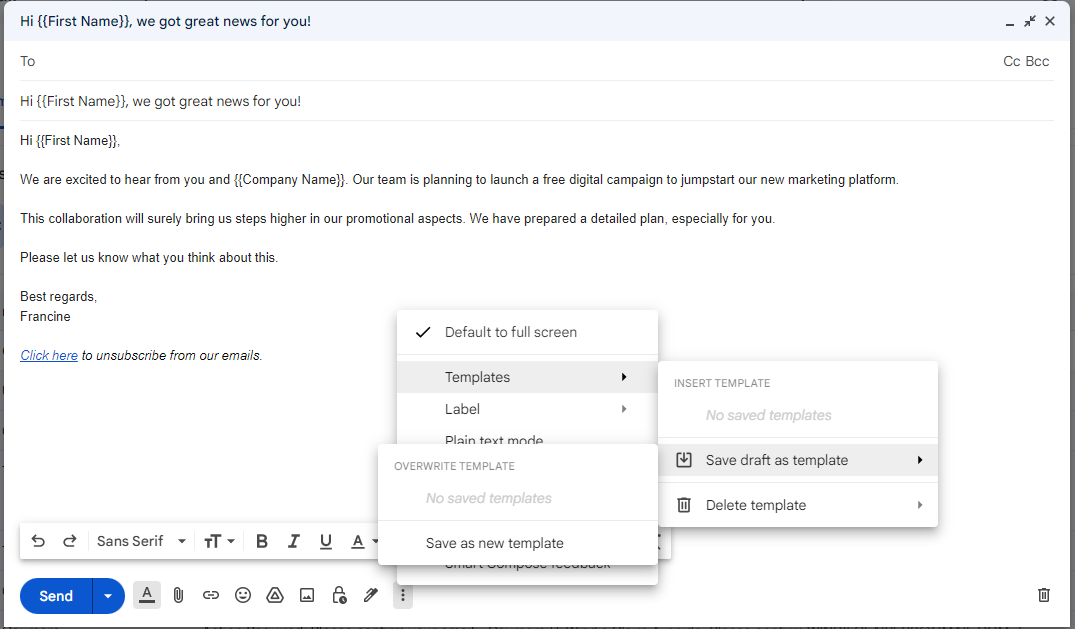
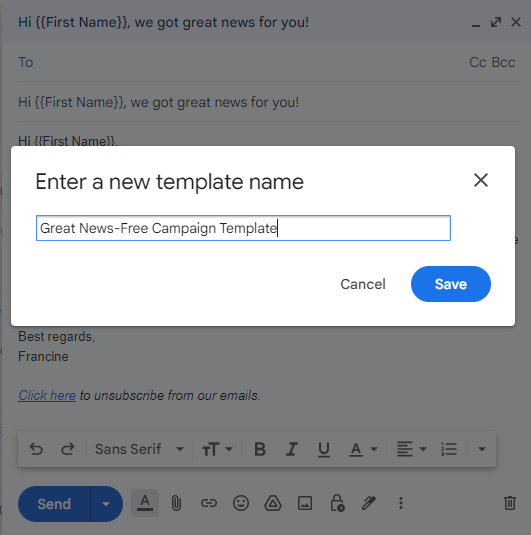
4.4. Once your template is ready, you need to save it. To do this, click “More” button beside the “Delete” icon.
4.5 Click Template.Then, choose “Save draft as template”.
4.6. Enter a new template name.
Step 5: Send Bulk Email
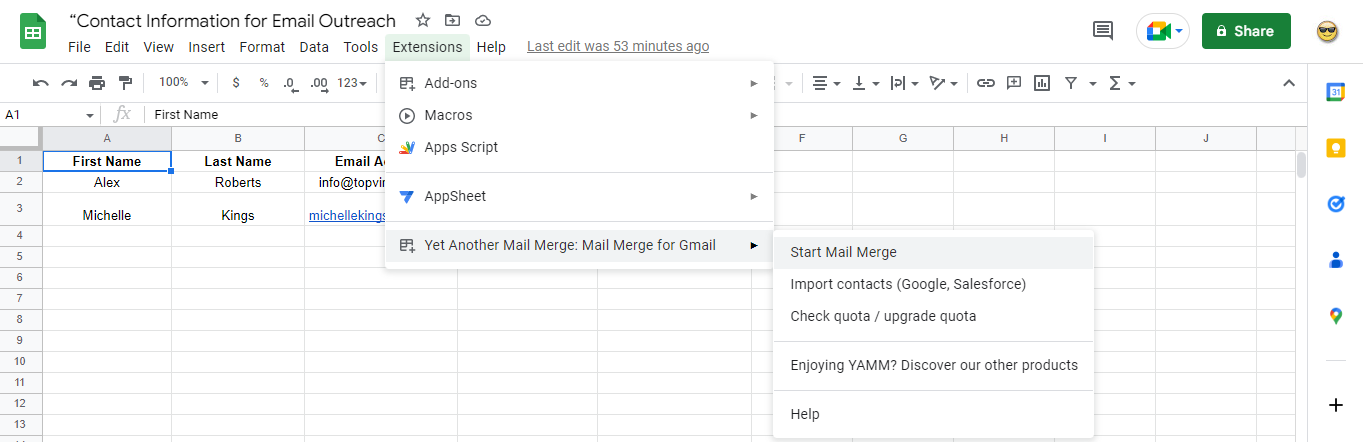
5.1. Go to the Google Sheet you have prepared earlier.
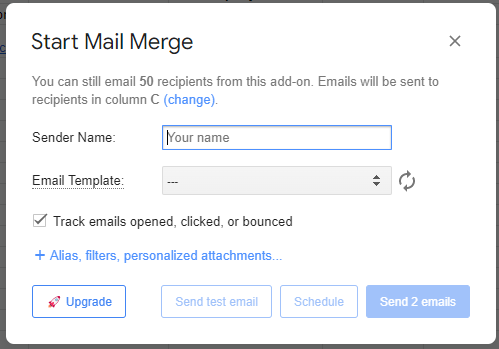
5.2. Click the “Extensions” Tab. Then, click “Yet Another Mail Merge: Mail Merge for Gmail”. Choose “Start Mail Merge” option.
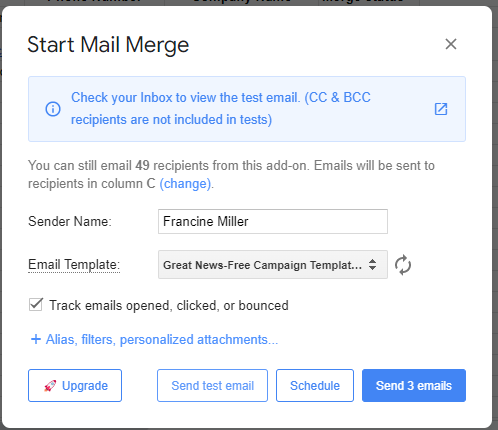
5.2. Fill in the Sender Name. Enter your name if you are the sender.
5.3. Select the template you have created. Then, tick “Track emails opened, clicked or bounced”.
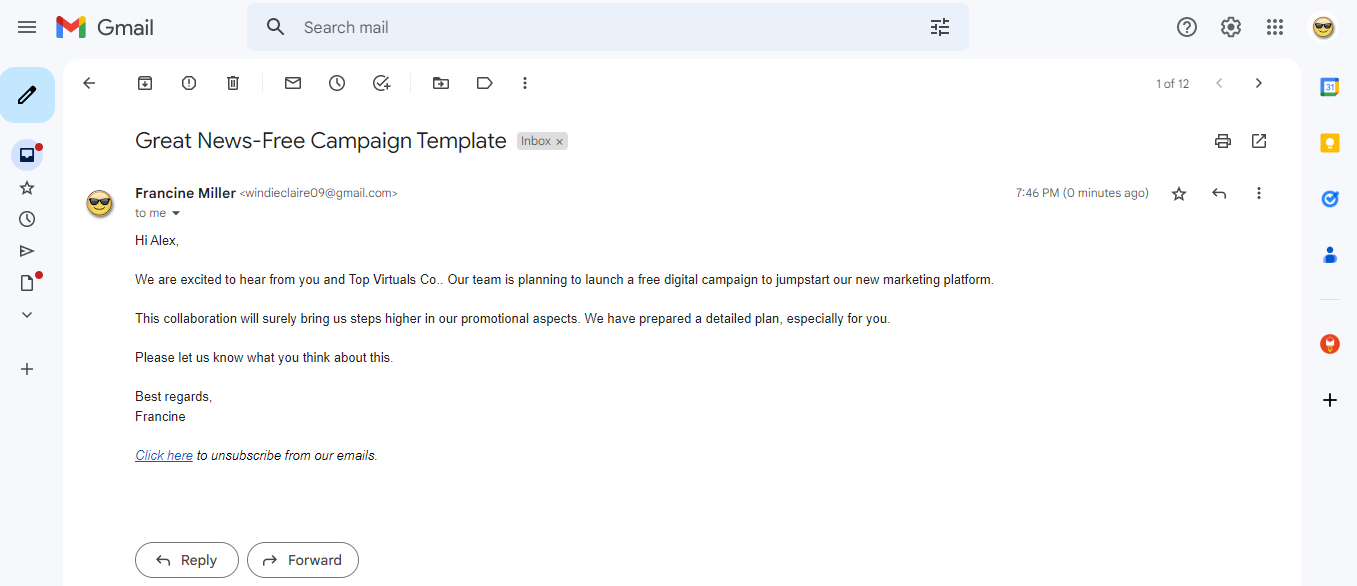
5.4. Send a test email to ensure that all merge fields are operational. You will receive a copy of the email that would be delivered to the first recipient in your database.
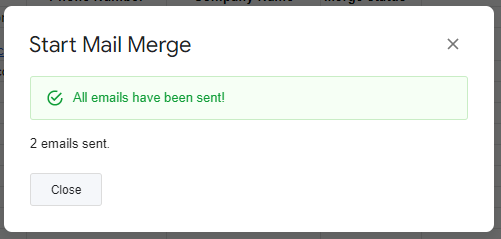
5.5. Once you've ensured that everything is in order, click the "Send" button.
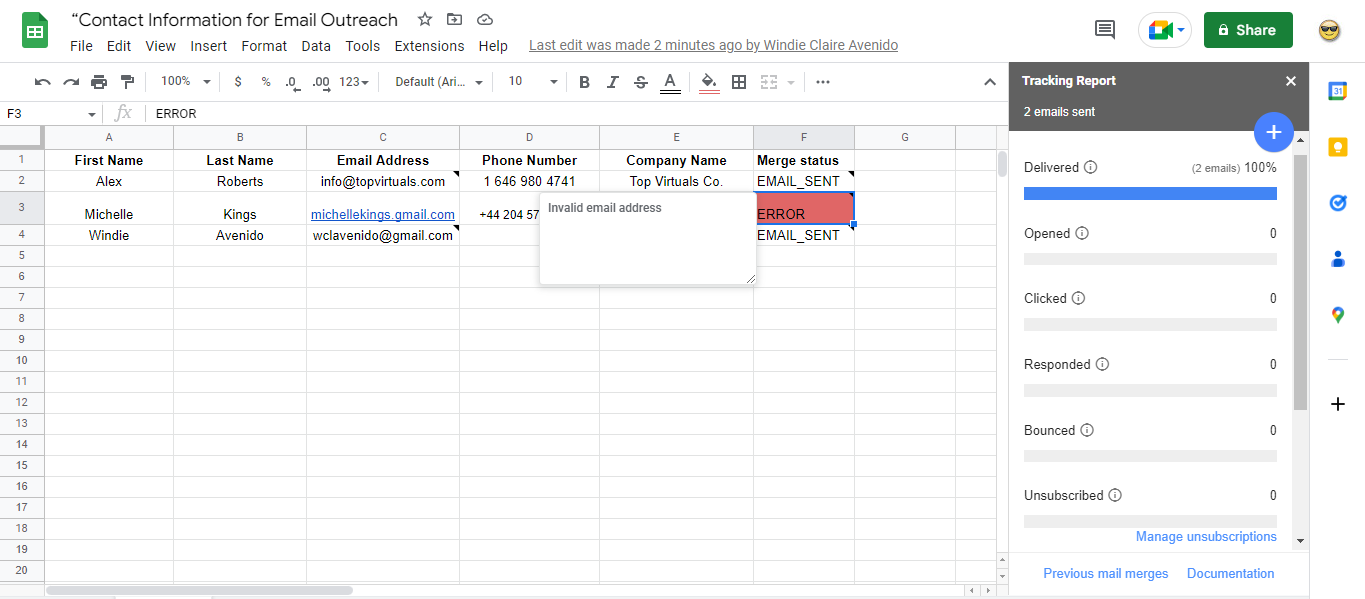
5.5. On the right side of the screen, a tracking report will indicate the quantity of opened, clicked, responded, bounced, and unsubscribed actions. You will also be notified if there are erroneous email addresses. Additionally, each recipient's status will be changed under the "Merge status" column.
You’re done! Great job! Remember**,** Email outreach can work well when done right. Just make sure that:
-
Your email template uses a more personalized and natural approach.
-
You gather essential information about your contacts.
-
You verify the details in your contact information database.
-
You check the tracking report from time to time.