Setting Up a Trigger for Purchased Order Flows
To walk you through preparing your online store triggers to gather data on purchase events that you can use for your email automation campaigns.
Prefer a shortcut? 16 free tools do parts of this for you.

Aim: To walk you through preparing your online store triggers to gather data on purchase events that you can use for your email automation campaigns.
Optimal Outcome: To gather data about orders placed from your store and use it to set up and optimize your email marketing campaigns.
What do you need to start: You’ll need to integrate your online store with a third-party marketing automation platform
Why is this SOP Important: Gathering data about orders placed from your online store can provide valuable insights that can help you make more informed business decisions and ultimately increase your sales and revenue.
When and Where to execute: This should be setup before implementing email campaign automations such as purchased order flow, order shipment flow, review request flow, replenishment flow etc.
Who Should Be Doing This: Marketing staff, person responsible for automation, web administrator (optional)
Execution
Resources/Tools & Set up
Enable ‘placed order’ / ‘ordered product’ tracking in Shopify
Enable ‘placed order’ / ‘ordered product’ tracking in BigCommerce
- Set up purchase flows in Klaviyo
Follow these guides:
SOP 230: Optimizing Customer Retention with a First-Time Post-Purchase Flow on Klaviyo
SOP 231: Maximizing Repeat Business with a Post-Purchase Returning Flow on Klaviyo
Enable ‘placed order’ / ‘ordered product’ tracking in Shopify
Connect your Shopify store to Klaviyo
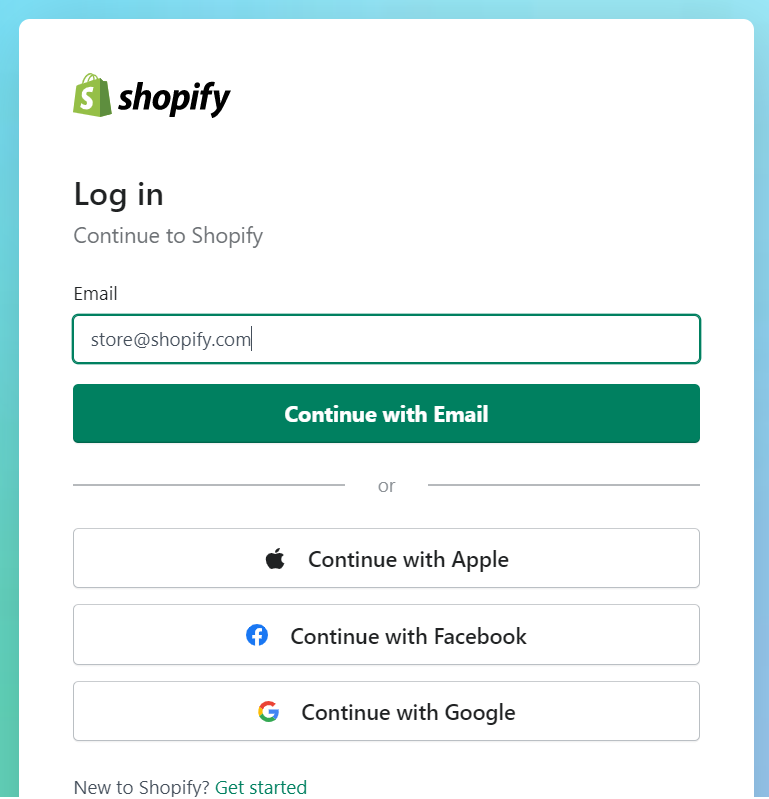
- Login to your Shopify account.
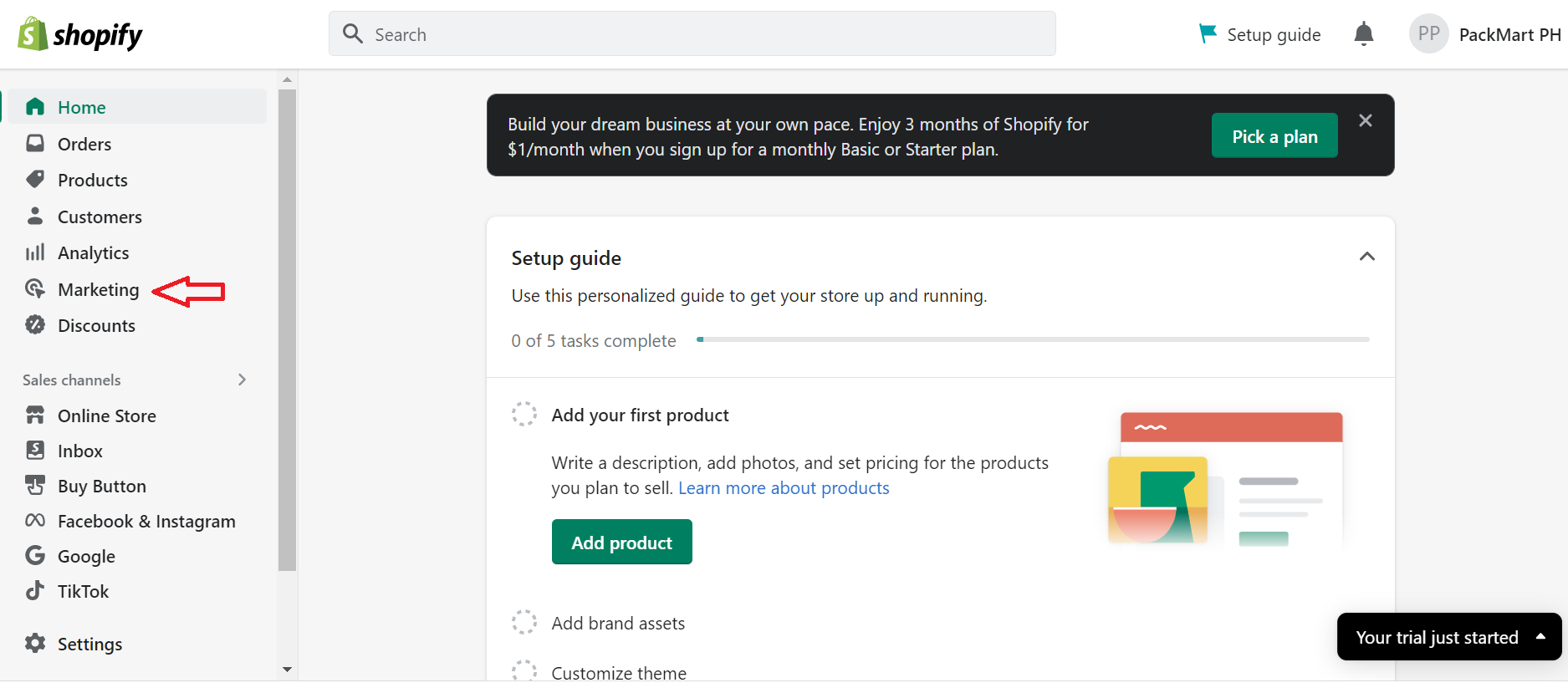
- Select Marketing from the left menu.
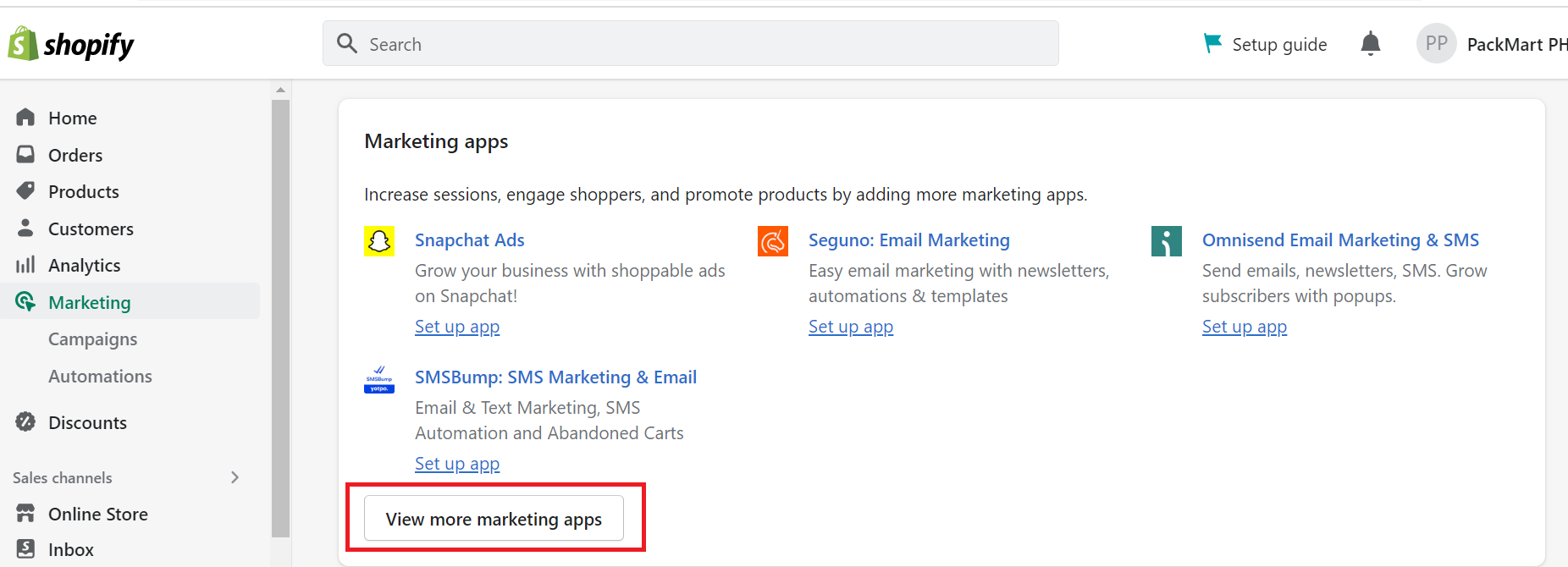
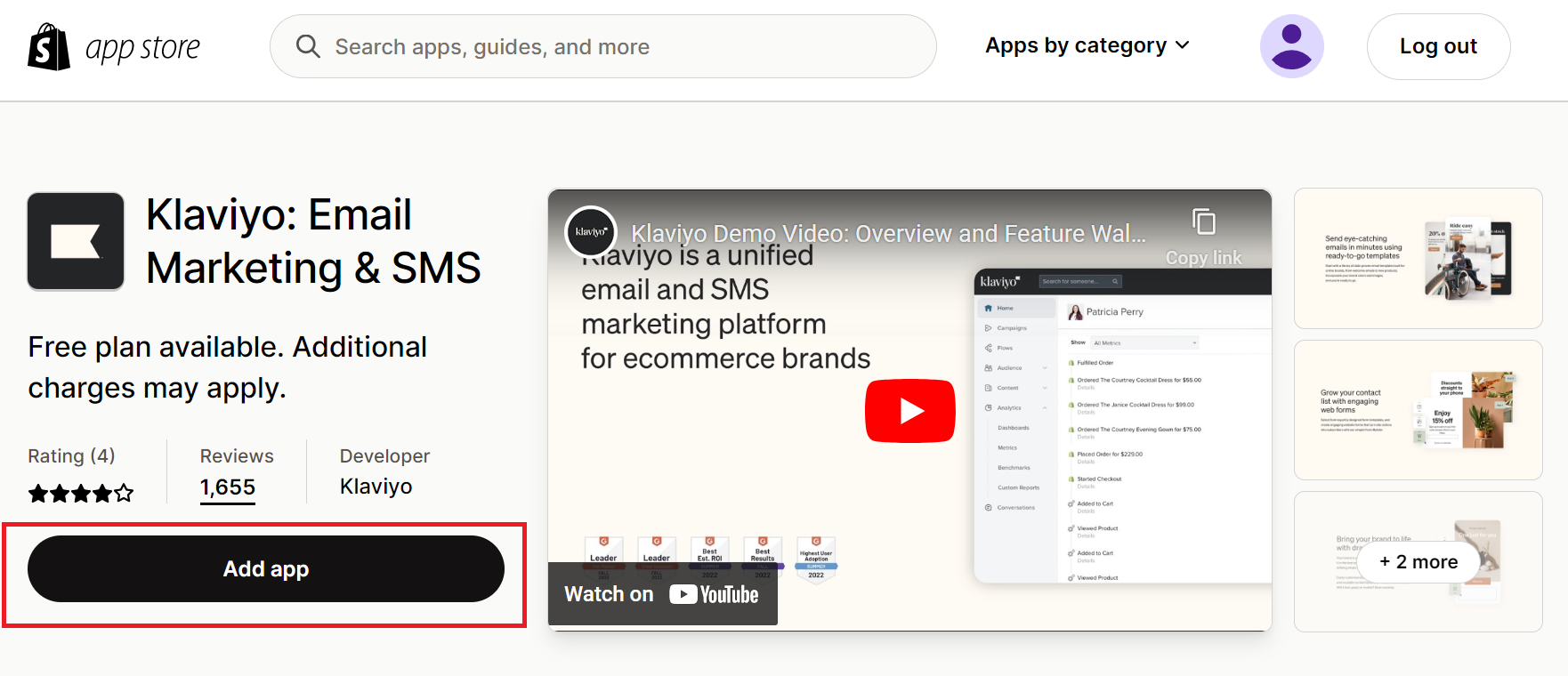
- Select View more marketing apps in the Marketing apps section.
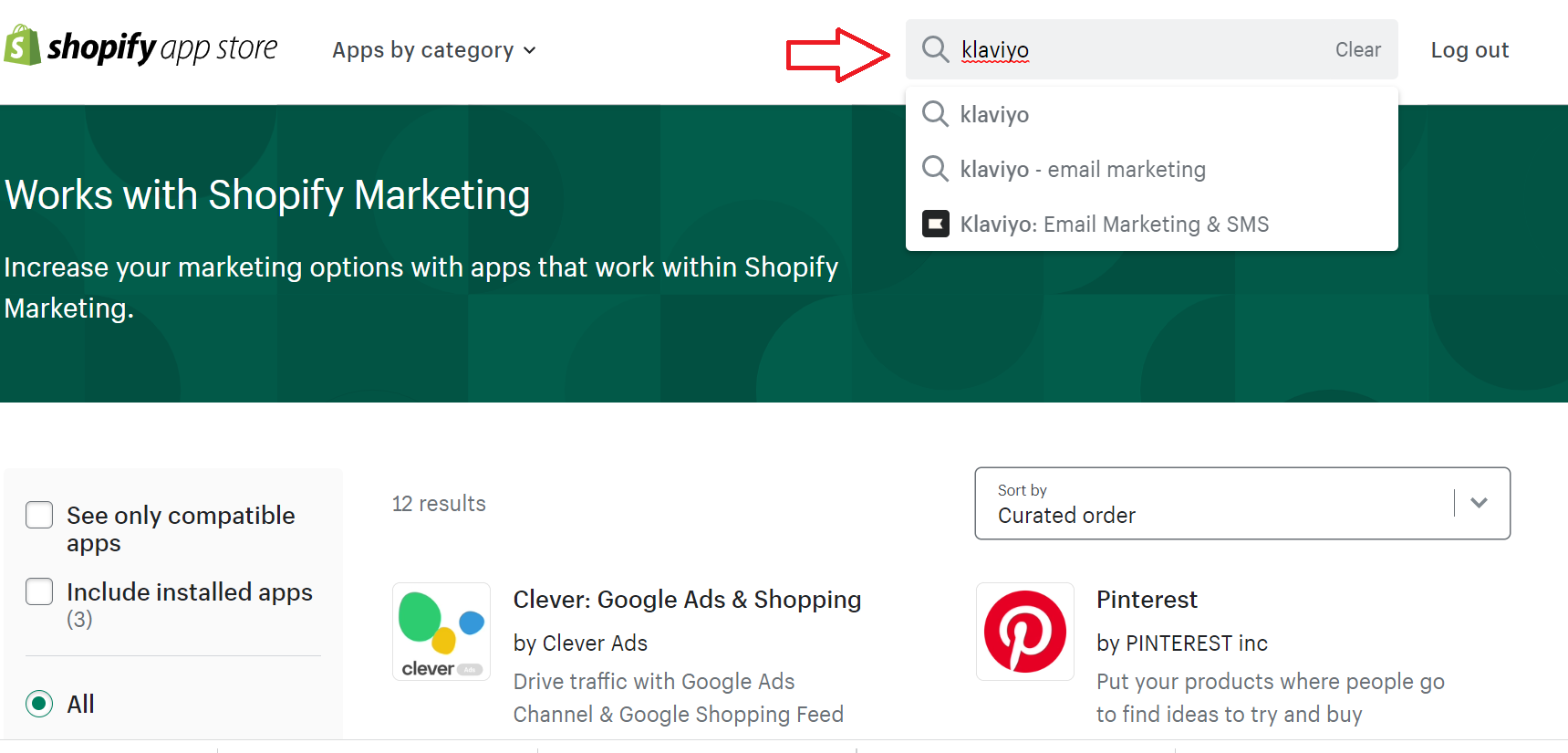
- Search Klaviyo from the search bar at the top-left section of the page.
- Click on Add app.
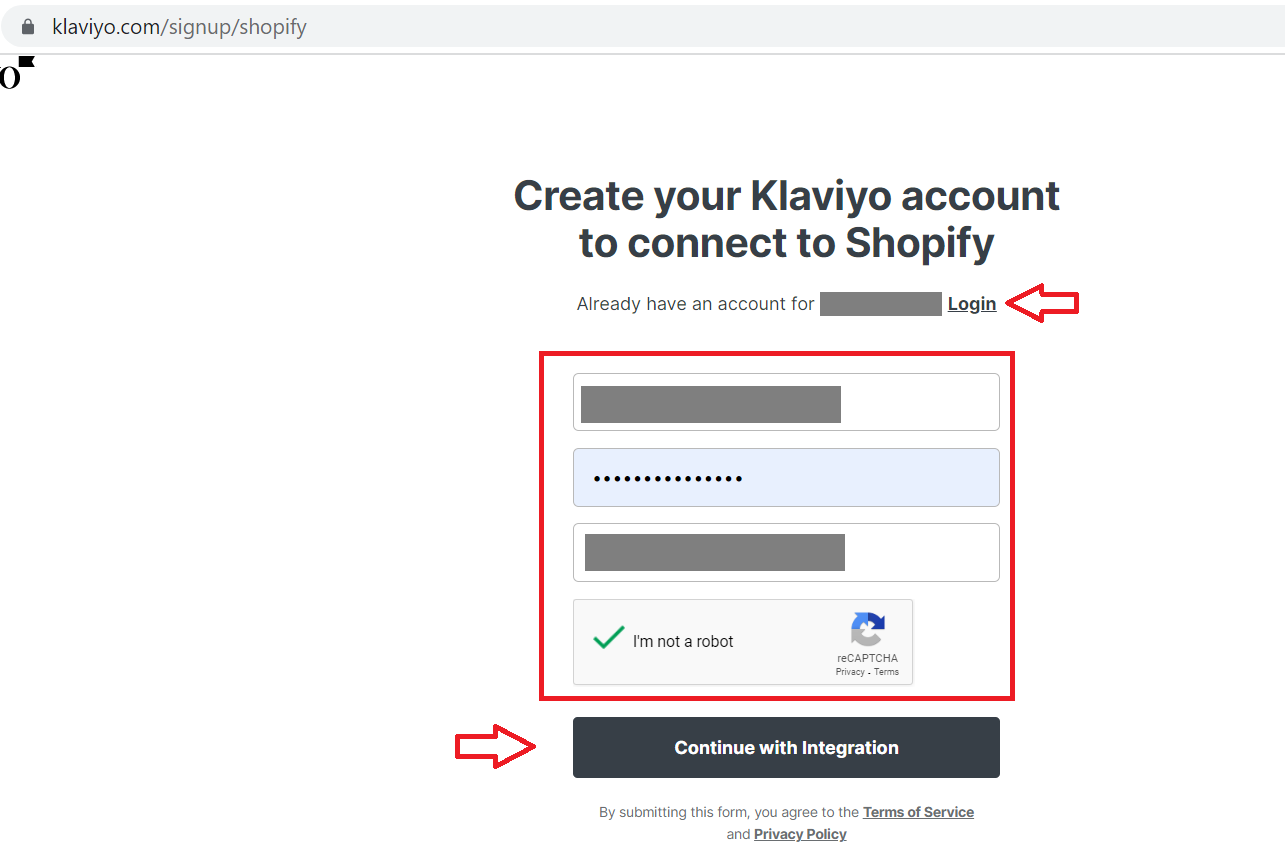
- Create or log in to your Klaviyo account, then click on Continue with Integration.
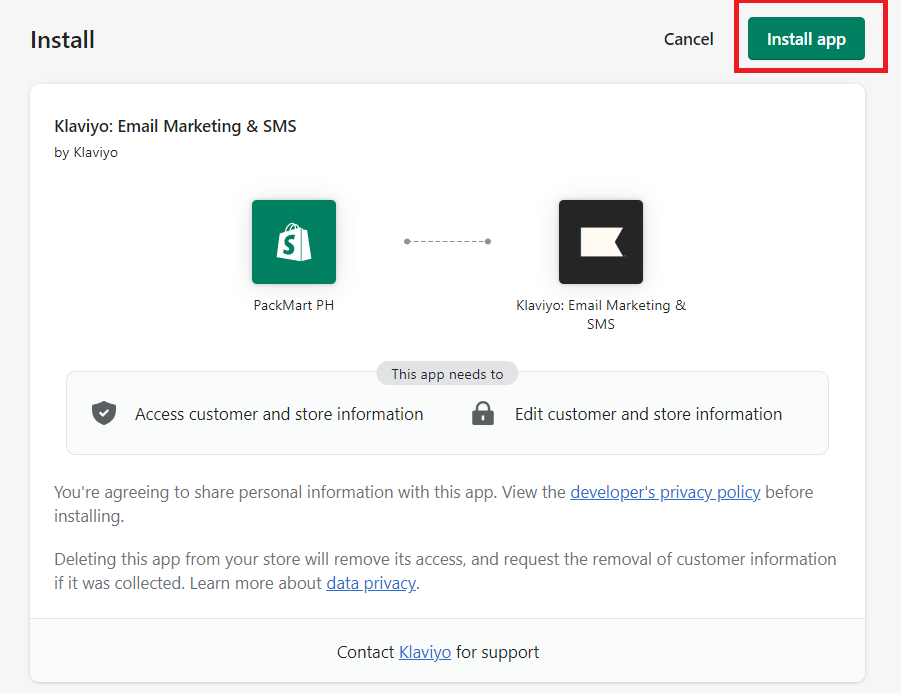
- Review permissions required.
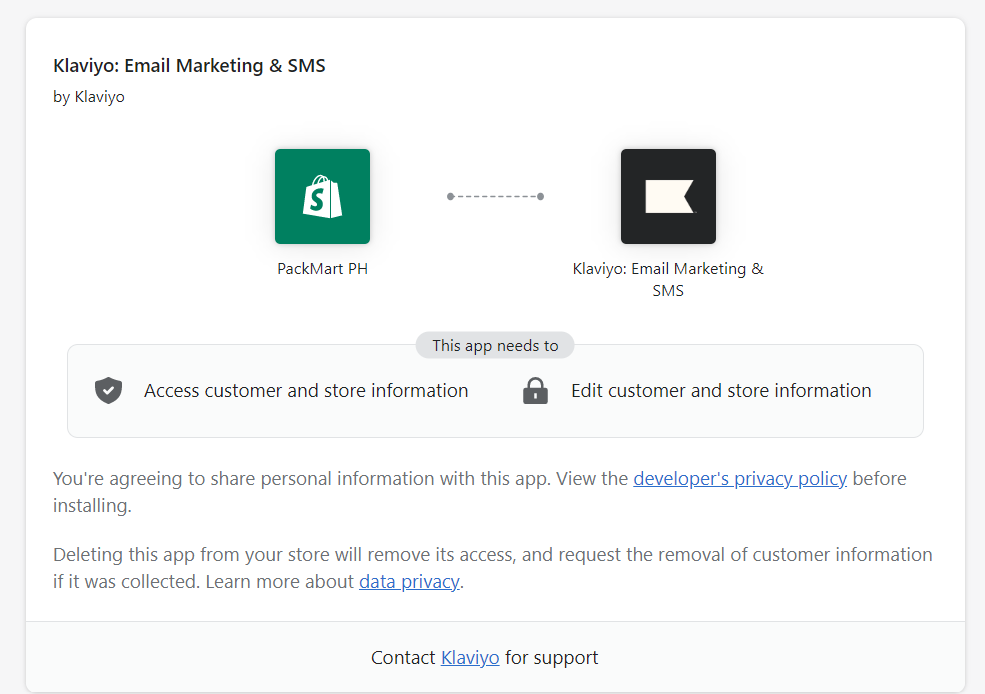
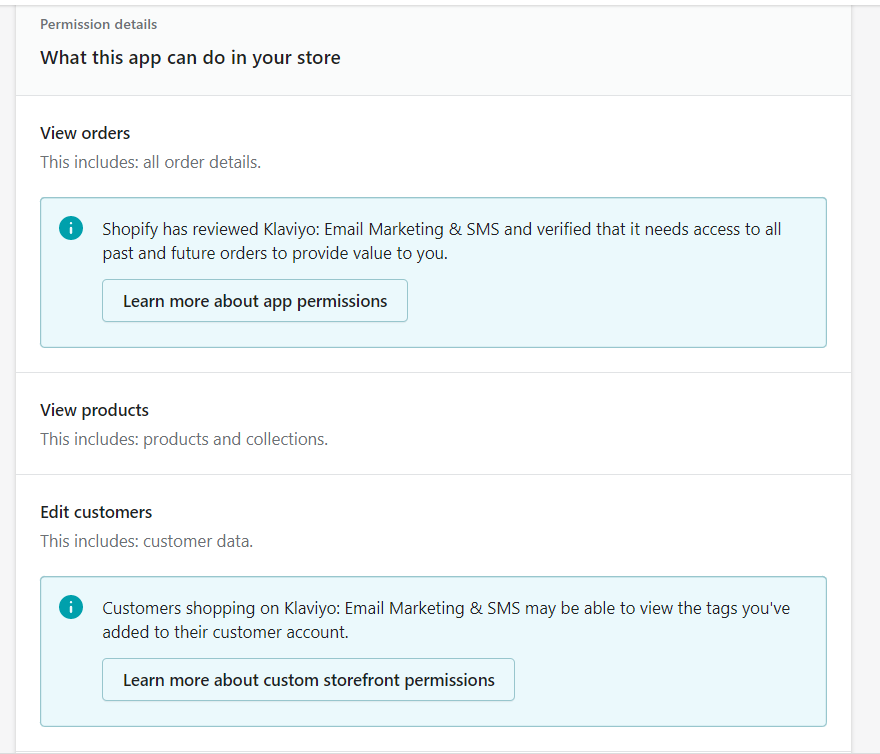
- Click the Install button at the upper-right corner of the page.
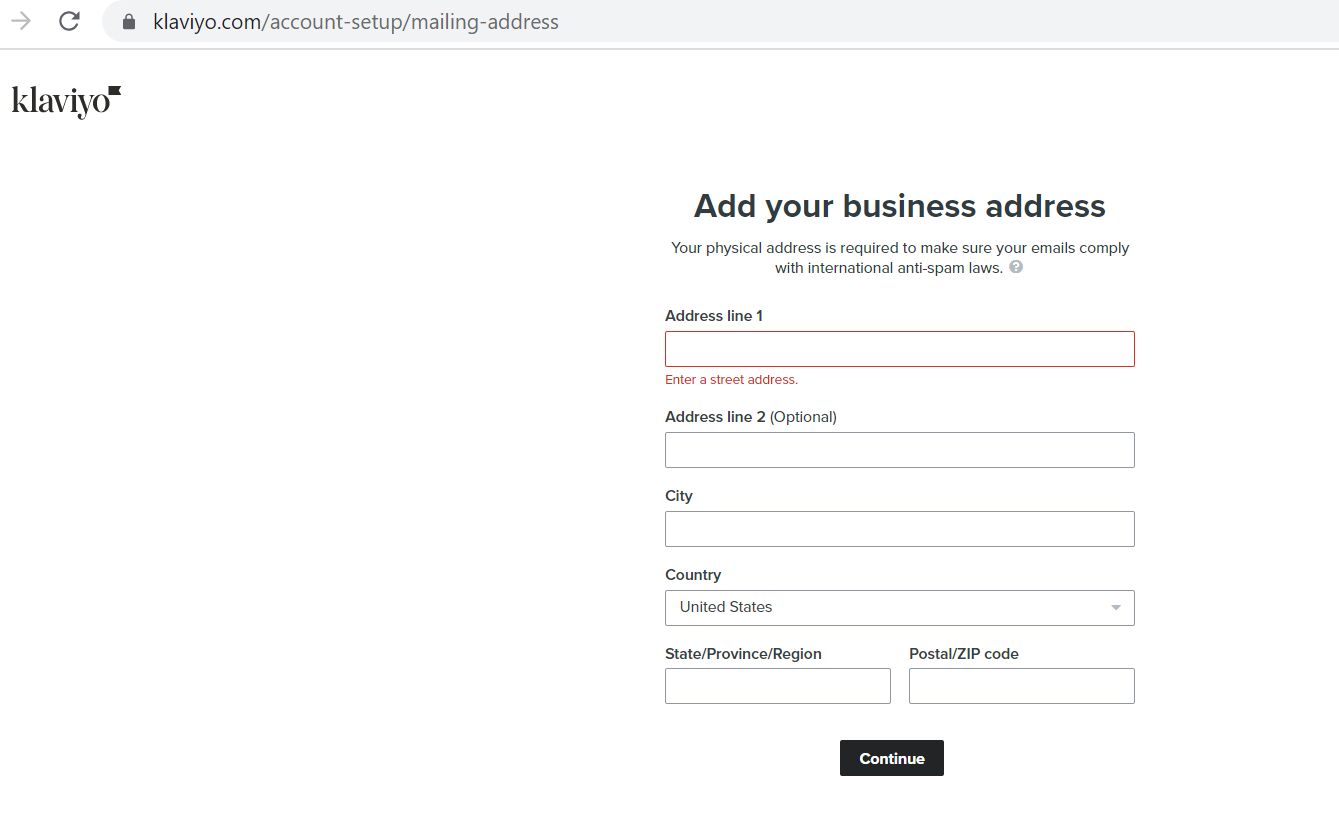
- Add your business info then click Continue.
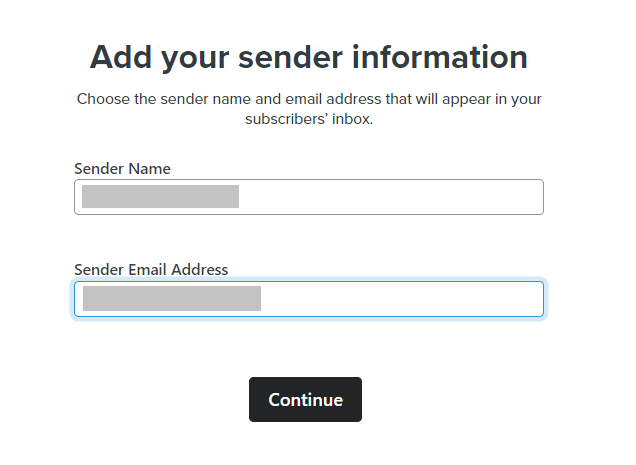
- Fill out the Sender Name and Sender Email Address. This information will appear on your subscriber’s inbox.
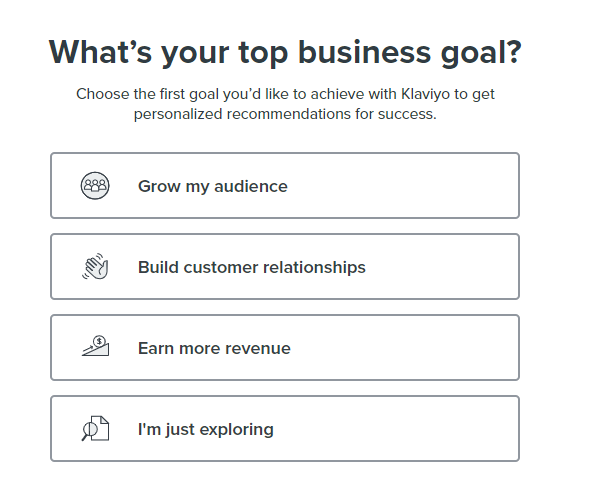
- Choose your top business goal.
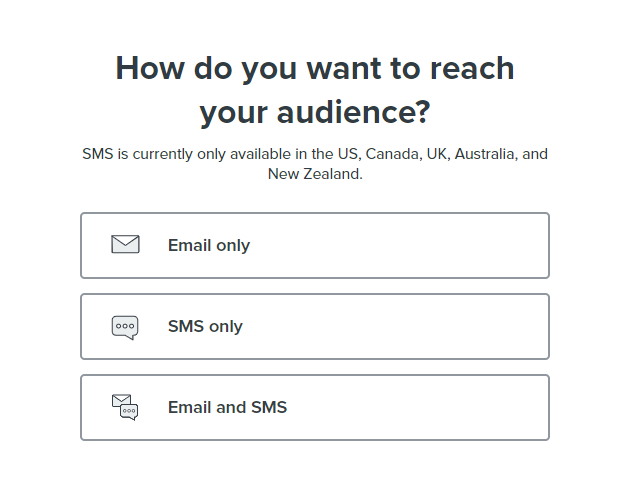
- Choose how you want to reach your audience.
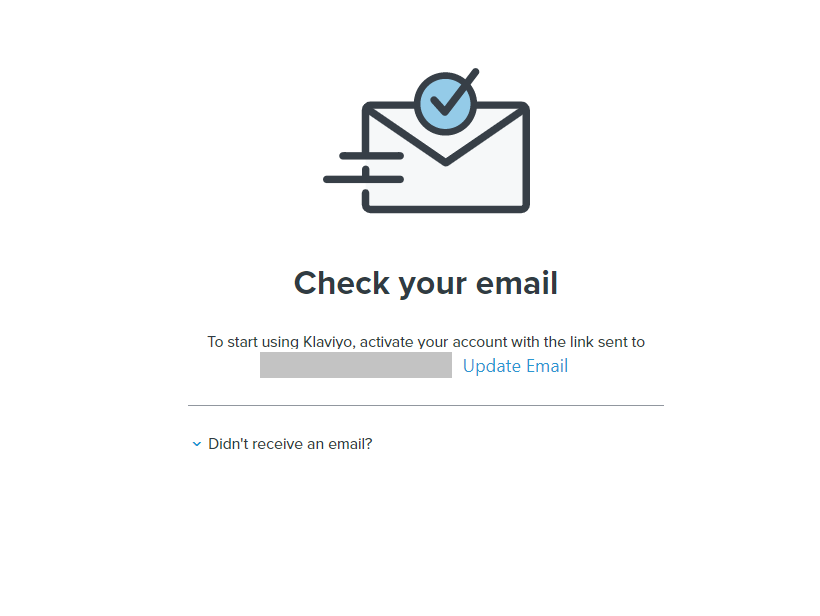
- You will then be prompted to confirm your email. Log in to your email and click the link to confirm your account.
Set up ‘placed order / ‘ordered product’ tracking on Shopify
Note: Based on your Customer Privacy settings in Shopify, Klaviyo may not track onsite events (including Active on Site and Viewed Product) for visitors to your Shopify store in the EU, EEA, UK and Switzerland, unless they have provided consent.
-
Login to Klaviyo.
-
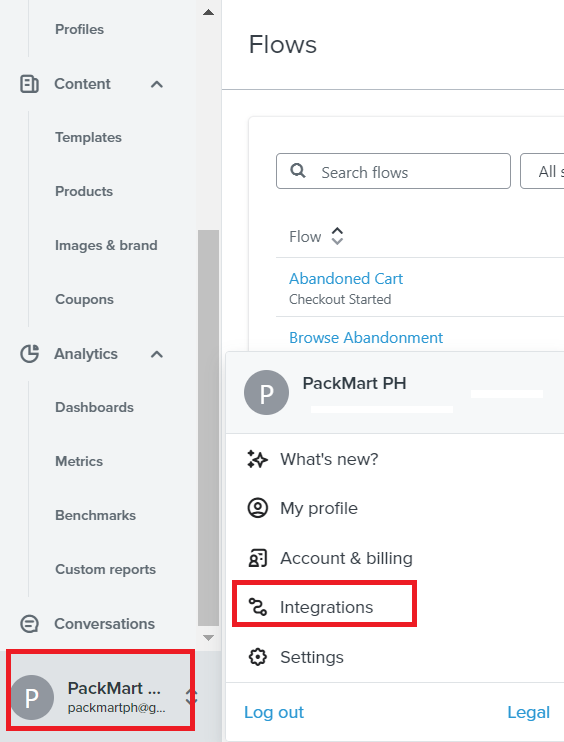
Navigate to the left menu and click your brand name, then click Integrations.
-
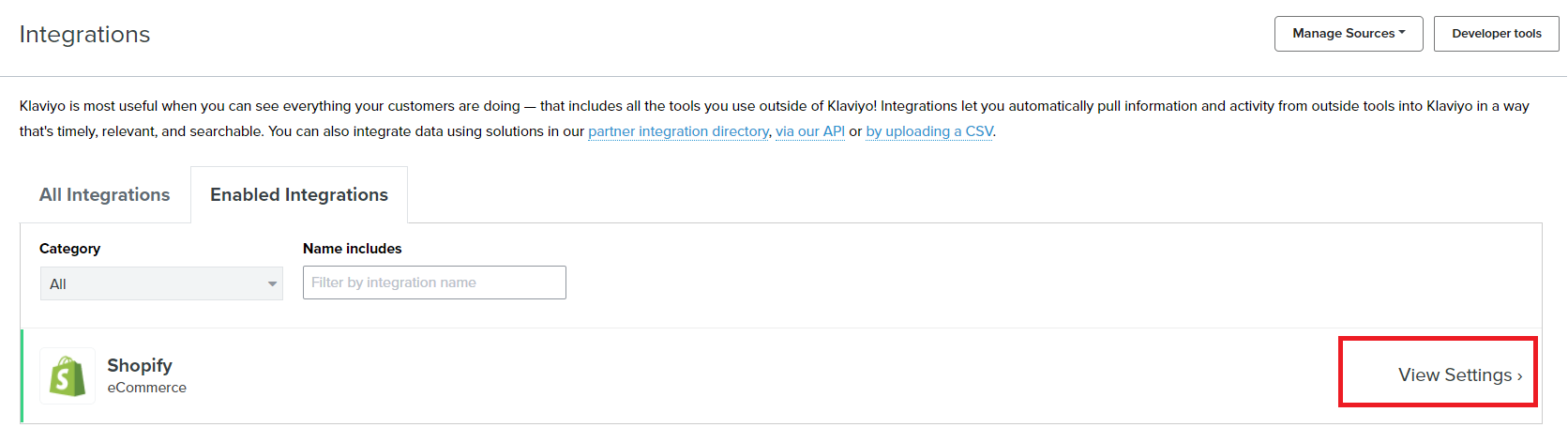
Choose Shopify then click View Settings.
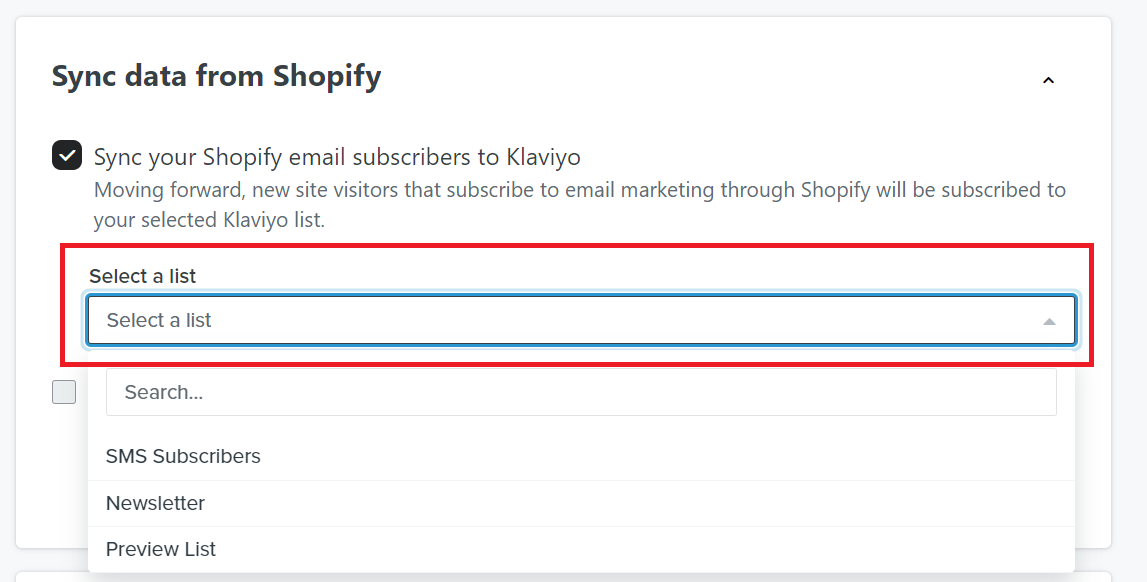
- Check the box next to Sync your Shopify email subscribers to Klaviyo, then select the list that you want to sync.
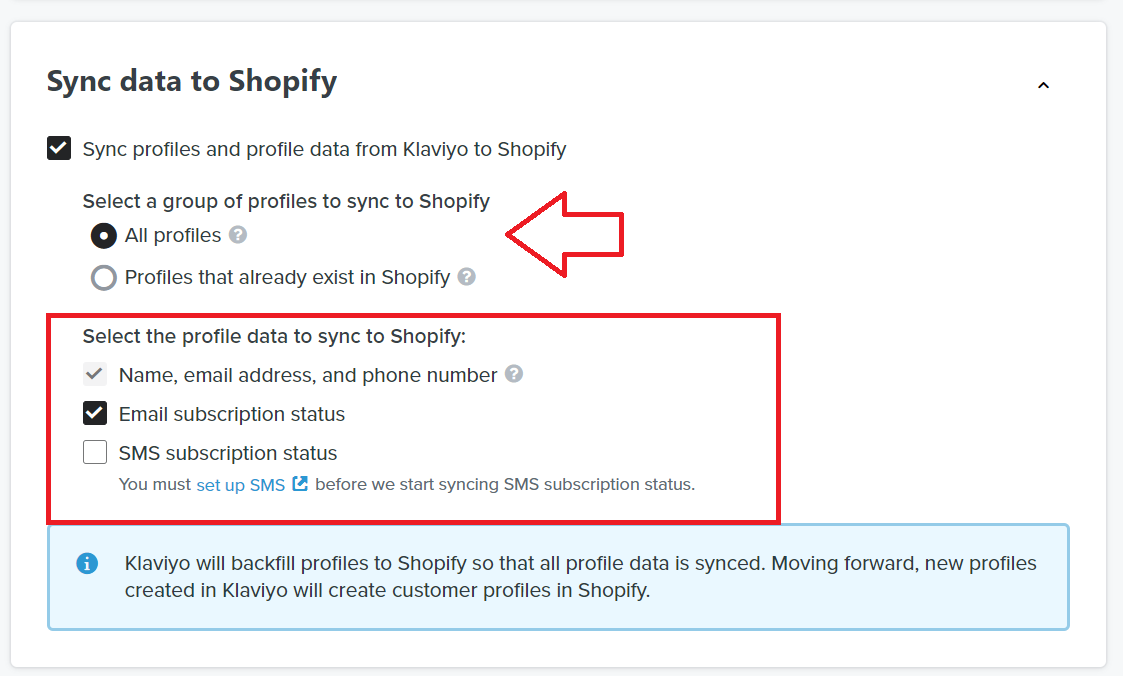
- Sync all profile data from Klaviyo to Shopify then make sure Email Subscription is also selected.
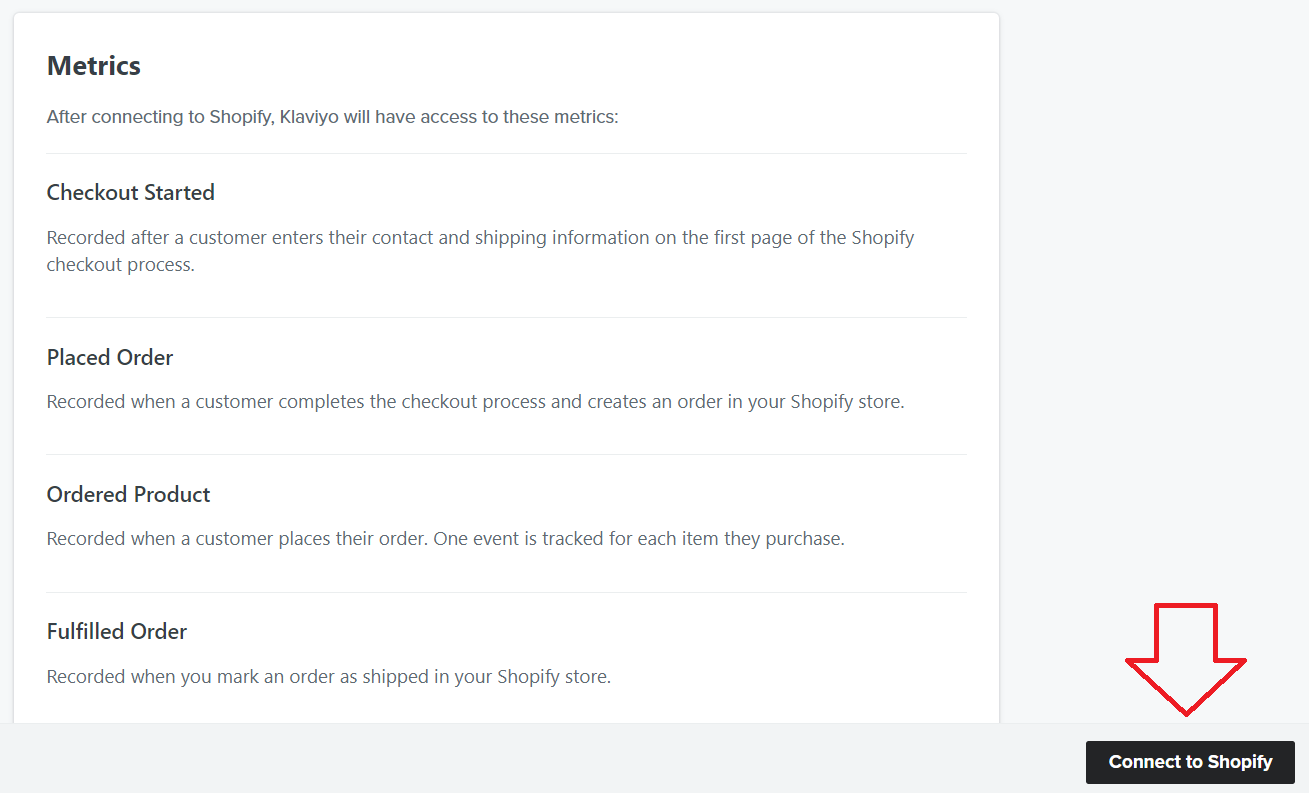
- Click Connect to Shopify. Klaviyo now has access to Shopify events such as check out started, placed order, ordered product, fulfilled order etc.
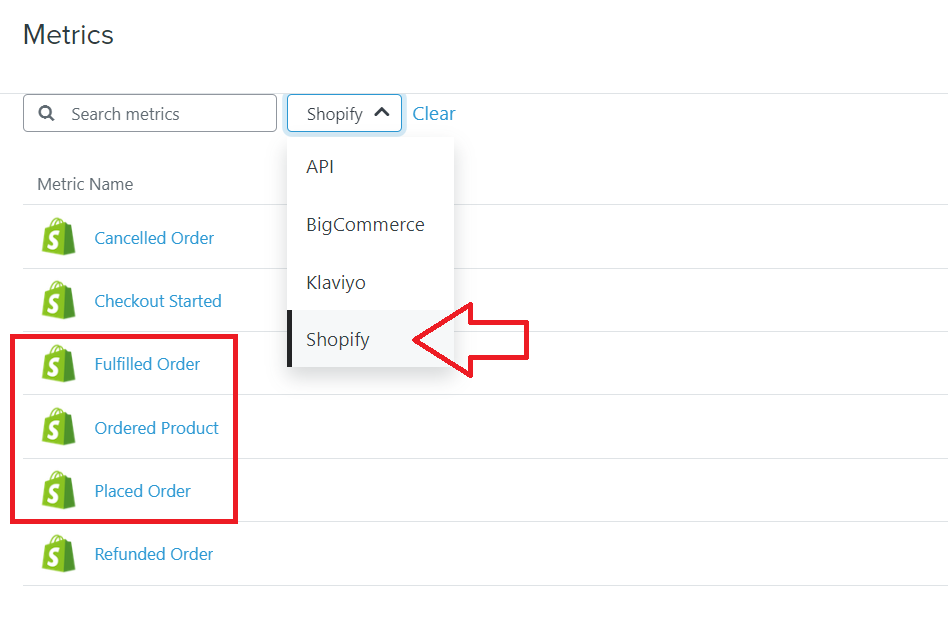
- Confirm that all relevant data is being tracked in Klaviyo. Navigate to the left menu and click Analytics, then click Metrics.
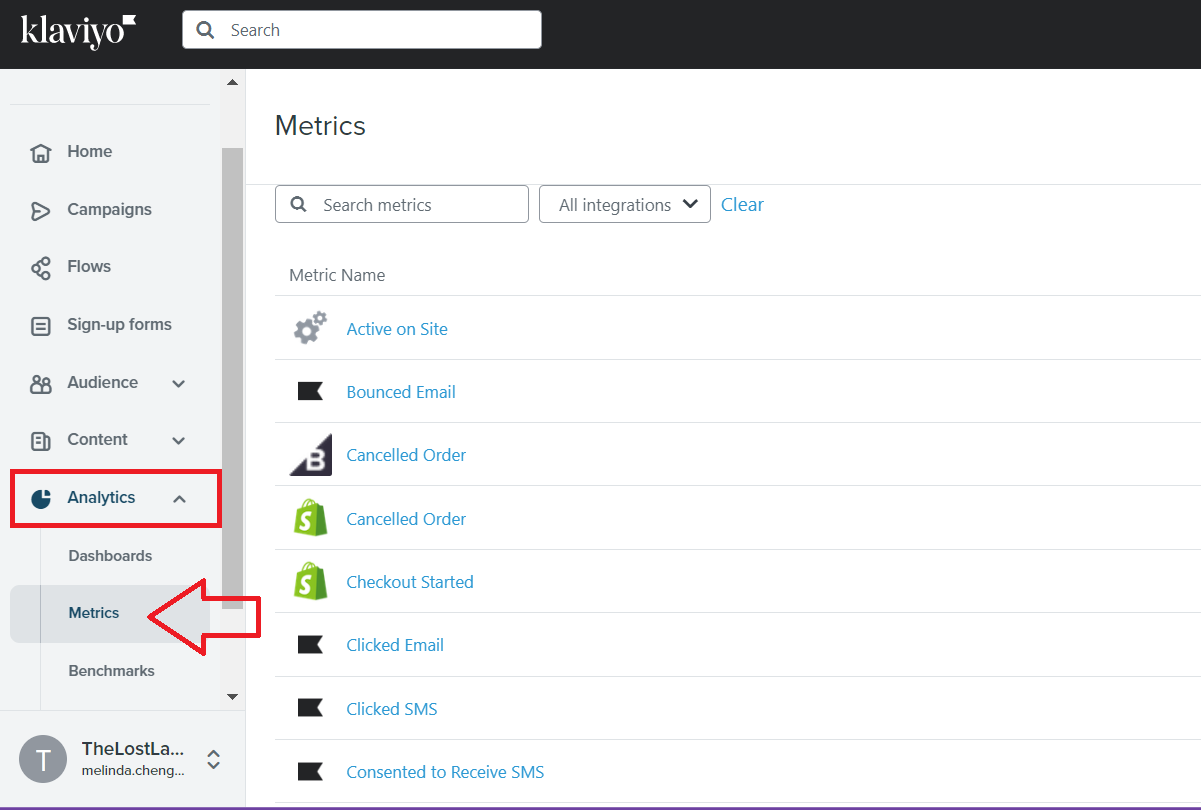
- From the dropdown, select Shopify. Check that Placed Order, Ordered Product, and Fulfilled order are being tracked here.
Enable ‘placed order’ / ‘ordered product’ tracking in BigCommerce
Connect your BigCommerce store to Klaviyo
-
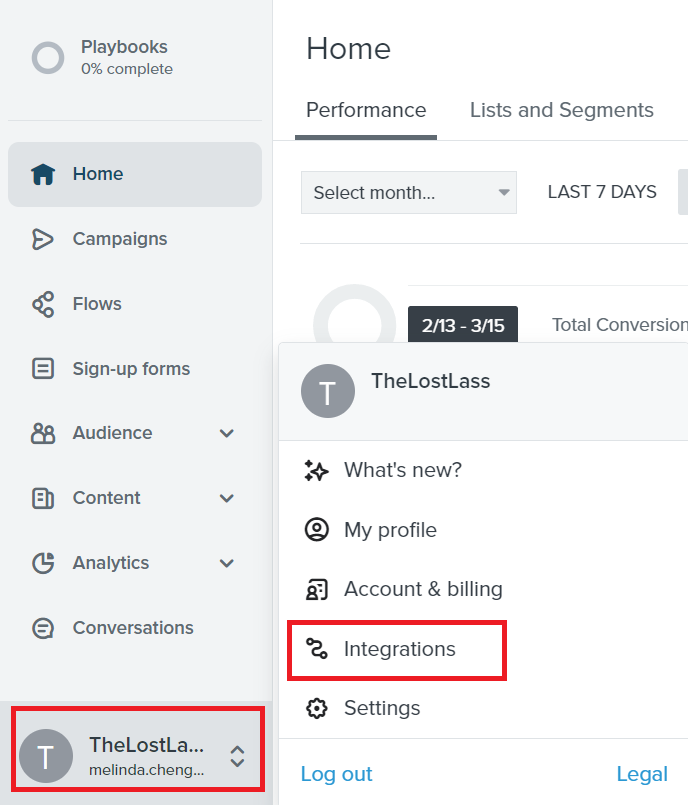
Login to Klaviyo. Navigate to the left menu and scroll to the bottom of the page. Click your name, then click Integrations.
-
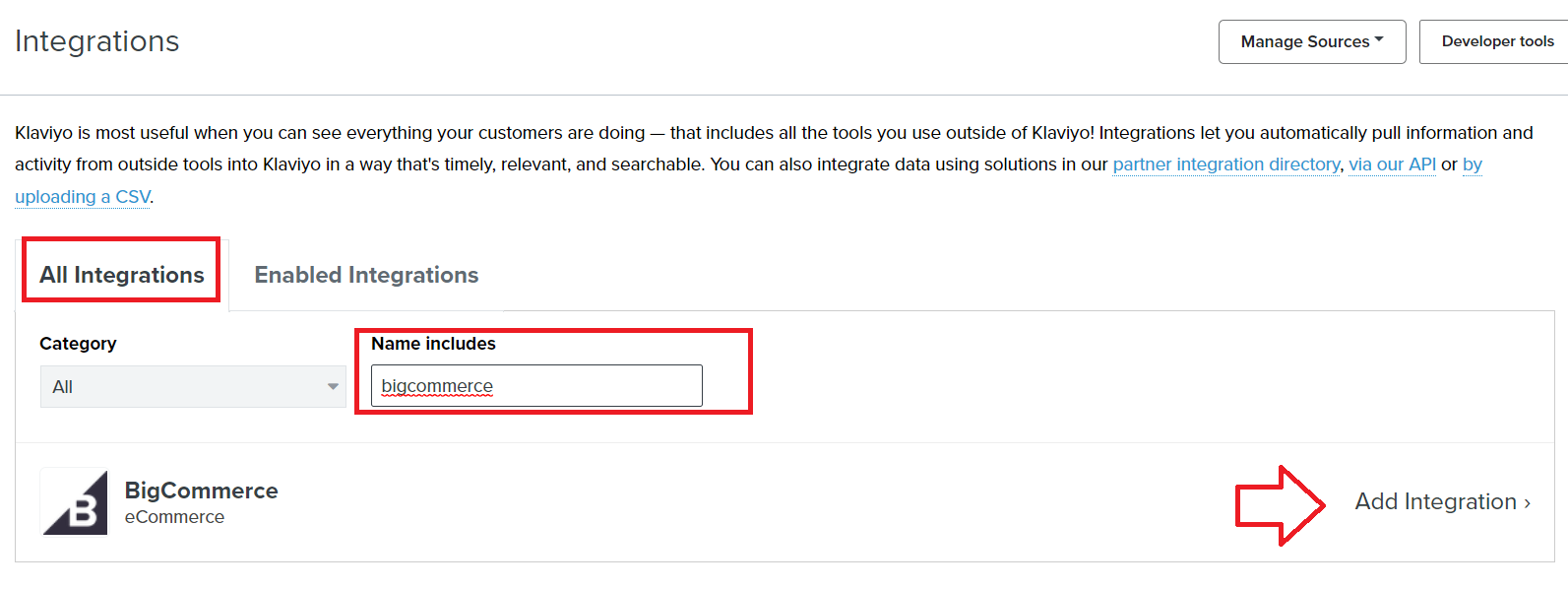
Click the All Integrations tab and search for BigCommerce. Click Add Integration.
- Under Integration Settings, fill out the Store URL from your BigCommerce store. Make sure that Automatically add Klaviyo onsite javascript box is checked.
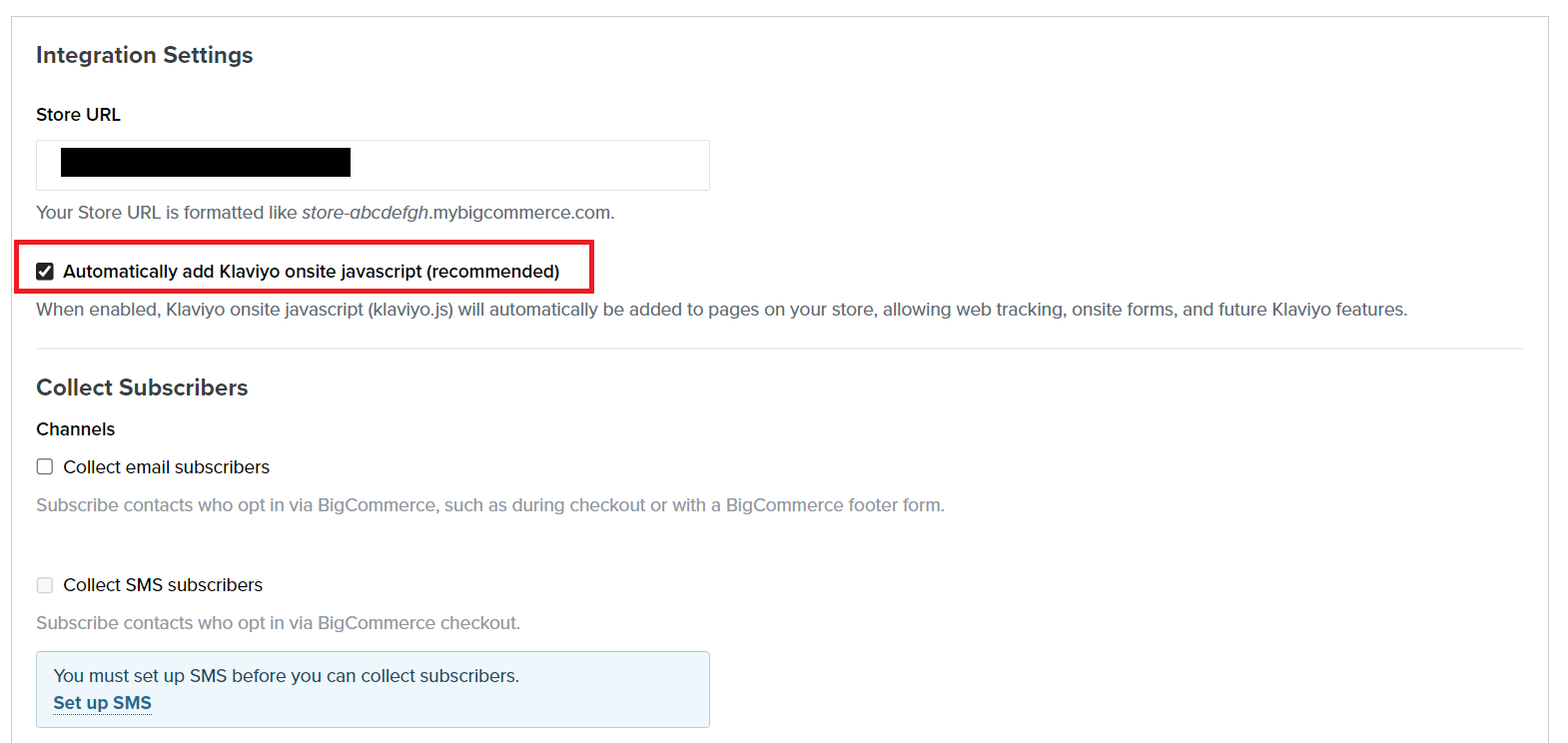
- Under the Channels section, check the box for Collect email subscribers and choose the subscription from the check box. Click Connect to BigCommerce.
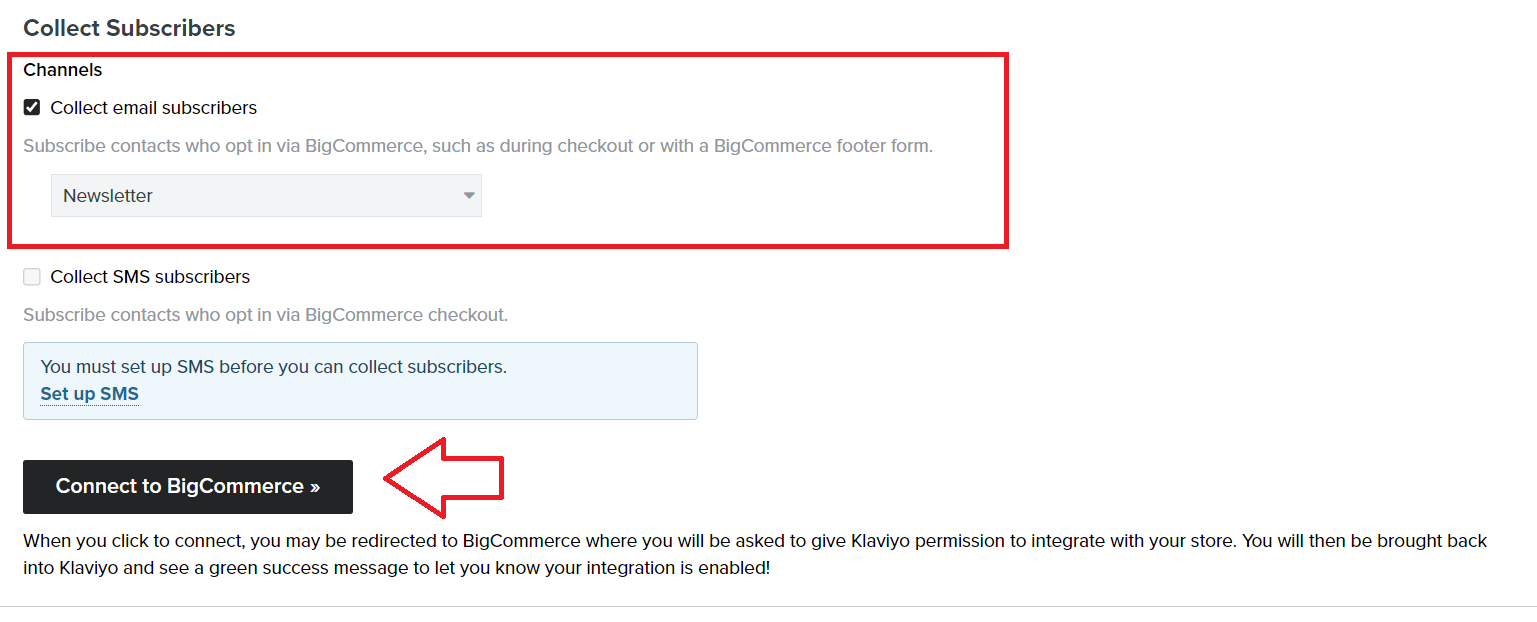
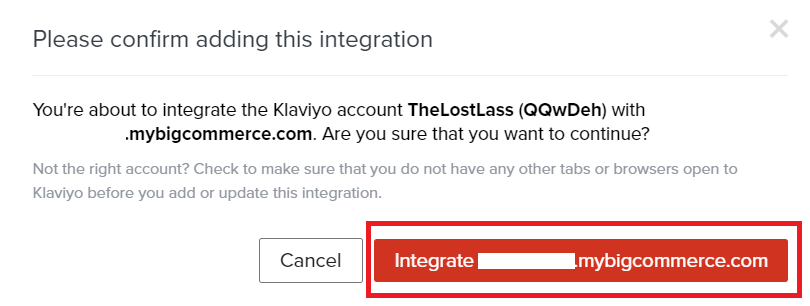
- Confirm integration.
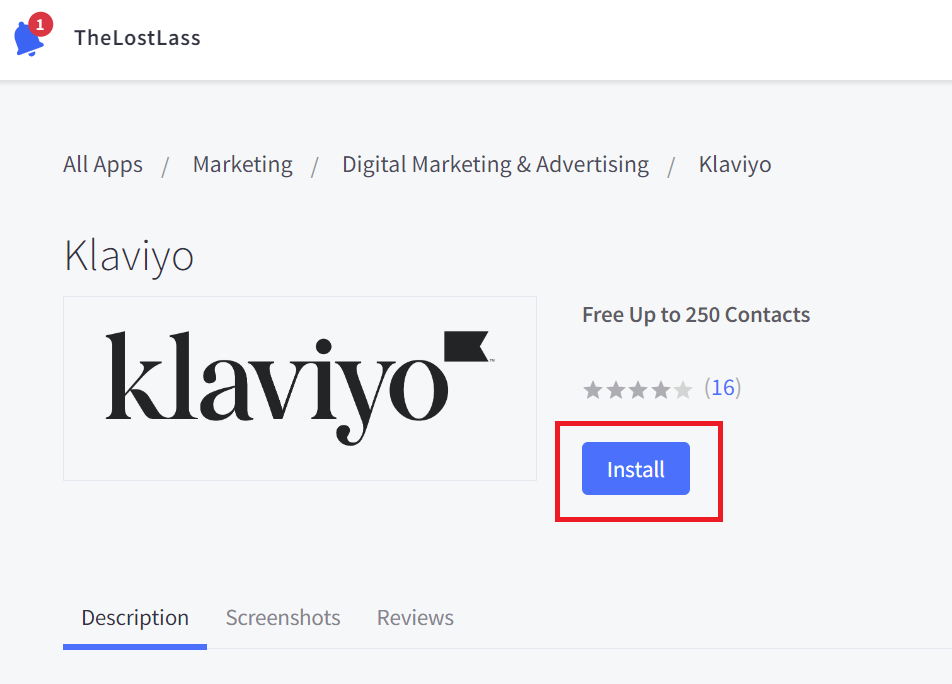
- The next page will take you to the BigCommerce page, click Install.
- It will take you back to Klaviyo and you’ll see the data sets from BigCommerce synching with Klaviyo.
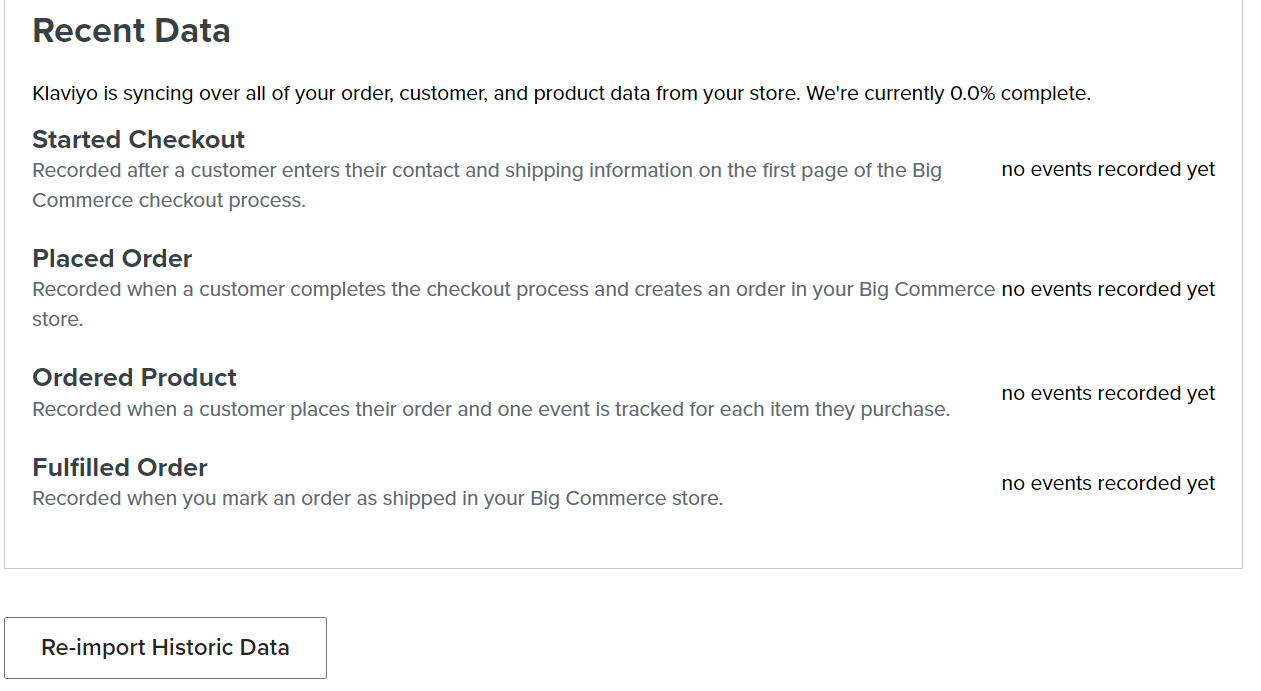
- To confirm that data is being tracked in Klaviyo, navigate to the left menu, click Analytics, then click Metrics.
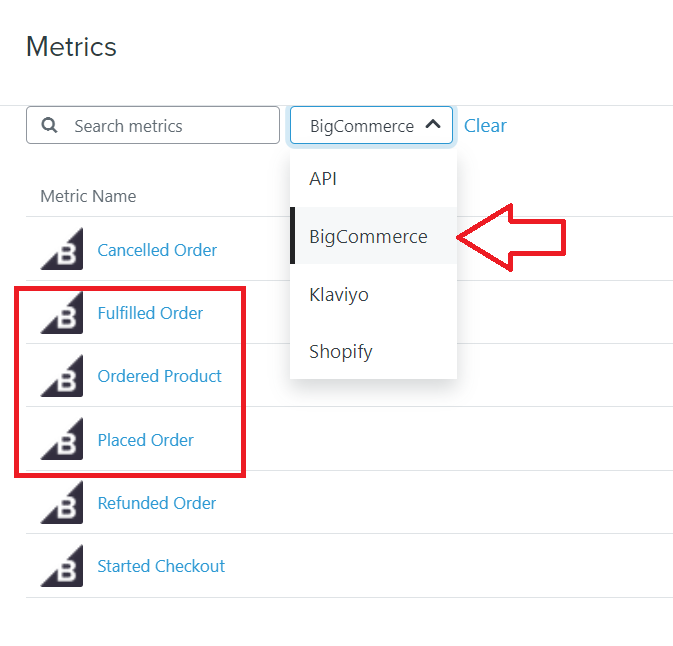
- From the dropdown, select BigCommerce. Ensure that Placed Order, Ordered Product, and Fulfilled order are present here and being tracked.
Conclusion
That’s it! You can now use the data of your customers’ activities from your store such as place order, ordered product, and fulfilled order to set up your email automations.
Execution Checklist:
-
Connect your online store to your marketing automation platform such as Klaviyo.
-
Check that metrics for placed order, ordered product, and fulfilled order are being tracked.
-
Set up your post-order email flows in Klaviyo