Setting Up an Order Shipment Flow on Klaviyo to Keep Your Customers Informed
To provide you with a step-by-step guide in setting up an order shipment flow on Klaviyo.
Prefer a shortcut? 16 free tools do parts of this for you.
Aim: To provide you with a step-by-step guide in setting up an order shipment flow on Klaviyo.
Optimal Outcome: You will have automated emails sent to customers for every stage of your shipment process.
What do you need to start:
-
Your Shopify store or website should be linked to your Klaviyo account.
-
Klaviyo account
Why is this SOP Important: Setting up an automated order shipment flow can help you provide better customer experience, improve efficiency, and potentially increase sales and customer loyalty.
When and Where to execute: The earlier you set up your order shipment flow, the better. You should definitely set it up as soon as you begin to receive orders and start shipping products to customers. This setup can be made in Klaviyo.
Who Should Be Doing This: Marketing staff, Customer care manager, person responsible for setting up automation
What is order shipment flow?
An order shipment flow is a series of automated emails that a business sends to its customers to keep them informed about the status of their orders, from the time the order is placed to the time it is delivered. The flow typically includes emails to confirm the order, provide shipping information and tracking numbers, notify customers of any delays, and follow up once the order has been delivered. By setting up an order shipment flow, businesses can improve customer satisfaction, reduce customer support inquiries, and potentially increase sales and customer loyalty.
Execution
Resources/Tools & Set up
-
Enable onsite tracking for your store or website
-
Set up dynamic coupon code (Follow this guide, SOP 251: Setting Up Dynamic Discount Codes.)
Connect your Shopify account with Klaviyo
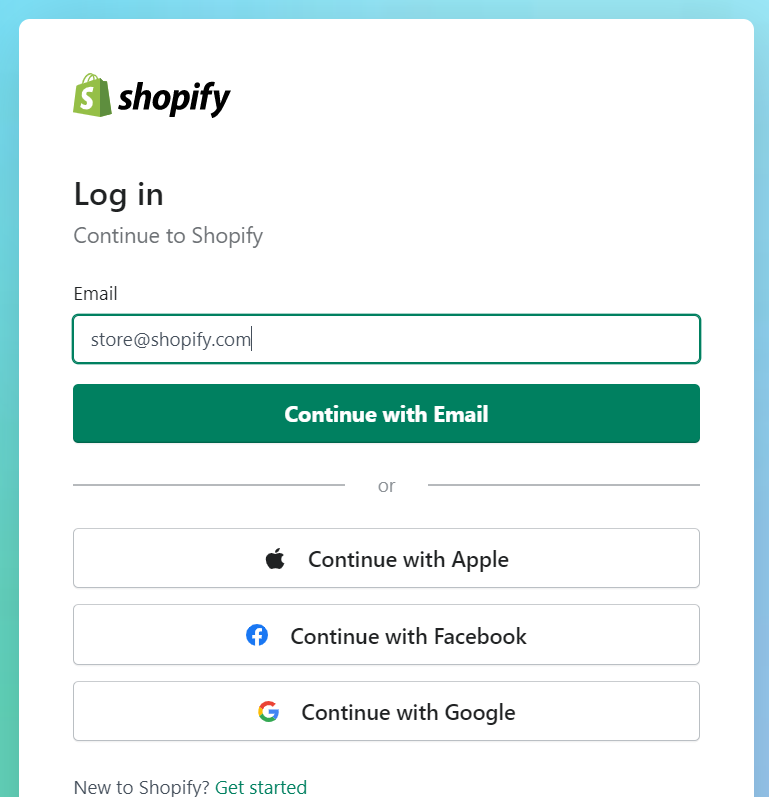
- Login to your Shopify account.
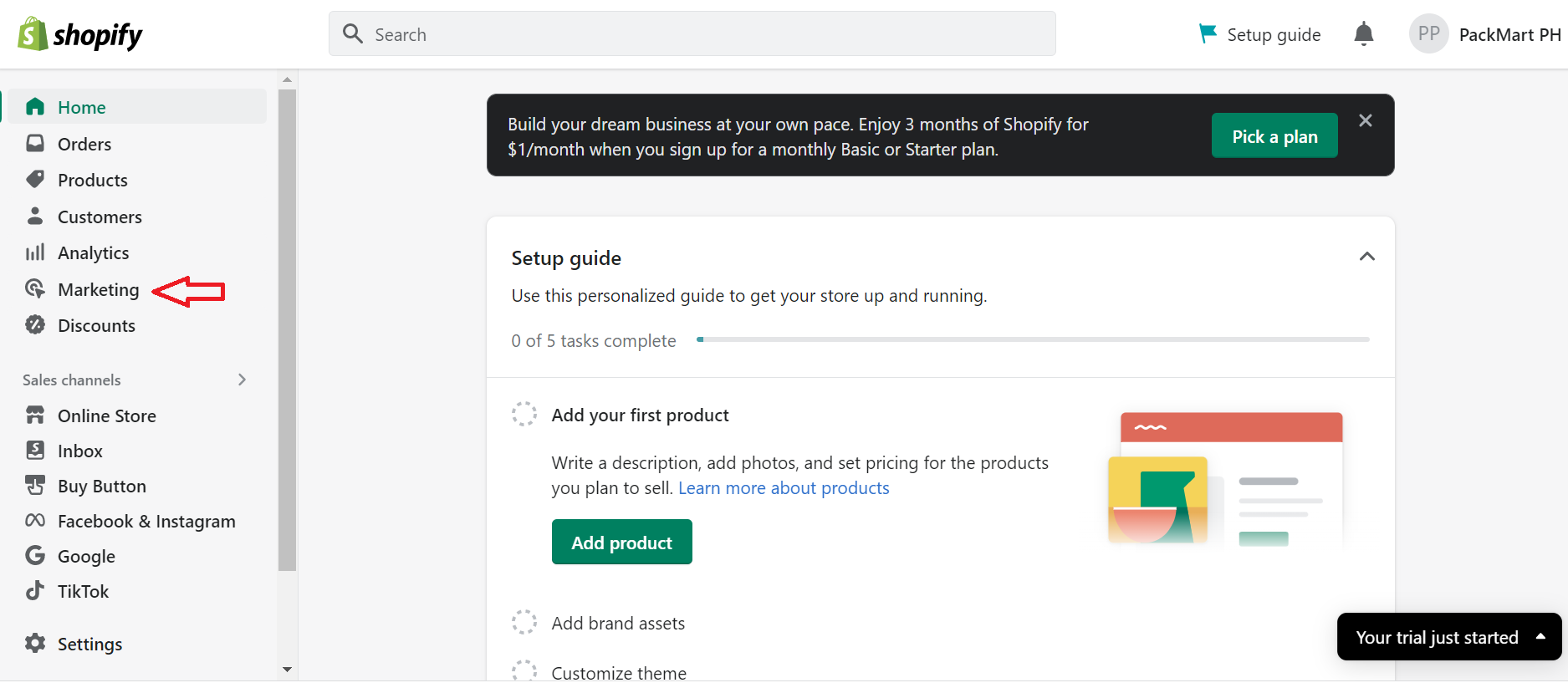
- Select Marketing from the left menu.
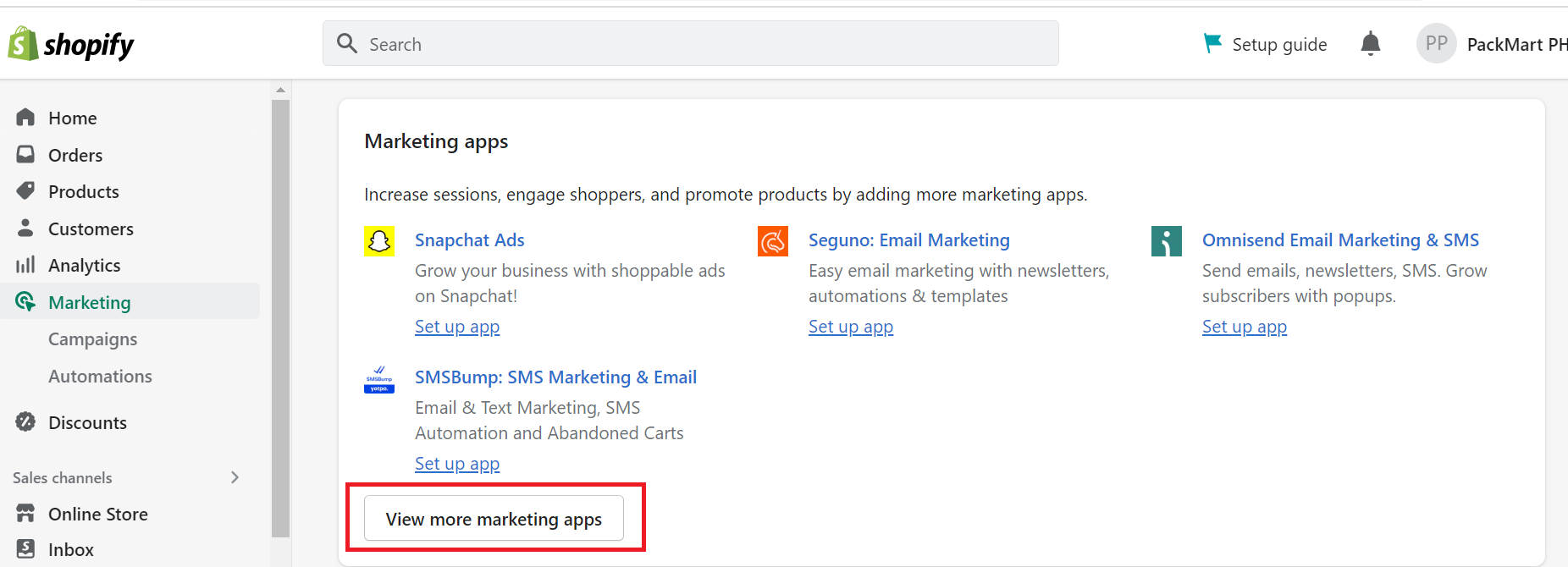
- Select View more marketing apps in the Marketing apps section.
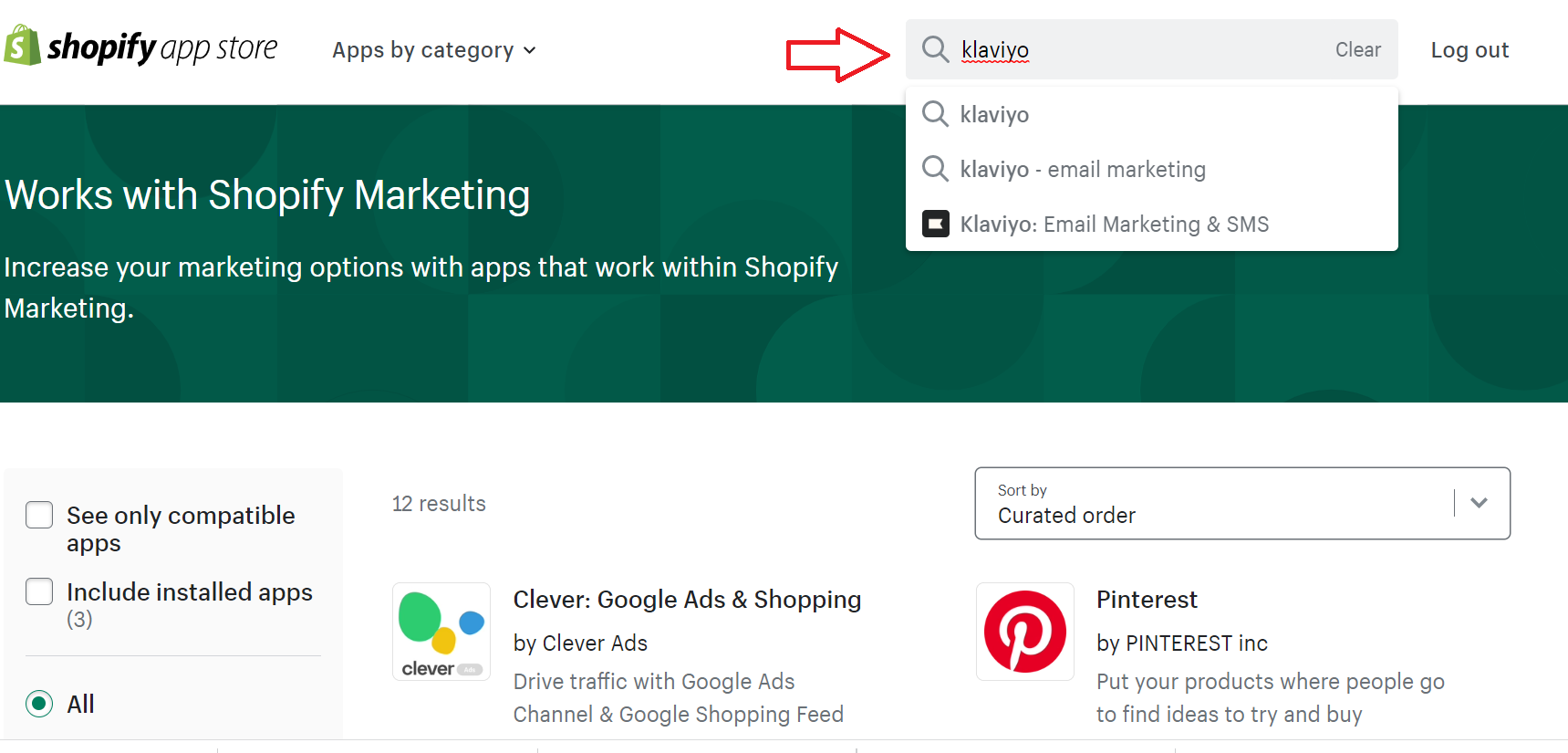
- Search Klaviyo from the search bar at the top-left section of the page.
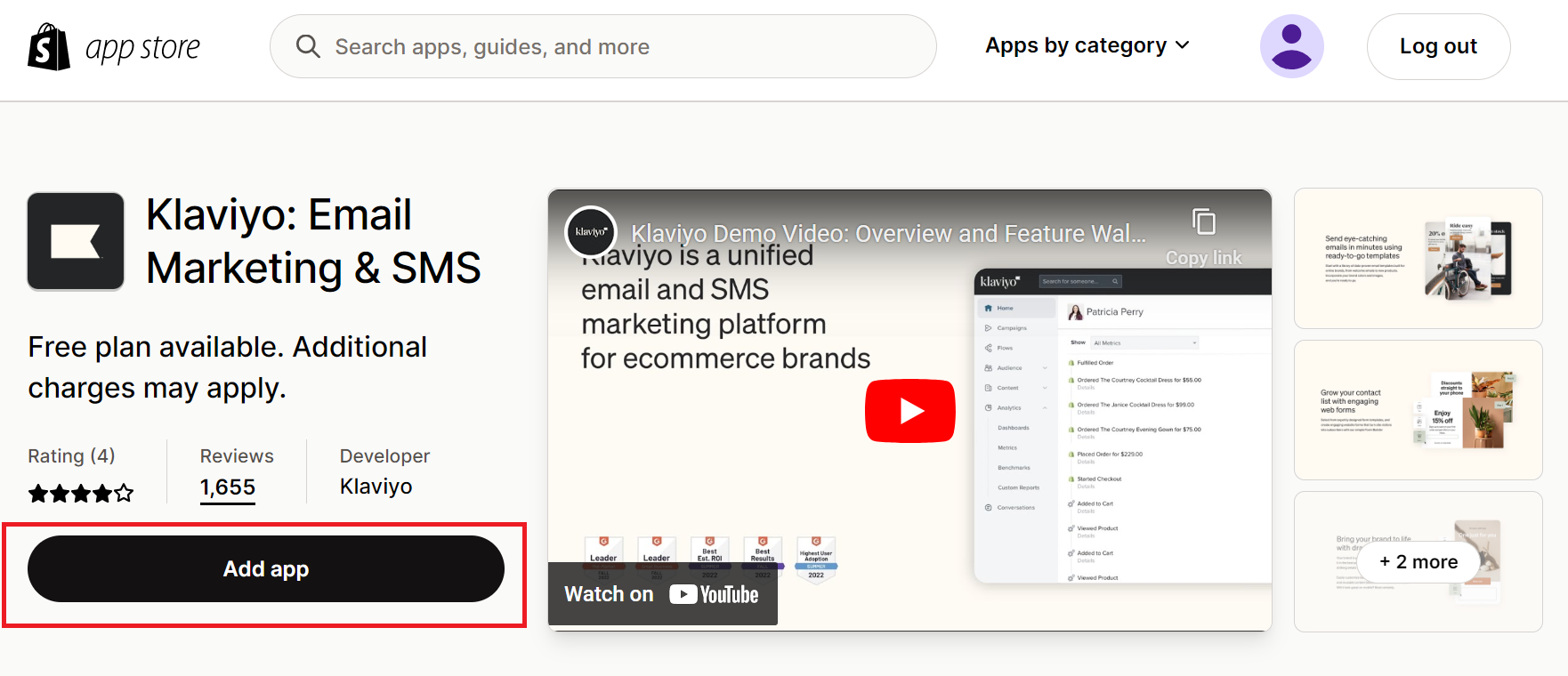
- Click on Add app.
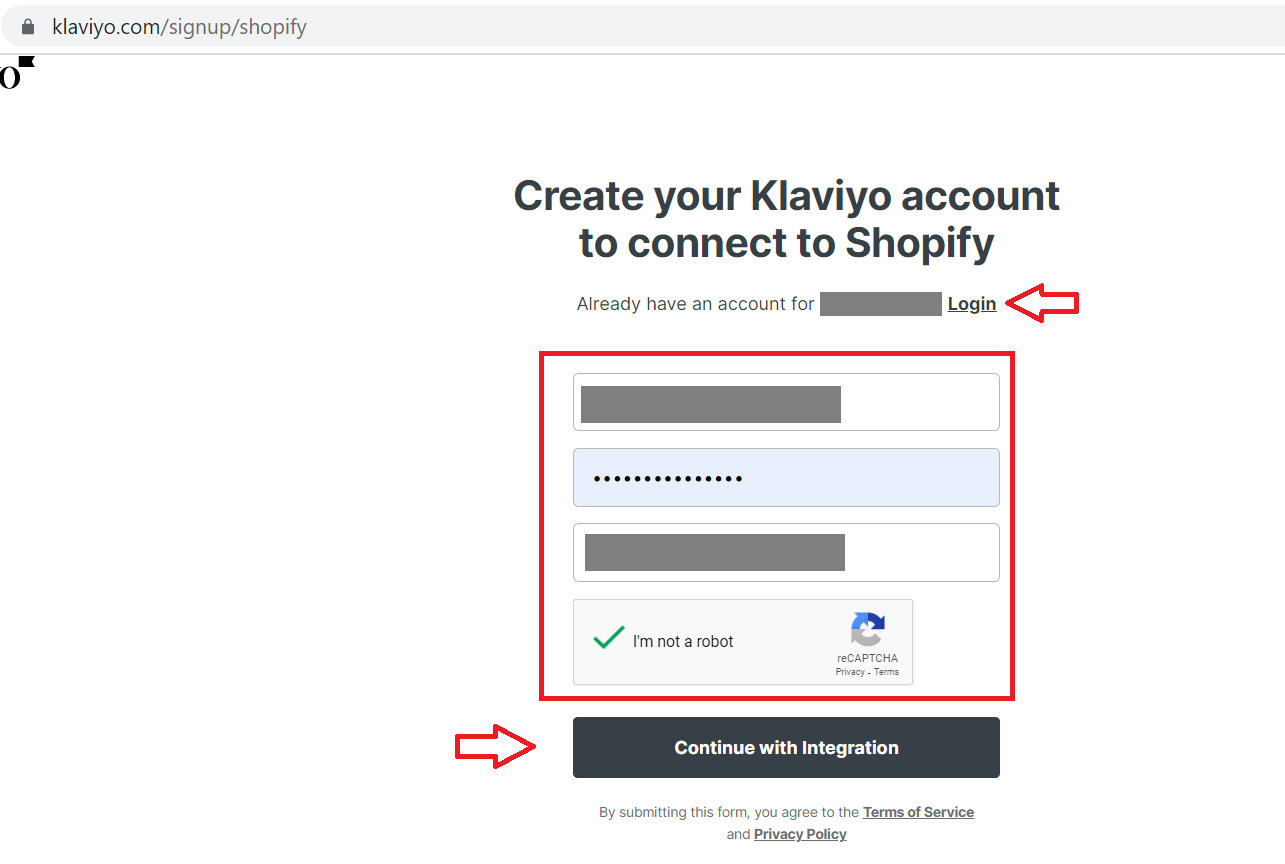
- Create or log in to your Klaviyo account, then click on Continue with Integration.
- Review permissions required.
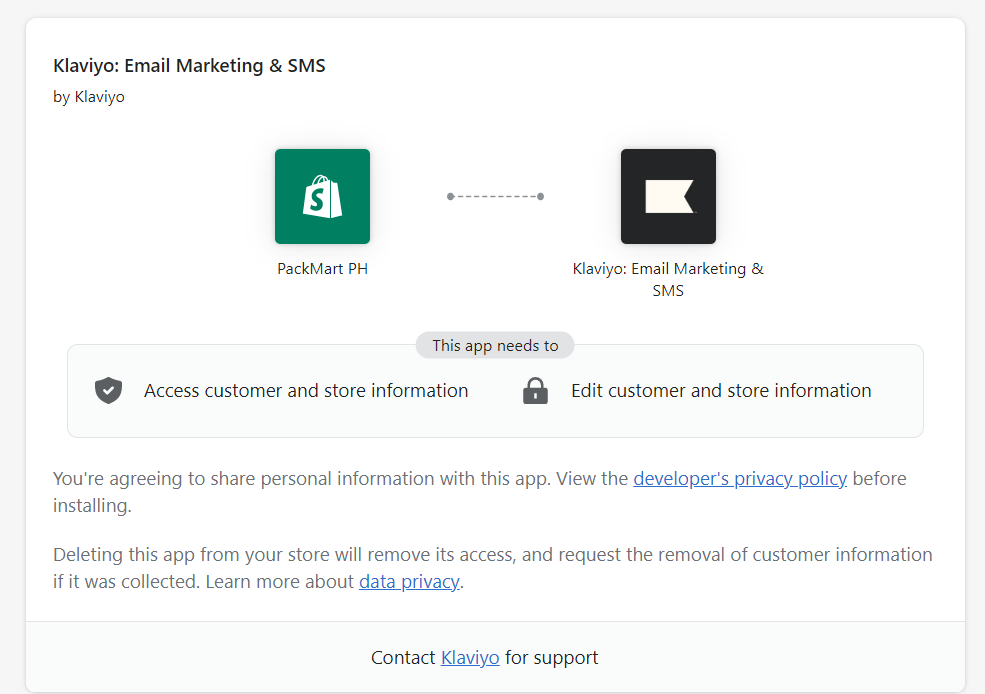
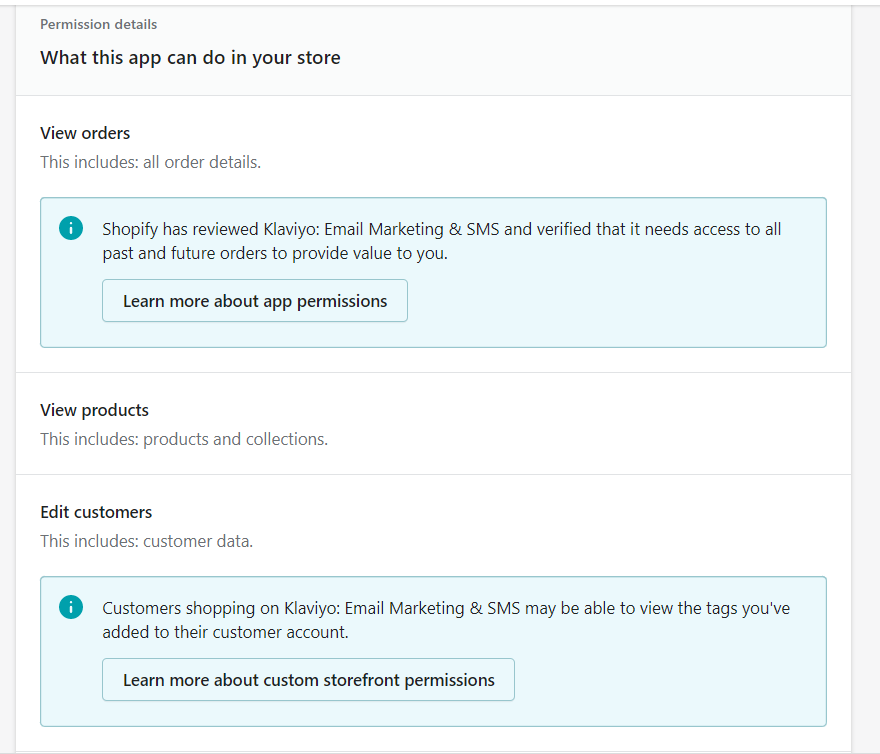
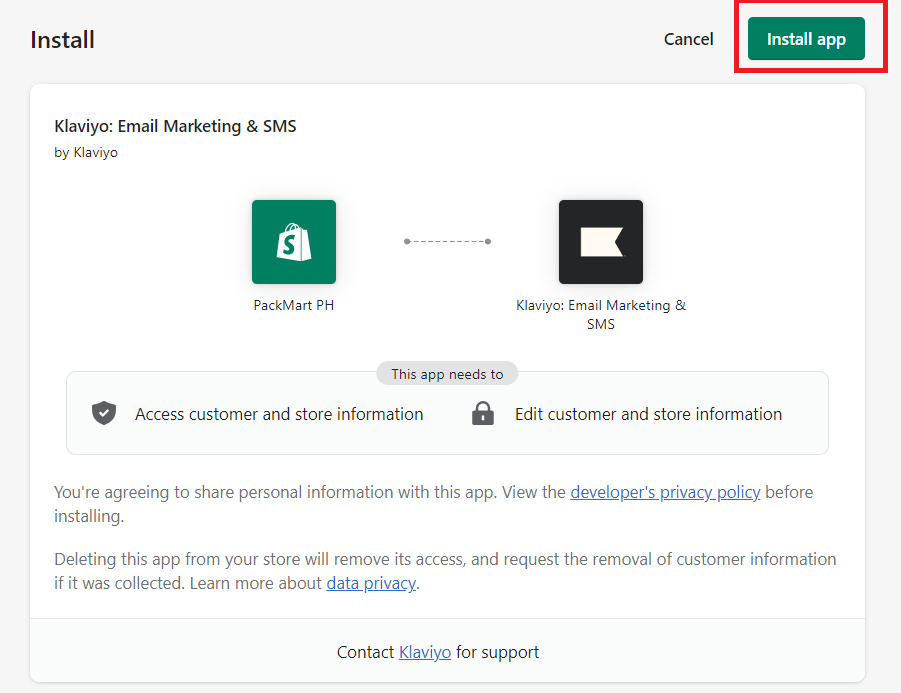
- Click the Install button at the upper-right corner of the page.
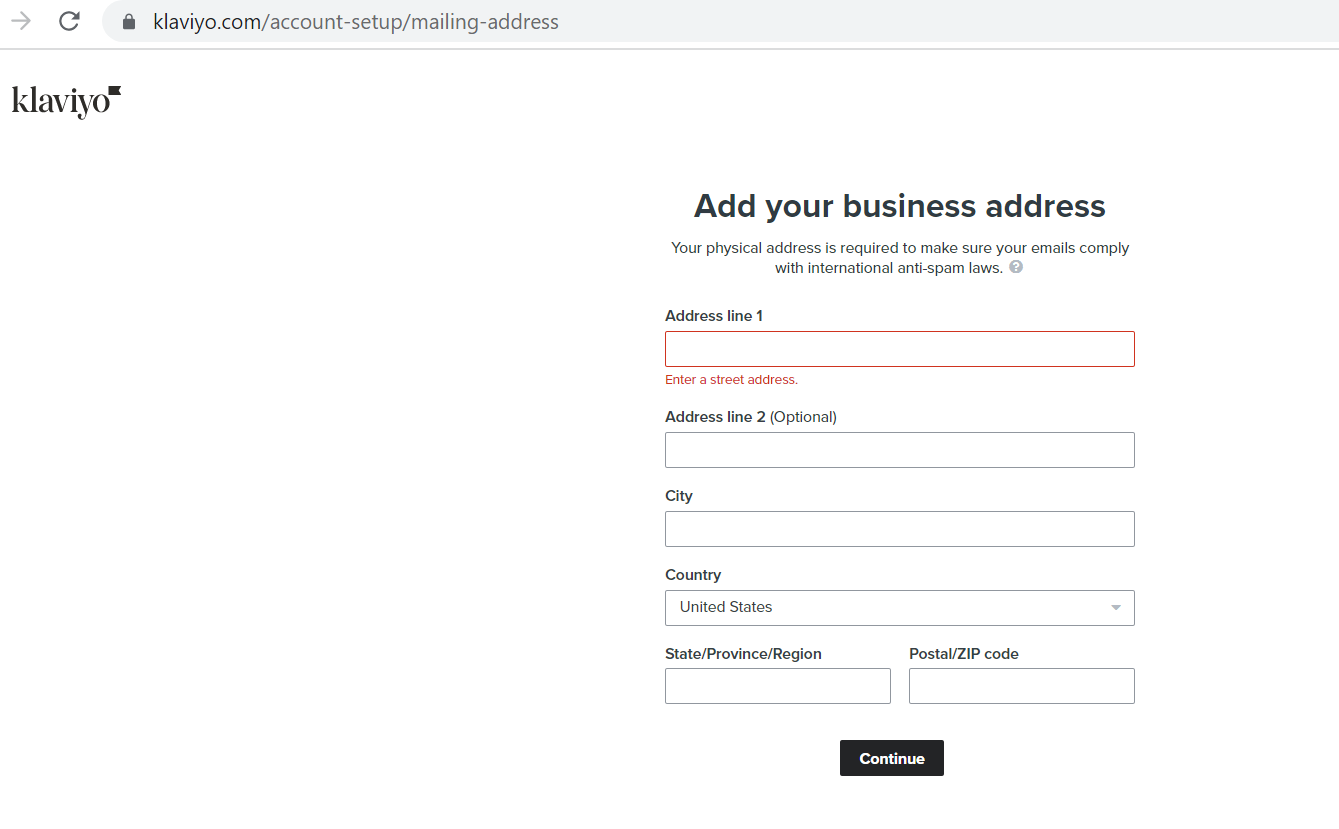
- Add your business info then click Continue.
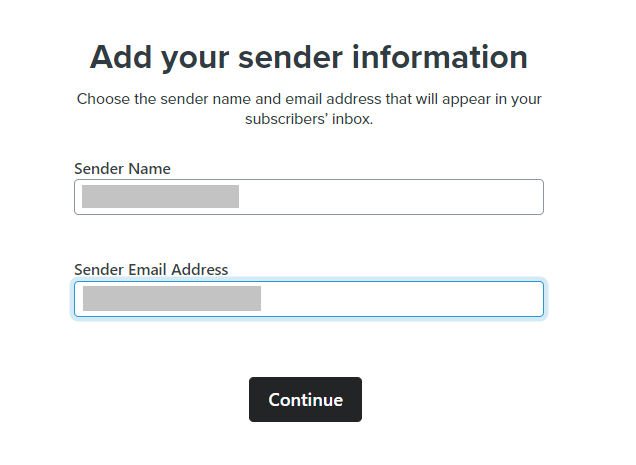
- Fill out the Sender Name and Sender Email Address. This information will appear on your subscriber’s inbox.
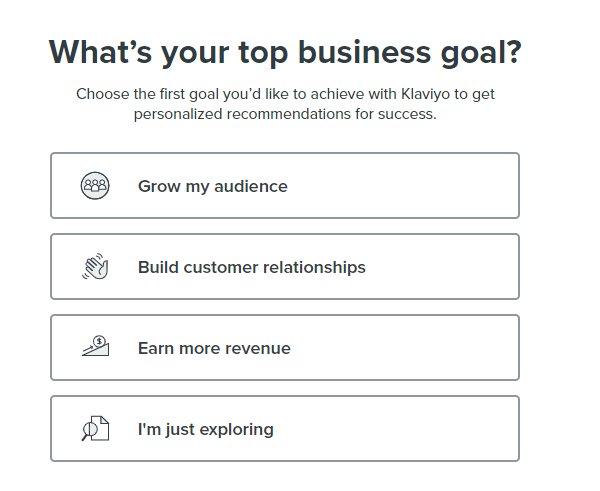
- Choose your top business goal.
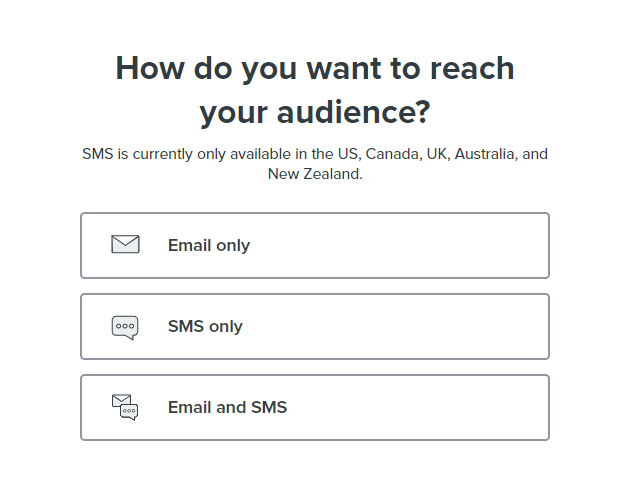
- Choose how you want to reach your audience.
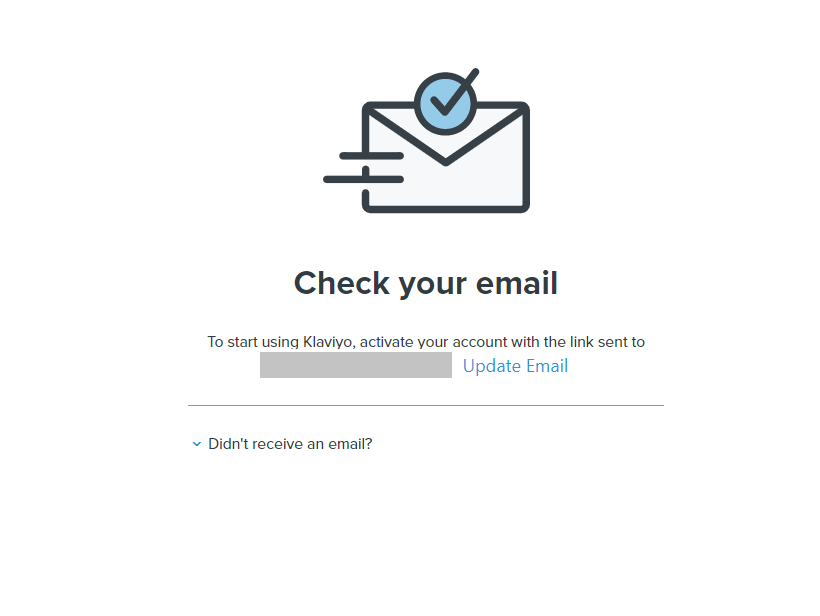
- You will then be prompted to confirm your email. Log in to your email and click the link to confirm your account.
Enable onsite tracking from your store or website.
Note: Based on your Customer Privacy settings in Shopify, Klaviyo may not track onsite events (including Active on Site and Viewed Product) for visitors to your Shopify store in the EU, EEA, UK and Switzerland, unless they have provided consent.
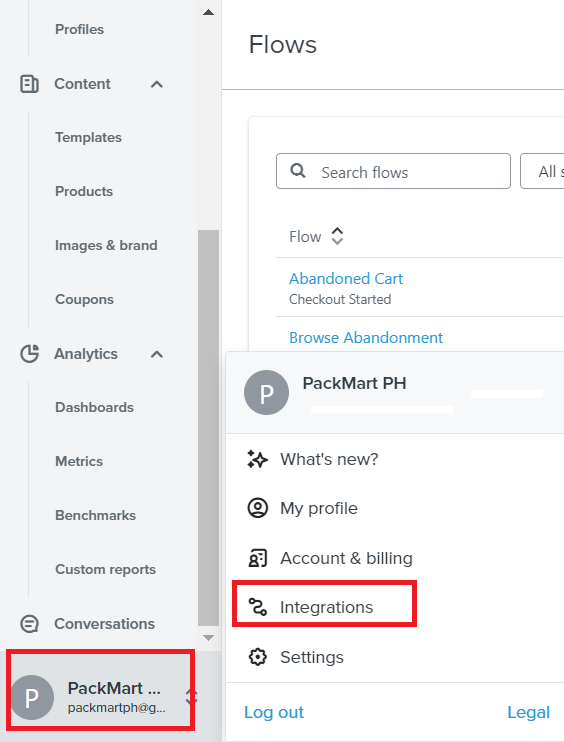
-
Navigate to the left menu and click your brand name, then click Integrations.
-
Choose Shopify then click View Settings.
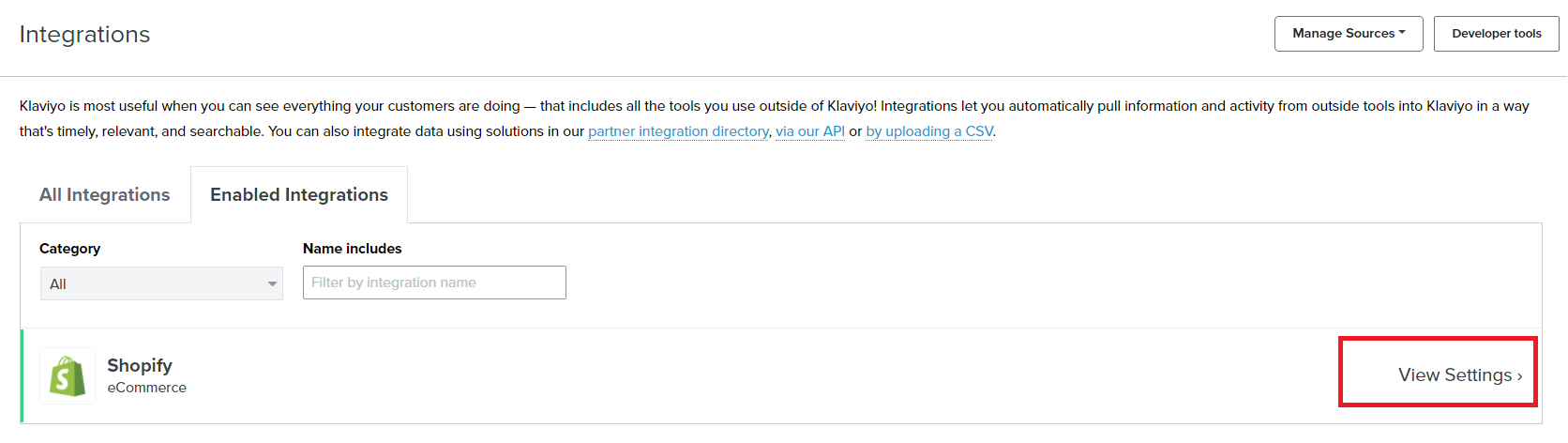
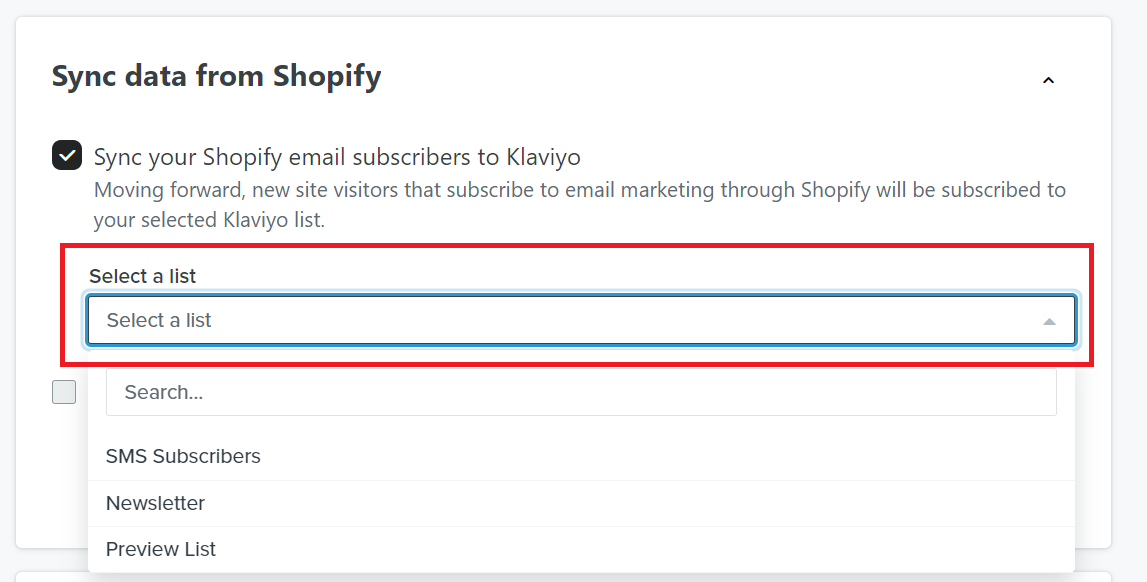
- Check the box next to Sync your Shopify email subscribers to Klaviyo, then select the list that you want to sync.
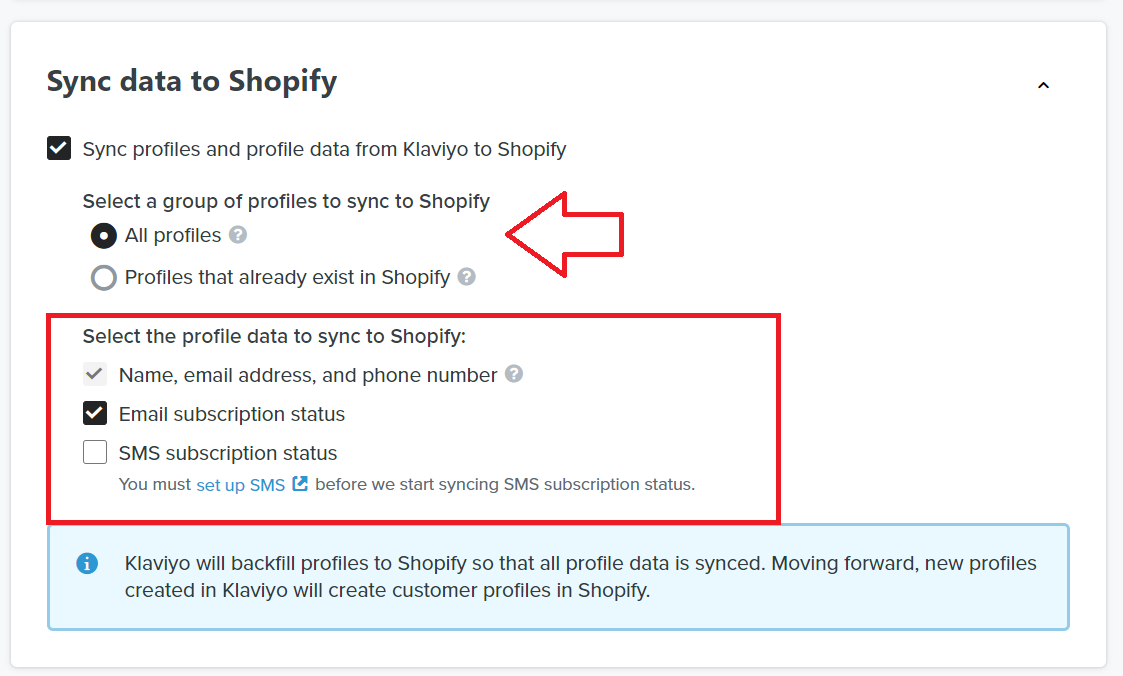
- Sync all profile data from Klaviyo to Shopify then make sure Email Subscription is also selected.
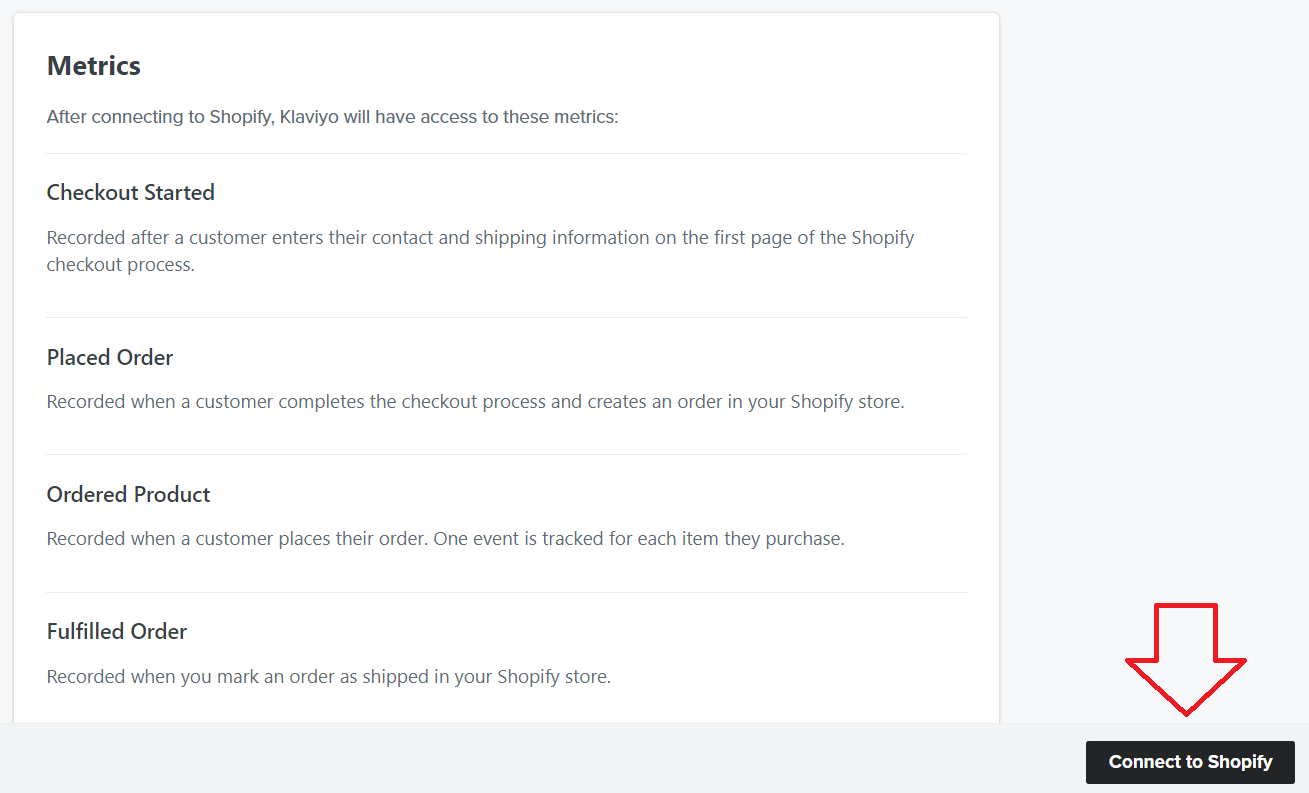
- Click Connect to Shopify. Klaviyo now has access to Shopify events such as check out started, placed order, fulfilled order etc.
Set up a [full] order shipment flow on Klaviyo
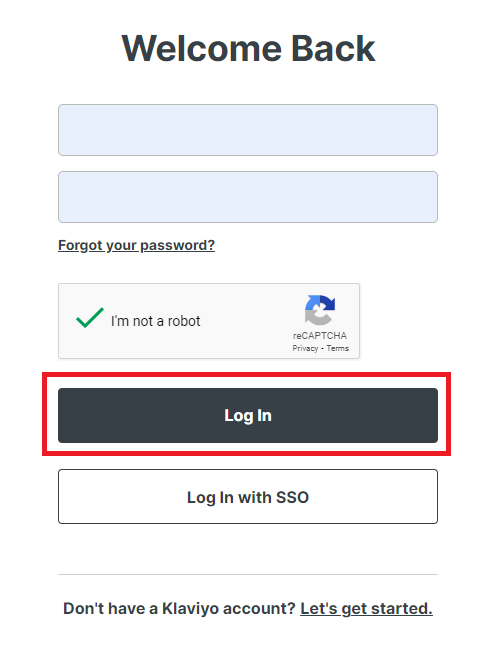
-
Login to Klaviyo.
-
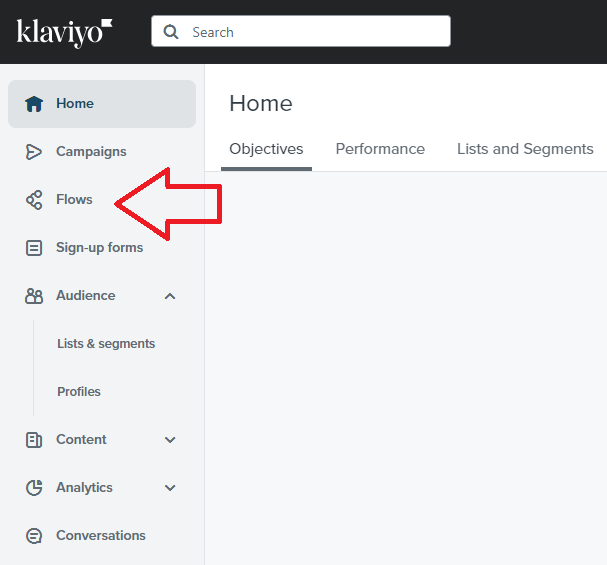
Navigate to the left menu and click Flows.
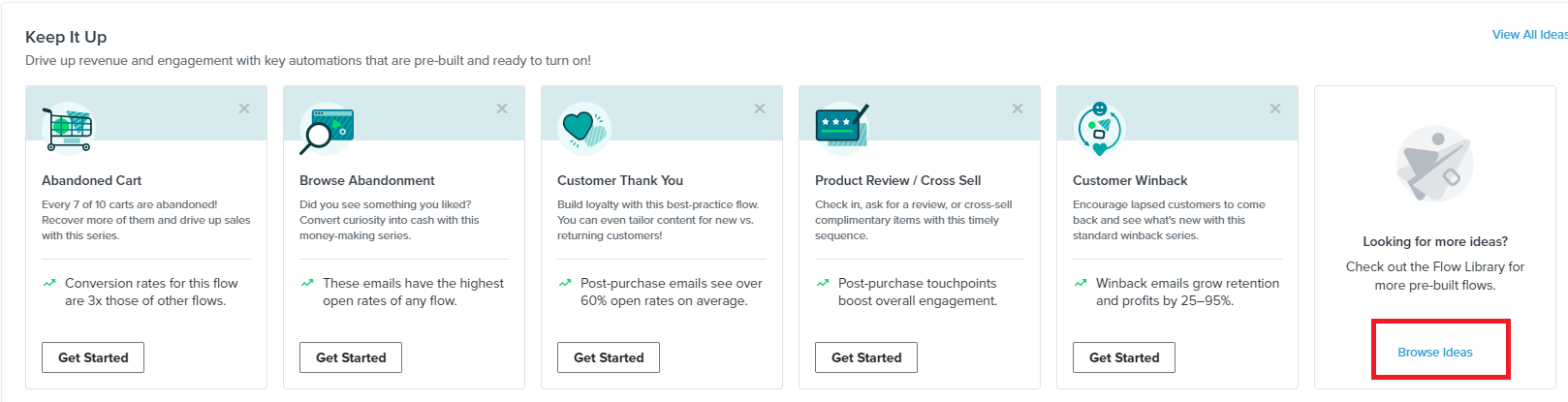
- If you don’t see order shipment flow from the main page, click Browse Ideas.
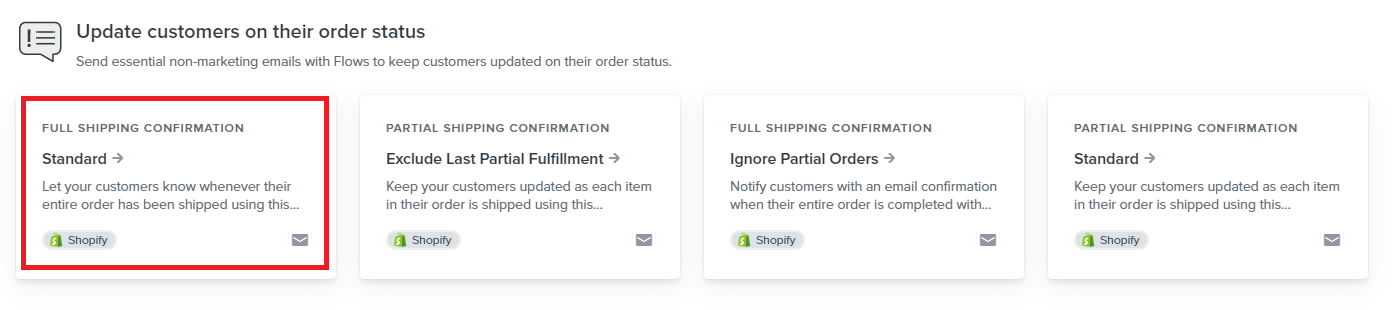
- Select Full Shipping Confirmation card.
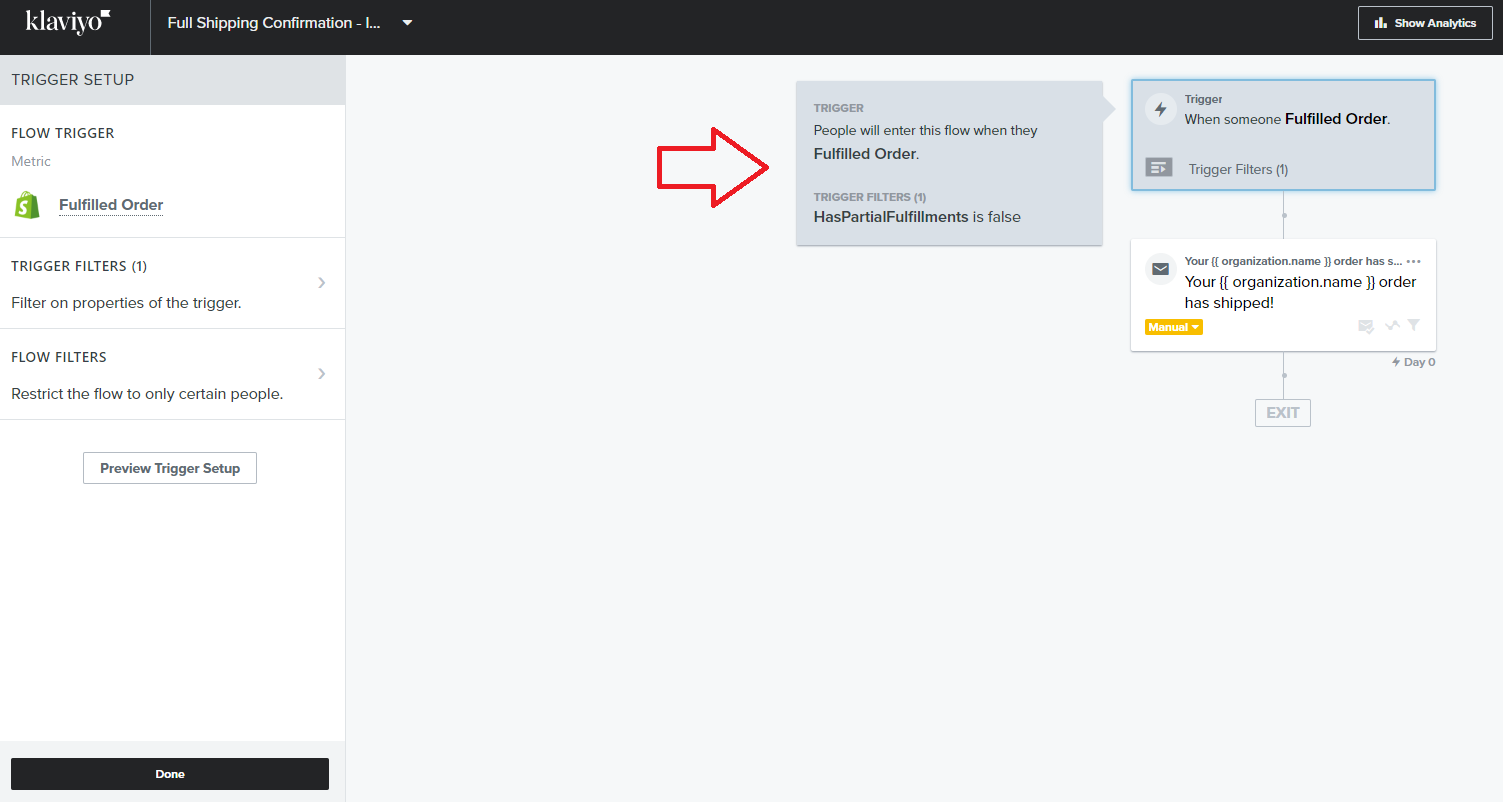
- Configure the trigger setup.
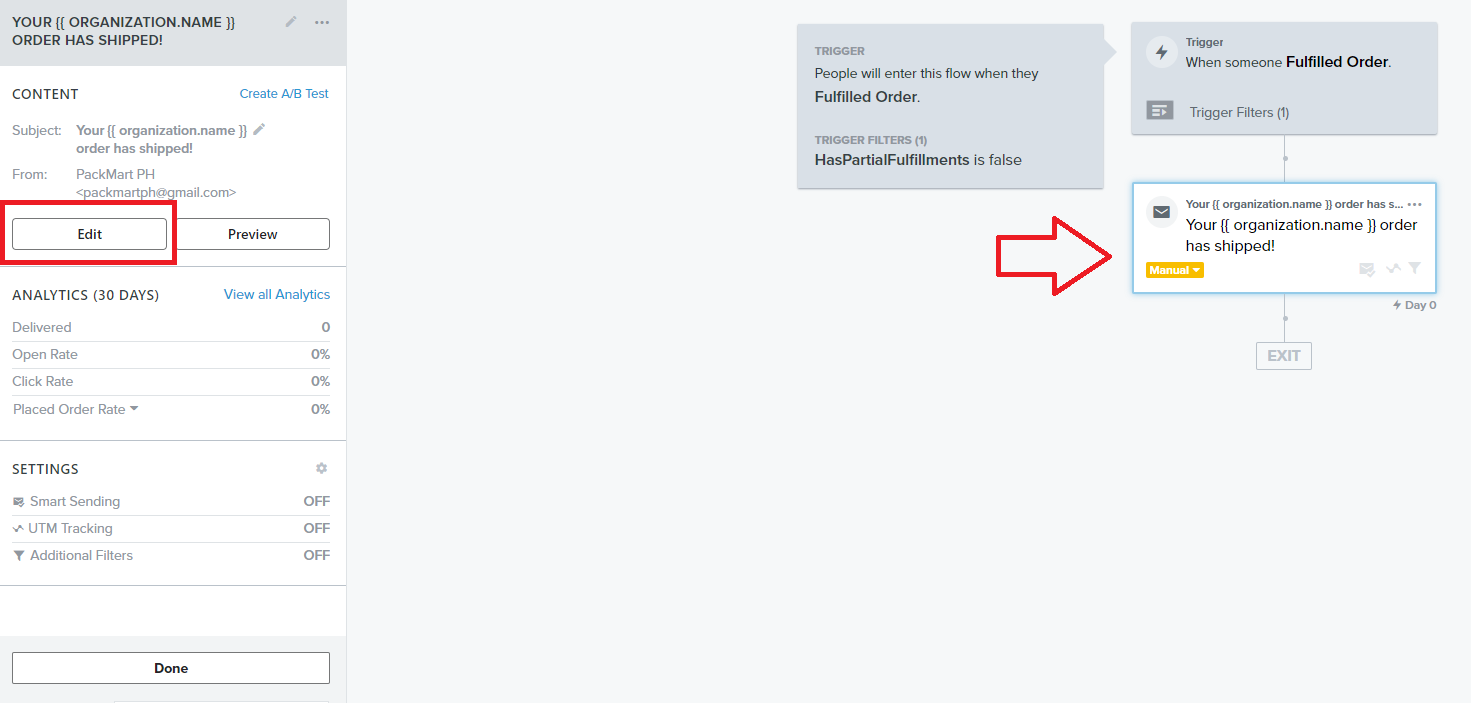
- Edit the email that will be sent to the customer about their shipment.
-
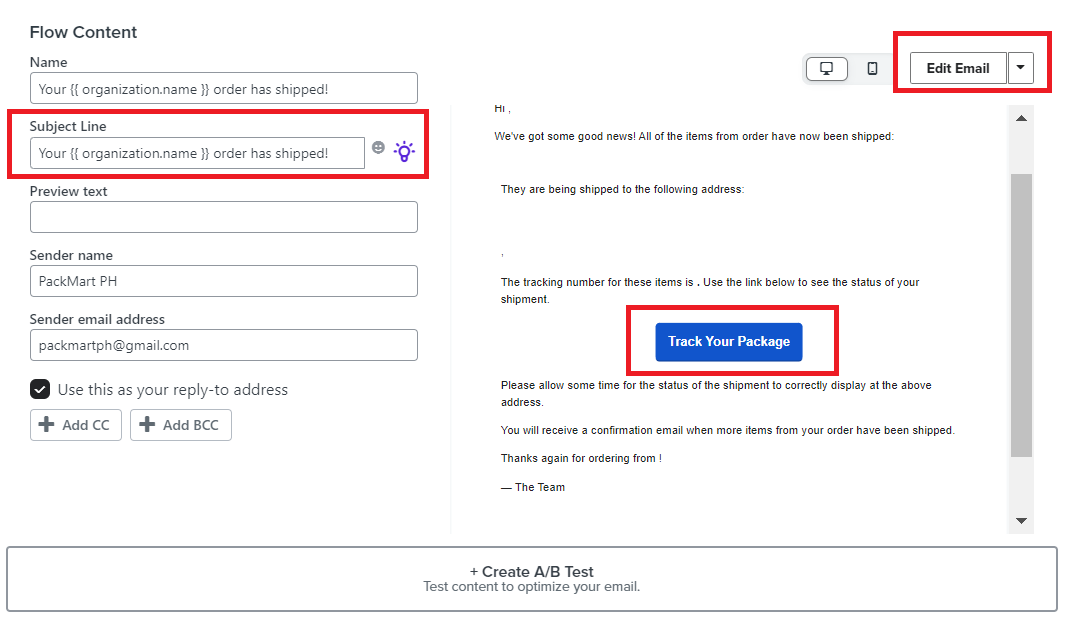
Customize the Flow Content.
-
Name - provide a name for this specific email.
-
Subject Line - create an attention-grabbing subject line. You can use the Subject Line Assistant for help.
-
Click Edit Email and update the contents. Make sure to include a link where the customer can track their package.
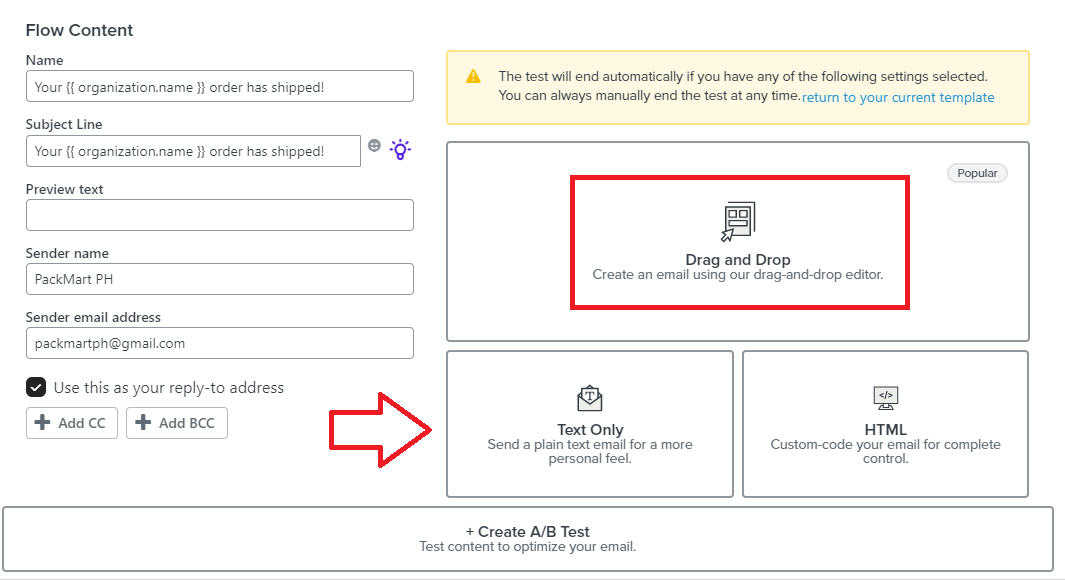
- You have several options to edit the email contents.
Text Only - If you just want to send a simple text-only email.
HTML - if you have complete control over the email design and configuration, you can use code to set up your email.
Drag and Drop - you can take advantage of email templates with pre-set design
- You can choose from the pre-designed email templates.
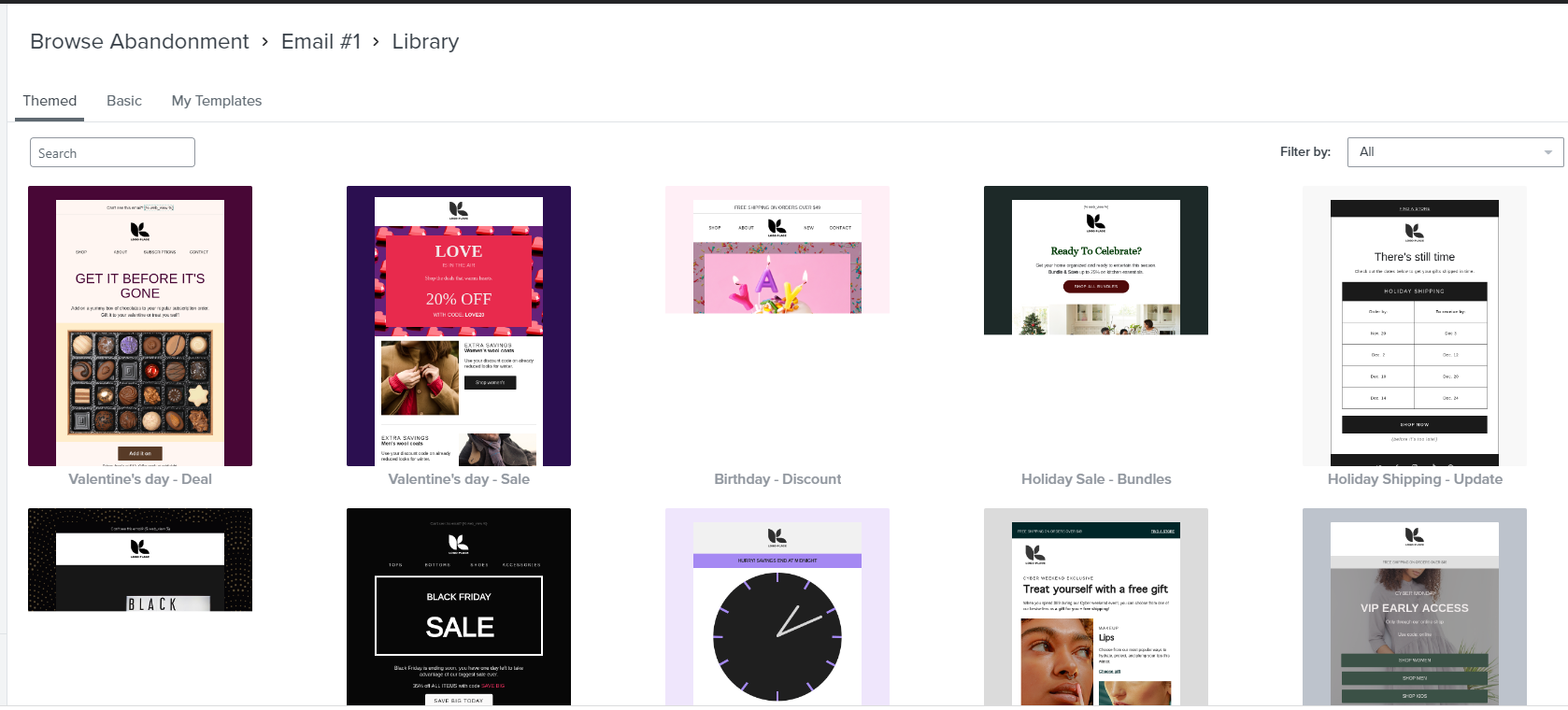
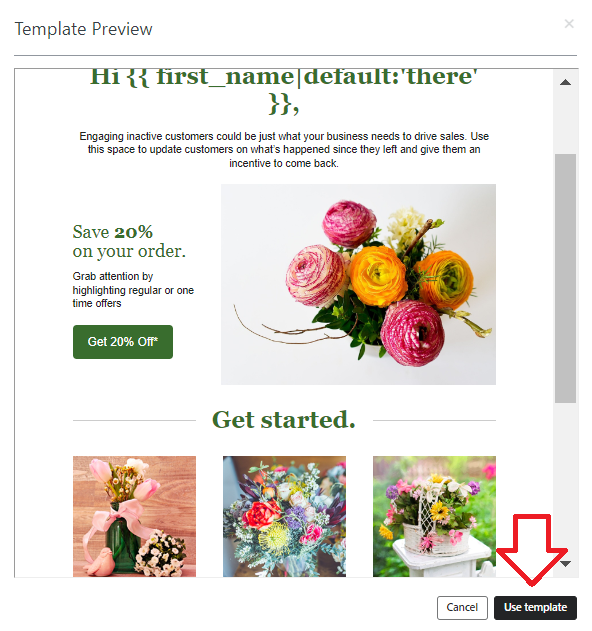
- Preview the template and click Use template.
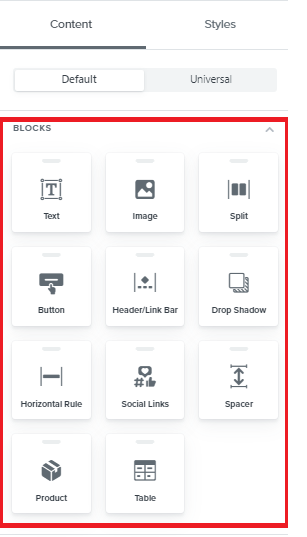
-
In the left menu, you’ll see options for customizing the elements of your email contents.
-
You can add your dynamic coupon code to your email content. Follow this guide to learn how to create and embed your code SOP 251: Setting Up Dynamic Discount Codes.
Set up a [partial] order shipment flow on Klaviyo
-
Login to Klaviyo.
-
Navigate to the left menu and click Flows.
- If you don’t see order shipment flow from the main page, click Browse Ideas.
- Select Full Shipping Confirmation card.
- Configure the trigger setup.
- Edit the email that will be sent to the customer about their shipment.
-
Customize the Flow Content.
-
Name - provide a name for this specific email.
-
Subject Line - create an attention-grabbing subject line. You can use the Subject Line Assistant for help.
-
Click Edit Email and update the contents. Make sure to include a link where the customer can track their package.
- You have several options to edit the email contents.
Text Only - If you just want to send a simple text-only email.
HTML - if you have complete control over the email design and configuration, you can use code to set up your email.
Drag and Drop - you can take advantage of email templates with pre-set design
- You can choose from the pre-designed email templates.
- Preview the template and click Use template.
-
In the left menu, you’ll see options for customizing the elements of your email contents.
-
You can add your dynamic coupon code to your email content. Follow this guide to learn how to create and embed your code SOP 251: Setting Up Dynamic Discount Codes.
Conclusion
That’s it! Setting up order shipment flow allows you to provide your customers with timely and accurate information about the status of their orders. This can help to improve the overall customer experience and increase customer satisfaction.
-
Order shipment flow can provide customers with detailed information about the shipping process, including estimated delivery date, tracking information, and any potential delays or issues. This increased transparency can help build trust between businesses and the customer.
-
By providing customers with detailed information about their orders, you can reduce the number of customer support inquiries related to shipping and order status.
-
Order shipment emails can also be used as an opportunity to promote their products or services, provide discounts or special offers, or solicit customer feedback.
Execution Checklist:
-
Linked Shopify store of website to Klaviyo
-
Klaviyo account
-
Package training info (should be added to the email template)