Increasing Opt-In Conversions by Adding Timers
To encourage people to subscribe by using timers to the opt-in page
Prefer a shortcut? 16 free tools do parts of this for you.

Aim: To encourage people to subscribe by using timers to the opt-in page
Optimal Outcome: Increase subscribers to email list
What you need to start: Klaviyo account, Countdown Mail account
Why is this SOP Important: Build urgency by adding a timer to your opt-in pop up page
When and Where to execute: Use this SOP after you’ve added a Klaviyo popup to your Shopify store
Who Should Be Doing This: A person in your Marketing or IT team
What Is a Countdown Timer?
A countdown timer is a digital clock you place on your pop-up page to count down to the end of an offer. It’s a page element that boosts urgency and generates more conversions. Customers have the feeling that time’s running out on them, so they should act immediately.
Execution
Resources/Tools & Set up
-
Klaviyo account
-
Countdown Mail account
Create a Countdown Timer
NOTE: This SOP assumes that you’ve already integrated Klaviyo with your online store account (Shopify, website, or others). Moreover, you had added a Klaviyo popup to your shopify store.
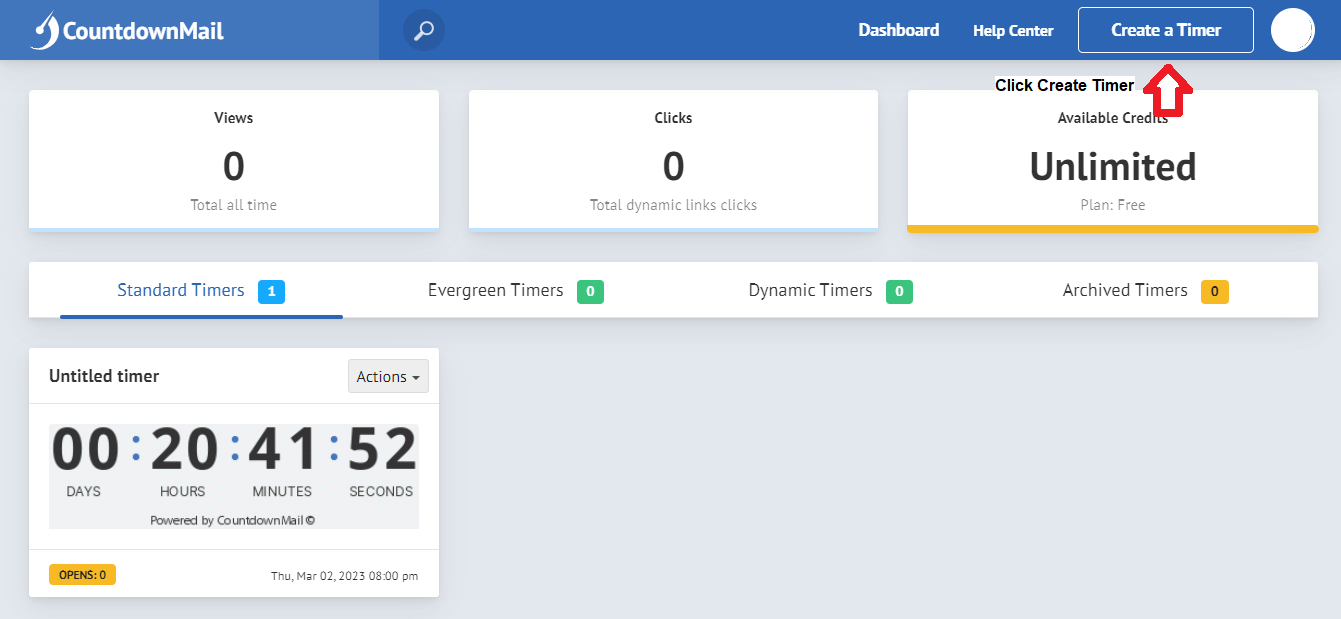
- Pick a timer generator. For this SOP, we’ll use Countdown Mail. Create an account if you haven’t done it. On the dashboard, click Create Timer.
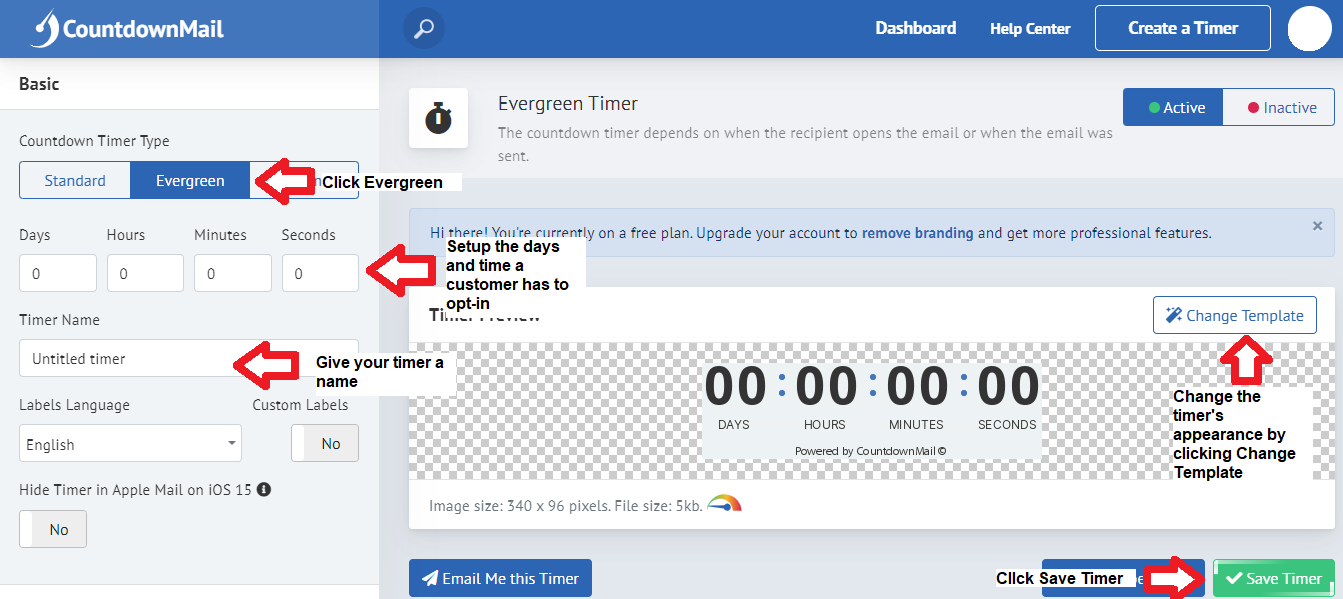
- Click Evergreen as a timer type, Other types won’t work with Klaviyo. Change the days and time fields to your desired timer range. Update the timer’s appearance by clicking Change Template. Fill in the Timer Name before clicking Save Timer.
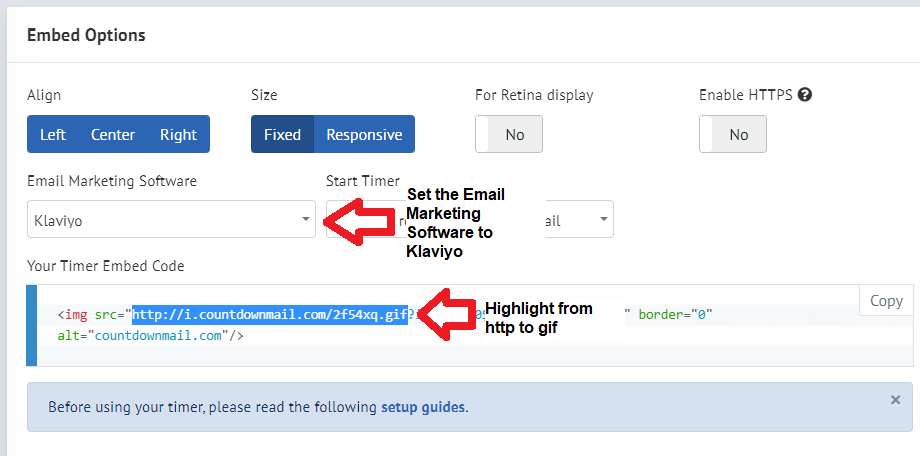
- Ensure the Email Marketing Service under the Embed Options is set to Klaviyo. Highlight from http to gif to copy for pasting to a Klaviyo popup.
Add Countdown Timer to the Klaviyo Popup
- Log into your Klaviyo account and click on Signup Forms on the dashboard’s side bar.
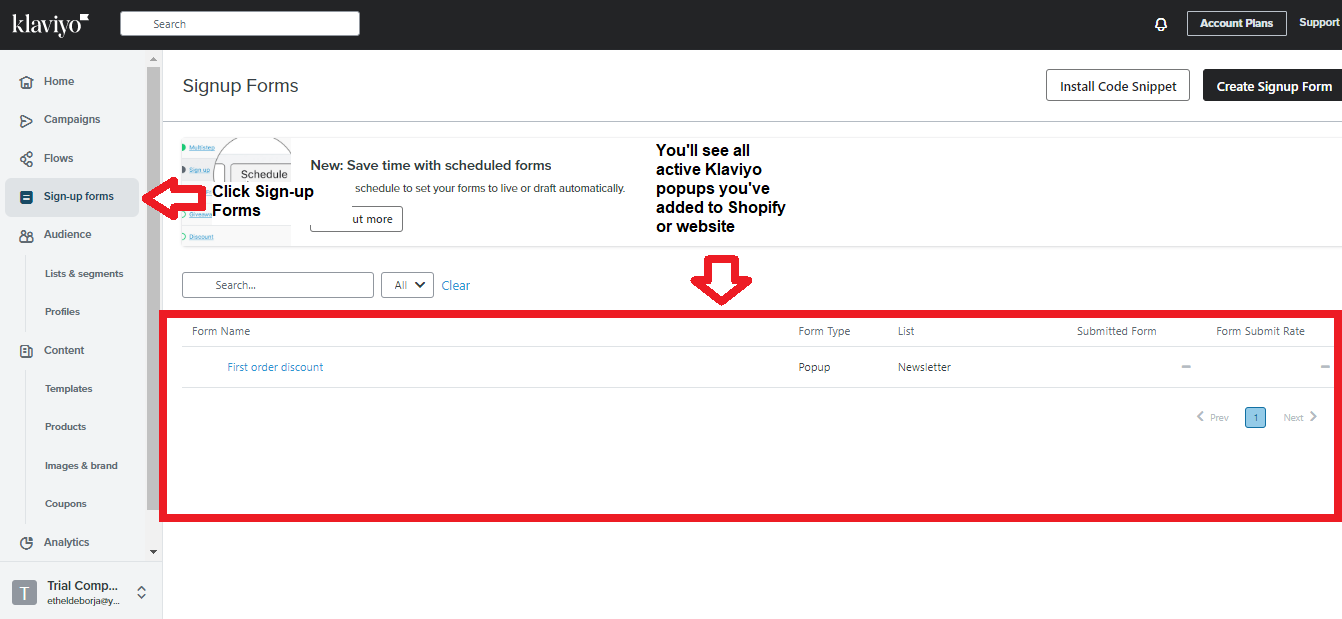
- Hover to an existing sign-up form then click Edit Form. You can also create a new one.
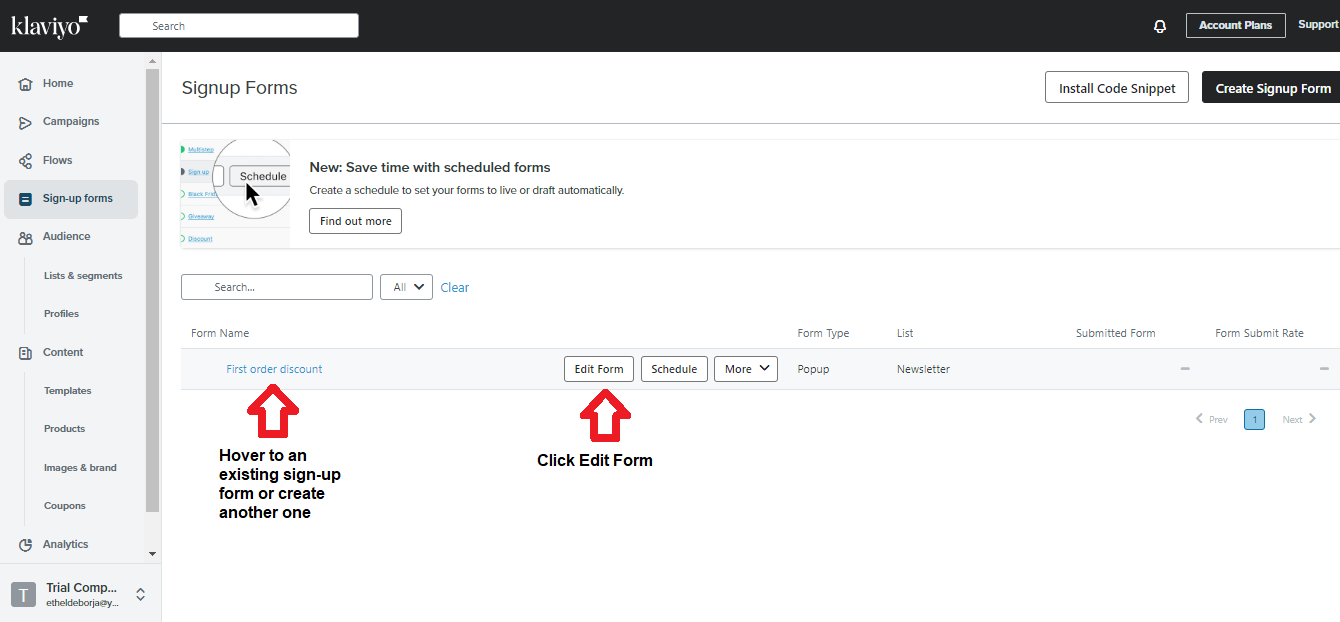
- Click Add Blocks.
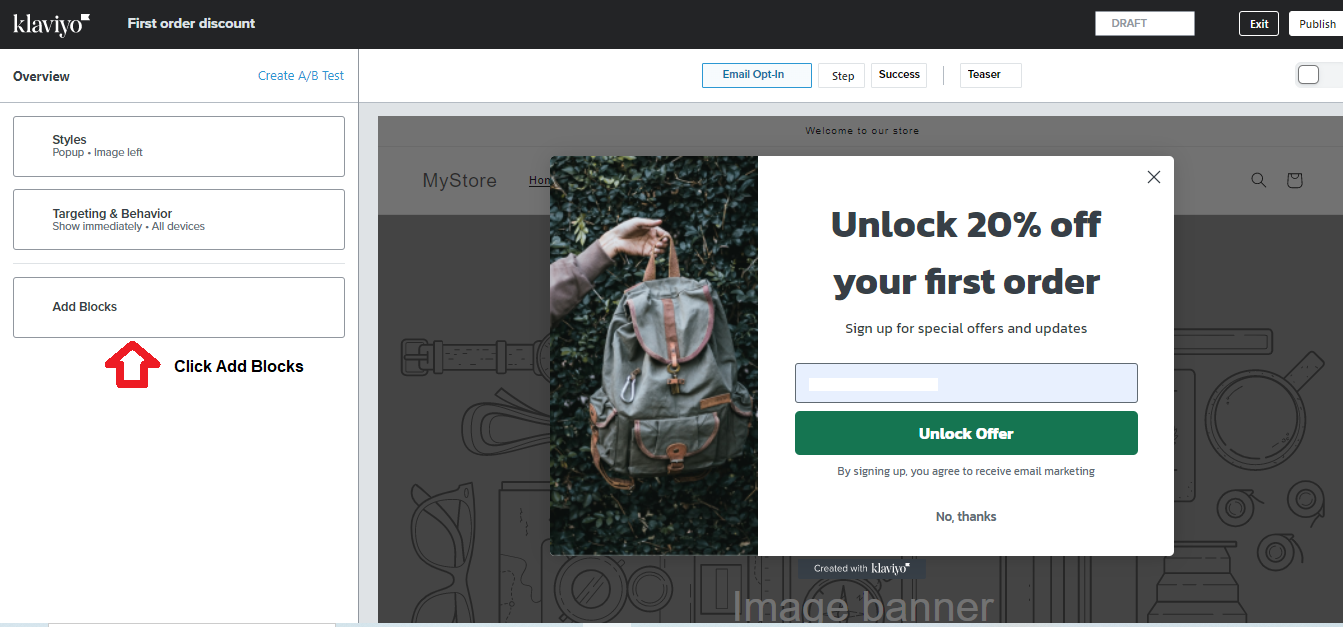
- Click Image.
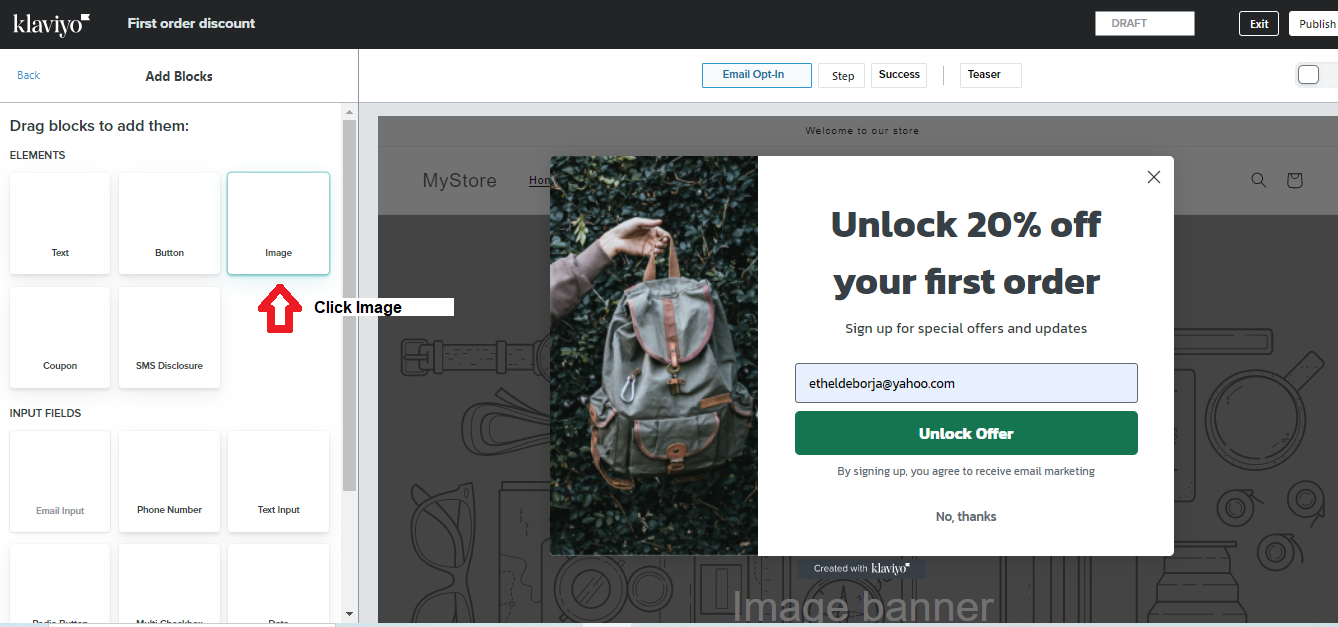
- Drag the image button to the desired location, then click Browse Library.
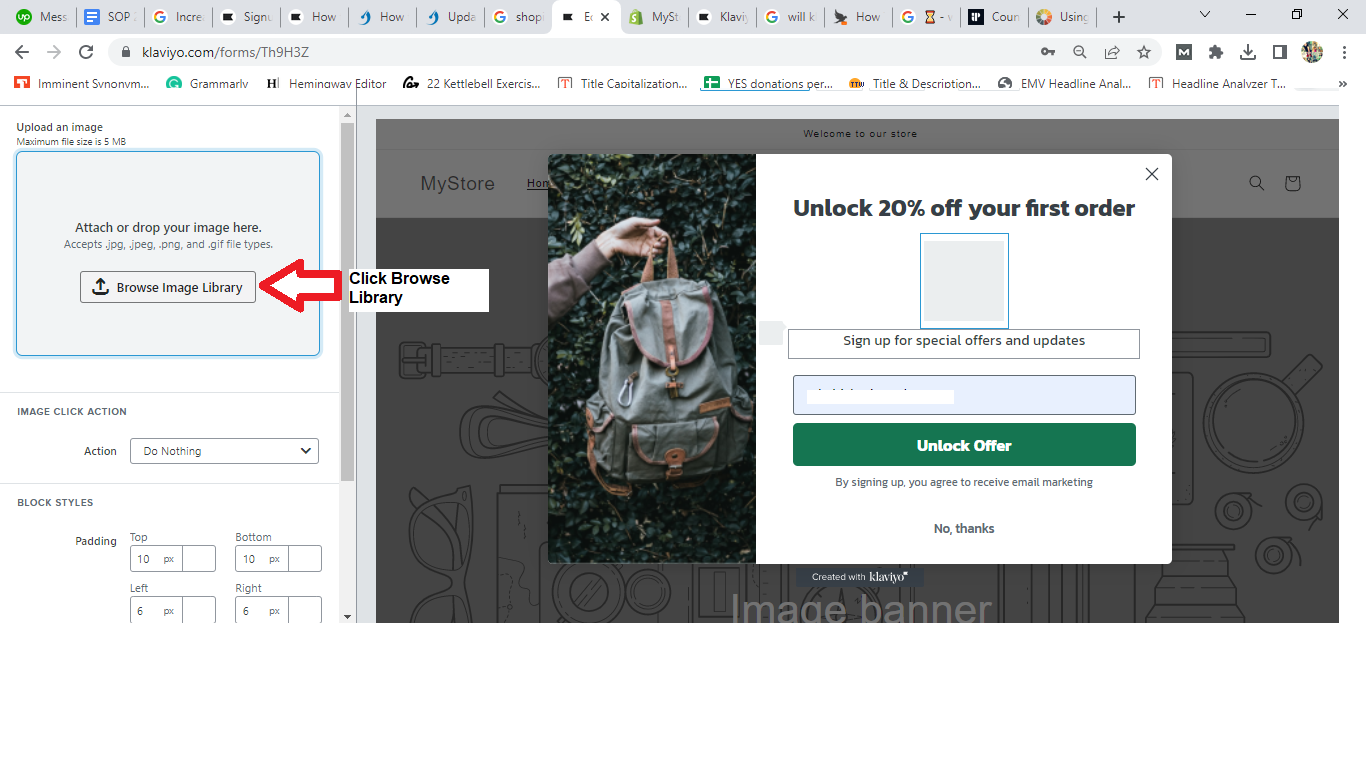
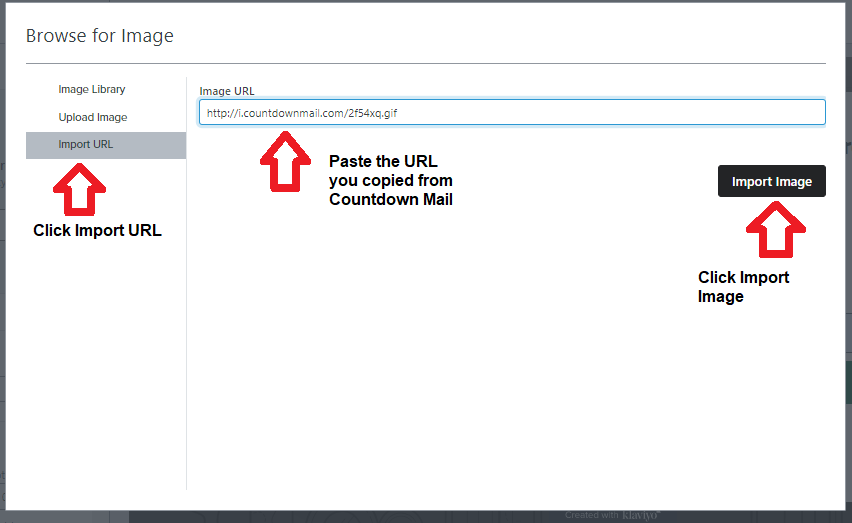
6. Click Import URL on the next screen, then paste the URL you copied from Countdown Mail. Click Import Image.
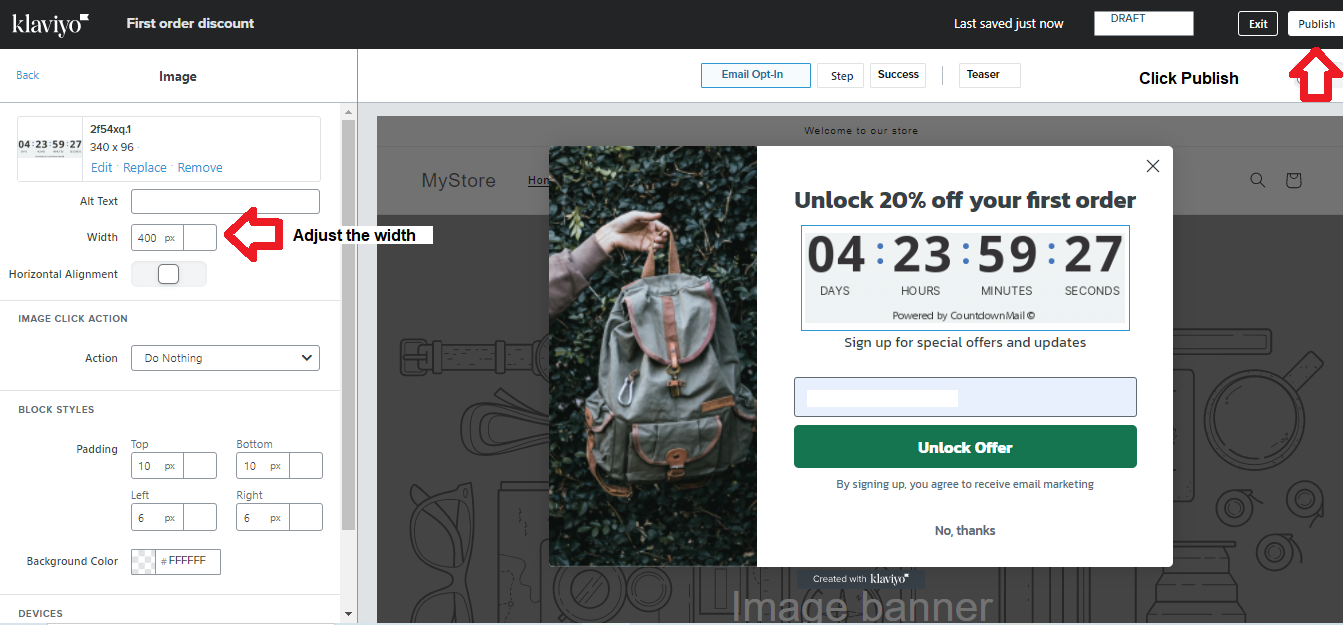
7. Adjust the width and click Publlsh.
Conclusion
Congratulations! Your Klaviyo popup to Spotify now has a countdown timer.
Execution Checklist:
-
A countdown counter creates urgency for a person to subscribe to your list and claim and offer.
-
Before you perform this SOP, you should have an active Klaviyo sign-up form added to your Shopify account.
-
Create an account in Countdown Mail to generate a timer.
-
Add the timer to your Klaviyo sign-up form.