Setting Up a Trigger for Abandoned Checkouts
To provide you a step-by-step guide in setting up a trigger for abandoned checkouts.
Prefer a shortcut? 16 free tools do parts of this for you.

Aim: To provide you a step-by-step guide in setting up a trigger for abandoned checkouts.
Optimal Outcome: To have an automated email sent to customers who abandoned carts and recover sales.
What do you need to start: Marketing automation platform, Shopify store account
Why is this SOP Important: Setting up an email trigger for abandoned checkouts can be a valuable tool for your business to recover lost sales, improve customer experience, increase customer engagement, and gather valuable data.
When and Where to execute: The specific timing of when to set up the trigger will depend on various factors, such as your sales cycle, the average time it takes for customers to complete a purchase, and the type of products you sell. In general, it's a good idea to set up the email trigger to be sent out within a few hours or a day of the abandoned checkout. This gives the customer a timely reminder of the items they left in their cart and can encourage them to complete their purchase before they forget about it or lose interest.
Who Should Be Doing This: Marketing staff, person responsible for setting up automation
What is an abandoned checkout?
Abandoned checkout refers to a situation where a customer adds items to their online shopping cart but leaves the website before completing the purchase. This means that the customer has initiated the buying process but did not follow through with the final step of submitting payment. The reasons for abandoning a checkout can vary, such as unexpected costs, long checkout process, or technical difficulties. Abandoned checkouts can have a negative impact on the business as it results in lost sales and potential revenue.
Execution
Resources/Tools & Set up
-
Enable onsite tracking for your store or website
-
Set up your abandoned checkout email strategy
-
Set up dynamic coupon code (Follow this guide, SOP 251: Setting Up Dynamic Discount Codes.)
-
Set up your trigger for abandoned checkouts
Connect your Shopify account with Klaviyo
-
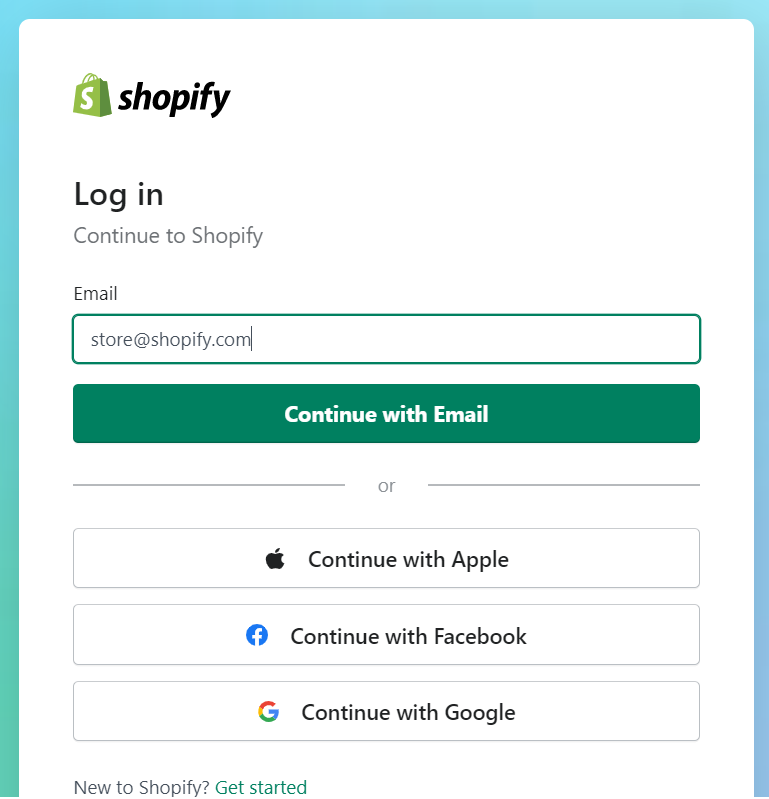
Login to your Shopify account.
-
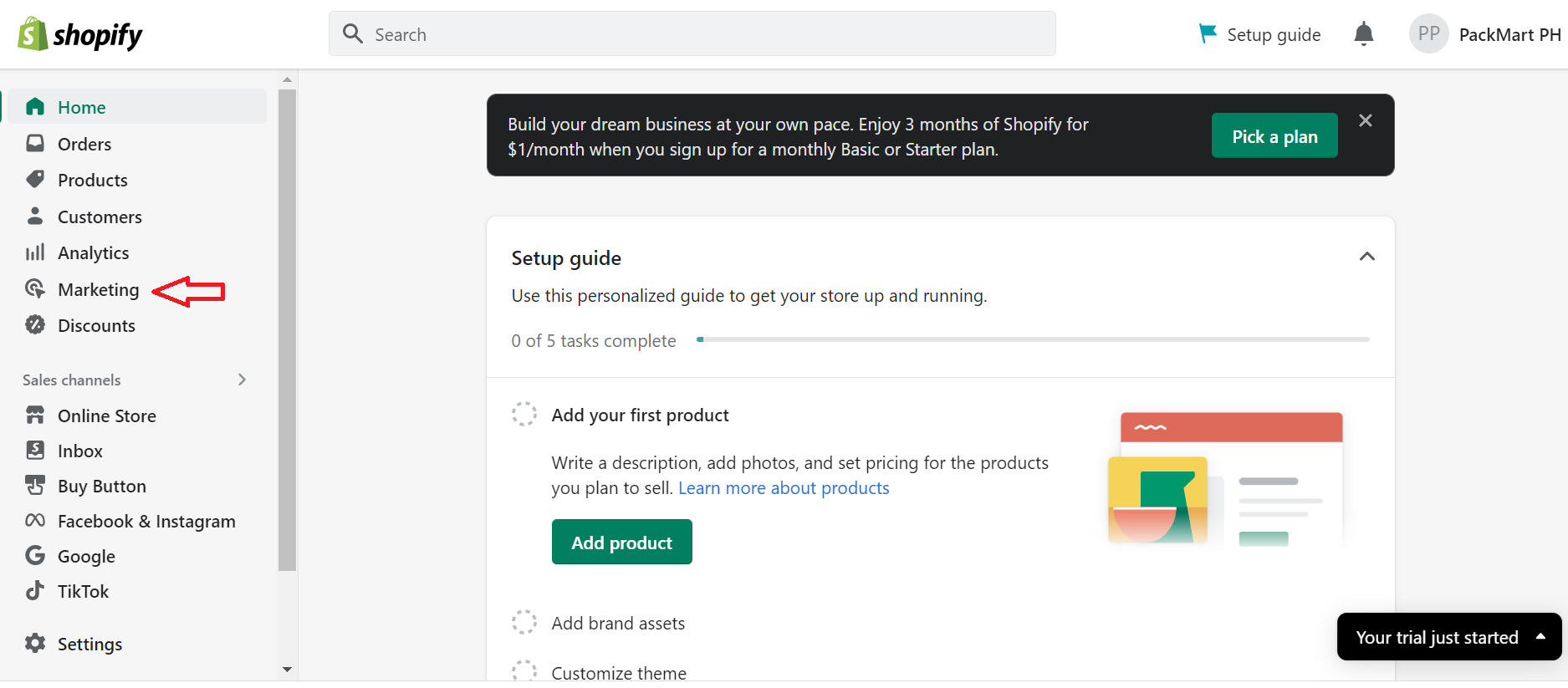
Select Marketing from the left menu.
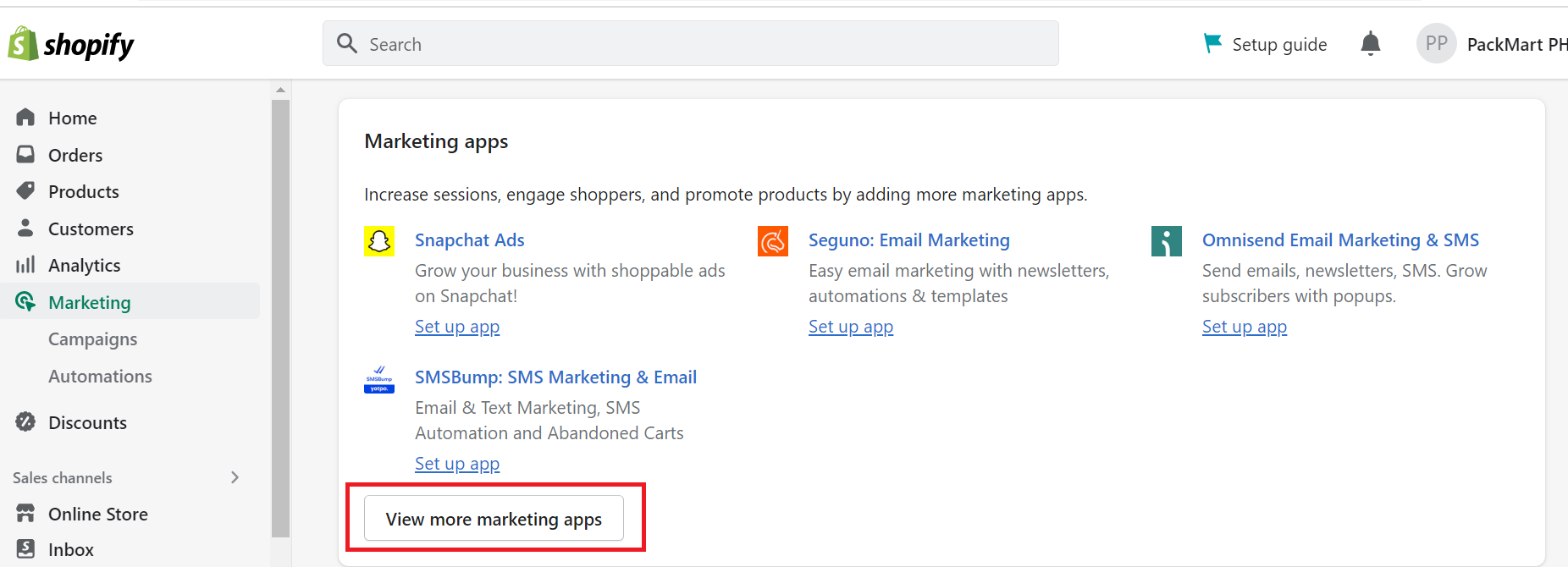
- Select View more marketing apps in the Marketing apps section.
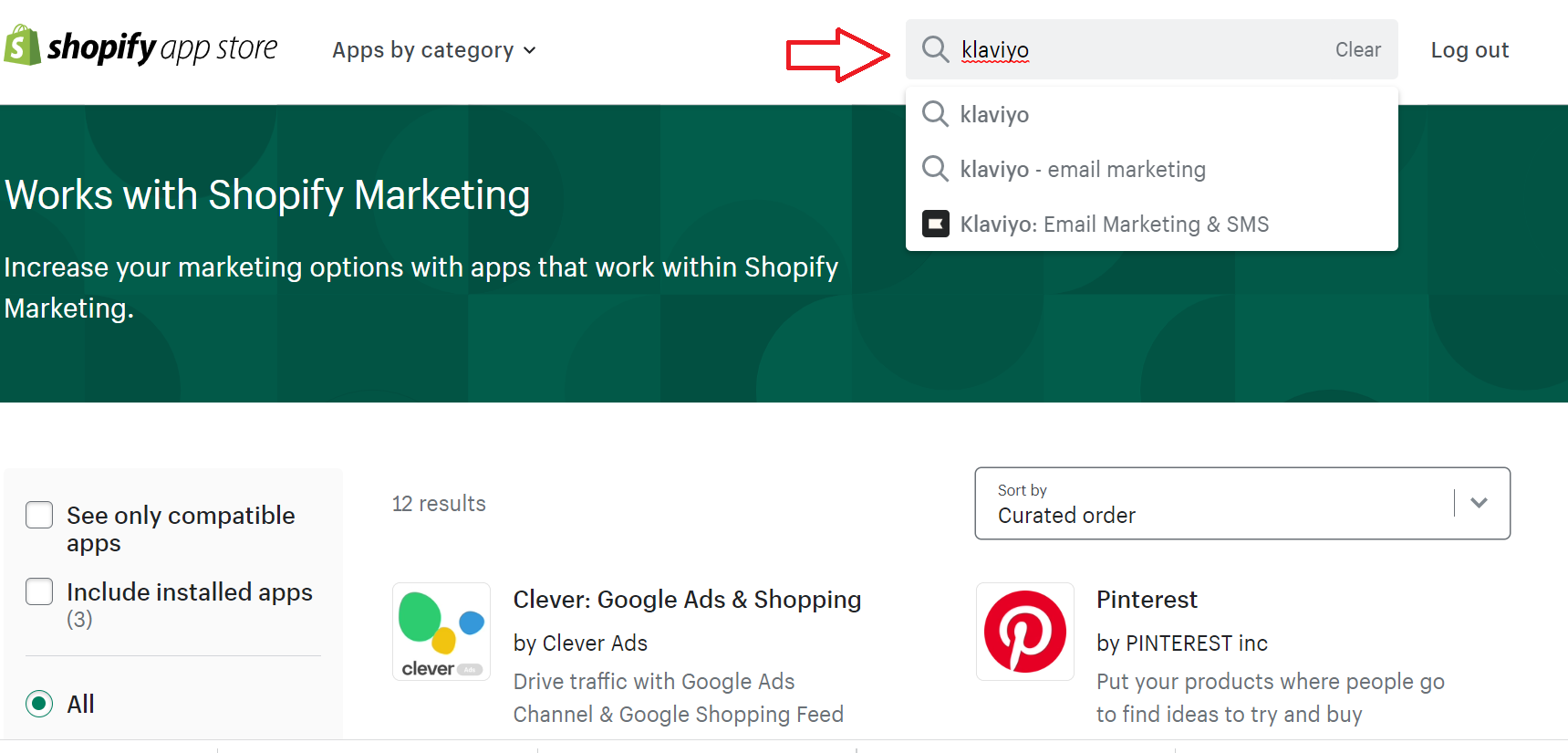
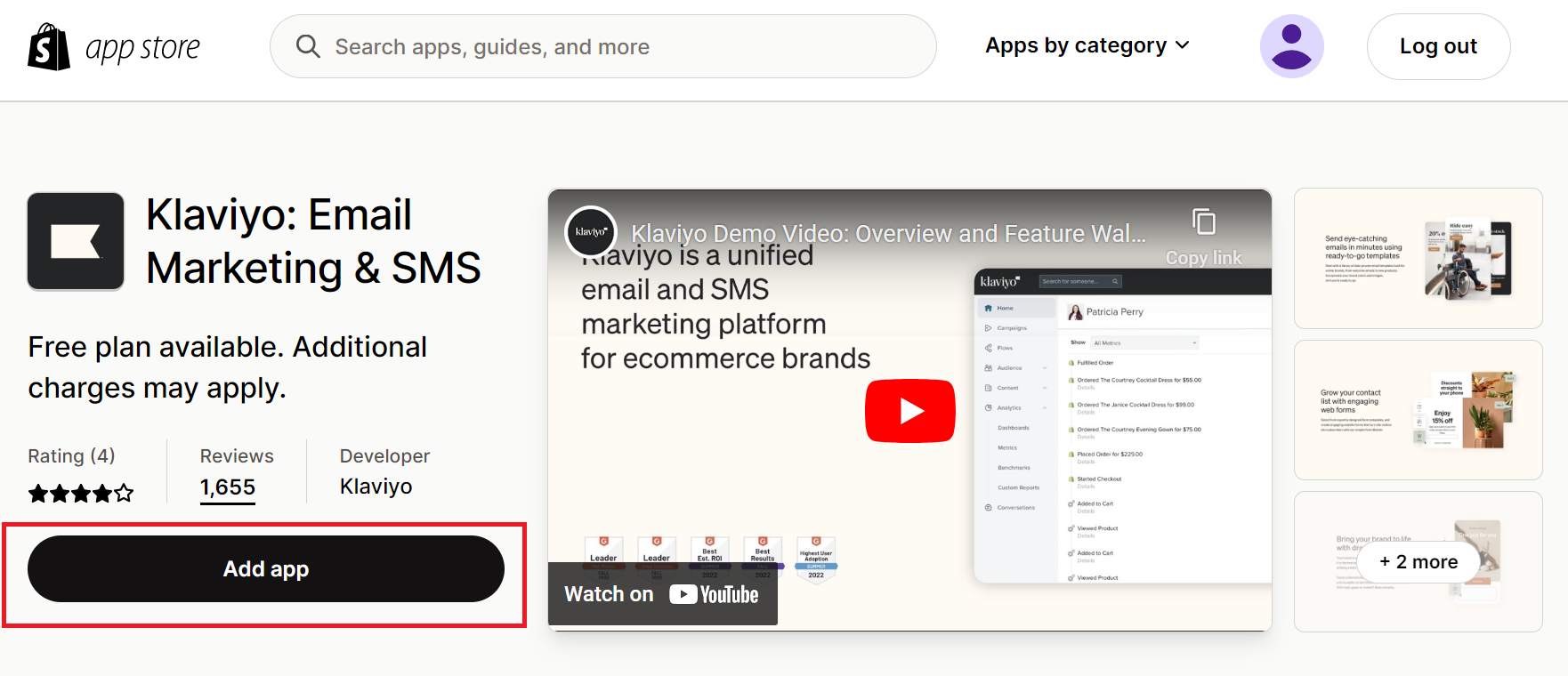
- Search Klaviyo from the search bar at the top-left section of the page.
- Click on Add app.
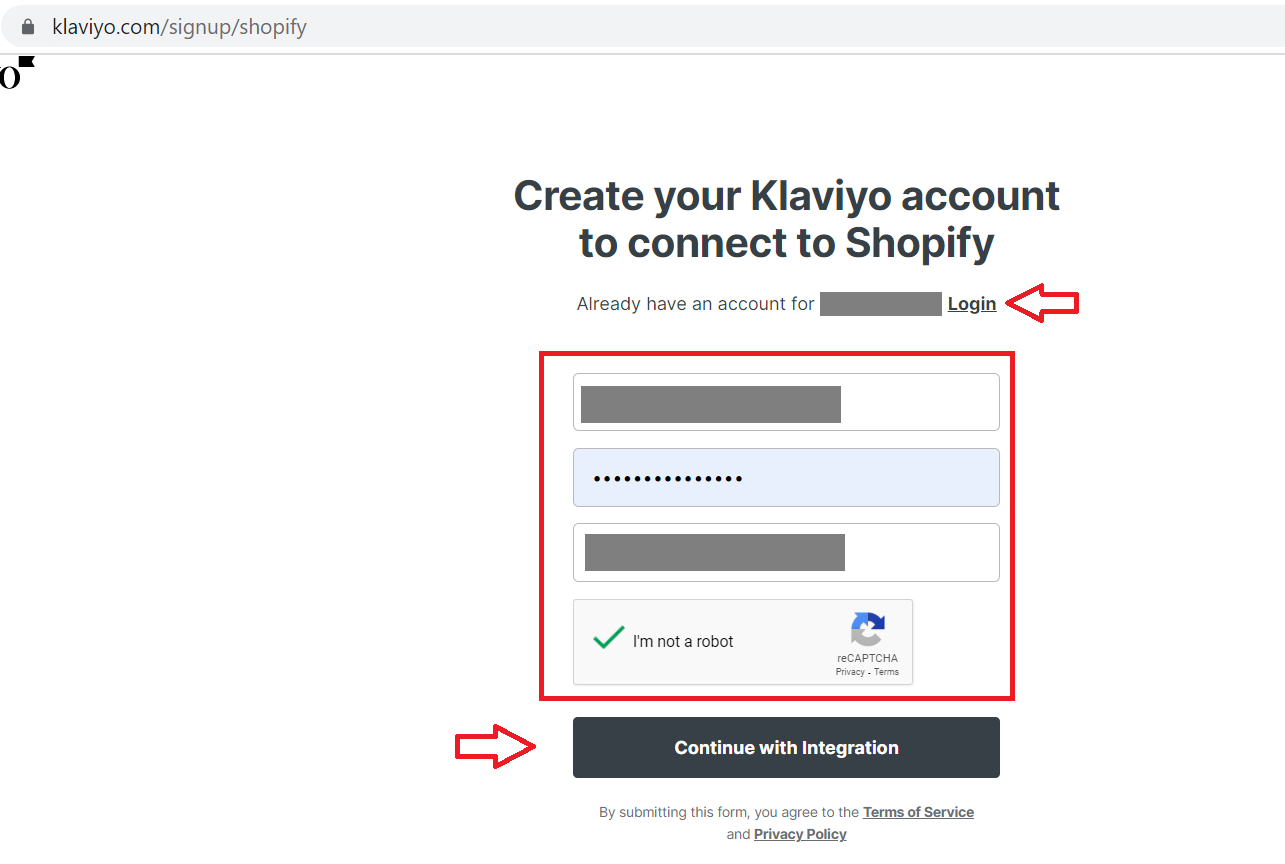
- Create or log in to your Klaviyo account, then click on Continue with Integration.
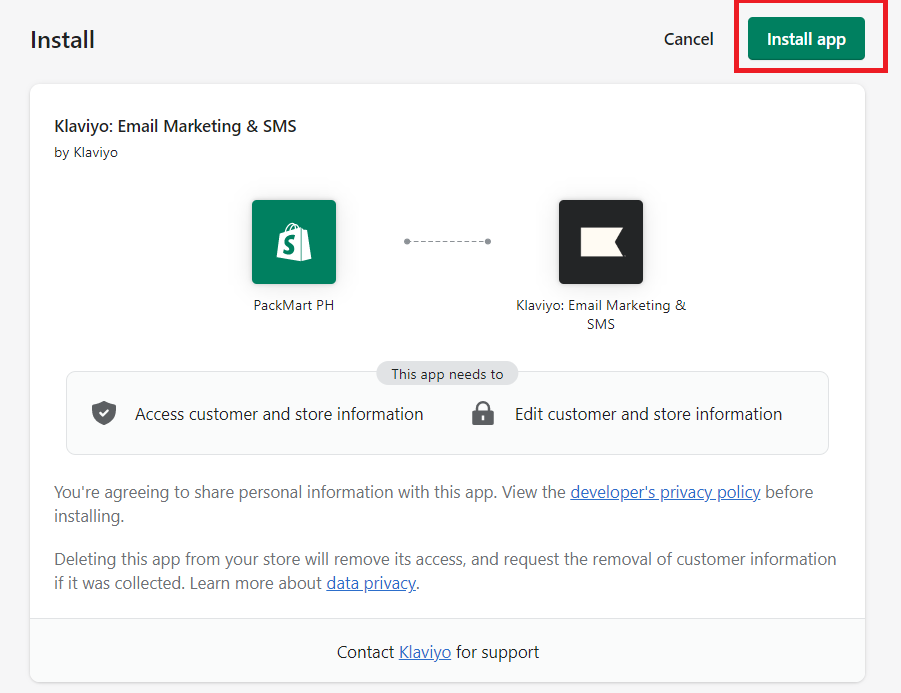
- Review permissions required.
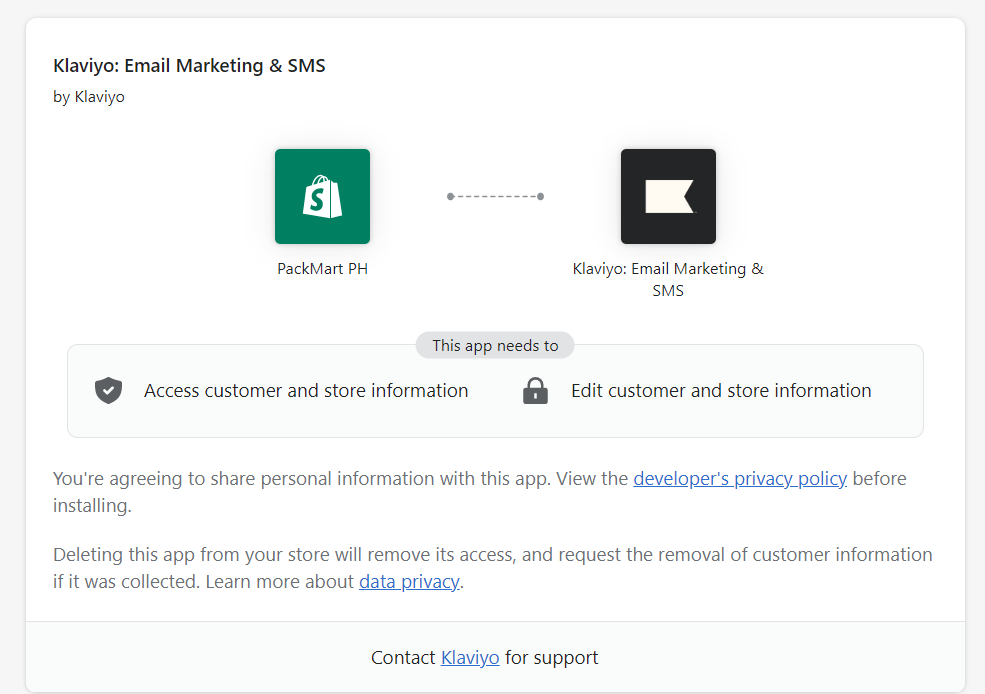
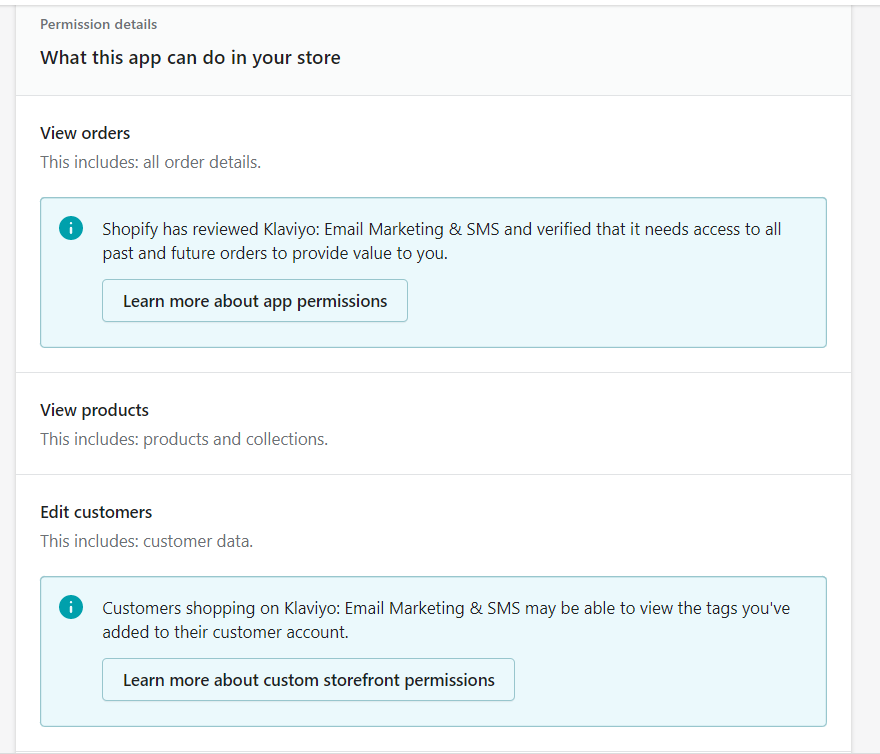
- Click the Install button at the upper-right corner of the page.
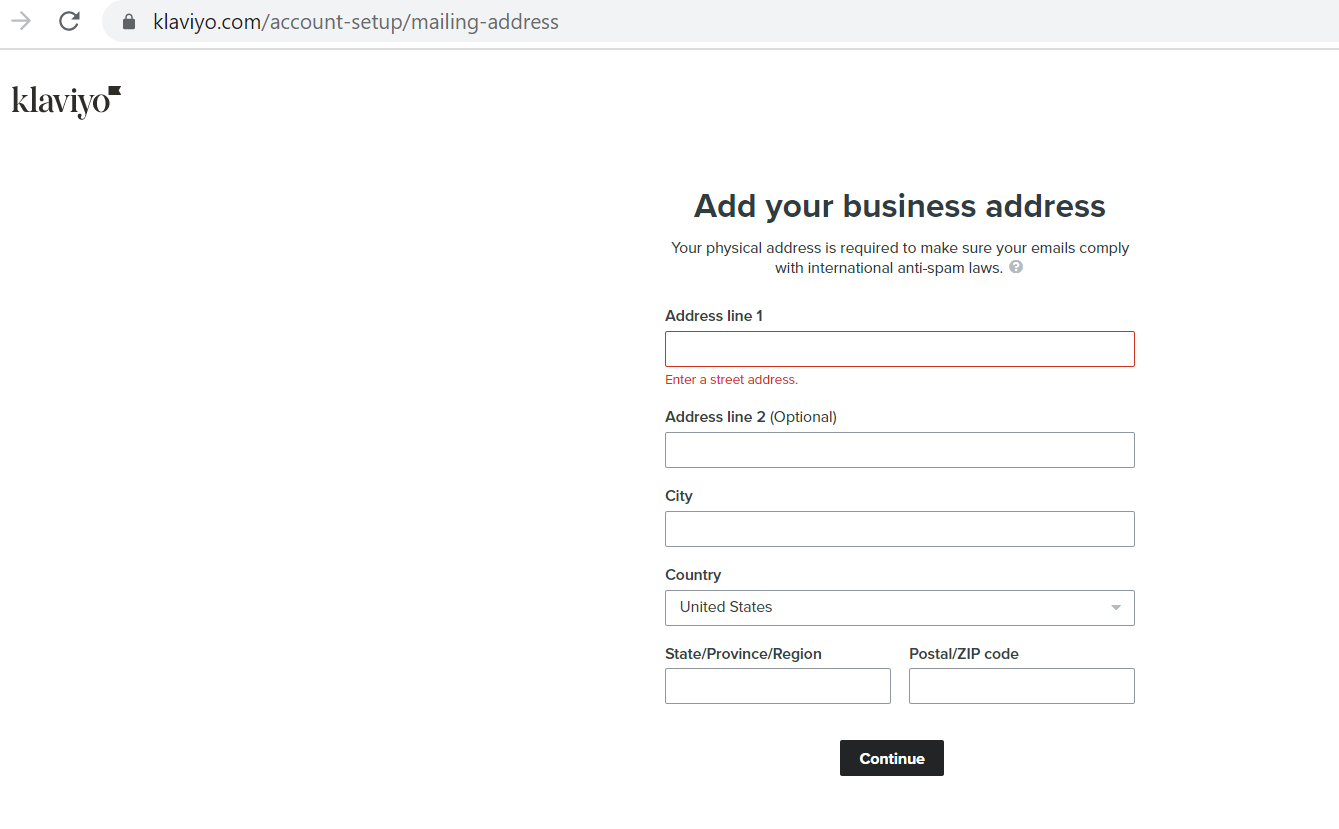
- Add your business info then click Continue.
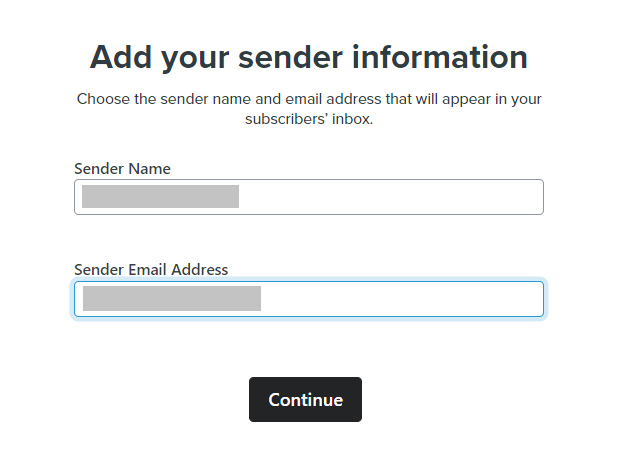
- Fill out the Sender Name and Sender Email Address. This information will appear on your subscriber’s inbox.
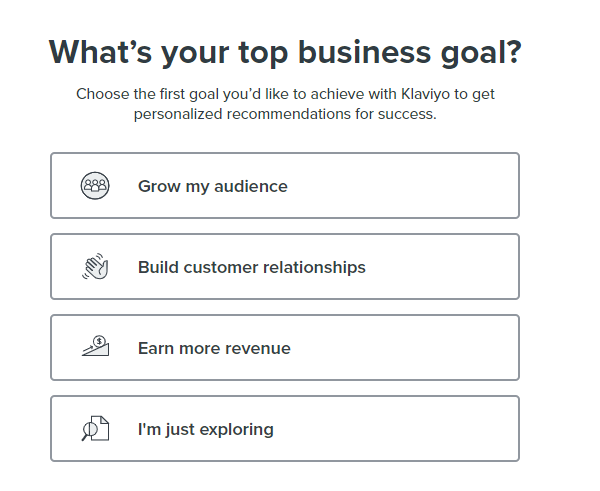
- Choose your top business goal.
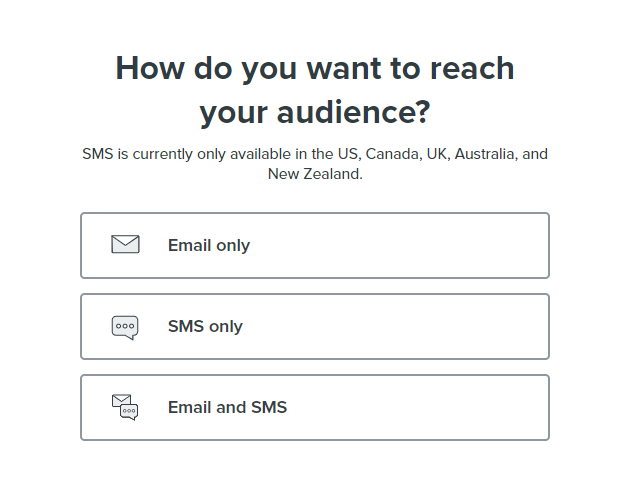
- Choose how you want to reach your audience.
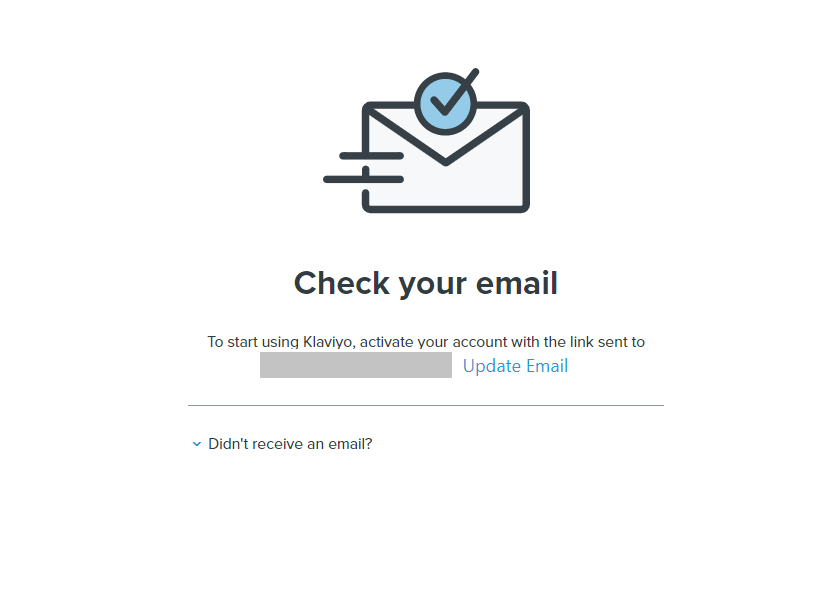
- You will then be prompted to confirm your email. Log in to your email and click the link to confirm your account.
Enable onsite tracking from your store or website.
Note: Based on your Customer Privacy settings in Shopify, Klaviyo may not track onsite events (including Active on Site and Viewed Product) for visitors to your Shopify store in the EU, EEA, UK and Switzerland, unless they have provided consent.
-
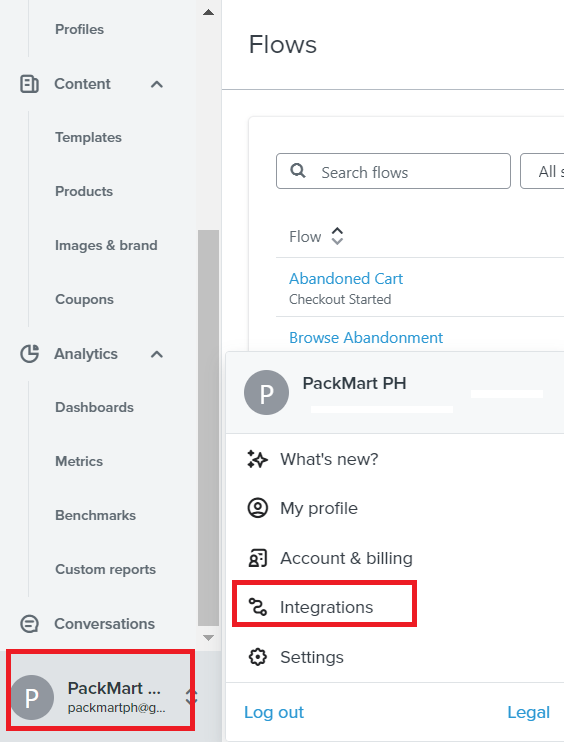
Navigate to the left menu and click your brand name, then click Integrations.
-
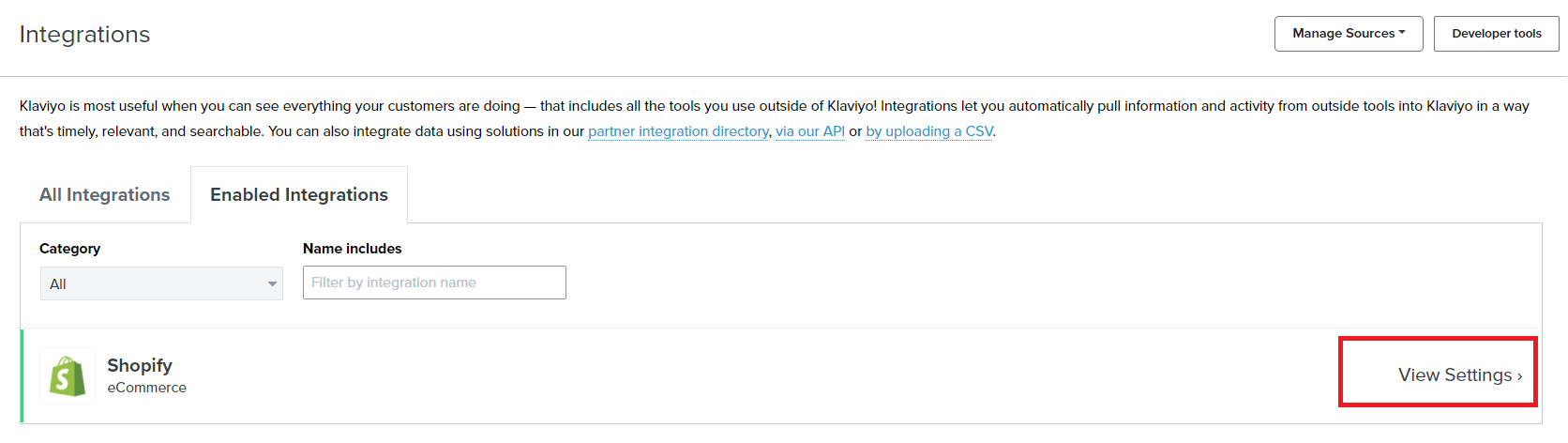
Choose Shopify then click View Settings.
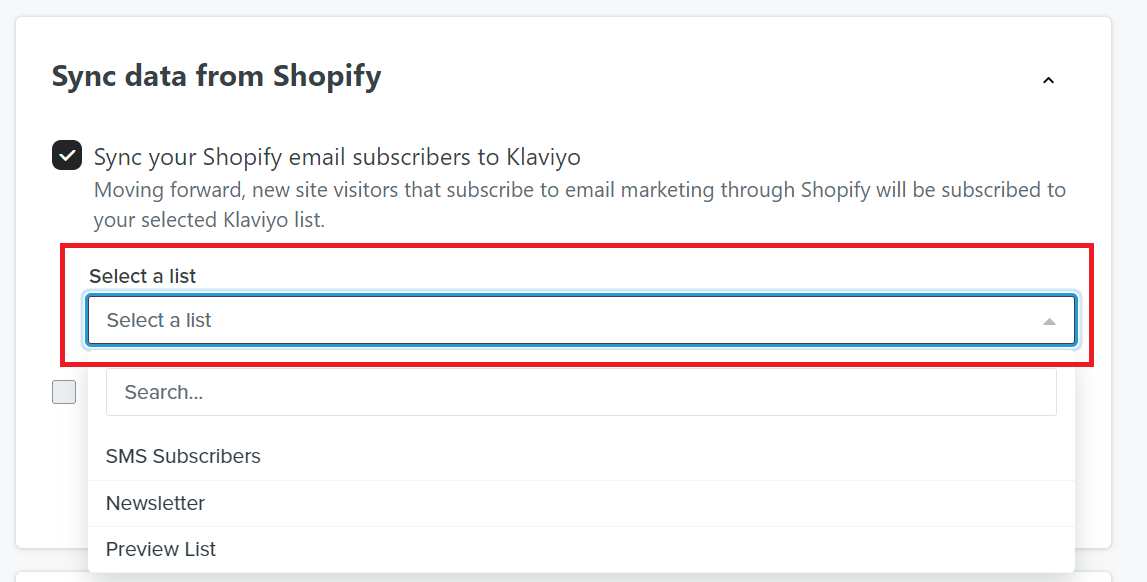
- Check the box next to Sync your Shopify email subscribers to Klaviyo, then select the list that you want to sync.
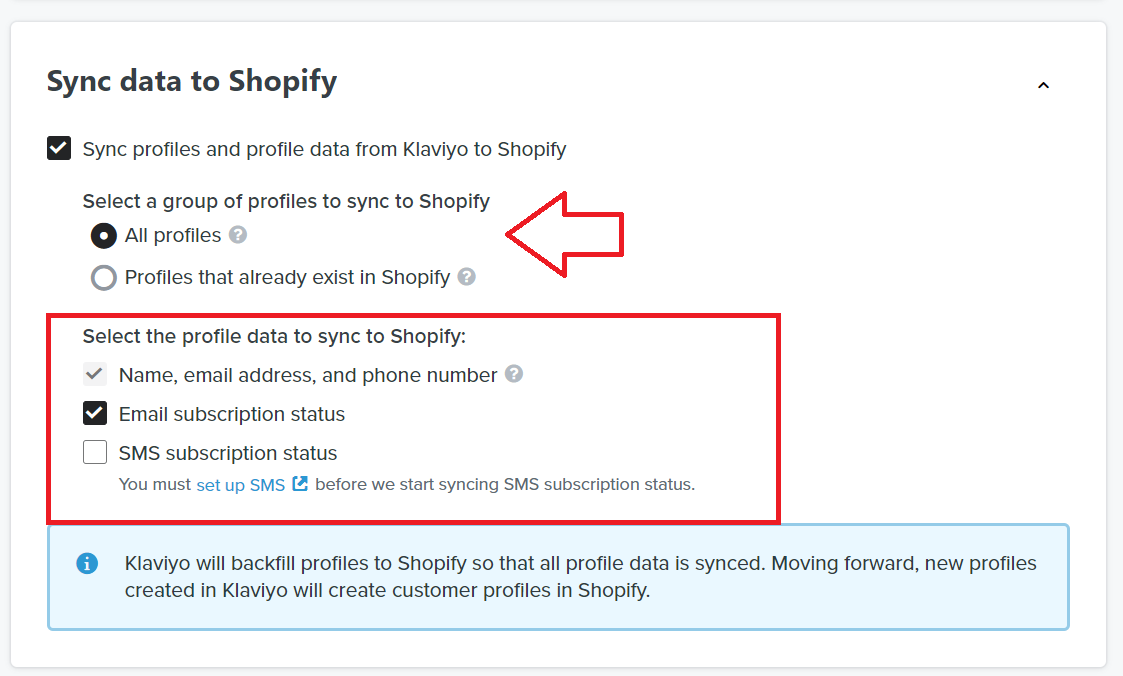
- Sync all profile data from Klaviyo to Shopify then make sure Email Subscription is also selected.
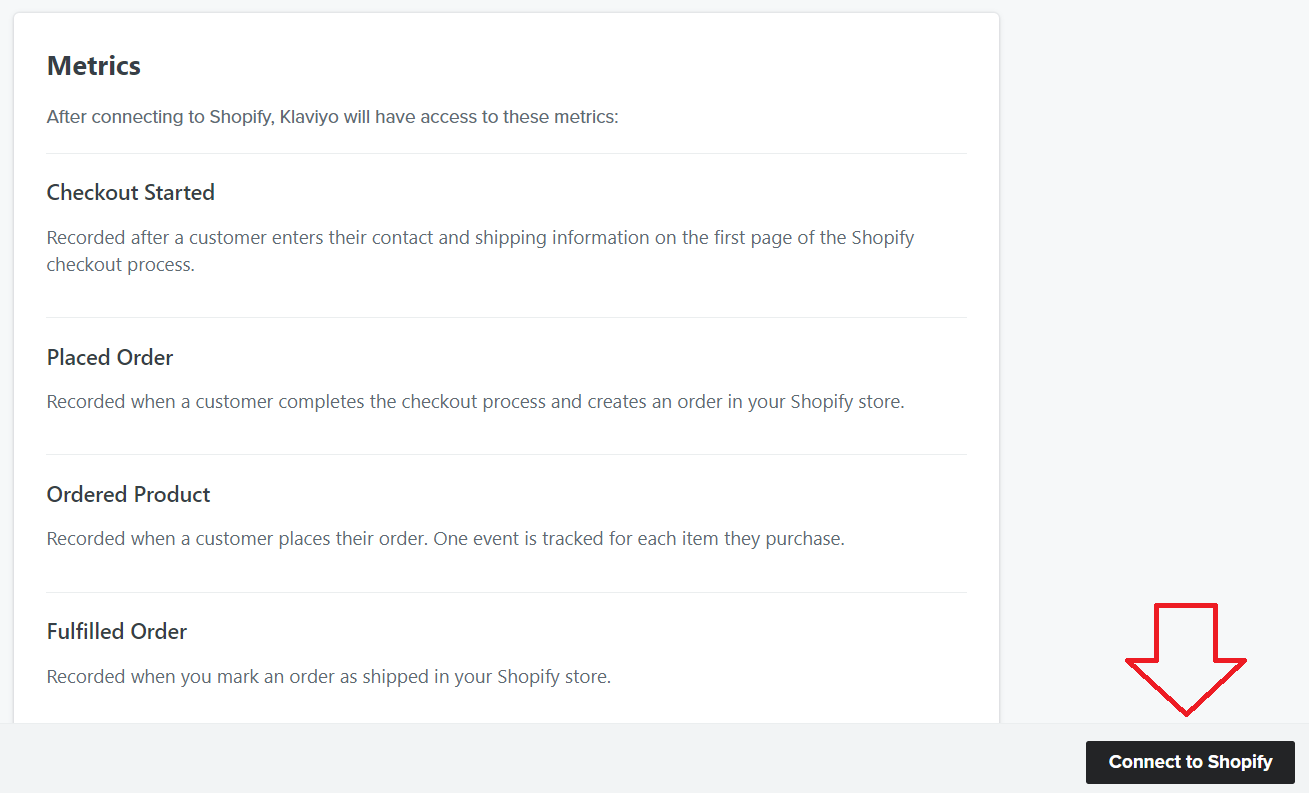
- Click Connect to Shopify. Klaviyo now has access to Shopify events such as check out started, placed order, fulfilled order etc.
Set up your abandoned checkout email strategy
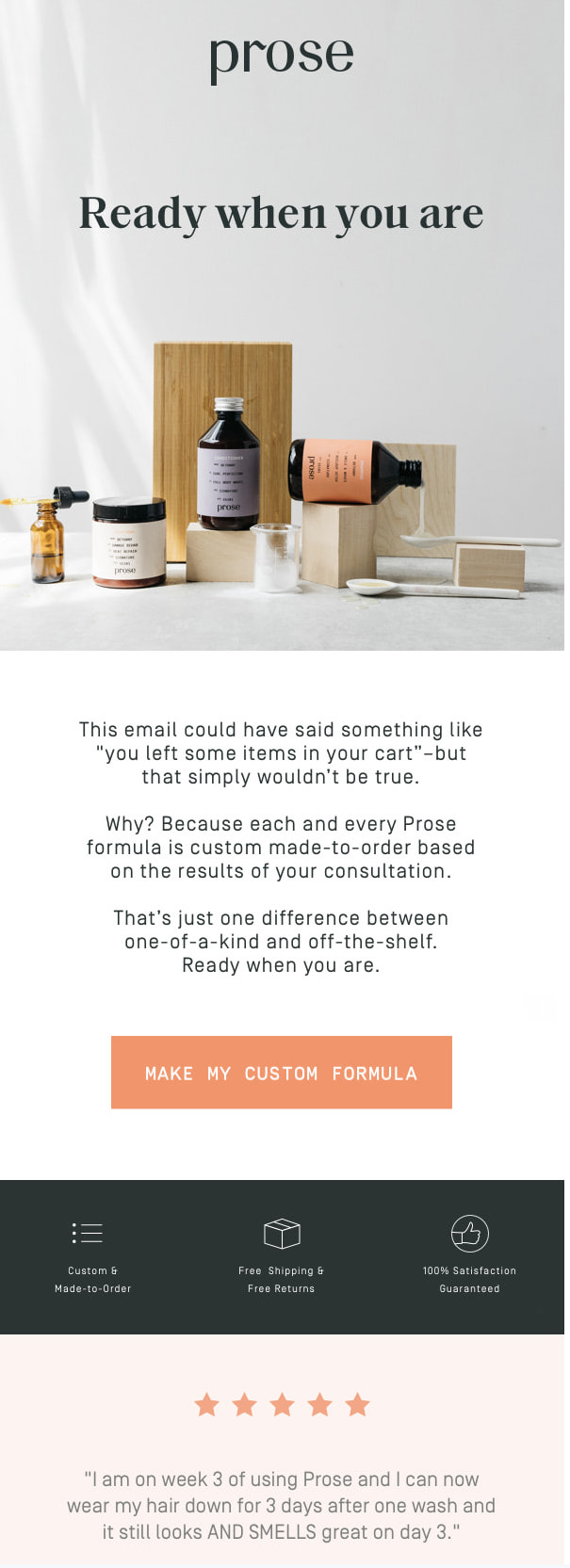
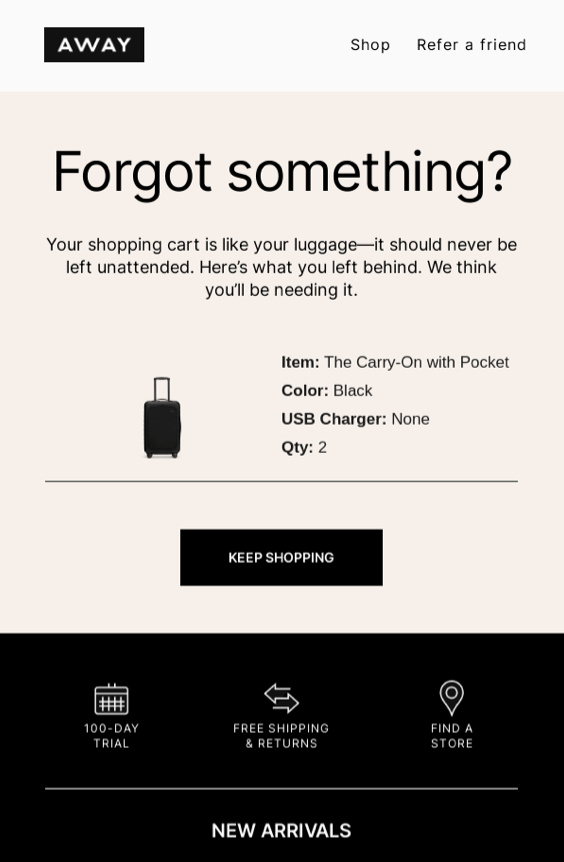
- Left items on cart reminder (Sample subject lines: “Ready when you are”, “Forgot something?”)
Example:
-
-
-
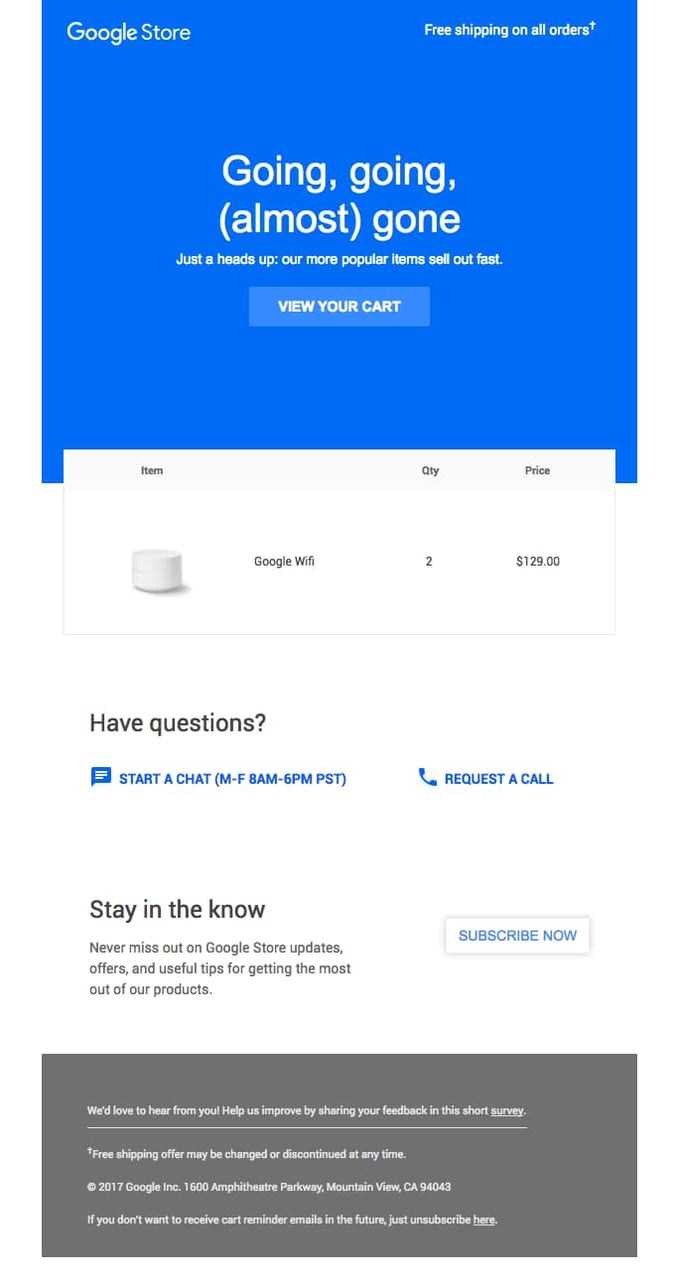
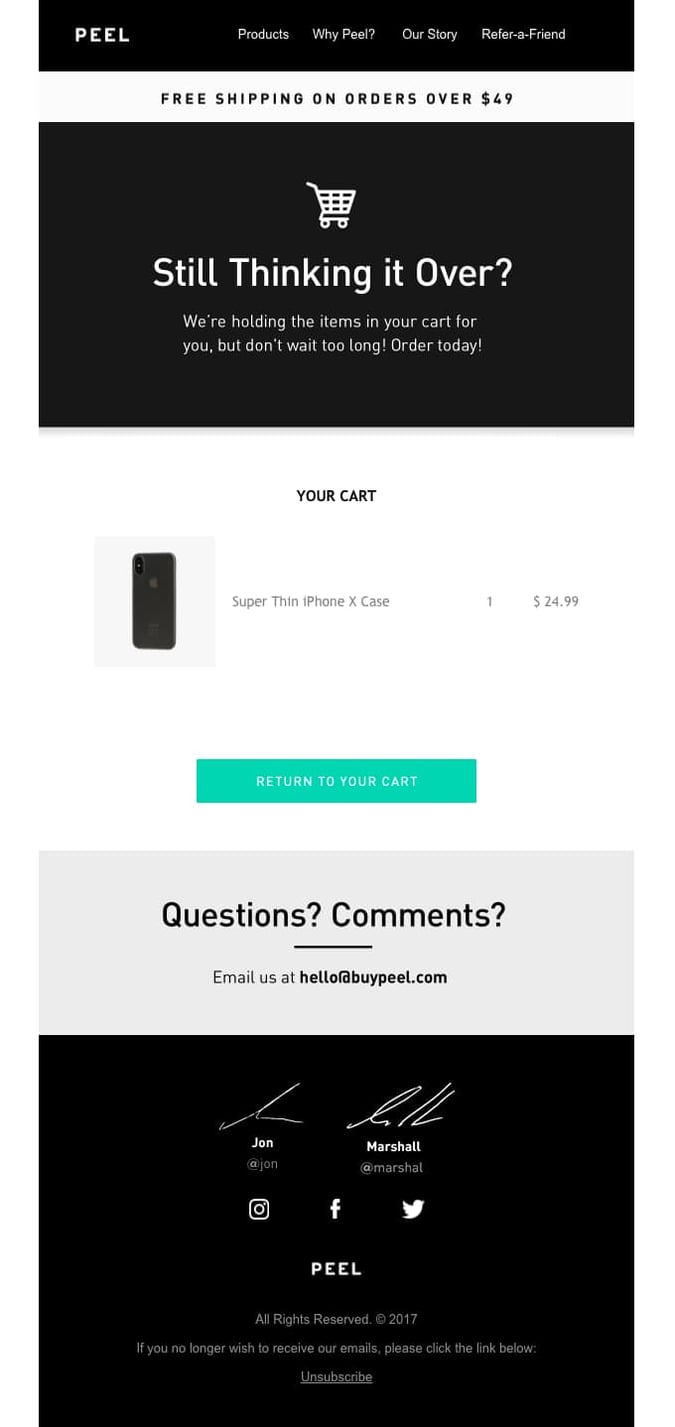
Follow up (Sample subject lines: “Going, going, (almost) gone.”, “Still thinking it over?”)
Example:
-
-
-
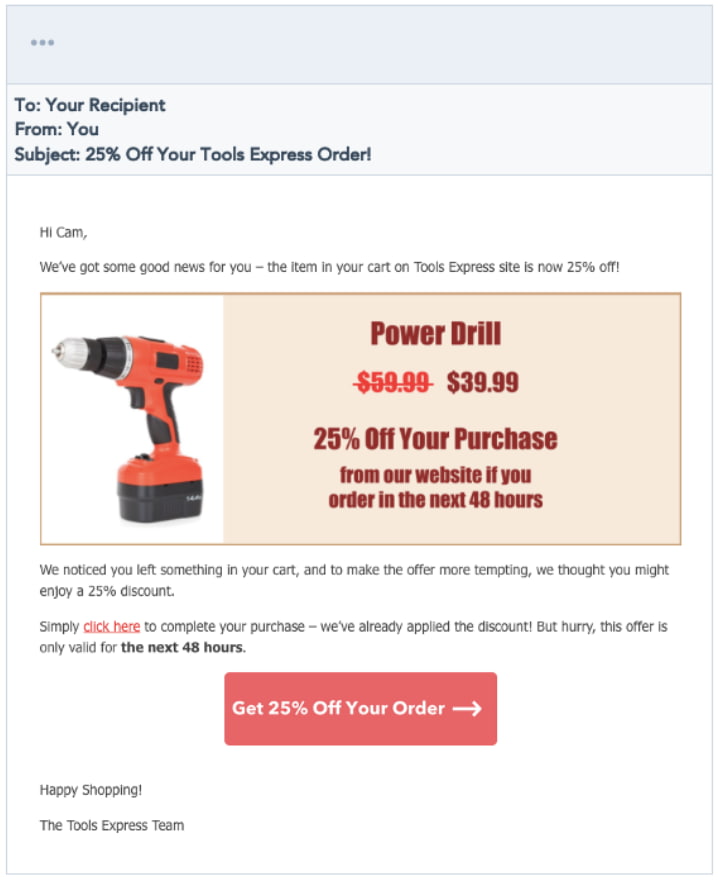
Promotional discount (Sample subject lines: “25% off your first purchase”, “Exclusive discount offer”)
Example:
Set up your trigger for abandoned checkouts
-
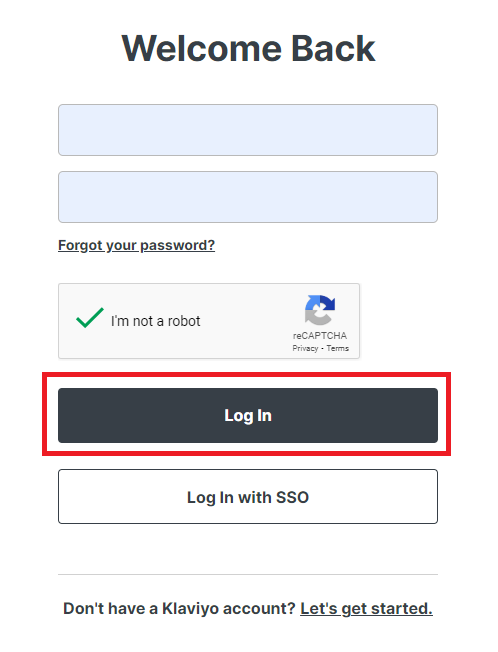
Login to Klaviyo.
-
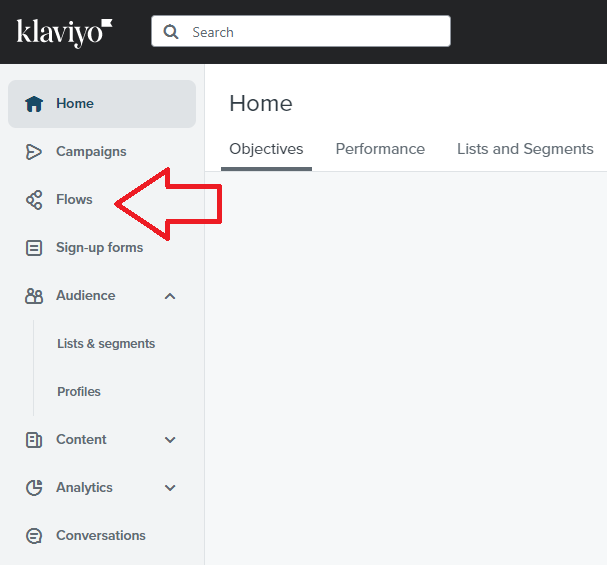
Navigate to the left menu and click Flows.
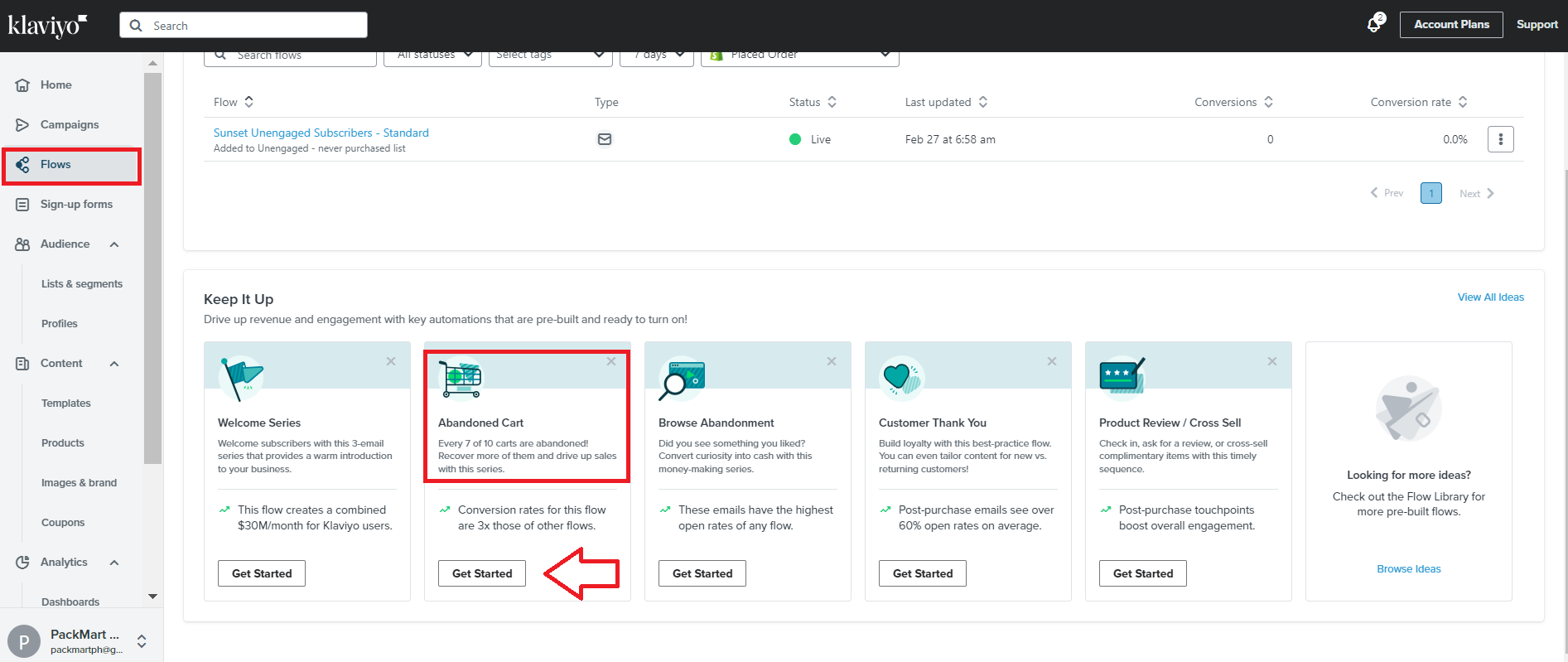
- Select Abandoned Cart card, then click Get Started.
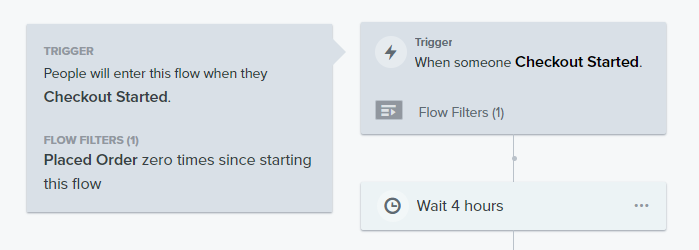
- The next page will show you the browse abandonment flow template from Klaviyo. Configuration is already pre-set but make sure that the following triggers are set.
Trigger: When someone Checkout Started
Flow filter: Placed order→zero times→since starting this flow
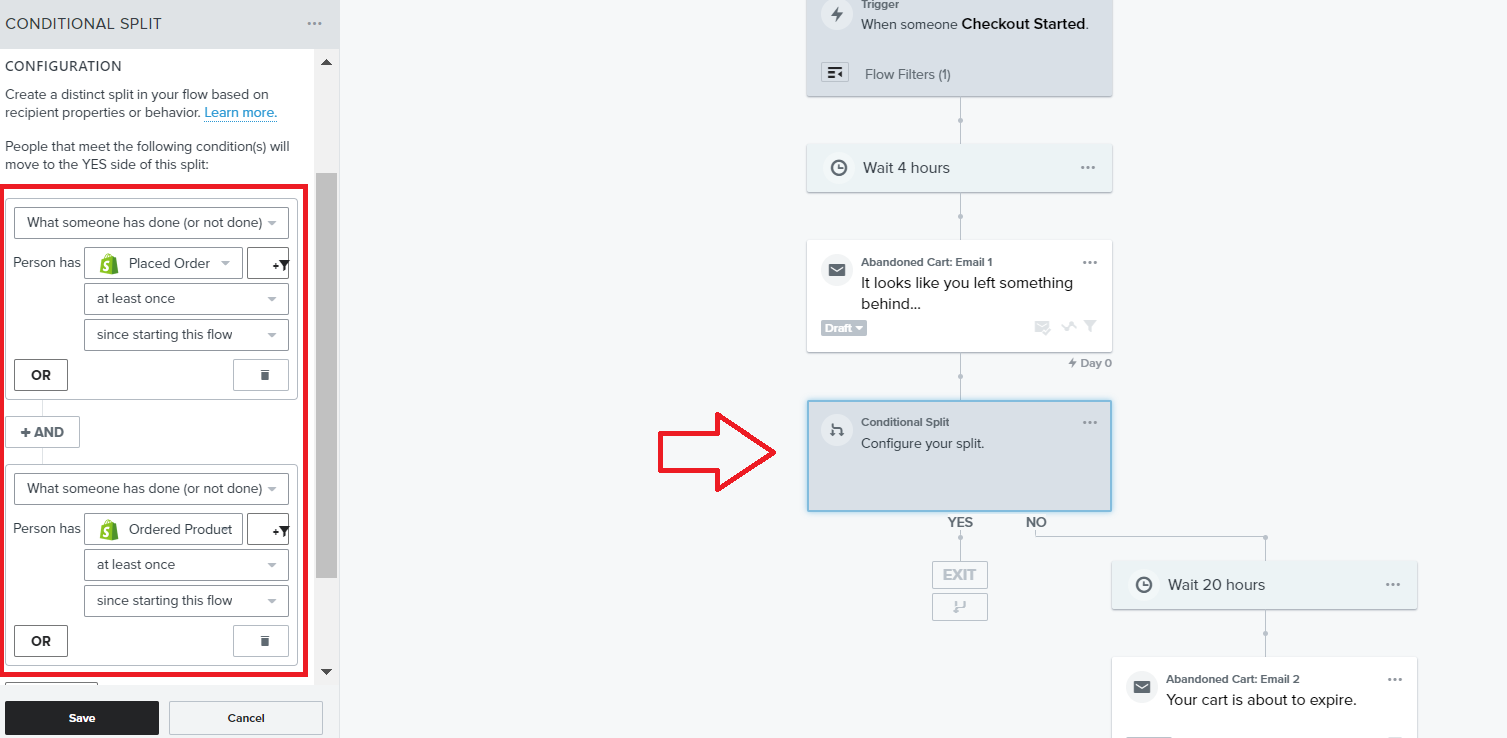
- Remove customers who have completed orders after each email segment to ensure that you don’t send them another follow up email. Insert Conditional Split every after email card and set up flow exclusions as follows:
-
What someone has done (or not done) →Placed order→at least once→since starting this flow
-
What someone has done (or not done)→Ordered product→at least once→since starting this flow
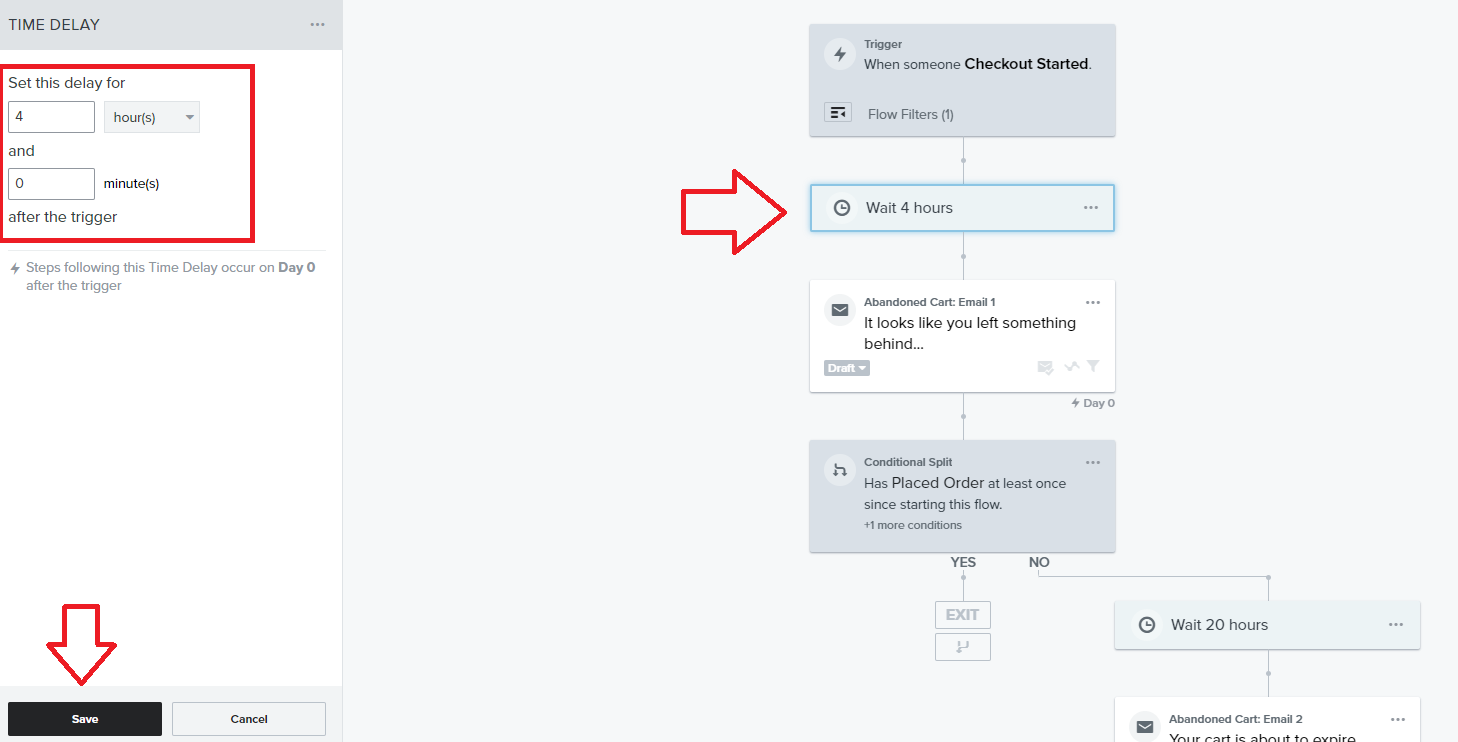
- Next, customize the time delay between emails.
-
Set up A/B testing for sending schedules. To do this, follow this detailed guide, SOP 243: A Guide to A/B Testing Email Schedules.
-
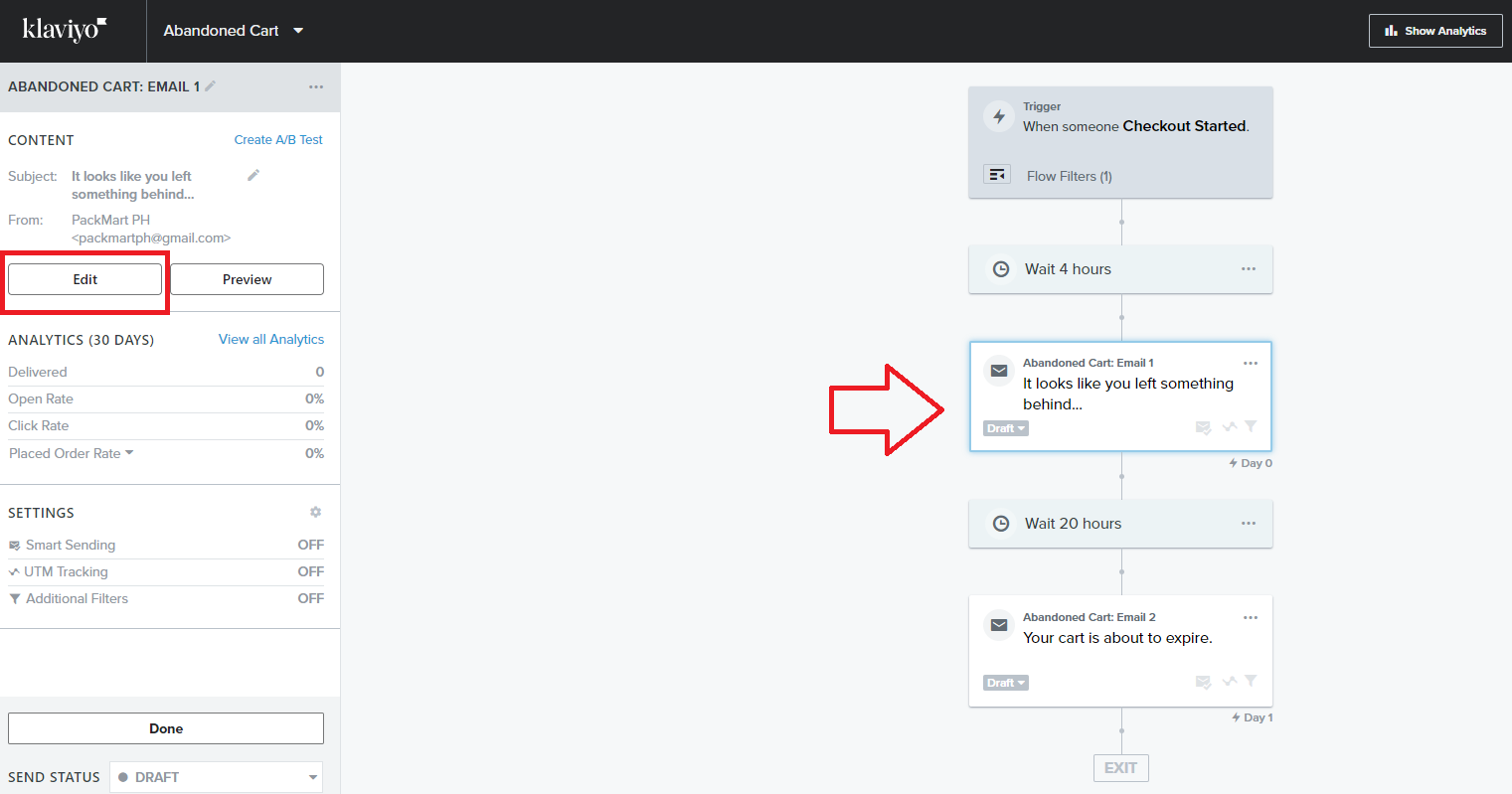
Click the Email card, then navigate to the left menu and click Edit.
-
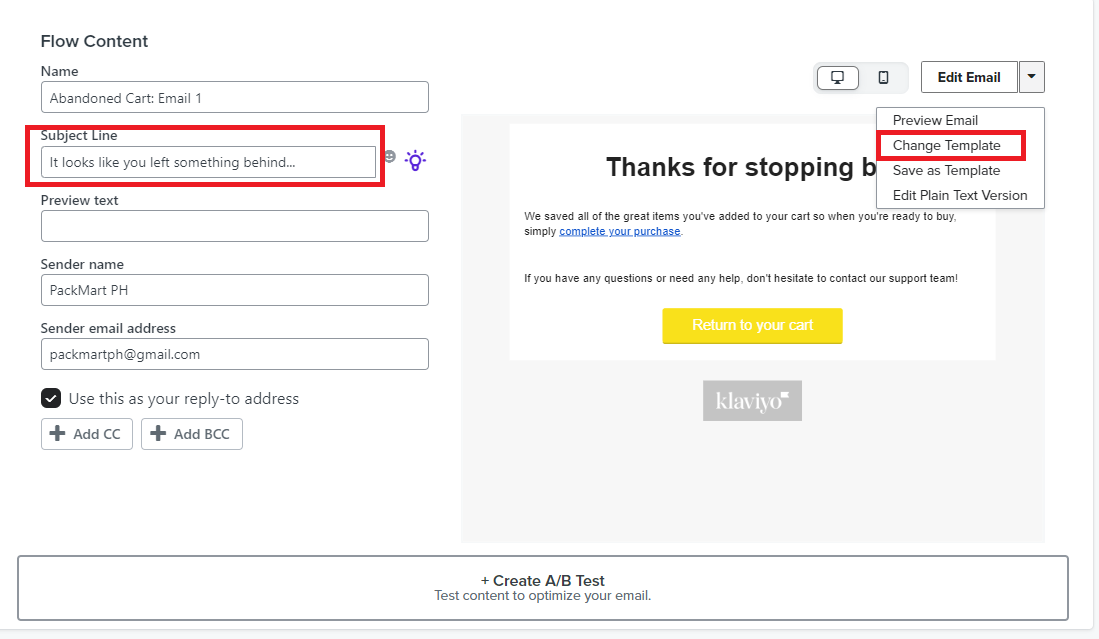
It’s a good practice to run A/B testing on the subject line for every email inside the flow. To do this, follow this detailed guide SOP 244: A Guide to A/B Testing Subject Lines.
-
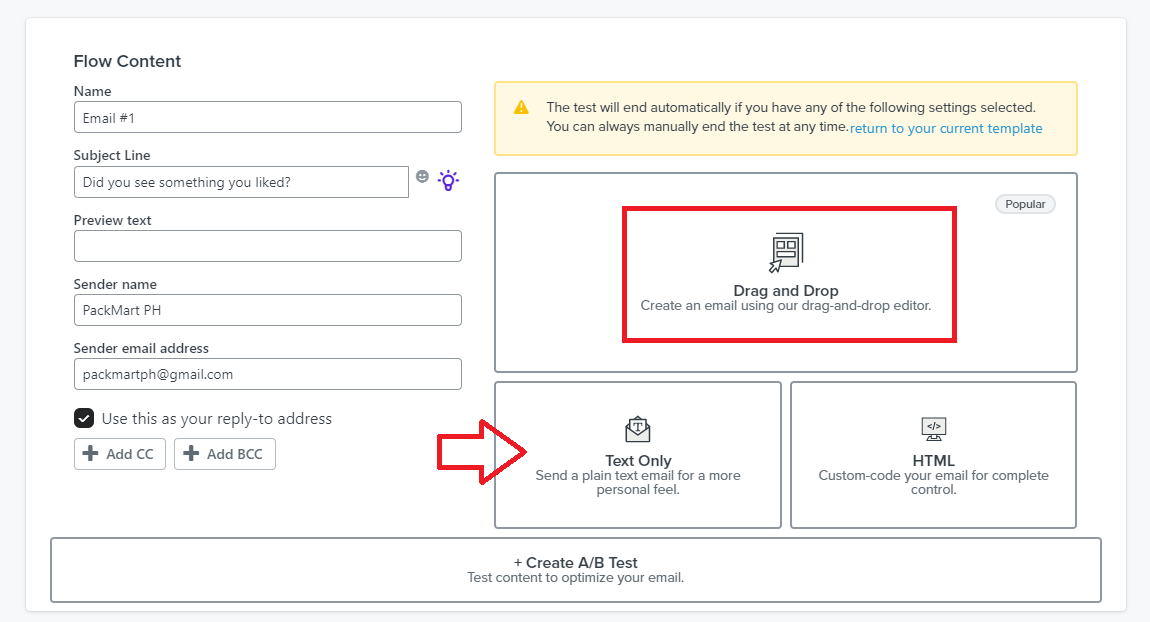
Click Edit Email then click Change Template.
- You have several options to edit the email contents.
Text Only - If you just want to send a simple text-only email.
HTML - if you have complete control over the email design and configuration, you can use code to set up your email.
Drag and Drop - you can take advantage of email templates with pre-set design
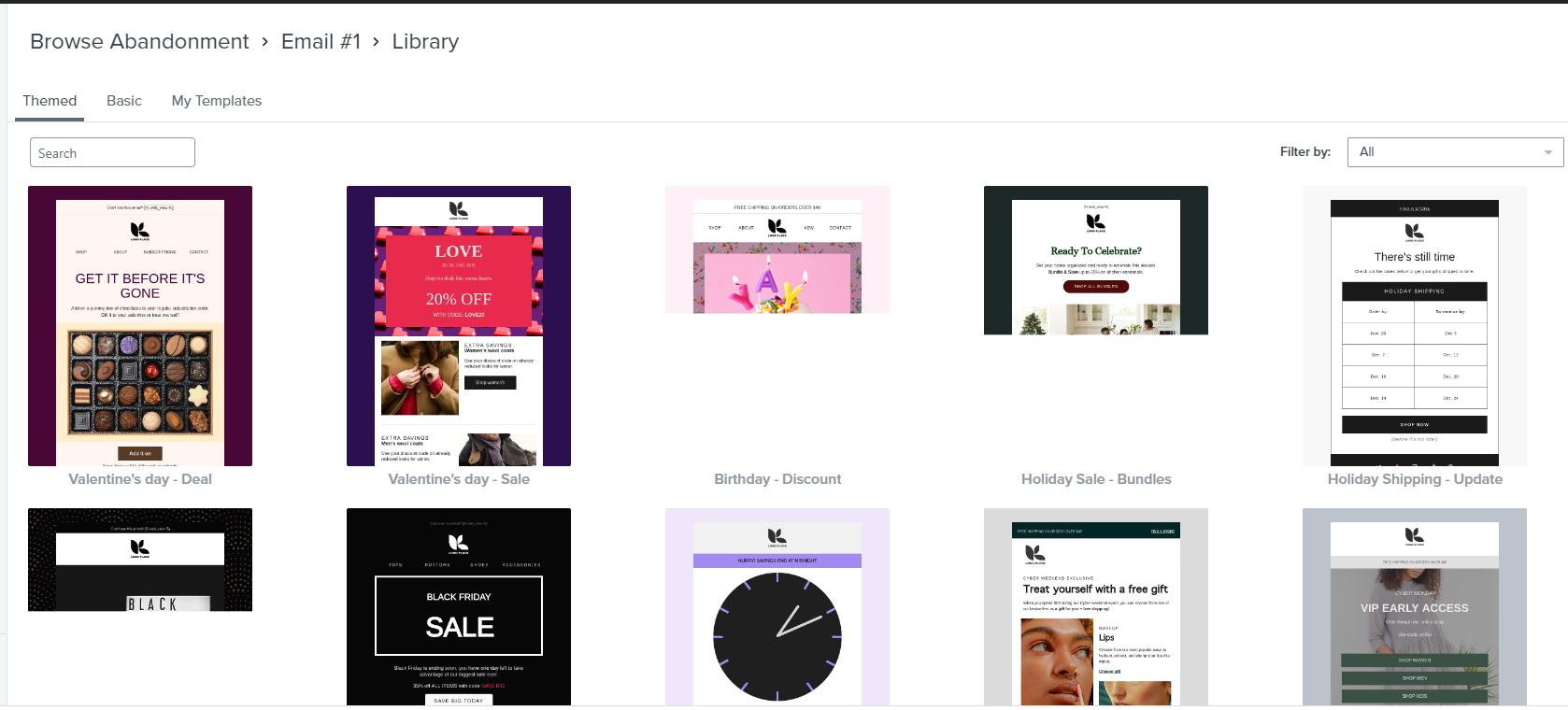
- You can choose from the pre-designed email templates.
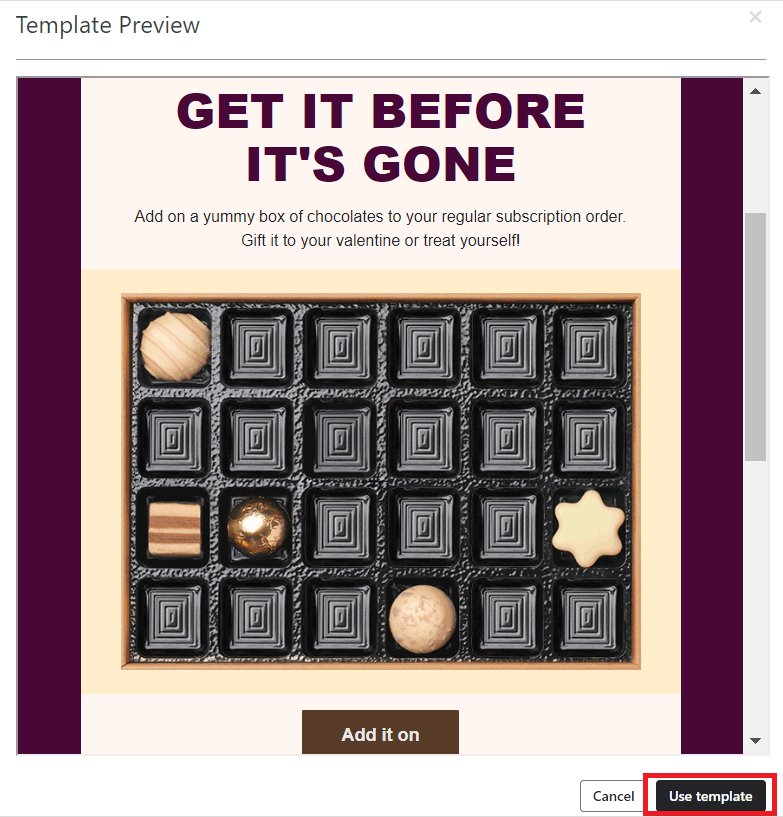
- Preview the template and click Use template.
-
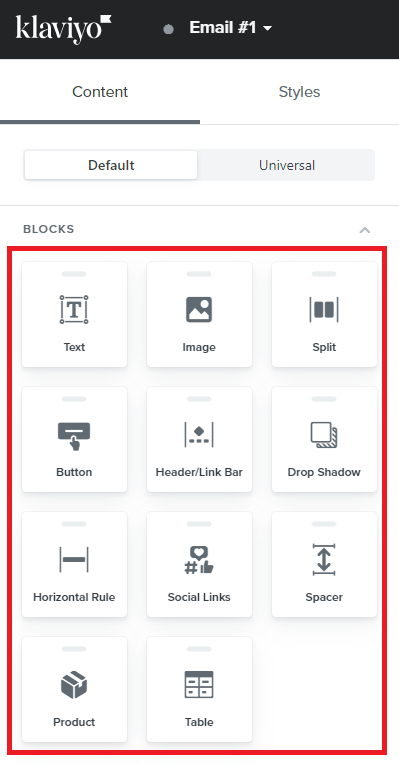
In the left menu, you’ll see options for customizing the elements of your email contents.
-
To add the abandoned cart items to your email, follow this guide SOP 248: Adding Abandoned Cart Items to Your Emails.
-
You can add your dynamic coupon code to your email content. Follow this guide to learn how to create and embed your code SOP 251: Setting Up Dynamic Discount Codes.
-
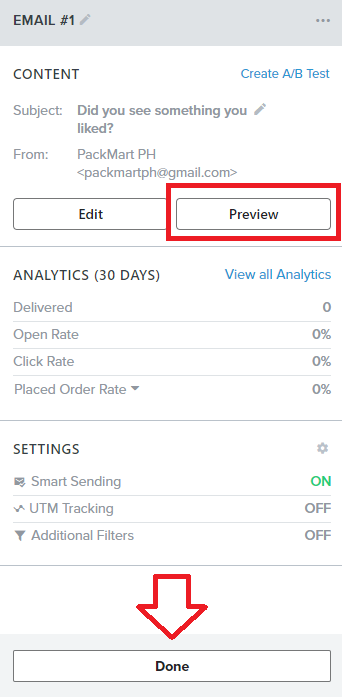
Make sure to preview the email on both desktop and mobile. Once done, click Save and Exit.

-
Review and proofread your email content. Once you’re good with the contents, click Done.
-
Lastly, click Review and Turn On.

Conclusion
That’s it! You will now have a way to automatically reach out to customers who have abandoned checkouts and potentially recover your lost sales.
Execution Checklist:
-
Connect your Shopify to Klaviyo
-
Plan and create your abandoned checkout email strategy
-
Create dynamic discount codes
-
Set up timing and subject line A/B testing
Best Practices:
-
Send email as soon after the cart is abandoned, ideally within 1-2 hours. Delayed emails may be less effective since the customer may have already purchased elsewhere.
-
Use the customer’s name and remind them of the items they left in their cart. Consider using dynamic content to display the exact items in the email.
-
Make sure the email includes a clear call-to-action (CTA) that directs the customer back to their cart or encourages them to complete the purchase.
-
Offer a discount or free shipping to incentivize the customer to complete the purchase. Keep in mind the value of the incentive should be carefully considered to avoid damaging the brand’s image.
-
Ensure the email is optimized for mobile devices, as many customers may access their email on a mobile device.
-
Be mindful of how often you send abandoned cart emails. Sending too many emails may annoy customers and hurt the brand's image.
-
Experiment with different subject lines, content, incentives, and CTAs to see what resonates best with your customers.
-
Maintain the brand's voice and style throughout the email to ensure consistency and reinforce brand identity.
-
Track and analyze the performance of your abandoned cart email strategy to identify areas for improvement and optimize results.