A Guide to Conducting Keyword Research for a Google Search Campaign
Walk you through how to do Keyword research in preparation for your Google Search ad campaign.
Prefer a shortcut? 16 free tools do parts of this for you.

Aim: Walk you through how to do Keyword research in preparation for your Google Search ad campaign.
Optimal Outcome: To run a profitable ad campaign by using relevant keywords to target and optimize your marketing strategies.
What do you need to start: You’ll need a Google Ads account, a set of keywords or website to start your search.
Why is this SOP Important: Doing research prior to running an ad campaign improves targeting, competition understanding, cost planning, and relevance which will in turn increase the chances of a successful campaign and a positive return on investment (ROI).
When and Where to execute: Keyword research should be done before starting an ad campaign or when launching a new product or service. There are several tools or platforms that you can use to do your keyword research.
*For the purposes of this SOP, we’ll focus on Google Keyword Planner.
Who Should Be Doing This: Marketing staff, Media buyers
What is Keyword Research?
Keyword research is the process of finding and analyzing keywords and phrases related to your business, product, or service that people are searching for on search engines such as Google. The goal of keyword research is to understand what words and phrases your target audience is using to find information online and to determine the most valuable keywords to target in your marketing campaigns. By conducting keyword research, you can improve the relevance and targeting of your ads, increase website traffic, and ultimately drive more conversions and sales. Keyword research is an essential part of search engine optimization (SEO) and pay-per-click (PPC) advertising.
Execution
-
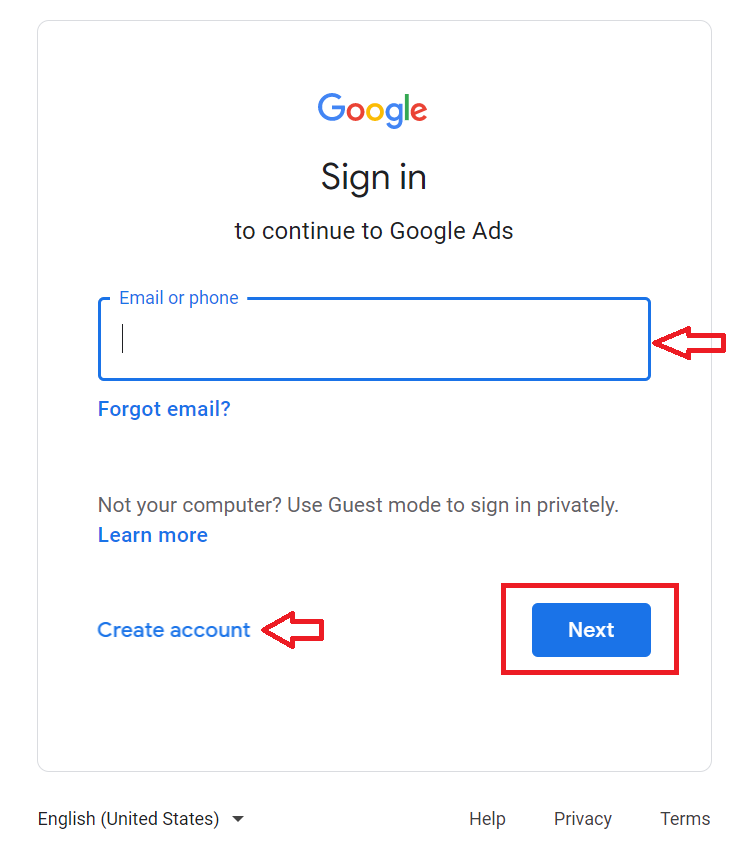
Go to https://ads.google.com.
-
Login or Create an account.
-
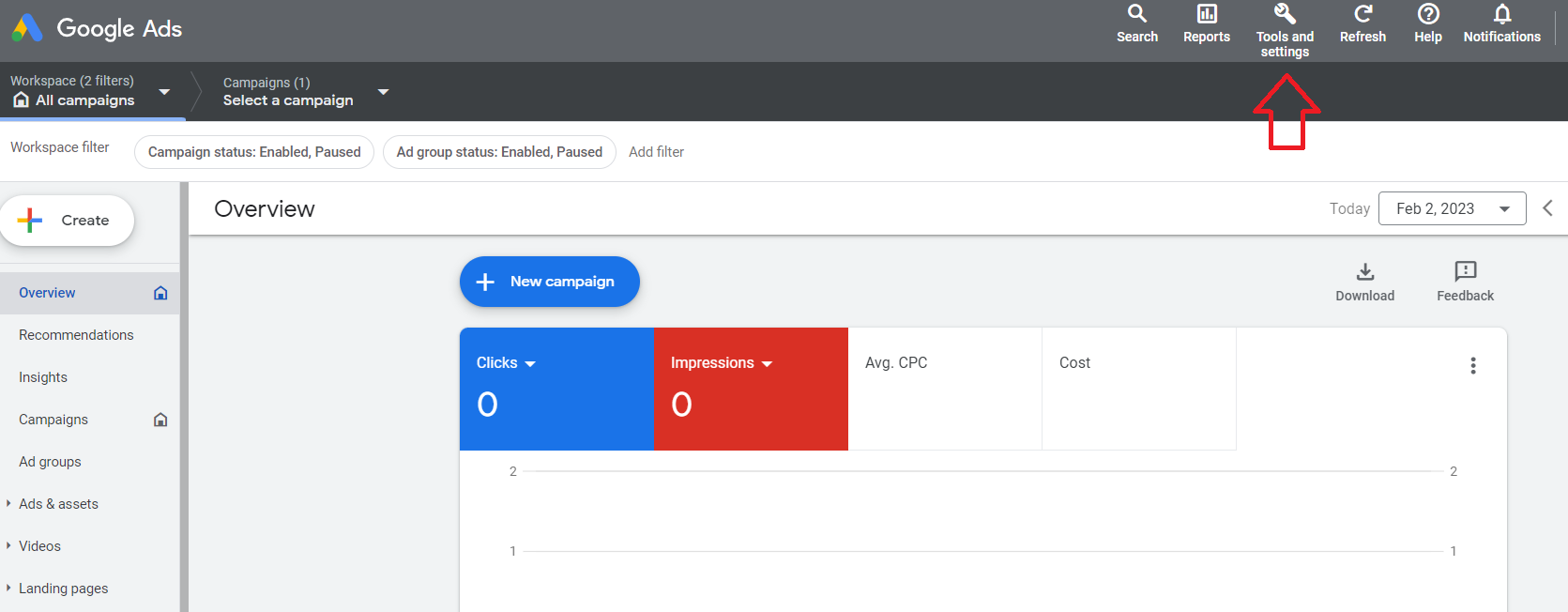
From the main dashboard, click on Tools and settings.
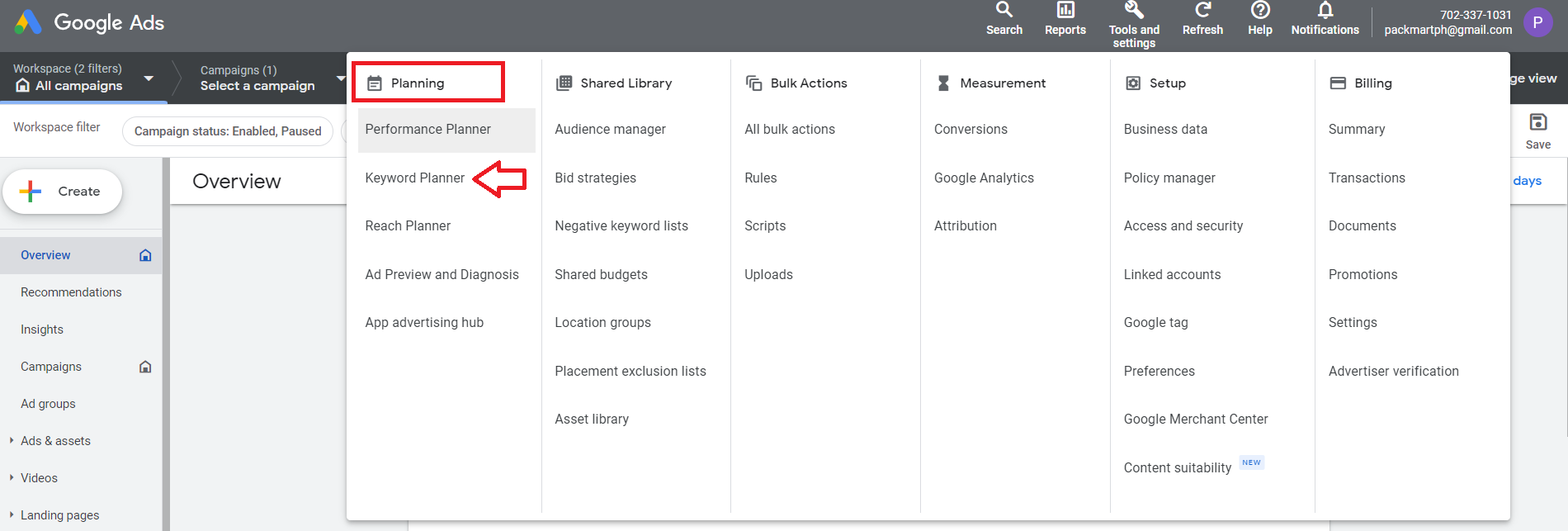
- In the Planning section, select Keyword planner.
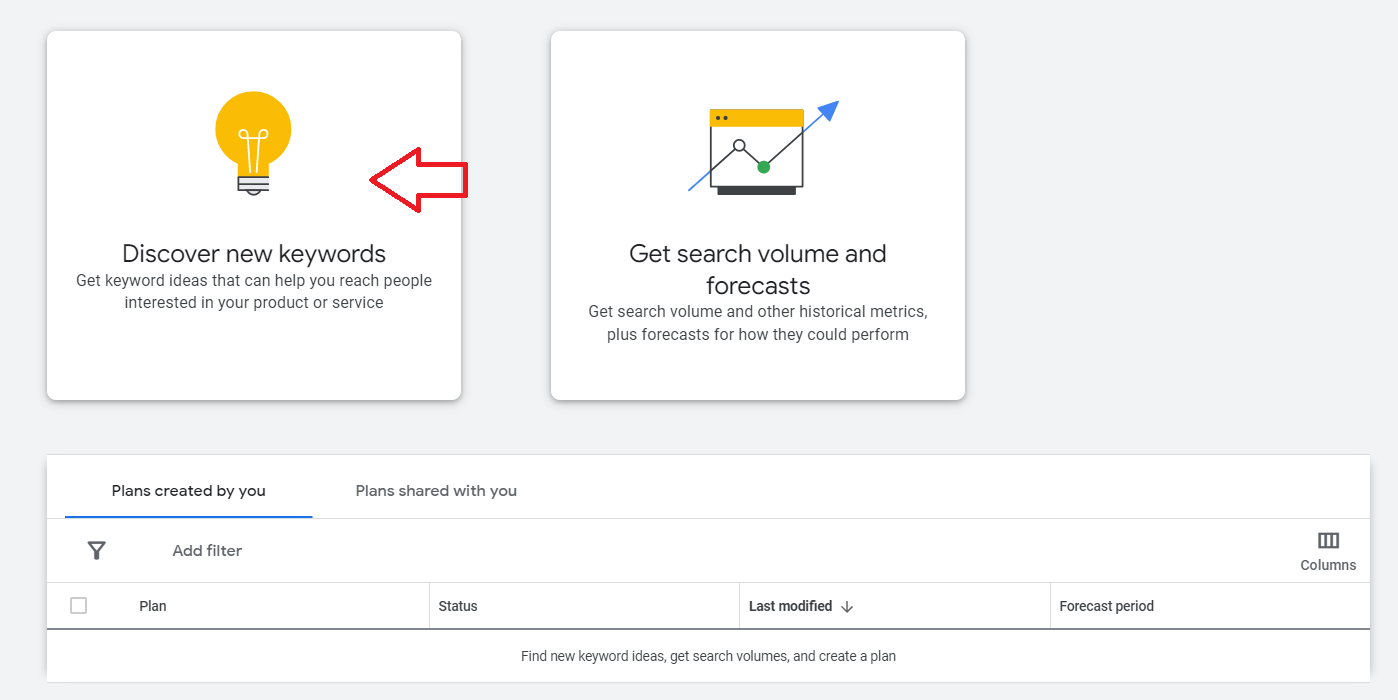
- Click Discover new keywords.
-
There are two ways you can start your research.
-
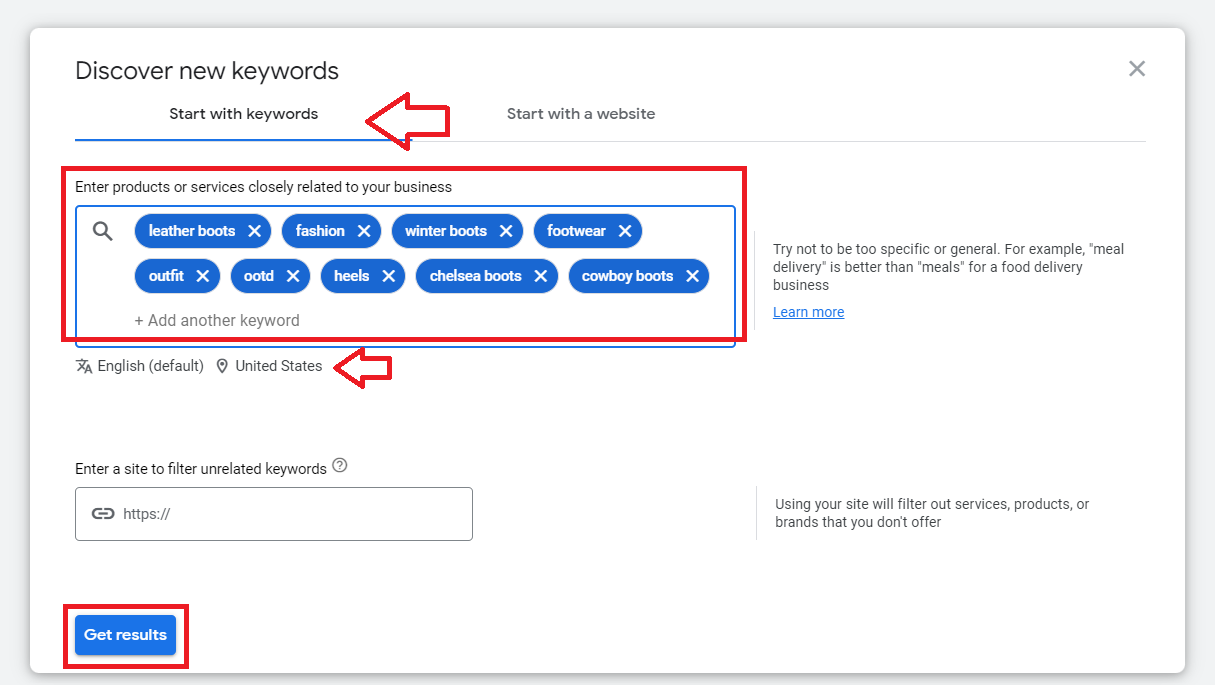
Start with keywords. You enter keywords and Google Keyword Planner will provide a list of recommended keyword ideas.
-
Start with a website. You can add your website (or your competitor’s) and Google Keyword Planner will provide a list of recommended keyword ideas.
Start with keywords
- Enter up to 10 keywords related to your industry or niche. Make sure to specify the location you want to cover, then click Get results.
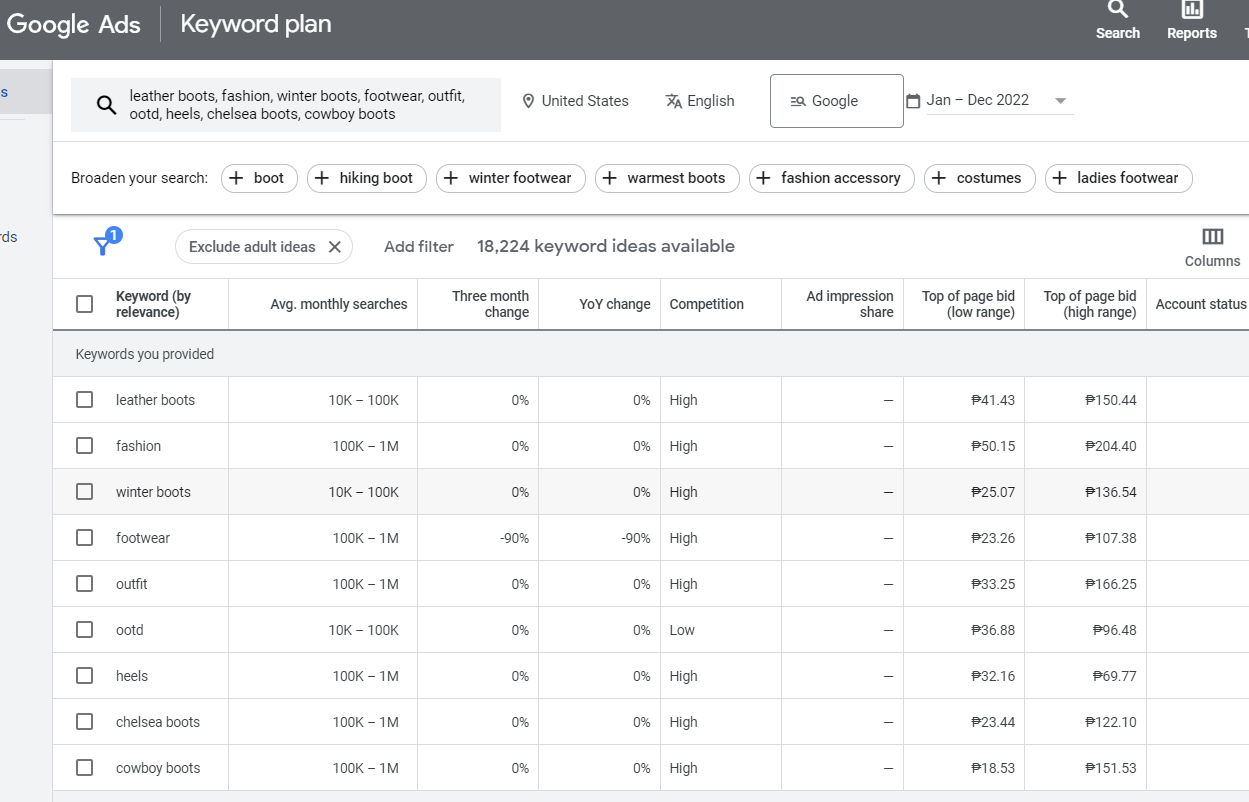
- Here you will see a list of keyword ideas available (ranked by relevance) based on the keywords you entered earlier.
-
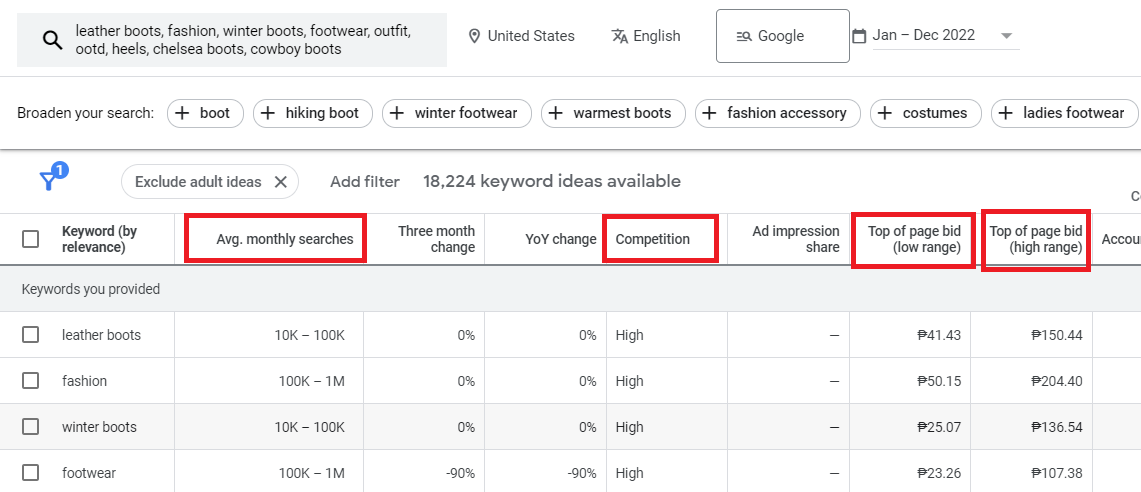
To evaluate the results, focus on the following columns:
-
Average monthly searches — The average number of searches for this keyword per month.
-
Competition — How competitive the keyword is based on the number of advertisers bidding them.
-
Top of page bid (low range) — Historically, the low end of the bid range required to achieve a top of page ad position.
-
Top of page bid (high range) — Historically, the high end of the bid range required to achieve a top of page ad position.
-
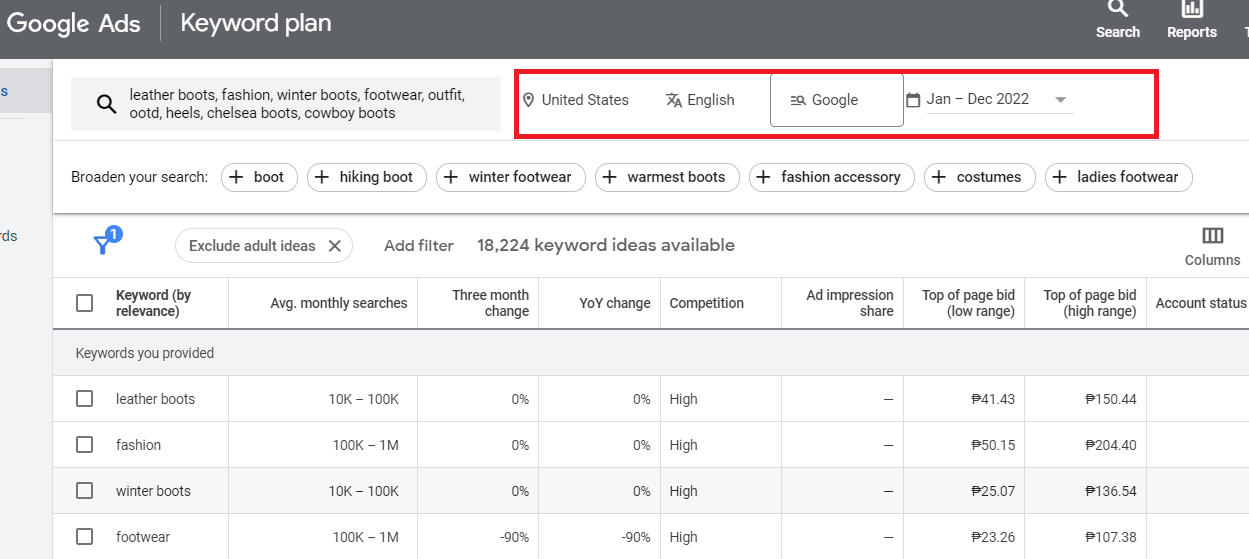
Pro Tip: You can adjust the filters of your search to get more relevant results, such as Location, Language, and Date.
4. Once you’re satisfied with the relevant keyword results, click Add Filter.
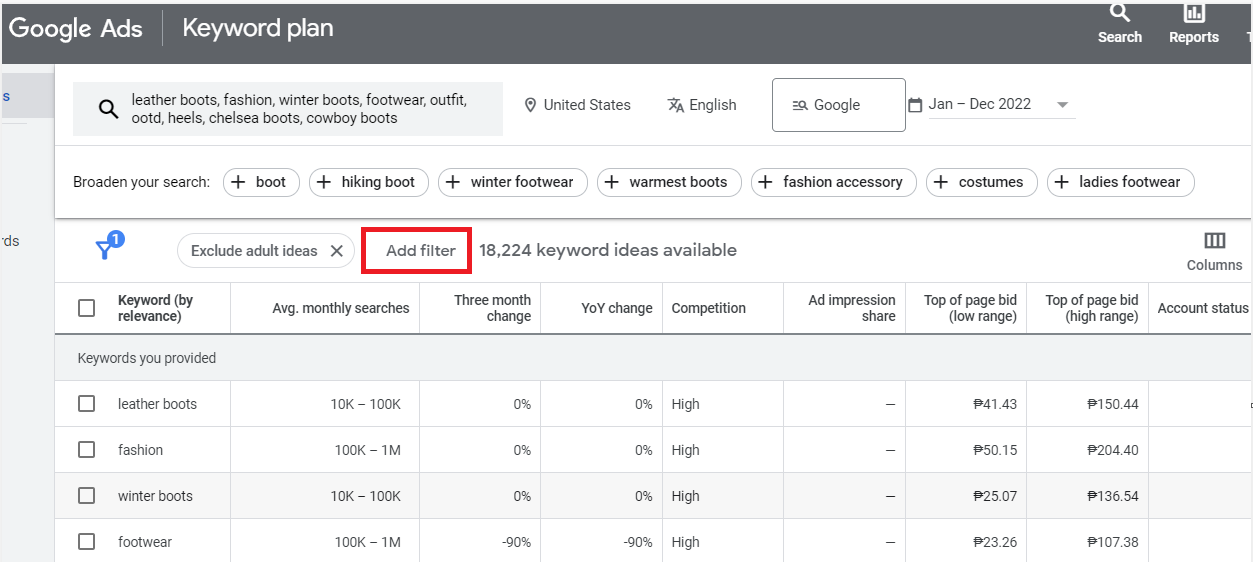
5. Use the Add Filter option to narrow down your list of keywords based on criteria like competition, impression share, and keyword texts.
Sample usage:
- Top of page bid (low range). You check to see keyword ideas where bids under $1 may be enough to reach the top of the page.
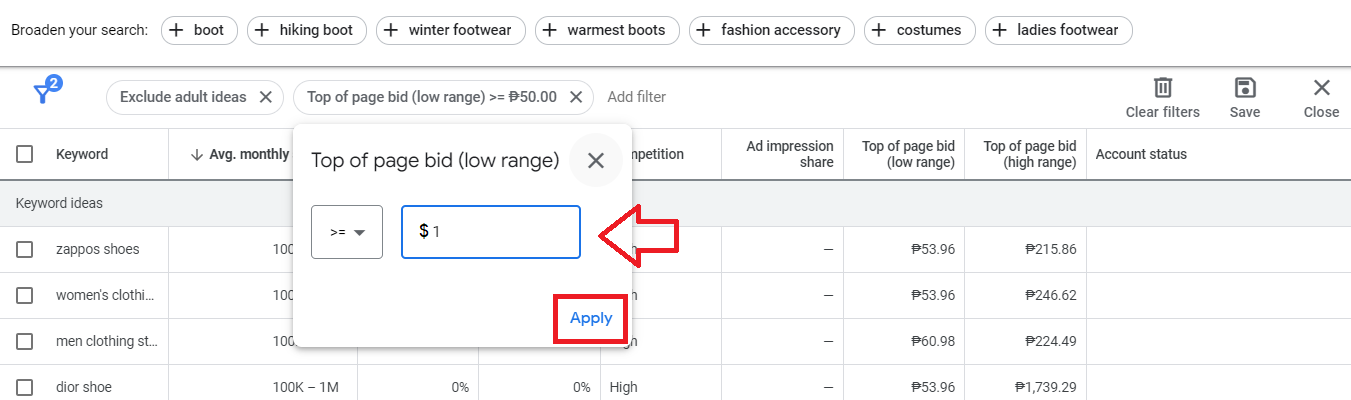
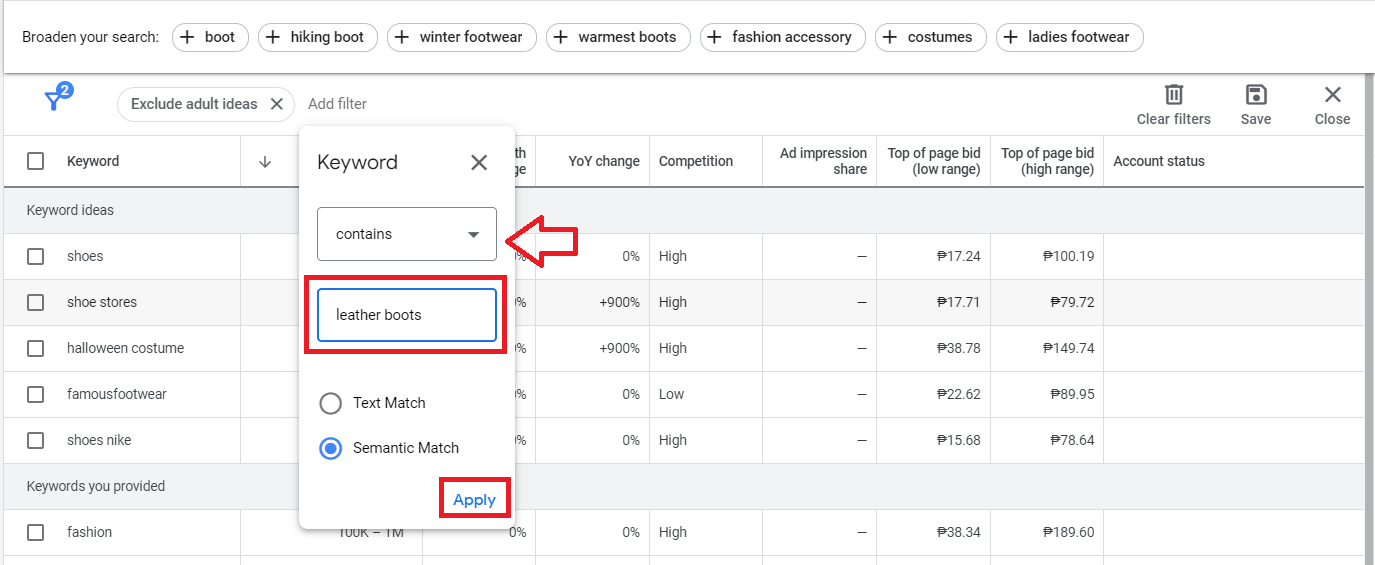
- Keyword. You can either include or exclude keywords using Text Match to match the exact text you entered or Semantic Match, which can find keywords similar to the text you entered.
Example: You want keywords related to women’s leather boots, select Keyword filter, choose “contains” from the drop down then type ‘leather boots”. Choose Semantic Match, then click Apply.
You will then see keywords related to leather boots.
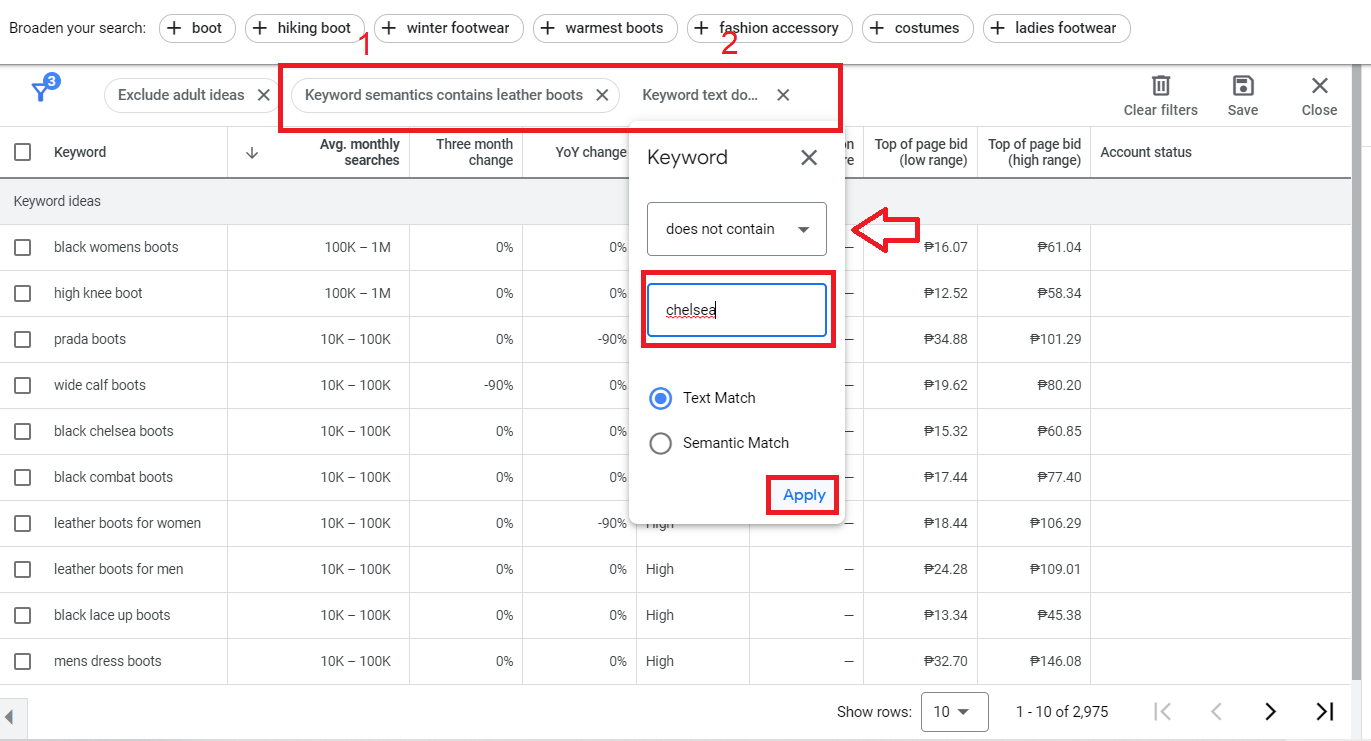
If you want to exclude “chelsea boots” from the results, add another keyword filter.
To further refine your search, click Refine keywords.

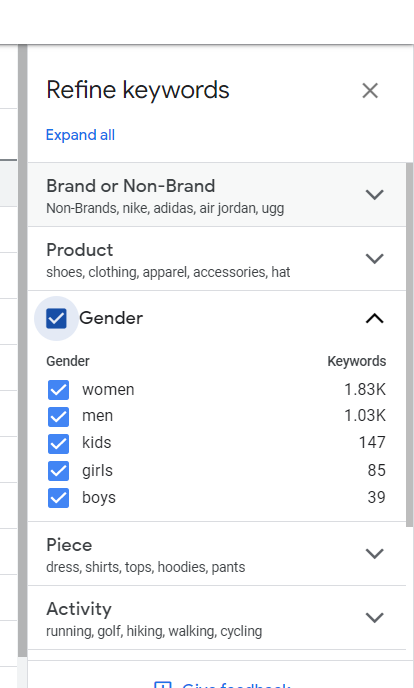
Here you’ll find options to further refine your keyword list based on common keyword attributes such as brand, product type, color, gender, etc.
Check or uncheck keywords that are most relevant for your keyword research.
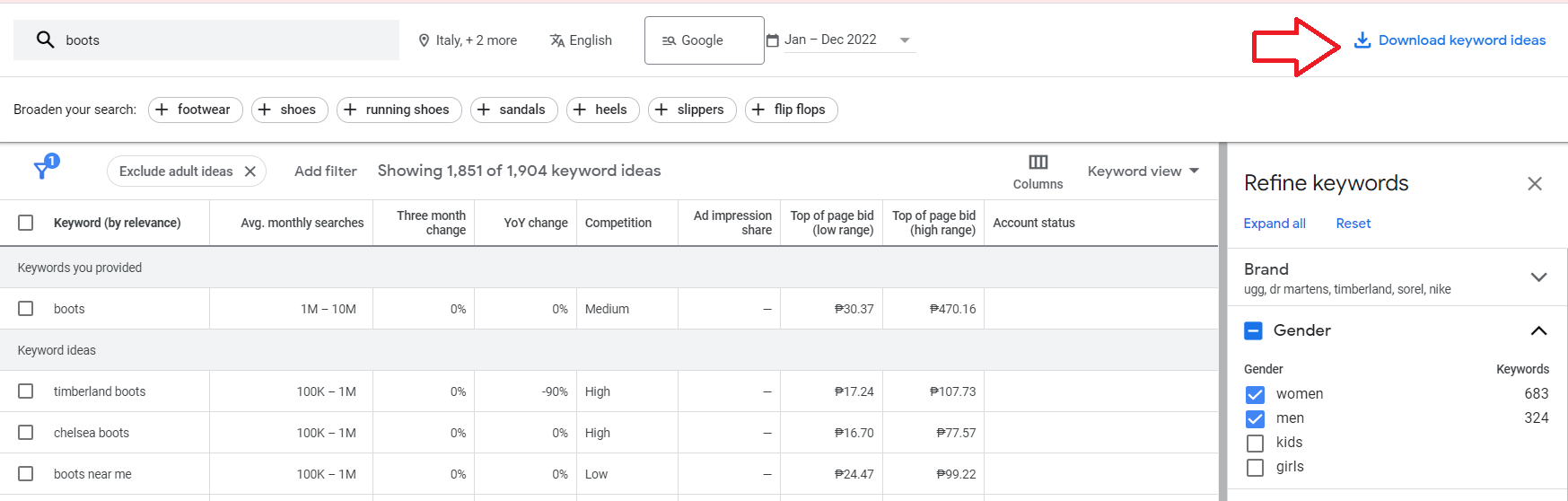
6. Once you’re good with the results, click Download keyword ideas.
Start with a website
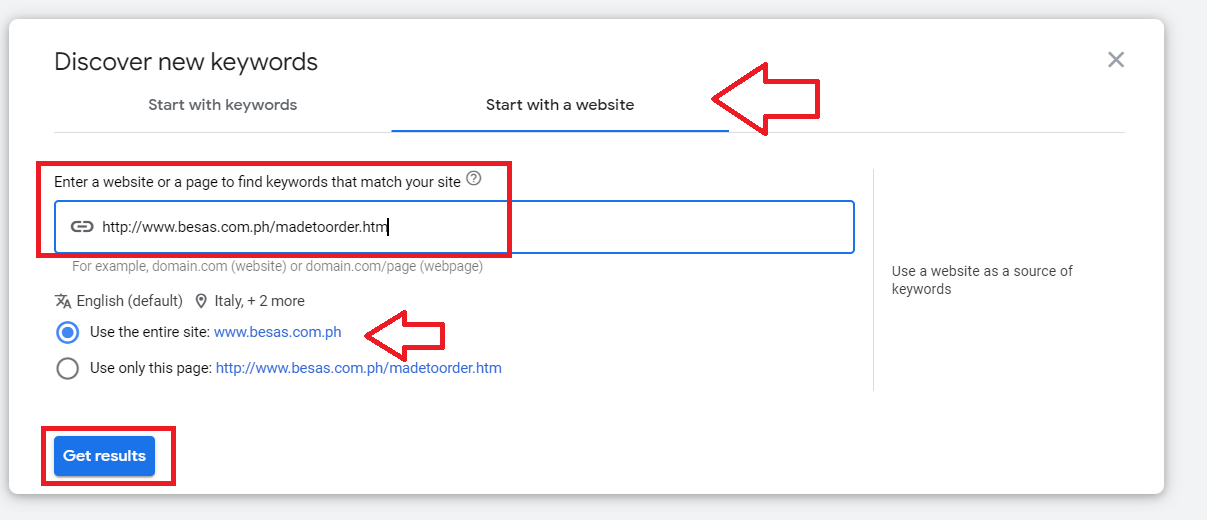
- Enter the URL of your website or any website you want to base your search from. You can opt to use the entire website or specify a page for the search then click Get results.
- Here you will see a list of keyword ideas available (ranked by relevance) based on the keywords you entered earlier.
-
To evaluate the results, focus on the following columns:
-
Average monthly searches — The average number of searches for this keyword per month.
-
Competition — How competitive the keyword is based on the number of advertisers bidding them.
-
Top of page bid (low range) — Historically, the low end of the bid range required to achieve a top of page ad position.
-
Top of page bid (high range) — Historically, the high end of the bid range required to achieve a top of page ad position.
-
Pro Tip: You can adjust the filters of your search to get more relevant results, such as Location, Language, and Date.
4. Once you’re satisfied with the relevant keyword results, click Add Filter.
5. Use the Add Filter option to narrow down your list of keywords based on criteria like competition, impression share, and keyword texts.
Sample usage:
- Top of page bid (low range). You check to see keyword ideas where bids under $1 may be enough to reach the top of the page.
- Keyword. You can either include or exclude keywords using Text Match to match the exact text you entered or Semantic Match, which can find keywords similar to the text you entered.
Example: You want keywords related to women’s leather boots, select Keyword filter, choose “contains” from the drop down then type ‘leather boots”. Choose Semantic Match, then click Apply.
You will then see keywords related to leather boots.
If you want to exclude “chelsea boots” from the results, add another keyword filter.
To further refine your search, click Refine keywords.
Here you’ll find options to further refine your keyword list based on common keyword attributes such as brand, product type, color, gender, etc.
Check or uncheck keywords that are most relevant for your keyword research.
6. Once you’re good with the results, click Download keyword ideas.
Best Practices
Brainstorming Keyword options
-
Identify all the possible product categories that you and your competitors have. Head over to their product pages and identify how many types of products they sell.
Run and analyze your competitor's strategy and research. Refer to SOP 009: How to Analyze Your Competitor’s Google Ads Strategy.
Iterate the keyword research process several times to get as many potential keywords as possible for your campaign.
Choose from the Keyword Planner recommendations
- Organize keywords into tightly-themed ad groups.
Example:
Ad Group = Yellow Snowboards
Keywords = “yellow snowboards”, “buy yellow snowboards”, “yellow snowboards for sale”, “cool yellow snowboards”
As you continue to iterate your keyword research process, it’s important to note how you want to structure your campaign and ad group. To do that, refer to SOP 050: How to Set Up Google Ads Campaign Account Structure.
- Forecast the potential and cost of the keywords from the Keyword Planner results
- From the main dashboard, click on Tools and settings.
- In the Planning section, select Keyword planner.
- Click Get search volume and forecast.
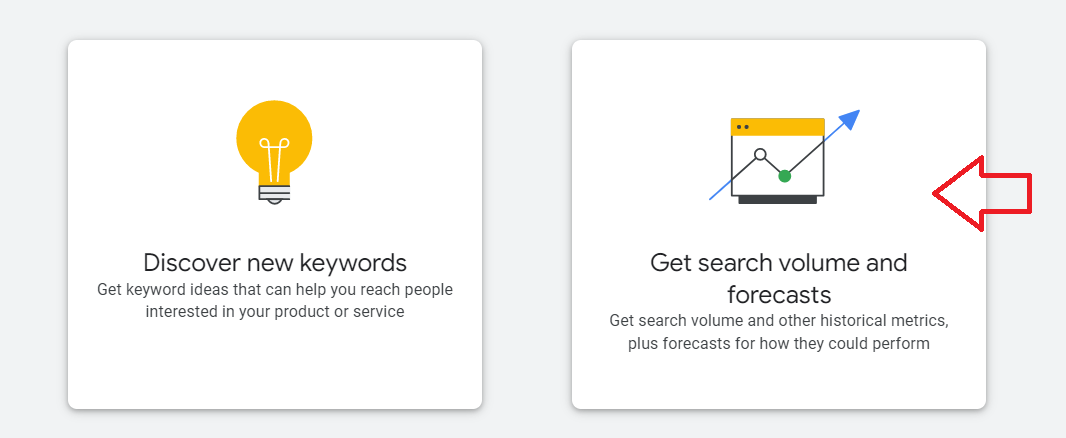
- Paste the keywords into the text field and click Get started.
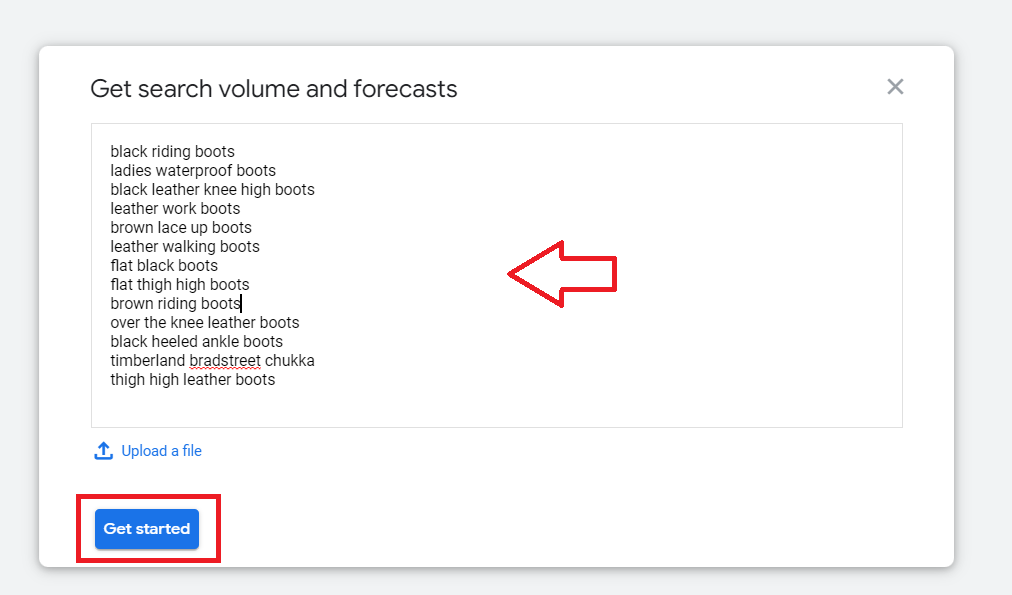
-
Adjust the following metrics to get a forecast for your keywords.
-
Average daily budget - this is what you plan to spend daily for this set of keywords.
-
Conversion — Estimated conversion (%) on your sales/landing page. If you’re unsure what conversion rate to set, you should set up conversion tracking in Google Analytics following this guide SOP 074: Setting Up Google Analytics Conversion Goals. In the meantime add a fictional conversion rate (e.g. 3%) while you wait for the conversion data
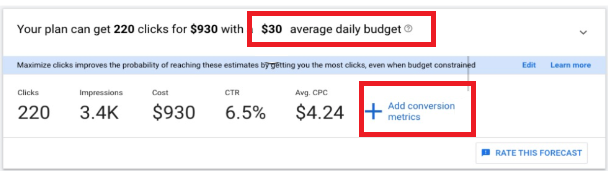
- You will then get an estimated forecast based on your previous input. The following forecast is based on a $30 daily spend and 4% conversion rate.
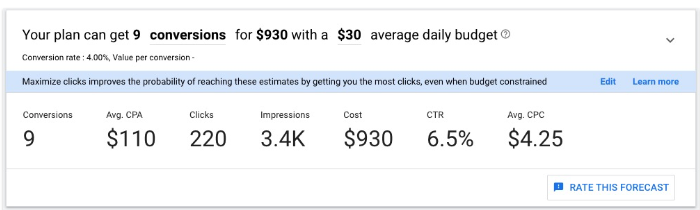
7. You can then compare if the average cost per acquisition (Avg. CPA) is lower than your cost per conversion to determine the potential profits for this campaign. You can also adjust the forecast with a different daily ad budget and conversion rate before you decide if this set of keywords is worth running a campaign for.
Note: Always revisit the forecast based on real data after campaign launch. The forecast that you can from Google should only be used as an estimate since CPC, conversion rate, and CPA depend on a wide range of factors.
8. That’s it! You now have a set of grouped keywords to create a new campaign for!
Conclusion
Execution Checklist:
-
Google Ads account
-
Starting keywords or website with which you will base your search
-
Google Analytics (optional)
That’s it! You’re all done. Remember that keyword search for your ad campaign requires ongoing optimization and continuous iteration.
-
Keyword research should be done prior to starting an ad campaign or when launching a new product or service.
-
The goal of keyword research is to understand what words and phrases your target audience is using to find information online and to determine the most valuable keywords to target in your marketing campaigns.
-
By conducting keyword research, you can improve the relevance and targeting of your ads, increase website traffic, and ultimately drive more conversions and sales. Keyword research is an essential part of search engine optimization (SEO) and pay-per-click (PPC) advertising.