How to Set Up a Youtube In-Stream Ads Campaign for Improved Reach, Engagement, and Conversions
To provide you with a step-by-step guide on how to set up your YouTube In-Stream ads Campaign.
Prefer a shortcut? 16 free tools do parts of this for you.

Aim: To provide you with a step-by-step guide on how to set up your YouTube In-Stream ads Campaign.
Optimal Outcome: With its massive user base, YouTube offers a valuable opportunity for you to expand your business’s reach and drive growth and revenue by accessing a broad audience.
What do you need to start: To follow the steps on this SOP, you’ll need the following:
-
Google Ads account
-
YouTube channel (optional)
-
Video ad content
Why is this SOP Important: Running an ad campaign on YouTube allows you to effectively reach your target market and achieve your marketing goals, whether it’s increasing brand awareness, driving sales, or generating leads.Also, with its high level of engagement, in-stream ad campaigns on YouTube provides an opportunity for businesses to create compelling, memorable experiences that drive brand loyalty and advocacy.
When and Where to execute: Best time to run an In-Stream YouTube ads campaign depends on your marketing goals and target audience. Some ideal events to run a YouTube ads campaign include product launches, sales and seasonal promotions, and brand-building activities.
Who Should Be Doing This: Digital Marketing Staff, Social Media Managers, Business owner
What are YouTube In-Stream Ads
YouTube in-stream ads are short ads that appear before, during, or after a YouTube video. Viewers can choose to skip these ads after 5 seconds. In-stream ads allow advertisers to reach a large audience and drive engagement with their brand. Advertisers only pay when a viewer watches at least 30 seconds of the ad or the full ad if it’s shorter than 30 seconds or if the viewer interacts with the ad.
There are generally two main types of YouTube In-stream Ads:
-
Skippable In-Stream Ads - viewers can skip after 5 seconds
-
Non-Skippable In-Stream Ads - viewers must watch in full before the main video starts.
Both can appear on desktop, mobile, and TV screens and can be customized to target specific demographics, interests, and behaviors. YouTube also allows various ad formats such as video, display, and overlay ads, allowing you to choose the best format to achieve your marketing goals.
Execution
Resources / Tools & Set up
-
Create Google Ads account
-
Setting Up Your Campaign with In Stream Videos
-
How to Setup Conversion Tracking
Create your Google Ads Account
-
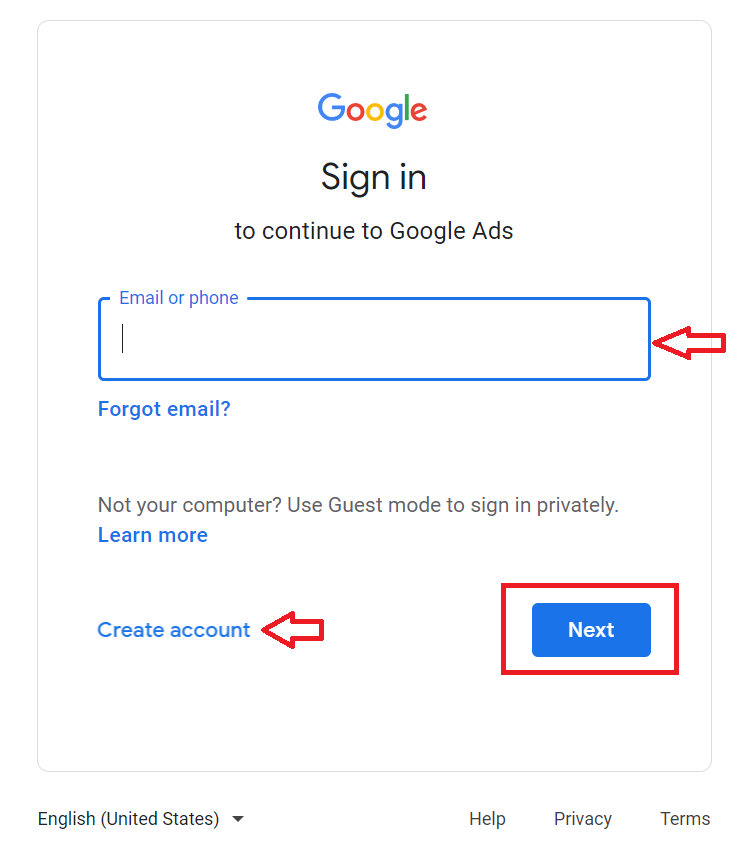
Go to https://ads.google.com.
-
Login or Create an account.
-
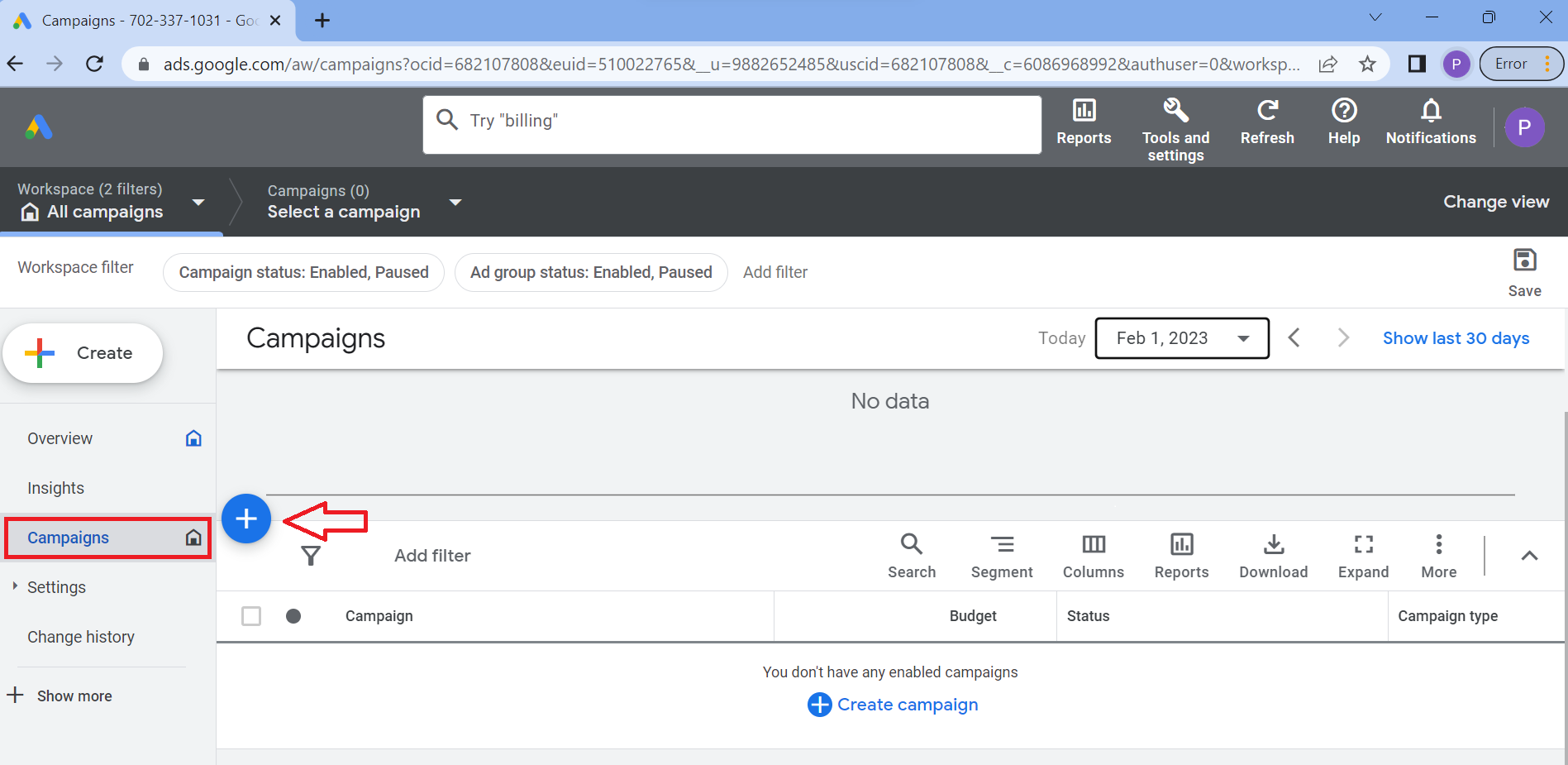
From the main dashboard, navigate to the left menu and select Campaign, then click the plus (+) sign.
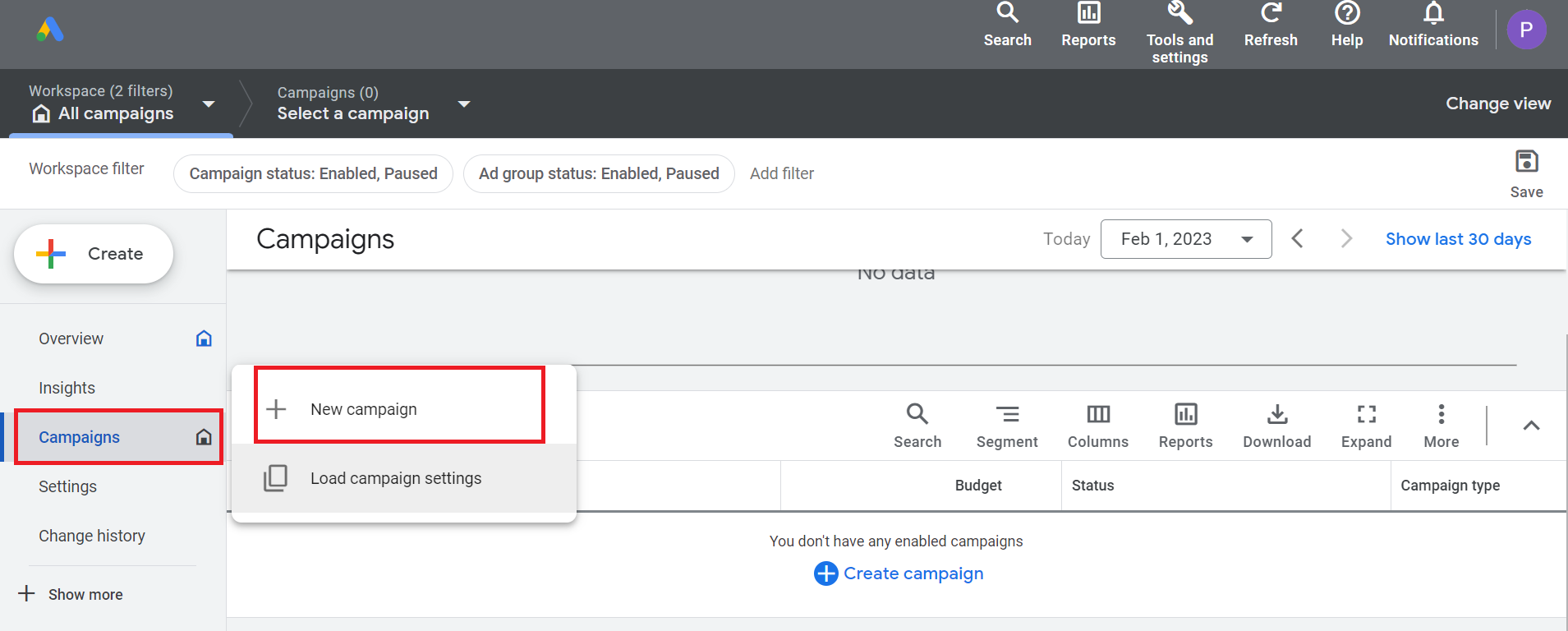
- Then, select New Campaign.
-
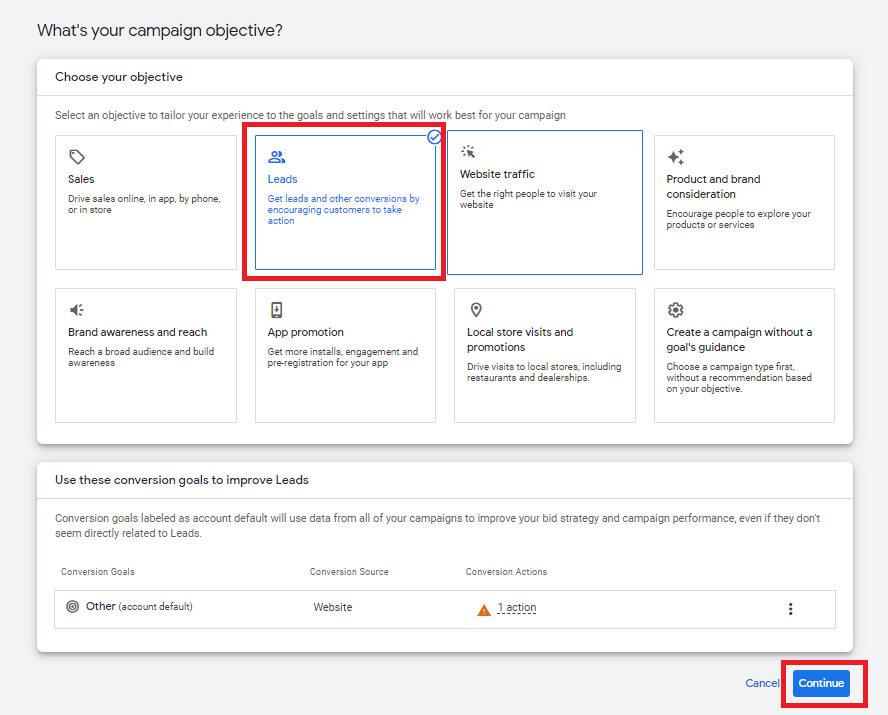
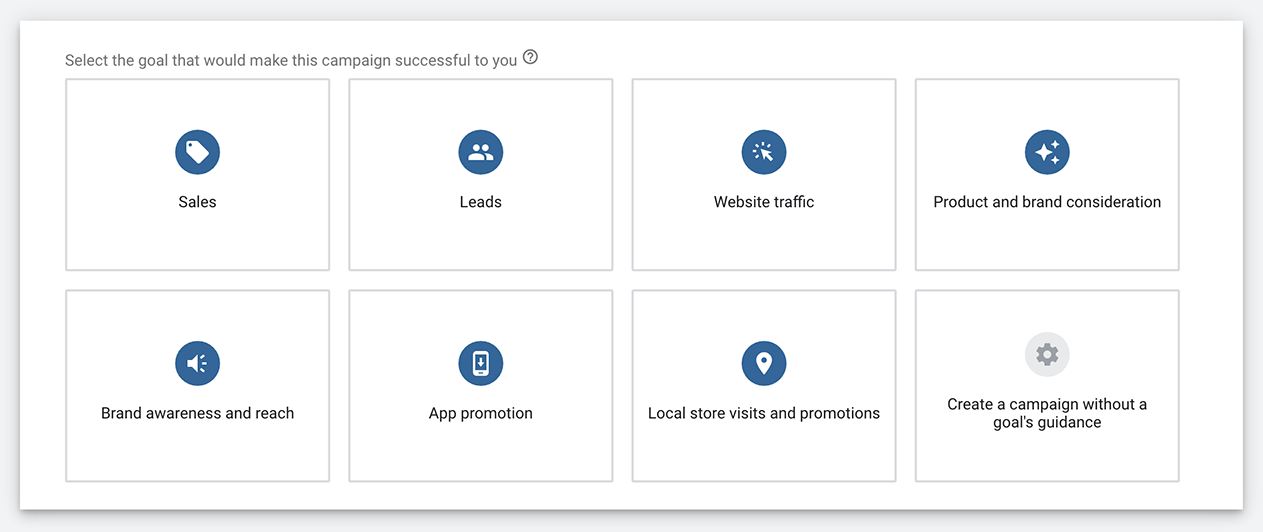
Choose the best option based on your campaign objectives. (Note: In this example, we’ll be choosing “Leads”) Once you’ve selected your objective, click Continue.
-
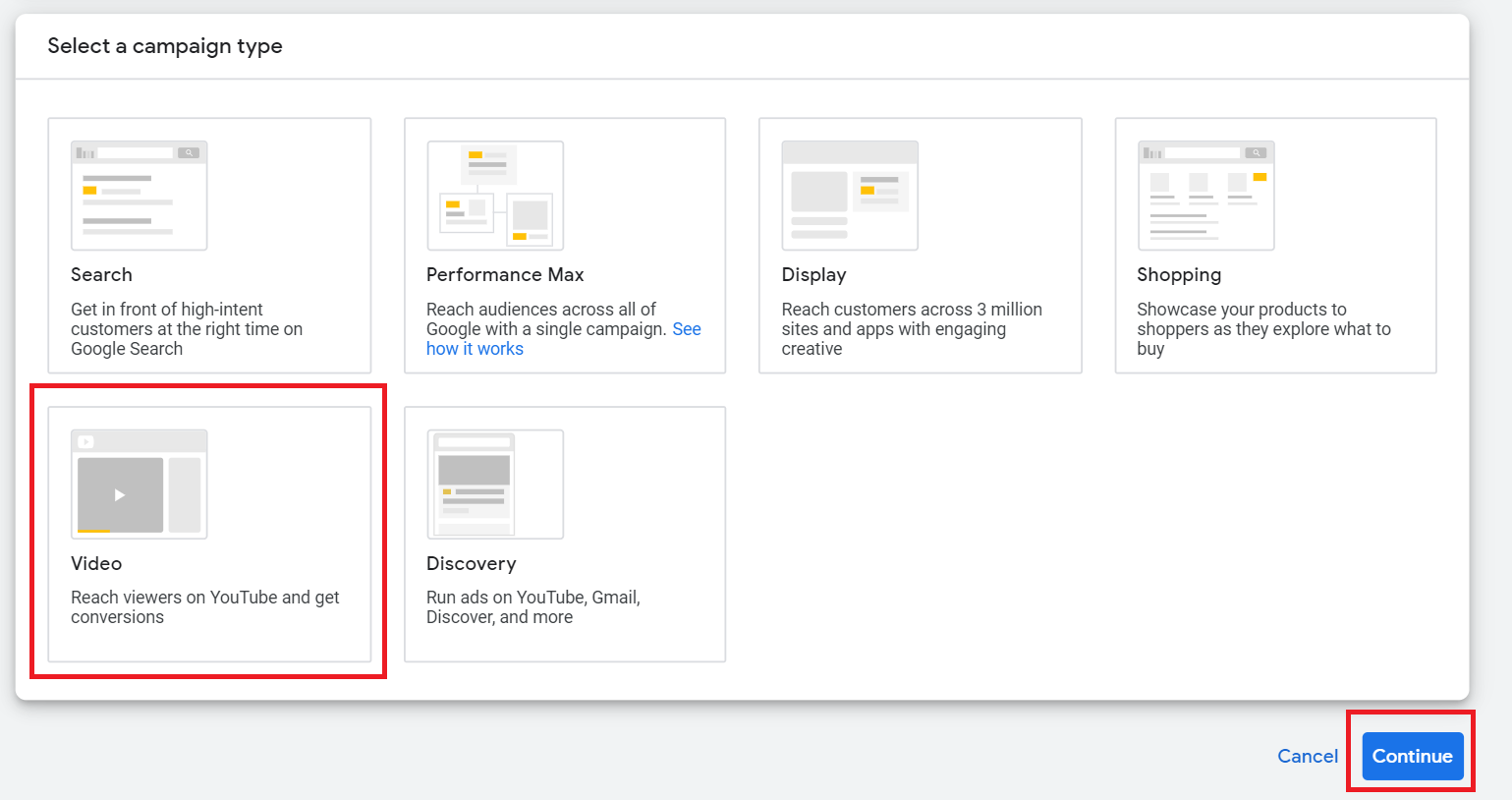
In the Campaign Type section, select Video and then click Continue.
-
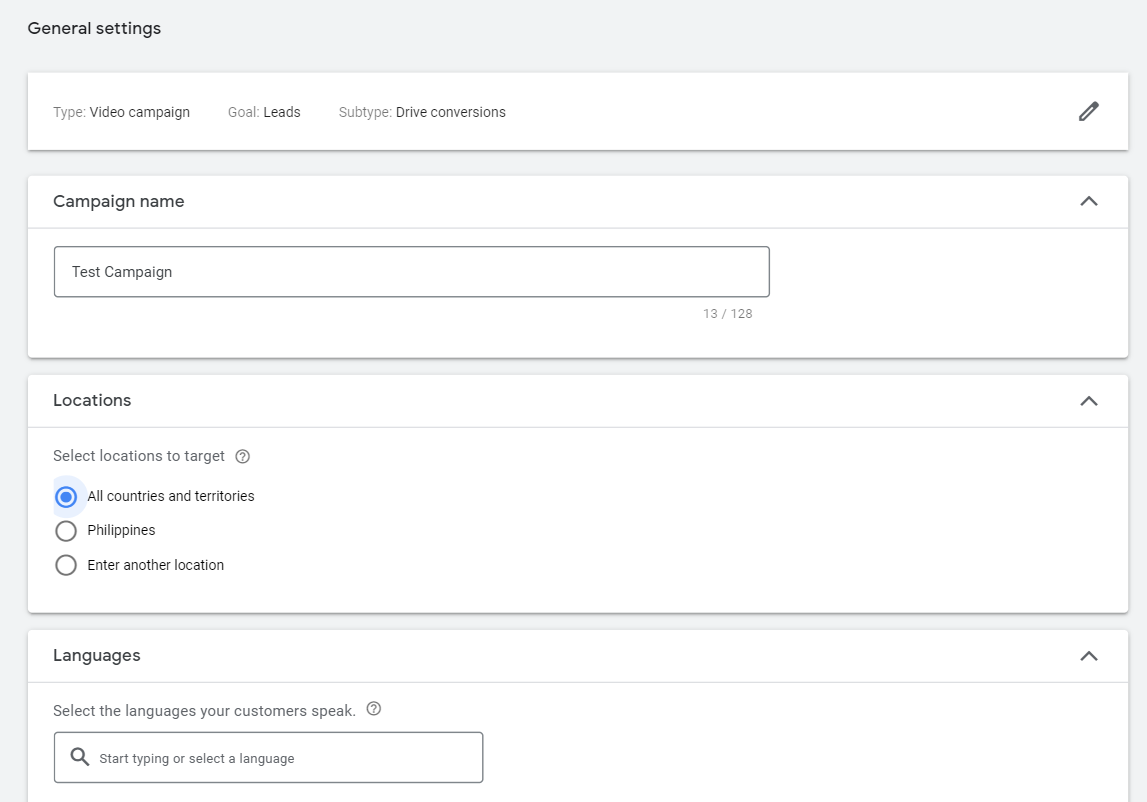
You will then be able to customize the settings for your campaign. Provide a name for your campaign, choose your target location, and languages.
-
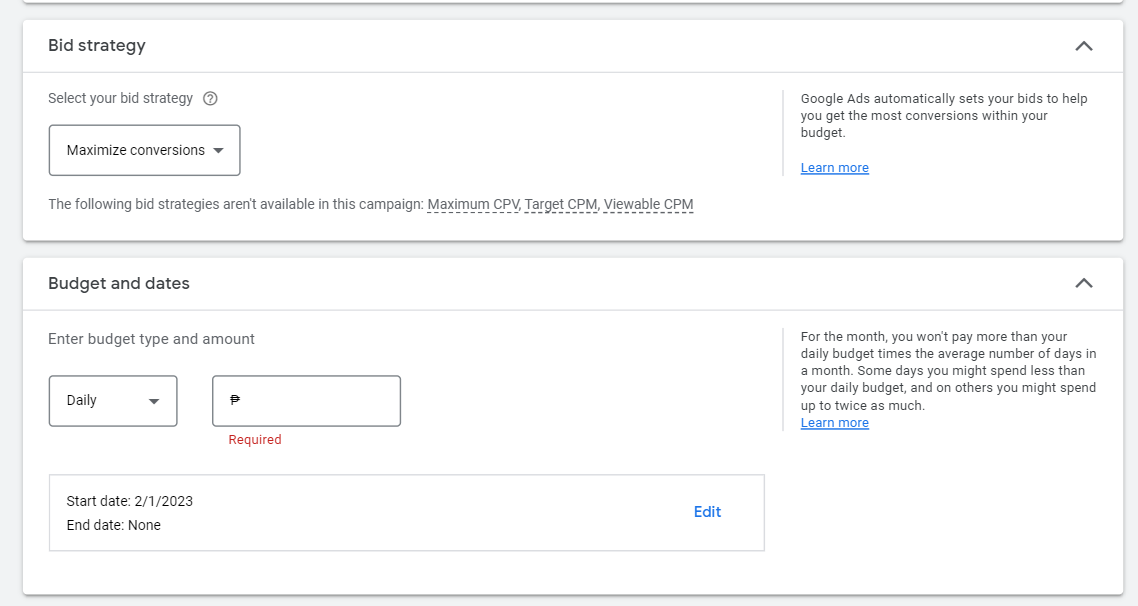
Next, choose your bid strategy, your budget, and the start and end dates of your campaign.
- Additional settings are available to customize your ad schedules and audience.
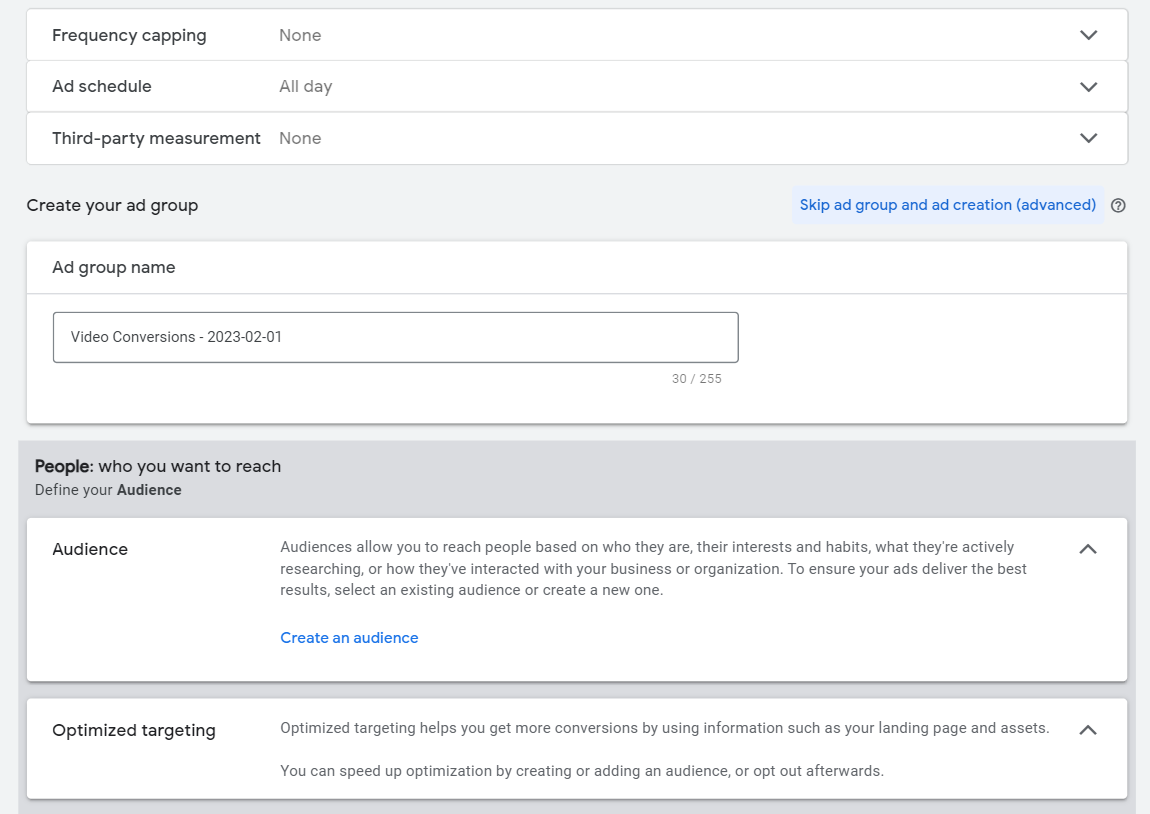
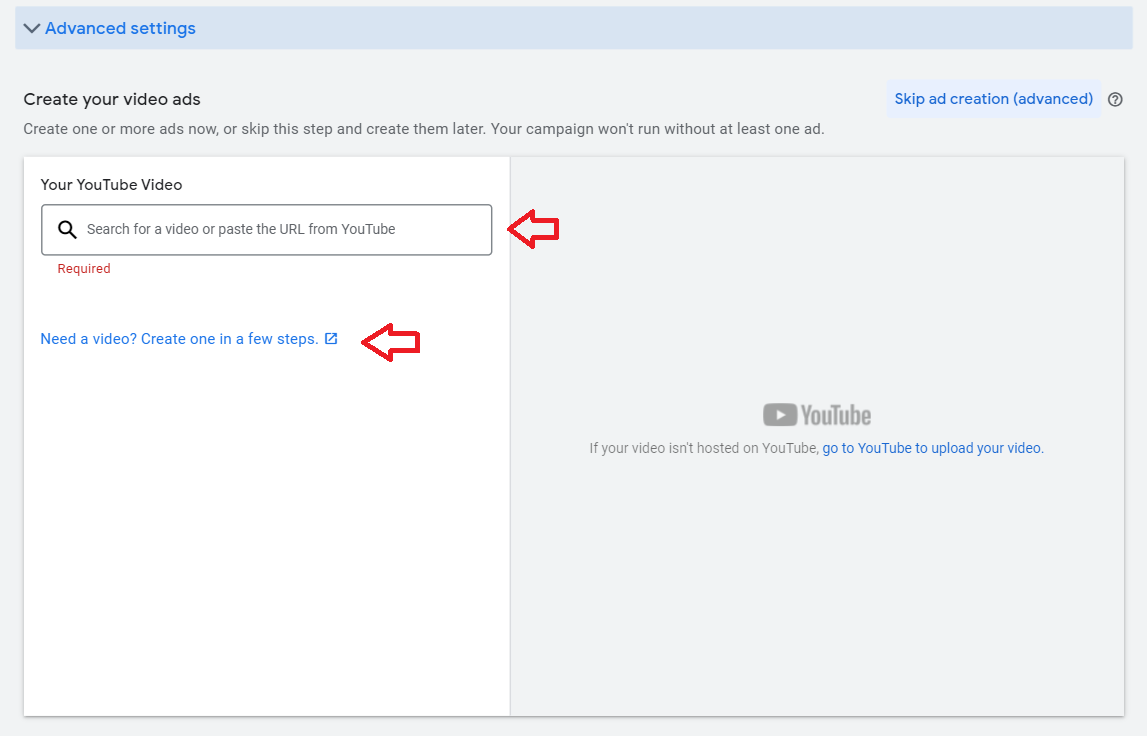
- Now you’re ready to add your video content. You can either add the URL of your ad from your YouTube channel or create one from Google Ads Manager.
- To customize your ad, add Call To Action (CTA), headline and description. Once done, click on Create Campaign.
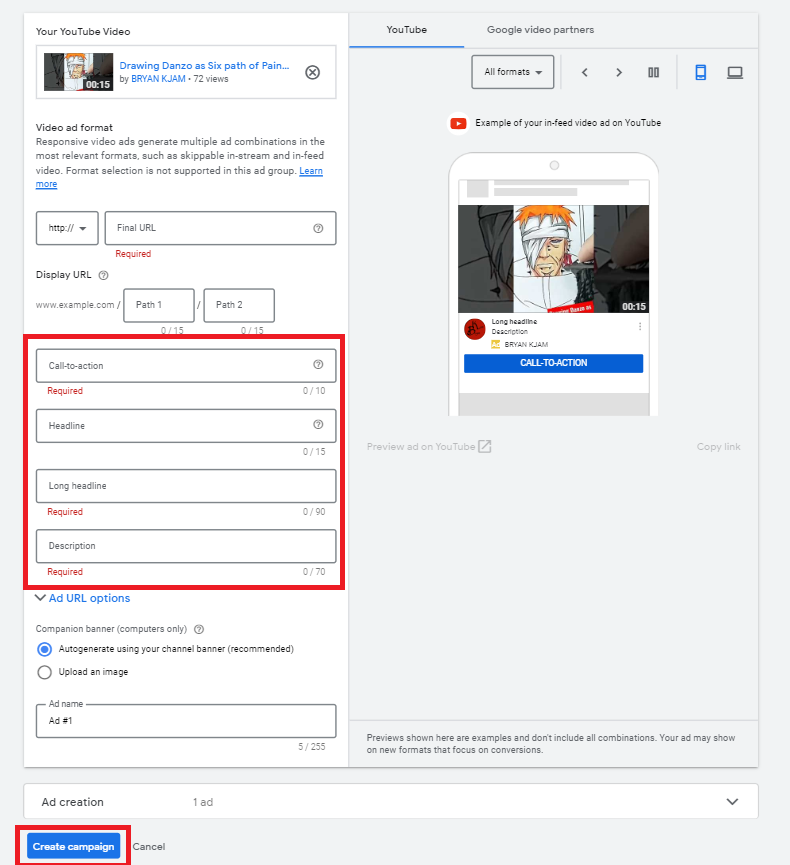
- Once created, you’ll be able to monitor the performance of your campaign from the main Google Ads dashboard.
Choosing a Campaign Goal and Type
-
Following the previous step, navigate o the main Google Ads overview screen.
-
Click the New Campaign button.
-
Then clarify the goal you want to achieve with your in-stream ad.
-
When creating a YouTube in-stream ad, pick from these objectives: Sales:Leads: Website Traffic: Product and Brand Consideration: Brand Awareness and Reach.
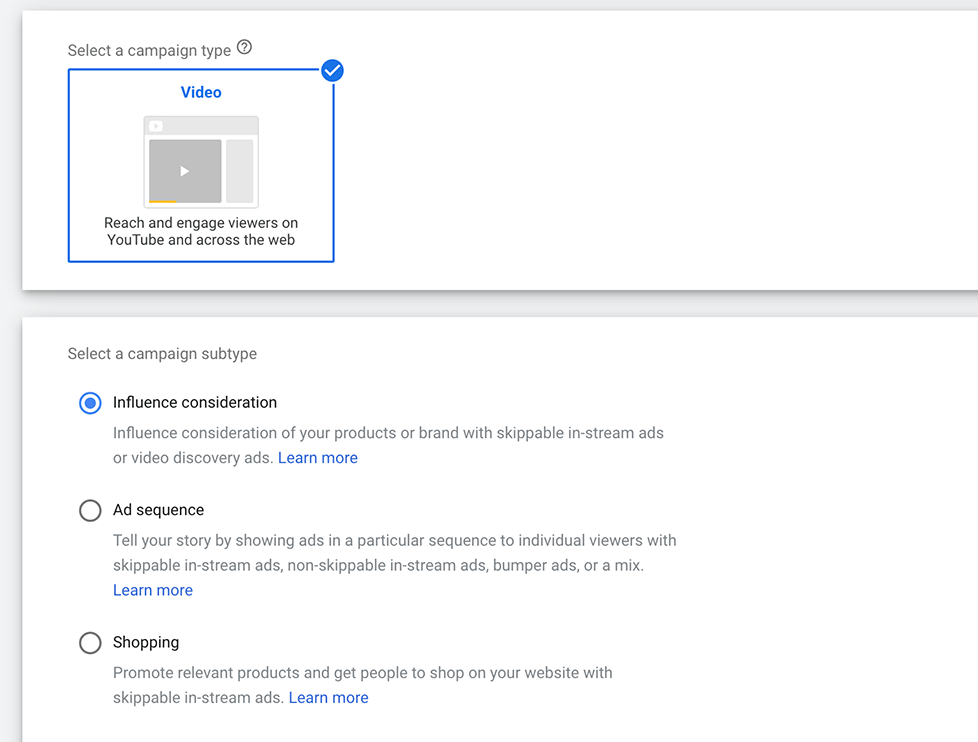
5. Choose Video as your campaign type.
Enable Conversion Tracking in Google Ads
Make sure to complete relevant conversion actions in your Google Ads account.
Choose to track site visits, add to carts, or phone calls.
First, sign into your Google Ads account.
Now, click on Tools & Settings.
Click Conversions and choose the type you want to use.
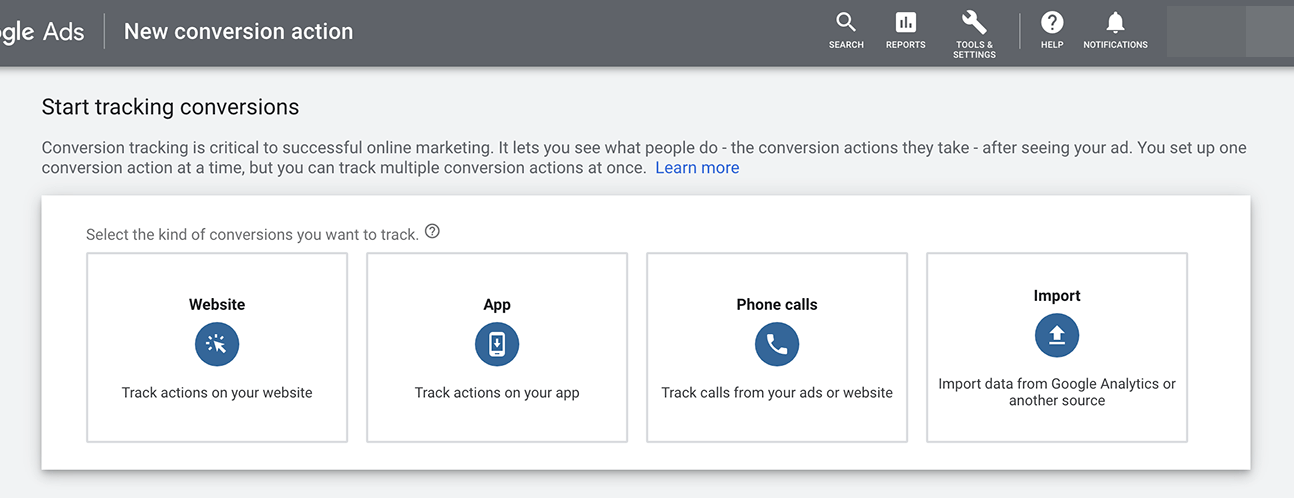
Next, go ahead and set a value and conversion window.
Choose an attribution model.
You'll need to add a tracking tag to your site or app.
Monitor results effectively from here on.
You can now even start importing conversion actions from Google Analytics to improve reach, engagement and conversions.
Conclusion
That’s it! All done. Remember, setting up your YouTube In-Stream ads campaign is a great way to connect to a large audience and increase your sales.
-
YouTube In-Stream ads allow you to reach a specific target audience based on factors such as demographics, interests and behaviors.
-
Running a YouTube In-stream ad campaign is generally more cost-effective than other forms of digital advertising.
-
Video format advertising can be more engaging and memorable than other forms of advertising, helping you to increase brand awareness and recall.
Execution Checklist:
-
Create Google Ads account
-
Setting Up Your Campaign with In Stream Videos
-
How to Setup Conversion Tracking