A Guide to Setting Up a Google Shopping Campaign
To provide you with a step by step guide in setting up your Google Shopping Campaign.
Prefer a shortcut? 16 free tools do parts of this for you.

Aim: To provide you with a step by step guide in setting up your Google Shopping Campaign.
Optimal Outcome: To increase conversion rates that will result in better return on investment (ROI) through increased visibility and credibility of your products.
What do you need to start: There are several requirements to set up a Google Shopping Campaign.
-
Google Merchant Center account. If you don’t have a Google Merchant Center account, please follow this section: How to Set Up your Google Merchant Center account guide.
-
Google Ads account
*The 2 accounts need to be linked together ( How to Link your Google Merchant Center account to Google Ads account)
-
Compliance to Google Shopping ads policies
-
Product Data / Product Listing
Why is this SOP Important: With Google Shopping, your products will appear at the top of the search engine results page which increases product visibility and significantly increases sales. Google Shopping is cost-per-click based which is a cost-effective way of advertising which leads to higher conversion rates and better return of investments.
When and Where to execute: Running Google Shopping Ads campaign can be beneficial to your business any time of the year but some key times to include in your plans to run your campaign include:
-
Holiday season
-
Product Launches
-
Peak shopping times in your target location
Who Should Be Doing This: Business owner or Marketing Staff
What is Google Shopping
Google Shopping is an e-commerce platform that allows merchants and retailers to promote their products to potential customers who are searching for similar items. Ads are displayed with product listings and will appear as sponsored results. The ads in Google Shopping are displayed to users who search for related products on Google Shopping, Google Search, and other Google platforms. The cost of running ads on Google Shopping is based on the pay-per-click (PPC) model, where advertisers pay each time a user clicks on one of their ads.
Execution
Set up your Google Merchant Center Account
- Provide details about your business.
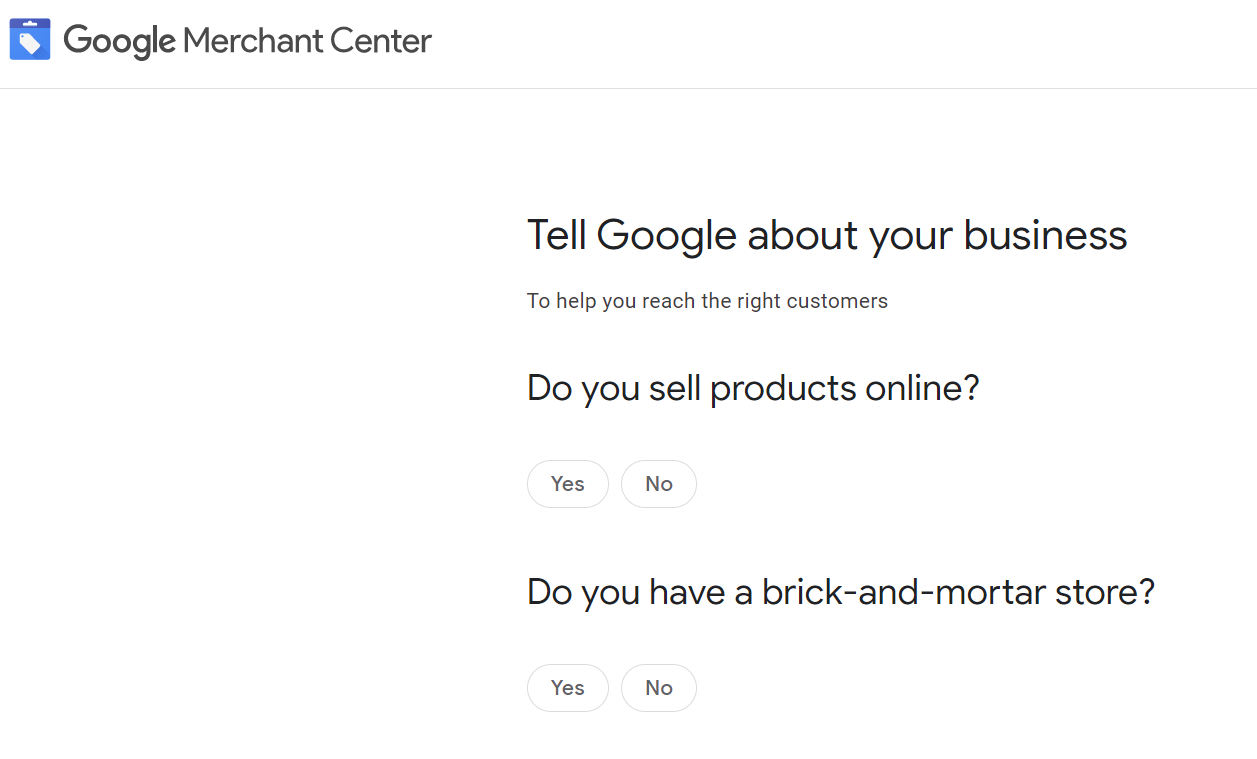
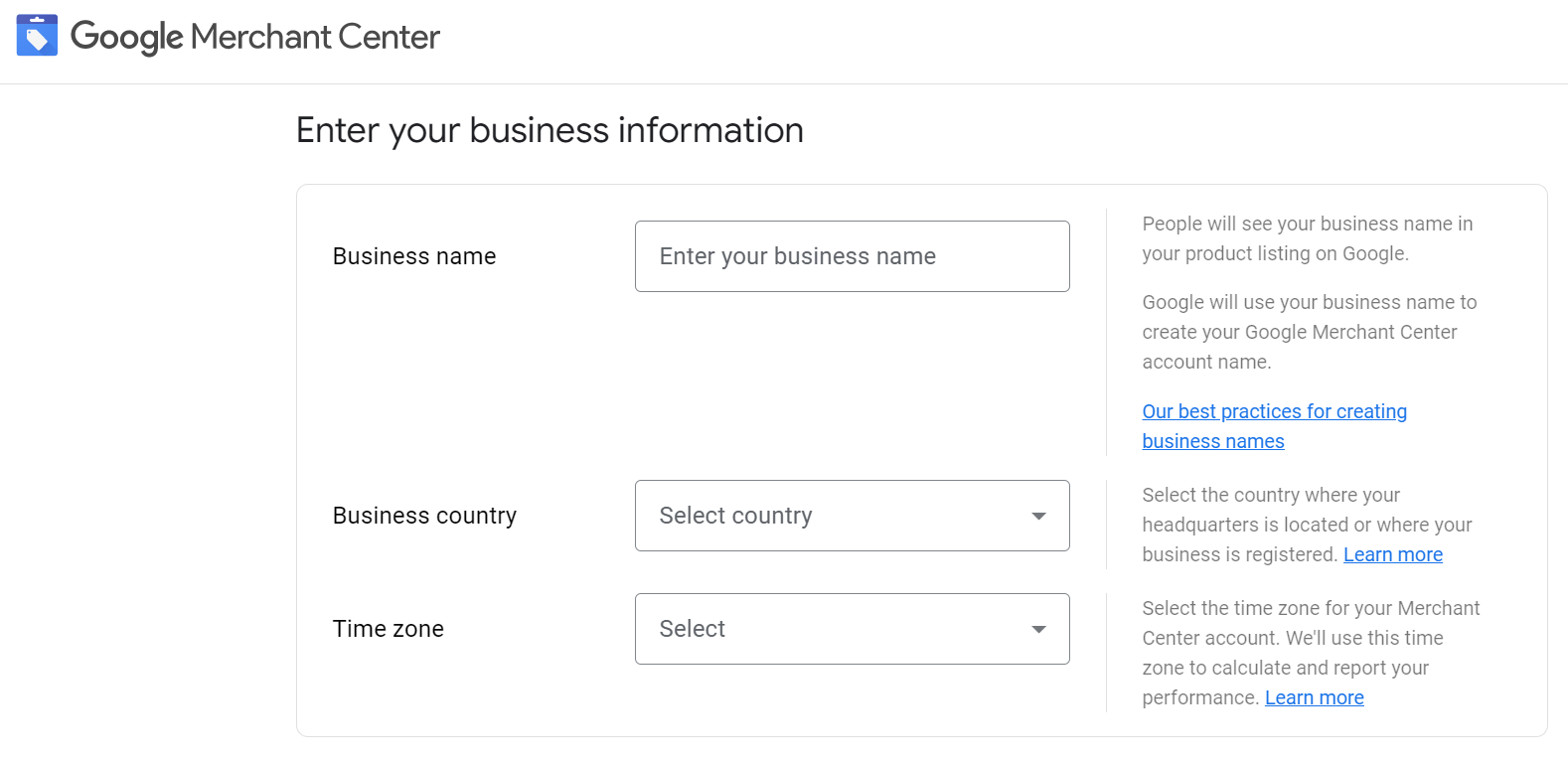
- Enter your business information.
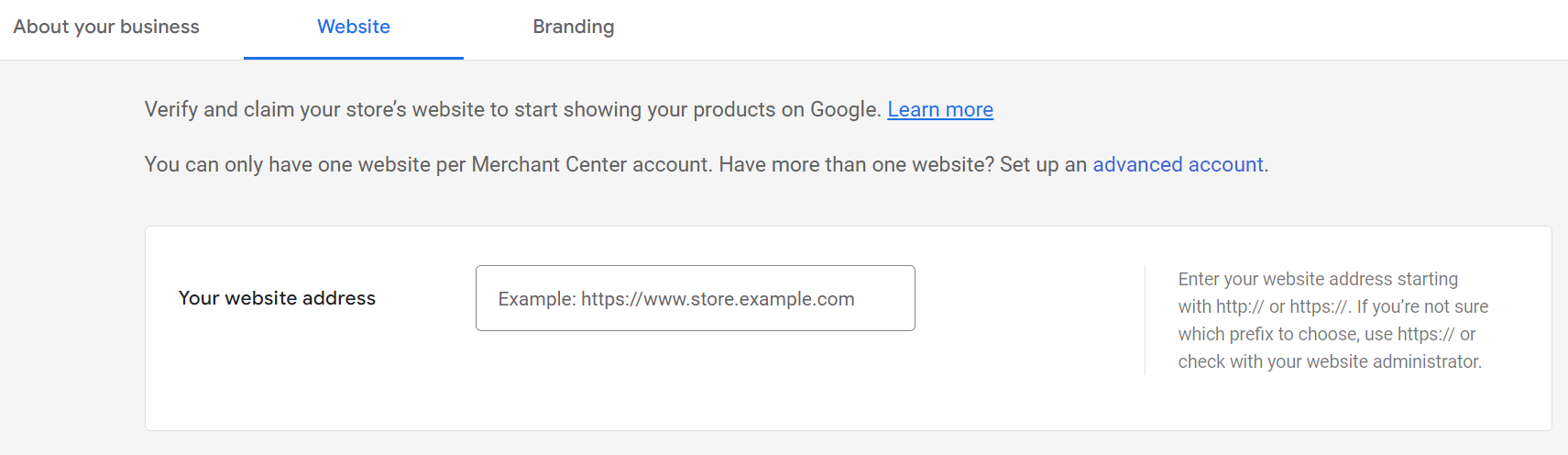
- Verify and claim your website URL.

- From the left menu of the main dashboard, select Products.
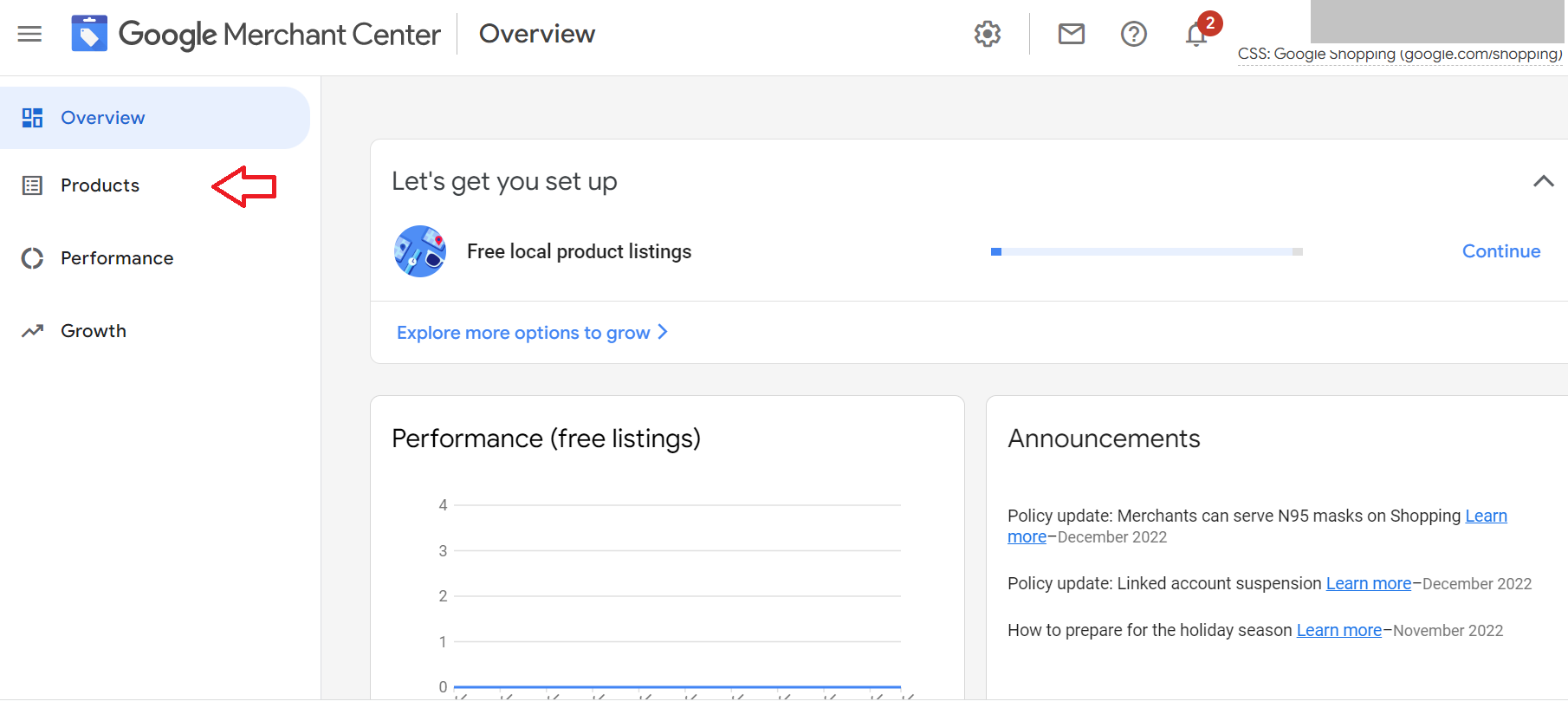
- You can either upload an existing product list or add them manually.
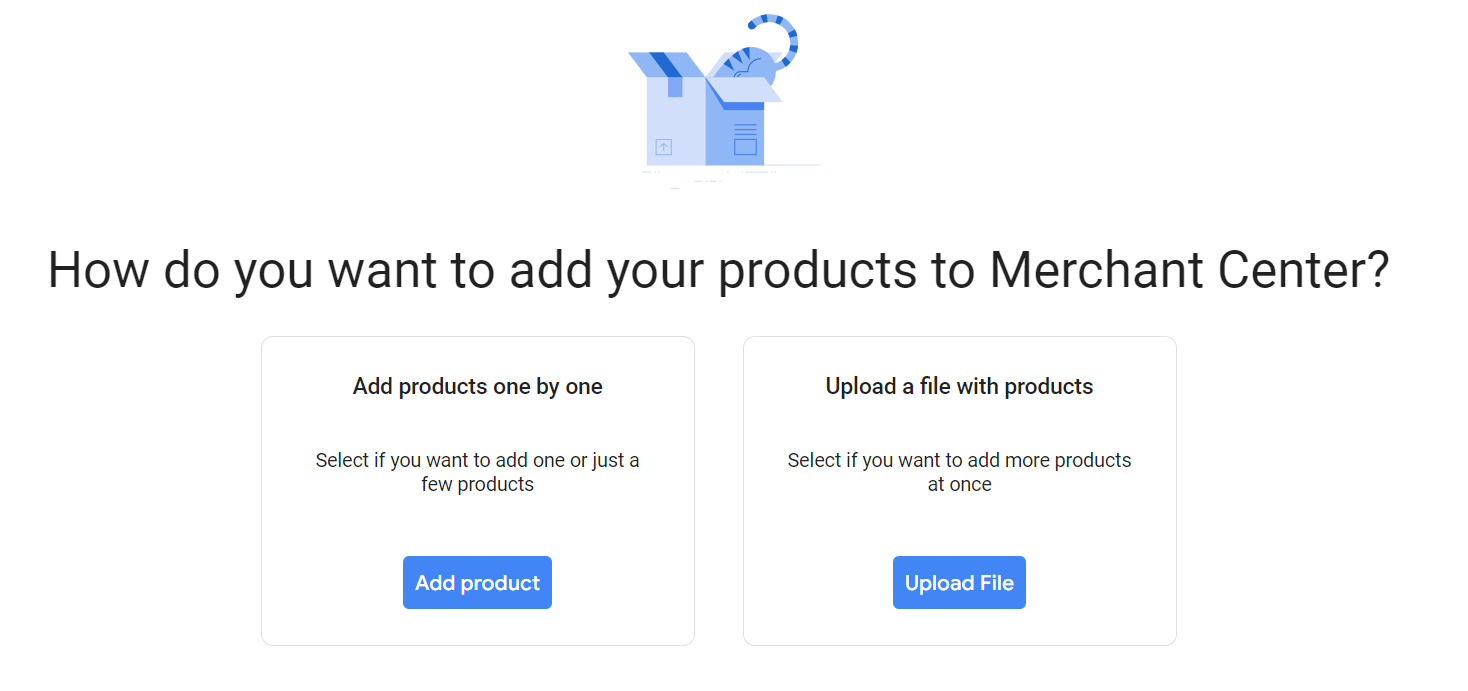
- To upload an existing product file, select the Upload File button.
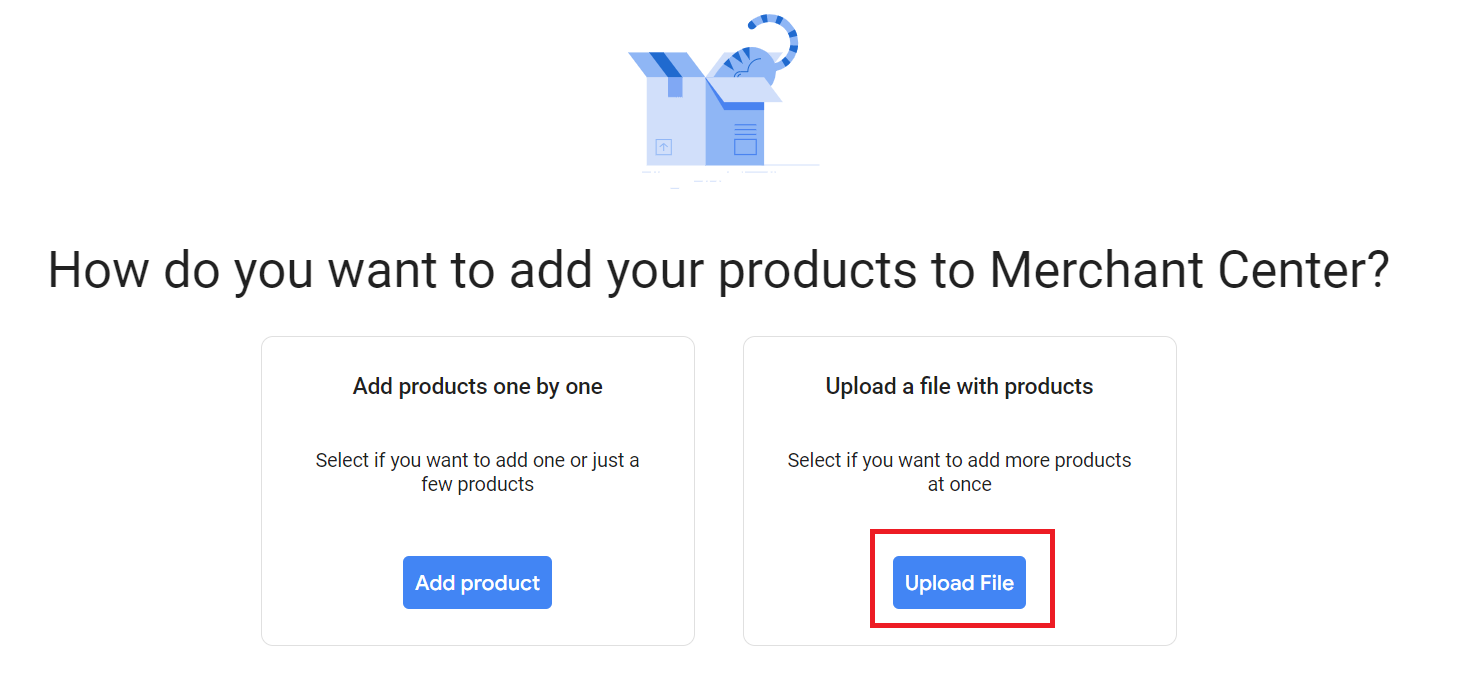
- Click Browse to choose your file. You can also download a sample file to check the acceptable format.
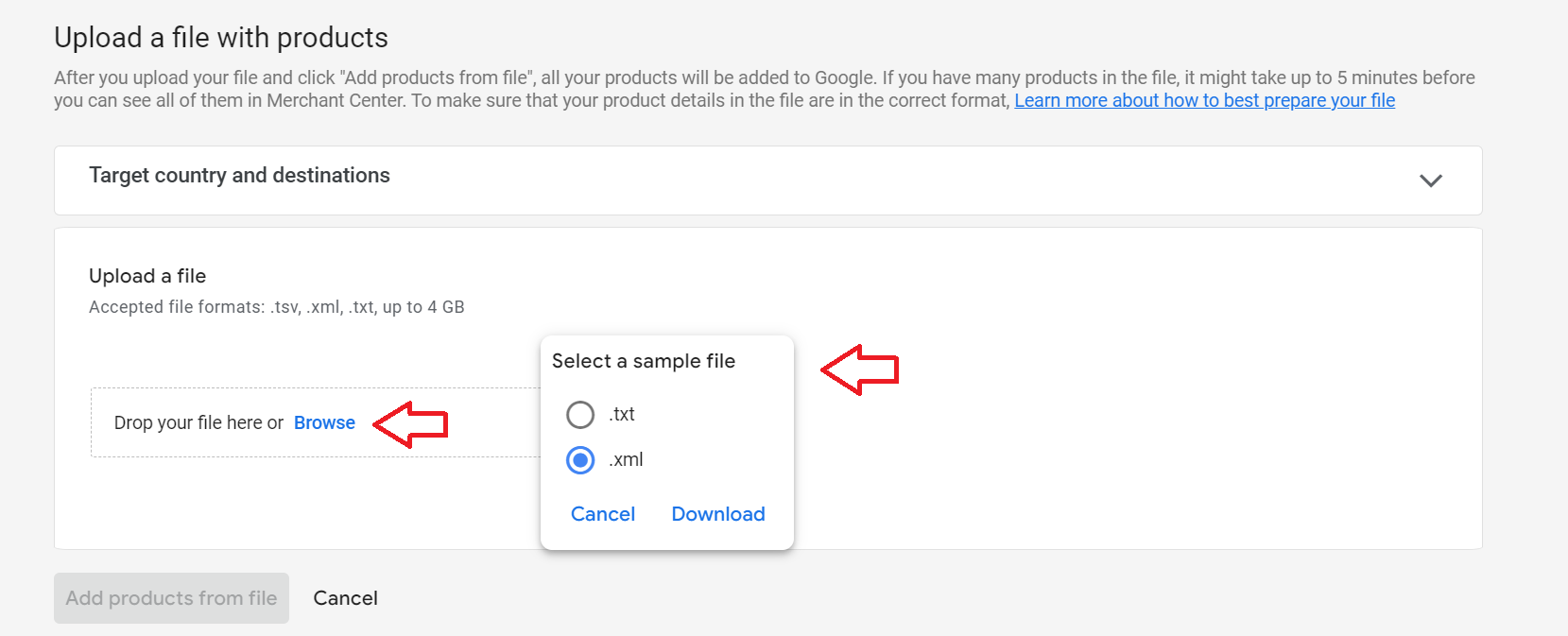
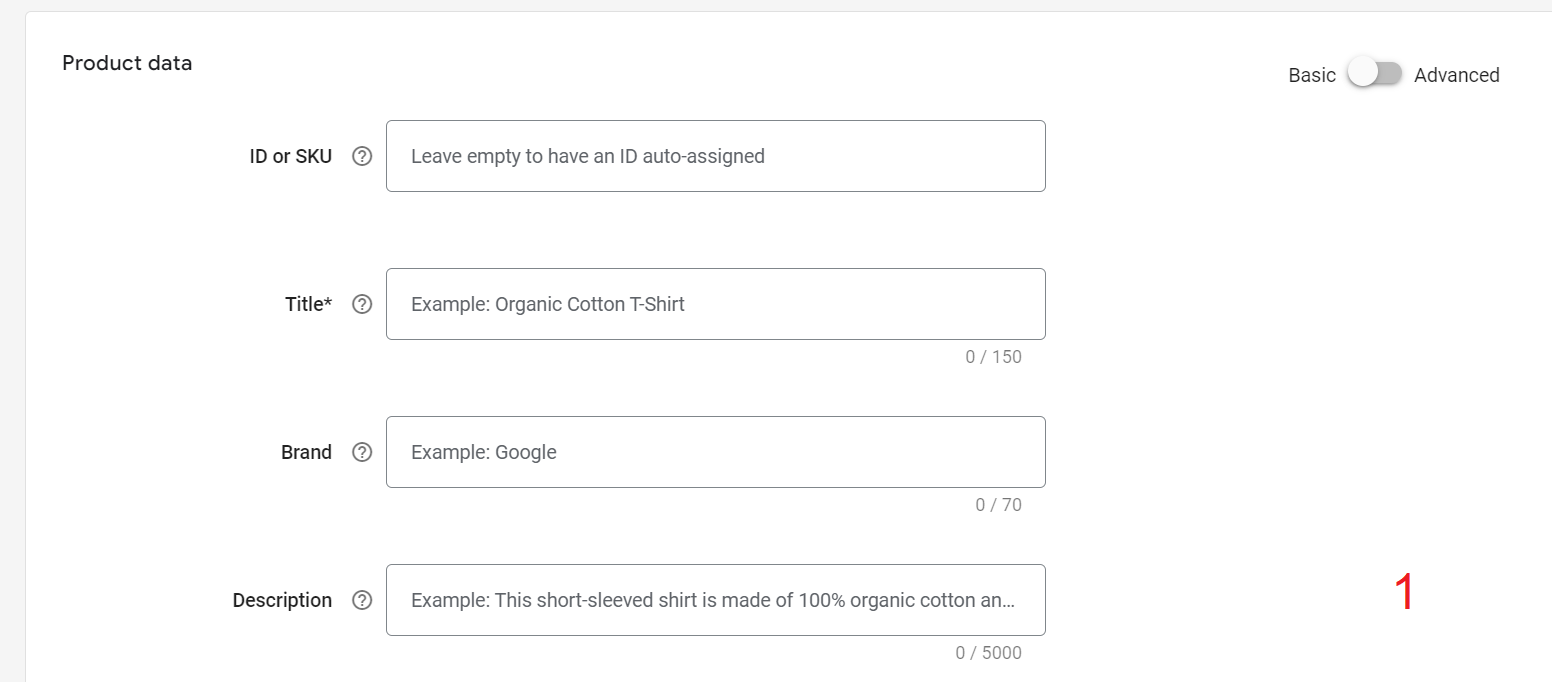
- To add products manually, select Add product.
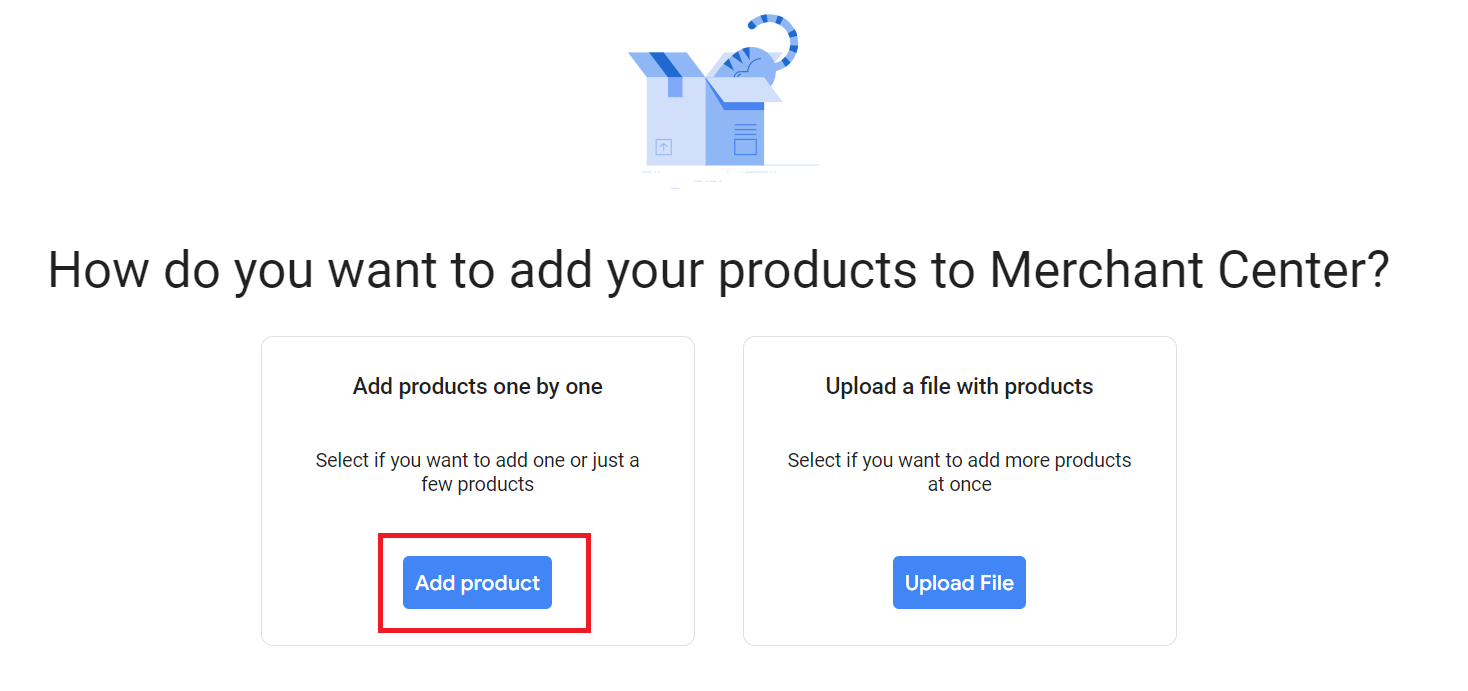
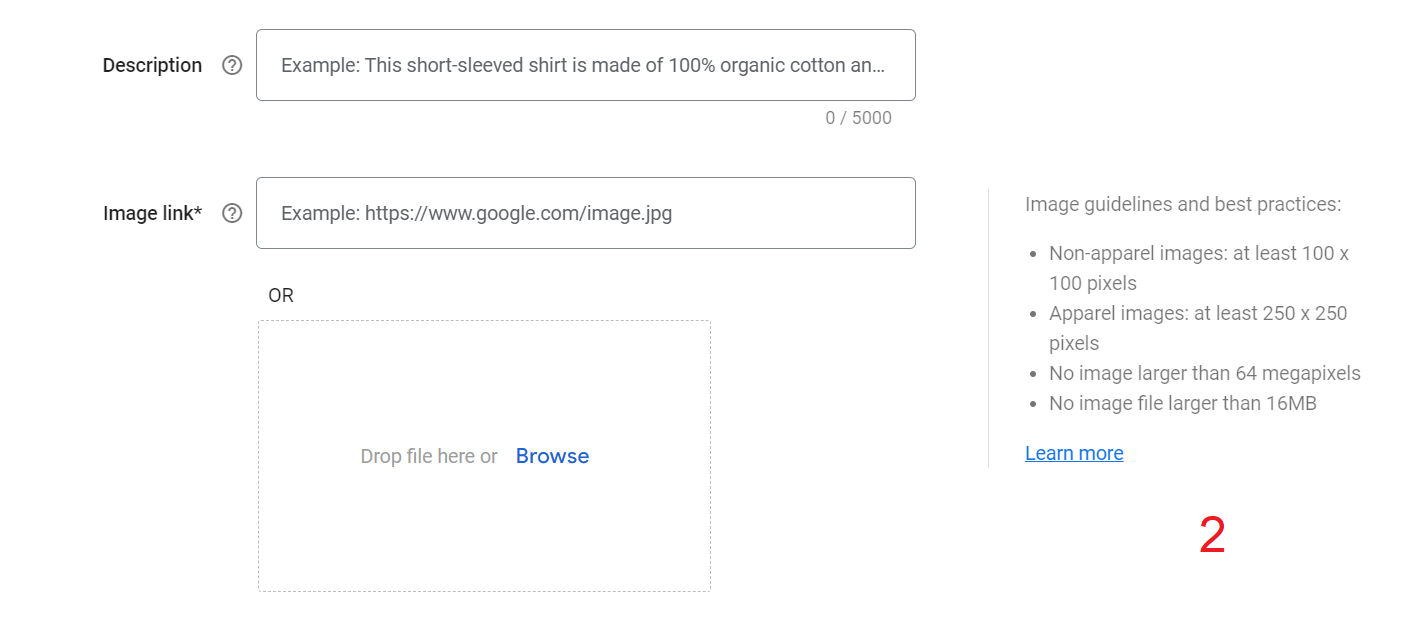
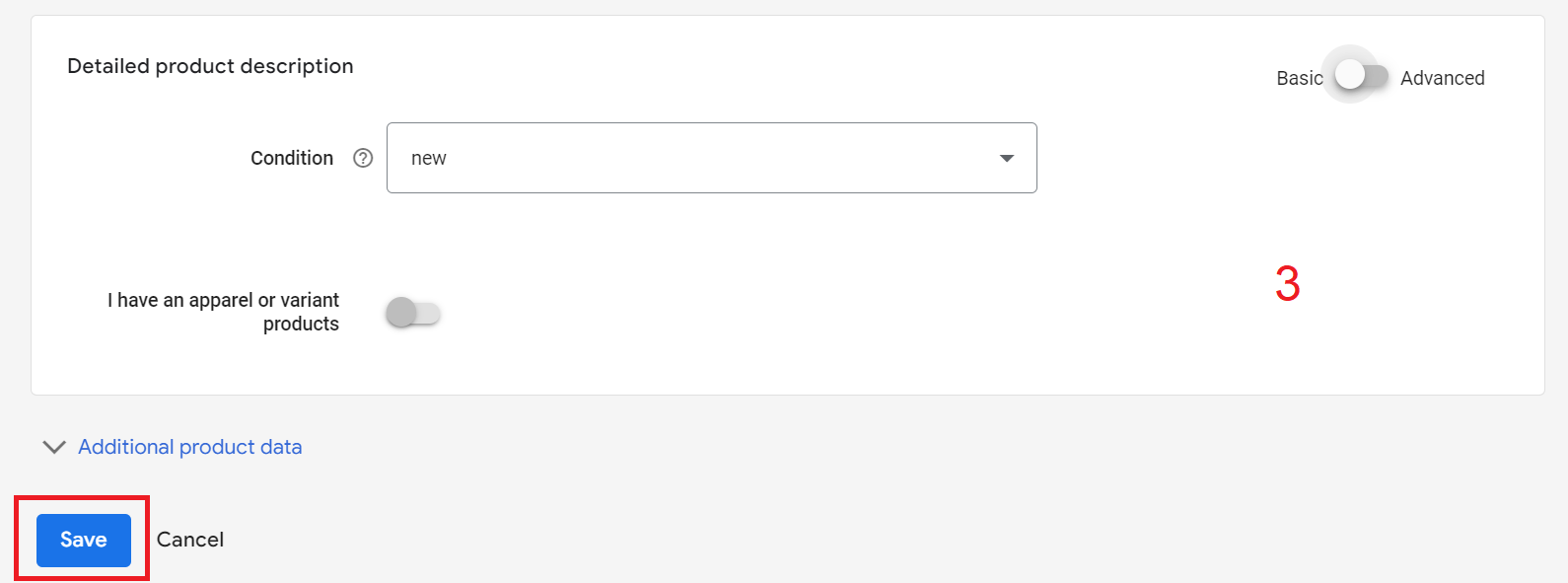
- Fill out the product data fields, add links or upload product images, and add product description. Once done, click Save.
Link your Google Merchant Account to your Google Ads account
- From your Google Merchant Account, click on the Settings icon and select Linked Accounts from the drop down.
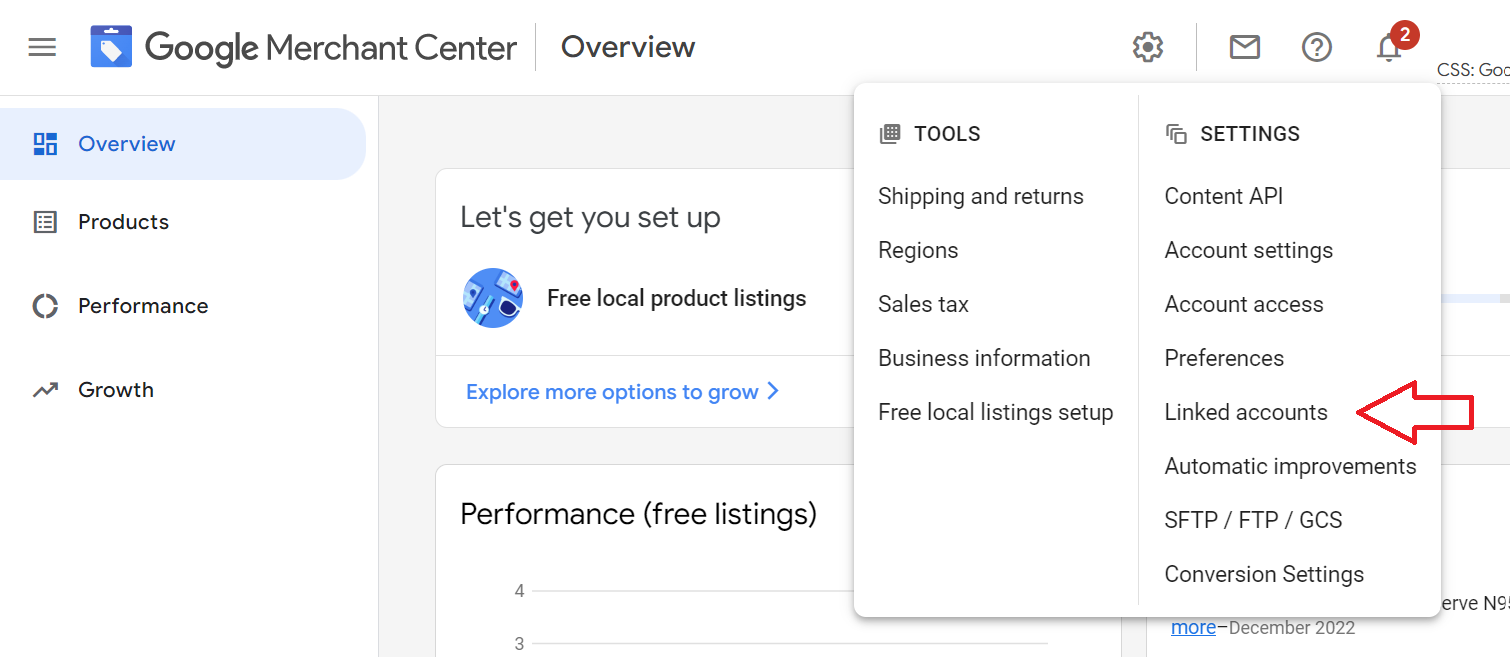
- If you’re using the same Google Account for both Google Merchant and Google Ads, you’ll see your account on the list. If you’re using a different email address for your Google Ads account, go to the Other Google Ads accounts section and click on Link Account..
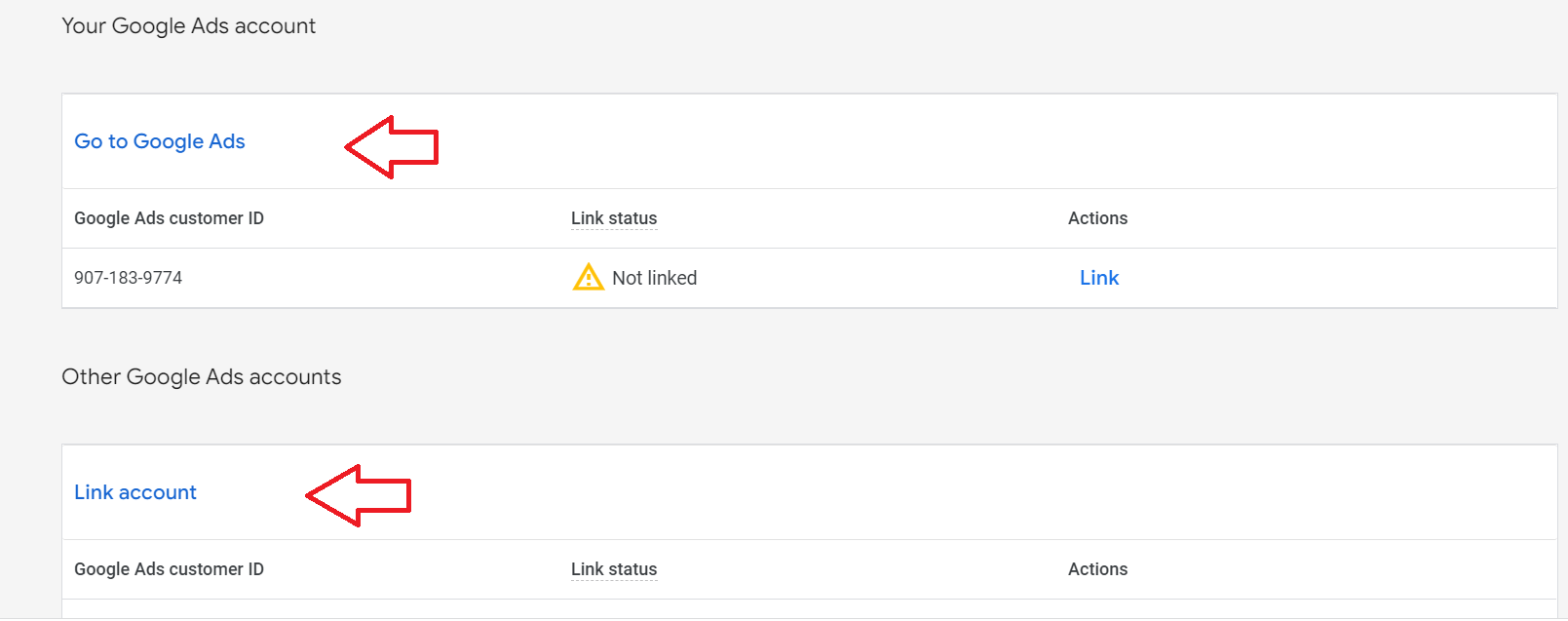
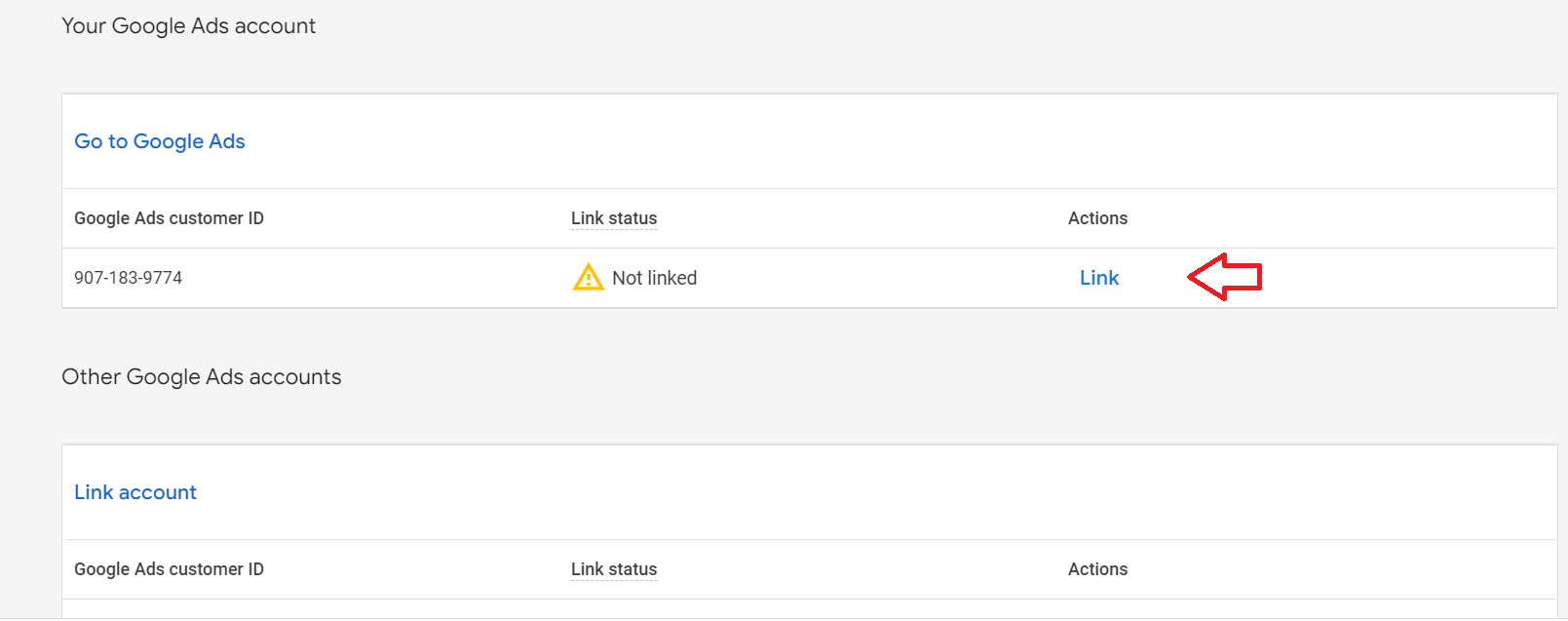
- Under actions, click on Link.
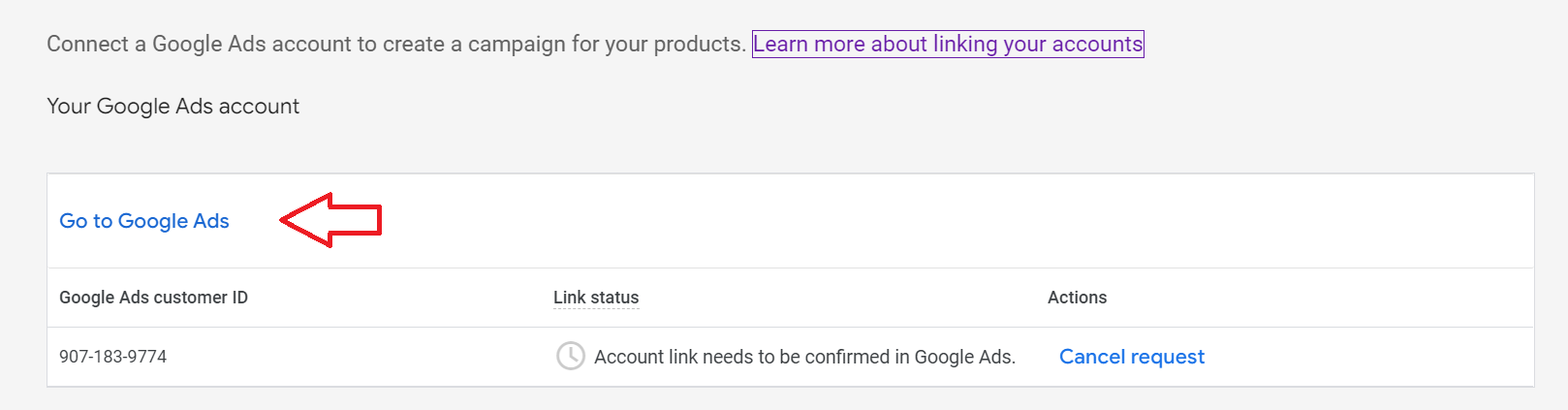
- Click on Go to Google Ads.
- Once you’re on the Google Ads page, you will see a notification that there’s a Merchant Account link request. Click View.

- From the pop-up page, select Approve.
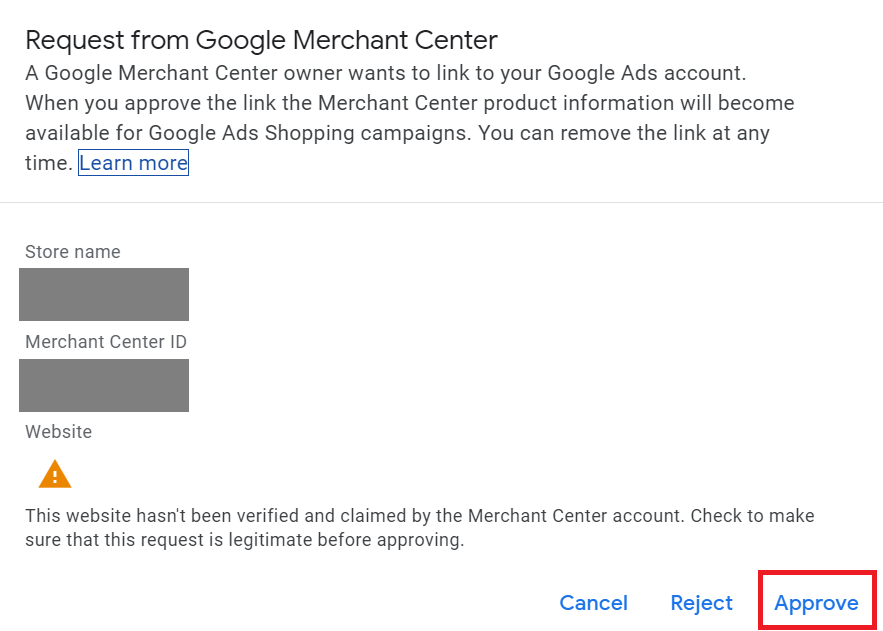
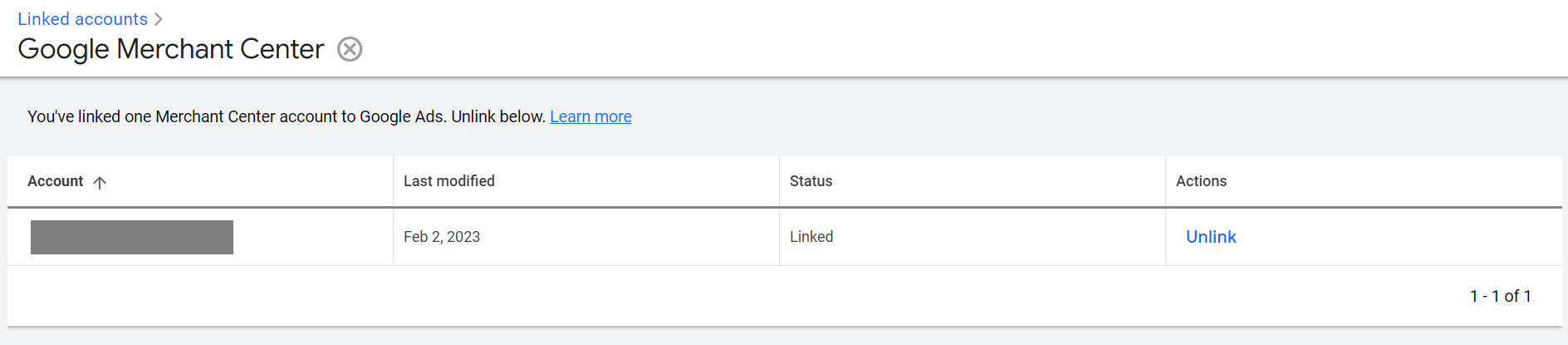
- You should now see that your Google Merchant account is linked to your Google Ads account.
Set up your Google Shopping Ad Campaign
-
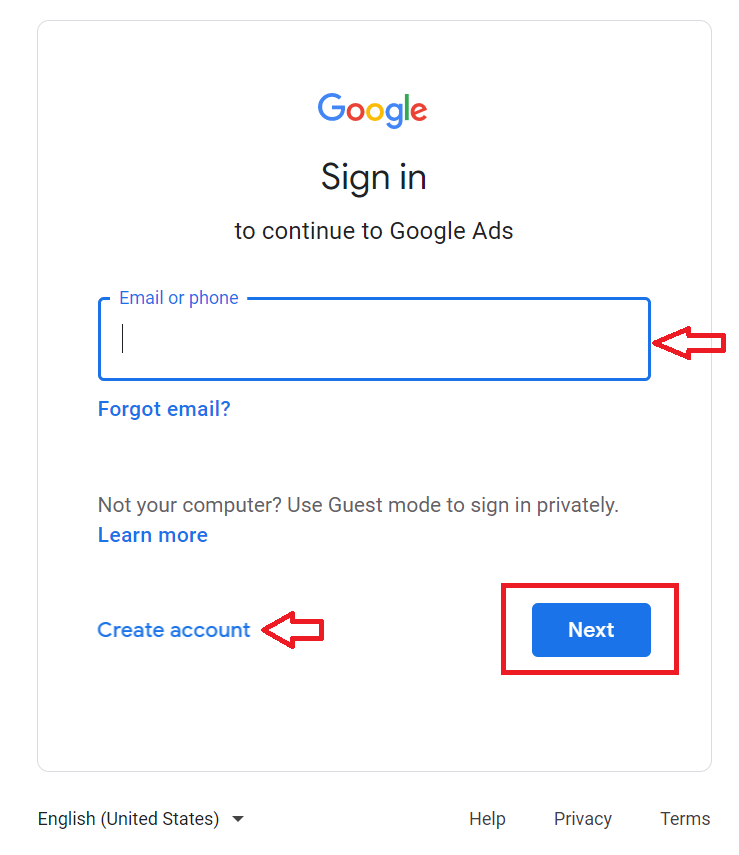
Sign in or Create your Google Ads account.
-
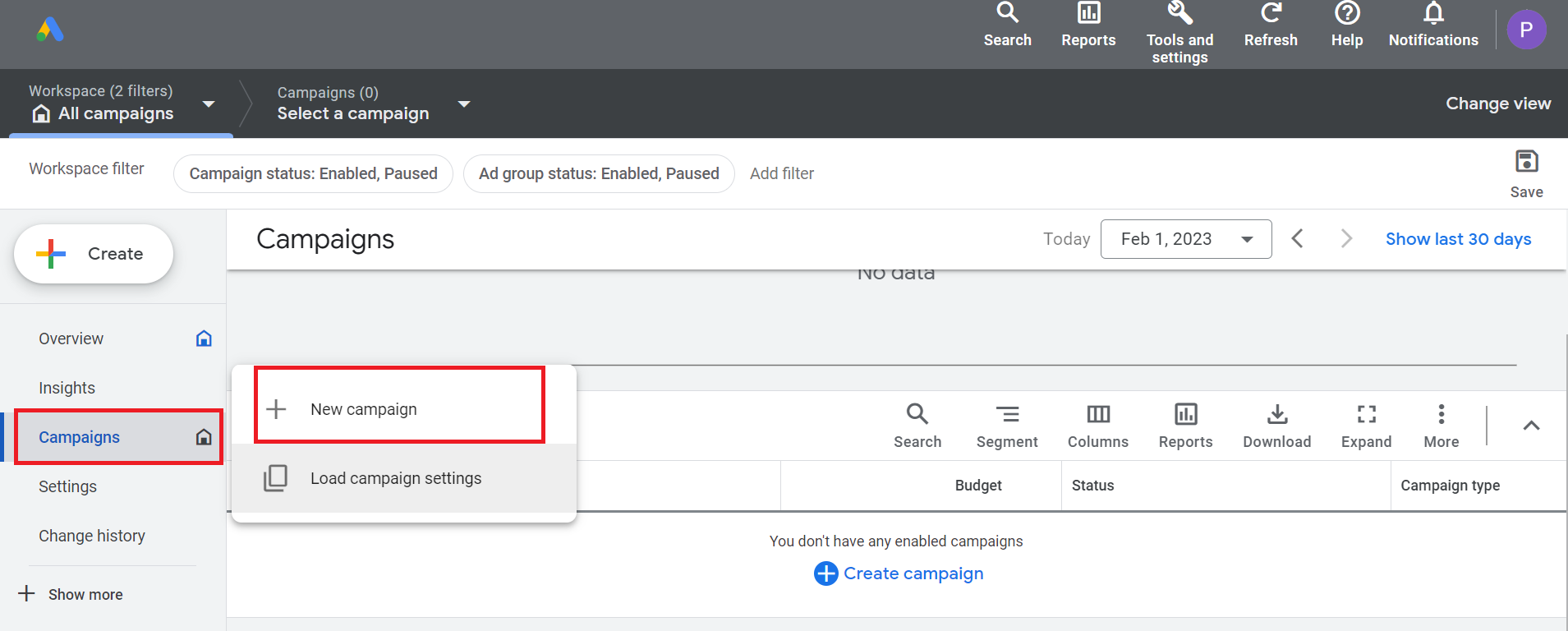
Navigate to the Campaigns section on the left side menu, click the plus (+) sign, and select the New Campaign button.
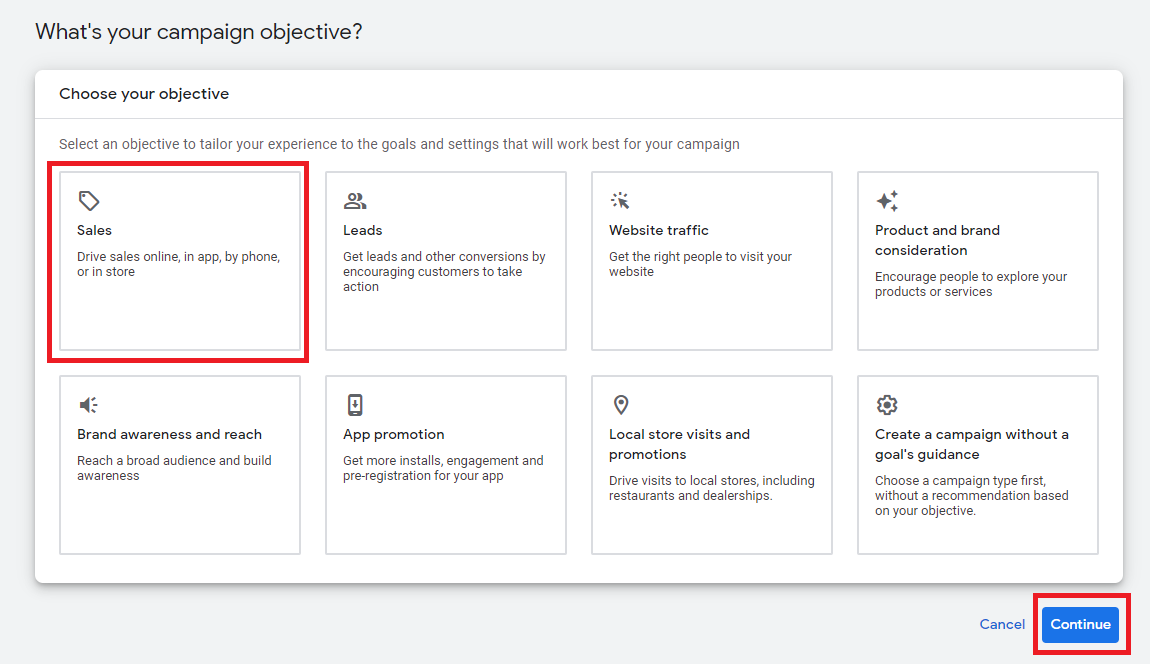
- Choose your campaign objective, then click Continue. (In this example, we’ll be using Sales as our objective).
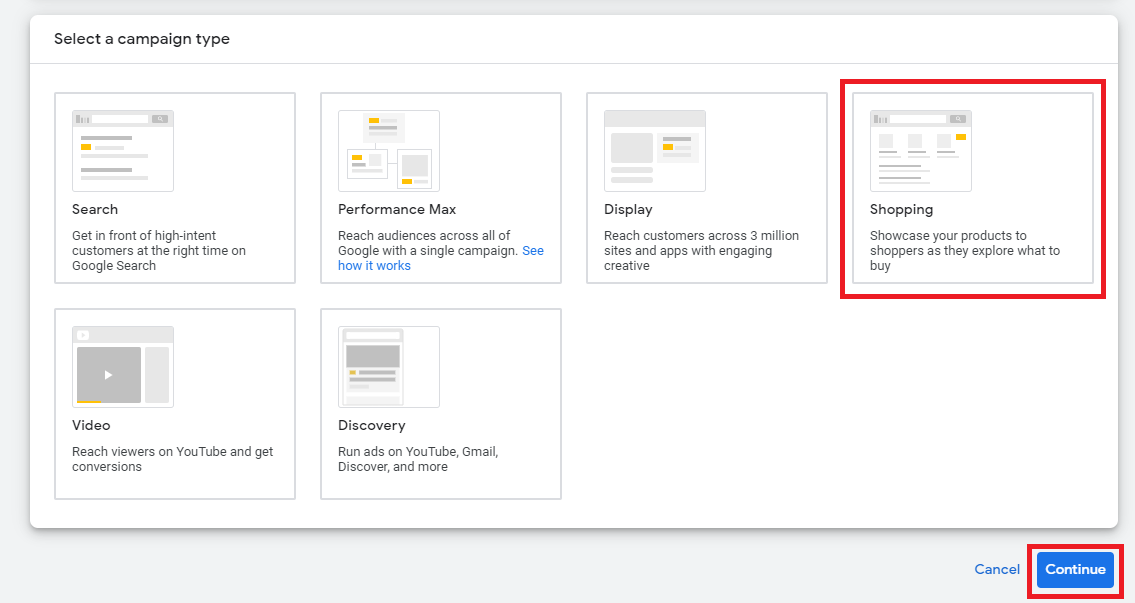
- Choose Shopping as the campaign type, then click Continue.
- Select your Merchant account linked to your Google Ads account and choose the country where your products are sold. (If you don’t have a linked Merchant account yet, follow this guide: SOP __________)

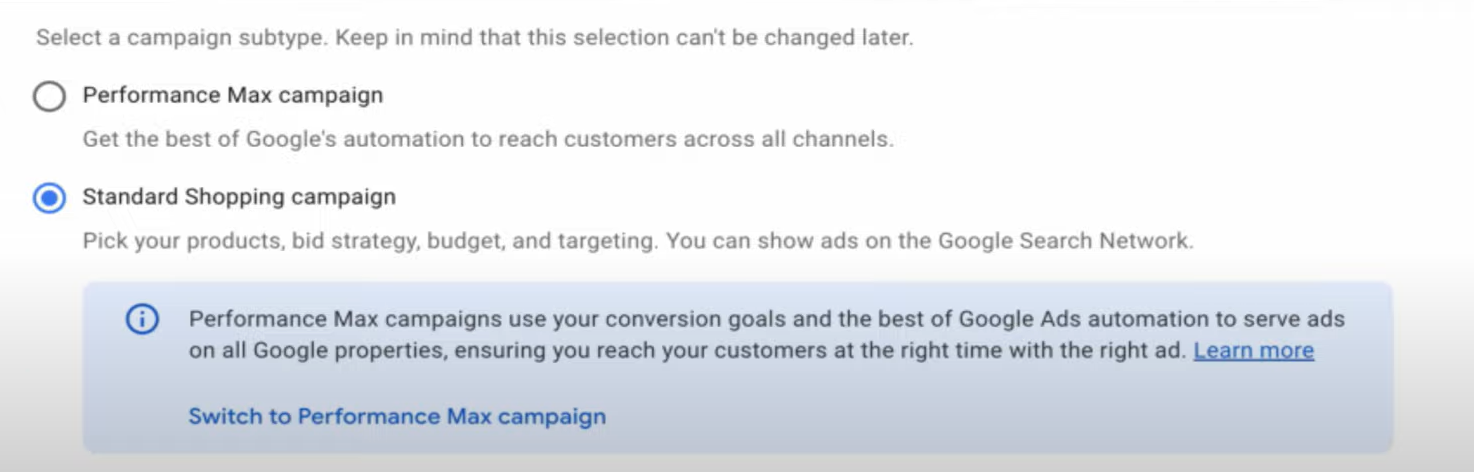
- Select Standard Shopping campaign.
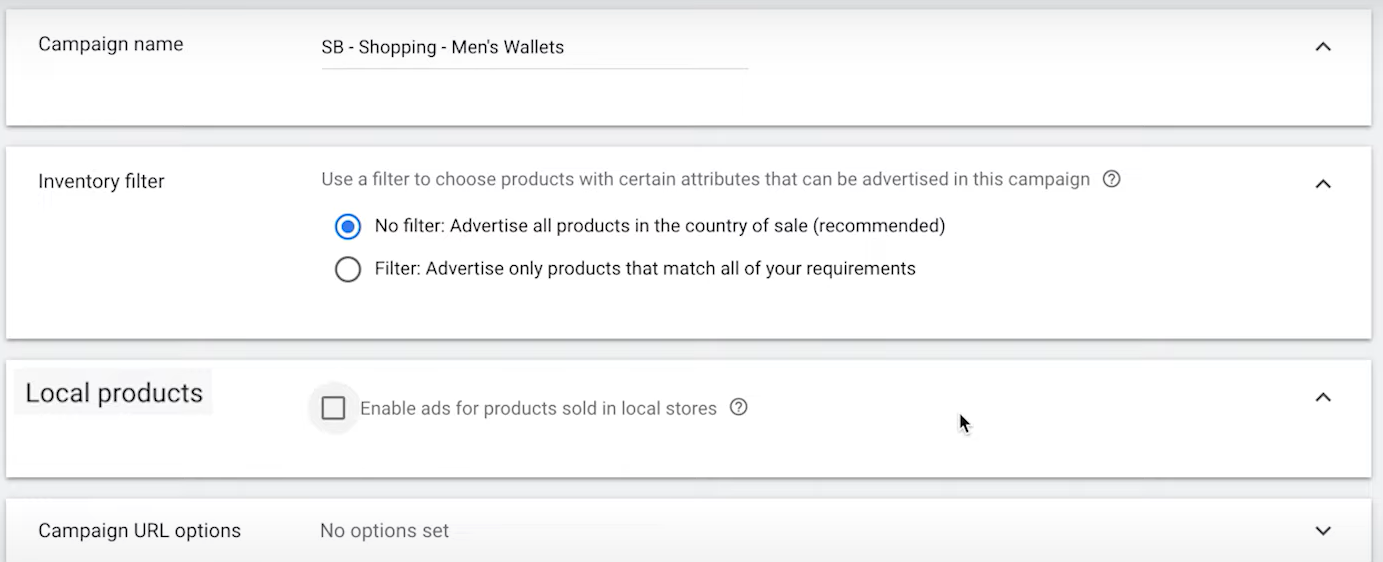
- Choose your campaign name and customize product filter options.
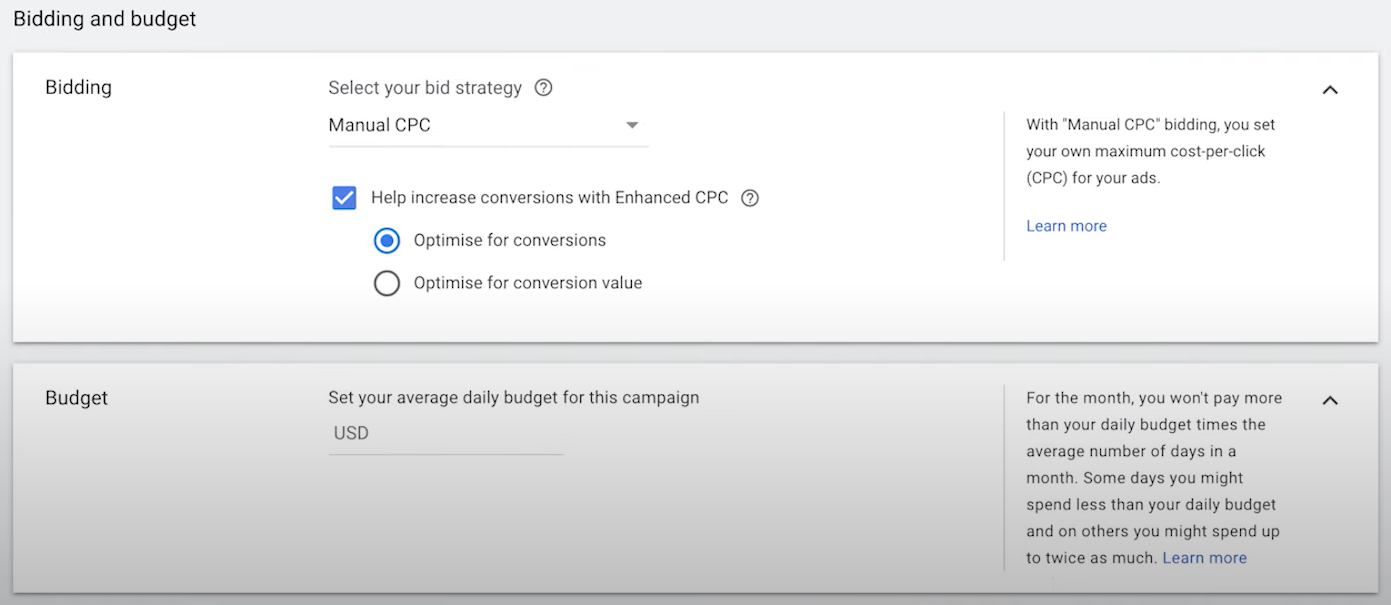
- Choose your bidding strategy and set your daily budget.
- Select your campaign’s priority level.
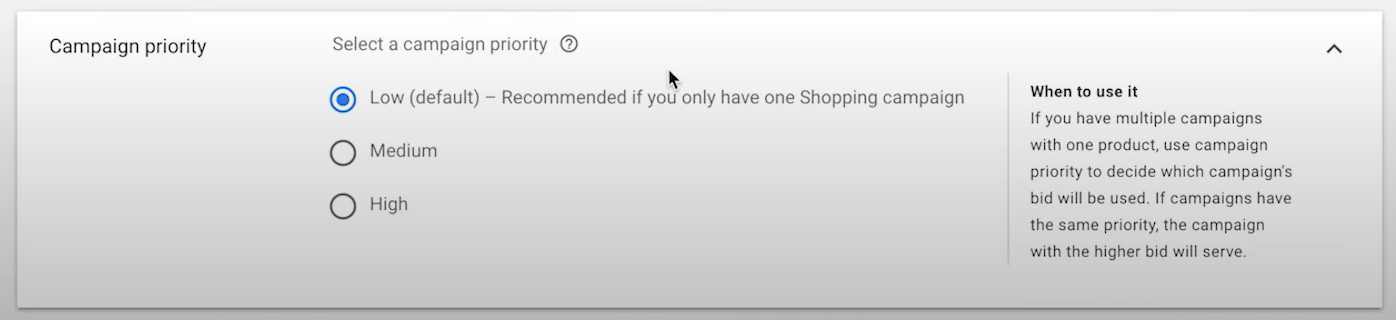
- Customize your ad targeting options.
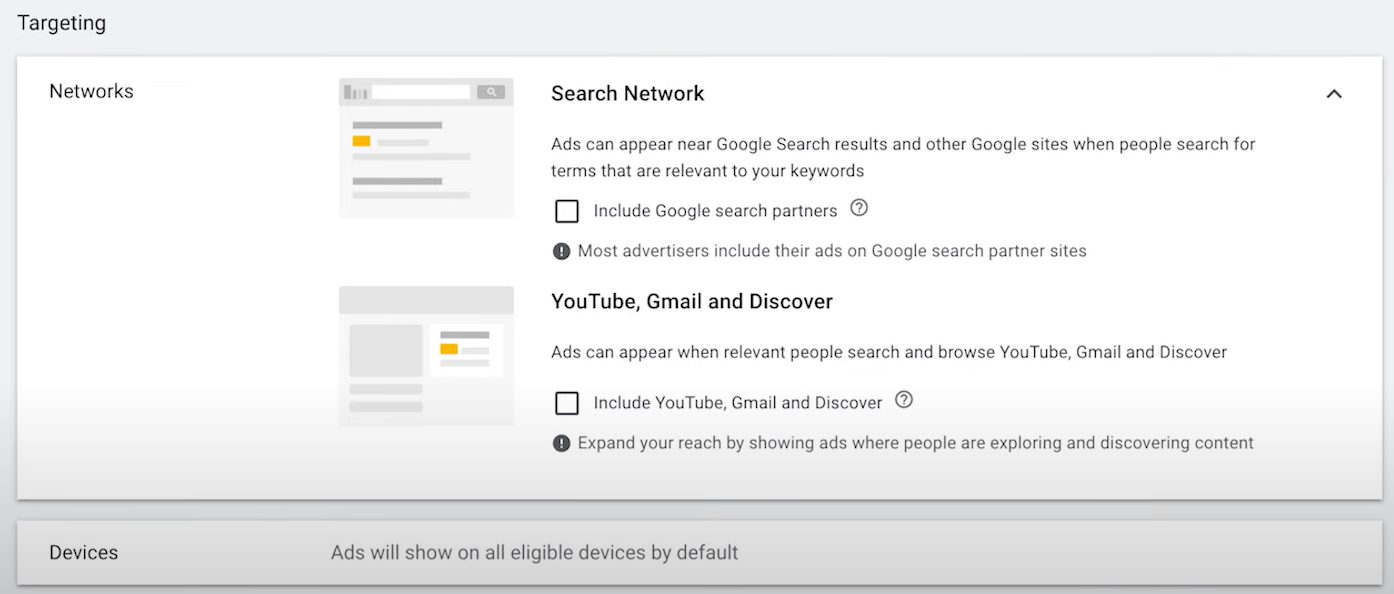
- Choose the target location/s for your ad campaign.
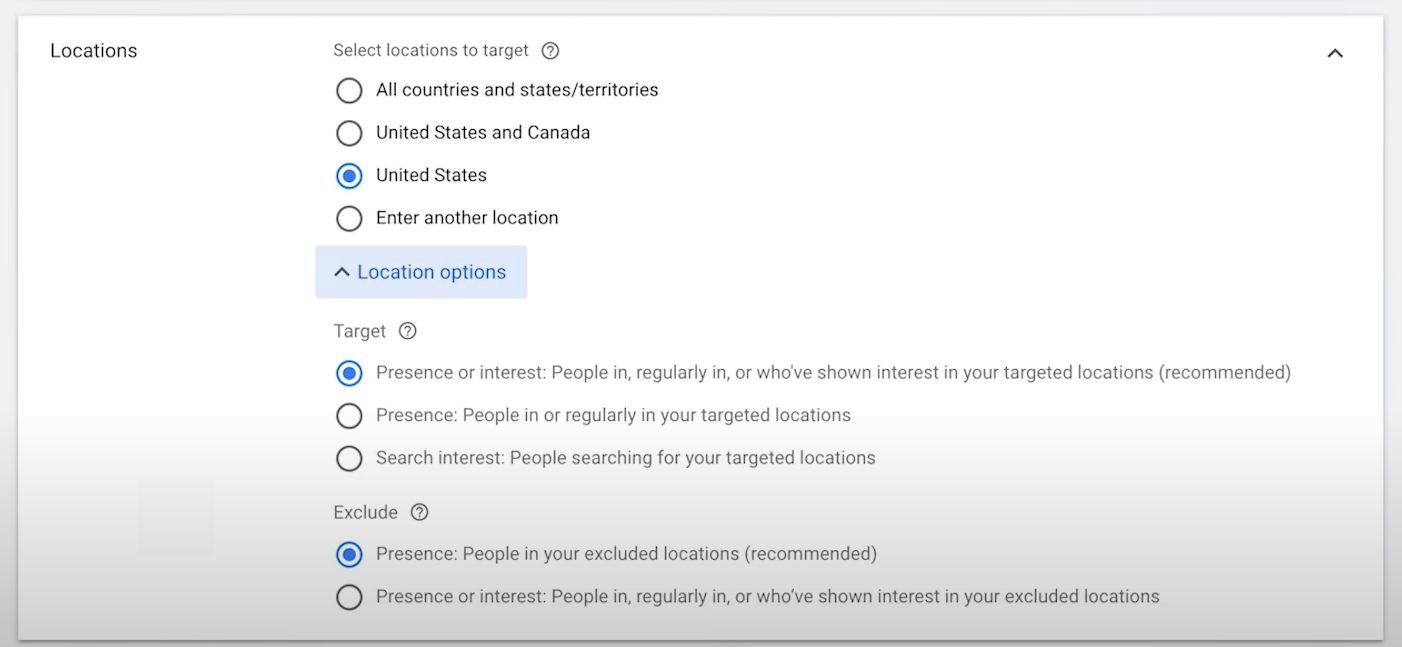
- Select your ad group and set your bid. Once done, click on Create Campaign.
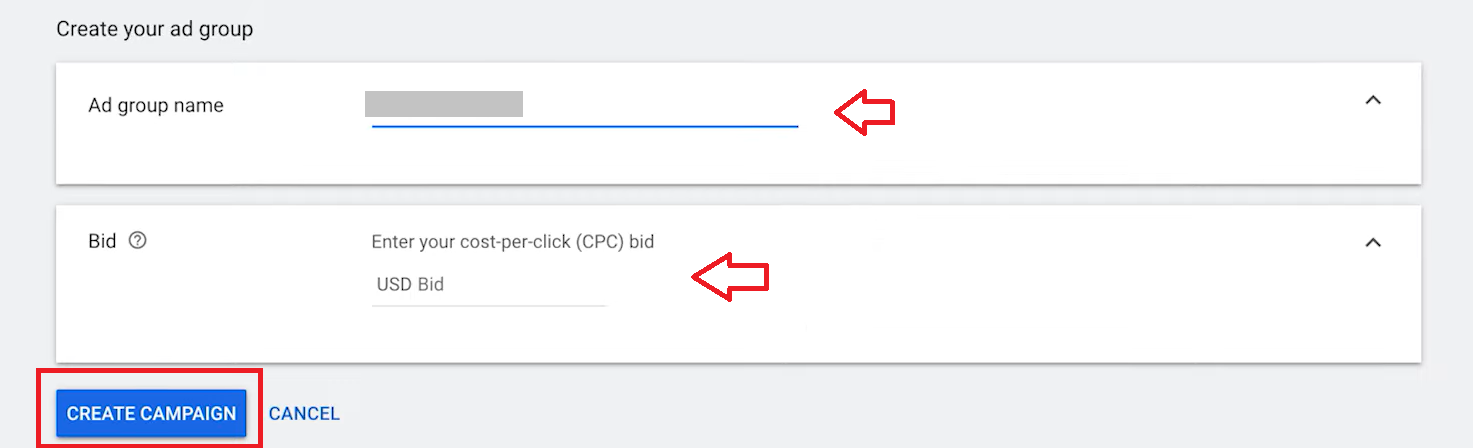
Conclusion
Execution Checklist:
-
Set up your Google Merchant Account and update your product listing
-
Link your Google Merchant Account to your Google Ads account
-
Ensure your products are compliant to the Google Shopping Ads policies
That’s it! You’re all done. Remember that running a successful Google Shopping Ad campaign requires ongoing optimization and management to ensure increase in sales and revenue.
-
Running a Google Shopping Ads Campaign can increase visibility of your products to potential customers.
-
Google Shopping Ads can be targeted based on specific keywords, demographics, and interests, allowing you to reach the right audience, improve conversion rates, and better return of investment.
-
Google Shopping allows you to showcase your products directly, including images and product information, making it easier for customers to make informed purchase decisions.