Managing User Access on Google Ads for Improved Collaboration, Security, and Efficiency
Walk you through managing your Google Ads platform, including adding, removing, and maintaining your users.
Prefer a shortcut? 16 free tools do parts of this for you.

Aim: Walk you through managing your Google Ads platform, including adding, removing, and maintaining your users.
Optimal Outcome: You’ll have a standardized process for managing and maintaining your Google Ads platform users to ensure security of your account.
What do you need to start: Google Ads account
Why is this SOP Important: Managing user access in Google Ads helps to ensure the security, accountability, and effectiveness of your advertising efforts.
When and Where to execute: During user onboarding and offboarding. It is recommended to have a regular schedule for auditing users of your Google Ads platform to ensure the security of your account.
Who Should Be Doing This: Google Ads admin
What is User Access Management?
User access management refers to the process of controlling and monitoring who has access to an organization’s resources, systems, and information. This includes defining and enforcing user permissions, such as what users can see, do, and change, as well as revoking or modifying access as needed. User access management is critical to business as it helps to prevent unauthorized access, data breaches, and other security incidents.
Execution
Sections:
Definition of Terms
Set up Google Manager Account
Request access to a Google Ads Manager Account
Grant access to employees or freelancers
Revoke access
Definition of Terms
User accounts
-
Google Account- Allows you to use the full suite of Google services using a single login. If you have a Gmail account you already have a Google Account.
-
Google Ads account (non-manager) - Lets you manage and create advertising campaigns on Google’s Advertising network.
-
Google Ads account (manager) - Lets you easily view and manage multiple Google Ads accounts - including other manager accounts.
User Access
-
Administrative - This is the highest user-access level Google Ads has to offer. Only assign this level to people you absolutely trust.
-
Standard - This user can perform almost all the actions that an Administrator can except for modifying access levels of other users.
-
Read-only - This user can sign in to your Google Ad account, browse dashboard, campaigns, and assign read-only access to other users.
-
Email only - Users will receive reports and alerts but will not be able to sign in to your Google Ads Manager account.
Note: Depending on the user's role as an Administrative owner of the managed accounts, they may have the ability to demote other Administrators or appoint new Administrators within the managed accounts.
The table below outlines the capabilities of each user level within the Google Ads platform.
Account Access level | Email-only | Billing | Read-only | Standard | Administrative |
|---|---|---|---|---|---|
Can receive notification emails and reports | ✔ | ✔ | ✔ | ✔ | |
Can view campaigns and use planning tools | ✔ | ✔ | ✔ | ||
Can view billing information | ✔ | ✔ | ✔ | ✔ | |
Can edit billing information | ✔ | ✔ | ✔ | ||
Can edit and run billing reports | ✔ | ✔ | ✔ | ✔ | |
Can grant email-only access | ✔ | ✔ | ✔ | ||
Can view users, managers, and product links | ✔ | ✔ | ✔ | ||
Can edit and run campaign performance reports | ✔ | ✔ | ✔ | ||
Can edit campaigns | ✔ | ✔ | |||
Can add or remove product links | ✔ | ||||
Can give account access, change access levels, and cancel invitations from other users | ✔ | ||||
Can accept and reject manager account link requests | ✔ | ||||
Can unlink manager accounts | ✔ | ||||
Can review each user's authentication method and last login time | ✔ | ||||
Can add or edit forms of payments on Payments profile level | ✔ | ✔ | |||
Make a Payment or Add Funds | ✔ | ✔(Automatic payments accounts only) | ✔ | ||
Edit Payments Profile information (address, tax info & language preference) | ✔ | ✔ |
Switch between Manual & Automatic Payments (where allowed) | ✔ | ✔(Automatic to manual only) | ✔ | ||
|---|---|---|---|---|---|
Increase or decrease threshold | ✔(Automatic payments accounts only) | ✔(Automatic payments accounts only) | ✔(Automatic payments accounts only) | ||
Start and complete Advertiser Verification | ✔ |
Create Google Manager Account
-
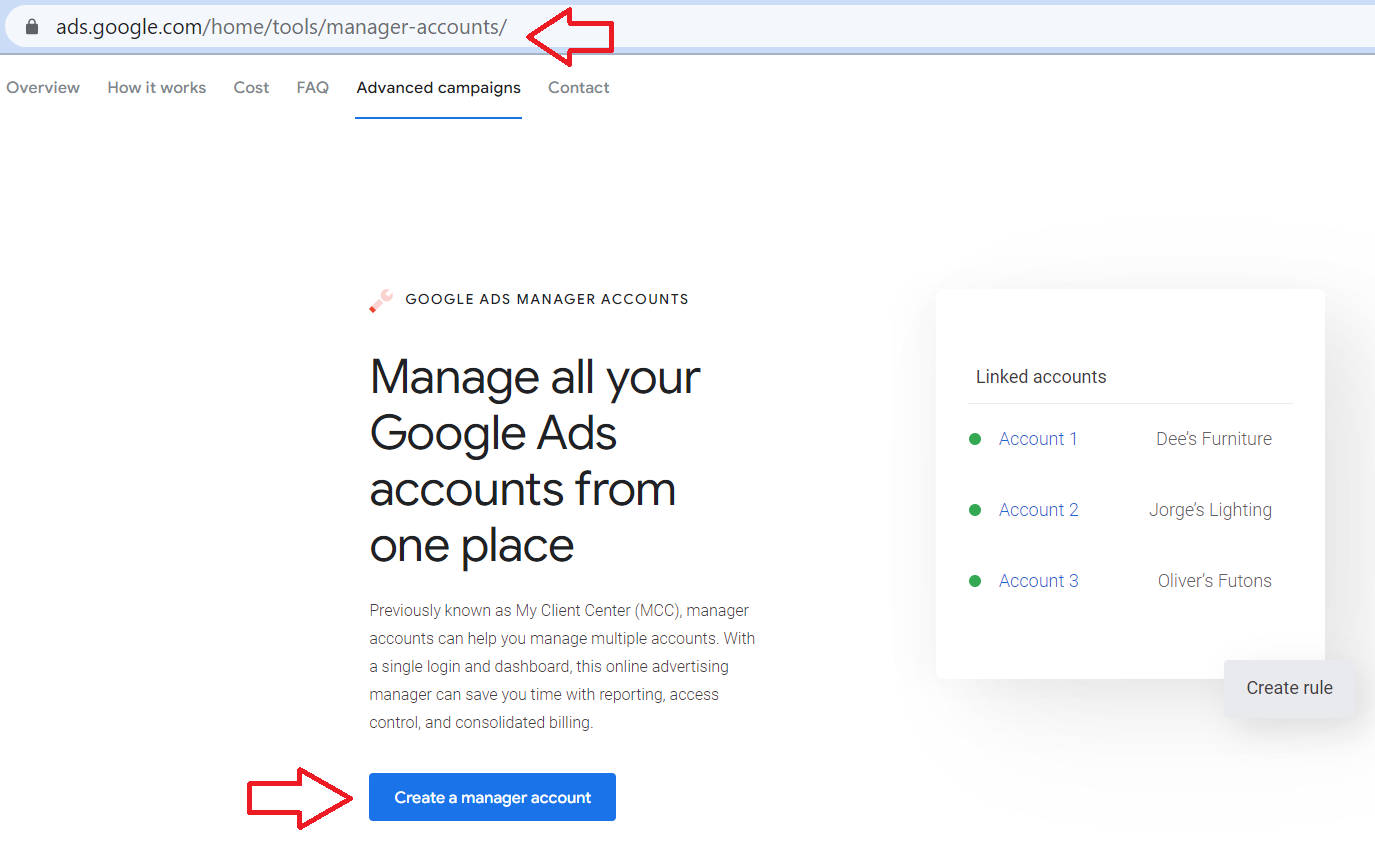
Go to Google Ads Manager Account page then click Create a Manager Account.
-
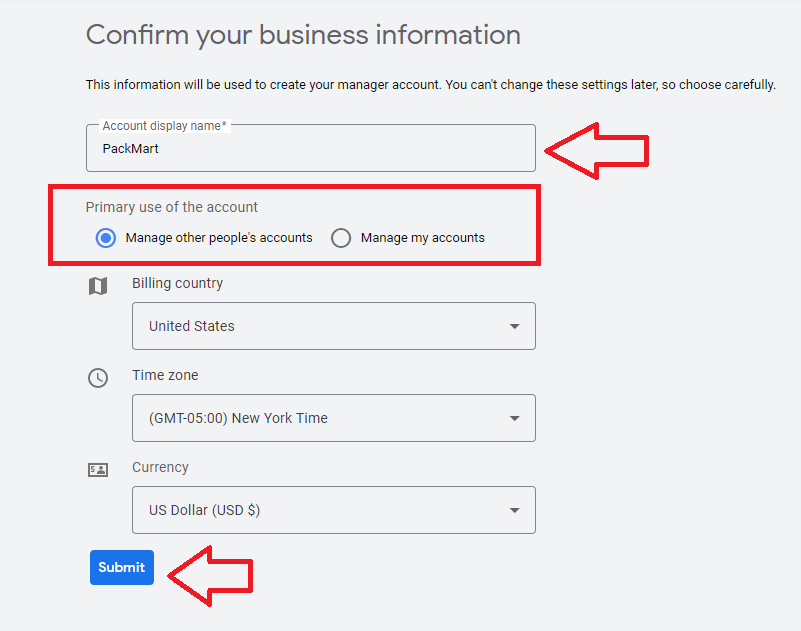
Fill out the necessary fields, then click Submit.
Account display name: This is the name that your teammates will see when you request access to a Google Ads account.
Primary use of the account: indicate whether you’ll manage other people’s accounts or your own.
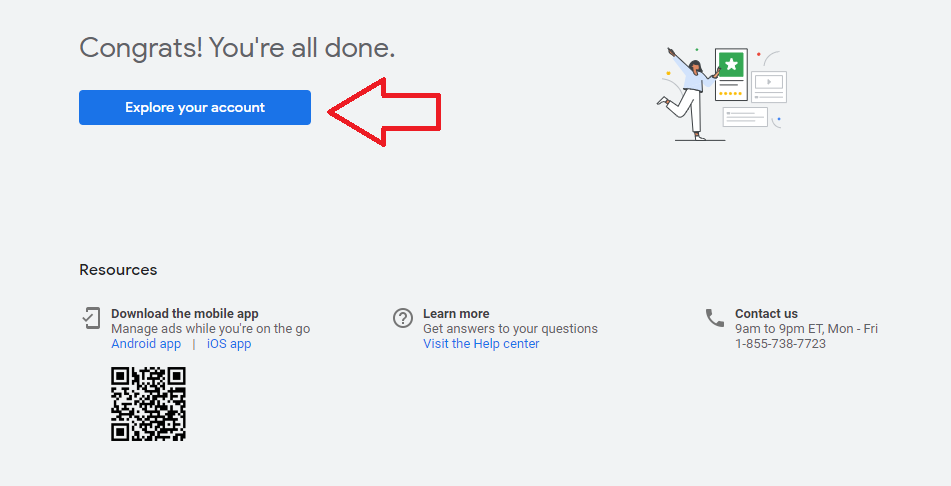
- That’s done! You’re now able to explore your Google Ads Manager account.
Request access to a Google Ads account
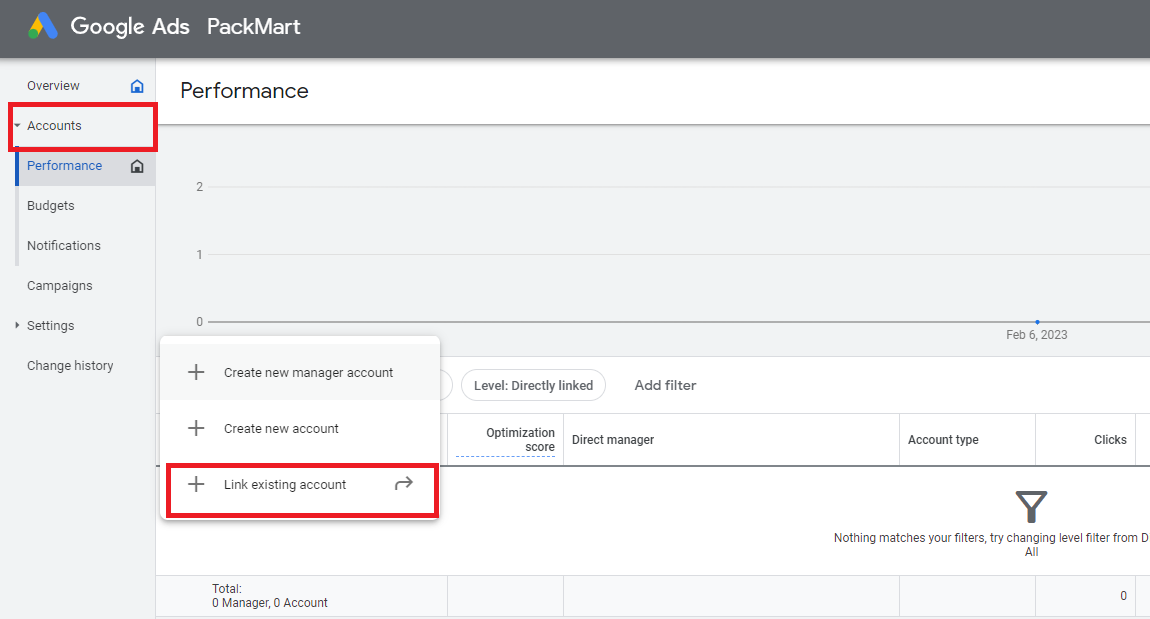
Login to your Google Ads Manager account.
Click on Accounts and click the plus (+) sign next to Link existing account.
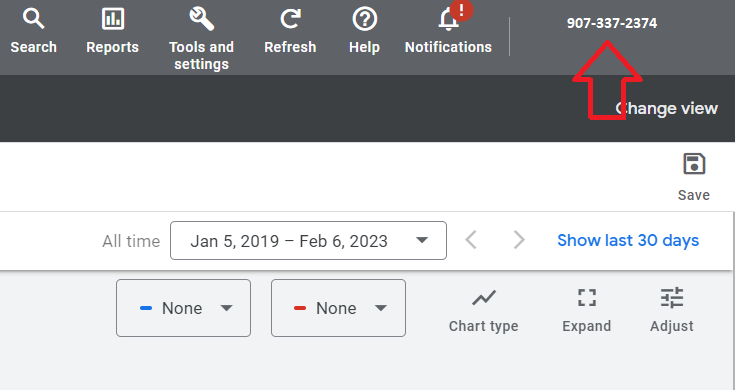
- Have the Google Ads account owner go to their Google Ads account and locate the customer ID from the top-right portion of the screen.
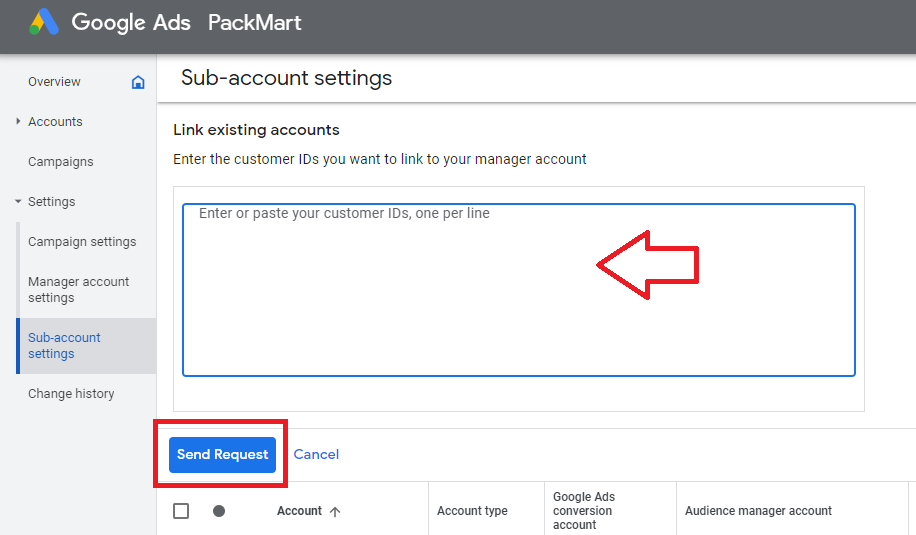
In the Sub-account settings, type the customer ID of the account you want to manage then click Send Request.
-
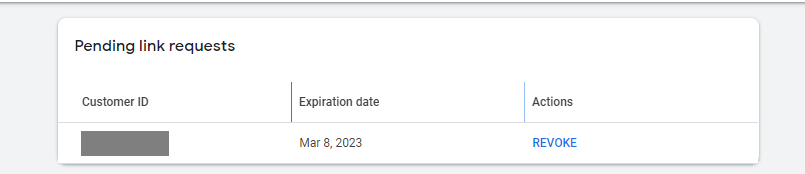
You will see all your pending link requests on this section.
-
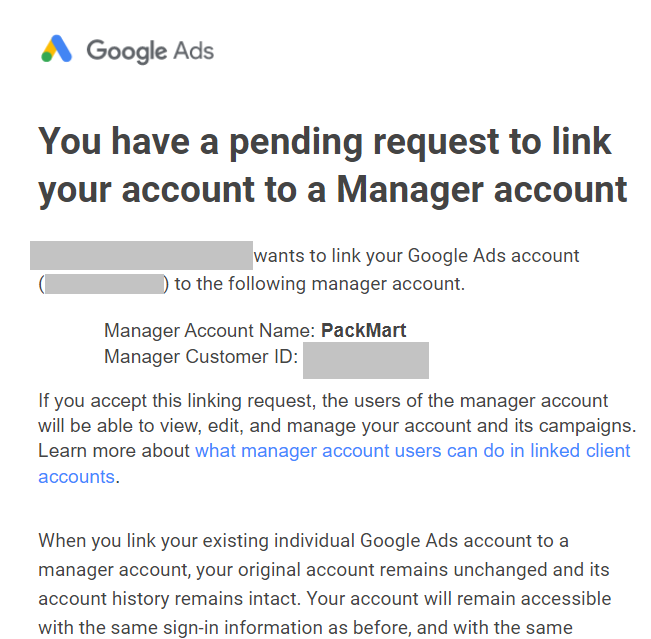
The invitee will receive an email with a link for them to accept the invite.
The invitee should have a link to Accept the invite.
-
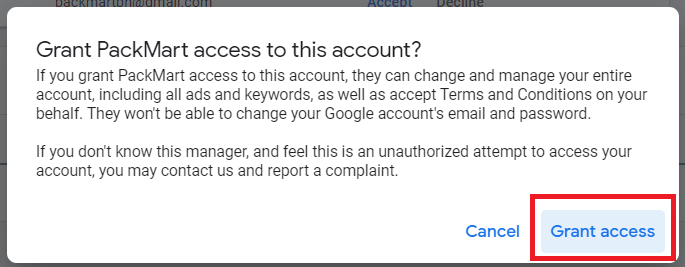
Click on Grant access.
-
You will see all the linked accounts on your Google Ads account platform.
Grant access to employees or freelancers
-
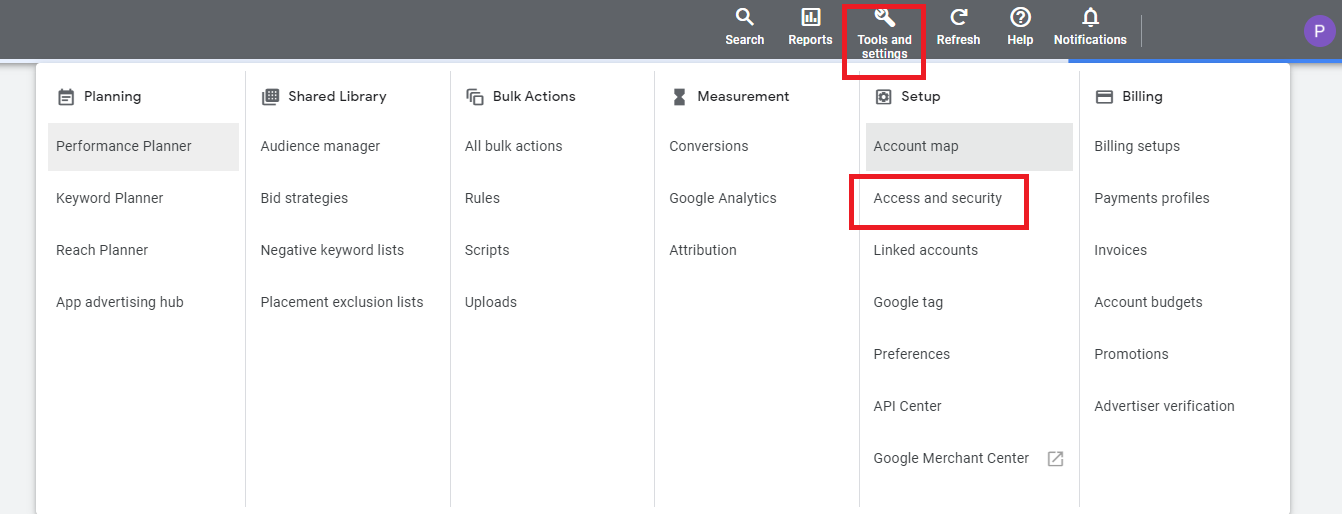
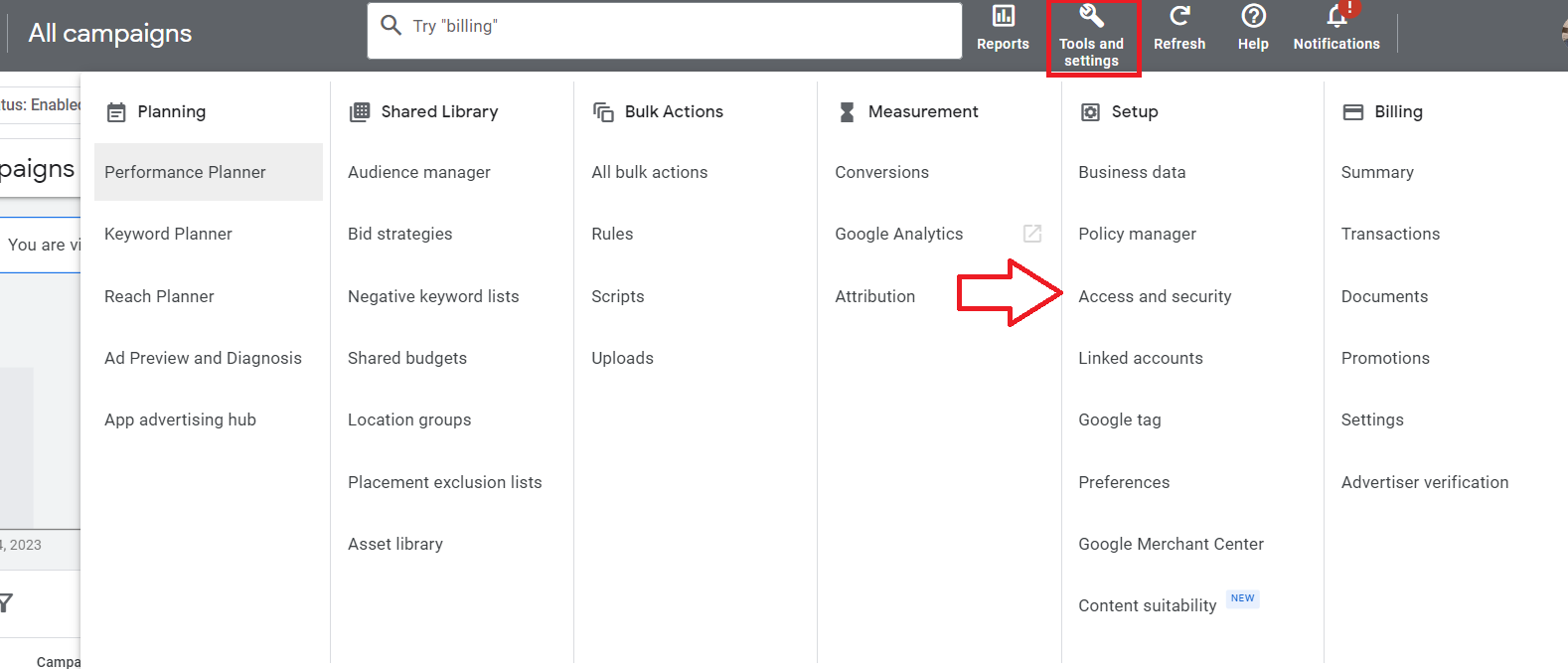
Login to your Google Ads account, click Tools and settings, then click Access and security.
-
Click the plus (+) sign.
-
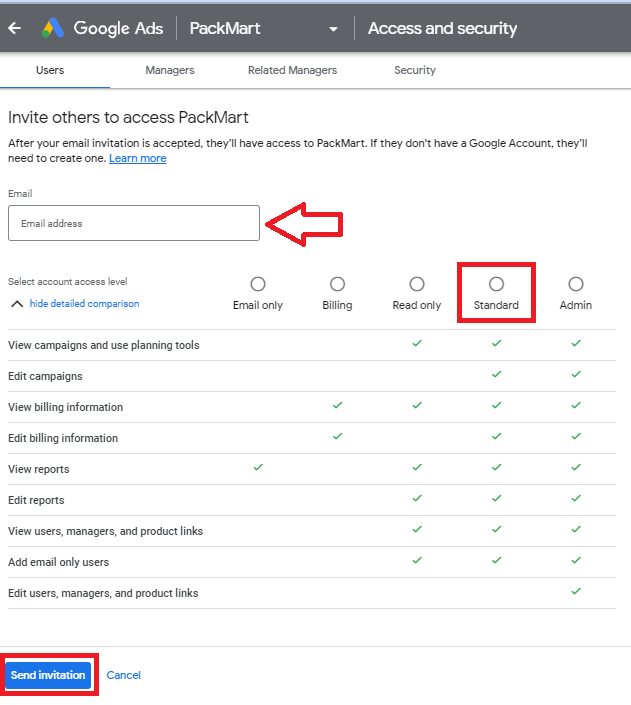
Enter the email address of your employee or freelancer, choose the level of access you want to give them then click Send invitation.
Revoke access
Login to your Google Ads account.
-
Go to Tools and settings then click Access and security.
-
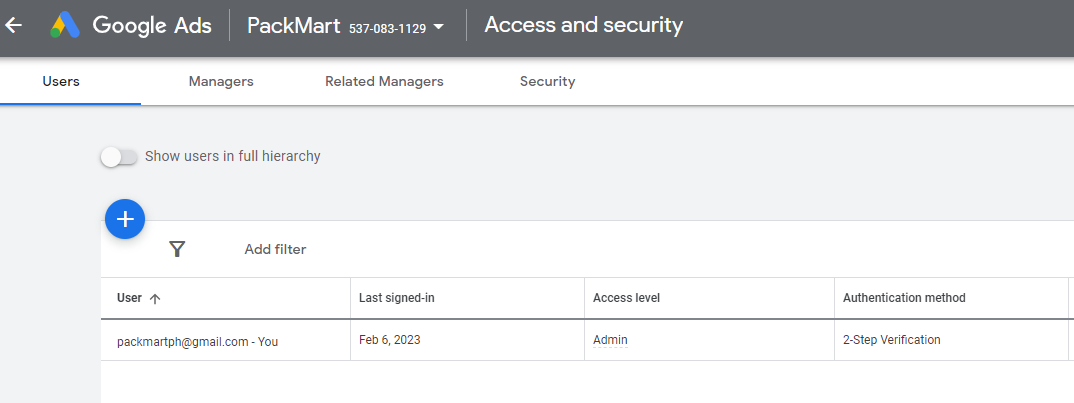
You will see a list of all the users linked to your Google Ads account. Choose the appropriate email account and click Remove access.
Conclusion
That’s it! Remember to establish your Google Ads account structure early on and continue to optimize to ensure efficient management of your campaigns.
- Grant access only to trusted users to ensure the security of your Google Ads account and protect sensitive information, such as billing information and campaign data.



-
Managing user access allows you to monitor who is making changes to your accounts and campaigns, making it easier to identify and resolve any future issues.
-
Granting access to team members or agency partners can streamline collaboration and communication within your team and make it easier to manage Google Ads campaigns.
-
If you are subject to regulations such as GDPR, managing user access can help you ensure that you are in compliance with privacy laws.