A Guide to Setting Up a Google Dynamic Search Ads Campaign
To be able to create a Google Dynamic Search ad campaign for your website or online shop.
Prefer a shortcut? 16 free tools do parts of this for you.

Aim: To be able to create a Google Dynamic Search ad campaign for your website or online shop.
Optimal Outcome: Your website or online shop will enjoy the benefits of a Dynamic ad campaign.
What do you need to start: You will need an active Google Ads account.
Why is this SOP Important: Keyword-based campaigns are effective, true, but they are not perfect. They can sometimes have significant gaps. Fortunately, Dynamic search ad campaigns can help fill in those gaps and help you achieve campaigns that actively support each other in helping your website or online shop meet its goals.
When and Where to execute: This SOP is performed in Google Ads manager. It is performed when you have an existing keyword-based campaign that you want to supplement and maximize its results.
Who Should Be Doing This: The marketing or advertising manager
What is a Google Dynamic Search Ads Campaign?
Google Dynamic Search Ads Campaign is an automated campaign type in Google Ads. It allows you to create ads that target users based on their search query and the existing content of your website instead of relying on your provided keywords. In addition, it uses a machine learning algorithm to optimize the campaigns by showing ads to users who are more likely to convert.
Execution
Resources/Tools & Set up
- An active Google Ads account.
Setting Up a Google Dynamic Search Ad Campaign
-
Log in to your Google Ads account.
-
Click on + New campaign in the main Overview window. It will open a pop-up window.
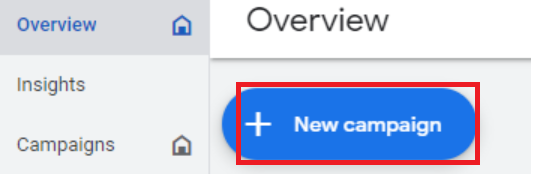
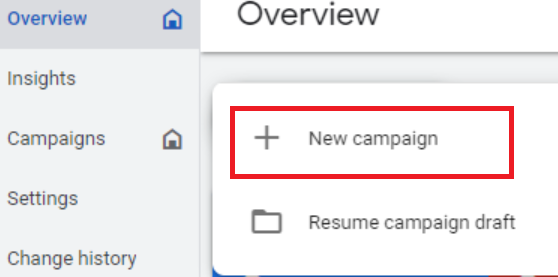
-
Click on + New campaign.
-
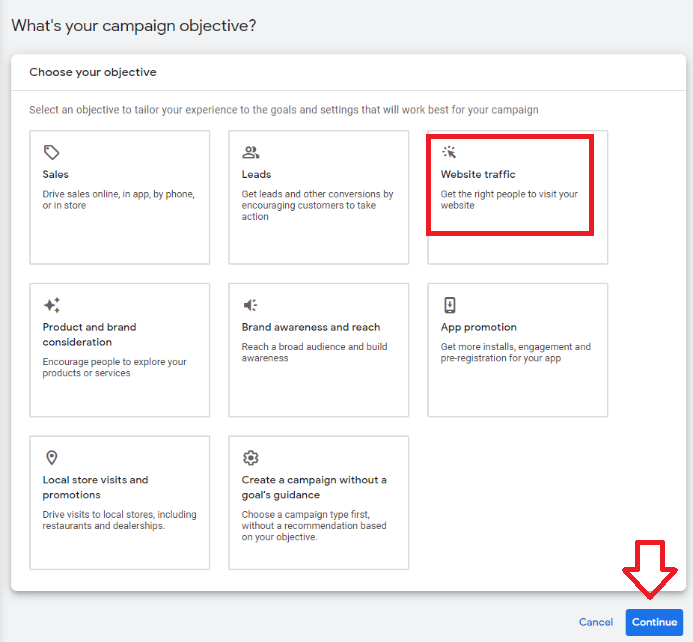
Doing so will open the New campaign window. You will have eight options to choose from. For the purposes of this SOP, we are going to select Website traffic. Then click on Continue.
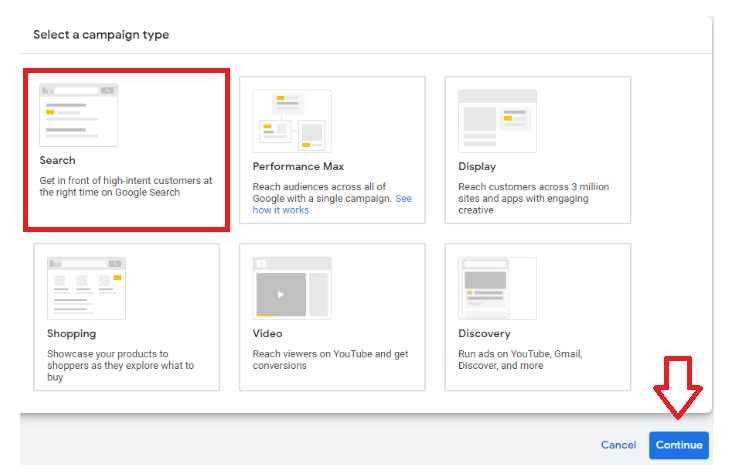
- This will reveal a new section below it, Select a campaign type. Choose Search then click on Continue.
- Enter your website’s URL:

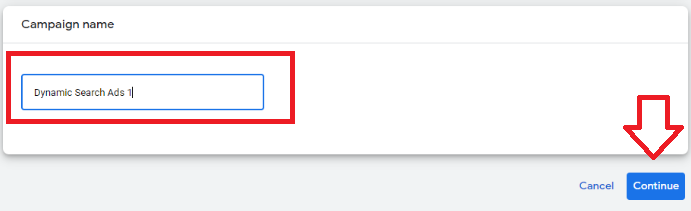
- Give your campaign an appropriate name and click on Continue..
-
This will open the Bidding window. Under What do you want to focus on? We are going to select Conversions. Then click Next.
-
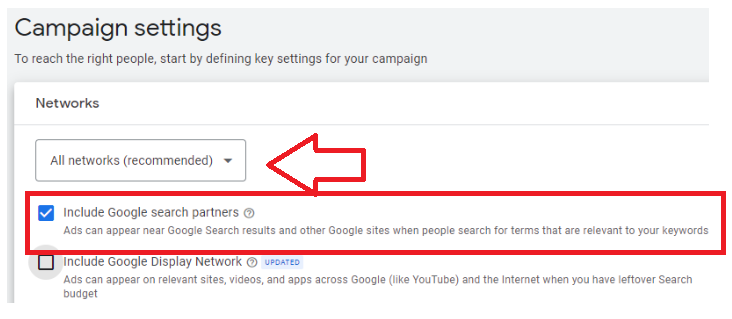
This will open the Campaign settings window. Check Include Google search partners. Then uncheck Include Google Display Network.
-
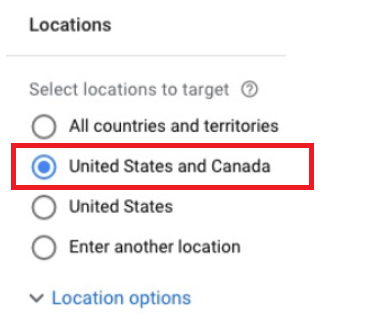
Select the locations you want to target. For the purposes of this SOP, we are going to choose United States and Canada.
-
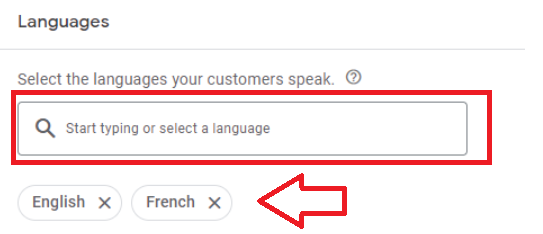
We are going to select English and French as the Languages.
-
Click on More settings to reveal other available sections.
-
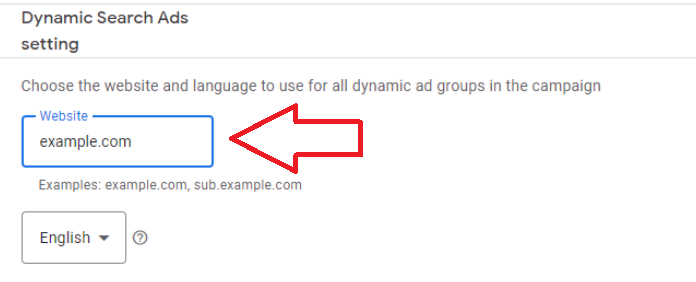
Click on Dynamic Search Ads setting. Enter your website or online shop’s URL.
-
Click on Next.
-
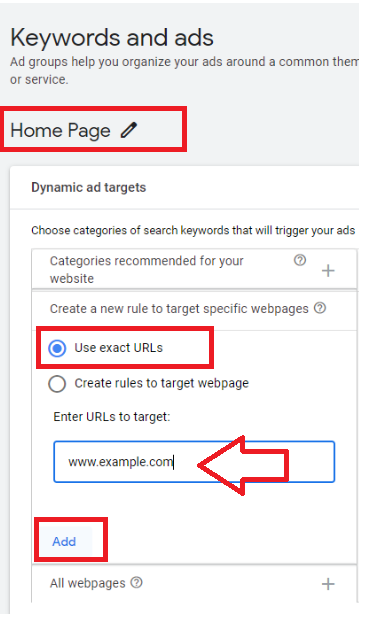
This will open the Keywords and ads window. You may now enter the name of your Ad group. For the purposes of this SOP, we are going to name it Home Page. We are then going to select Create a new rule to target specific webpages, tick on Use exact URLS, and enter the target URL.
-
Click on Add. This will reveal your added Dynamic ad target in the right panel.
-
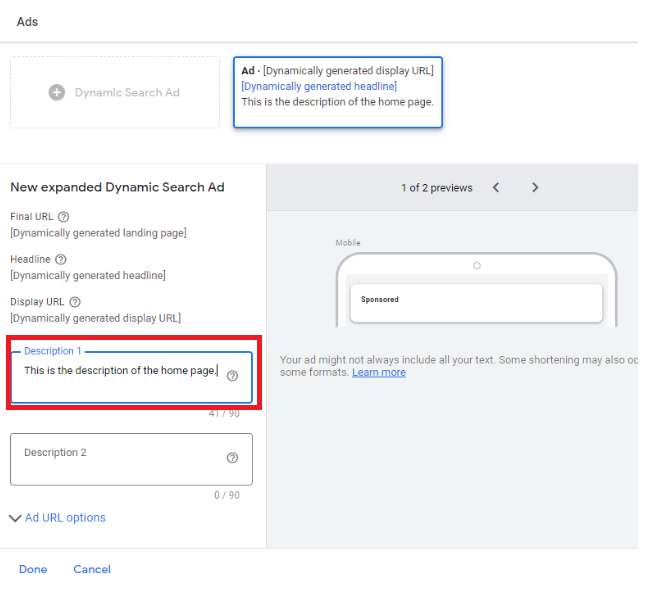
Scroll down to the Ads section and type in your description. Then click on Next.
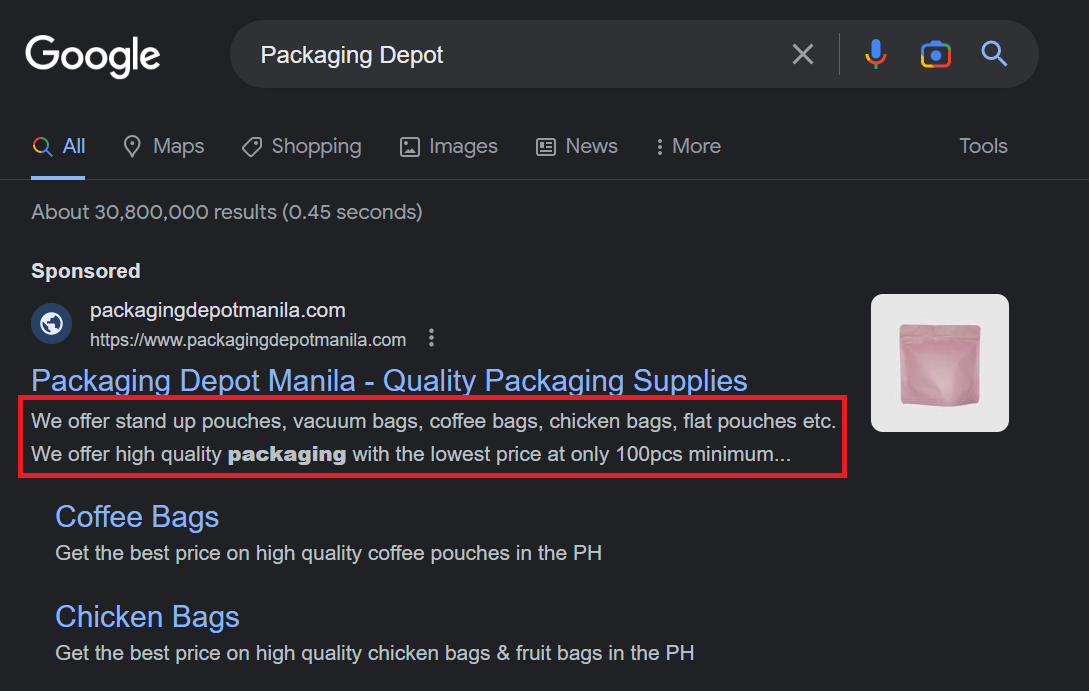
- This will reveal the Extensions window. Sitelink extensions show up under your main ad. They serve as additional links and ad copy. They also direct visitors to particular pages on your site and as they’re usually displayed in a large font, they are proven to attract more attention.
Take a look at an example below.
-
Click on Save once you’re done with your sitelink extensions.
-
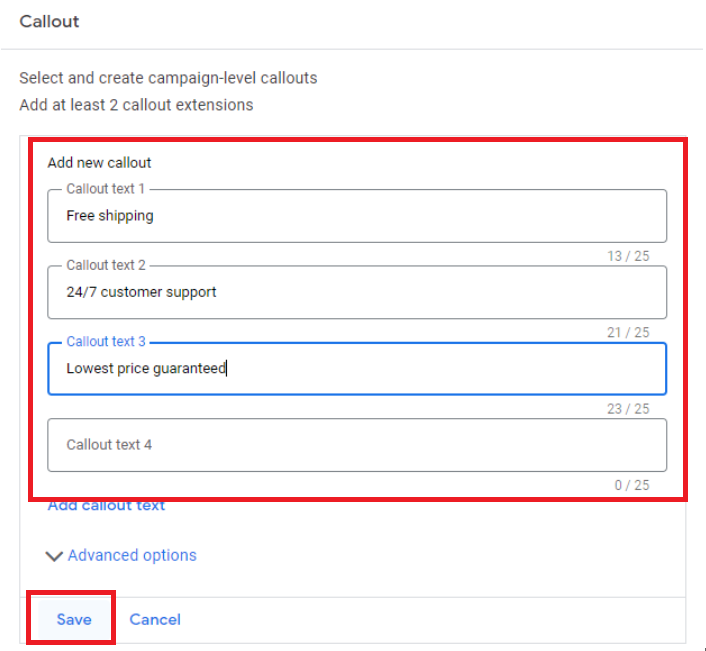
Next, we will now move on to Callout extensions. Callout extensions are the short texts under your ad. There, you can promote specific offers to visitors, such as 24/7 customer support and free shipping.
Include at least two offers for promoting your services and products. Once finished, select Save.

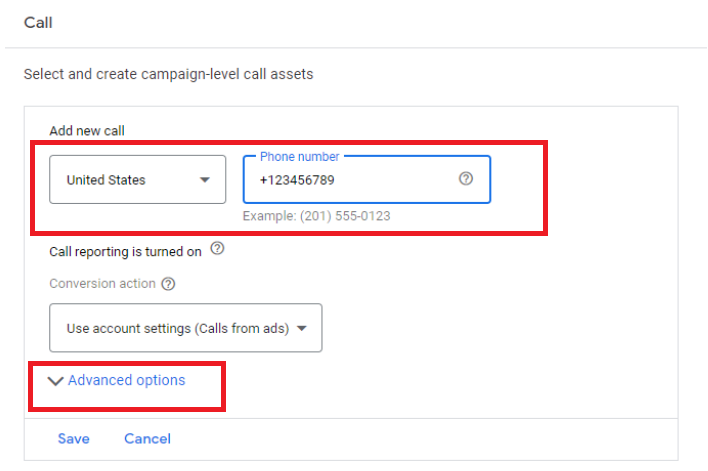
- Next, we are going to move on to Call extensions. Call extensions allow you to add contact numbers to your ads. We recommend setting this up if you have one that’s dedicated to your customer or sales support. To do so, tick the down arrow on the right of Call extensions to reveal the drop-down menu.
Input your contact number and country, then select Save.
-
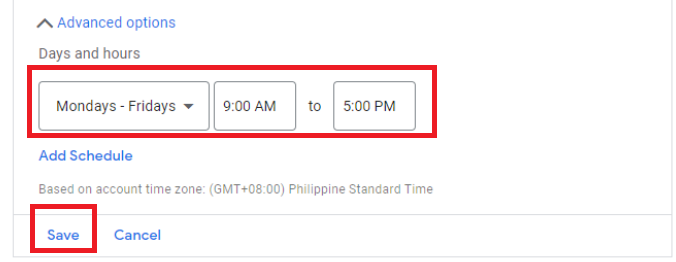
You can also use the call extension to set your preferred schedule to receive calls. You may do this by clicking on Advanced options. Enter your preferred schedule, then click on Add Schedule.
-
Click on Save once you’re done. Then select Next after completing the extensions.
-
This will reveal the Budget window. Set your preferred daily budget for the campaign and click on Next. This will open a new window.
-
Review the campaign you have set up. Ensure that all settings (budget, campaign, and ad) are correct. After doing so, select Publish Campaign.

- Go to your campaign dashboard to check the status of your now-finished campaign.

- Your campaign ads are not yet live. This is because Google automatically reviews all ads before publishing. Once your campaign passes Google’s ad review, your ad will run and your ad campaign’s status turns Eligible. The review usually takes 1 business day to finish.
Reminder: You may contact Google’s Customer Support if your ad is still under review after 2 business days.
Conclusion
You’re done! Remember, Dynamic ads can greatly benefit your website or online shop because they don’t rely on keywords alone. Instead, Google uses an advanced algorithm to determine the best customers to show your ads to based on your website or online shop’s existing content.
-
To begin, log into your active Google Ads account and create a new campaign.
-
Select the appropriate campaign for your current goals.
-
Go through each of the pages and prompts, entering the details of your ad as you go.
-
Select the Dynamic Search Ads setting.
-
Create dynamic ad targets.
-
Determine the extensions that you want to add to your ad campaign.
-
Publish your campaign and wait for Google to approve it.