Linking a Google Ads Account to Google Analytics
To assist you in doing the process of linking a Google Ads account to Google Analytics.
Prefer a shortcut? 16 free tools do parts of this for you.

Aim: To assist you in doing the process of linking a Google Ads account to Google Analytics.
Optimal Outcome: To be able to analyze your business’ data using both tools provided by Google and optimize your marketing strategies.
What do you need to start: To follow this SOP, you need to have a Google Ads account and Google account to bind in Google Analytics.
Why is this SOP Important: It is crucial for your business to link Google Ads and Google Analytics because it allows you to track the effectiveness of the advertising you have developed and, since it is integrated with Google Analytics, you can import data to your Google Ads account and use specialized tools.
When and Where to execute: In this task, you will want to make sure that you're logging in with an account that has the Editor role for the Google Analytics and administrator access for an active Google Ads account that you will bind to it.
Who Should Be Doing This: This could be done by the person in charge of analytics or the SEO team.
Linking Google Ads account with Google Analytics
You can observe the whole customer routine, from how people engage with your advertisements to how they ultimately achieve the objectives you've outlined for them on your promotional campaigns, by connecting your Google Ad account to your Google Analytics account. In addition to this, Also, you can import Google Analytics objectives and E-commerce related activities into your Google Ads account and view ads and sites performance metrics in the Google Ads reports.
Execution
Resources/Tools & Set up
-
Google Analytics
-
Google Ad account
-
Google account
Linking Google Ad Account to Analytics
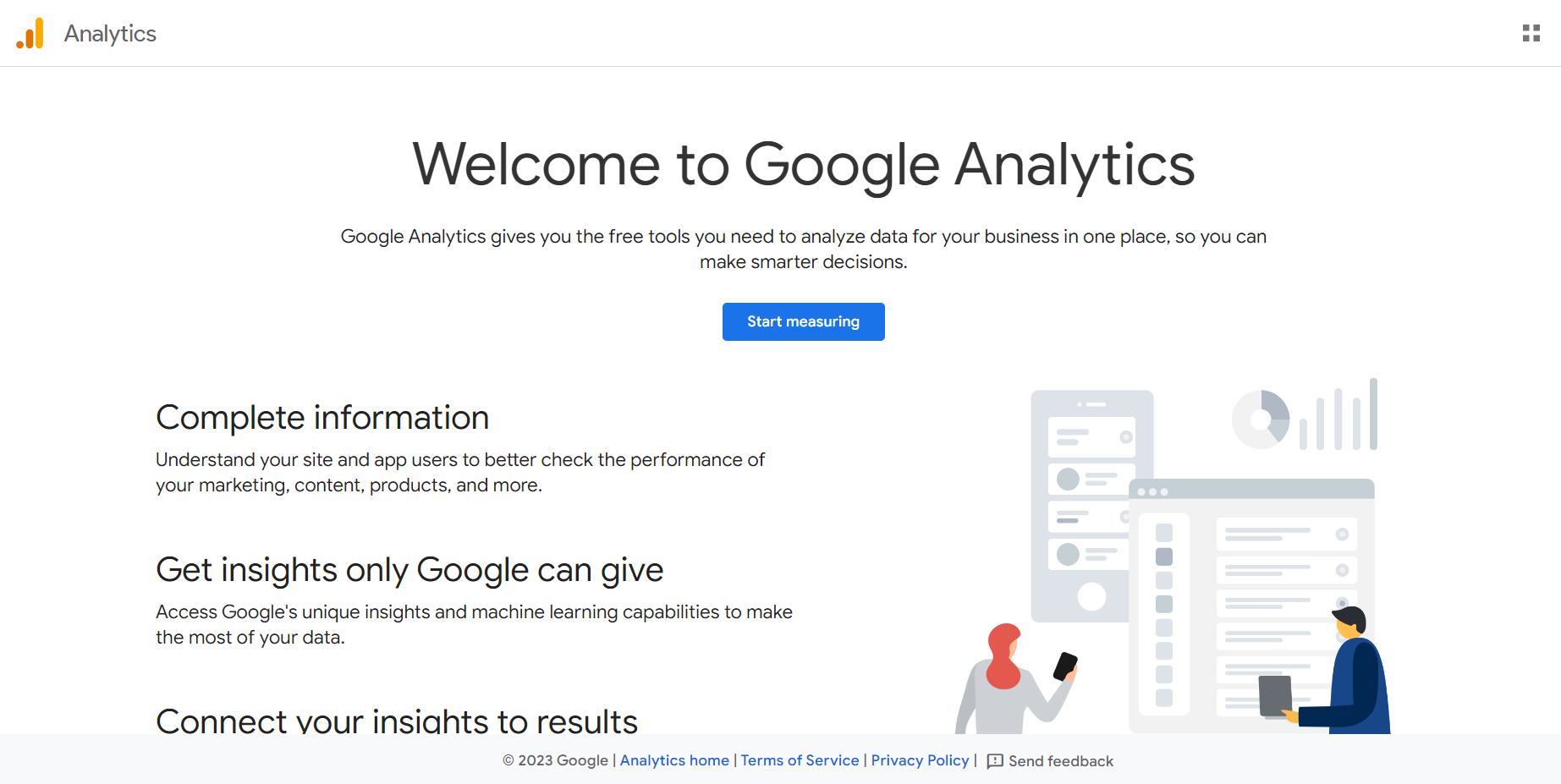
- Go to Google Analytics and click “Start measuring”. This should redirect you to your account if you have already made one.
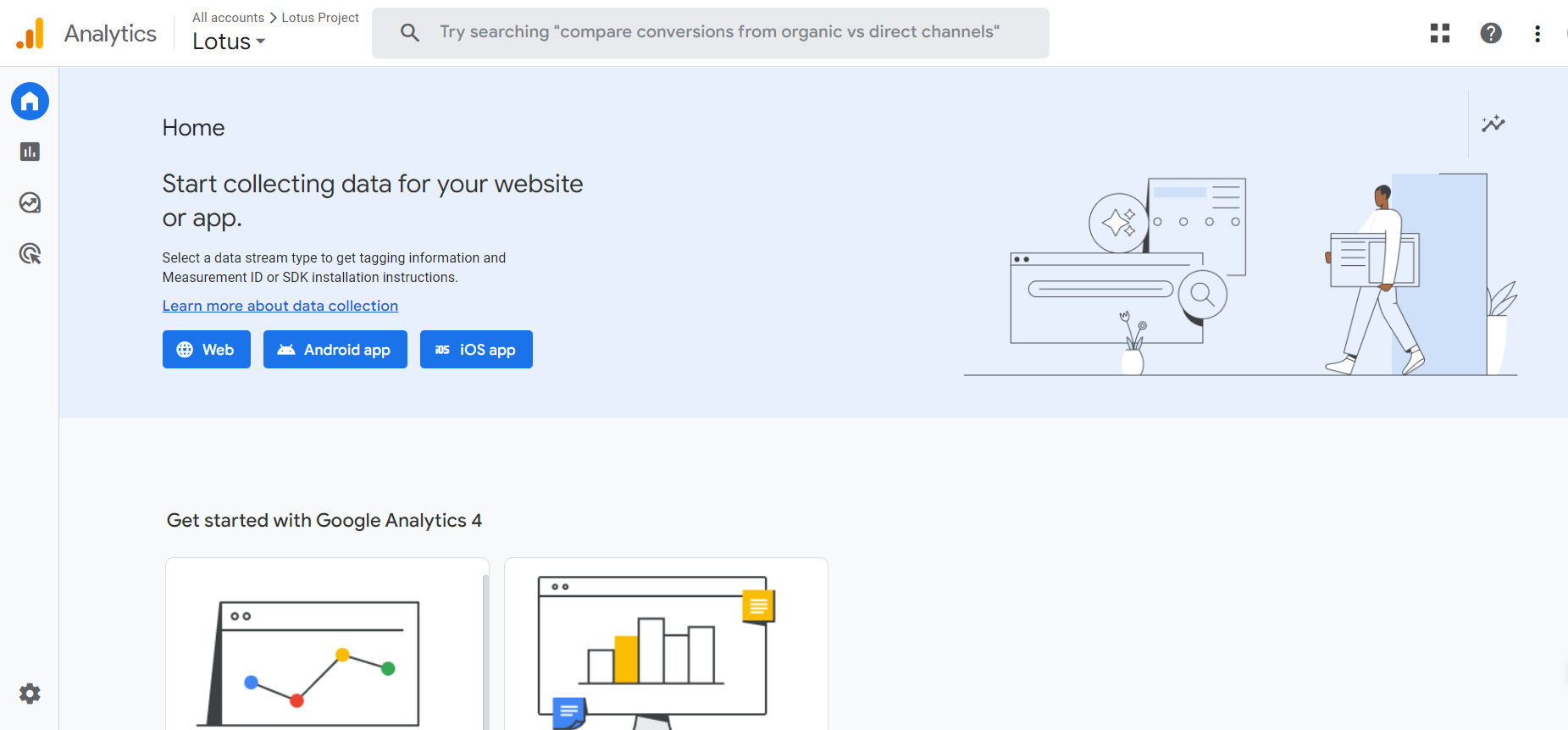
- After navigating to your Google Analytics, click on the Admin icon located on the lower left of the site as shown below.
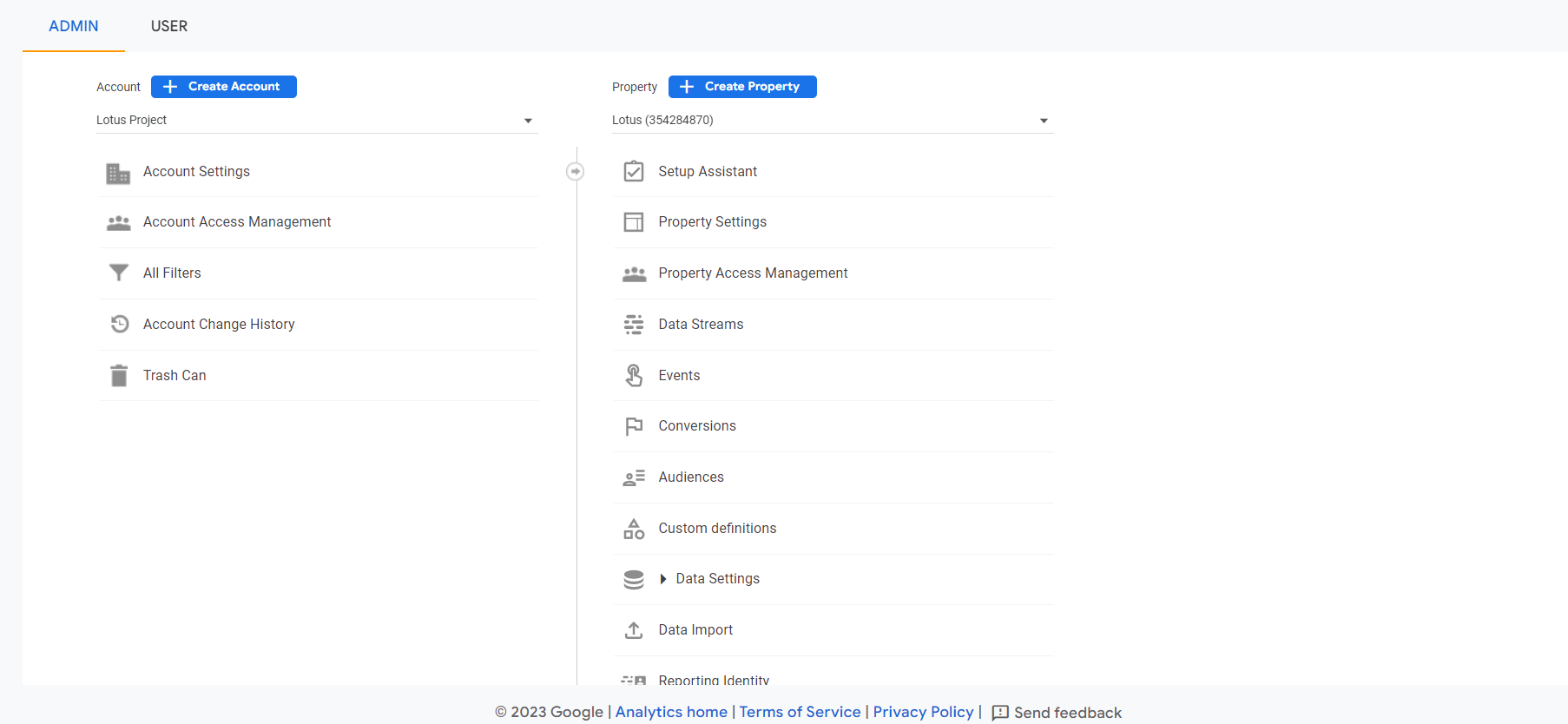
- After clicking the Admin icon, you are now redirected to the Admin tab. There are two columns presented here which are Account and Property. Since we want to link your Google Ads account, you must scroll on the Property column.
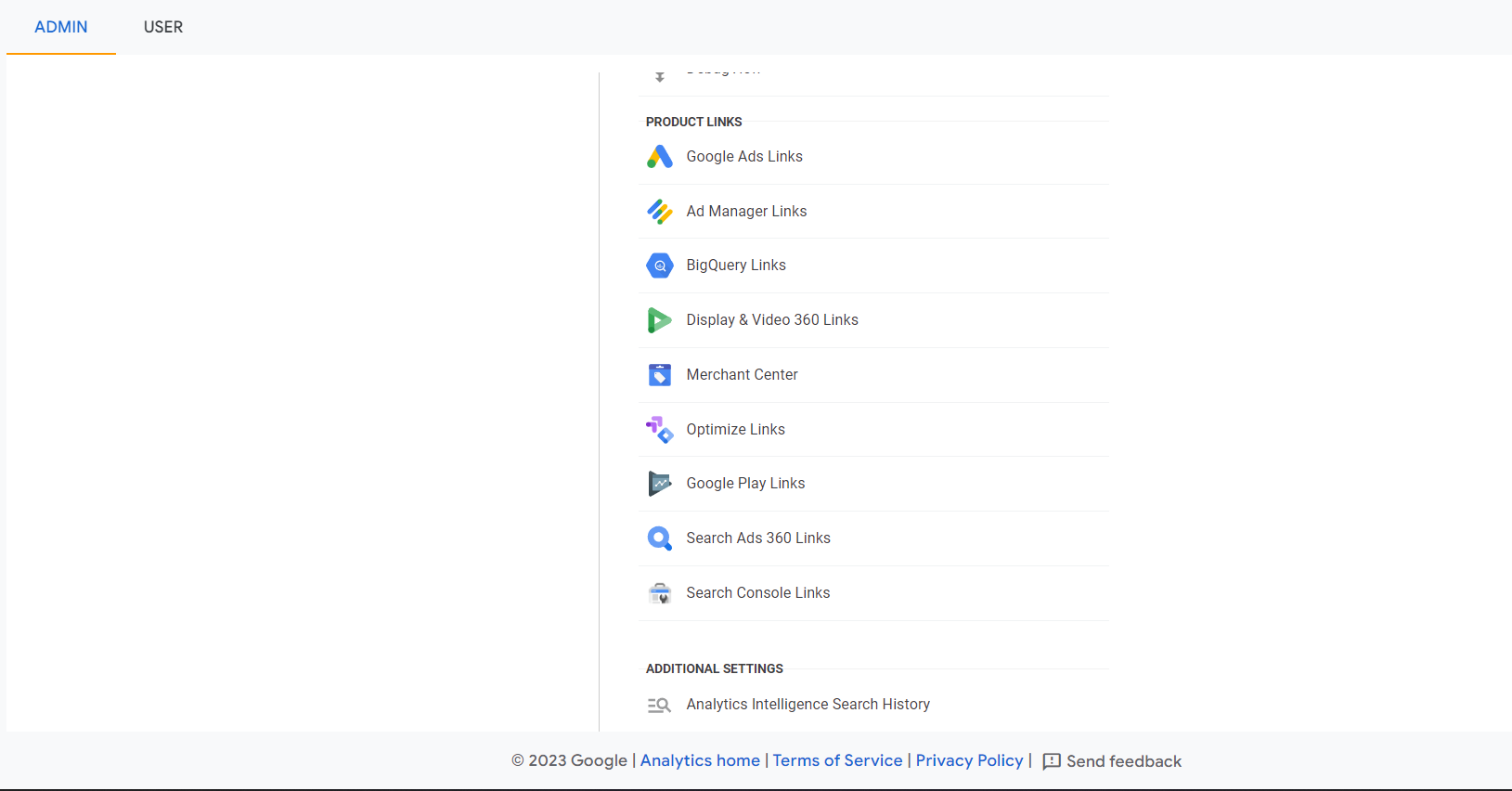
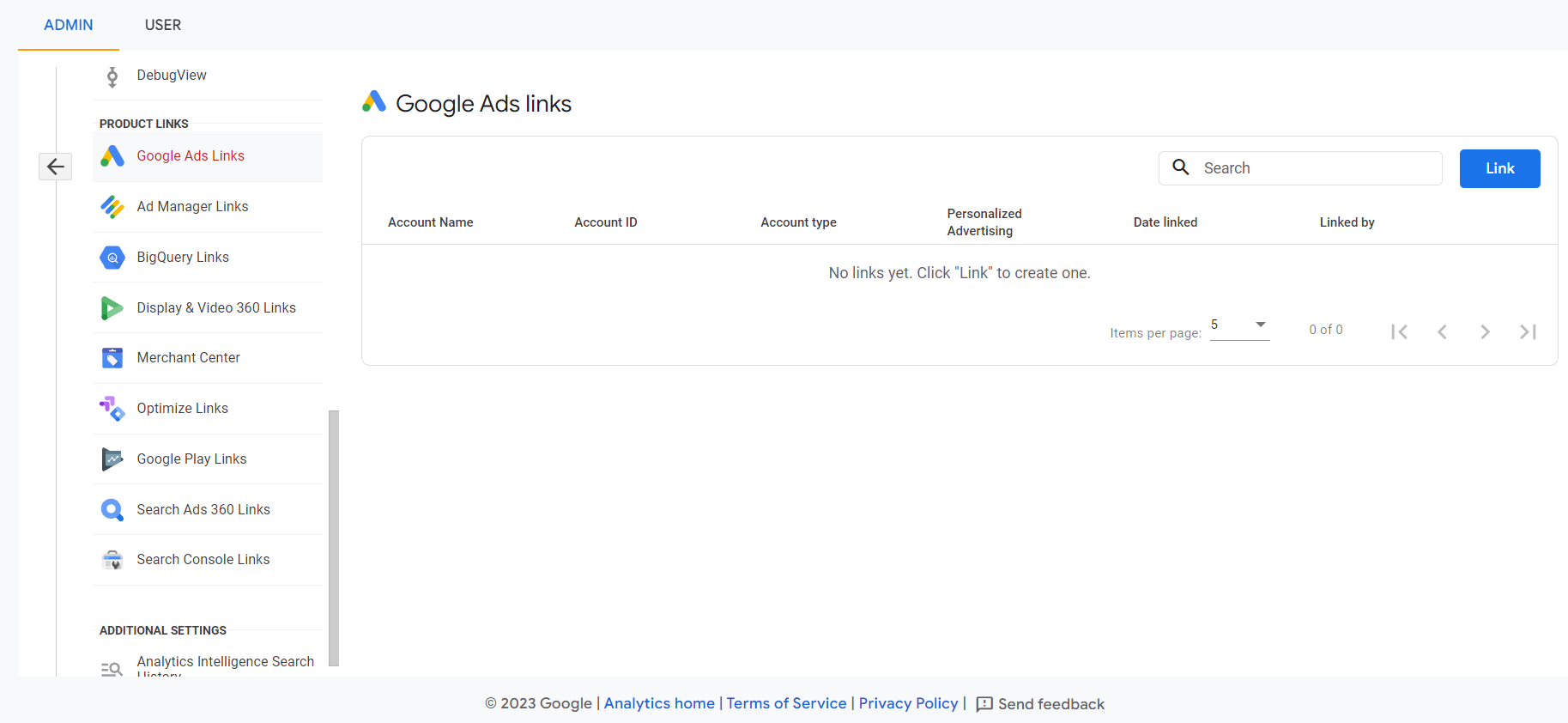
- After you scroll on the Property column, you can see the Product Links, and under that is the Google Ads Links. Click it to link your Google Ads account to Google Analytics.
- Because you haven’t linked any Google Ads account, there is no preview on the accounts. To add one, click the “Link” button.
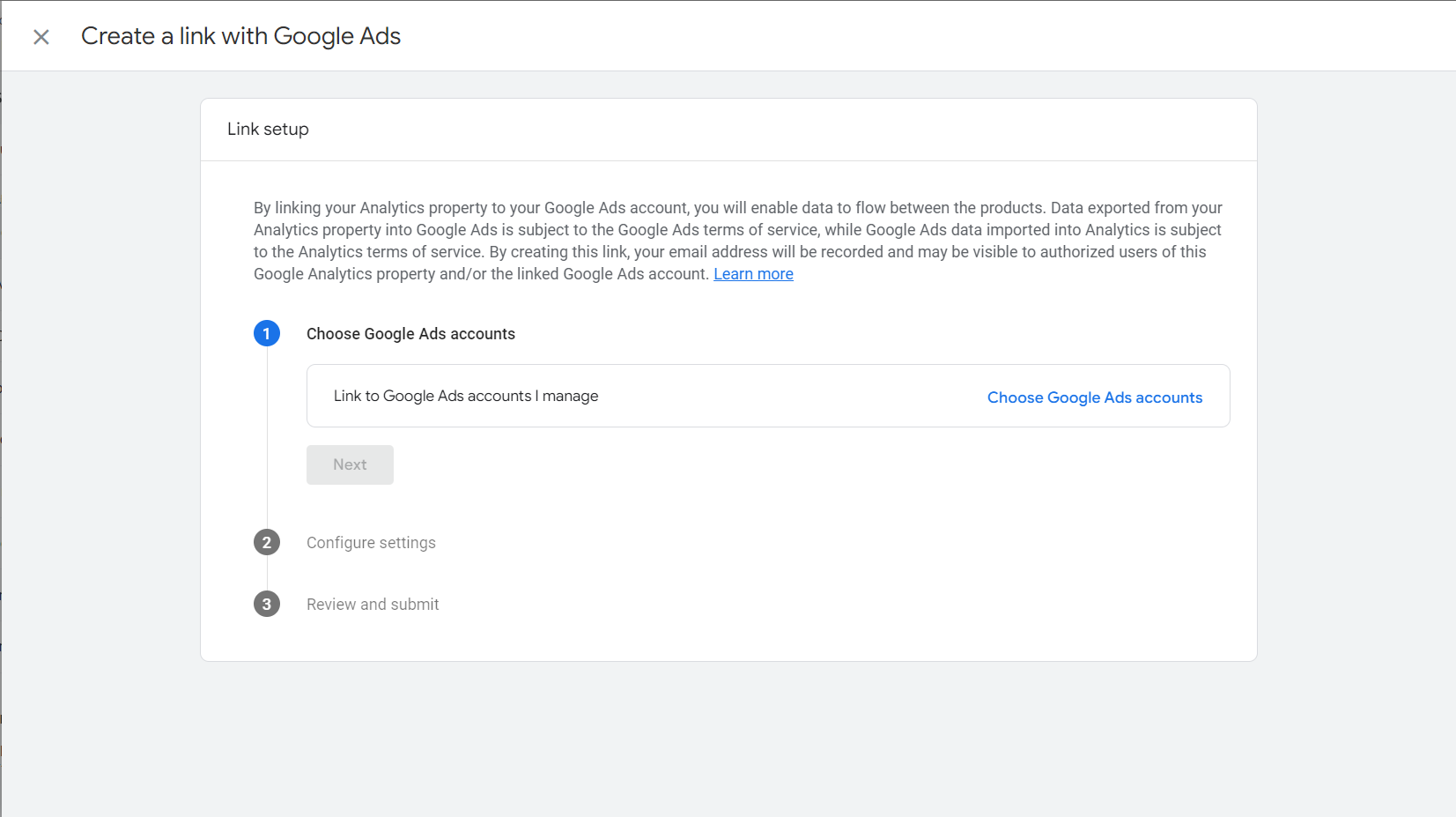
- When you click the Link button, you will be redirected to this tab. The first step involved in this process is to choose the Google Ads account that you want to add. Click on the “Choose Google Ads accounts”.
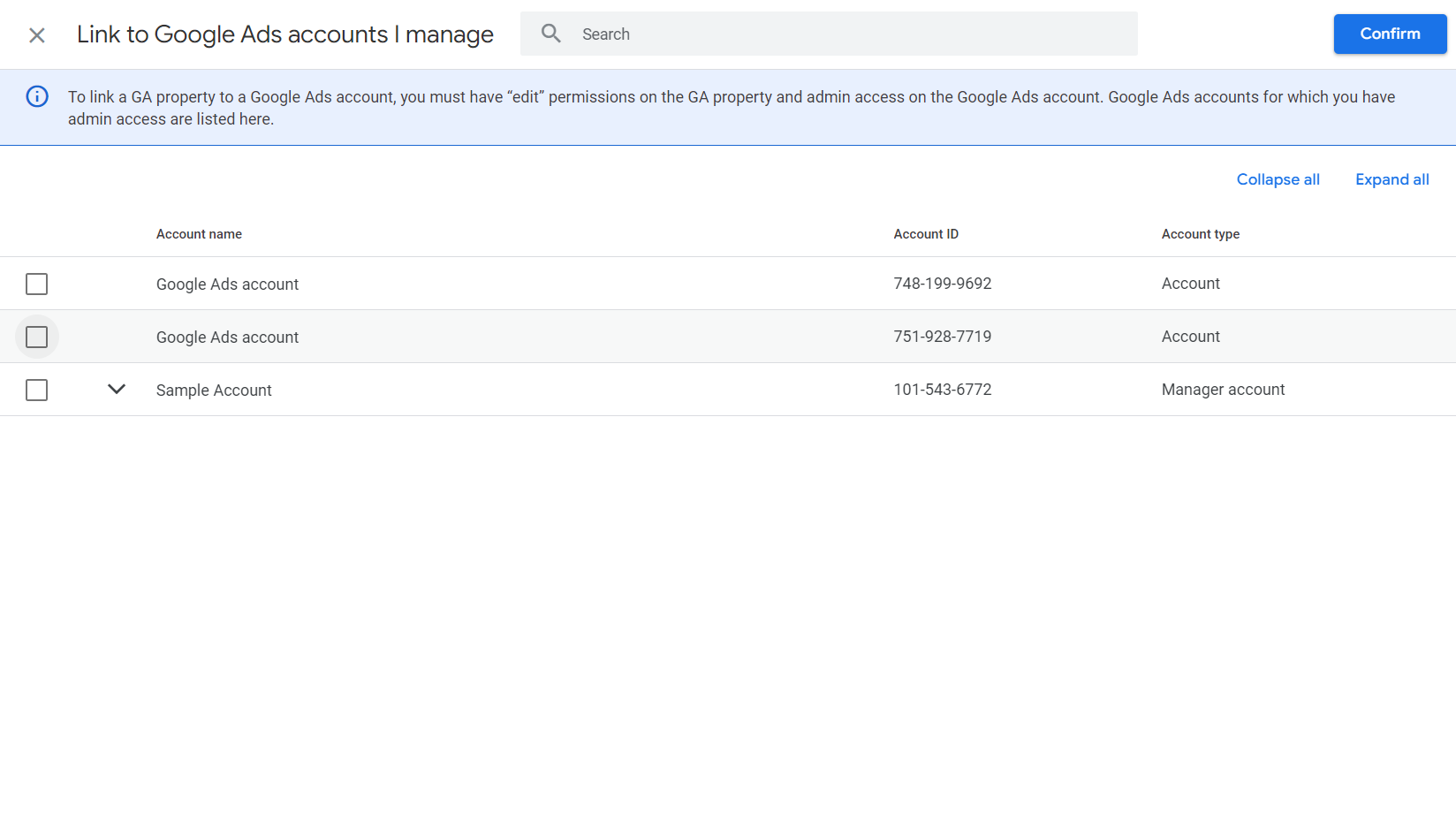
- You will be redirected to this page which shows all your Google Ads accounts. Choose the one that you would like to link to your Google Analytics by clicking the checkbox beside it.
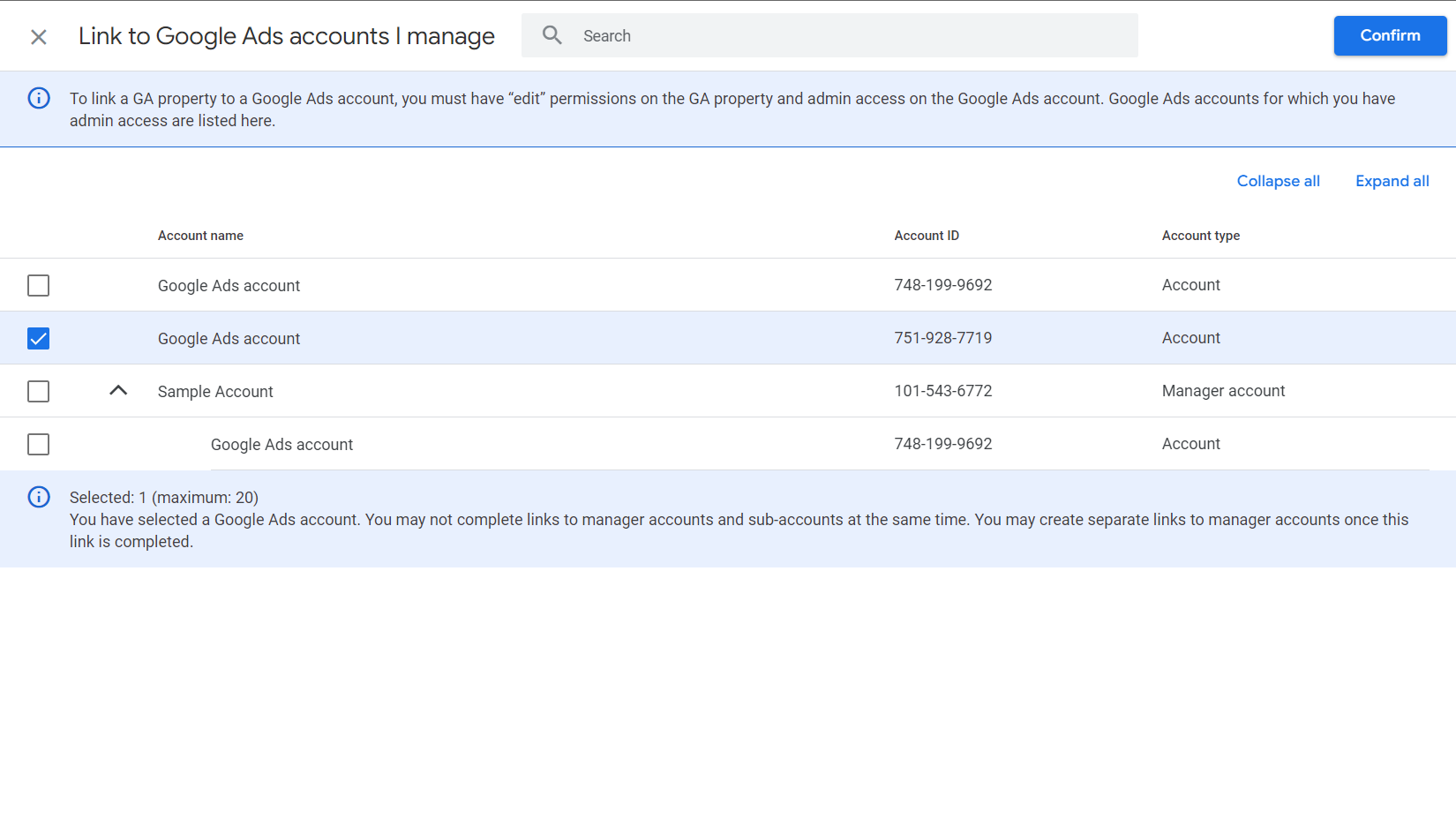
- After clicking the checkbox, you can now click on the “Confirm” button to proceed with the process.
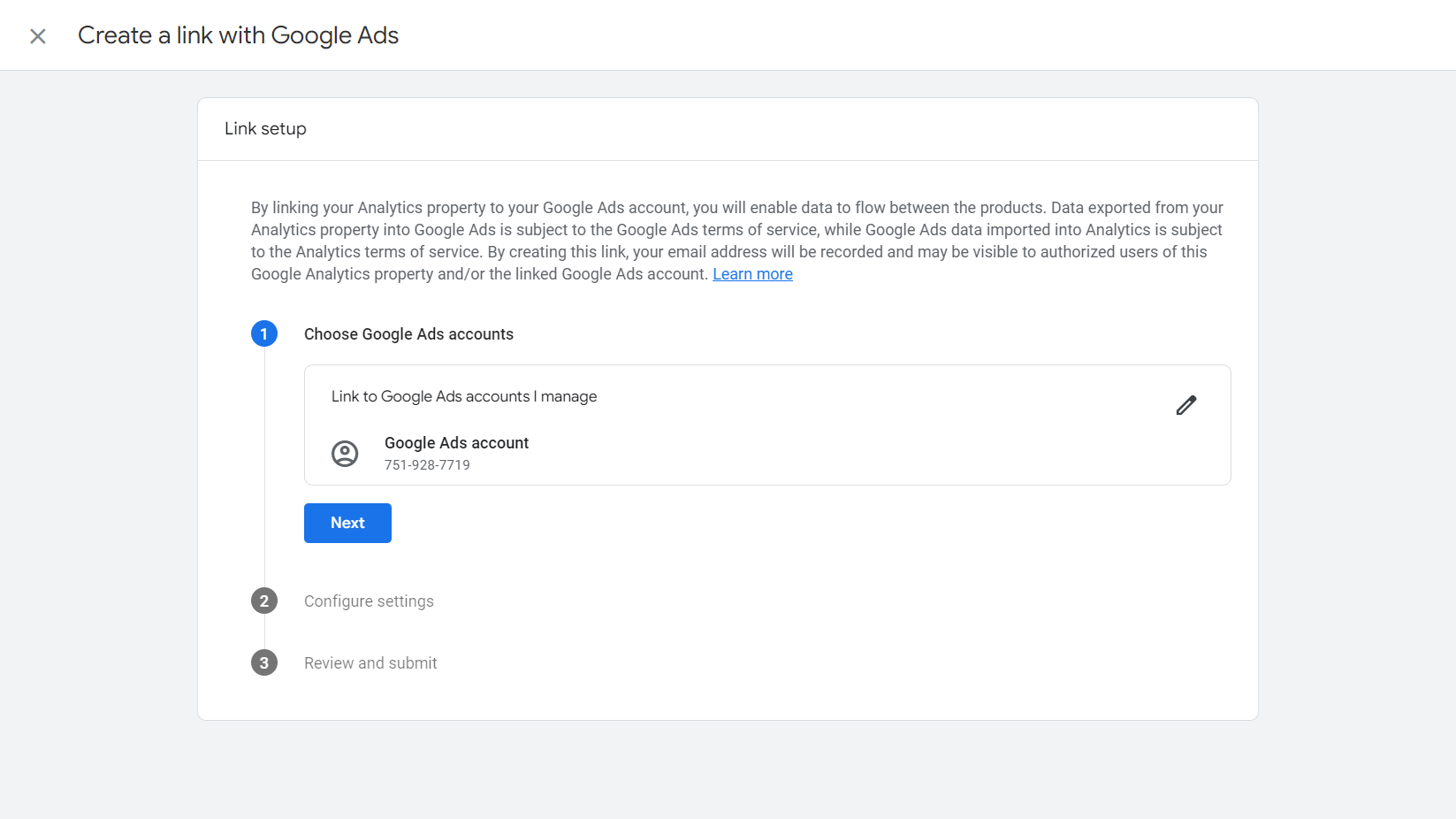
- This tab will show you the account that you have picked and you may now proceed by clicking the “Next” button.
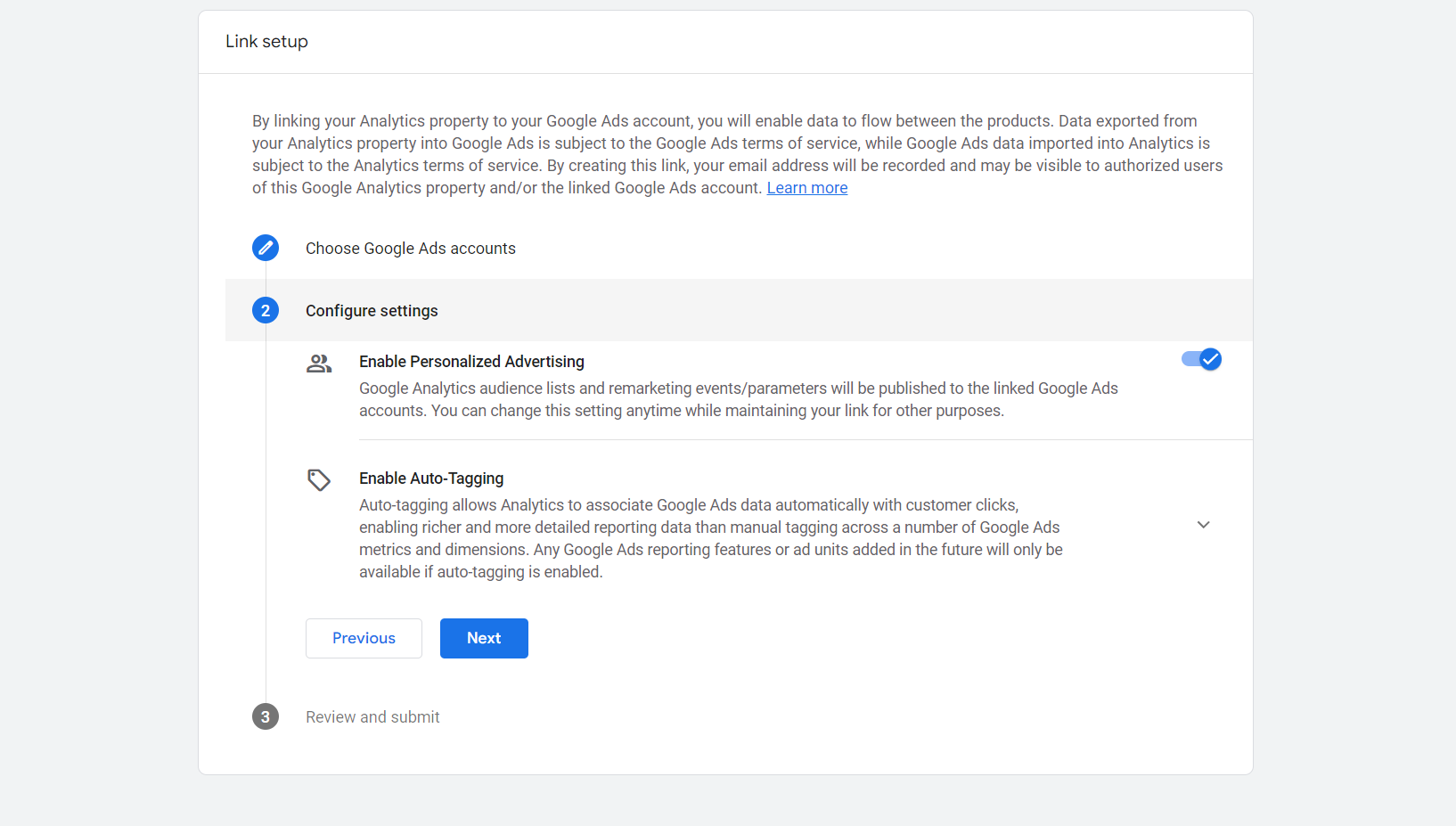
- These settings will appear once you have clicked Next. You can choose to enable or disable the personalized advertising (solely depending on your preference) and you can also enable auto-tagging. After modifying the settings, you can now proceed by clicking “Next”.
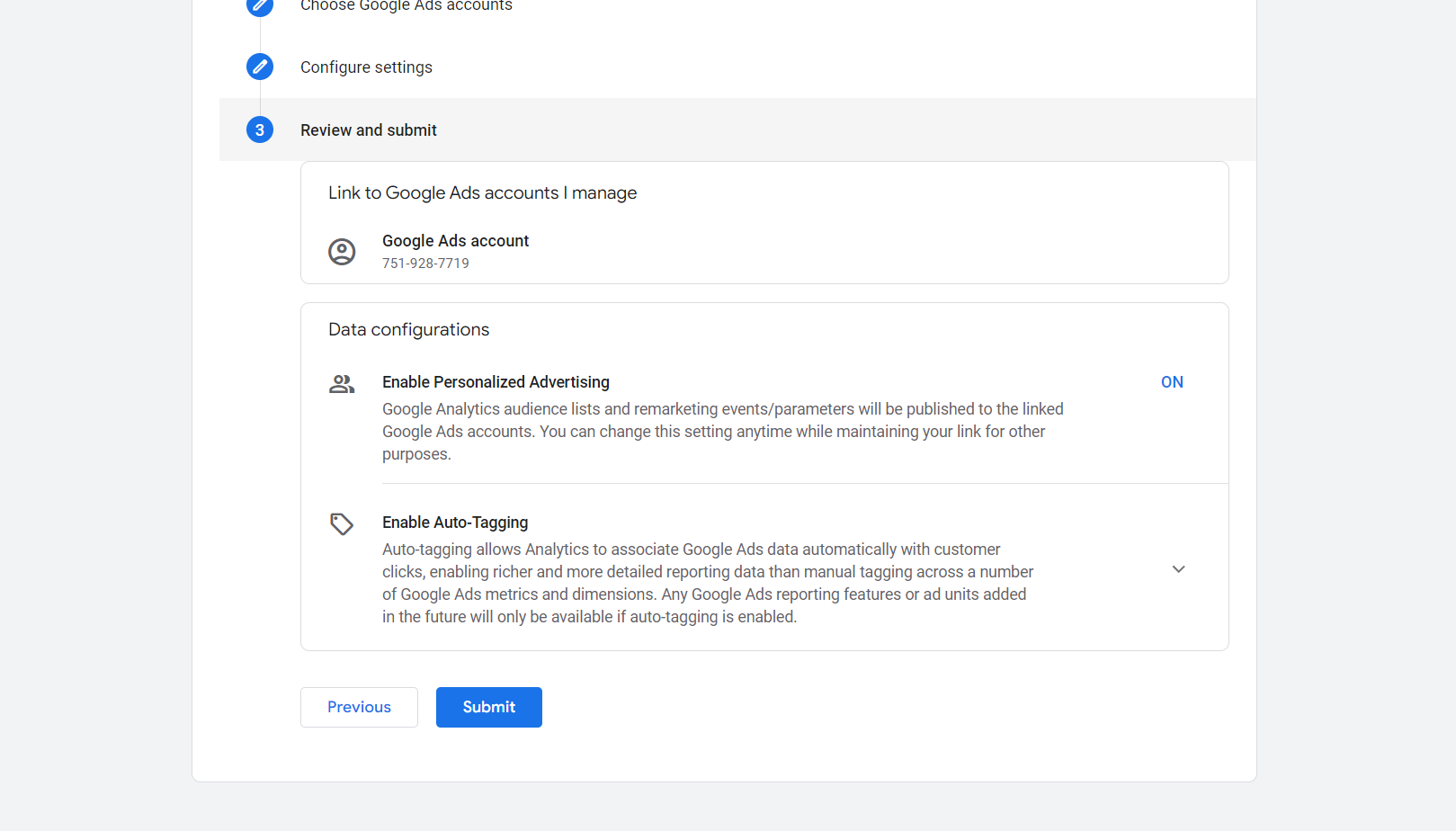
- After clicking Next, you will be asked to review your information and after reviewing, you can now click the “Submit” button to finalize the link between your Google Ads account and Google Analytics.
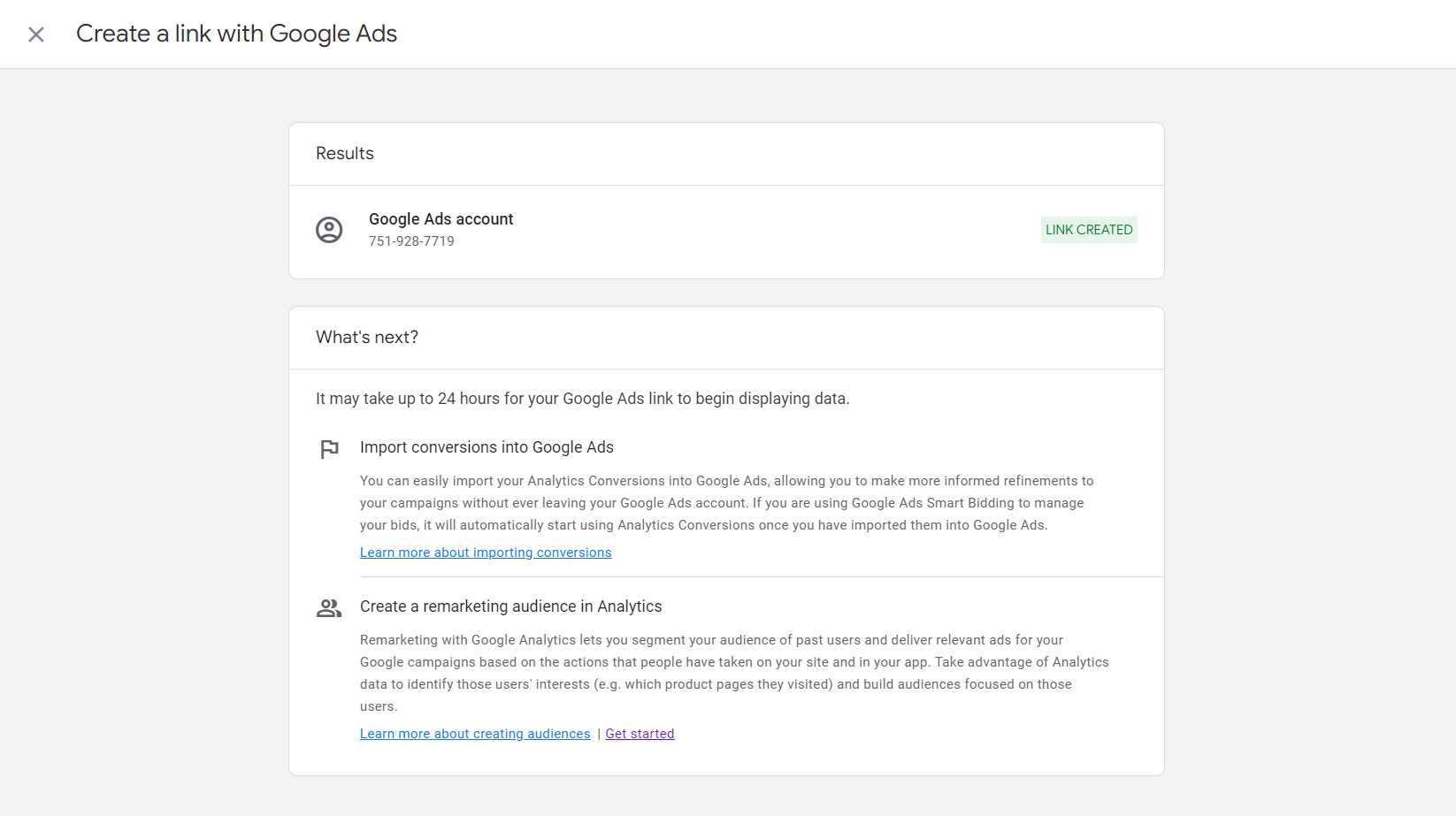
- After submitting, you have now created a link for your Google Ads account and Google Analytics.
Conclusion
You’re done! Always remember that Google Analytics goes hand in hand with Google Ads in marketing your ads to its appropriate audiences, giving you clients along the way.
-
Linking your Google Ads account to your Google Analytics makes your advertising easier, simply because you can use it to measure the engagement of your clients.
-
Google analytics has different metrics to utilize in optimizing your site and your customers’ experience while enabling you to analyze the sales.
-
To start, you must have a Google Ads account and Google Analytics.
-
After navigating to Google Analytics, navigate to Admin > Property Links > Google Ads Links.
-
Finalize the information you have inserted and you’re good to go!
-
Combined Google Ads and Google Analytics allows you to measure the data and lead generation involved with your business.