Setting Up Remarketing Audience in Google Ads
To set up a remarketing audience in Google Ads manager for retargeting campaigns.
Prefer a shortcut? 16 free tools do parts of this for you.

Aim: To set up a remarketing audience in Google Ads manager for retargeting campaigns.
Optimal Outcome: You will be able to launch a Google search remarketing ad campaign and enjoy its benefits. These include driving more traffic back to your website or online shop, acquiring more leads, and increasing sales.
What you need to start: You will need an active Google Ads account.
Why is this SOP Important: You don’t always need to target new customers. There are times when the best strategy is to target the conversion of those who are already aware of your brand. This can be done through a retargeting campaign.
When and Where to execute: This SOP is performed if you have an existing audience who are already aware of your brand but have yet to convert into paying customers. You may perform this SOP in Google Ads manager.
Who Should Be Doing This: The marketing or advertising manager
What is Remarketing?
Remarketing is a powerful tool in Google Ads that allows advertisers to target users who have already visited their website. It is an effective way to connect with your previous customers and build customer relationships. With remarketing audiences, you can target customers who have interacted with your business with ads tailored to their interests.
Execution
Resources/Tools & Set up
- An active Google Ads account.
Setting up Your New Audience Segment
-
Log in to your Google Ads account.
-
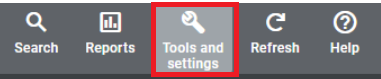
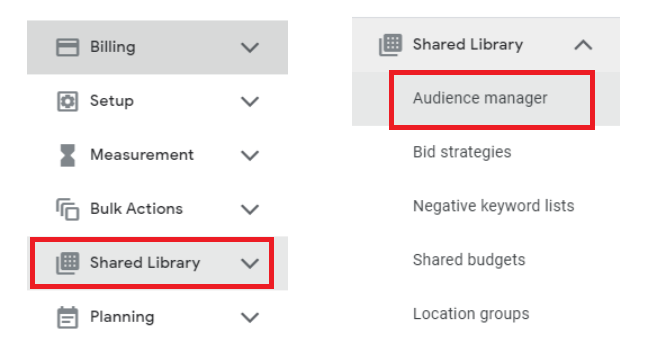
From the main dashboard, select Tools & Settings at the top panel. Then, click on Shared Library, then Audience Manager.
-
This will open the Audience Manager page. Click on the + sign.
-
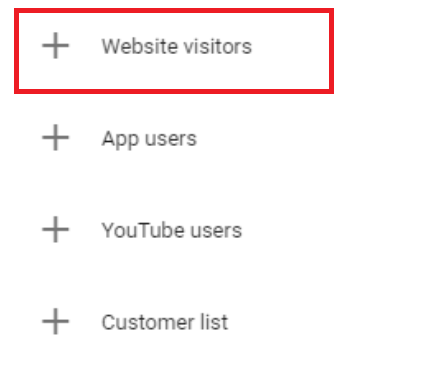
It will reveal four options.
-
Website visitors - This refers to the audience who have already visited your website.
-
App users - This refers to those who have downloaded your application.
-
Youtube users - This refers to those that interacted with your YouTube Channel.
-
Customer list - This refers to particular target customers.
-
For the purposes of this SOP, we’ll use the Website visitors option.
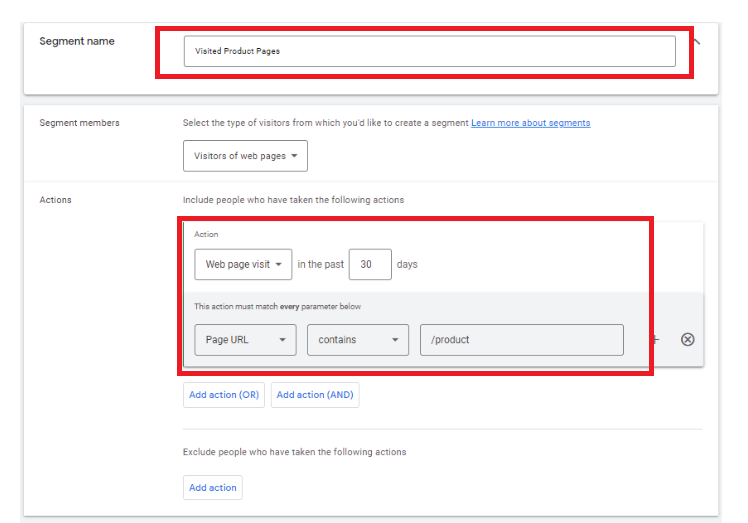
- Input the details for the audience segment.
-
Segment name - This will help you identify the target audience. For the purposes of this SOP, we are going to call the segment Visited Product Pages.
-
Segment members - This will help you define the user type with particular interactions with your site.
-
Visited page - This allows you to choose the page that the user interacted with the target you want them to interact with. For this example, we targeted users that visited your product page.
-
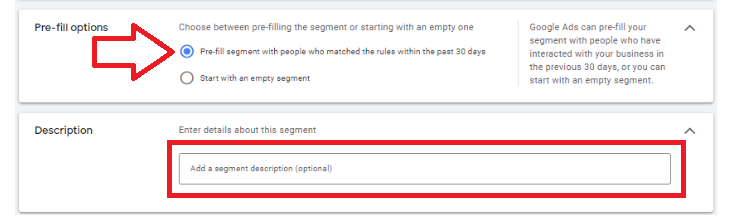
Pre-fill options - This option allows Google to select users that have interacted with your website in the last 30 days. You may also opt to start with an empty segment.
-
Description - This will allow you to enter more details about the segment.
-
Once done, click on Create segment.
- It will take a while for the data to show, but it will eventually reveal the number of people in the segment.
Conclusion
You’re done! Remember, setting up a remarketing audience segment will help reveal the people you can focus on for your retargeting campaigns in Google Ads manager.
-
To begin, log into your Google Ads account.
-
Select the Website visitors option under your Audience manager.
-
Fill in the necessary details for your audience segment.
-
Click on create segment.