Using Google Optimize to Set Up A/B Tests
To walk you through setting up your A/B Tests using Google Optimize
Prefer a shortcut? 16 free tools do parts of this for you.

Aim: To walk you through setting up your A/B Tests using Google Optimize
Optimal Outcome: Your Google Optimize setup is running, tested, and ready for you to start experimenting.
What do you need to start:
-
A Google Optimize account
-
Google Analytics and Google Tag Manager set up on your website
Why is this SOP Important: Google Optimize A/B tests can help you make informed decisions about your website design and content, improve conversion rates, and enhance user experience.
When and Where to execute: You only need to set it once per website.
Who Should Be Doing This: Website administrator, IT staff
What is A/B Testing?
A/B testing in Google Optimize is a method of comparing two versions of a website or app to determine which one performs better. It allows marketers and website owners to test different variations of their web pages and determine which version provides a better user experience. The two versions (A and B) are randomly shown to different visitors, and the performance is measured and compared based on specific metrics such as clicks, conversions, bounce rate, and more. This information can then be used to make informed decisions about which version to keep or which elements to change for further optimization.
Execution
-
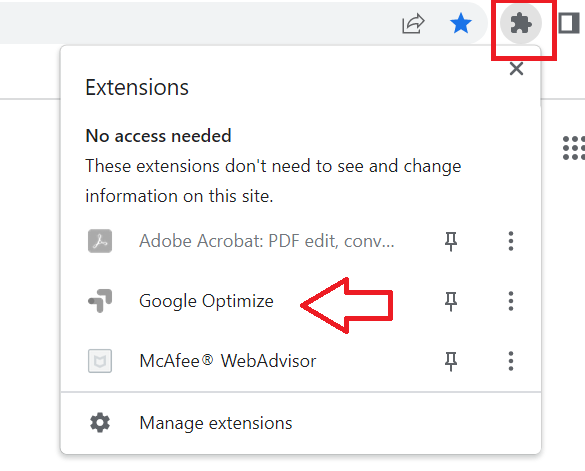
First, install Google Optimize Chrome extension.
-
Click the Extension icon from the upper right part of your Chrome browser, and select Google Optimize and sign in with your Google account.
-
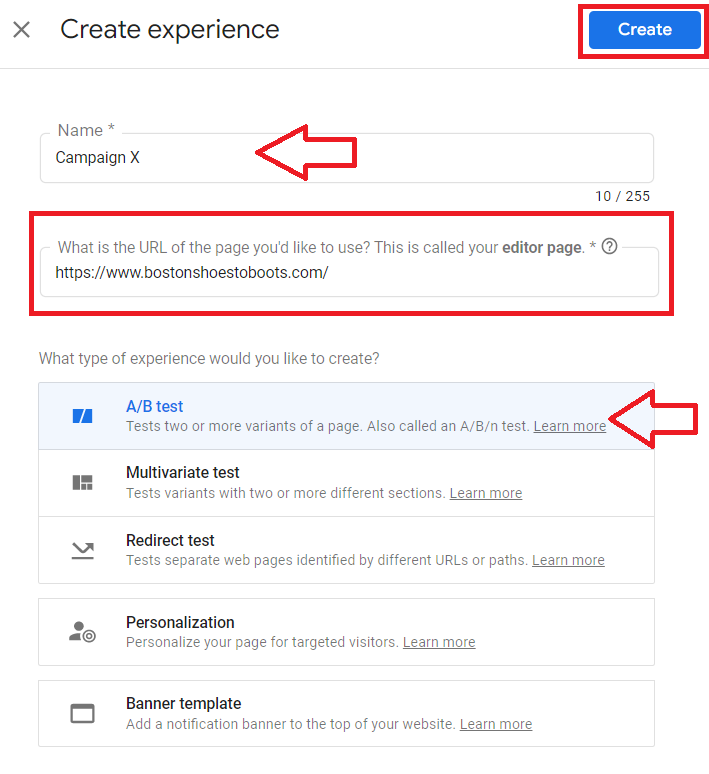
Click Create experience.

-
From the Create experience window, provide a name for your test, then enter the URL of your website.
-
Select A/B test from the options then click Create.
-
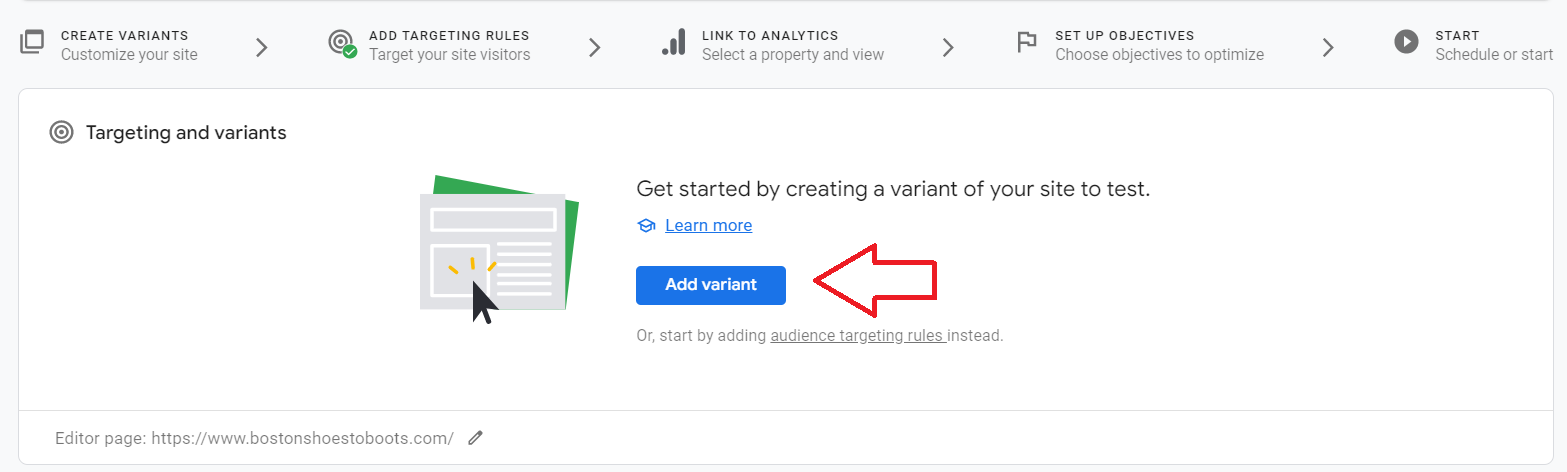
Click Add variant.
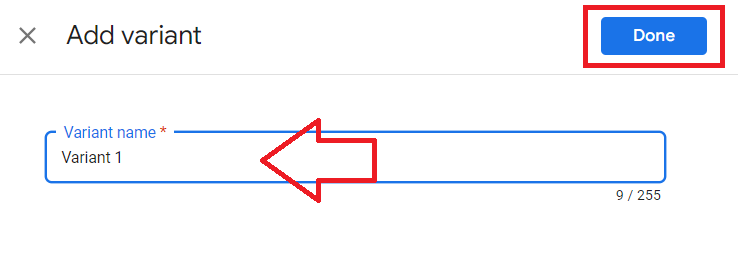
- Create a name for your variant then click Done.
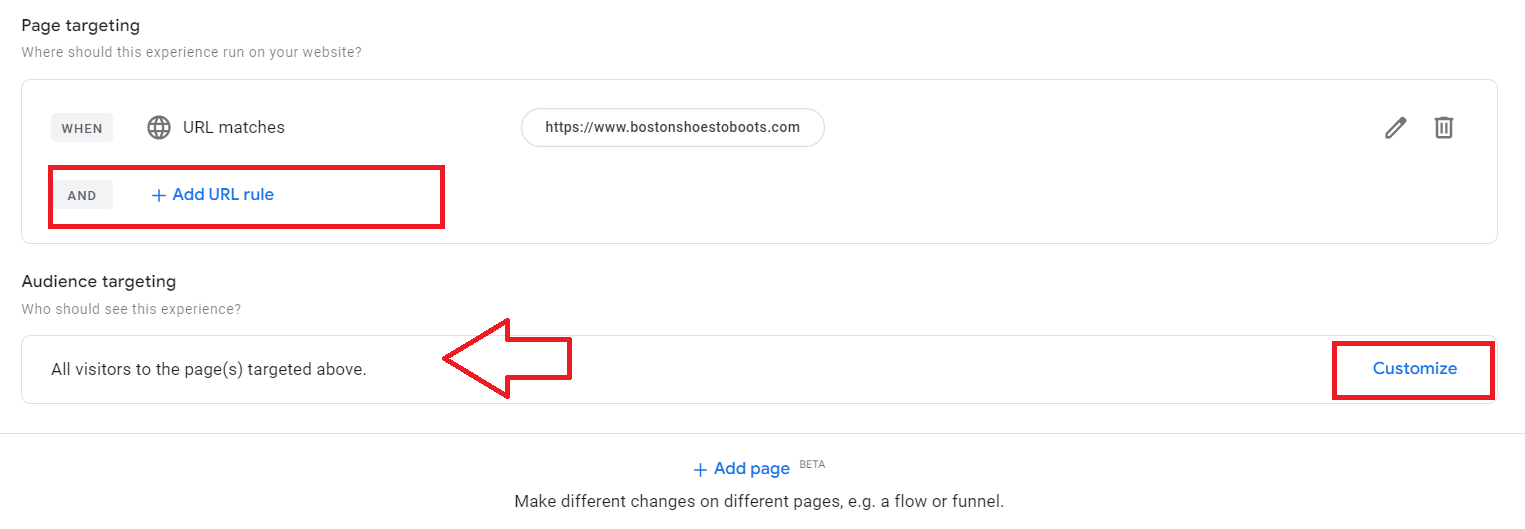
- Next customize your page and audience targeting for your experiment.
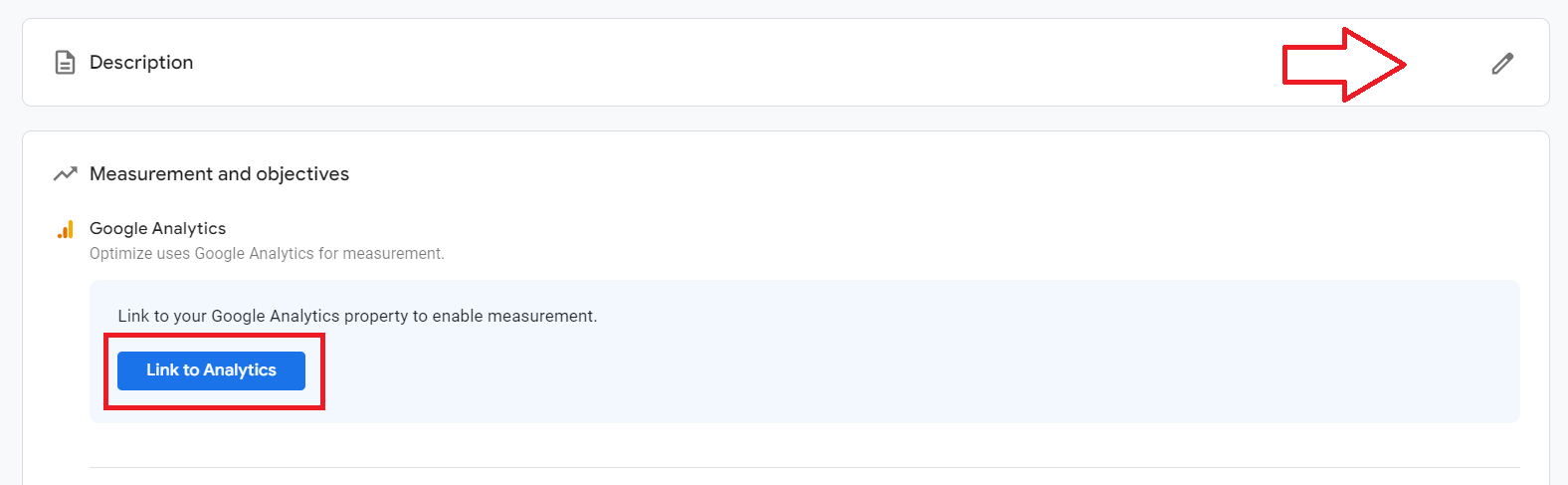
- You can add a short description of your experiment. Next, click Link to Analytics to link your Google Analytics.
-
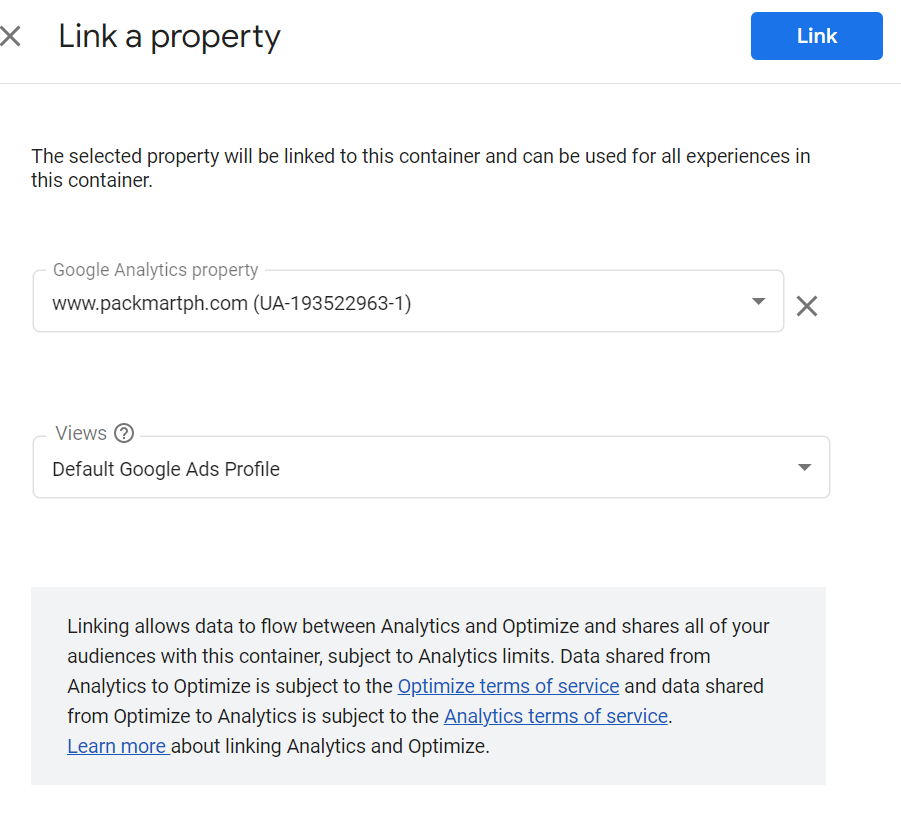
Take note of the Google Analytics property, then click Link.
-
To set up your objectives, you should configure your Google Optimize settings in Google Tag Manager.
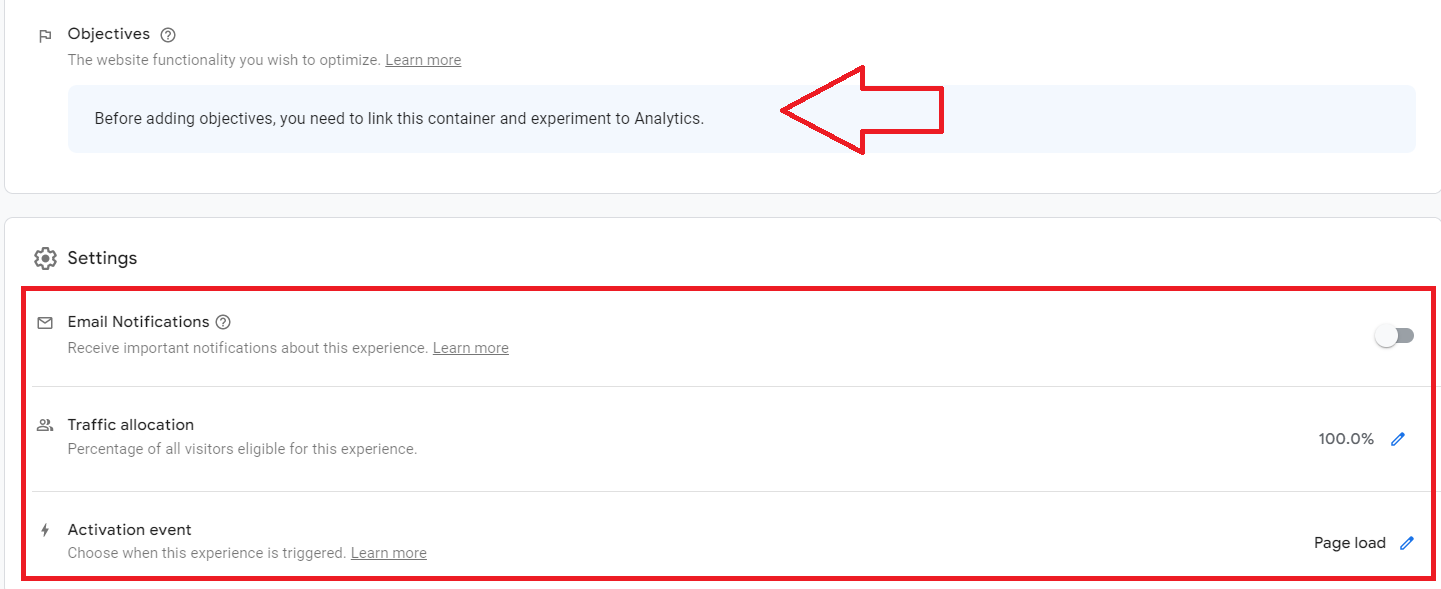
- Once you’ve configured and linked your Google Optimize to Google Tags Manager, you can now add objectives to your experiment.
Click Add experiment objective, then select from the options in the drop down. You can choose from pre-set objectives or create your own.
Notes: Objectives are metrics or activities that your variants are measured against. Your experiment objective determines your experiment’s status and which variant is the leader. You can add additional objectives, but they will not affect the status or leader declaration.
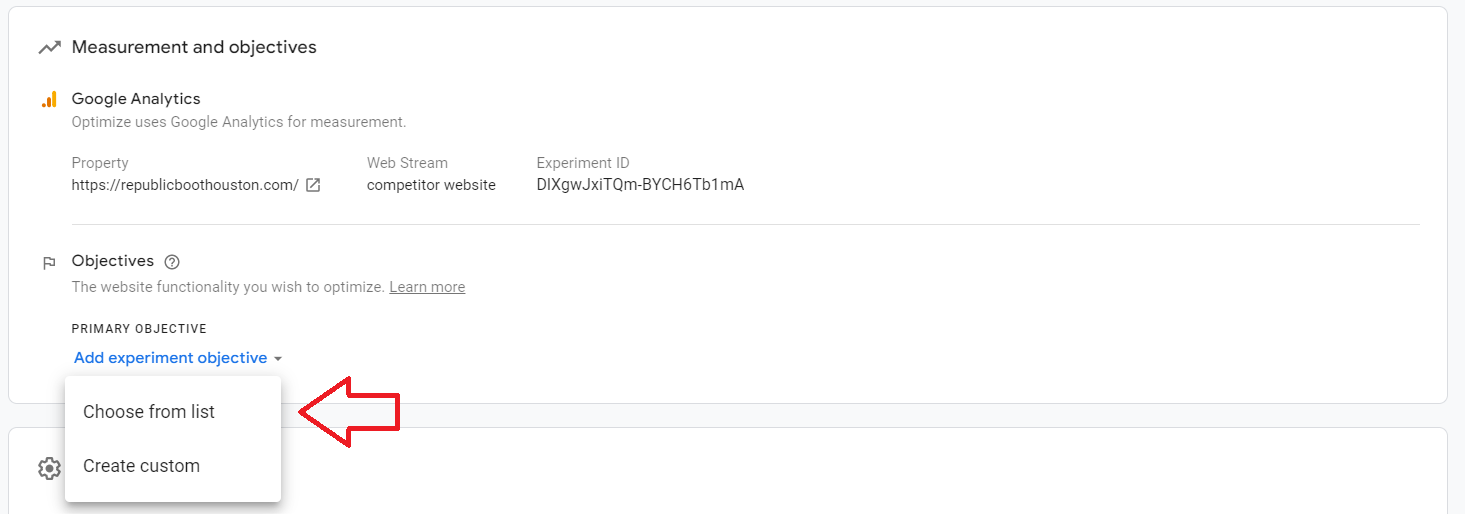
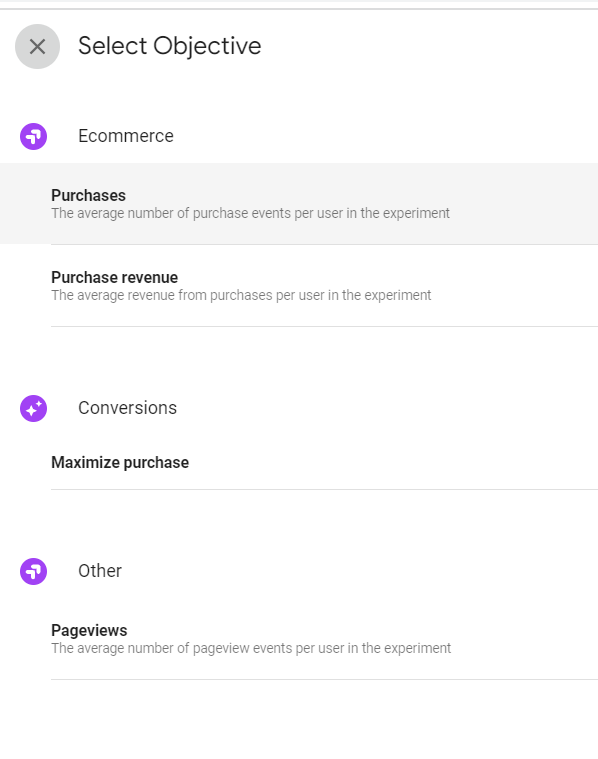
-
You’ll see several objective selections if you opted to choose from a list.
-
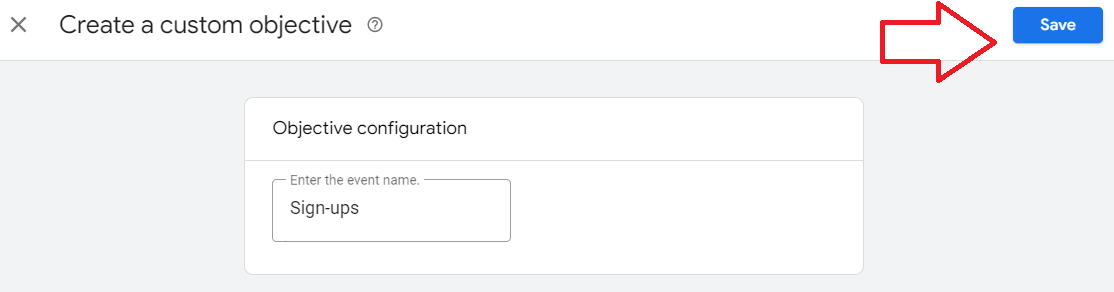
For custom objectives, enter the event name on the field and click Save.
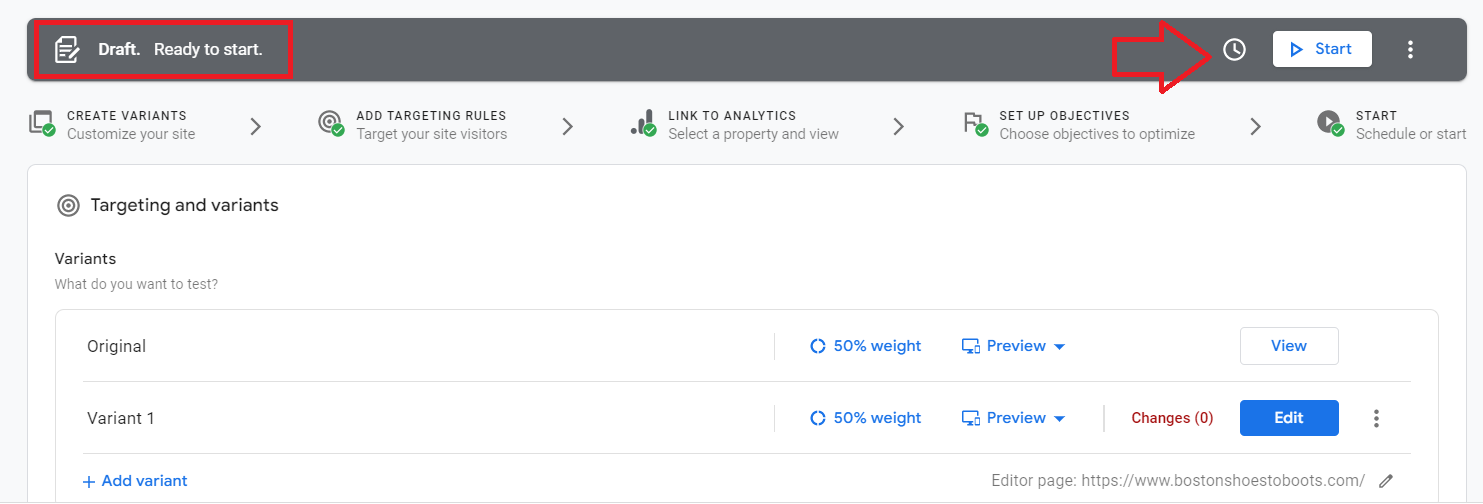
- Your draft is ready. You can then click Start to execute your experiment or schedule it at a later time.
Deploy your Google Optimize in Google Tag Manager
-
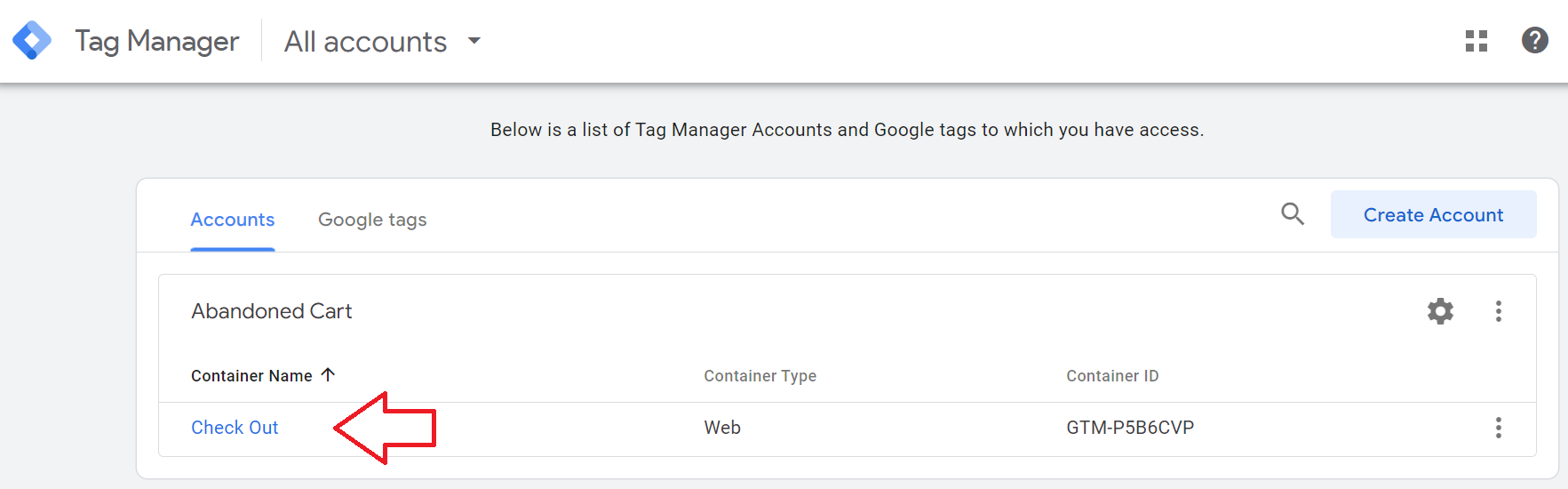
Login to your Google Tag Manager and select the Container name of the website you want to run Google Optimize on.
-
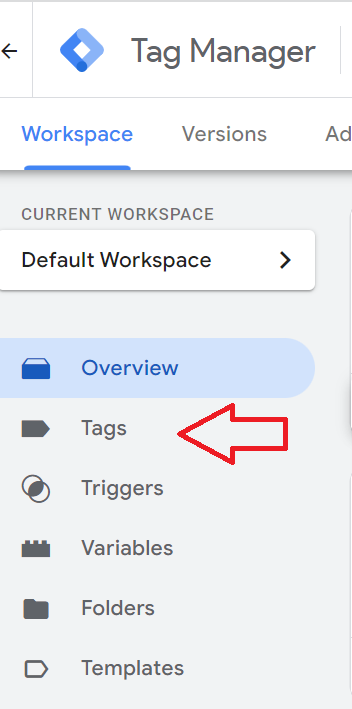
Click Tags from the left menu.
-
From the Tags section, click New.

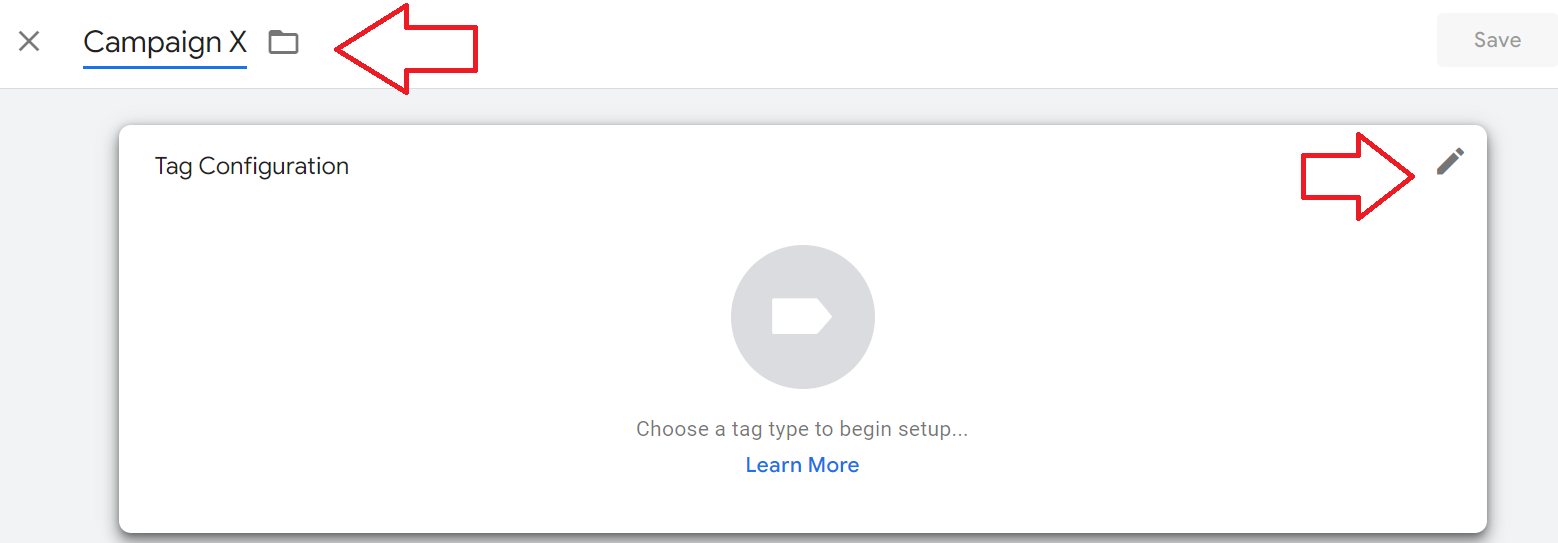
- Name your tag then click the Edit icon.
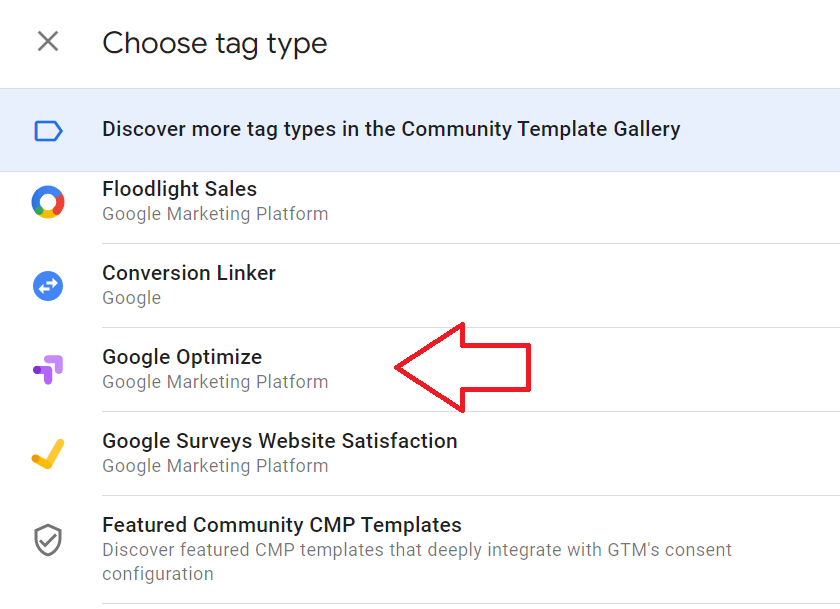
- Choose Google Optimize from the tag type options.
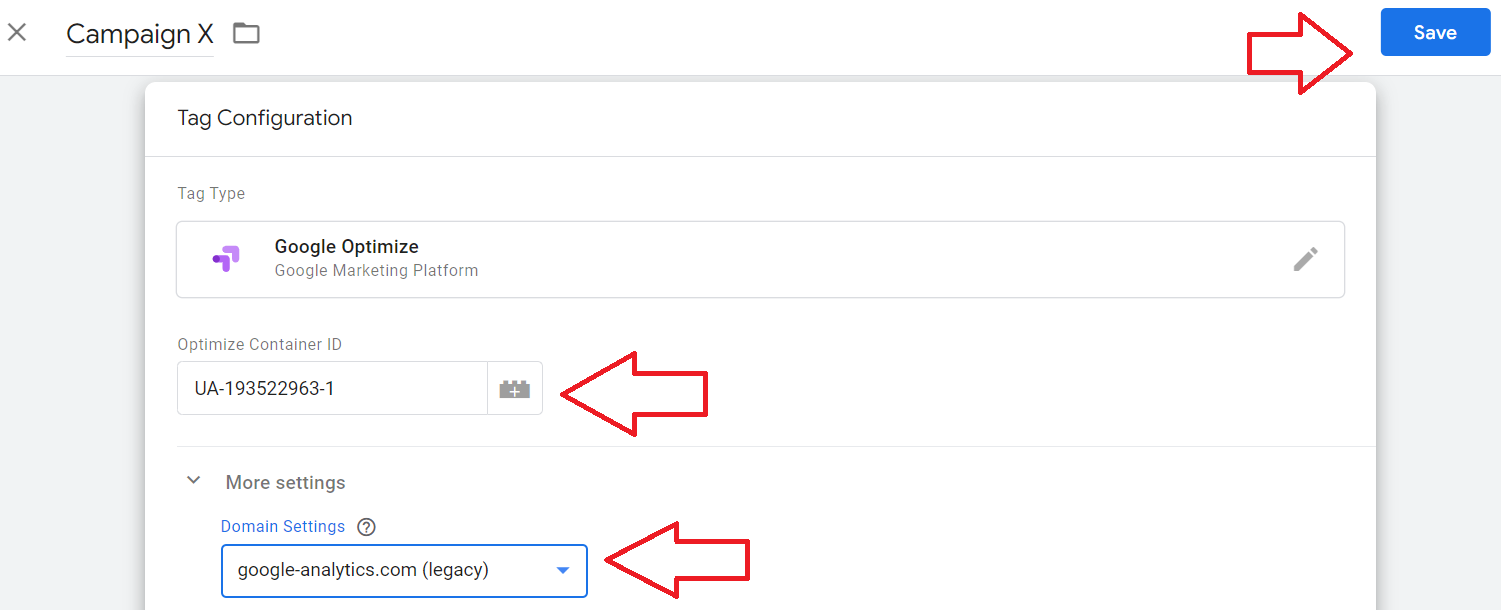
- Enter the Optimize Container ID you took note from Step 10 of configuring your Google Optimize experiment. Select More settings and select googlean-alytics.com for Domain Settings, then click Save.
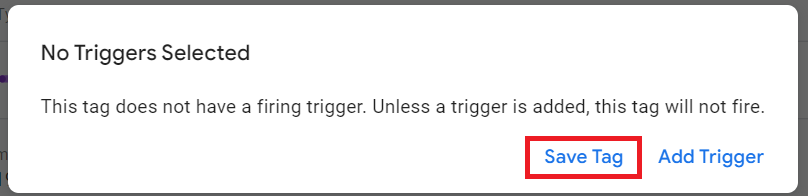
- Click Save Tag.
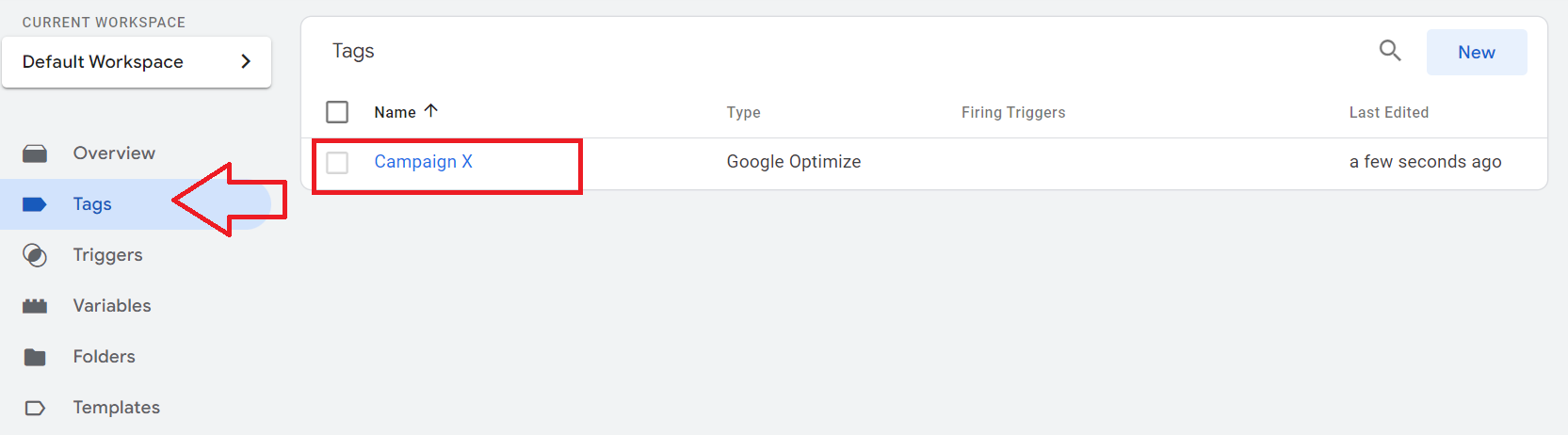
- Click Tags, then select the tag you just created.
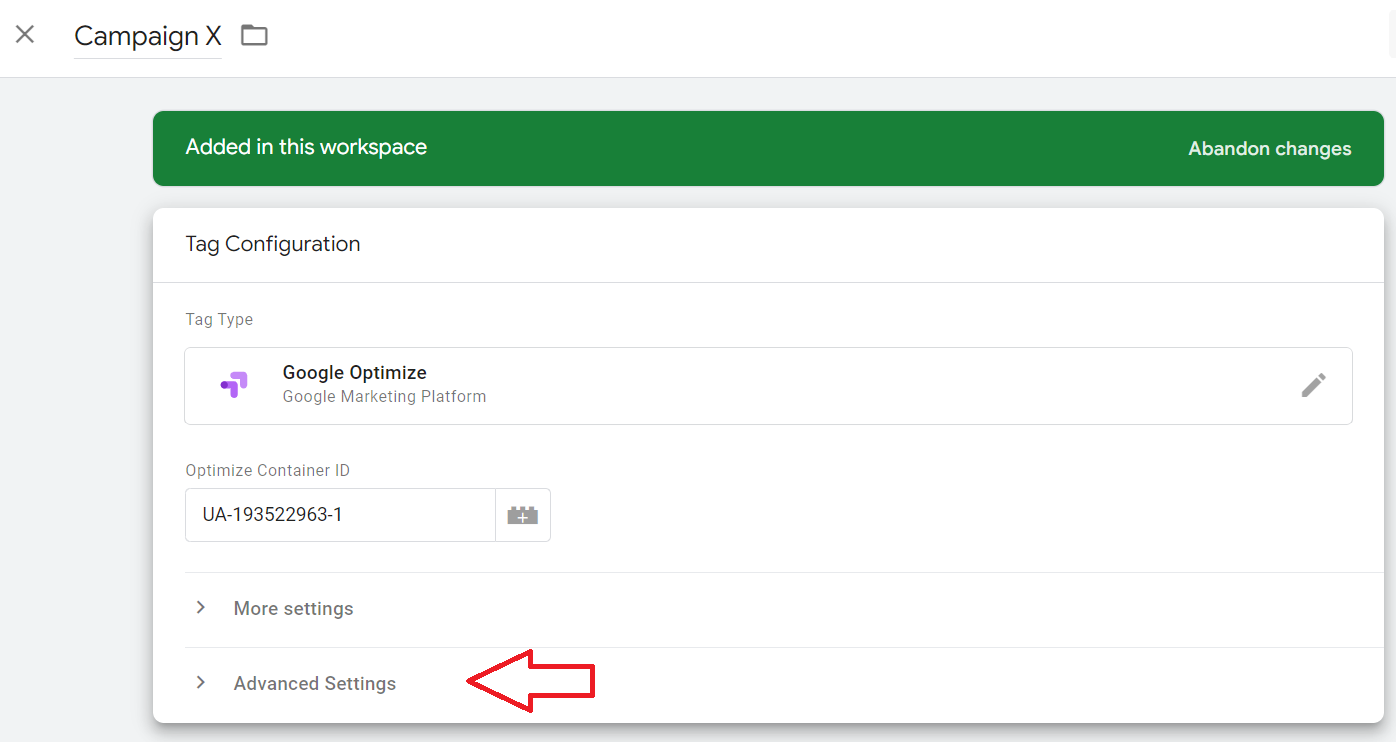
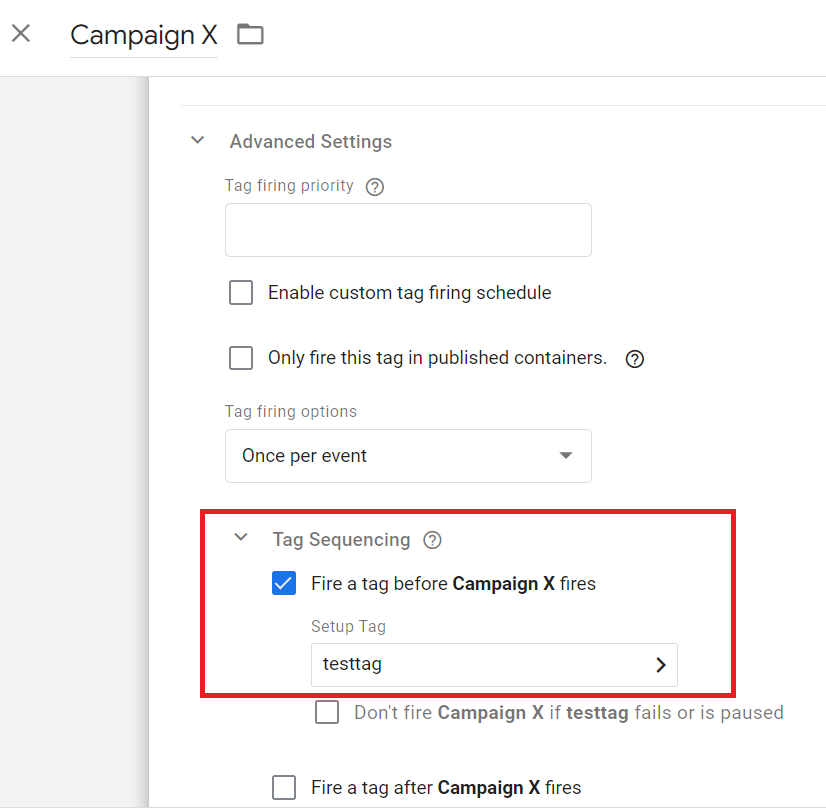
- From the Tag Configuration page, click Advanced Settings.
-
Go to Tag Sequencing, check the box for Fire a tag before your [campaign name] fires.
-
On the Setup Tag field, choose your Google Analytics tag, the save.
-
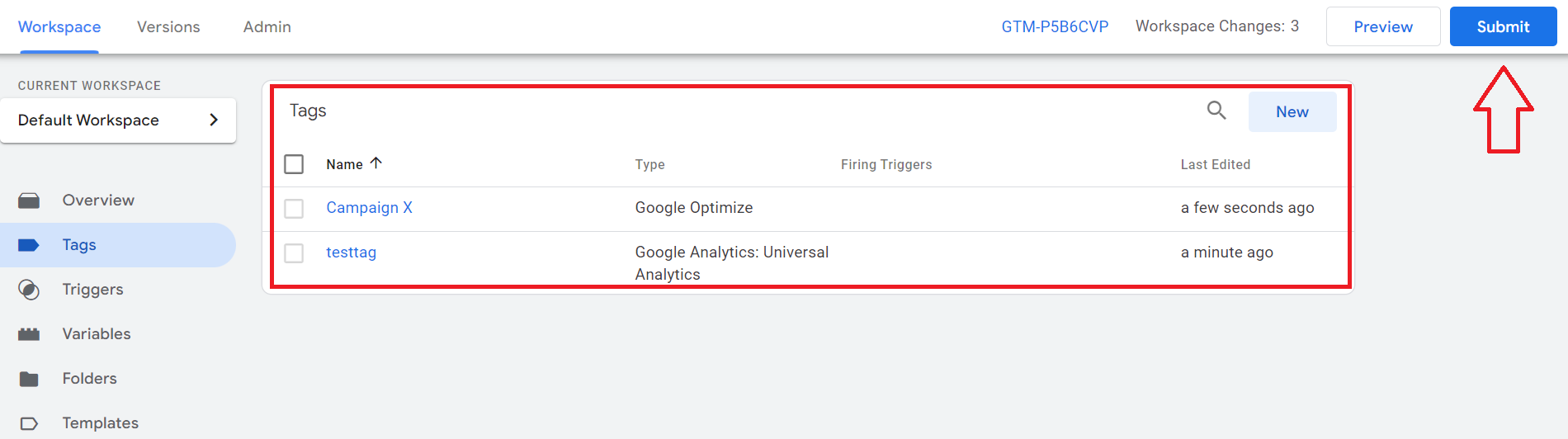
You should now see both your Google Analytics and Google Optimize tags on the main dashboard. Once you’re good with these settings, click Submit.
Conclusion
That’s it! Your A/B test is now configured and you can now run your experiments on your site.
-
Setting up an A/B test in Google Optimize allows you to determine which version of your website or app provides the best user experience and results in higher conversion rates.
-
You can run A/B tests continuously to optimize your website or app based on the results and improve user engagement and satisfaction.
-
Analyzing the results of your A/B tests will provide you insights to your customers’ behaviors and how different segments of your audience respond to different designs and content elements.
-
Results from your A/B tests provide you with concrete data and evidence to support your business decisions.
-
Link your Google Tag Manager to Google Optimize to run a more efficient A/B tests.