Setting Up Google Ads Conversion Tracking Using GTM
To provide you with a step-by-step guide on how to set up your Google Ads Conversion Tracking using Google Tag Manager (GTM).
Prefer a shortcut? 16 free tools do parts of this for you.

Aim: To provide you with a step-by-step guide on how to set up your Google Ads Conversion Tracking using Google Tag Manager (GTM).
Optimal Outcome: Improve your ads campaign strategy by tracking and measuring specific actions that your customers take after clicking your Google Ads.
What do you need to start: You’ll need the following:
-
Google Ads account
-
Google Tag Manager account
-
Conversion ID and Conversion Label
Why is this SOP Important: Google Ads conversion tracking allows you to analyze customer behaviors as they interact with your ad which you can use to optimize and and improve your ad campaign, make data-driven decisions, better bid strategy, and increase accountability.
When and Where to execute: Google Ads conversion tracking should be set up after you’ve set up a specific action on your website that you want to track, such as purchase or sign-up.
Who Should Be Doing This: Digital marketer, website developer or administrator
What is Google Ads Conversion Tracking?
Google Ads conversion tracking is a feature in Google Ads that allows advertisers to track and measure specific actions or conversions taken on their website after someone clicks on their ad. This helps advertisers understand the effectiveness of their campaigns and make informed decisions about future advertising efforts. Examples of conversions that can be tracked include purchases, form submissions, and phone calls.
Execution
-
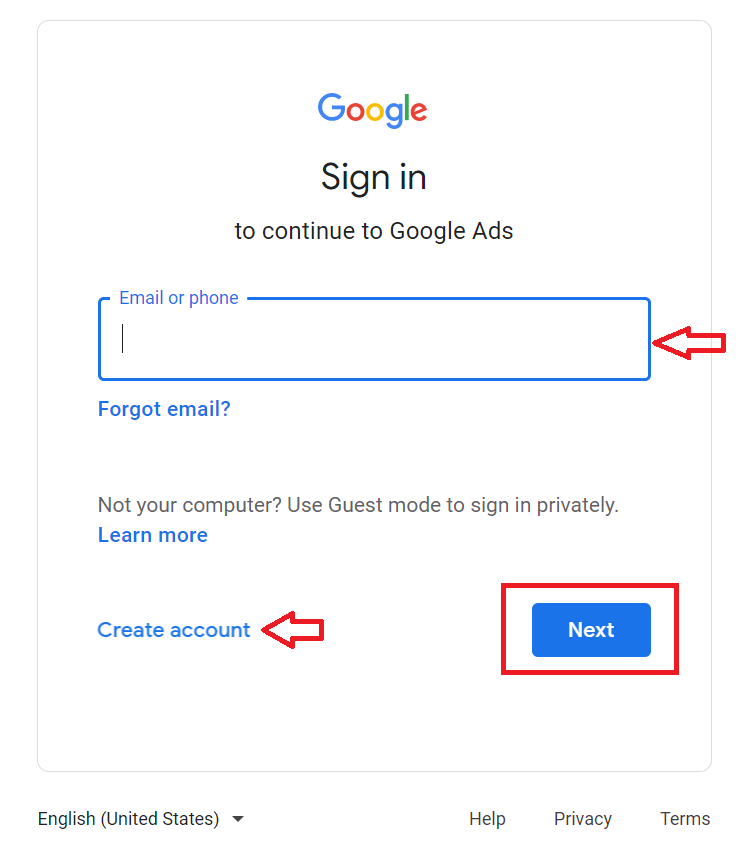
Login or Create an account.
-
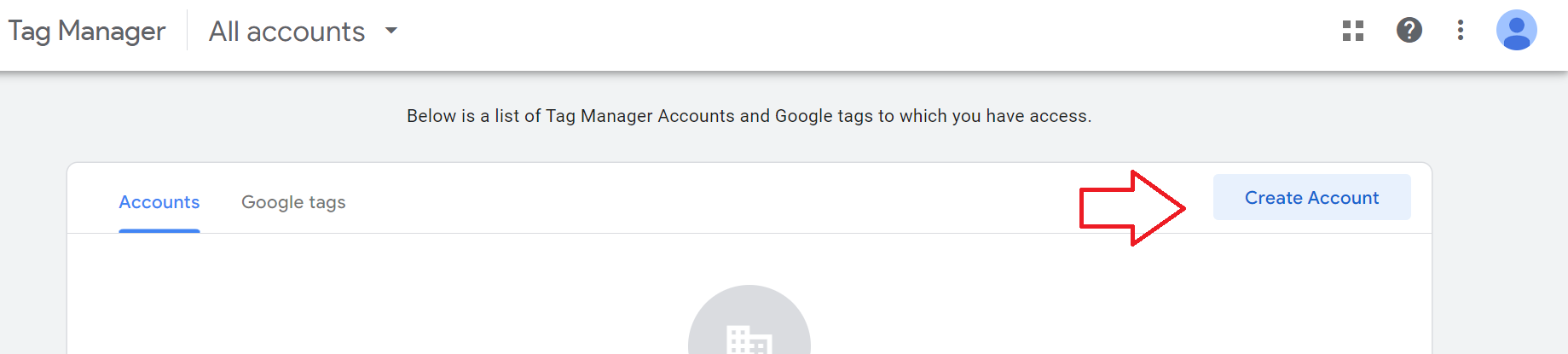
From the main dashboard, click Create Account.
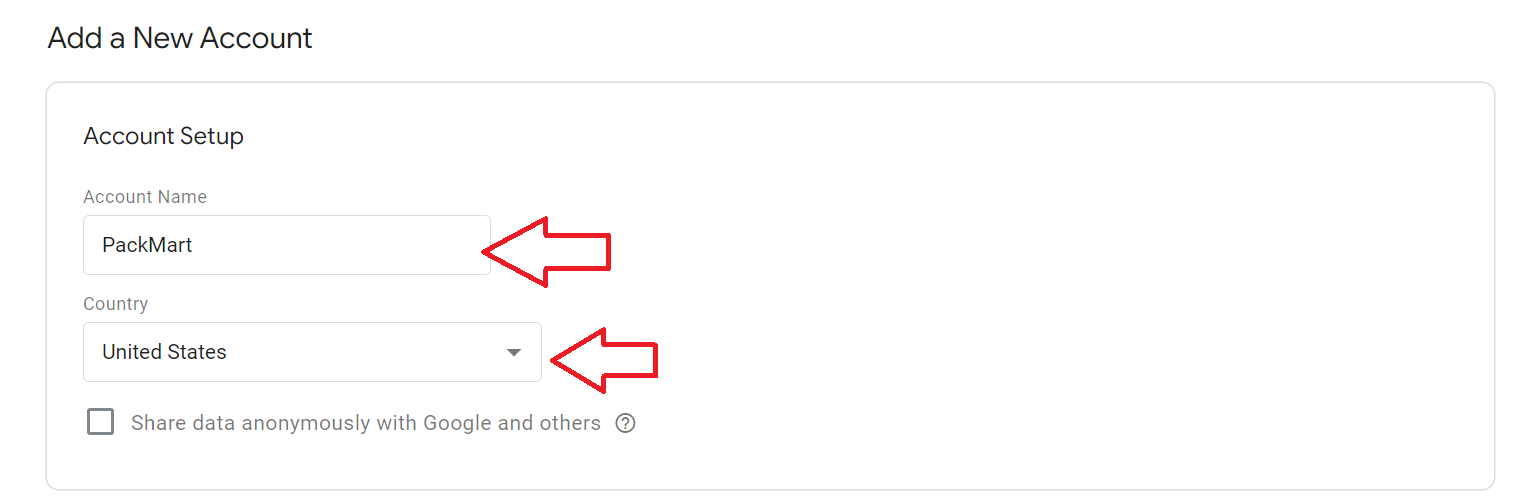
- Add the name of your business and select the country.
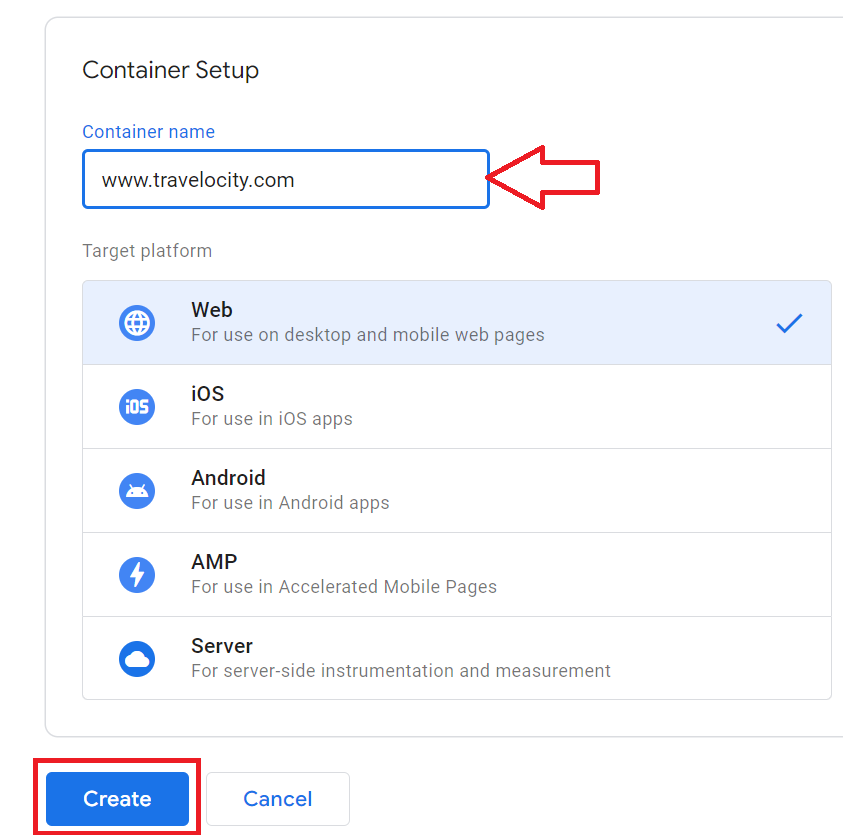
- Fill out the field for your website and select your target platform.
Note: Container is a collection of tags, triggers, variables, and related configurations installed on a given website or mobile app.
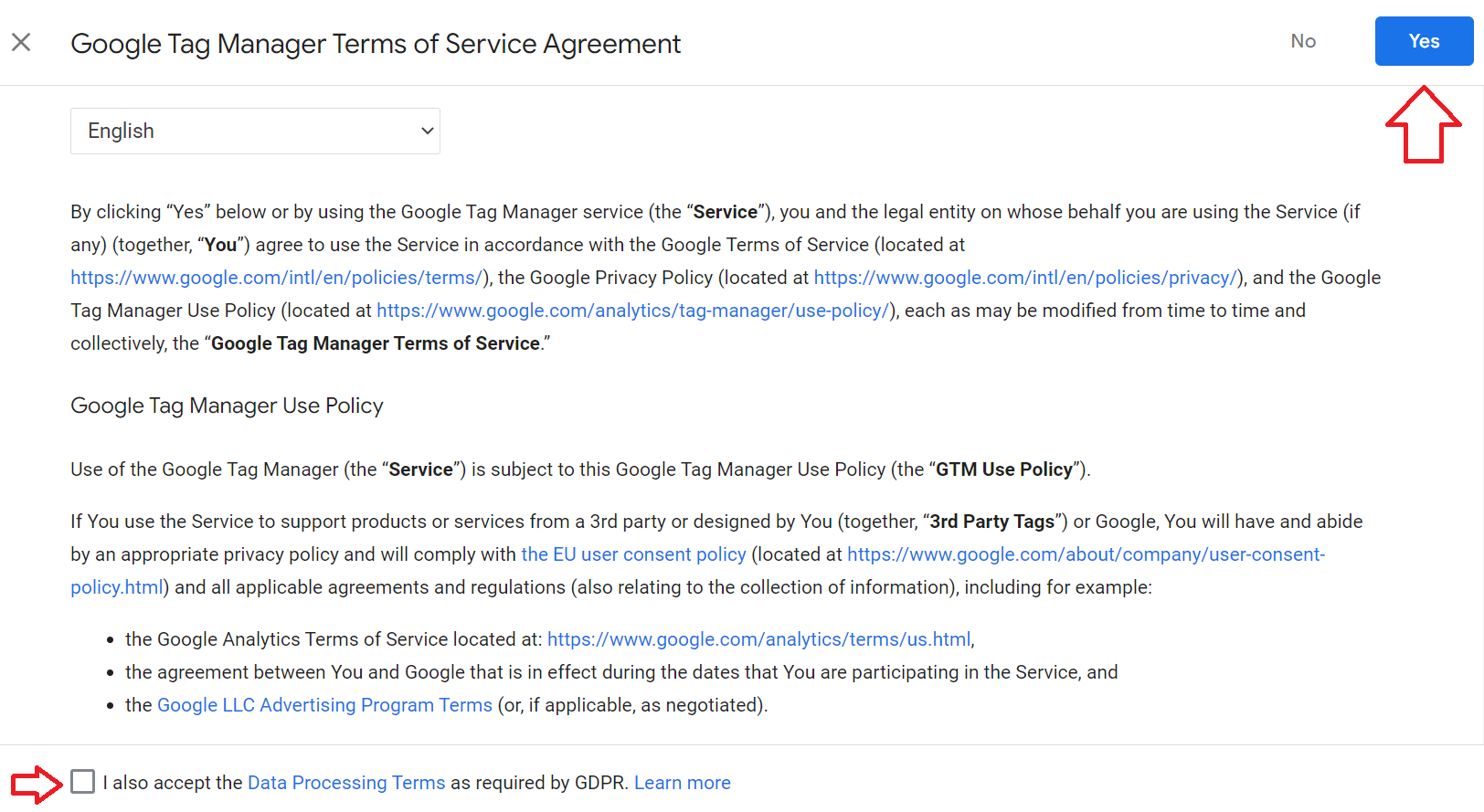
- Read and agree to the Terms of Agreement.
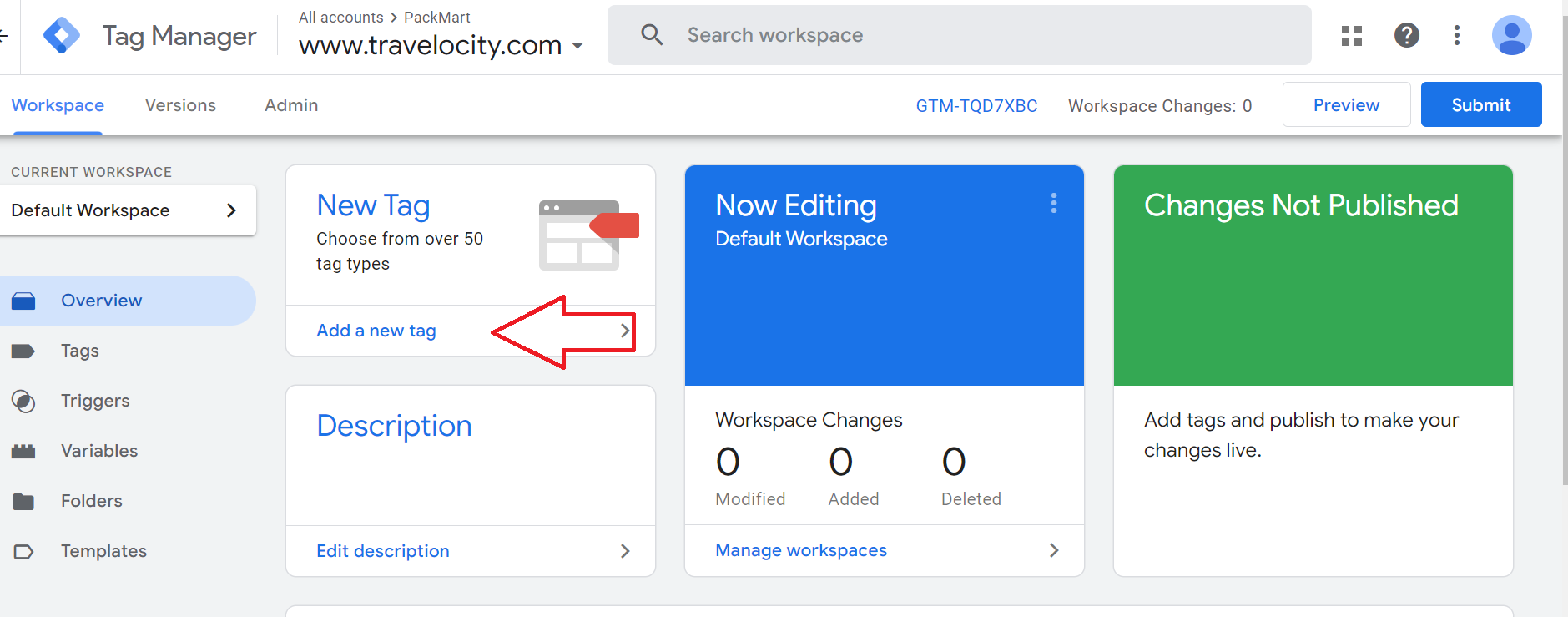
- From the main dashboard, click Add a new tag.
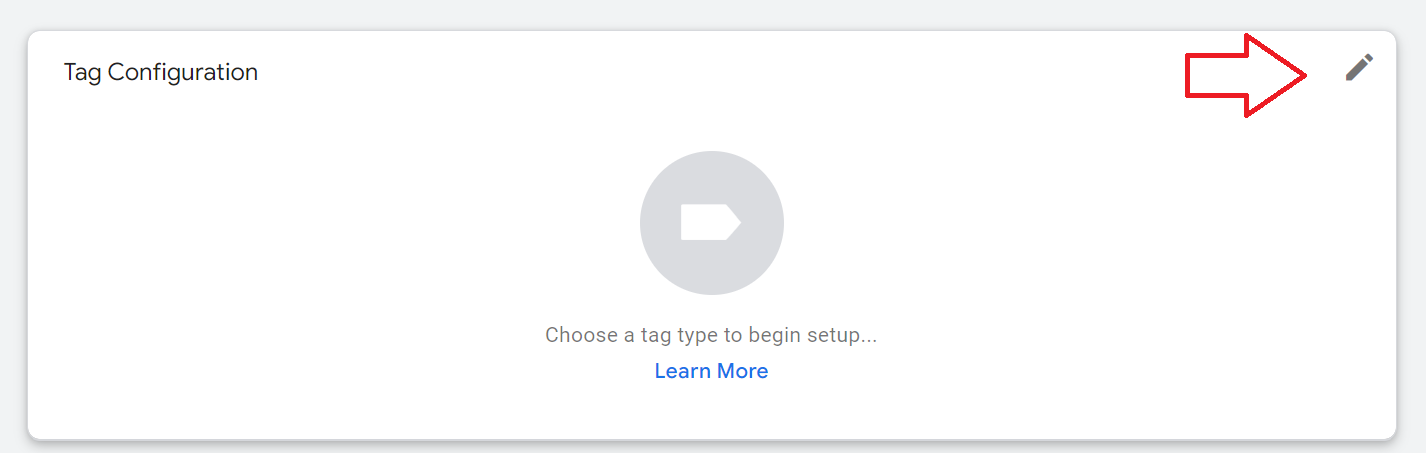
- In the Tag Configuration section, click the edit icon.
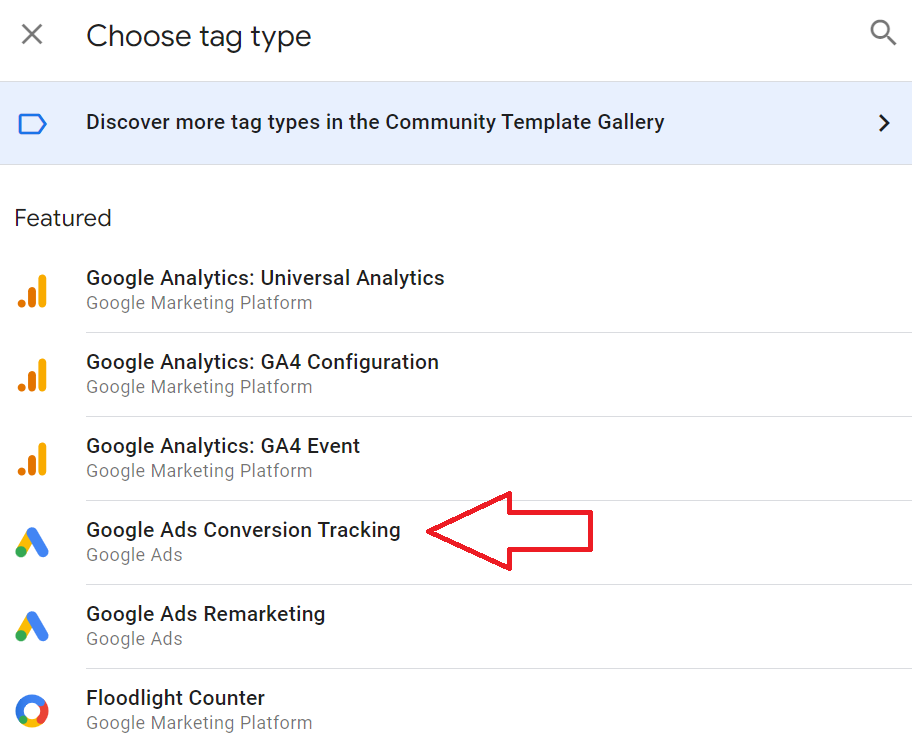
- Choose Google Ads Conversion Tracking as the tag type.
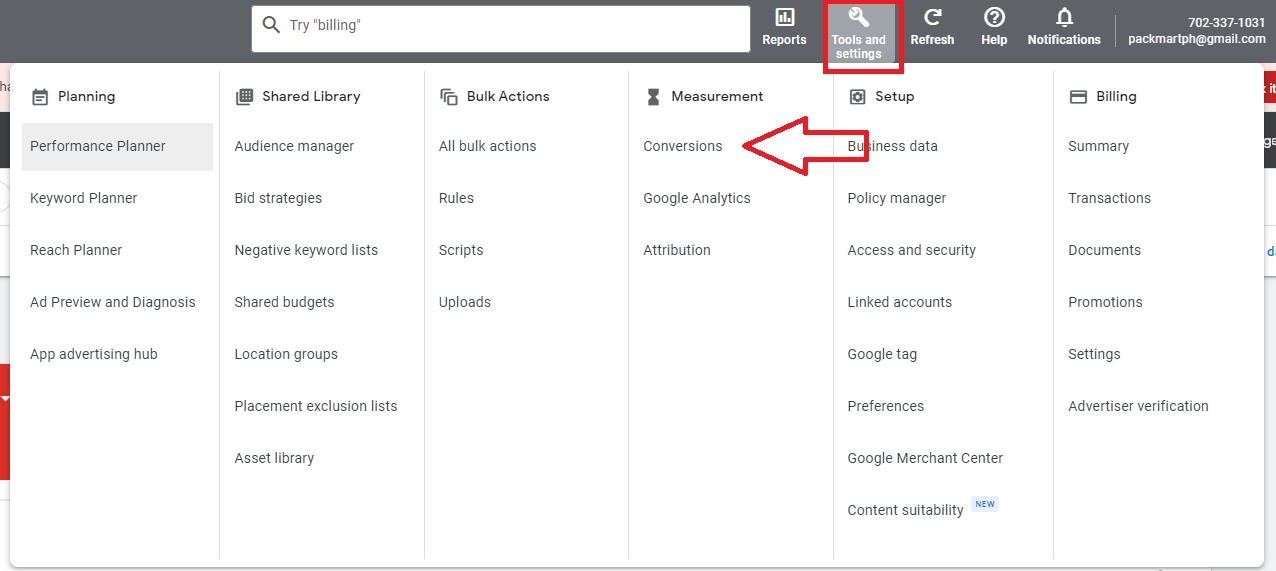
- Next, login to your Google Ads account. Click Tools and settings from the top menu. Under Measurement, click Conversions.
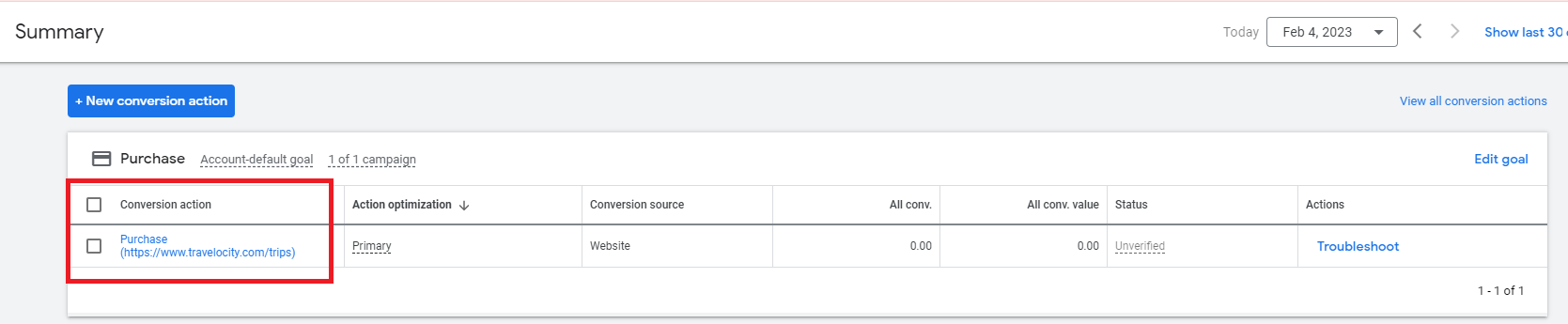
- From the conversion table, select the name of the conversion that you want to use from the Conversion action column.
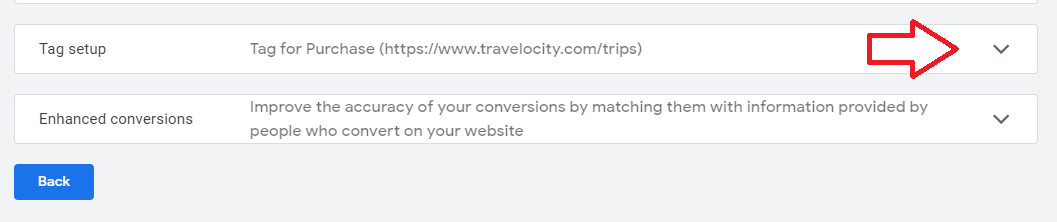
- Expand the tab for Tag setup to view the tag details.
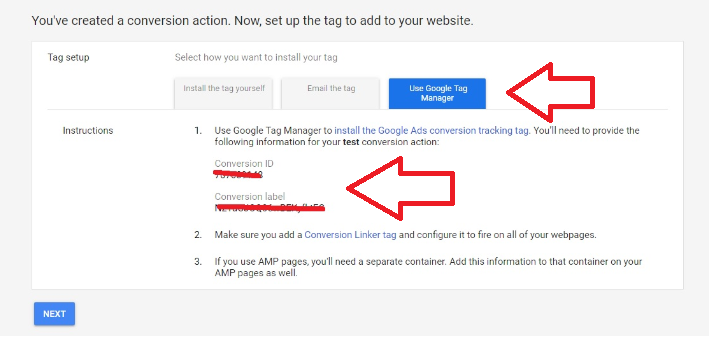
- Select Use Google Tags Manager and take note of Conversion ID and Conversion Label information.
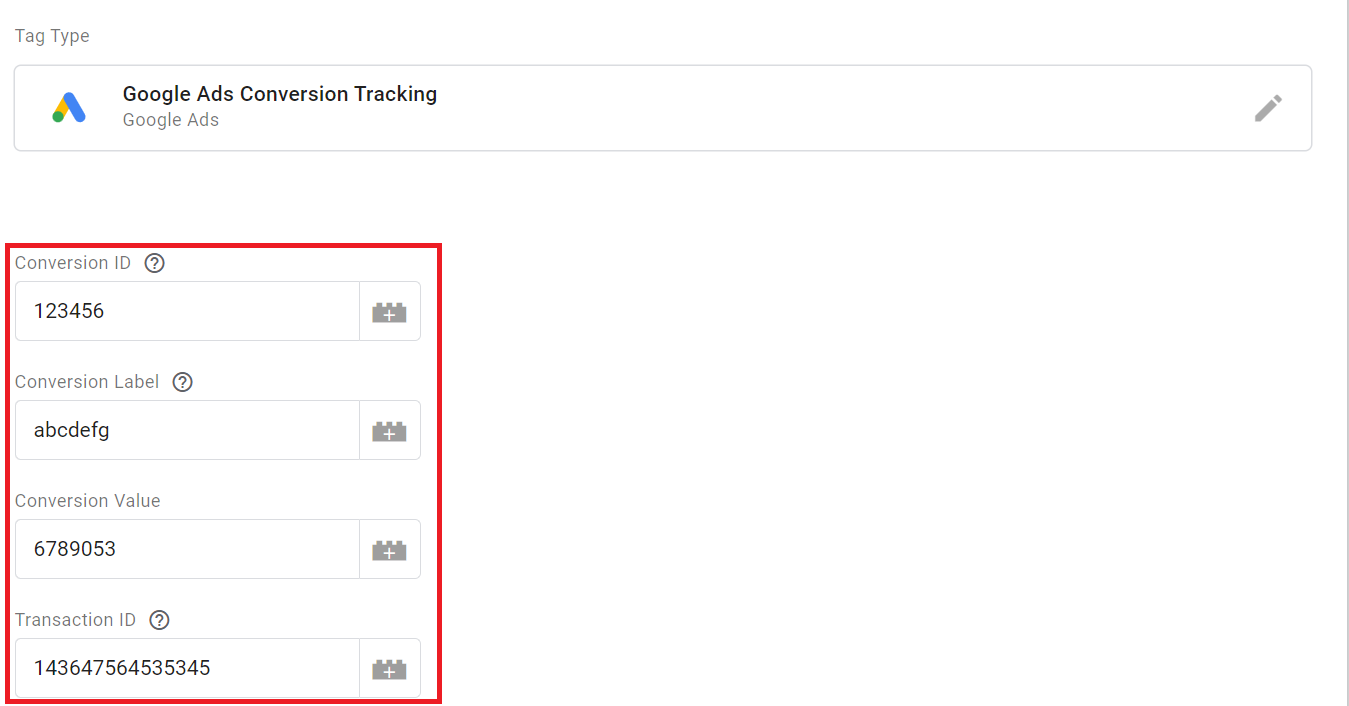
- Back to the Google Tag Manager, fill out the fields for Conversion ID, Conversion Label.
Optional: You can add a Conversion Value and Transaction ID. Make sure to use Tag Manager variables for these field values whenever applicable.
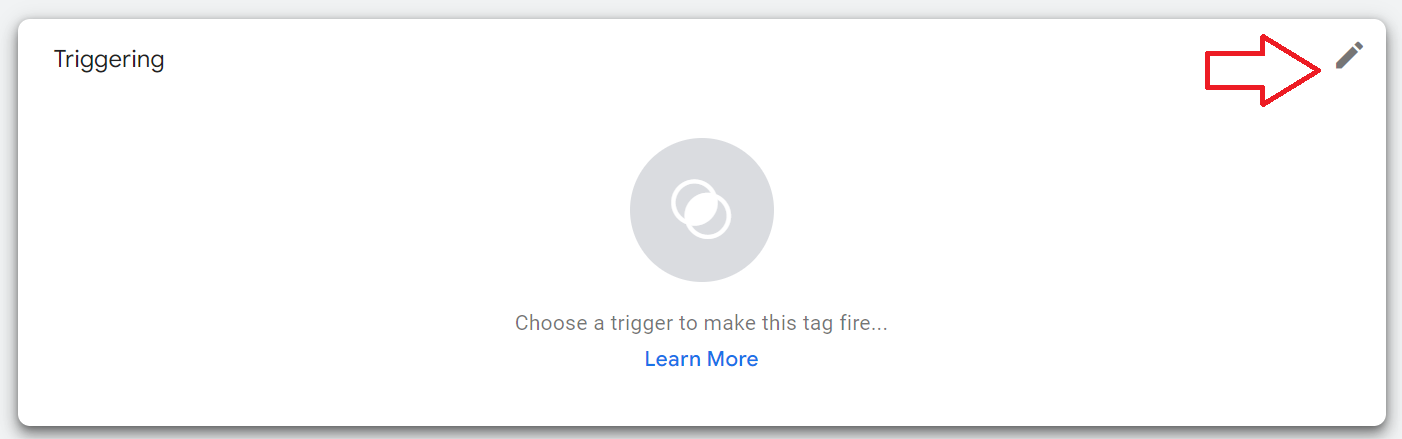
- Next, customize the settings for Triggering.
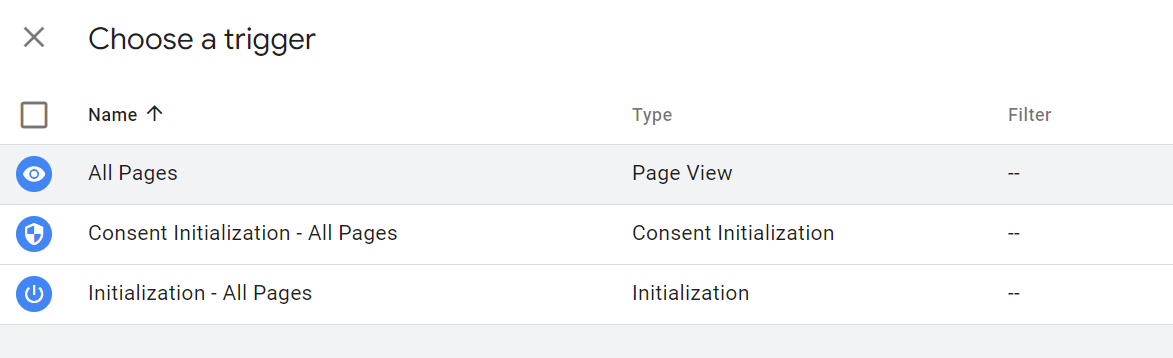
- Choose the page from your website that you want to track.
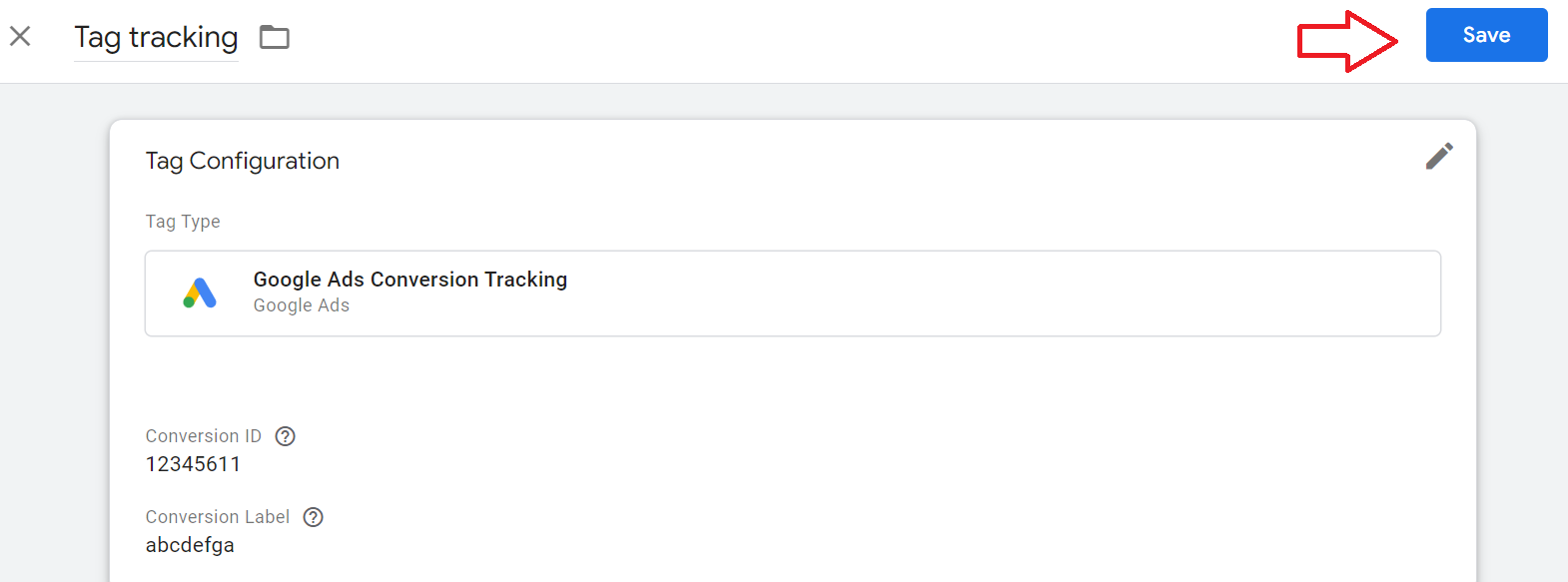
- Review your changes then click Save.
Conclusion
You’re done! Remember that tracking your Google Ads conversion allows you to optimize your ads strategy.
-
Conversion data provides insights into what is working and what needs to be improved, enabling you to make data-driven decisions about your campaigns.
-
You can use conversion data to adjust your bids for keywords and targeting strategies that drive the most conversions, increasing the chances of meeting performance goals.
Conversion tracking provides a clear and accurate measure of return on investment (ROI) for campaigns and ad spend. -
Conversion tracking provides a clear measure of success for each of your campaigns, making it easy to justify ad spend to stakeholders.