A Guide to Advertising on Google Maps for Improved Local Visibility
To guide you through the step-by-step process of setting up your Google Map ads.
Prefer a shortcut? 16 free tools do parts of this for you.
Aim: To guide you through the step-by-step process of setting up your Google Map ads.
Optimal Outcome: Increase foot traffic to your physical store or location.
What do you need to start: Google Ads account and Google Business Profile
Why is this SOP Important: Ads on Google Maps make it easy for customers to find your local or physical store.
When and Where to execute: You can set your Google Maps ads through Google Ads Manager. Timing of your ads will depend on your business goals and needs but it’s ideally at the early stages of your marketing plan.
Who Should Be Doing This: Marketing staff
What is Google Maps advertising?
Google Maps Ads allow businesses to display their location information, including their address, phone number, and website URL, on Google Maps. This type of advertising helps businesses to promote their products or services to potential customers who are searching for nearby businesses on Google Maps. Advertisers can target their ads based on specific locations, keywords, and user demographics.
Execution
Set up or update your Google My Business Profile
-
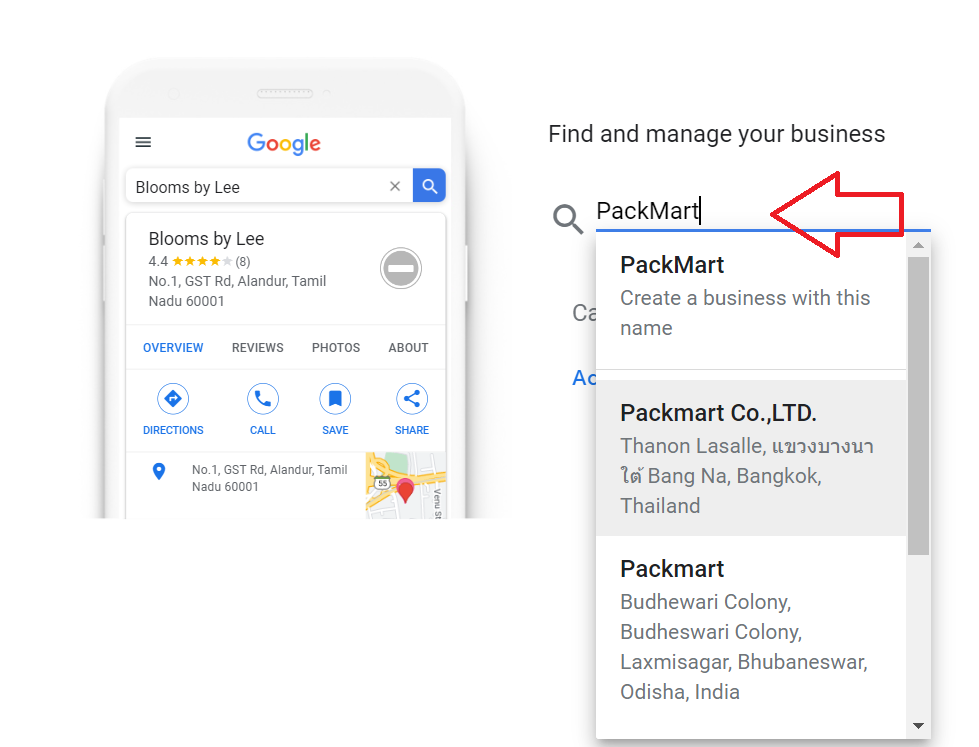
Type the name of your business.
-
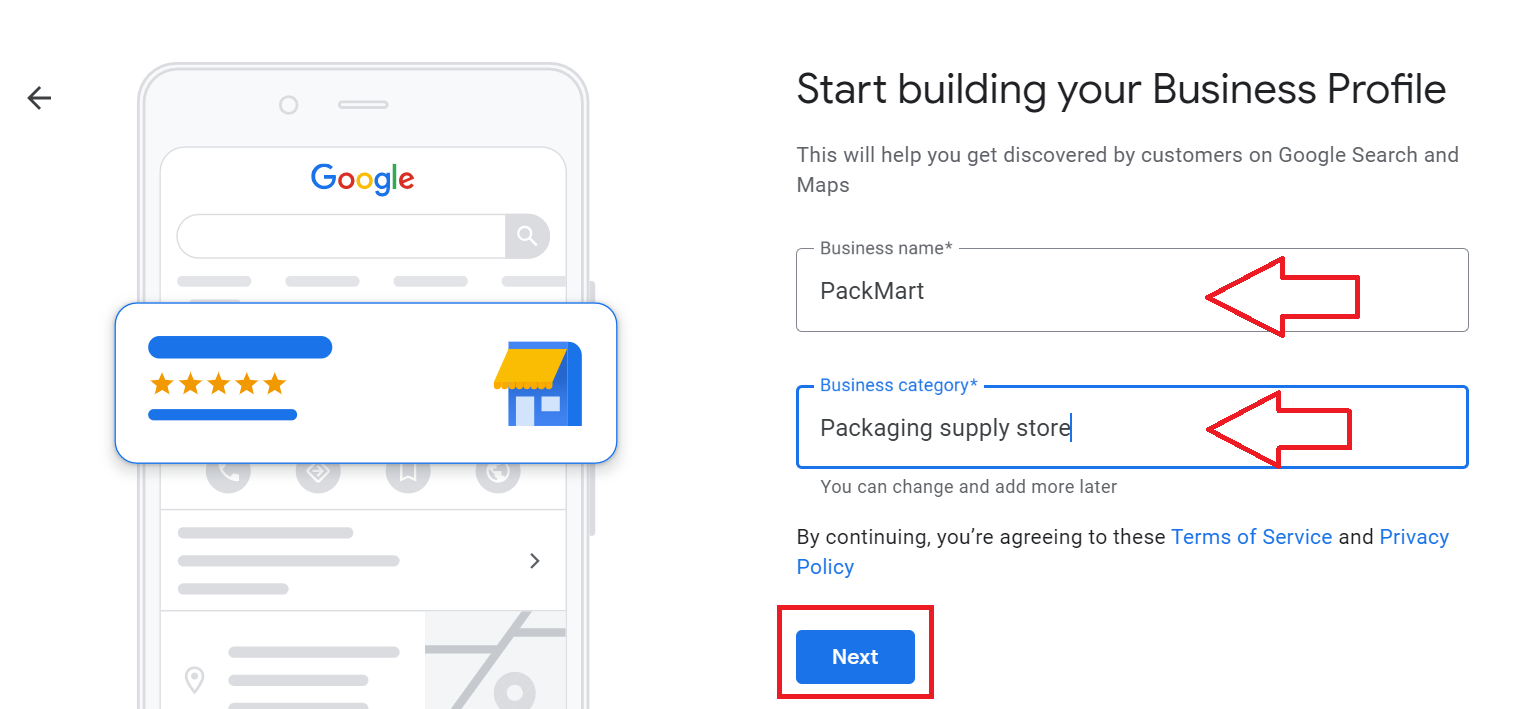
Fill out your business name, business category, then click Next.
-
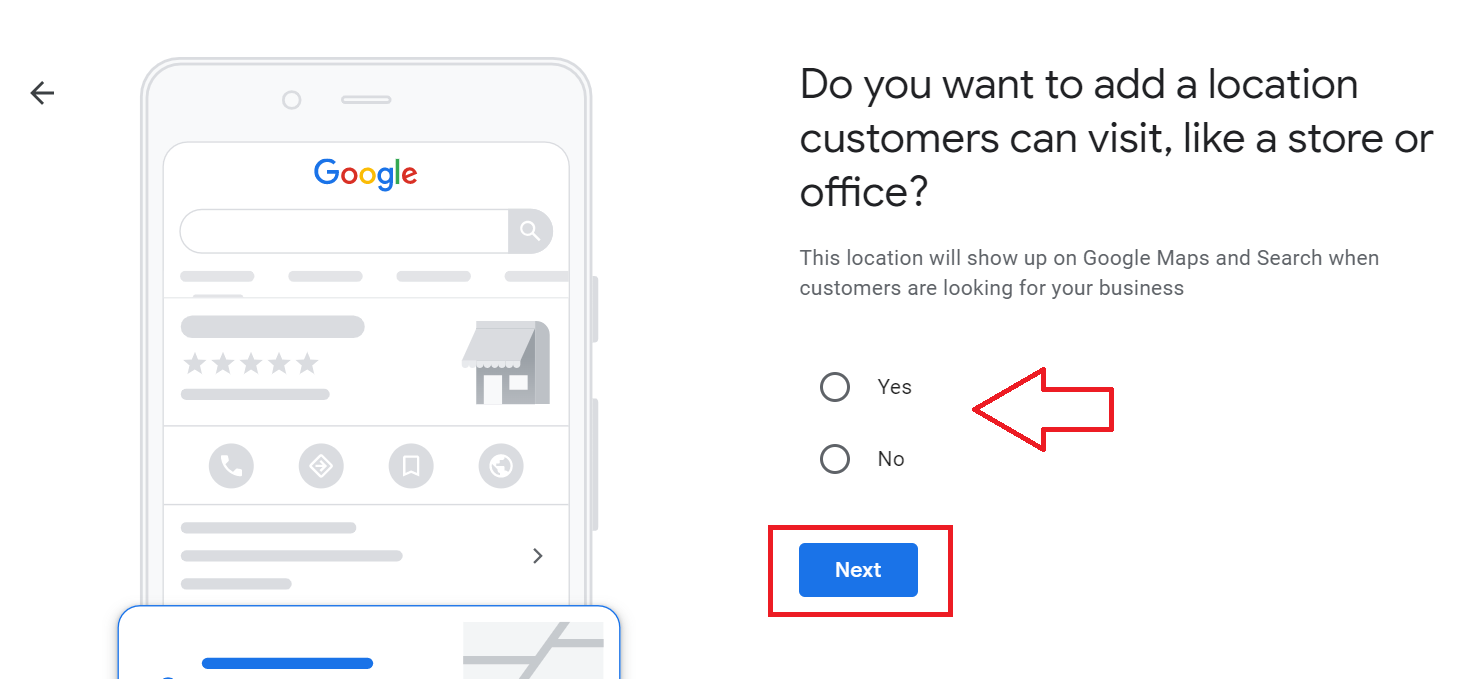
Choose whether you want to add a physical location.
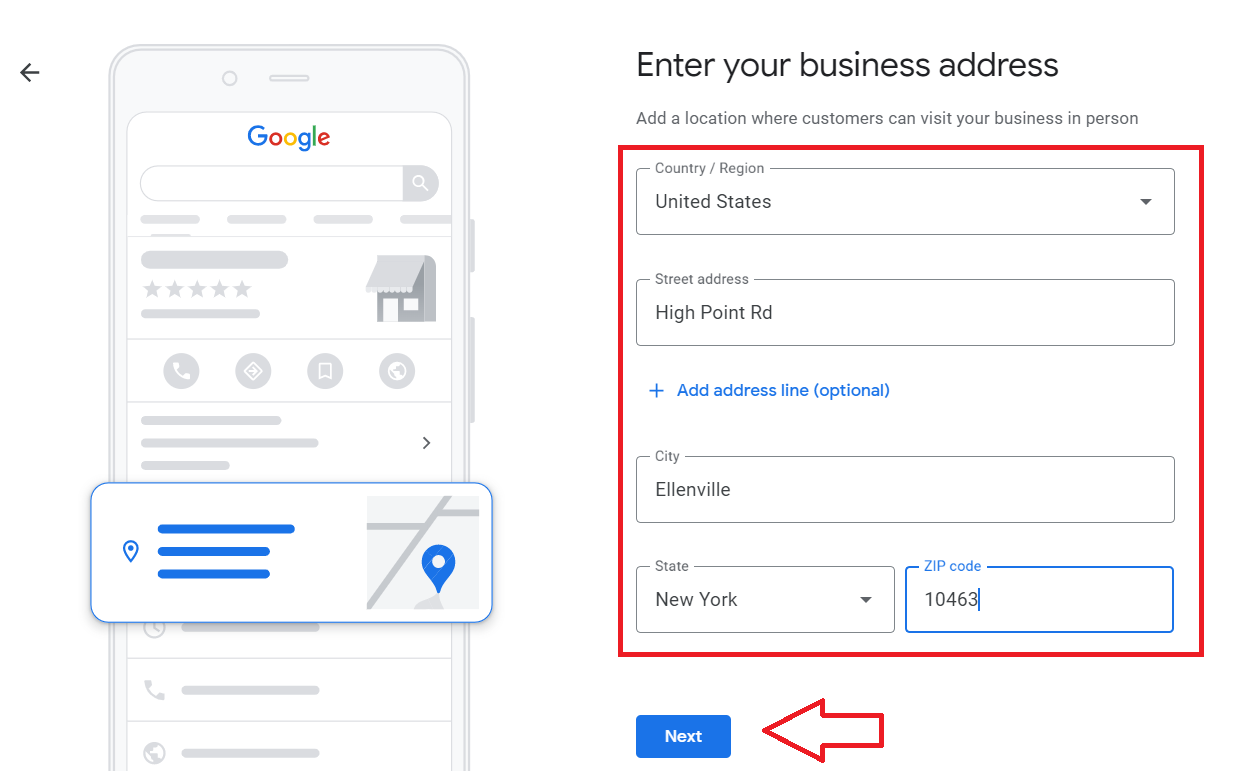
- Enter your business address and then click Next.
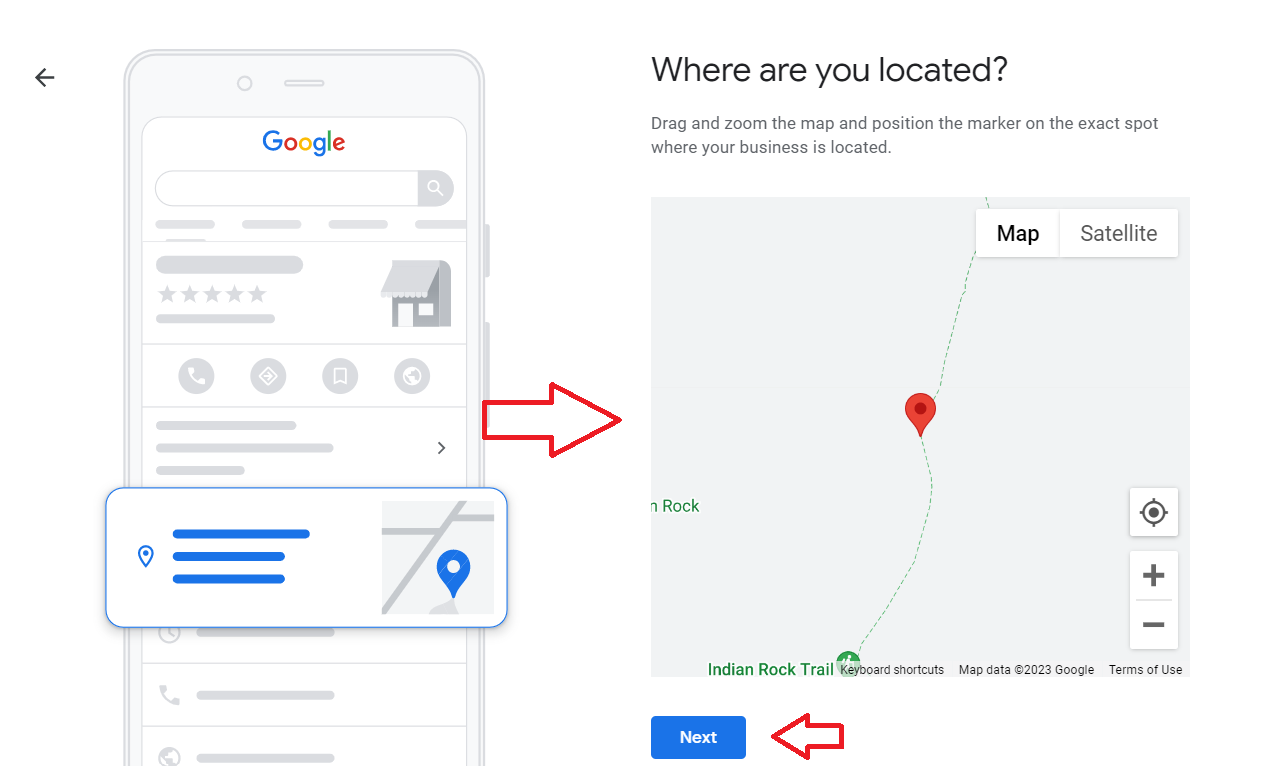
- Find your exact location from the map, then click Next.
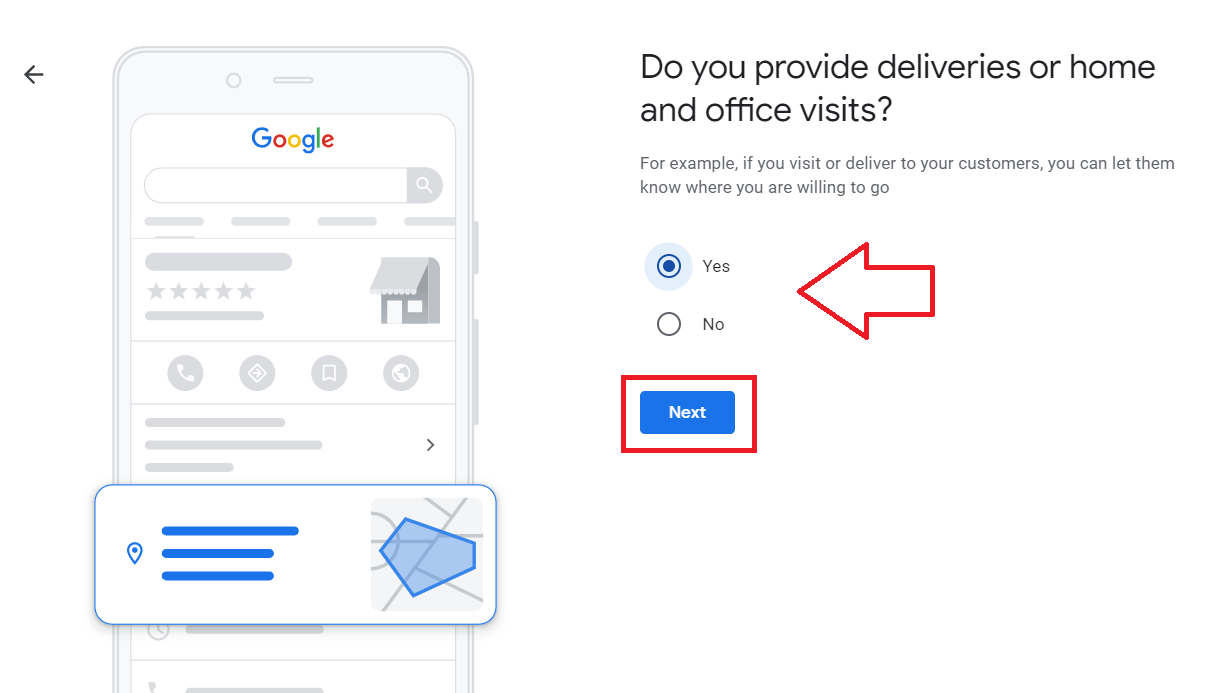
- Indicate if you provide deliveries or office visits. Click Next.
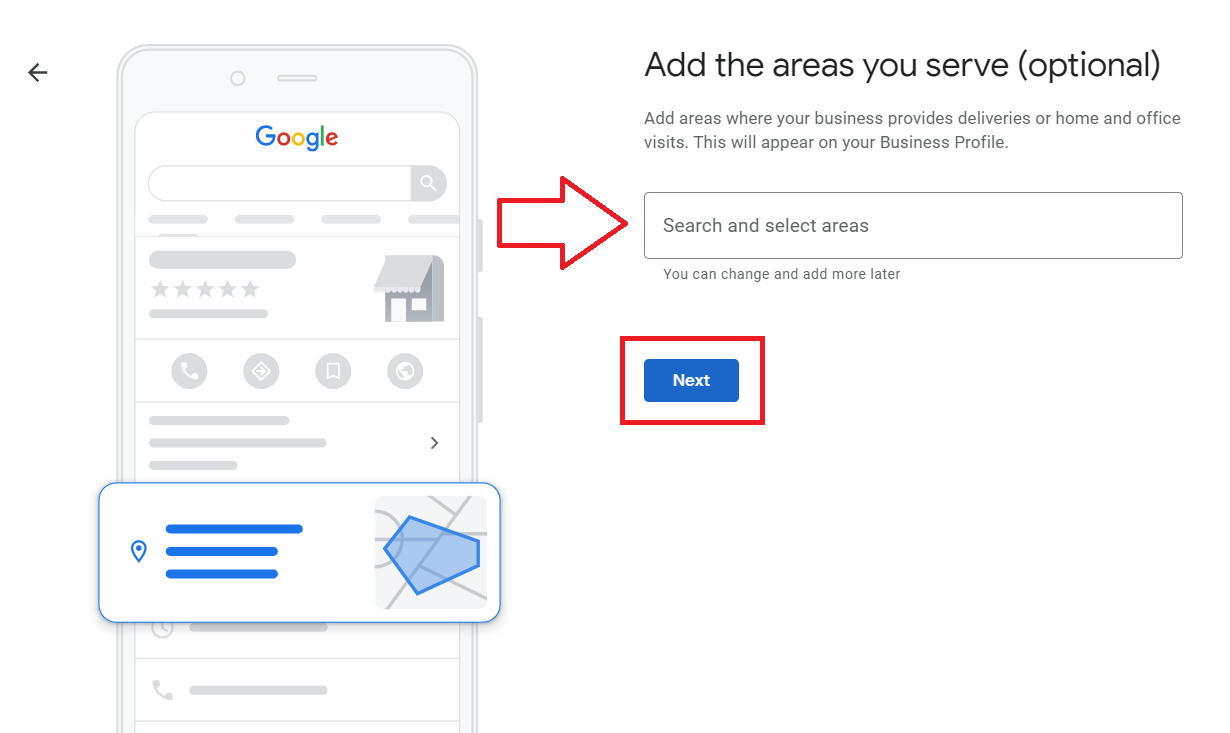
- Add the areas covered by your product or service. Then click Next.
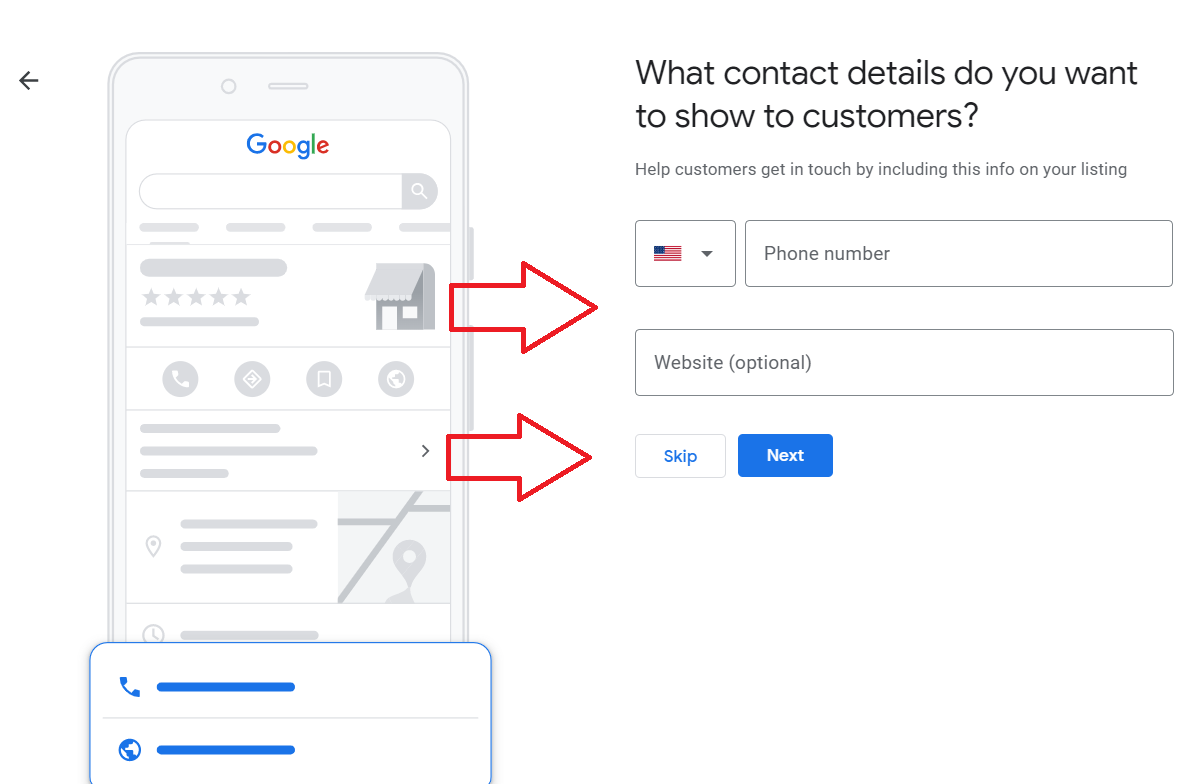
- Fill out the contact details where your customers can reach you then click Next.
You can also Skip this section and complete it later.
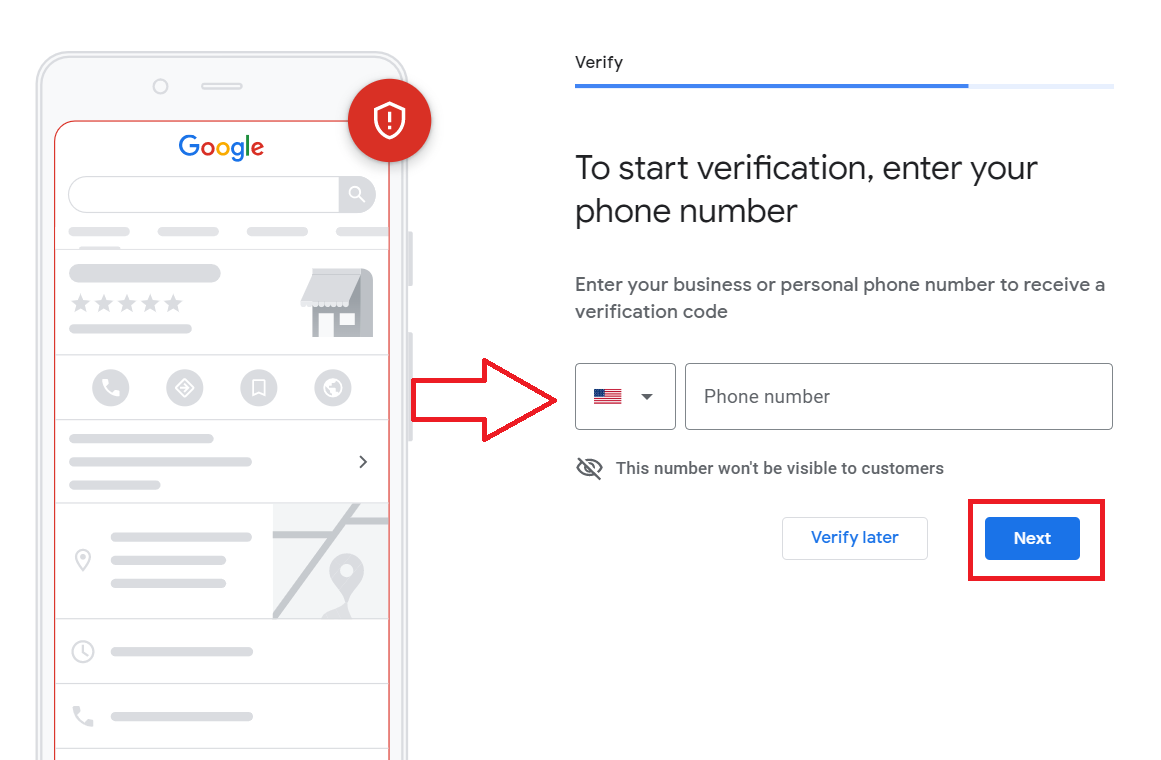
- Verify your phone number and click Next.
Note: You can skip this section but your business will not be publicly visible until you verify your profile.
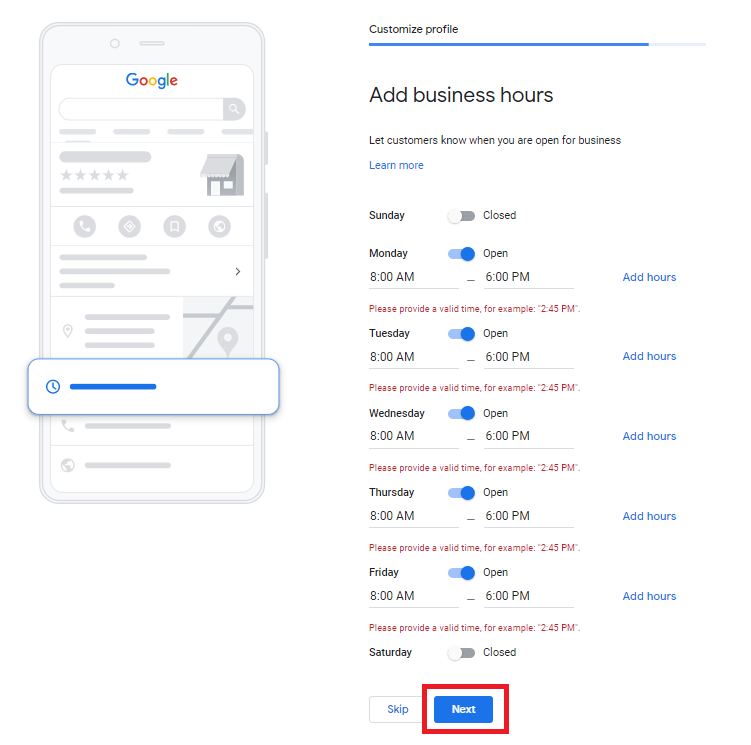
- Set your business hours, then click Next.
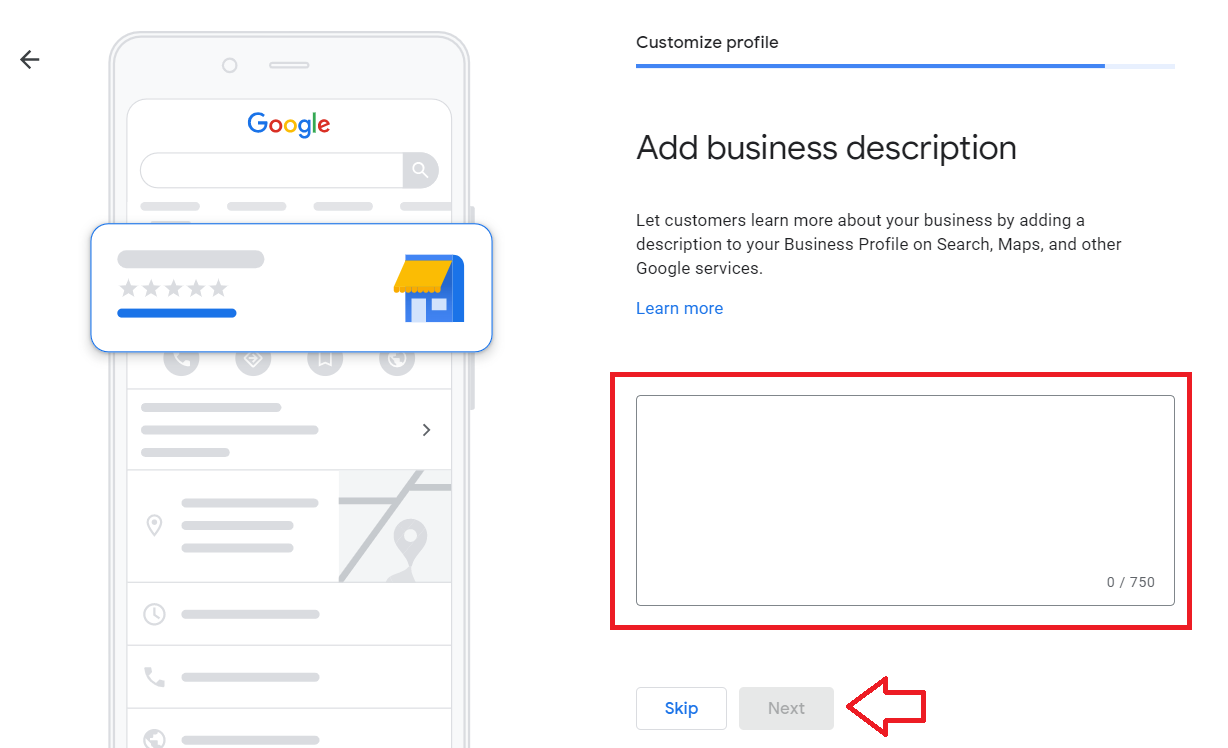
-
Add your business description to let your customers know what it is that you offer.
-
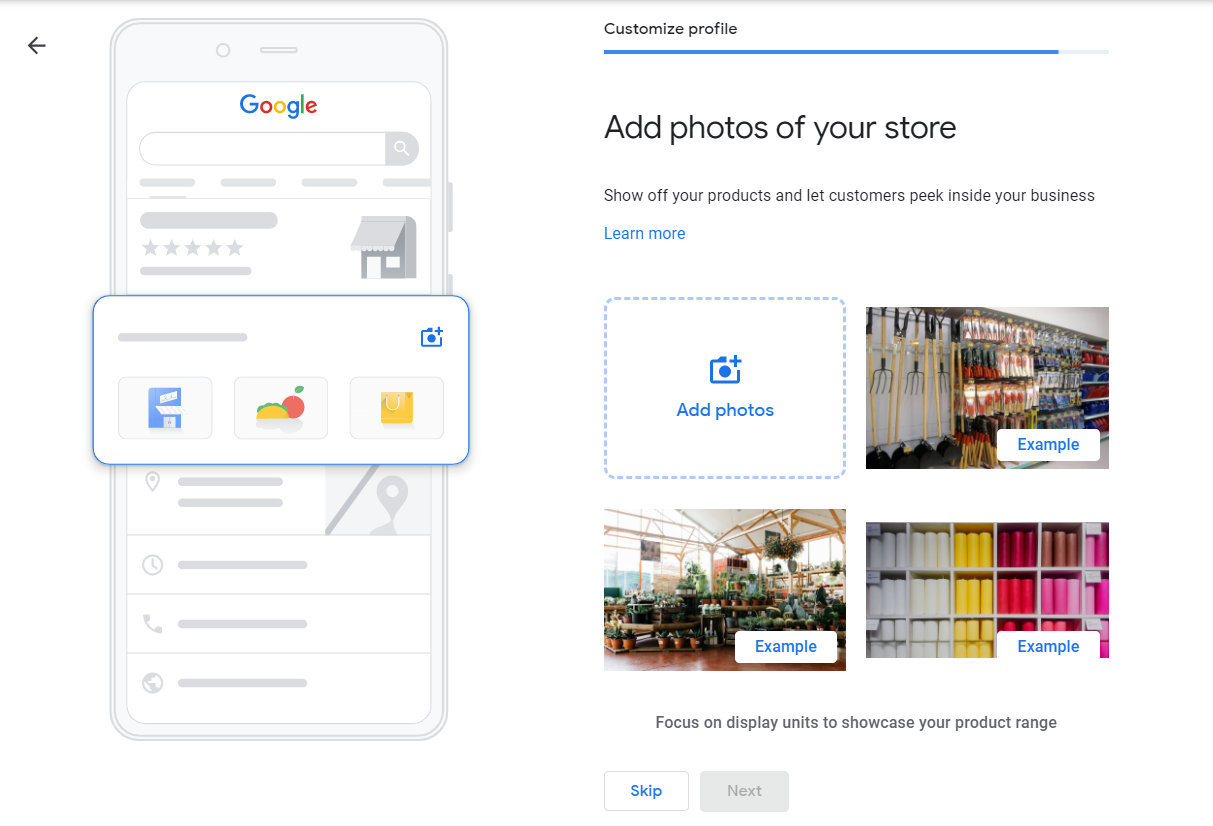
Lastly, add photos of your store. Make sure that the photos are engaging and show the customer exactly what your business is about.
Link your Google Business Profile to your Google Ads account
-
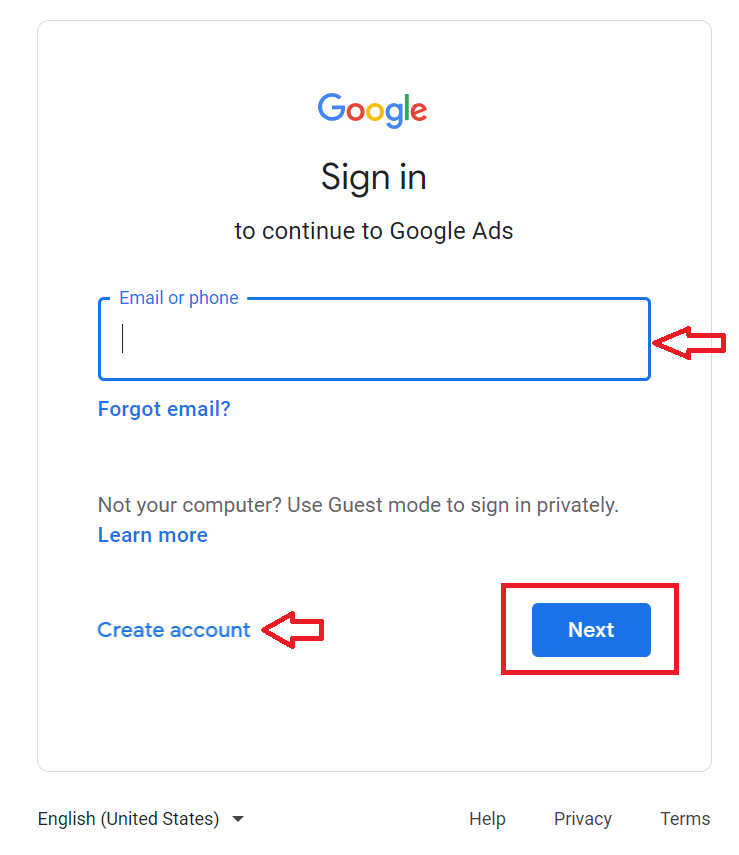
Go to https://ads.google.com.
-
Login or Create an account.
Note: Make sure that you’re using the same account as the one you used for Google My Business.
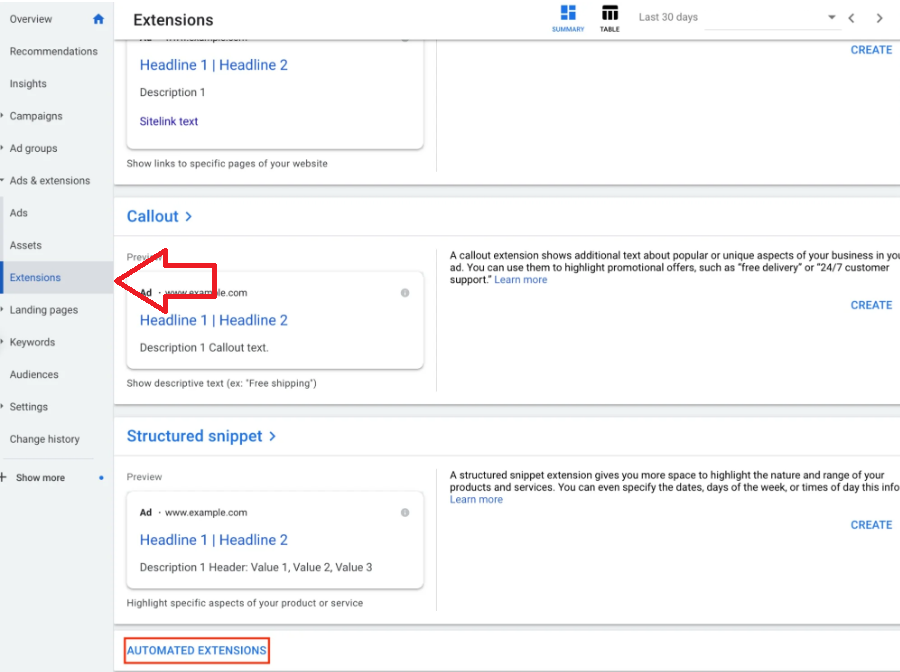
- Enable the Google location extension. On the left menu, click Extensions, then scroll to the bottom of the page and click Automated Extensions.
Note: You’ll need to have an existing Google search ads running to enable Google's location extension. If you haven’t done so, follow this guide SOP 002: How to Set Up a Google Search Campaign.
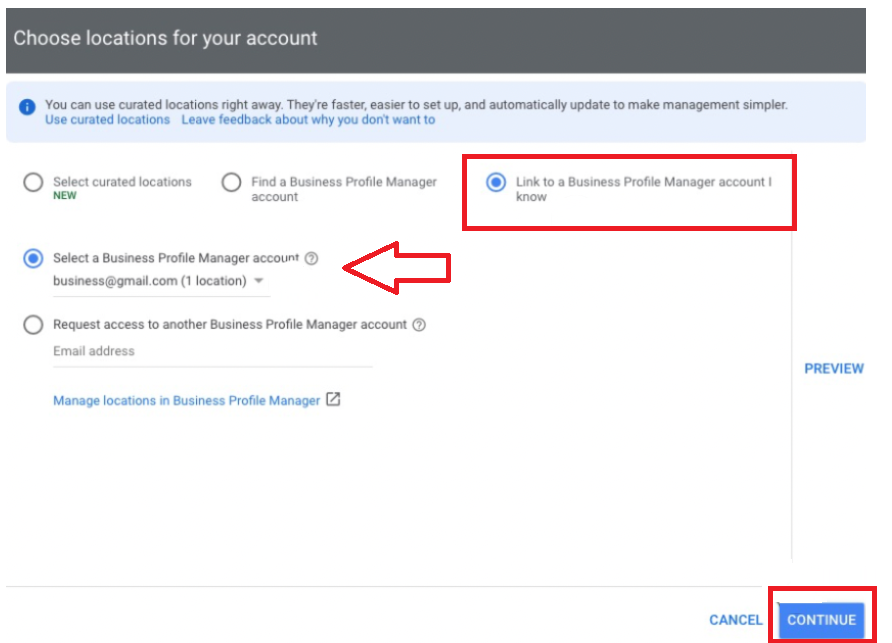
- Choose Link to Business Profile Manager account I know, then Select a Business Profile Manager account. Then click Continue.
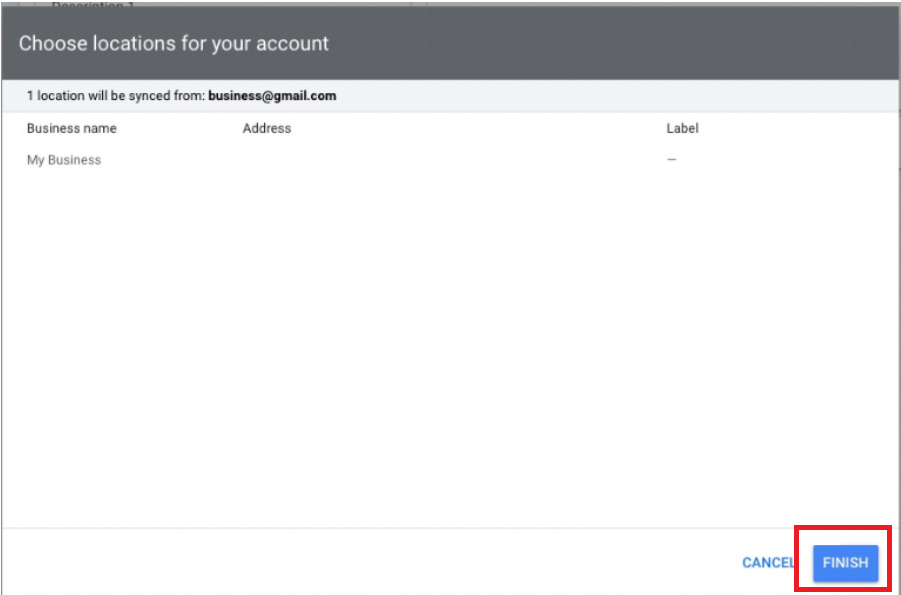
- If you set up multiple locations for your business, you can select one or all of them from the list.
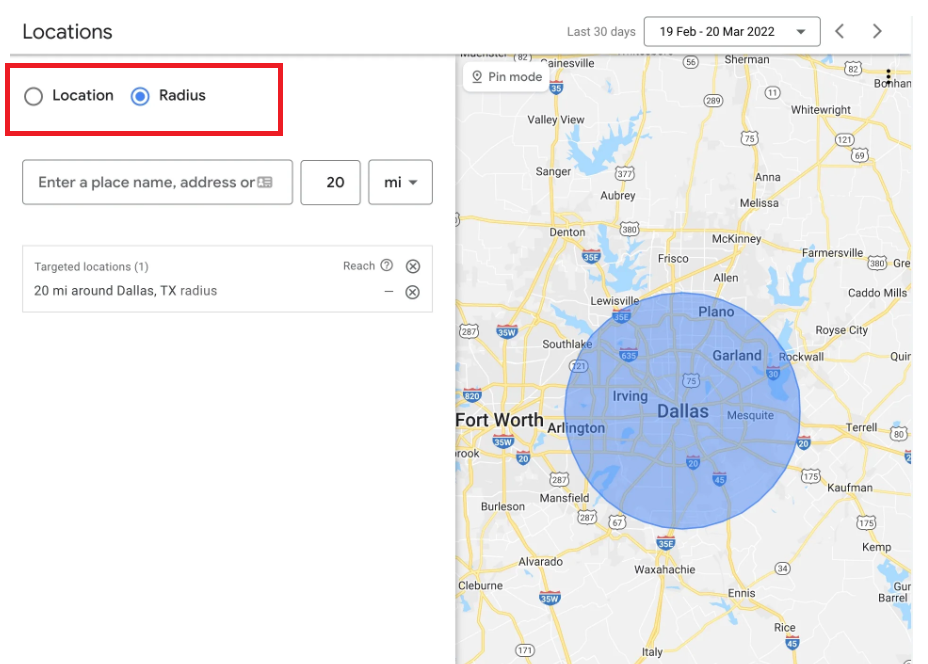
- Next, set up location targeting.
Options:
-
Location — area you’re targeting, for example, a country, city, or region.
-
Radius — location you’ve liked to use for the center of the radius.
-
Enter an area you want to target, then select a unit of measurement from the menu.
Set up your Google Maps ads
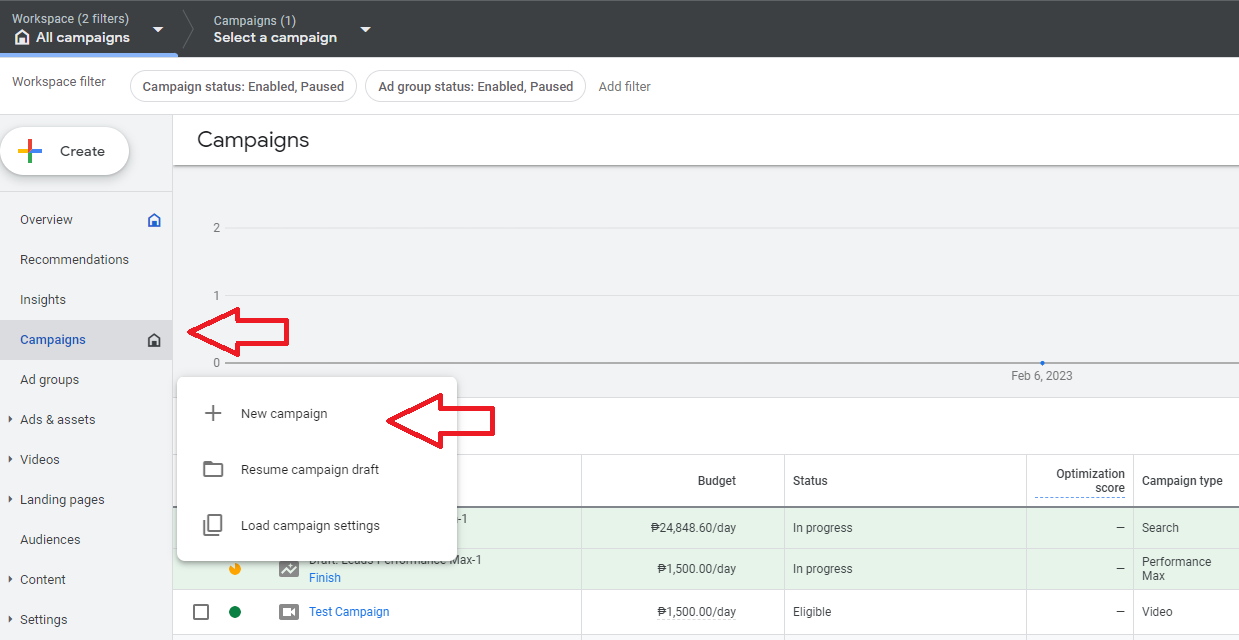
- From your main Google Ads dashboard, click Campaign, then click New Campaign.
- From the Campaign Objective section, select Local store visits and promotions then click Continue.
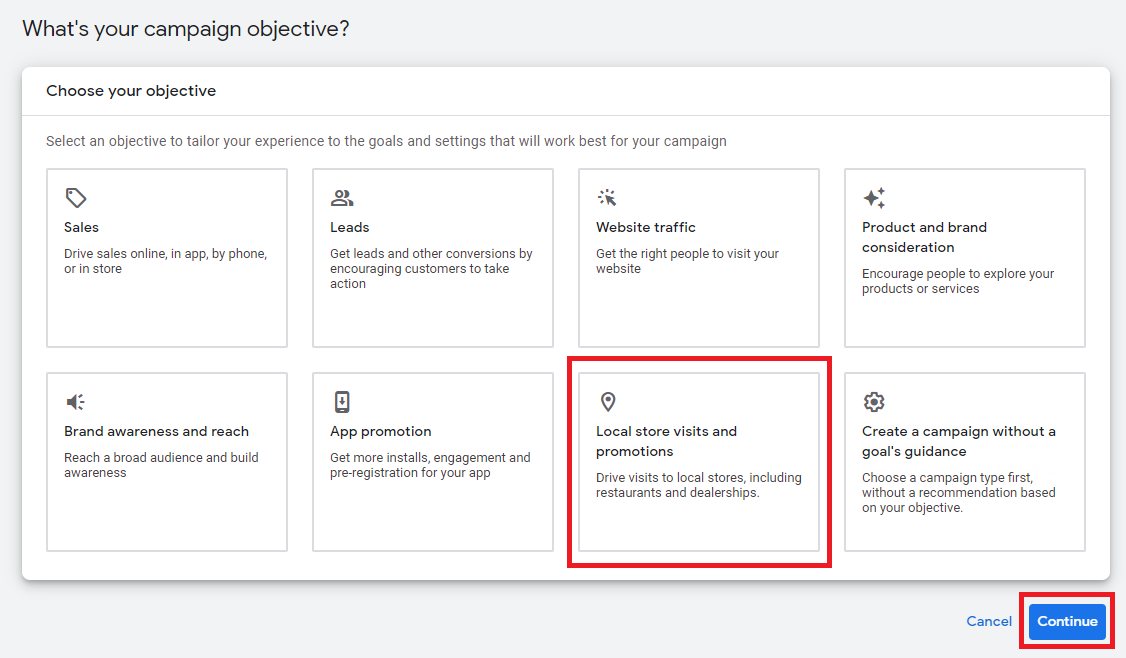
- Performance Max is automatically selected for Local campaigns.
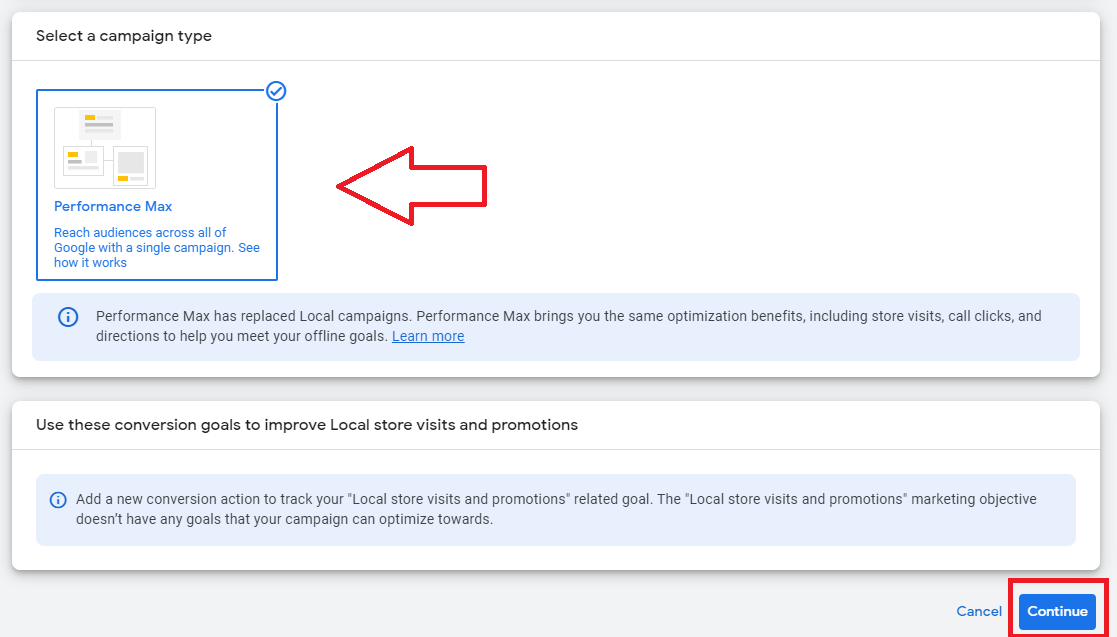
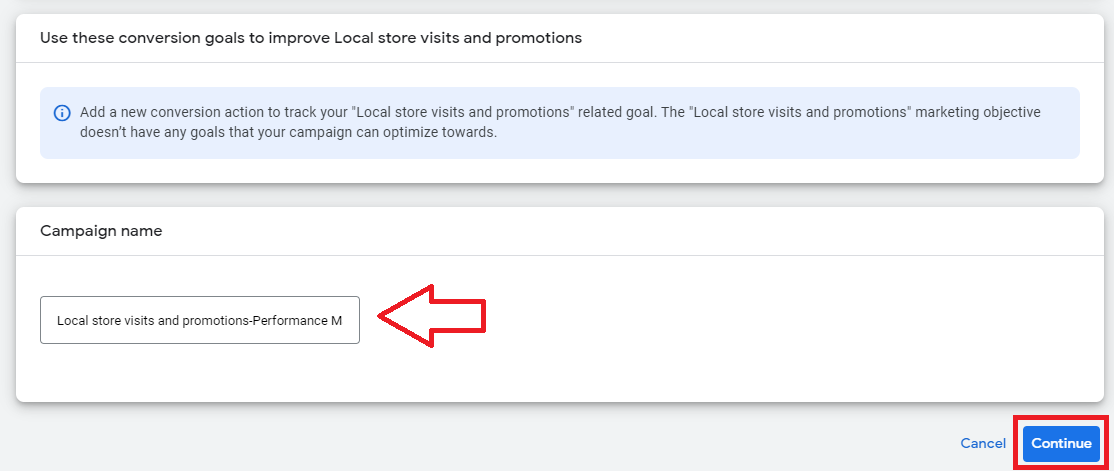
- Fill out your Campaign name then click Continue.
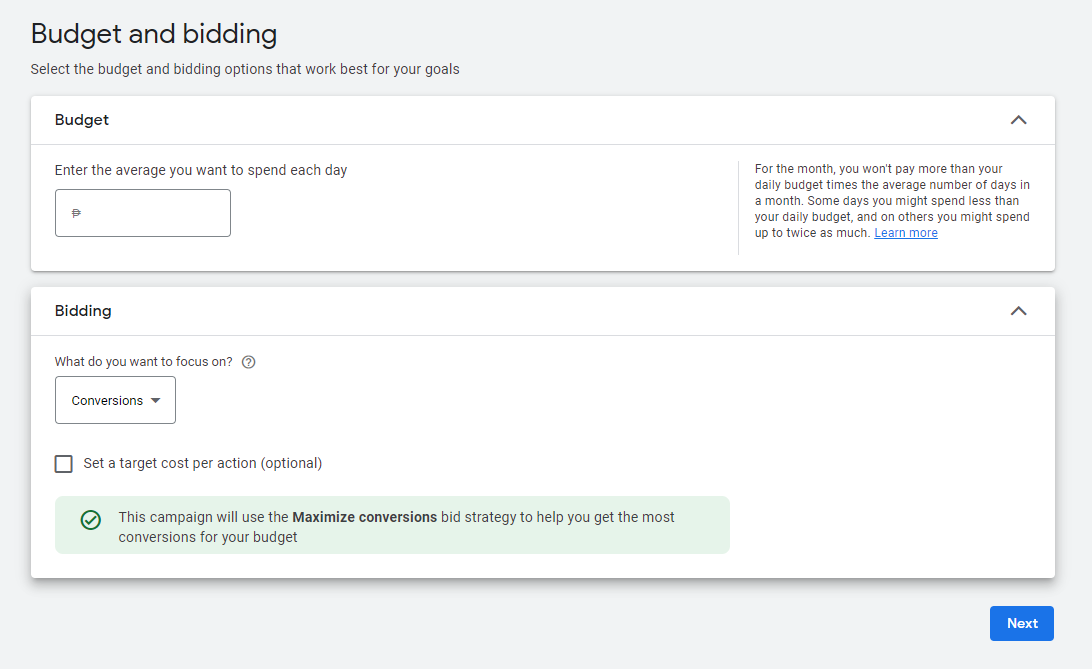
- Set your budget and bidding preferences.
- In the campaign settings, add your location and languages.
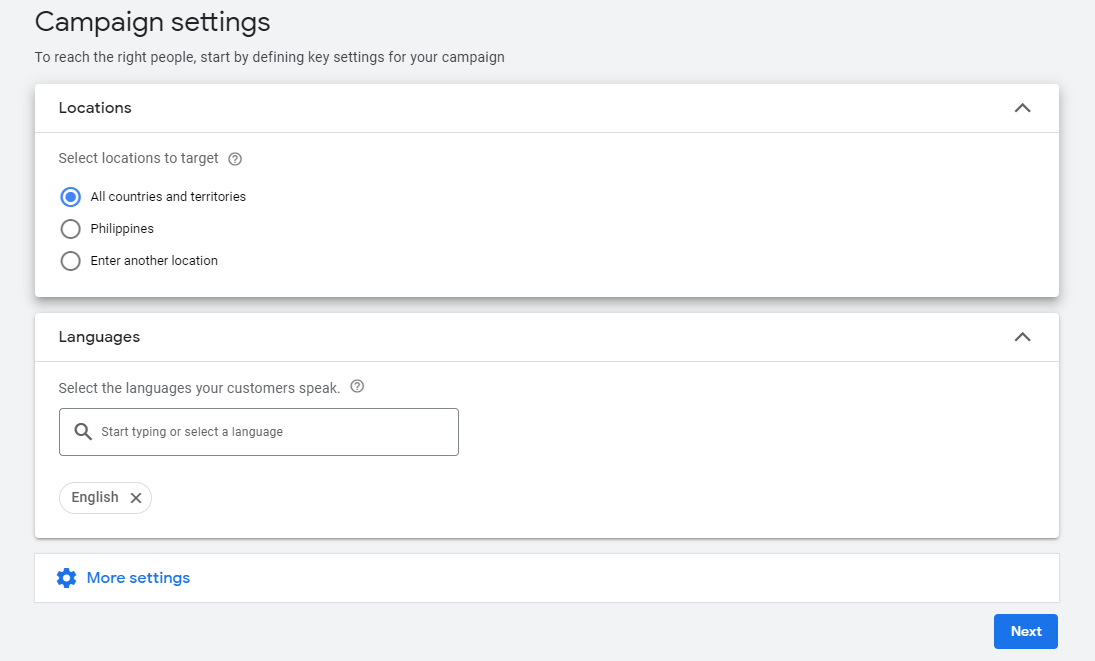
- Customize additional settings including ad scheduling, Final URL expansion, Campaign URL options.
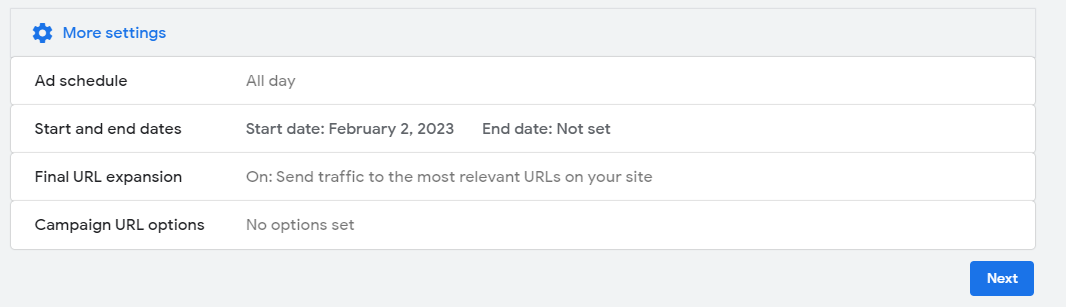
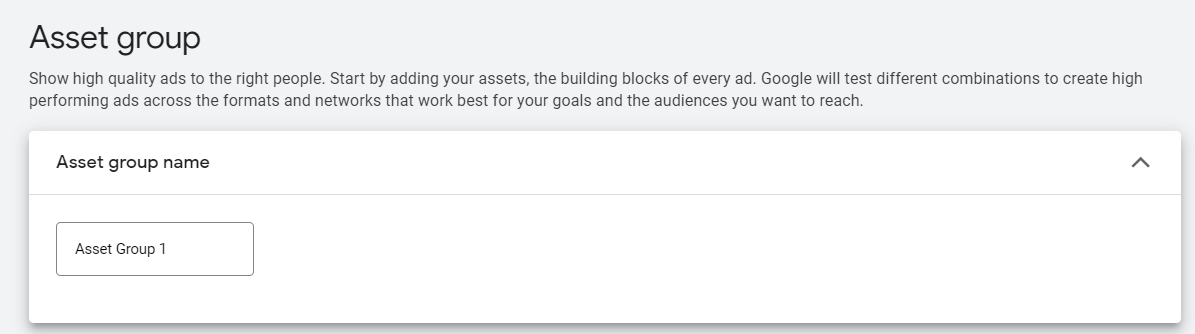
- Next, you’ll build your Asset Group. Create your Asset Group name.
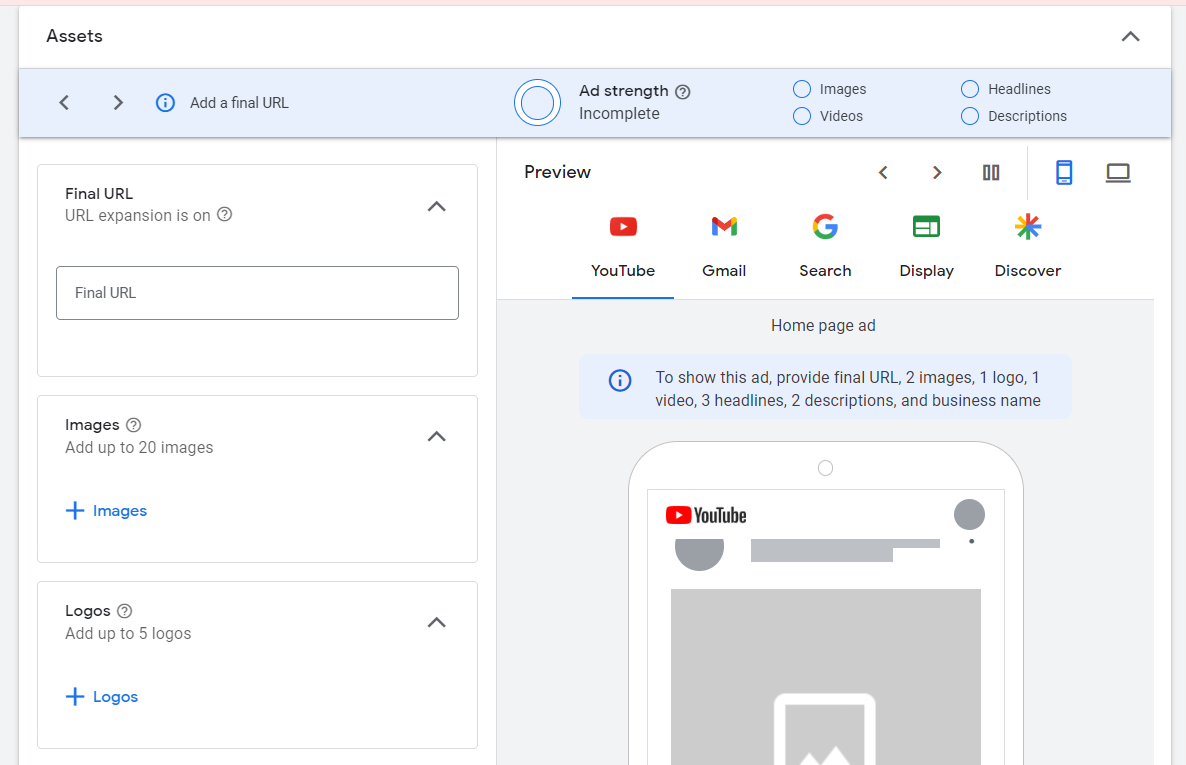
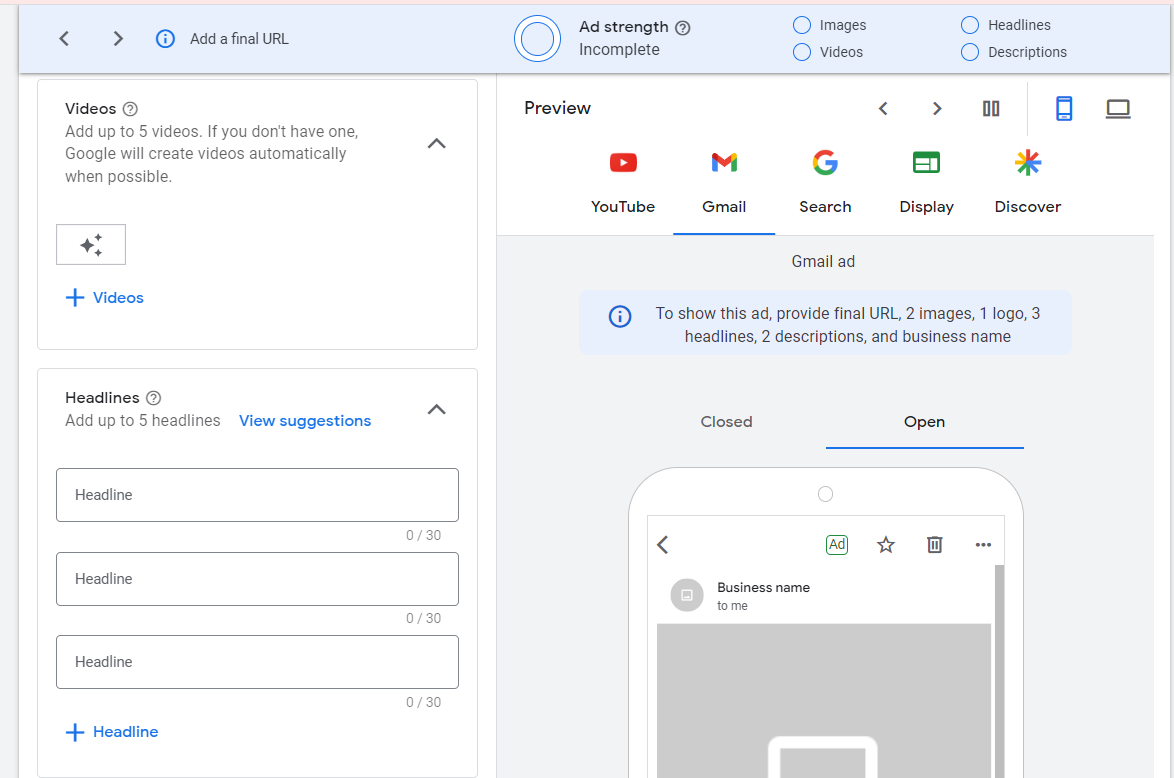
- Add Final URL, videos, images, logos, and headlines.
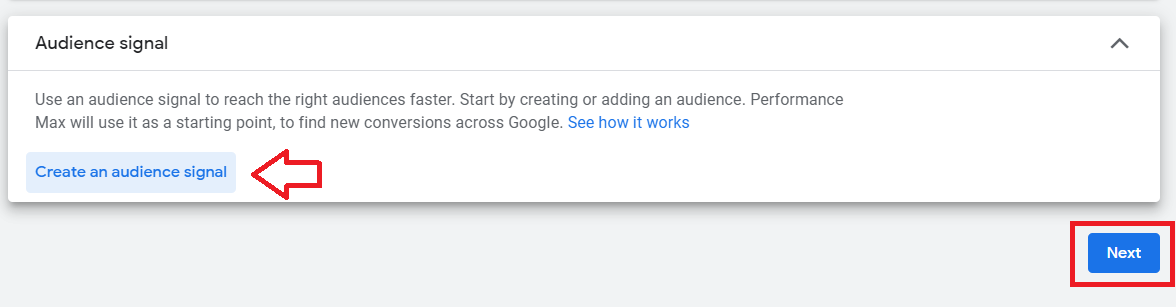
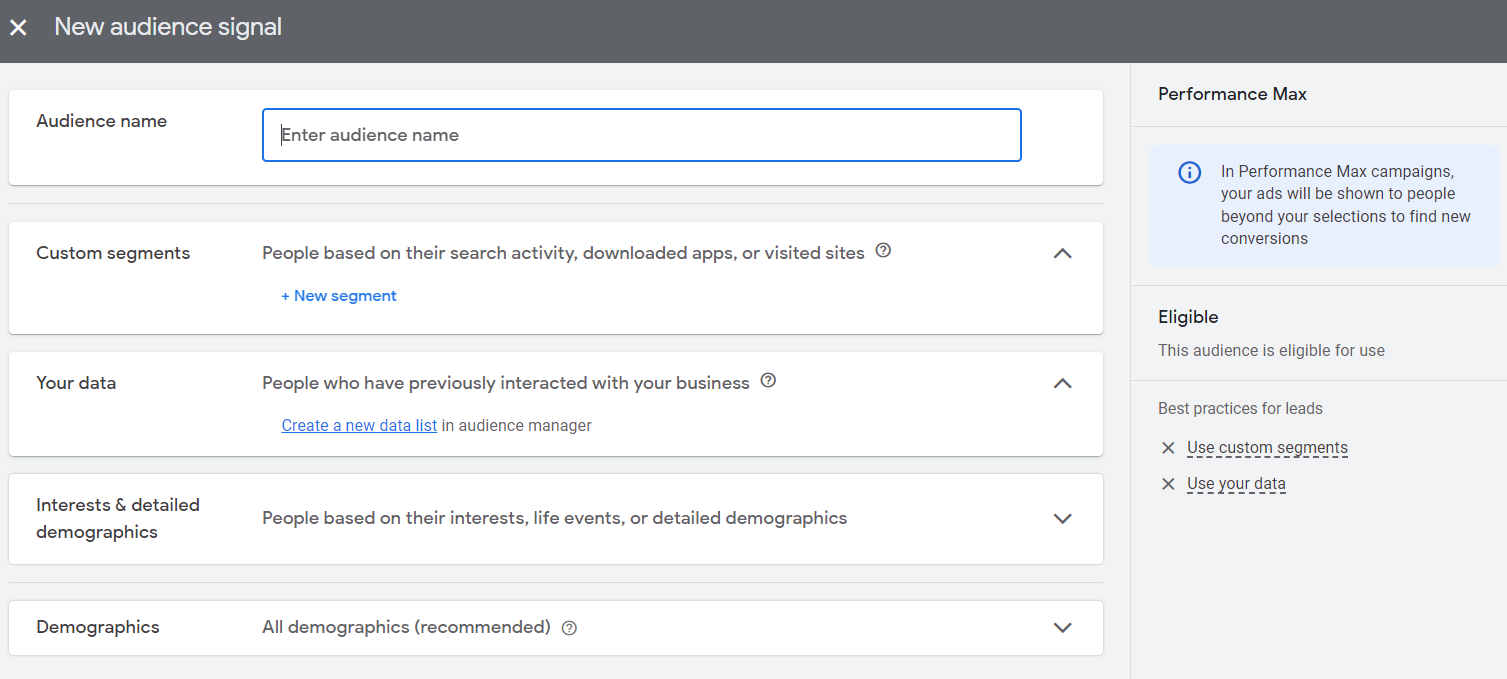
- Select Create an audience signal and customize your audience’s demographics and interests. Once done, click Next.
- Publish your campaign.
Conclusion
That’s it! Your business is now visible in Google Maps and customers can now see where your business is located, your contact number, and your business hours.
-
Displaying your business on Google Maps, you can reach a wider audience and increase brand visibility.
-
You can target your advertisements to specific geographic locations, ensuring that your ads are seen by people who are most likely to use your products or services.
-
By advertising on Google Maps, you can drive more foot traffic to your physical store or location.
-
You can easily engage with customers and get their feedback through customer reviews. Maintaining a high customer satisfaction level can encourage more people to do business with you.
-
You’ll need a verified Google My Business account linked to your Google Ads account to set up your ads on Google Maps.