Tracking Subdomains with Google Analytics
To track subdomains correctly through Google Analytics
Prefer a shortcut? 16 free tools do parts of this for you.

Aim: To track subdomains correctly through Google Analytics
Optimal Outcome: Subdomain tracking allows you to correctly monitor your customers’ behaviors to help you make sound business decisions.
What you need to start: You need a Google Analytics account.
Why is this SOP Important: Subdomain tracking is critical in making decisions because it allows you to monitor how your site visitors move across your website and its pages. For instance, if you maintain a blog within your website, you should get information if users go to your blog when accessing your site.
When and Where to execute: Setup is a one-time activity within Google Analytics. Do it correctly to avoid erroneous data that can lead to wrong business decisions.
Who Should Be Doing This: A person responsible for maintaining your website or analytics
What Is Subdomain Tracking?
A subdomain is a separate part of a website. For instance, your domain URL is www.mysite.com, and you maintain a blog, www.blog.mysite.com, that you wish to monitor. The blog is a subdomain; you can have several subdomains within a domain. It would help if you tracked your subdomains because you want to know how your consumers interact within a single session. For example, you may prefer understanding how a product promotion on one subdomain connects with e-commerce transactions during checkout.
Execution
Resources/Tools & Set up
- Google Analytics 4
Check Your cookieDomain Configuration.
NOTE: This SOP works only with “Universal Analytics.” If you have migrated to Google Analytics 4 correctly, you can skip this SOP altogether.
- Go to gachecker.com and input your domain name. Then, click on Check Your Site.
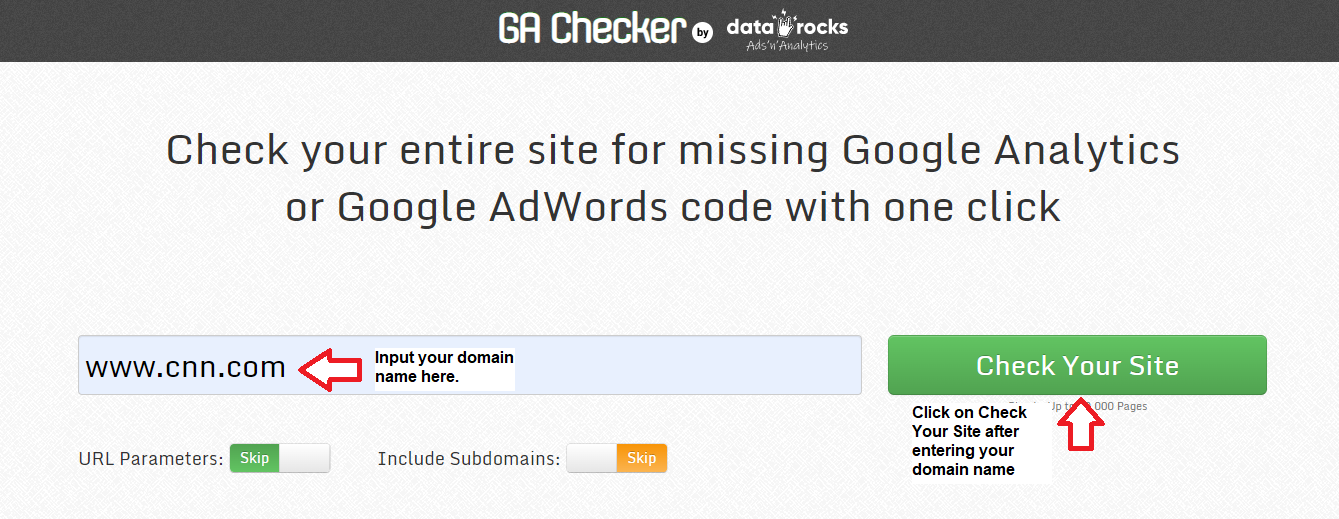
Scroll down to see the results and check if they have Universal Analytics checked. Moreover, the “Include Subdomains” may not include all your domains, so you must enter each separately. Finally, ensure that all pages you monitor have a green tick under Universal Analytics.
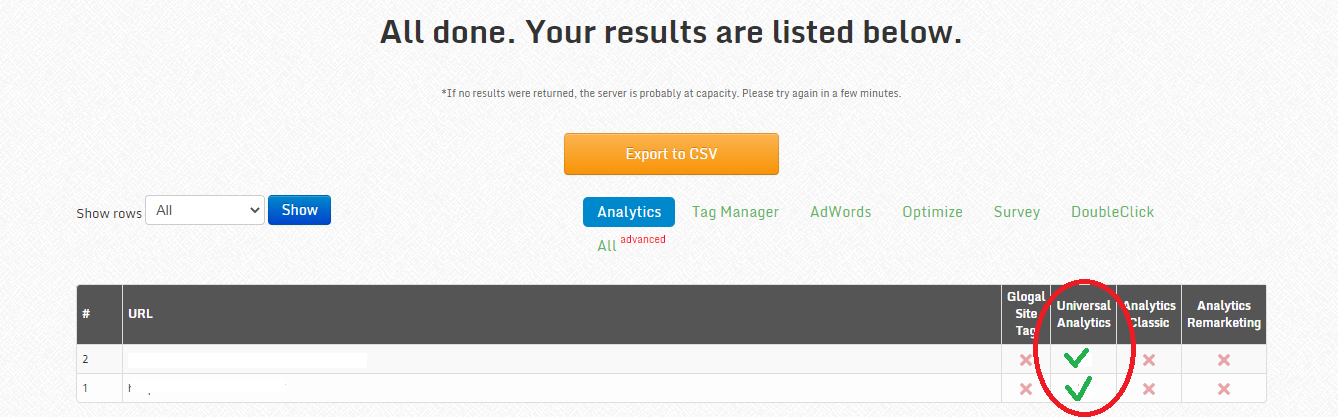
You need not do anything if you’re not using Google Tag Manager. Your subdomain tracking is working correctly.
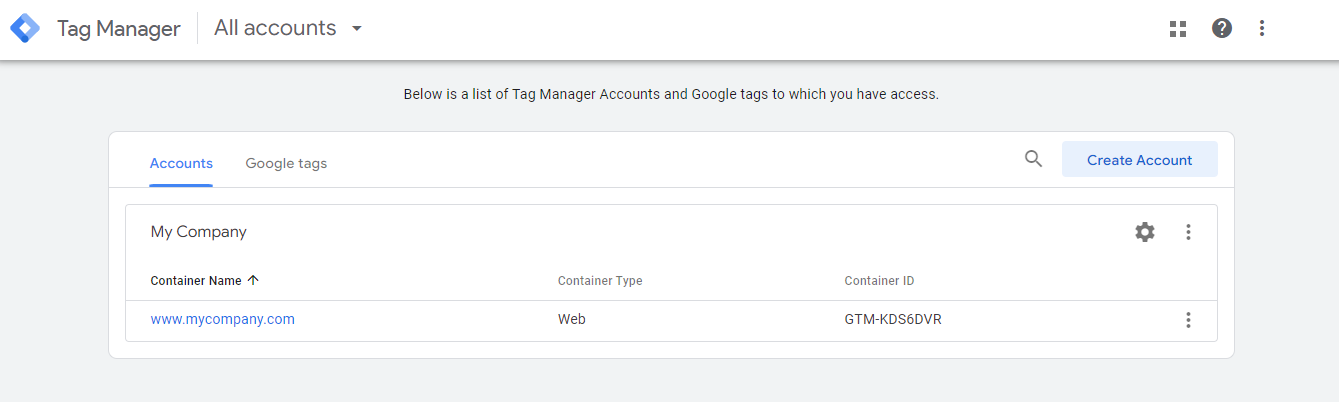
- If using Google Tag Manager, go to http://tagmanager.google.com to sign in. Then, choose the appropriate container for your website.
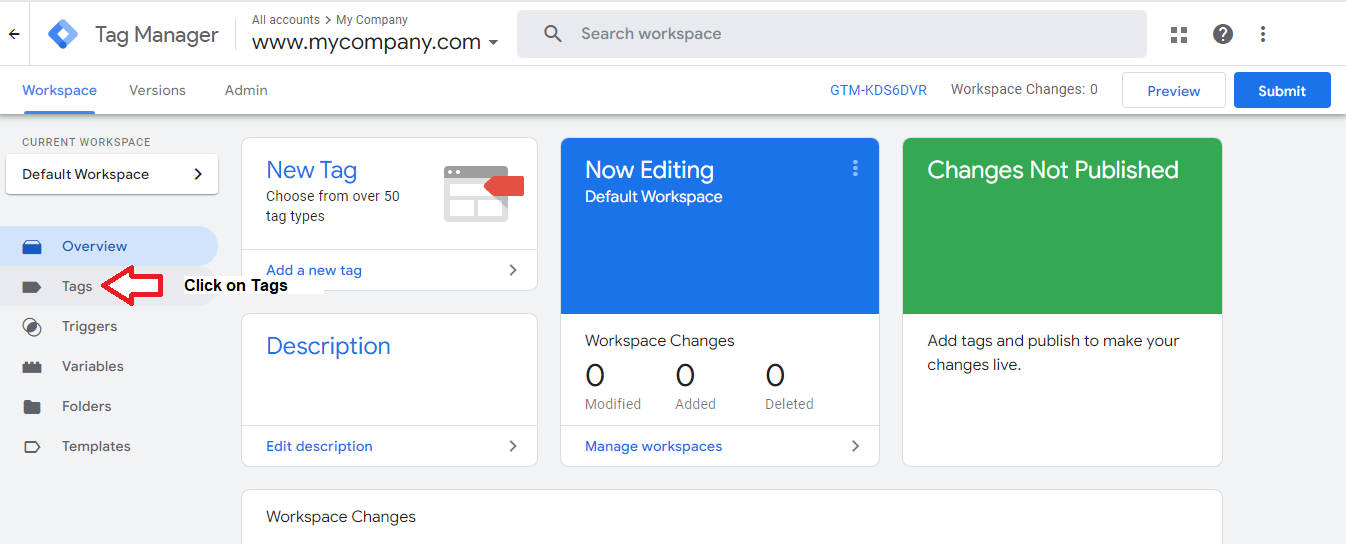
On the next screen, click on Tags and search for Universal Analytics. If you can’t find one, you don’t have to make any changes.
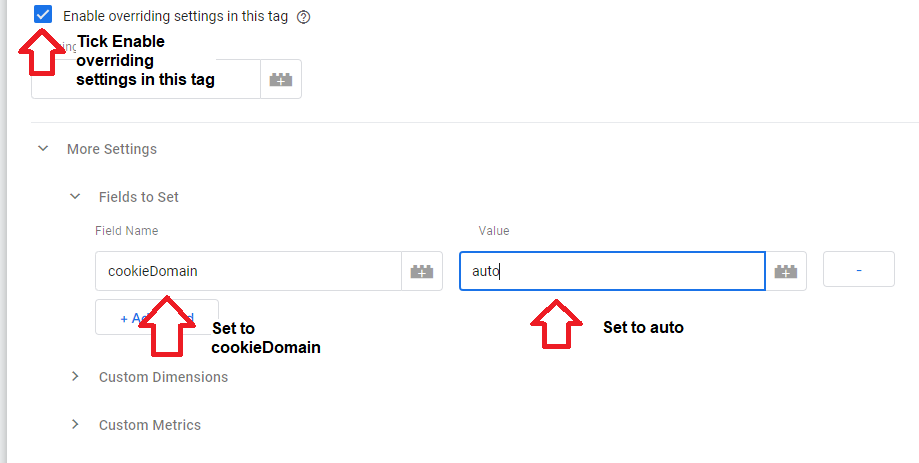
If you see a Universal Analytics tag, click on it and check if you tick the Enable overriding settings in this tag. If not, you can check the Enable overriding settings in this tag. Then click on More Settings and Fields to Set. Enter cookieDomain under the Field Name and auto under Value.
Check if the Website’s Root Domain is in the Referral Exclusion List.
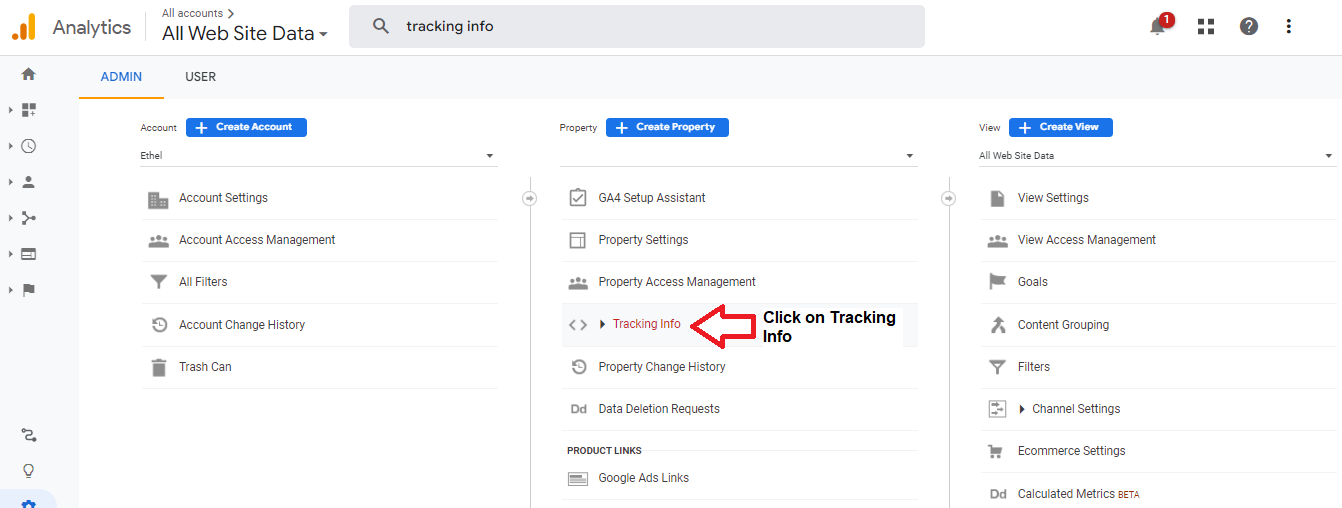
- Click on Tracking Info under the correct account and property on your Google Analytics Account.
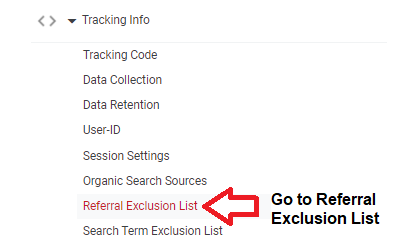
- In the drop-down menu, choose Referral Exclusion List.
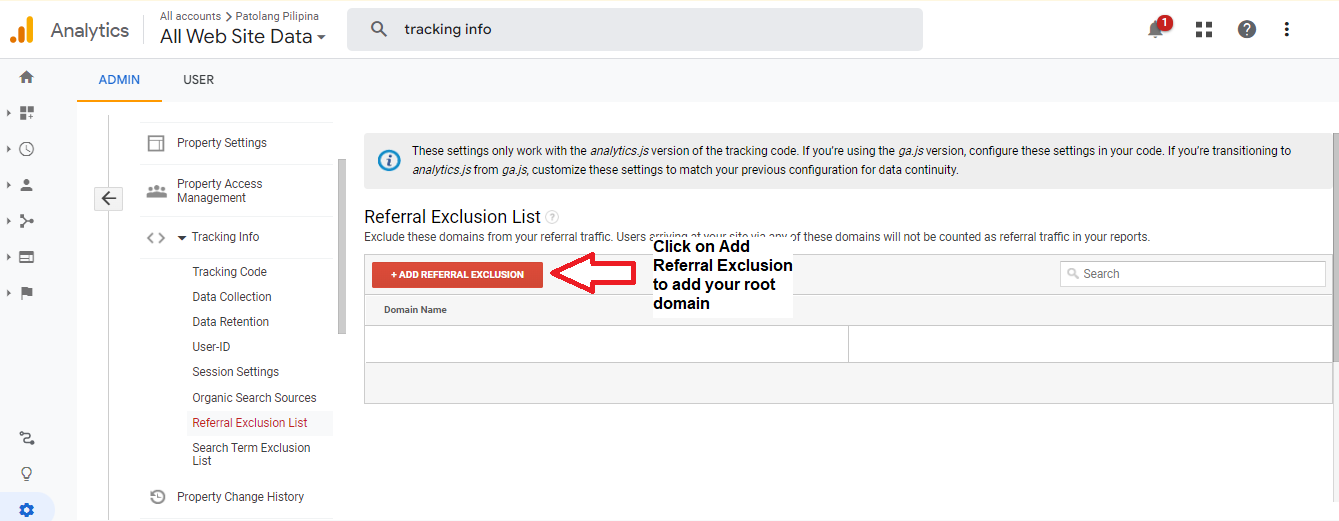
- You should see your root domain on the next screen. If not, you should add it by clicking on Add Referral Exclusion.
Conclusion
Congratulation! You now have the correct setup to track your subdomains under Universal Analytics.
Execution Checklist:
-
Subdomain tracking is essential in monitoring how customers move around your website for better business decisions.
-
When tracking your subdomains, check if your Google Analytics setup has the correct configurations.
-
Ensure the proper format in GA Checker by checking the cookieDomain configuration and Google Tag Manager.
-
Lastly, check that your root domain is in the Google Analytics Referral Exclusion List.