A Guide to Analyzing the Conversion Funnel Report for Improved Conversions
To be able to create and analyze conversion funnel reports on Google Analytics 4.
Prefer a shortcut? 16 free tools do parts of this for you.

Aim: To be able to create and analyze conversion funnel reports on Google Analytics 4.
Optimal Outcome: You will be able to successfully track the process it takes for an online user to convert into a paying customer based on their digital interactions with your website or online shop.
What do you need to start: To follow this SOP, you will need to have a Google Analytics 4 account.
Why is this SOP Important: Analyzing your conversion funnel report will give you some valuable insight into how your online visitors convert into paying customers. It will also help uncover the points in the process where your potential customers usually drop out of the funnel. This information can greatly benefit your efforts to boost your sales and conversions.
Where to execute: You will need to set up a Google Analytics 4 account before you can create a conversion funnel.
Who Should Be Doing This: The person responsible for managing the site’s analytics, the marketing manager
What Is a Conversion Funnel?
A conversion funnel refers to the process that defines the different stages that an online visitor goes through until it finally leads up to them making a purchase.
As the name implies, a conversion funnel usually starts with a larger number of potential customers that gradually declines as they make their buyer’s journey through your online shop.
Execution
Resources/Tools & Set up
-
A Google Analytics 4 account
-
Compile a list of URLs for every checkout page. You can do this by either requesting it from your development team or by doing a test transaction with your checkout page then noting down all the URLs.
-
Below are the checkout URLs for Google’s Merchandise Store:
-
Add to Cart — ”basket.html”
-
Billing & Shipping details — ”yourinfo.html”
-
Payment details — “payment.html”
-
Review order — “revieworder.html”
-
Order confirmation — “ordercompleted.html”
Important Things to Remember
-
We will make the user conversion funnel report using Google’s Merchandise Store demo account for this SOP. To access this data, go to Google’s demo account page. Select “Google Analytics 4 property: Google Merchandise Store (web data)”
-
Moreover, this SOP assumes that every stage of your checkout has a unique URL (ie. add to cart - /add-to-cart or payment - /payment). This means that this SOP would not work for websites and online shops that limit their entire checkout process to a single page or URL.
Setting Up a Conversion Funnel Dashboard in Google Analytics 4
-
Log into your Google Analytics 4 account.
-
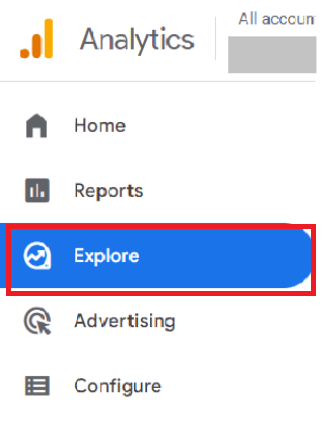
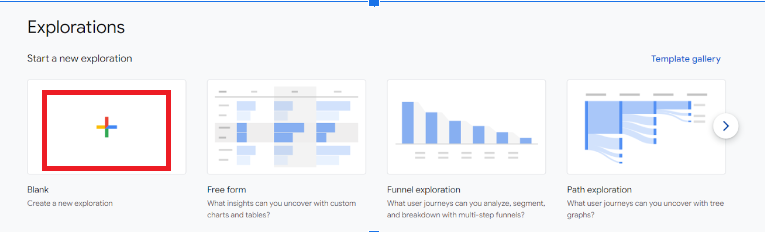
Click on Explore, then Blank to create a new exploration.
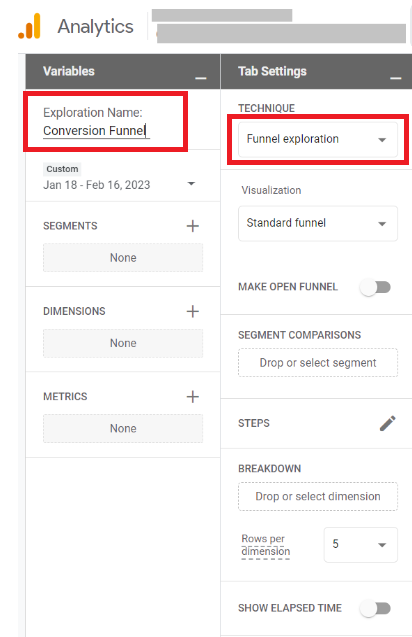
- For the purposes of this SOP, we are going to name this exploration Conversion Funnel under Variables.
Under Tab Settings, choose Funnel exploration as the Technique**.**
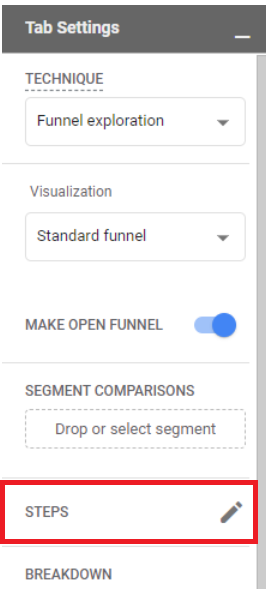
- Click on the pencil icon beside Steps under Tab Settings. Doing so will open the Edit funnel steps window.
-
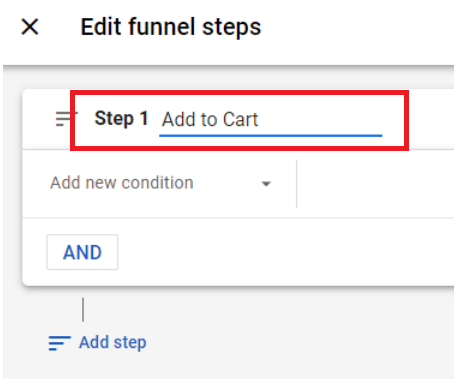
We are now going to add our steps. For the first one, name it Add to Cart.
-
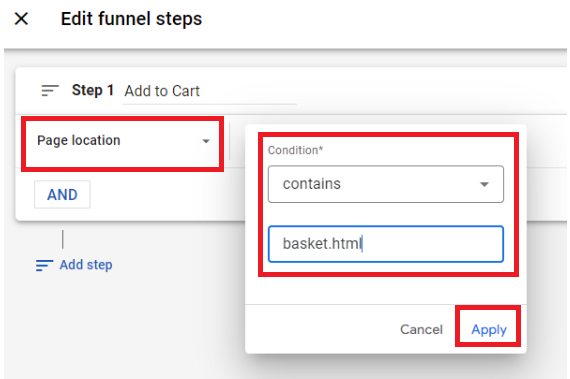
Click on Add new condition and search for Page location. Then click on Add filter and choose contains. This is where you will indicate the URL of your add to cart page. For the purposes of this SOP, we are going to use the Google Merchandise Store demo account. Hence, the URL ends with basket.html. Once done, click on Apply.
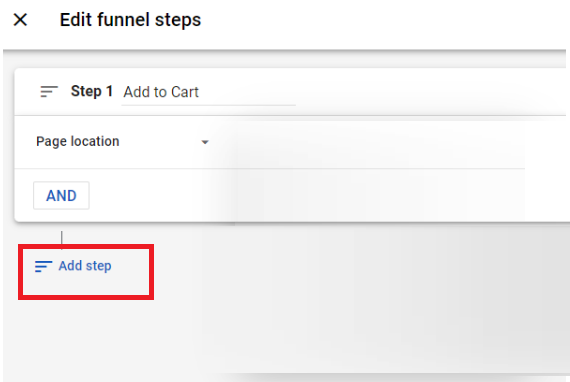
- Let’s add a new step. Click on Add step to do that.
-
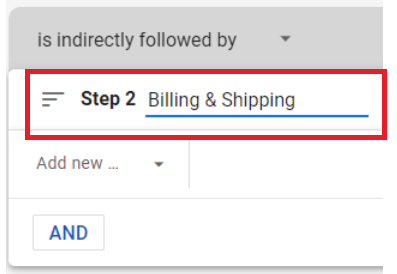
We are going to name this step as Billing & Shipping.
-
Click on Add new condition and search for Page location. Then click on Add filter and choose contains. This is where you will indicate the URL of your billing page. For the purposes of this SOP, we are going to use the Google Merchandise Store demo account. Hence, the URL ends with yourinfo.html. Once done, click on Apply.
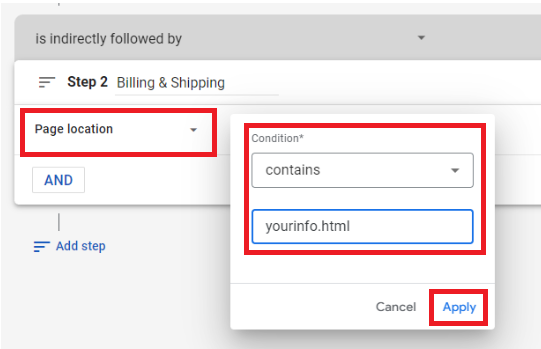
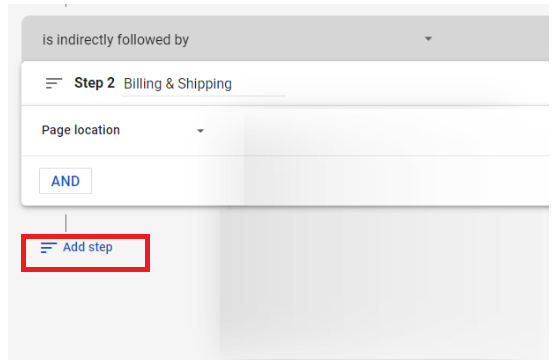
- Let's add the third step by clicking on Add step again.
-
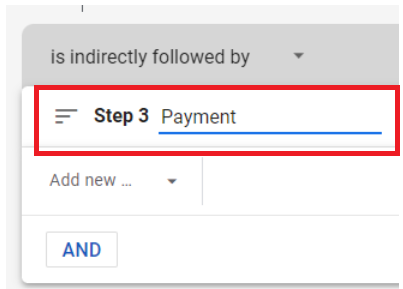
We are going to name this third step as Payment.
-
Click on Add new condition and search for Page location. Then click on Add filter and choose contains. This is where you will indicate the URL of your payment page. For the purposes of this SOP, we are going to use the Google Merchandise Store demo account. Hence, the URL ends with payment.html. Once done, click on Apply.
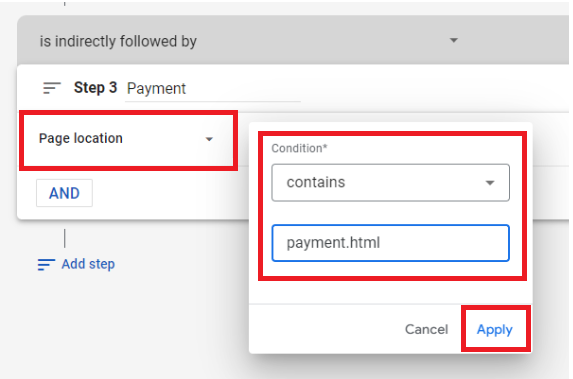
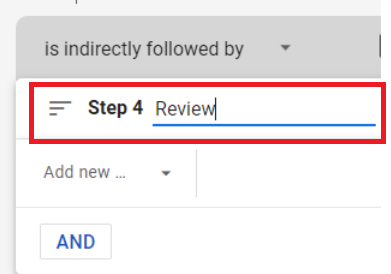
- We are going to add the fourth step. Click on Add step.
-
We are going to name this step as Review.
-
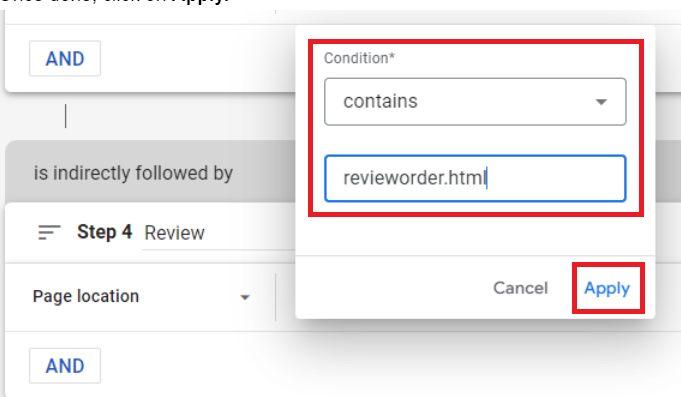
Click on Add new condition and search for Page location. Then click on Add filter and choose contains. This is where you will indicate the URL of your billing page. For the purposes of this SOP, we are going to use the Google Merchandise Store demo account. Hence, the URL ends with revieworder.html. Once done, click on Apply.
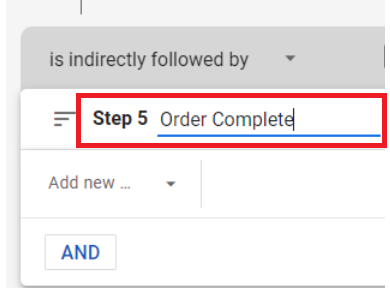
- We are going to add the fifth step. Click on Add step.
-
We’ll name this step as Order Complete.
-
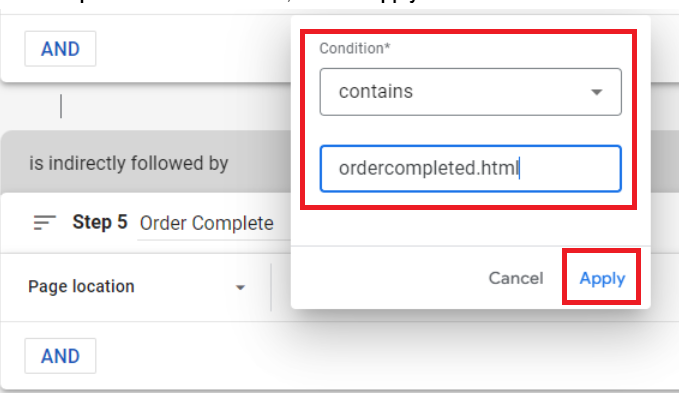
Click on Add new condition and search for Page location. Then click on Add filter and choose contains. This is where you will indicate the URL of your order completed page. For the purposes of this SOP, we are going to use the Google Merchandise Store demo account. Hence, the URL ends with ordercompleted.html. Once done, click on Apply.
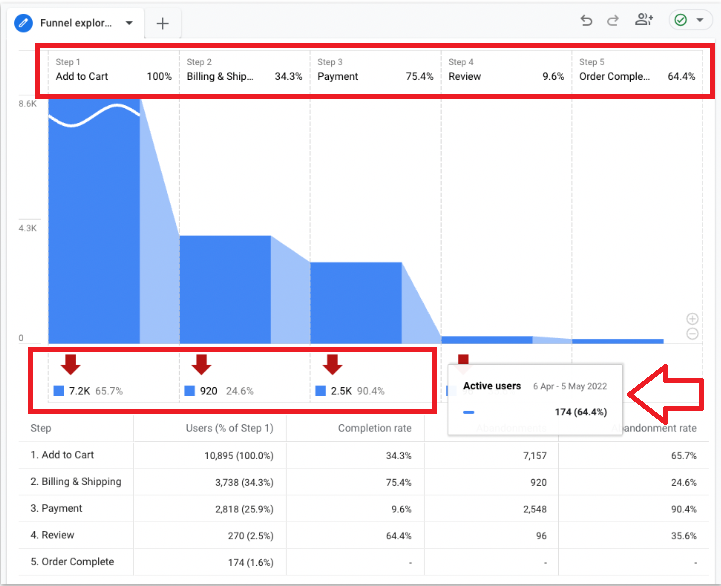
- Congratulations! You now have a conversion funnel report on Google Analytics 4. You should see something similar to the screenshot below.
How to Analyze Your Conversion Funnel Report in Google Analytics 4
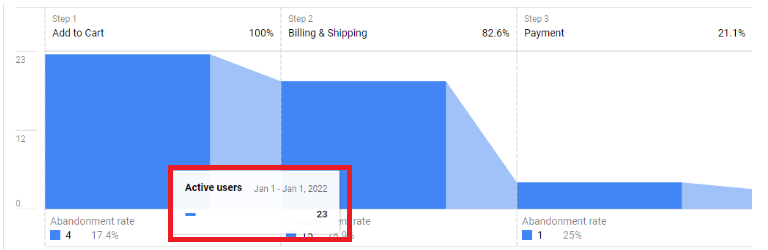
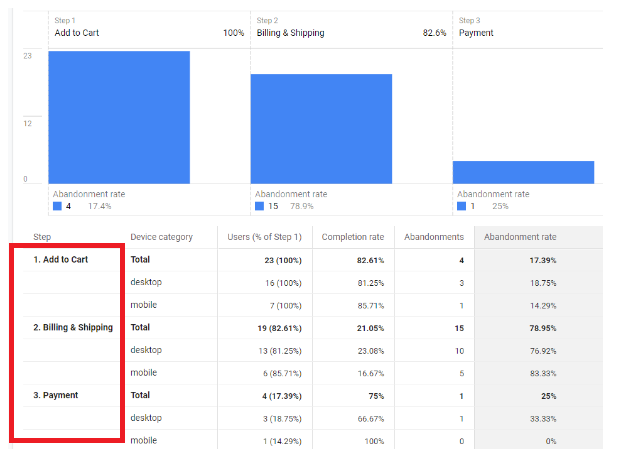
- Hovering over the bar chart will already reveal the number of your active users per step.
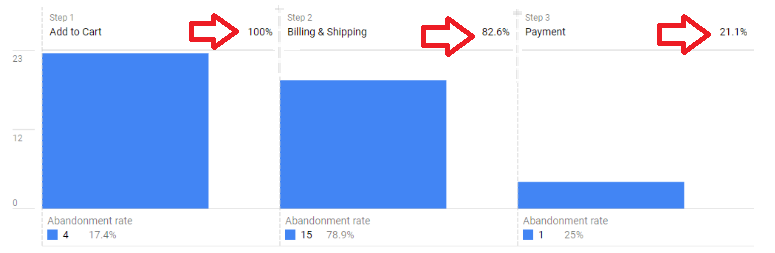
- You will find the percentage of users who moved forward to the next step of the funnel above the chart.
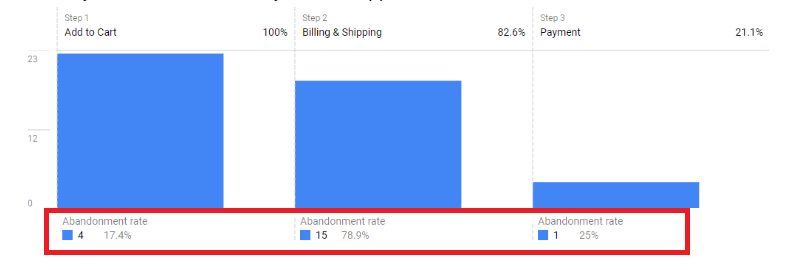
- You may then check how many users dropped out of the funnel below the chart.
- Finally, Google Analytics 4 will also display the breakdown of your funnel data in table form.
Conclusion
You’re done! Remember, creating and analyzing conversion funnels in Google Analytics 4 is an efficient way to reveal the stages that your online visitors undergo in order to complete their buyer’s journey.
This way, you will be able to adjust your website or online shop to increase your conversion rate and decrease your abandonment rate.
-
Creating a conversion funnel will define the different stages that online visitors to your website or online shop undergo in order to convert to paying customers.
-
To analyze your conversion funnel, you must first create a conversion funnel report on Google Analytics 4.
-
Add the steps of your conversion along with their appropriate page locations.
-
Once done, Google Analytics will start displaying the data you need.
-
It will show the number of active users per step, identify the percentages of those that move on to the next steps as well as those that drop out.
-
You may also take a look at the data breakdown that Google Analytics conveniently displays in table form.