Installing TikTok Pixel on Your Site
Give you a step-by-step guide in setting up TikTok Pixel on your website.
Prefer a shortcut? 16 free tools do parts of this for you.

Aim: Give you a step-by-step guide in setting up TikTok Pixel on your website.
Optimal Outcome: To install TikTok Pixel on your website and start tracking and evaluating the behavior of your customers to improve your marketing strategy and results.
What do you need to start: TikTok Ads Manager account and admin access to your website configuration platform
Why is this SOP Important: Installing a TikTok pixel on your site allows you to track and analyze data about your website's traffic and behavior, helping you understand and optimize your marketing efforts on TikTok.
When and Where to execute: TikTok Business platform and on your website.
Who Should Be Doing This: Web developer, IT staff, Marketing staff
What is TikTok Pixel?
The TikTok Pixel is a piece of code that you can add to your website to track user behavior, optimize advertising campaigns, and measure the effectiveness of your TikTok ads.
Execution
-
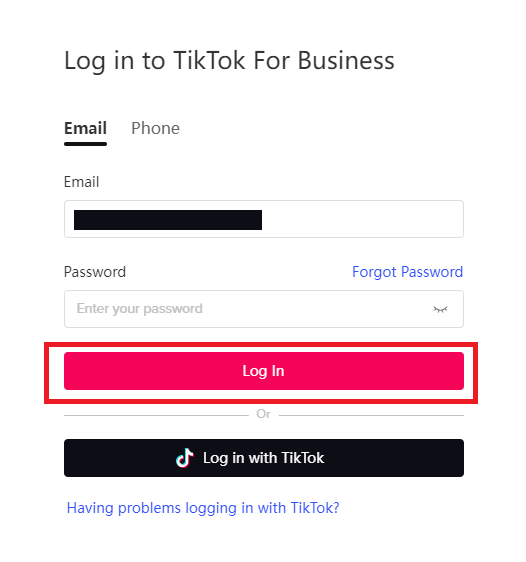
Go to https://business.tiktok.com.
-
Login or create an account.
-
Navigate to the top menu and click Assets, then click Events.
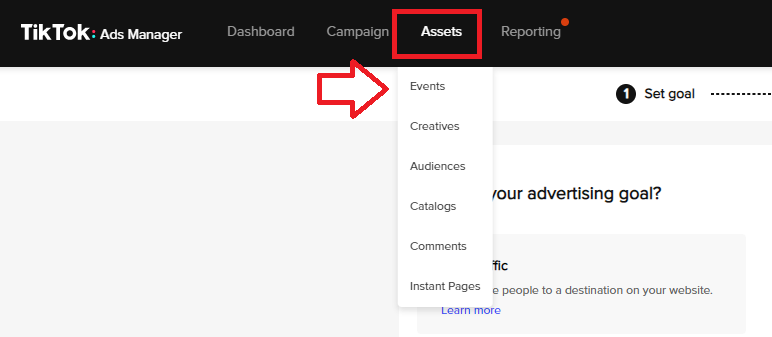
- Select Web Events.

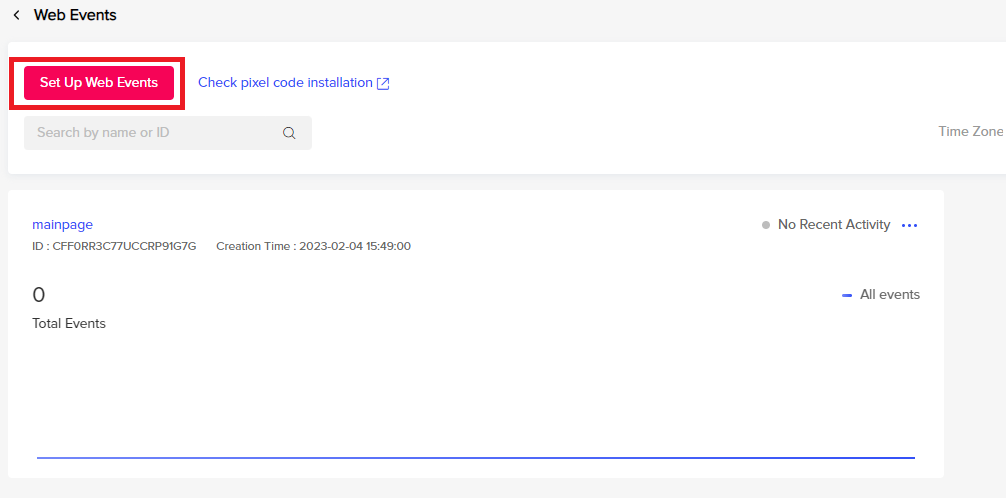
- Click Set Up Web Events.
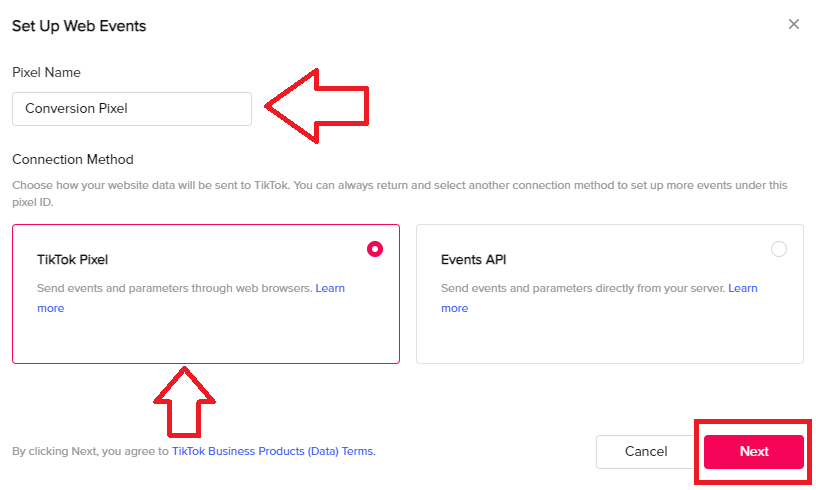
- Create a name for your pixel, then select TikTok Pixel. Click Next.
Manually install Pixel Code
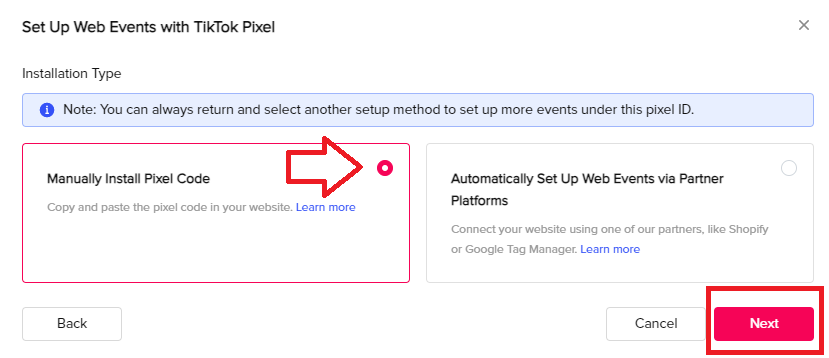
- Select Manually Install Pixel Code, then click Next.
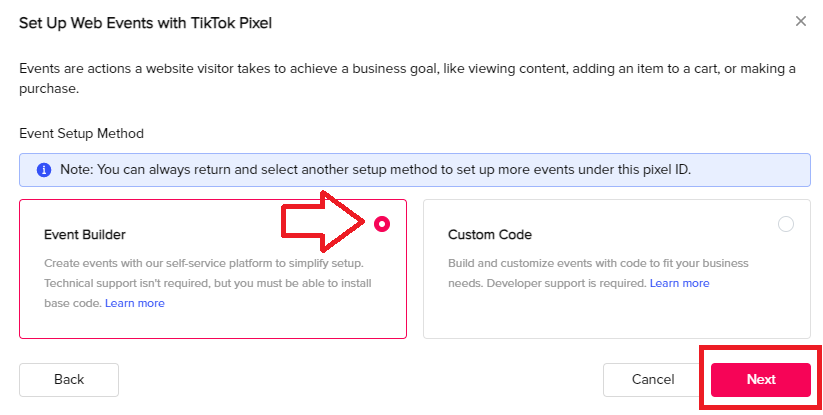
- Select Event Builder, then click Next.
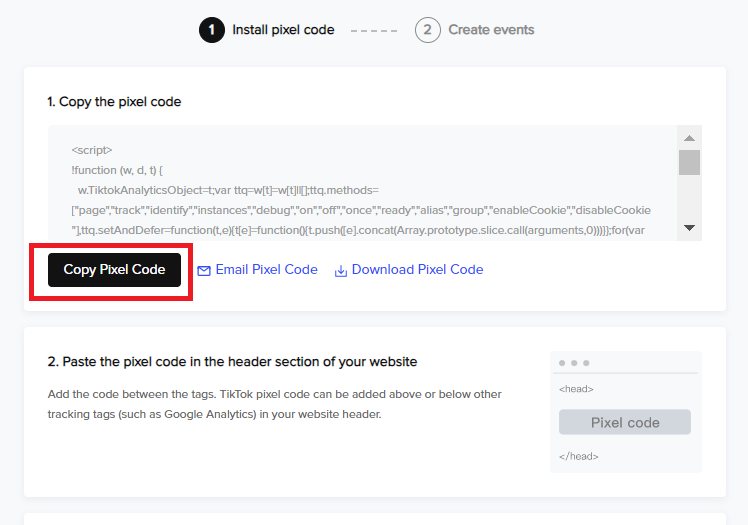
- Copy the Pixel Code and add paste the code to the header section of your website. You can also opt to send the Pixel code to your email or download the file.
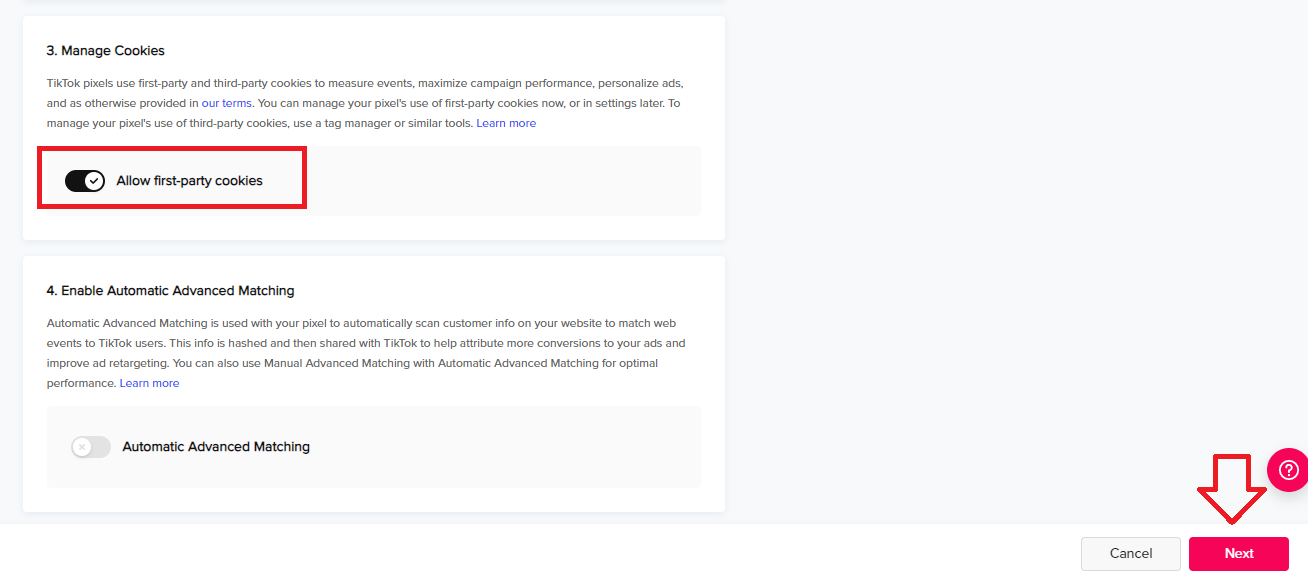
- Customize cookies settings, then click Next.
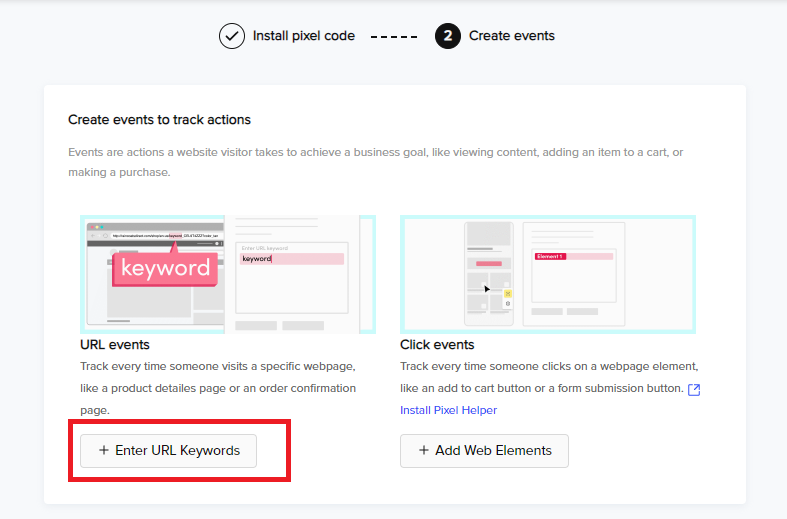
- Next, create events to track on your website. Click Enter URL Keywords.
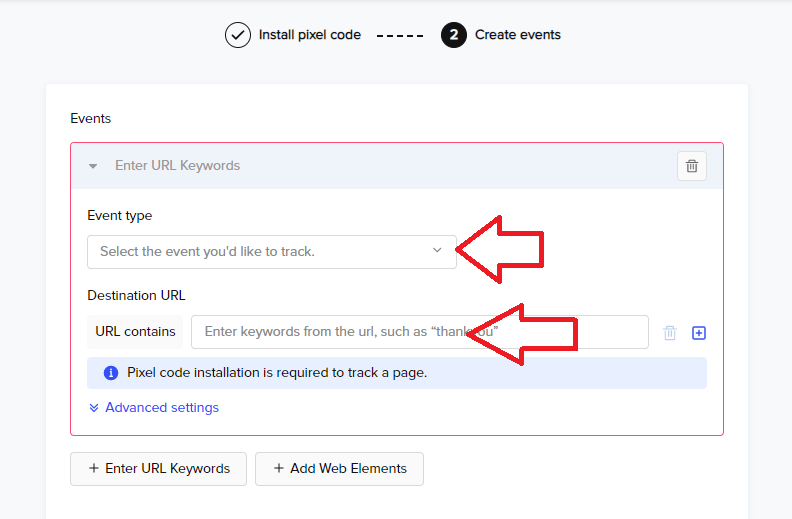
- Select the Event Type from the drop down then enter the URL that contains the event you select.
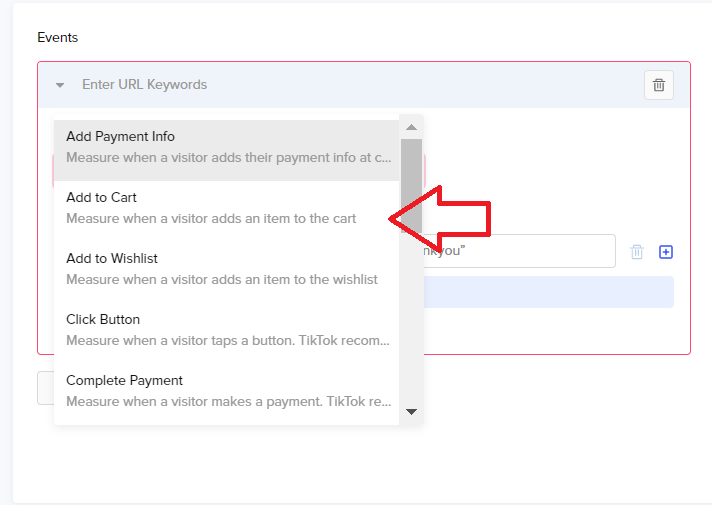
- Choose from the drop down what event you want to track.
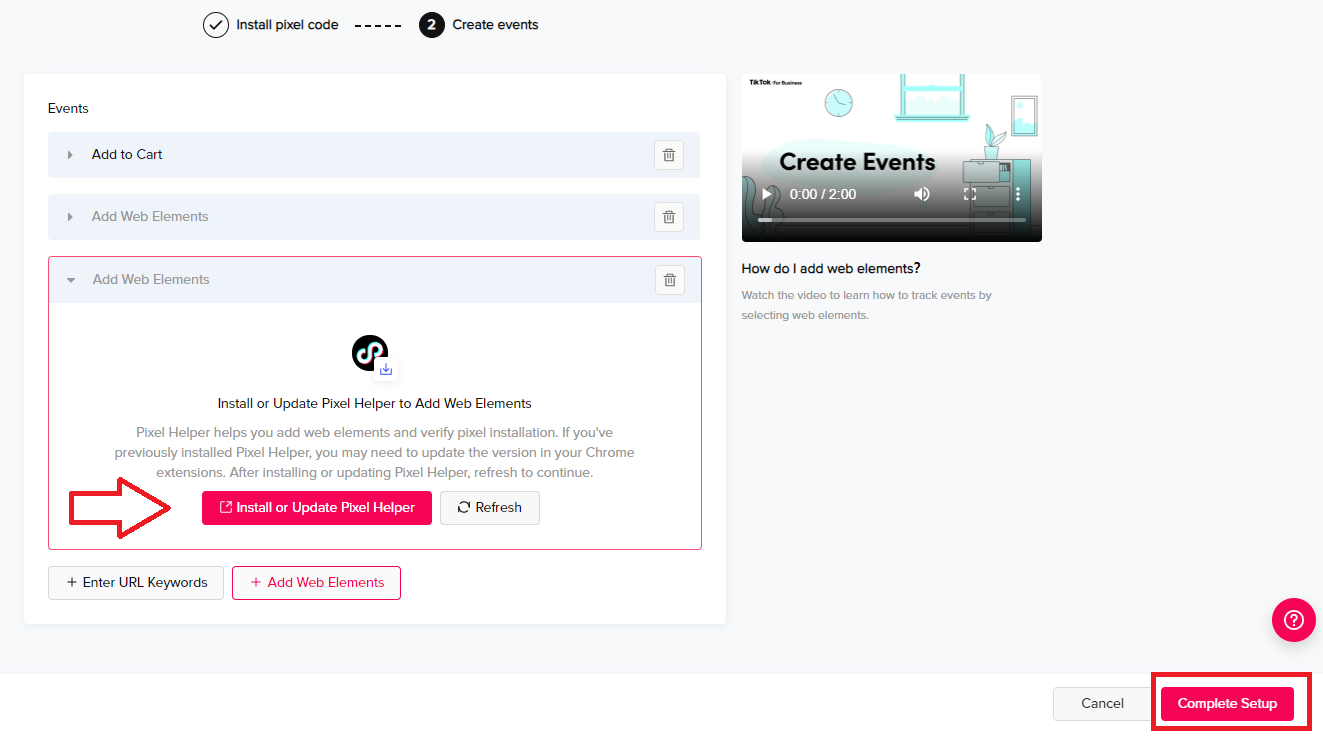
- You can also Add Web Elements to your Pixel. Once you’re done with your settings, click Complete Setup.
Automatically Set Up Web Events via Partner
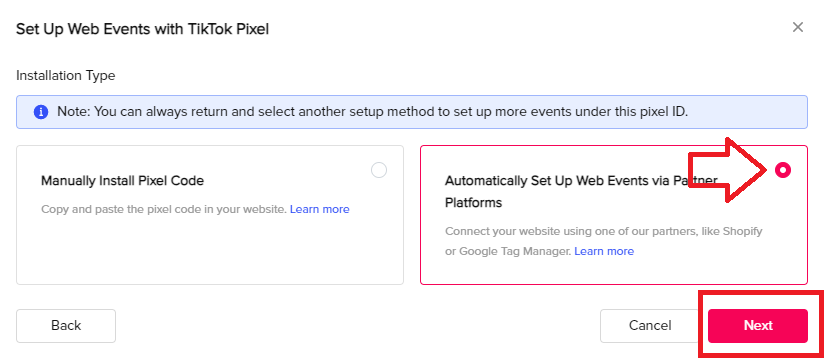
- If you want to use a third-party platform to set up your TikTok pixel, select Automatically Set Up Web Events via Partner Platforms.
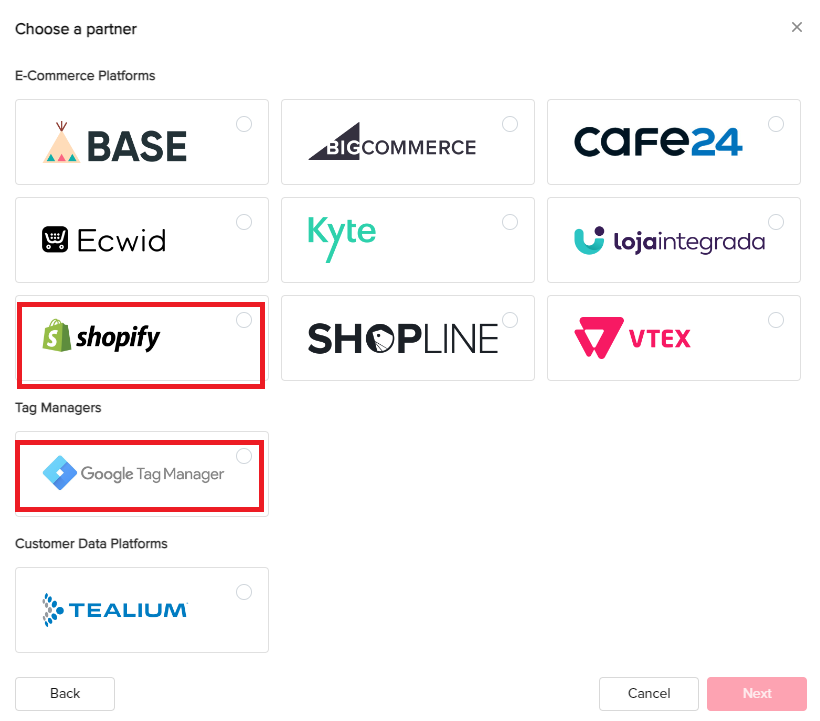
- Select the platform you want to use then click Next.
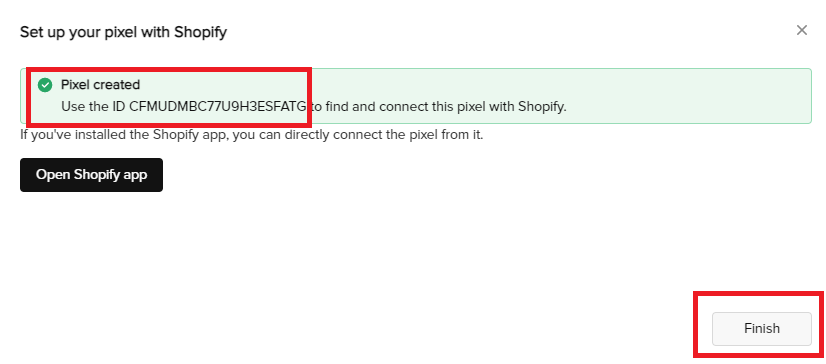
- If you’re setting up your TikTok Pixel on Shopify, take note of the ID then click Finish.
Install TikTok Pixel on Shopify
- Login to your Shopify store.
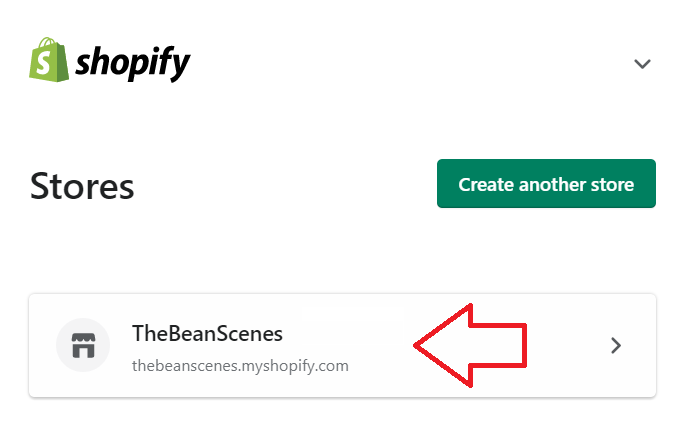
-
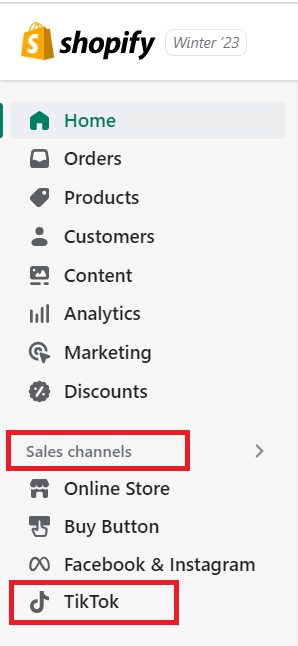
Navigate to the left menu and select TikTok under Sales channels.
-
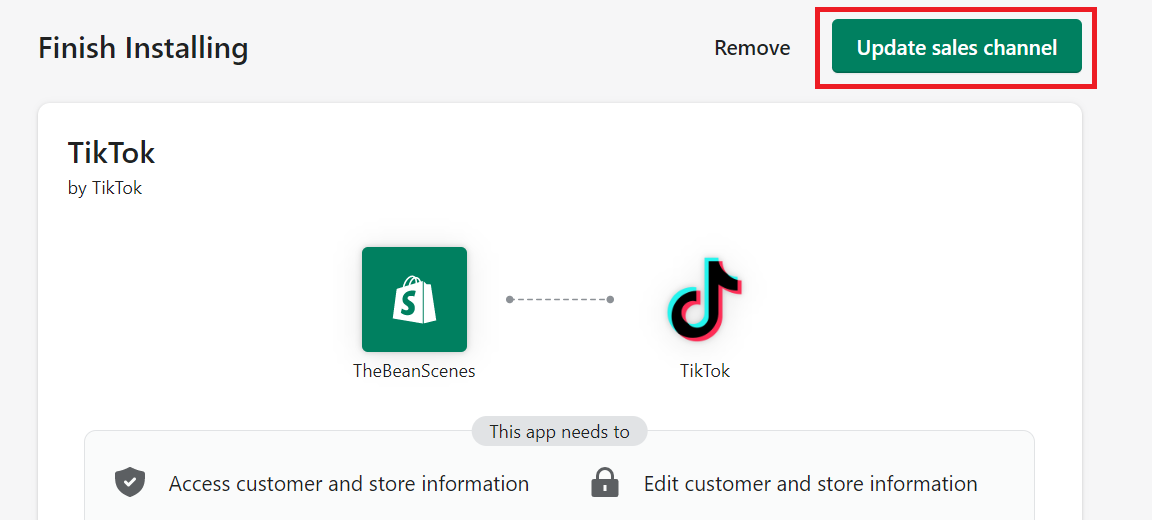
Click Update sales channel.
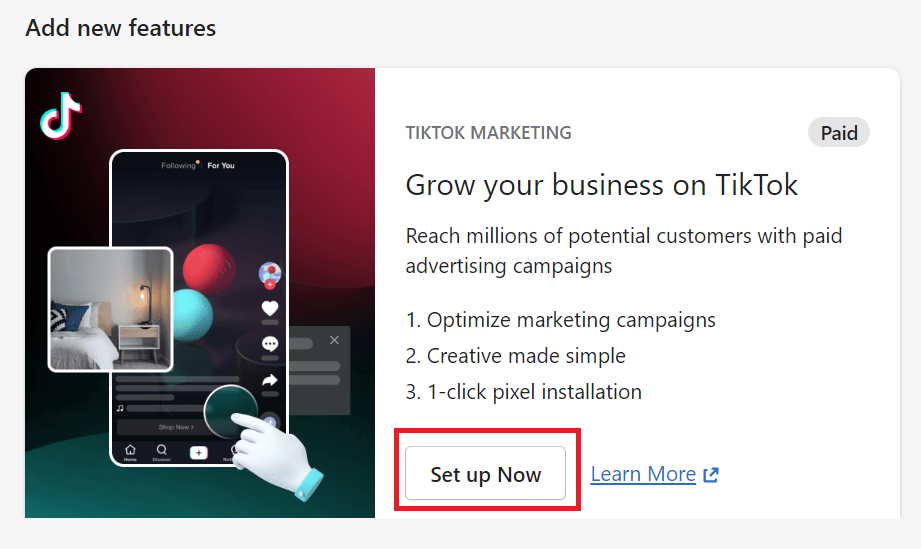
- To set up TikTok marketing in your Shopify account, click Set up Now.
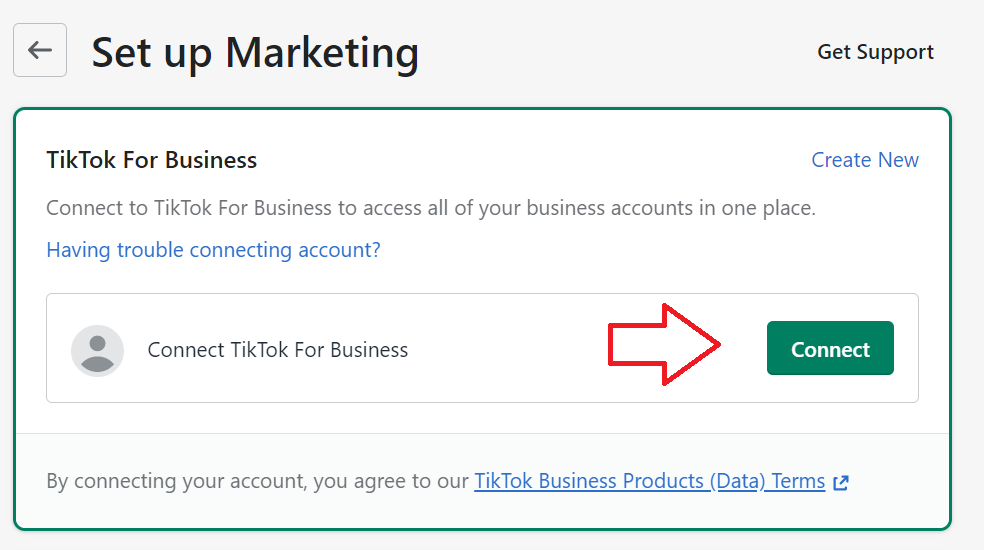
- To connect TikTok for Business, click Connect.
- Ensure that you’re connecting to the correct TikTok account, then click Connect.
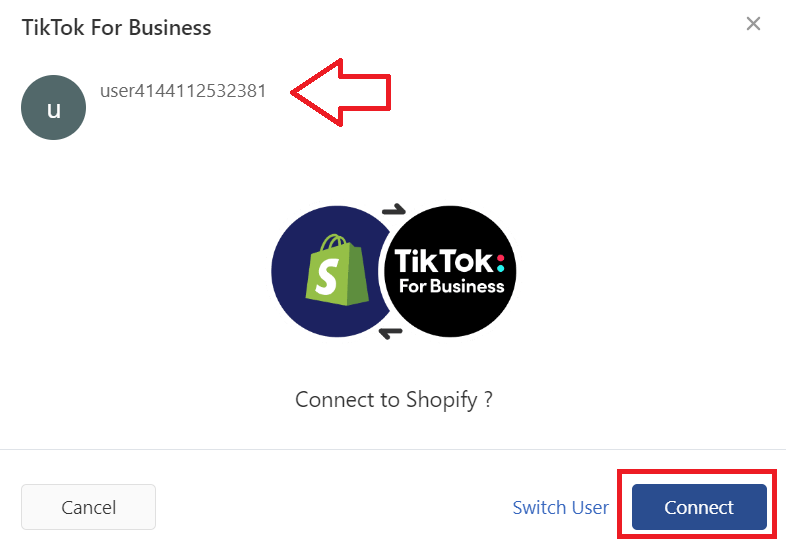
- Choose the appropriate TikTok Ads then click Connect.
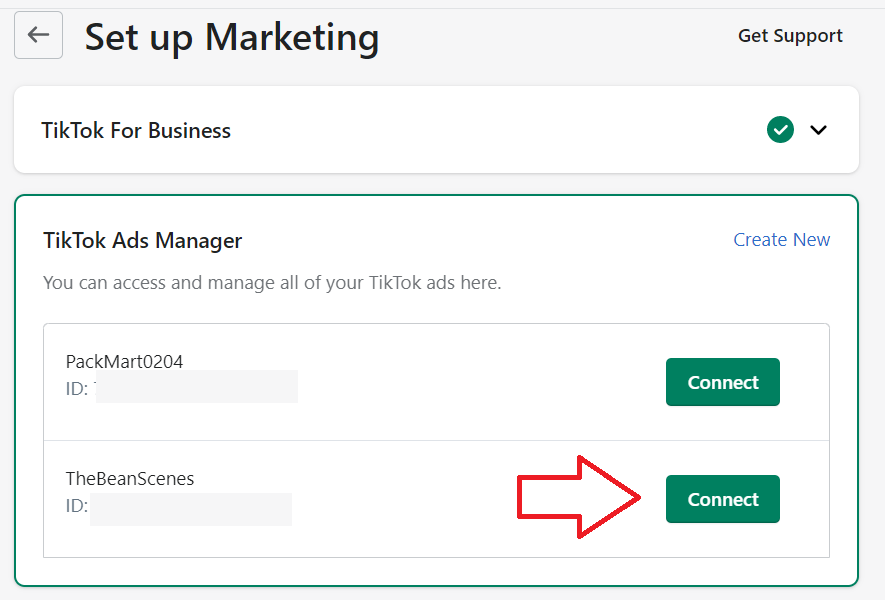
- Next, configure Data Sharing settings.
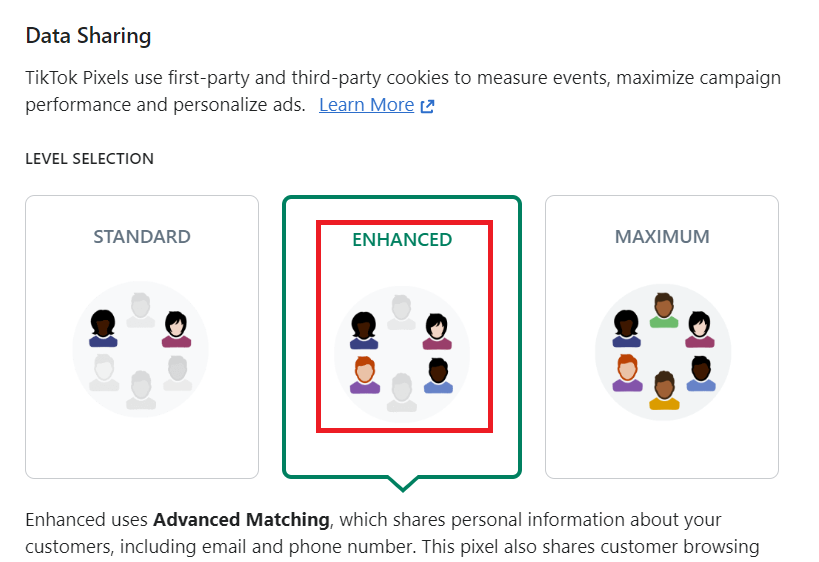
- Select the TikTok Pixel you created, then click Confirm.
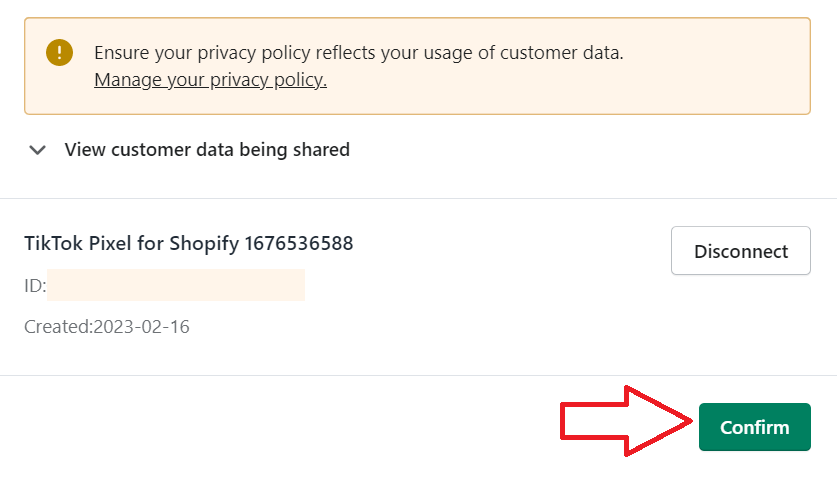
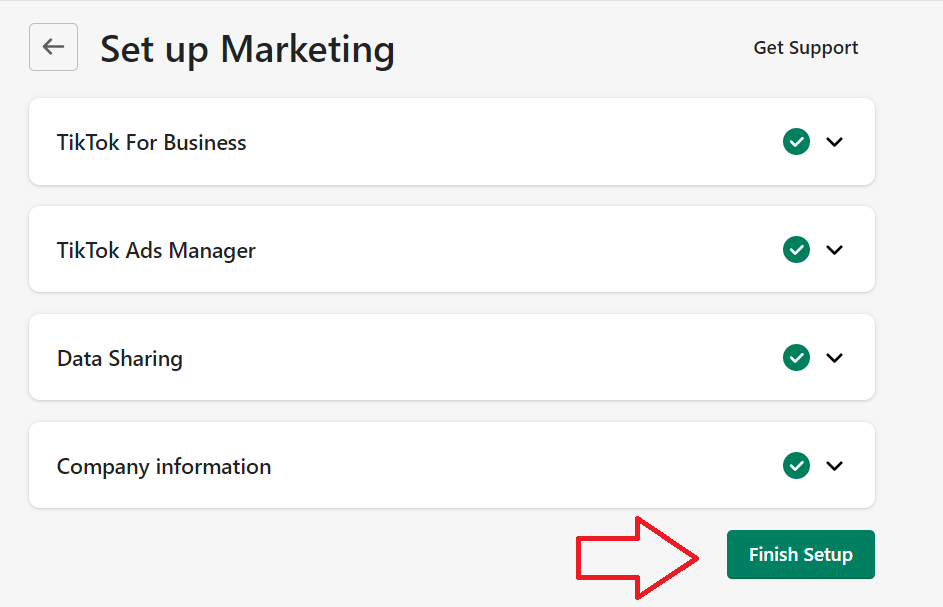
- Fill out the information about your company, then click Finish Setup.
Conclusion
That’s it! Now that you’ve set up your TikTok pixel on your website, you can now start tracking and evaluating how your customers are interacting with your website after clicking your TikTok ads. This information will help you improve TikTok ad creatives to increase conversion and customer engagement.
Execution Checklist:
-
Tiktok Ads Manager
-
Admin access to Shopify account
-
Admin access to the website’s host platform (optional)