A Step-by-Step Guide to Setting Up Form Submission Events
To set up a form submission tracking event in Google Analytics that triggers whenever a user fills out and submits a form on your website or online shop.
Prefer a shortcut? 16 free tools do parts of this for you.

Aim: To set up a form submission tracking event in Google Analytics that triggers whenever a user fills out and submits a form on your website or online shop.
Optimal Outcome: You will be able to successfully track a form submission event each time a particular form gets filled out and submitted by an online visitor.
What do you need to start: To follow this SOP, you will need a Google Analytics 4 account as well as a Google Tag Manager account.
Why is this SOP Important: Forms are important lead-capturing tools on any website or online shop. Thus, it is crucial that you are able to track how your online visitors interact with them. This way, you will be able to adjust your conversion funnels, call-to-actions, and other elements that contribute to an online visitor filling out and submitting a form.
Where to execute: You will need to set up a Google Analytics 4 account before you can set up a form submission event in Google Analytics.
Who Should Be Doing This: The person in charge of managing web analytics, the lead generation specialist
What Is a Form Submission Event?
A form submission event is a tracking event that triggers whenever an online visitor fills up and submits a form successfully.
There are different types of forms that you can set up on your website to collect online visitor information. However, the most common remains to be the sign-up form.
It is a great lead generation tool to collect the email addresses of your online visitors in exchange for a worthwhile opt-in.
You may track form submission events via Google Analytics 4.
Execution
Resources/Tools & Set up
-
A Google Analytics 4 account
-
A Google Tag Manager account.
Setting up Your Form Submission Event in Google Tag Manager
-
Log into your Google Tag Manager account.
-
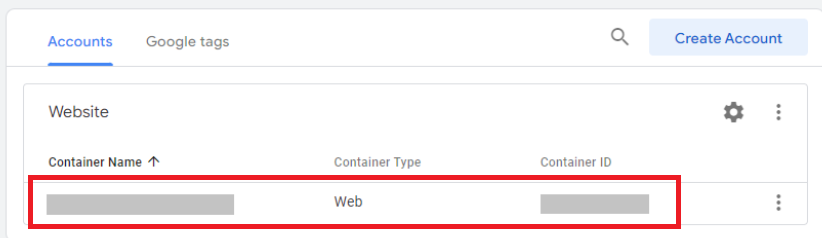
Select the appropriate Container Name for the website or online shop that you want to set-up.
-
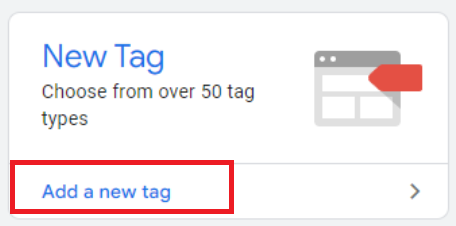
A new window will open. Click on New Tag.
-
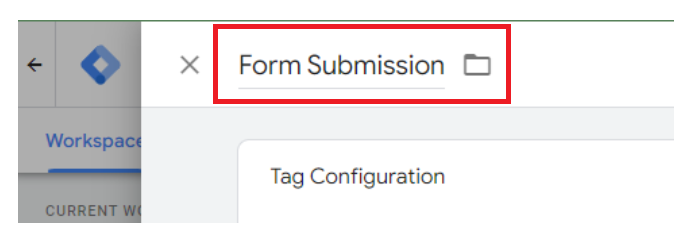
A side panel will open. Let us name this tag Form Submission.
- Click on the Tag Configuration icon.
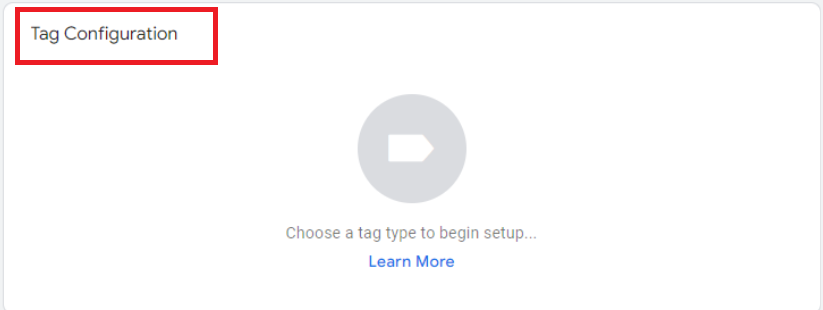
- The Choose Tag Type side panel will open. Select Google Analytics: GA4 Event among the options.
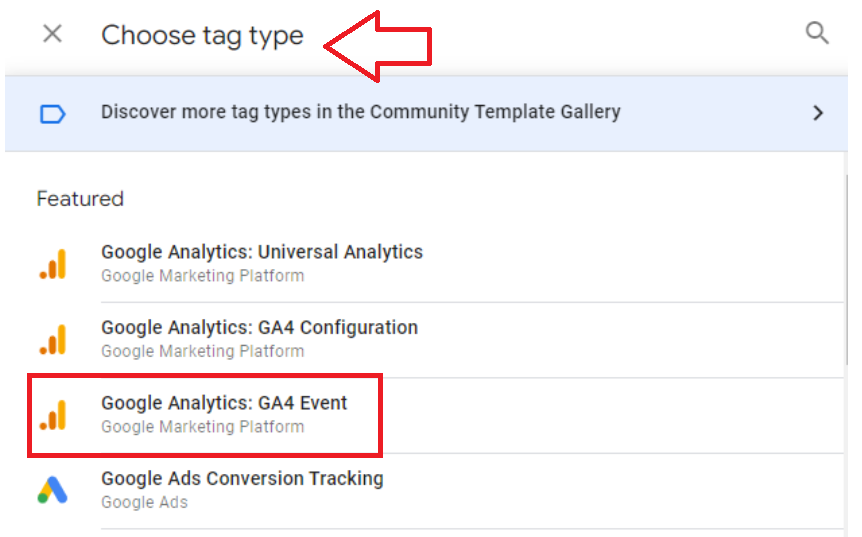
- After doing so, the Tag Configuration panel will open.
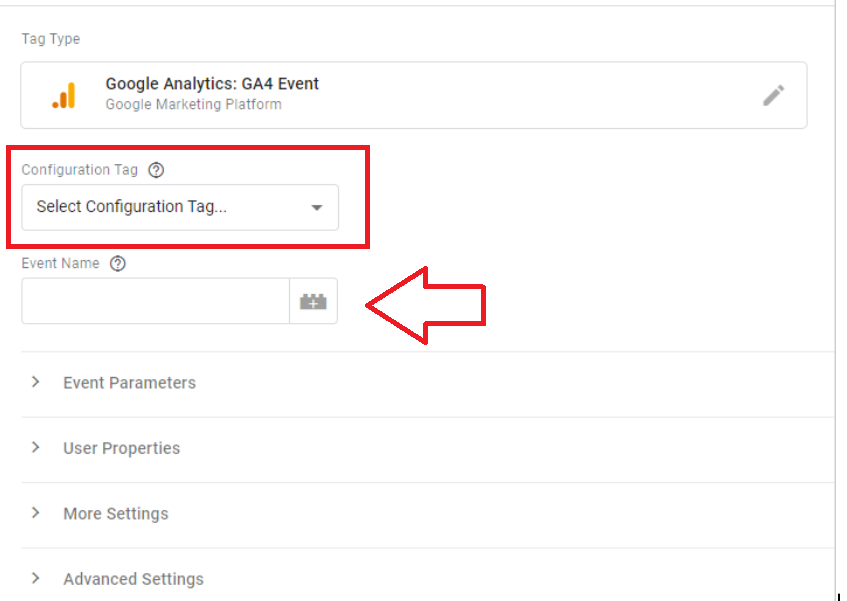
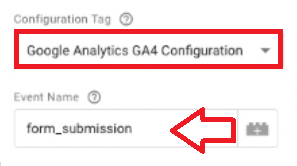
- Click on Select Configuration Tag… and select Google Analytics 4. Then type form_submission under Event Name.
Remember: We recommend naming your Event according to the specific form that you want to track. For instance: “form_submission_contact us” or “form_submission_leadmagnet”.
-
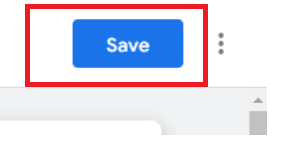
Once done, click on Save at the upper right-hand corner of the panel.
-
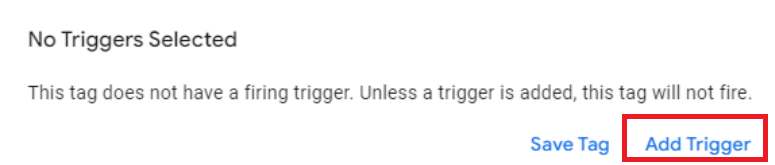
A No Triggers Selected alert will pop up. Click on Add trigger. Google Tag Manager will need that trigger to determine when it should activate the tracking event.
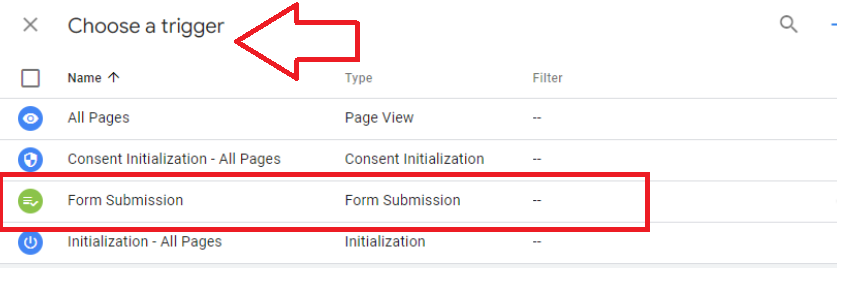
- The Choose a trigger side panel will open. Select Form Submission.
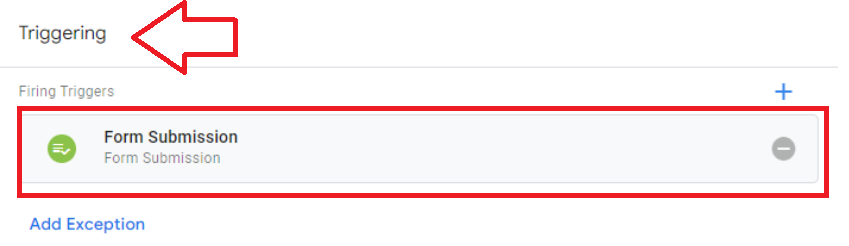
- It will now show under the Triggering section.
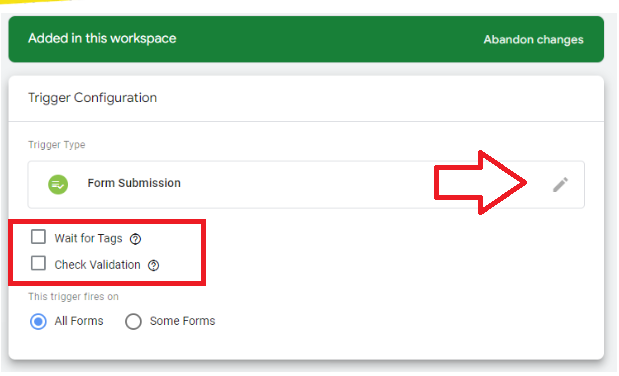
- We are now going to edit the settings of this Firing Trigger. To do that, click on Form Submission. A new panel will open.
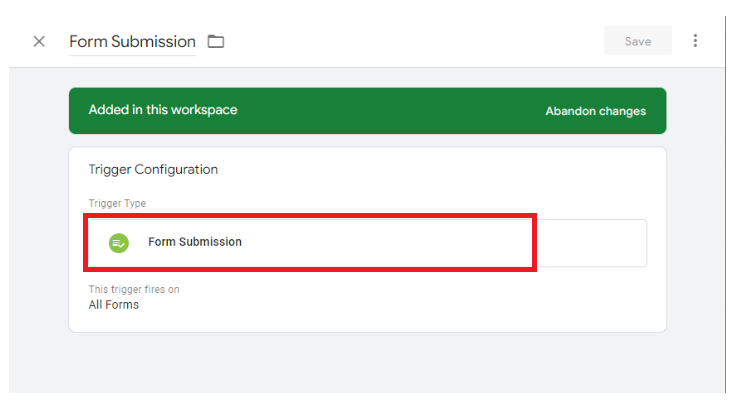
- Click on Form Submission again. The Wait for Tags and Check Validation check boxes will appear below it.
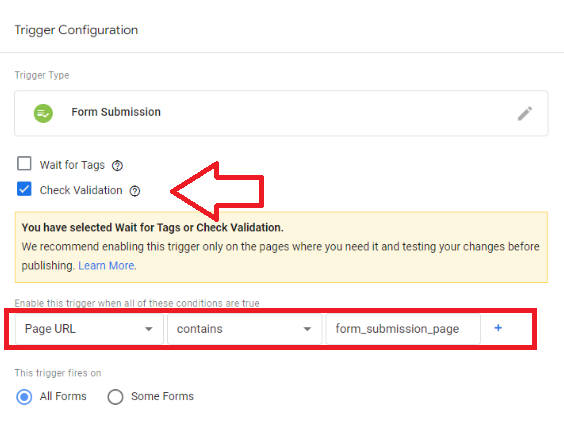
- Select Check Validation. A new section will appear. Under this section, select Page URL, then contains, and type in form_submission_page.
-
Click on Save once done. You can locate the button at the upper right-hand of the panel.
-
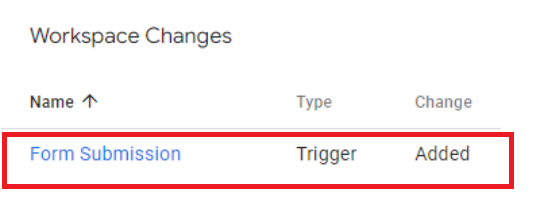
Doing so will return you to the Google Tag Manager dashboard. Your new tag should appear under Workspace Changes.
-
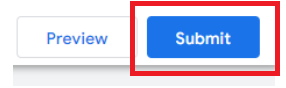
You will also notice that two buttons will appear at the upper right hand of the dashboard. These are Preview and Submit. Click on Submit.
-
A new side panel will open. The Submission Configuration section will allow you to add a name and description to your trigger.
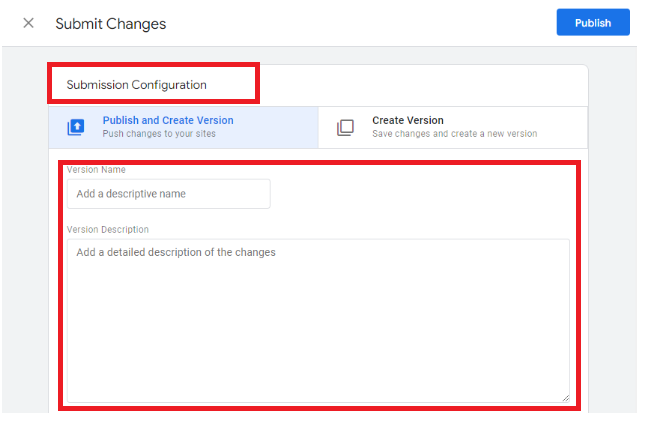
- For the purposes of this SOP, we are going to type in GA4 form submission event via GTM. We are also going to write down This trigger fires a new form submission event on GA4 whenever an online user submits a form at the /form_submission_page as its description.
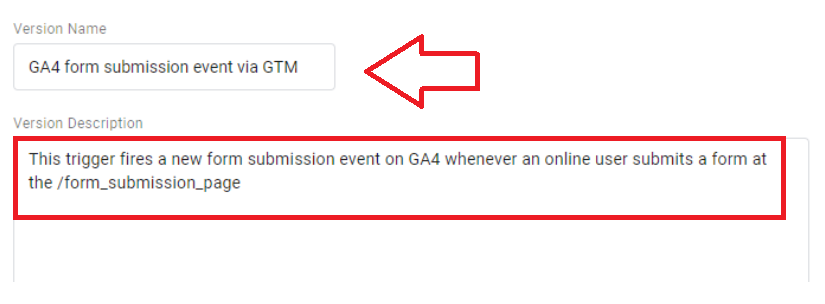
Feel free to edit the name and description as you see fit. Once done, click on Publish at the upper right hand of the panel.
- Congratulations! We are now done with the Google Tag Manager side of things. Let us now head to Google Analytics 4.
Setting up Your Form Submission Event in Google Analytics 4 as a Conversion
-
Log into your Google Analytics 4 account.
-
Select the right property that you want to work with. However, for the purposes of this SOP, we are going to use Google Analytics’ demo account.
-
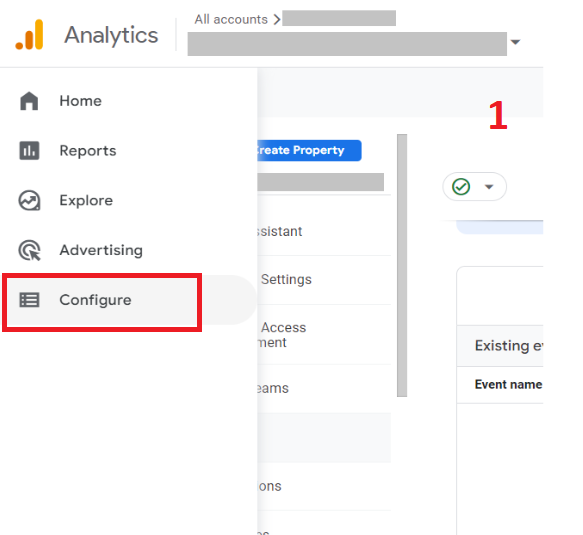
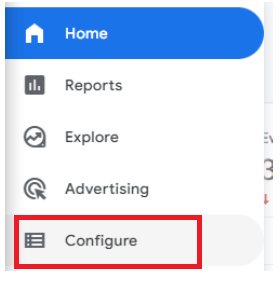
Select Configure from the main menu tab.
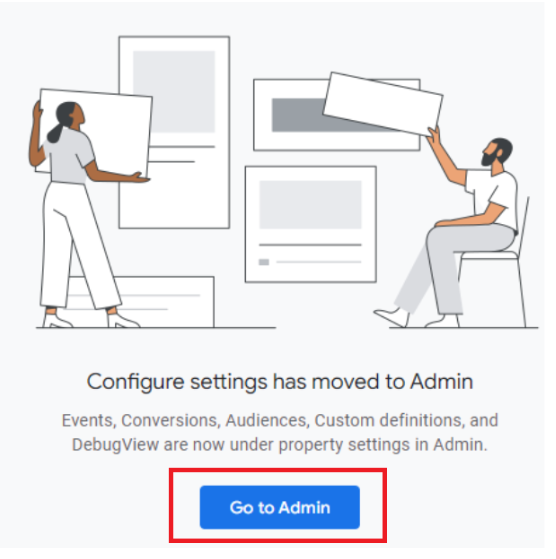
- Then click on Go to Admin.
-
Next, select Conversions under the Property menu.
-
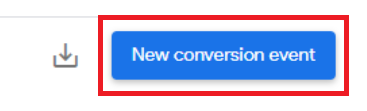
Click on the New conversion event button.
-
We will now begin the configuration of this event. Type in the same event name you have used on Google Tag Manager earlier. For the purposes of this SOP, the name we used was form_submission so type that in. Then, click on Save.
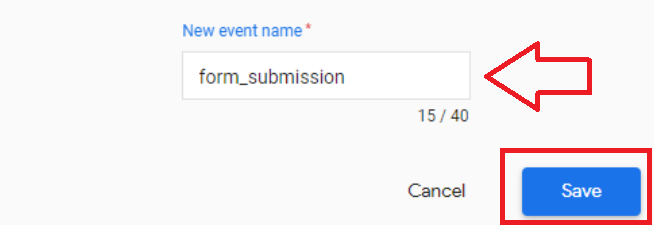
- Doing so will return you to the previous window. You should notice form_submission under your Conversion Events.

- Congratulations! We have successfully set up the form submission event on Google Analytics 4. It may take some time for the data to start coming in. This would depend on how many users are submitting forms on your chosen page, after all.
For now, let us move on to the next step: verifying whether your form submission event is working. To do this, let’s head back to Google Tag Manager.
Verifying Your Form Submission Event in Google Tag Manager
-
Log into your Google Tag Manager account.
-
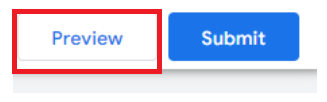
Remember the Preview and Submit buttons at the upper right hand of the dashboard earlier? This time we are going to click on Preview.
- A new window will open. Type in the URL of your website or online shop, then click on Connect.
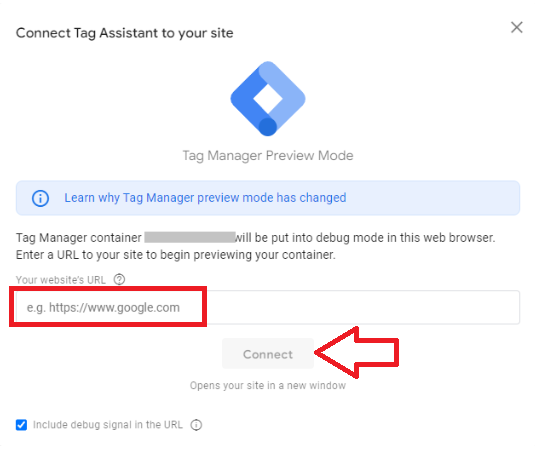
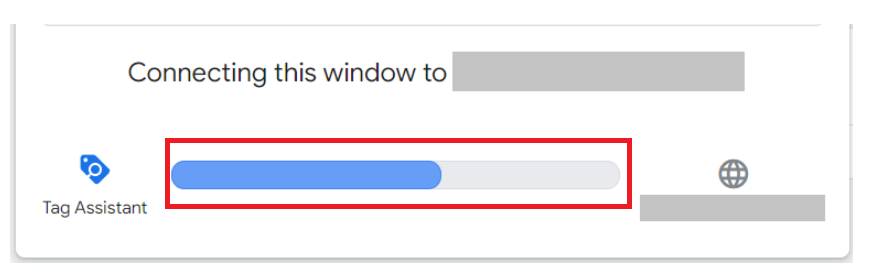
- A new window or tab will open with your website loaded. Back on Google Tag Manager, a progress bar will show Google’s Tag Assistant connecting to your website.
-
The process may take a few seconds.
-
Let’s test the new form submission event if it works. Go to your website and submit a form from the page you have set up to track.
-
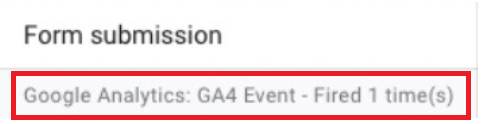
After sending your form, head back to the Tag Assistant window. You should be able to see that your form submission event was just recently triggered once.
-
Let’s check if everything’s working from the Google Analytics side of things as well. Login to your Google Analytics account. Click on Configure then Conversions.
-
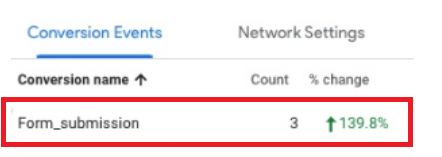
You should be able to see your form_submission conversion event working, only now with active counts.
Conclusion
You’re done! Remember, keeping track of how you are converting your online visitors into leads is a crucial aspect of growing your website or online shop. This will provide you with valuable insight, especially on how to boost your conversion and sales.
Fortunately, it is very easy to set up form submission reports via Google Tag Manager and Google Analytics 4.
-
The first step is to create a new form submission event in Google Tag Manager.
-
Configure the event with a Google Analytics: GA4 Event tag type, the Google Analytics GA4 configuration tag, and form_submission as the event name.
-
Edit the Form Submission trigger as well. Set it up in a way that Google will be able to track form submission actions on your stated page URL.
-
Next, set up the new form submission event over at Google Analytics 4 as a conversion. Be sure to use the same configuration details we have set up on Google Tag Manager.
-
Finally, you may verify that your event is working correctly by connecting Google’s Tag Assistant to your website or online shop.
-
Test it by submitting a form back on your website and check whether the activity was successfully tracked on both Google Tag Manager and Google Analytics 4.