How to Set Up Google Search Console in Shopify
To walk you through setting up your Google Search Console through URL prefix.
Prefer a shortcut? 16 free tools do parts of this for you.

Aim: To walk you through setting up your Google Search Console through URL prefix.
Optimal Outcome: To evaluate the clicks, impressions, and ranking of your website on Google.
What do you need to start: To follow this SOP, you need to access Google Search Console and Shopify account.
Why is this SOP Important: Setting up Google Search Console is important because it contains reports on search appearance, search results, index coverage status, and accelerated mobile pages for your website. It can help to determine the problems in your website’s SEO and contributes to the traffic within your website.
When and Where to execute: You will want to set up your Google Search Console when you want to analyze your data analytics and SEO.
Who Should Be Doing This: The person in charge of analytics or the SEO manager.
Google Search Console
Google Search Console is a set of features and analytics that anybody who runs a website can use to monitor and develop their website. It is a digital platform by Google that provides you with details about your website and the visitors it generates. Using Google Search Console's helps to assure website optimization simpler and quicker.
Execution
Resources/Tools & Set up
-
Google Search Console
-
Shopify Account
Setting up of Google Search Console
- Go to Google Search Console.
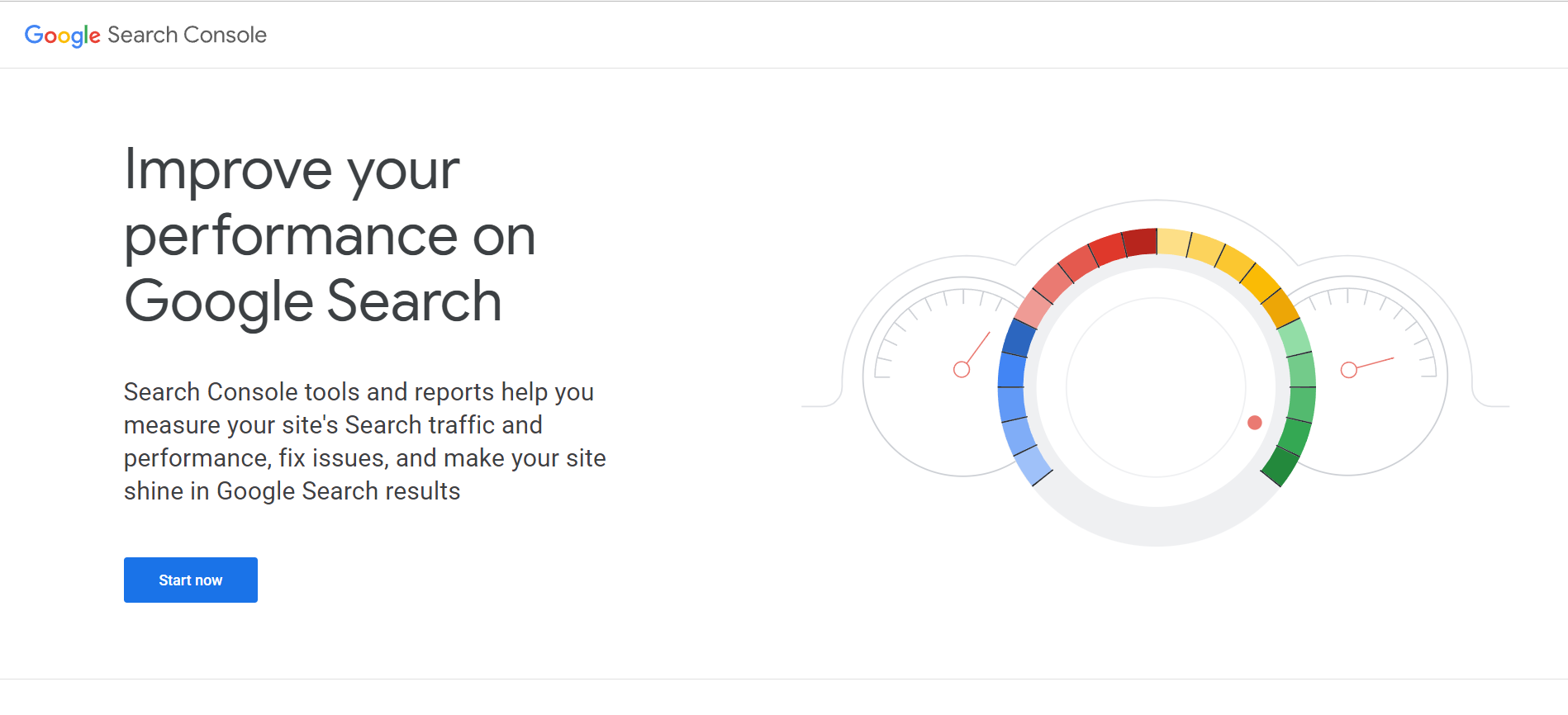
- Click “Start now”.
- You will be redirected to this page to choose a property type. Click the “Domain”.
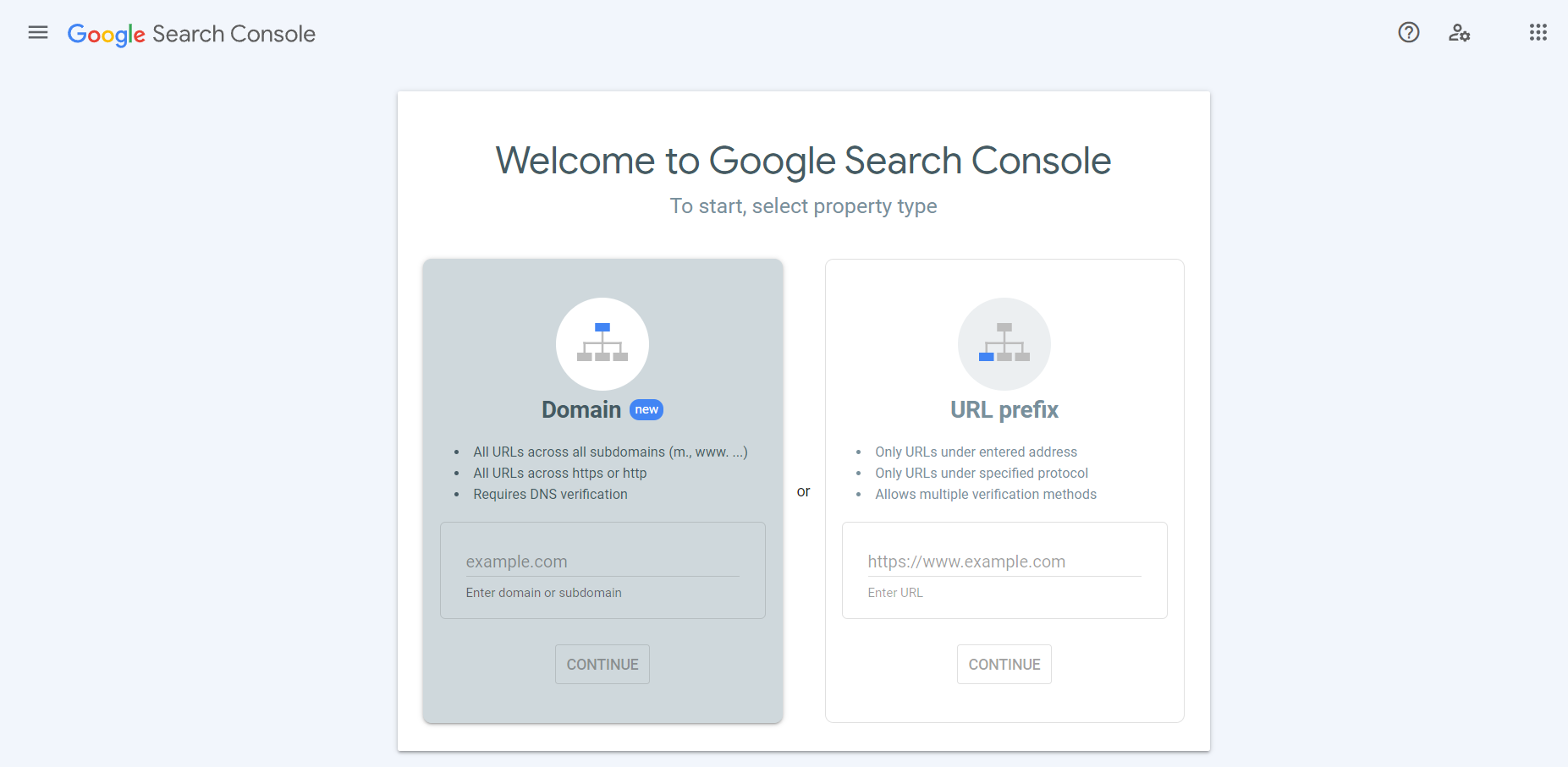
- Type your URL on the blank fill that is shown below. If your URL comes from Shopify, you can find it under Settings > Domains.
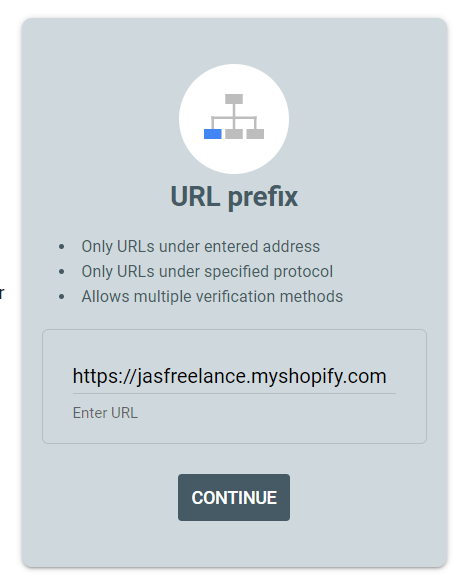
- Click the “CONTINUE” to continue the process.
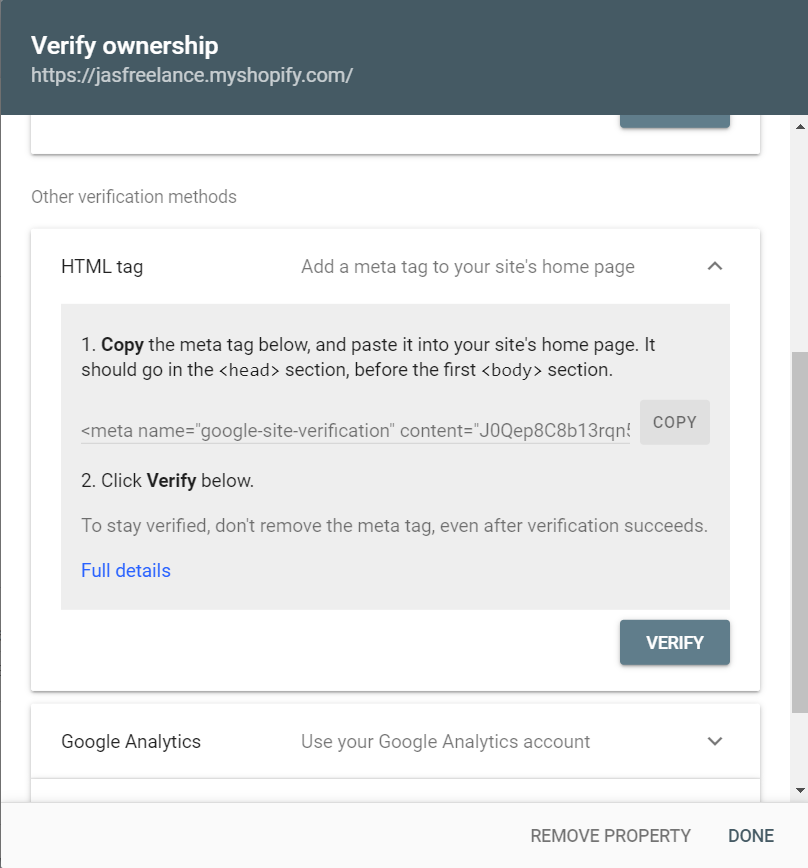
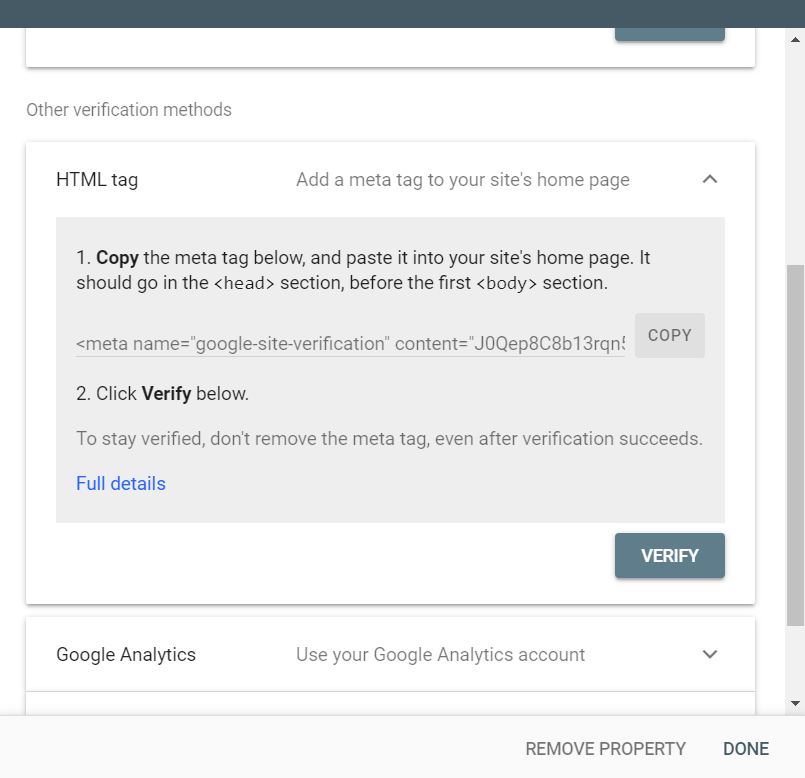
- Scroll down and copy the meta tag by clicking the “Copy “ button.
Setting up in Shopify
- Under the “Online Store”, click the “Preferences”.
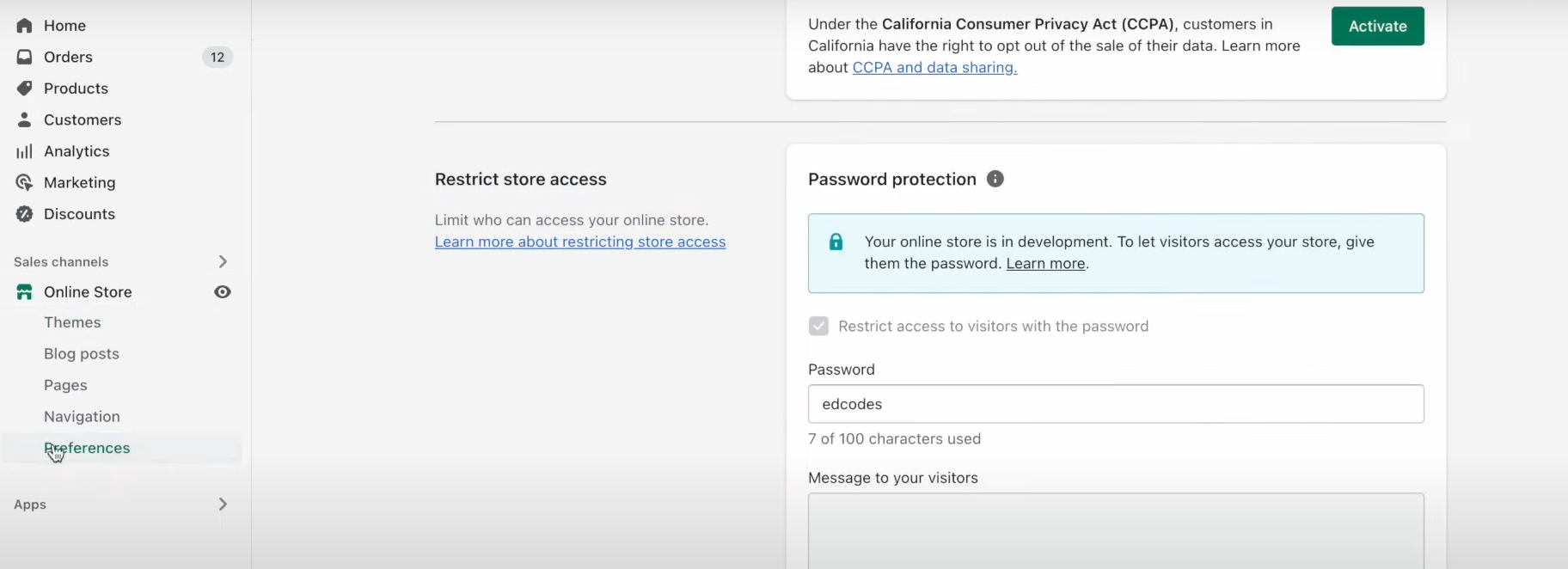
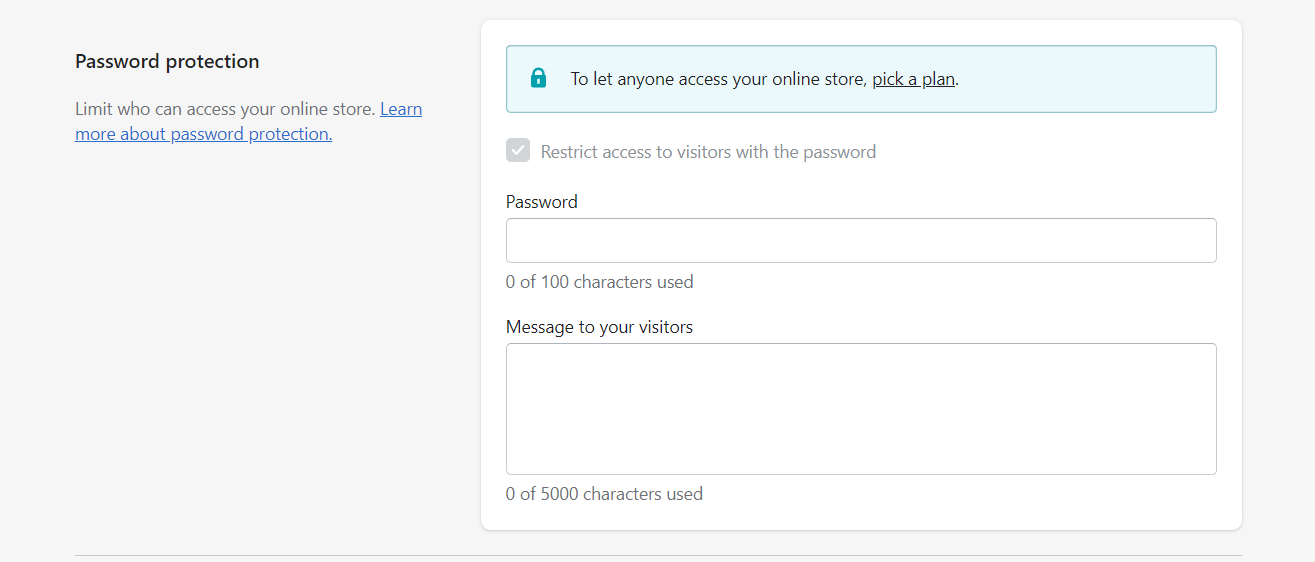
- Scroll down to “Password protection” and disable the “Restrict access to visitors with the password” by unchecking the box.
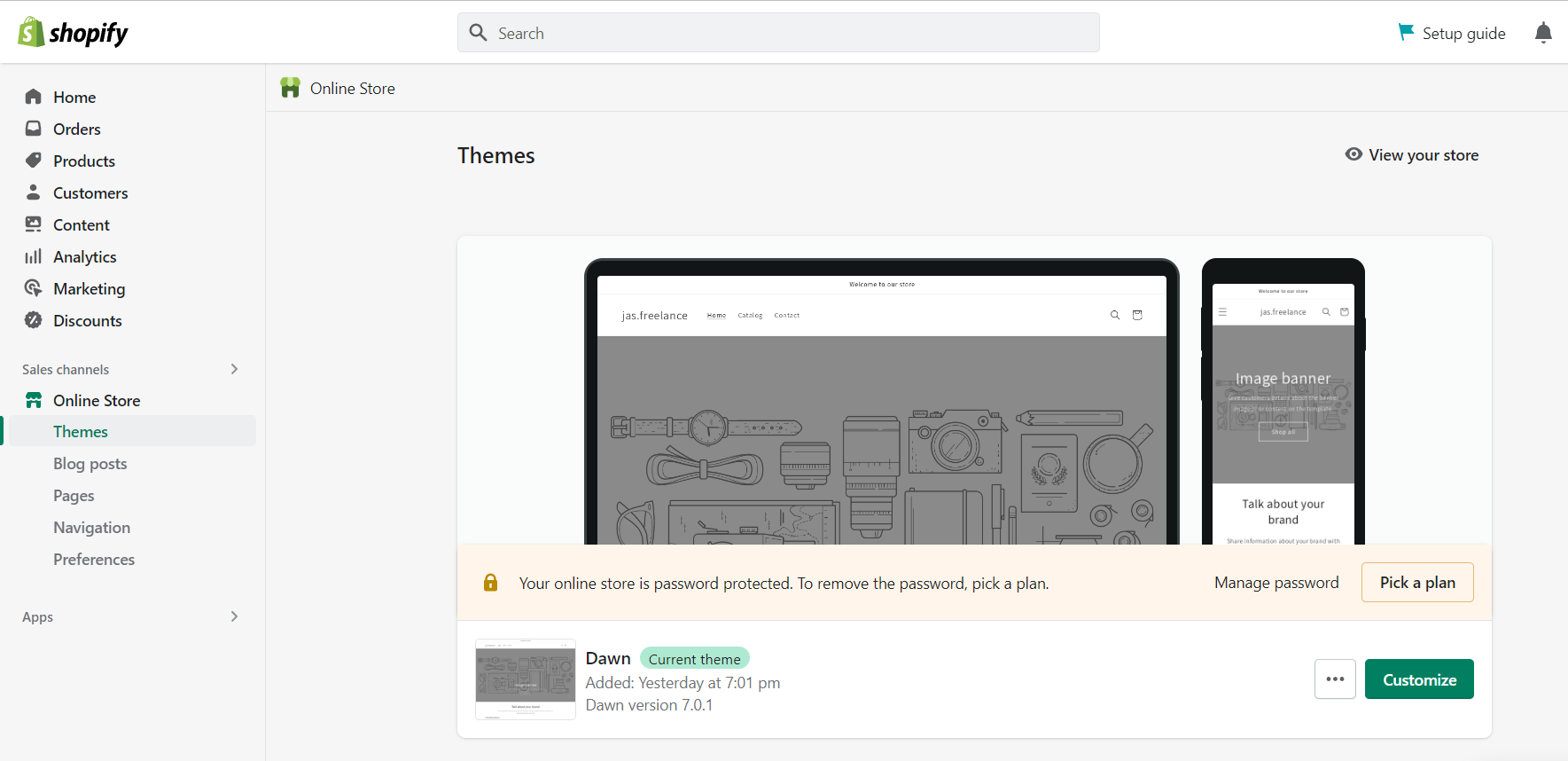
- Under Online Store, go to “Themes” and click the button shown below.
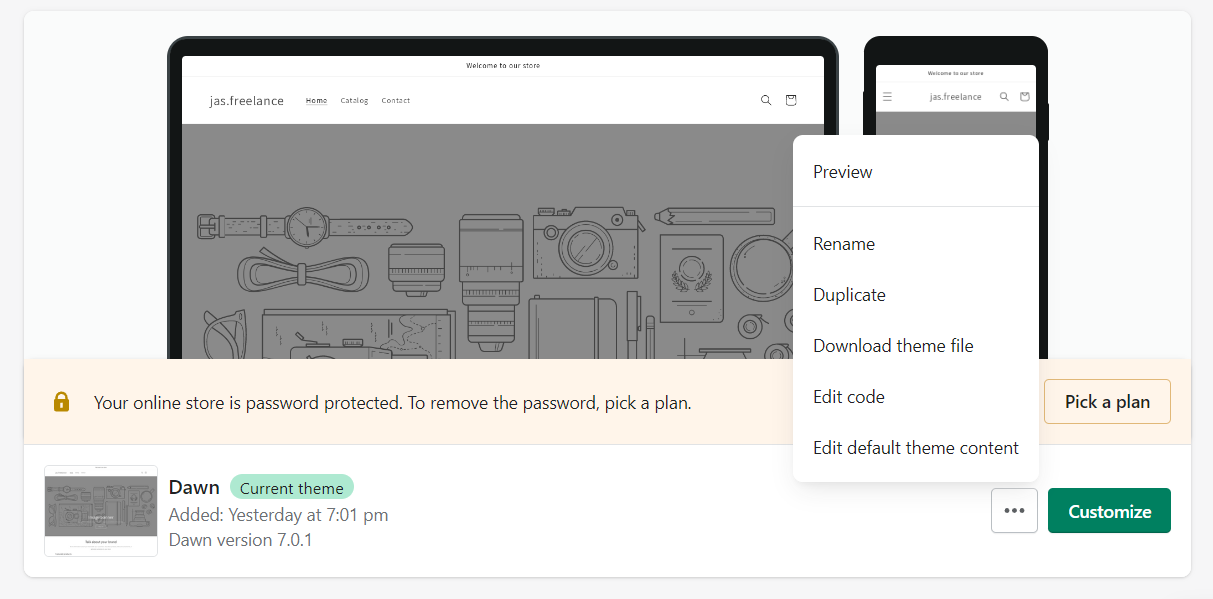
- Click on the “Edit code”.
- Click the “{/} theme.liquid”.
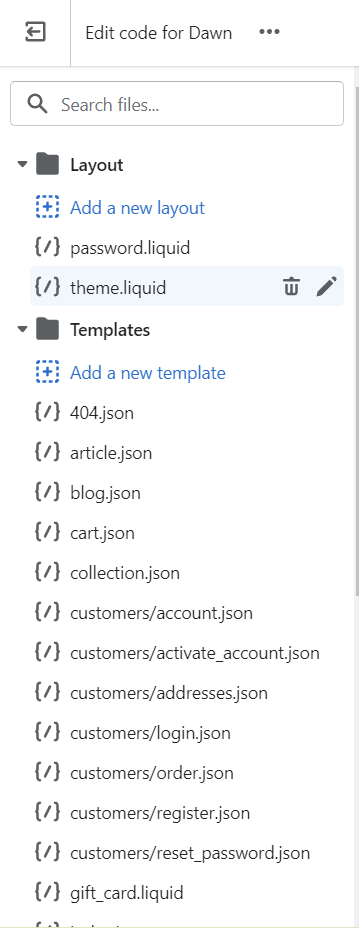
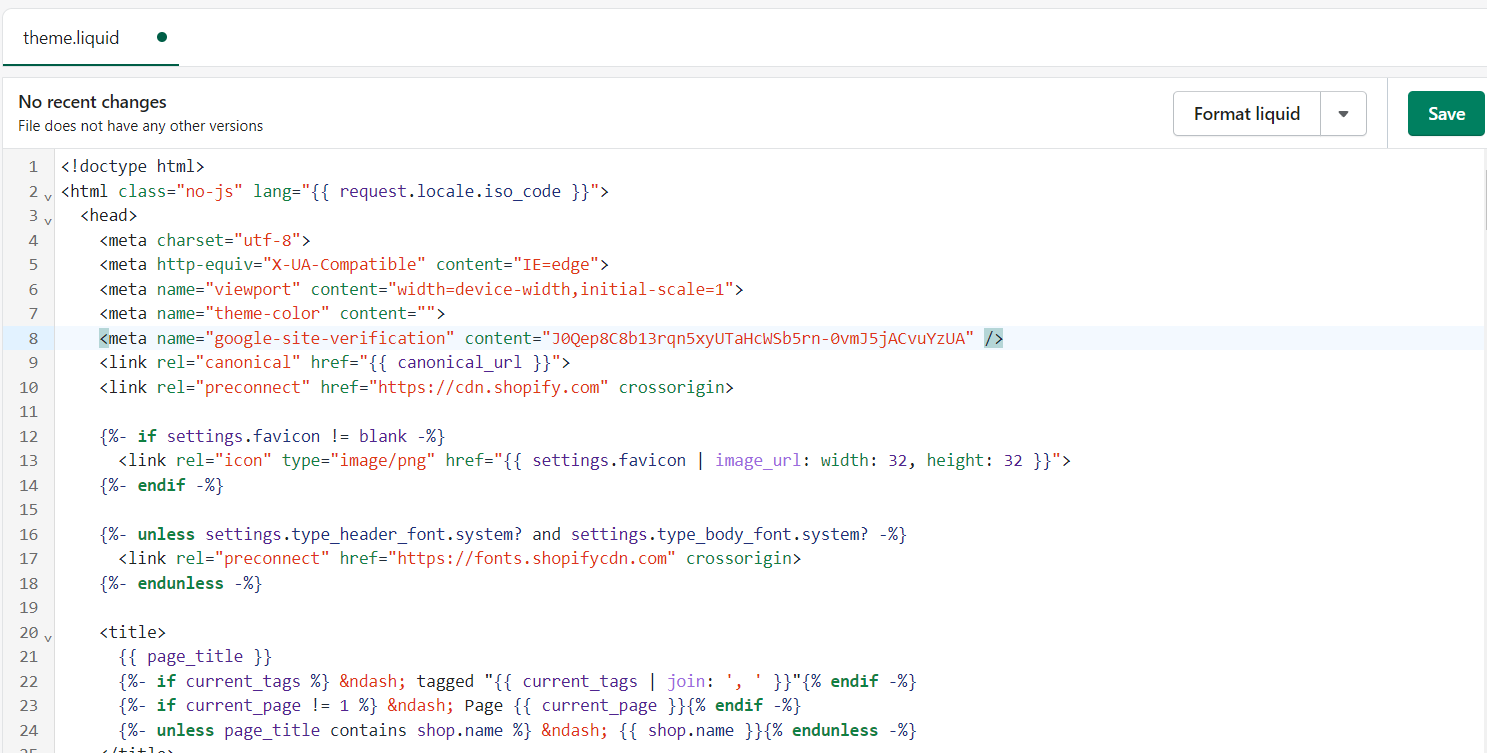
- Paste the meta tag under a new line of code and click “Save”.
- Go back to Google Search Console and click “Verify”.
Conclusion
You’re done! Remember, Google Search Console helps to diagnose the problems in your website’s SEO and increases the web traffic.
-
They can help you analyze the reports on search appearance, search results, index coverage status, and accelerated mobile pages.
-
Google Search Console is a set of features and analytics that anybody who runs a website can use to monitor and develop their website.
-
To set up your Google Search Console, go to the website and copy the meta tag generated from the URL prefix.
-
Then, paste it to the code in your Shopify theme and click verify from the Google Search Console.
-
Google Search Console provides you with details about your website and its visitors.