Setting Up Google Analytics on Your Shopify Store
To walk you through adding Google Analytics tracking code to your Shopify store.
Prefer a shortcut? 16 free tools do parts of this for you.

Aim: To walk you through adding Google Analytics tracking code to your Shopify store.
Optimal Outcome: Start running Google Analytics on your website so you can start tracking information about the behavior of customers who interacted with your Shopify store.
What do you need to start: Google Analytics account, Shopify store
Why is this SOP Important: Adding Google Analytics to your Shopify store allows you to track and analyze data about your store's traffic and behavior, helping you understand and optimize your marketing efforts.
When and Where to execute: Google Analytics account and Shopify store. You only need to configure this once.
Who Should Be Doing This: Web developer, Data analyst, person responsible for managing your website
What is Google Analytics?
Google Analytics is a web analytics service offered by Google that allows website owners to track and analyze website traffic and user behavior. With Google Analytics, website owners can measure and monitor the performance of their website and its content, and gain insights into how users interact with their site.
Execution
Configure your Google Analytics
-
Login to your Google Analytics account.
-
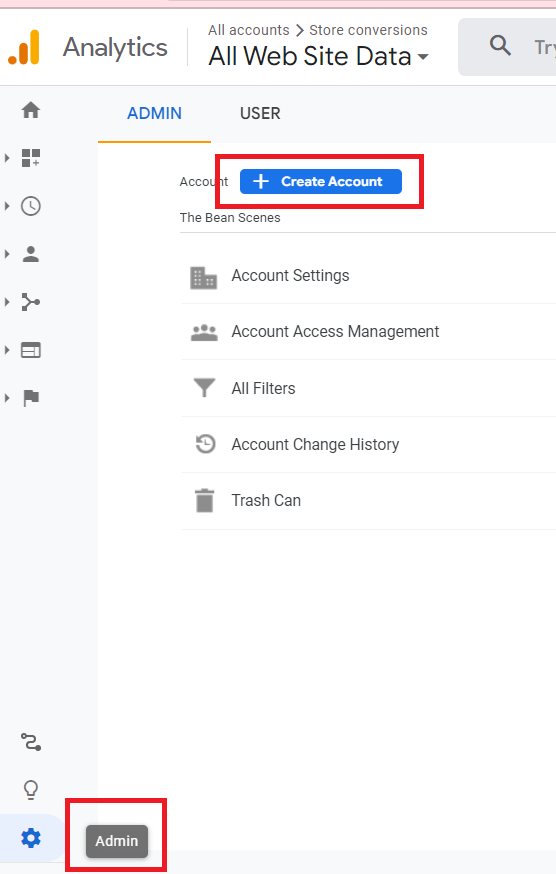
Navigate to the left menu then click Admin.
-
Click Create Account.
‘
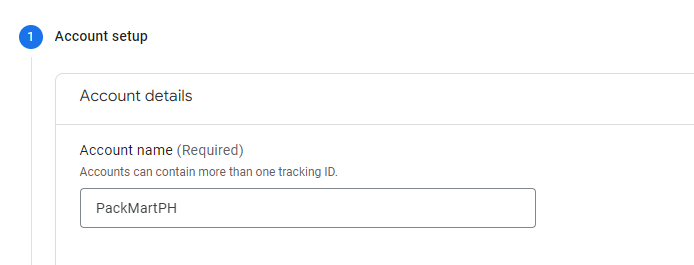
- Provide a name for your new account.
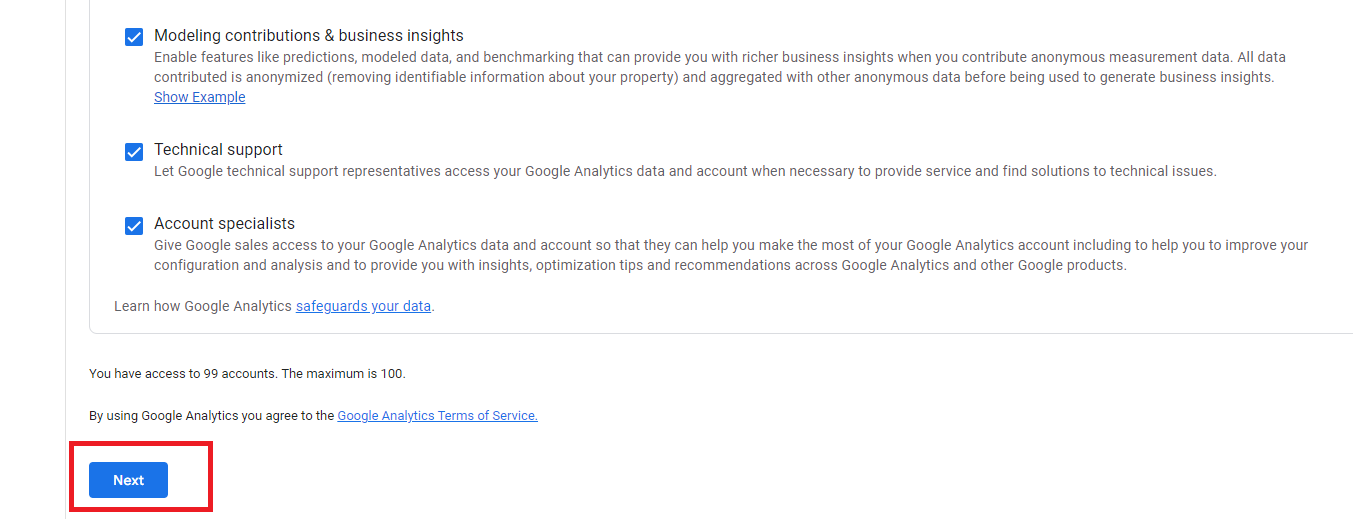
- Click Next.
-
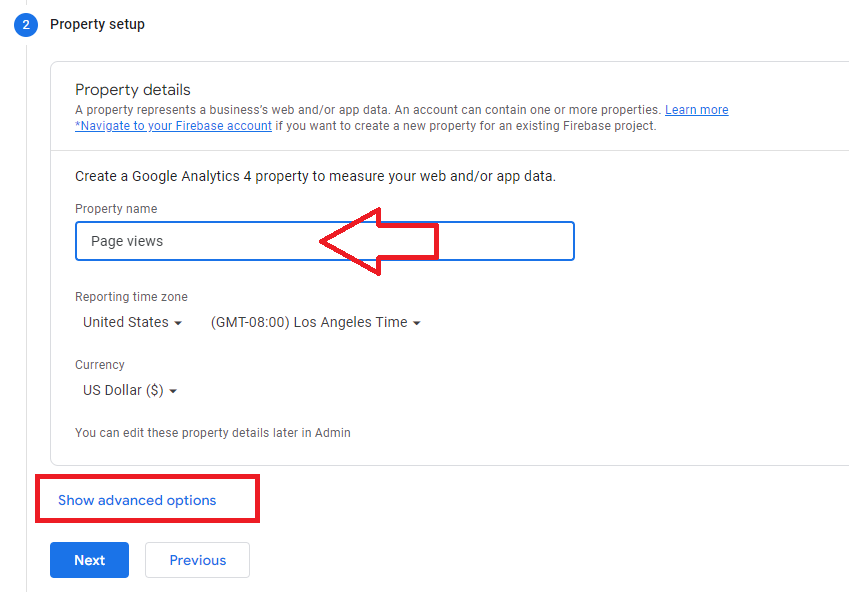
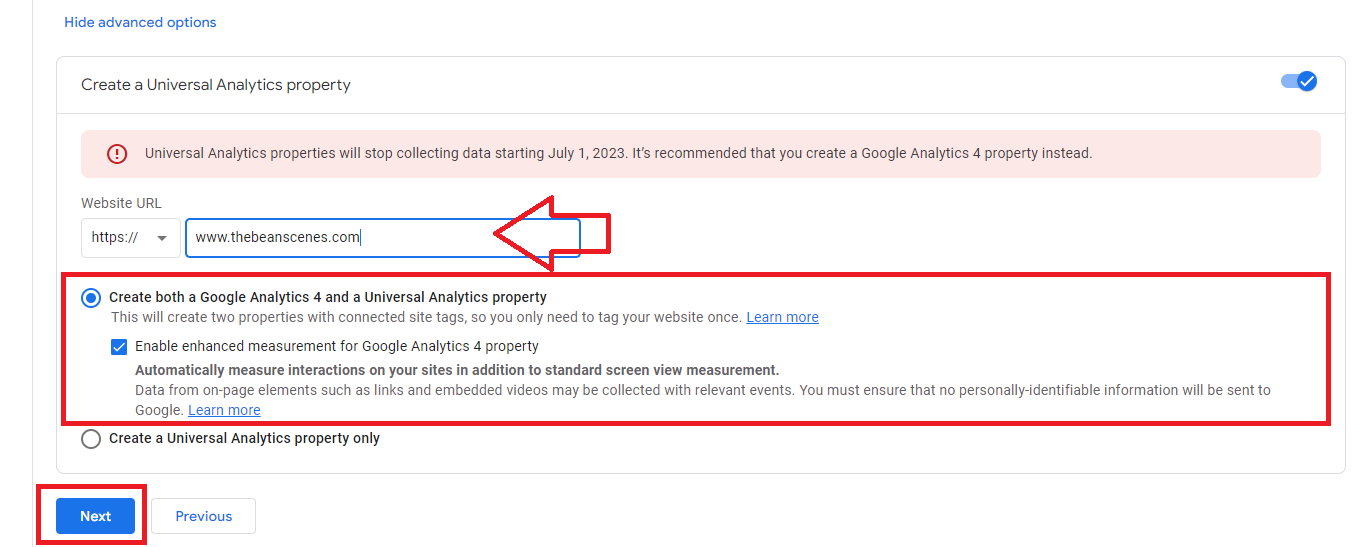
Configure the property setup, then click Show advanced options.
-
Turn on Create a Universal Analytics property, then enter your website on the field.
-
Select Create both a Google Analytics 4 and a Universal Analytics property option, then click Next.
Note: Universal Analytics will stop working after July 1, 2023. Selecting both Google Analytics 4 and Universal Analytics property will allow your tag to work even after July 1, 2023.
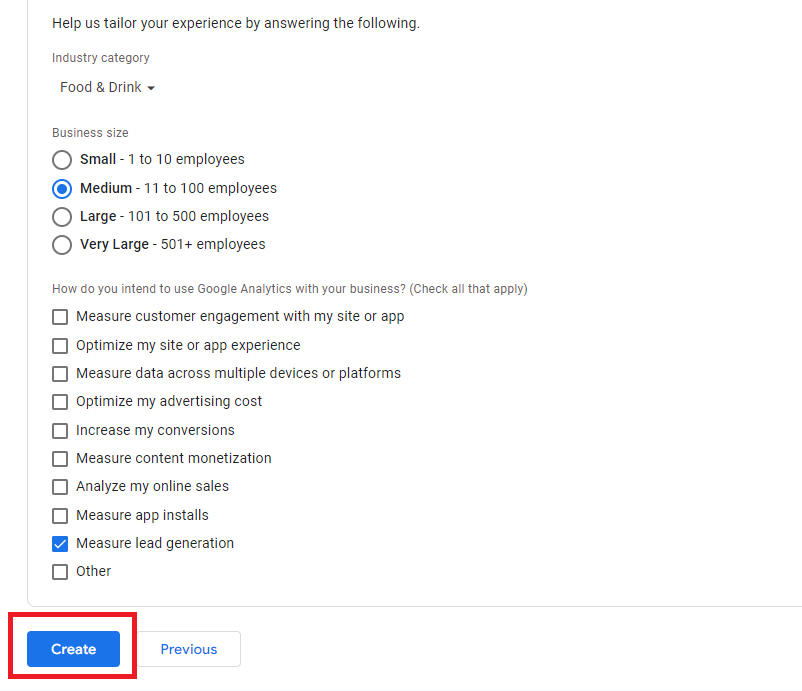
- Configure settings for your business, then click Create.
-
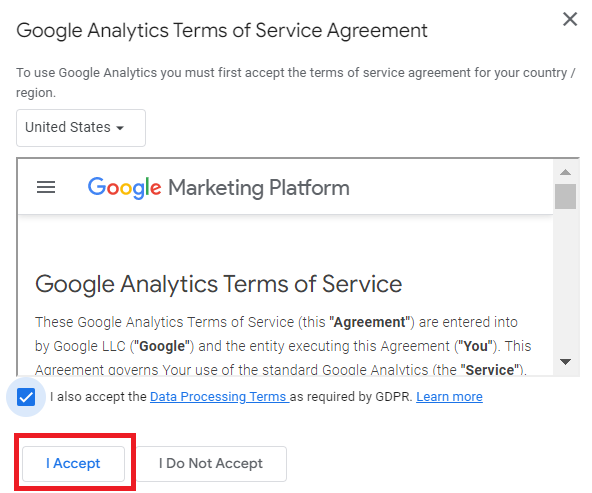
Accept the terms of Service.
-
Select All Accounts at the top of the main dashboard page.

- Then select the Google Analytics account you created.
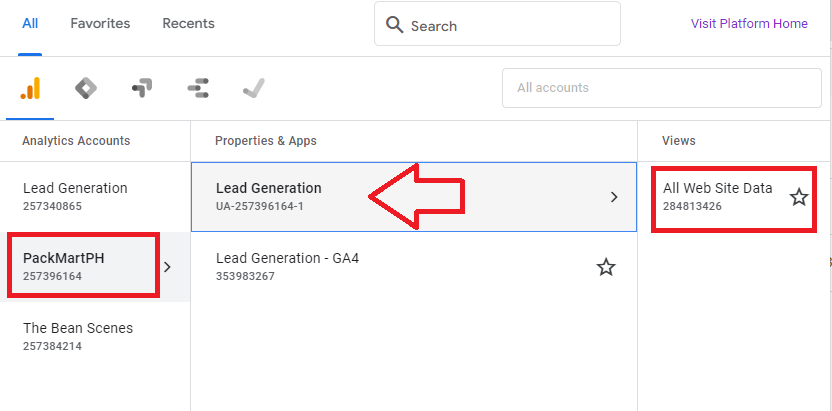
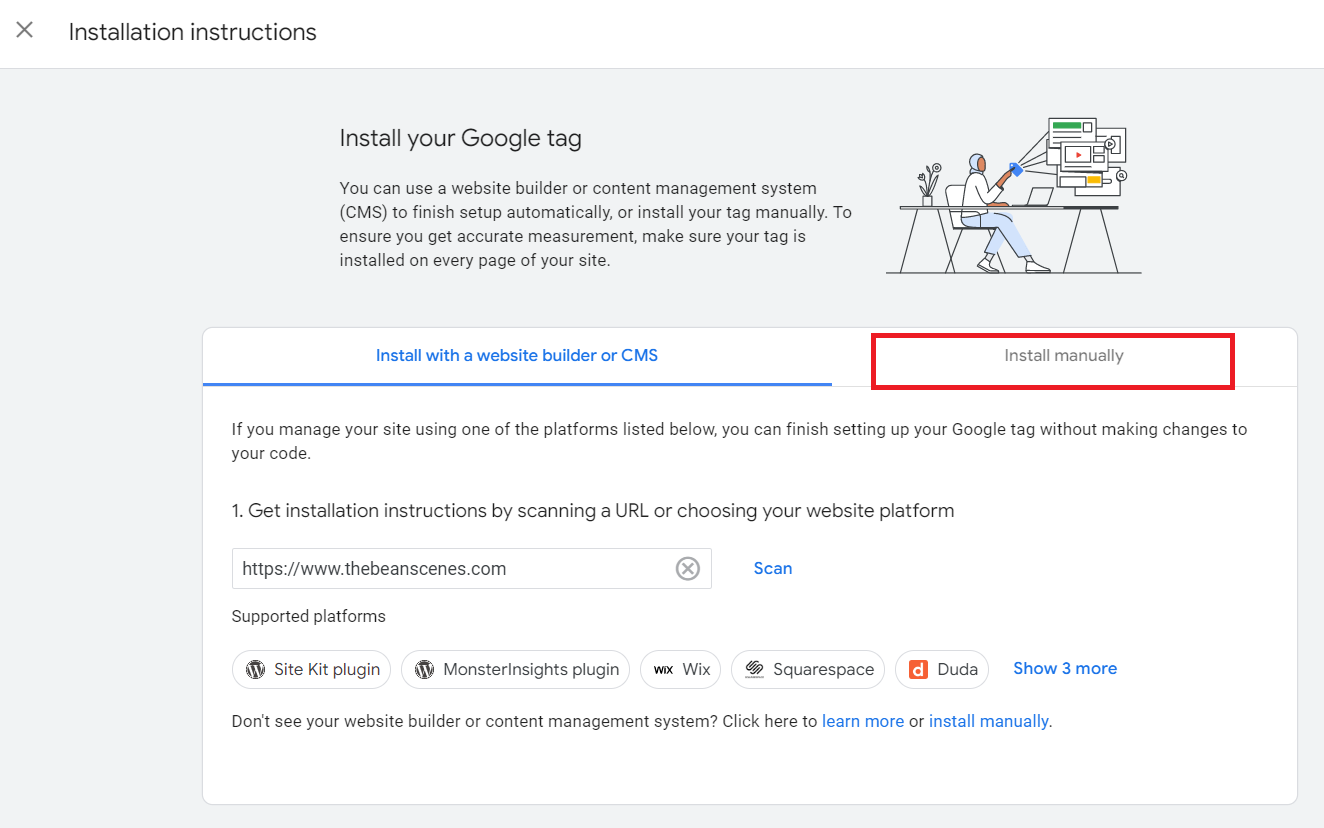
- On the Installation instructions page, click Install manually.
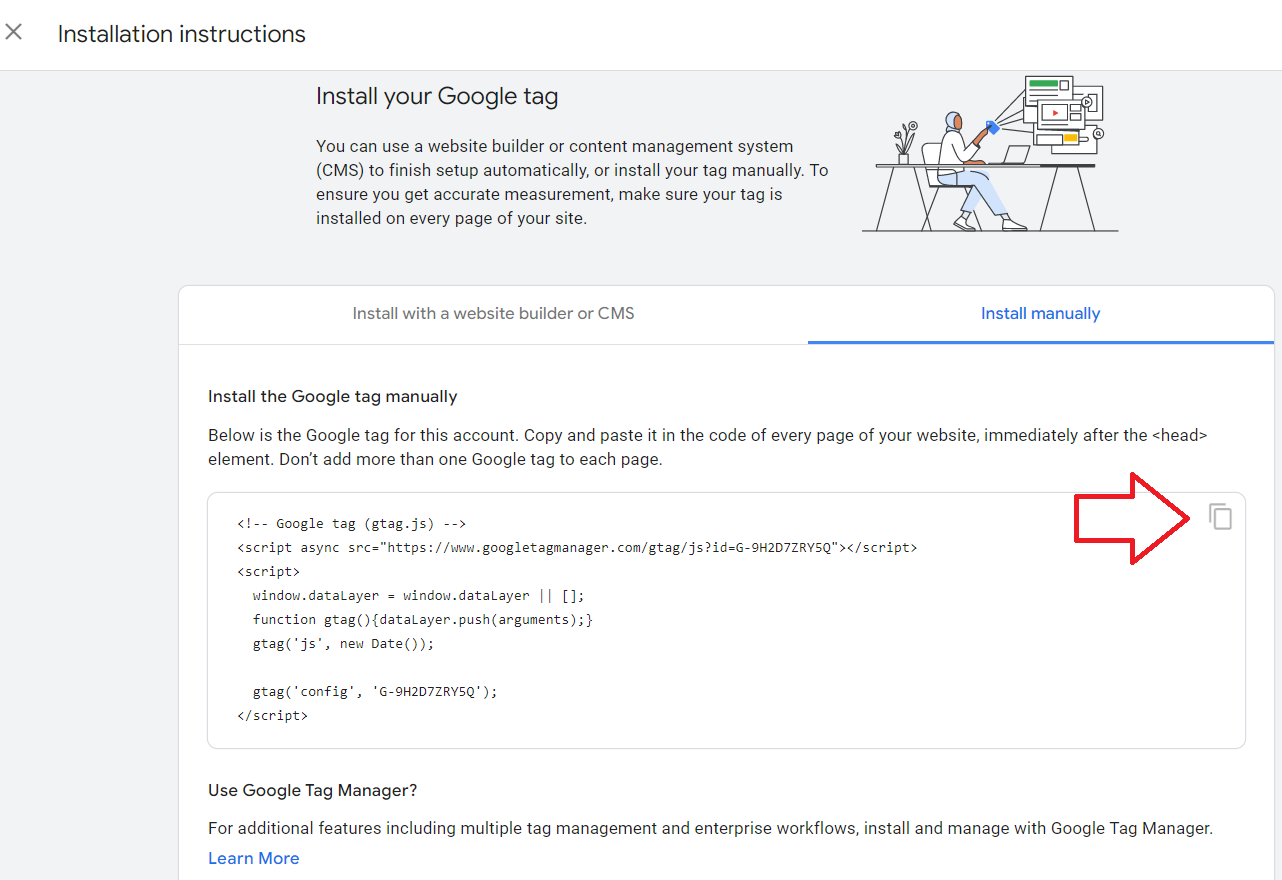
- Copy the code.
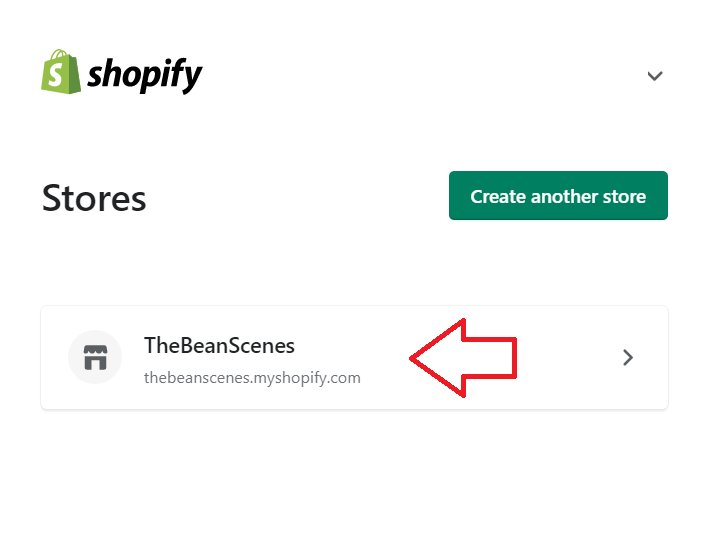
- Login to your Shopify account.
-
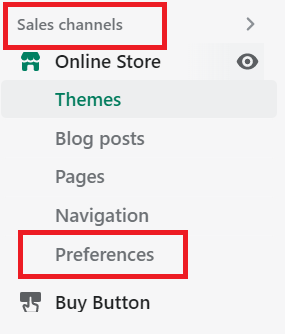
Navigate to the left menu and look for Sales channels. Select Preferences.
-
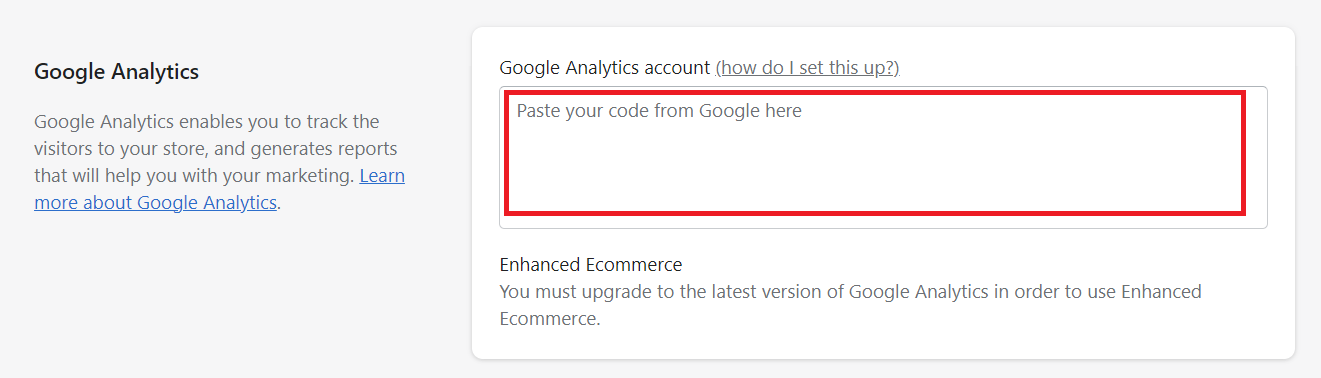
Look for the Google Analytics section, then paste the code you copied earlier.
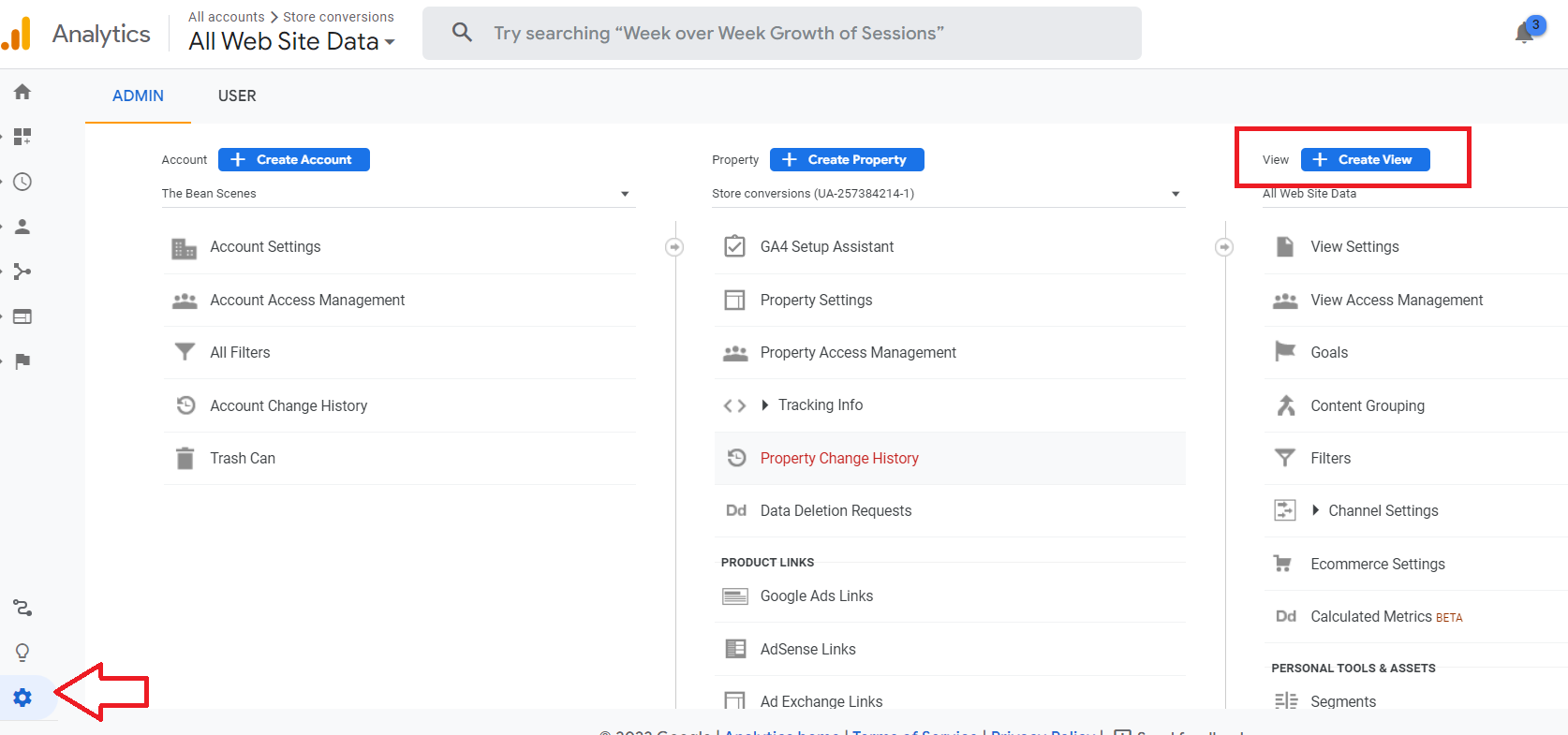
- Back to Google Analytics, select Admin then click Create View.
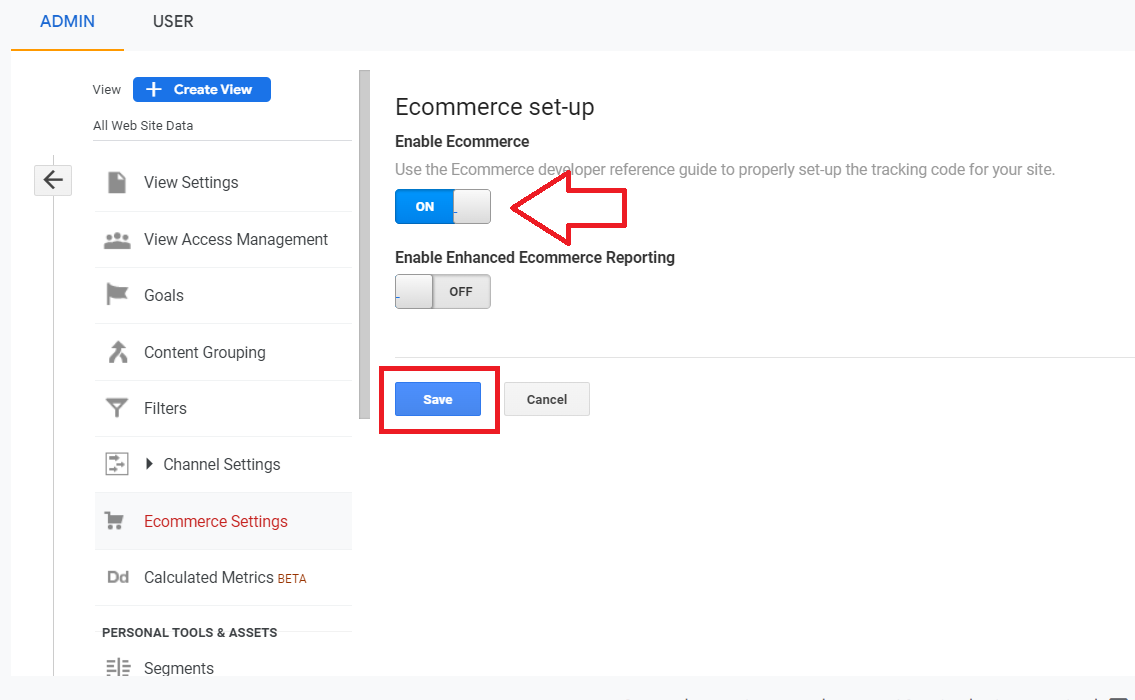
- Under Ecommerce set-up, turn on the Enable Ecommerce option, then click Save.
Conclusion
You’re done! Now that you’ve added Google Analytics to your Shopify store, you can start to monitor and analyze your shop’s traffic and ad performance.
Execution Checklist:
-
Google Analytics account
-
Shopify Store account
-
Google Analytics code