Keeping Up with Business Events Using Google Analytics Annotations
To track business events with Google Analytics Annotations.
Prefer a shortcut? 16 free tools do parts of this for you.

Aim: To track business events with Google Analytics Annotations.
Optimal Outcome: Google Analytics Annotations are properly tracking business events without any technical issues.
What do you need to start: A Google Analytics Account and events to track.
Why is this SOP Important: By adding annotations, you can easily correlate changes in your website's metrics with specific events or activities that may have caused the changes. This information can be used to make data-driven decisions and improve the overall performance of your website.
When and Where to execute: This SOP can be executed repeatedly, whenever a new business event is tracked in Google Analytics. Annotations should be added as soon as possible after the event occurs, while the details are still fresh in your mind.
Who Should Be Doing This: The person responsible for website management or analytics.
Step 1: Log in to your Google Analytics account.
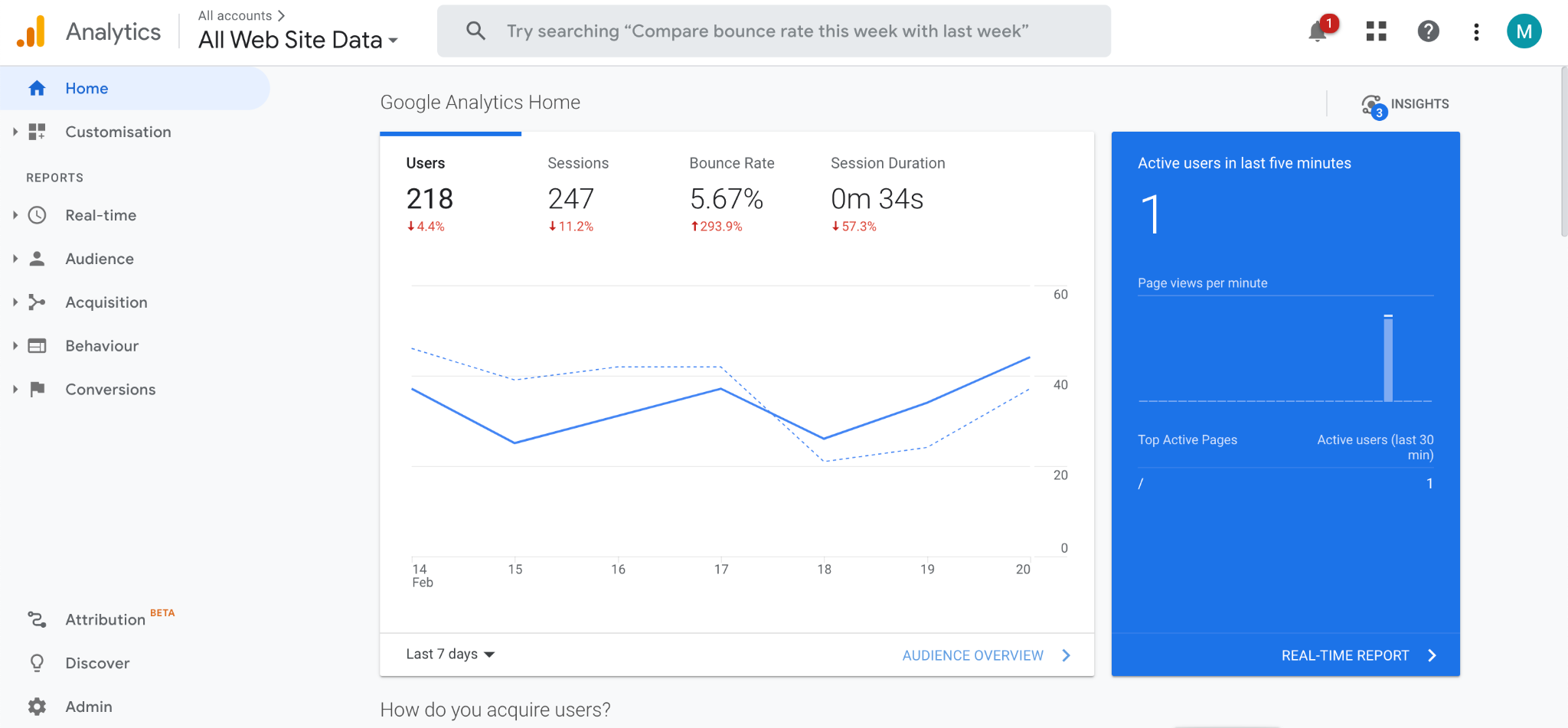
Step 2: Navigate to the "Behavior" section in the left sidebar.
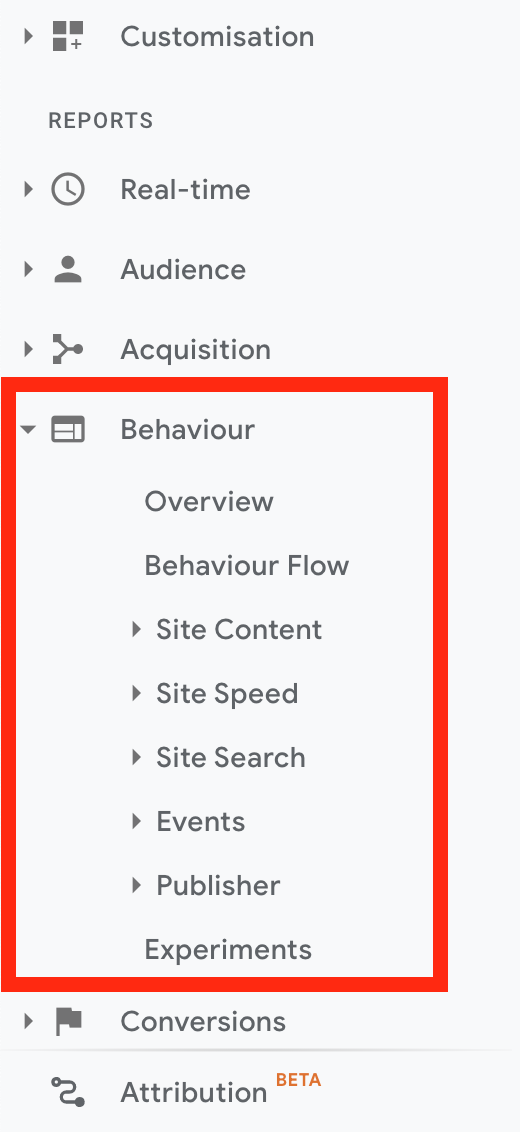
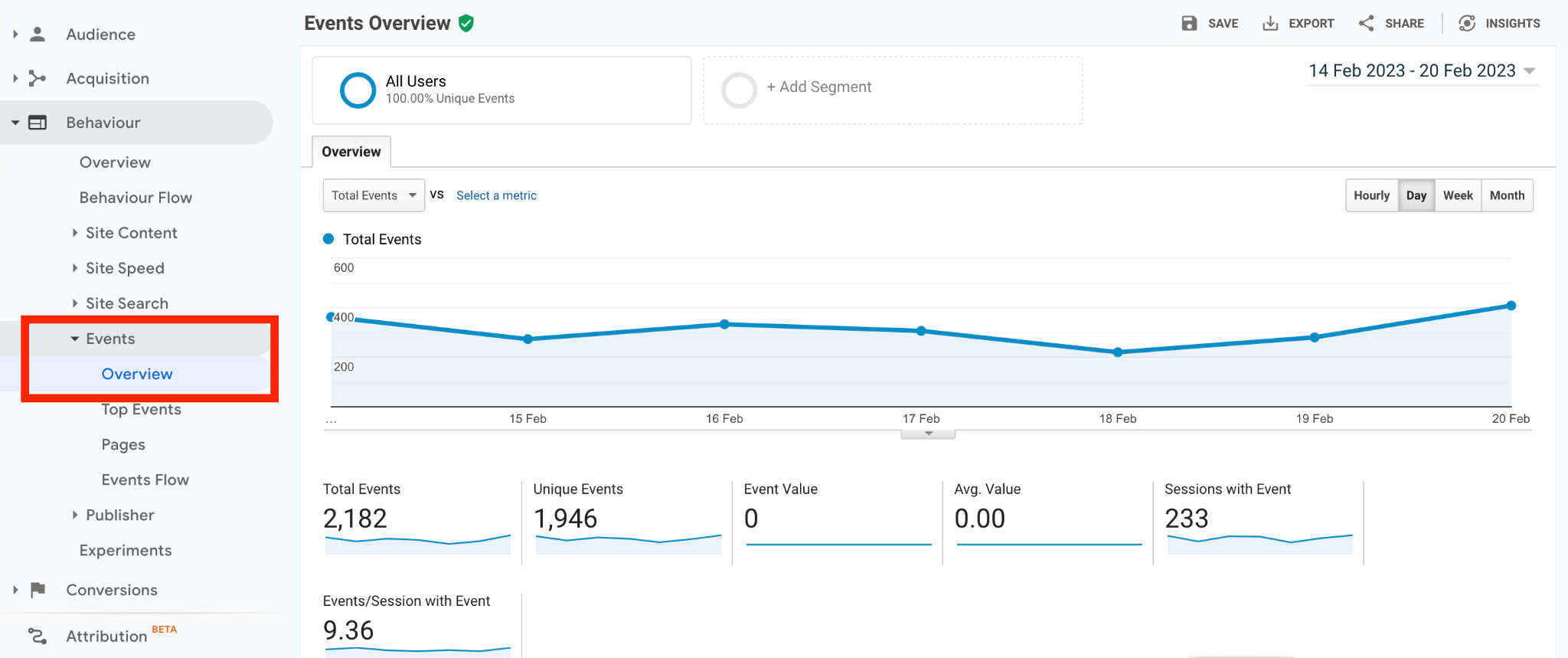
Step 3: Click on "Events" to view your website's event tracking data.
Step 4: Click on the date range selector in the top right corner of the page and select the date of the event you want to annotate.
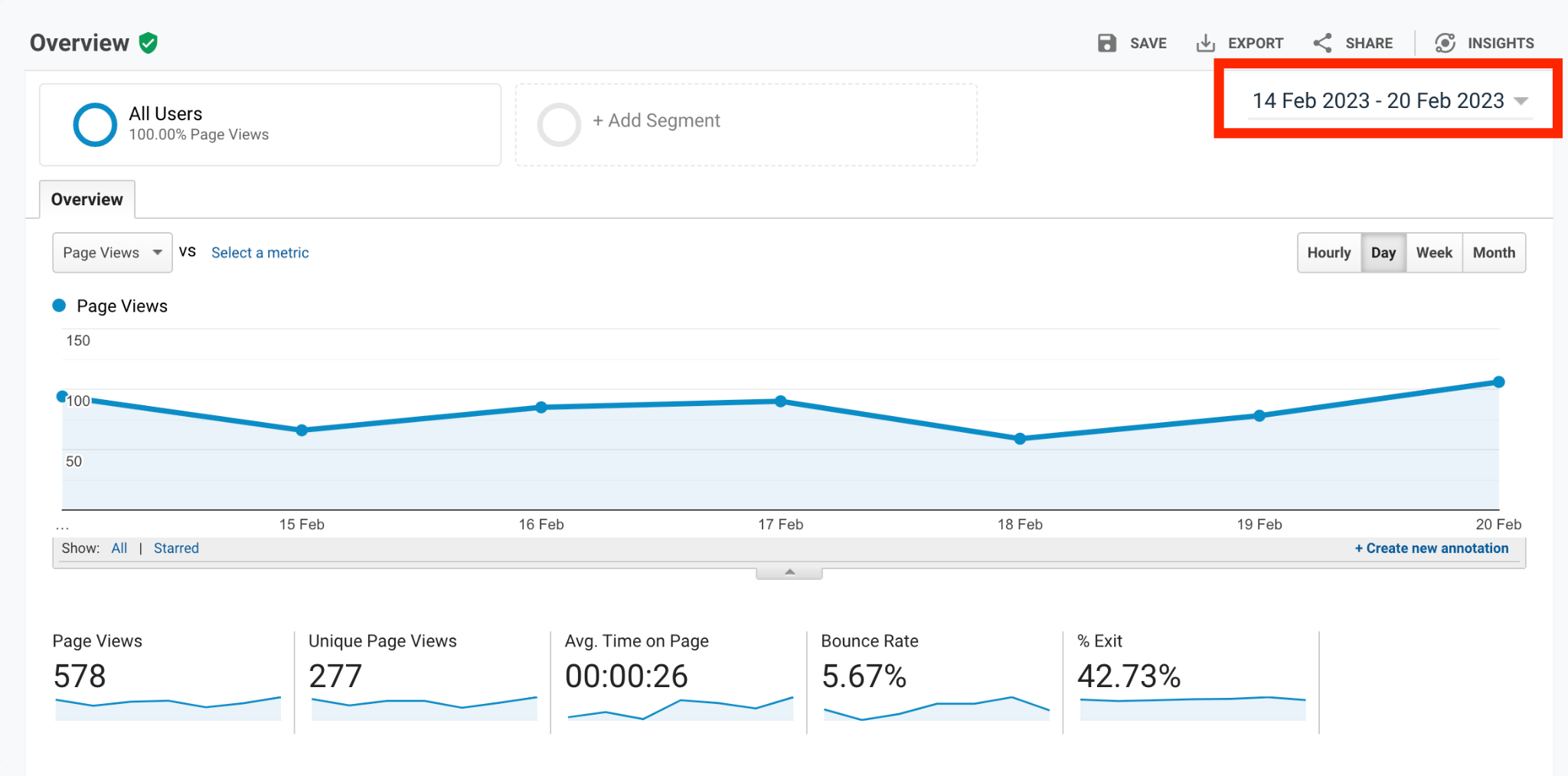
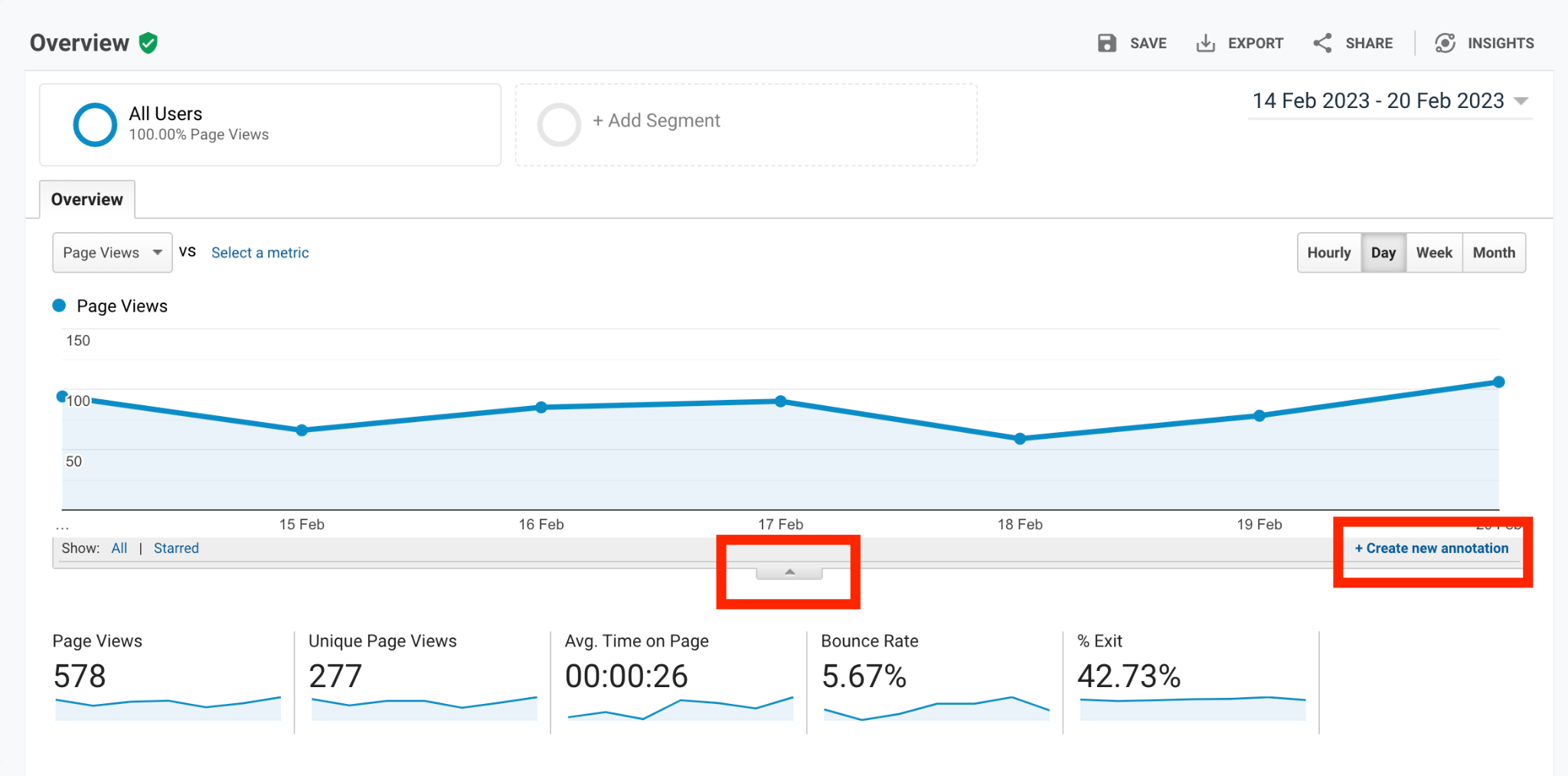
Step 5: Click on the downward-facing arrow icon below the graph and select "Create new annotation".
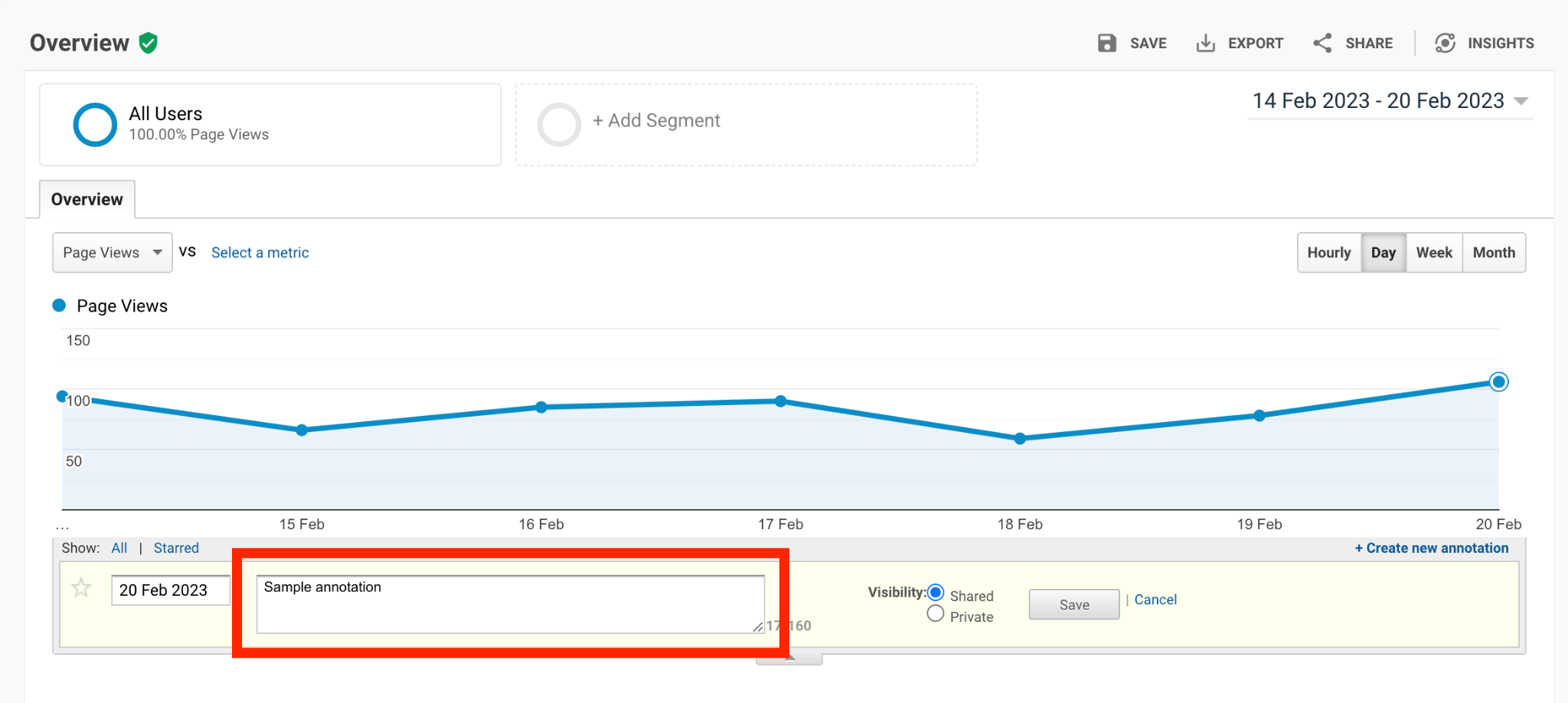
Step 6: In the annotation form that appears, enter a brief description of the event you want to track.
This can include any relevant details that may help you remember the event later.
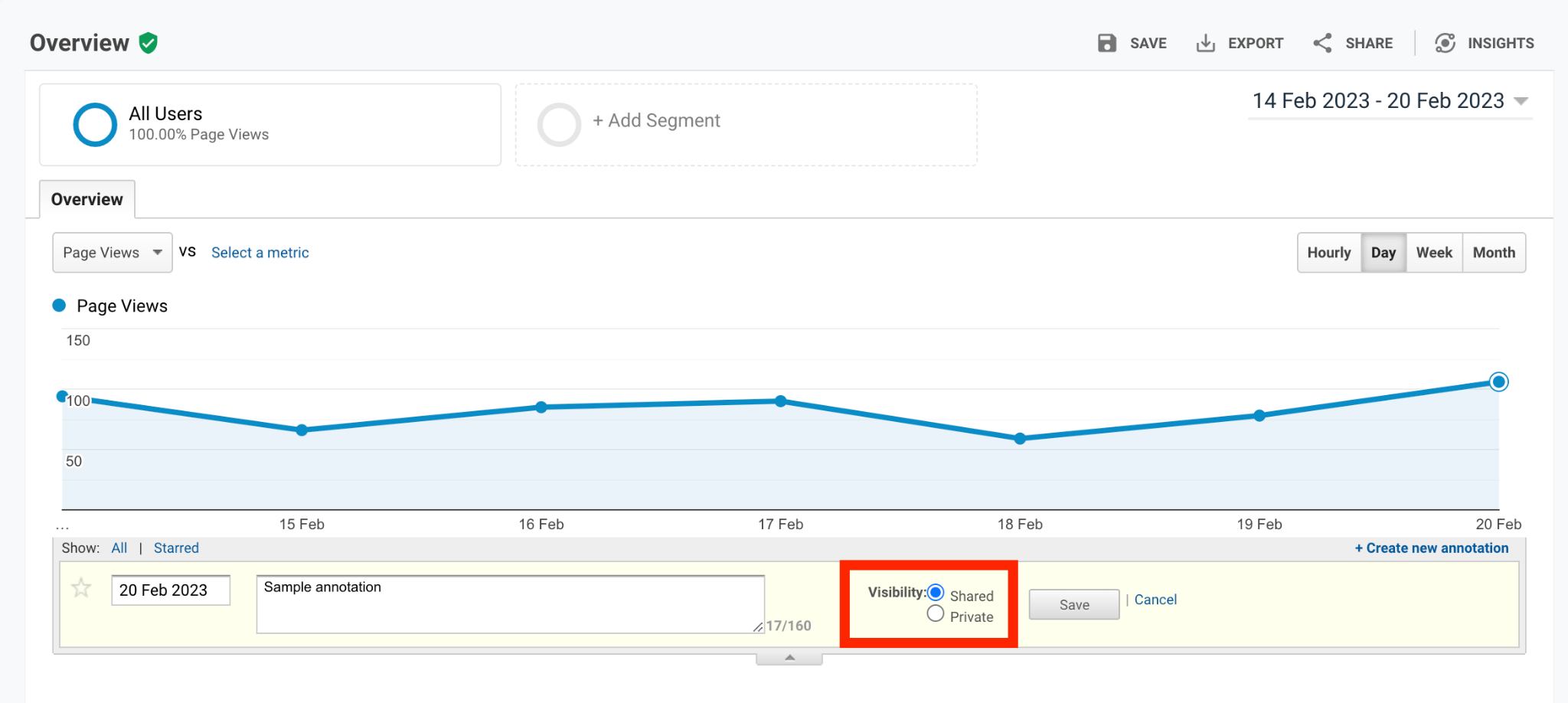
Step 7: Select a visibility option for the annotation.
You can choose to make the annotation private or share it with specific users.
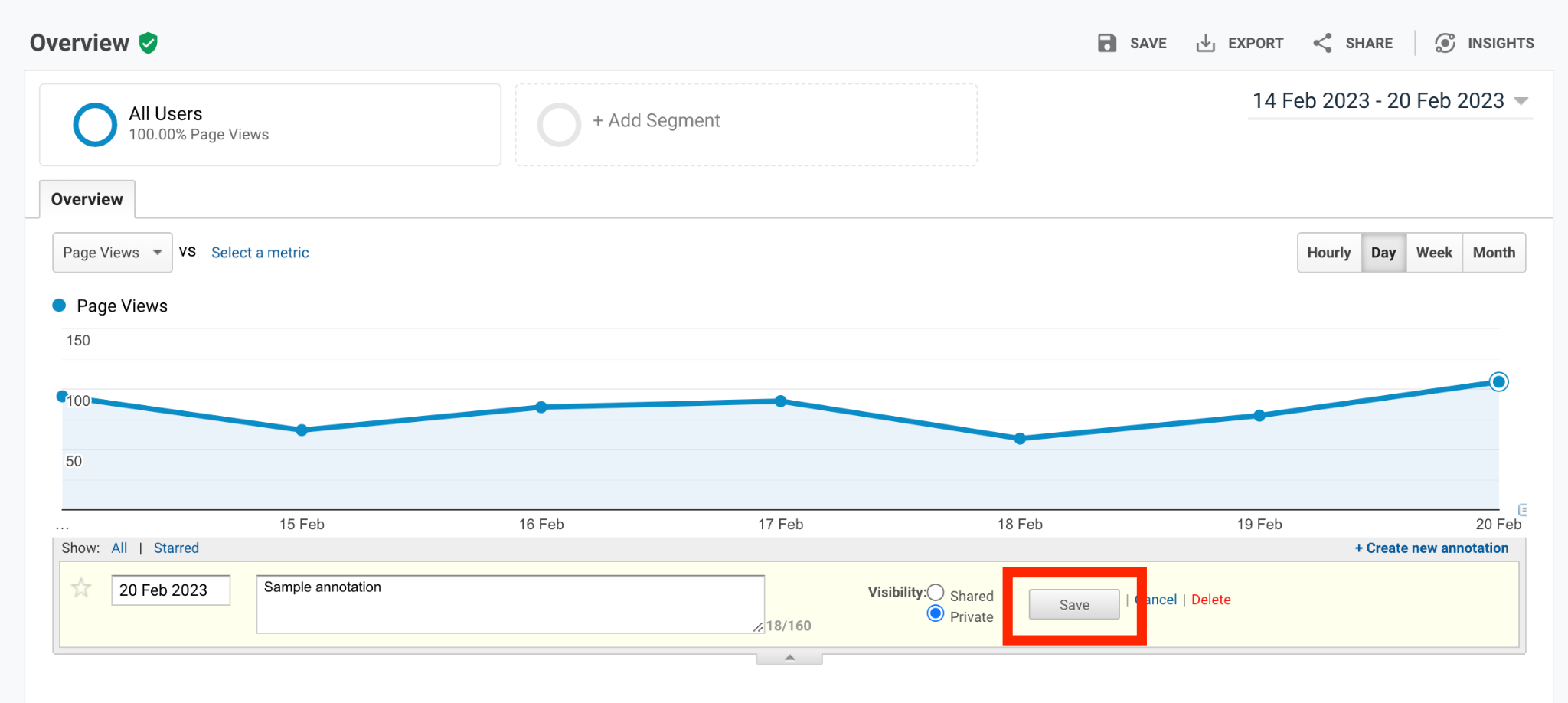
Step 8: Click "Save" to add the annotation to your Google Analytics account.
Repeat the process for any additional events that you want to track with annotations.
Conclusion
And you’re done!
You have successfully tracked a business event with Google Analytics Annotations.
Execution Checklist:
-
Log in to your Google Analytics account.
-
Navigate to the "Behavior" in the left sidebar and go to "Events" to view your website's event tracking data.
-
Select the date of the event you want to annotate.
-
Create a new annotation, set your preferred visibility, and click Save.
-
Repeat the process for any additional events that you want to track with annotations.