Setting Up the LinkedIn Pixel on Your Website
To provide you with a step-by-step guide in adding a LinkedIn Pixel on your website.
Prefer a shortcut? 16 free tools do parts of this for you.

Aim: To provide you with a step-by-step guide in adding a LinkedIn Pixel on your website.
Optimal Outcome: To successfully install LinkedIn Pixel on your website.
What do you need to start:
-
LinkedIn Ad account - If you don’t have one yet, follow this guide SOP 040: How to a Set Up LinkedIn Ads Account
-
Google Tag Manager - If you haven’t set it up yet, follow these guides
-
SOP 066: How to Set Up Access on Google Tag Manager
-
Why is this SOP Important: Setting up LinkedIn Pixel on your website can help you improve your targeting, ad performance, website analytics, and customer engagement, leading to a more successful and effective marketing strategy.
When and Where to execute: LinkedIn Campaign Manager and Google Tag Manager
Who Should Be Doing This: Marketing Staff, person responsible for running ads on LinkedIn
What is LinkedIn Pixel?
LinkedIn Pixel is a tracking code that can be added to a website to track user behavior and provide data to create more targeted and effective advertising campaigns on LinkedIn. It allows for website conversion tracking, custom audience creation, and ad campaign optimization based on user behavior data.
Execution
Go to https://www.linkedin.com/campaignmanager/.
Login to your LinkedIn Campaign Manager.
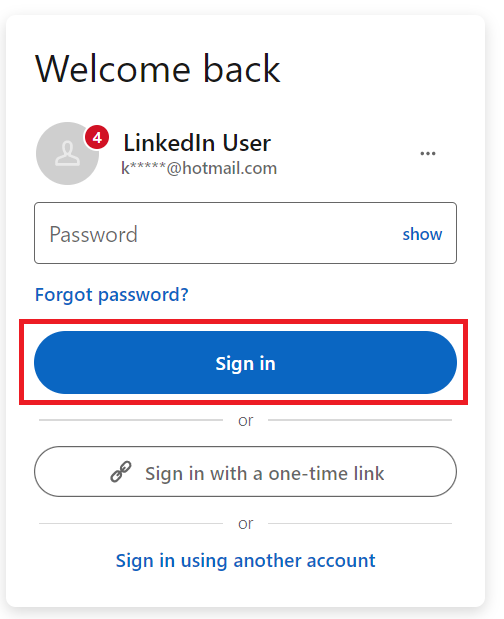
- From your main dashboard, navigate to the left menu and select Ad accounts.
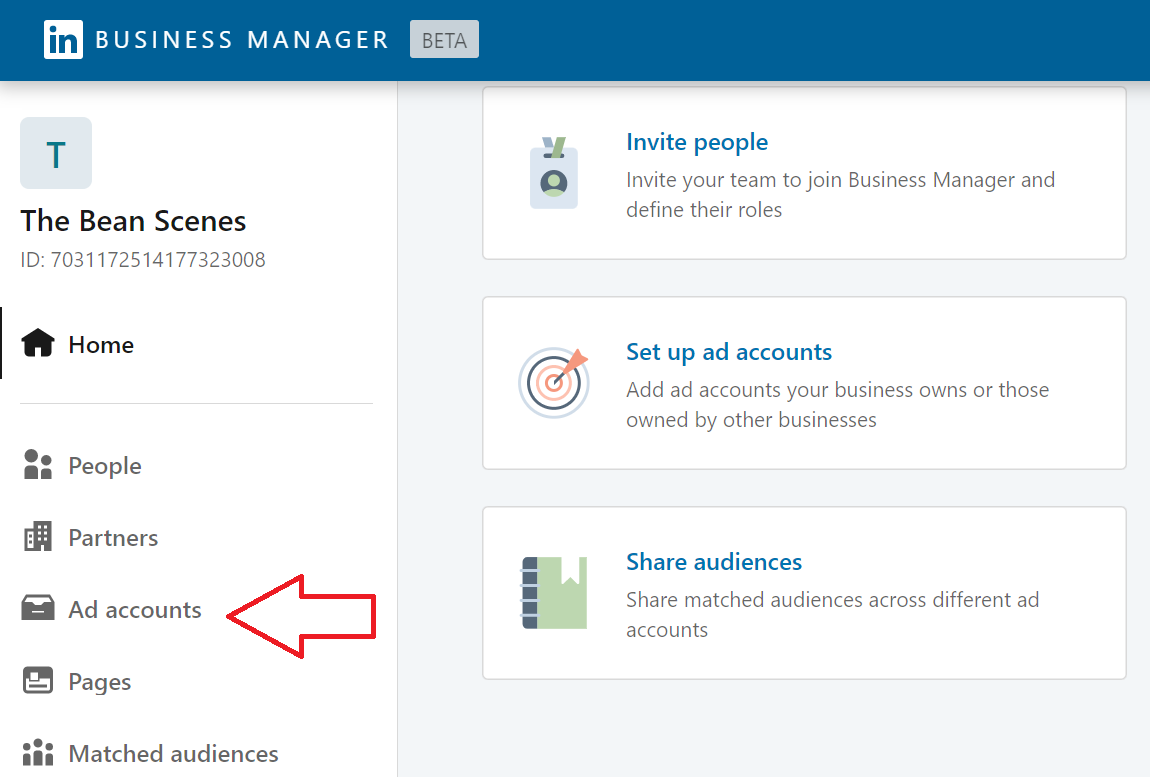
- If you haven’t set up your LinkedIn Ad account yet, you can follow this guide to do so, SOP 040: How to Set Up LinkedIn Ads Account.
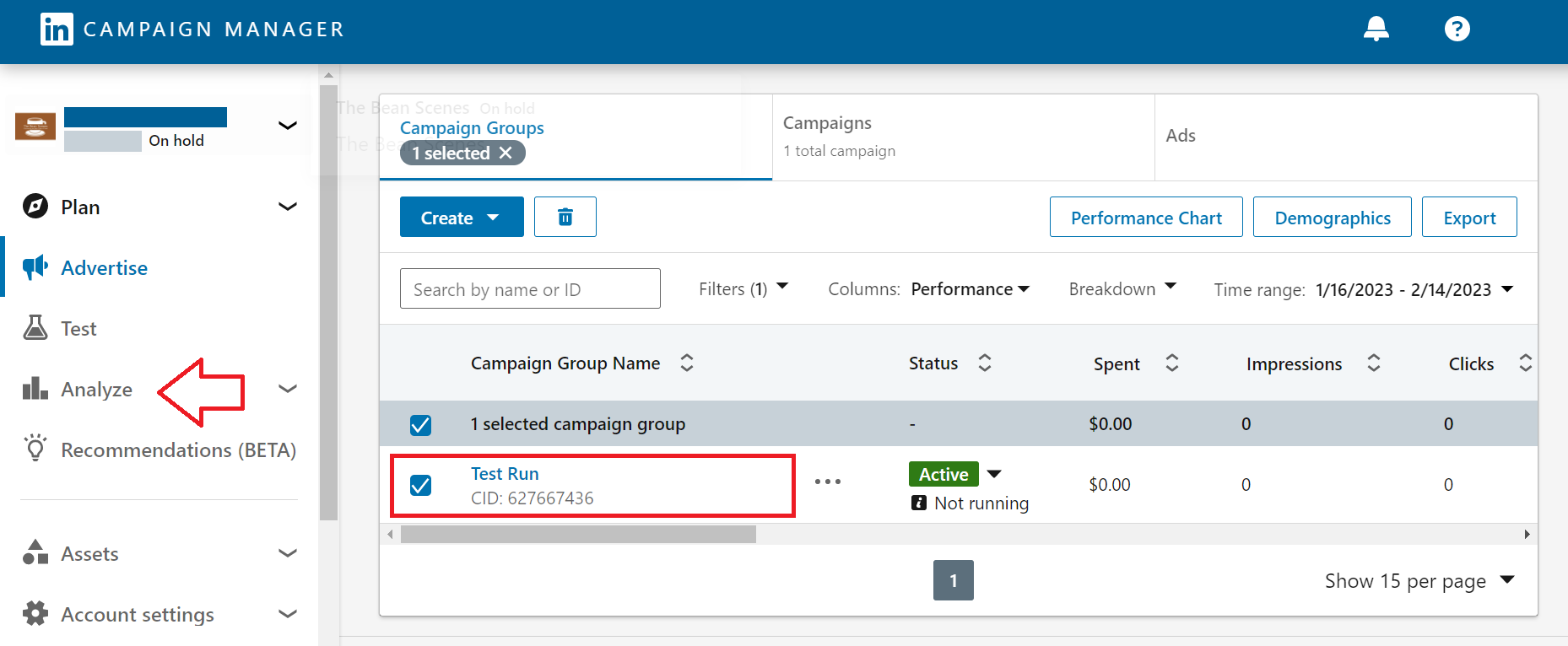
Select the Ad account you want to work on, and click Analyze.
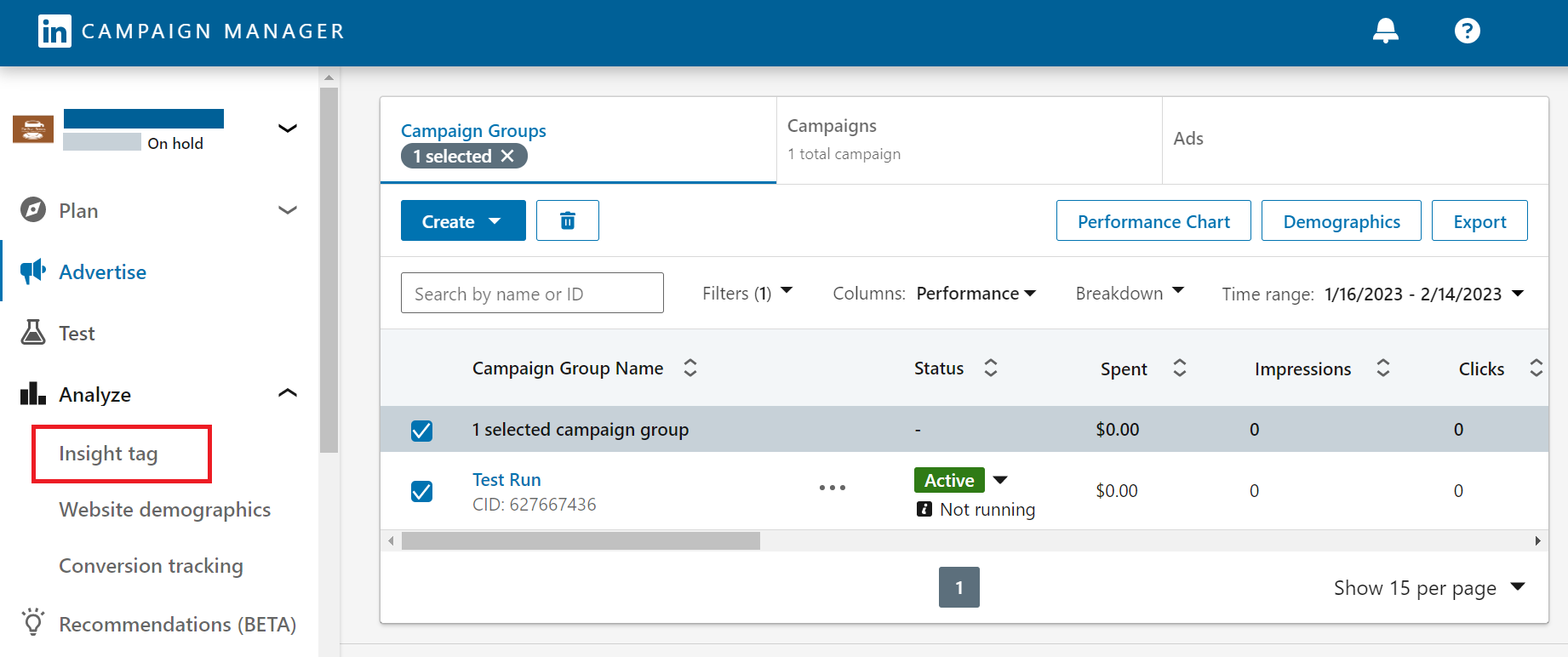
- Under Analyze, select Insight Tag.
- There are three available options for you to install the tag to your website.
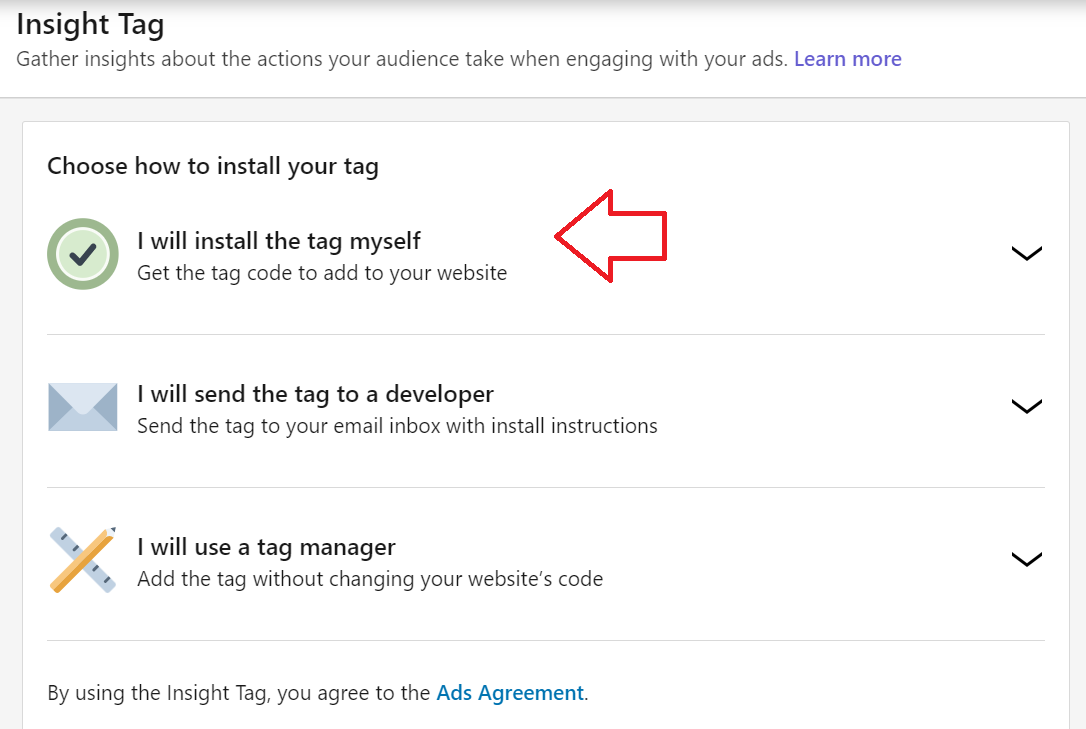
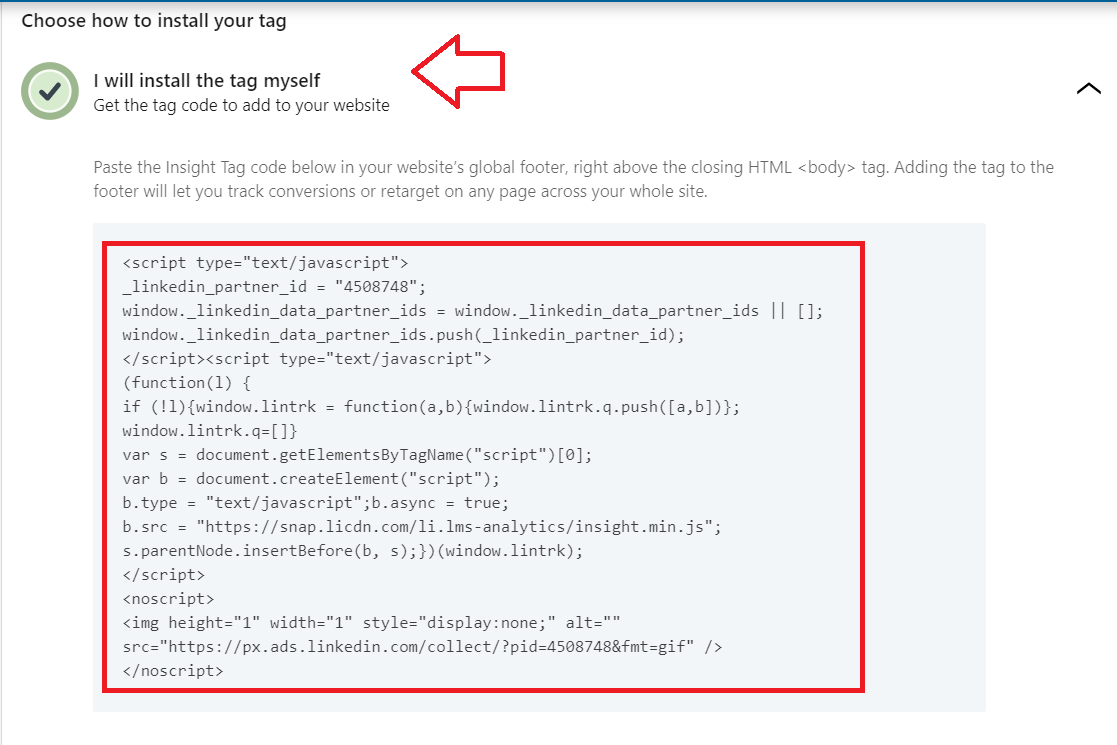
- If you choose to install the tag yourself, you can copy the code from the box and install it on your website.
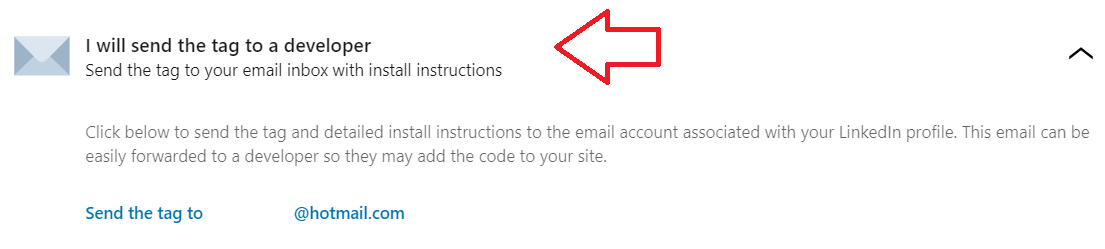
- If you select I will send the tag to a developer, the instructions will be sent to the email account associated with the LinkedIn account. You can then forward it to the email address of your developer.
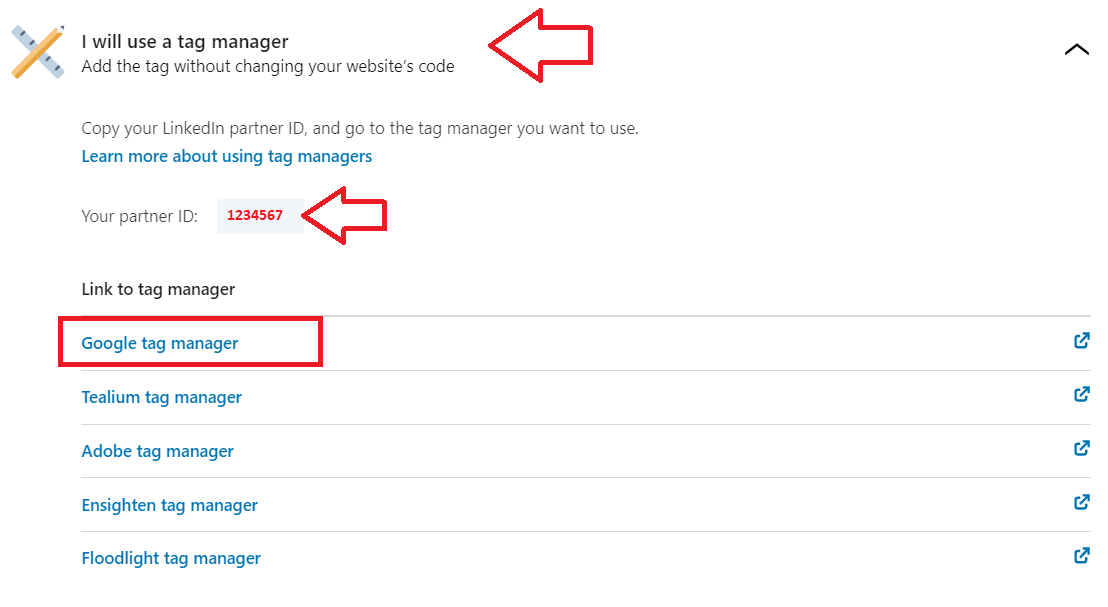
- If you select I will use a tag manager, you’ll be able to get instructions on how to install the tag to the tag manager of your choice.
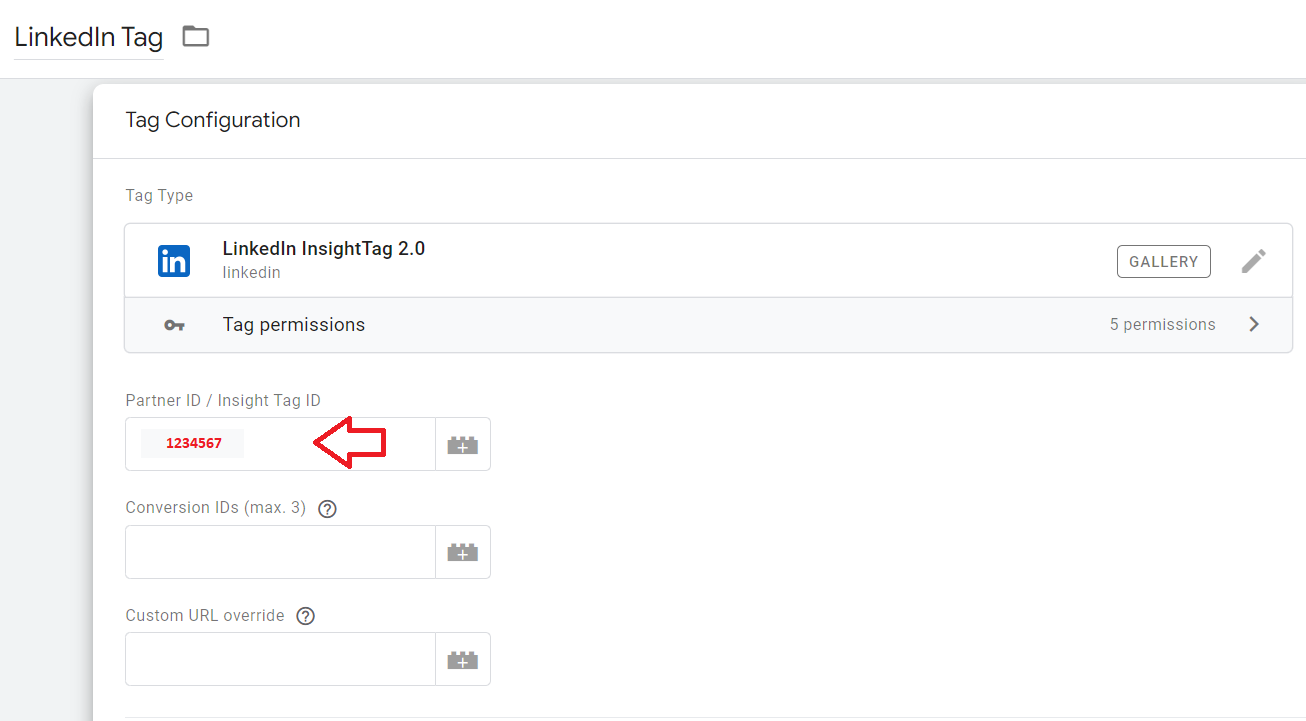
Note: In this SOP, we’ll cover the instructions in setting up your LinkedIn Tag on Google Tag Manager. Make sure to take note of your partner ID.
Setting up your LinkedIn Tag on your website using Google Tag Manager.
-
Login to Google Tag Manager.
-
Select the container where you want to add the tag to.
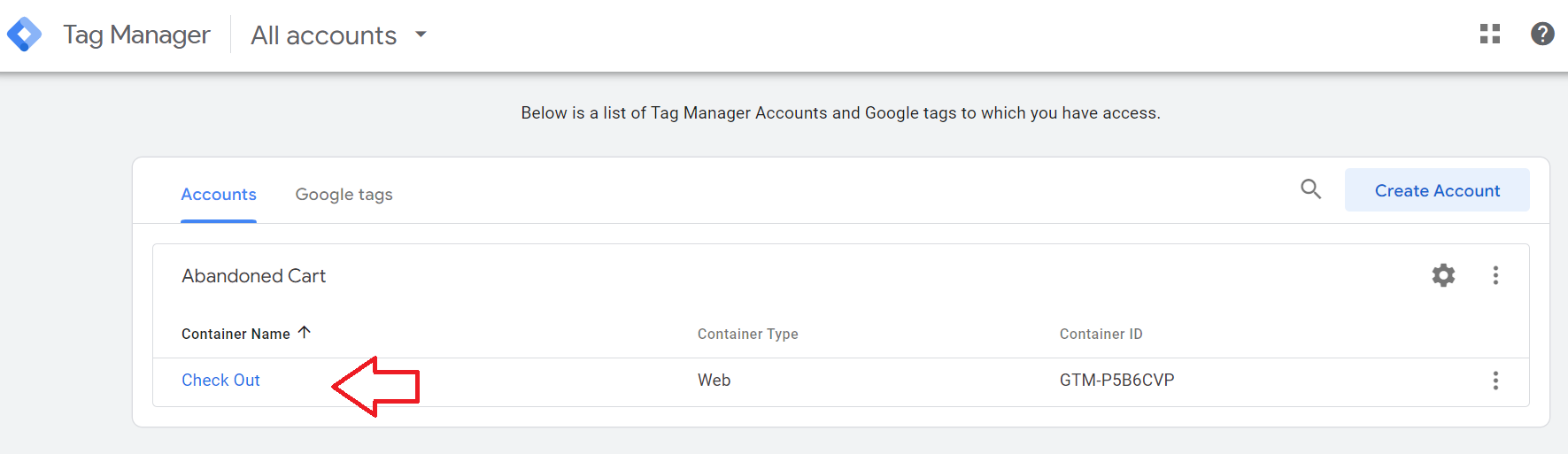
- Select Add a new tag.
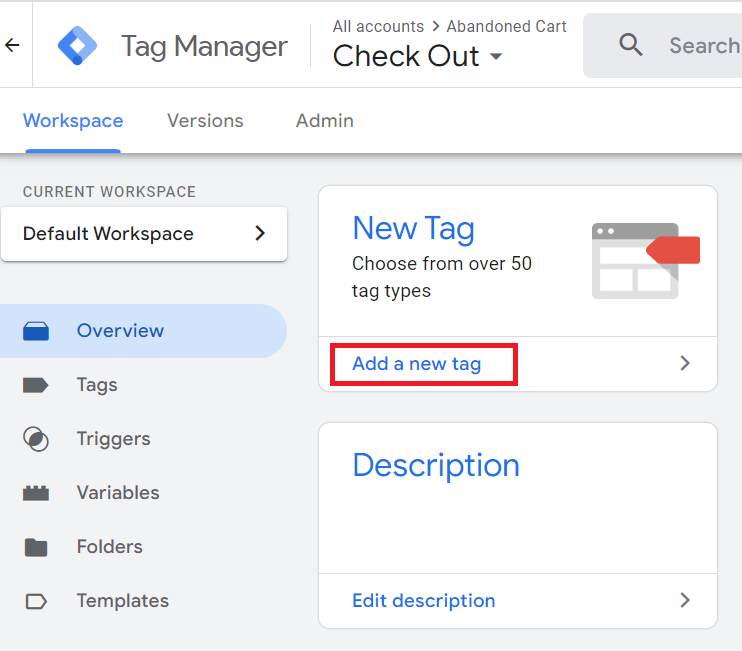
- Provide a name for your tag, then click the edit icon.
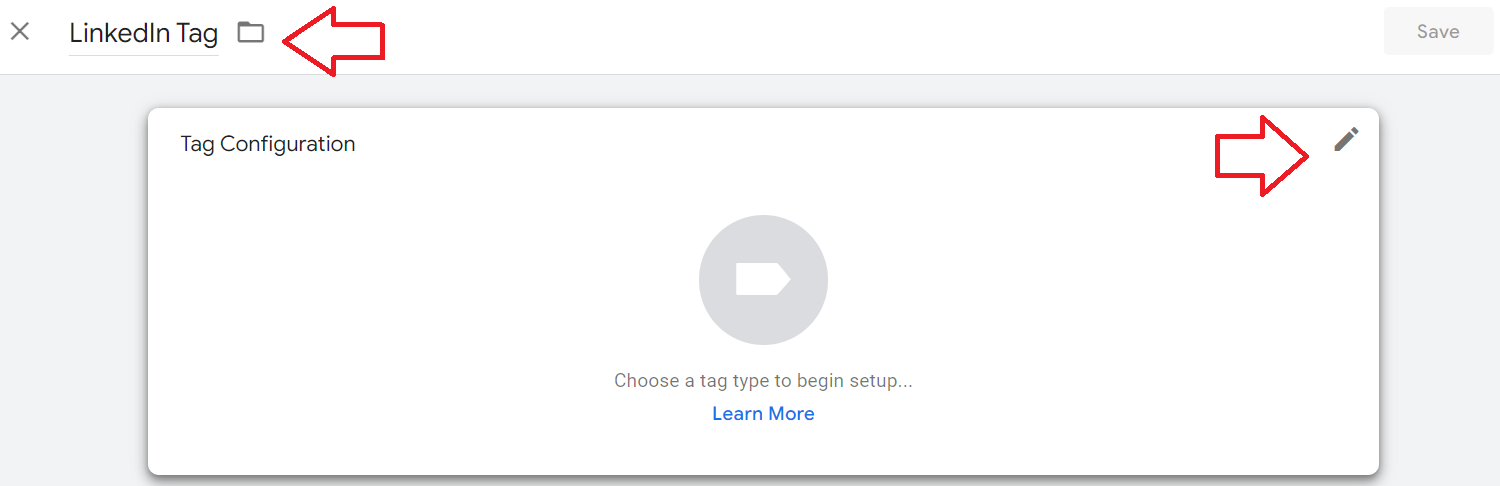
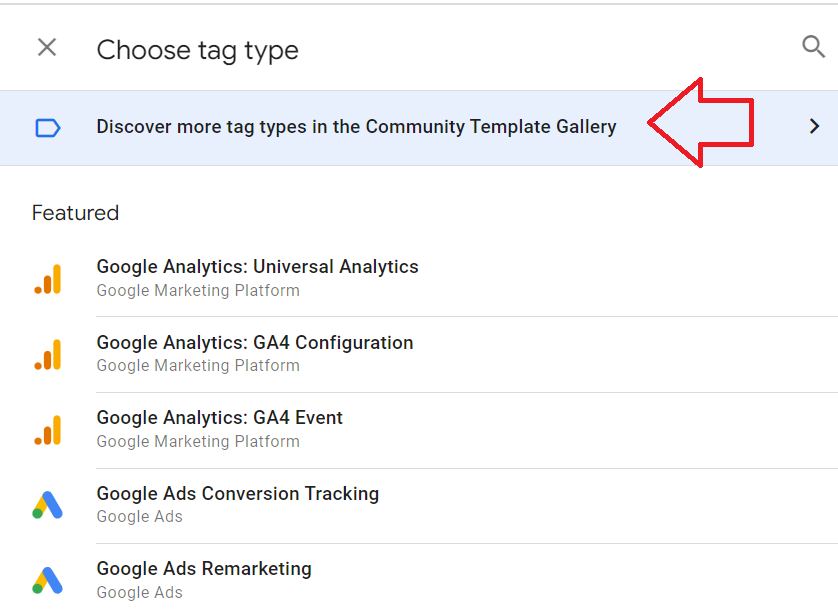
Select Discover more tag types in the Community Template Gallery.
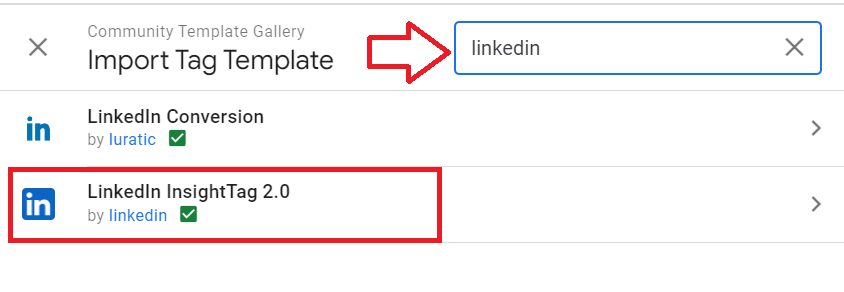
Search for LinkedIn InsightTag 2.0.
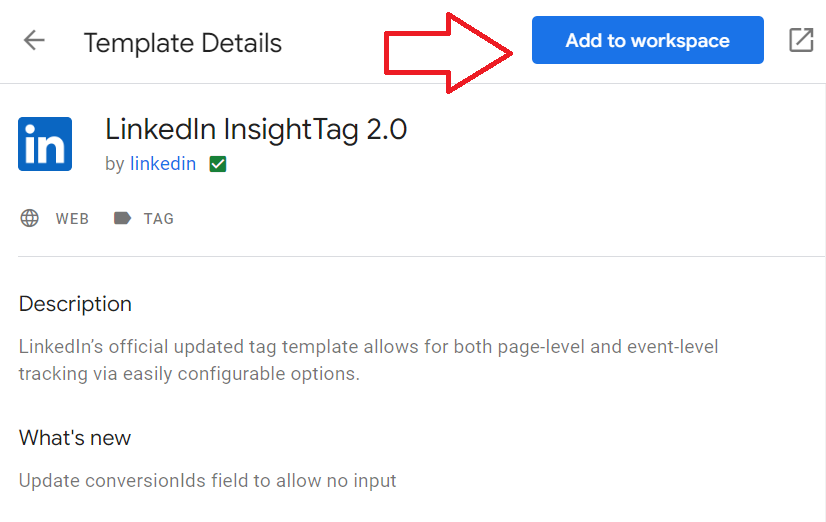
Select Add to workspace.
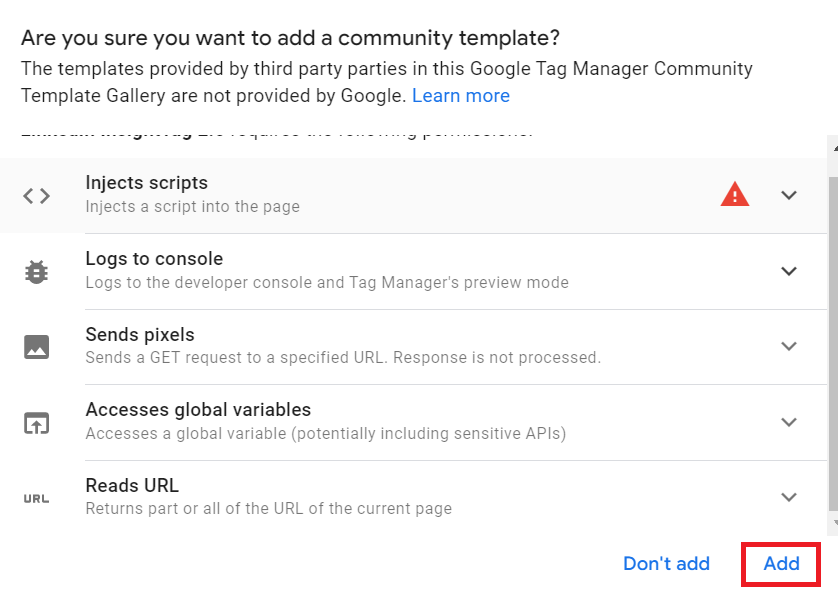
- From the pop-up dialog box, select Add.
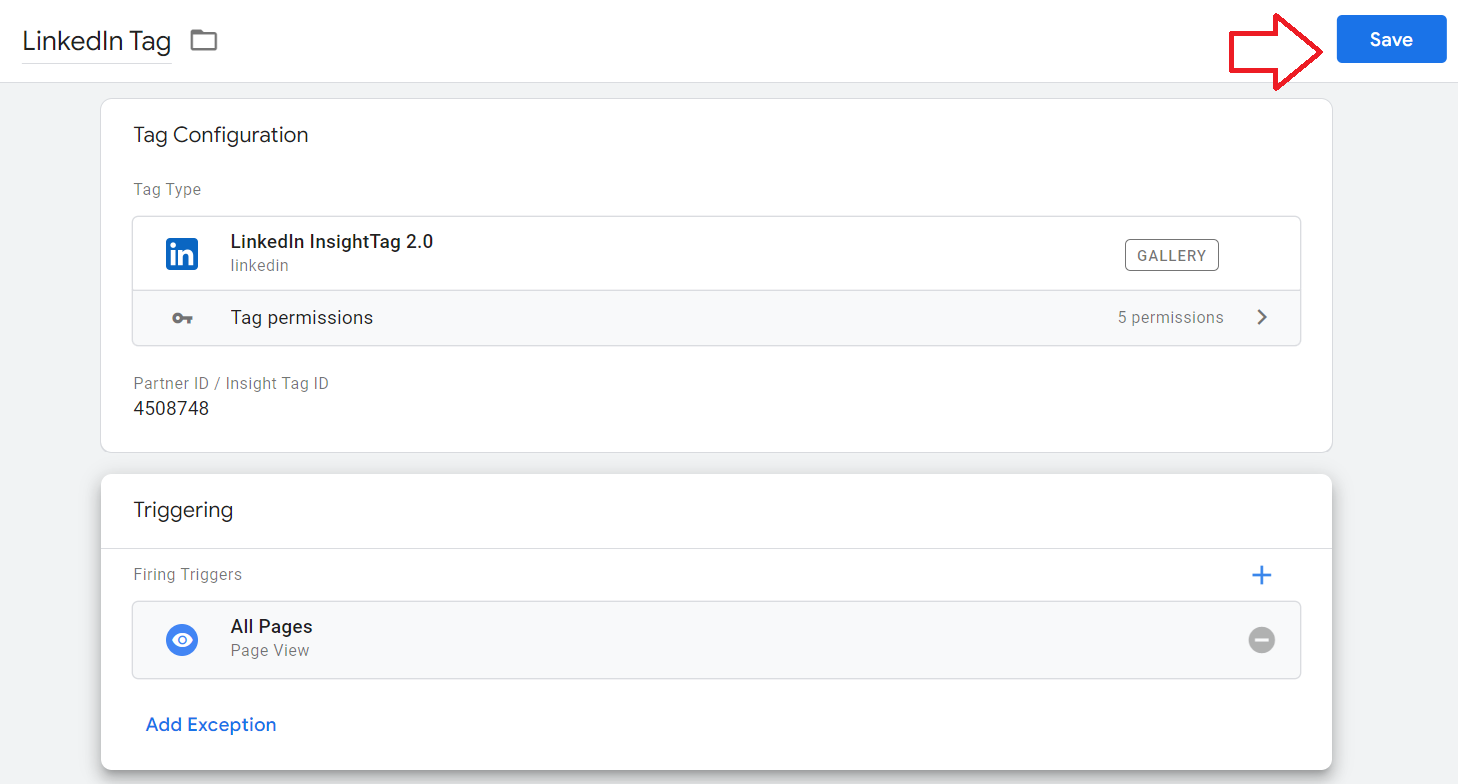
- In the Tag Configuration page, enter your Partner ID from LinkedIn Campaign Manager.
- Next, configure the Triggering settings.
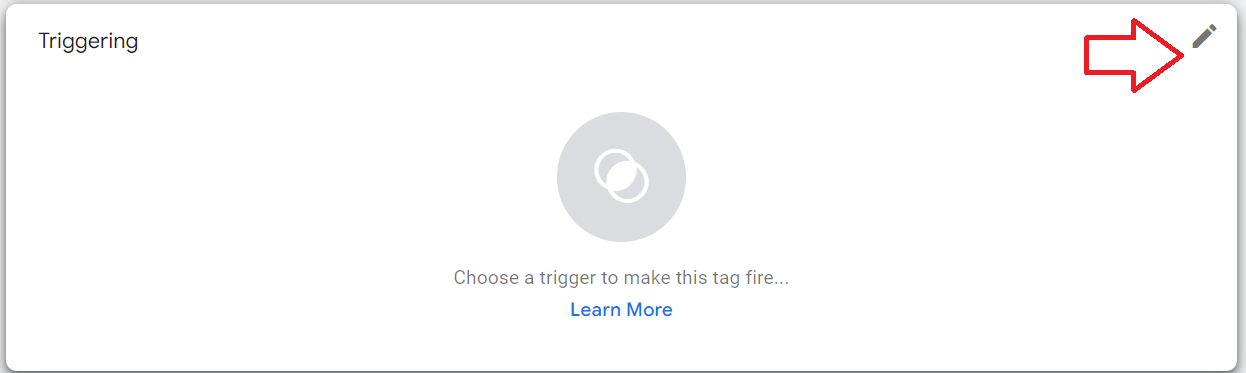
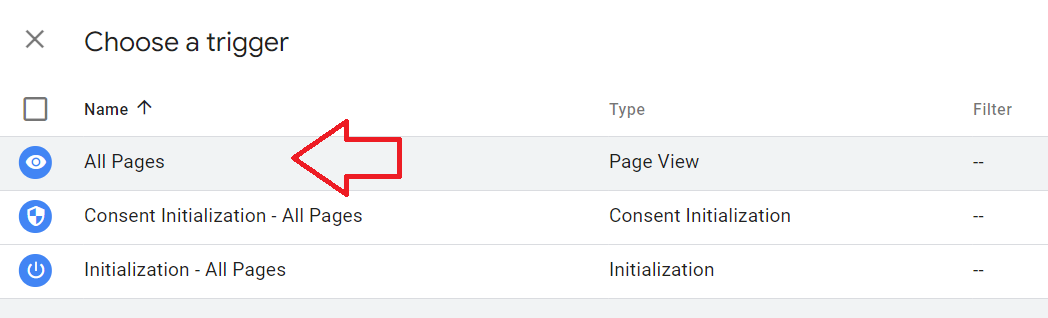
- Choose a trigger from the list.
- Once you’ve completed the settings, click Save.
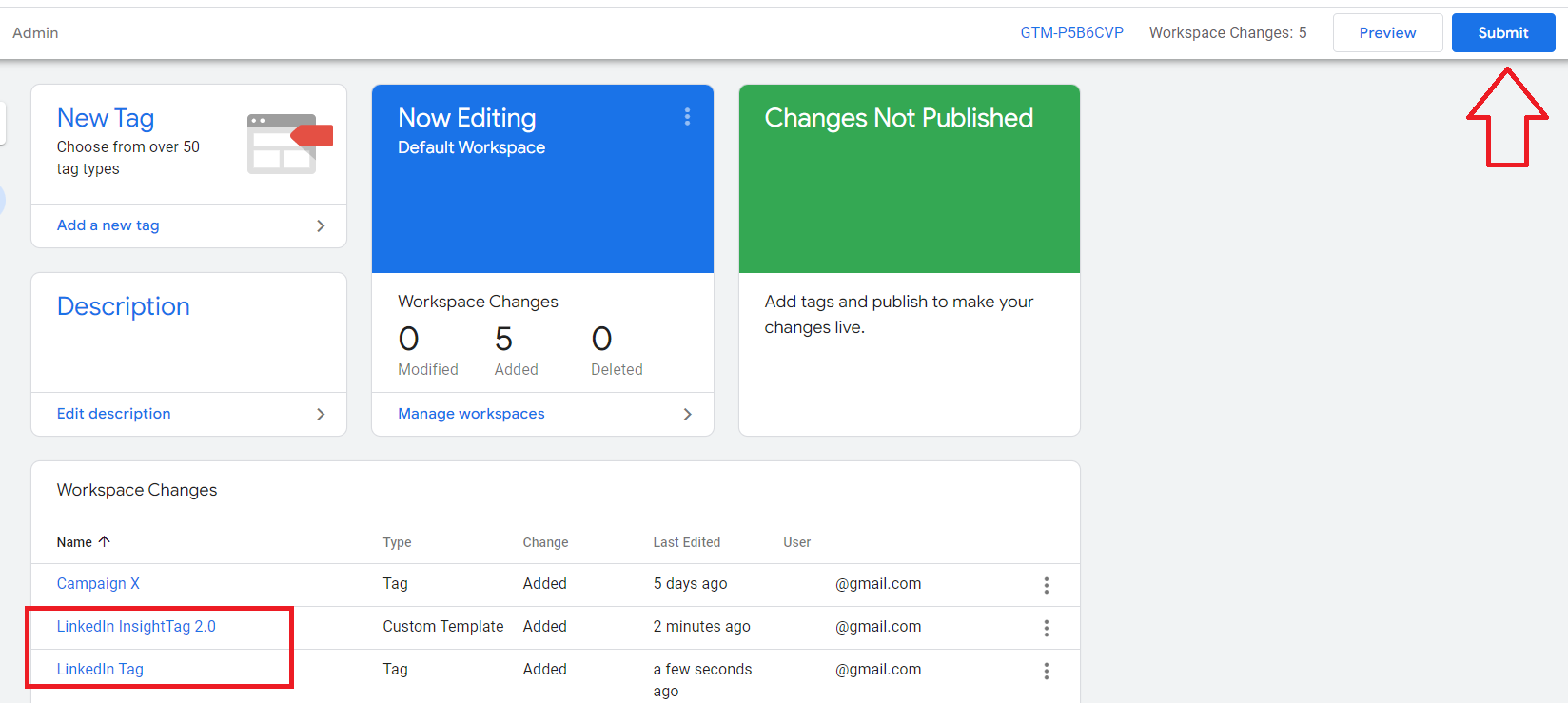
- You’ll see your new tag in the main dashboard. Click Submit.
Conclusion
That’s it! You now have a way to track and analyze the results of your LinkedIn Ads campaign.
-
Setting up your LinkedIn Pixel on your website allows you to track the actions of your website visitors and use this information to create more targeted and personalized ads on LinkedIn.
-
By using LinkedIn Pixel, you can see which ads are leading to conversions and optimize your ads campaigns accordingly, leading to better ad performance and higher ROI.
-
LinkedIn Pixel can provide valuable insights into how people are interacting with your website and which pages are most effective at driving conversions.
-
LinkedIn Pixel allows you to retarget website visitors with relevant ads based on their past behavior on your website, increasing the chances of them converting.
-
By creating custom audiences based on website visitors, you can create highly targeted ad campaigns and reach the right people with the right message at the right time.