A Guide to Setting Up Your LinkedIn Company Page
To walk you through setting up your Company Page on LinkedIn
Prefer a shortcut? 16 free tools do parts of this for you.

Aim: To walk you through setting up your Company Page on LinkedIn
Optimal Outcome: To be able to create a company page that can be used for lead generation, recruitments, and product or service publicity.
What do you need to start: To follow this SOP, you need to have a LinkedIn account first for creating a company page.
Why is this SOP Important: Setting up a LinkedIn company page is necessary for businesses, especially the ones who are starting, because this feature allows the employers to attract potential customers through posts about their products or services. In addition, a professional can look for a company page to know whether they would be a good fit for the job.
When and Where to execute: You will want to set up your LinkedIn company page after signing in to your LinkedIn account.
Who Should Be Doing This: This is accomplished by the person in charge of digital marketing or human resources.
LinkedIn Company Page
Professionals can find their next employment on LinkedIn. Business leaders also use it to confirm the legitimacy of a company they are considering doing business with. A LinkedIn company page exists to showcase the products and services being offered by the business. It can be used as a tool to generate leads, recruitment and background checking of potential employees, and improve publicity by creating posts about the business and all it has to offer.
Execution
Resources/Tools & Set up
- LinkedIn account
Creating a LinkedIn Company Page
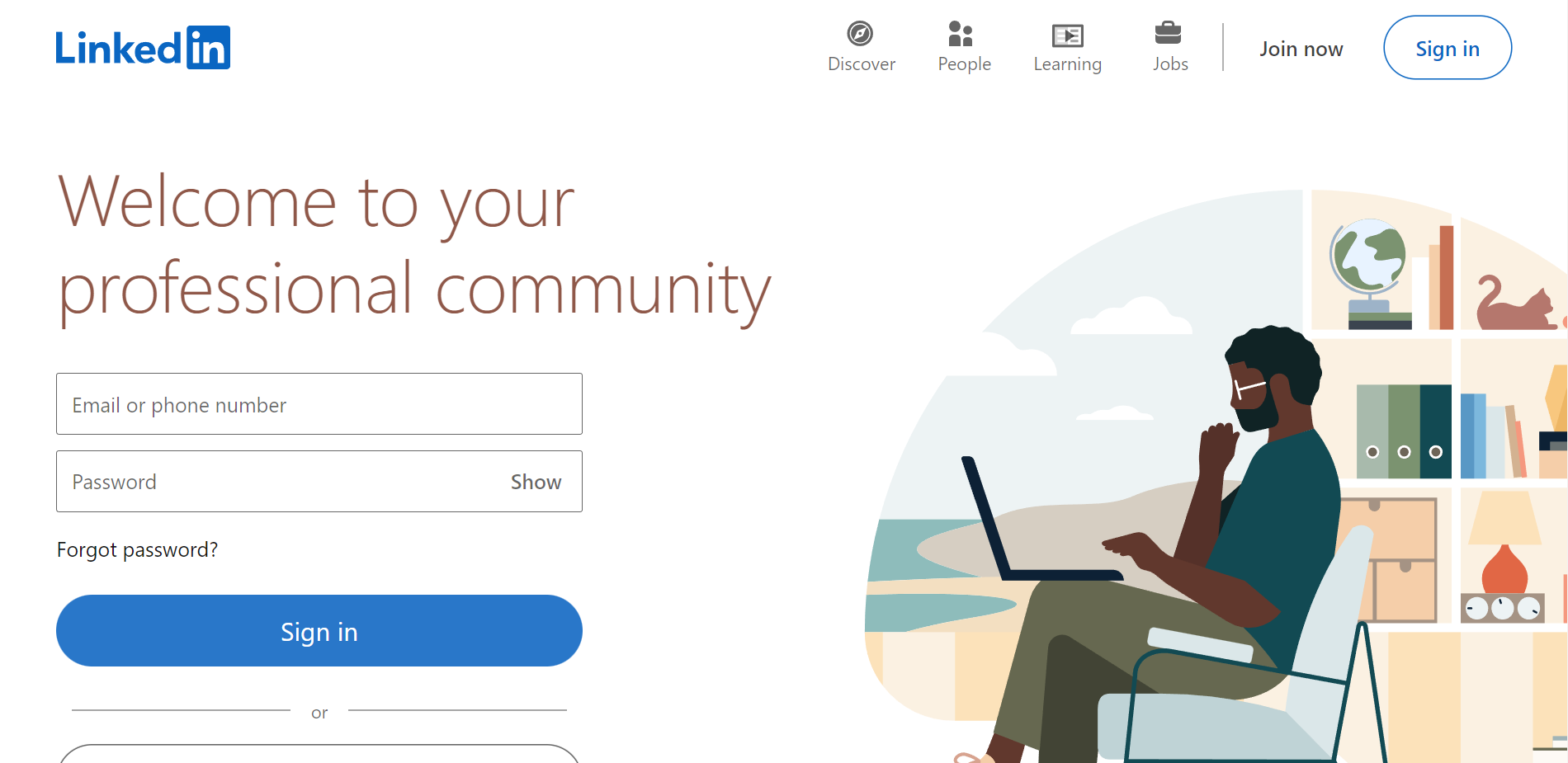
- Go to LinkedIn.com and sign in your account.
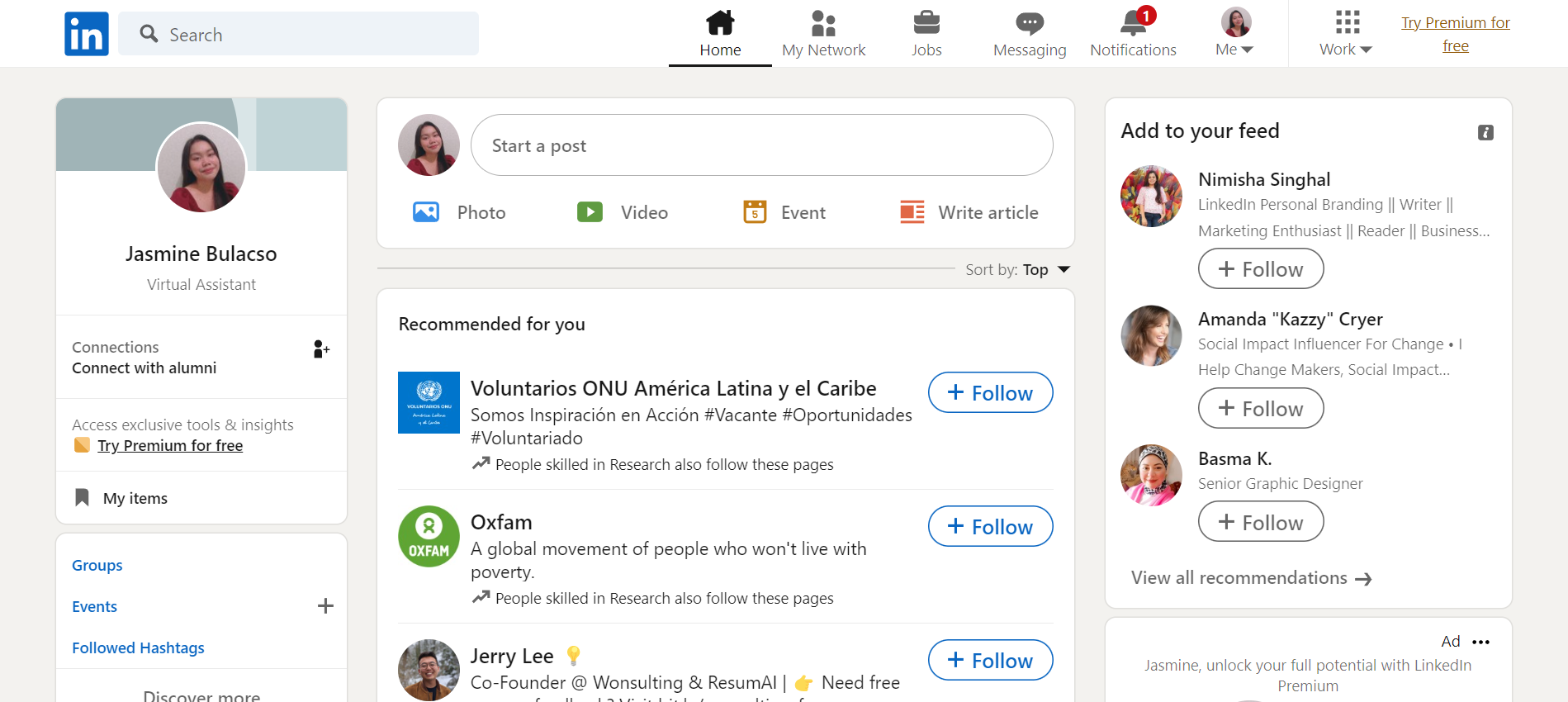
- Go to the top navigation bar and click the “Work” button. This drop-down menu is located beside your profile icon.
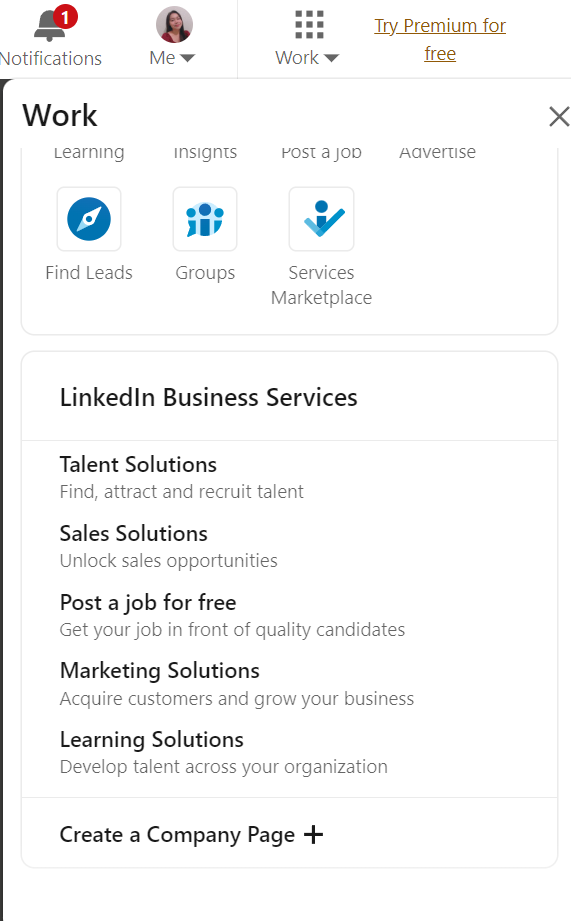
- Scroll down and click “Create a Company Page +”.
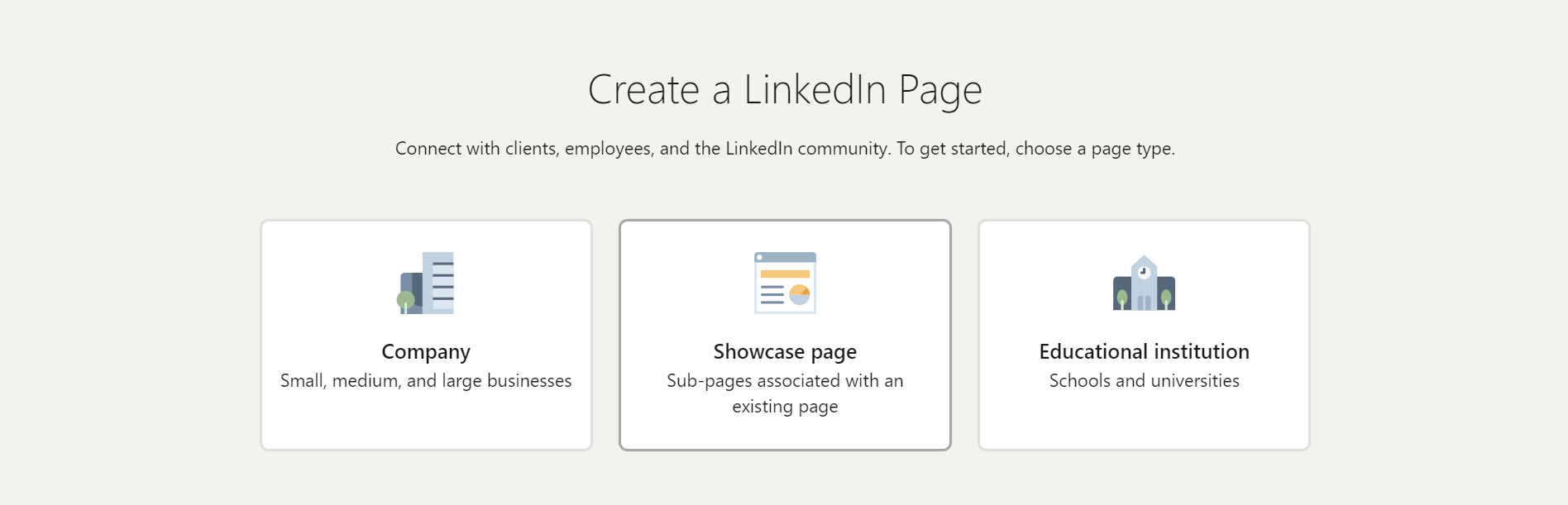
- In creating a LinkedIn page, you have three options for page type. Company, showcase page, and institution. You will be making a company page so click on “Company”.
- In the redirected page, you will be asked to input a few details about your company. This requires the name, LinkedIn address, industry, and organization size and type. Some of the optional details that you can include are the website, logo, and tagline.
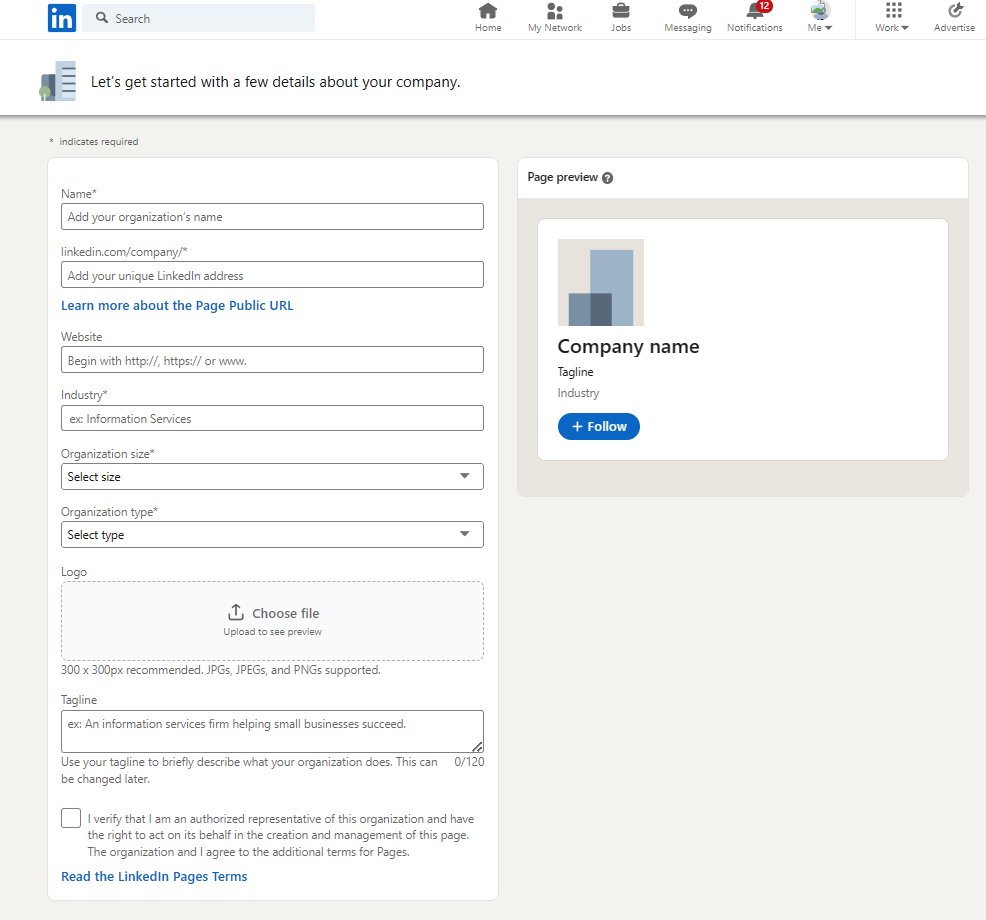
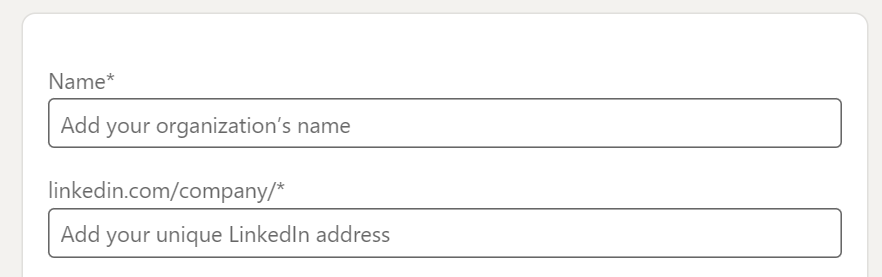
- First, you will be asked about the name and a unique LinkedIn address that you can assign your company page. In the Name section, you will enter the official name of your organization. In the LinkedIn address section, you can improvise your own link which you will use in disseminating your company page. It is advisable to use your organization’s name in the link to promote recognition. These fields are necessary to establish your company page.
- Next is the Website section. Here, you can provide a website made for your organization where LinkedIn members can access if they want to get more information about your company or the business that you are promoting. This field is not required in establishing your company page.

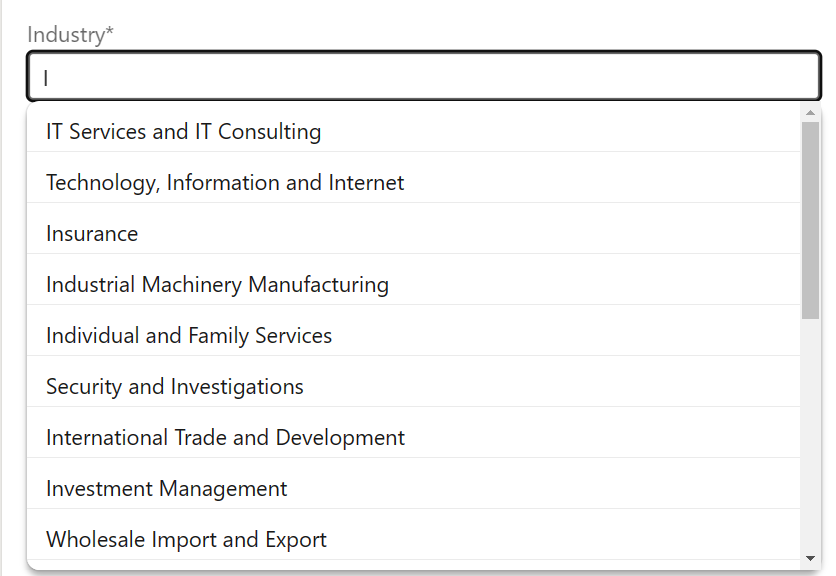
- For the Industry section, LinkedIn will provide you with a list of industries where your company page could be based from. By typing on the blank field, you can search your industry and click it to select it as your company page industry.

- This field does not accept industries that are not in their search results, so you have to find the appropriate industry of your company based on the available selection by clicking it.
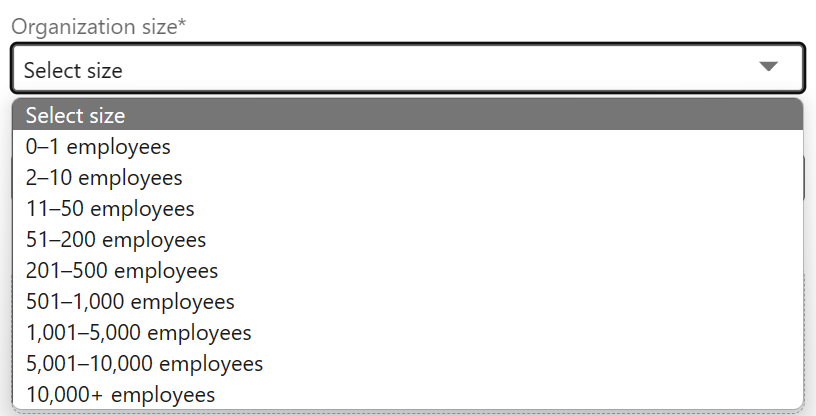
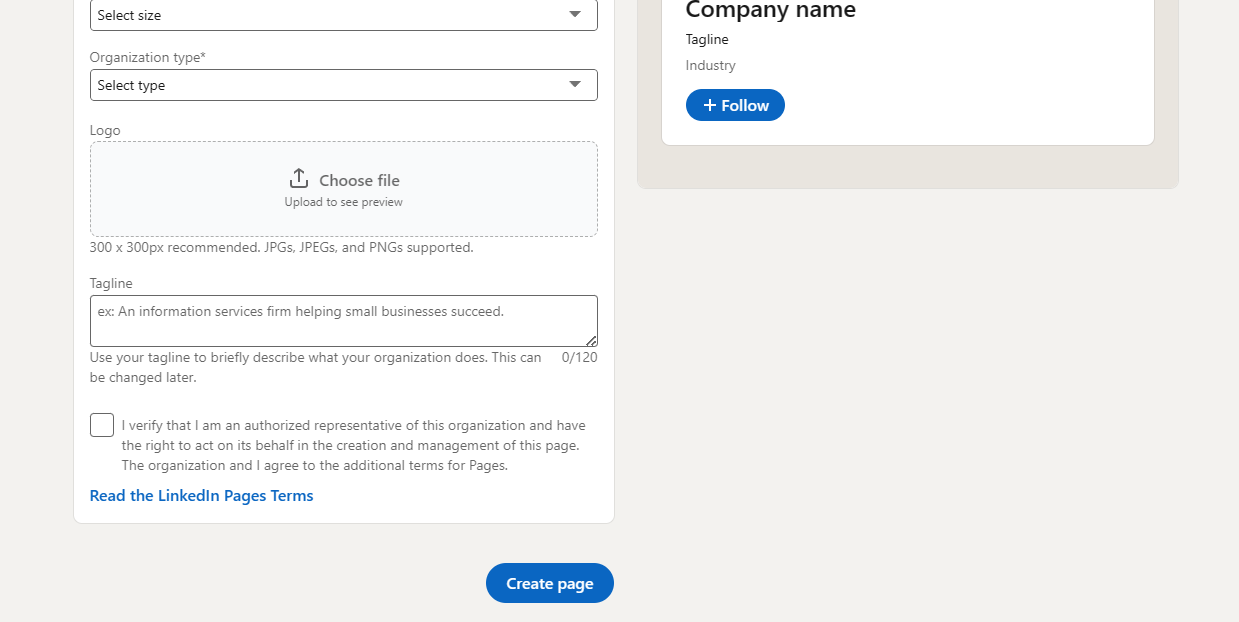
- It is also required that you enter your organization size by clicking the dropdown menu on “Select size”. The options from none up to 10,000+ employees will show, which you can select by clicking the employee count in your organization.
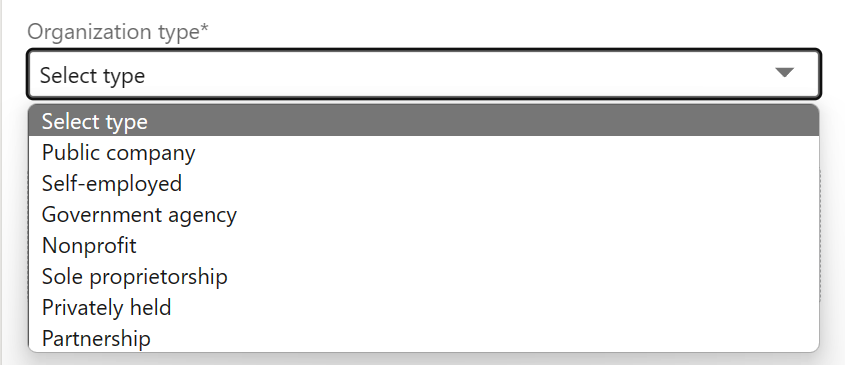
- In creating a company page, it is required that you indicate the organization type by clicking the dropdown menu under “Select type”. There are several options which you can choose from. Choose the most suitable organization type based on your company by clicking that option.
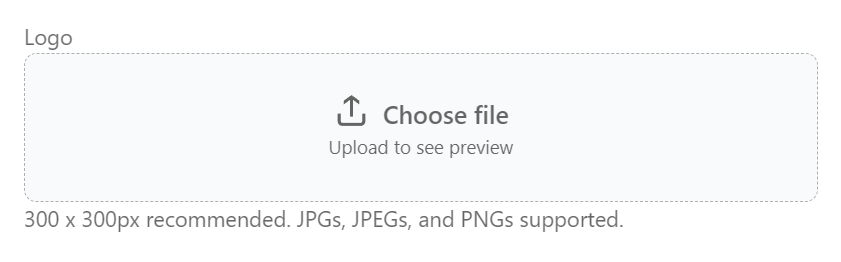
- Next is the Logo. Although this feature is not required, it is advisable to put a logo on your company page to enhance the display page. LinkedIn has supported formats for a logo which are JPG, JPEG, and PNG. For the size, 300 x 300px is recommended for better fitting. Click the “Choose file” to upload your company page logo.
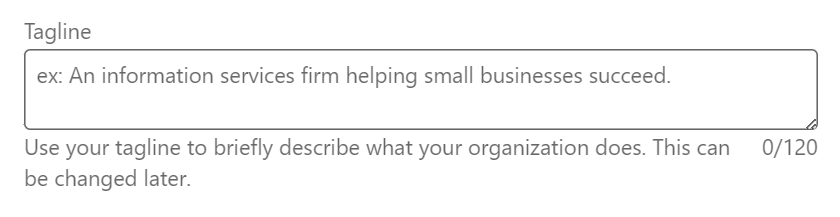
- Last section is the Tagline. A tagline is a line or phrase that briefly describes your company page and organization. You can also include here the primary objectives of your organization. This can be changed anytime, so it is not required yet in creating a company page.
- On the last part, there is a checkbox for verification of you as the authorized representative of the organization that you have indicated in the creation of the company page. By checking the checkbox, you also agree to the terms that LinkedIn has provided.

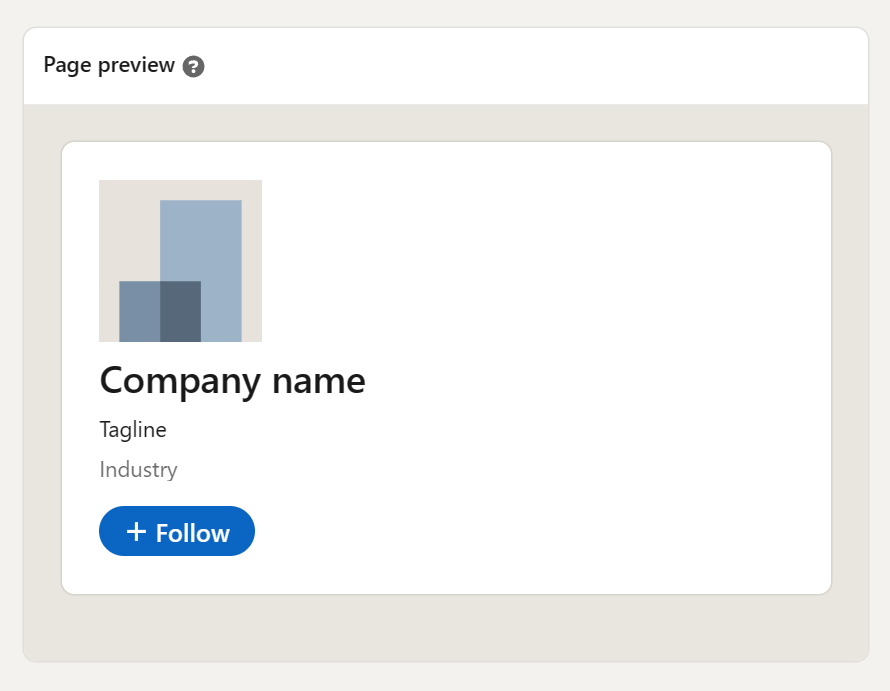
- On the right side of the page is a Page preview of your company page. It includes the details that you have previously indicated and a “Follow” button because this is the view for your members.
- Last step is to create the page by clicking “Create page”.
Additional Setup
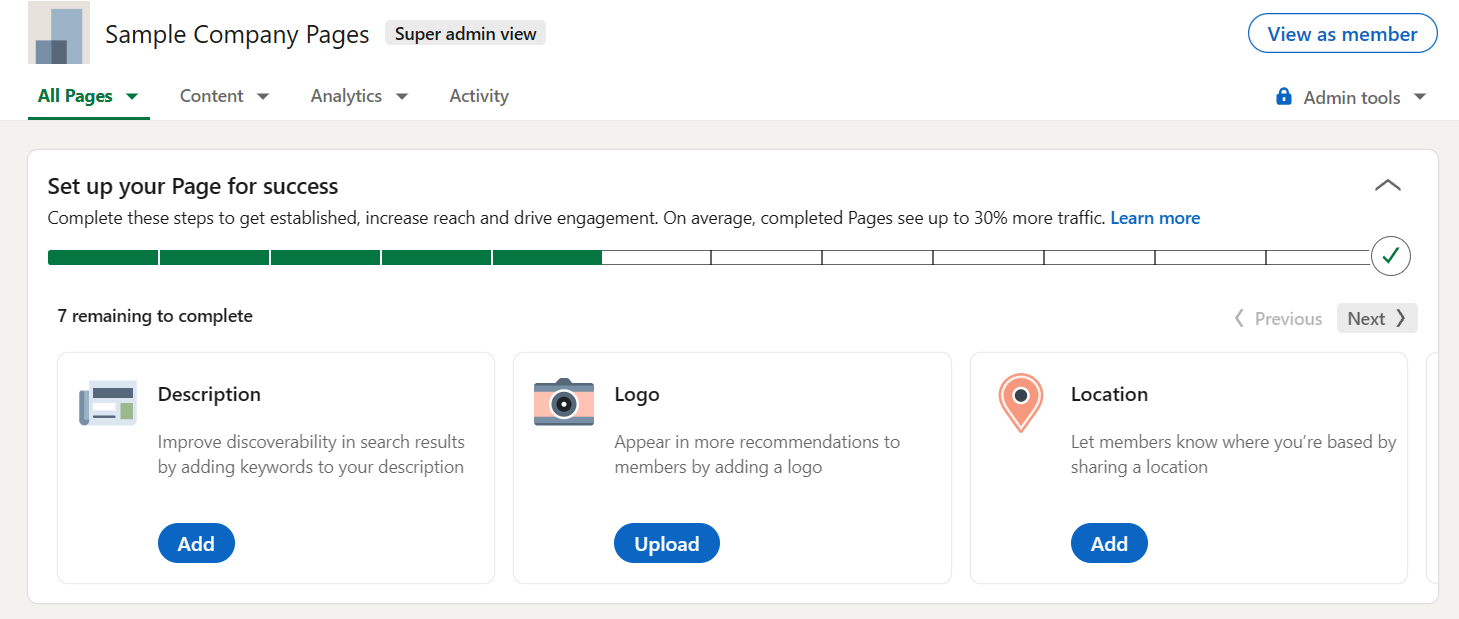
- After creating the page, you can then set up your page for success. Click on the “Add” under Description, Location, and Commitments to set up your business page.
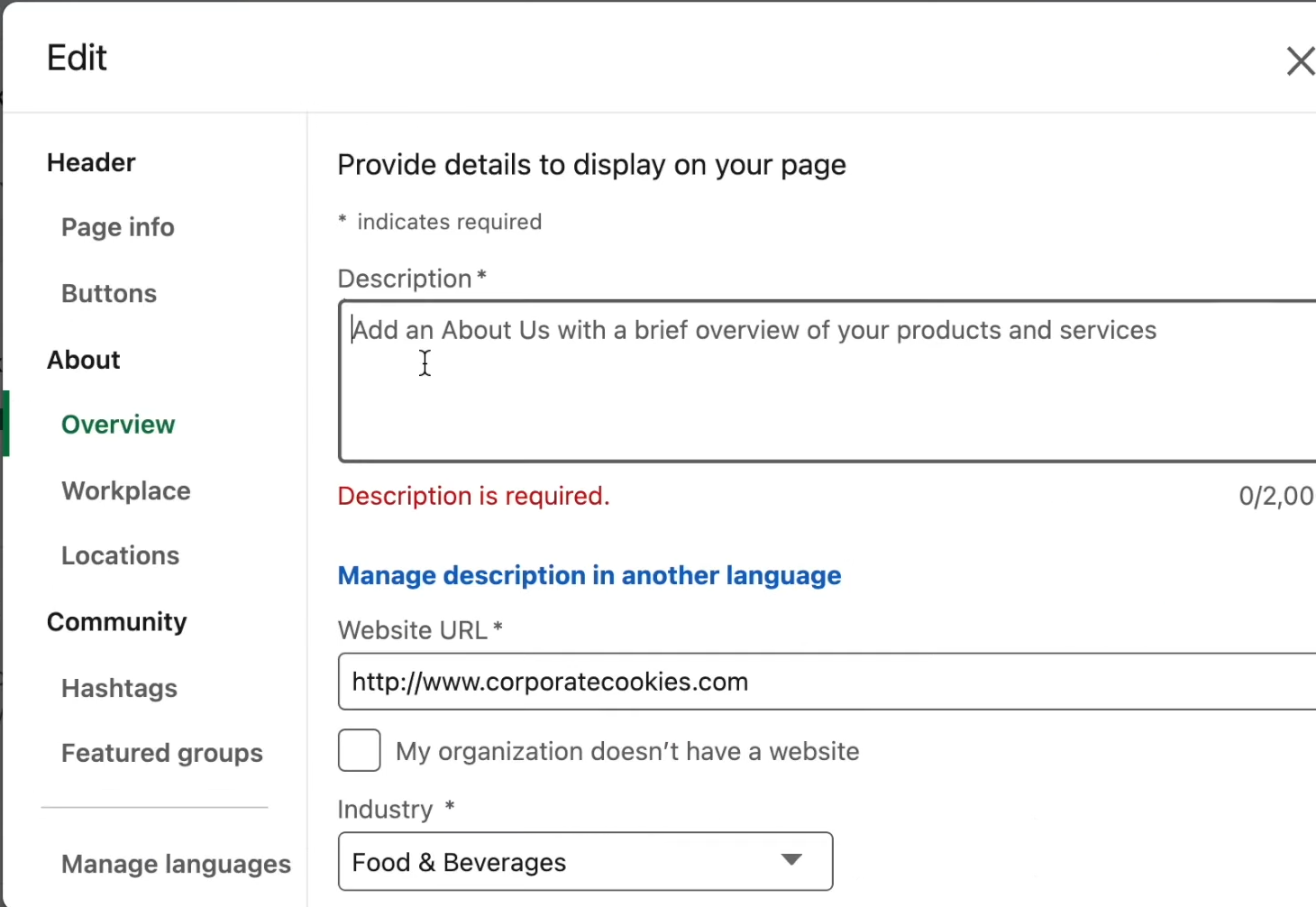
- After clicking the “Add” button under Description, you will be redirected to this page. This feature includes the details about your company page that you want to share to your members. You can also put your products and services in this field for promotion. Input the description inside the blank field.
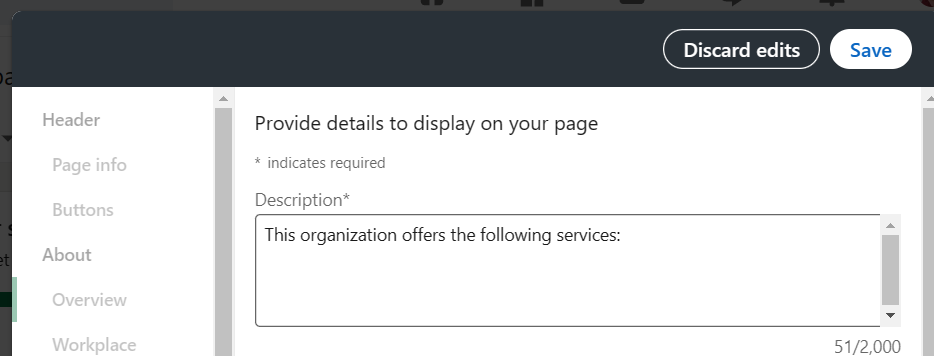
- Click “Save” to save your description and for it to reflect on your company page.
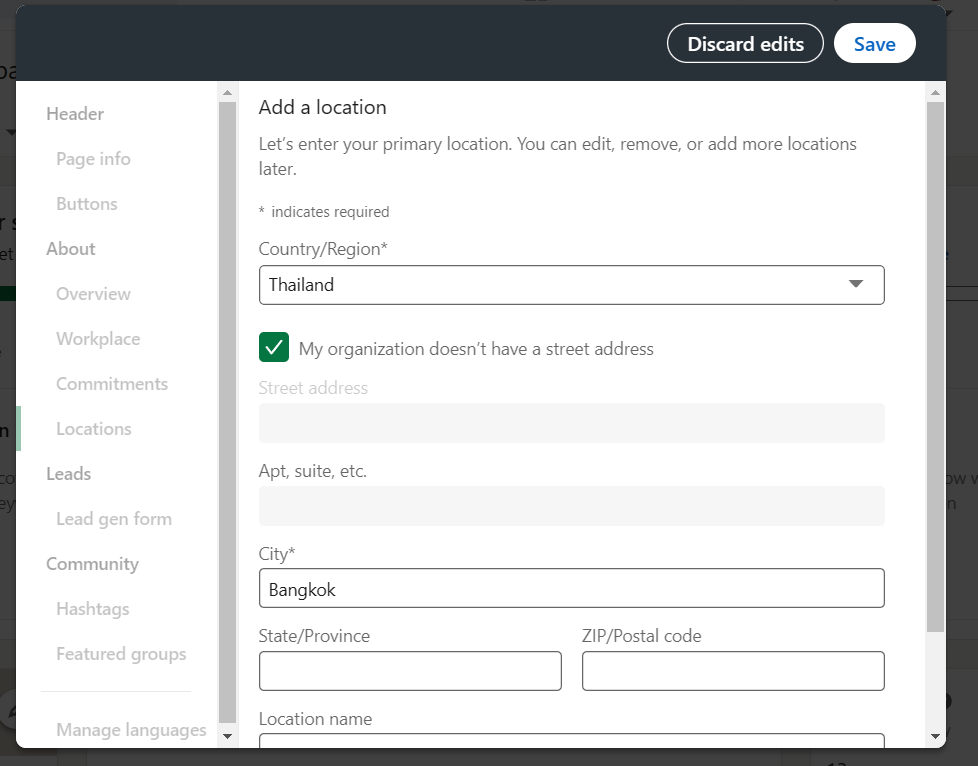
- After clicking the “Add” button under Location, you will be redirected to this page. To add the location of your organization, the country, street address, and city are required fields. However, you have an option to omit the street address if your organization does not have one. To do this, check “My organization doesn’t have a street address”.
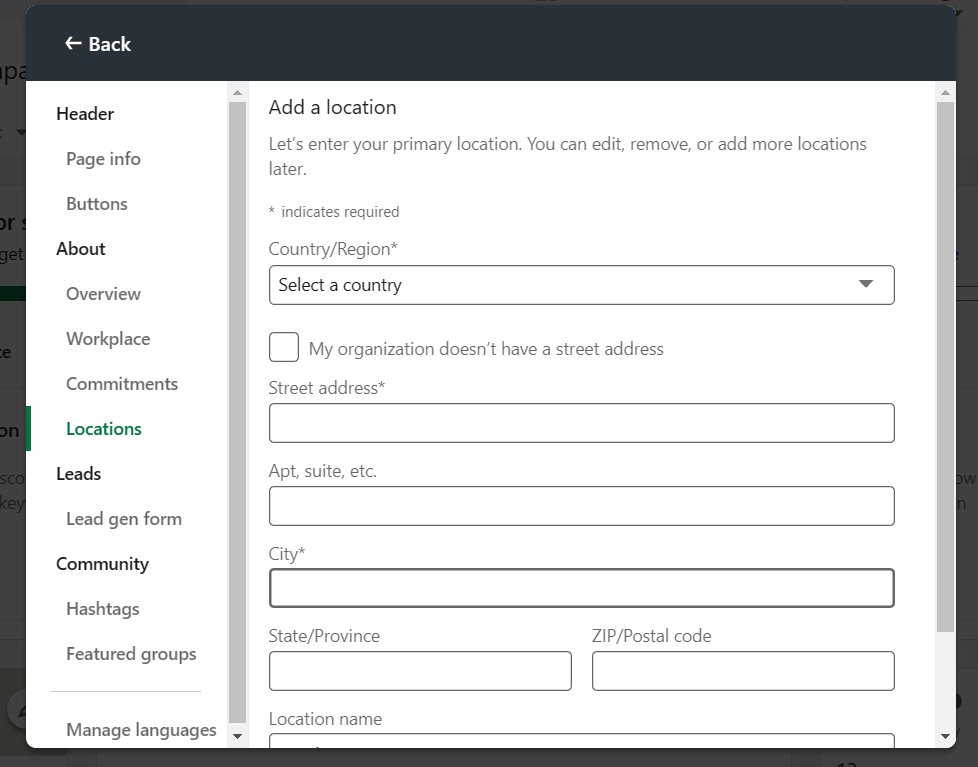
- Click “Save” to save your location and for it to reflect on your company page.
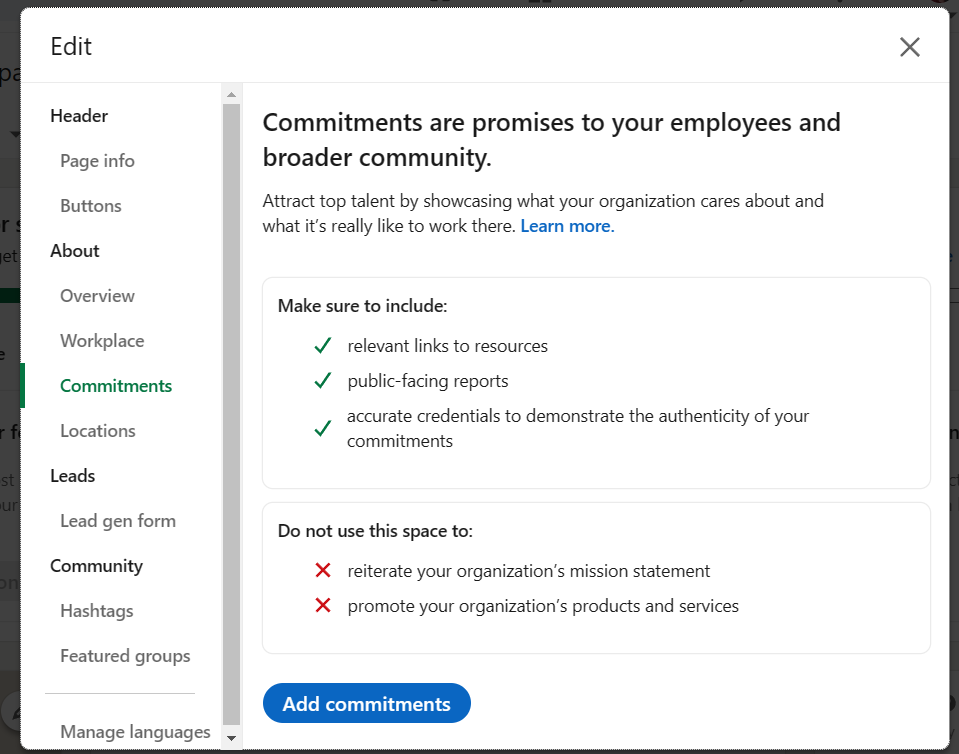
- Lastly is the Commitments. This needs setting up because it allows your organization to express your promises to the members. In this feature of the company page, you will be able to prove these promises by stating relevant facts and examples that you have done within your organization. To include this, click “Add commitments”.
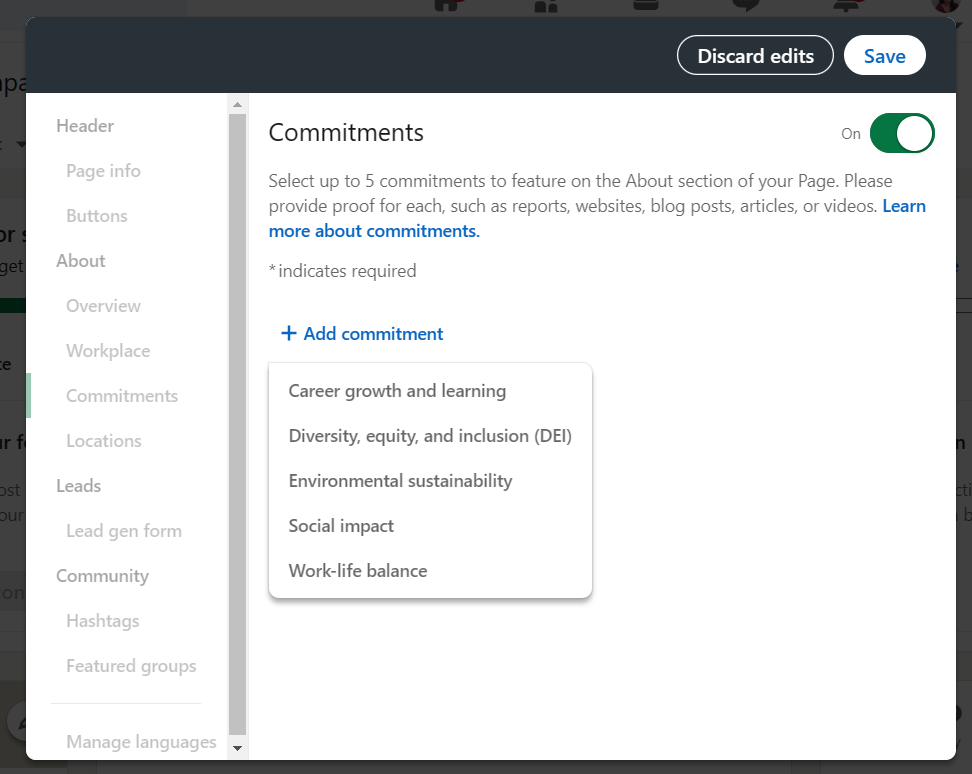
- If you want to show the LinkedIn community of the commitments, toggle this on.
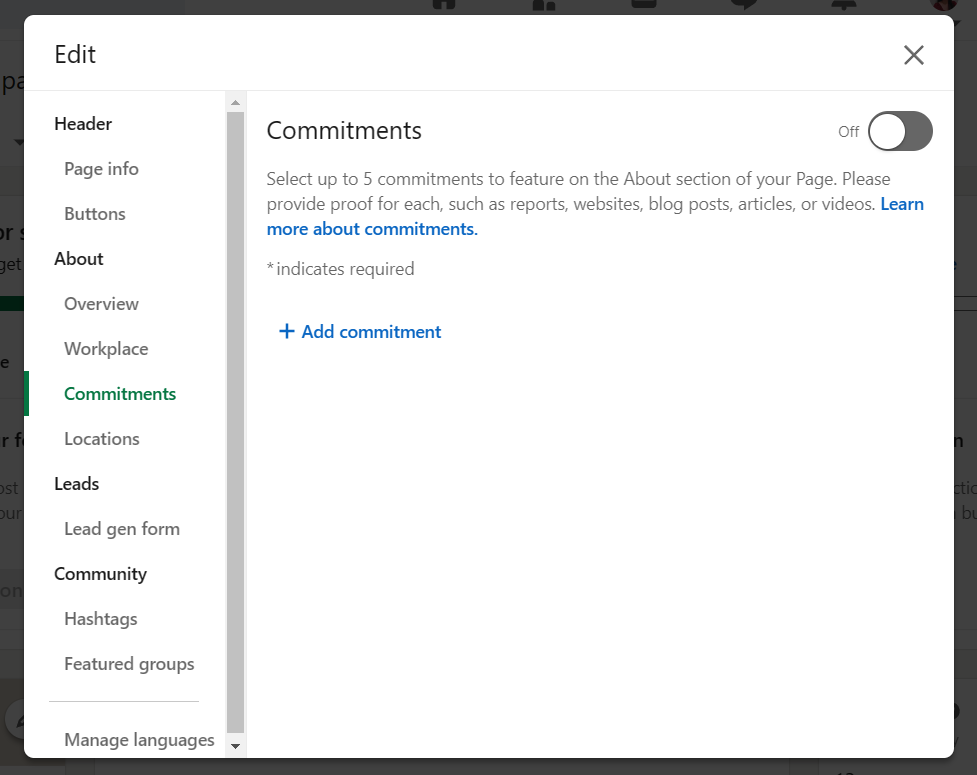
- To add a commitment, click “Add commitment” and five general options will show. In these five options, you can choose a maximum of 5 commitments. Click the chosen option to construct a commitment.
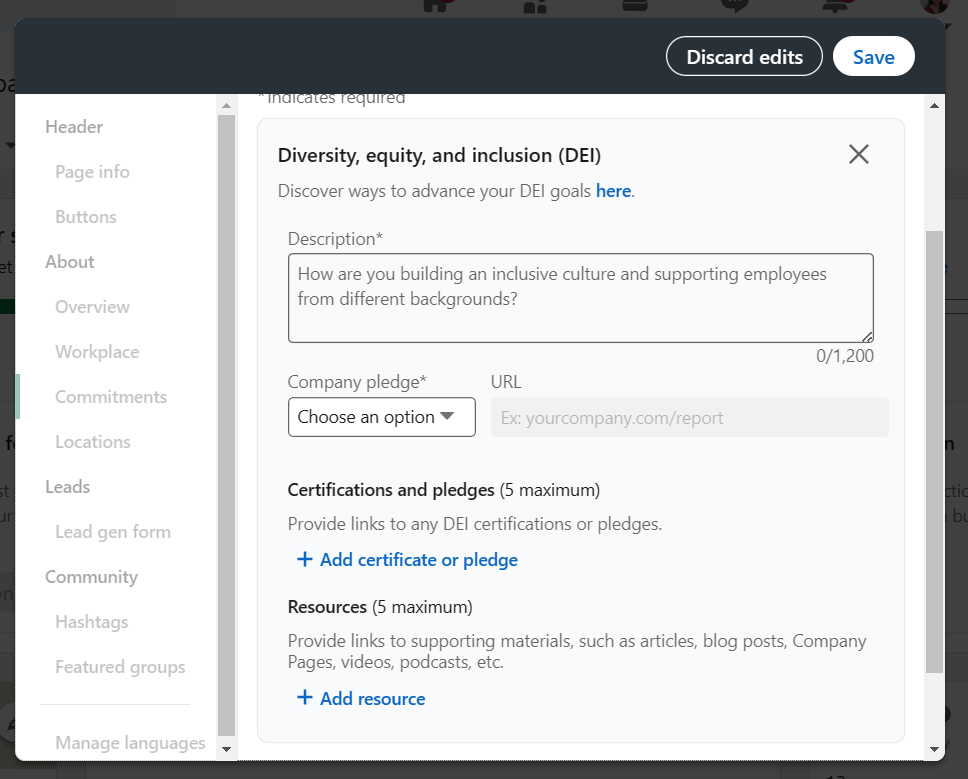
- To create a commitment, you need to provide a description and select whether you want to show company pledge or report in the dropdown menu. You can also add certifications and resources which are relevant to the option that you have chosen. After editing, click “Save” to record the process.
Conclusion
You’re done! Always remember, you must create a LinkedIn corporate page since this function enables your business to draw potential clients with updates about their goods or services.
-
Creation of a LinkedIn company page means a worker can check the company website to see whether they are a suitable fit for the position.
-
Business executives also utilize LinkedIn company pages to verify the reliability of an organization they are thinking about doing partnership with.
-
To create a LinkedIn company page, you can start by signing in your account and click the button for creating a new page.
-
Input all the necessary and true information about your business so LinkedIn would not delete it because of suspiciousness.
-
In setting up the LinkedIn page, check the overview, workplace, locations, hashtags, and featured groups.
-
LinkedIn company pages are used to create leads, hire candidates, examine their backgrounds, and increase visibility by creating content about the company.