A Guide to Setting Up a Facebook Ads Account for Your Client
To give you a step-by-step guide in setting up your client’s Facebook ad account.
Prefer a shortcut? 16 free tools do parts of this for you.

Aim: To give you a step-by-step guide in setting up your client’s Facebook ad account.
Optimal Outcome: Creating your client’s Facebook ad account and linking it to your Facebook Business manager so you can start managing their Facebook ads campaign.
What do you need to start: Facebook Ads Manager (client) and Facebook’s Business Manager account
Why is this SOP Important: Setting up a Facebook ad account for a client allows you to manage and optimize their Facebook advertising campaigns, potentially increasing the effectiveness of their marketing efforts.
When and Where to execute: Facebook Ads Manager (client) and then your Facebook Business Manager
Who Should Be Doing This: Client and you or your Social Media admin
Execution
Requirements:
-
It’s important that the client or their authorized representative or admin set up the Facebook Ad account. The client needs to set up their payment information associated with the ad account. You don’t want to set up the ad account under your name with your payment information as it poses financial risk for you in case the client relationship does not pan out.
-
You must have admin access to the Facebook Business Manager account where you will add your client’s Facebook ad account.
-
When your relationship with your client’s business ends, the client should revoke your access to their page and you should stop using their ad account.
Set up your client’s Ad account
-
Meet with the client to determine if they already have a Facebook Ad account.
-
If they don’t have one yet, walk them through the steps of creating a Facebook Ad account using this guide, SOP 025: How to Set Up Your Facebook Ads Account.
-
Have the customer take note of their account ID

Add your client’s Facebook Ad account to your Facebook Business Manager
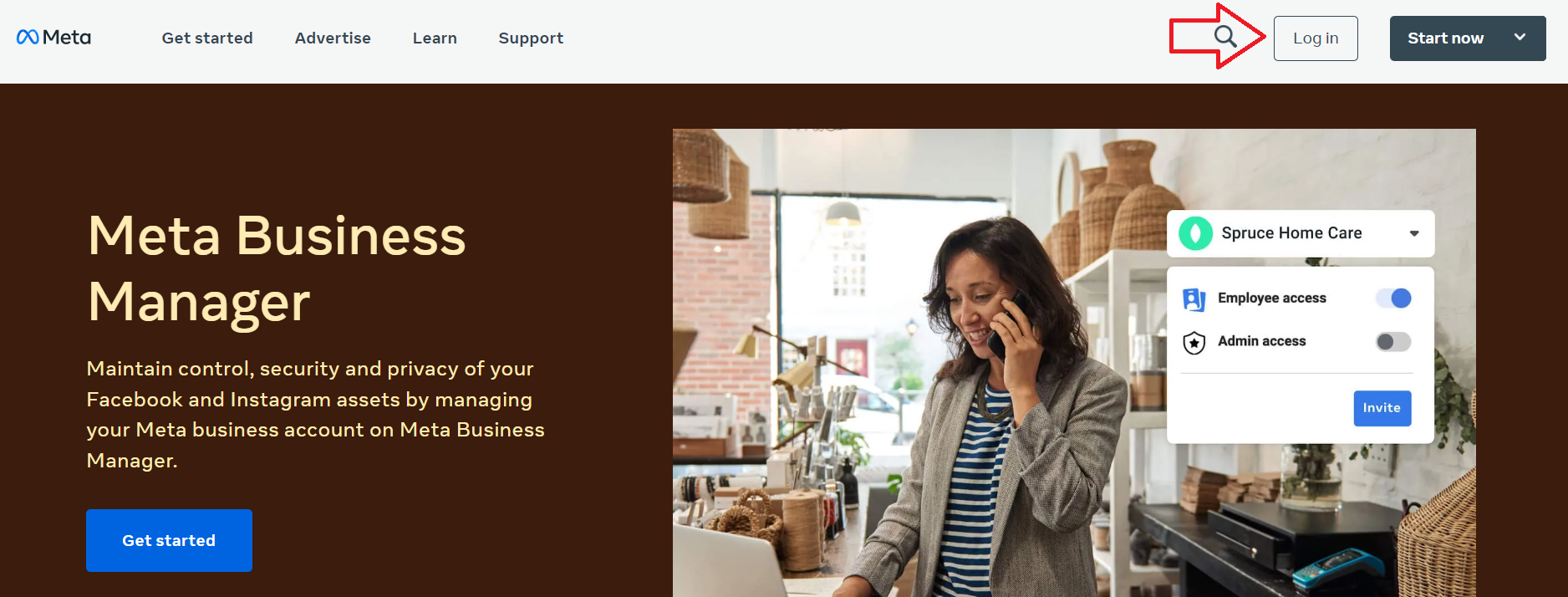
- Log in to your Facebook Business Manager.
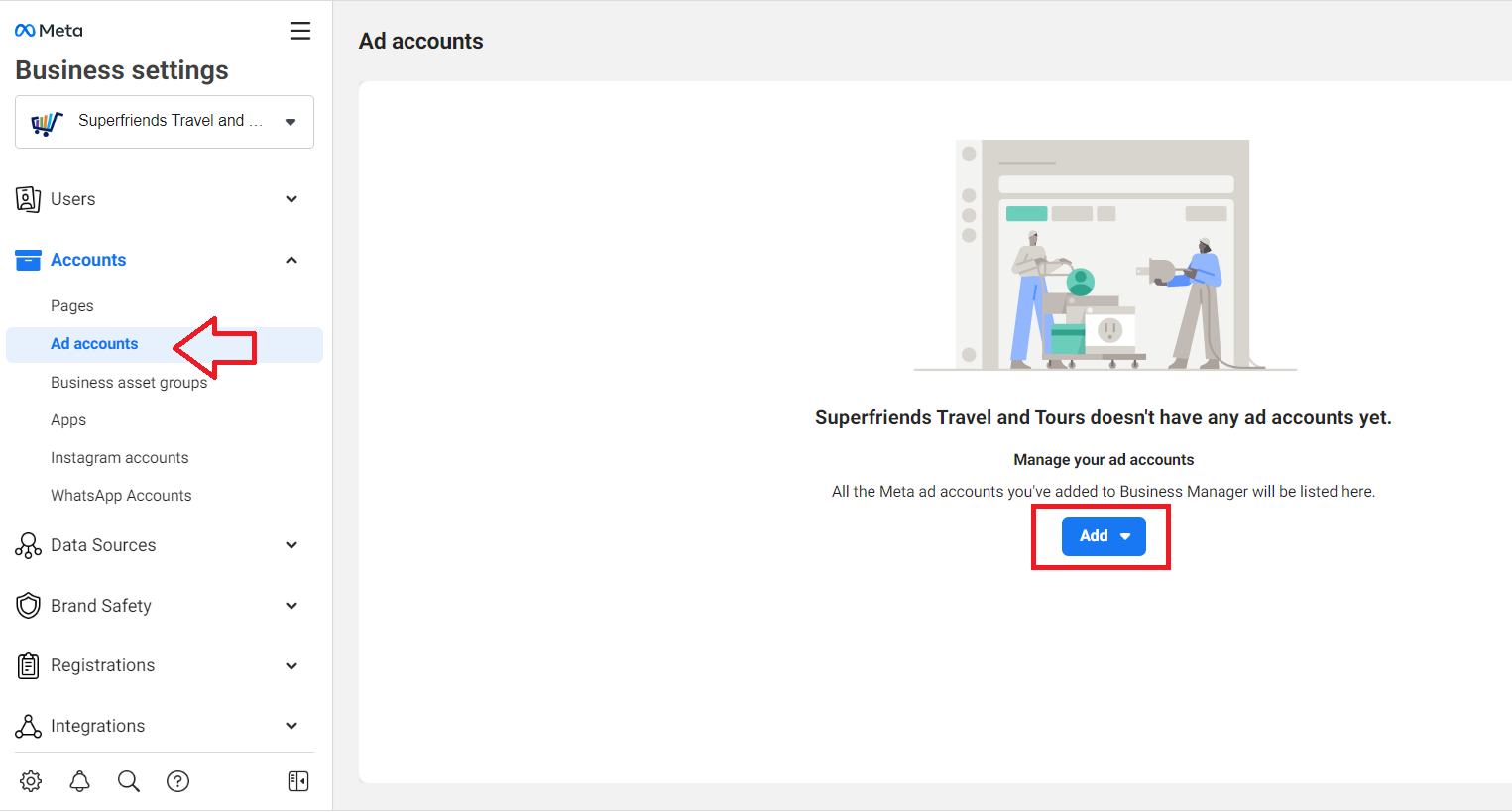
- From your Facebook Business Manager, click Ad accounts and click Add.
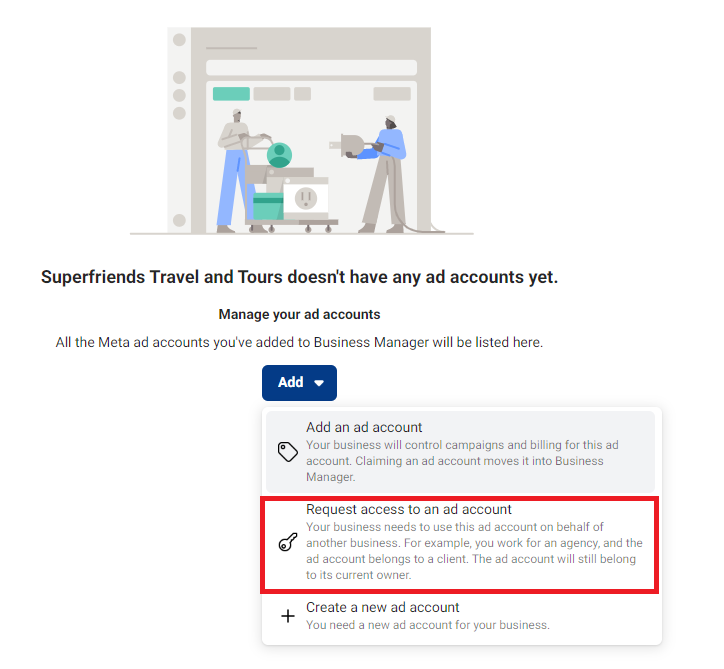
- Click Request access to an ad account.
-
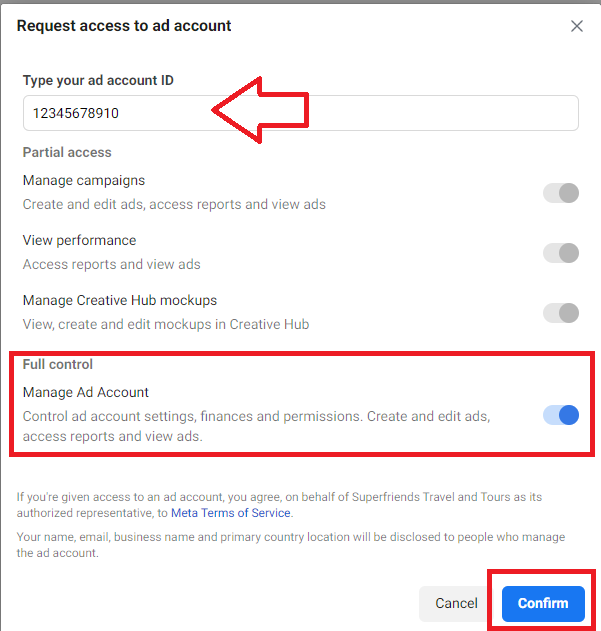
Type the ad account ID of your client’s Facebook Ad account.
-
Select Full control unless you have a different arrangement with your client.
-
Click Confirm.
-
Once the client approves the request, you’ll be able to fully manage their ad campaigns from your Facebook Business Manager.
Conclusion
That’s it! You’ve helped your client set up their Facebook Ad account and link it to your Facebook Business Manager. You can now start managing their ads campaign.
Execution Checklist:
-
You must have admin access to a Facebook Business Manager account.
-
The client or their authorized representative should set up the Facebook Ad account.
-
Request full access when linking your client’s Facebook Ad account to your Facebook Business Manager account.