Setting Up Facebook Conversion Tracking Code
Guide you on setting up your Facebook conversion tracking code to monitor the effectiveness of your Facebook ads campaign.
Prefer a shortcut? 16 free tools do parts of this for you.

Aim: Guide you on setting up your Facebook conversion tracking code to monitor the effectiveness of your Facebook ads campaign.
Optimal Outcome: Complete the set up of your conversions tracking and you can now utilize it within your advertising campaigns.
What do you need to start: You’ll need to create or complete the following to set up your Facebook Conversion Tracking Code:
-
Facebook Business Manager
-
Install Facebook Pixel (now Meta Pixel) on your website
-
Verified domain within your Facebook Business Manager
Why is this SOP Important: Facebook Conversion Tracking Code is crucial in evaluating the success of Facebook advertising campaigns. It allows advertisers to track specific website actions, optimize campaigns and make informed decisions to improve return on investment.
When and Where to execute: Facebook Ads Manager
Who Should Be Doing This: IT and Advertising staff
What is Facebook Conversion Tracking Code?
Facebook Conversion Tracking code is a piece of code that can be installed on a website to track specific actions or events that occur on the site. It helps businesses understand how effective their Facebook ads are at driving conversions, such as sales, sign-ups, or other desired actions. By tracking these actions, advertisers can see which ads are working best, optimize their campaigns, and make informed decisions about their advertising spending on Facebook.
Execution
There are two ways to set up your Facebook conversions tracking. The choice between these two options will depend on your preference and the data you want to track.
-
Standard events - allows you to track specific events, optimize for conversions and build audiences such as view content, search, add to cart, add to wish list, initiate checkout, add payment info, make purchase, lead, and complete registration.
-
Custom conversions - allows you to track actions that fall outside the Standard Events
Generate the Facebook Tracking Code
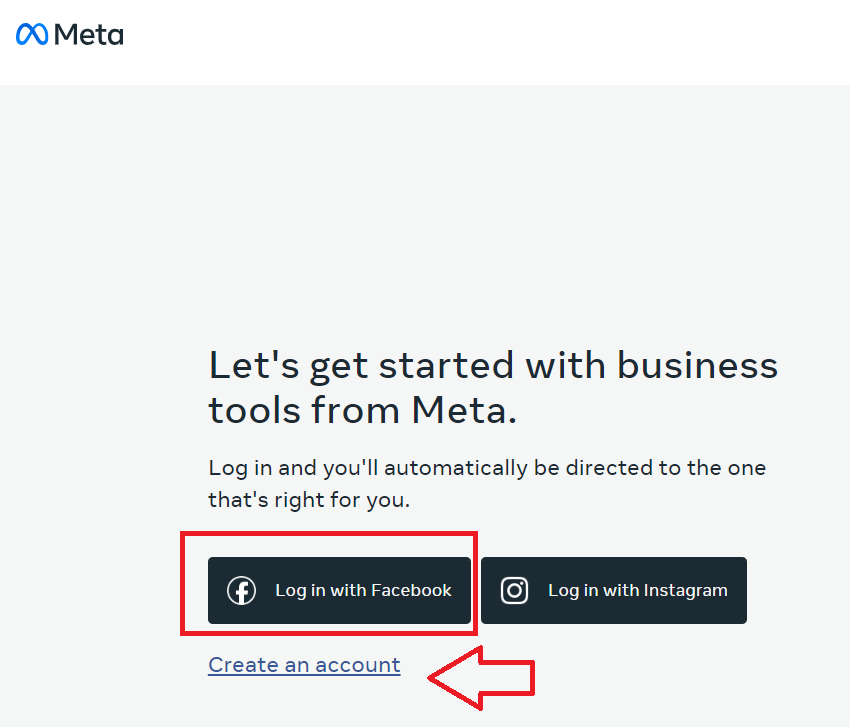
- Log in to your Facebook Ads Manager account.
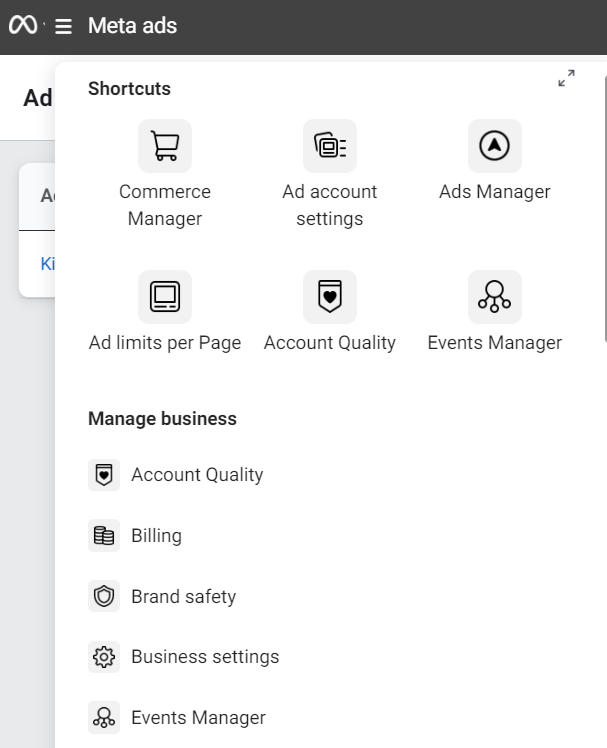
- Click the three horizontal lines and navigate to Events Manager.
-
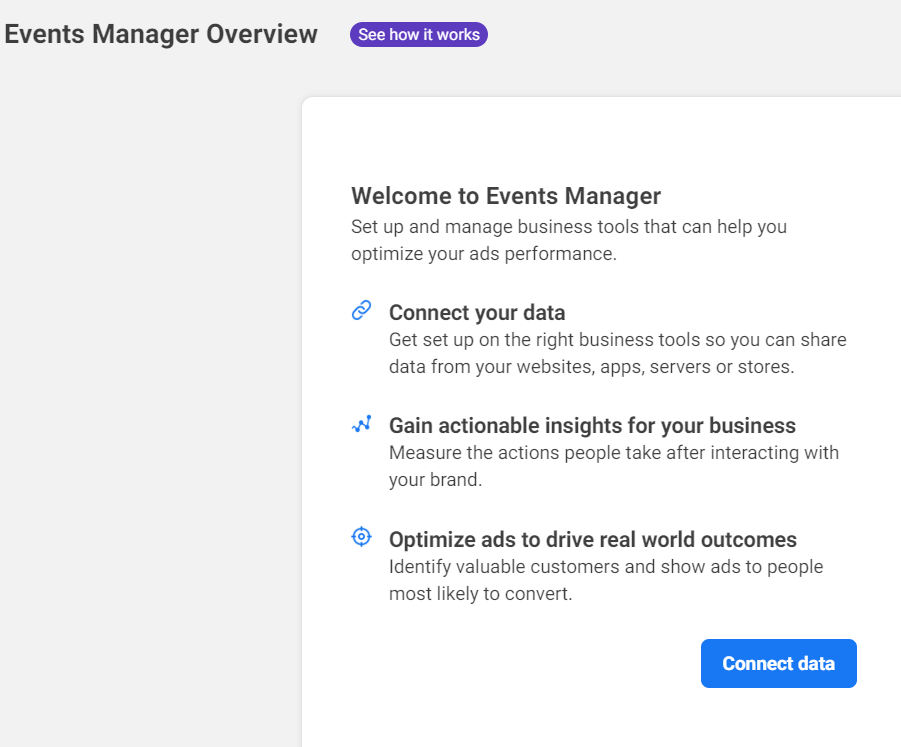
From the Events Manager Overview, click Connect data.
-
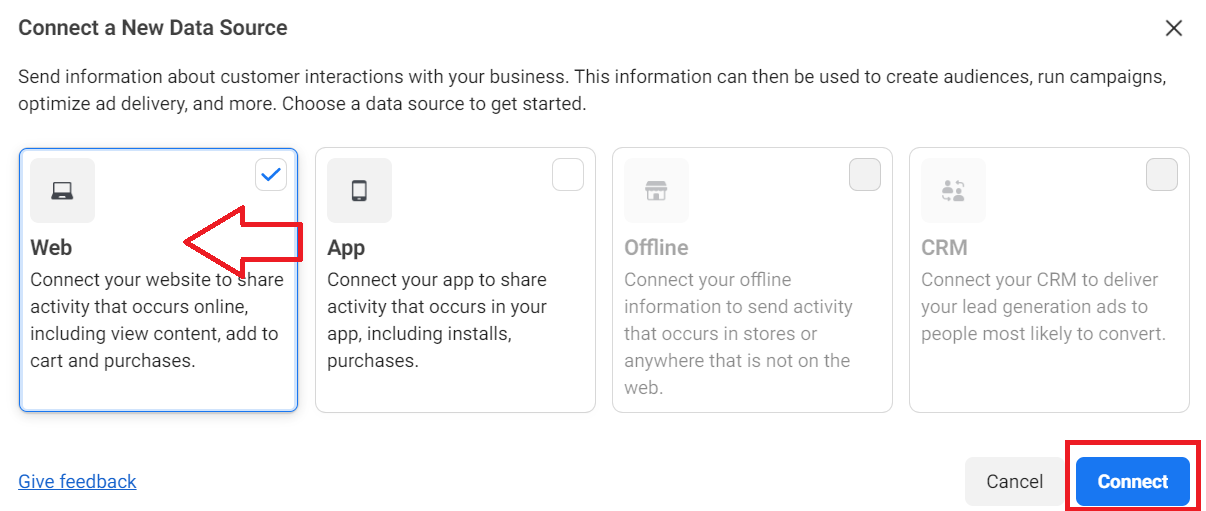
From the pop up box, select Web then click Connect.
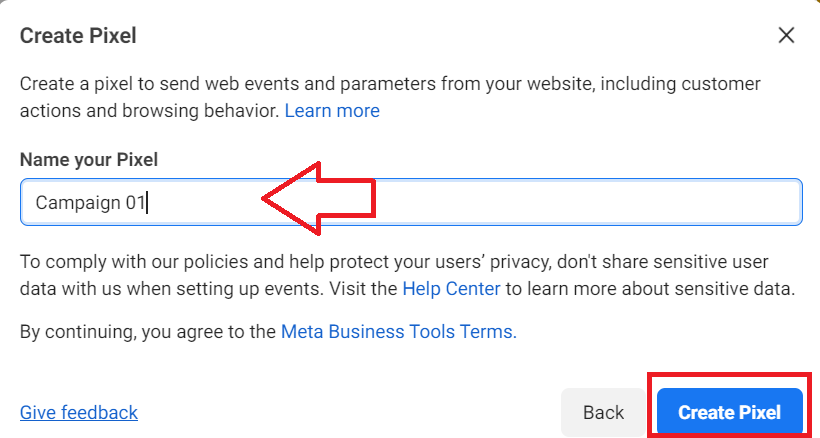
- Give your pixel a name and click Create Pixel.
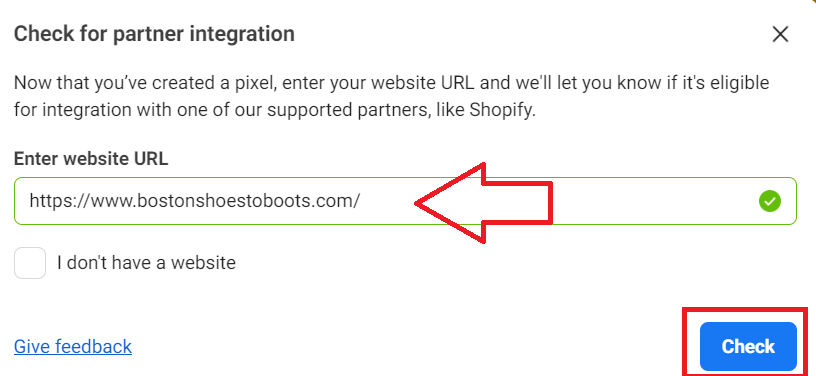
- Enter your website to determine if it’s eligible for integration, click Check.
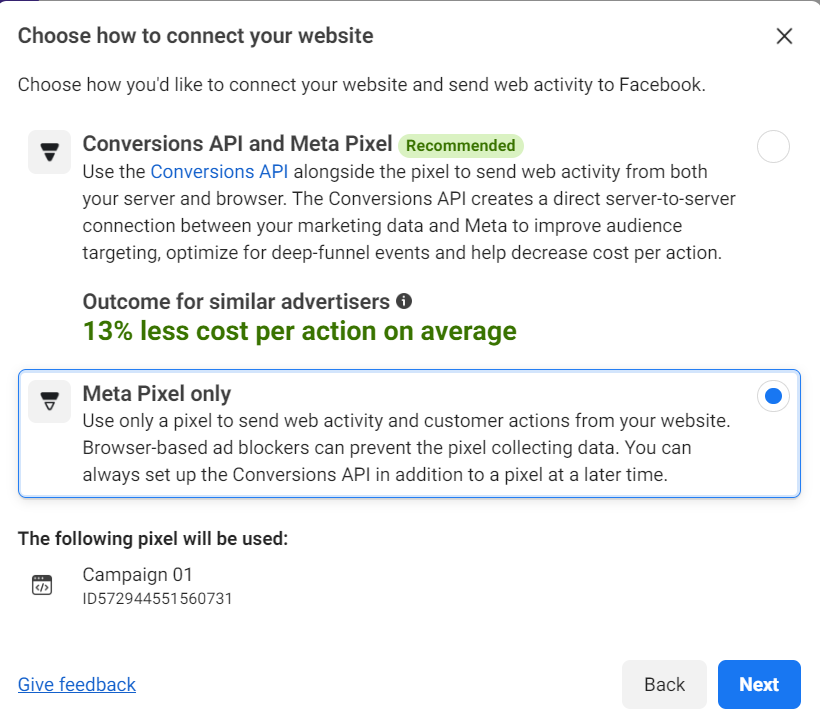
- Select Meta Pixel only then click Next.
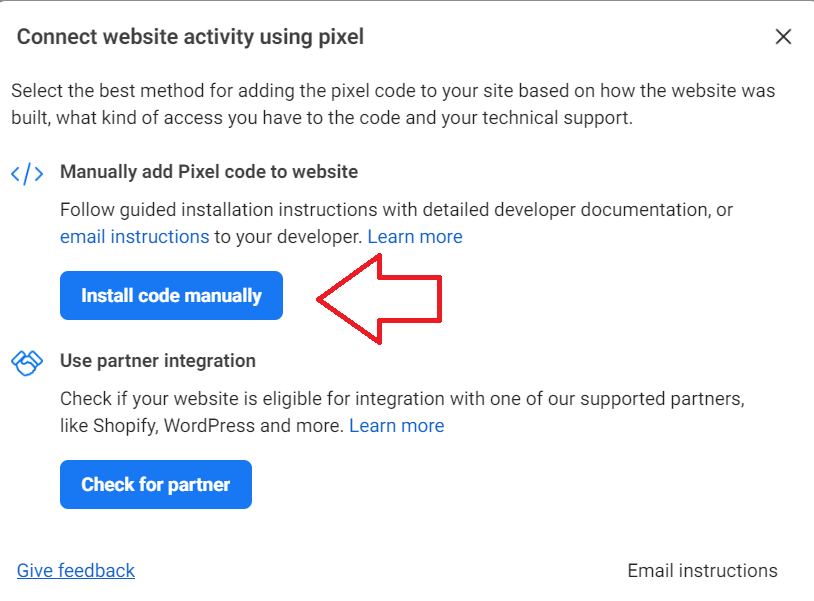
- You can manually add Pixel code to your website or use a partner integration tool such as Shopify, WordPress etc.
Note: In this SOP, we’ll follow the flow of installing the code manually.
- Click the Copy Code button then click Continue.
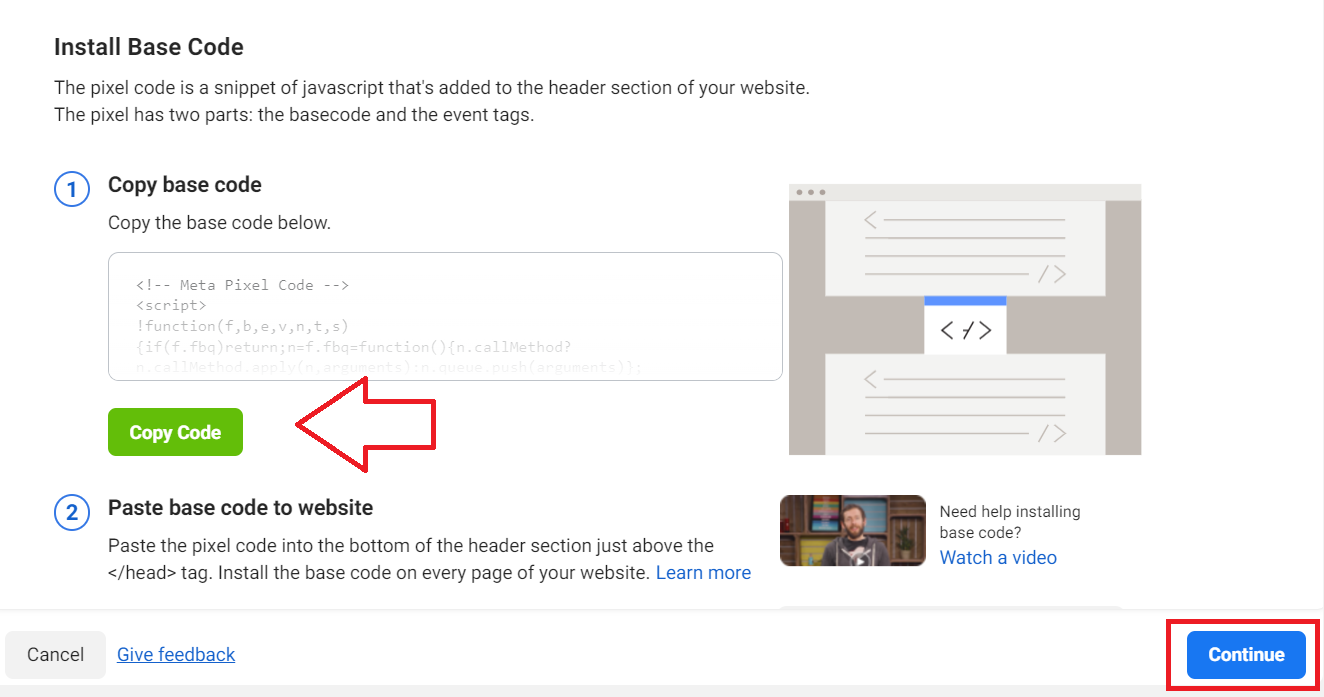
- Next, install the code to your website. The procedure will vary depending on the tool used to set up your website.
Set up Standard Events (using the Events Setup tool)
Note: The following steps outline the process for tracking conversions that redirect to a “Thank You” page. Usually, there’s a page where the user takes an action (example: entering contact information or making a purchase), and after completing this action, they are redirected to a final page. This is where you will set up your conversion event. If you want to create Custom Events, go to this section.
Prerequisites before setting up Standard Events
-
Ensure that your website has the Facebook Pixel installed.
-
Make sure you have admin access to the Pixel.
-
Turn off ad blockers in your browser.
-
Make sure your business is not in a regulated vertical. For the following business types, you’ll need to use. set up events manually.
-
Investment banking and brokerage
-
Insurance
-
Financial services
-
Retail
-
Credit union and commercial banking
-
Credit
-
Financing
-
Mortgages
-
Pharmaceutical and health
- Sign in to your Facebook Ads Manager.
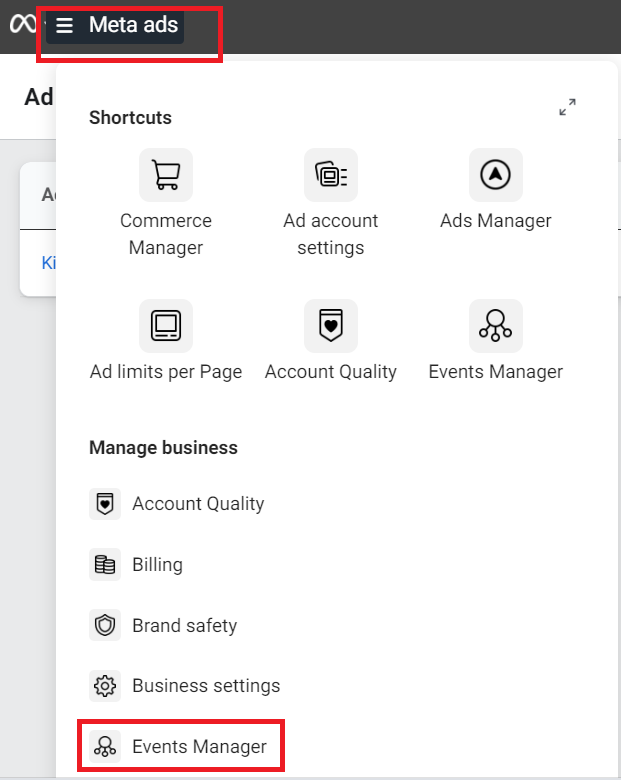
- Click the three horizontal lines at the top left corner, then select Events Manager.
-
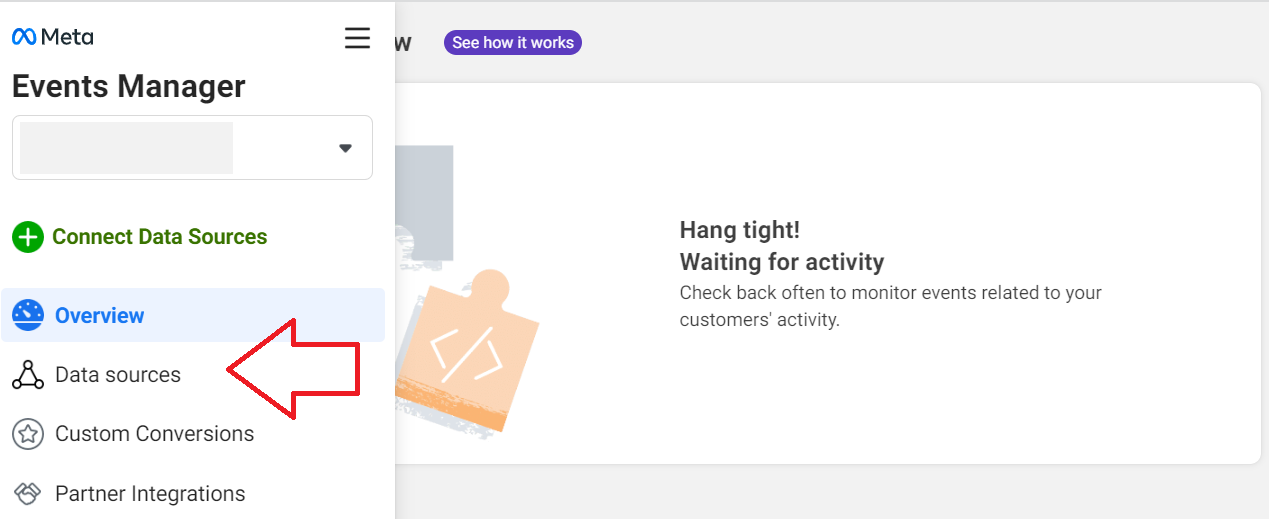
Click Data sources.
-
Select the Pixel you’d like to use then click Settings.
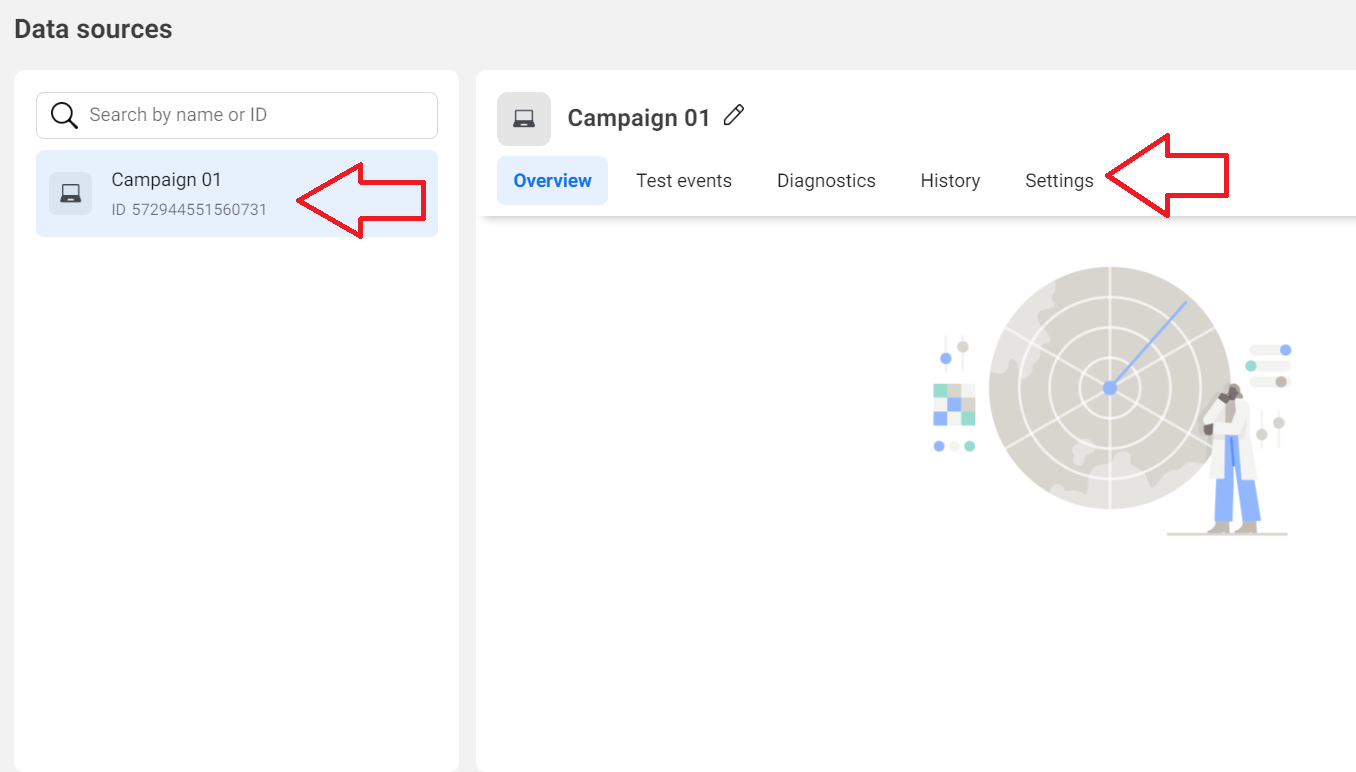
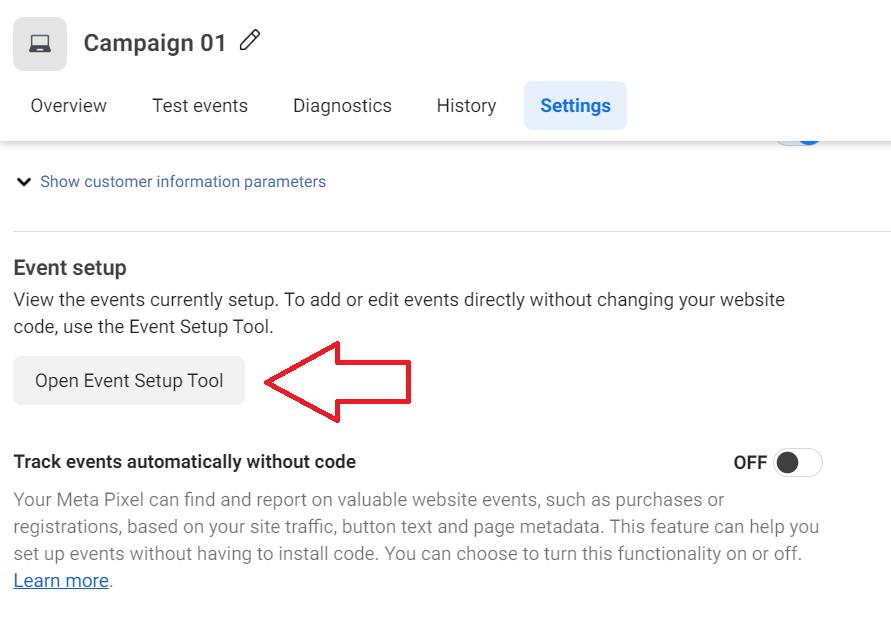
- Click Open Event Setup Tool.
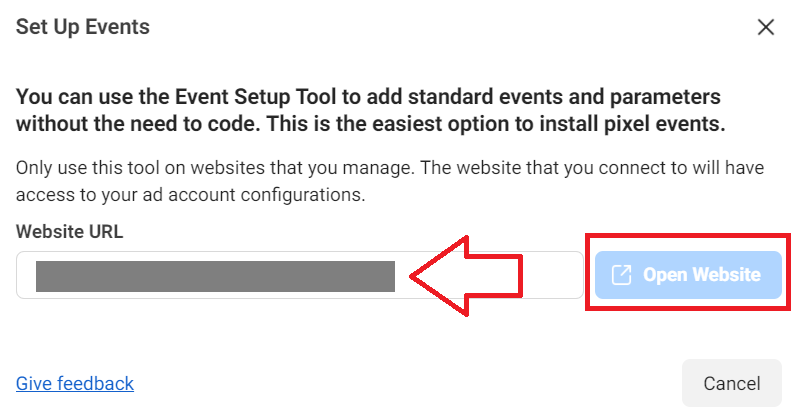
- Type your website and click Open Website.
-
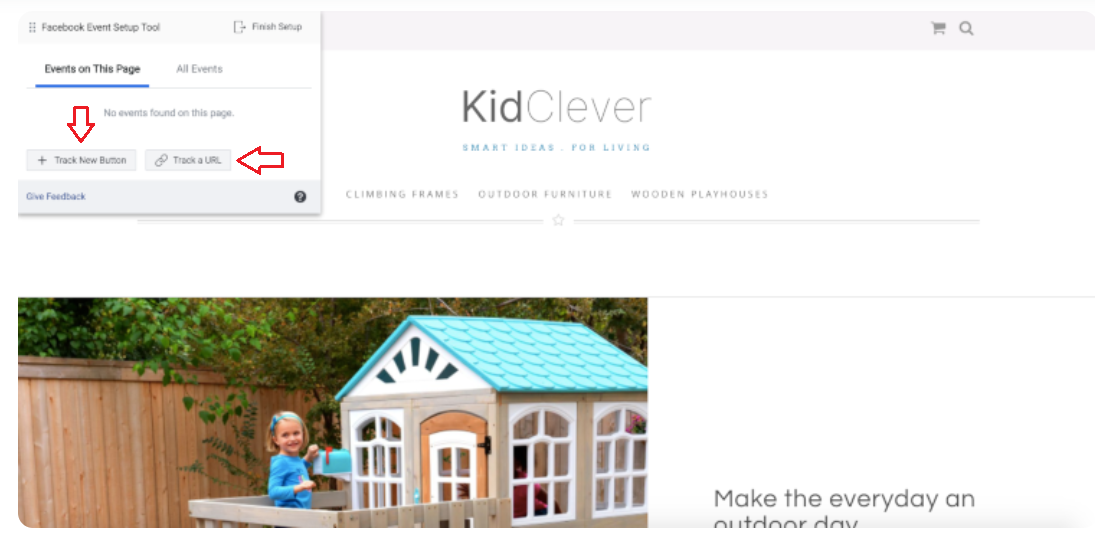
On your website, you’ll see a small window where you can customize your settings. You can either Track New Button or Track a URL.
-
Navigate through your website then click Track New Button.
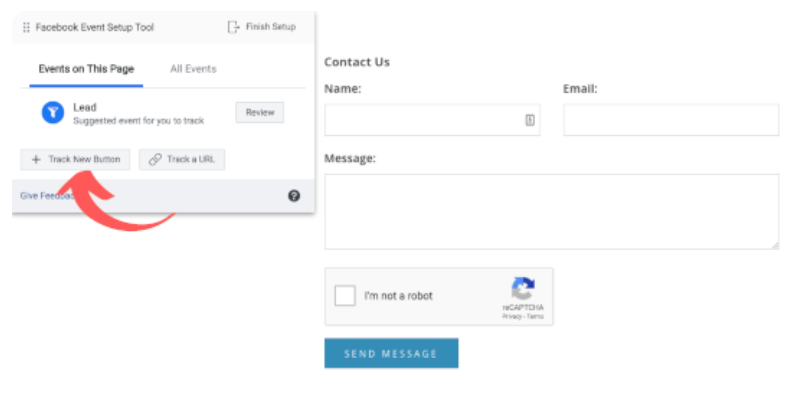
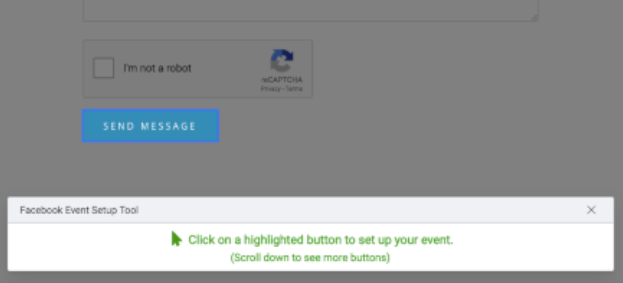
- Click on the button you want to collect data from.
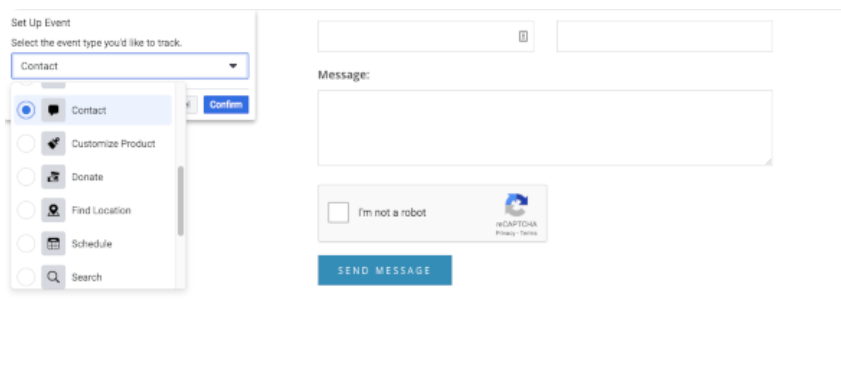
- Next, select the event you’d like to track.
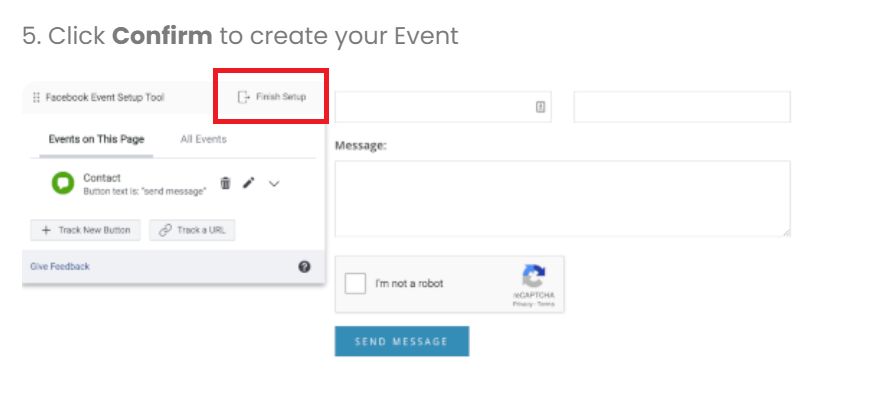
- Repeat steps 8 to 10 until you’ve selected all the items you want to track. Then click Finish Setup.
Set up Custom Events
Notes:
Use Customer events to accomplish the following:
-
Add filters to existing standard events to understand your customers better
-
Set up standard events without the need for additional code
-
You want to optimize ad delivery
-
Share specific data to partners or collaborators
Custom conversions to filter website events
- Sign in to your Facebook Ads Manager.
- Click the three horizontal lines at the top left corner, then select Events Manager.
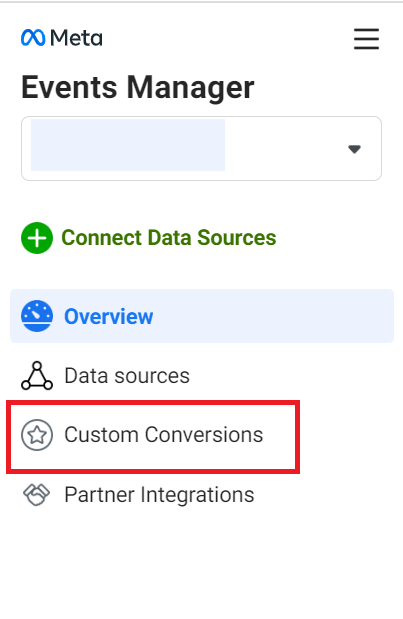
- From the left menu, select Custom Conversions.
-
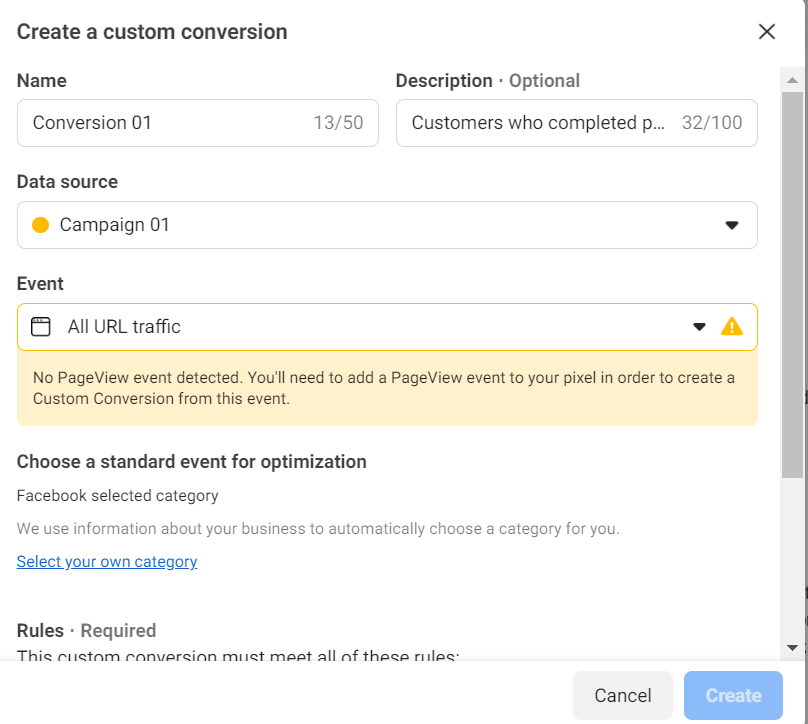
Create a name for your custom conversion then add a description.
-
Select your data source.
-
Select your conversion event.
-
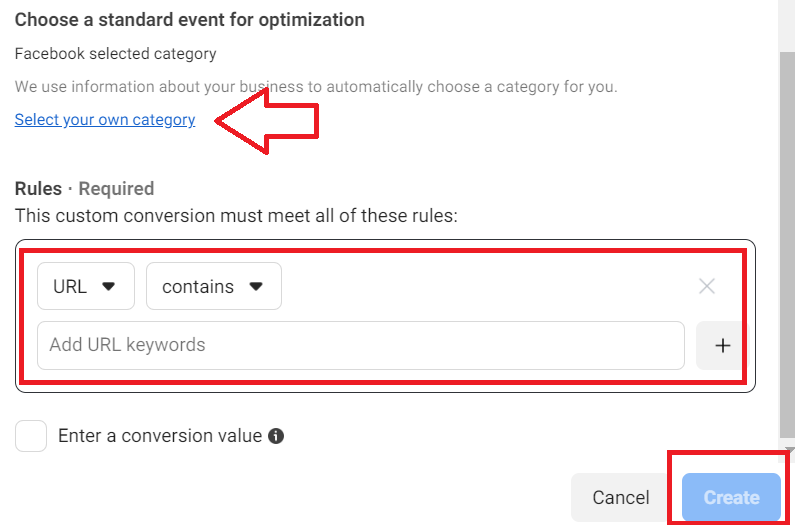
Set up a rule using a URL or Event parameters.
-
It is recommended to use Facebook’s default category but you can also Select your own category.
-
Click to check the box next to Enter a conversion value, then enter your value. This is optional.
-
Click Create.
Conclusion
That’s it! You can now monitor your conversions and other activities on your website from your Facebook Events Manager platform.
-
Setting up your Facebook Conversion Tracking code allows you to track the effectiveness of your ads by measuring conversion and determining which ads are driving most results.
-
By understanding which ads are driving conversions, you can refine your targeting and reach the right people with the right message.
-
Conversion tracking data allows you to optimize your ad spend by identifying which ads are delivering the best ROI.
-
Analyzing the data from your conversion tracking can give you insights about the customer’s journey.
-
Use Facebook Event Manager to generate and set up your conversion tracking.