A Step-by-Step Guide to Creating a LinkedIn Ads Account
To walk you through setting up your first LinkedIn Ads account for your business.
Prefer a shortcut? 16 free tools do parts of this for you.

Aim: To walk you through setting up your first LinkedIn Ads account for your business.
Optimal Outcome: To establish an Ads account in LinkedIn and make sure that your business reaches your target audiences and promote brand recognition.
What do you need to start: To follow this SOP, you need to have a LinkedIn account first for creating an ad account.
Why is this SOP Important: LinkedIn ads account is essential for your business because it lists several ad options and the objectives they might aid you in attaining. These include sponsored contents and messages, and text and dynamic ads. In addition, it also helps you in launching advertising campaigns relevant to your business.
When and Where to execute: You will want to set up your LinkedIn ads account after signing in to your LinkedIn account.
Who Should Be Doing This: This could be done by the person in charge of digital marketing or lead gen and advertising specialist.
LinkedIn Ads
LinkedIn Ads enables you to design advertising campaigns in a range of various types. Your brand or company may use LinkedIn advertisement to accomplish a variety of objectives, such as brand exposure, audience interaction, web analytics, lead and website conversions, and promotions. For your unique marketing needs, LinkedIn provides a wide range of ad styles.
Execution
Resources/Tools & Set up
- LinkedIn account
Creating a LinkedIn Ads Account
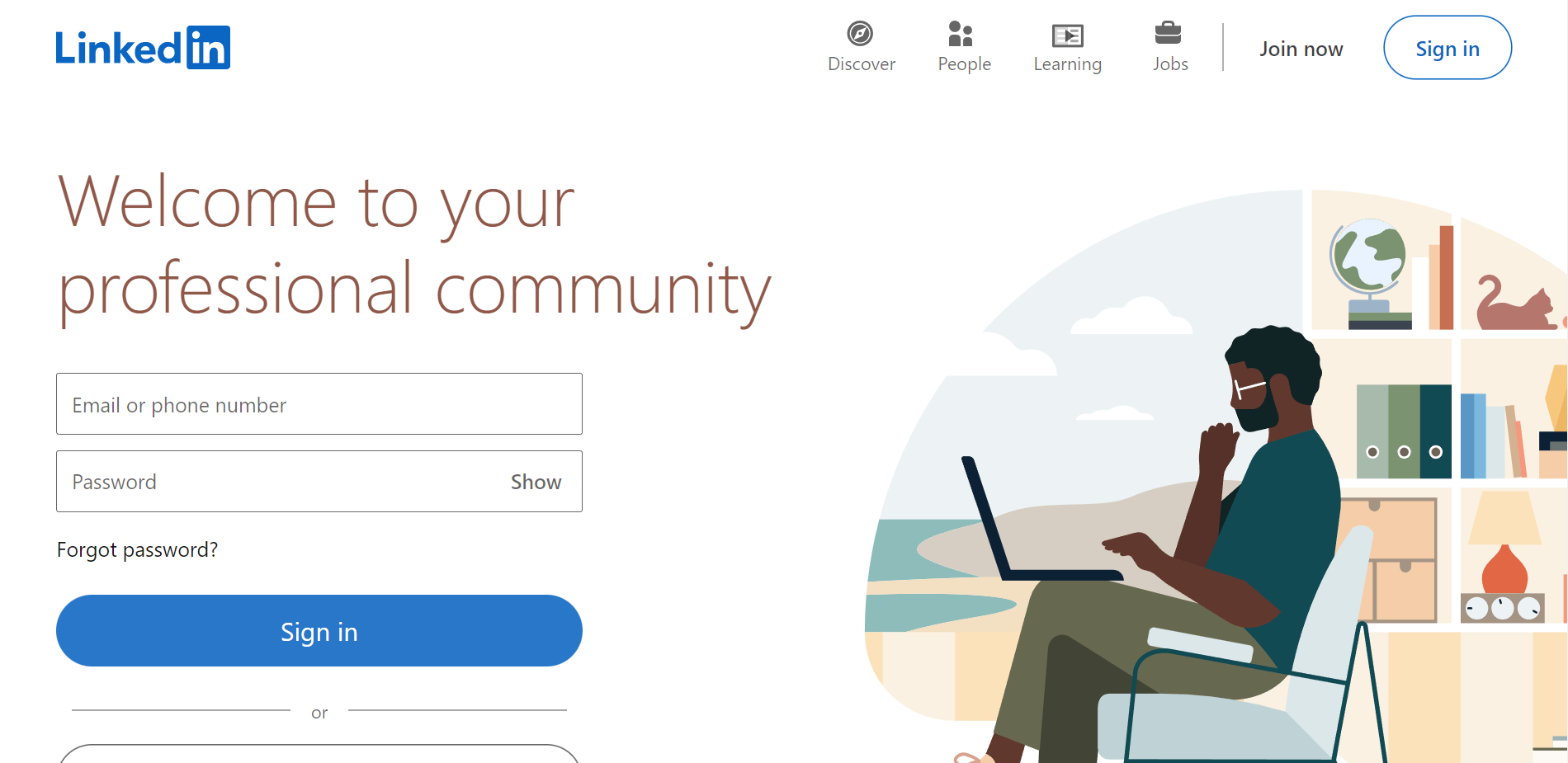
- Go to LinkedIn.com and sign in your account by entering your email or phone number as shown below or click the “Sign in” button on the upper right corner.
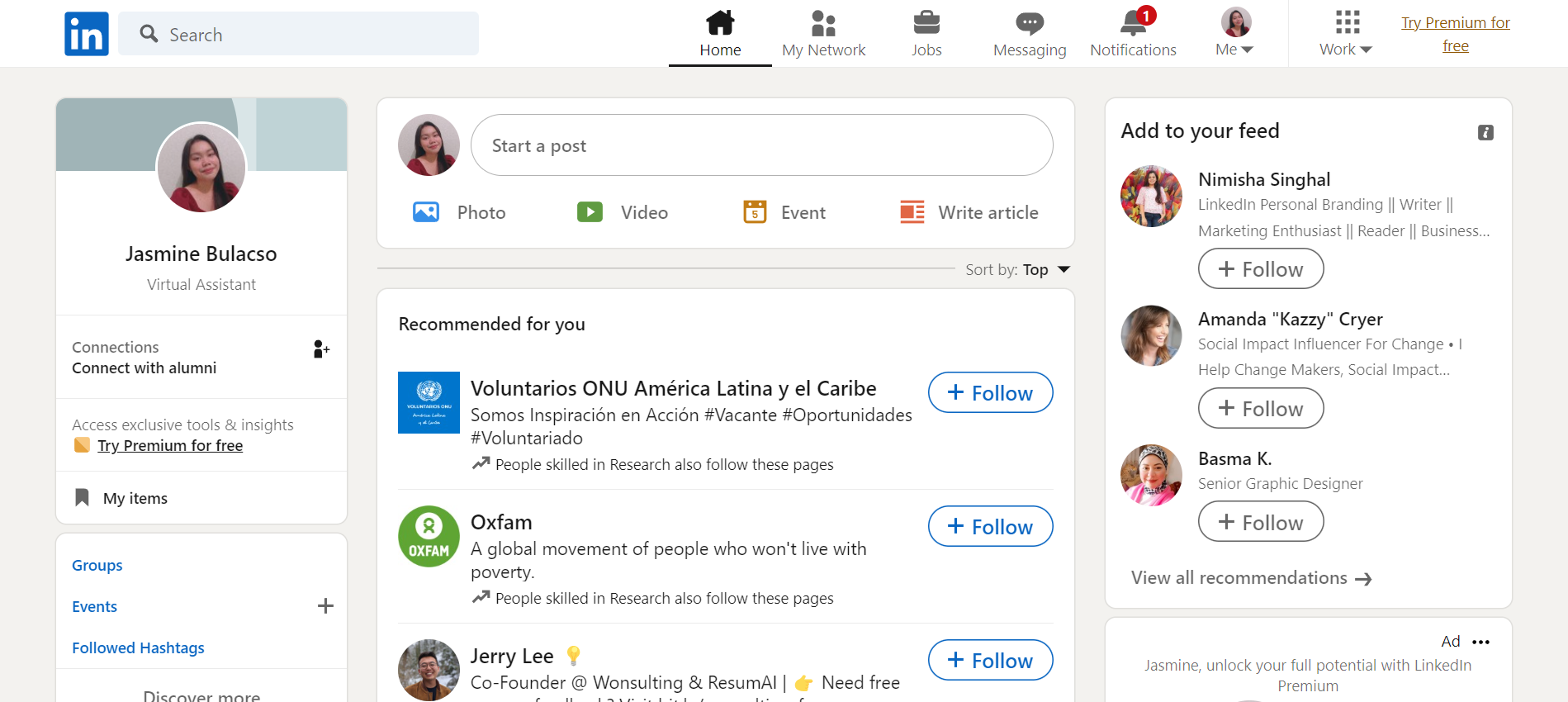
- Go to the top navigation bar and click the “Work” button. This drop-down menu is located beside your profile icon.
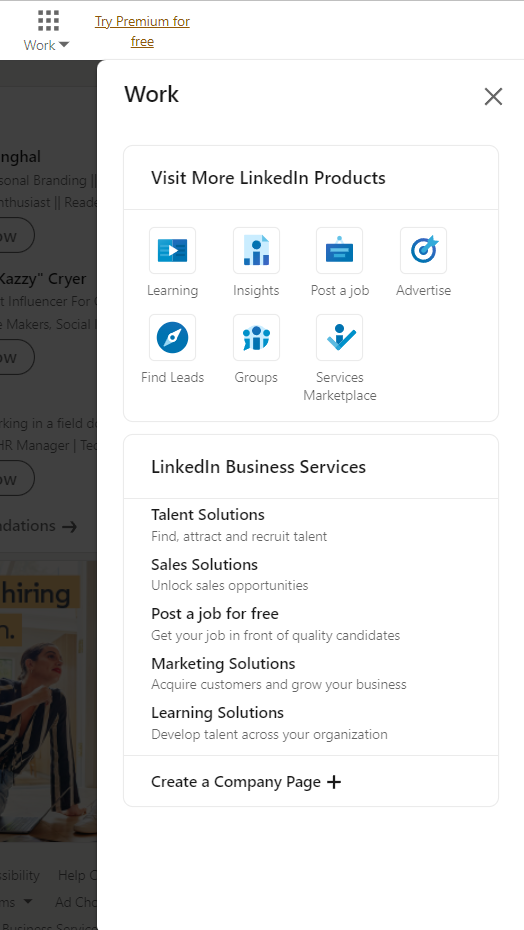
- Under “Visit More LinkedIn Products”, select the “Advertise” button.
- You will be redirected to another tab, the LinkedIn Campaign Manager. Here, you can create an Ads account by filling in the boxes on the “Account name” and by associating your LinkedIn company page in “Associate a LinkedIn Page”.
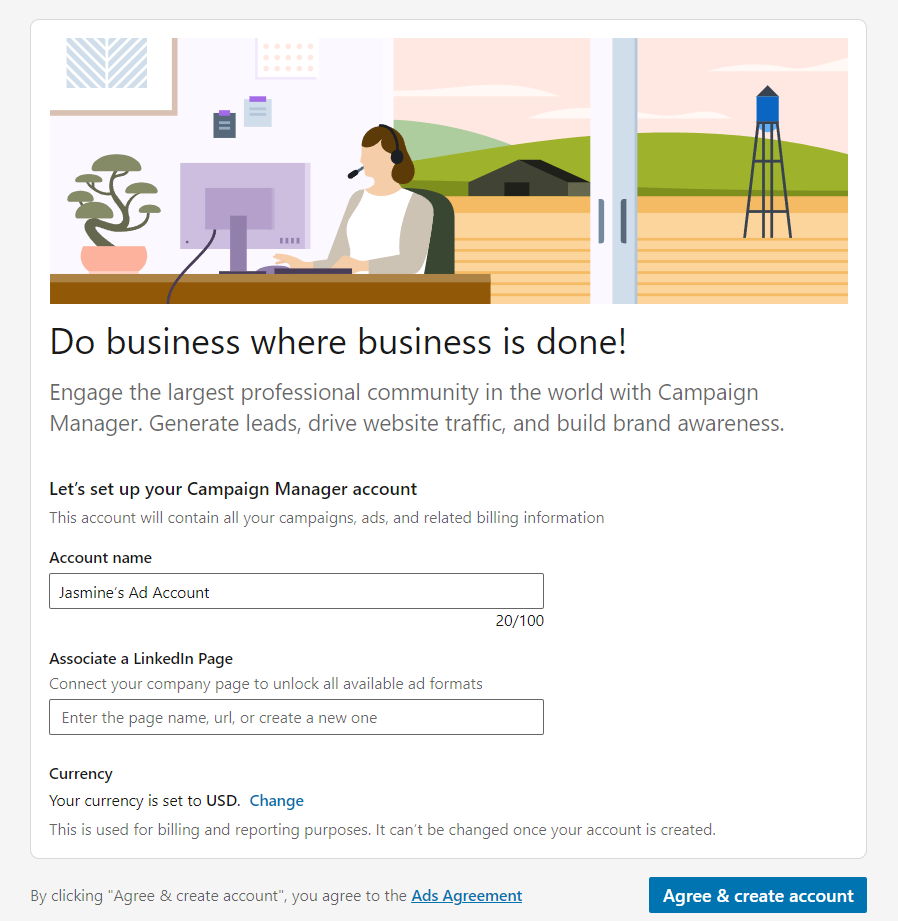
- If you are from other countries which do not utilize US dollars as your currency, change it by clicking the “Change” button.
- After changing the currency, check the Ads Agreement, then click the “Agree & create account”.
- You will be redirected to the LinkedIn Campaign Manager. This is where you will see the steps on how to make a new campaign.
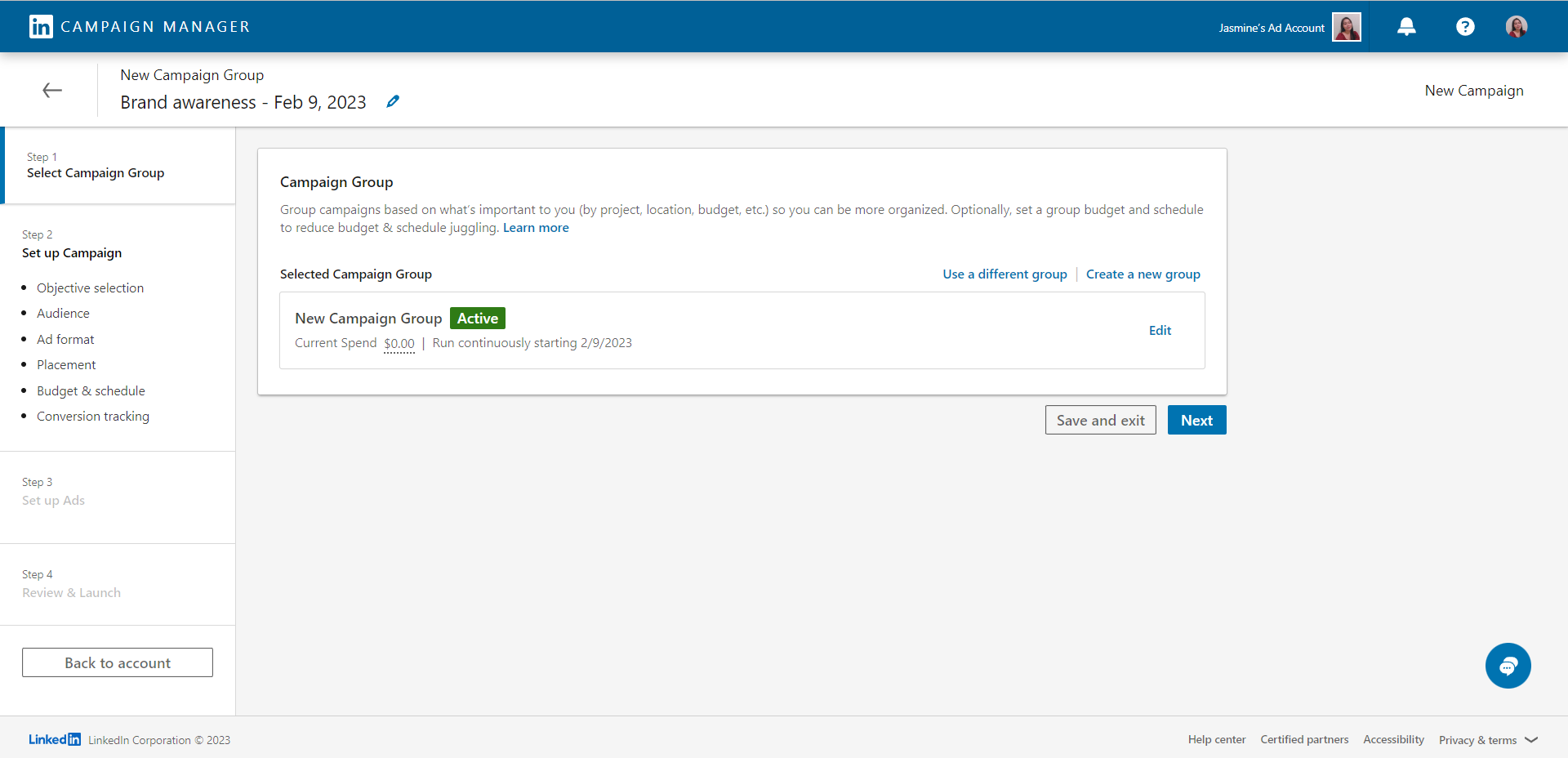
Setting Up the LinkedIn Ads Account
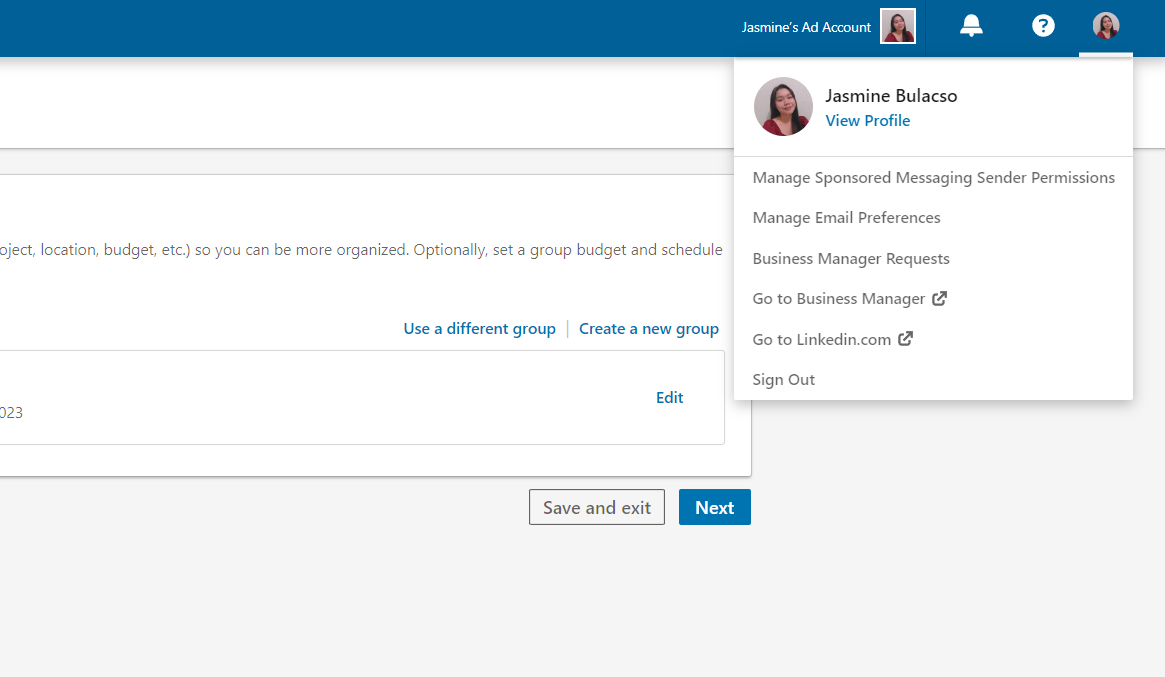
- After creating the LinkedIn ads account, there are three buttons on the upper right corner. Located on the corner is the profile icon, which shows settings about managing sponsored messaging sender permissions, email preferences, business manager requests, and shortcuts to Business Manager and LinkedIn profile.
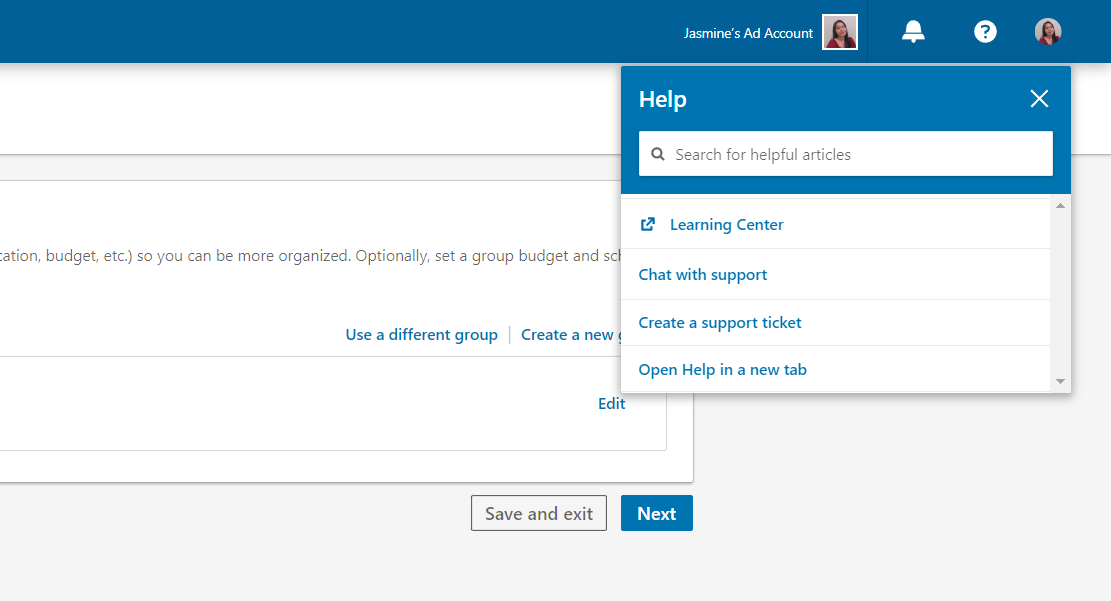
- Next is the “Help” button to search for helpful articles about navigating the LinkedIn Campaign Manager. You can also chat with support or create a support ticket.
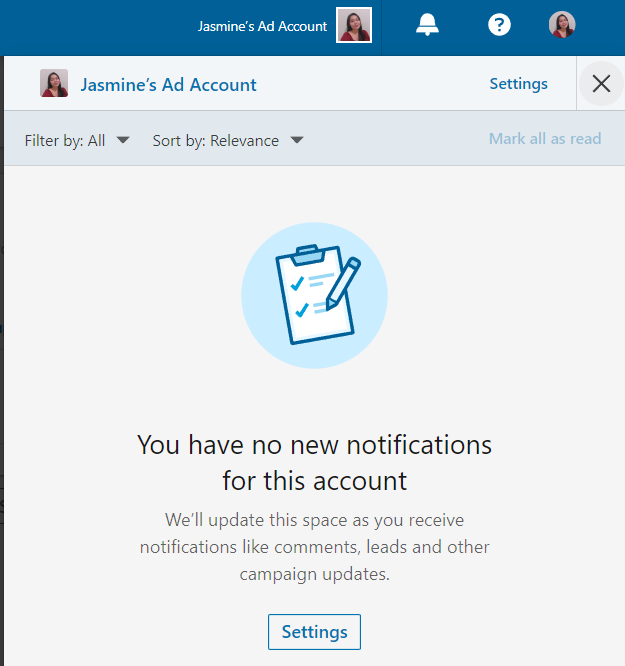
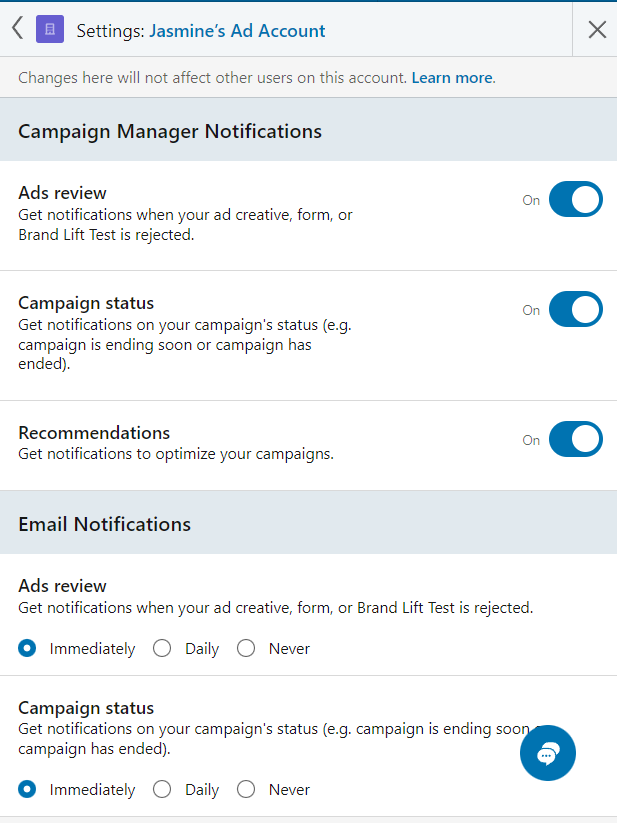
- The third one is the “Notifications” button. This is where you will see the update in your campaigns. On the top right side, you can see the “Settings” button.
- If you click on the “Settings” button, you will see the following notification settings. It is highly encouraged to leave them all toggled on to ensure that you will be kept posted.
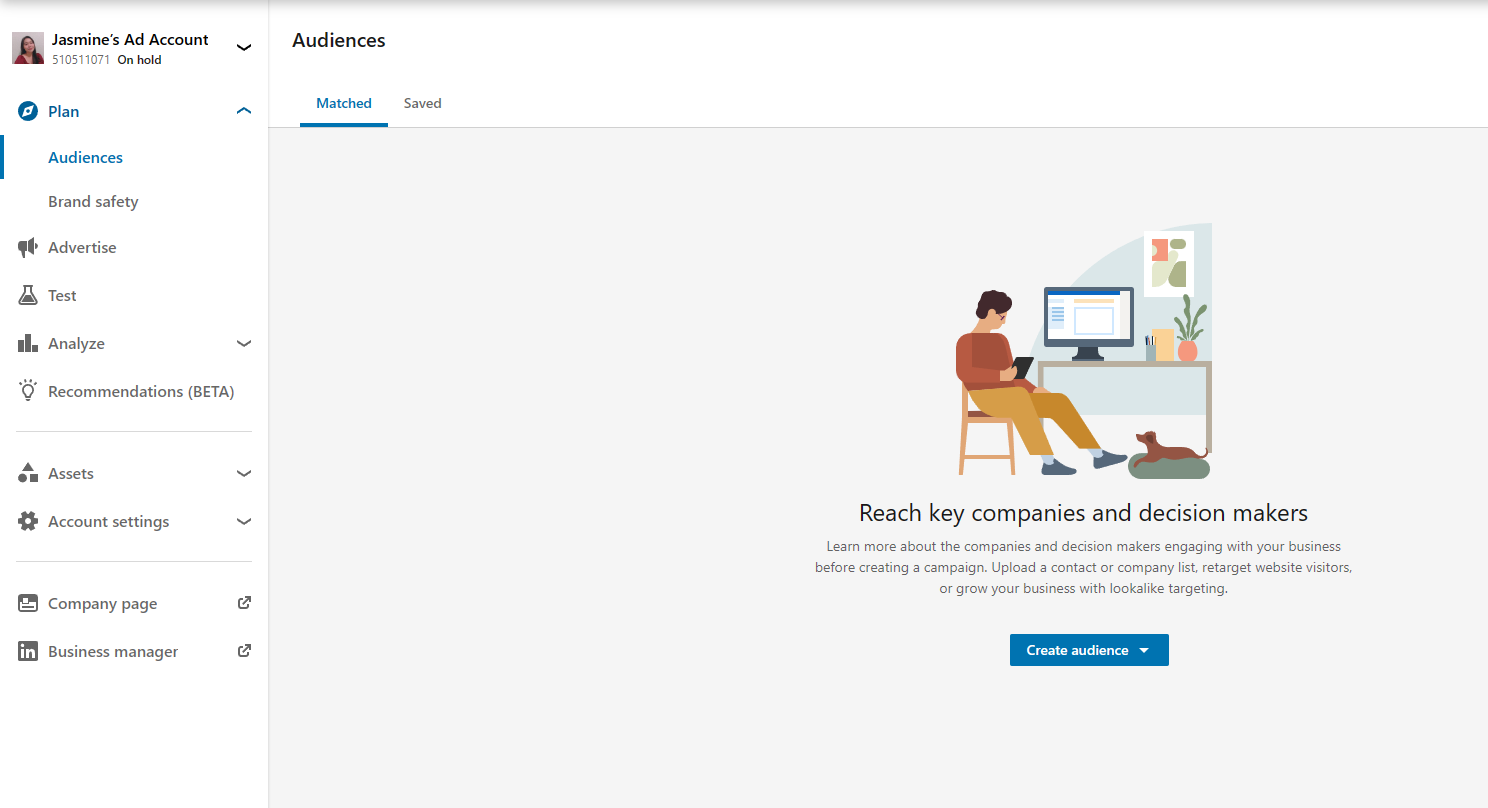
- On the left side, you can see all the functions of the Campaign Manager. Under the dropdown menu of Plan, you can see the Audiences tab. This is where you can create audiences by clicking the “Create audience” button.
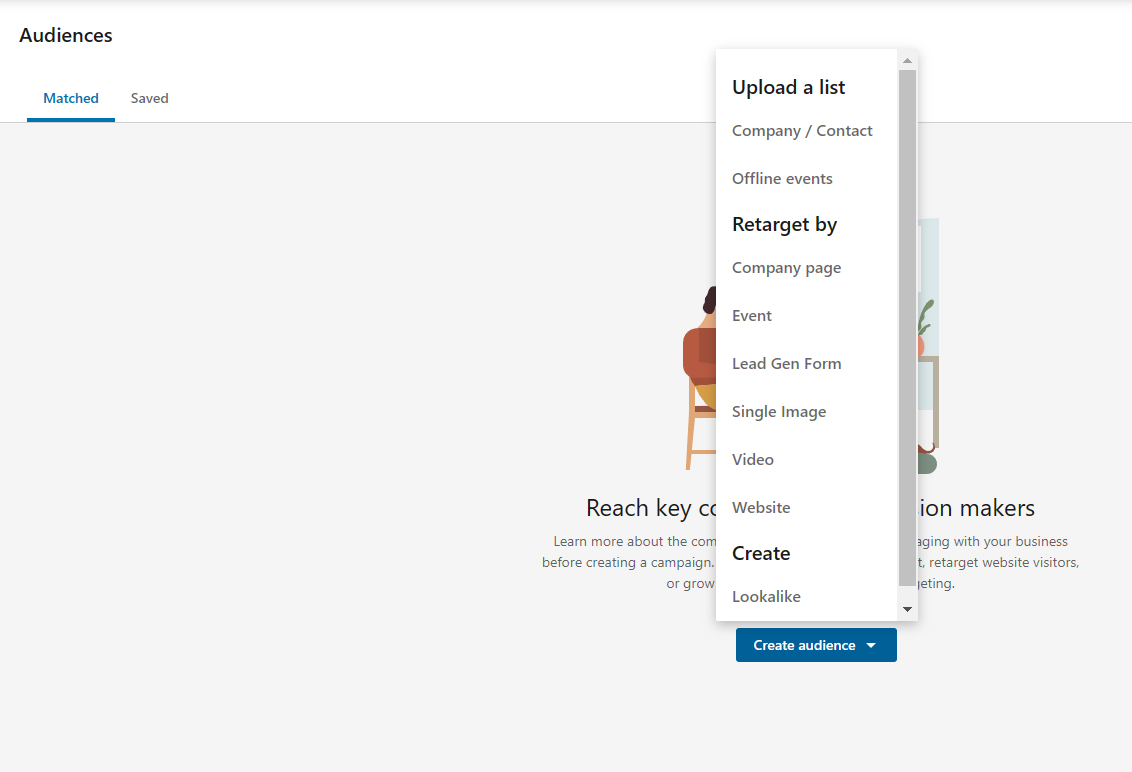
- The dropdown menu shows the options of possible audiences that you can associate your campaigns with. For example, you can group your audience from the responses on your lead gen form or members from the company page.
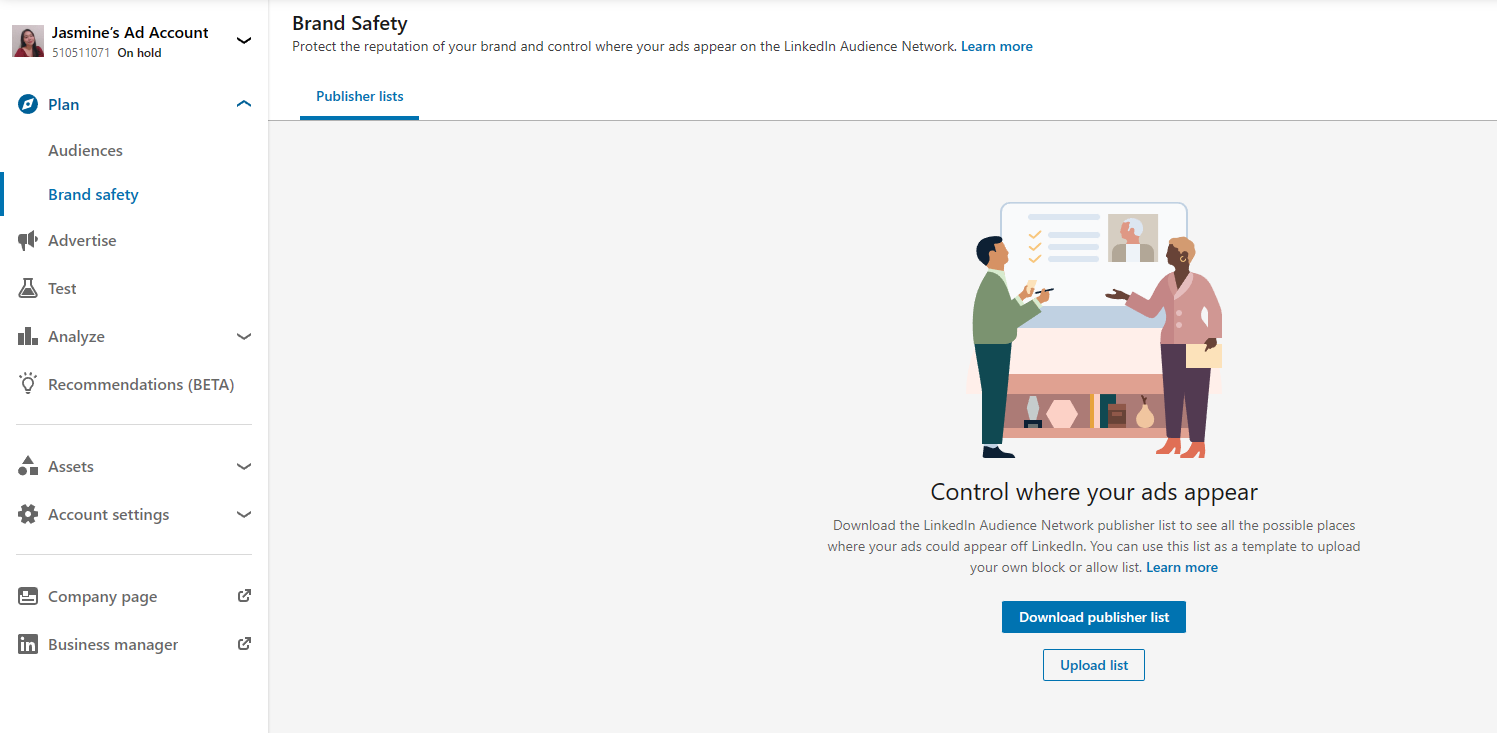
- Brand safety is also under the dropdown menu of Plan. Here, you can control the destinations of your ads. By downloading a publisher list, you can see the existing network publishers on LinkedIn. Among these publishers, you can then opt to upload a list of publishers where you allow your ads to go through. You can just click the buttons on these functions.
- Under the Plan is the Advertise tab. This is where your campaigns and campaign groups are located. You can also see the progress of your ads here such as the impressions and clicks.
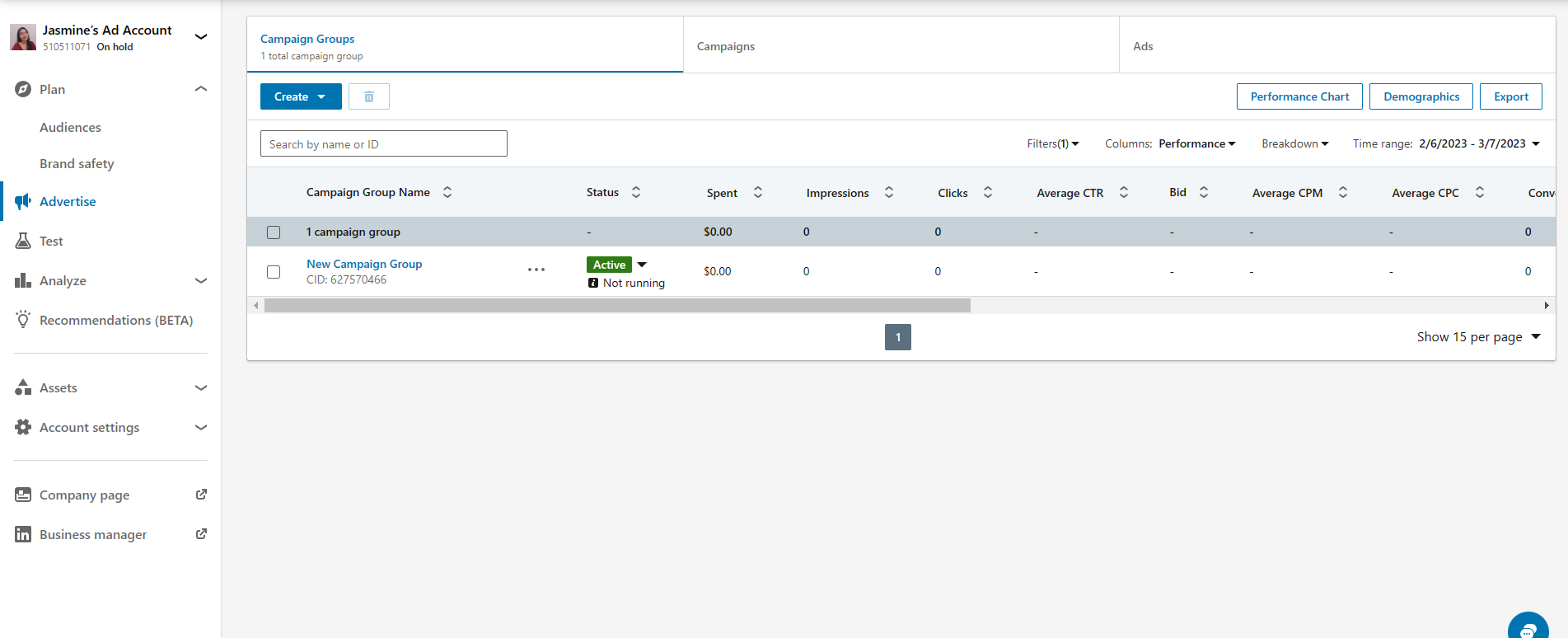
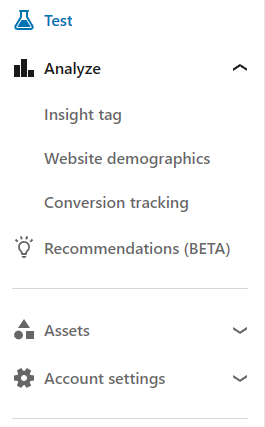
- Other tabs are accessible in this navigation bar. Other functions included are testing for campaigns, insight tag, website demographics, conversion tracking, and recommendations. Assets and account settings are also accessible in this area.
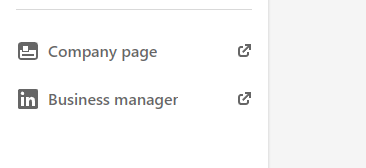
- Lastly, you can click the following buttons on the lower left part of the page to shortcut to your LinkedIn Company page or Business manager.
Conclusion
You’re done! Always keep in mind that if you intend to enhance your content engagement, grow visitors to your website, raise brand awareness, or generate sales on LinkedIn, you must have a LinkedIn Ads Account.
-
There are six types of ads that you can create on LinkedIn Ads: sponsored content, sponsored messaging, video ad, carousel ad, and dynamic ad.
-
You may establish advertising strategies that are pertinent to your organization with the aid of LinkedIn.
-
You need to have a LinkedIn account first to be able to perform the next steps in creating an Ads account.
-
An ad account is finished when you have provided information on the name of the account and your LinkedIn page.
-
You can set up your account by clicking on the three buttons on the upper right corner to edit your settings.
-
If you are ready, then you can finally launch a campaign with the help of a step-by-step process provided on the homepage of LinkedIn’s campaign Manager.