How to Grant Access to Your LinkedIn Ads Account
To walk you through sharing user access to another user on LinkedIn Ads Account.
Prefer a shortcut? 16 free tools do parts of this for you.

Aim: To walk you through sharing user access to another user on LinkedIn Ads Account.
Optimal Outcome: To be able to add another user role in LinkedIn Ads which can control account settings, adding campaigns, and editing ads, depending on the role assignment.
What do you need to start: To follow this SOP, you need to have a LinkedIn Ads account in LinkedIn Campaign Manager.
Why is this SOP Important: Sharing access on LinkedIn Ads Account enables another professional in managing the functions in campaign management. You may add a user to your LinkedIn Ads account so they can manage your projects and ads by reviewing, modifying, or producing them.
When and Where to execute: You will want to set your role into “Account manager” to be able to add a new user role. Also take note that you can only add members who are your 1st, 2nd, or 3rd-degree connections.
Who Should Be Doing This: This task should be done by the person who is assigned to handle the LinkedIn account and company page of the company.
LinkedIn Ads Account User Access
Assigning a new user role in a LinkedIn Ads account is beneficial for the person assigned in managing it. These new users can act on behalf of your LinkedIn Ads account management for you, review and reorganize your account, apply conversion monitoring for your account, or add audience data to your account. In addition, LinkedIn also encourages business ads accounts to have more than one account manager to facilitate the campaigns.
Execution
Resources/Tools & Set up
- LinkedIn Ads Account
Sharing Access on LinkedIn Ads Account
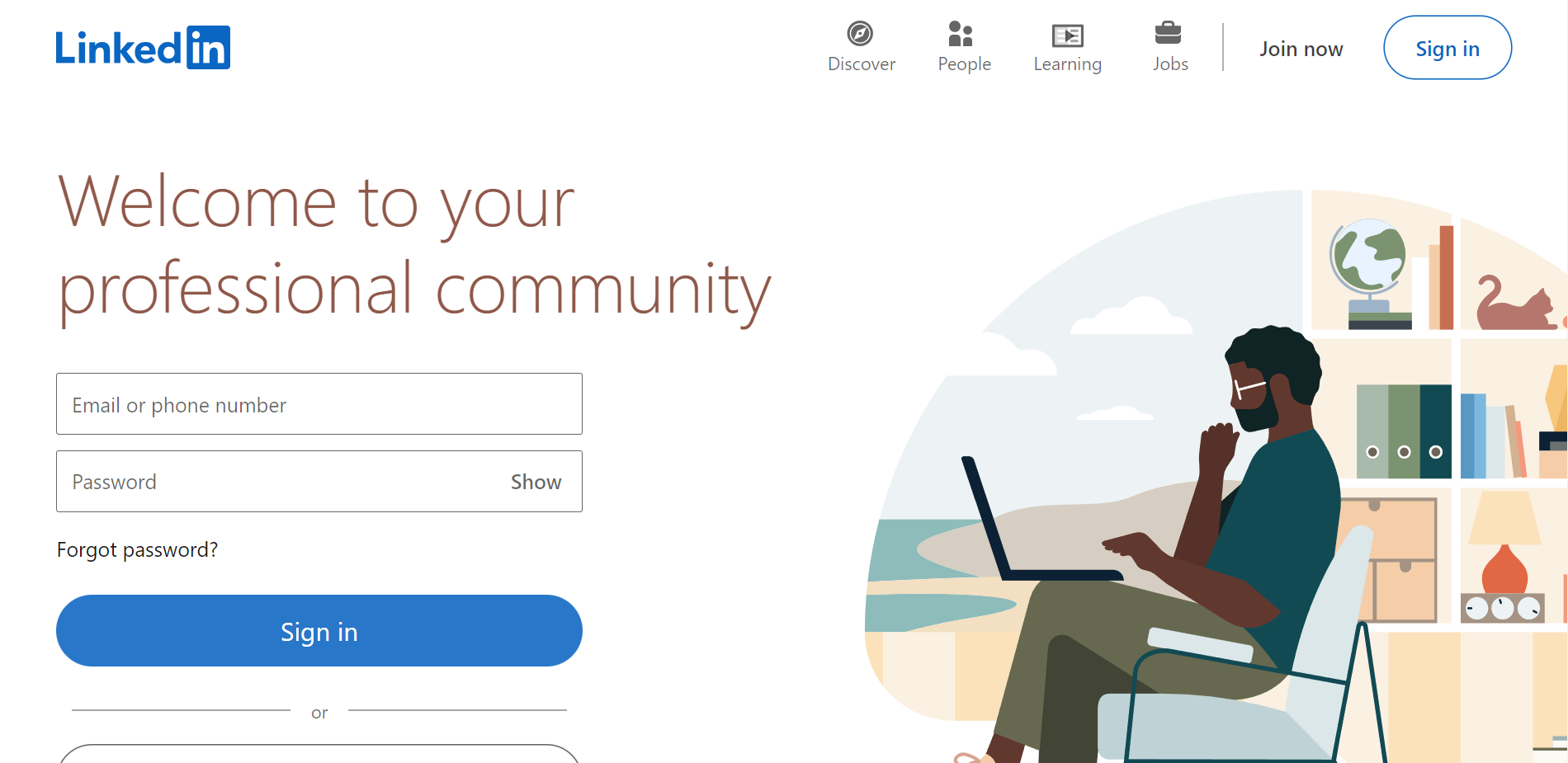
- Go to LinkedIn.com and sign in your account.
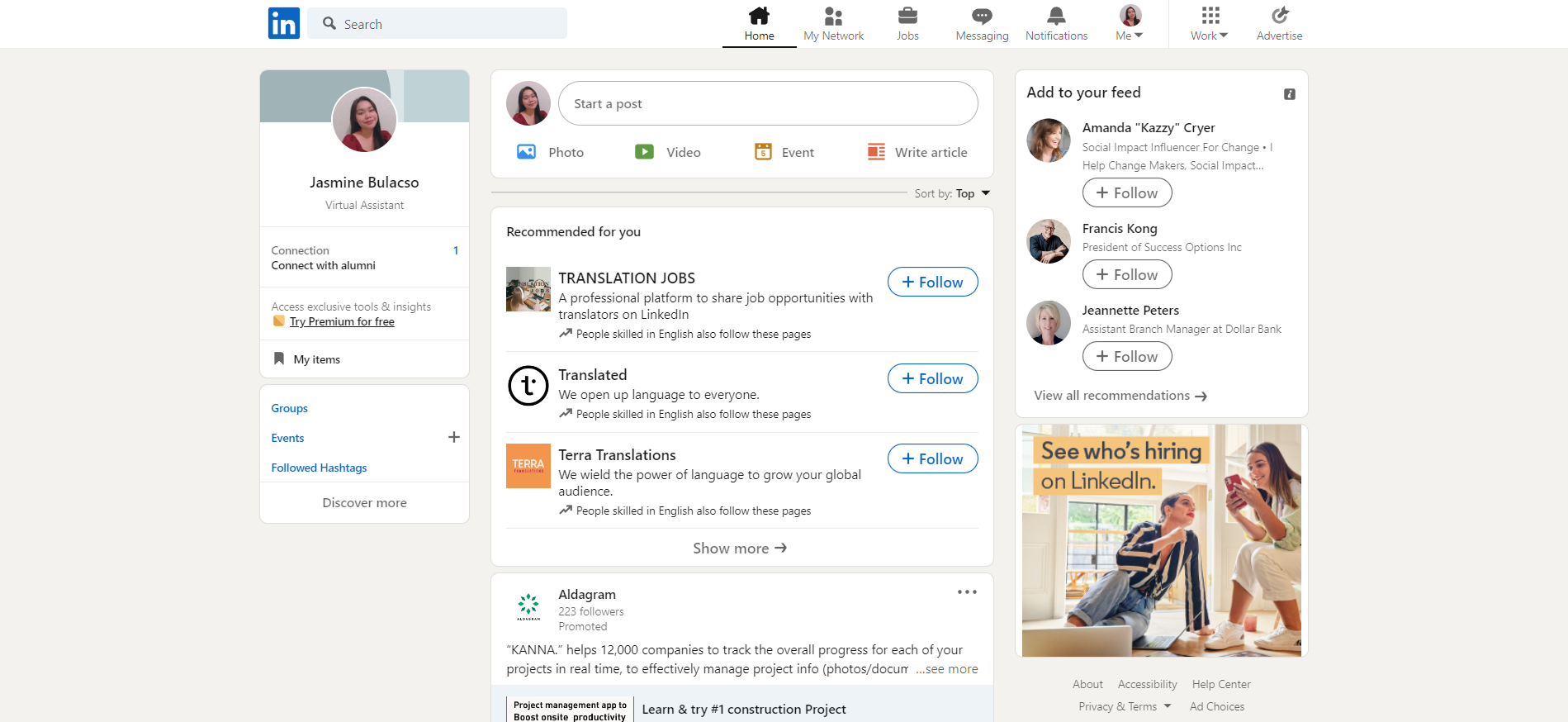
- On the top navigation bar, click the “Advertise” button. Remember that this button will only appear if you have already made your LinkedIn Ads Account.
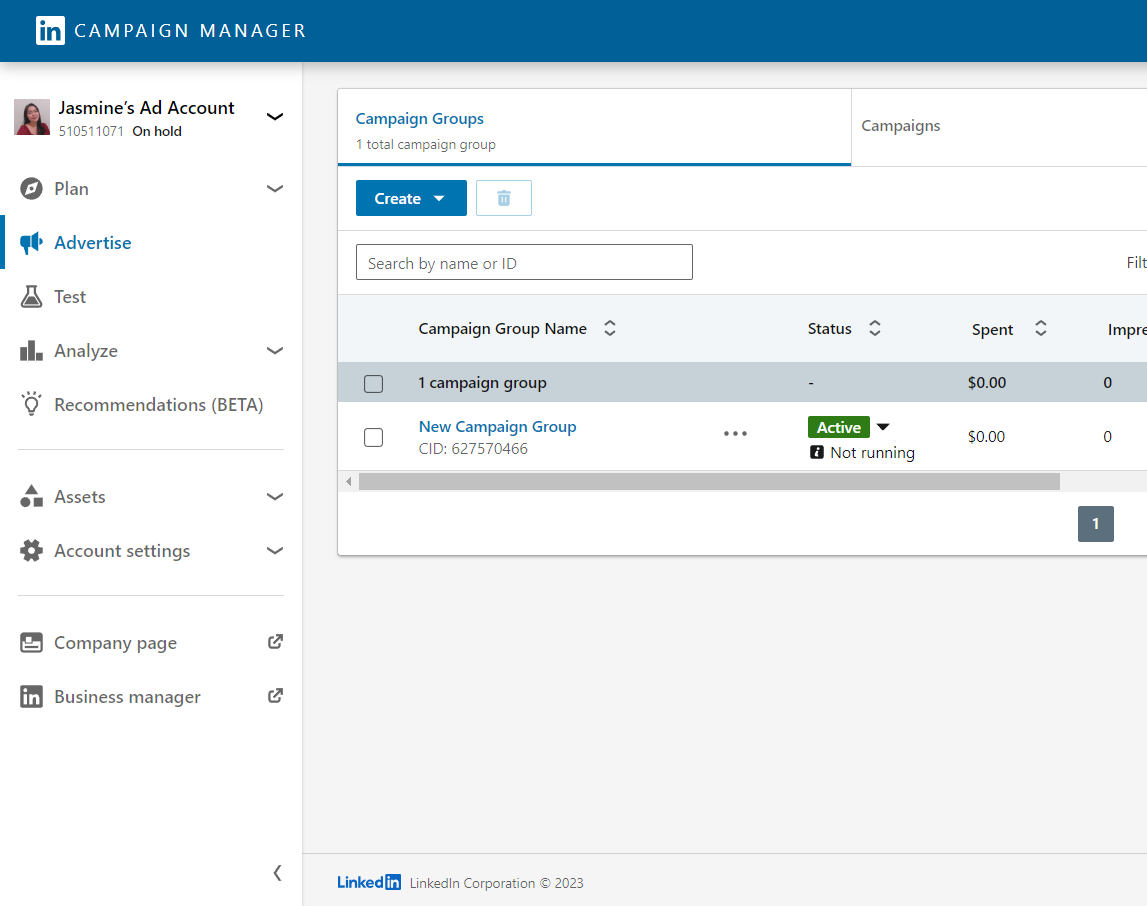
- It will redirect you to another tab, the LinkedIn Campaign Manager. In the left section of your screen, click the dropdown menu of “Account settings”.
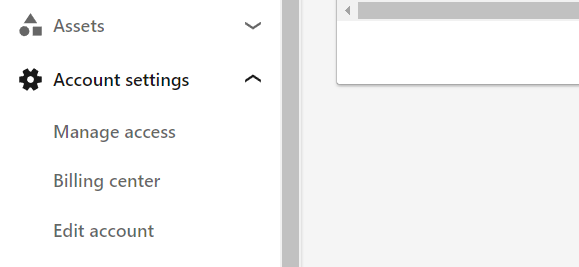
- Among the three choices, click the “Manage access” to go to the assignment of user roles.
- Since you created the LinkedIn Ads Account, you are automatically assigned as the Billing Admin and Account manager. You can see the user roles and their functions on the right side of the site.
-
Account manager: can control overall account settings and edit important details.
-
Campaign manager: can only add and edit campaigns.
-
Creative manager: can add or edit advertisements.
-
Viewer: can only view but NOT edit campaigns and advertisements.
-
Billing Admin: control billing systems and details.
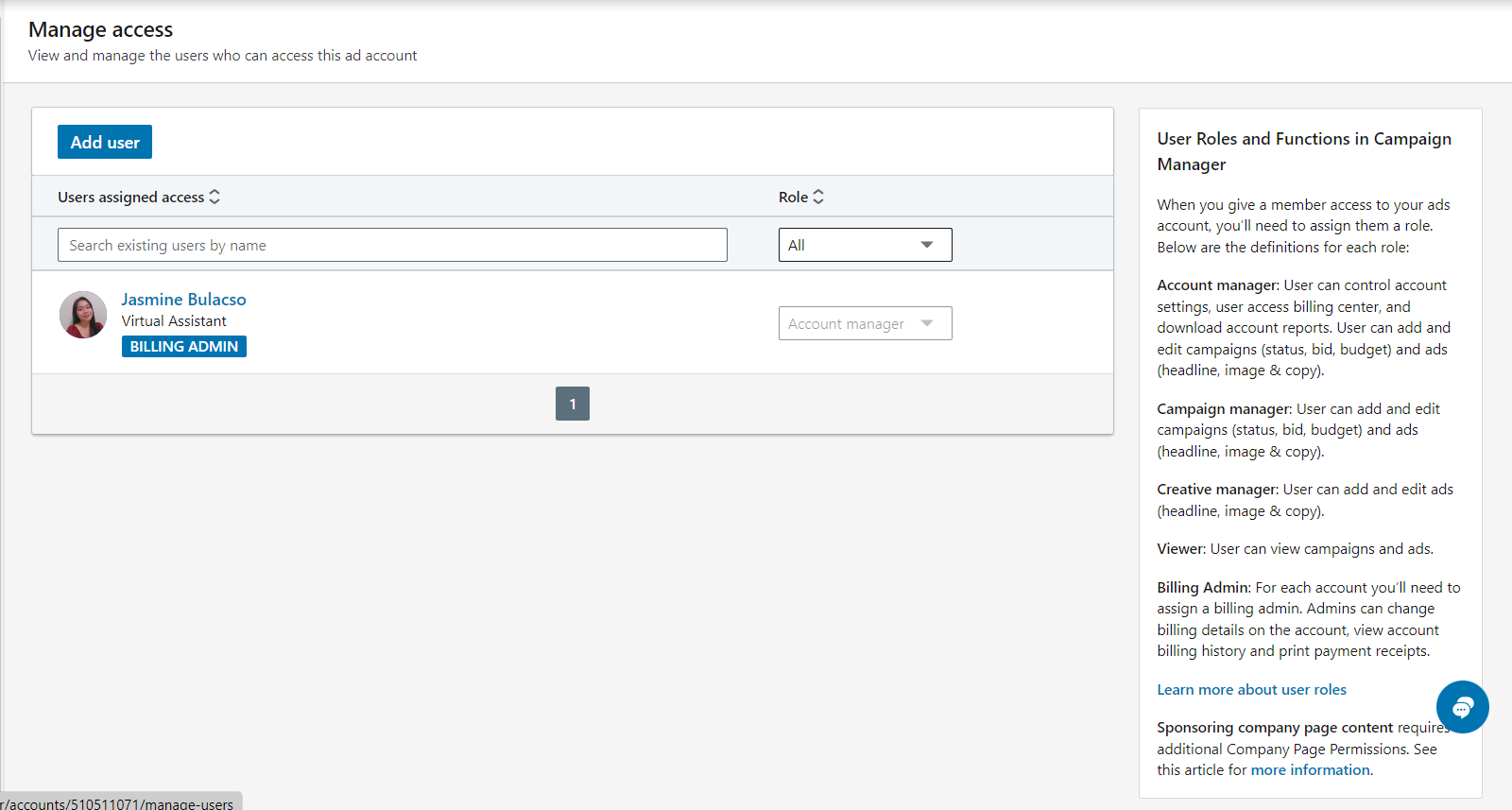
- Click the “Add user” to share access to your assistant or other person that you want to control your LinkedIn account.
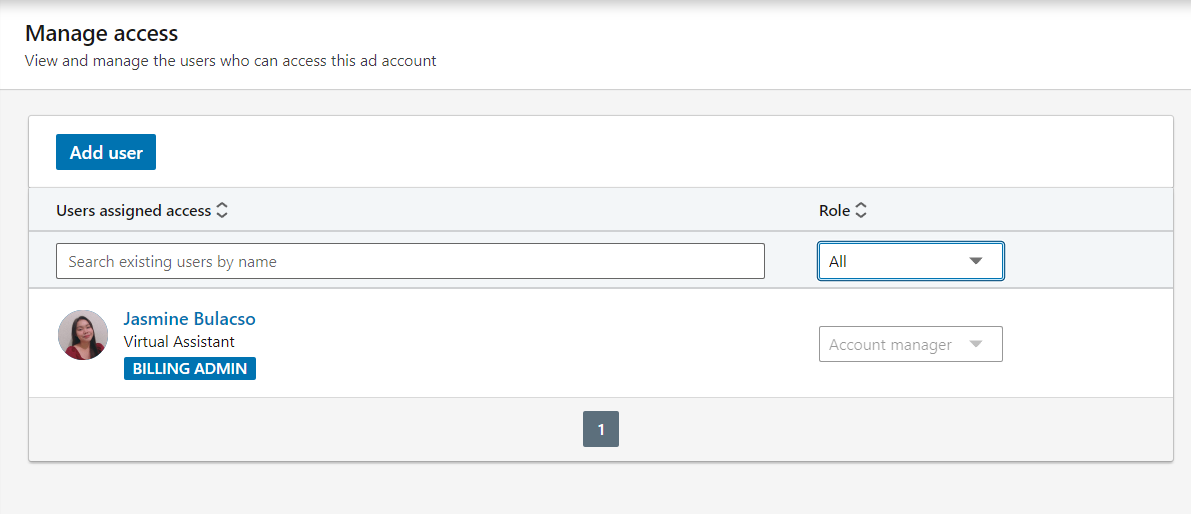
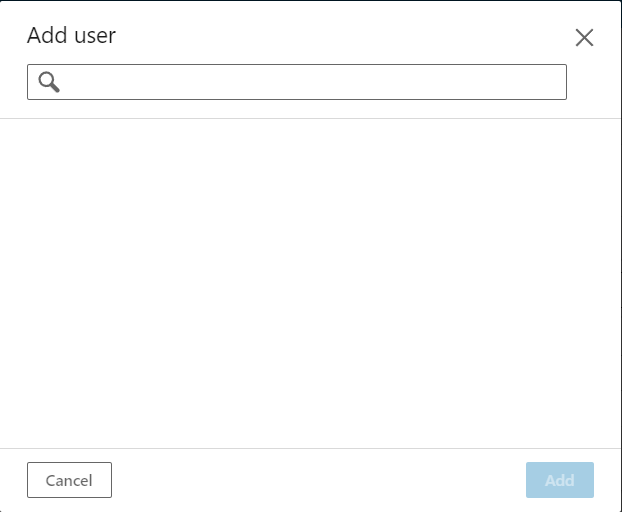
- Type the name of the person you would like to share access on your LinkedIn Ads Account with in the blank field indicated below. They should be connected with you on LinkedIn as first, second, or third connection to proceed in assigning roles.
- After clicking the user’s profile, you can now choose what user role you would assign. Click the dropdown menu of “Account manager”.
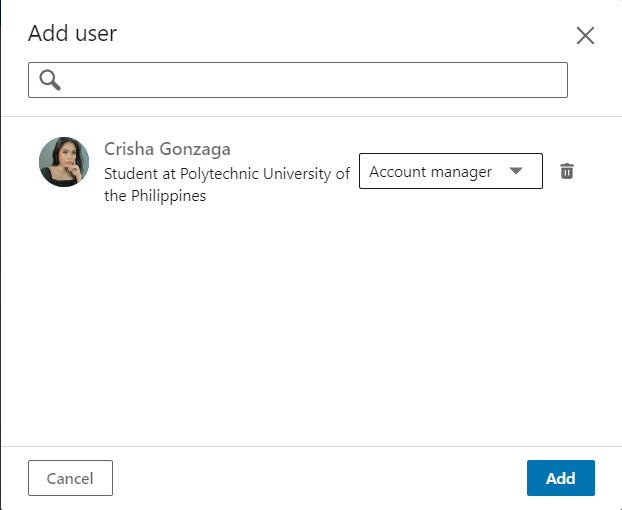
- There are four choices. Choose your preferred role by clicking it. You also can delete the person selected if you have picked the wrong account by clicking the “Delete” button.
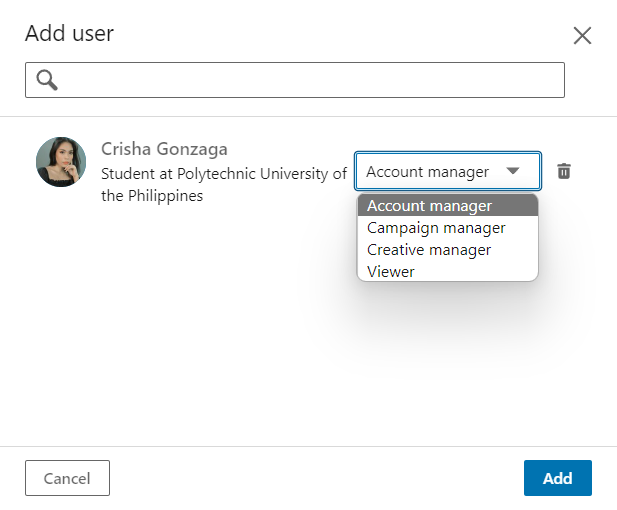
- Click the “Add” button to add a new user role.
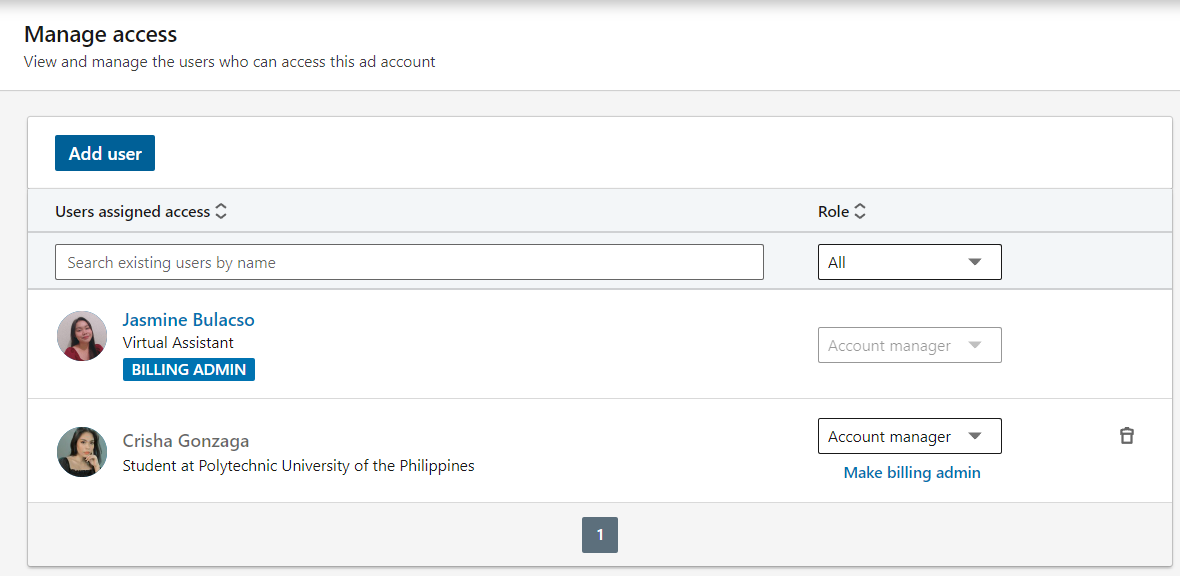
- The new person’s user role must appear on the “Users assigned access”. You can also make the new user a Billing Admin by clicking the “Make billing admin”.
Conclusion
You’re done! Always remember that if you want someone to manage your campaigns and set up ads that will benefit your business, you can share access to your LinkedIn Ads Account.
-
There are five types of user roles that you can assign on LinkedIn ads: Account manager, campaign manager, creative manager, viewer, and billing admin.
-
The new user roles in the LinkedIn Ads Account can oversee, edit, or create your projects and ads.
-
To start the assignment, the person you are assigning a new role into should be in your connections.
-
With the use of LinkedIn Campaign Manager, add the user role by navigating to the account settings > manage access.
-
Be familiar with the roles and functions that are displayed on the right side of the site to be well aware of the tasks available to every role you set.