A Guide to Sharing Access to Facebook Business Manager
Provide step-by-step guide in sharing your access to Facebook Business Manager to your agency partners, administrative staff, and marketing team.
Prefer a shortcut? 16 free tools do parts of this for you.

Aim: Provide step-by-step guide in sharing your access to Facebook Business Manager to your agency partners, administrative staff, and marketing team.
Optimal Outcome: Manage your Facebook ads campaign and collaborate with your team by adding them to your Facebook Business Manager.
What do you need to start: Facebook Business Manager account
Why is this SOP Important: As your business grows, it’s essential to assign tasks to your team to keep operations running smoothly. By adding them to your Facebook Business Manager, you can effortlessly collaborate, maintain secure access, and achieve effective analysis and reporting of your Facebook campaigns.
When and Where to execute: Ideally, before you start your Facebook Ads campaign.
Who Should Be Doing This: Business owner
What is Facebook Business Manager?
Facebook Business Manager is a centralized platform designed for businesses to manage their Facebook and Instagram presence. With the Business Manager platform, you can manage your assets and tools, such as Facebook pages and ad accounts in one location. The platform also provides you with the ability to delegate tasks and control access for your team members, as well as insights and analytics to monitor and improve the effectiveness of your Facebook ads campaigns.
Execution
Permission types
-
Ad account admin - can create, edit and view ads, access reports, edit payment methods and manage admin permissions.
-
Ad account advertiser - can see and edit ads and set up ads using the payment method associated with the ad account. They can also view the payment method.
-
Ad account analyst - can view ads and access reports.
Add people to your Facebook Manager Account
-
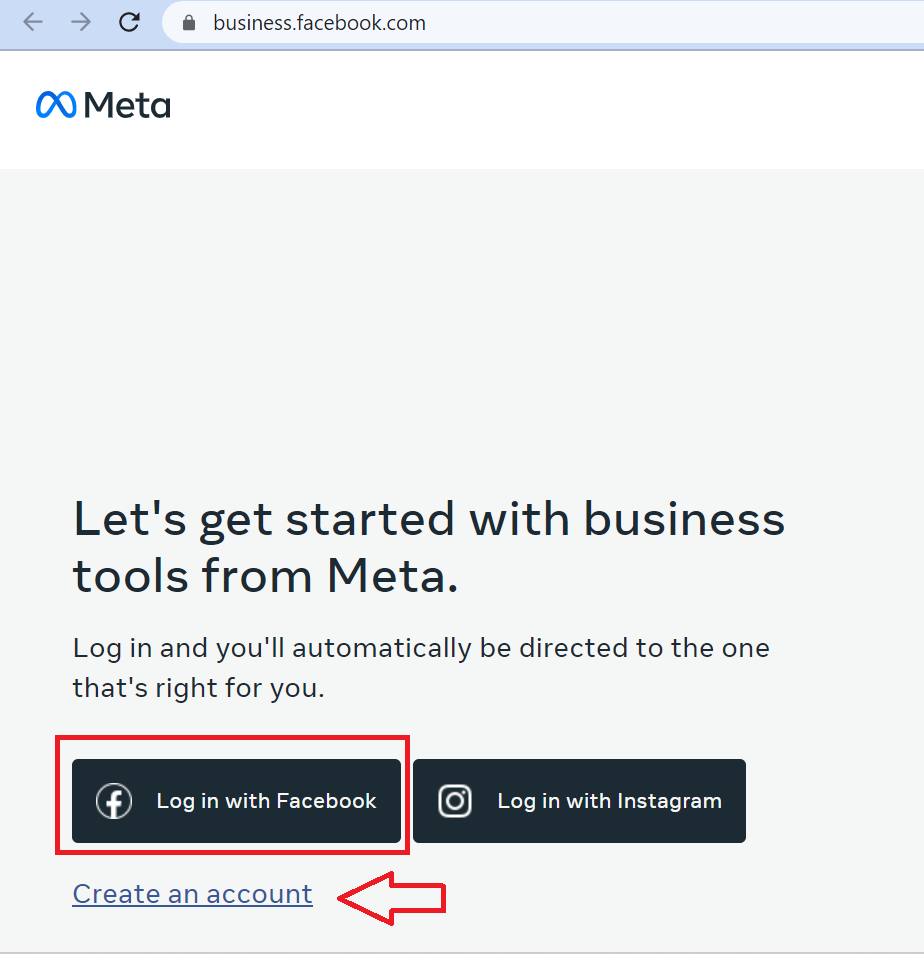
Login or Create a Facebook Manager Account.
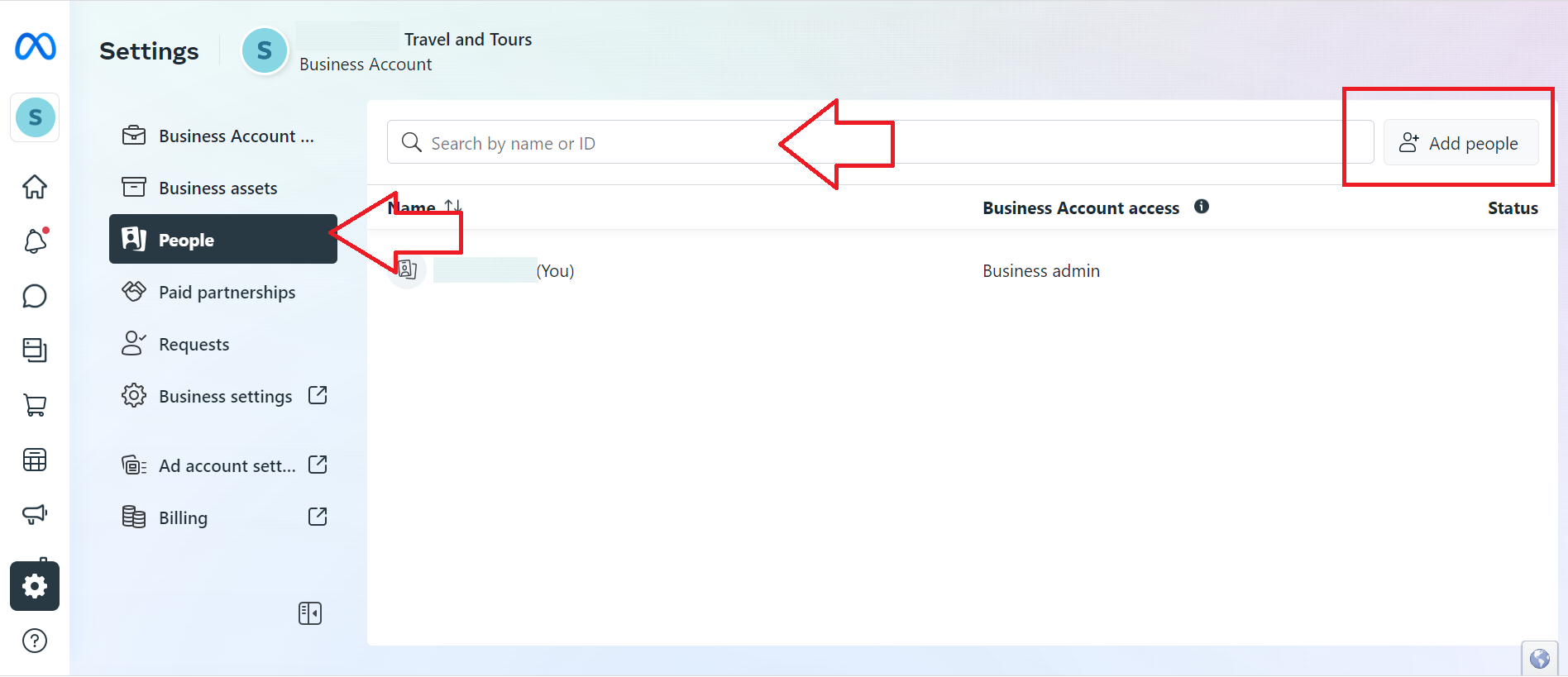
- From the main Facebook Business Manager Ad, select People. You can search the name of ID of the people you want add. You can also click the Add people icon.
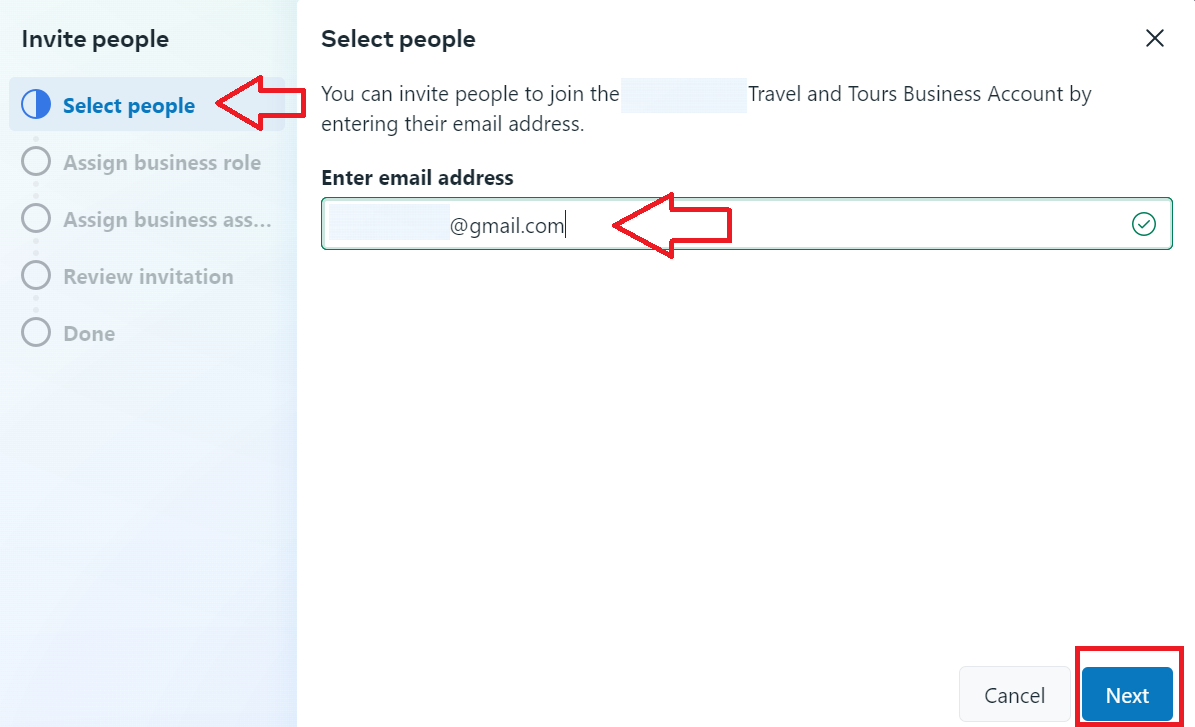
- Enter the email address (es) of the people you want to add to your Facebook Business Manager platform. Click Next.
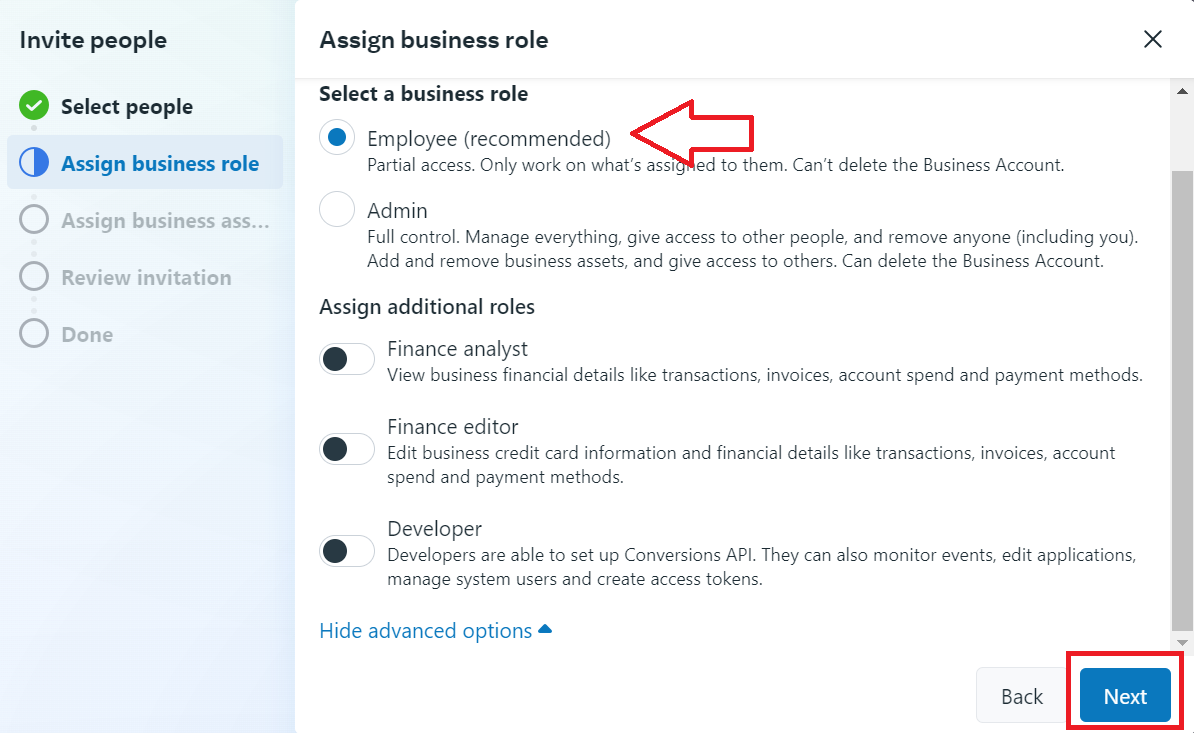
- Assign business role to your team. You can also assign specific roles based on their function in your business. Click Next.
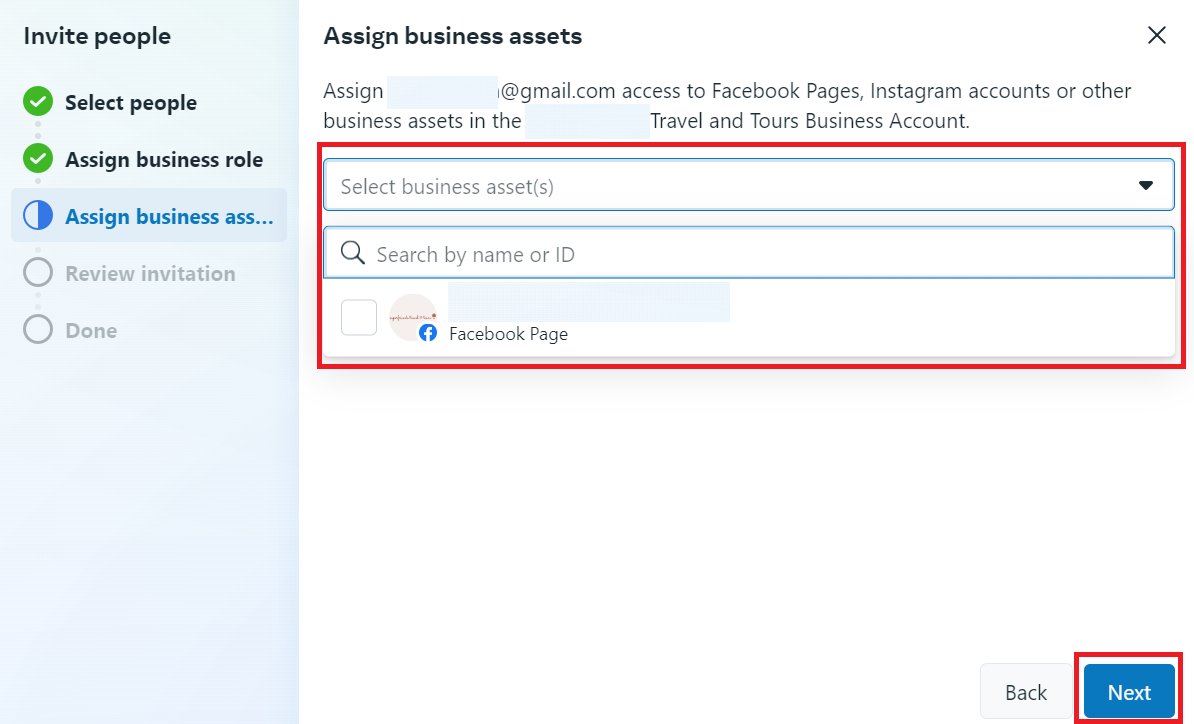
- Assign business assets to your newly added team members such as Facebook Page, Instagram accounts and other business assets.
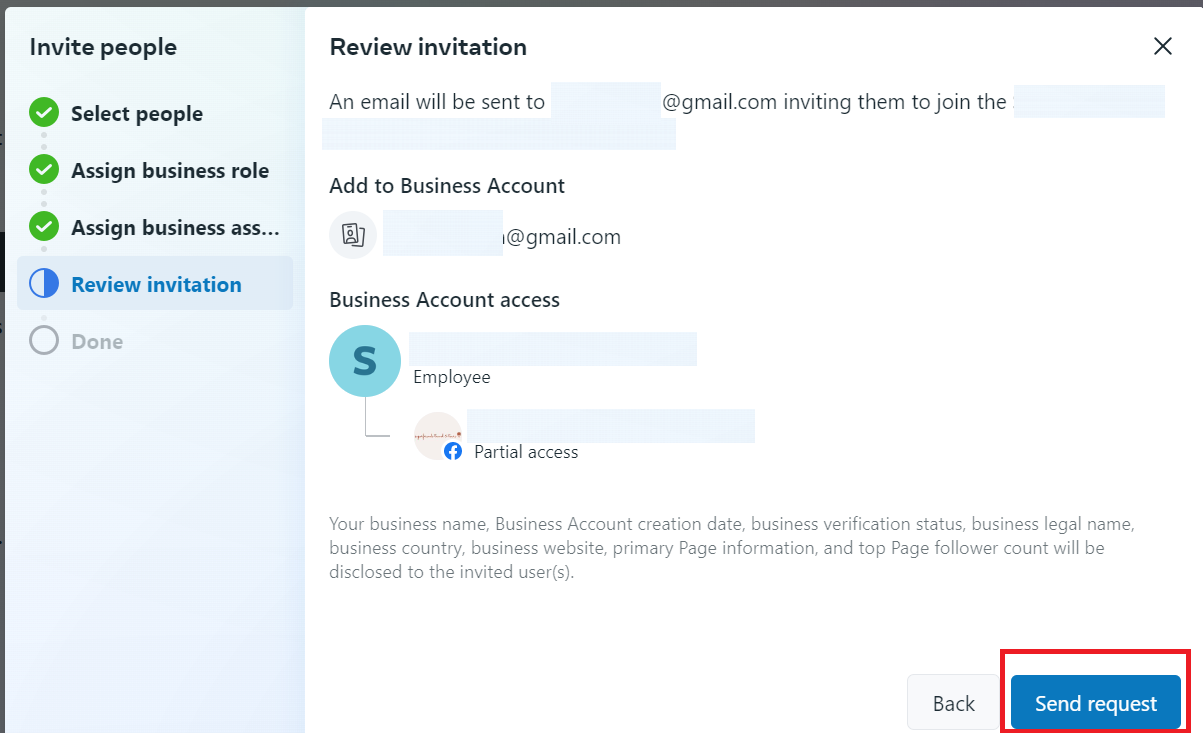
- Finalize your invite and click Send request.
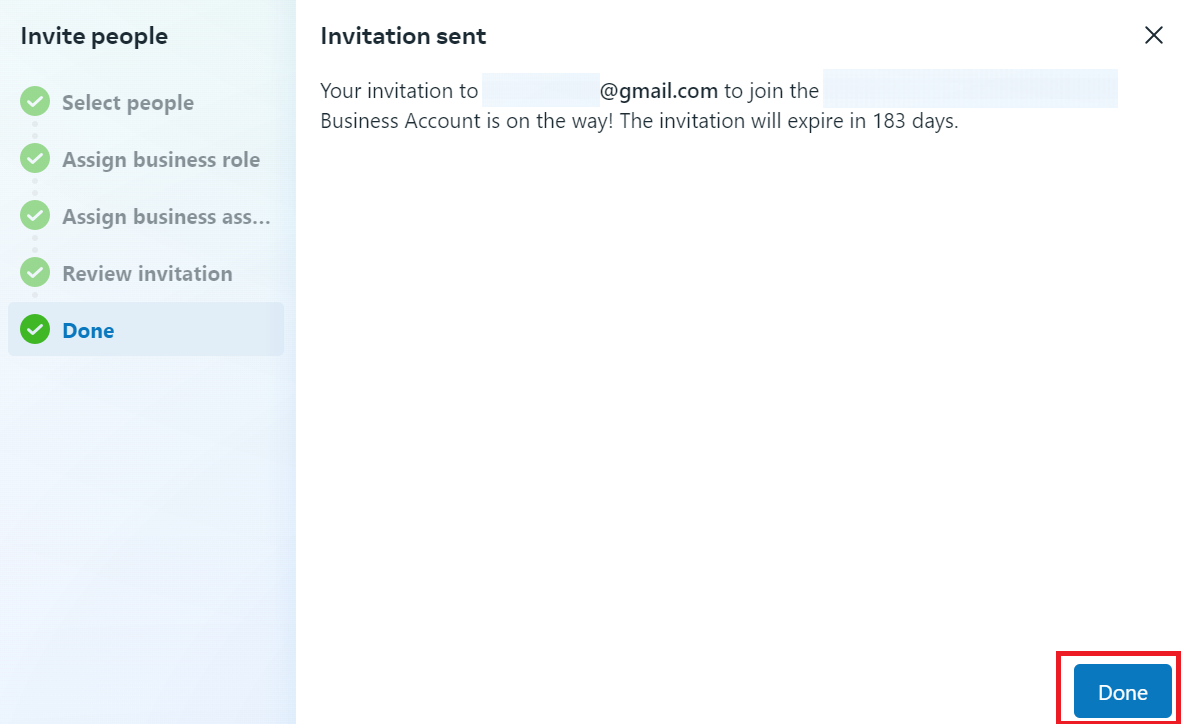
- Click Done and instruct your team members to check their email to accept the invite.
Conclusion
That’s it! Now that you’ve added your team members and collaborators in your Facebook Business Manager, you can now start delegating tasks and monitoring your Facebook campaigns.
-
Adding team members to your Facebook Business Manager account allows you to easily collaborate and delegate tasks to your team.
-
You can control what each team member has access to and what actions they can perform within your Facebook Business Manager platform.
-
Adding your employees or partners to your Facebook Business Manager enables you to keep your personal Facebook profile separate from your business activities and ensure that your business data is secure.
-
From your Facebook Business Manager platform, you can track the performance of your pages, ads, and other assets and share access information with relevant team members.