How to Use Convert to Set Up and Analyze A/B Tests on Your Site
To use Convert to set up and analyze A/B tests on your website.
Prefer a shortcut? 16 free tools do parts of this for you.
variations*

Aim: To use Convert to set up and analyze A/B tests on your website.
Optimal Outcome: By following this guide, users will be able to create and run A/B tests using Convert, and analyze the results to make data-driven decisions for their website optimization.
What do you need to start:
-
A Convert account
-
A website to run A/B tests on
-
A clear hypothesis of what you want to test
-
Creatives for the test variations
Why is this SOP Important: A/B testing is a crucial aspect of website optimization, as it allows you to compare two versions of your website to determine which one performs better. By using a tool like Convert, you can easily create and run A/B tests on your website, and analyze the results to make data-driven decisions for further optimization.
When and Where to execute: This SOP can be executed at any time, and it should be performed in a controlled testing environment before deploying the winning variation on your live website.
Who Should Be Doing This: This SOP is suitable for website owners, marketers, and optimization specialists who want to improve the performance of their website.
Step-by-Step Guide
Set up a Convert account.
-
Go to www.convert.com.
-
Click Try For Free.
-
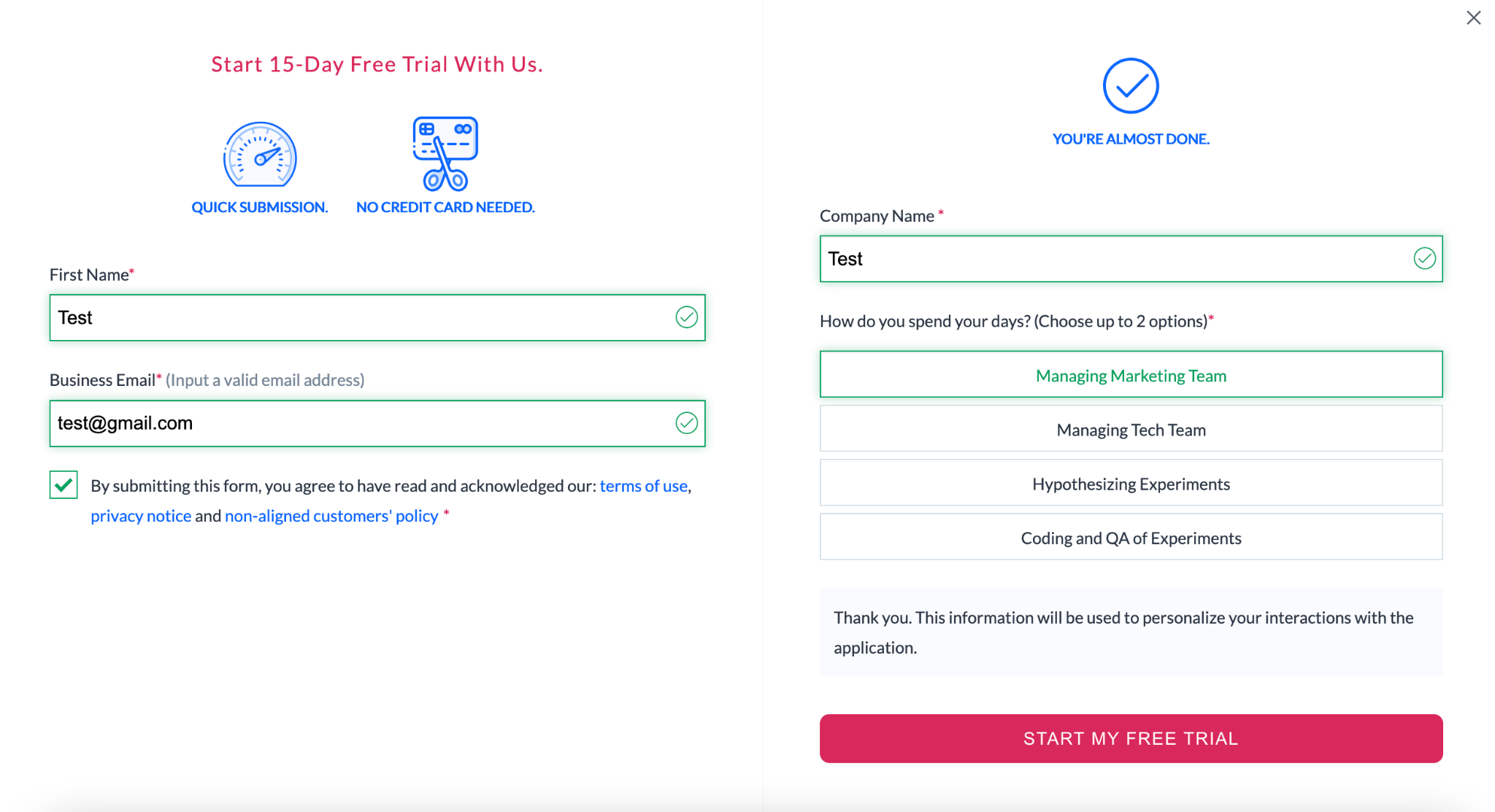
Fill-out the required field, tick the checkbox, click START MY FREE TRIAL.
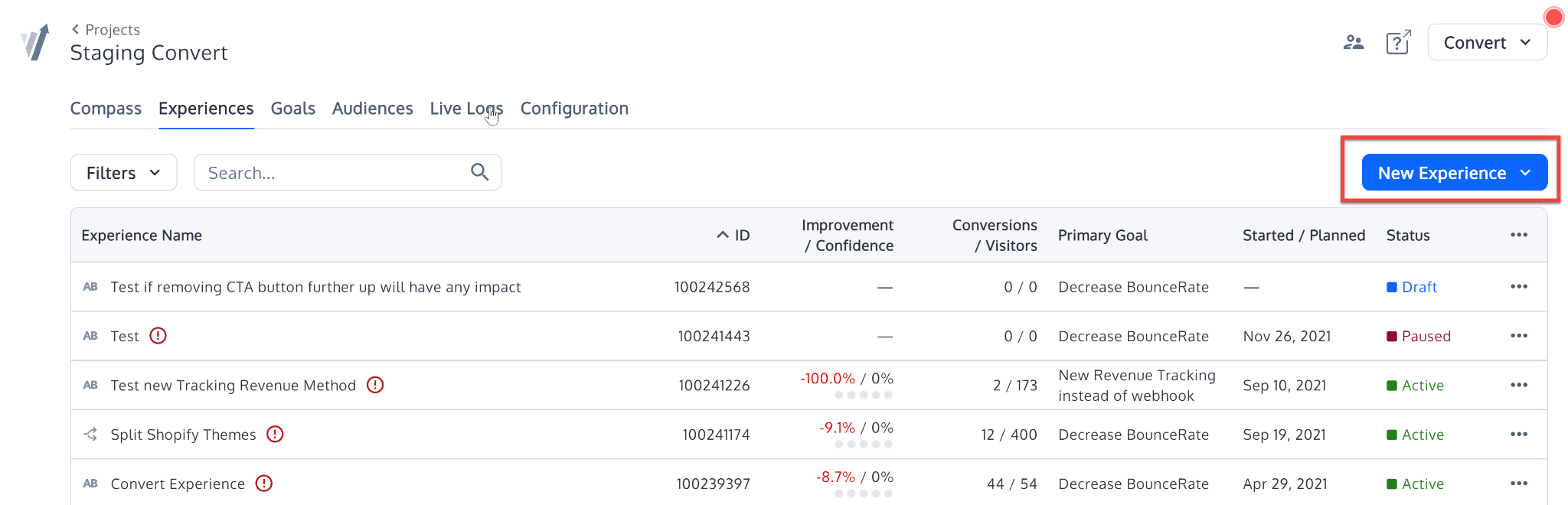
Create a new experience
After entering your name and email address for the free trial, you will be redirected to your projects page. Click on the "New Experience" button on the right of the screen to begin creating a new experience:
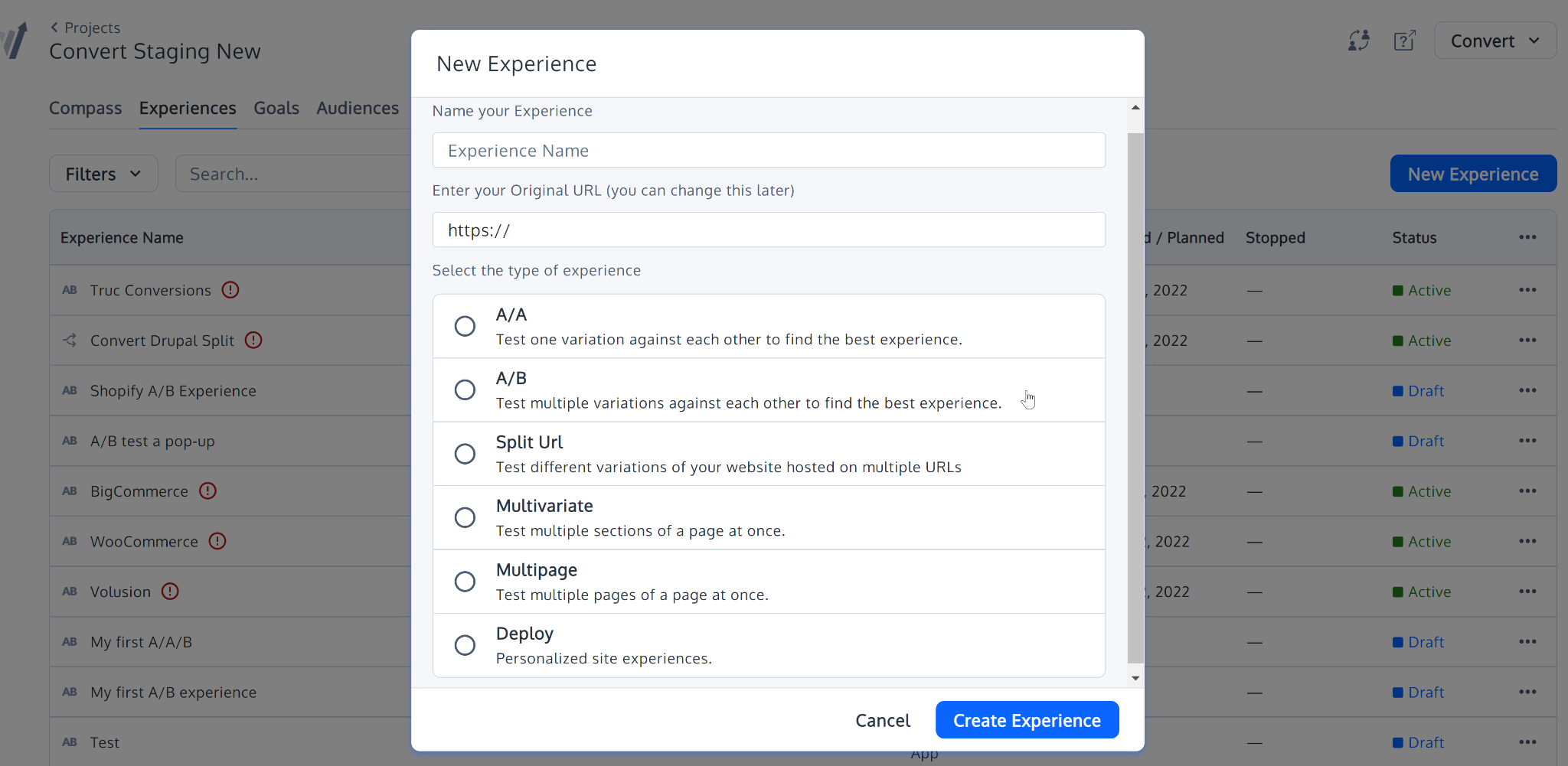
Set up a new A/B test
Once you click on that button, you will see this popup. For our purposes, we will create an A/B experience:
For this example, we are going to call the experiment “My First A/B Test.” Then, enter your URL in the second box.
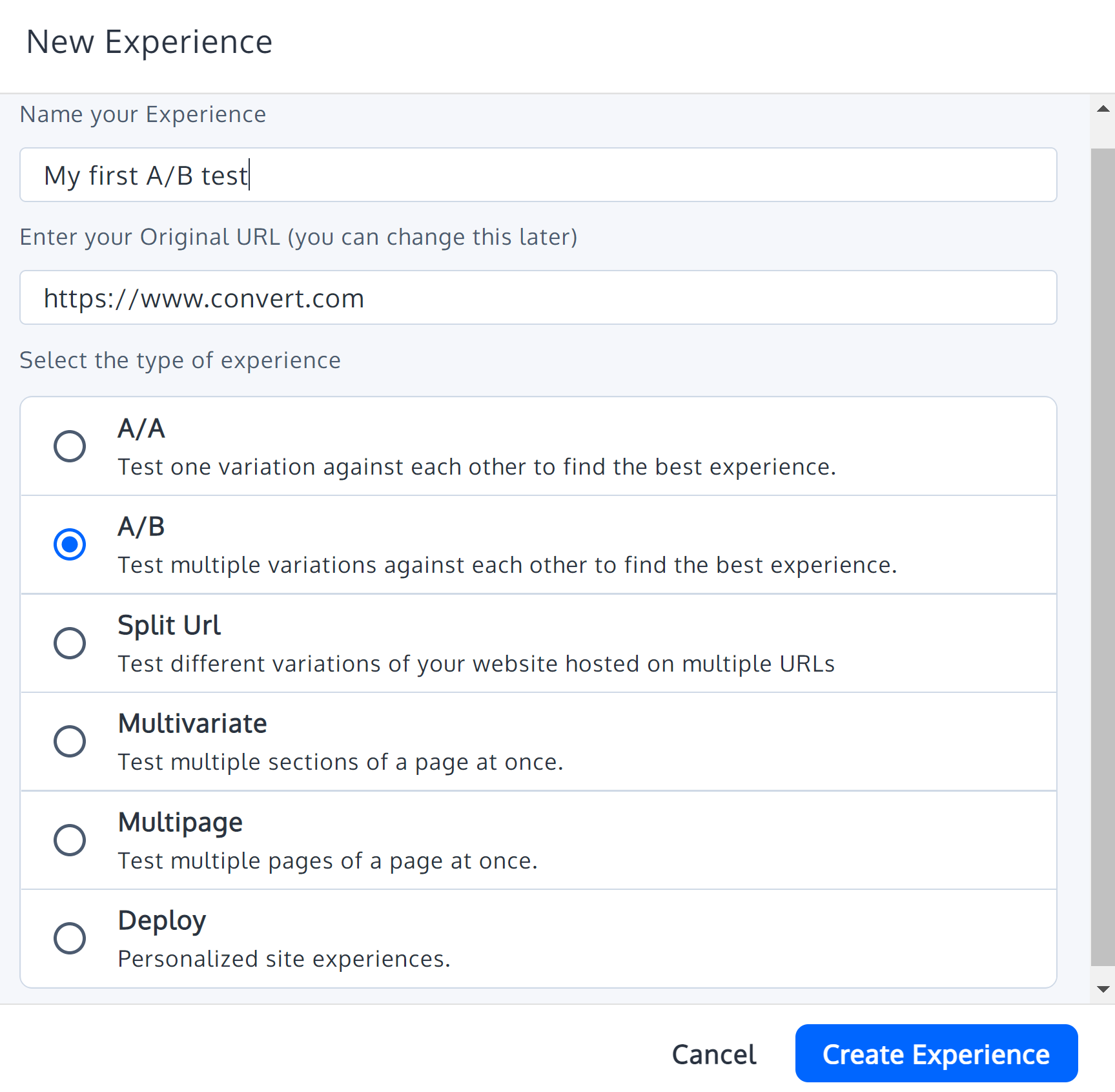
Click the "Create Experience" button.
Choose the website URL you would like to test
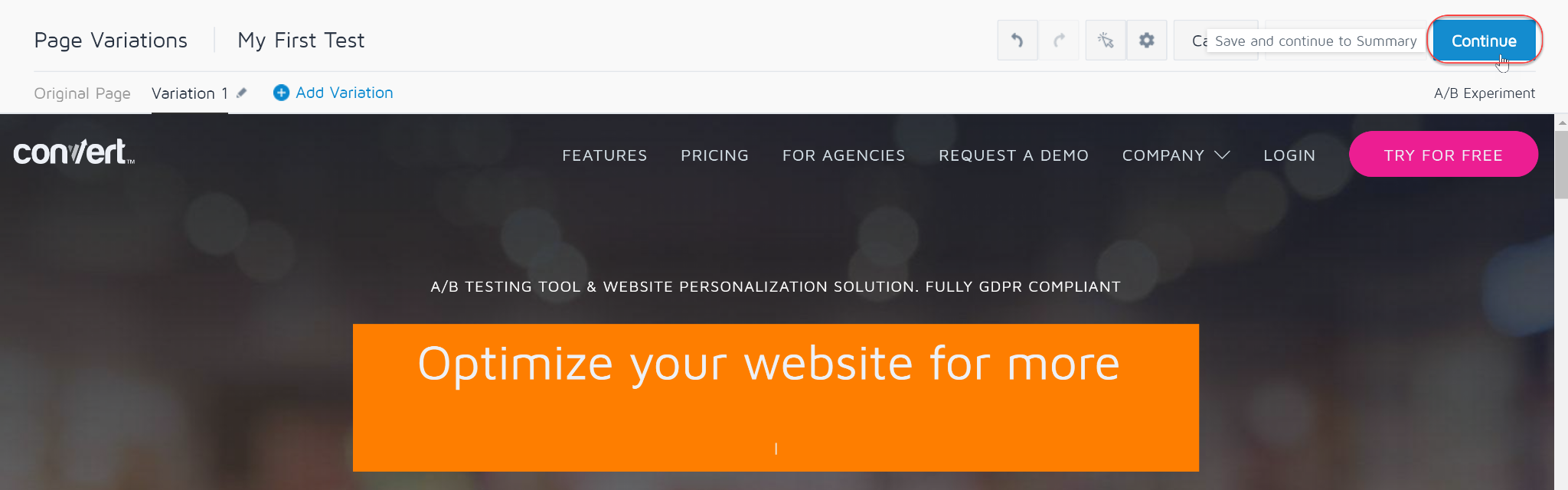
You will be taken to the Visual Editor that displays the URL you chose and a toolbar on the top such as the below example:

Change the appearance of different variations of your website
If you look at the Page Variations section in the top left, you will notice that "Variation 1" is selected by default. This means that any changes we make to this version of the URL will not affect the original URL.
This will result in a classic A/B test, in which the "A" version is the original page and the "B" version is Variation 1.
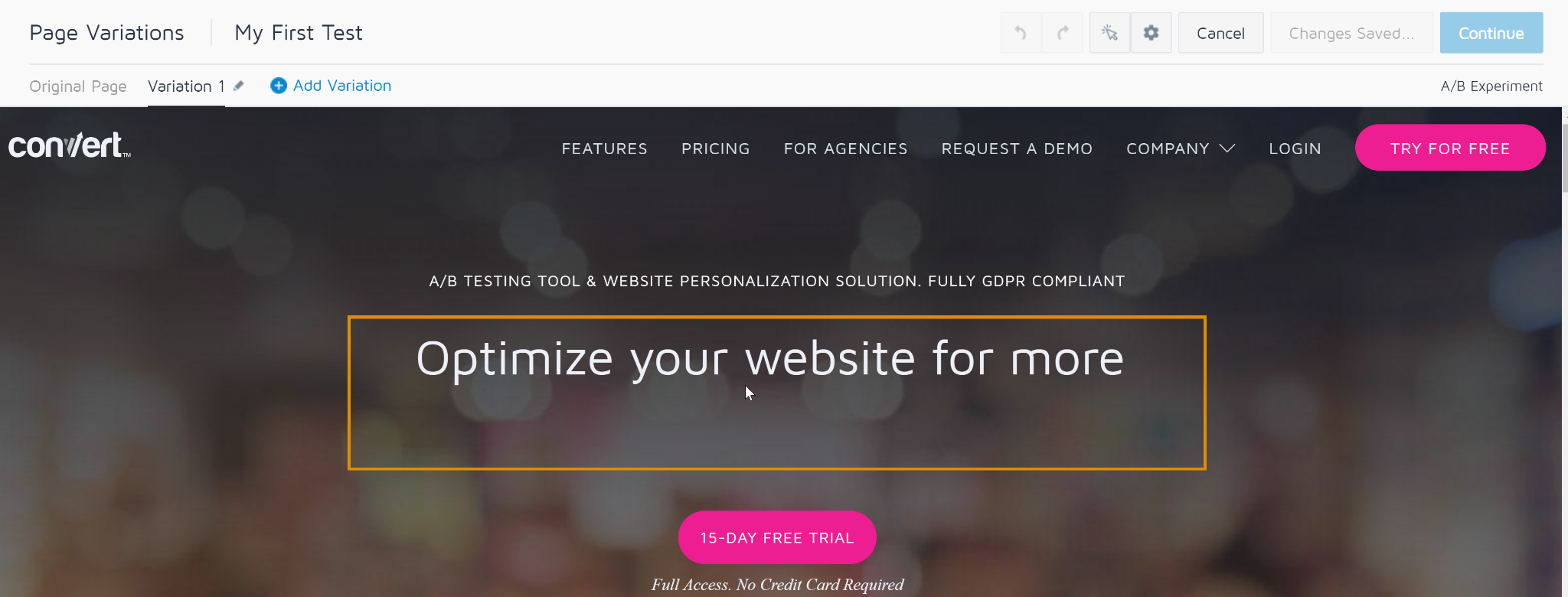
- Let’s edit an element by hovering over it with our mouse, causing an orange outline to appear:
- If we click on the element, a menu should pop up beside it like this:
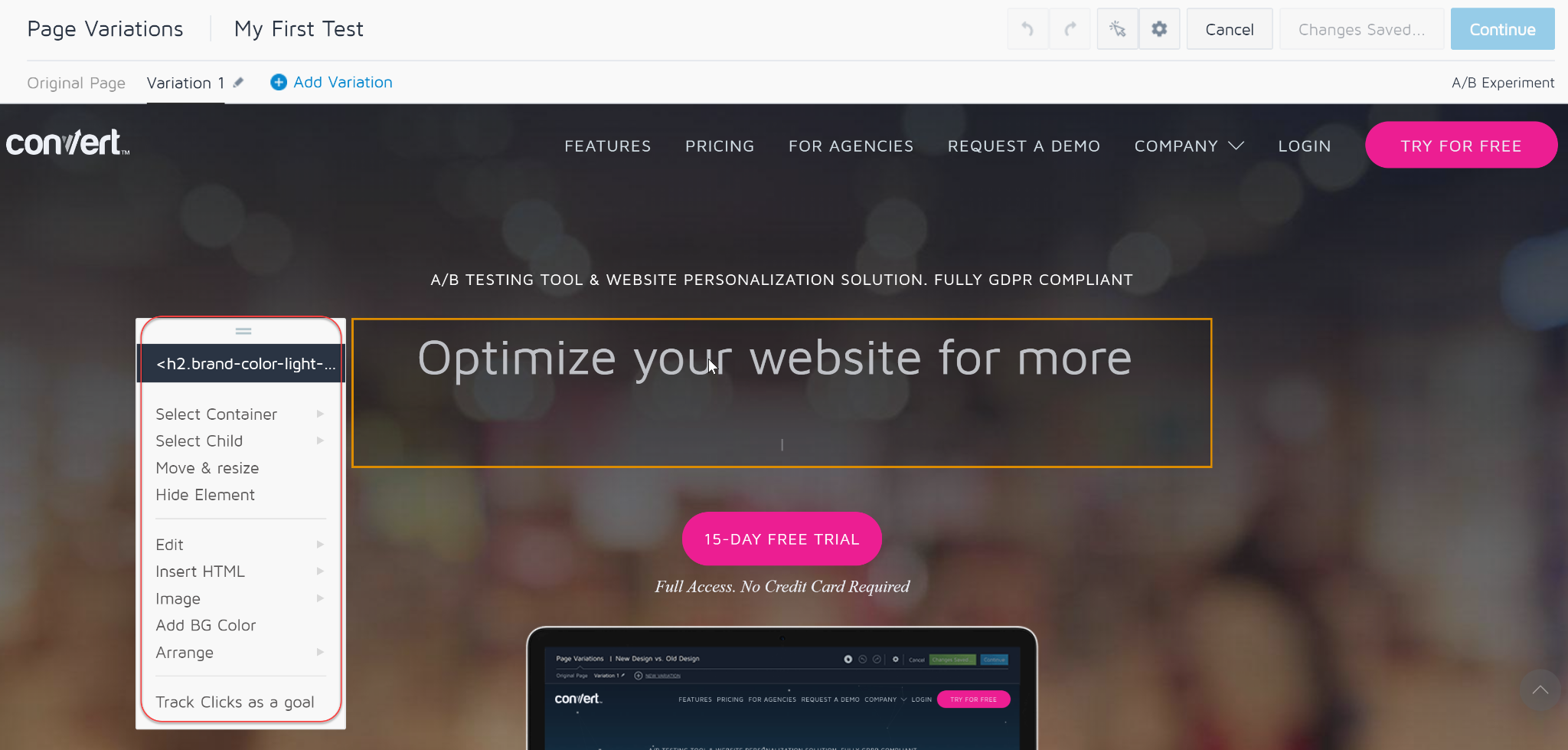
- Let’s add a background color by clicking on “Add BG Color”. A window will display that gives us many options:
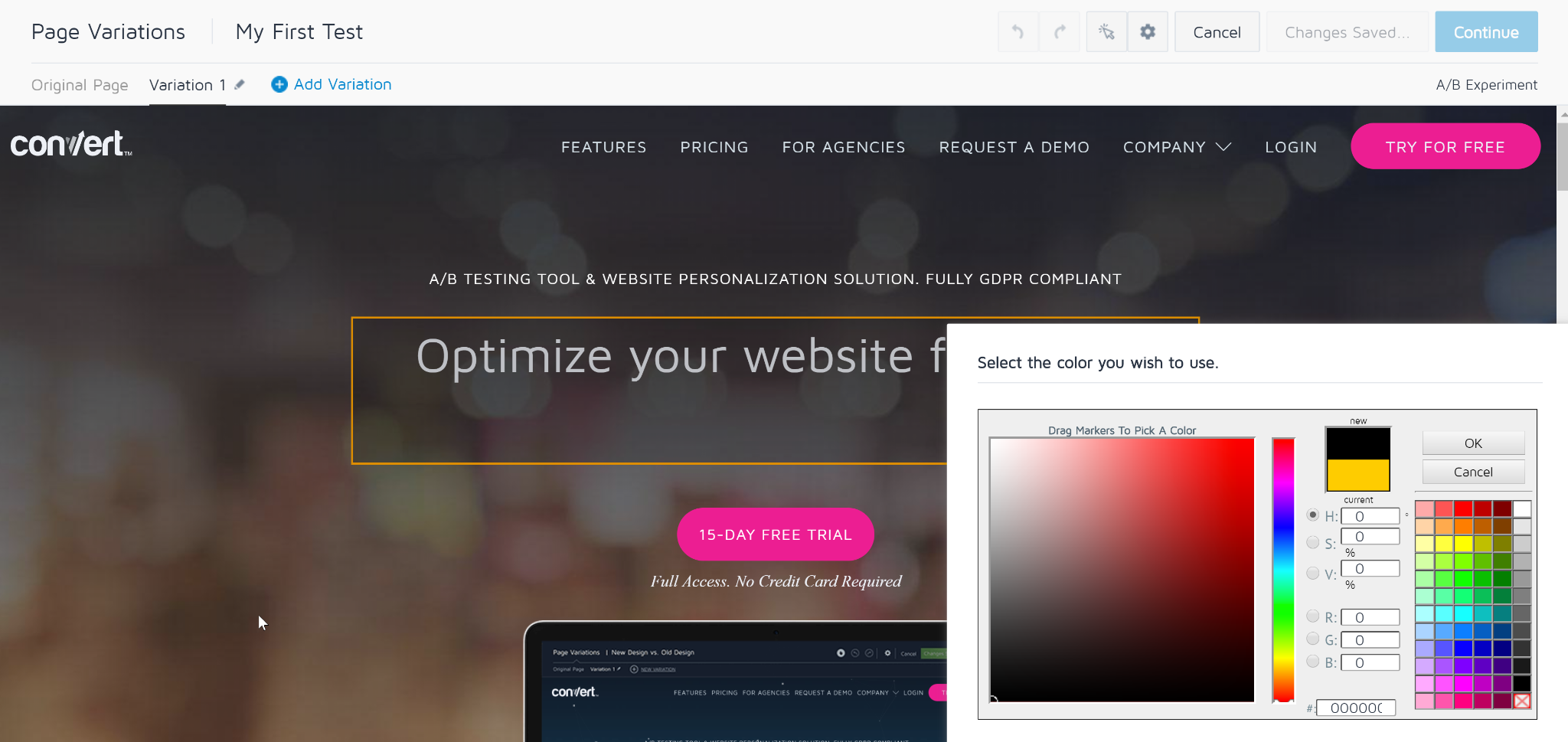
- Let’s keep it simple for this example by selecting the orange square, which is the third box in the second row. Once you have done that, click OK. You will notice that the element has changed color like so:
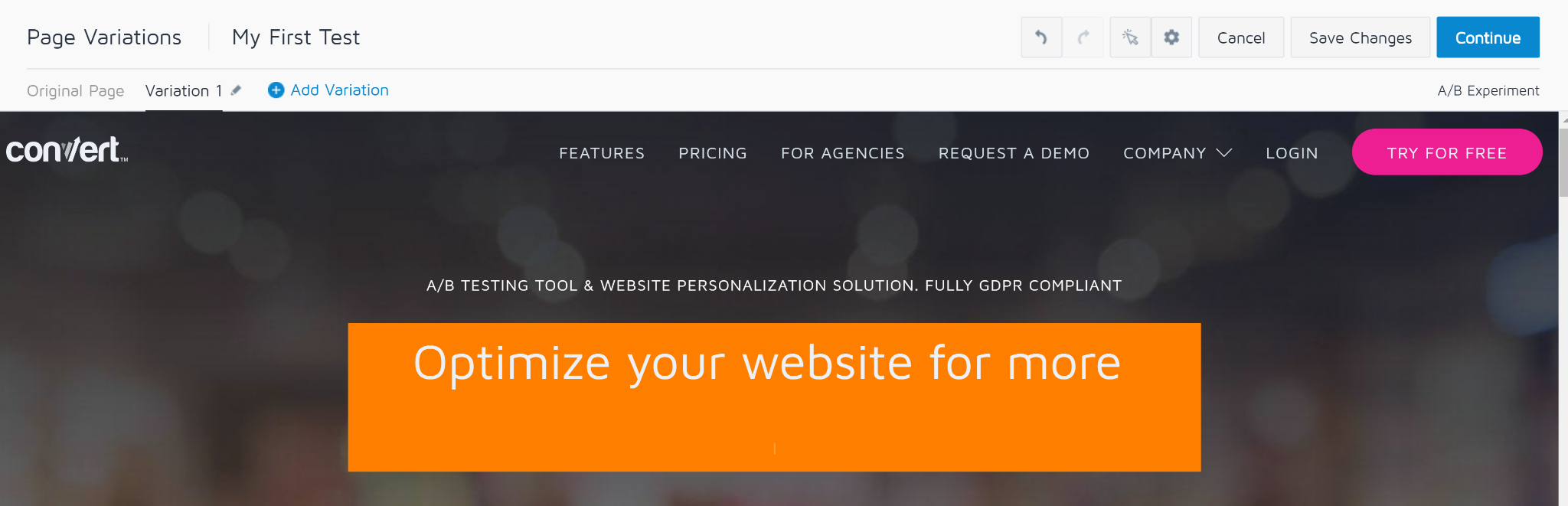
- Changes are saved automatically. Click Continue:
Activate your experience so that you can begin to analyze the results
Now you will be taken to the Experience Summary page.
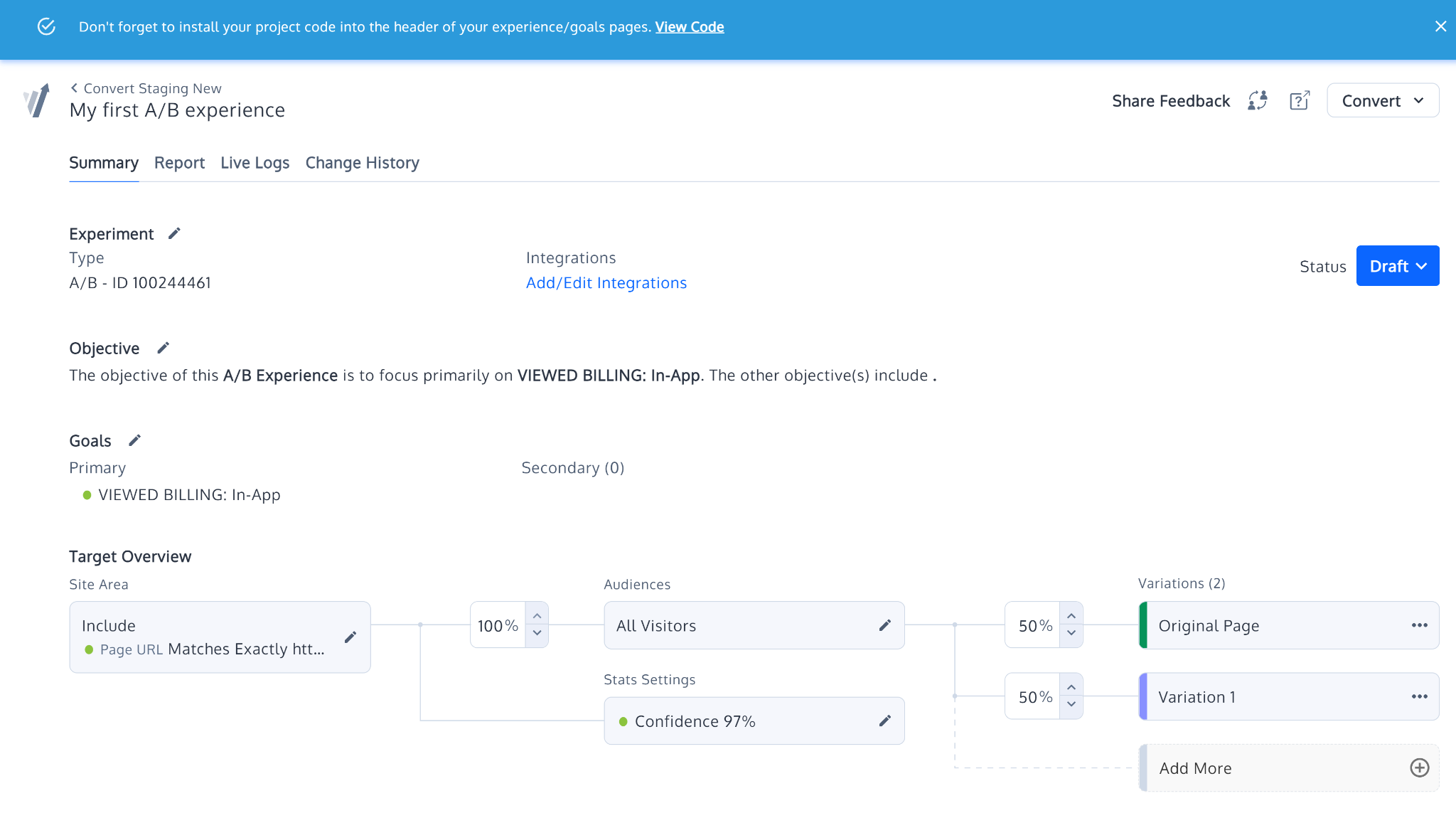
- Make sure to install your project code, located at the top of the screen:

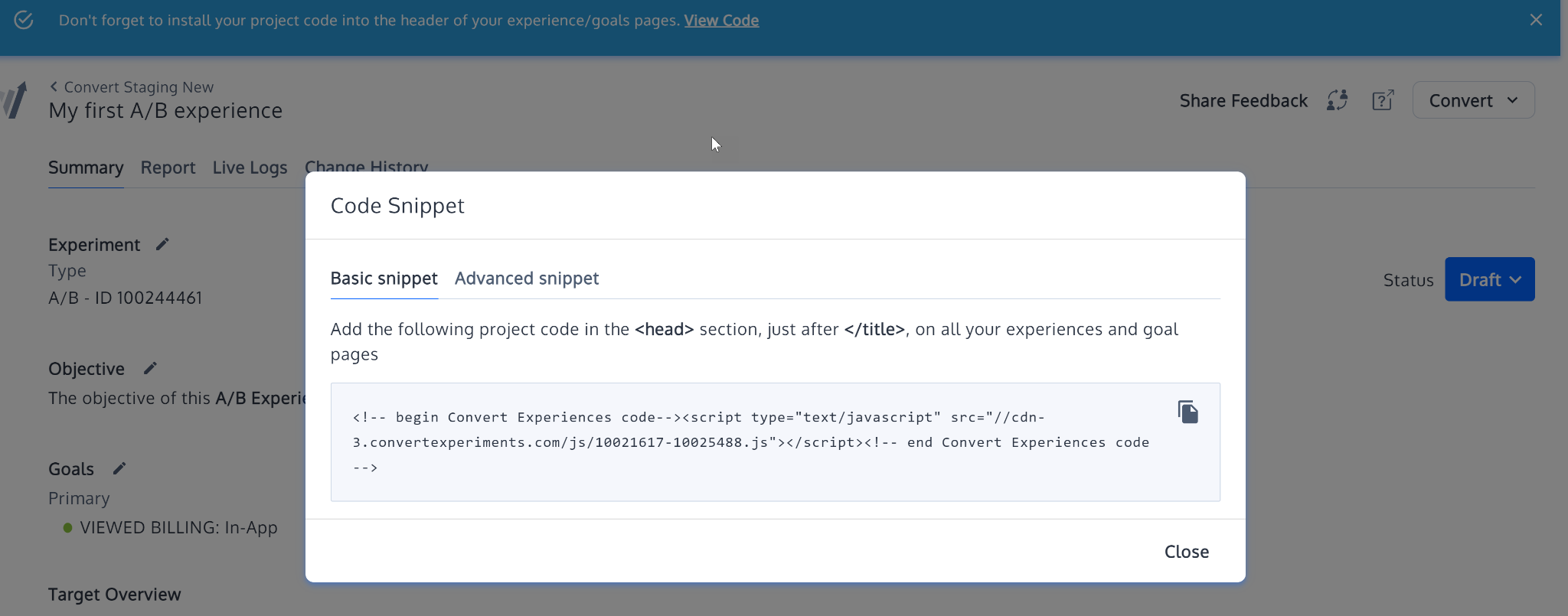
- Click on it to view the necessary code and insert it into your header:
- Now from the status options activate your experience
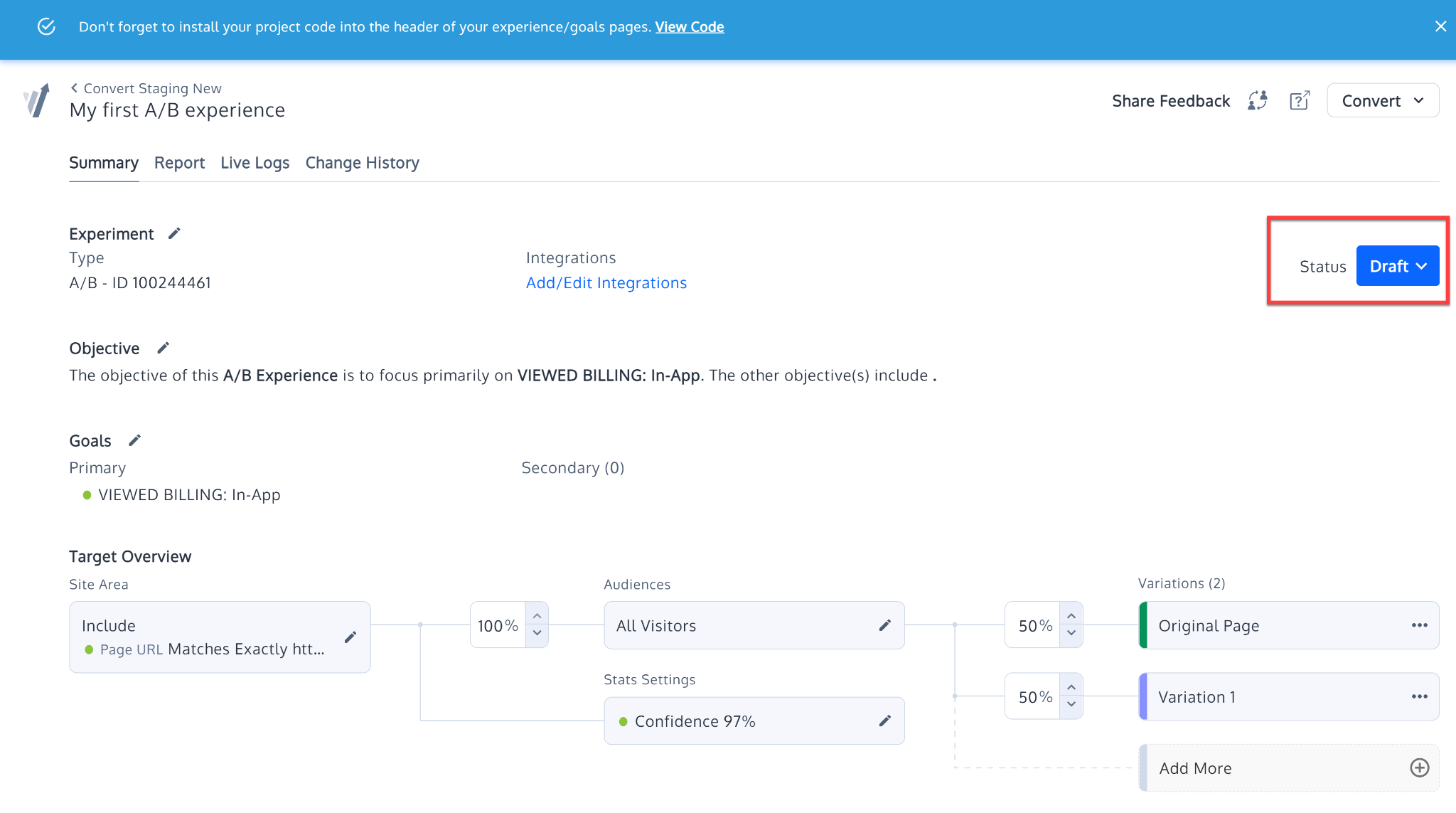
- Congratulations! Your experience is now activated.
Conclusion
You’re done!
By following these steps, you can use Convert to set up and analyze A/B tests on your site, improve the user experience, and increase your conversion rates.
Execution Checklist:
-
Set up a Convert account
-
Create a new experience
-
Set up a new A/B test
-
Choose the website URL you would like to test
-
Change the appearance of different variations of your website
-
Activate your experience so that you can begin to analyze the results