Exporting Discount Codes in Shopify
To guide you in exportation of discount codes from your Shopify store discounts.
Prefer a shortcut? 16 free tools do parts of this for you.

Aim: To guide you in exportation of discount codes from your Shopify store discounts.
Optimal Outcome: To gather necessary data on the overall history of the discounts you have made available on Shopify.
What do you need to start: To follow this SOP, you need to have a Shopify account and a history of discount codes that you have created in the past.
Why is this SOP Important: Exporting discount codes allow your company to monitor the discounted transactions that occurred since your business released the items to your Shopify store. This also helps you to organize the sales based on the time and date, as well as manage the inventory of these products.
When and Where to execute: In executing this SOP, you may need discount codes and the product list. You may also opt to have additional software such as Microsoft Excel or Google Sheets if you want to export the discount codes into a CSV file and analyze it.
Who Should Be Doing This: The person-in-charge of sales data analysis must do this task.
Exporting Discount Codes
As a powerful marketing strategy that gets utilized by many businesses worldwide, discounting allows your company to have brand awareness and generate more sales. As the sales go up during the discount period on the items, it is important that you can organize the discount codes that you have made through Shopify. Exporting discount codes gives you additional data on the sales and the past progress of your company. You will see how the discounts have worked for your business.
Execution
Resources/Tools & Set up
-
Shopify account
-
Previously-made discount codes
Exporting Discount Codes
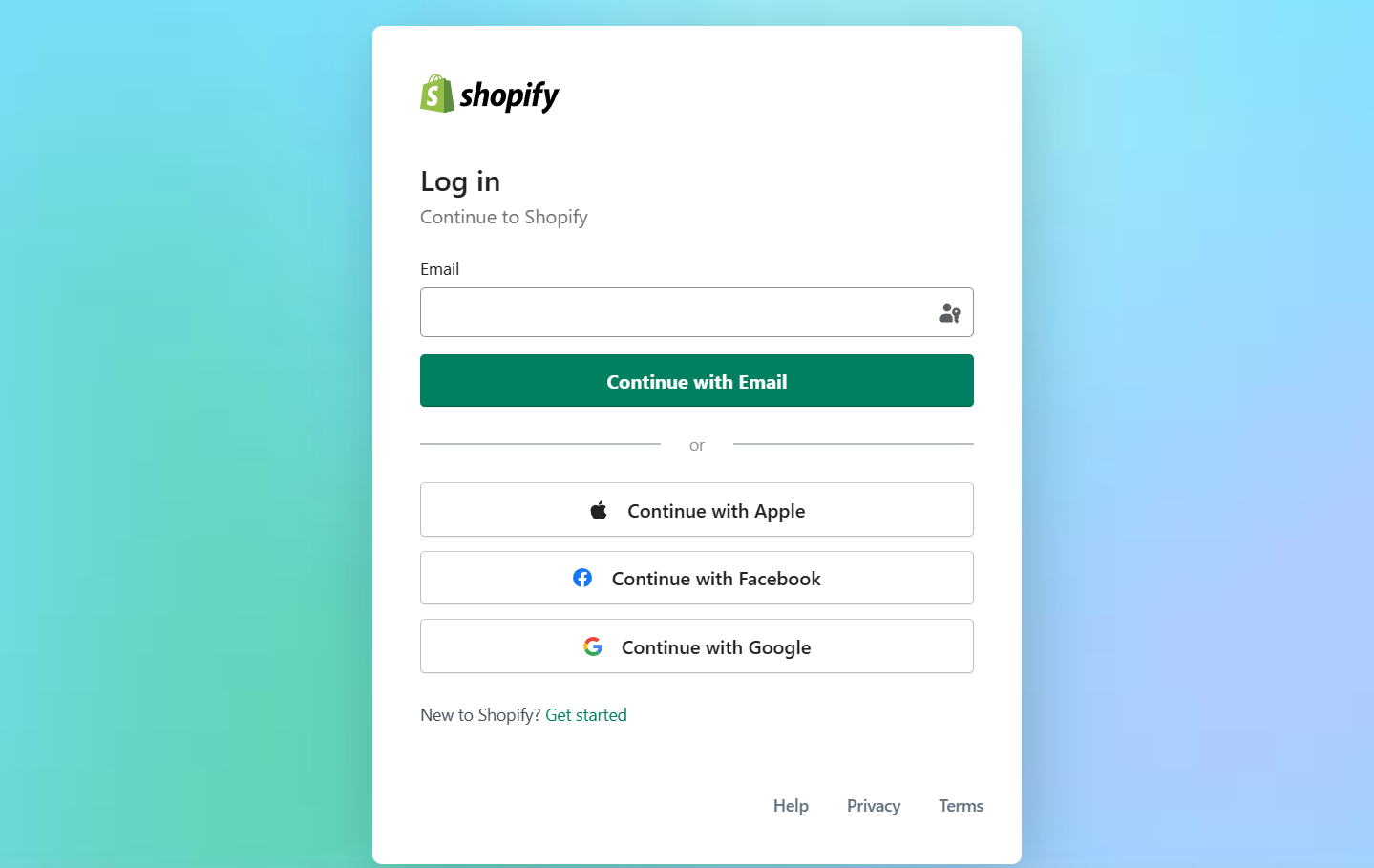
- Log in to your business Shopify account using either your email, Apple, Facebook, or Google account.
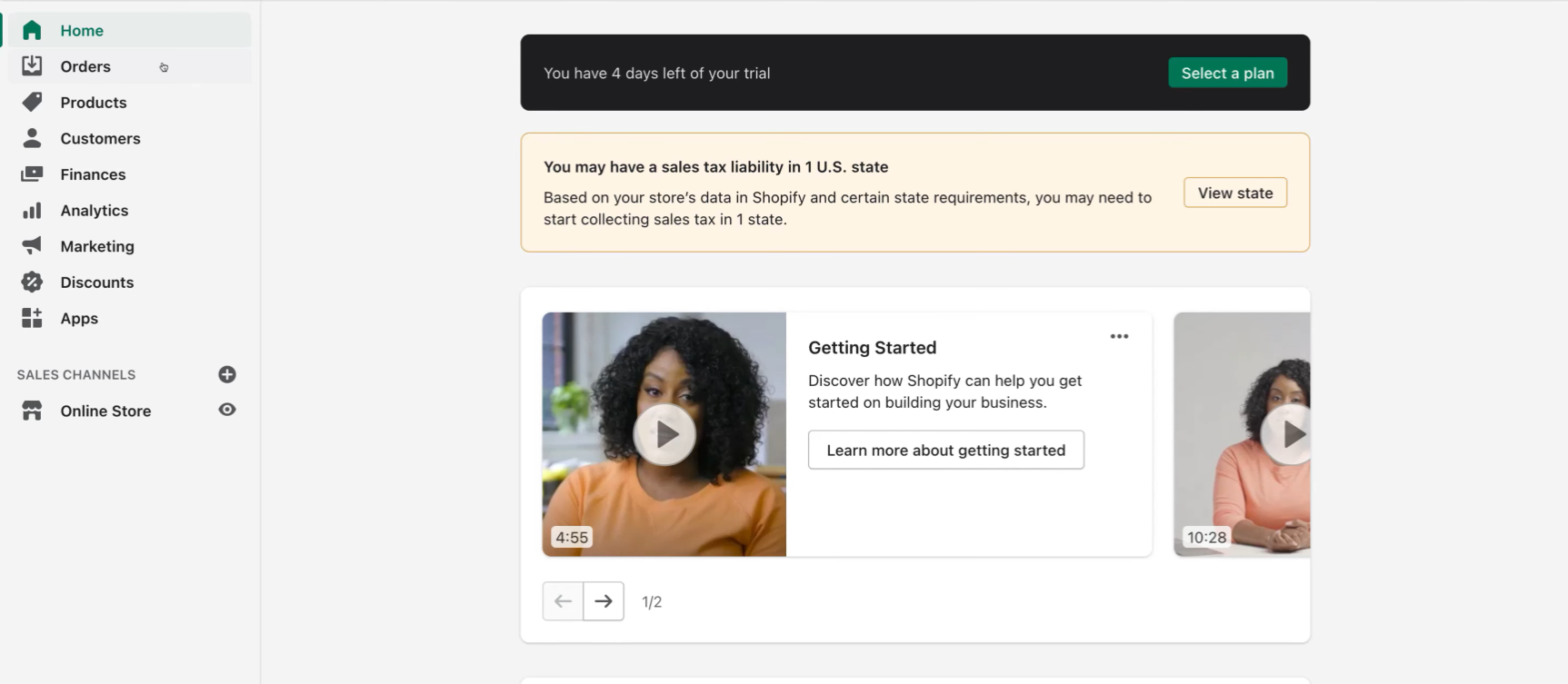
- In the Dashboard located on the left side, click on “Discounts”.
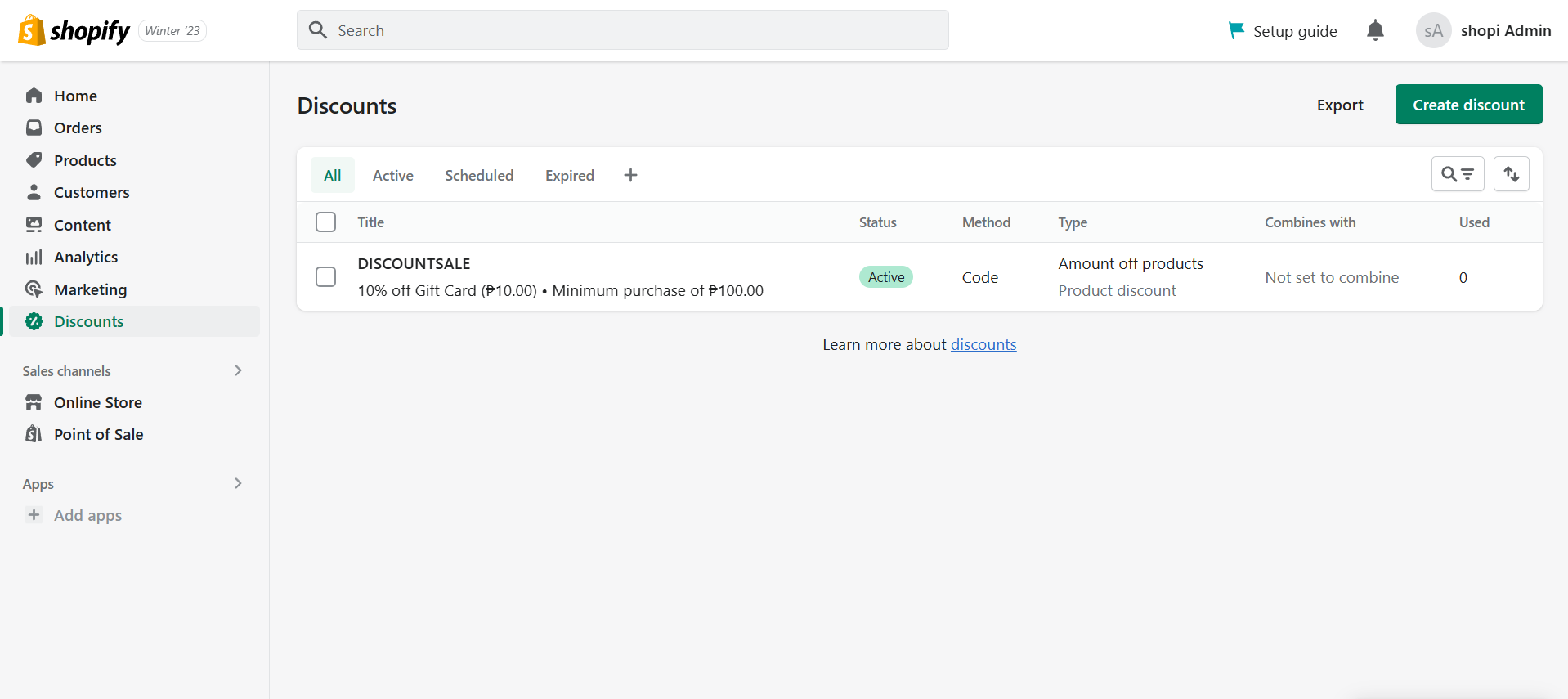
- Click “Export” under the headline of Discount codes.
- You can export discount codes in among four options under Export:
-
Current page: The current page that is shown on your discount codes page.
-
All discount codes: All discount codes that you created including the other pages other than the current page.
-
Selected discount codes: These are the pre-selected discount codes that you clicked before clicking the “Export” button.
-
Current search: The current search in your discount codes page.
Next, you can select the file type in the options under Export as:
-
CSV for Excel, Numbers, and other spreadsheet programs: This is if you would want to analyze the exported file using spreadsheet programs.
-
Plain CSV file: This is when you are going to use a plain-text editor.
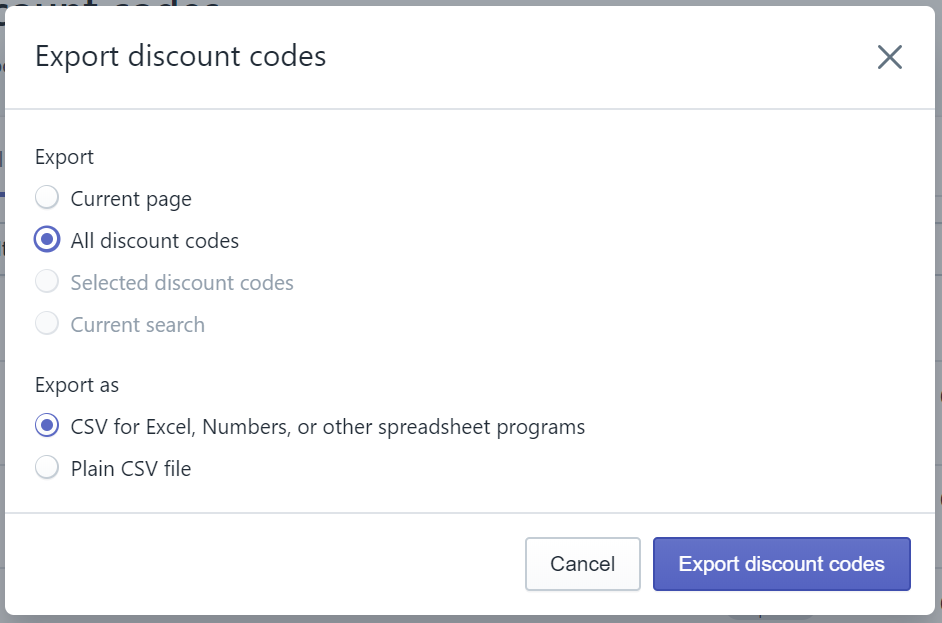
- After choosing your preferred settings for exporting discount codes, click “Export discount codes” to initialize the export.
- After exporting, the file will be sent to your email account registered in your Shopify store. Click the hyperlink provided to you in the email that Shopify sent.
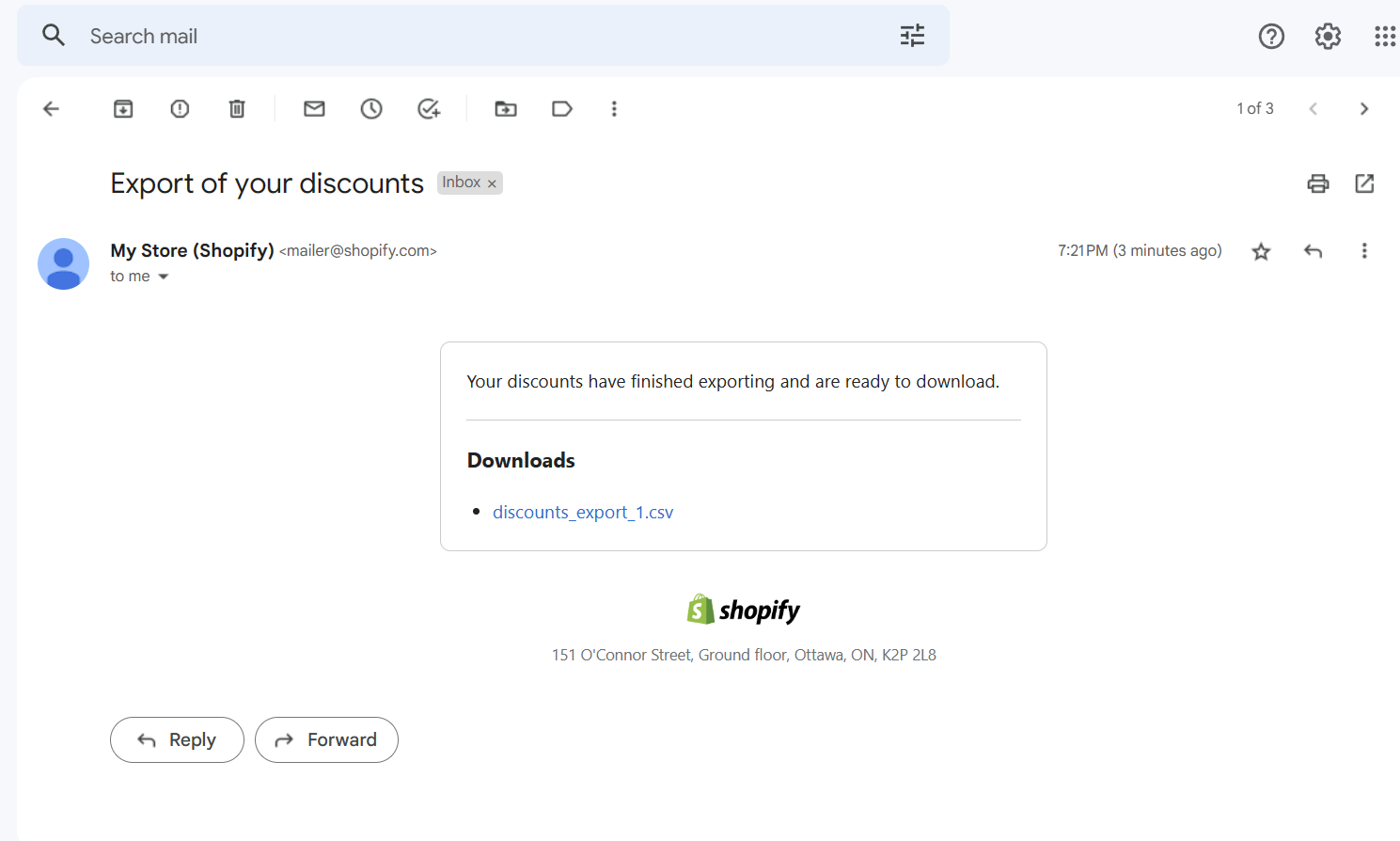
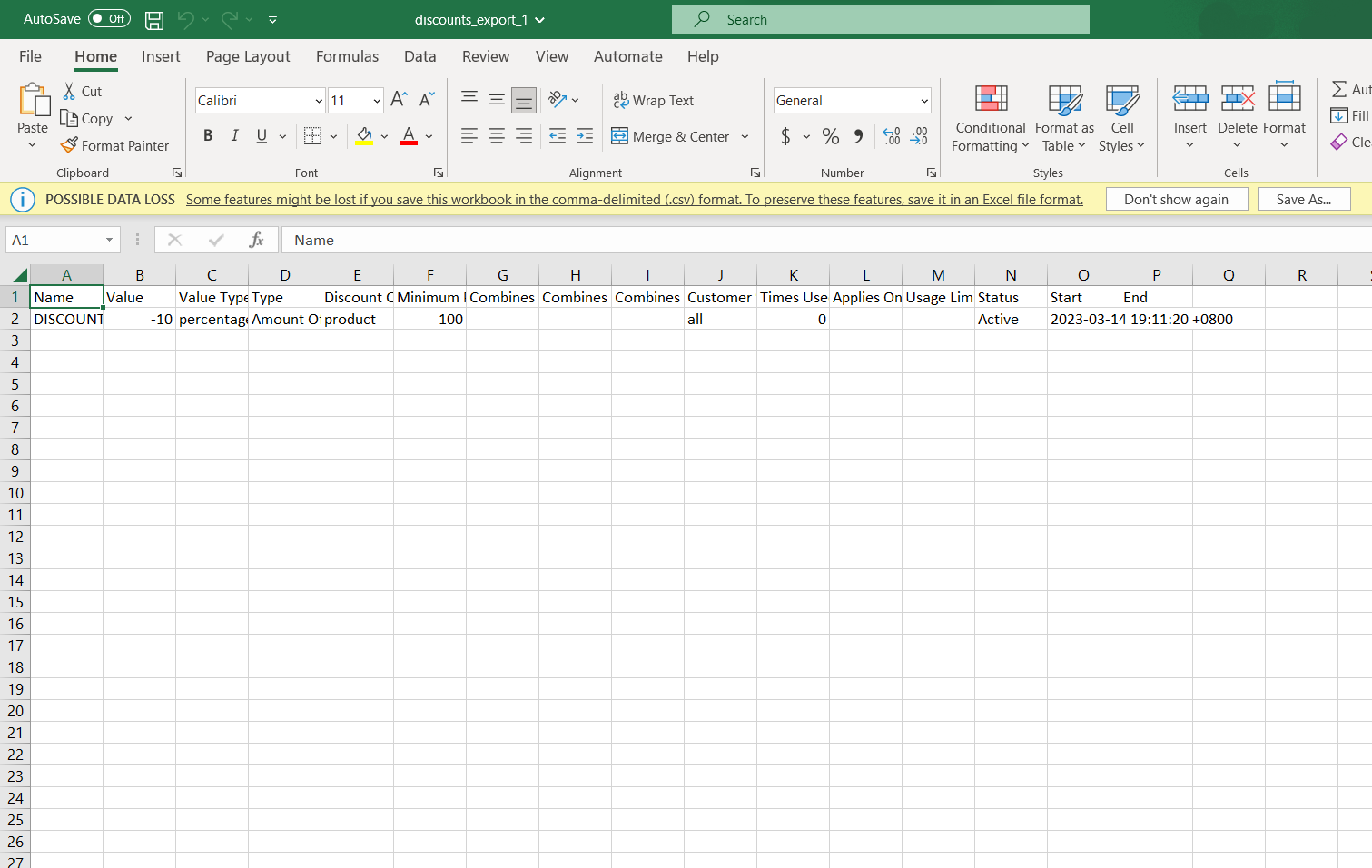
- After downloading the file, this will be the sample CSV for the spreadsheet.
Conclusion
You’re done! Keep in mind that exporting discount codes in Shopify is an easy and time-efficient method to monitor information about your discount codes.
-
You need to have a Shopify account and past and existing discount codes to export information about it.
-
To export discount codes, navigate first to the Discounts tab after logging in your Shopify account.
-
You will see in the Discount codes list that there is an Export button to easily export discount codes.
-
You can select discount codes that you want to export, for example is the current page only instead of exporting all discount codes that are located in the other pages.
-
Exporting the Shopify discount codes in a CSV file allows you to analyze it using spreadsheet programs such as Microsoft Excel and Google Sheets, and exporting it in Plain CSV file makes it available for view on plain-text editors.