Add a Discount to a Shopify Gift Card: A Quick Tutorial
To provide you with a quick tutorial on adding a discount to a Shopify gift card.
Prefer a shortcut? 16 free tools do parts of this for you.

Aim: To provide you with a quick tutorial on adding a discount to a Shopify gift card.
Optimal Outcome: To be able to decrease the cost of the Shopify gift card by a specific amount or percentage and encourage customers to purchase the gift card.
What do you need to start: To follow this SOP, you must have an active Shopify account.
Why is this SOP Important: Discounting a Shopfy gift card does not only encourage customers to buy your gift card, but also the products that you sell in your store. Since the value of the gift card can only be spent on your business’ items, then they will end up purchasing your items using the discounted gift card.
When and Where to execute: To execute this SOP, you must also have added a Shopify gift card in your store so you can put a discounted price to it.
Who Should Be Doing This: This should be done by the person delegated in marketing or finance.
Discounting on Gift Cards
Almost all customers are constantly seeking methods to save money when making purchases. This explains why people choose to buy items from companies that provide the finest product discounts and promotions. Undoubtedly, the best strategy to swiftly get visitors into your store is to provide them discounts. This applies to gift cards, because they serve as a product in your store. The only difference is that they are discounted according to their cost of value, while products are discounted individually.
Execution
Resources/Tools & Set up
-
Shopify Account
-
Added gift card to your Products list
Creating a Shopify Gift Card
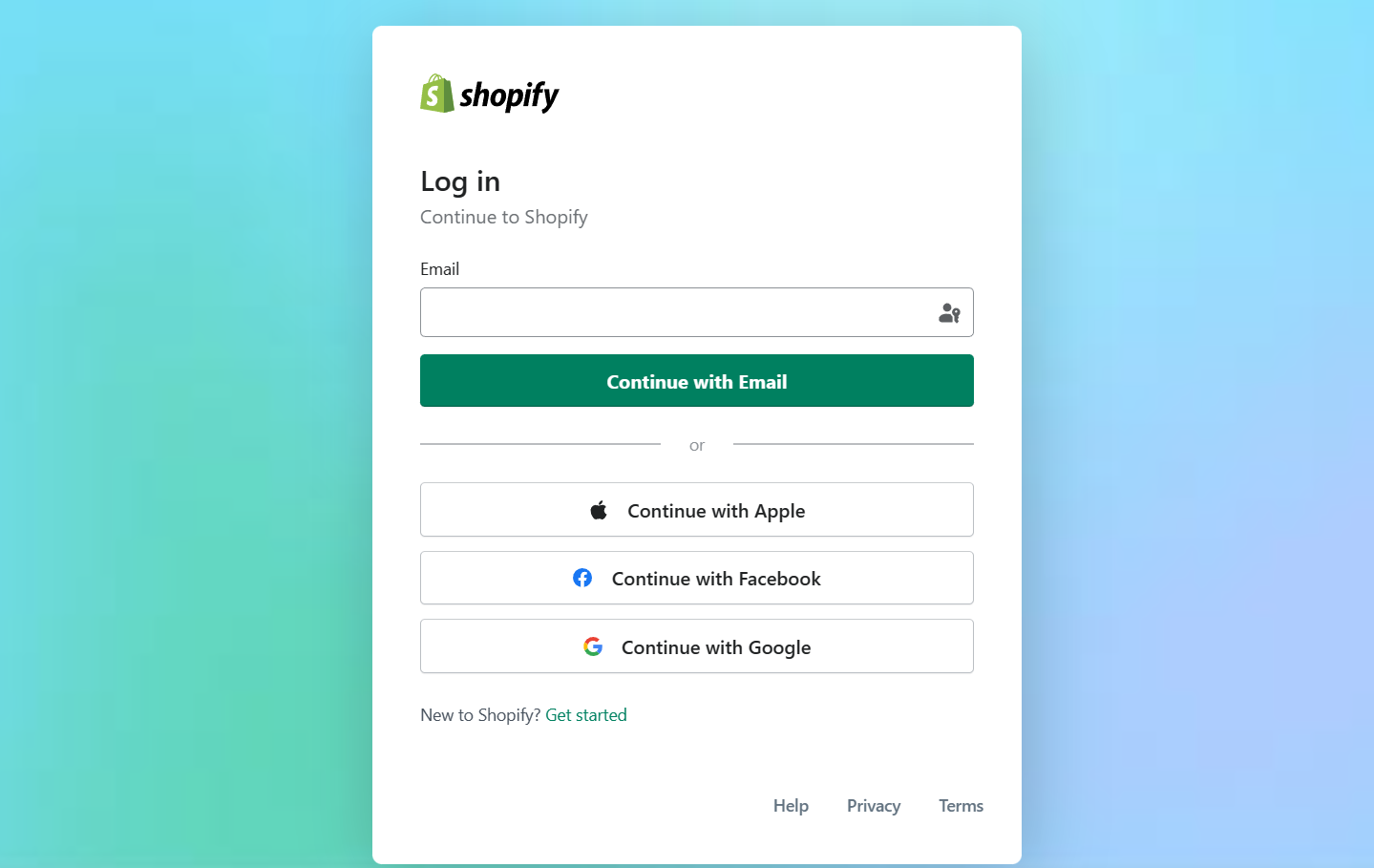
- Log in to your business Shopify account using either your email, Apple, Facebook, or Google account.
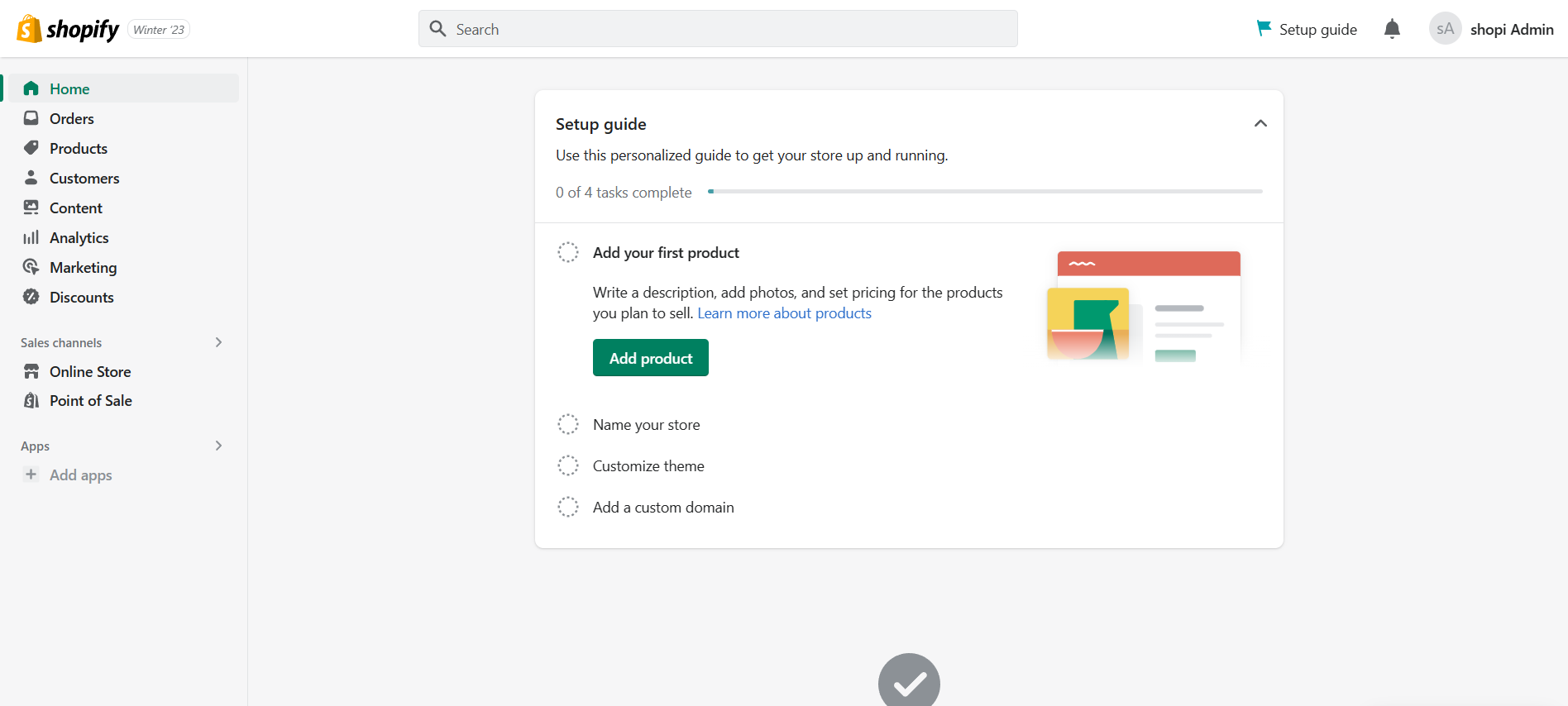
- After logging in, you will be redirected to the Shopify homepage. To create a gift card, click the “Products”.
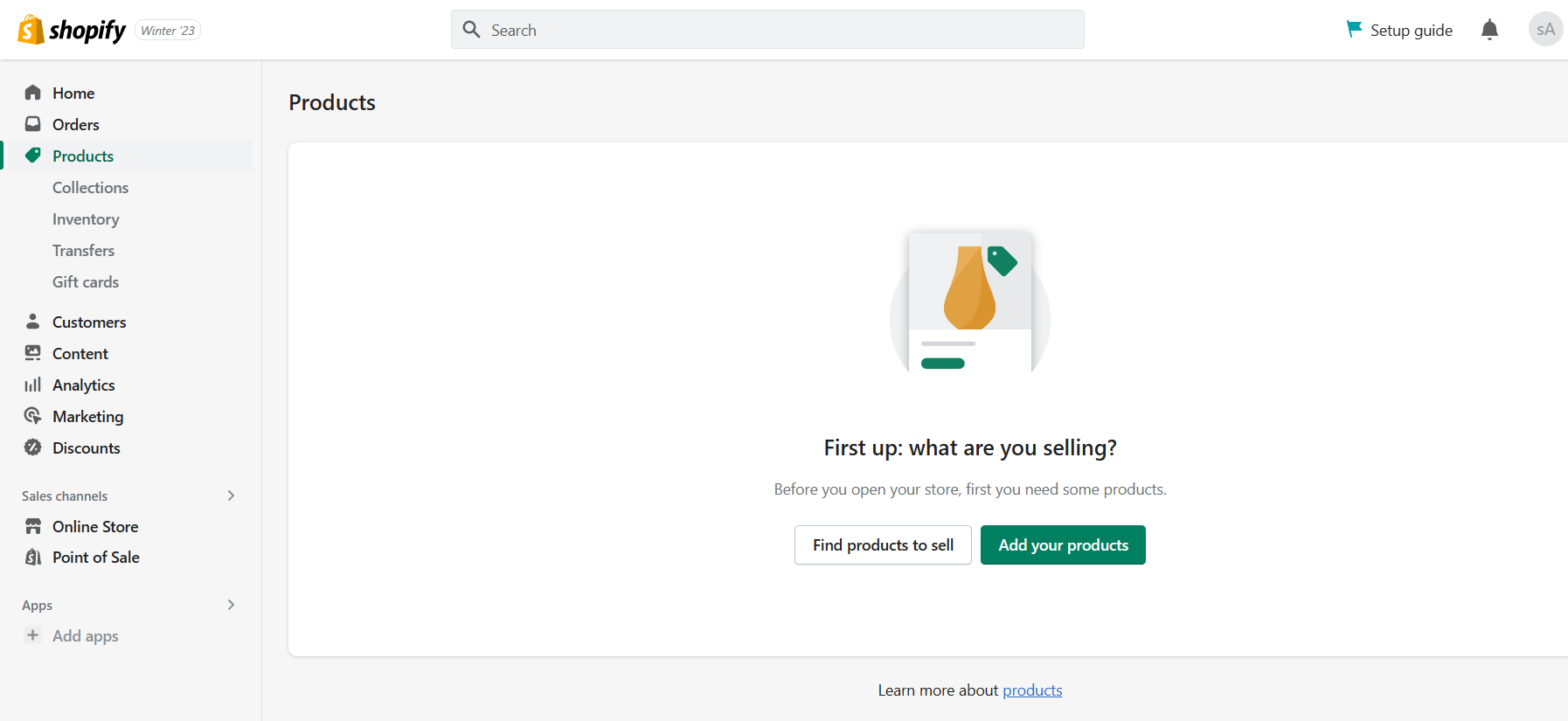
- As you can see on the left part, the dashboard shows that there are subcategories under Products. Click “Gift cards” to create one.
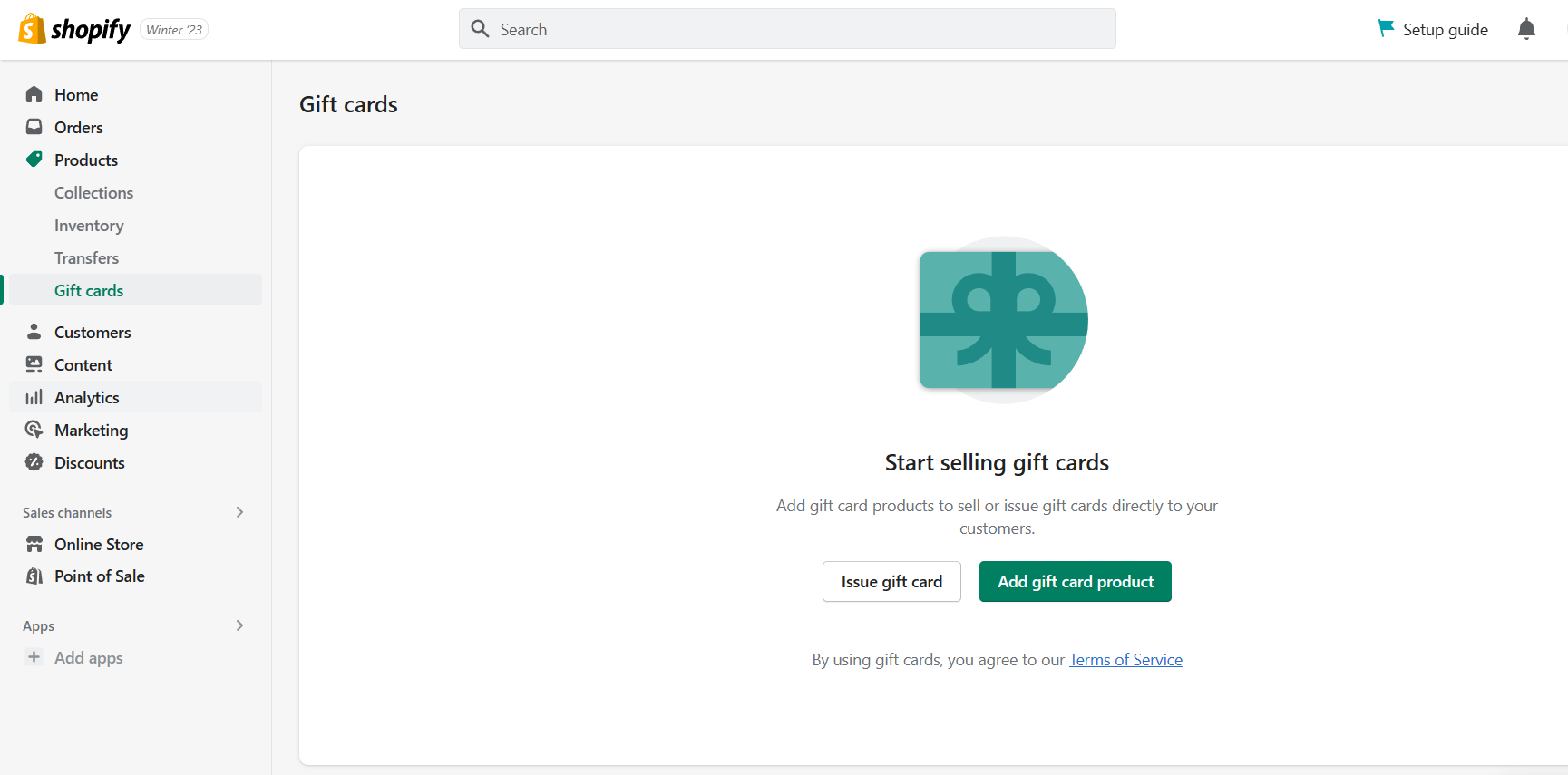
- After clicking the Gift cards, you now have two options: to issue or to add a gift card product. Since you are aiming to create one, click the “Add gift card product” option.
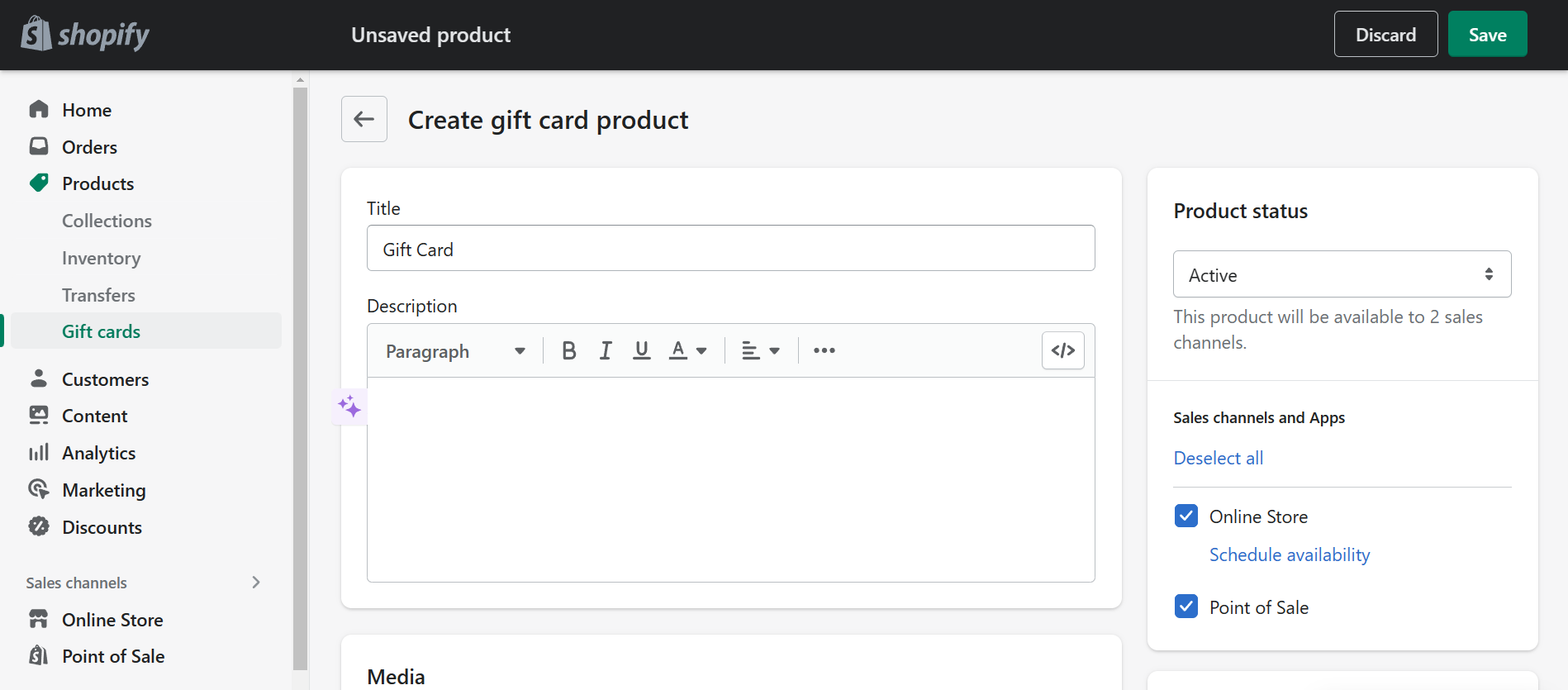
- After clicking Add gift card product, you will be redirected to this page. The first requirement in creating the gift card is the title. Click the box to edit it, you can use this format for your title: *Business name* Shopify Gift Card. Under the title is the Description, where you are allowed to encourage your customers to buy your business’ gift cards. You have several options to style it, and you can insert a heading before creating the paragraph.
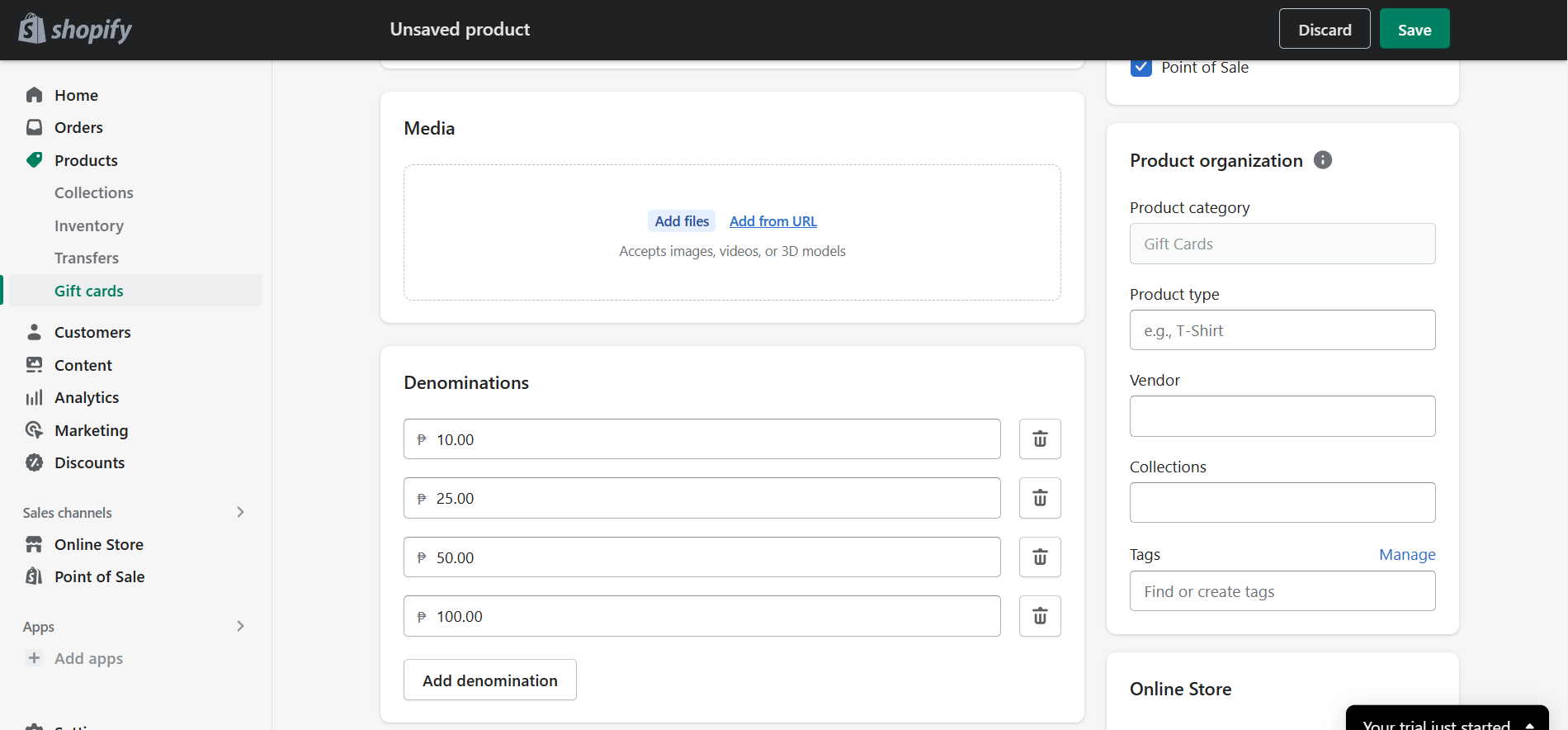
- After creating the Title and Description, you can now Add media files or Add media from URL. Shopify accepts images, videos and 3D models for the gift card display. To add media files from your computer, click the “Add files”. If you want to add media from the URL, click “Add from URL”. There are default denominations created by Shopify that are in accordance with your store’s currency. You can edit them on your preferred value of the gift card by clicking them, but you can also delete some denominations by clicking the trash can button. You can also add a denomination by clicking “Add denomination”.
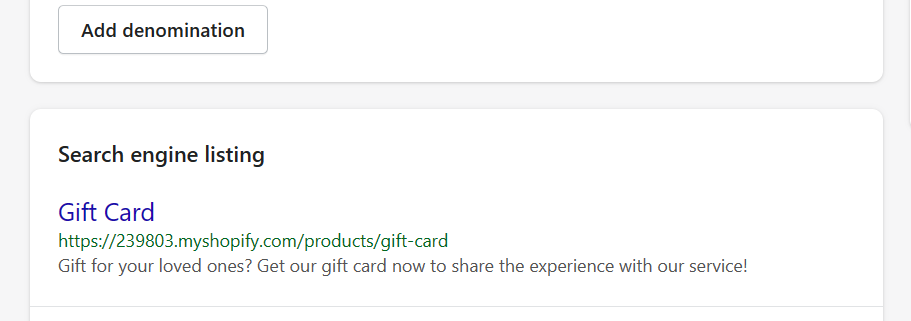
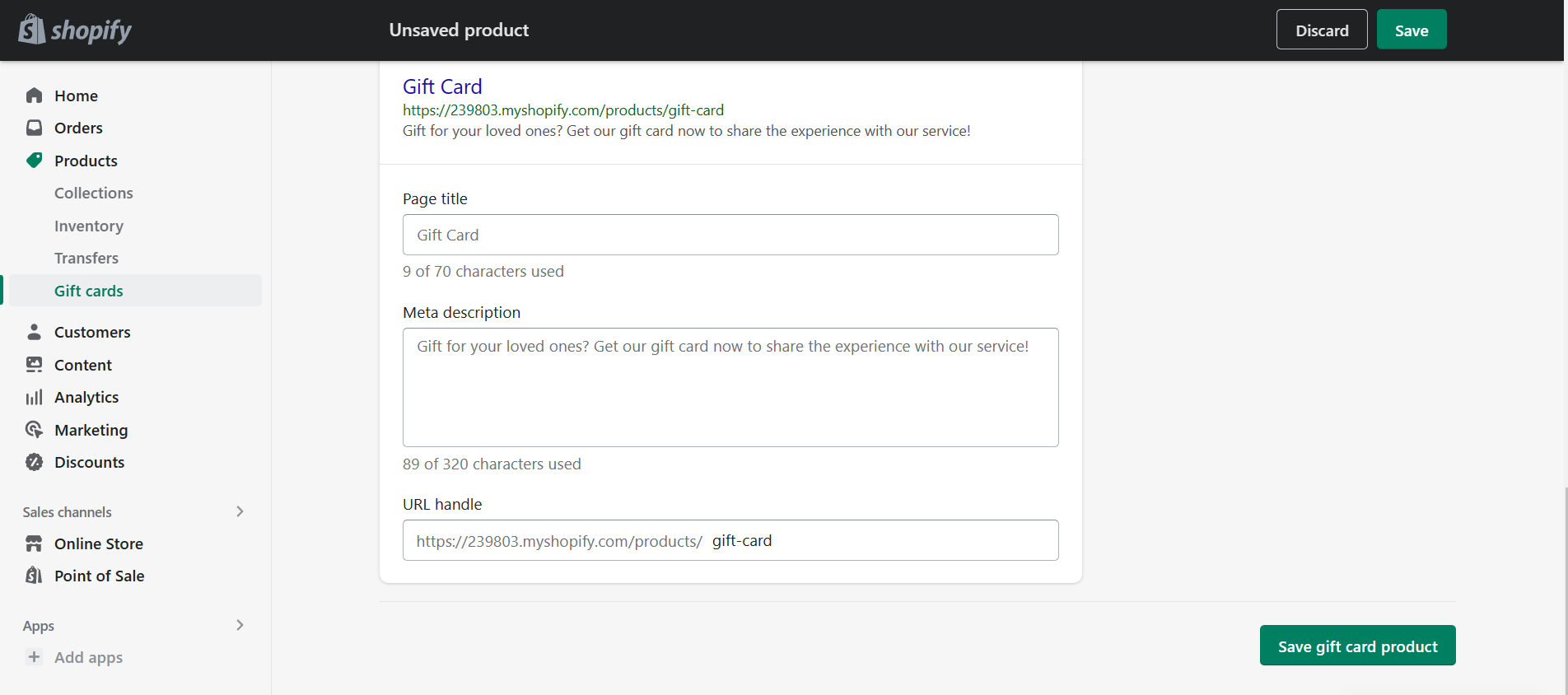
- Below the Denominations, you can see the Search engine listing preview. This shows the title and description that you have indicated in the initial steps.
- After the steps in creating a gift card, finalize the process by clicking “Save gift card product”.
Adding Discounts to Shopify Gift Card
- Log in to your business Shopify account using either your email, Apple, Facebook, or Google account.
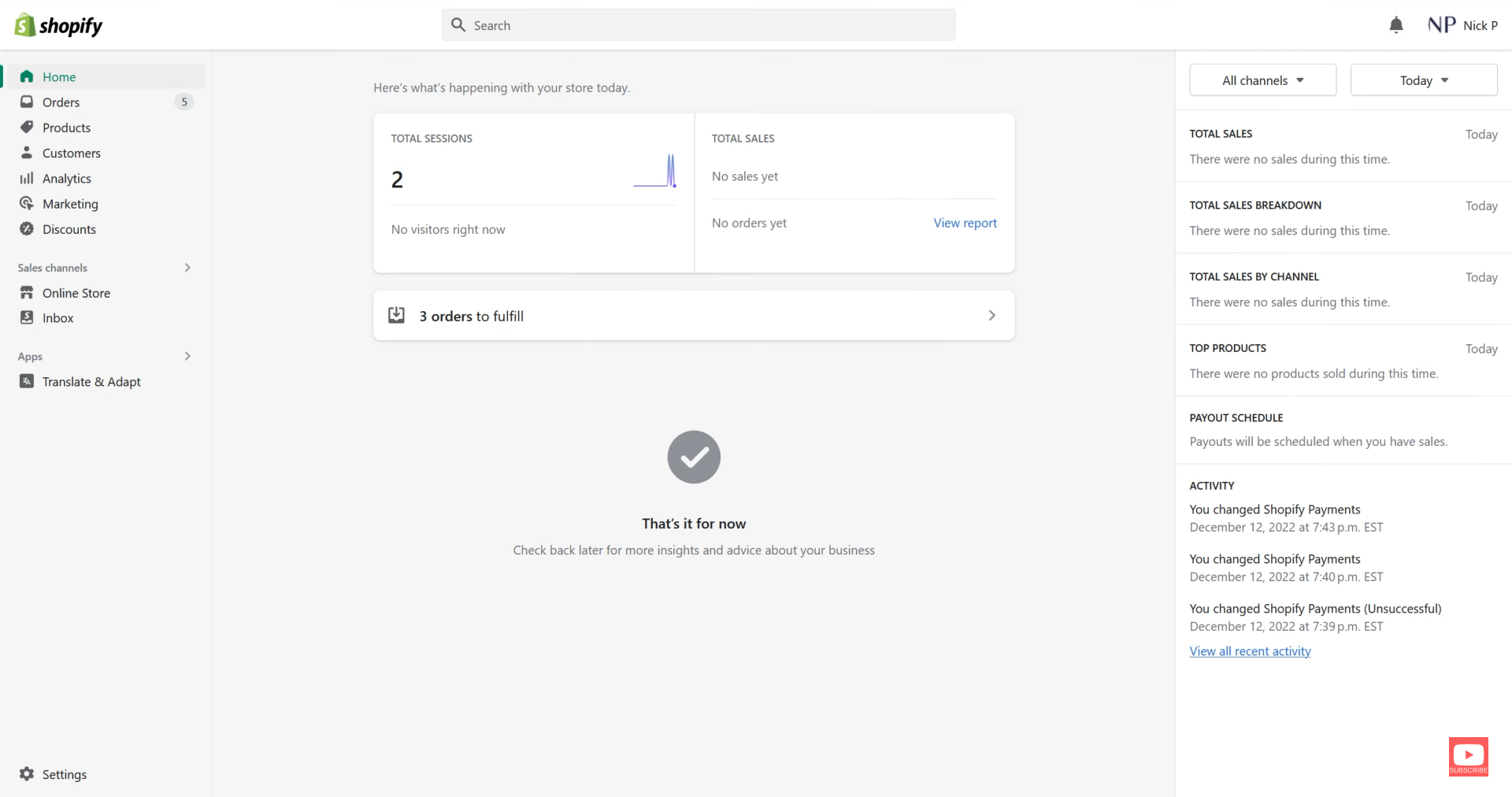
- In the Dashboard located on the left side, click on “Discounts”.
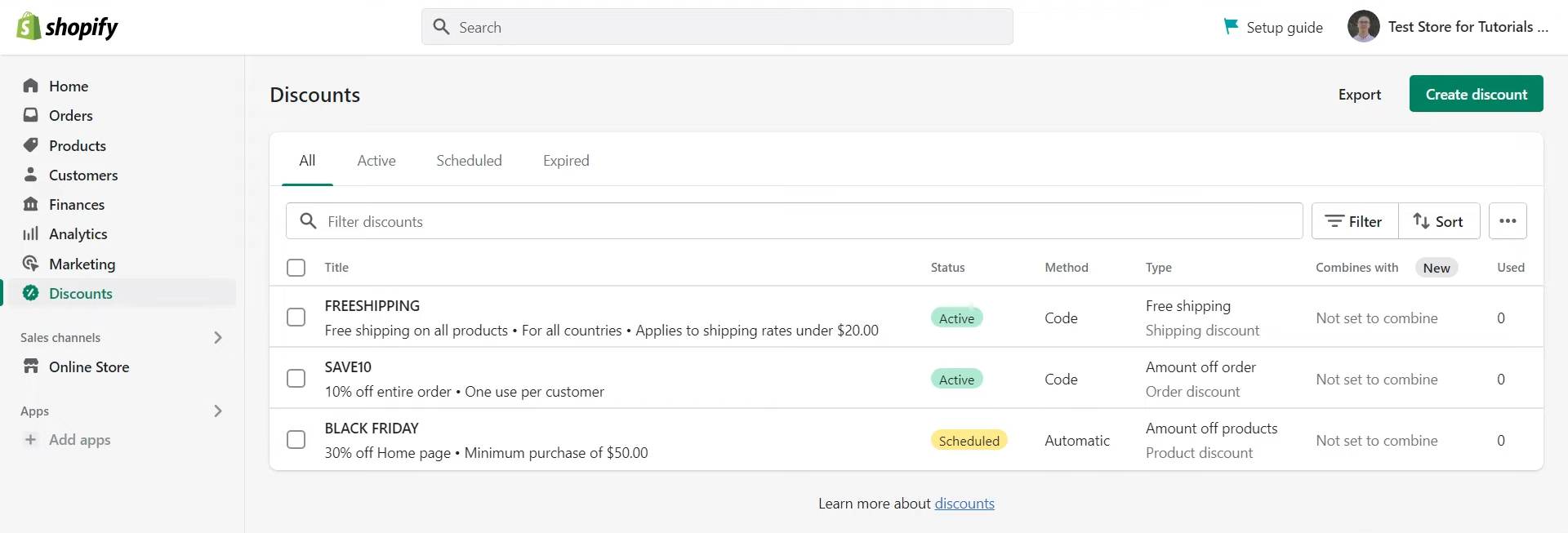
- After clicking Discounts, you will be redirected to the list of discounts that you have made. Click “create discount” to create a new discount.
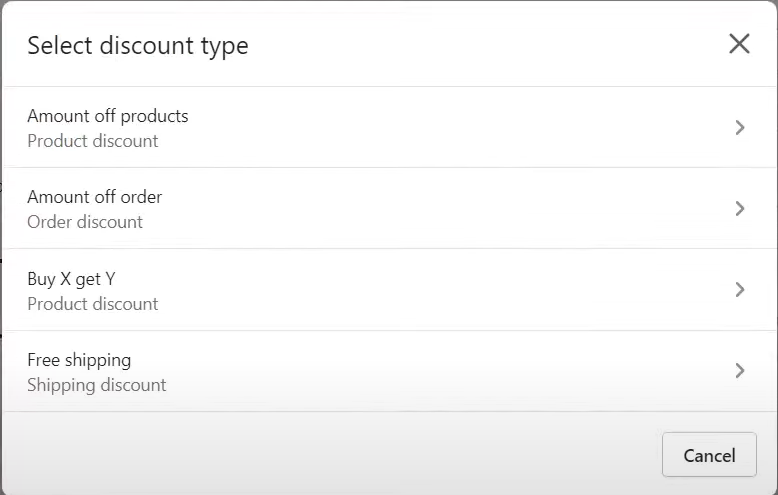
- You will be asked to select a discount type, in which you will choose and click the “Amount off products”.
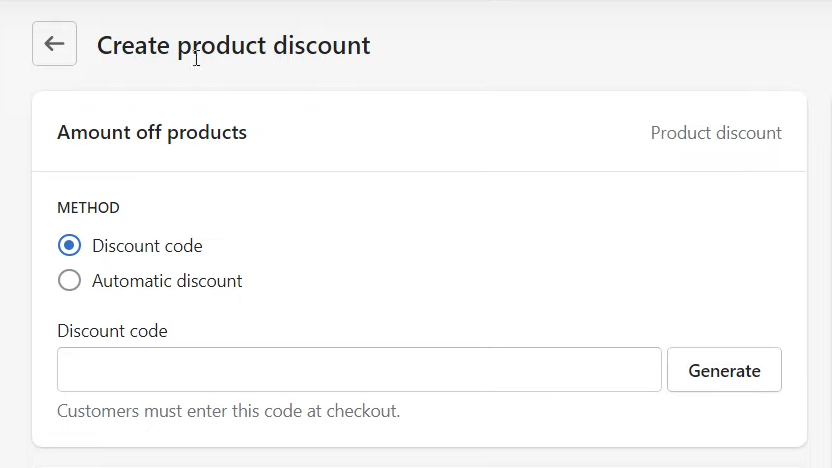
- To discount products, you must first choose if you want it to be a discount code or automatic discount. If you choose a discount code, you will be asked to indicate the code that you want your customers to type in before checking out. If automatic discount, they will no longer have to enter a code and the discount will automatically be in the gift card on site.
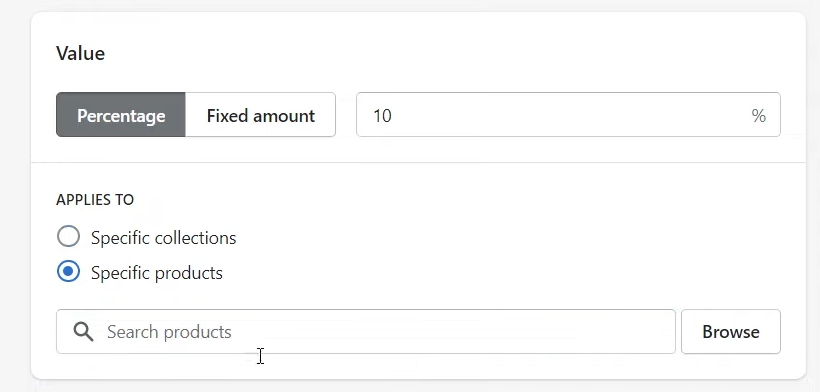
- After choosing the method of discount, you can then choose the value of the discount. It can be percentage or fixed amount type. On the Applies to field, Click on “Specific products” and search the name of the gift card that you want to discount in the search box.
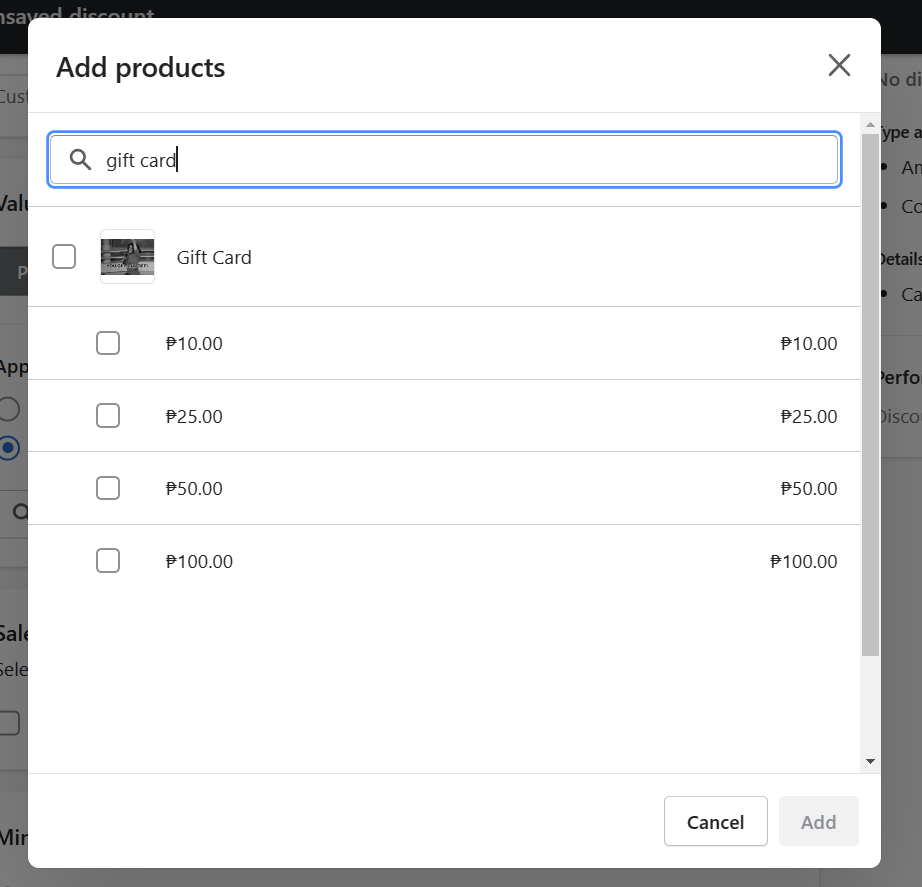
- After searching, your gift card should appear like the image below and you can select the Denominations that you want to include in the discounts. Check the box beside the items that you want to include. If you want to include all denominations, click the “Gift Card”.
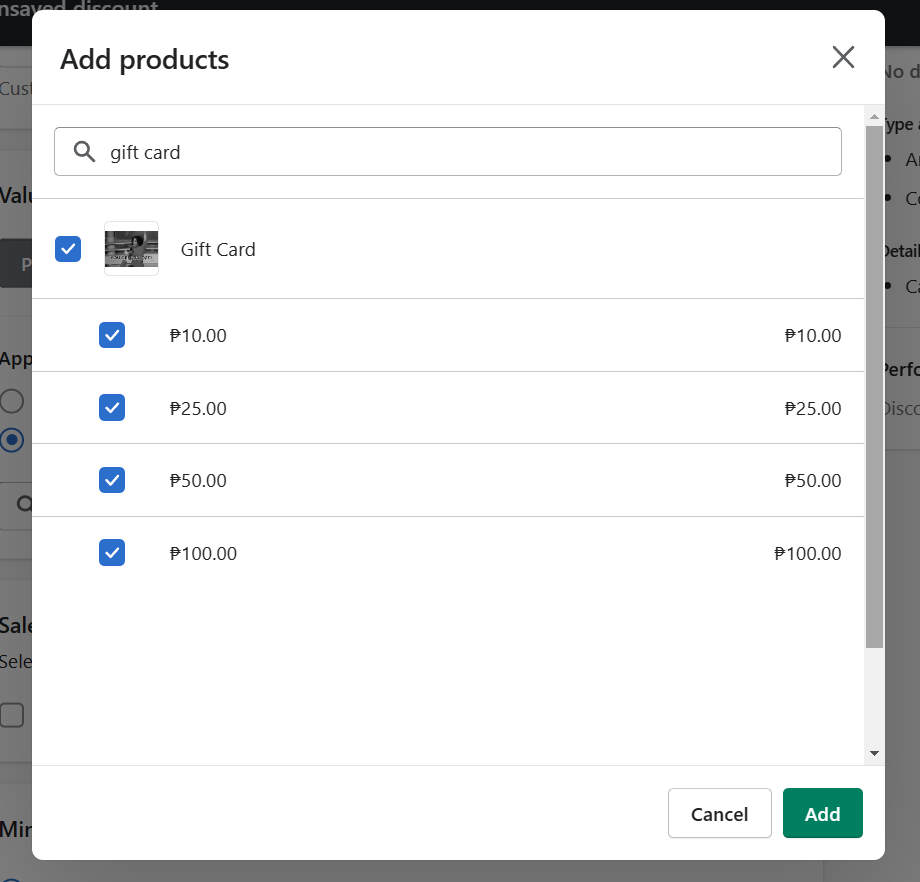
- Click the “Add” button to add the gift card as a product on discount.
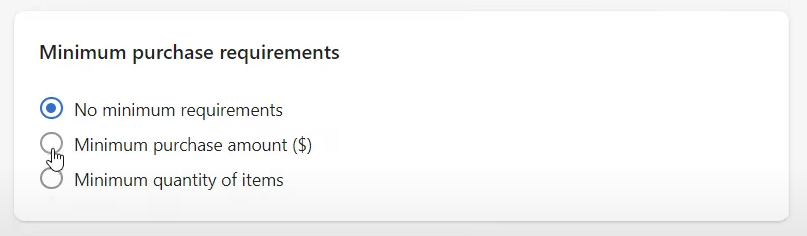
- In the Minimum purchase requirements, you can choose from the choices indicated below by clicking the circle beside it.
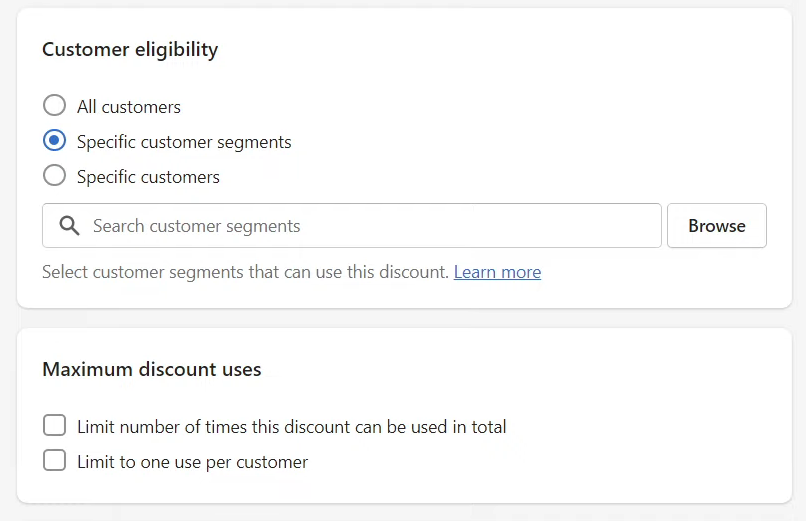
- Next is the Customer eligibility. You can modify it if you only want it to be available to some customers, or you can choose to make it available for everyone. Maximum discount uses involves the limitation of the discount. You can choose to set a certain number of users that can check the gift card out with the discount, or you can set it to one use per customer. Lastly, you can check both.
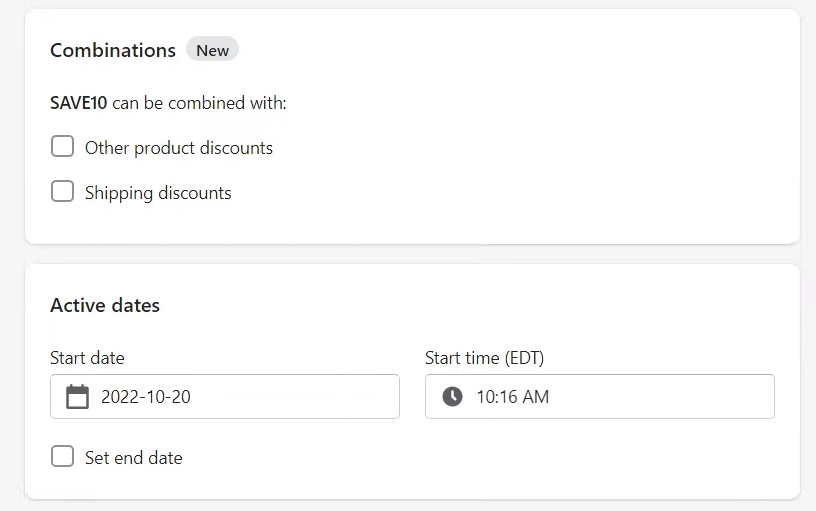
- In the Combinations, you can select if you want your discount to be combined with other discounts. Active dates is where you can set the start and end date of the discount promo.
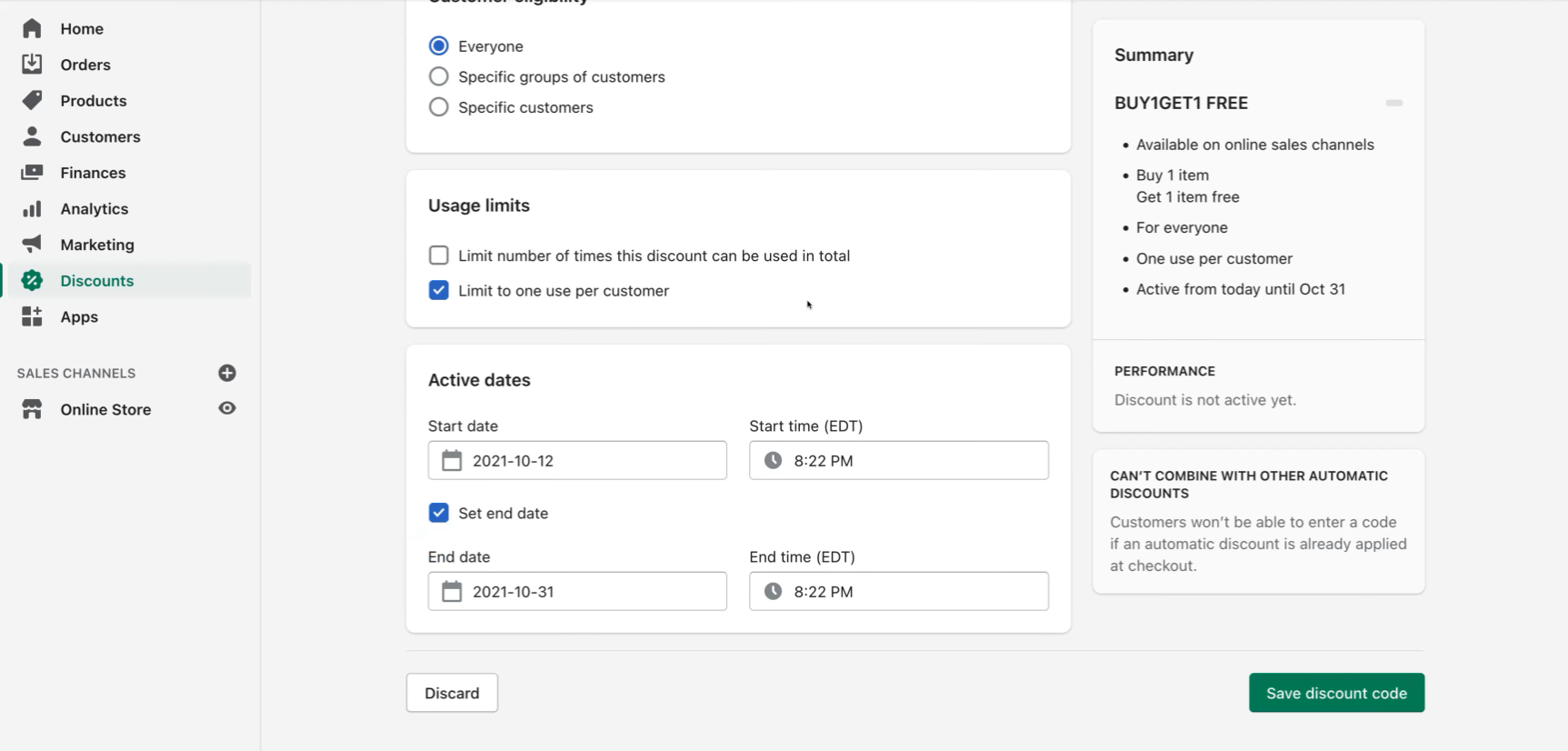
- After modifying the settings on the discount, click “Save discount code” to save your progress.
Conclusion
You’re done! Always remember that adding a discount code or automatic discount on your Shopify gift card encourages brand recognition, increases sales, builds customer loyalty, and gives your company new opportunities.
-
Discounting a gift card is almost the same as discounting products, it may be caused by clearing out inventory, or you just want your customers to try using the gift card on your brand.
-
In 30 minutes, you can input a percentage or fixed-amount discount on your Shopify gift card, but you must have added a gift card to your store before doing that.
-
Just like other discounts, you can put active dates, customer eligibility, and minimum purchase requirements which will depend on your liking.
-
Since most of the customers purchase a product more likely if it is on sale, gift cards work as a discounted payment that can be utilized on any product in your store.
-
In addition, you can earn multiple loyal customers if you do discounts often, but the finance team of your company must balance the amount and frequency as you implement these sales.