Creating Shopify Websites Heat Maps
This procedure intends to install and create a heat map in Shopify to give vital information about how visitors interact with your store.
Prefer a shortcut? 16 free tools do parts of this for you.
Aim: This procedure intends to install and create a heat map in Shopify to give vital information about how visitors interact with your store.
Optimal Outcome: This approach will result in a successful heat map installation in Shopify. Heat maps are an excellent tool to learn about user behavior in your Shopify business. Heat maps show you where users click, scroll, and hover as they engage with your shop.
What you need to start: You must have a Hotjar and Shopify account to begin this procedure.
Why is this SOP Important: Heat maps are important for Shopify store owners because they provide valuable insights into how visitors are interacting with your store. With a heat map, you can better understand where customers are getting stuck, what pages need improvement, and what elements on the page should be moved or removed. Heat maps can even show you where visitors are clicking on specific elements, such as buttons or images. With this insight, you can better optimize your store for conversions.
When and Where to execute: This process is required if you want to examine how visitors interact with your website.
Who Should Be Doing This: This procedure is within the control of the Shopify owner.
What is a Heat map?
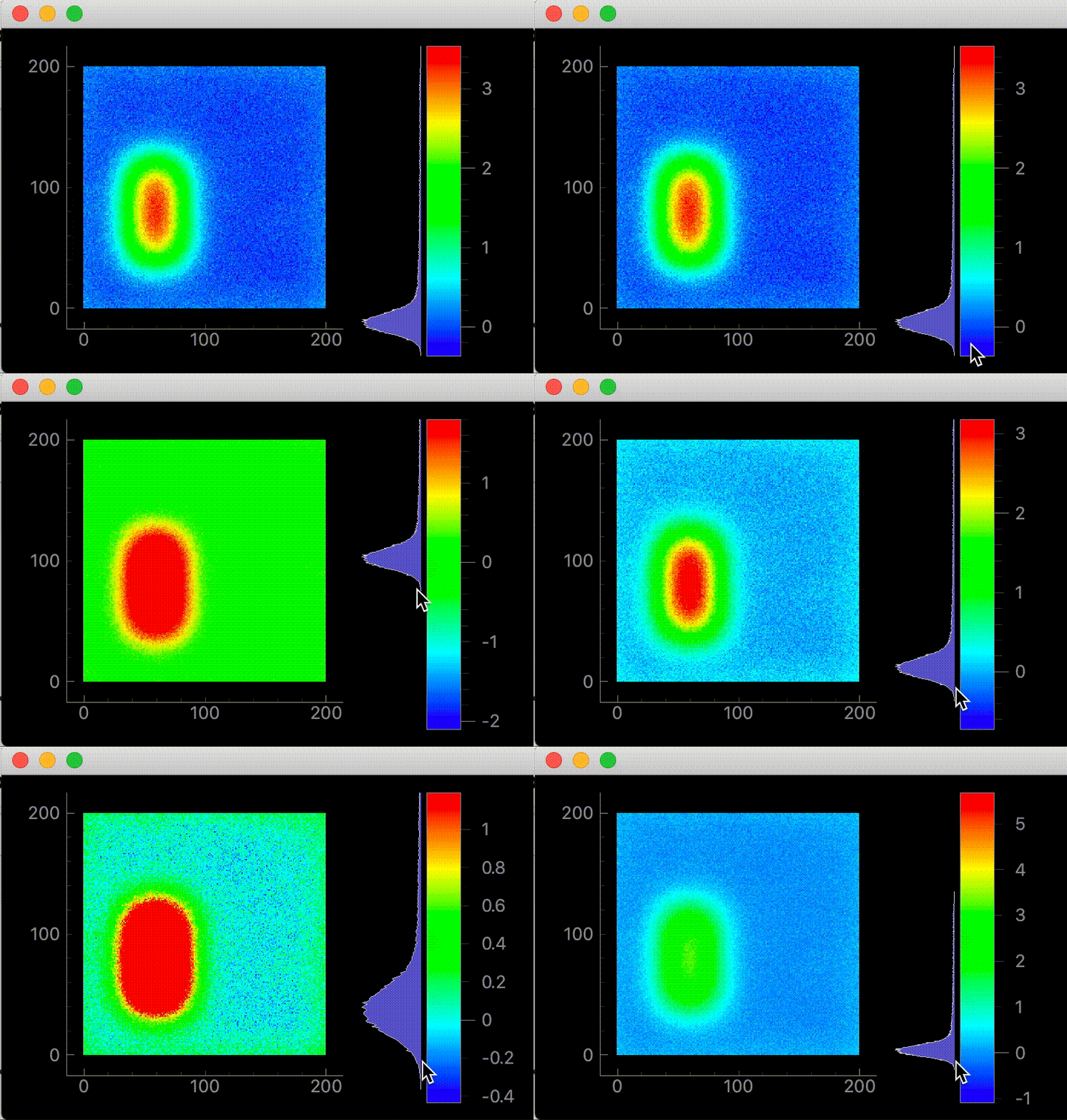
A heat map is a visual representation of data that shows how users interact with a website. It displays areas of user activity in the form of colors, with brighter colors indicating higher user engagement and darker colors indicating lower user engagement. Heat maps are commonly used to track website visitors’ clicks, scrolls, and hovers.
Heat maps are beneficial to Shopify store owners because they provide valuable insight into how users are interacting with their stores. Heat maps show where visitors are getting stuck, what pages need to be improved, and what elements on the page should be moved or removed. Heat maps can even show where visitors are clicking on specific elements, such as buttons or images. With this insight, Shopify store owners can optimize their stores for conversions.
Execution
How to Install Hotjar in Shopify
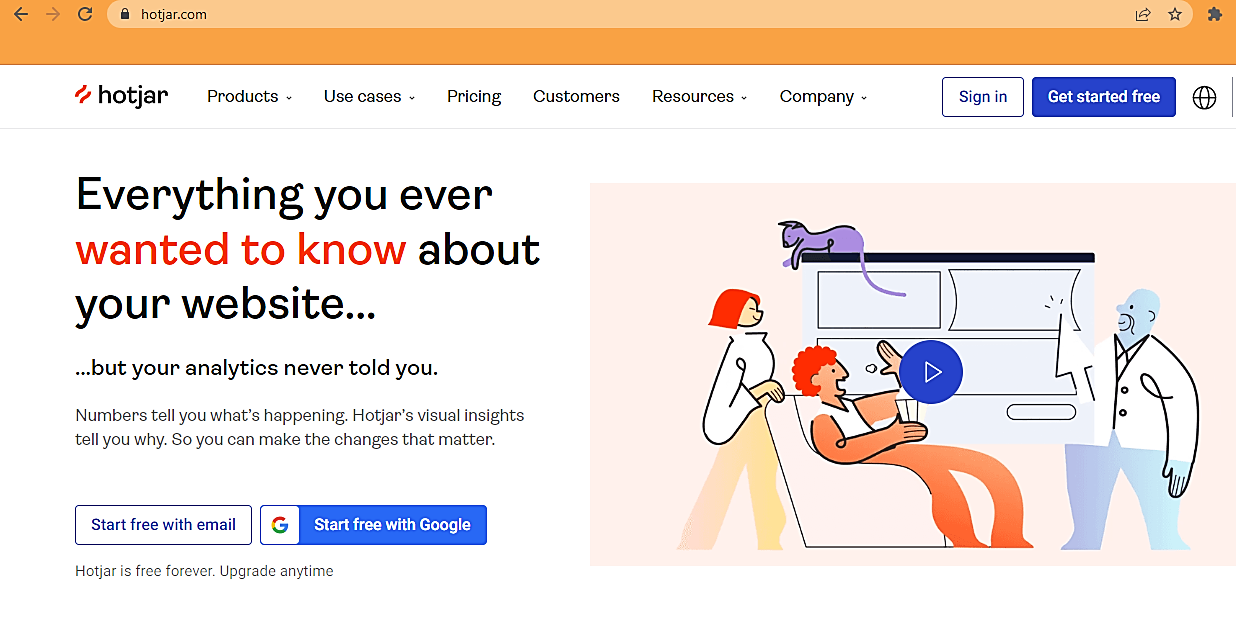
- Visit hotjar.com. If you have an existing Hotjar account, click Sign in; if you want to establish a new one, click Start free with Google.
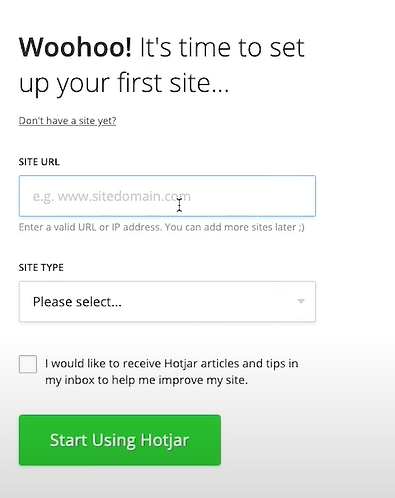
- Fill out the Site URL, select its appropriate Site Type, then click on Start using Hotjar button.
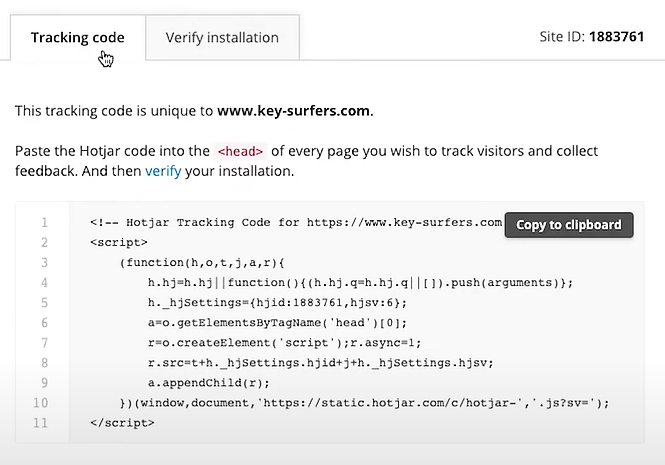
- You will be redirected to the Hotjar dashboard. Click the Tracking Code to get the link.
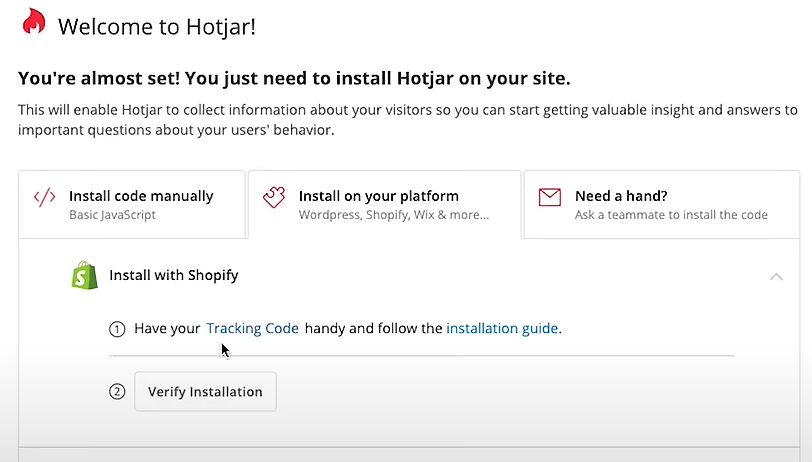
- Click the Copy to clipboard button to copy the Tracking Code HTML.
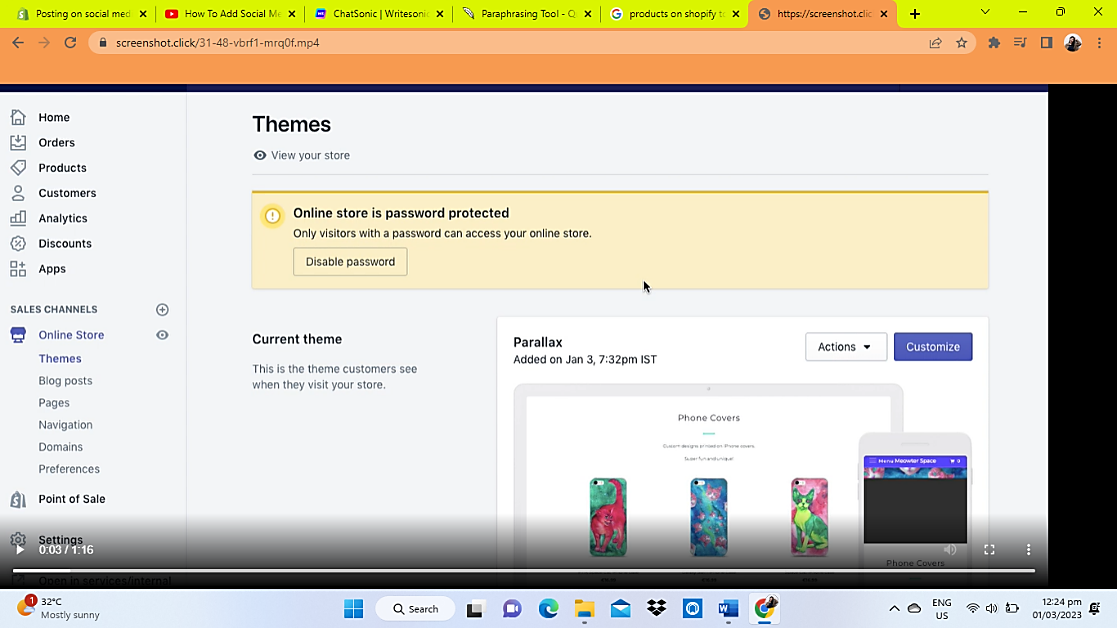
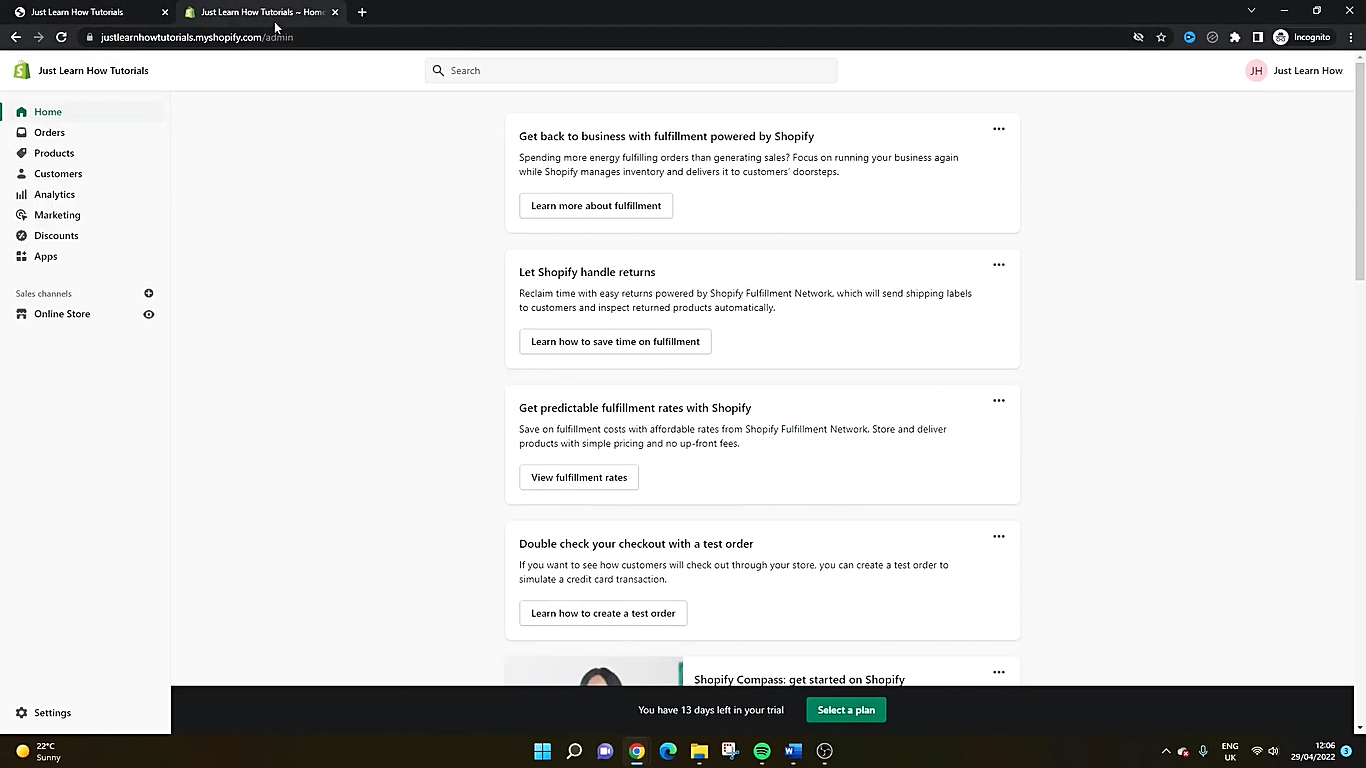
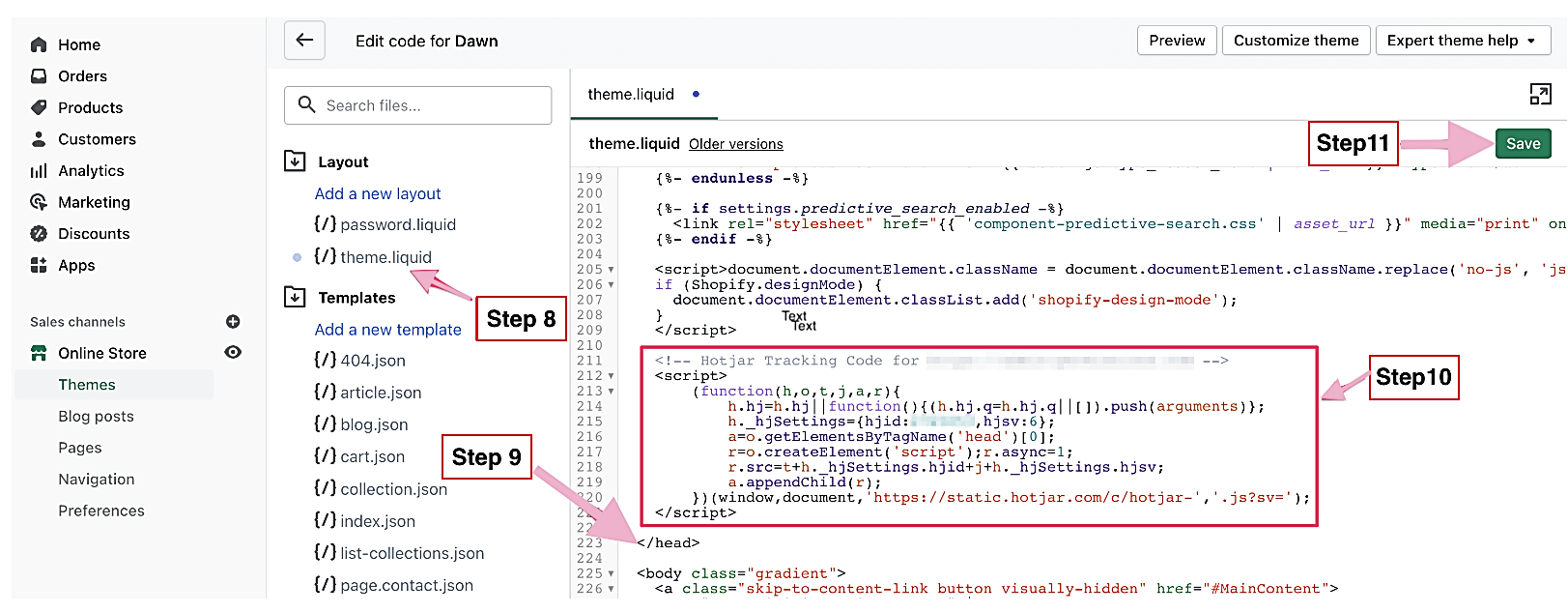
- Log in to your Shopify Account. Click Online Store, then Themes.
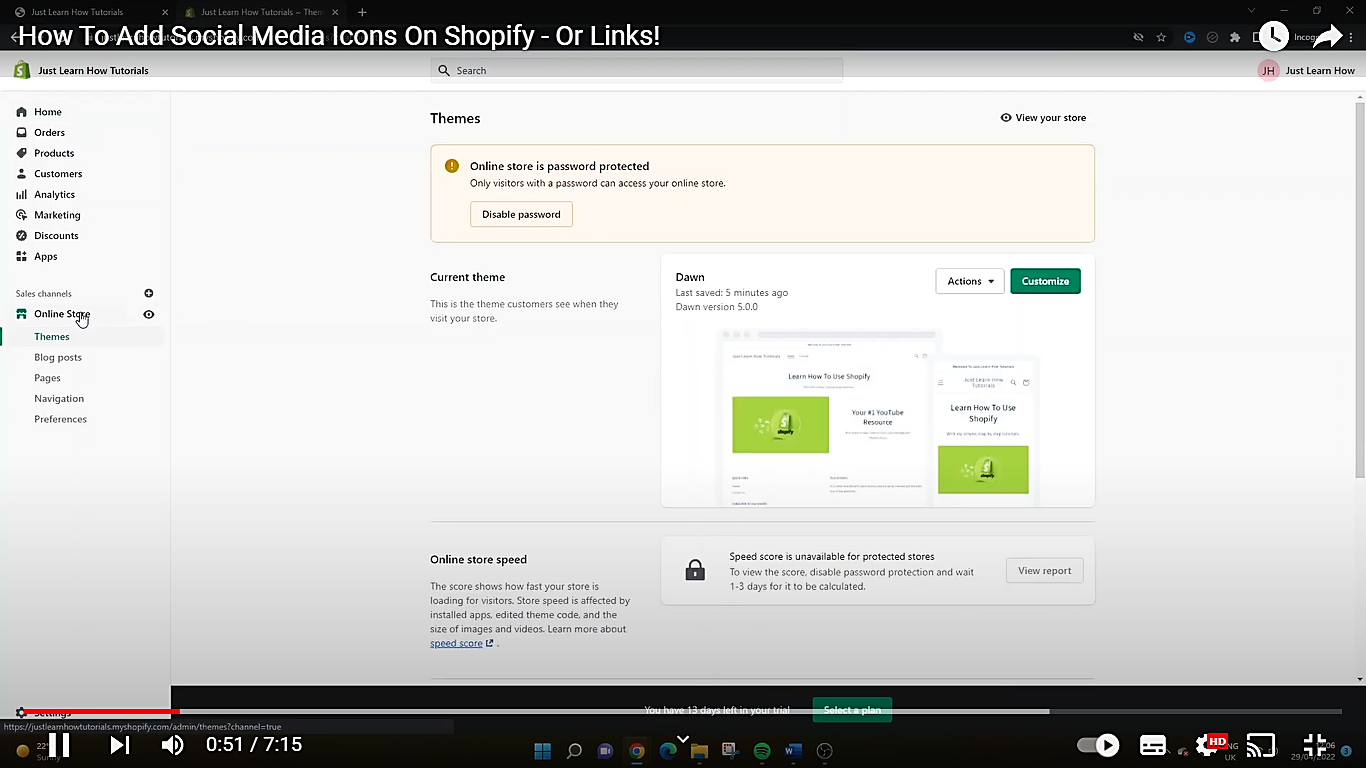
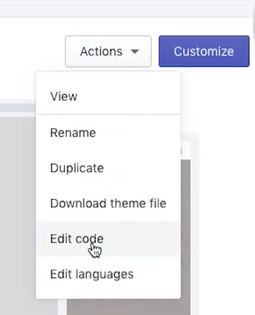
- Using your current theme, click on Actions and choose Edit Code.
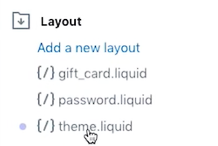
- Select theme.liquid.
- Scroll to the bottom until you find </head> closing tag.
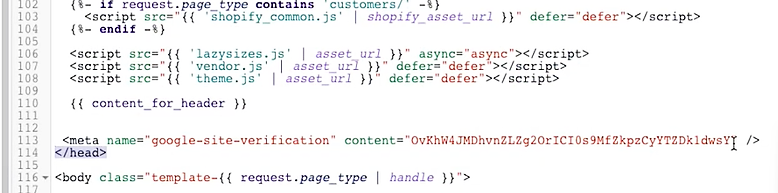
- Make some space for the Hotjar tracking code before the </head> closing tag.

- Paste the Hotjar Tracking Code in the space provided, right before you close the </head> tag.
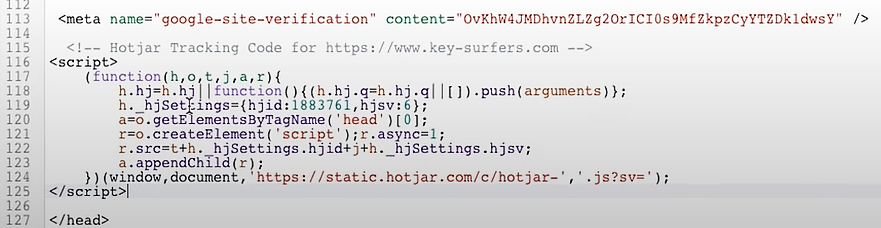
- Click the save button.
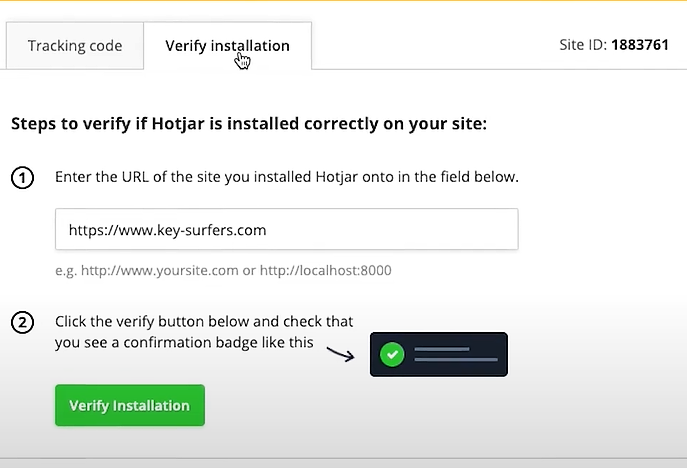
- Navigate back to Hotjar Verify Installation and click the “Verify Installation” button.
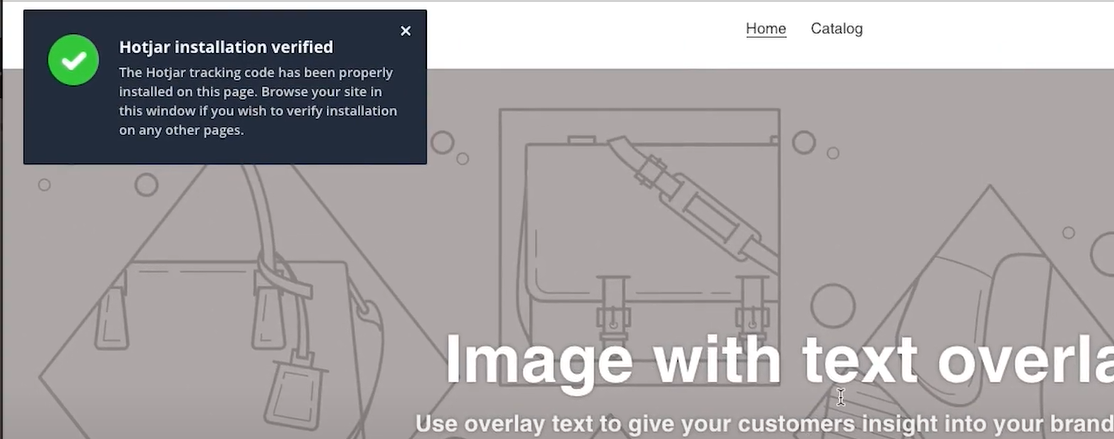
- A pop-up page with a Hotjar installation verification message will appear.
- A verification message will also be received on your Hotjar Dashboard.

Checking on your Heat map
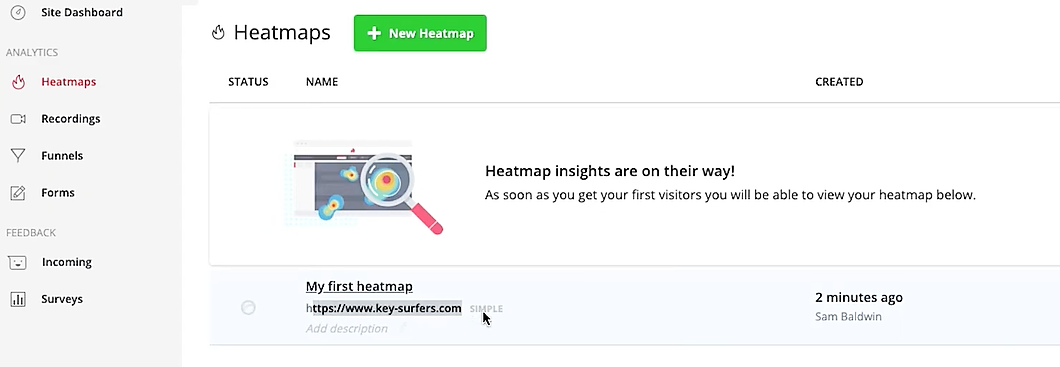
- You will see your created heat maps in your dashboard.
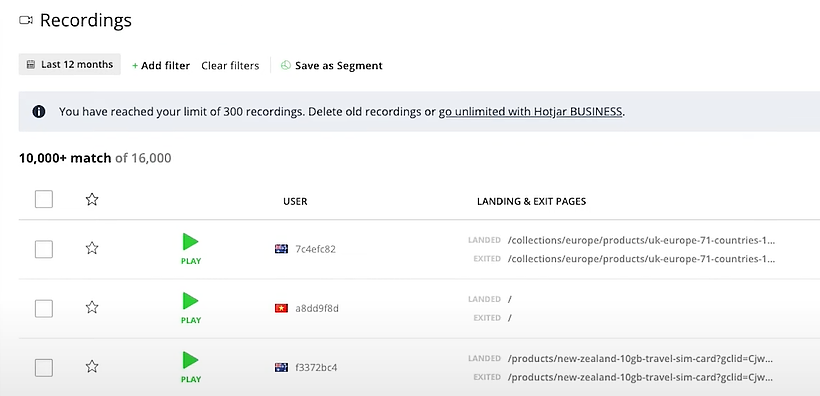
- To see the recordings of your verified site, click on recordings.
- Click on the recording site that you want to view.
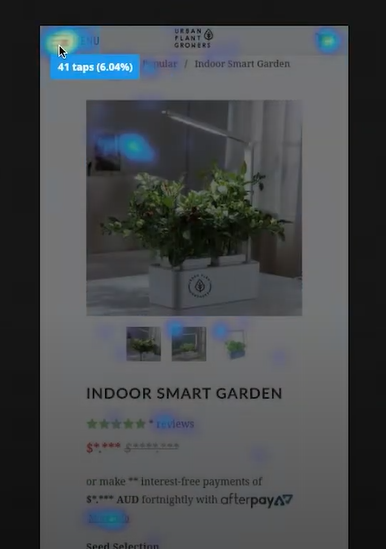
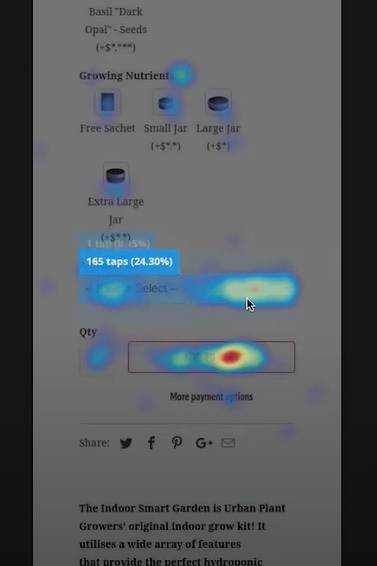
- The created heat maps will be visible in the recording area through the highlighted hues, which are usually blue, green, yellow, and red. The example below is a mobile version that indicates what areas/details of your product are most frequently tapped by visitors to your website.
Creating Heat maps
- In your Hotjar dashboard, click the New Heatmap button, and make sure to fill out your correct URL site as seen in Step 2.
- Congratulations. You have now successfully linked a Hotjar heat map to your Shopify account. You also learned how to check your heat map recordings and how to create heat maps.
Conclusion
You’re done! Keep in mind that heat maps are a great way to gain insights into user behavior on your Shopify store. Heat maps provide a visual representation of how users interact with your store, showing you where they click, scroll, and hover.
Execution Checklist:
Creating a heat map on Shopify is relatively easy. All you need to do is install an Hotjar onto your store. Once the tool is installed, it will start tracking user behavior and create a heat map of your store's pages.