Setting up the BOGO (Buy One Get One) Feature on Shopify
To walk you through setting up a promo feature in Shopify called as BOGO (Buy One Get One).
Prefer a shortcut? 16 free tools do parts of this for you.
Aim: To walk you through setting up a promo feature in Shopify called as BOGO (Buy One Get One).
Optimal Outcome: To attract new and existing customers in purchasing your products and modify your settings on Shopify regarding the discounts.
What do you need to start: To follow this SOP, you need to have a Shopify seller account.
Why is this SOP Important: Shopify Buy One Get One (BOGO) feature allows your customers to check out specific products in your store and get another one product for free. This is advisable for businesses who are wanting to empty out their product inventory to give way to new or existing products.
When and Where to execute: To execute this SOP, you must first set up your Shopify store and stock up on products that you will put up on the BOGO feature.
Who Should Be Doing This: This task should be done by the person in charge of marketing.
Buy One Get One (BOGO) Feature
Buy One Get One (BOGO) is a Shopify feature that can be applied by sellers to promote brand recognition of their business among their customers. Basically, BOGO is a bundle promo for customers to encourage them to buy a product from your store or when they spend a certain amount that you have indicated in your BOGO feature at Shopify. This type of promotion can also benefit your business by improving your business’ cash flow, which makes your company more profitable.
Execution
Resources/Tools & Set up
- Shopify Account
Setting Up BOGO Feature
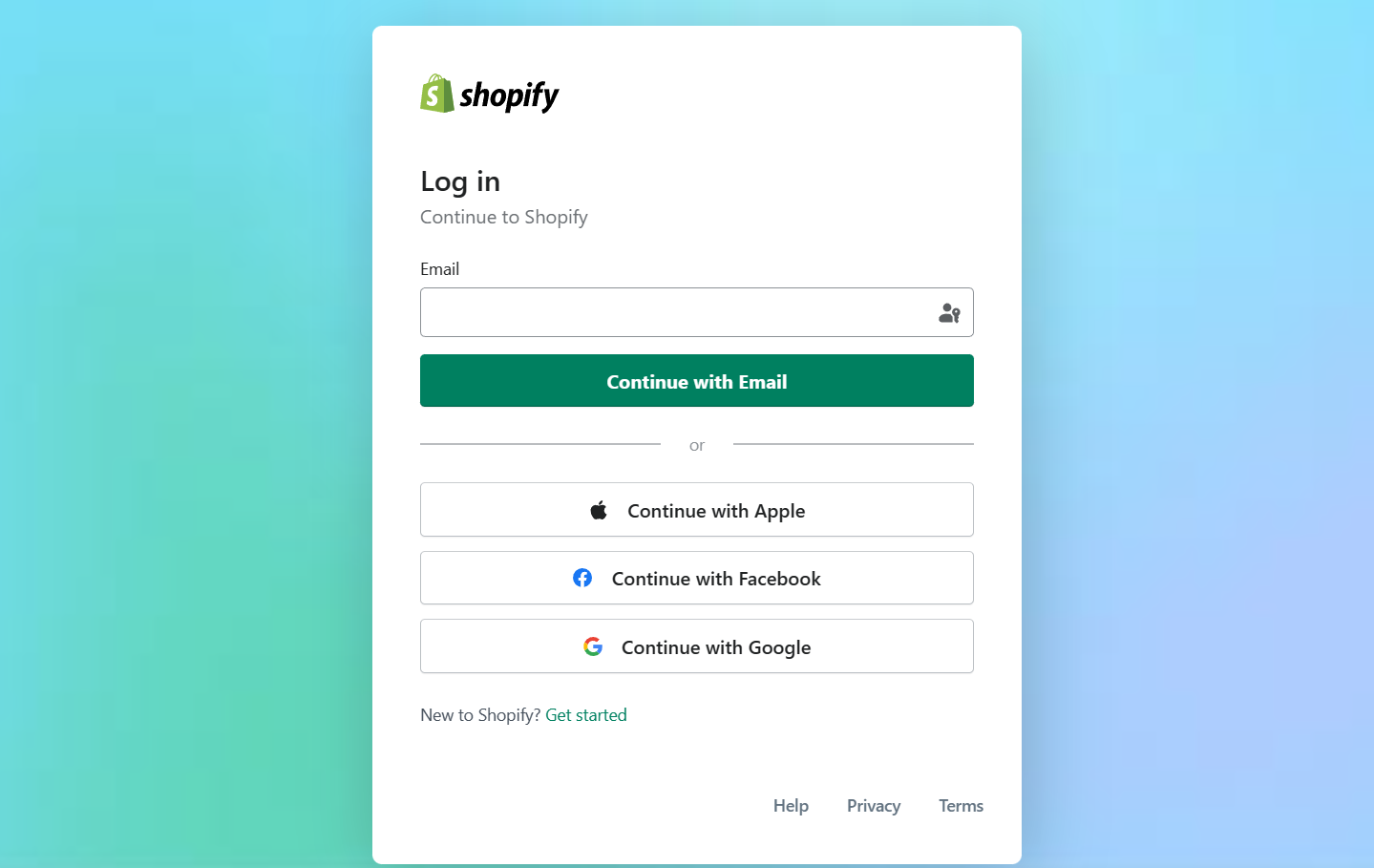
- Log in to your business Shopify account using either your email, Apple, Facebook, or Google account.
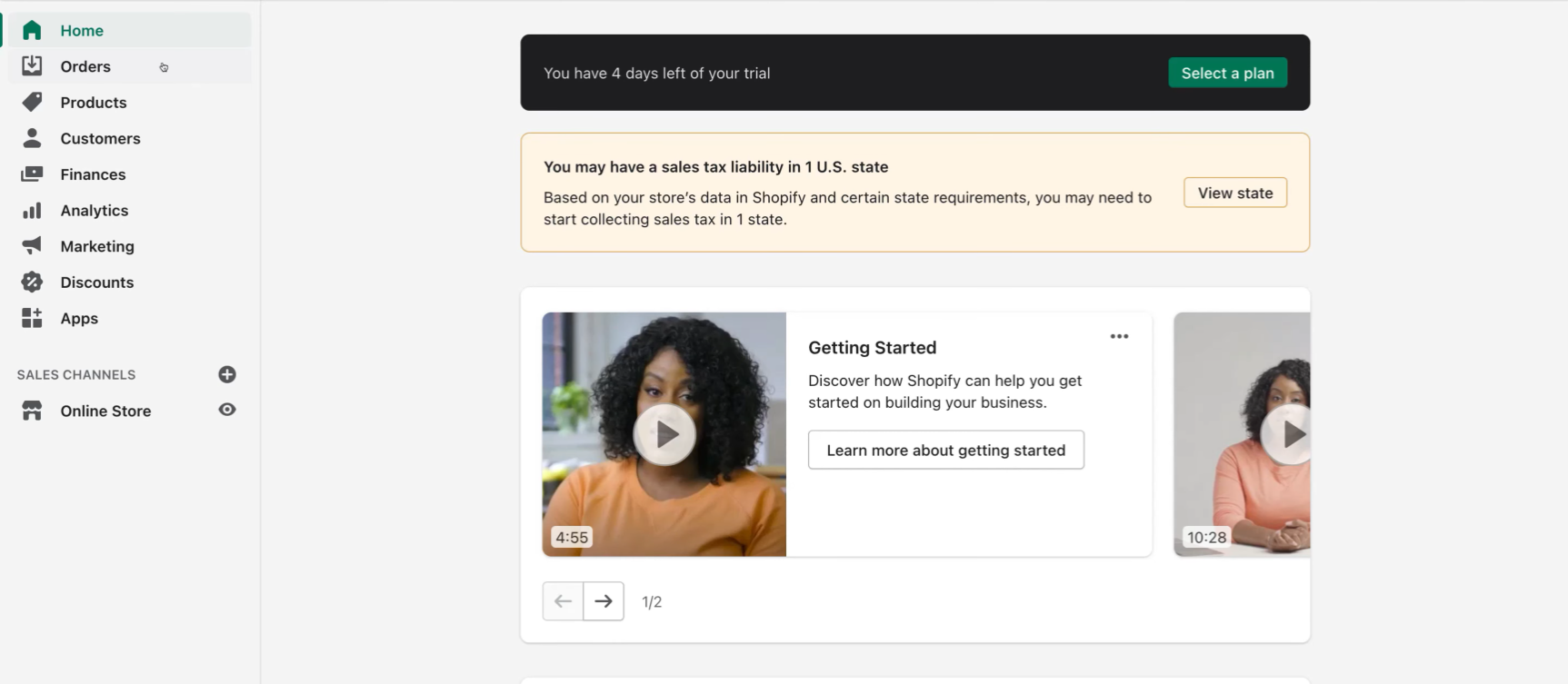
- In the Dashboard located on the left side, click on “Discounts”.
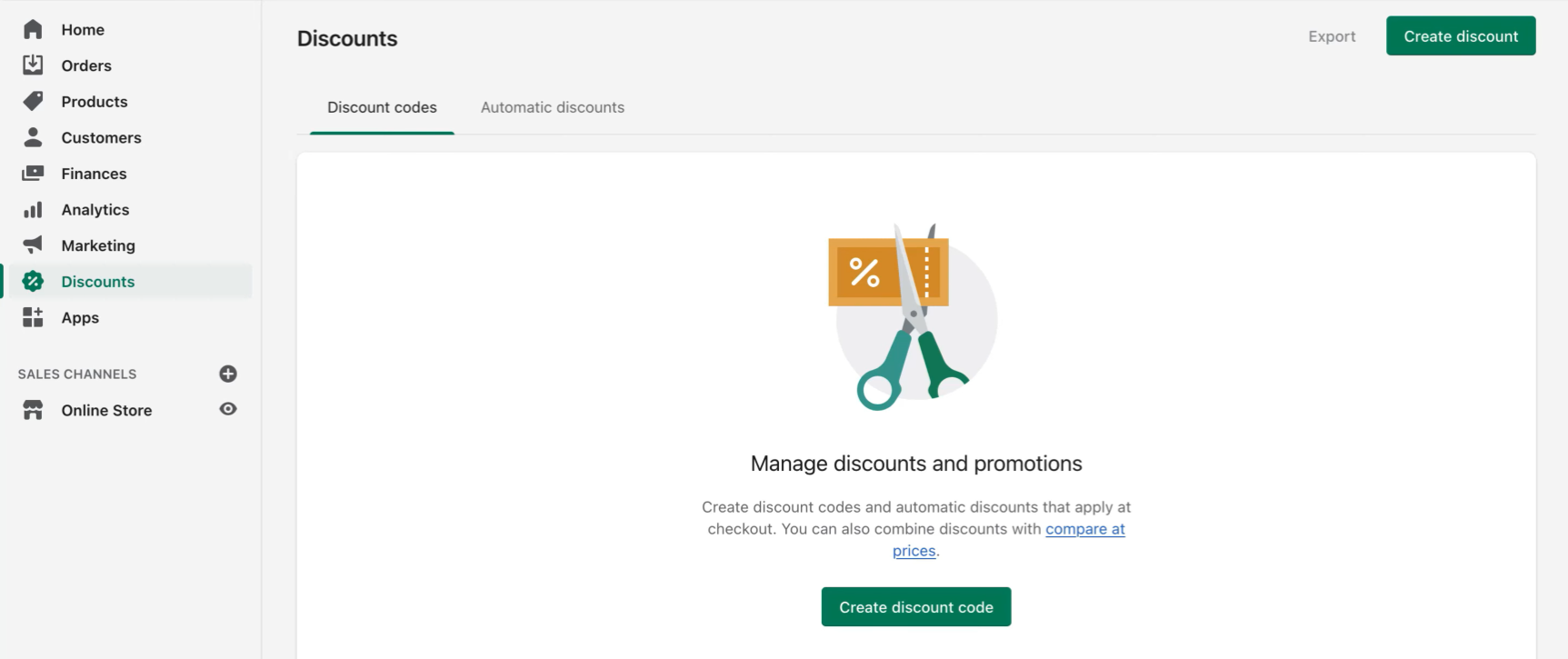
- To set up the BOGO feature, navigate to the discount code window by clicking “Create discount code”.
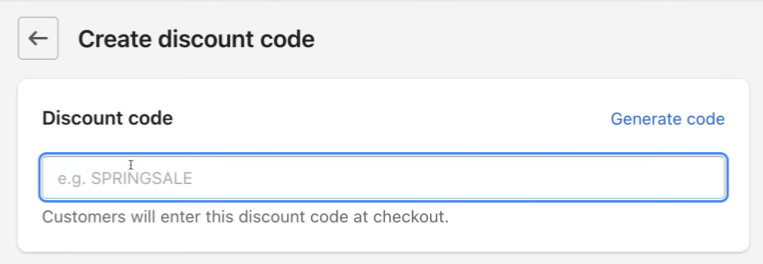
- In the discount code window, you will first input your preferred name of the discount code. For example, you can input “BUYONEGETONESALE” to allow the customers to avail the BOGO feature on your products.
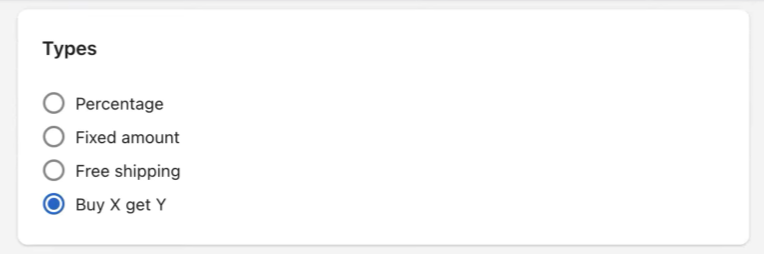
- Next, you can also see the types of promos available in Shopify. To activate BOGO, choose the “Buy X get Y”.
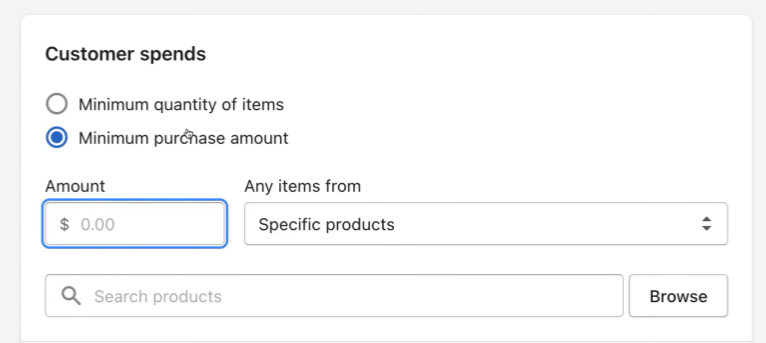
- To set up the BOGO feature, you will be asked on what condition you will put to allow the customers to get an item for free. For example, if you choose the “Minimum quantity of items”, you will be asked about the minimum quantity that a person must buy first to have another item for free. On the other hand, if you choose “Minimum purchase amount”, you will be asked to input a minimum amount that an order must have to get another item. You can indicate a specific item only that a customer can buy or from an item collection on their Shopify store.
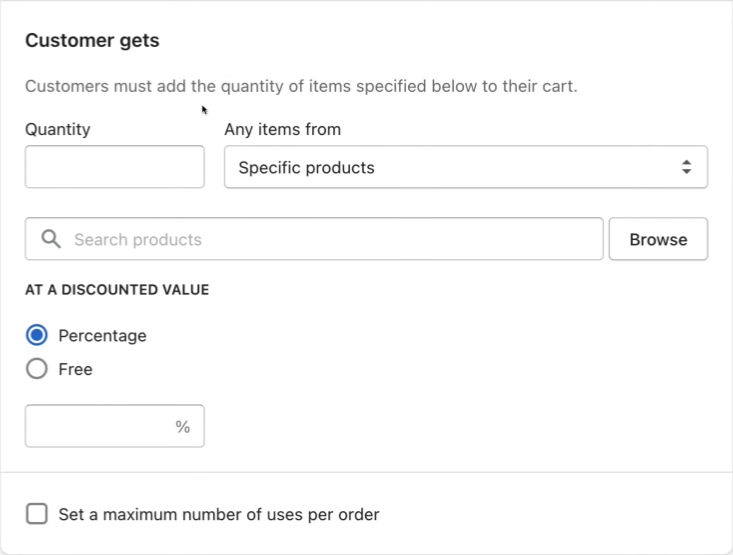
- After that, you can modify the quantity and the items that the customer can get, and you must click “Free” as the discounted value. You can also check or uncheck the maximum number of uses per order.
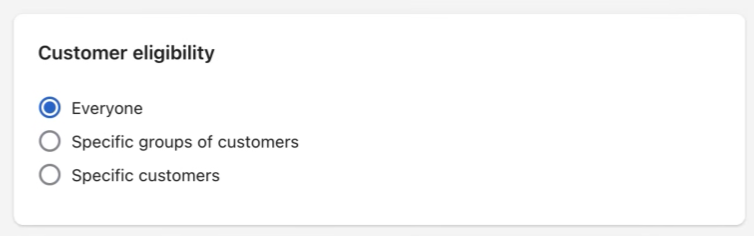
- Next is the Customer eligibility. This is the settings concerning the customers who will be able to place an order using BOGO sale. When you click:
- “Everyone”: Promo code will be available to everyone that would want to purchase your item on sale.
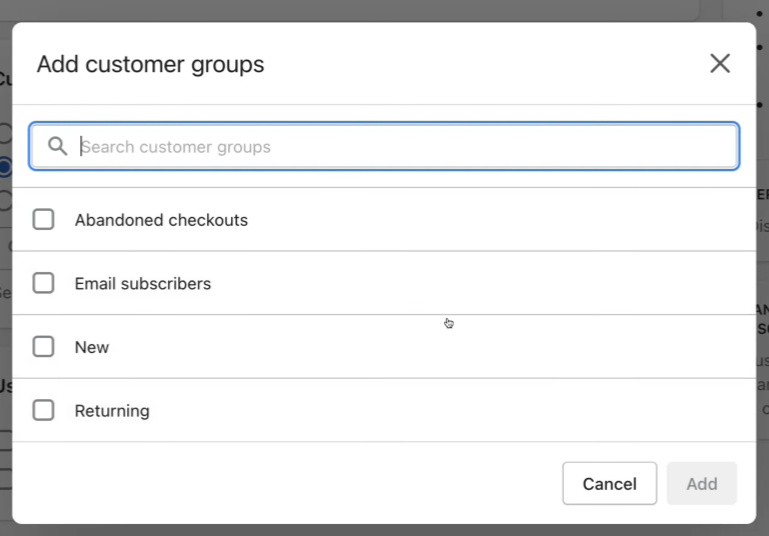
- “Specific groups of customers”: Promo code will be available to specific customer groups such as Abandoned checkouts, Email subscribers, New, and Returning customers that would want to purchase your item on sale. Click “Add” after checking the box of the specific groups.
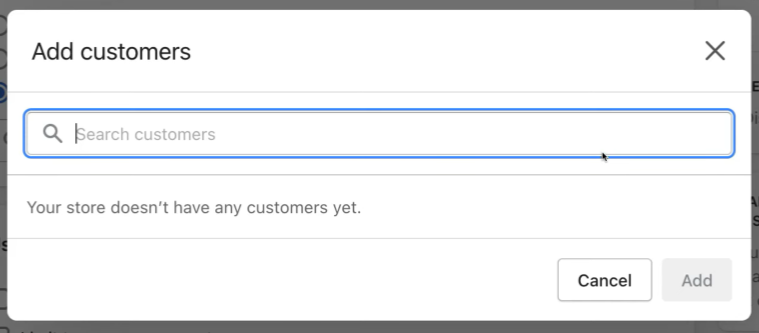
- “Specific customers”: Promo code will be available to specific customers that would want to purchase your item on sale. Click “Add” after checking the box of the specific customers.
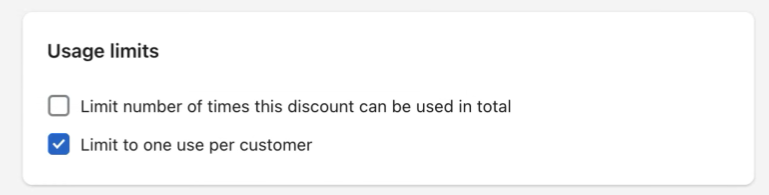
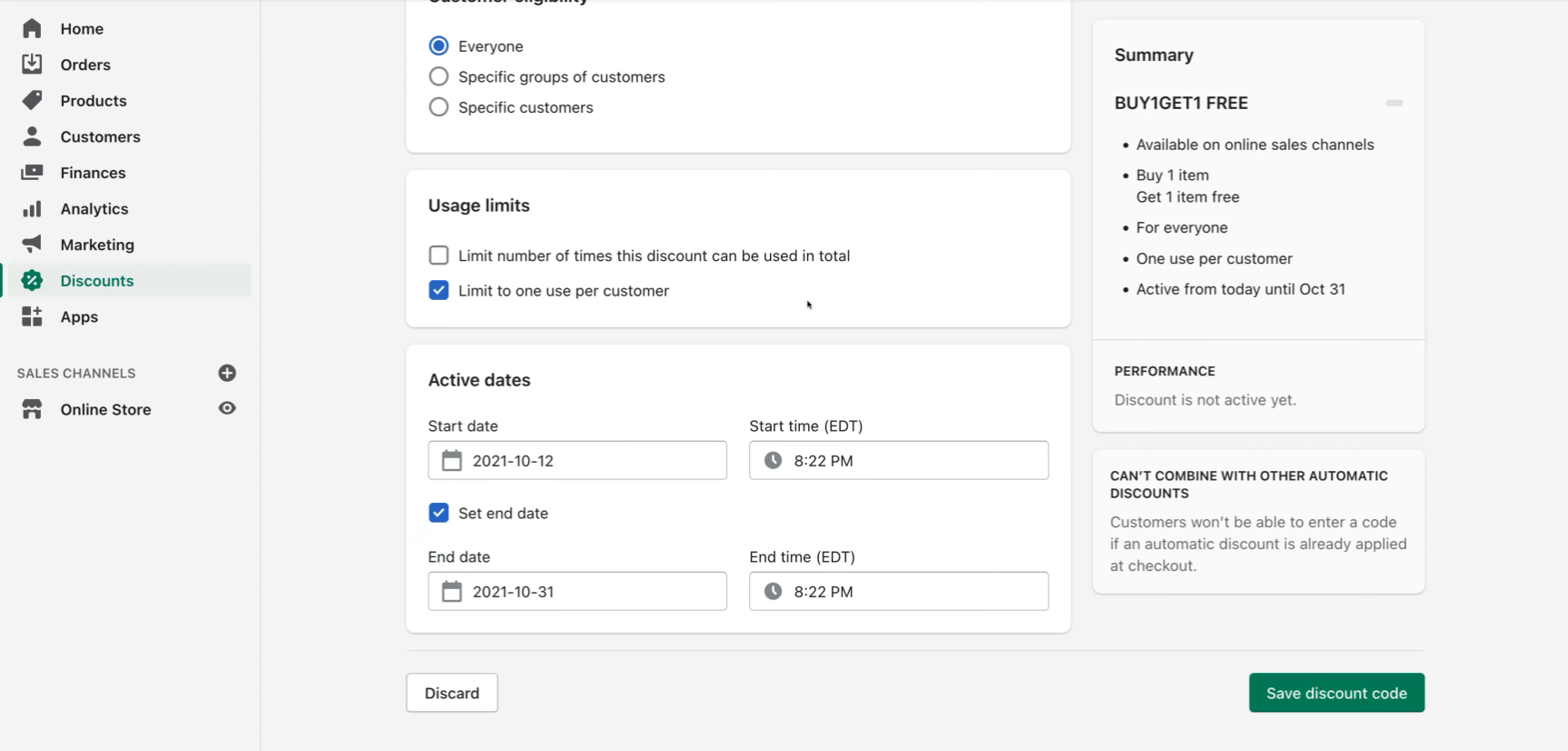
- Next is the Usage Limits. You can limit the number of times that the discount can be used in total and you can also limit the promo code to one use per customer only, by checking and unchecking the box beside the statements.
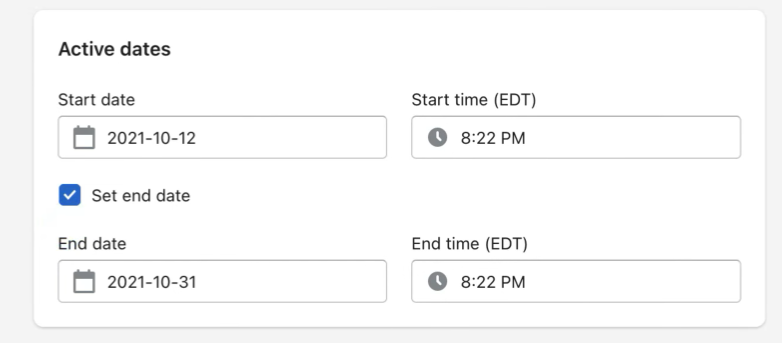
- Lastly, you can set Active dates when your promo codes will work for customers. After the active dates, the BOGO promo codes will no longer work for the customers. Click on the boxes indicated below to input the preferred date and time that the codes will start and end.
- After modifying the settings on the BOGO feature of Shopify, click “Save discount code” to save your progress.
Conclusion
You’re done! Remember that BOGO (Buy One Get One) feature on Shopify allows businesses to eliminate particular inventory and enhance your income stream.
-
Since consumers like getting items for free, you can use it to encourage them to buy products to have an additional product for free.
-
This feature from Shopify is only one among the four promotional discounts that they offer, some of which are free shipping and percent discounts on certain products.
-
Aside from clearing inventory, BOGO discounts can also help your business to establish its brand because a lot of people would want to purchase your items.
-
To set up the feature, you must have a Shopify account first, and the inventory for the products that you will put up for sale.
-
For additional tips, you can set your BOGO sales for shorter active dates to push consumers to buy it immediately. The ideal duration for this type of sale varies from hours to 1 day.