Setting Sale Prices for Products on Shopify
This SOP aims to outline the process of setting sale prices for products on Shopify.
Prefer a shortcut? 16 free tools do parts of this for you.

Aim: This SOP aims to outline the process of setting sale prices for products on Shopify.
Optimal Outcome: Successfully set sale prices for products on Shopify, which will result in increased sales and revenue for your business.
What do you need to start: To start this process, you need a Shopify account, access to your Shopify store and products that you want to put on sale.
Why is this SOP Important: This SOP is important because it allows you to put products on sale, which is a great way to attract customers and increase sales. By offering discounts on products, you can encourage customers to make a purchase they might not have made otherwise.
When and Where to execute: This SOP can be executed at any time, as long as you have products that you want to put on sale. You can execute this SOP from anywhere with an internet connection, as long as you have access to your Shopify account.
Who Should Be Doing This: This SOP should be executed by someone who has access to the Shopify account and has knowledge of the products that they want to put on sale. It could be a store owner, manager, or a team member who has been assigned this task.
Why do you need to set sale prices for your products?
Setting sale prices for your products can be beneficial in many ways. Firstly, it can help you increase sales by attracting more customers who are looking for discounts or deals. It can also help you clear out excess inventory or seasonal items that may not sell at their regular prices. Additionally, offering sale prices can help you stay competitive with other businesses in your industry who may also be running promotions. Overall, setting sale prices can be an effective marketing strategy to boost revenue and attract new customers.
Execution
Resources/Tools & Set up
-
Shopify account
-
List of products that you want to put on sale
Choose which products to put on sale
Here are some factors to consider when choosing which products to put on sale:
- Popularity: Choose products that are popular among customers or are seasonal.
Example: If you have a clothing store, consider putting popular items like t-shirts or sweatshirts on sale. For seasonal items, put summer clothes on sale during the fall, or winter clothes on sale during the spring.
- Inventory levels: Choose products that you have excess inventory of to clear space for new products.
Example: If you have an electronics store, consider putting last year's model of a phone or laptop on sale to make room for the new model.
- Profit margin: Choose products with a higher profit margin to ensure profitability during the sale.
Example: If you have a bookstore, put books that have a higher markup or that you purchased at a lower cost on sale.
- Customer retention: Choose products that are likely to attract new customers or retain existing ones.
Example: If you have a beauty store, put popular brands or products that have a cult following on sale to attract new customers, or put products that your regular customers often purchase on sale to retain them.
- Upcoming events: Choose products that are related to upcoming events or holidays.
Example: If Valentine's Day is coming up, put products that are popular as gifts on sale, such as chocolates, flowers, or jewelry..
Set up sale prices for a single product
Setting sale prices for a single product involves adjusting the original price of the product to a discounted price.By doing this, customers can see the amount they are saving and the original price of the product.
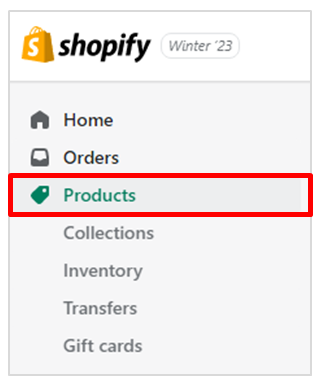
- Login to your Shopify account and go to the “Products” tab.
-
Click on the product you want to put on sale.
-
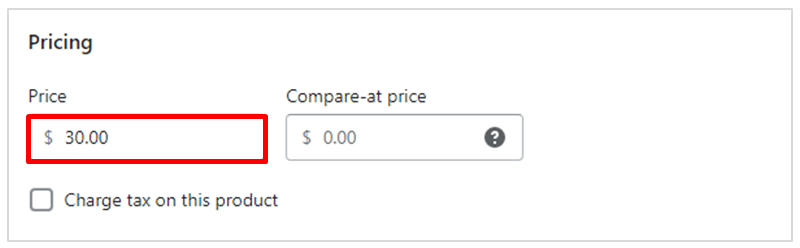
Scroll down to the "Pricing" section. Delete the value in the “Price” field.
- Enter the discounted price in the "Price" field and type in the original price in the “Compare-at Price” field.
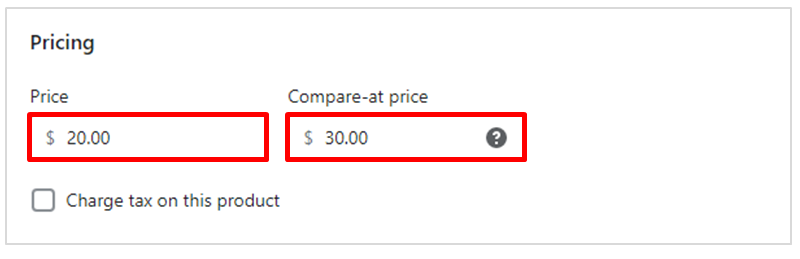
📝Note: To display a sale price, the amount entered in the “Compare-at price” field should be greater than the amount entered in the “Price” field.
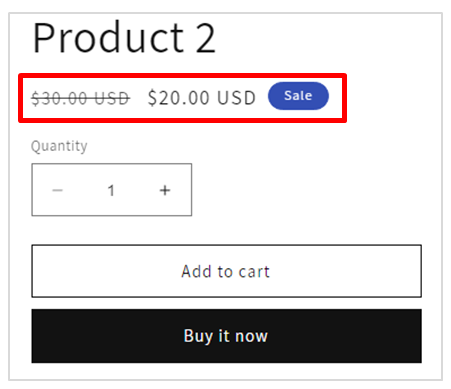
- Click "Save". Visit the product page to see the updated price.
Set up sale prices for a variant
Setting sale prices for a product variant in Shopify involves adjusting the price of a specific option for a product, such as a different size or color. By setting sale prices for product variants, customers have more options to choose from while also being able to take advantage of discounted prices. This can help increase sales and customer satisfaction.
-
Login to your Shopify account and go to the “Product” tab.
-
Click on a product with the variant that you want to put on sale.
-
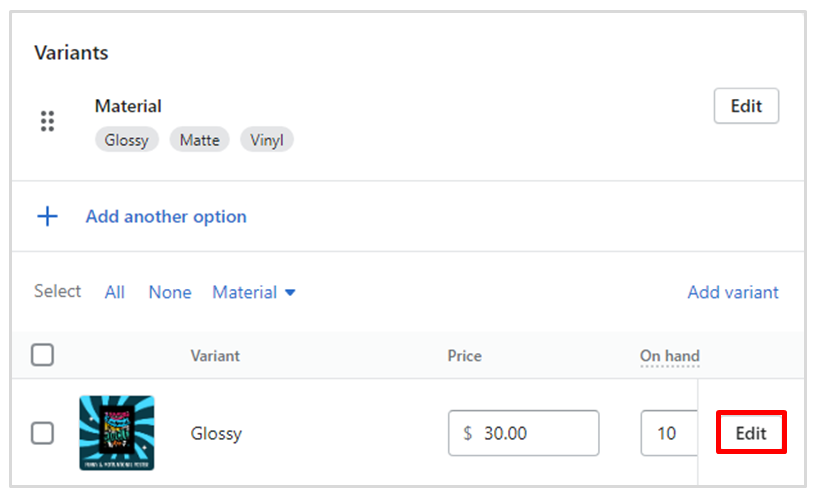
Scroll down to the "Variants" section. Choose the variant that you want to put on sale and click “Edit”.
- Go to the “Pricing” section. Enter the discounted price in the "Price" field and type in the original price in the “Compare-at Price” field.
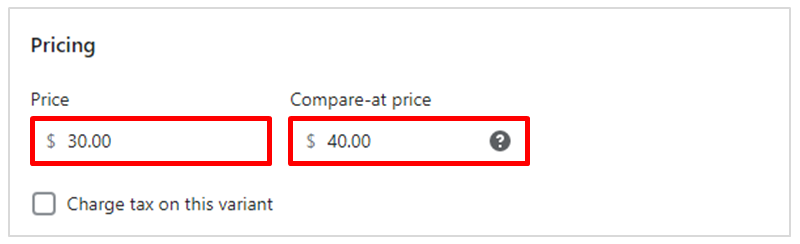
📝Note: To display a sale price, the amount entered in the “Compare-at price” field should be greater than the amount entered in the “Price” field.
- Click "Save" to update the variant's price.
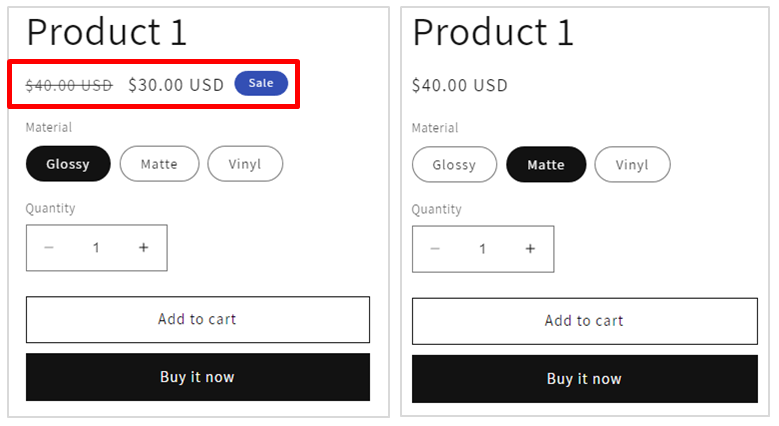
📝Note: The images above shows the difference between a variant on sale and a variant on it’s original price.
Set up sale prices through bulk edit
Setting sale prices through bulk edit in Shopify allows store owners to adjust prices for multiple products at once, rather than individually editing each product. This feature saves time and effort, especially for stores with a large inventory. This feature can be a powerful tool to drive sales, clear out inventory, and promote products in a timely manner.
-
Login to your Shopify account and go to the "Products" section.
-
Select the products you want to put on sale by checking the boxes before the product thumbnails.
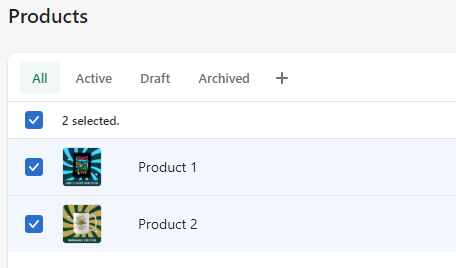
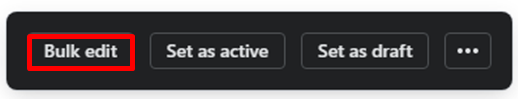
- Click on the "Bulk edit " to be able to edit all the selected products.
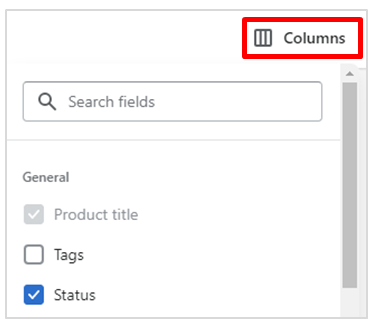
- Click on the “Column” button located on the upper right corner of the screen.
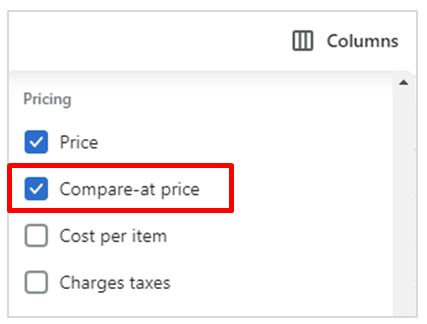
- Scroll down to the "Pricing" section. Check the “Compare-at price box. This will make this column visible and ready to be edited.
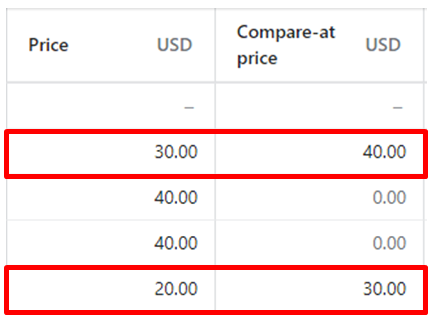
- Enter the discounted price in the "Price" column and type in the original price in the “Compare-at Price” column. This is applicable to a single product or variant.
- Click "Save" to update the prices of the selected products.
Conclusion
You’re done! Remember, setting sale prices for products on Shopify can be an effective strategy to drive sales, clear out inventory, and promote products. By following this SOP, you can successfully execute sales on Shopify, driving sales and promoting your products effectively.
Execution Checklist:
-
Determine which products to put on sale based on relevant factors
-
Adjust prices for a single product by setting a discounted price and adding the original price to the compare at price field
-
Adjust prices for a product variant by selecting the specific variant and setting a discounted price
-
Use bulk edit to adjust prices for multiple products at once