How to Use Shopify's Multi-language Feature
To help you in setting up your Shopify’s Multi-language feature and incorporating it on Shopify markets.
Prefer a shortcut? 16 free tools do parts of this for you.

Aim: To help you in setting up your Shopify’s Multi-language feature and incorporating it on Shopify markets.
Optimal Outcome: To publish and manage your preferred language and use it in your Shopify store and in the market as default.
What do you need to start: To follow this SOP, it is important that you have access to both your Shopify account and Shopify app store.
Why is this SOP Important: Shopify’ Multi-language feature allows sellers to utilize their preferred language in selling, whichever country they are located. In addition to this, languages can be added in Shopify to reach customers internationally and broaden the scope of your business.
When and Where to execute: To execute this SOP, you have to use a laptop or desktop that allows you to change languages in your Shopify admin or market.
Who Should Be Doing This: This should be done by the person assigned to the marketing department.
Shopify’s Multi-Language Feature
The multi-language feature on Shopify enables businesses to expand their marketing of products in other countries globally. Translated languages on the Shopify settings enable this by installment of a Shopify app that is verified enough to provide convenience to both your business and your existing and prospective customers. You can export your translations, but the installment option is an easy way which will be shown in this SOP and it only takes a short period of time despite the numerous benefits it contains.
Execution
Resources/Tools & Set up
-
Shopify business account
-
Shopify App Store
Adding New Markets in Shopify
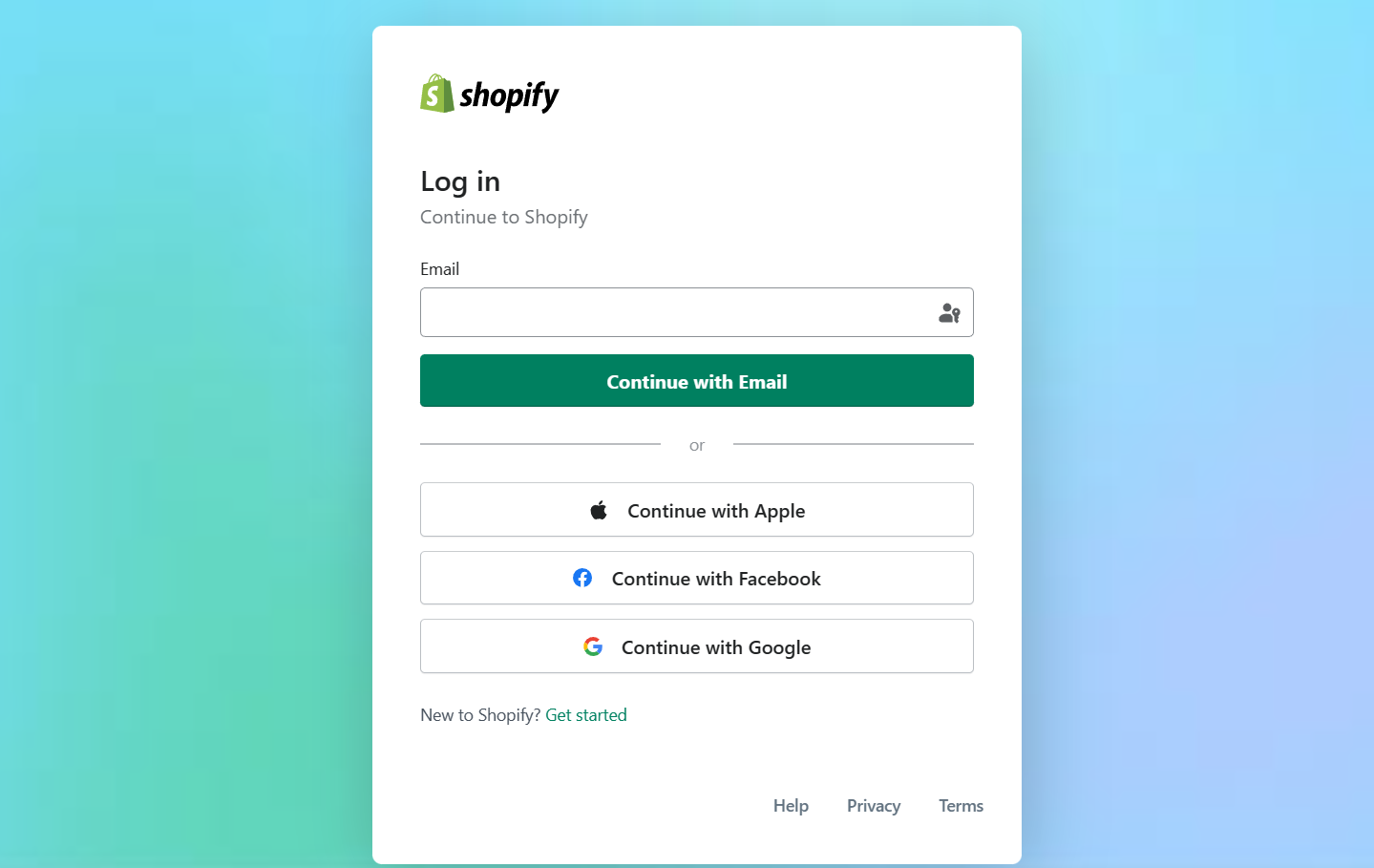
- Log in to your business Shopify account using either your email, Apple, Facebook, or Google account.
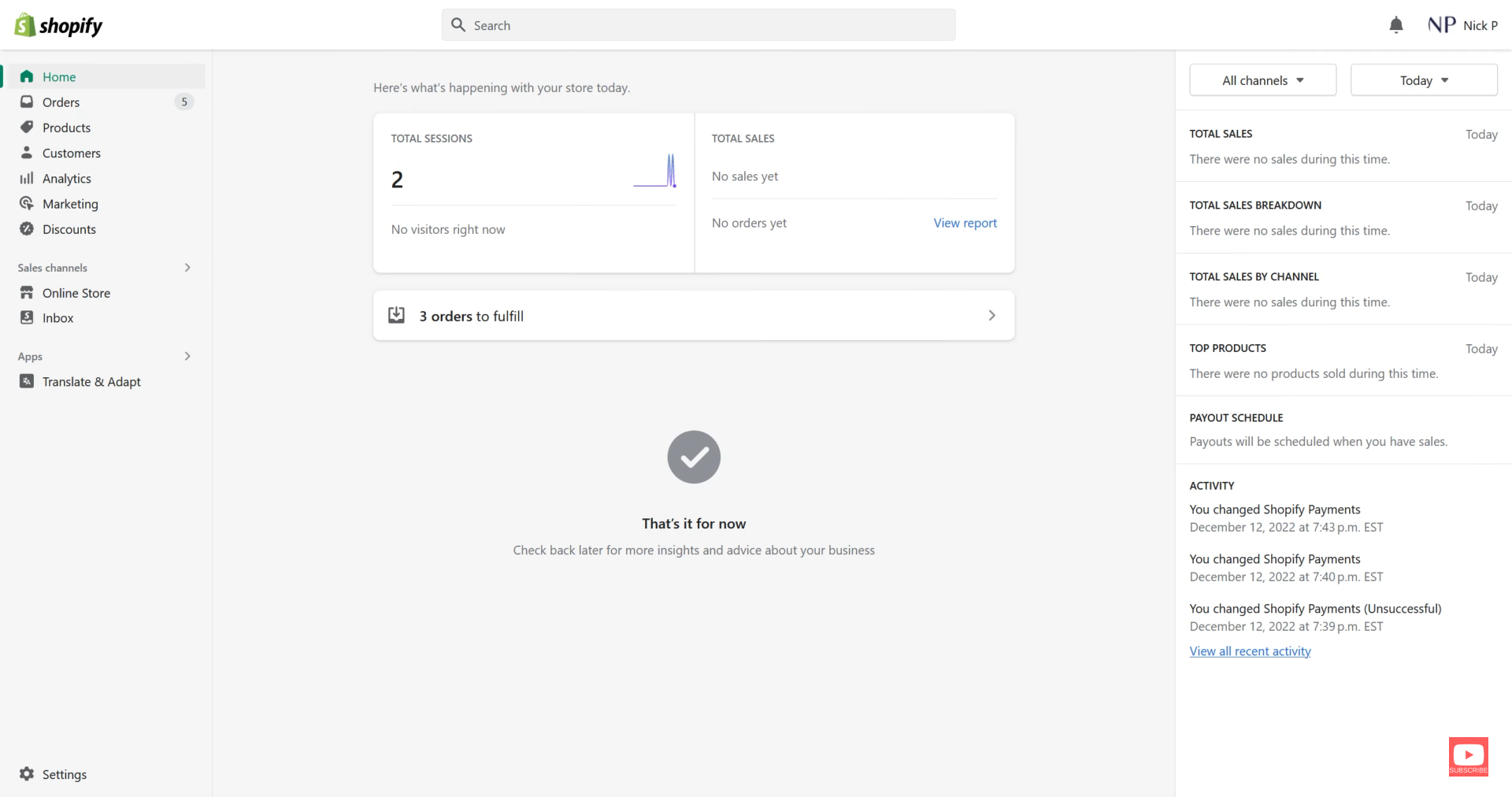
- In the Dashboard located on the left side, click on “Settings” that is located on the lower left corner of the site.
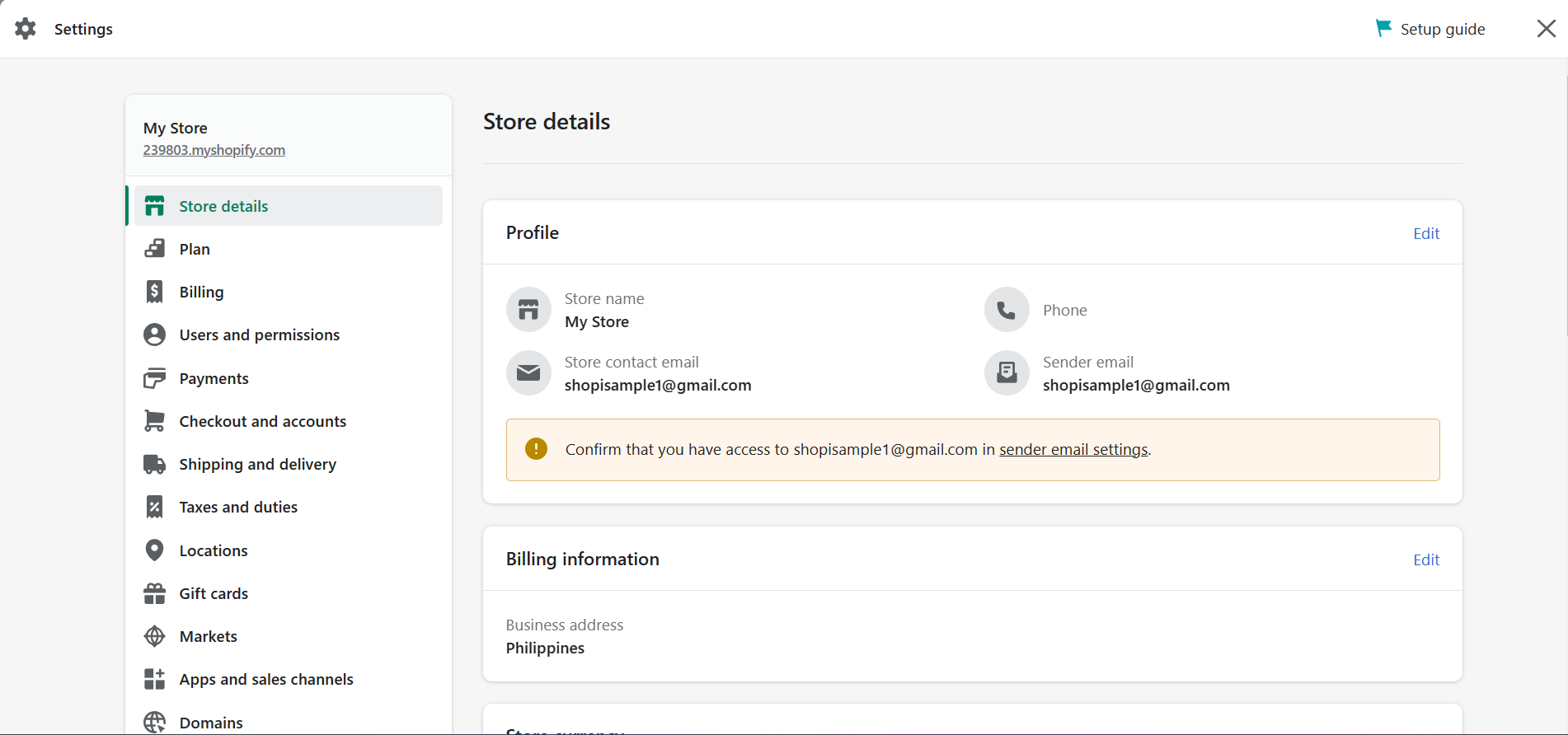
- When you scroll down the Settings tab, you will see and should click “Markets”.
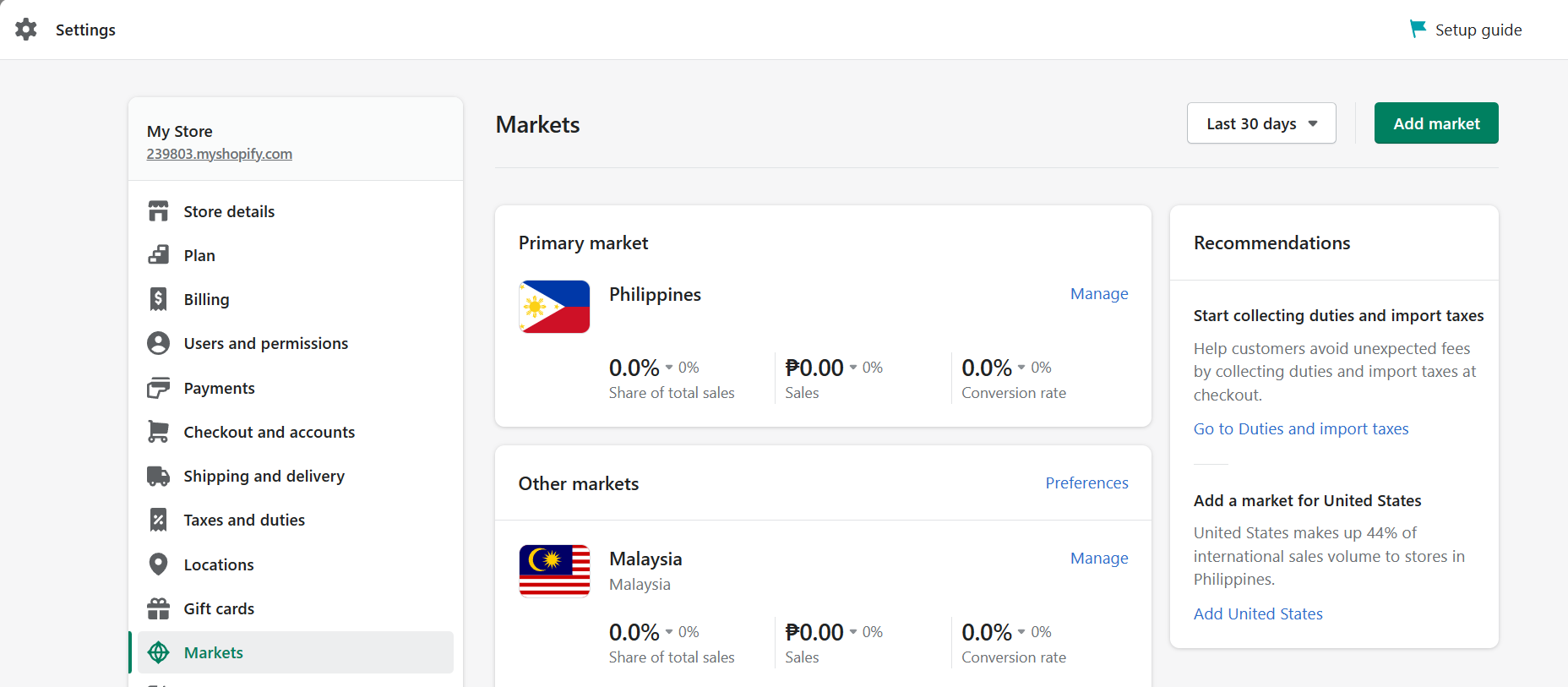
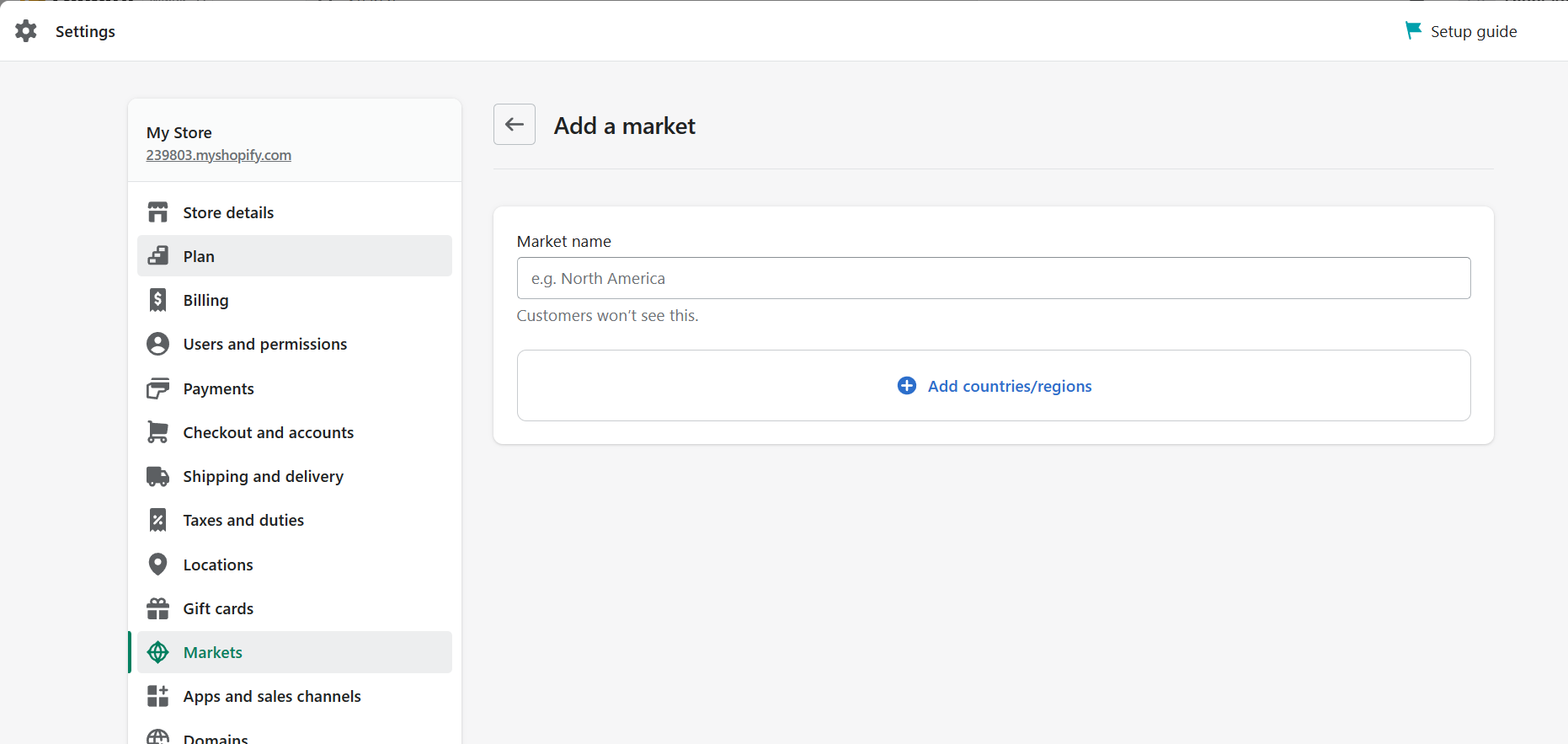
- After clicking Markets, you will be redirected to the Markets tab. Click “Add market”.
- To add a market, you need to do two things. Edit the Market name based on your products or the continent of the countries/regions that you will add. After editing the Market name, click the “Add countries/regions” to add countries.
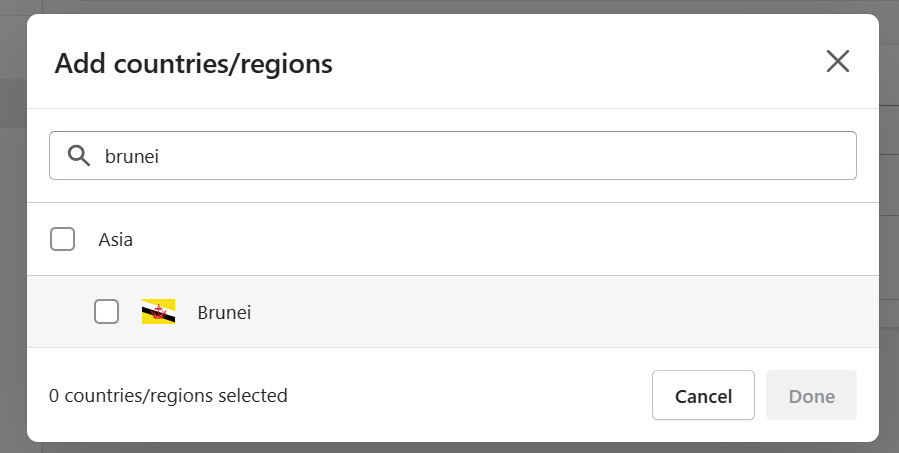
- After clicking “Add countries/regions”, a tab will be opened for you to select the countries that you want to include by checking the box. You can select multiple countries in each market.
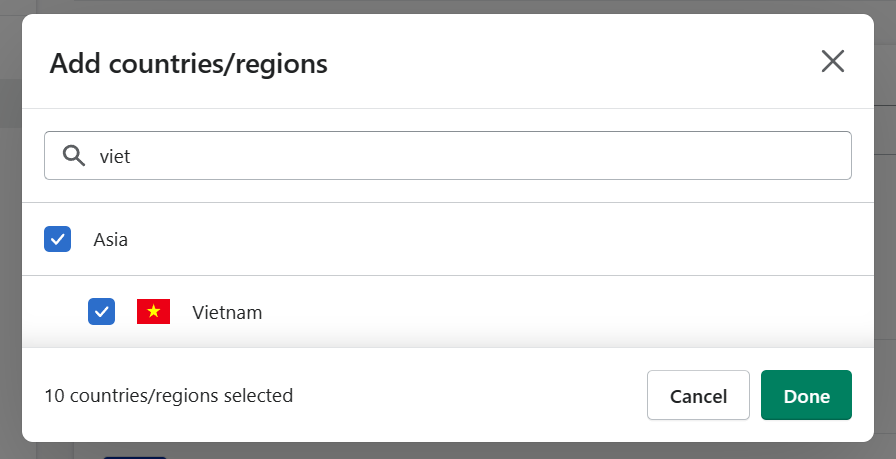
- Click the “Done” button after selecting the countries that you want to include in the market.
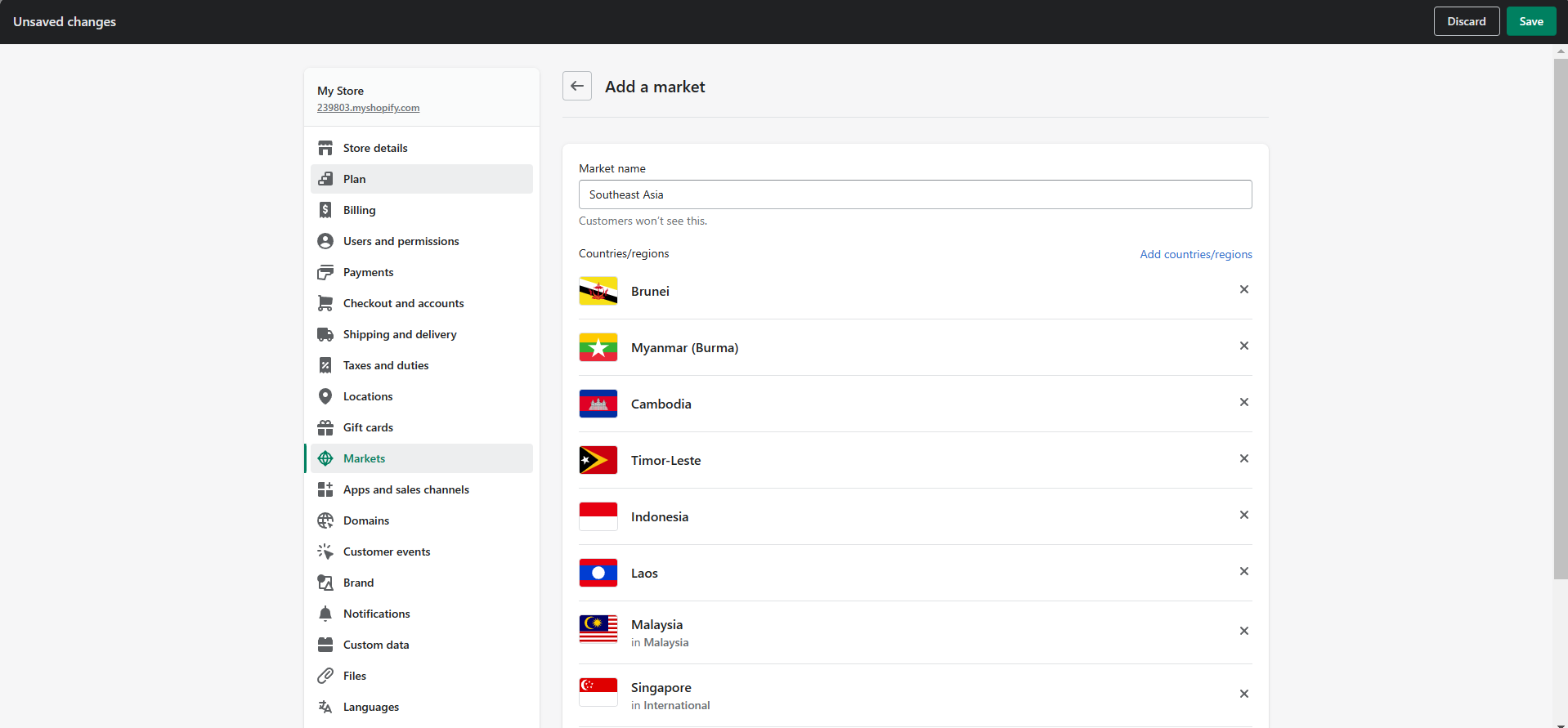
- To save the market, click the “Save” button to finalize the process.
Adding New Languages in Shopify
- Log in to your business Shopify account using either your email, Apple, Facebook, or Google account.
- In the Dashboard located on the left side, click on “Settings” that is located on the lower left corner of the site.
- When you scroll down the Settings tab, you will see “Languages”.
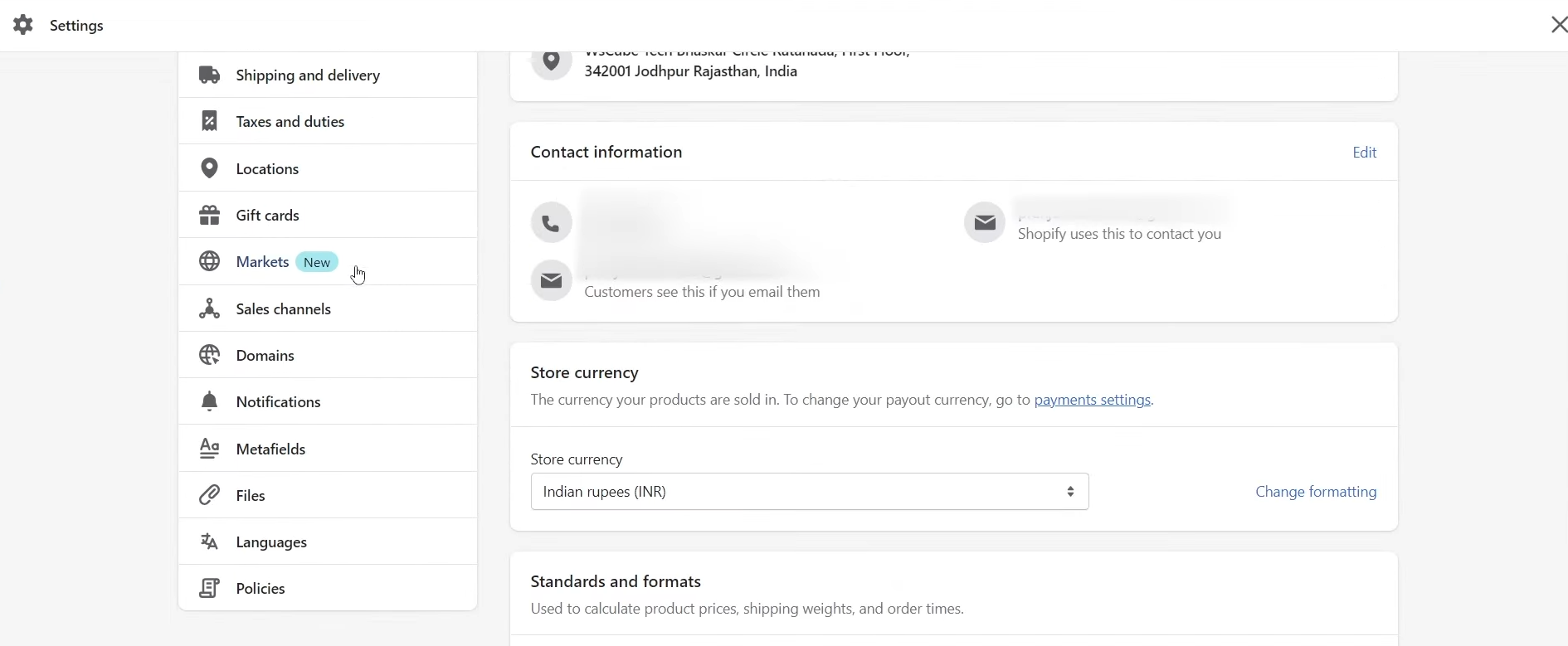
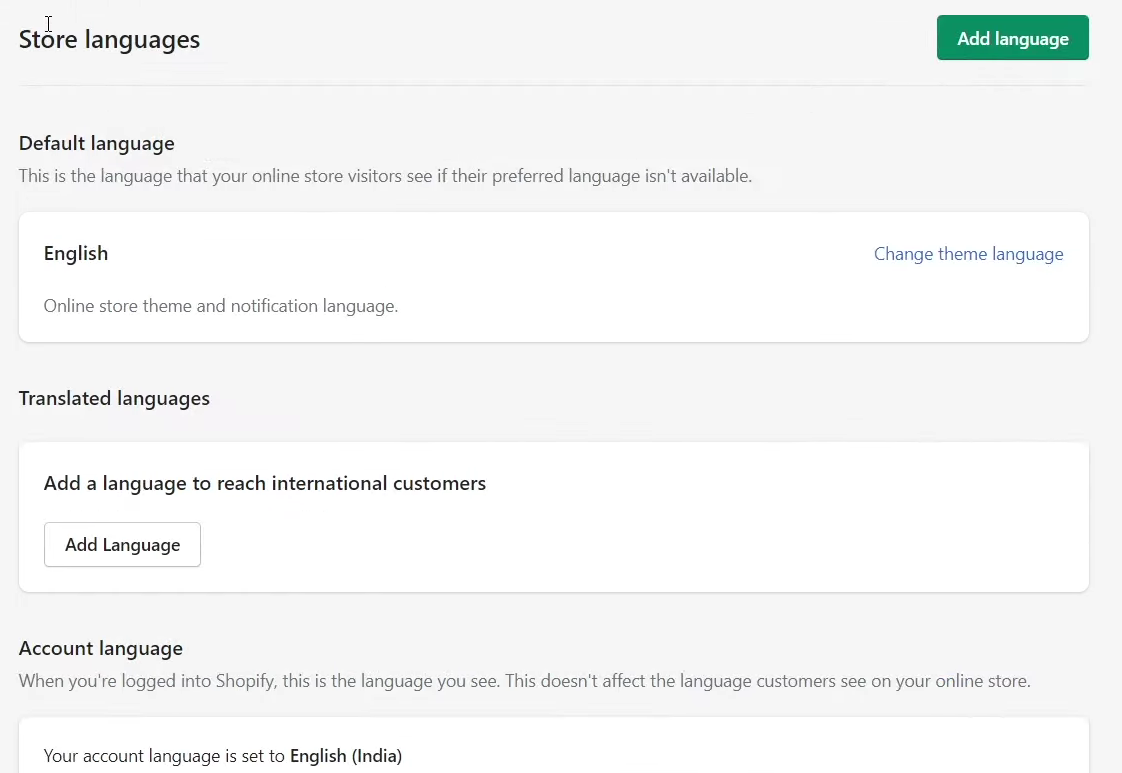
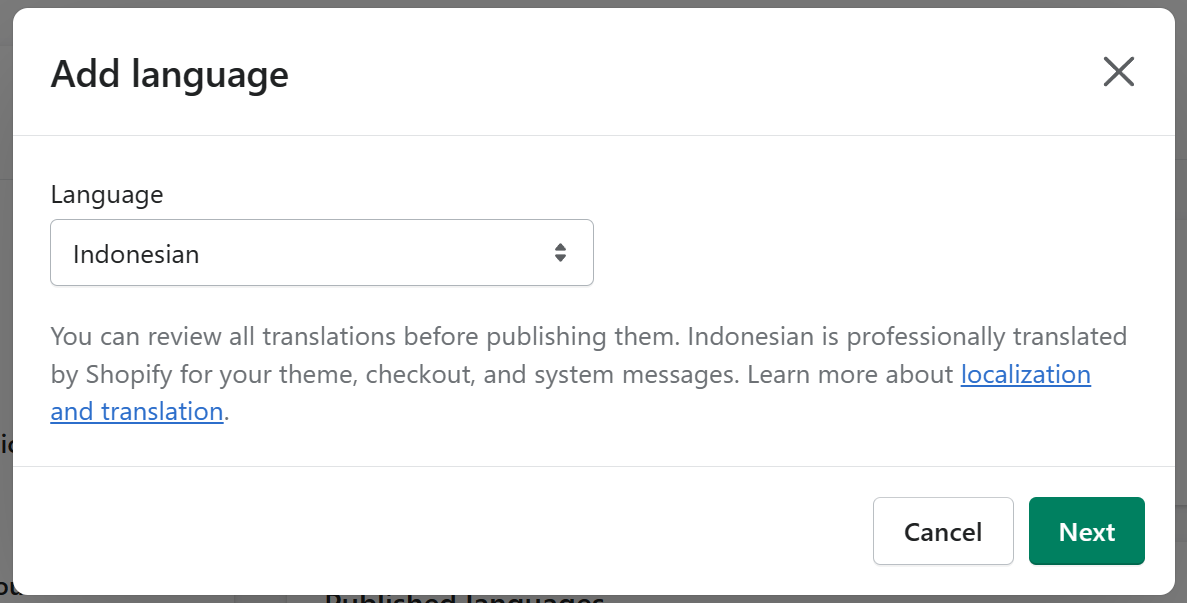
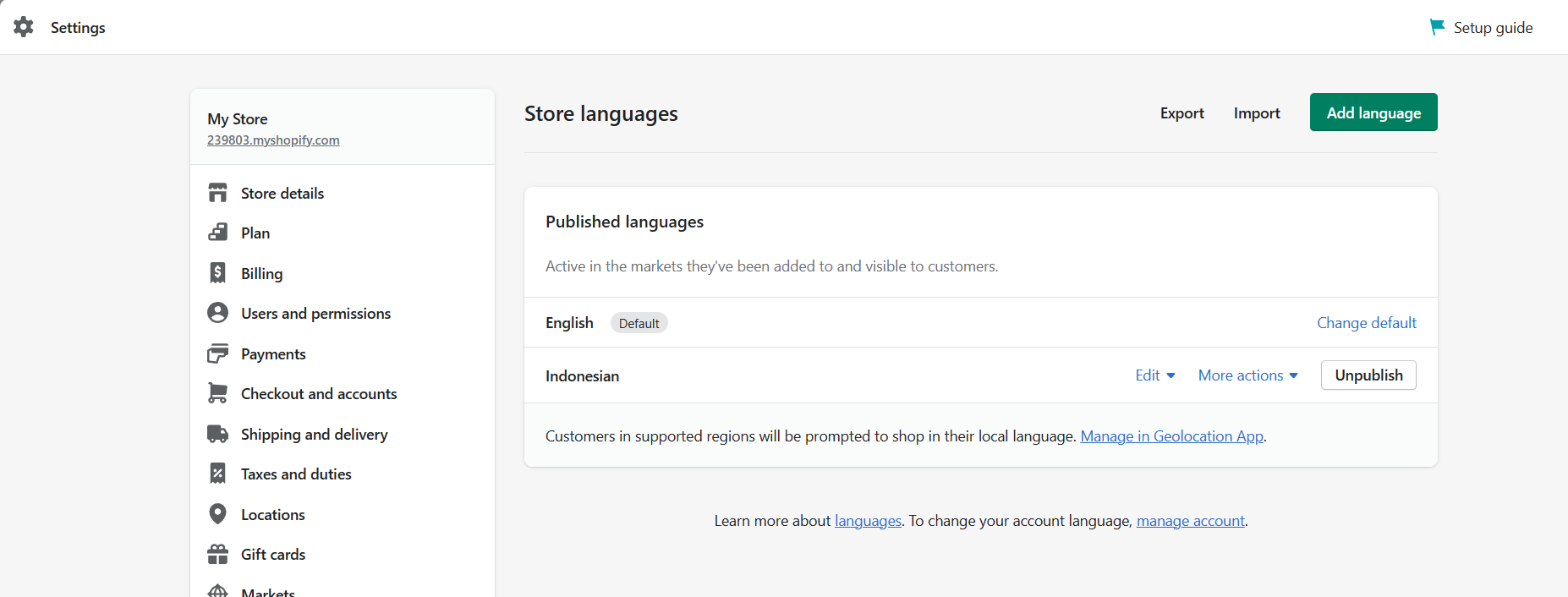
- After clicking “Languages”, you will be redirected to Store languages. Here, you can click “Add Language” under Translated Languages.
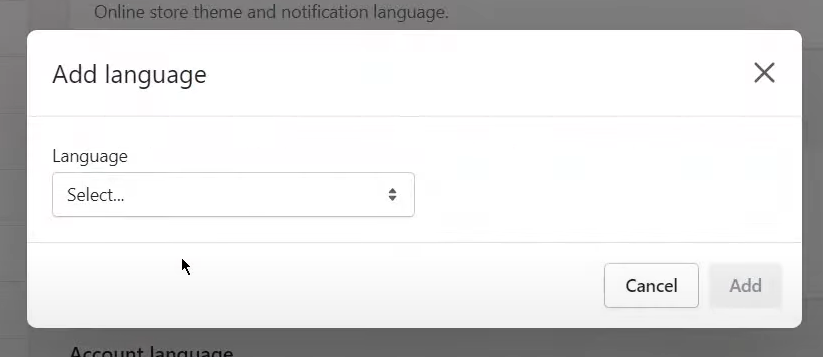
- To add a language, click the drop-down menu button to select your preferred language.
- Click the language that you want to add to your Shopify.
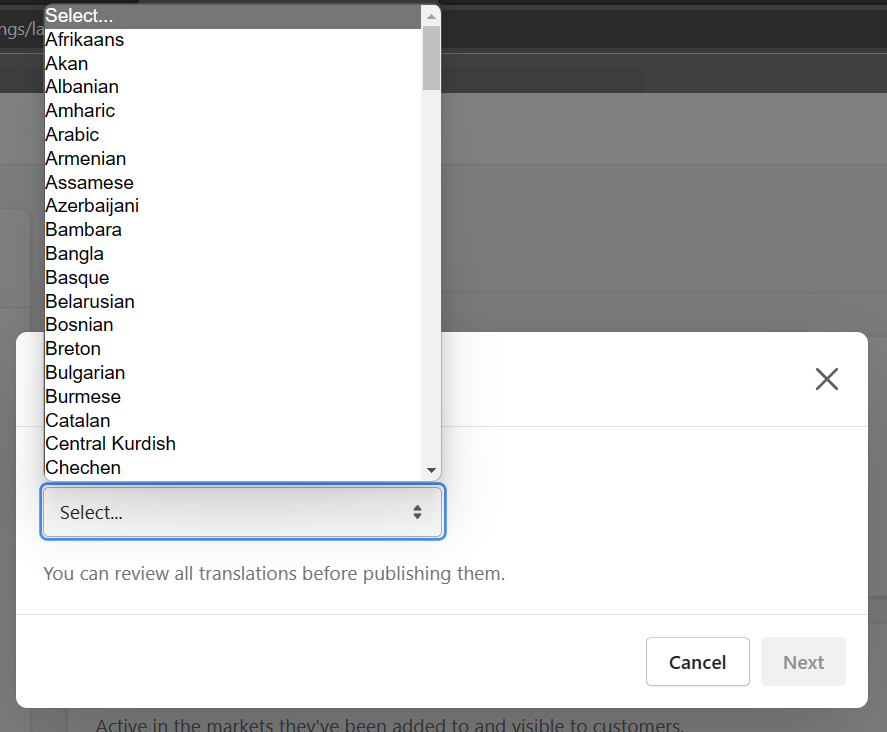
- Click the “Next” button to proceed to the next steps.
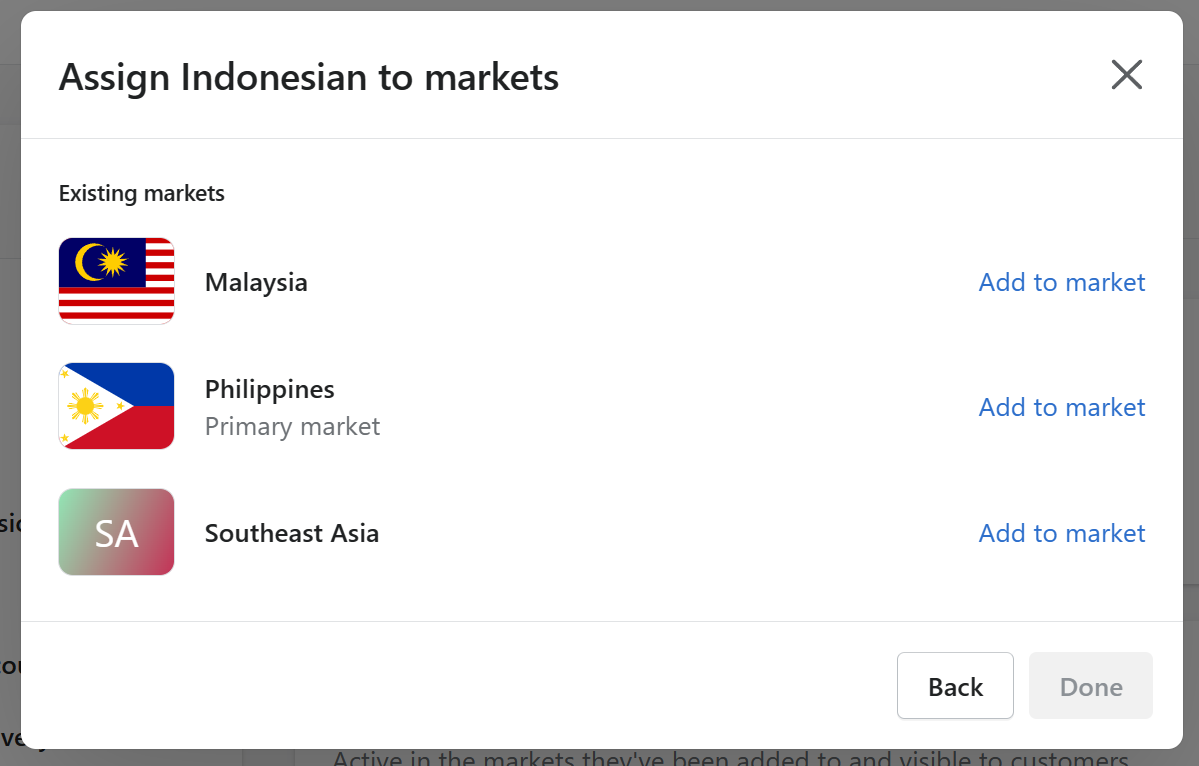
- To assign the language to a certain market, click the “Add to market” button beside the market that you want to assign it to.
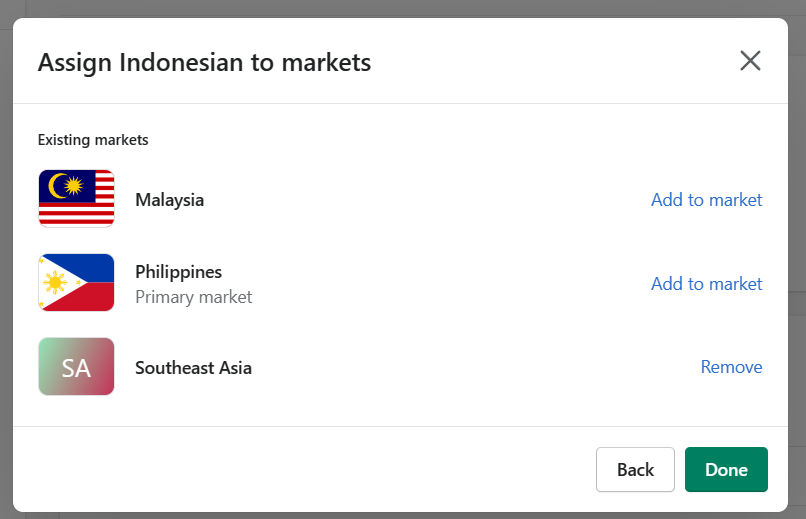
- Click the “Done” button after assigning the language to a certain Shopify market that you have selected.
- After clicking Done, you will be redirected once again to Settings. Selecting a language has not yet been published on the selected markets, so click “Publish” beside the language selected to publish it.
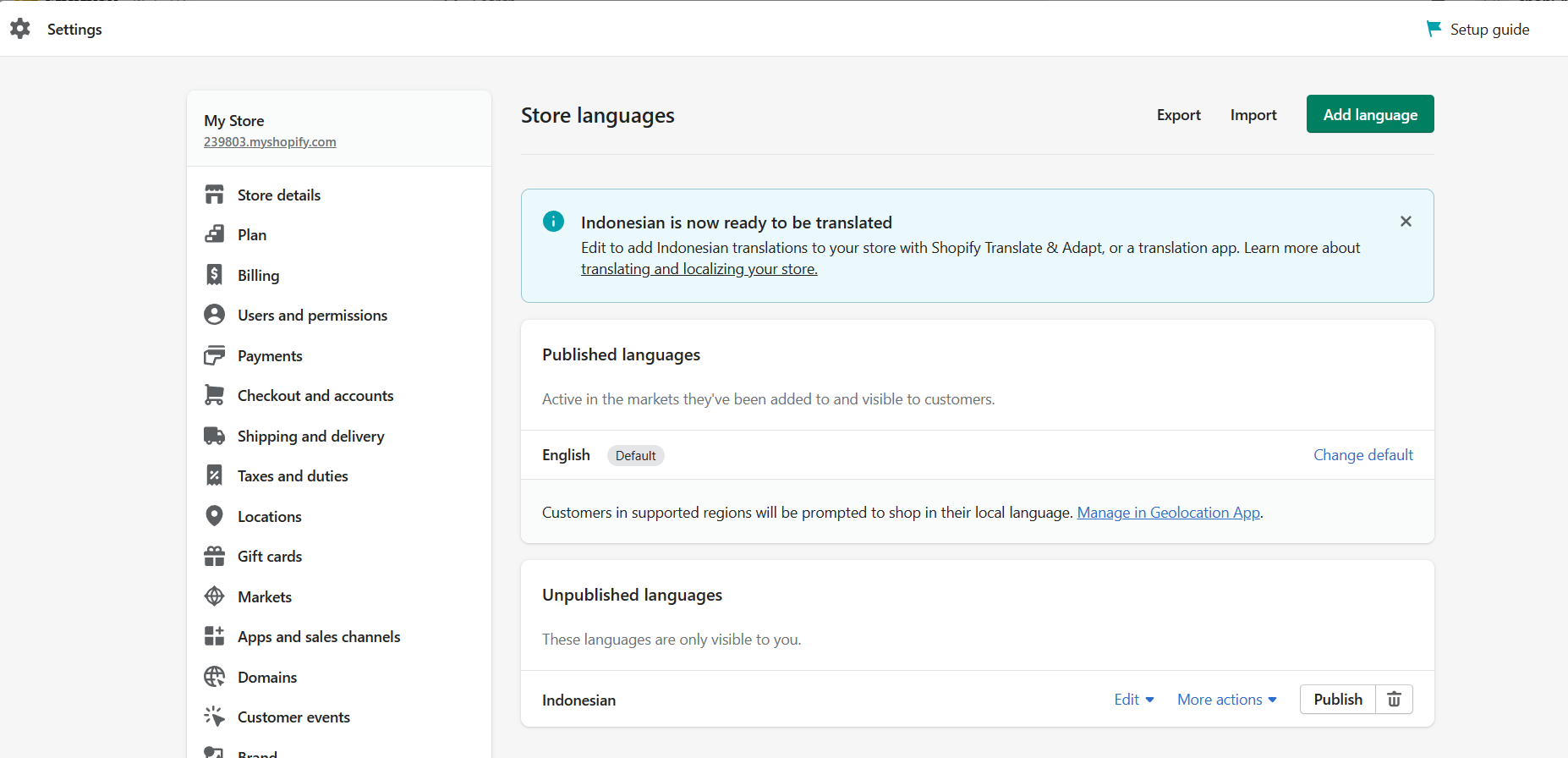
- After publishing the language, it will then be published to the markets and domains that you have chosen.
Conclusion
You’re done! Always remember that Shopify’s multi-language feature helps your business to promote the products by simply allowing them to understand the content of your item using a translation app.
-
Originally, the default language of the Shopify theme was always English but you can change it in Settings > Language.
-
Creating markets is necessary before adding languages because it is where the languages are being applied to.
-
It is essential to research the languages of your markets beforehand and check if they are suitable to be utilized.
-
Adding the languages is almost the same method as removing them, so it would be easy to disable the language that you want to remove.
-
Publishing languages for your customers allows you to reach certain countries which do not have English as their primary or secondary language so there will be no language barrier that can affect the sales.