A Guide to Collecting Customer Emails in Shopify
To guide you through setting up the settings for checkout and collect customer emails in Shopify.
Prefer a shortcut? 16 free tools do parts of this for you.

Aim: To guide you through setting up the settings for checkout and collect customer emails in Shopify.
Optimal Outcome: To successfully perform email marketing by the means of sending newsletters to the existing and new customers of your business. This results in growth in the business and provision of exceptional customer service.
What do you need to start: To follow this SOP, you need to have an account in Shopify and have already published a functioning Shopify store.
Why is this SOP Important: Collecting customer emails is important because this marketing strategy involves consent from customers so that they can subscribe willingly to the email marketing campaigns from your business. This fosters customer engagement and grow new participants to know more about the products or services that you will be sharing to them through the emails.
When and Where to execute: If you want to create a list of emails for email marketing, then you can do these steps to accumulate customer emails by including a sign-up field in your newsletter or a sign-up checkbox during checkout.
Who Should Be Doing This: This should be done by the person-in-charge of marketing, preferably a marketing specialist.
Collecting Customer Emails
In collecting customer information, two methods are used: through SMS or Emails. Collecting customer emails promotes your brand and item recognition to customers who opt to receive email newsletters from your business. Not only does this help you in promoting, but it also acquires new customers that are interested in the products that you offer. Consents in this field are highly followed because it may affect the confidentiality of the email address owner and the agreements existing within Shopify.
Execution
Resources/Tools & Set up
-
Shopify account
-
Functioning Shopify store website
Collecting Emails during Checkout
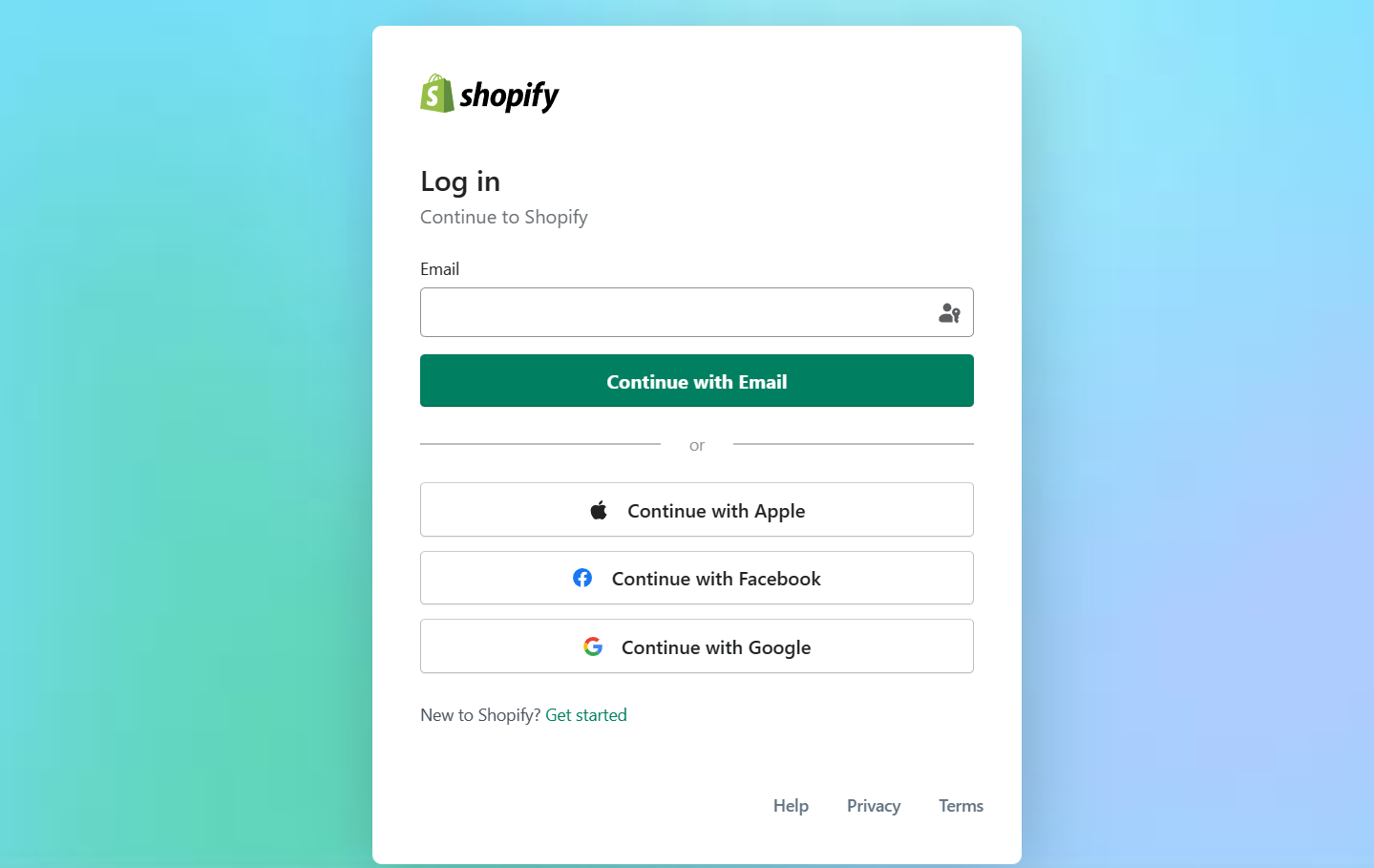
- Log in to your business Shopify account using either your email, Apple, Facebook, or Google account.
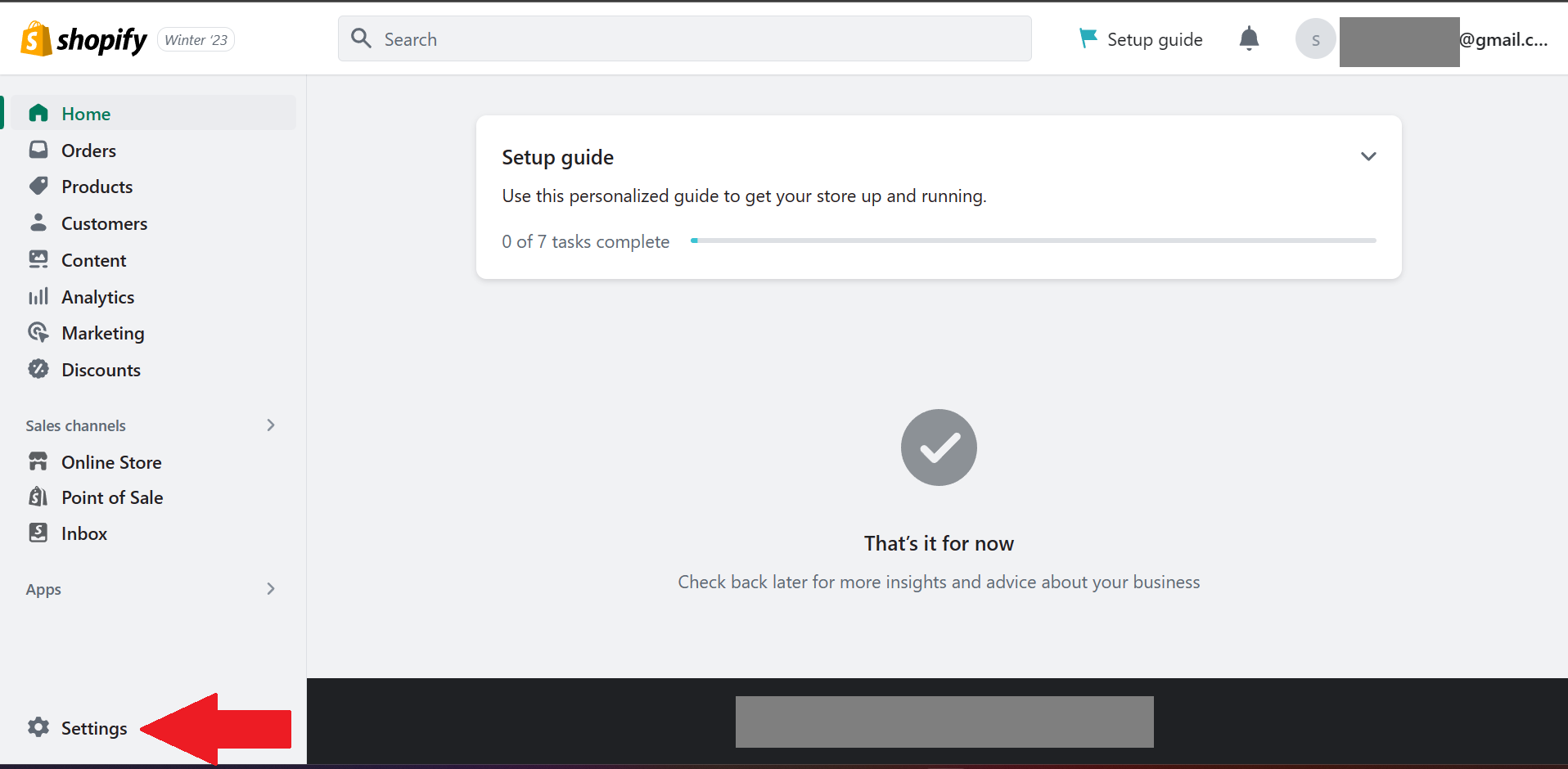
- In the Dashboard located on the left side, click on “Settings” that is located on the lower left corner of the site.
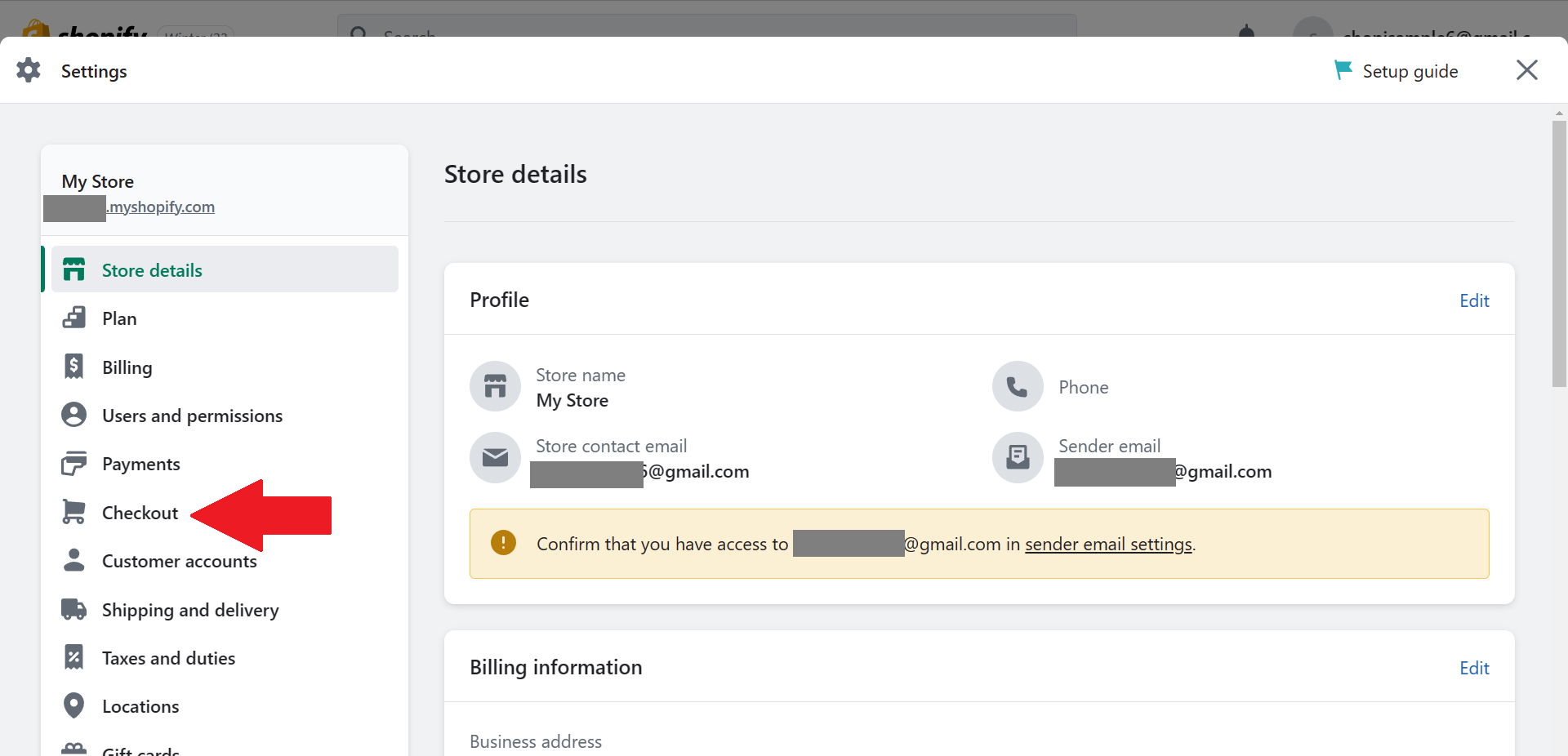
- After navigating to Settings, click “Checkout” to modify its settings regarding collecting emails from your customers.
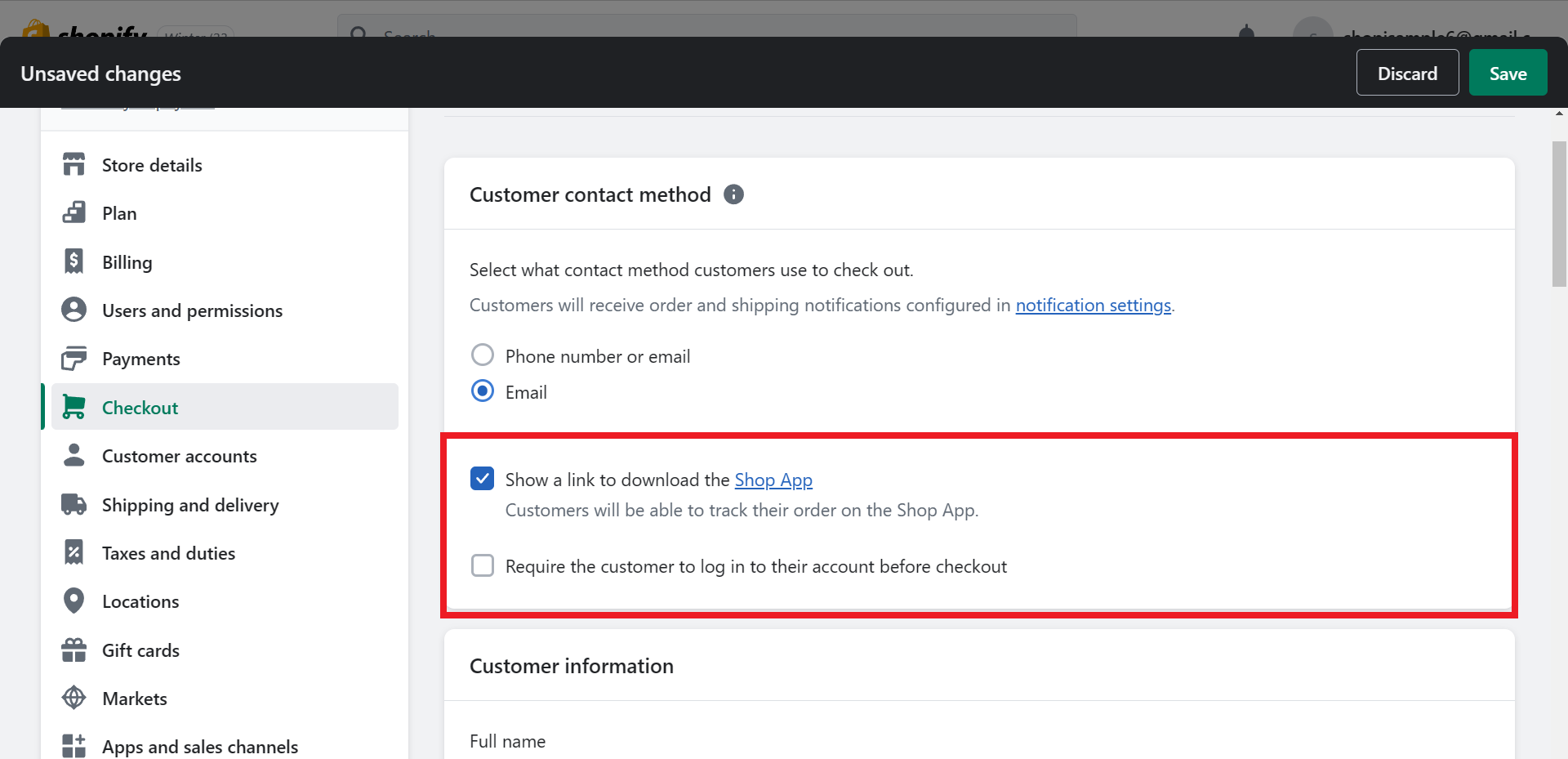
- In the Customer contact method, you will be asked to select the contact information that your customers would provide in checkout to receive order and product notifications. This can be through Phone number or email, or Email only. If you want to prioritize collecting customer emails, click the circle beside the Email option.
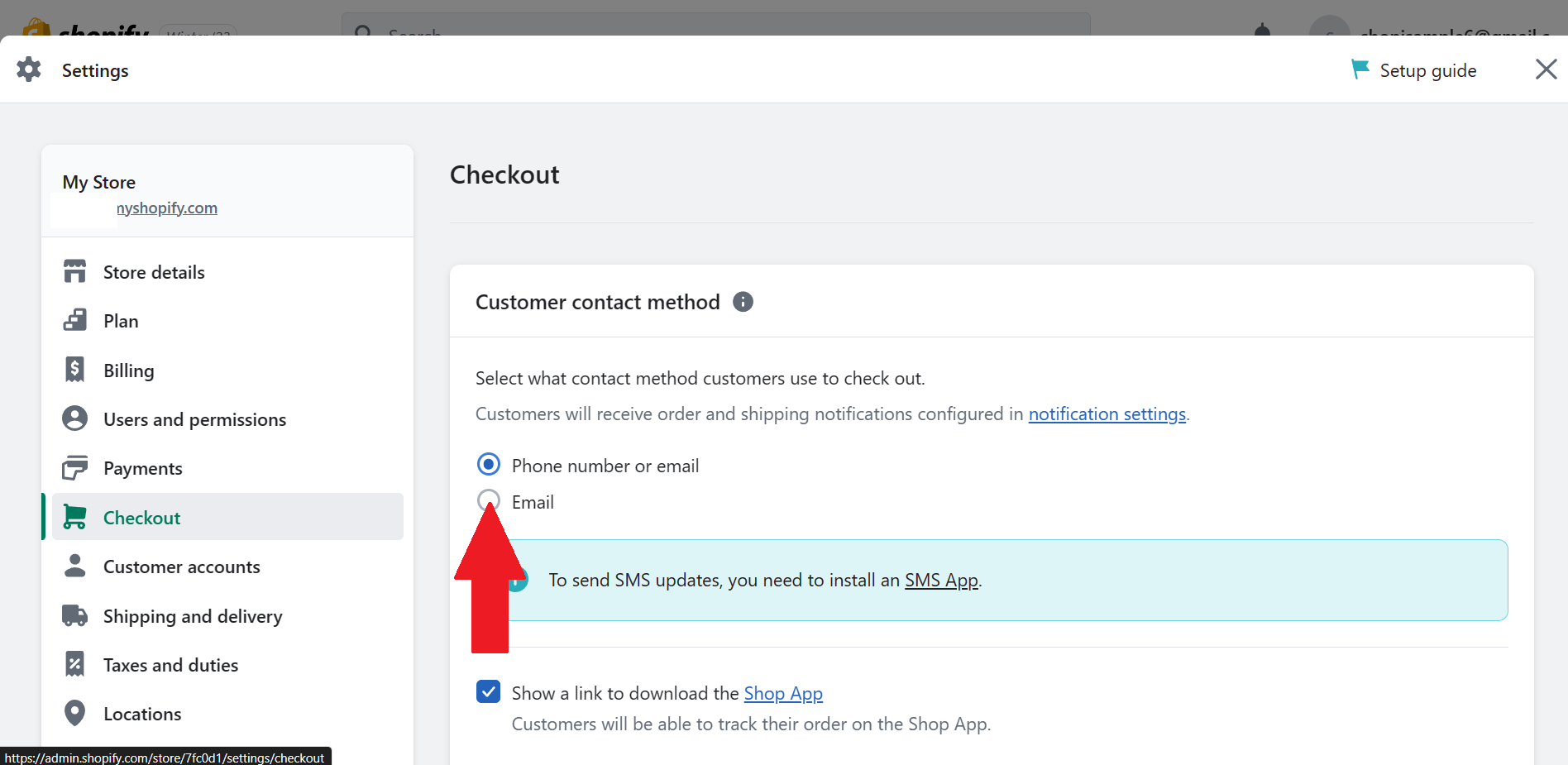
- After indicating the Customer contact method, you will be presented with checkboxes which allows the checkout to Show a link to download the Shop App or Require the customer to log in to their account before checkout.
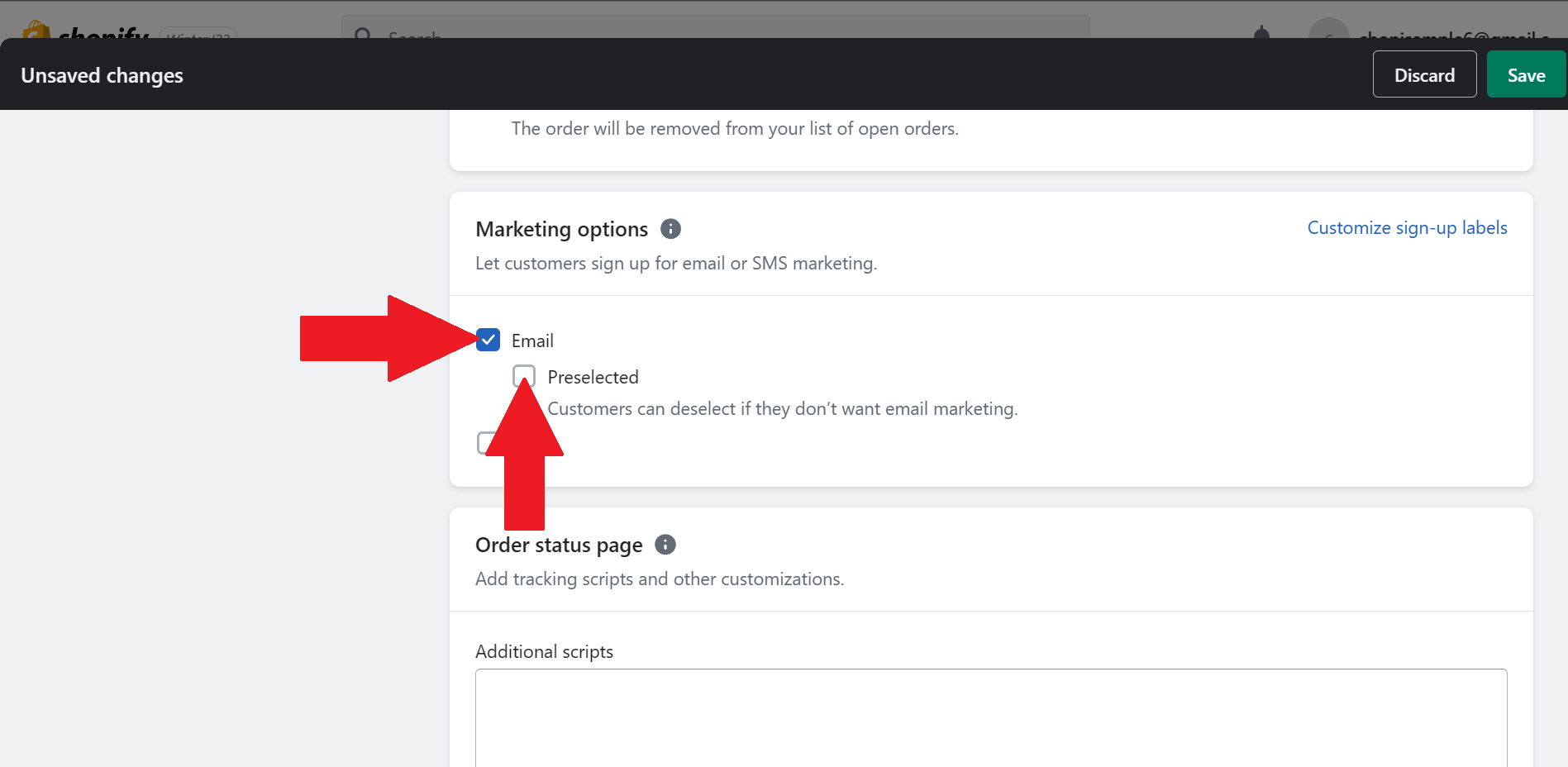
- Next is the Marketing options, where your customers can sign up for email marketing which can be visible during the checkout process. A pop-up checkbox will appear after clicking the checkbox for Email. This is the option Preselected, which allows the system to preselect the sign-up option for customers who do not have an account in checking out their products. Check the checkbox if you want to activate this feature for your store website.
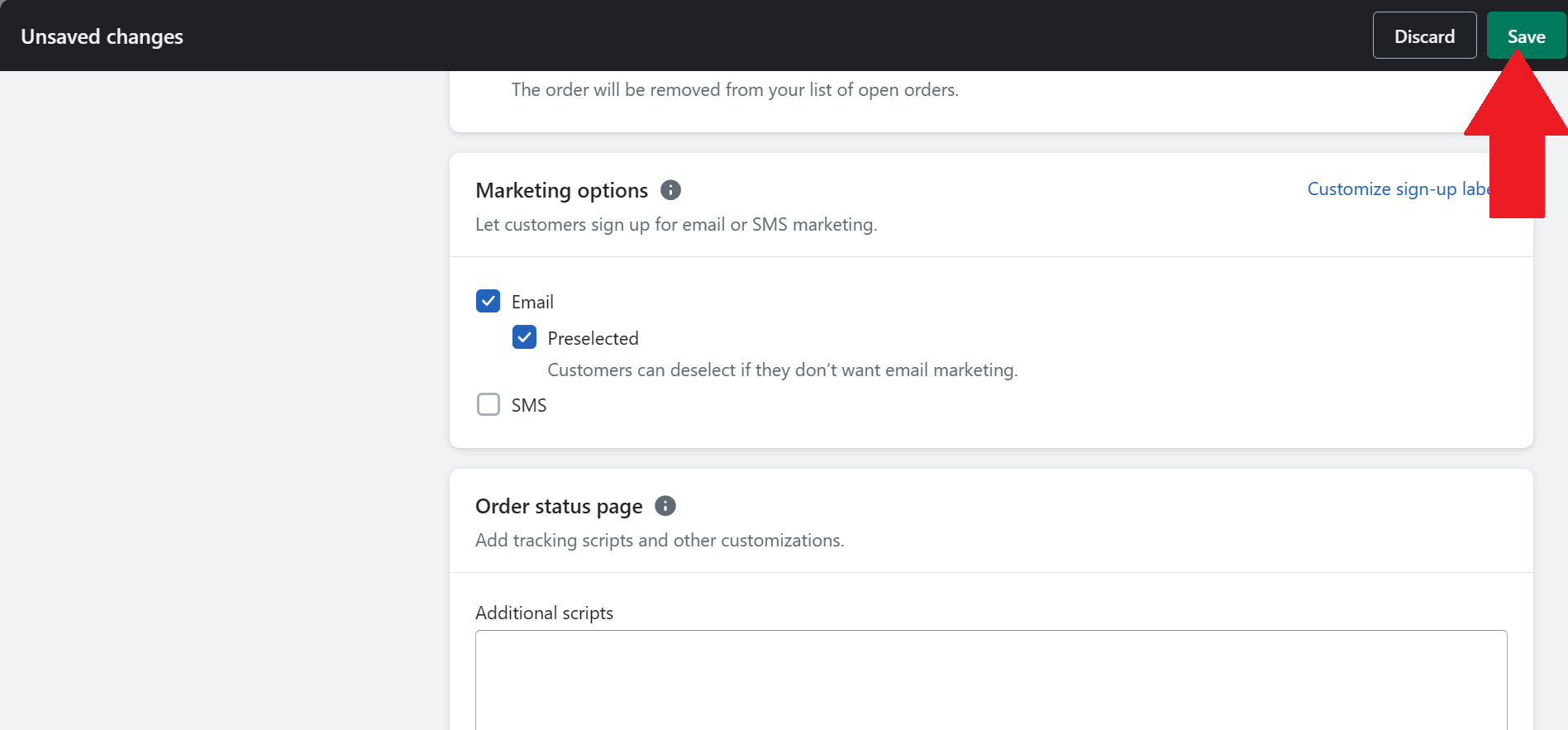
- After modifying the settings for customer checkout, click the “Save” button to save your progress and for it to reflect it on your website.
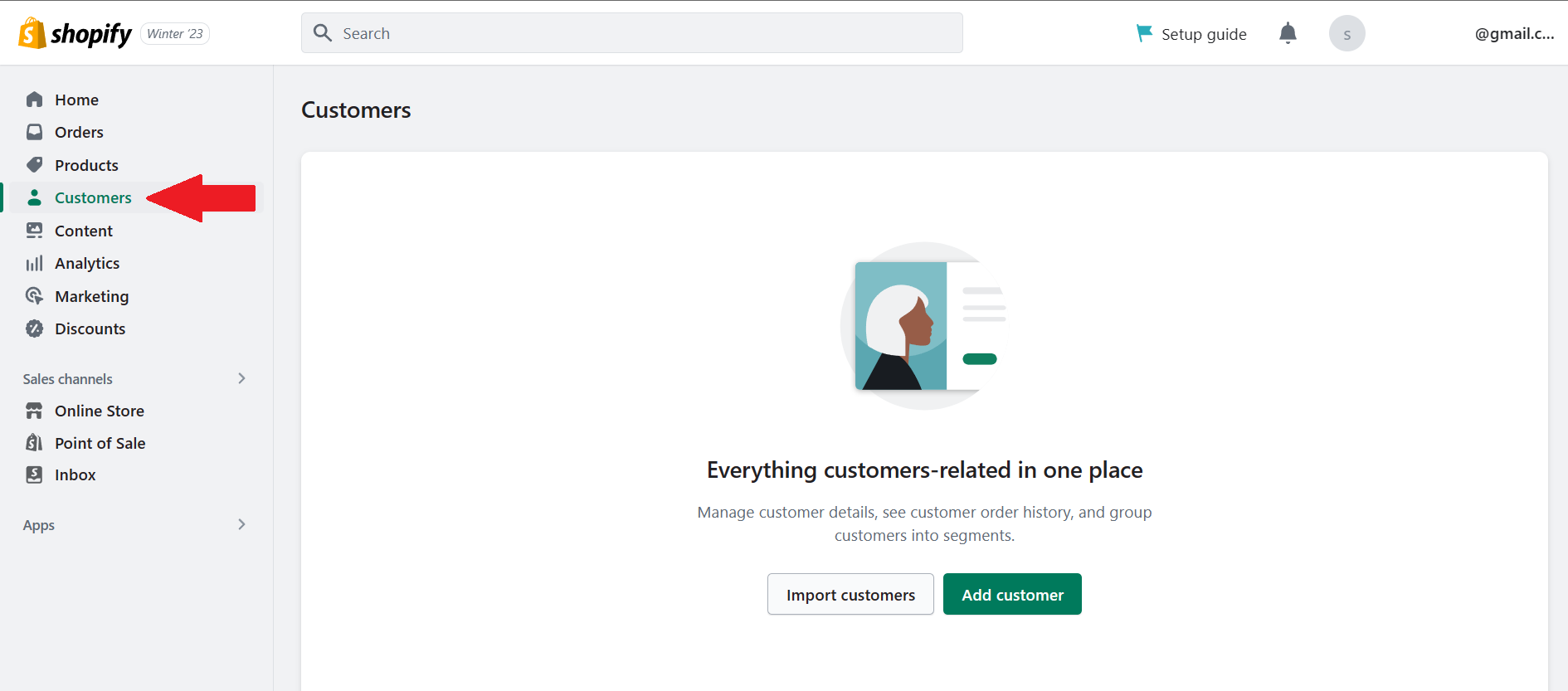
- After editing the settings and opening your store for orders coming from the website, customers who are preselected and those who subscribed to email through the checkout will be shown in the Customers page. Usually, Shopify labels these customers as “Email subscribers” which is a customer segment beneficial for marketing.
Collecting Emails from the Store Website
- From your Shopify homepage, look for the Online Store located in the dashboard and click it.
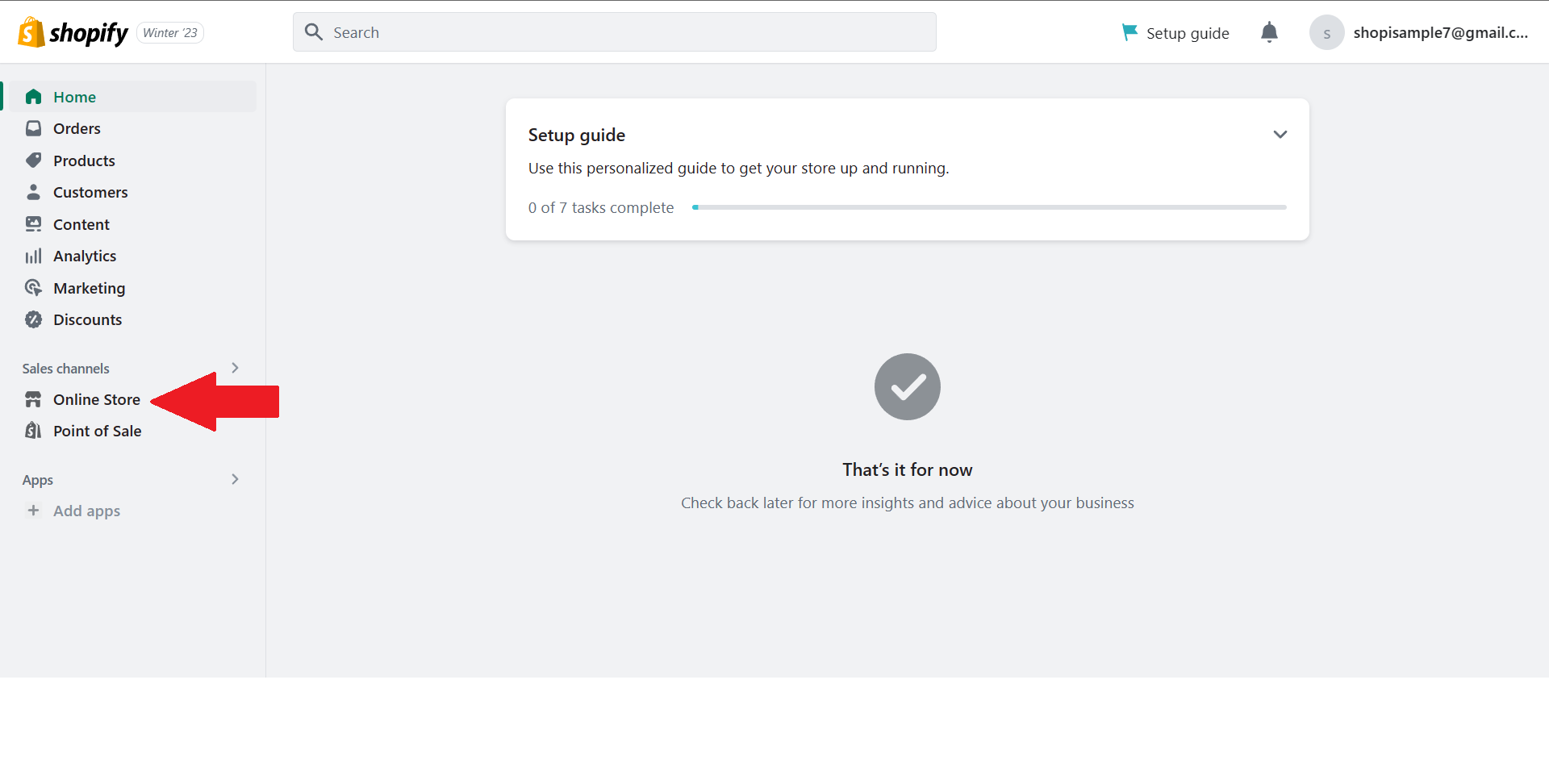
- After clicking the Online Store, options will appear. Click Themes to go through your website’s layout and design and add the email signup.
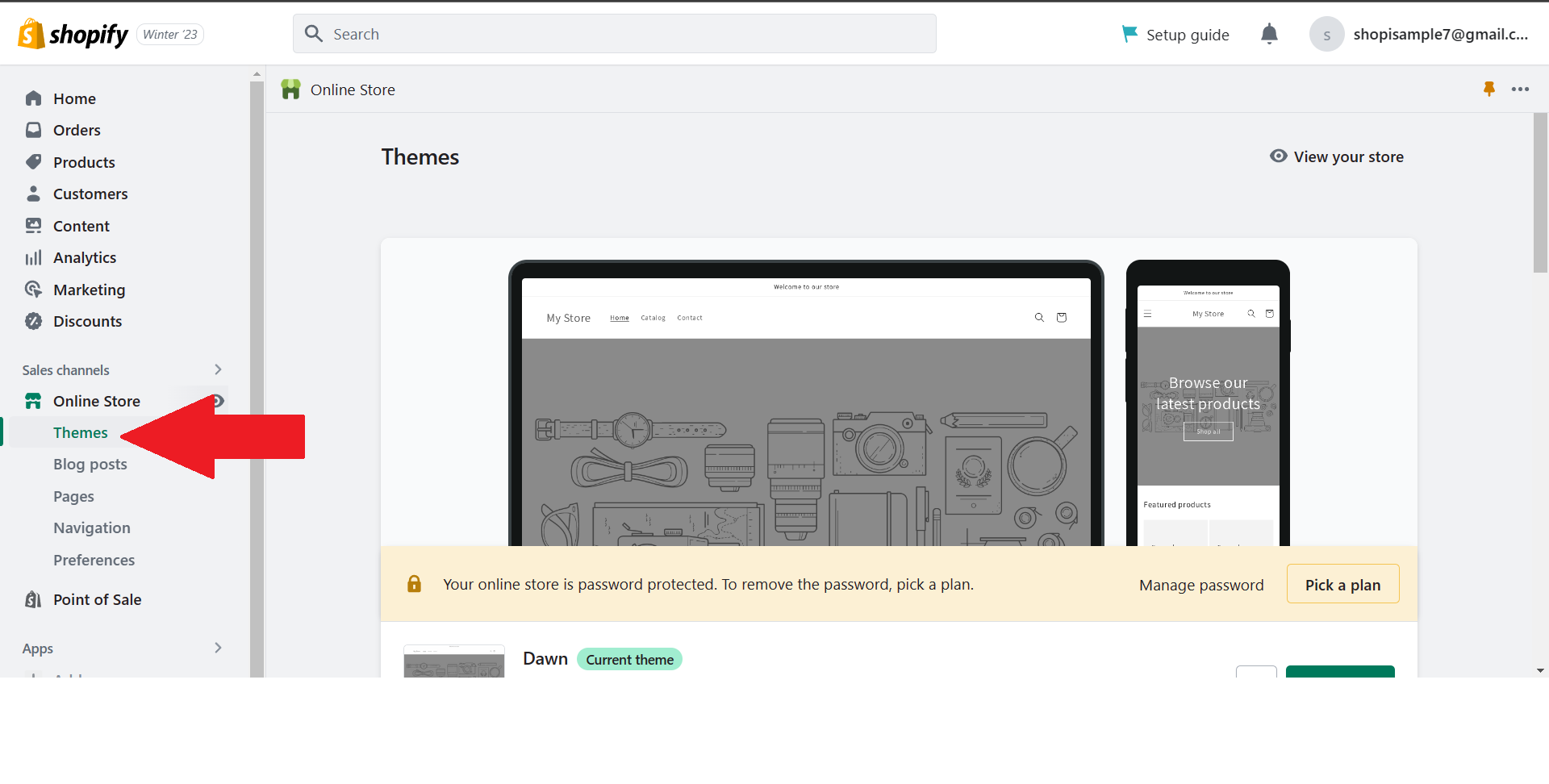
- Click the Customize button beside your Shopify store theme name to modify it.
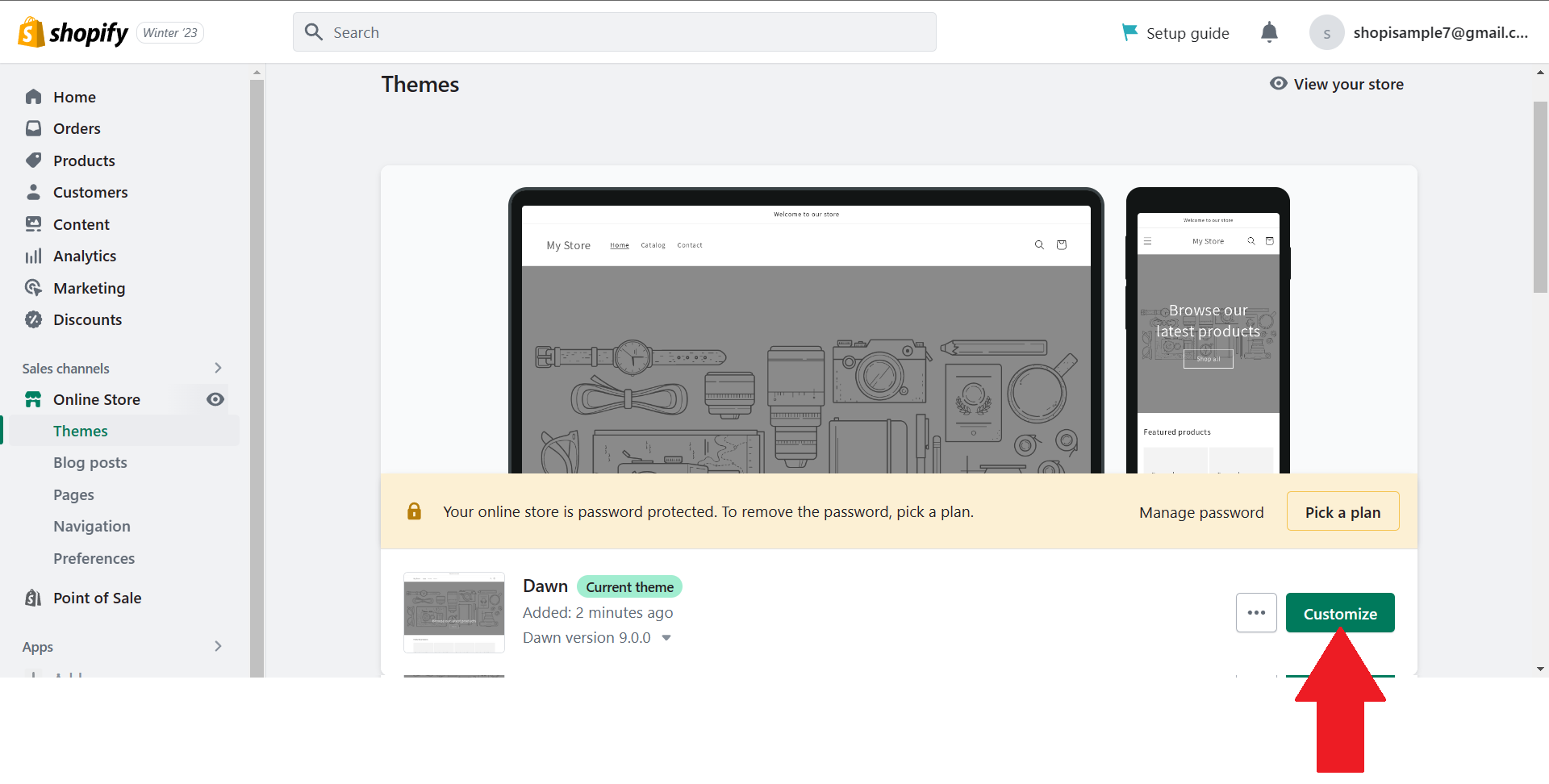
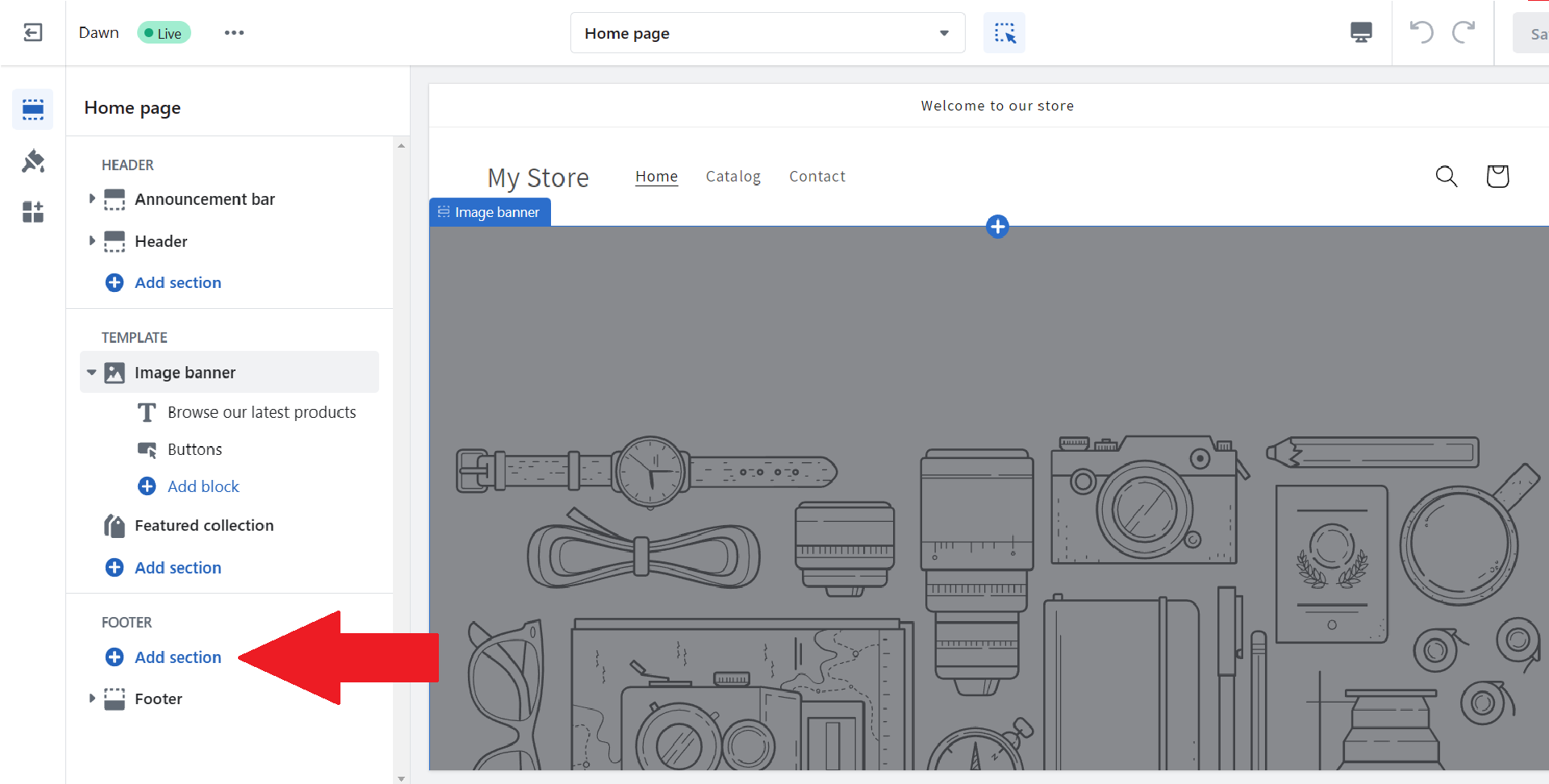
- In the Home page of your Shopify store theme, you can see three parts: Header, Template, and Footer. Email signup field is always located in the Footer of a page. To add an email signup field, click “Add Section”.
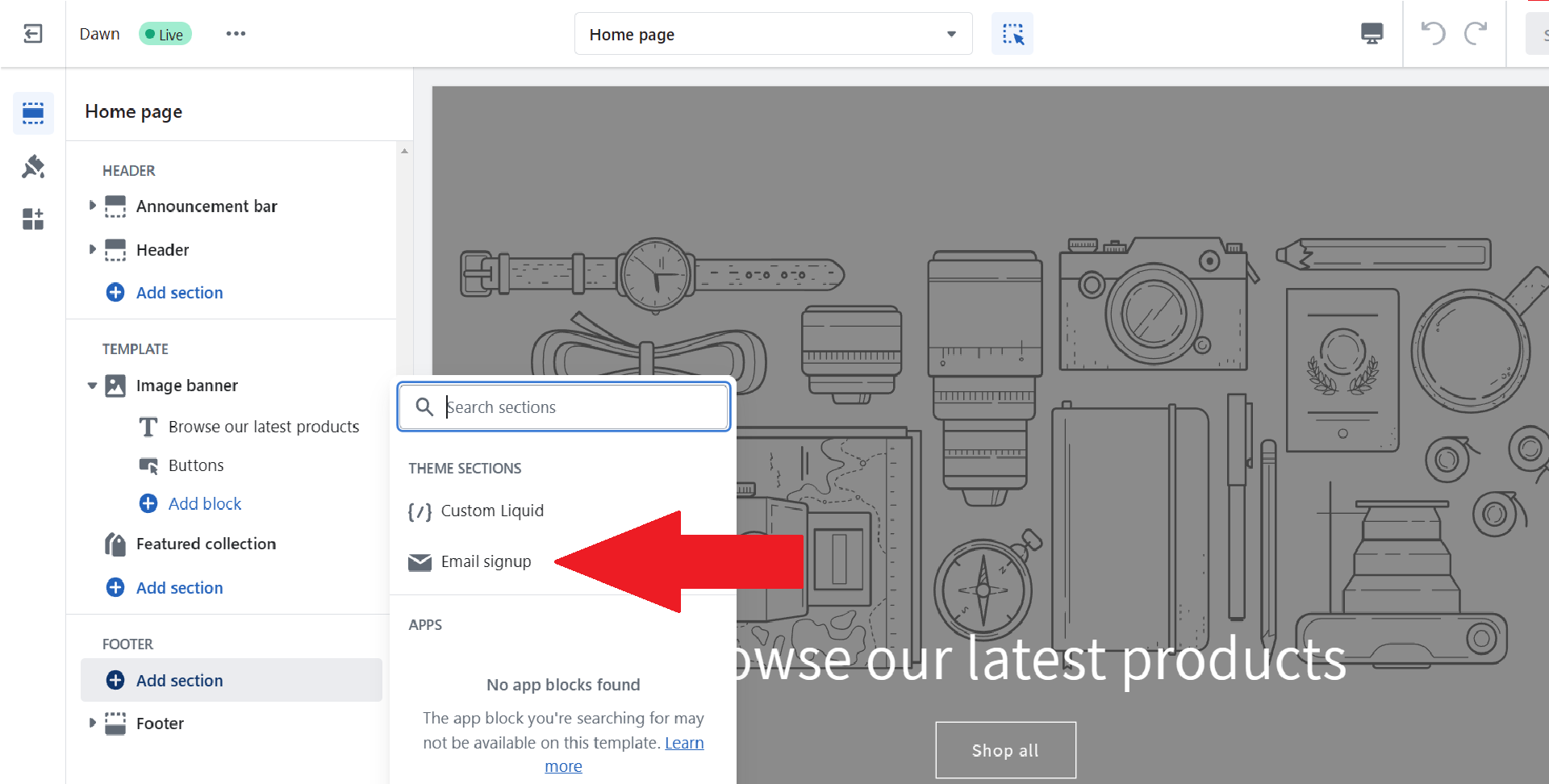
- You can search sections to find the email signup, but it was recommended in the Theme sections under Footer. Click “Email signup” to indicate it in your Shopify store’s website.
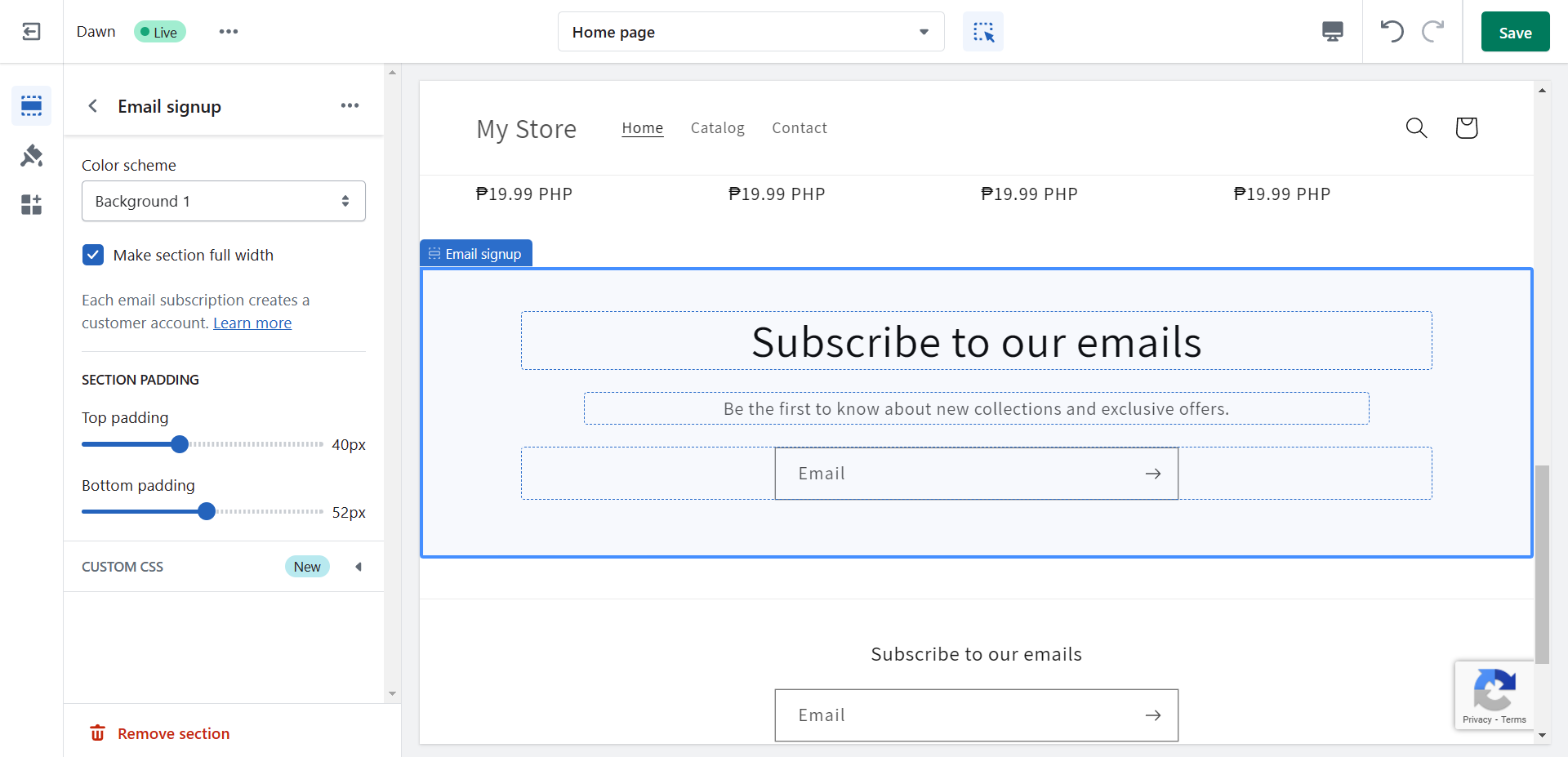
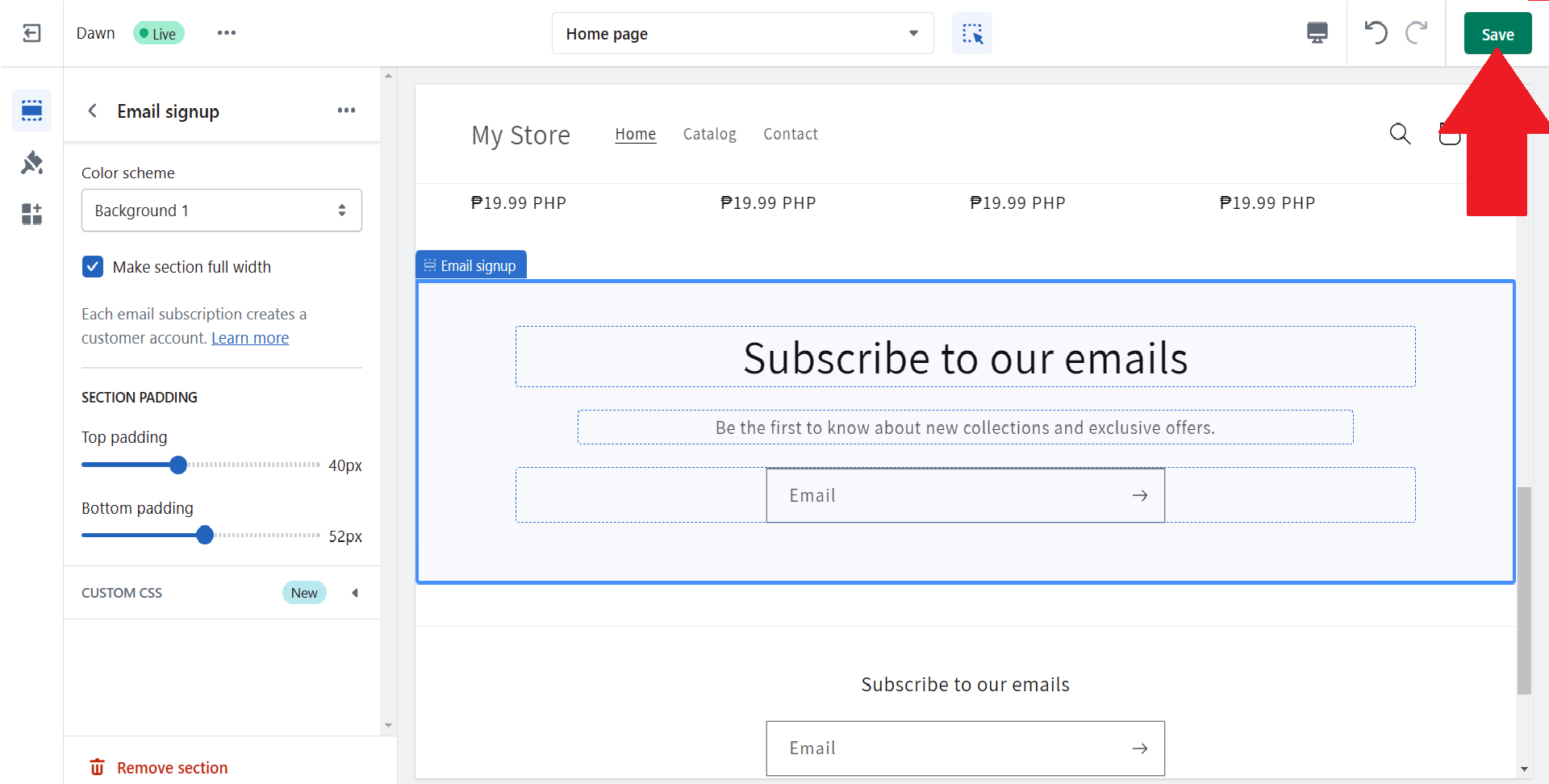
- As soon as you add the Email signup section, the settings will show on the left side. You can change its Color scheme and adjust the top and bottom padding according to your liking. The preview of the section is shown on the right.
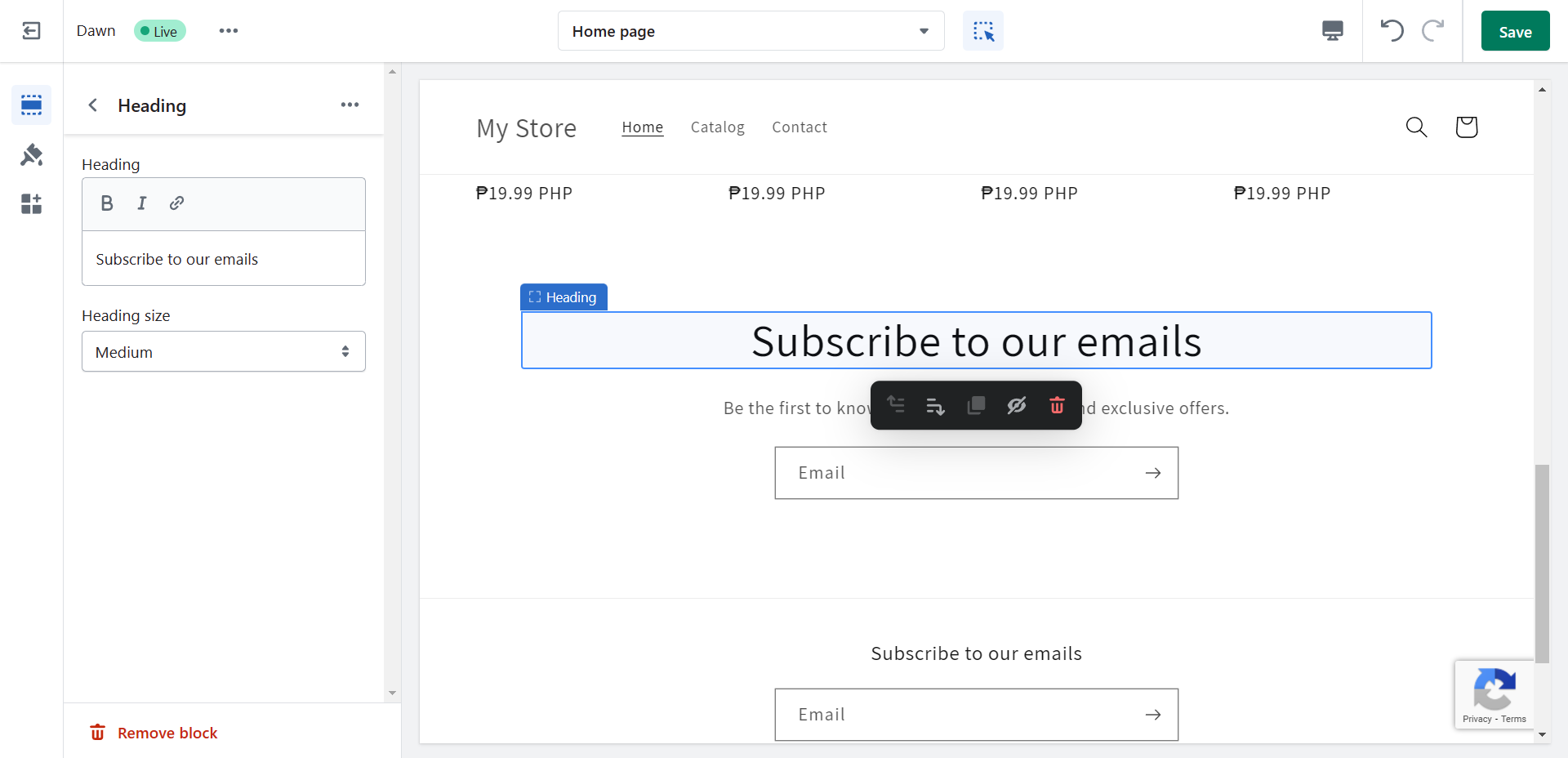
- You can customize the Heading part of the Email signup section by clicking the text box on the left side and wherein you can utilize the Rich Text Editor. The Heading size is modifiable according to the space provided in this field.
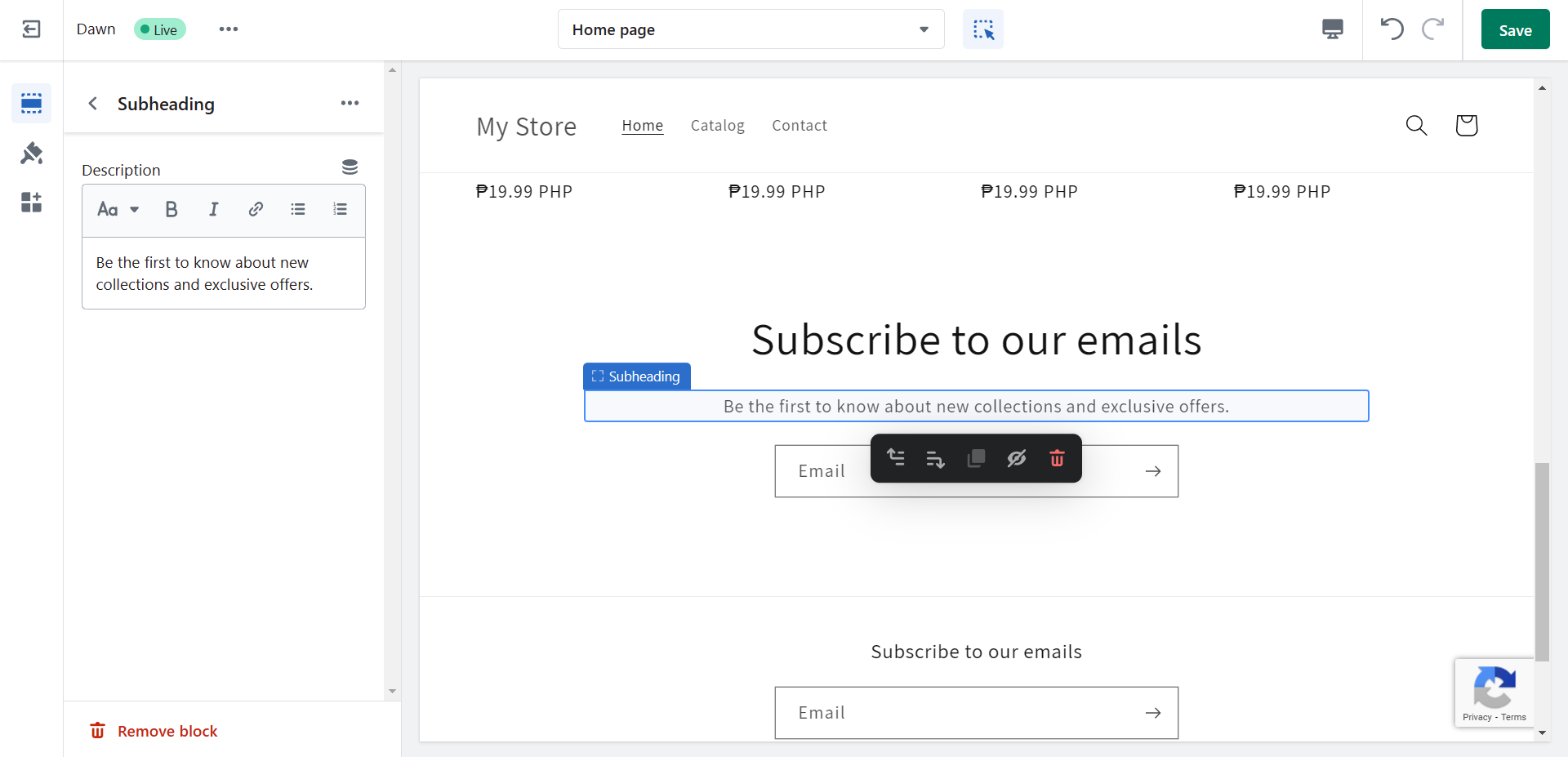
- Just like the Heading, you can customize the Subheading part of the Email signup section by clicking the text box on the left side and by utilizing the Rich Text Editor.
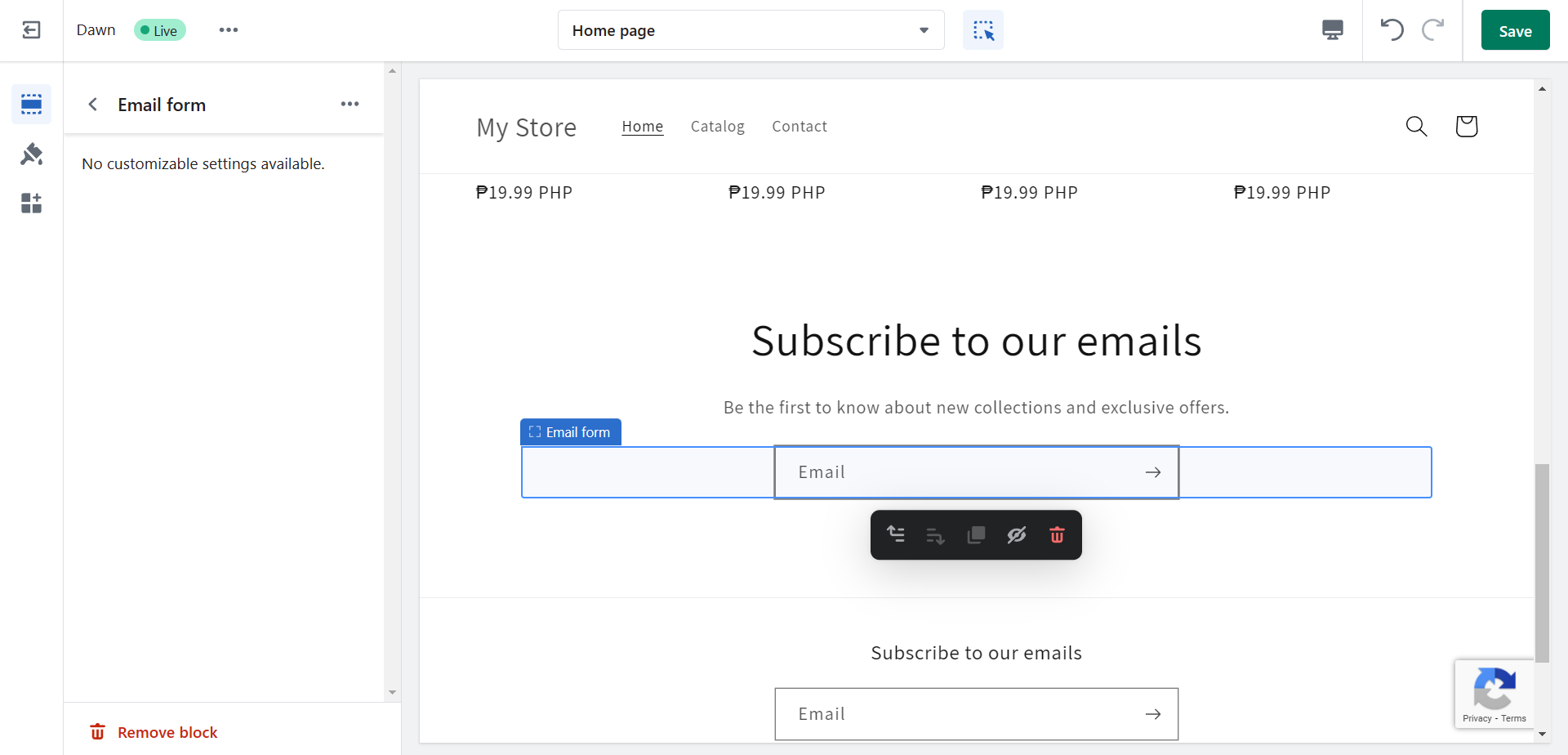
- The most important field in this section is the Email form, where the customers will put their email addresses if they consent to email marketing. There are no settings involved in this feature.
- After customizing the Email signup section, click “Save” to record the changes in your website and test it to check if it's functioning.
Conclusion
You’re done! Always remember that there are two known methods to collect customer emails: during the customers’ checkout or collecting it on the store website. Both are proven to be efficient for both customers and sellers especially when utilized in email marketing.
-
You can encourage the customers to sign up to your email newsletters by updating their order status and promoting discounts through emails.
-
You need to have an account in Shopify to follow the steps in this SOP, and you must already have your store functioning.
-
Although subscribed to your email, customers should still have a button to unsubscribe to you emails so you need to produce interesting newsletters.
-
Adding the email signup section in the Shopify website homepage is an easy way to gather customer emails, especially if your website has a great accumulation of website traffic.
-
Aside from the email form, you can modify the header and subheader of the email signup section to fit it in your website layout.