Filtering Orders by Protection Status on Shopify
This SOP aims to guide users on how to filter orders by protection status on Shopify
Prefer a shortcut? 16 free tools do parts of this for you.

Aim: This SOP aims to guide users on how to filter orders by protection status on Shopify
Optimal Outcome: Users will be able to easily filter their orders based on the protection status they have set for them.
What do you need to start: A Shopify account with orders and the orders with protection status set.
Why is this SOP Important: Filtering orders by protection status allows merchants to manage their orders effectively and efficiently. It helps merchants quickly identify orders that need attention based on their protection status.
When and Where to execute: This SOP can be executed anytime from anywhere as long as you have access to your Shopify account.
Who Should Be Doing This: This SOP is intended for Shopify merchants or any individual in the company assigned to fulfill the orders.
What does protection status mean on Shopify?
Protection Status (Shopify Protect) on Shopify is a feature that protects merchants from fraudulent orders by providing an additional layer of security. Orders are automatically analyzed by Shopify's algorithms whether it’s eligible for Shopify protect, and a protection status is assigned to each order based on the likelihood of it being fraudulent. This status helps merchants to identify potentially problematic orders and take appropriate action, such as canceling the order or reaching out to the customer for verification.
Execution
Resources/Tools & Set up
-
Shopify account
-
Orders for fulfillment
Check the order status
Once an order is placed in your store, it undergoes a review process to determine its eligibility for Shopify Protect. If deemed eligible, a section dedicated to Shopify Protect will be available on the order page to indicate its protection status.
The following are the different protection statuses that may appear on an order:
-
Shopify Protect: This status means that the order is eligible for Shopify Protect if it is fulfilled within 7 days of being placed, tracking information is added, and it is transferred to the carrier's possession within 10 days of being placed.
-
Protected by Shopify Protect: This status means that the order was fulfilled within 7 days of being placed and was transferred to the carrier's possession within 10 days of being placed. This status appears if there is a chargeback on the order, which is addressed by Shopify Protect for fraudulent or unrecognized chargebacks.
-
Not protected by Shopify Protect: This status means that the order was not fulfilled within 7 days of being placed or transferred to the carrier's possession within 10 days of being placed. Alternatively, a chargeback has been filed for a reason other than fraudulent or unrecognized chargebacks. Chargebacks on the order are addressed using the typical process.
Filter orders by Shopify Protect status
-
Log in to your Shopify account.
-
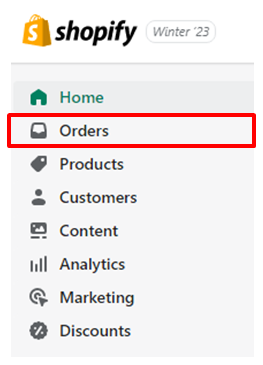
Go to your Orders page by clicking on "Orders" from the Shopify admin panel.
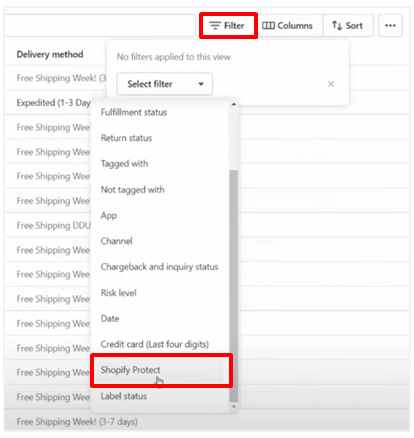
- On the Orders page, click on "Filter". From the drop-down menu, select "Shopify Protect".
- Choose the status you want to filter your orders by.
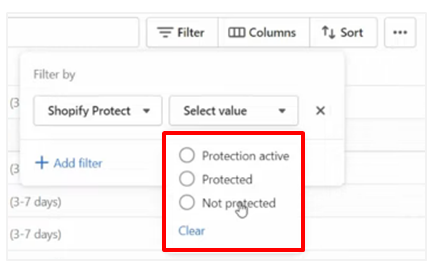
Protection active: Refers to orders that meet the eligibility criteria for Shopify Protect.
Protected: Refers to orders that are covered by Shopify Protect as they have been fulfilled and transferred to the carrier's possession within the specified timeframe.
Not Protected: Refers to orders that do not qualify for Shopify Protect coverage as they were not fulfilled or transferred to the carrier's possession within the specified timeframe, or if a chargeback has been filed on the order for reasons other than fraudulent or unrecognized.
Conclusion
You’re done! By following these simple steps, you can easily filter your orders by protection status on Shopify. This will help you manage your orders more effectively and ensure that you are taking the necessary steps to protect your business.
Execution Checklist:
-
Log in to your Shopify account.
-
Click "Orders" in the admin panel.
-
Click "Filter".
-
Select "Shopify Protect".
-
Choose the status to filter orders.