A Guide to Setting Up Shoppable Instagram Feed
To walk you through setting up a shoppable Instagram feed by tagging a product in Instagram posts and stories and linking a website to your Instagram account.
Prefer a shortcut? 16 free tools do parts of this for you.

Aim: To walk you through setting up a shoppable Instagram feed by tagging a product in Instagram posts and stories and linking a website to your Instagram account.
Optimal Outcome: To be able to add products for your Instagram Shop that your customers would be able to view and see after you present your marketing strategies for your Instagram shop profile.
What do you need to start: To follow this SOP, you need to have a professional account in Instagram, your store’s website, and the physical products for the incoming orders of your Instagram store.
Why is this SOP Important: Setting up a shoppable Instagram feed allows you to post details and reviews about your items without limitations because it is a publicly available platform for businesses. In addition, Instagram also makes connecting your store to your Instagram account easier by indicating integrations for different website builders available online. By putting product tags on your posts and stories, your followers are one step away from ordering in your Instagram.
When and Where to execute: This SOP is done when you need to promote your products or services to the Instagram feed of other people on the internet and when you want to extend your shop variety.
Who Should Be Doing This: The person–in-charge for marketing should do this especially during marketing campaigns and events of the business.
Instagram Shopping
Instagram Shopping is a feature that makes it possible for eCommerce companies to create a shareable digital catalog of their products directly on Instagram.
Customers may shop directly from your Instagram profile via an Instagram Shop, which is a brand's customisable online storefront. Users can search or explore all of the seller's products on this landing page.
Execution
Resources/Tools & Set up
-
Instagram professional account
-
Shopify website
-
Physical products
Creating an Instagram Shop
|
|---|
- Connecting a Catalog to your Instagram Shop
-
If you have a Shopify store that you want to connect to your Instagram shop, you can log in to your Shopify account and click "Sales channels".
-
A sales channel search bar will appear, and a suggestion for search will also appear. Click the "Search for "Instagram" in the Shopify App Store".
-
After searching for Instagram in the Shopify App Store, these options will appear in the selection. Click the "Facebook & Instagram" application.
-
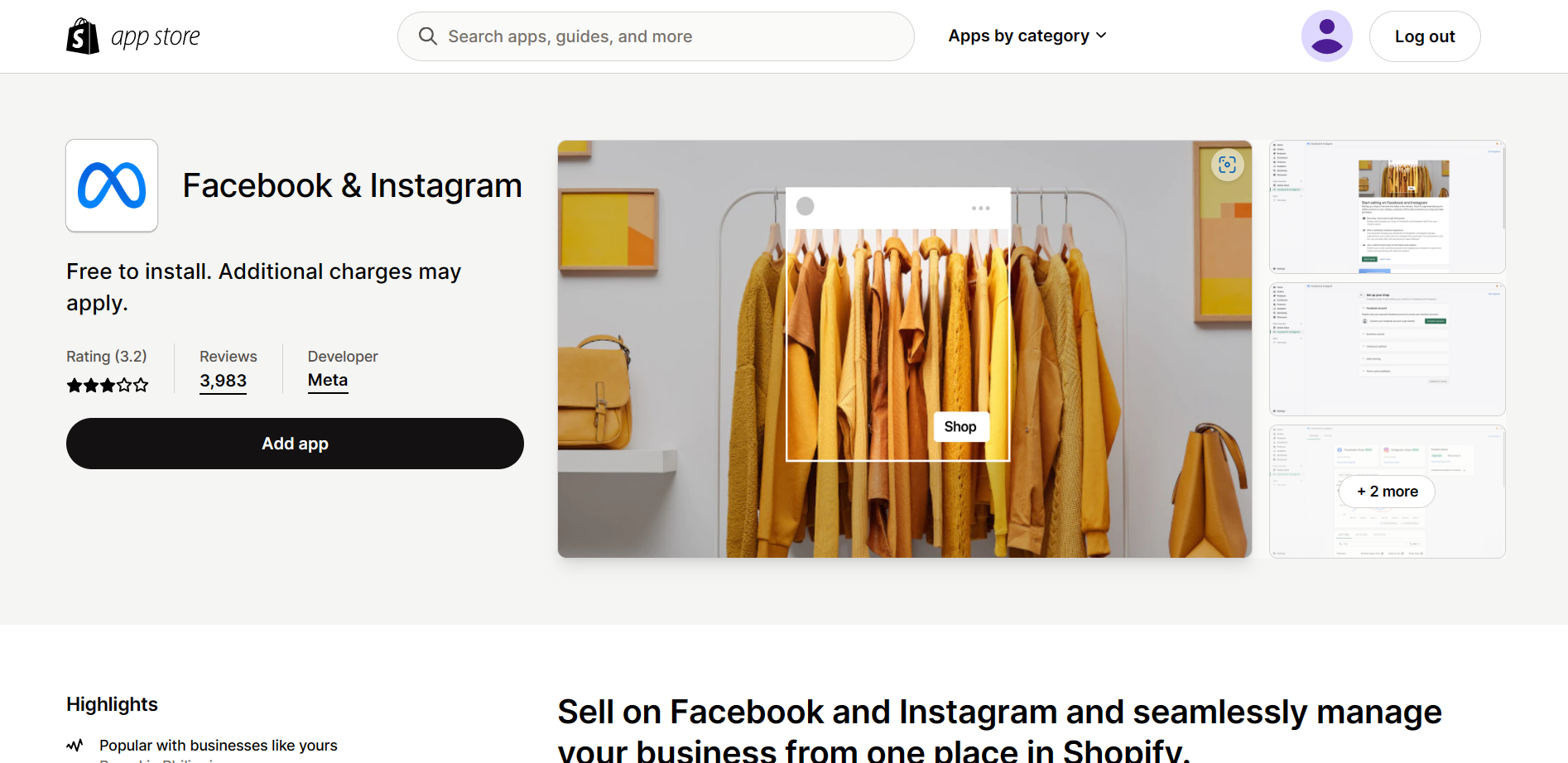
After clicking the app, you will be redirected to the information about it. Facebook & Instagram apps in Shopify App Store are used to bring your products to these social media platforms. To add this to your Shopify store, click the "Add app" button.
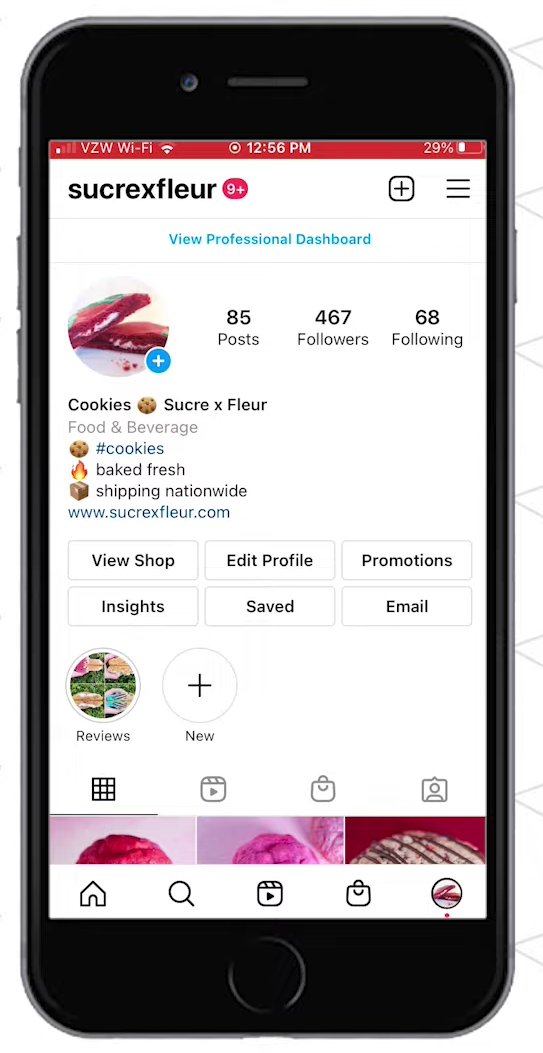
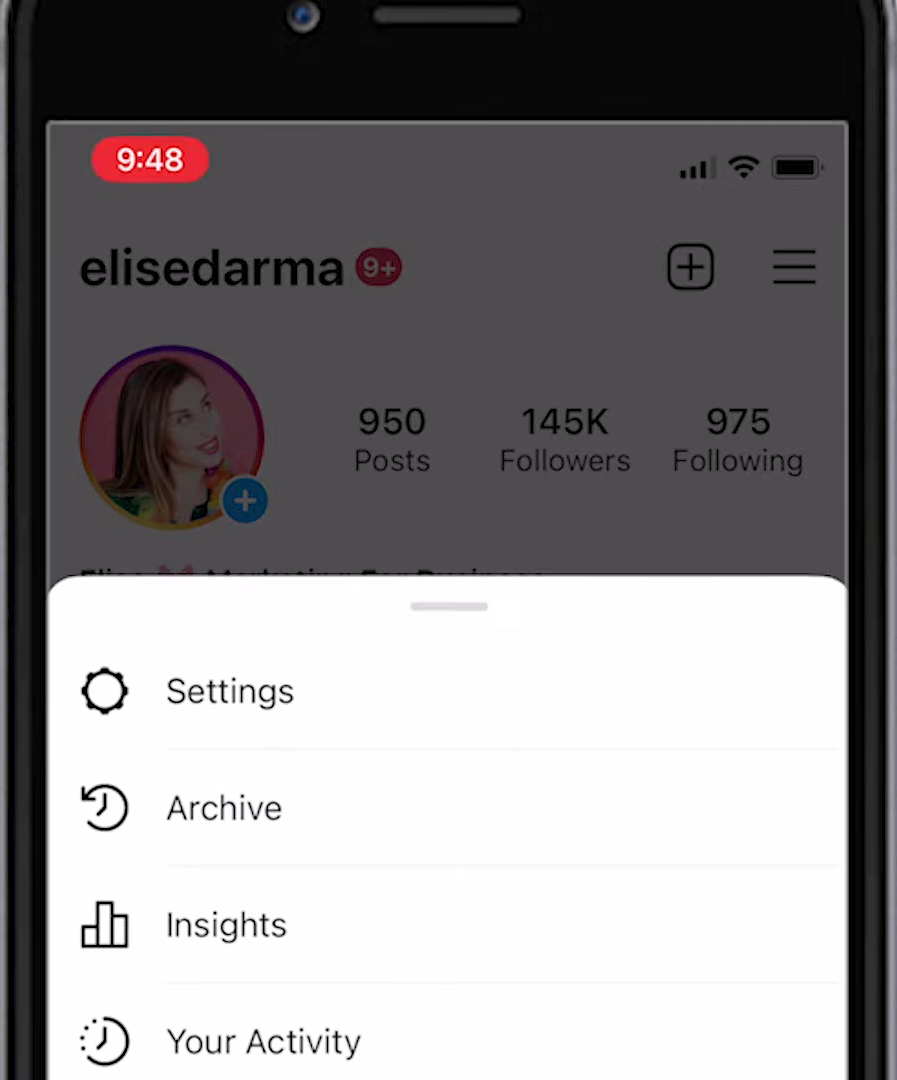
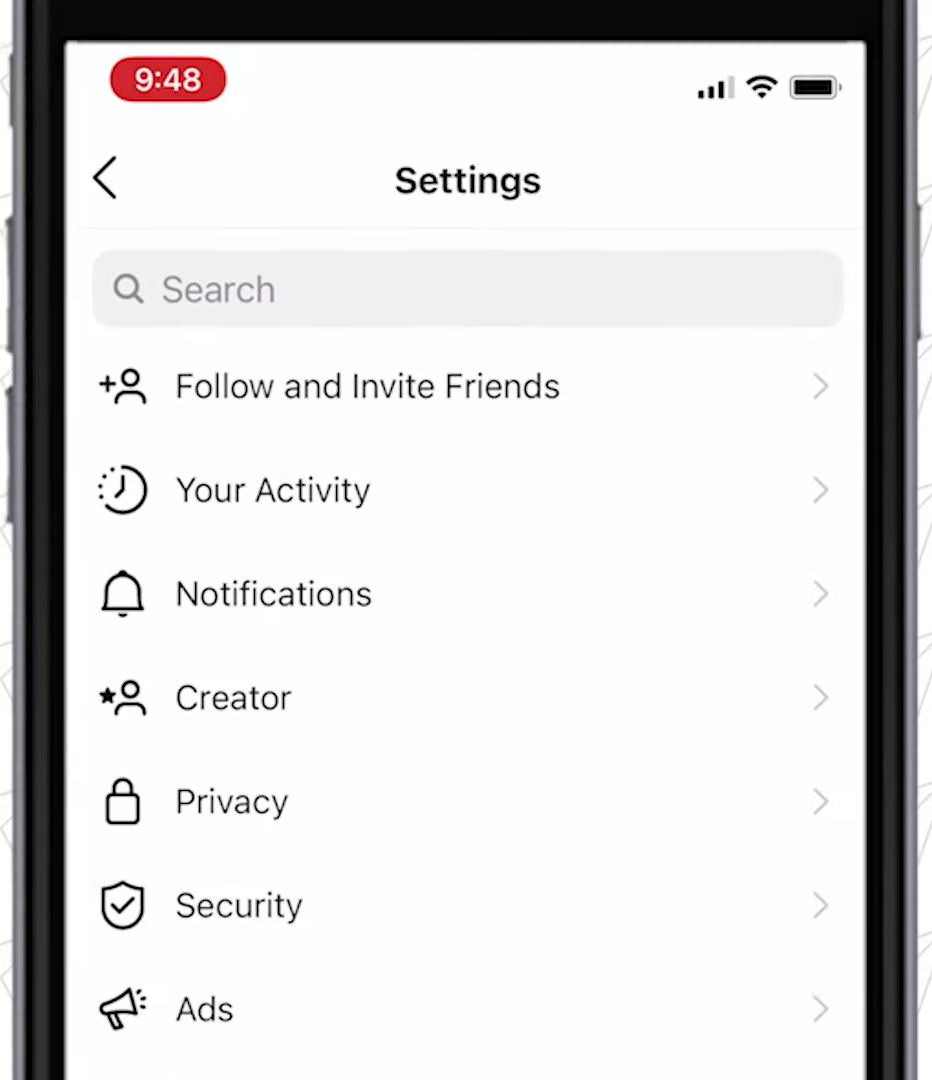
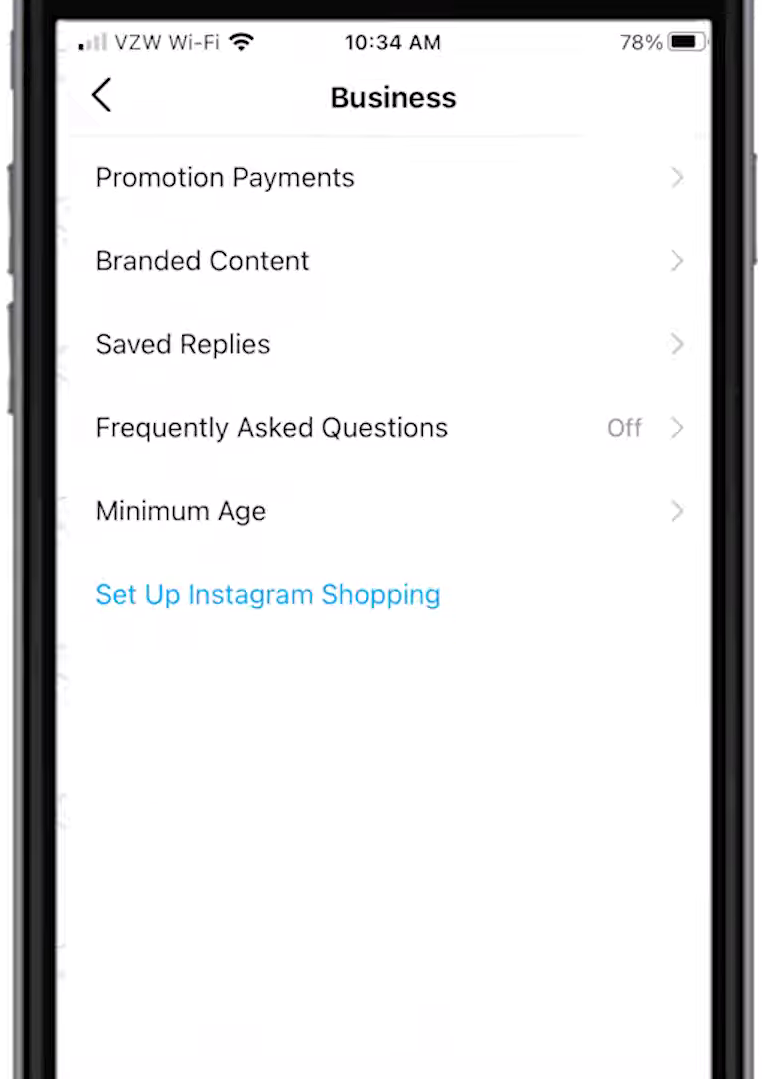
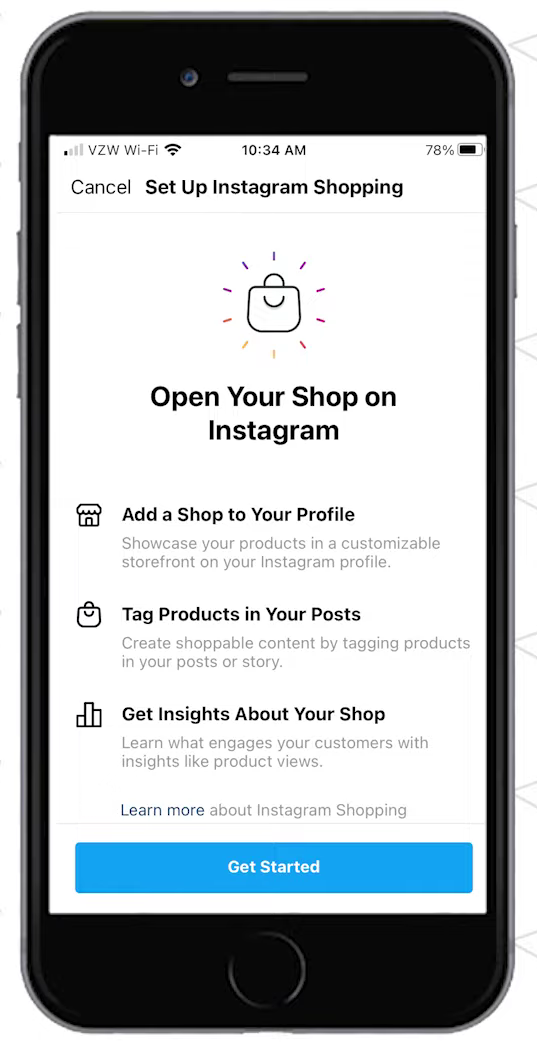
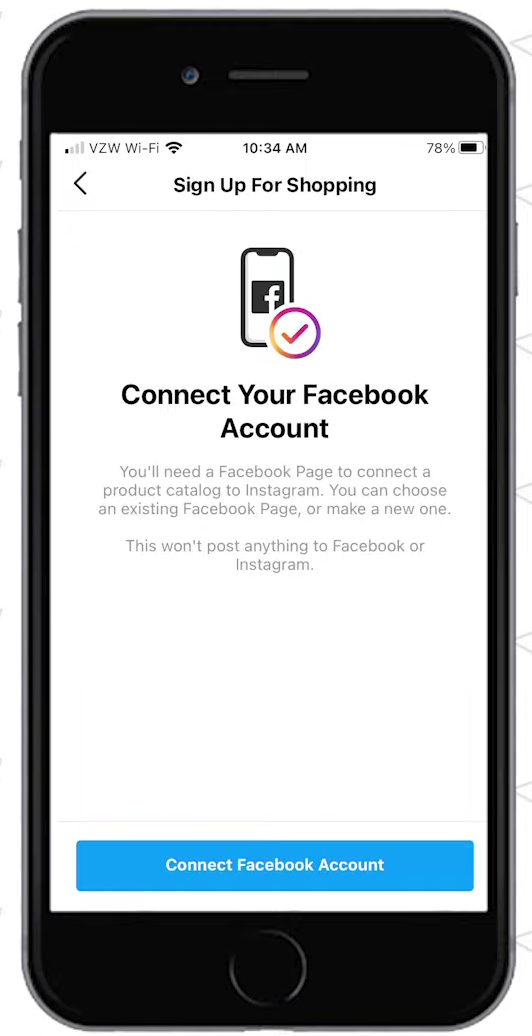
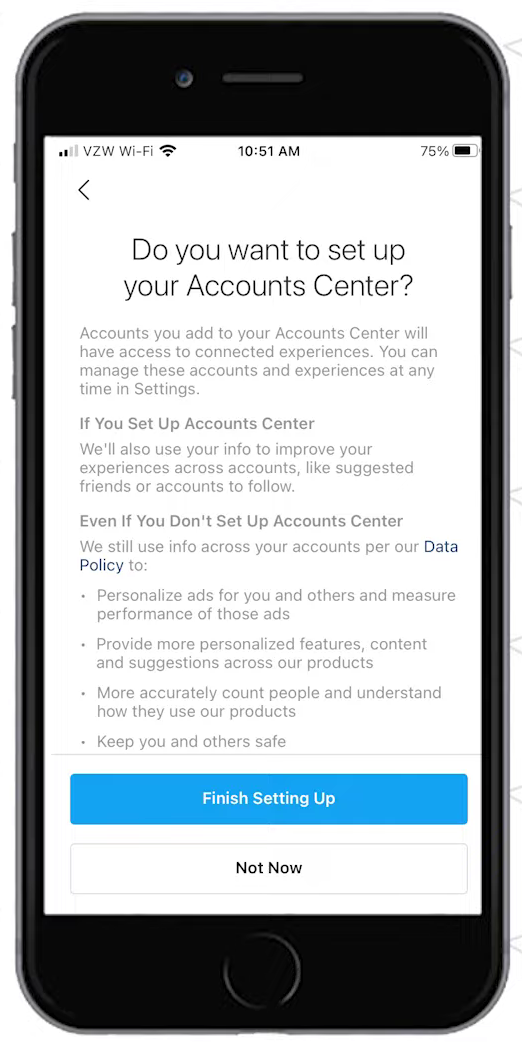
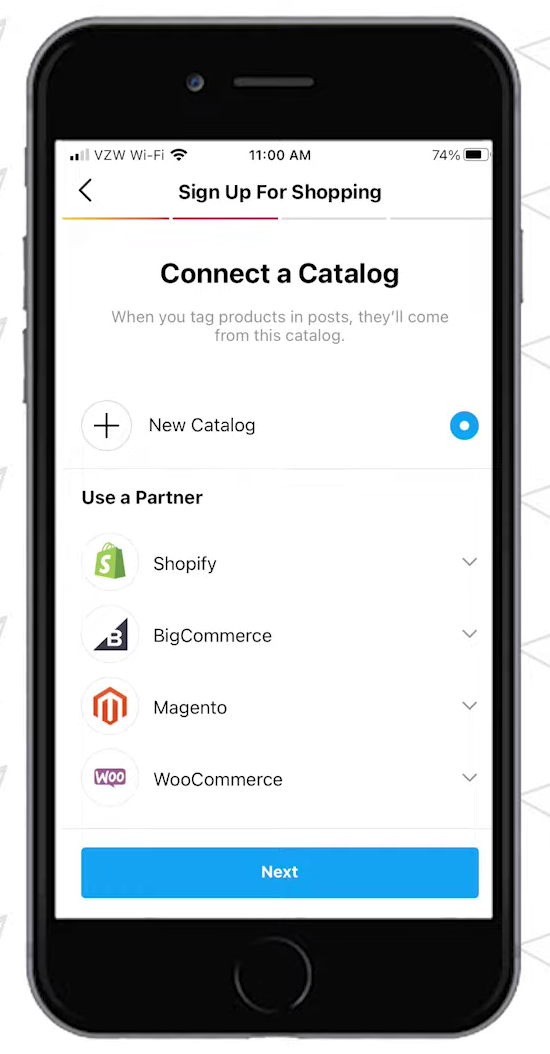
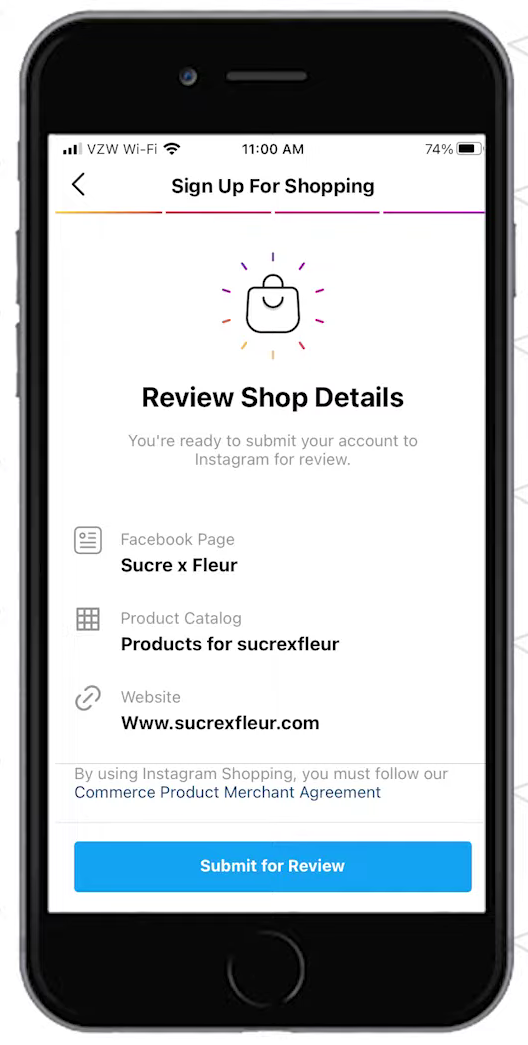
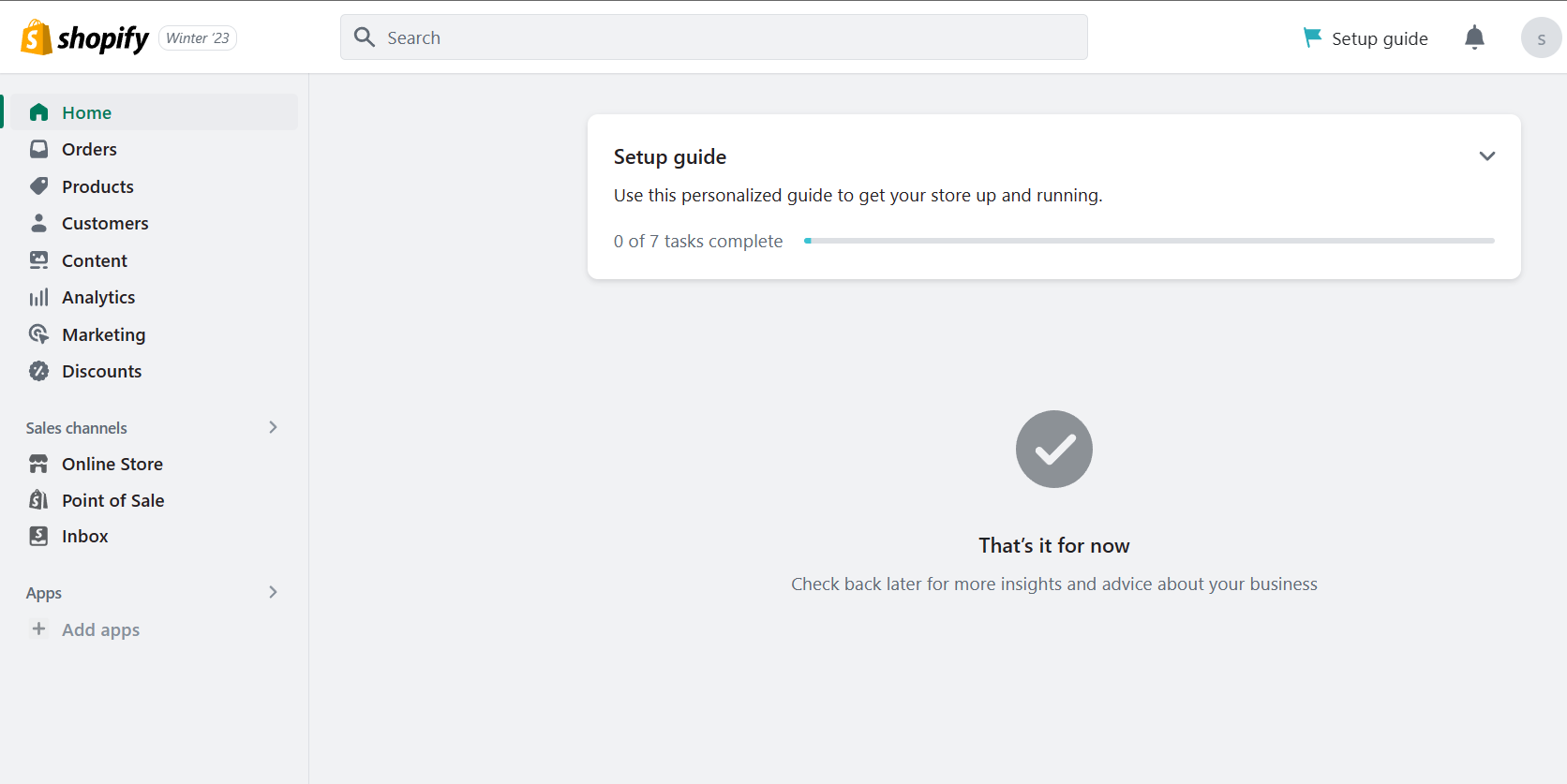
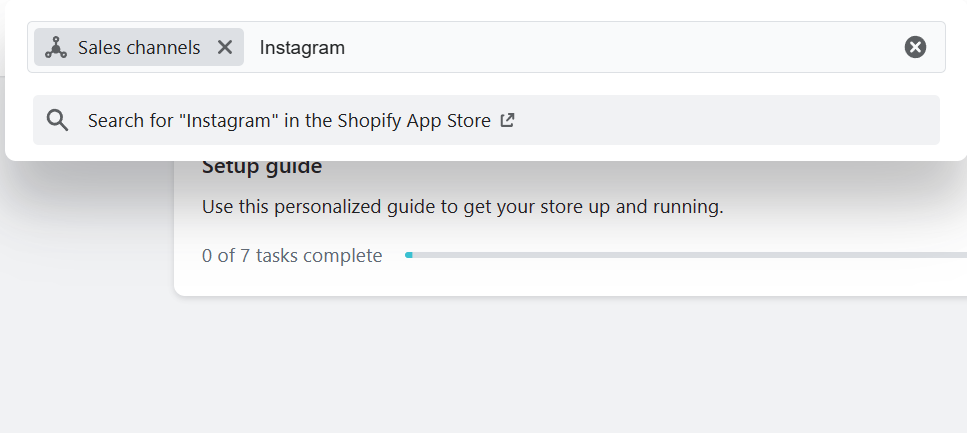
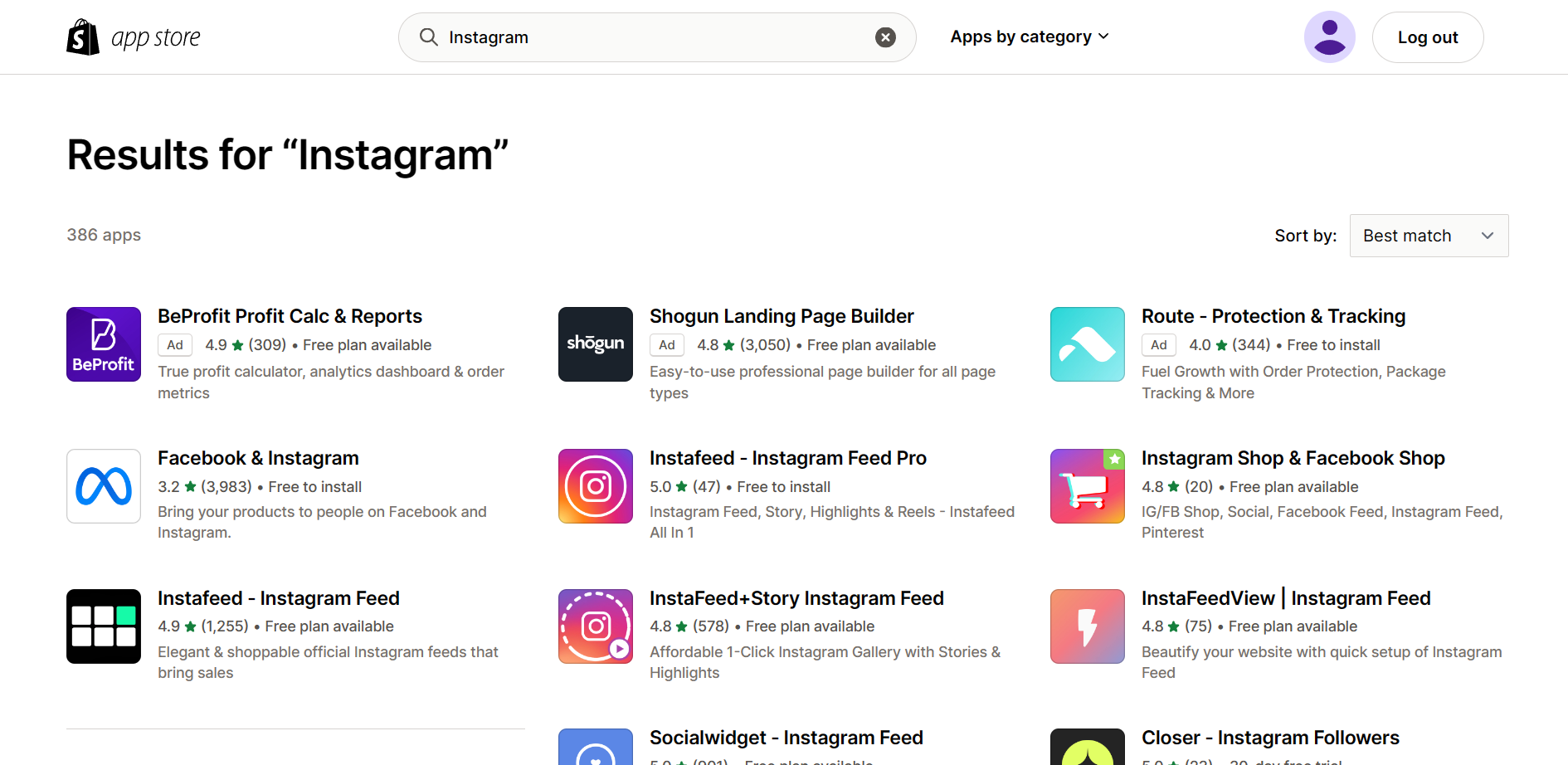
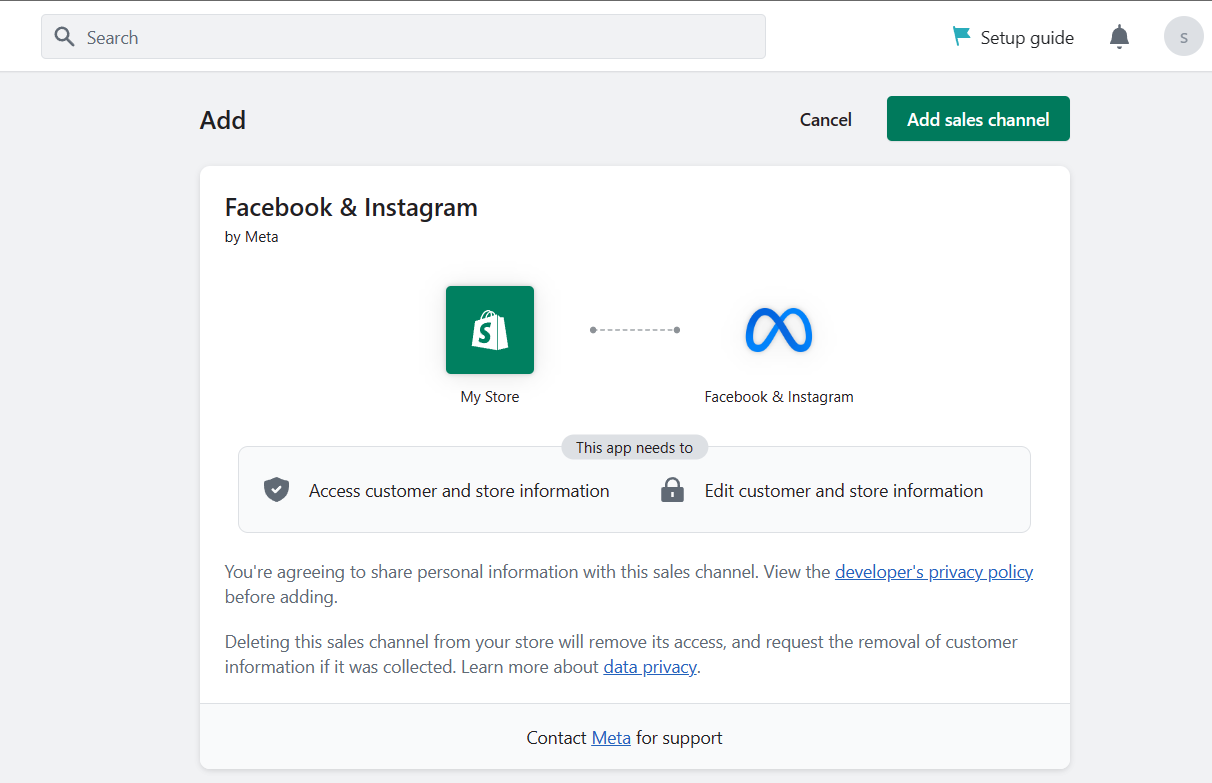
- Take note that this app requires the access and ability to edit the customer and store information, so you need to review and agree with the developer's privacy policy. Click "Add sales channel" after reviewing.
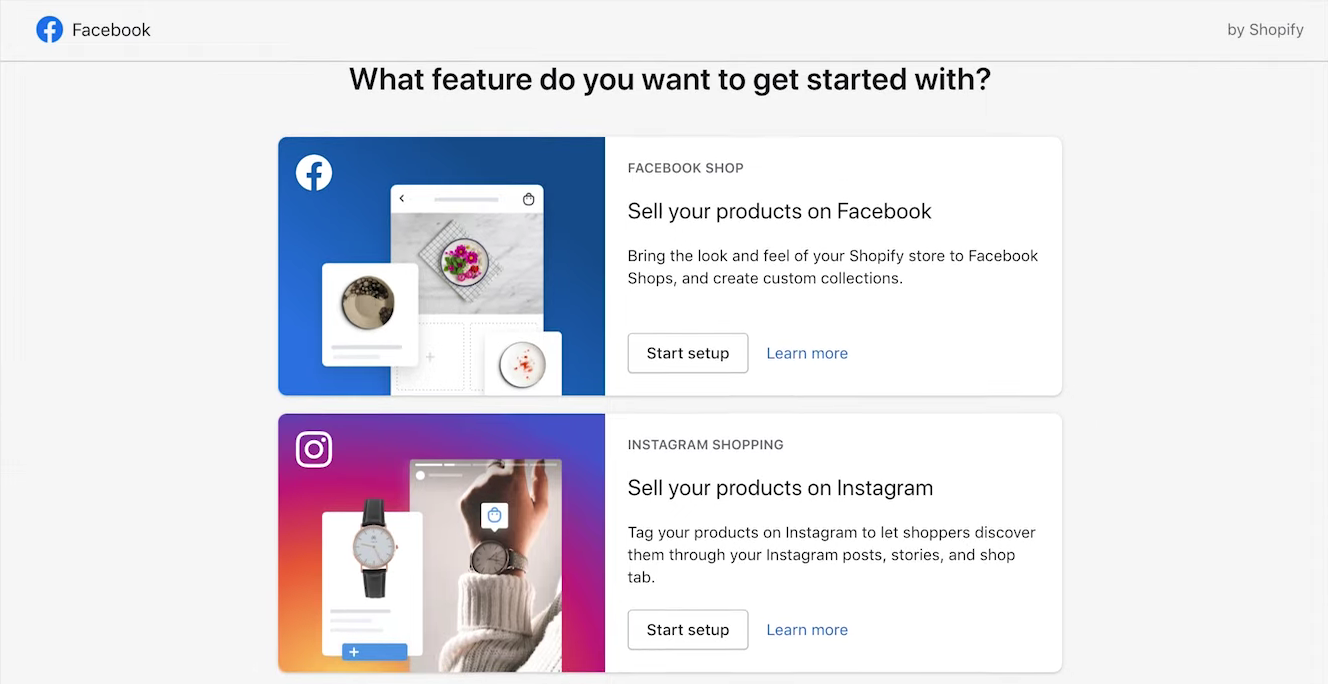
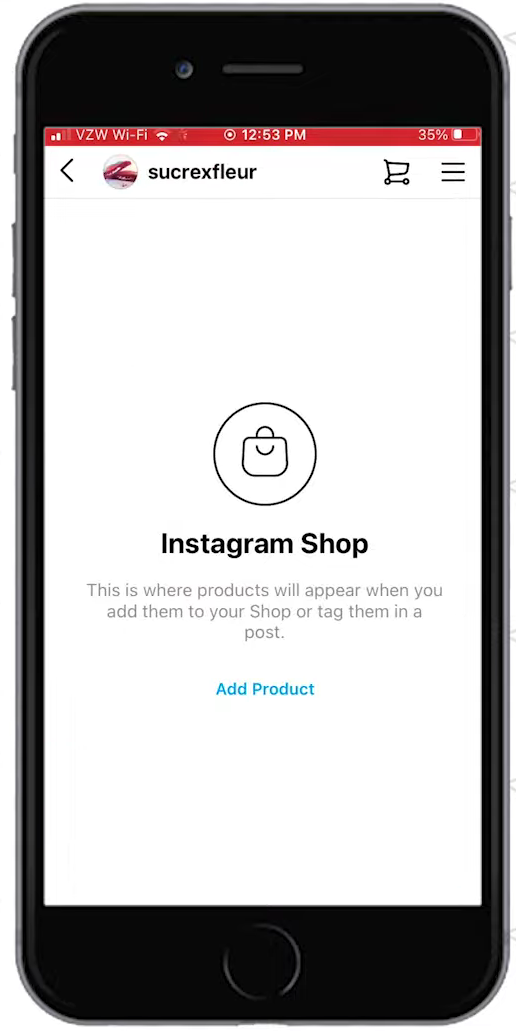
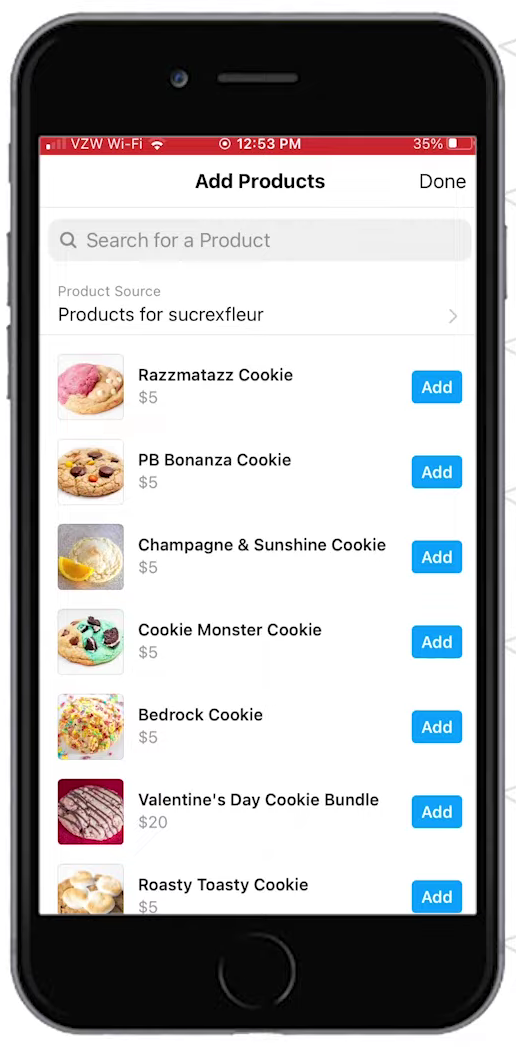
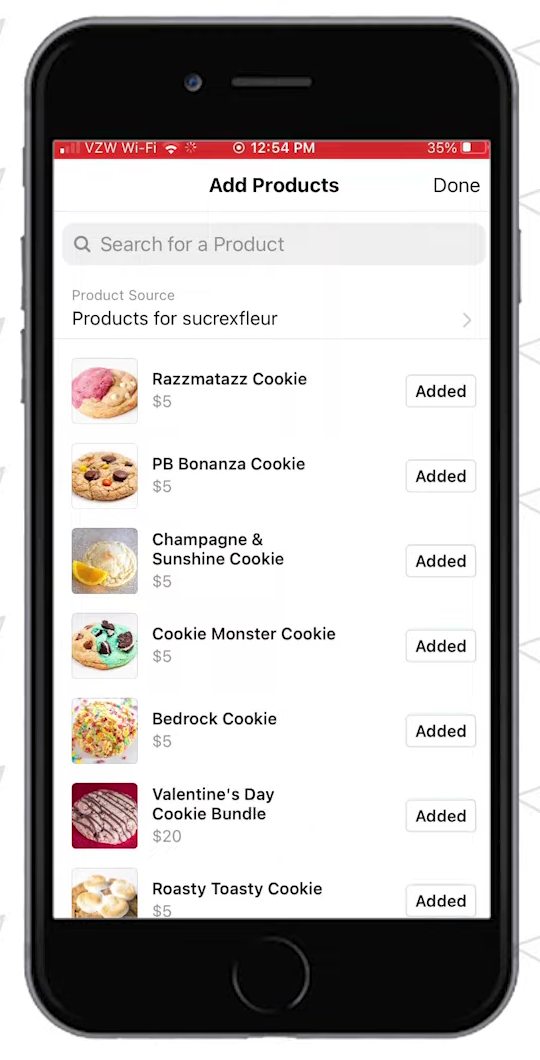
- After installing the sales channel, you can now sell your products on Instagram. To do this, click "Start setup" under Instagram Shopping.
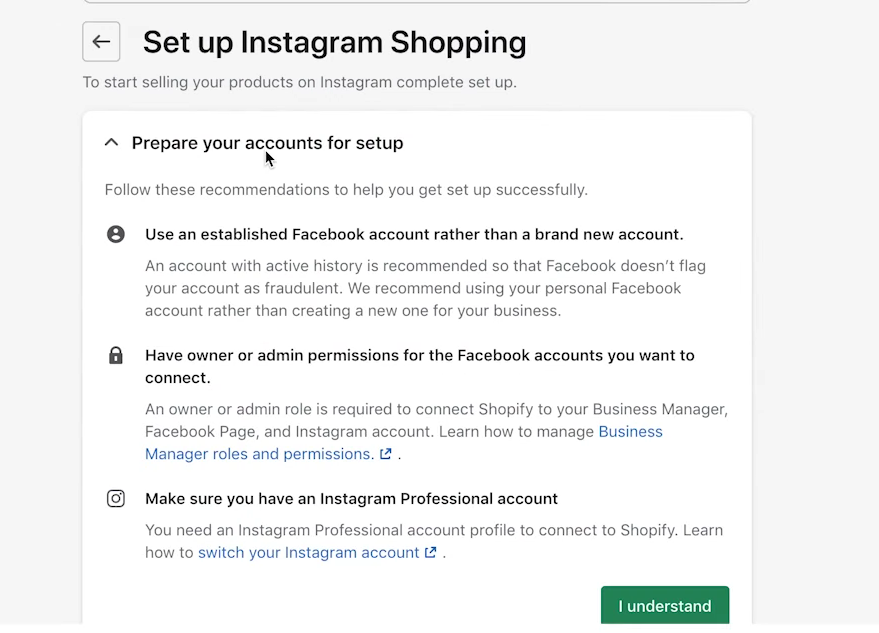
- Some of the key requirements in setting up Instagram Shopping are establishing a Facebook account, admin permission to these accounts, and an Instagram professional account. If you have read and understand this, click the " I understand" button.
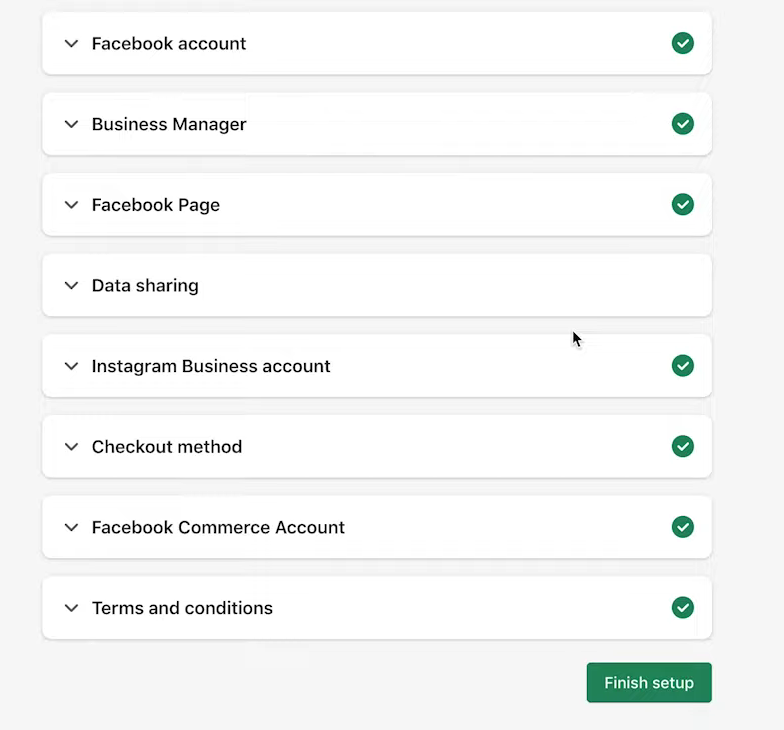
- Lastly, connect necessary accounts to this app so that you can add your products to your Instagram shop. Some of these are the Facebook account, Business Manager, Facebook Page, and Instagram professional account. Click the "Finish setup" button to finish the process.
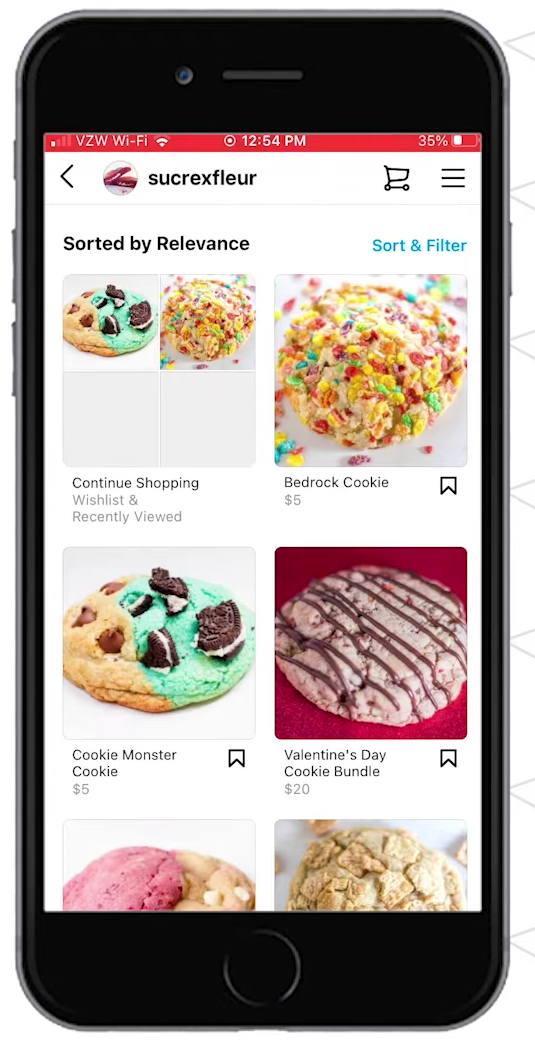
Adding Products to Your Instagram Shop
|
|---|
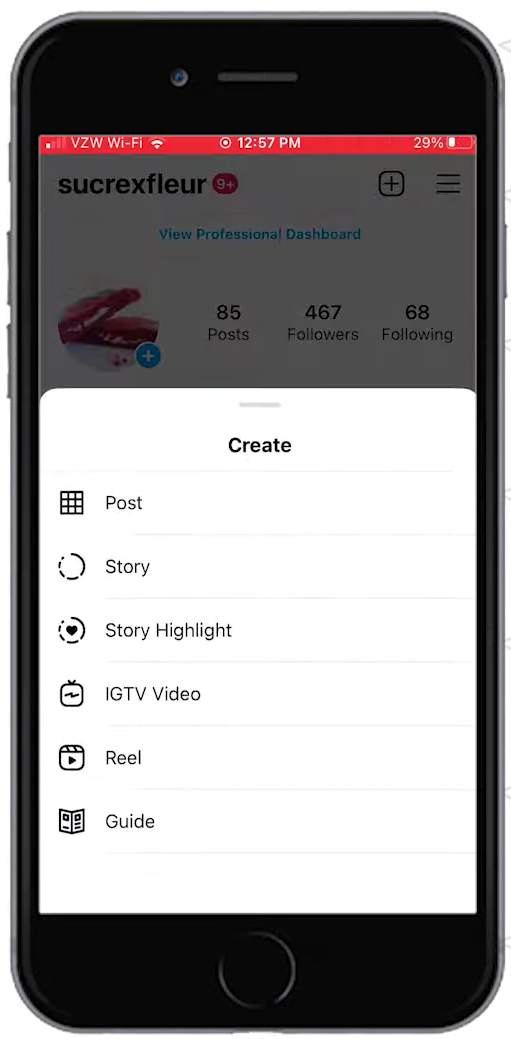
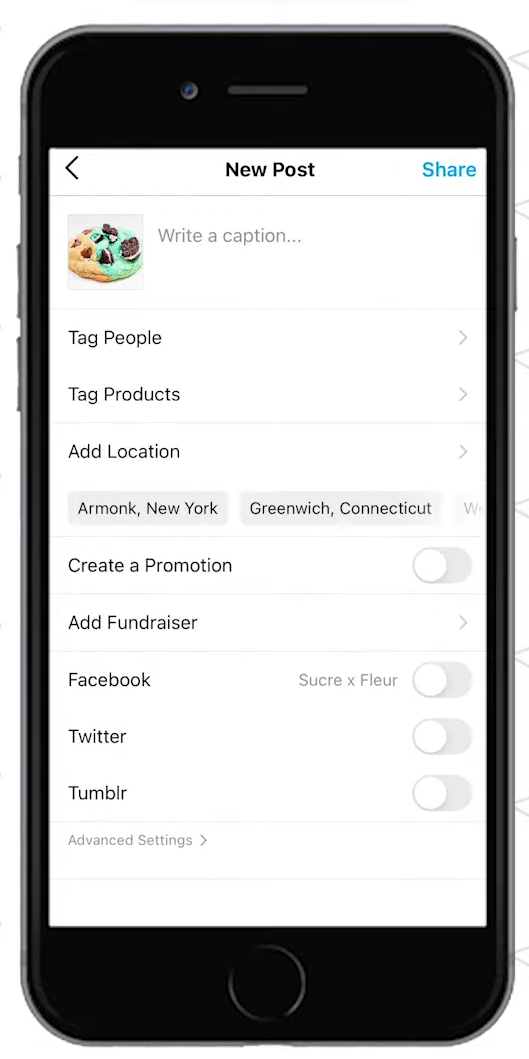
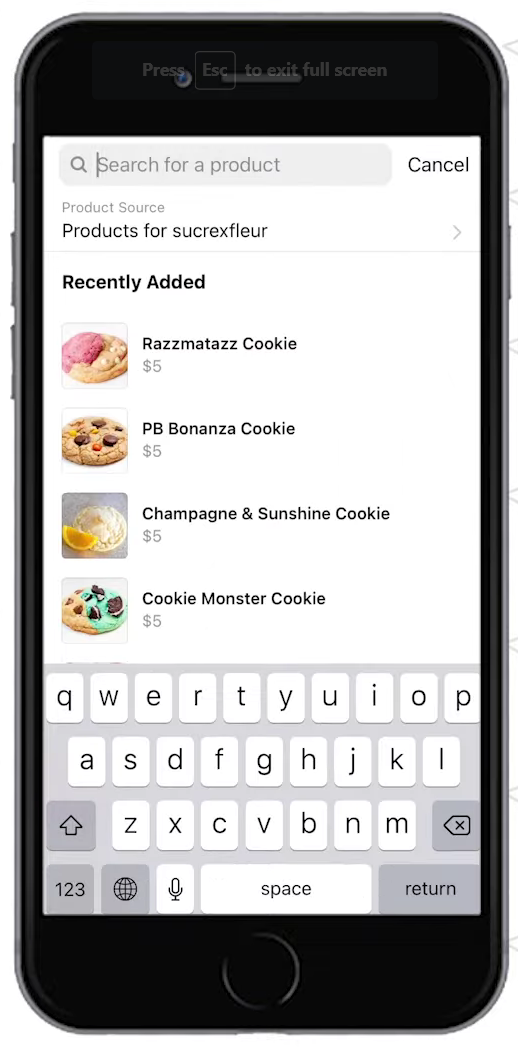
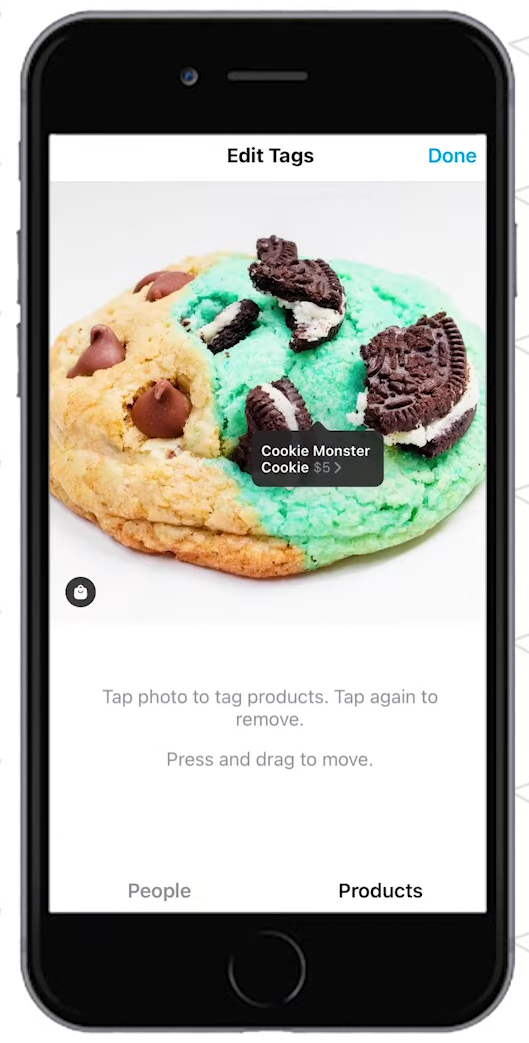
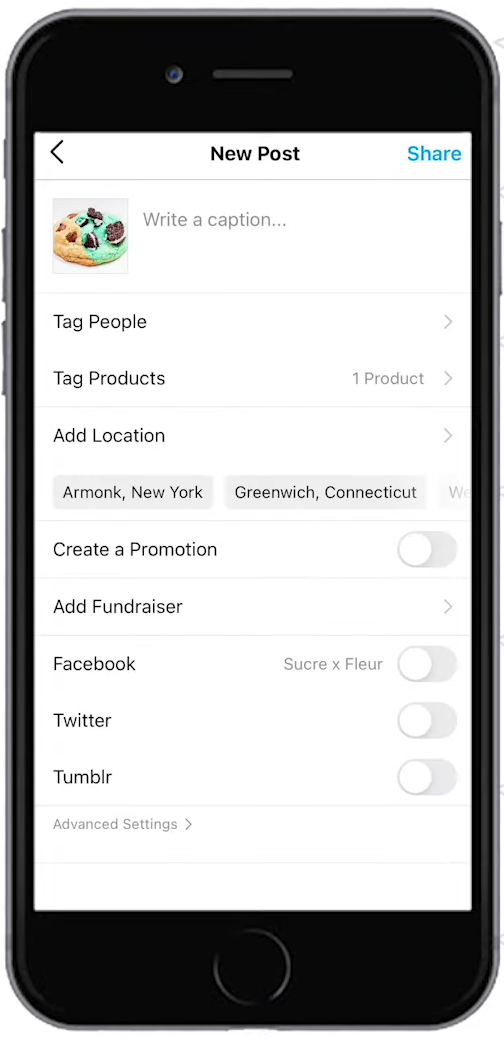
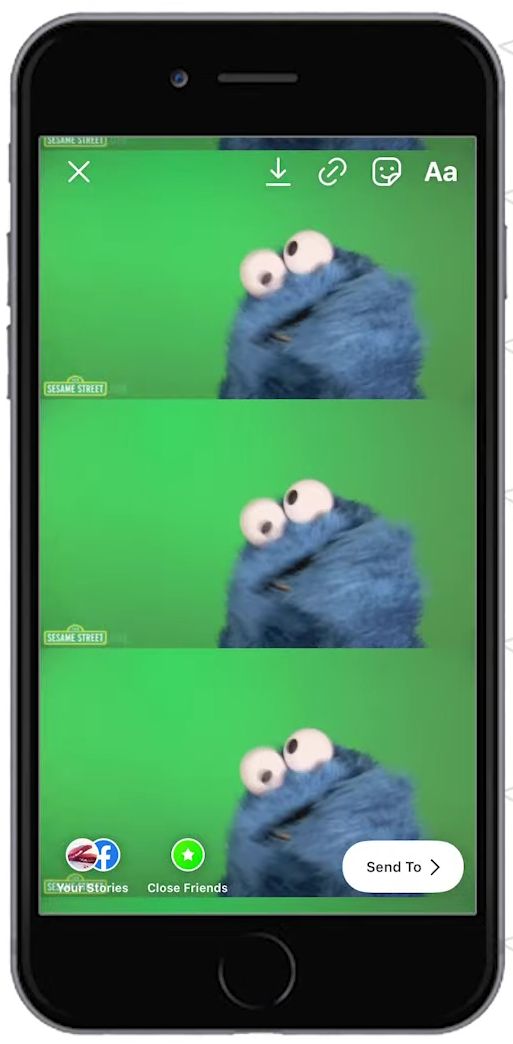
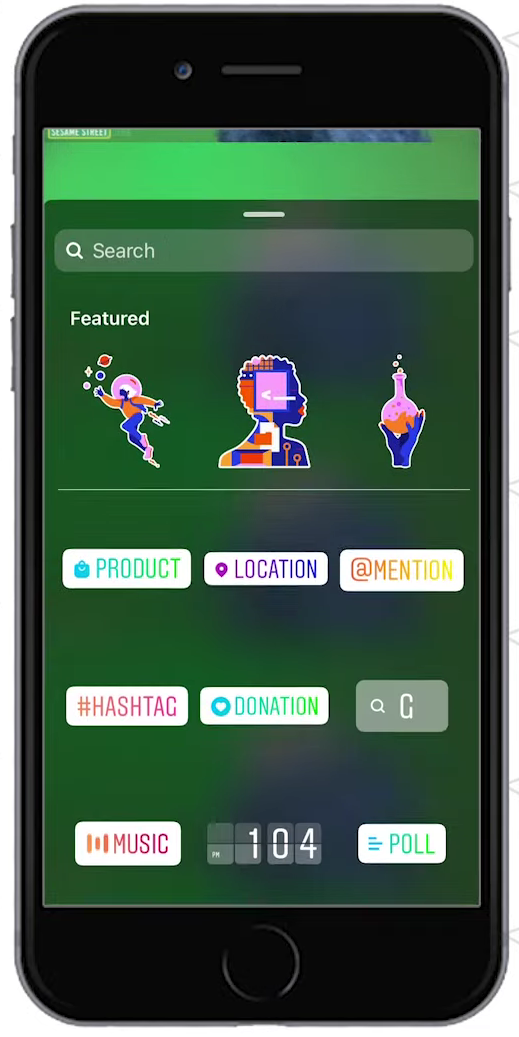
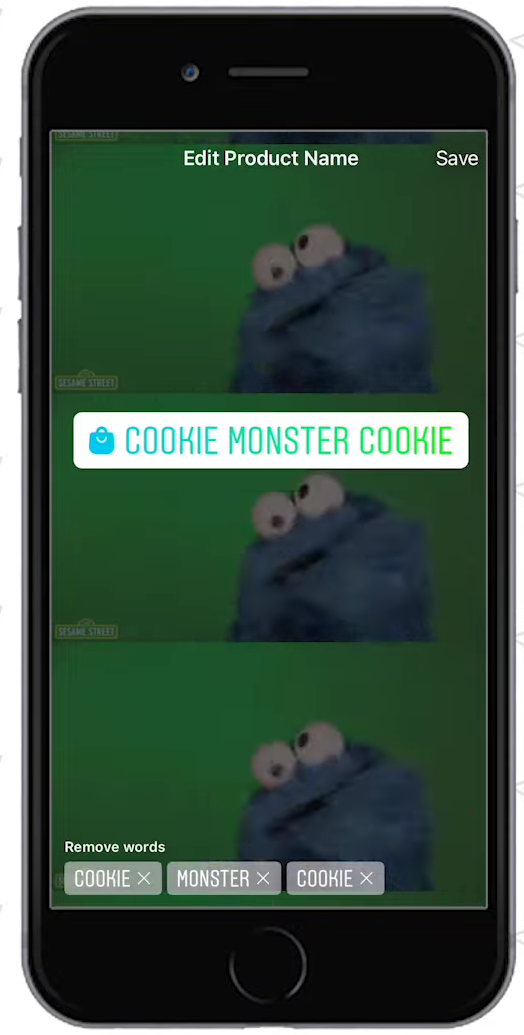
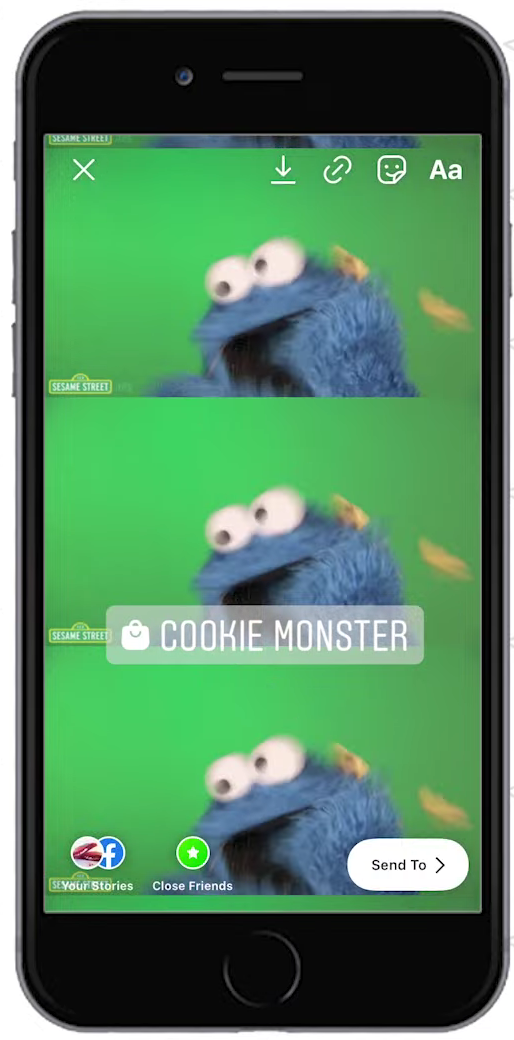
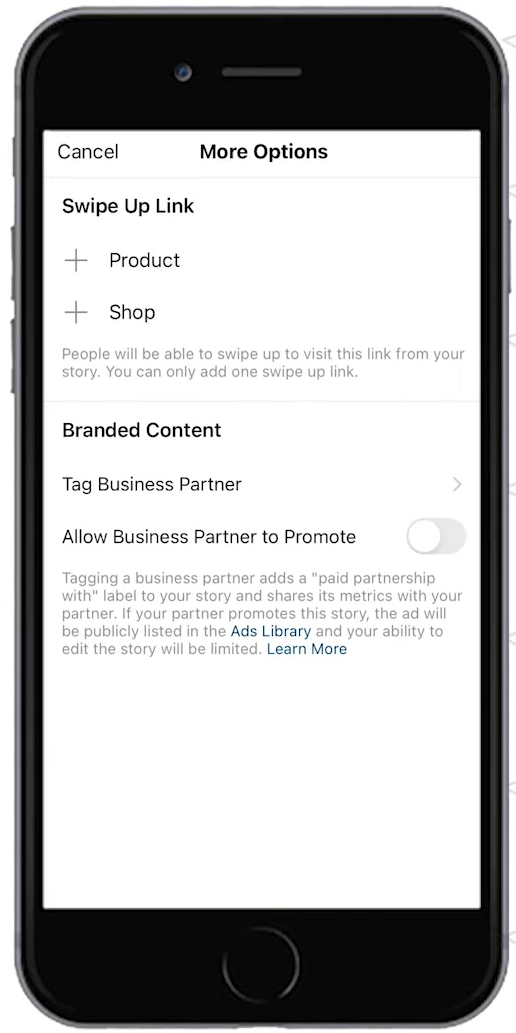
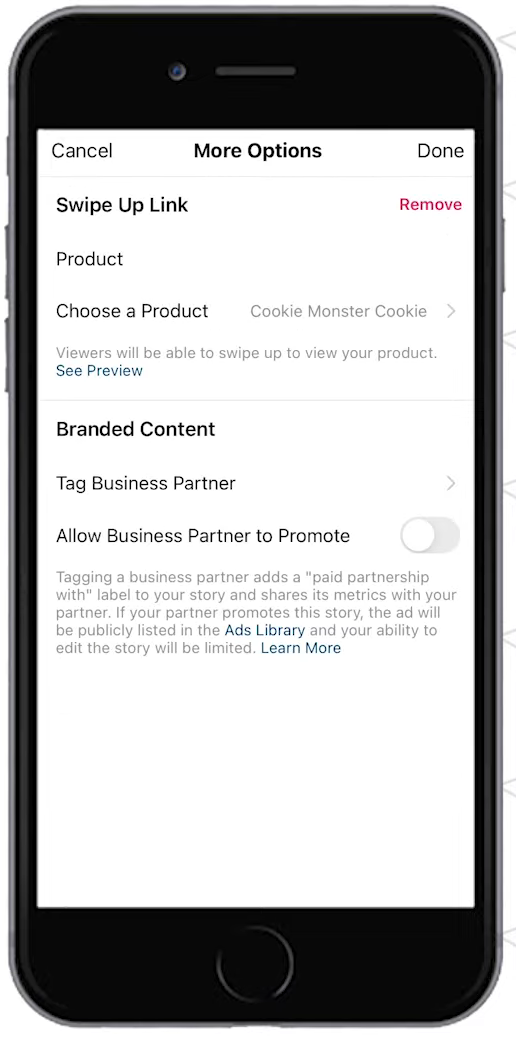
Adding Product Tags to Instagram Posts & Stories
|
|---|
Conclusion
You’re done! Make sure to keep in mind that setting up a shoppable Instagram feed benefits your business by promoting your brand’s recognition and retaining customers. Also, this is a good way to tell your existing customers if you have upcoming events or sales that would boost your
-
To make a shoppable Instagram account, you need to have a website, Instagram professional account, and the physical products for your store.
-
You need to set up your products and incorporate your website to your Instagram account first. After that, it would be easy to add your products to your Instagram posts and stories.
-
Shopify is the website builder illustrated in this SOP, but there are other existing sites that can be linked to your Instagram store such as BigCommerce, Magento, and WooCommerce.
-
Instagram Shop is utilized for free, but there are some requirements that should be established in your business to create it. After submitting Instagram Shop for review, they will test and verify your account if it is fit to have a shop.