A Guide to Adding Multiple Sales Channels to Your Shopify Store
To add multiple sales channels to your Shopify store and increase sales.
Prefer a shortcut? 16 free tools do parts of this for you.

Aim: To add multiple sales channels to your Shopify store and increase sales.
Optimal Outcome: A Shopify store with multiple sales channels integrated, allowing customers to purchase products from various channels.
What do you need to start:
-
A Shopify account with an active store
-
The sales channel you wish to integrate (e.g., Amazon, Facebook, Instagram, etc.)
-
Access to the backend of your Shopify store
Why is this SOP Important: Adding multiple sales channels to your Shopify store can help expand your reach and increase sales.
When and Where to execute: Once upon setup and whenever you want to add a new sales channel.
Who Should Be Doing This: Anyone assigned to manage the backend of a Shopify store.
Step-by-Step Guide:
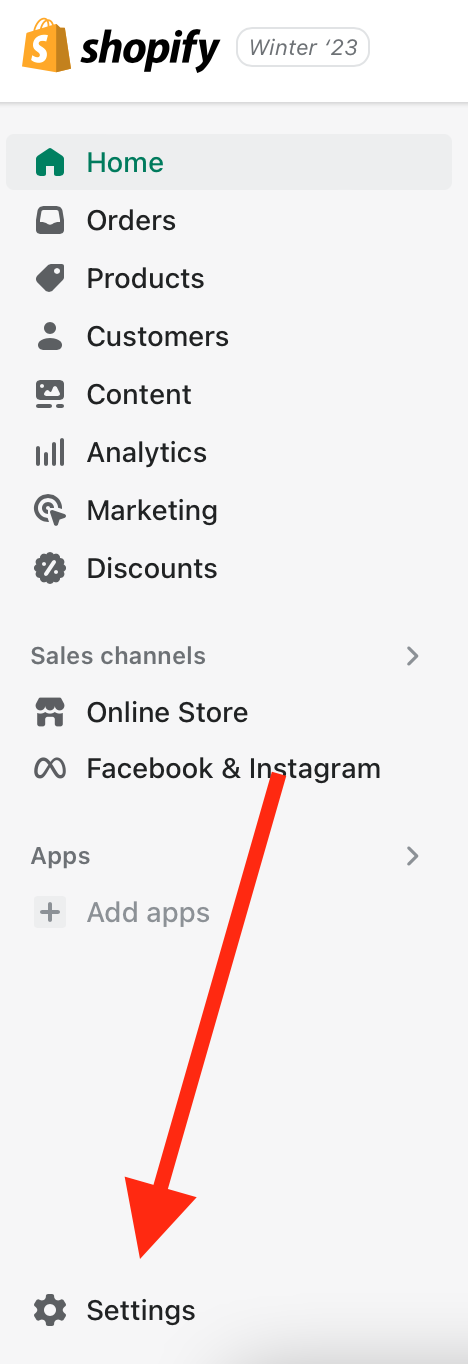
- Log in to your Shopify account and navigate to the "Settings" tab.
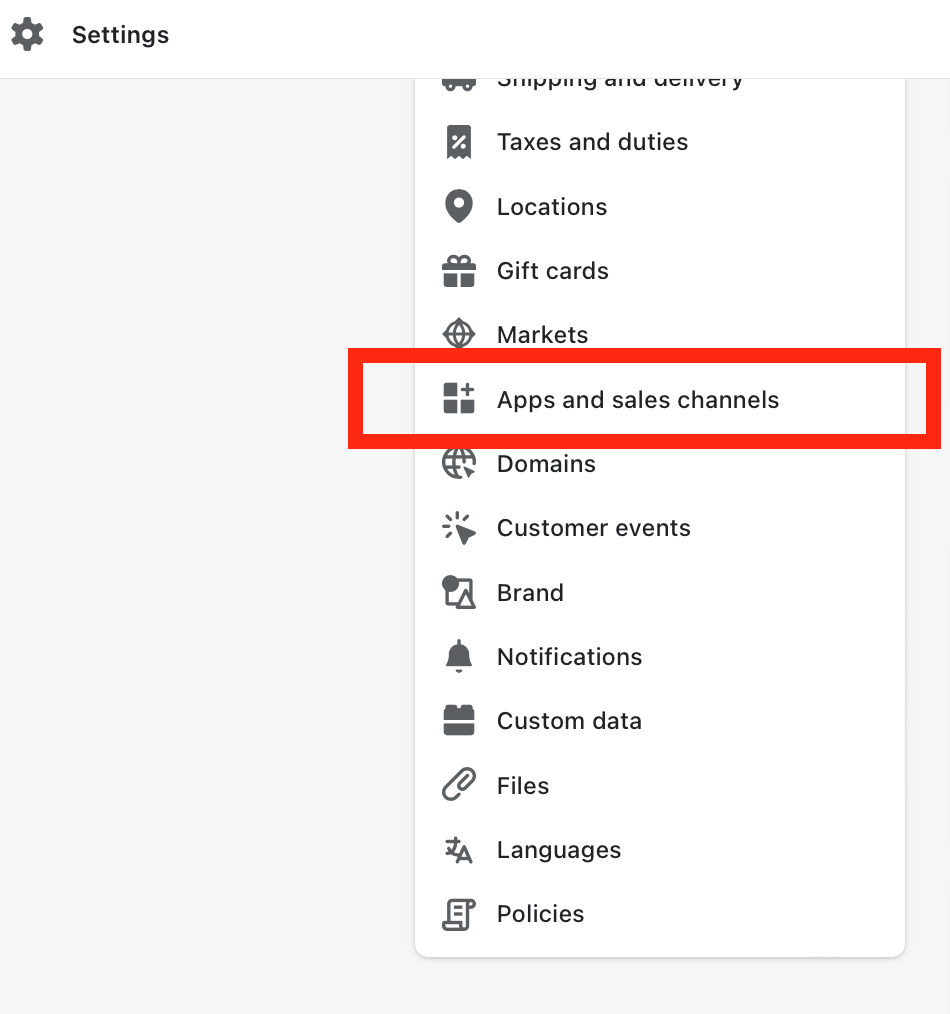
- Click on "Apps and sales channels" from the dropdown menu.
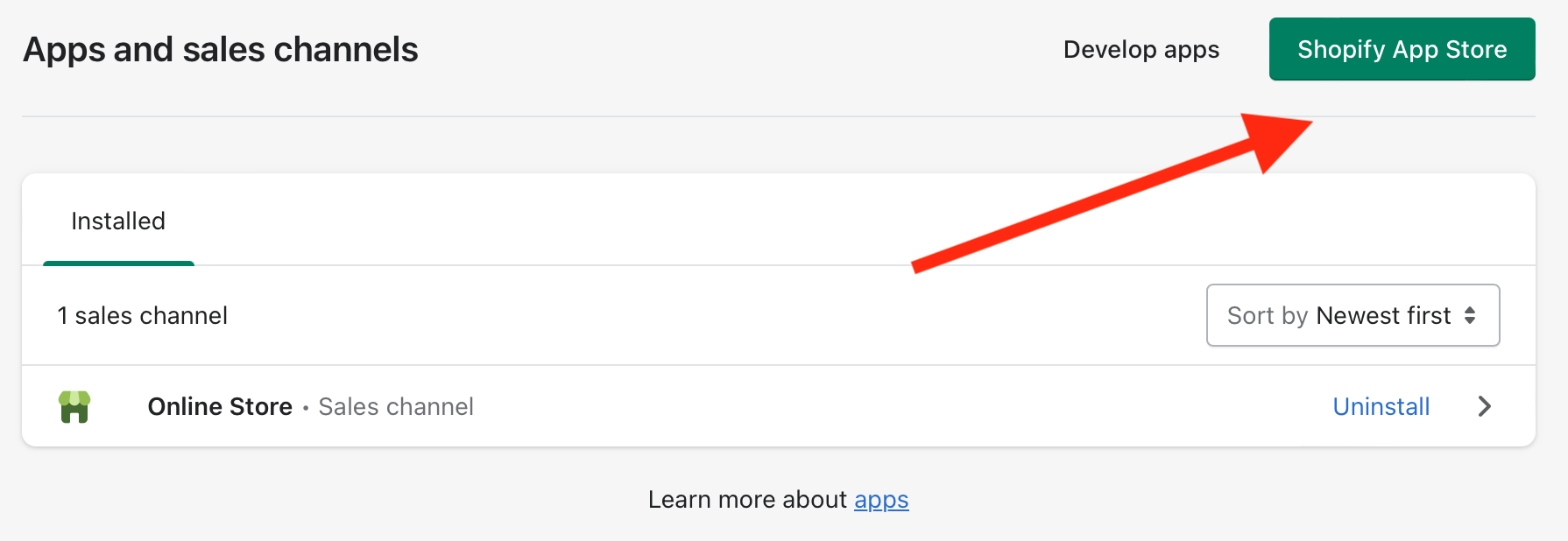
- Click Shopify App Store.
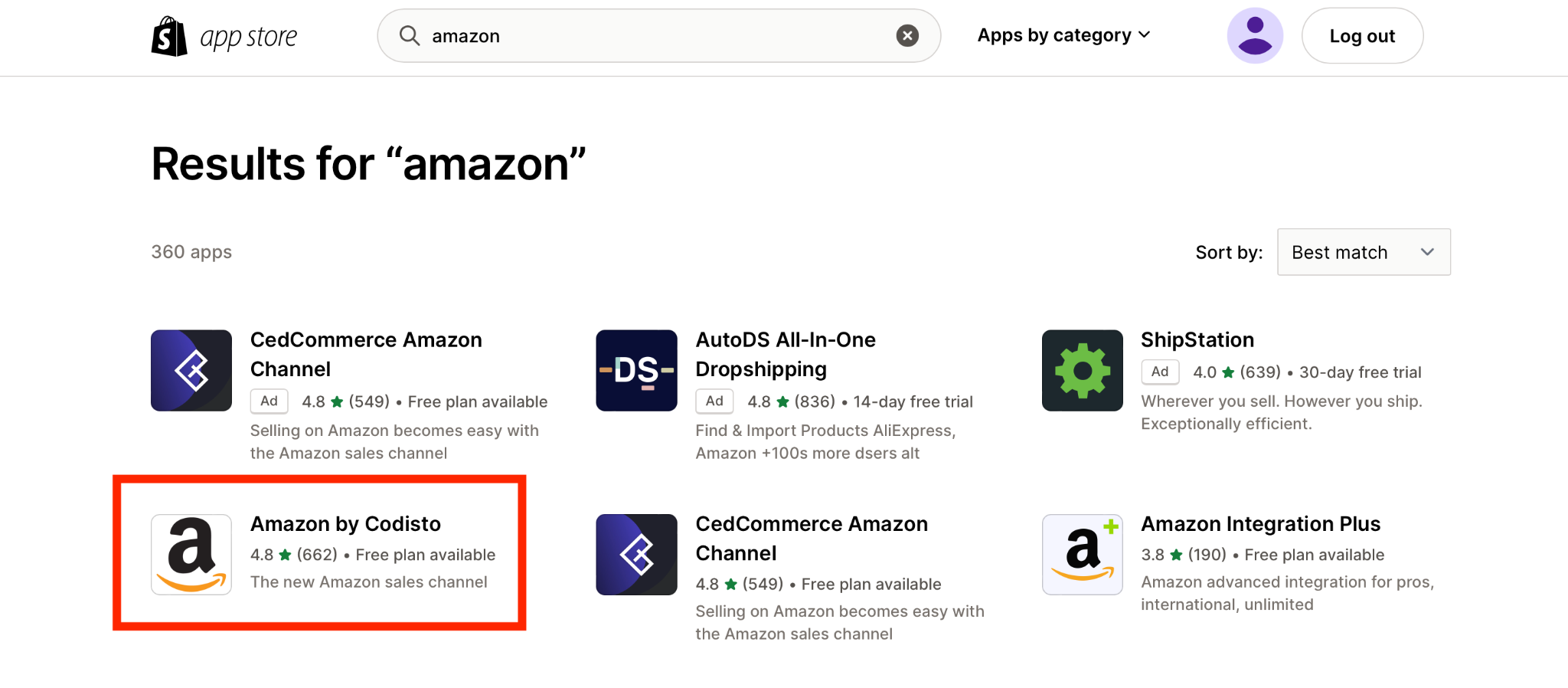
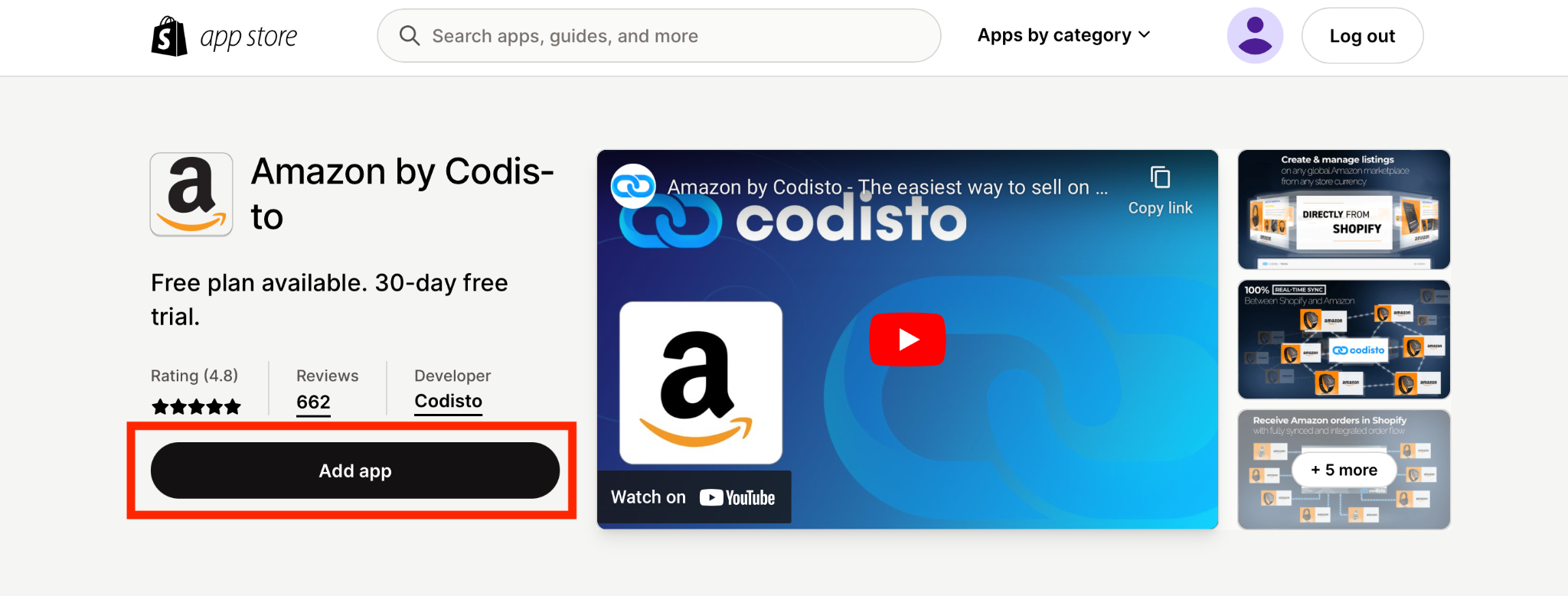
- Select the sales channel you wish to add (in this sample, we’re adding Amazon) from the list of available channels.
- Click Add app.
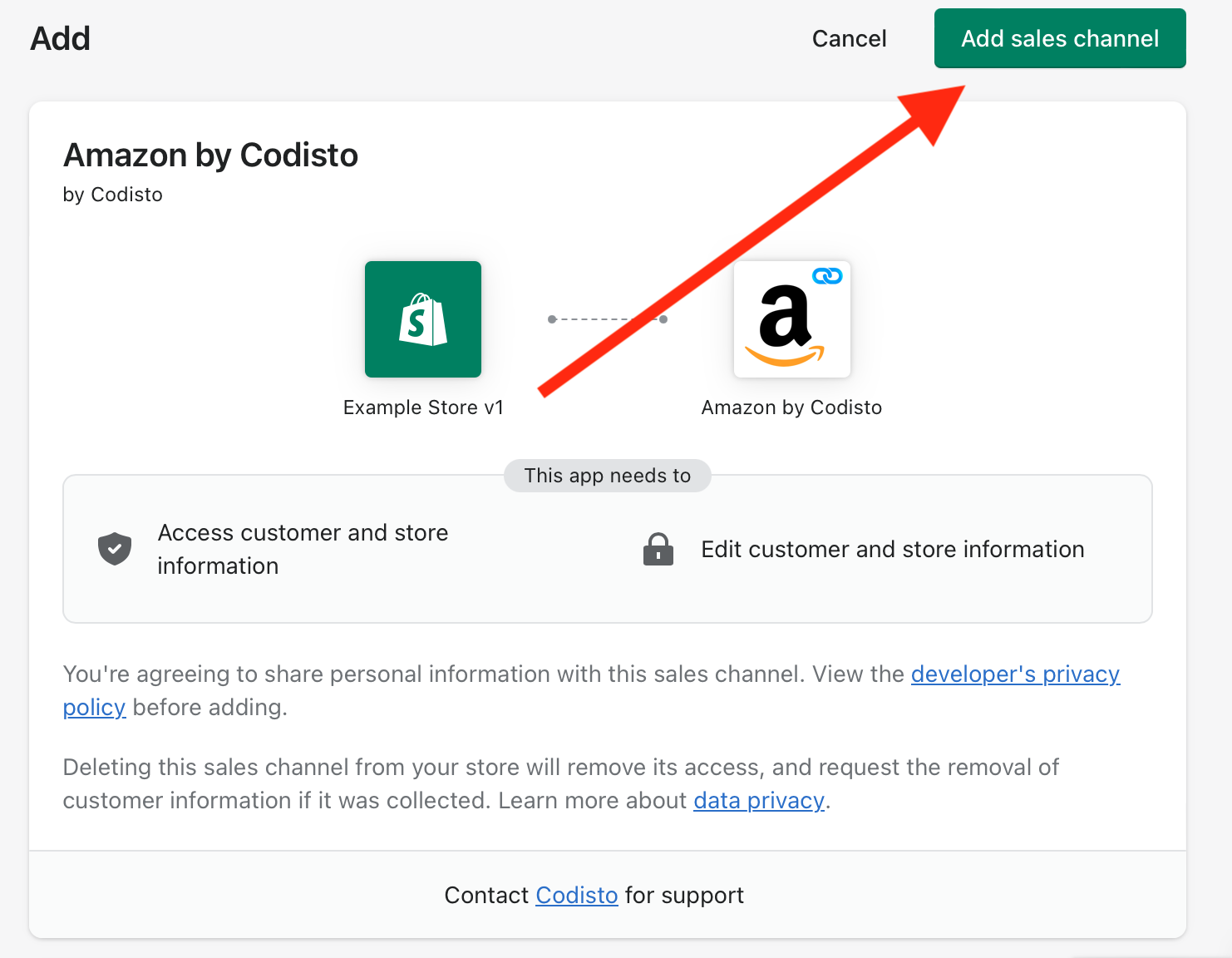
- Configure the settings for your new sales channel.
Depending on the channel, you may need to set up shipping and payment options specific to that channel. Once done, click Add sales channel.
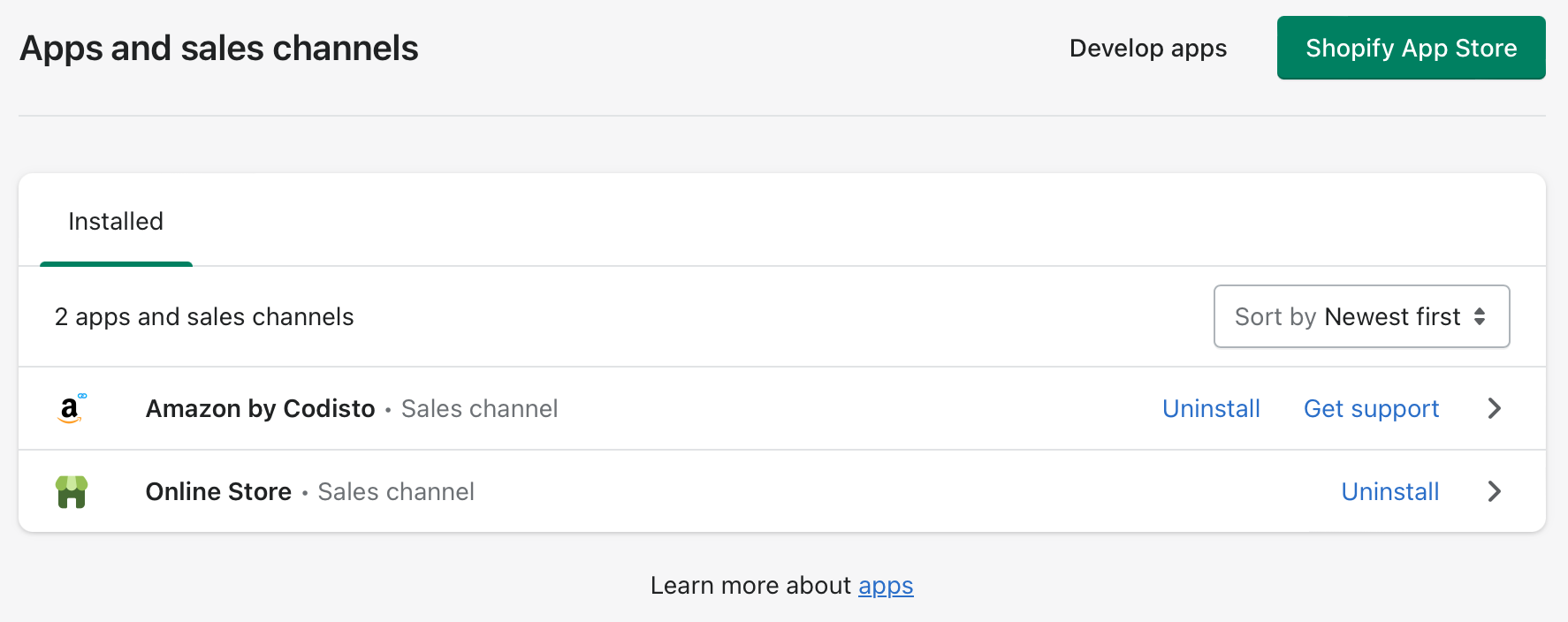
- It’s now added under “Apps and sales channels”.
- Test your sales channel to ensure it is working correctly.
Place a test order and check that the order is successfully processed and fulfilled.
-
Repeat steps 3-7 for any additional sales channels you wish to integrate.
-
Monitor your sales channels and make adjustments as necessary.
Regularly check the performance of each channel and adjust your listings, pricing, and other settings as needed to maximize sales.
Conclusion
You’re done!
By following these steps, you can easily add multiple sales channels to your Shopify store and expand your reach to new customers.
Execution Checklist:
-
Log in to your Shopify account and navigate to the "Settings" tab.
-
Click on "Apps and Sales Channels" from the dropdown menu.
-
Click “Shopify App Store”.
-
Select the sales channel you wish to add from the list of available channels.
-
Configure the settings for your new sales channel.
-
Test your sales channel to ensure it is working correctly.
-
Repeat steps 3-7 for any additional sales channels you wish to integrate.
-
Monitor your sales channels and make adjustments as necessary.