How to Improve Shopify's 404 Page
The main objective of this procedure is to improve Shopify’s 404 page to help increase user engagement and satisfaction.
Prefer a shortcut? 16 free tools do parts of this for you.
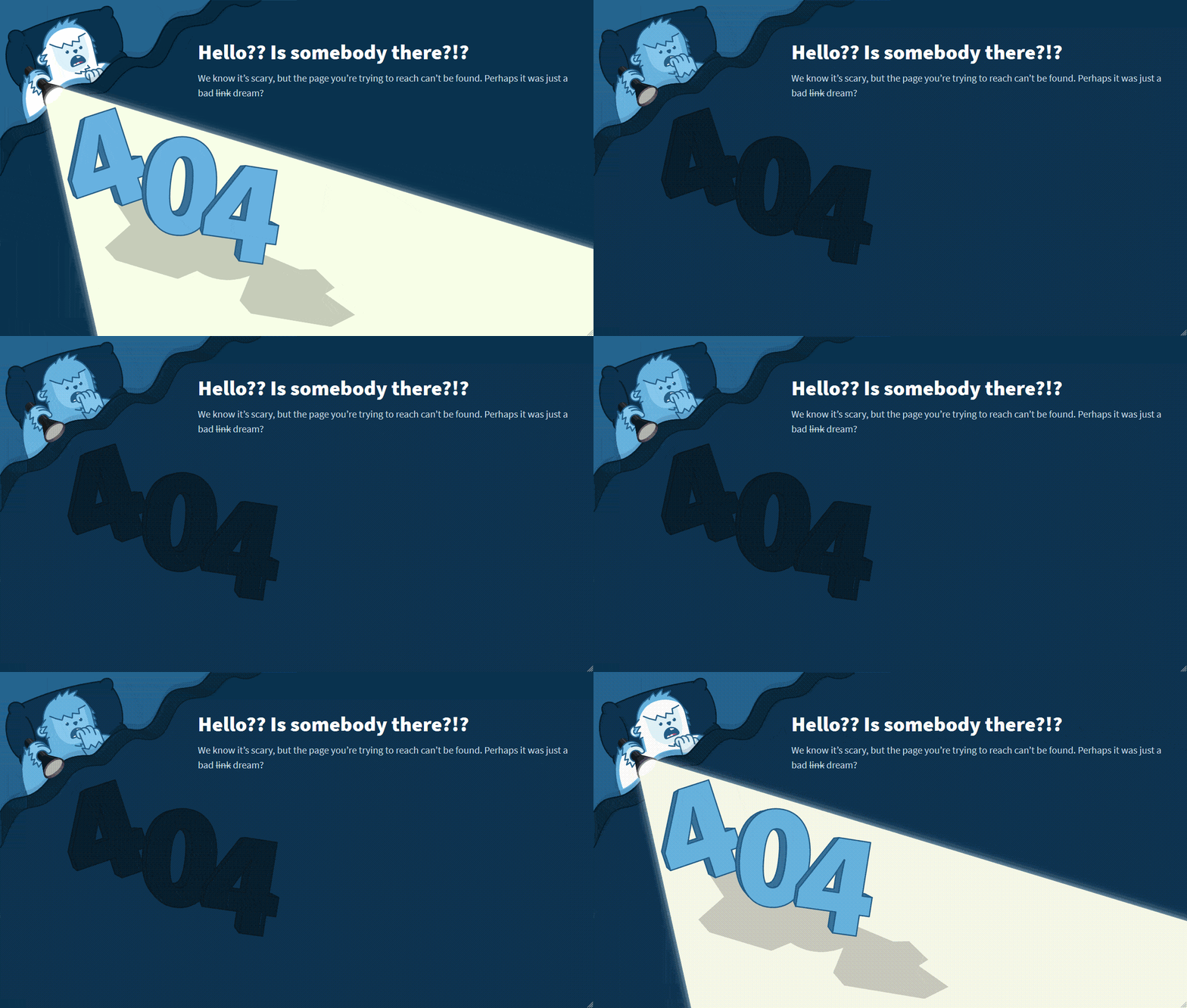
Aim: The main objective of this procedure is to improve Shopify’s 404 page to help increase user engagement and satisfaction.
Optimal Outcome: A custom 404 page is displayed when visitors attempt to access a page on your store that does not exist. Your 404 page is not included in the sitemap's XML.
What do you need to start: You will need a Shopify Account to begin this process.
Why is this SOP Important: There is a strong probability that visitors won't leave your website right away if they land on an attractive and engaging 404 page. Improving this page can help create a better customer experience, as they won't feel lost when they are looking for something that doesn't exist.
When and Where to execute: You have to set up your Shopify’s 404 Page as soon as you published your store.
Who Should Be Doing This: This procedure is managed by the person in charge of analytics and SEO.
What is a 404 Page?
A 404 page is the page a user sees when they are looking for a page or product that doesn't exist. It is a standard web protocol and provides an opportunity for a store to provide a better customer experience.
The importance of a 404 page to SEO Shopify is that it gives search engine robots an understanding of the page's purpose. This allows them to better index the page and recognize that it is not a broken link. Additionally, providing helpful links to related pages or the homepage can help keep customers engaged and provide an easy way for them to find what they were looking for. Improving the 404 page can also help with SEO rankings, as it provides a better customer experience and allows search engine robots to better index the page
Execution
Checking your Shopify 404 Page
- Type “yourwebsiteURL/404” on your web browser.

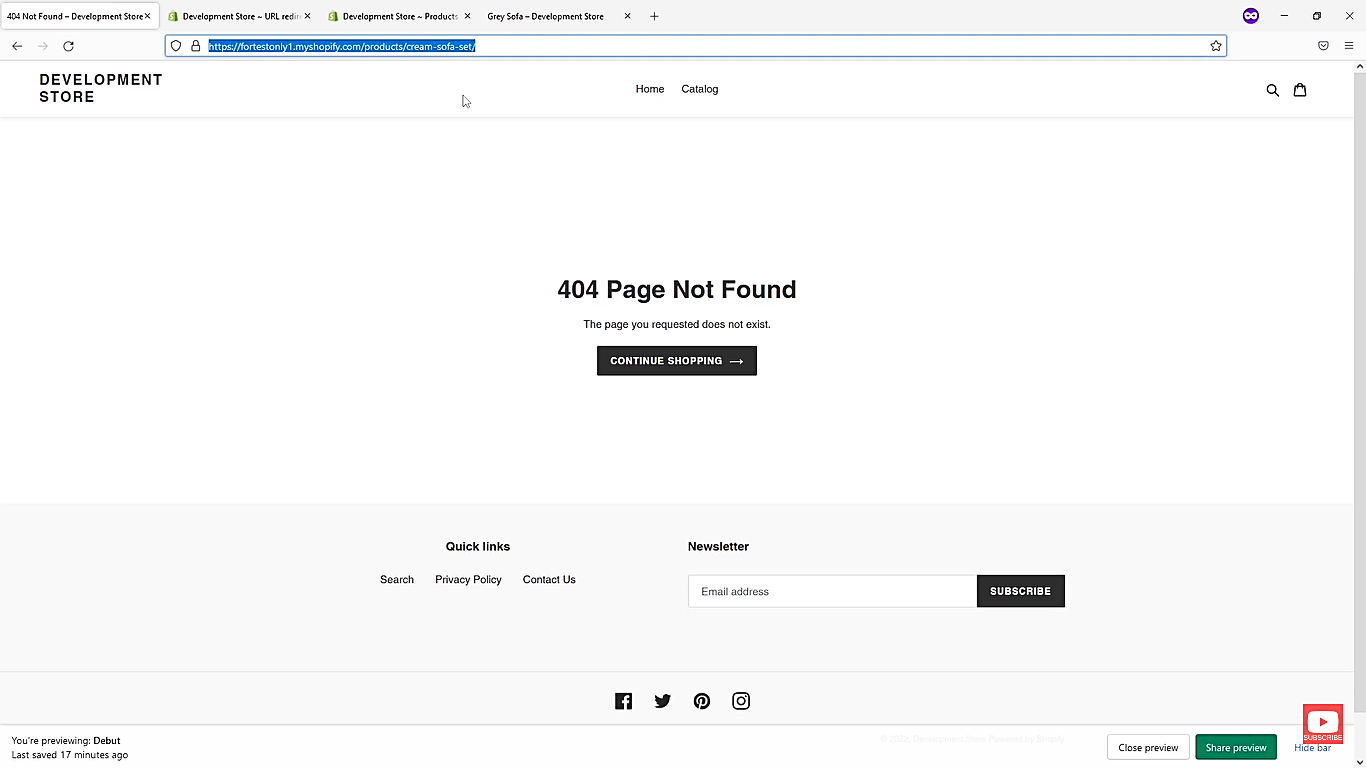
- A 404 error page will appear.
Note: This is the basic Shopify 404 Page. Numerous Shopify themes have their own 404 pages. If you wish to design your own Shopify 404 page, continue reading.

Improve 404 Error Pages in Shopify
- Navigate to your Shopify store and look for a product that seems to don’t exist.
Take note of its URL.
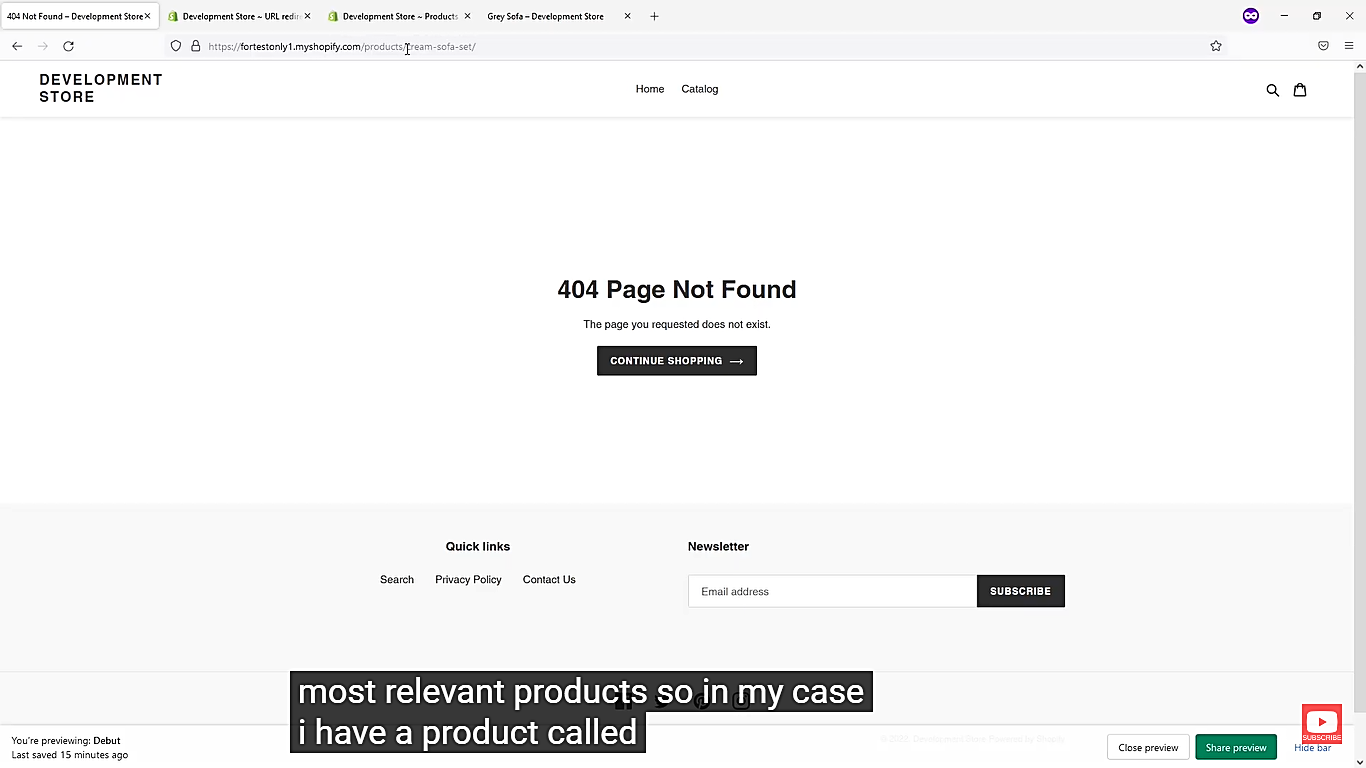
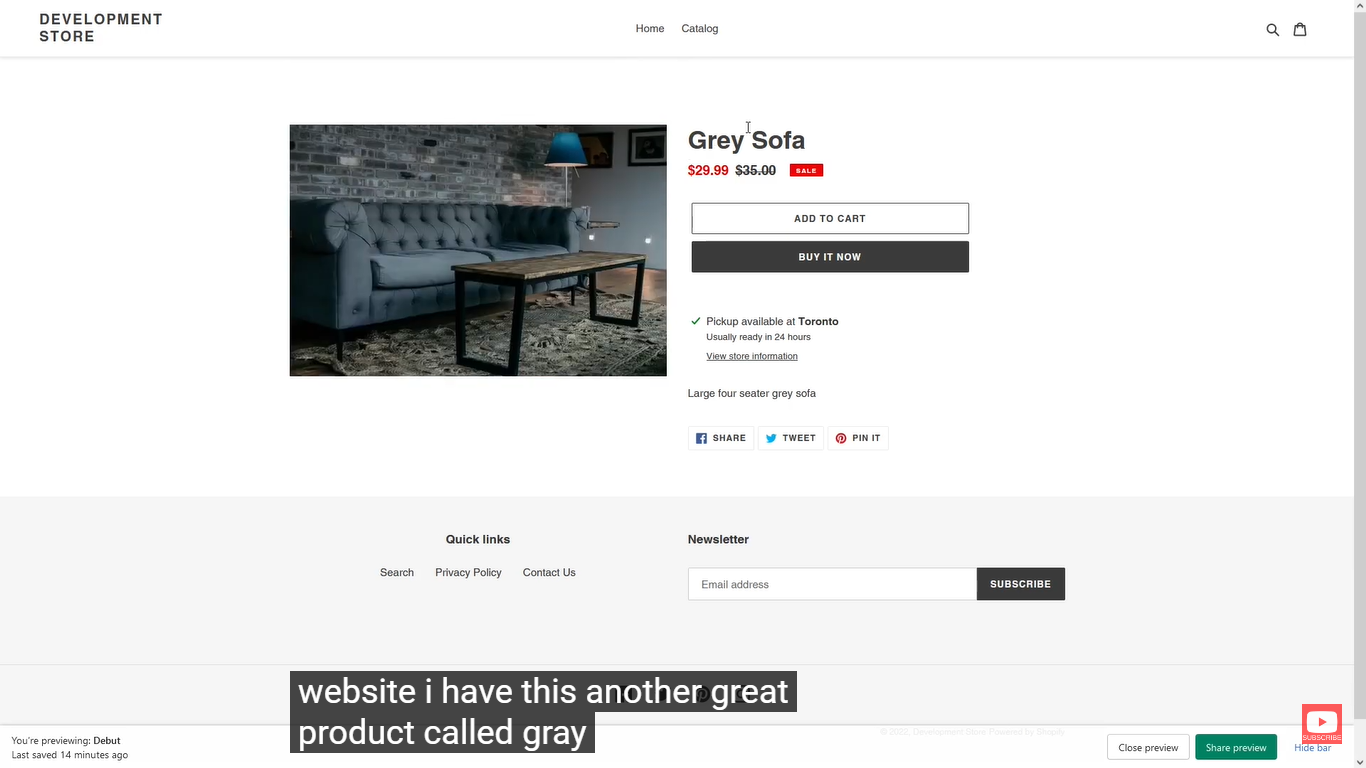
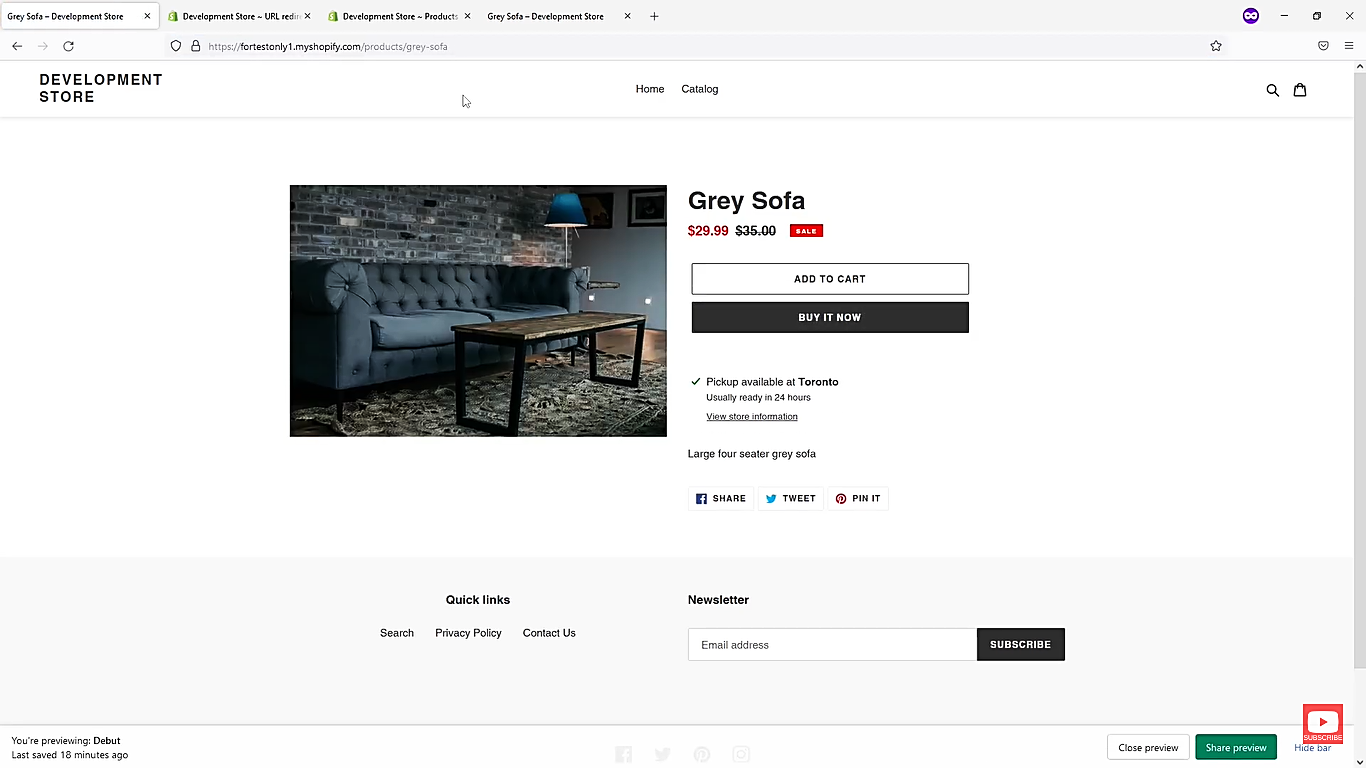
- Look for a similar product in your Shopify store, take note of its URL, and be ready to redirect it to your 404 Page.
Note: In this example, there is a cream sofa in my Shopify store which does not exist anymore, and I will link it to a similar product, a grey sofa, which is still available in my store.
- Log into your Shopify Account, navigate to your admin panel, and click Online Store.
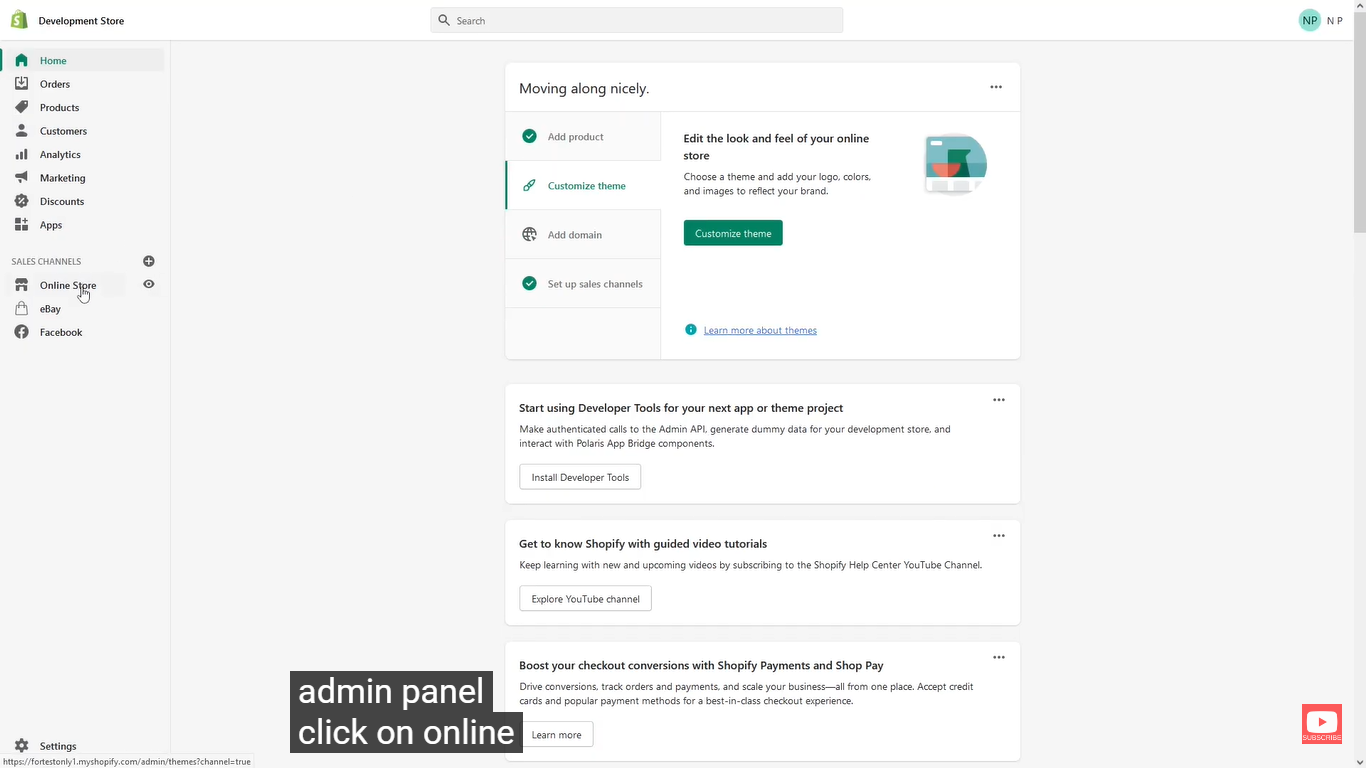
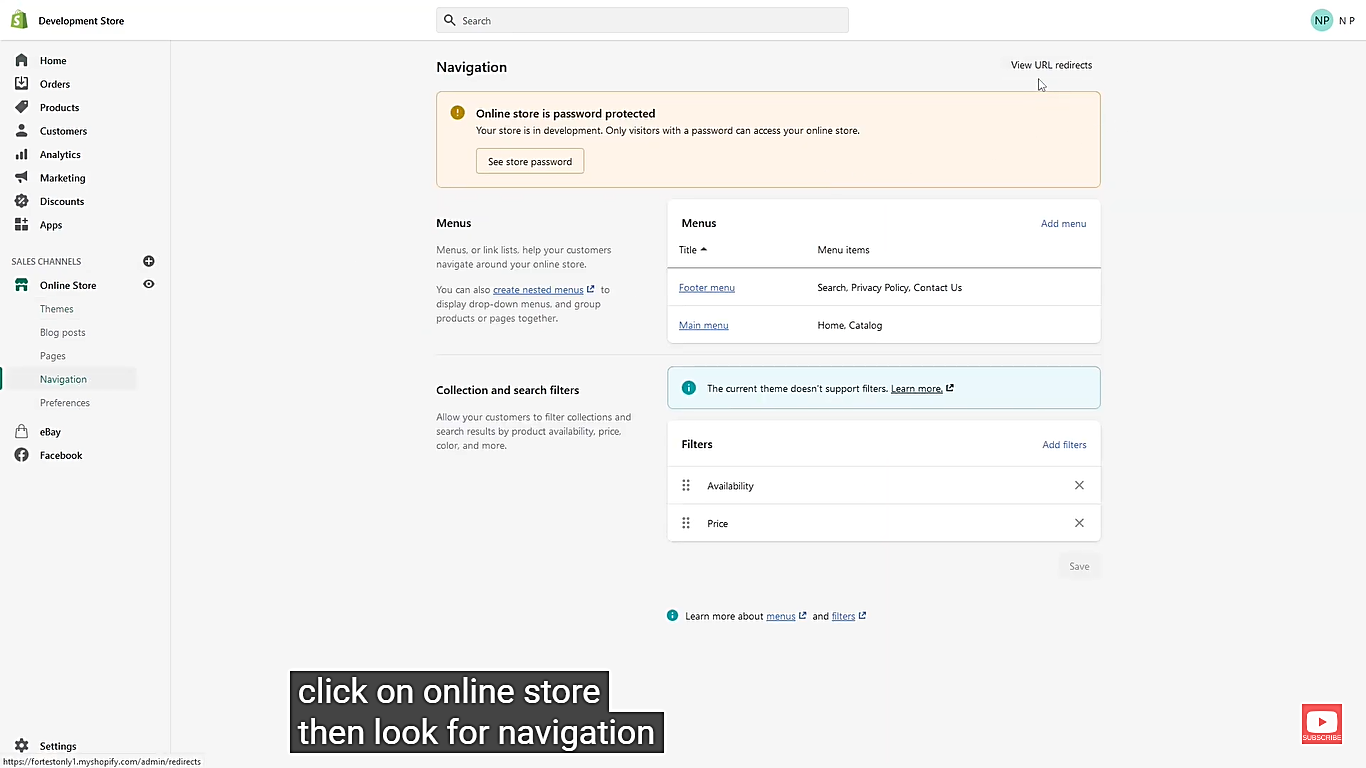
- Search for Navigation, and click on view URL redirects at the top corner of your dashboard.
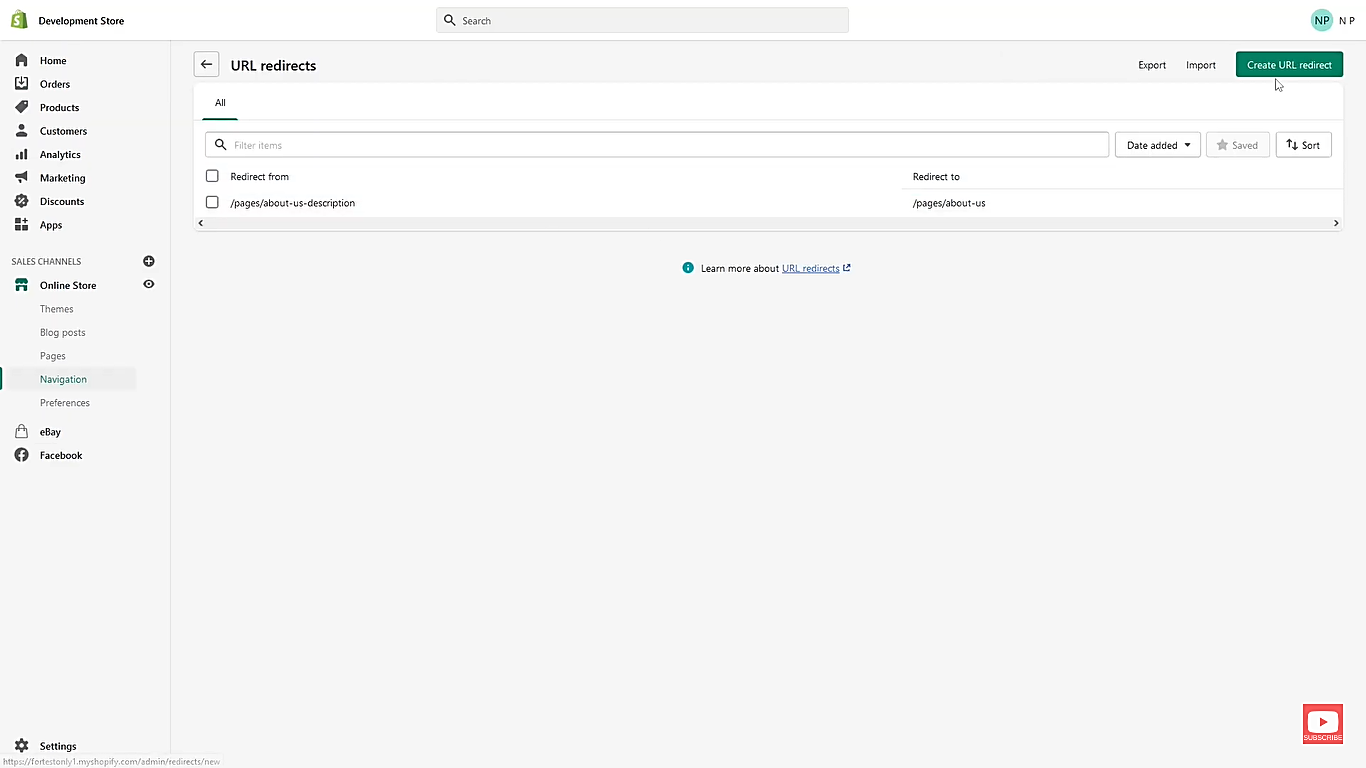
- Click on create URL redirect.
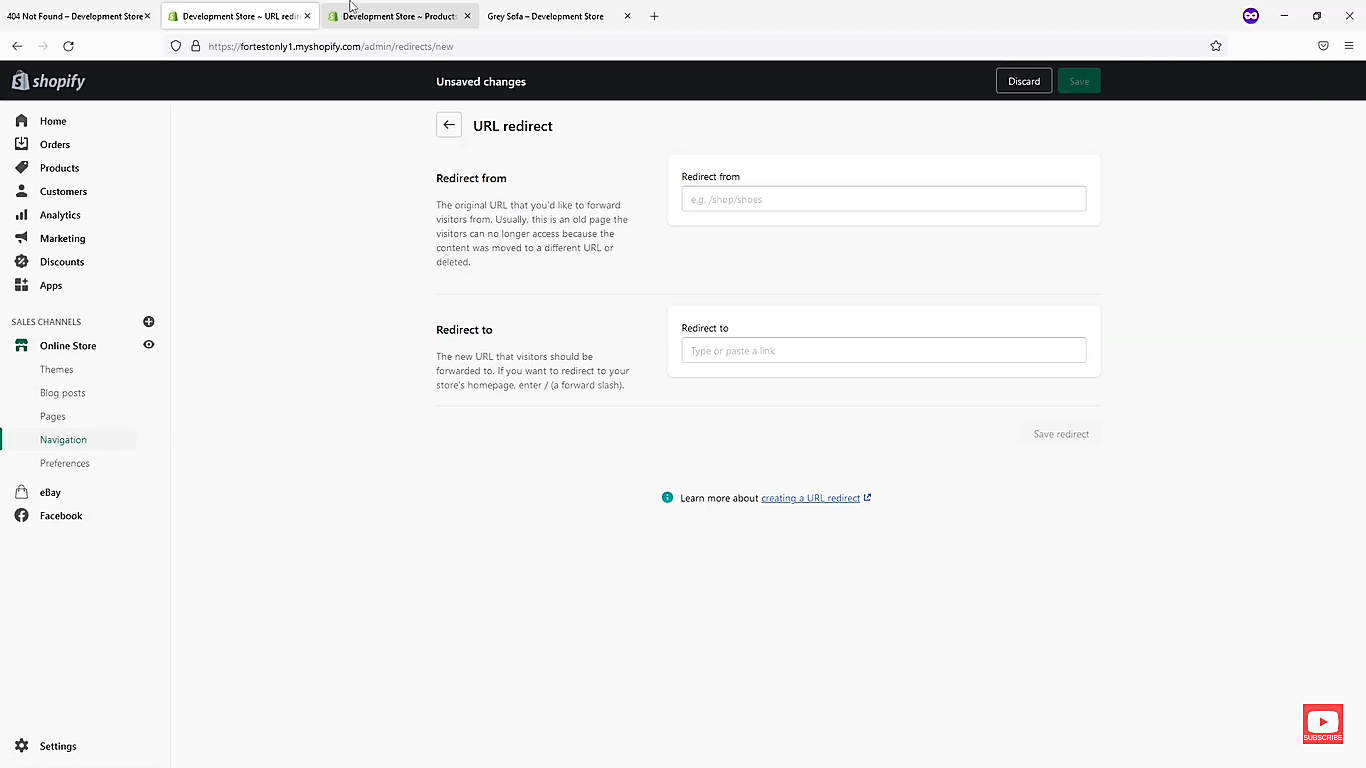
- You will be redirected to the URL redirect page – redirect from and redirect to.
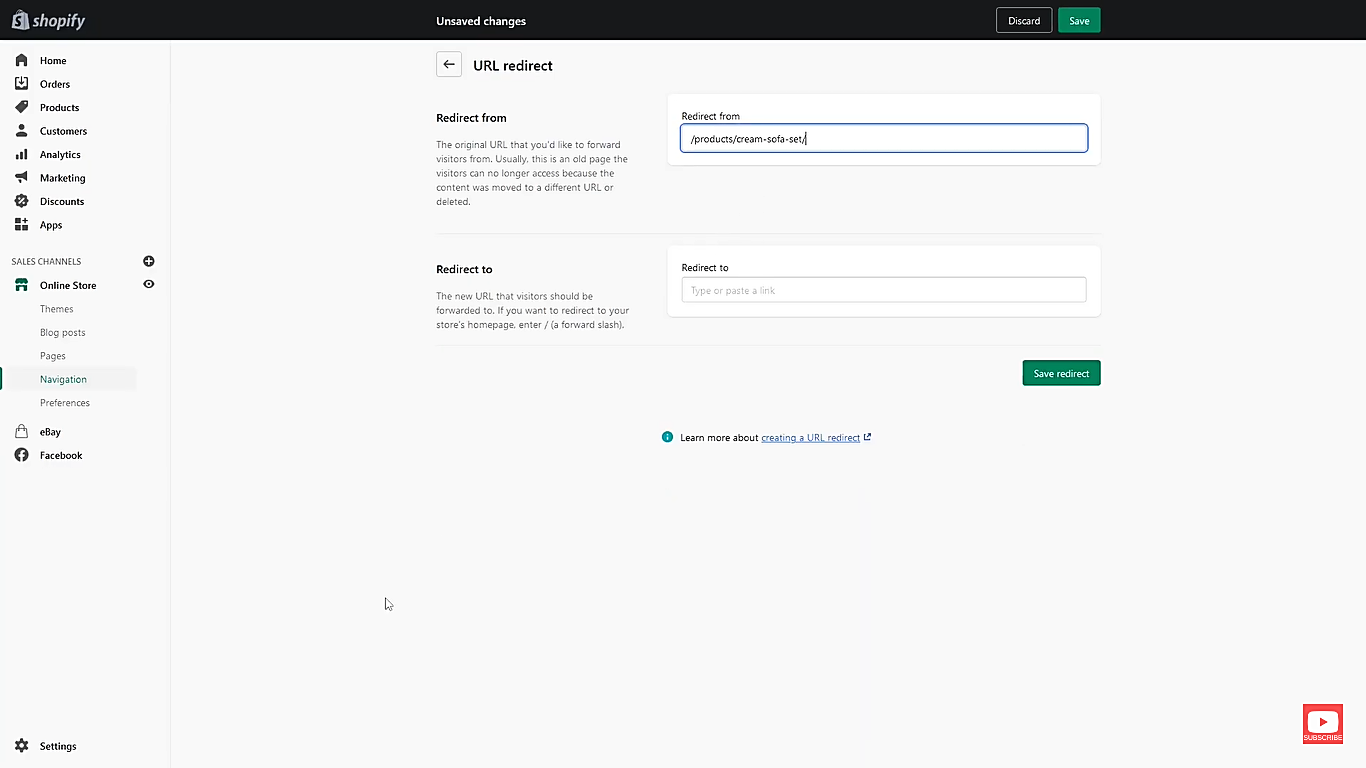
- Look for the 404 page and simply copy the URL path and paste it Redirect from.
Note: In this example it is slash products slash cream dash sofa dash set slash (/products/cream-sofa-set/). You may copy not the actual full URL; the path URL is enough and valid.
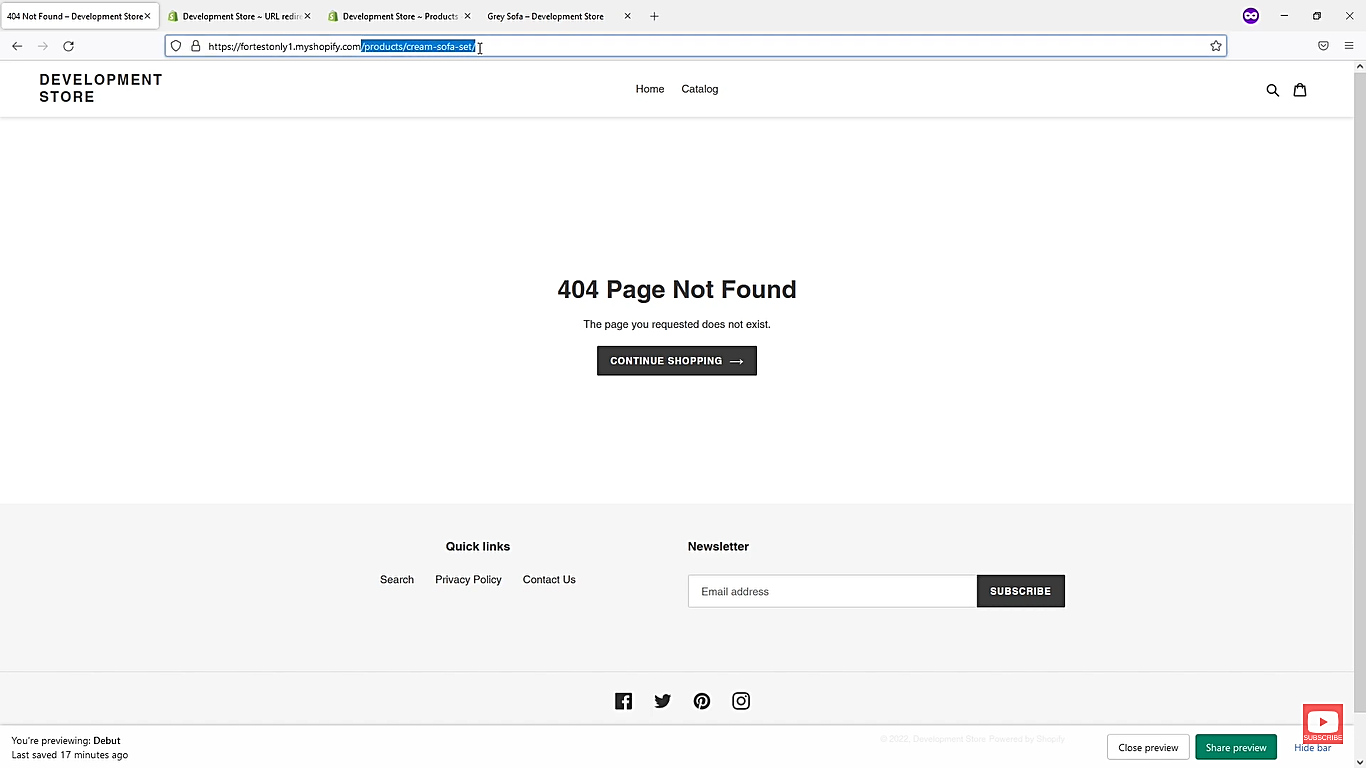
- Paste it in the “Redirect from” in the URL redirect page.
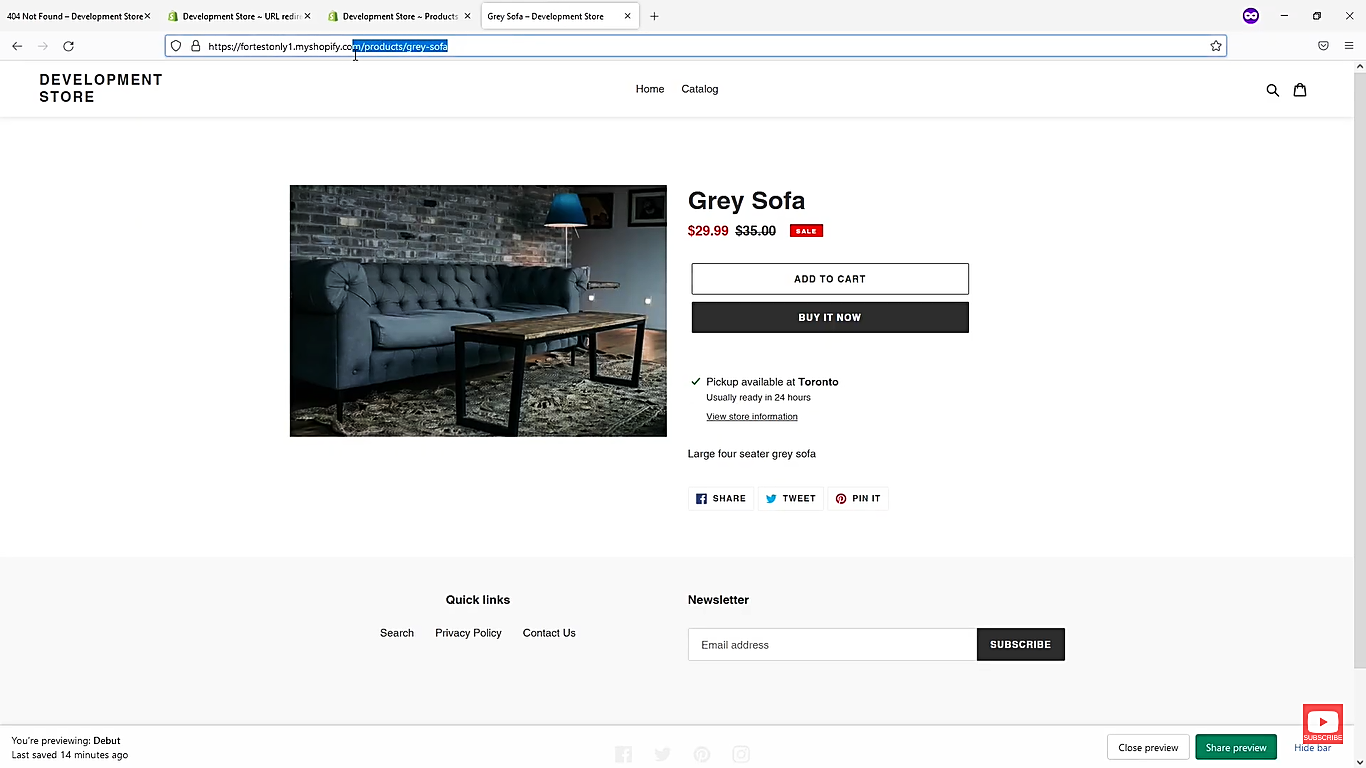
- Look for a similar product you have searched for earlier and simply copy its URL path and paste it Redirect to.
Note: In this example it is slash products slash grey dash sofa (/products/grey-sofa). You may copy not the actual full URL; the path URL is enough and valid.
- Paste it in the “Redirect to” in the URL redirect page.
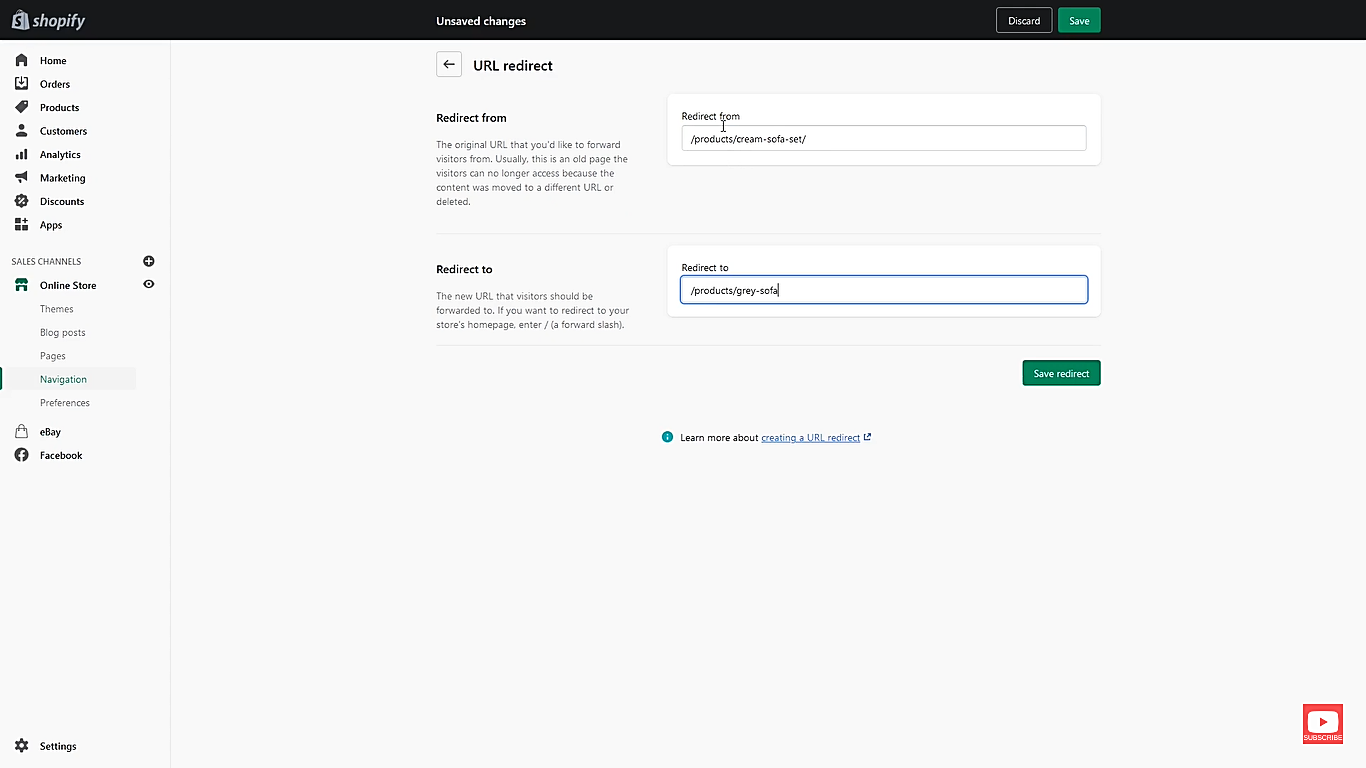
- Click Save redirect.
- Congratulations. You have successfully created your redirect.
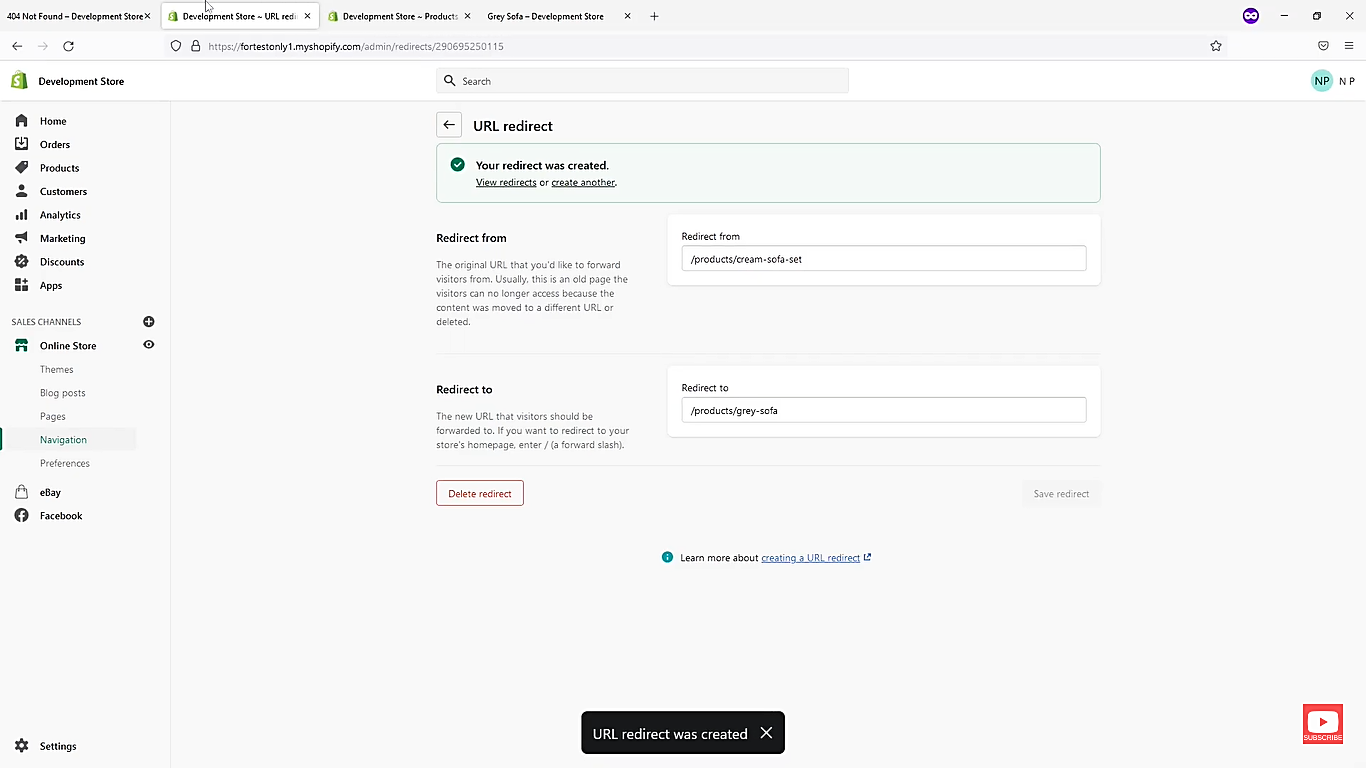
Checking your Improved Shopify’s 404 Page
- Refresh the Shopify’s 404 Page. You will now notice that Shopify’s 404 Page will be redirected to a new improved link.
Conclusion
You’re done! Keep in mind that improving the 404 page can help with SEO rankings, as it allows search engines to better index the page and recognize that the page is not a broken link. It also provides helpful links to related pages or the homepage. It can help keep customers engaged and provide an easy way for them to find what they were looking for.
Execution Checklist:
-
Go to your Shopify store dashboard.
-
Click on the menu Navigation.
-
Click on the URL redirects and click on create new URL path.
-
Copy and paste the necessary links to produce redirect links, then click Save redirect.