How to Use Trustpilot to Generate Reviews
To guide you in utilizing the Trustpilot website in generating reviews for your business, and connecting it to your store website builder.
Prefer a shortcut? 16 free tools do parts of this for you.

Aim: To guide you in utilizing the Trustpilot website in generating reviews for your business, and connecting it to your store website builder.
Optimal Outcome: To receive and generate reviews that can help your business to improve your products or services, which leads to increasing sales, brand recognition, and attracting new people to purchase your products.
What do you need to start: To follow this SOP, you need to have an account in Trustpilot for businesses and a website from any integrations available in Trustpilot.
Why is this SOP Important: Using Trustpilot to generate reviews is highly preferable than the organic way of sending invitation emails to your customers because it is a productive way to collect and receive emails. In addition to this, generating reviews from Trustpilot boosts recognition from Google which allows your business to outrank other businesses in the field and gain your new customers' trust by collecting a diversity of opinions for your products or services.
When and Where to execute: As soon as the business starts operating, you need to collect reviews immediately using Trustpilot. But take note that in order to accumulate positive reviews, your products and services must have high quality upon opening to establish your business properly.
Who Should Be Doing This: This should be done by people in charge of Marketing or Customer service representatives in your company.
Review Generation
Review generation refers to the process of collecting reviews from your former clients about the quality and their notable experiences from your products or services. This is helpful for both your business and other potential customers, because it displays the genuineness and real experiences from utilizing them. For your business, generating reviews can be a possible thing if your products are performing well, which leads to higher customer retention and brand recognition. For your potential customers, it will be their basis whether they will continue to purchase your products or not, based on the type of review that they will believe in. Either way, the number and quality of reviews are important in your business SEO rankings.
Execution
Resources/Tools & Set up
-
Trustpilot business account
-
Store website
Generate Reviews by Customer List Upload
- Log in to your Trustpilot Business account by clicking the "For businesses" button.
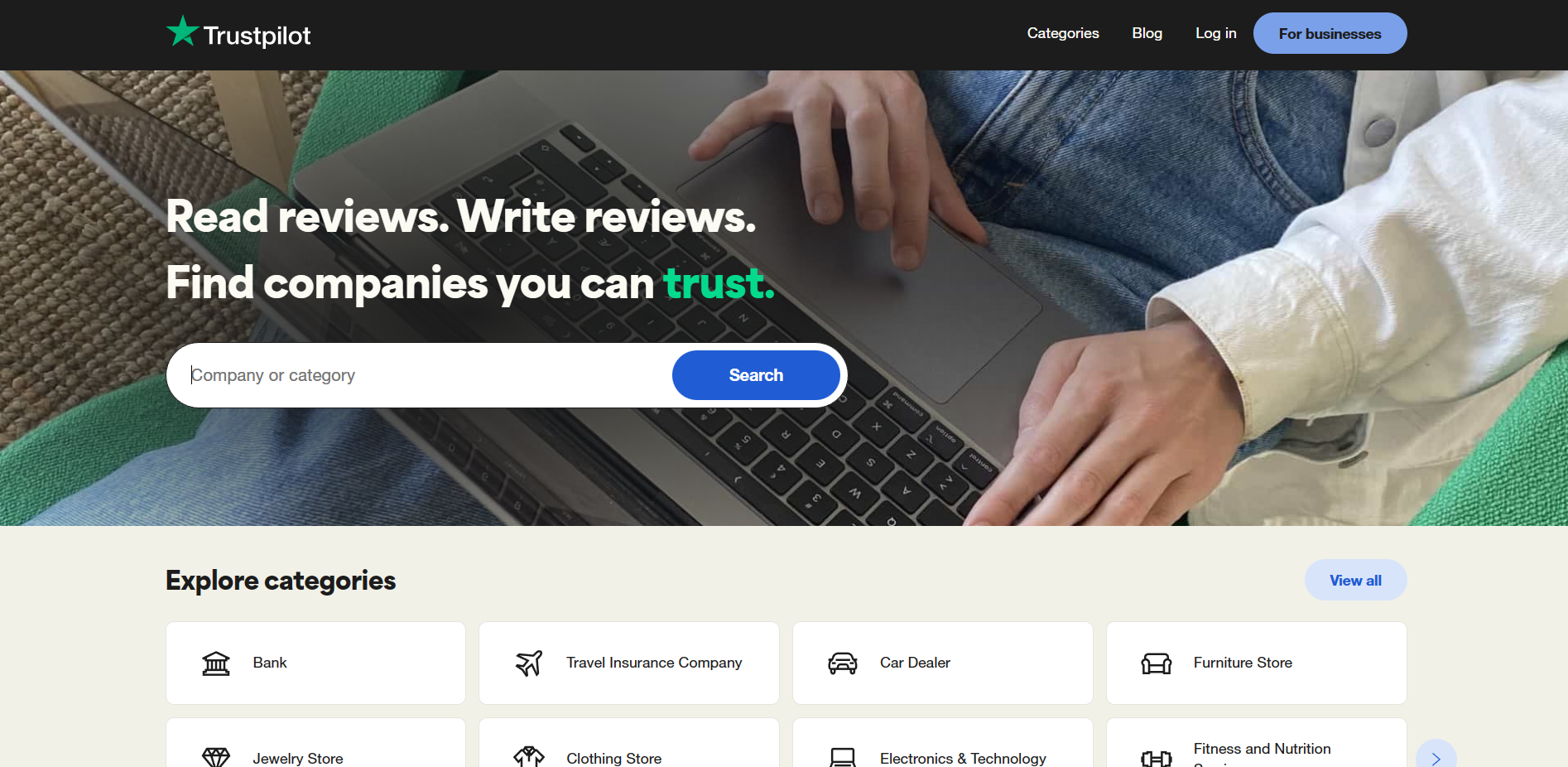
- Click the Log in button to go to the Log in page.

- After navigating to the Log in page, you can now enter your Work Email and Password that you utilized in making your Trustpilot Business account. Type it in the blank fields indicated.
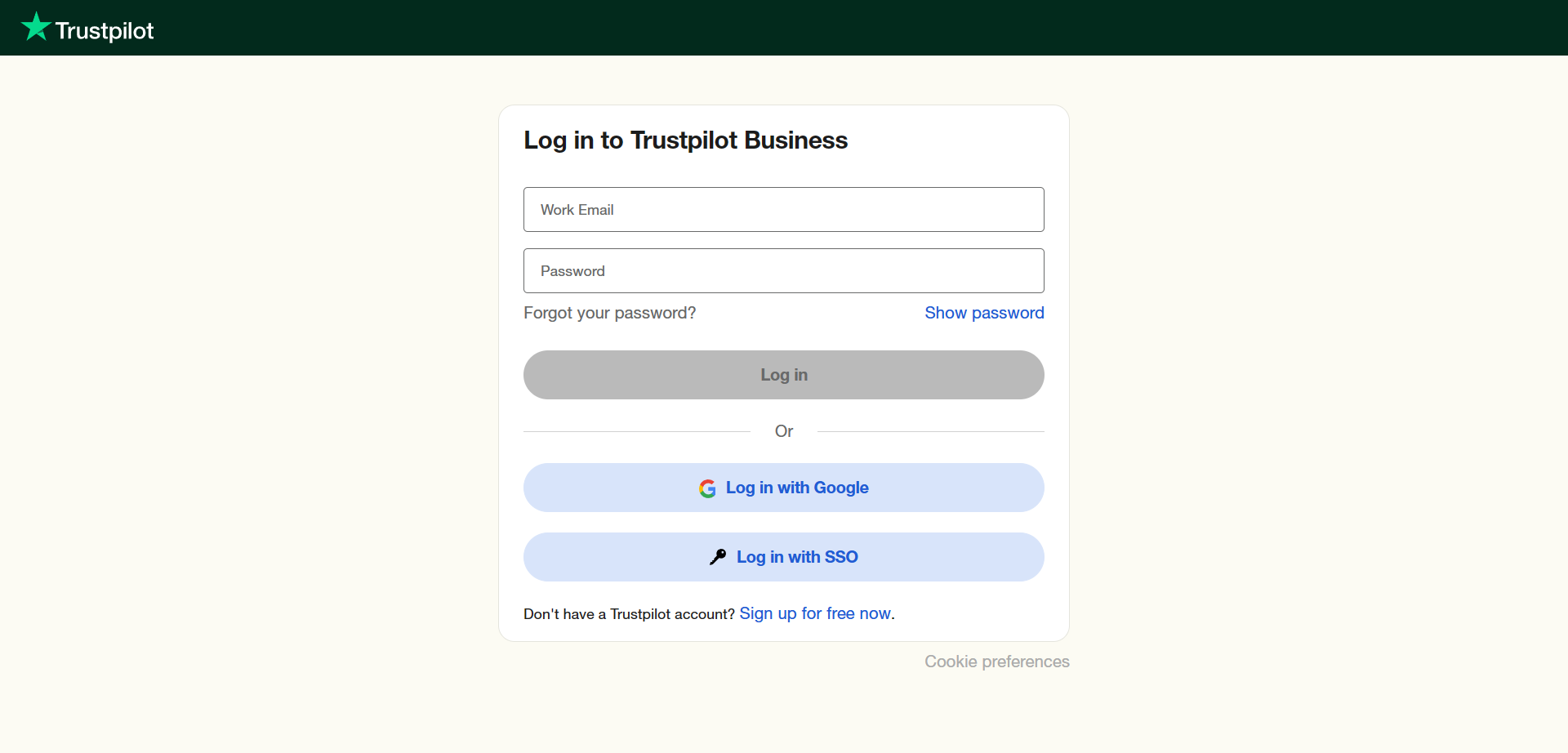
- Then, click the "Log in" button to open your account.
- In your Trustpilot Business homepage, click Categories.
- The Categories page shows a dashboard on the left side of the website. Since we want to generate reviews using Trustpilot, you will want to click the "Get reviews" button from the dashboard.
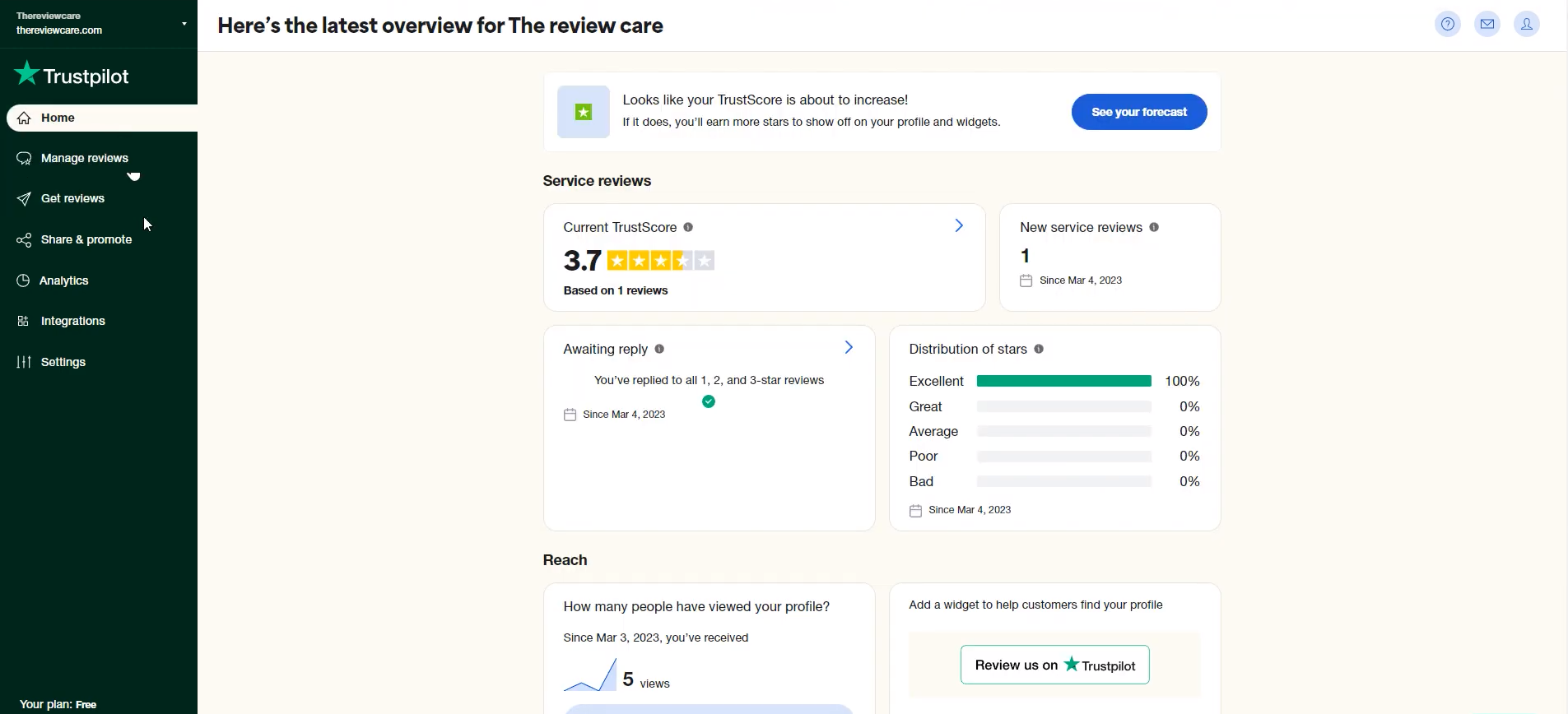
- After clicking the Get reviews, there will be four subcategories: Overview, Invitation methods, Email templates, and Invitation status. Among the four, you need to open and access the Invitation methods to choose which among these methods are suitable for you.
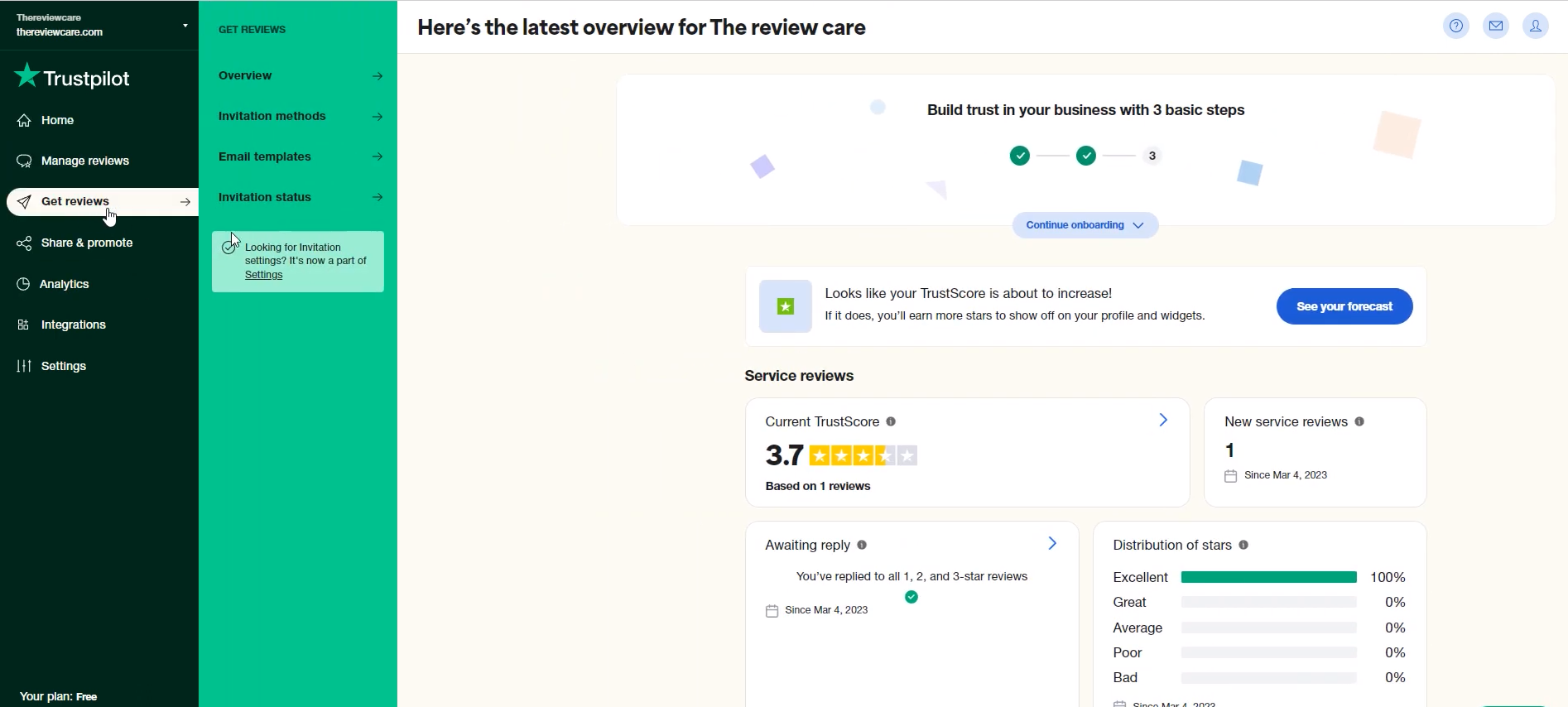
- It is important to understand first how Trustpilot reviews work for your business. Automatic invitations are activated when your customer makes a transaction with your business. An invitation for a review is generated from Trustpilot to encourage your customers to leave a review and if they do, it will be displayed as a verified review on Trustpilot. There are several Integrations that can be used to send automatic invitations, which are web builders for your store. Some of these are Shopify, Wix, Webcommerce, Mangento, and BigCommerce.
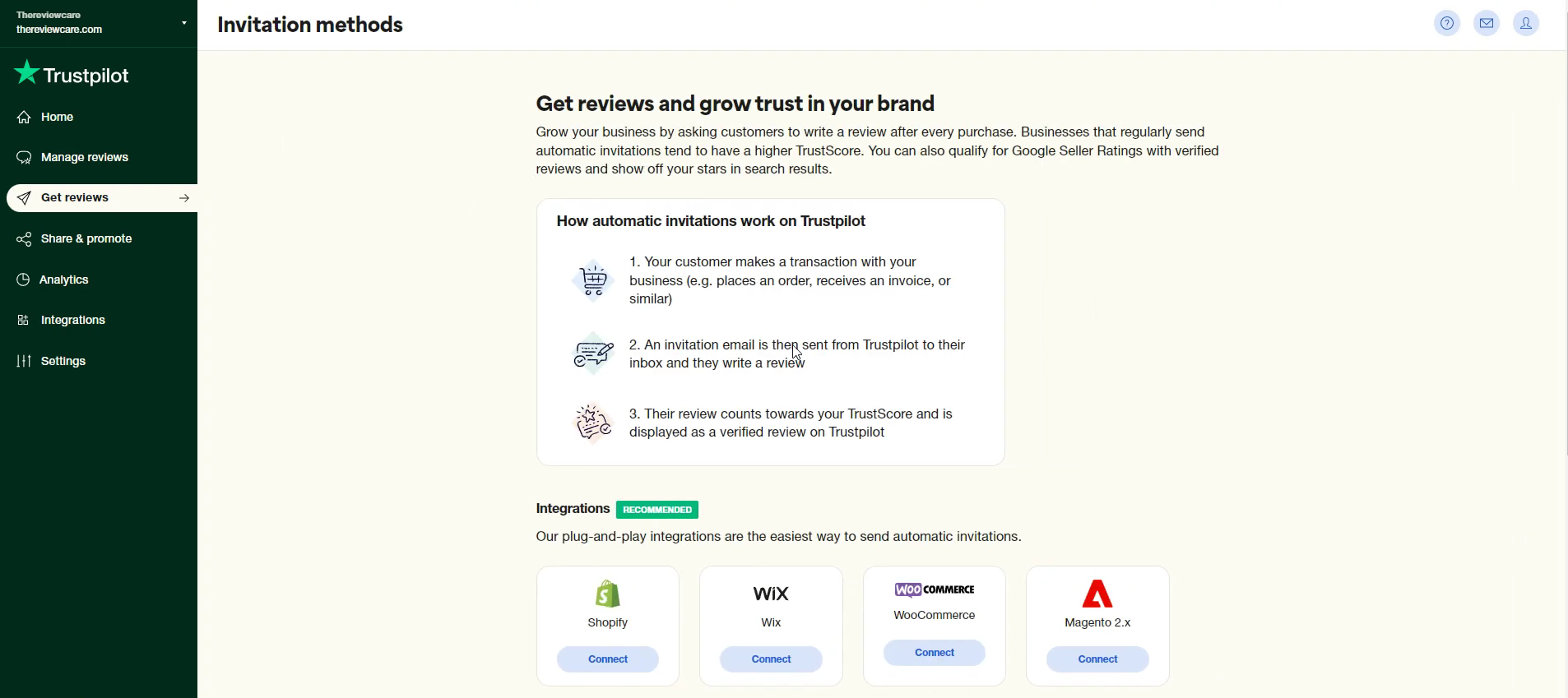
- If your marketing system is not included in the options stated, then you can use Trustpilot Automatic Invitations (AFS) or you can click the "Try a different way to get reviews" button if you have a clist of customers which you would like to send a review invitation to.
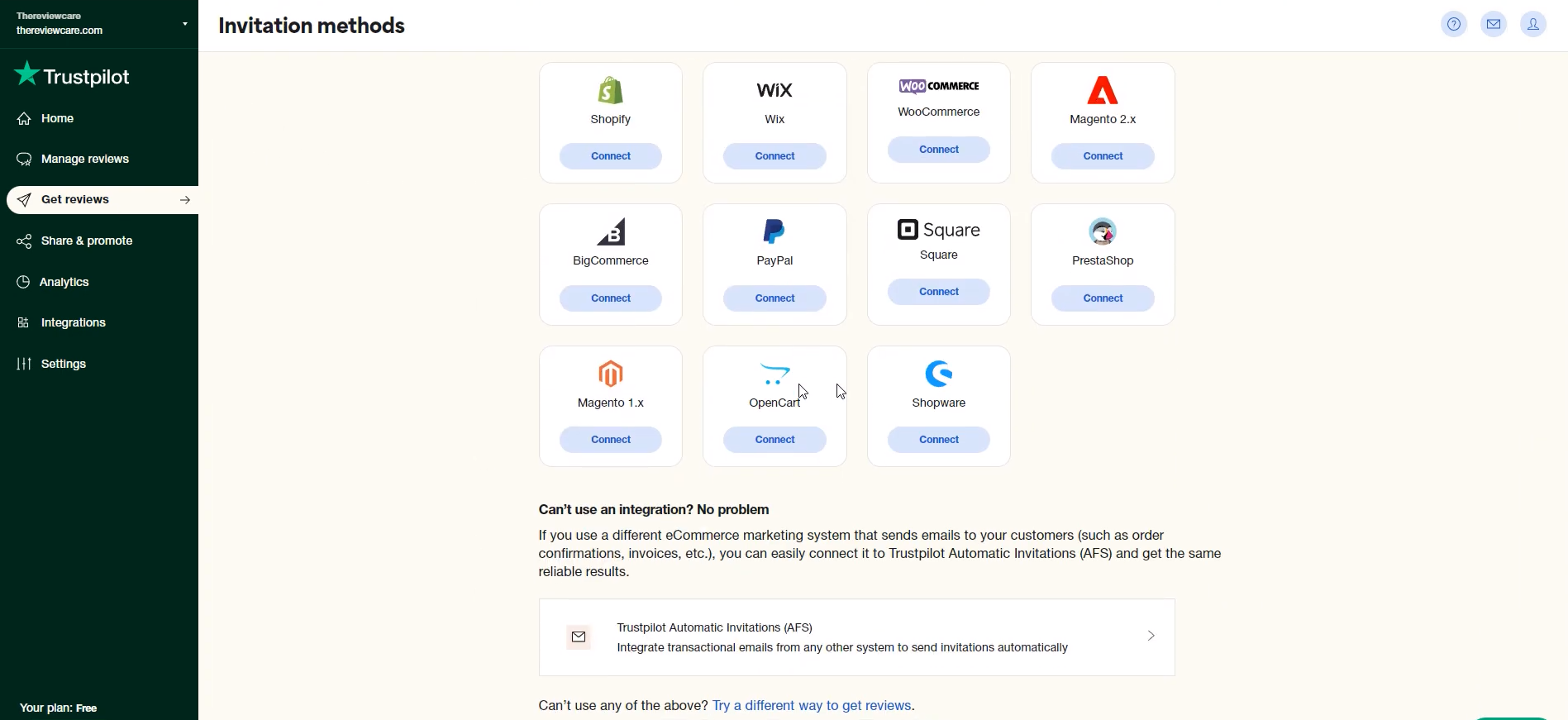
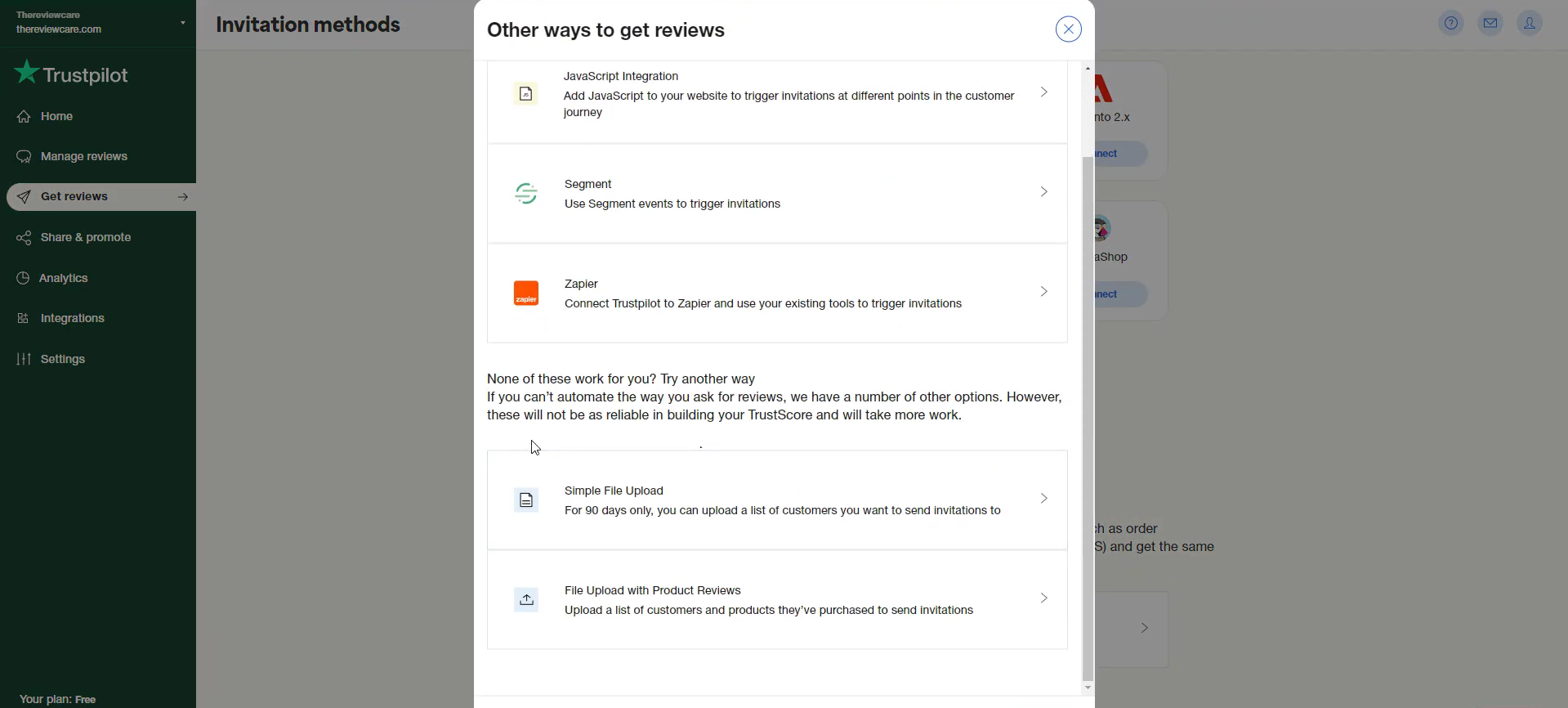
- One of the other ways to get reviews is to do a Simple File Upload, which will be a more lengthy process than the Integrations.
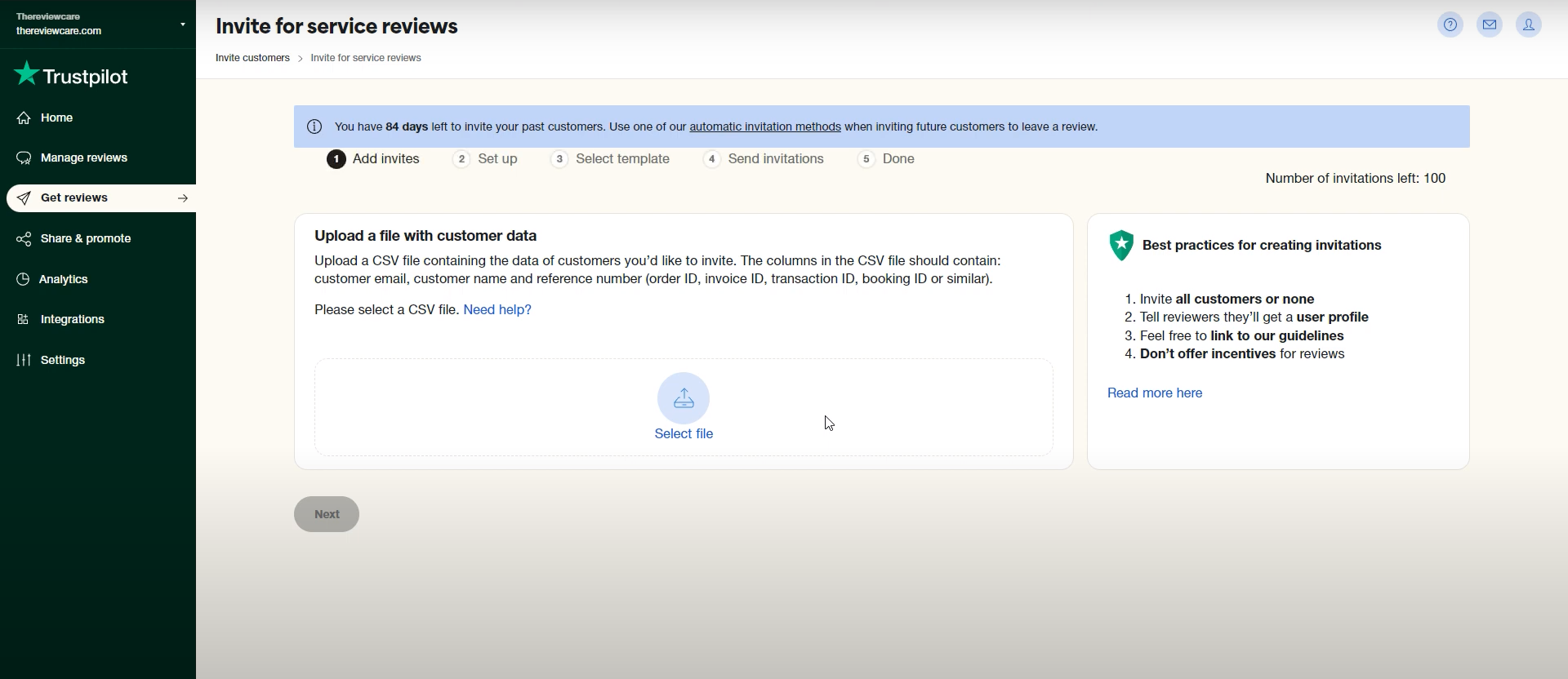
- To invite customers for service reviews, you need to follow four steps. Step 1 is to Add invites. Here, you will have to upload a file with customer data to determine the recipients of the invitations. It is required to be a CSV file which contains the customer email, customer name, and reference number such as order ID, invoice ID, or transaction ID. To insert the file, click the Select file button inside the box.
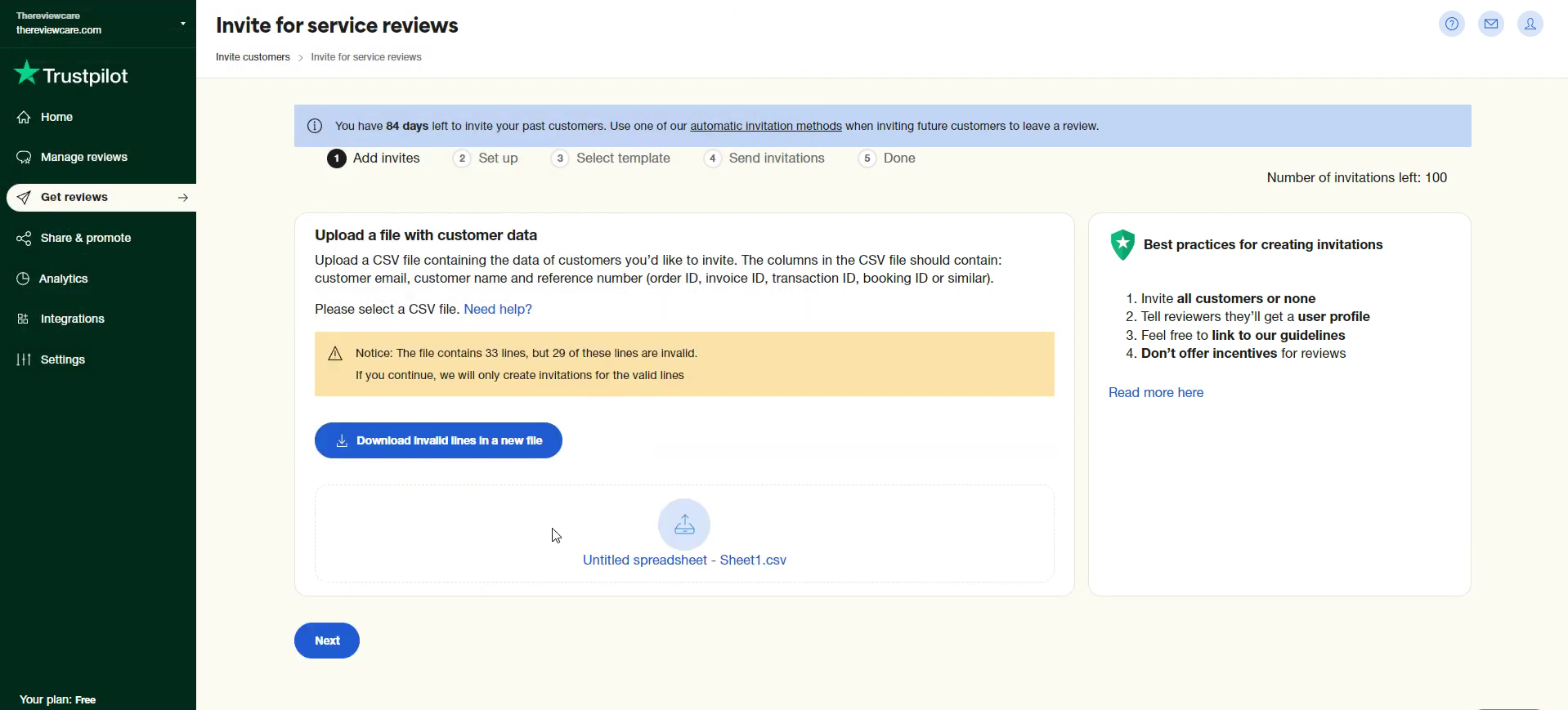
- Click the "Next" button after you uploaded the file to view the customer list.
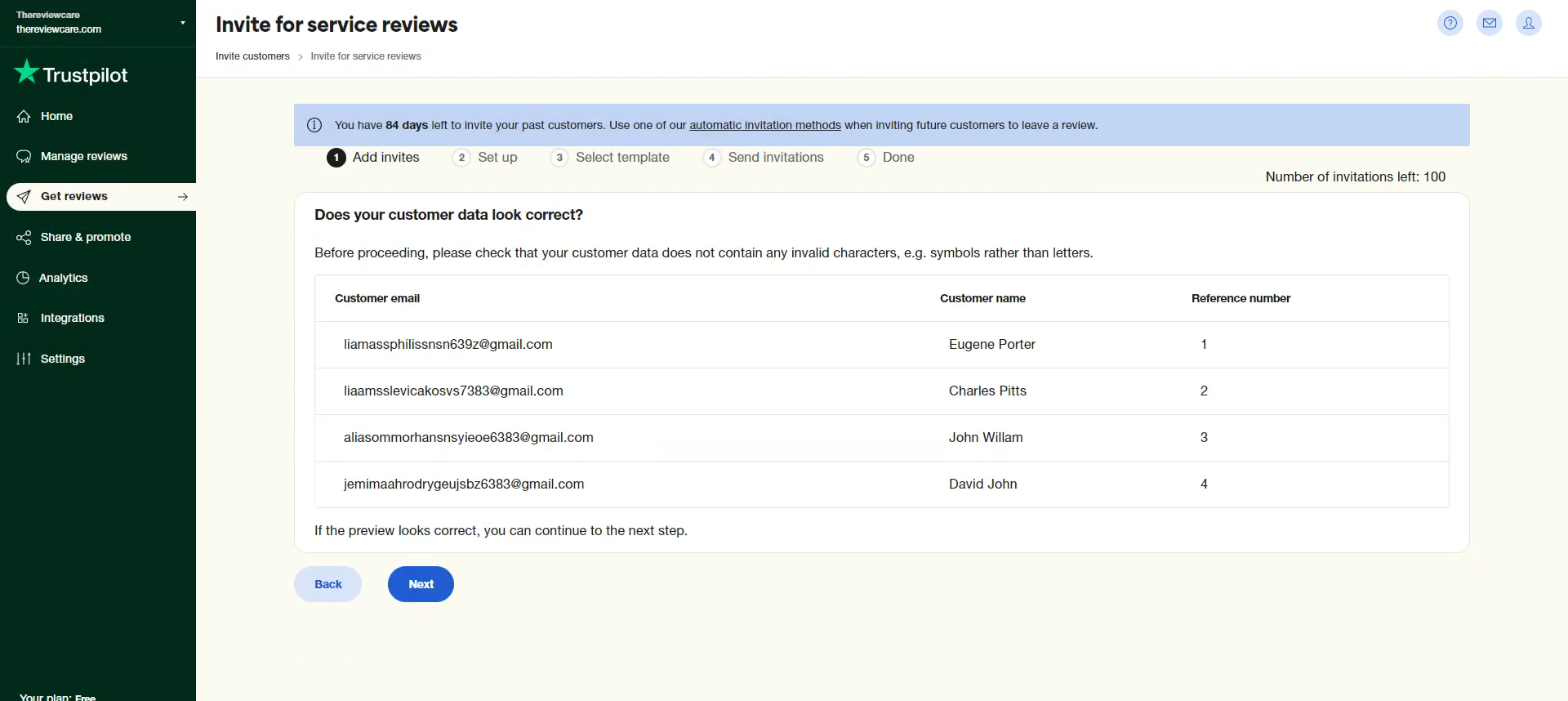
- After viewing the recipient list, kindly check it to make sure that there are no technical errors. After reviewing, click the "Next" button to proceed.
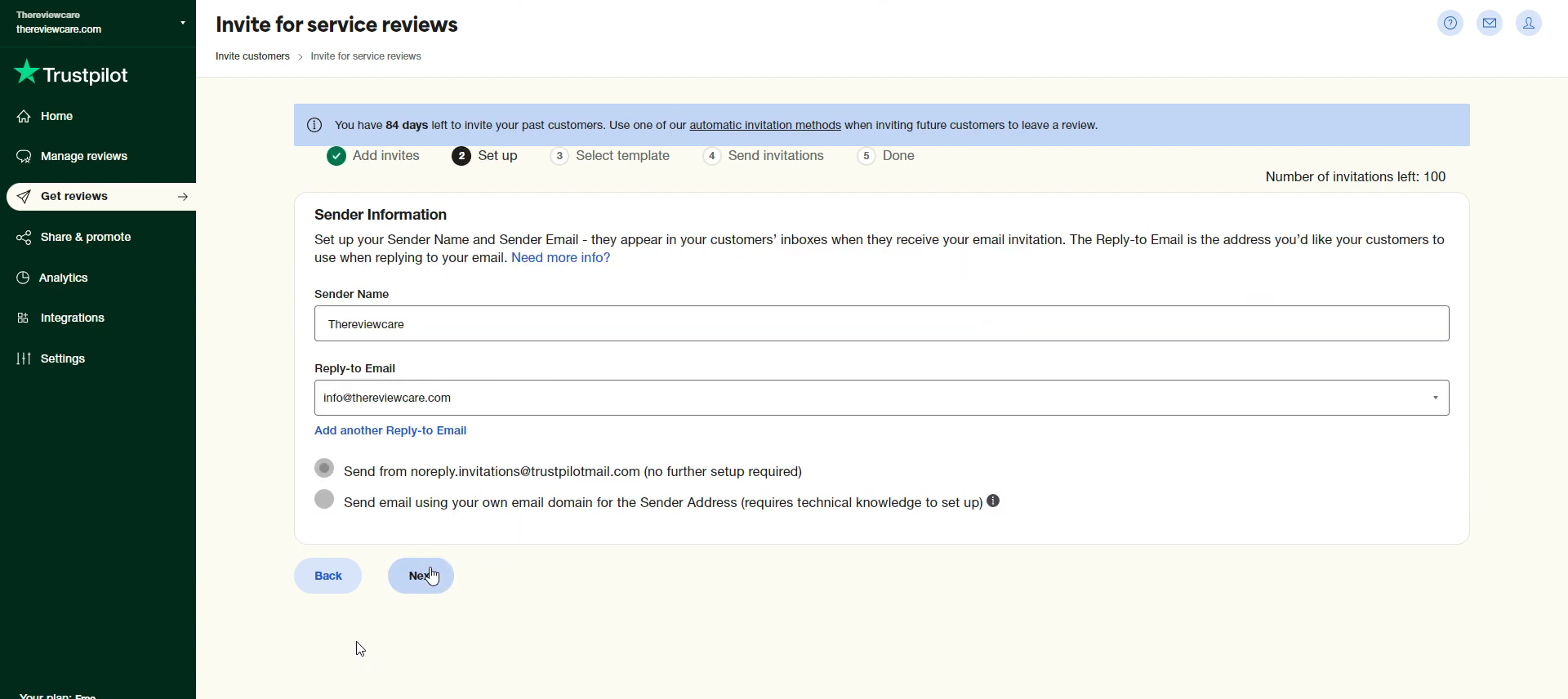
- Step 2 involves the setting up of the Sender Information. This information appears in the customers' inboxes after they receive the invitations for review. The information needed are the Sender Name (Business front name) and the Reply-to Email which is dedicated to your business. You can indicate these in the blank fields, and you can also add another Reply-to Email. Lastly, set the message to send from noreply.invitations@trustpilotmail.com if you want to avoid further setup on this matter.
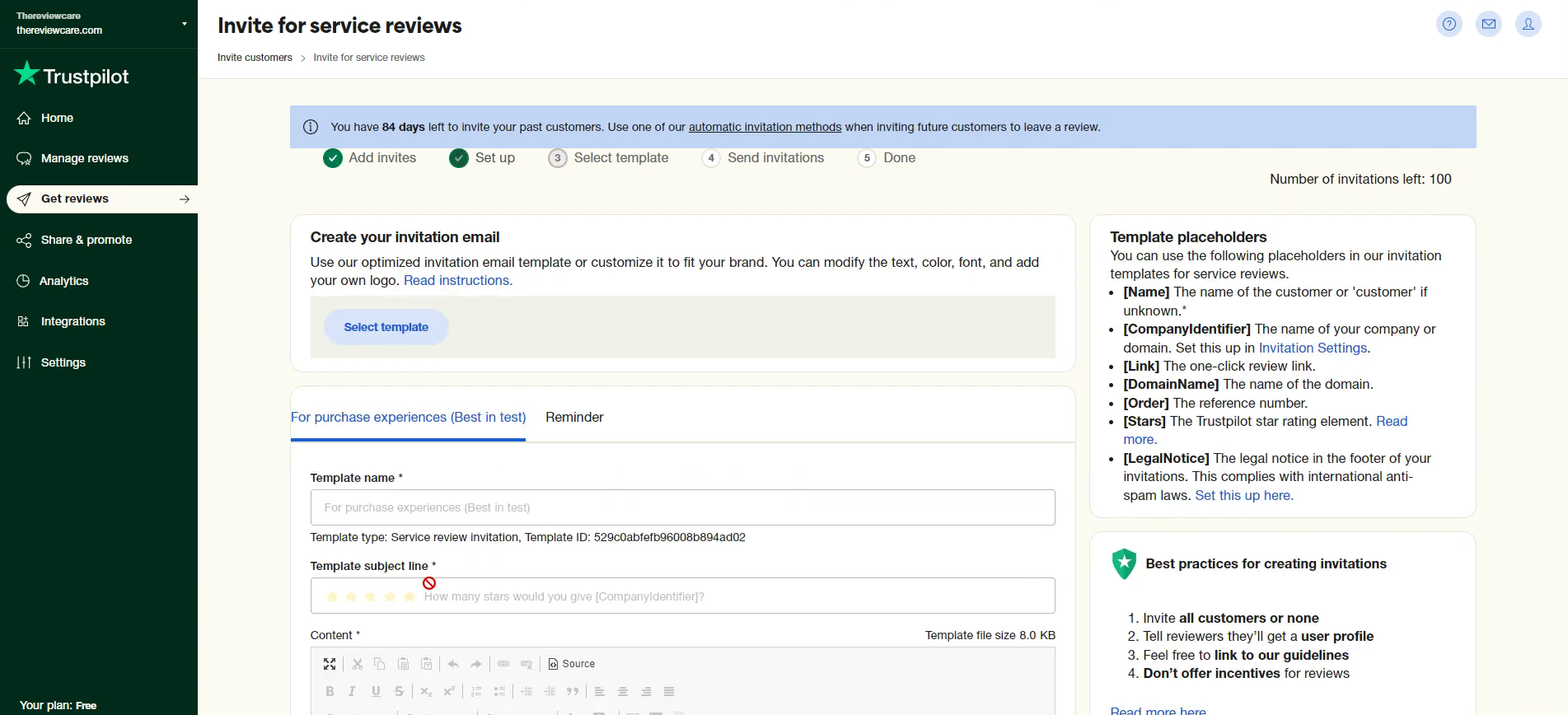
- Step 3 allows you to select a template for the review invitation. To encourage your customers to review after purchase, set a template for that purpose. First field to fill is the Template name and subject line for the invitation email. You can also see the Template placeholders on the right side to make your email a bit personalized for every customer.
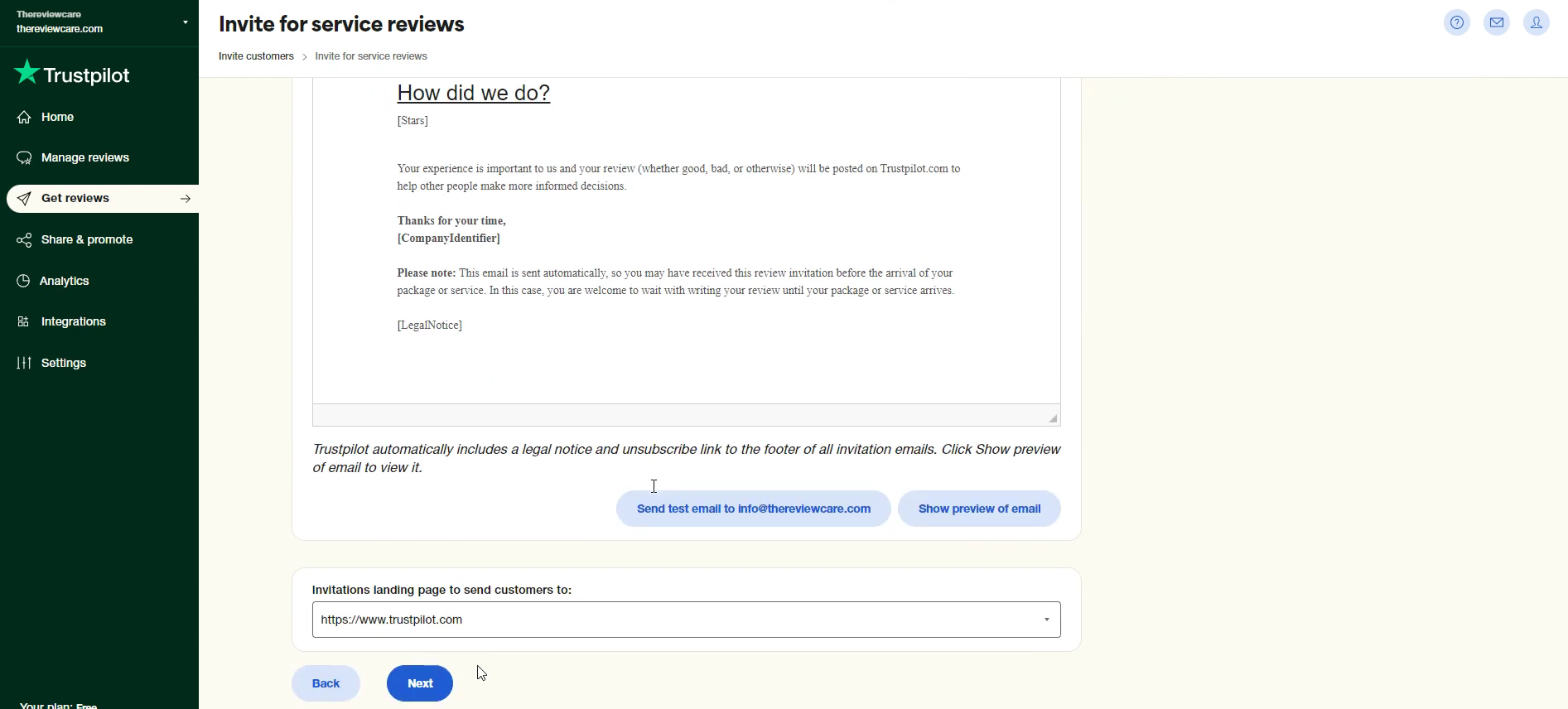
- Scrolling down, you can send a test email to your email by clicking "Send test email to email@yourcompanyname.com" or you can choose to see a preview of the invitation email by clicking the "Show preview" button. Under it is the Invitation landing page, where you can paste the link of your review page to redirect the customers. After pasting the link, click the Next button to proceed to the next step.
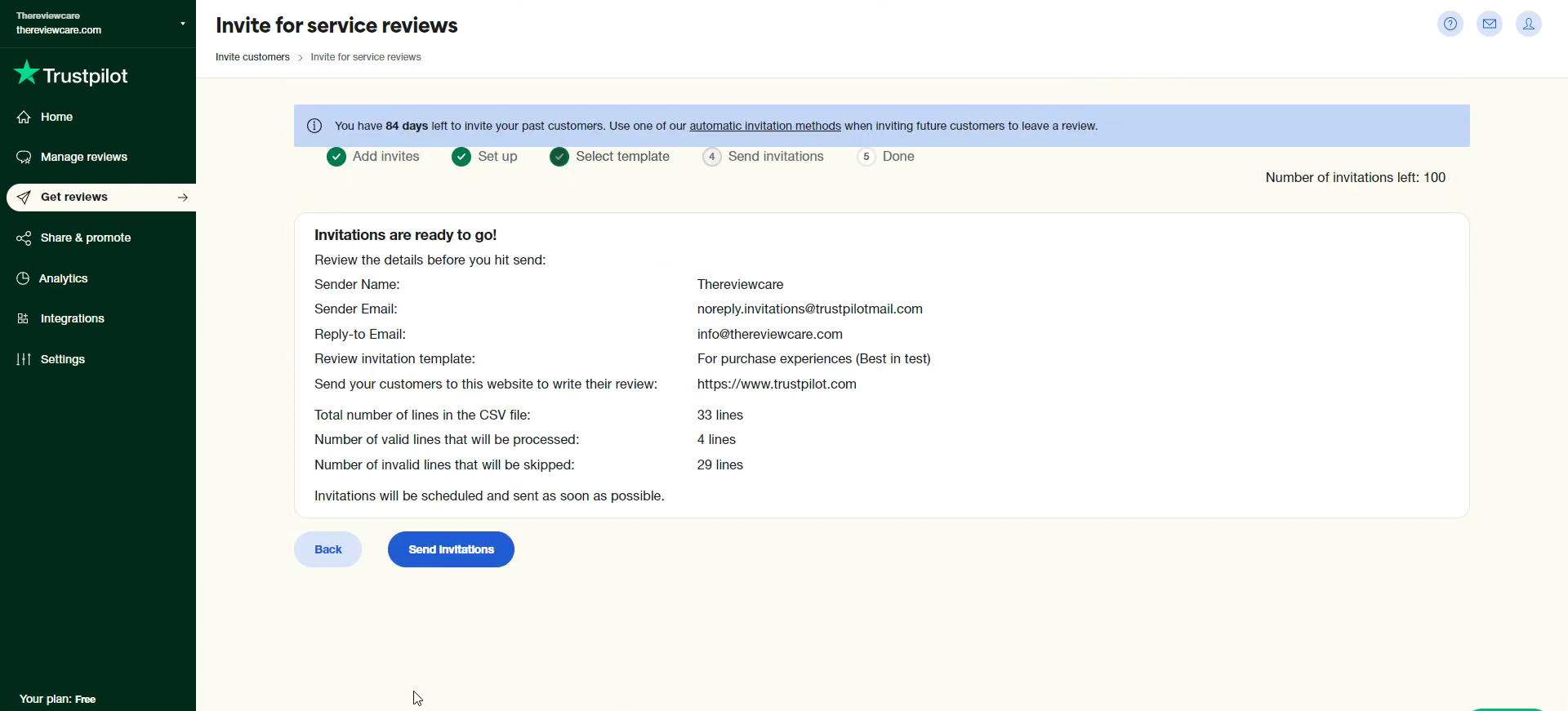
- You can review the details of your Invitation email in step 4, where you can finally send your invitations by clicking the "Send invitations" button.
Integrate Reviews from Trustpilot to Shopify
- Sign in to your Shopify store account by clicking “Log in” and entering your account details.

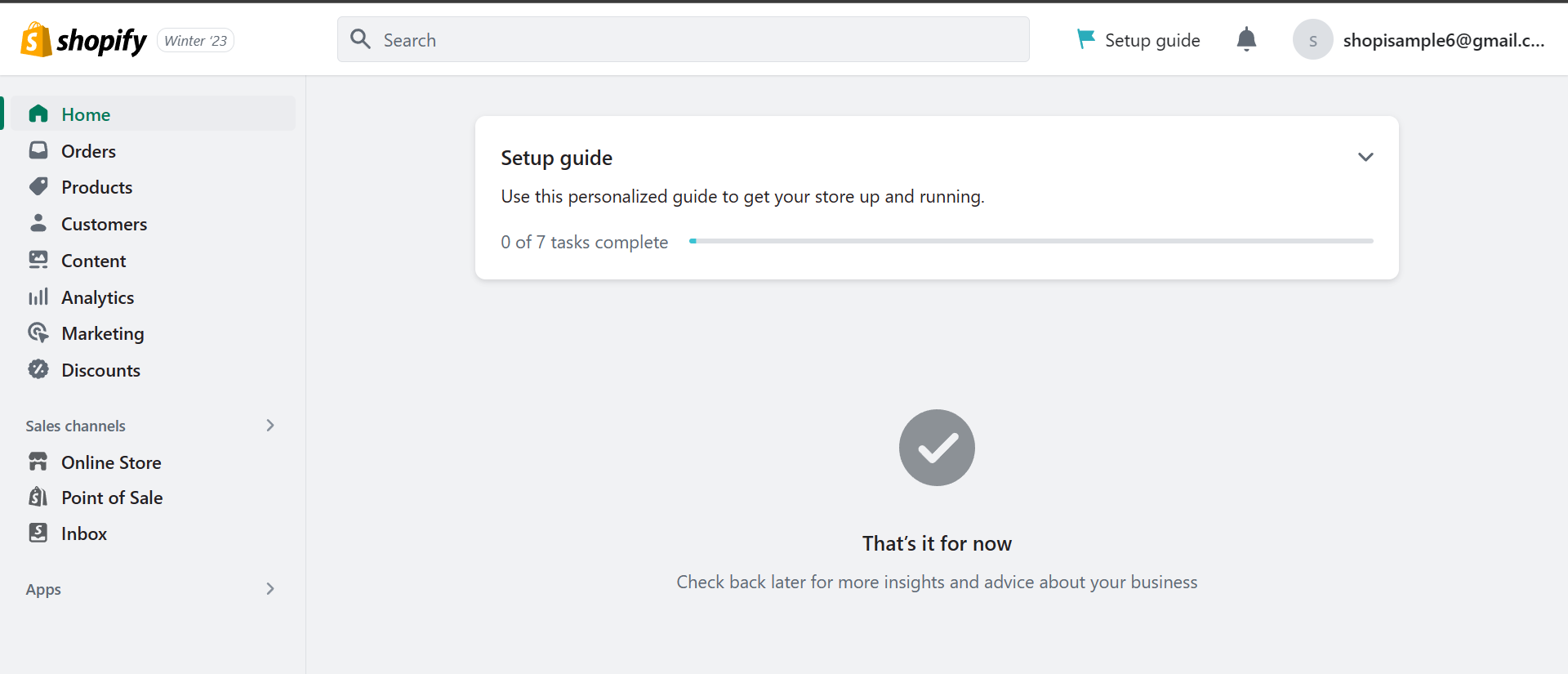
- Once you are redirected to the Shopify homepage, you will see a dashboard on the left. Click “Apps” located under Sales channels.
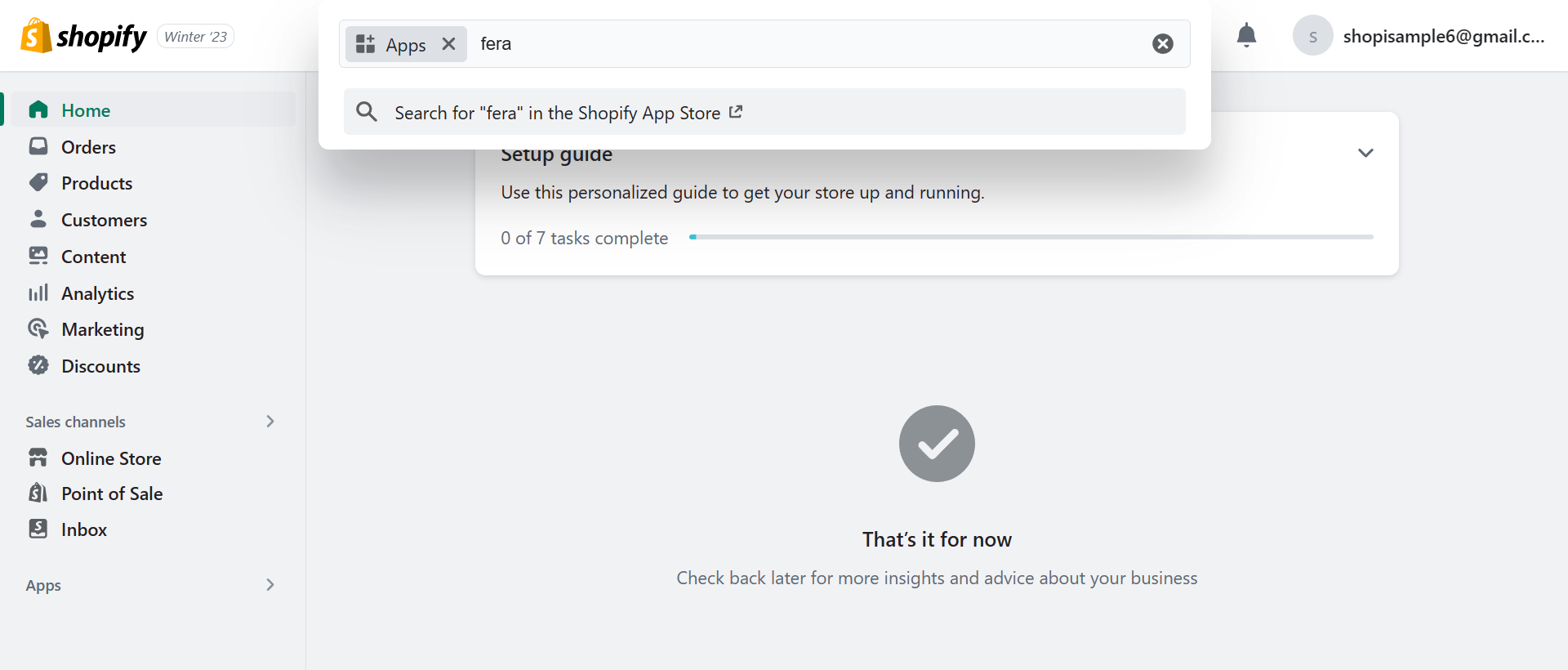
- Type in "Fera" in the App-filtered search bar as shown in the picture below. After typing in Fera, you can now click "Search for "Fera" in the Shopify App Store".
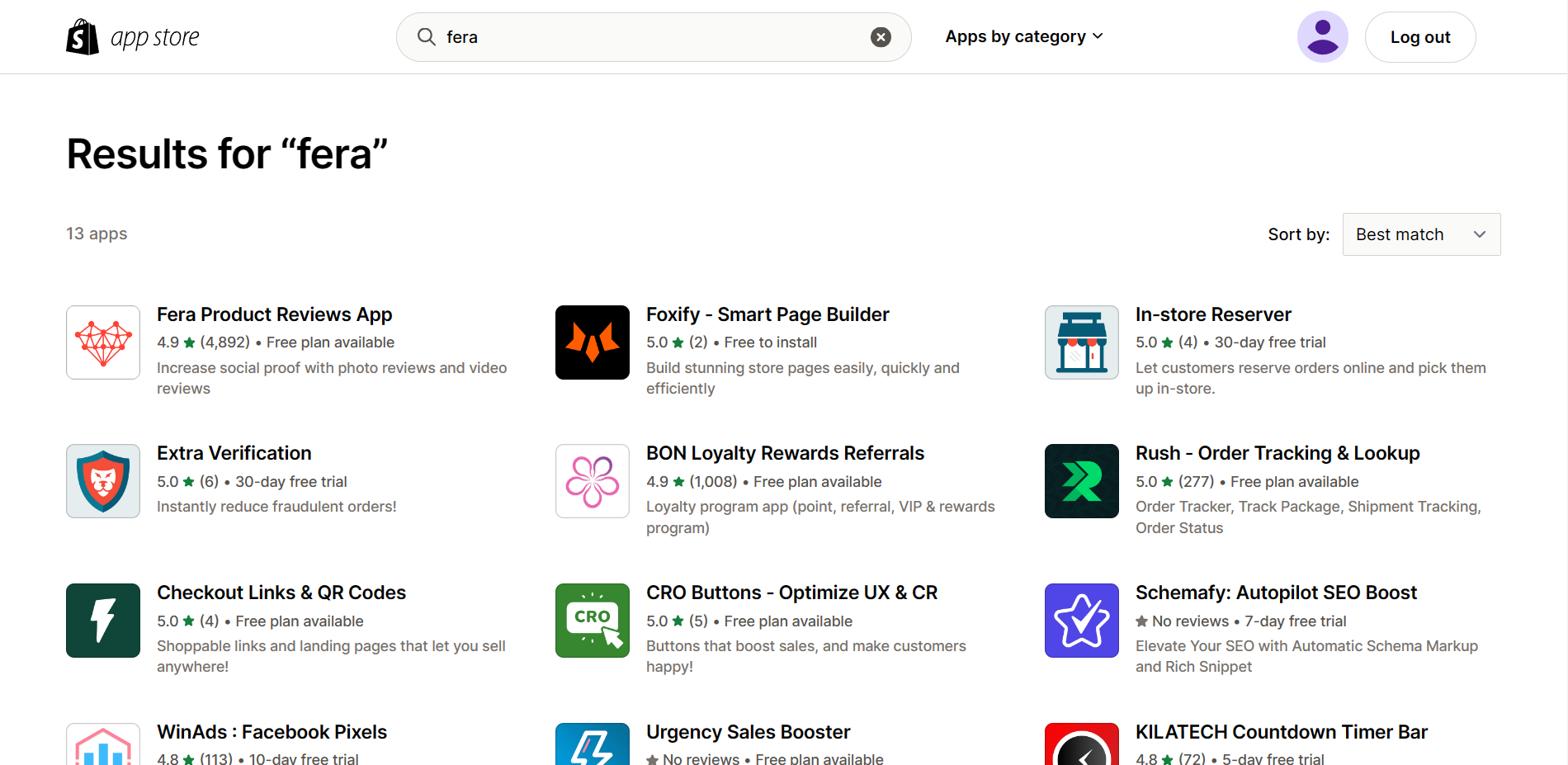
- You will be redirected to the Shopify App Store after you click search. Look for "Fera Product Reviews App" and click it to install it.
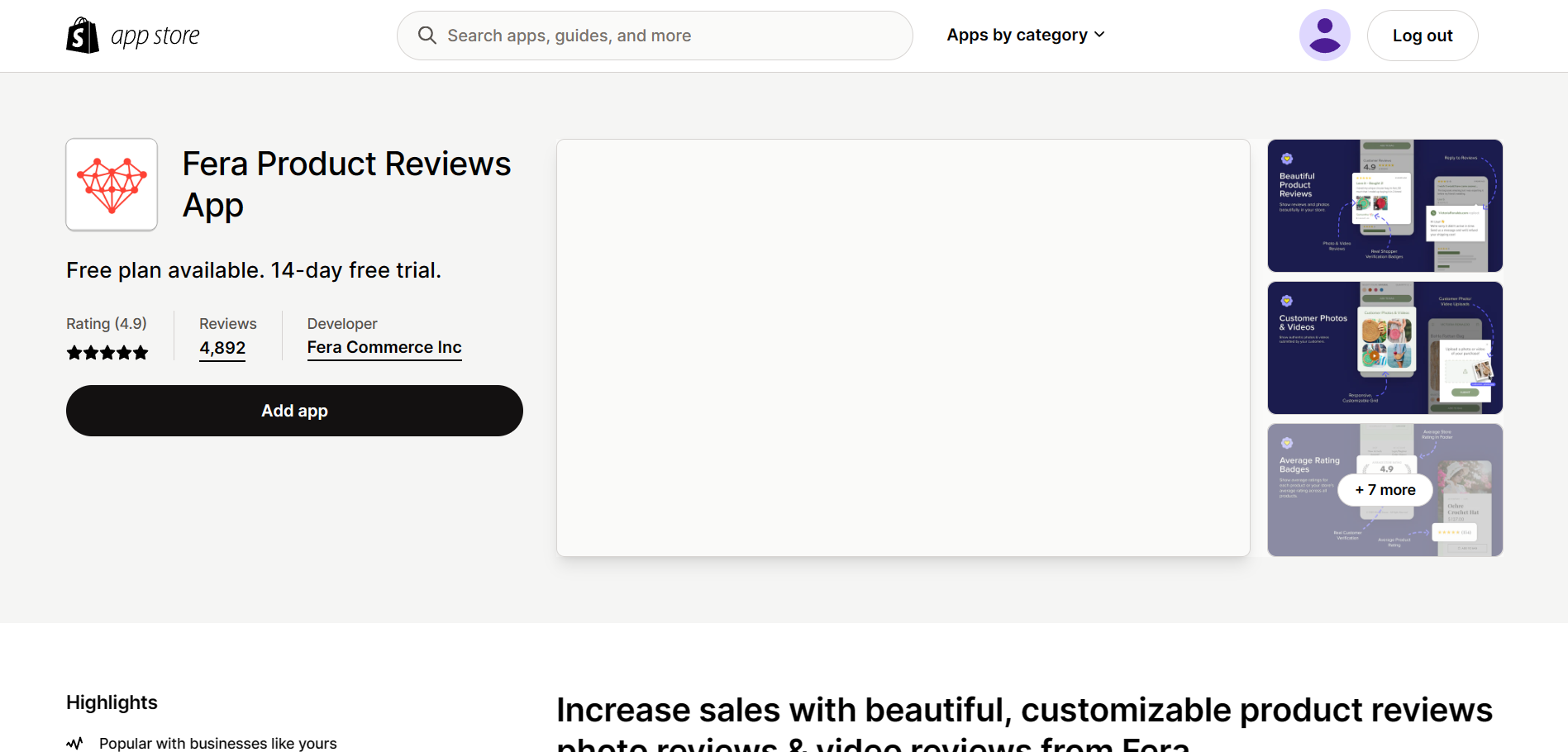
- Click the "Add app" button.
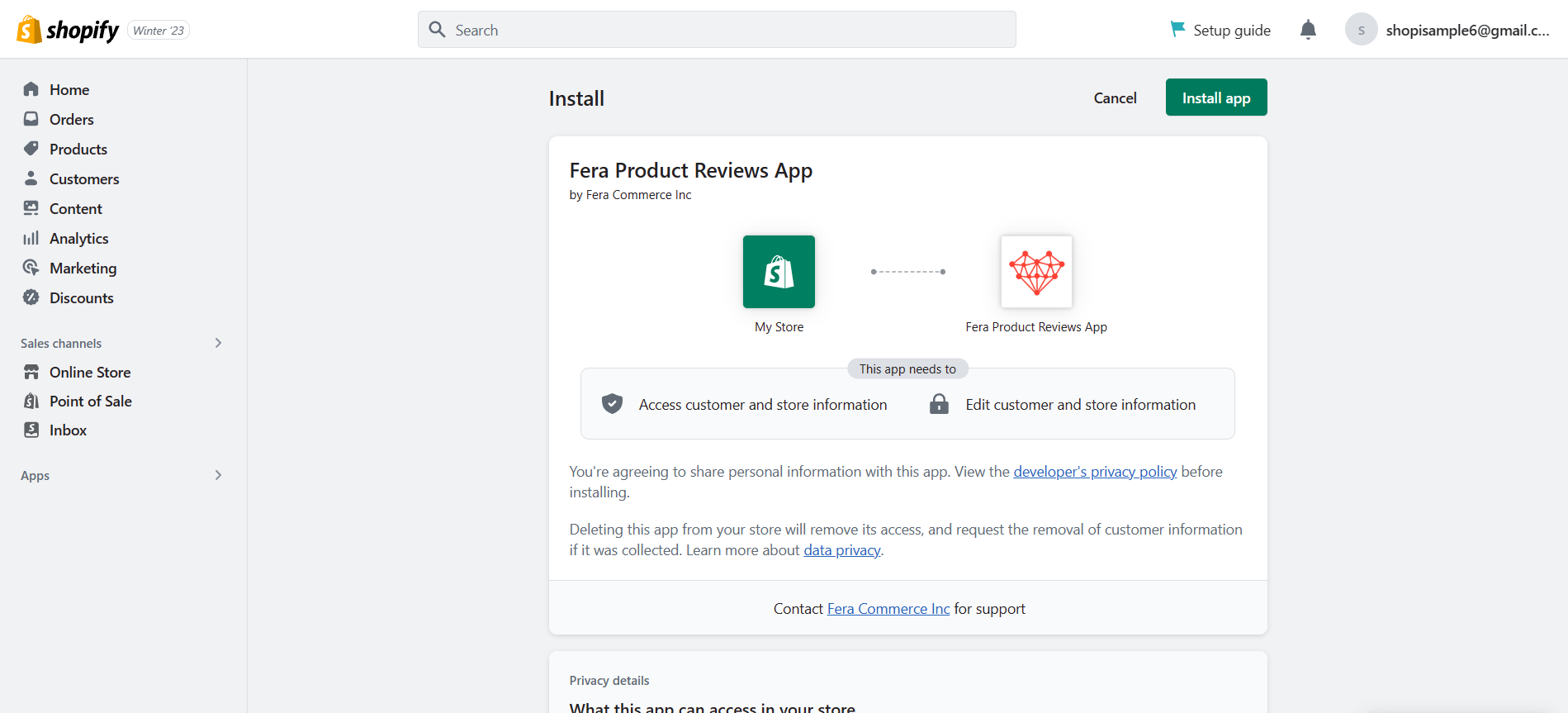
- You will be redirected back to the Shopify page where you will be informed about the requirements of the Fera Product Reviews App. NOTE: This app can access and edit customer and store information. After making sure that you permit them in these things, click the "Install app" button.
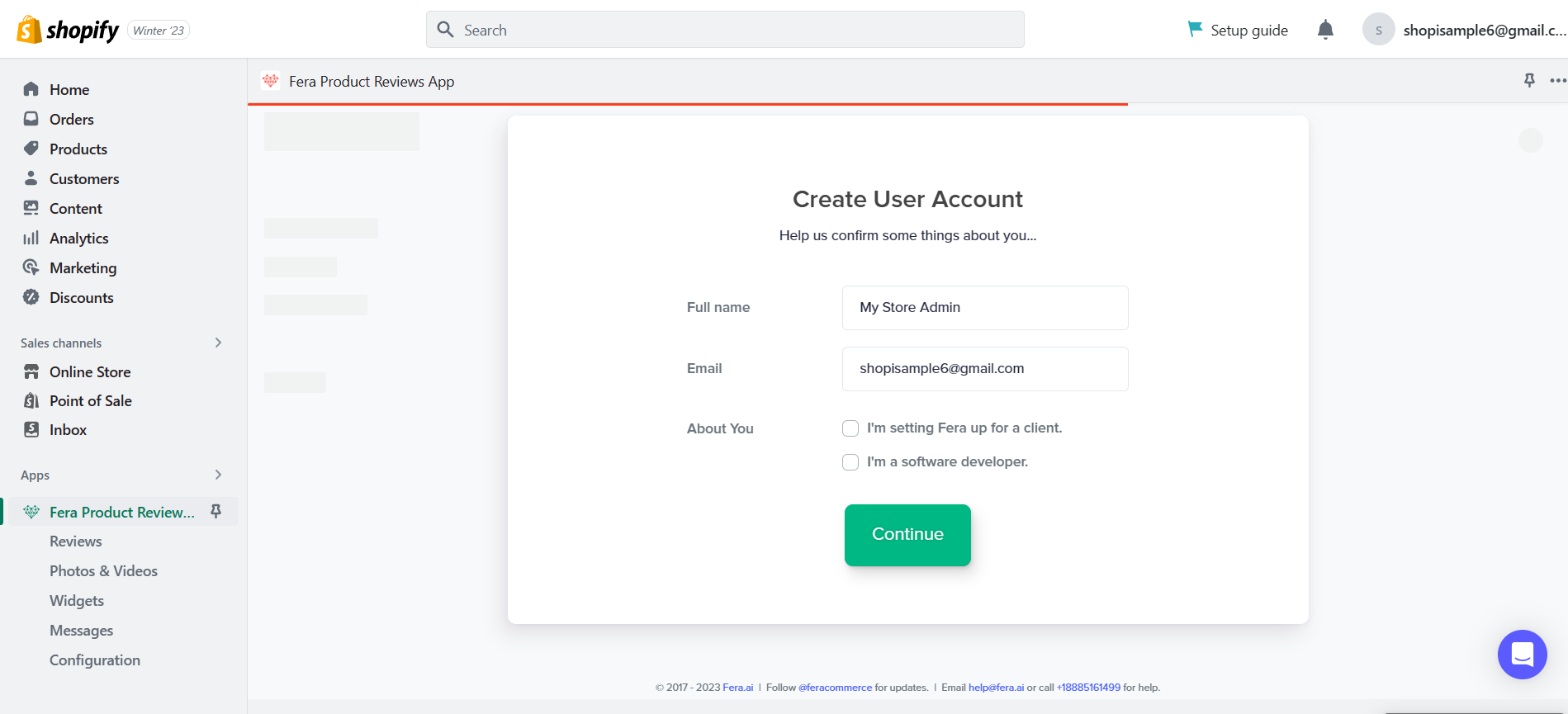
- After that, you will be asked to create a user account in Fera. To do this, you need to enter your full name, email address, and details whether you are setting up Fera for a client or yourself. Click the Continue button after entering your information.
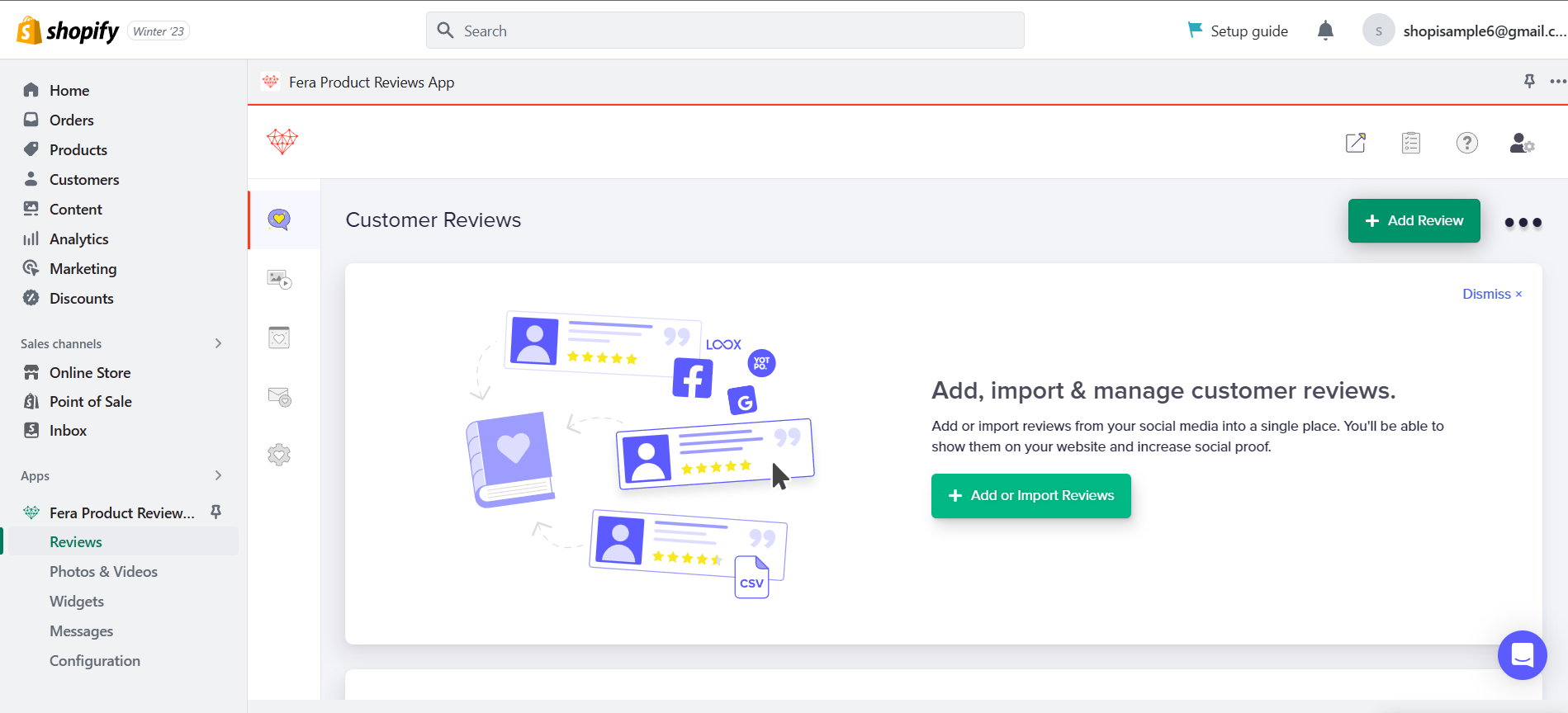
- After creating an account, you will now see the Customer reviews. You can add, import, and manage customer reviews in this app. Since we want to connect Trustpilot and your Shopify store, click the " + Add or Import Reviews" to import Trustpilot reviews.
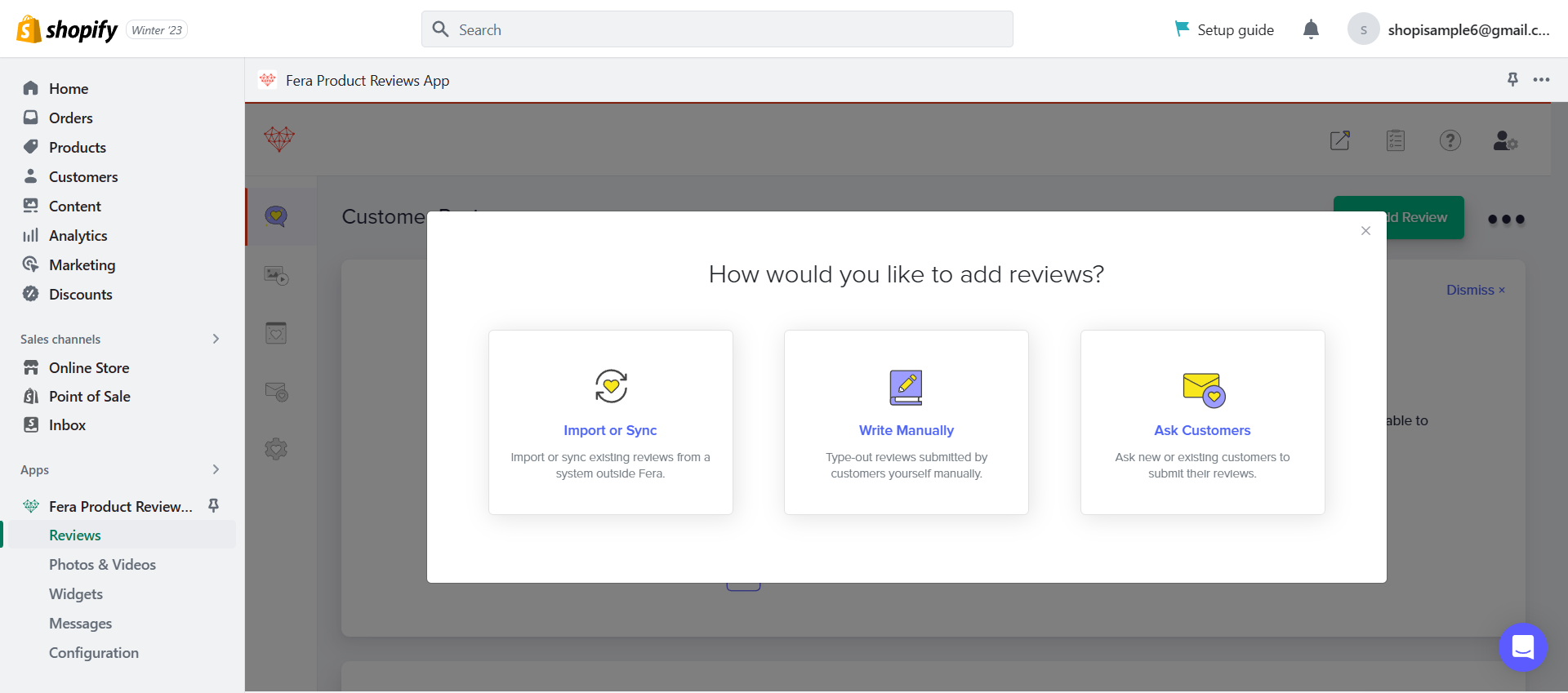
- There will be a pop-up tab for you to answer here. This tab inquires about the method that you would like to incorporate to add new reviews: Import or Sync, Write Manually, or Ask Customers. Since we are using Trustpilot, we will go with the "Import & Sync" option.
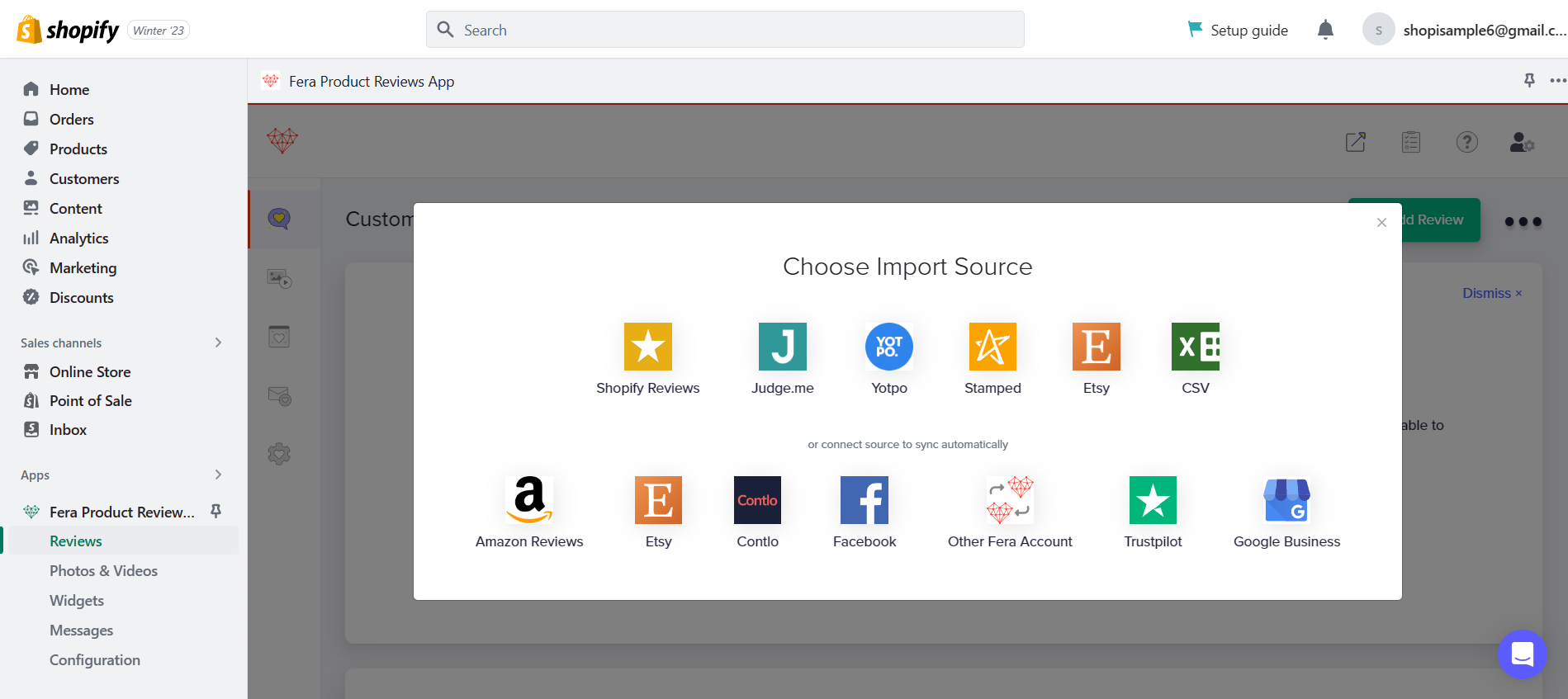
- After choosing the Import option, you will be asked to choose an import source. When it comes to Trustpilot, you can already connect it to Shopify to sync automatically. Click the Trustpilot icon to choose it as an import source.
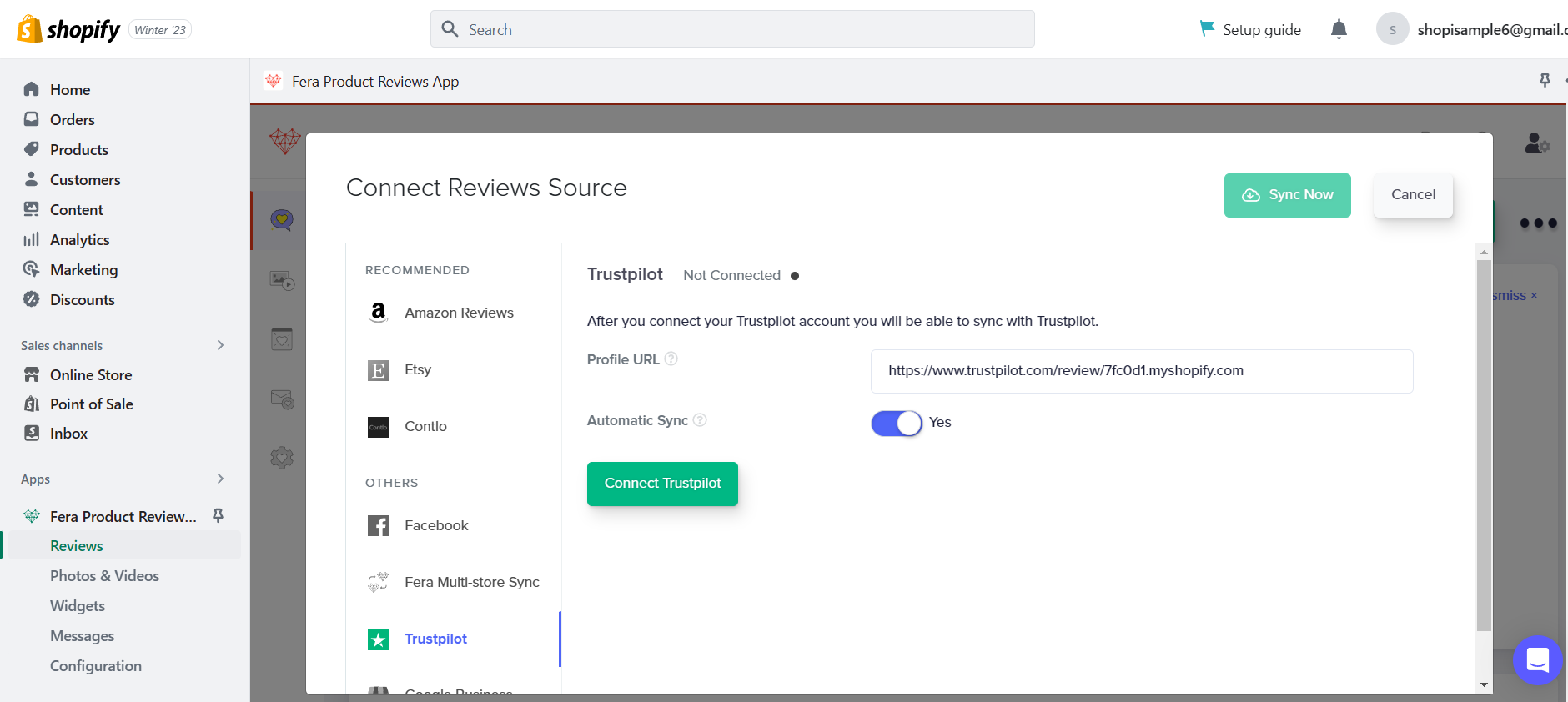
- To connect to Trustpilot, you need to paste your Profile URL in the blank field provided and toggle on the Automatic Sync so incoming reviews from Trustpilot are immediately synced to Shopify. Click the "Connect Trustpilot" to finalize the process.
Conclusion
You’re done! Keep in mind that Trustpilot is an easy way to generate reviews for your business so that it can generate sales and attract potential customers that would want to try the products or services that your business offers.
-
To be able to do this task, you need to have an account in Trustpilot for businesses and a Shopify store website and account to connect reviews source and sync them easily.
-
You can generate reviews by uploading a list of customers in Trustpilot to email them using a format that you will create. This process is a lengthy one, but emails will be sent automatically after you send the invitations.
-
You will also have to create a Sender information to boost brand recognition and include them in your invitation emails.
-
In the invitation emails, include your review link and encouragement to the customers after they have completed a purchase to leave a satisfied review in your Trustpilot reviews. You can also respond to previous customers who left reviews.