Automating Review Generation with Loox
To walk you through installing Loox in your Shopify store and automating reviews for your business.
Prefer a shortcut? 16 free tools do parts of this for you.

Aim: To walk you through installing Loox in your Shopify store and automating reviews for your business.
Optimal Outcome: To introduce your products to your leads by providing them with trusted reviews of your products which will help them decide to purchase it as it allows you to display images and videos of your products.
What do you need to start: To follow this SOP, you must have an account in Shopify and have access on your Shopify App Store to be able to install the Loox review app.
Why is this SOP Important: Automating review generation with Loox benefits your business in terms of improving sales, reaching new audiences, and boosting productivity in the company. The good thing about Loox is that it allows your customers to leave reviews, and you can set discounts and offers for those who include display media in their reviews, which benefit all the sellers, customers, and new visitors.
When and Where to execute: This SOP is useful especially for starting businesses which do not initially have reviews and sales. If you want to boost your product and place it in the market, you can generate reviews automatically.
Who Should Be Doing This: This should be done by the management involved in customer service and sales.
Automating Review Generation
Automating review generation is a process of gathering product reviews from customers with the utilization of a software (in this case, Loox) to show the visitors of your products’ quality. Aside from voluntary reviews from your customers, you can also send out review requests to selected people, especially those who purchased your products and did not leave a review. You can provide them with next order discounts so they will be encouraged to leave a review for the betterment of your products’ recognition.
Execution
Resources/Tools & Set up
-
Shopify account
-
Shopify App Store
Installing Loox in your Shopify
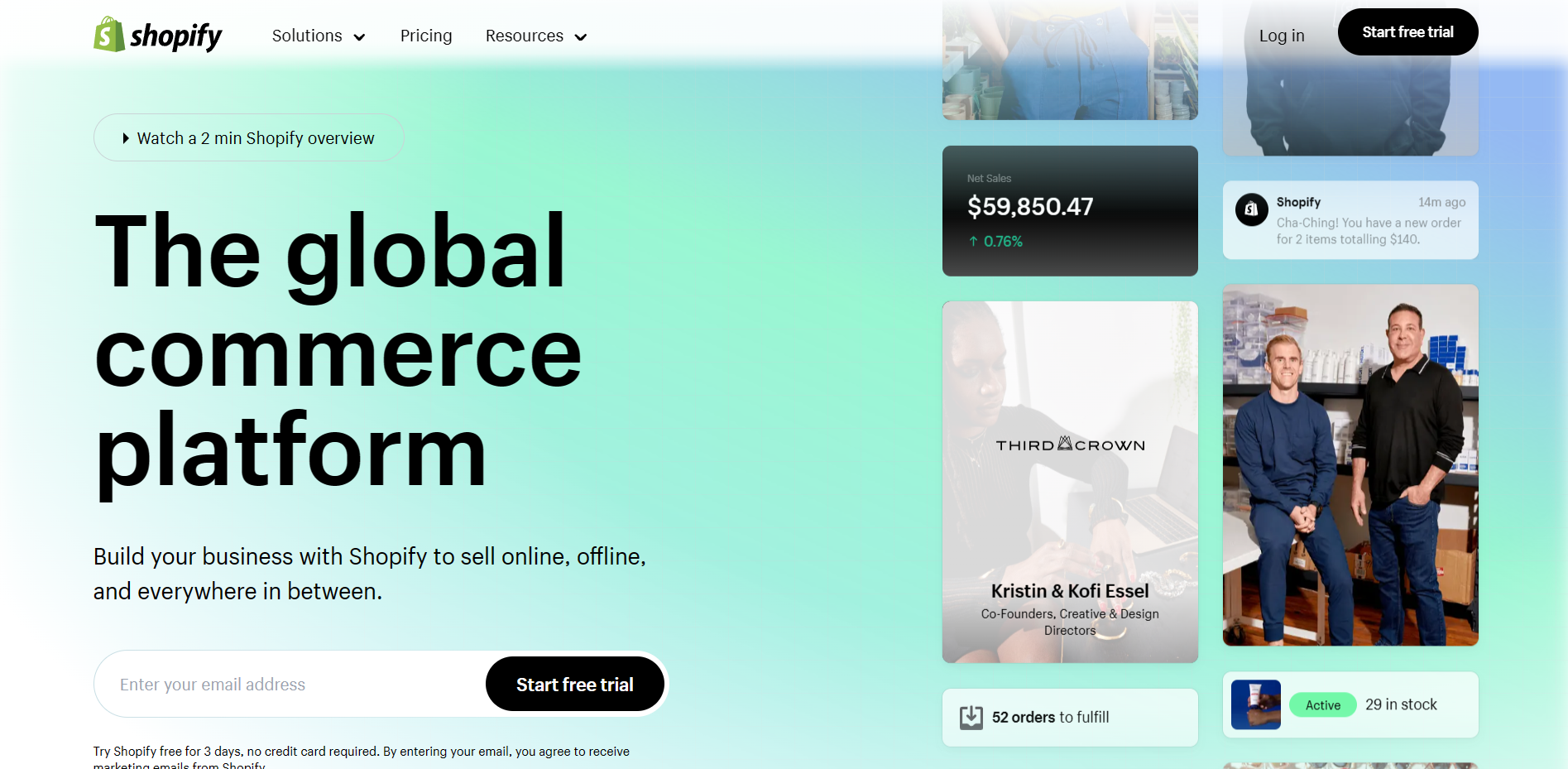
- Sign in to your Shopify store account by clicking “Log in” and entering your account details.
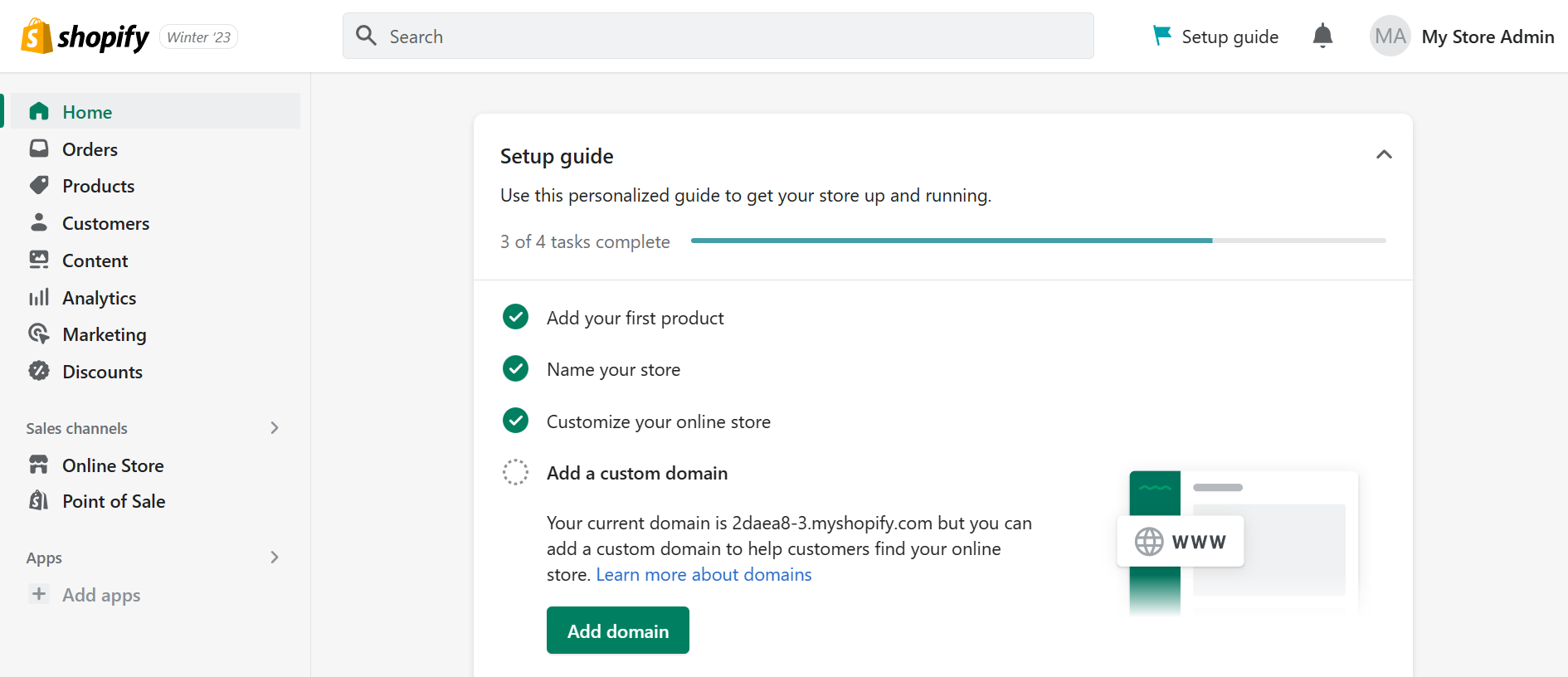
- Once you are redirected to the Shopify homepage, you will see a dashboard on the left. Click “Apps”.
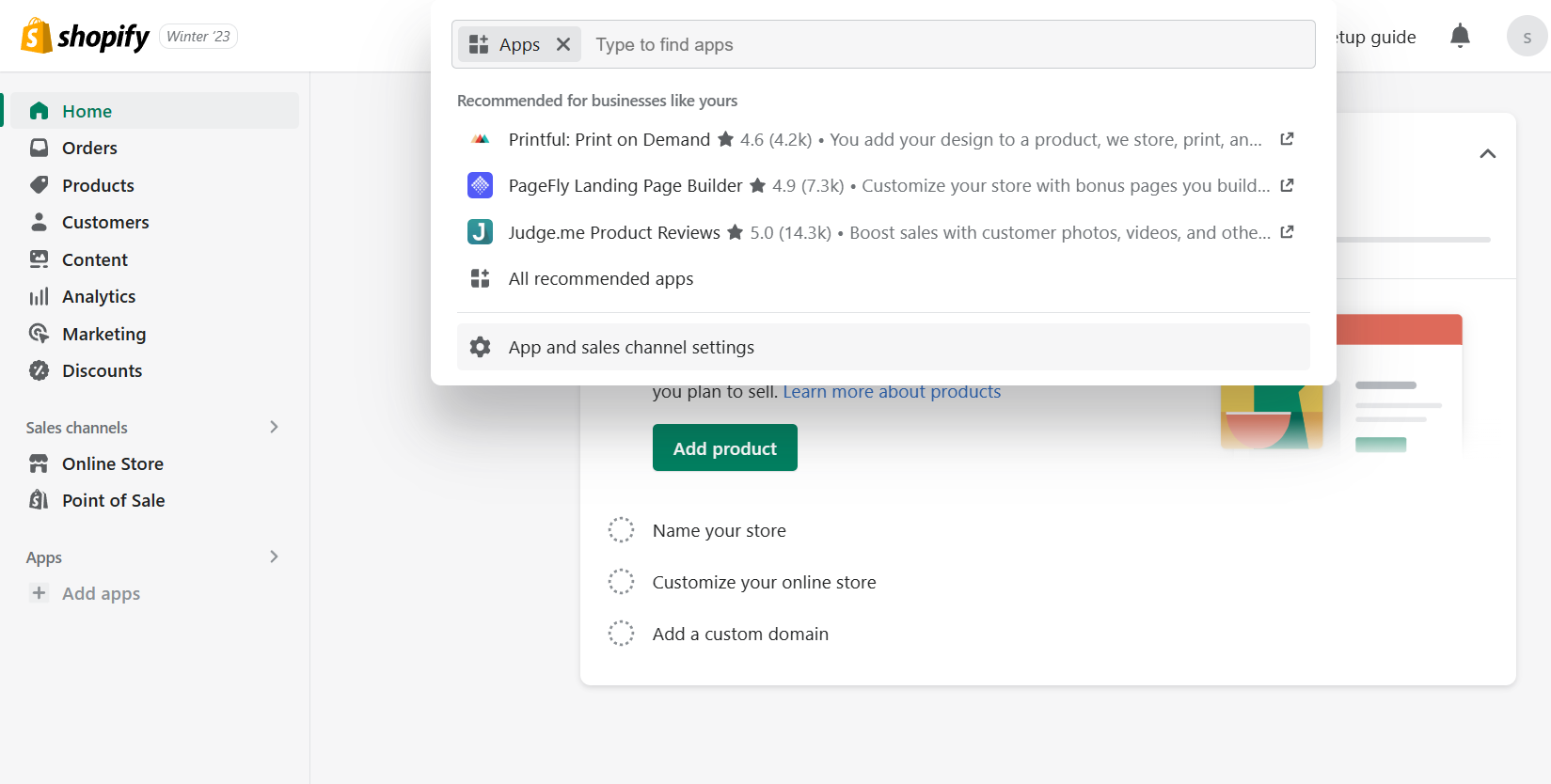
- After clicking Apps, a search bar will appear on the top of the site. This is where you will type “Loox” to install the application.
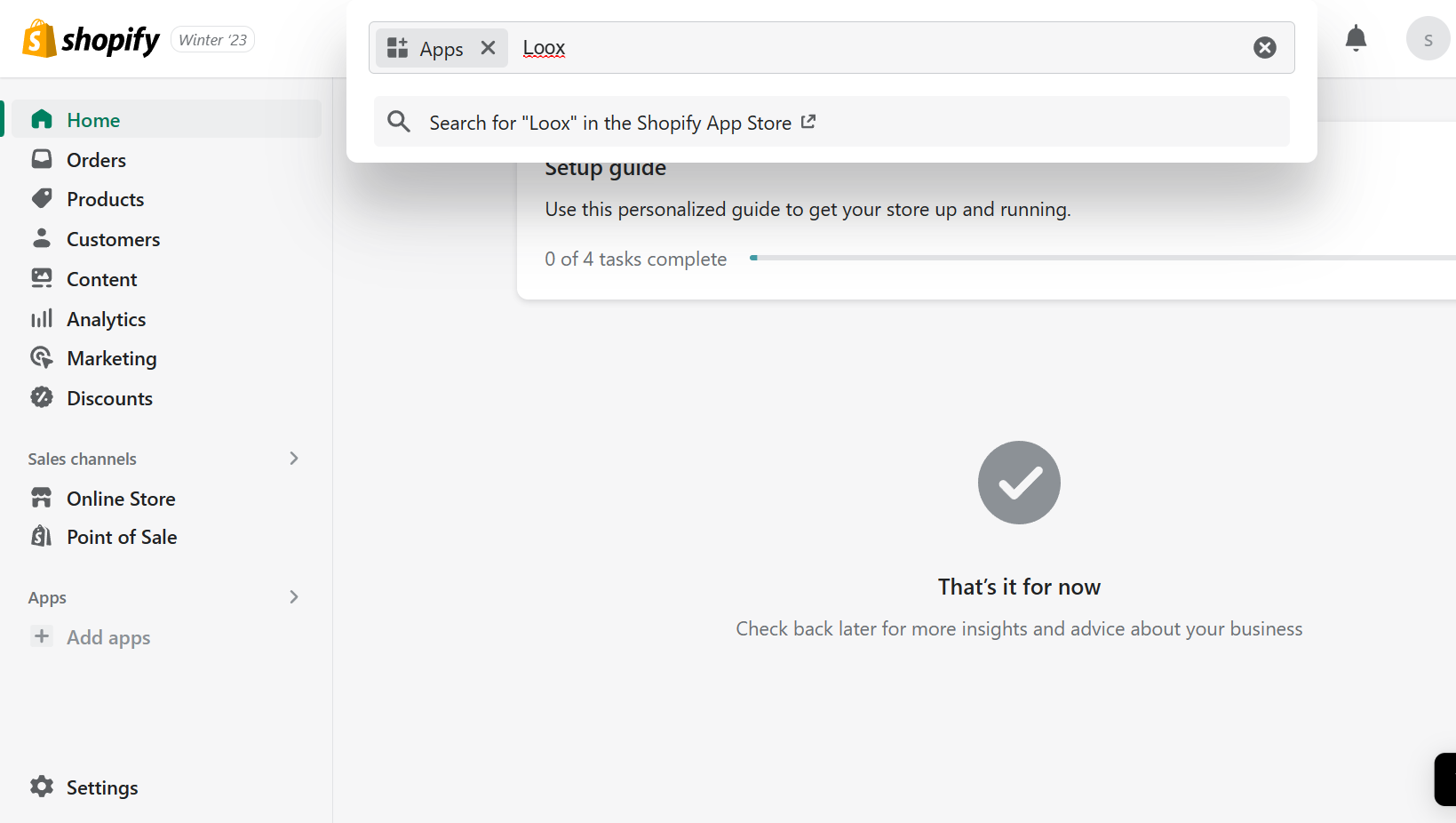
- After typing Klaviyo, a search suggestion will appear below the search bar. Click the “Search for “Loox” in the Shopify App Store”.
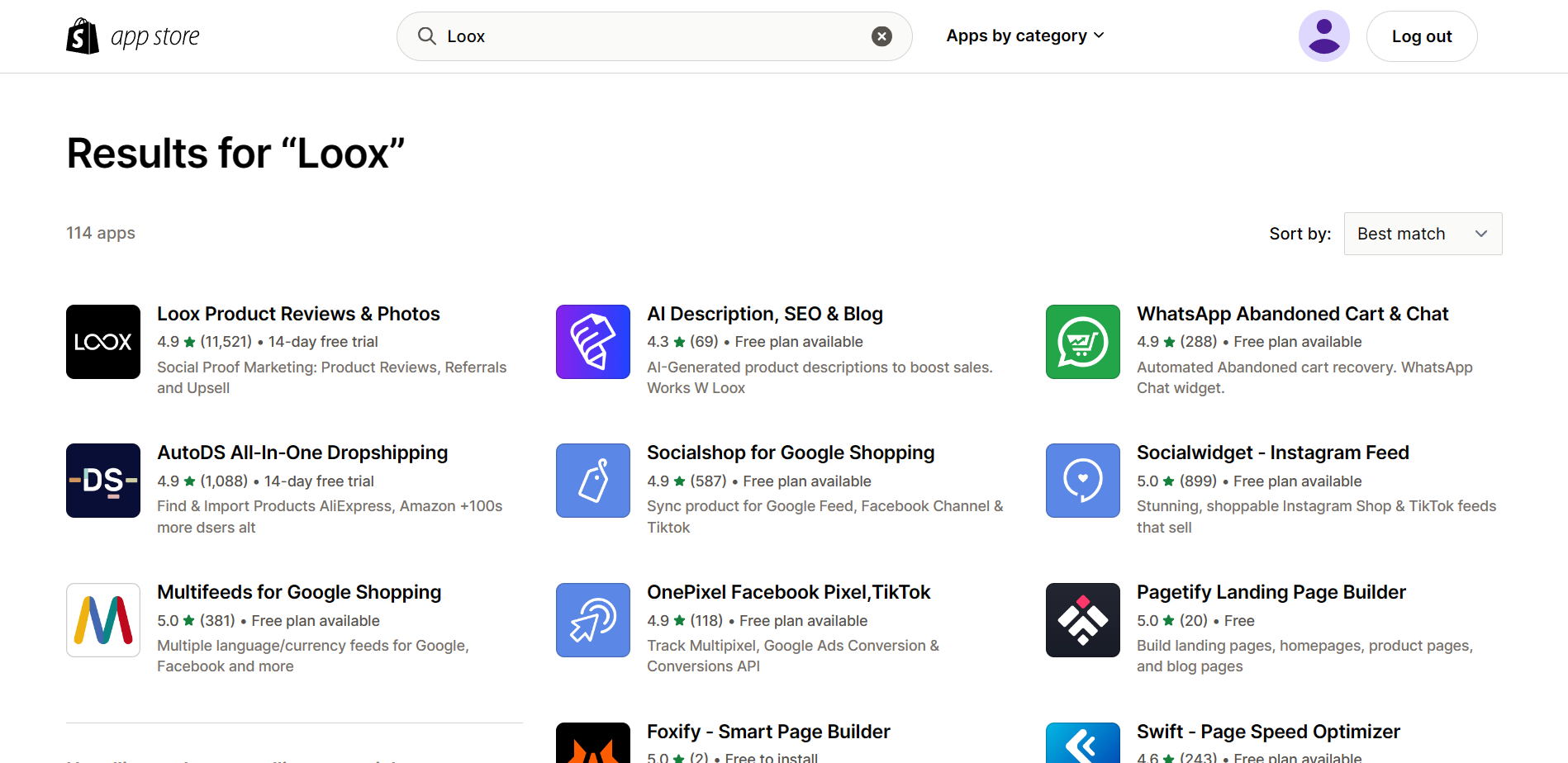
- After clicking the search suggestion, you will be redirected to the Shopify App Store tab which will show you results on your search. Look for “Loox Product Reviews & Photos” to install Loox in your Shopify.
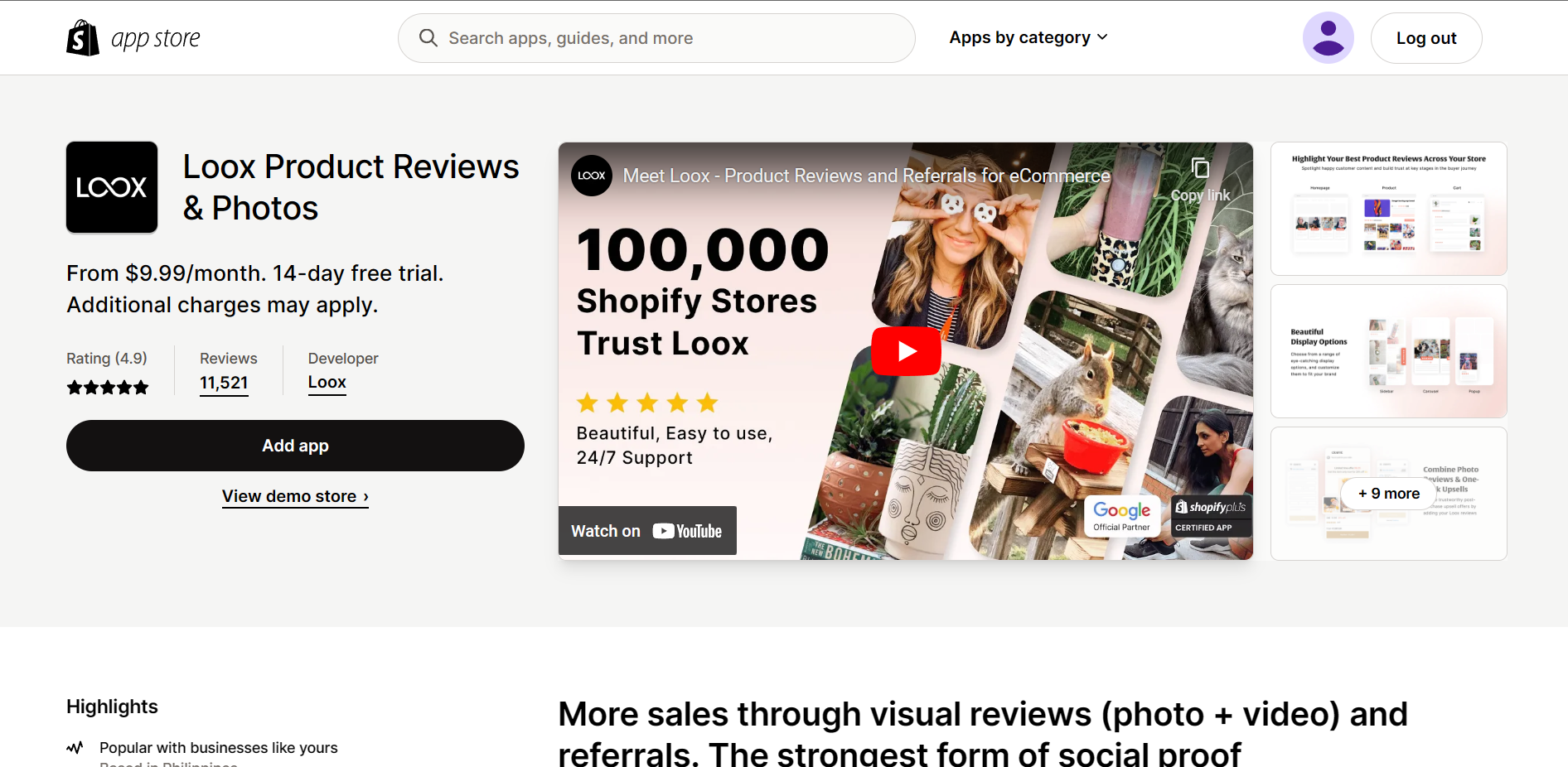
- Loox is an app utilized in Shopify to generate product reviews for your business’ store recognition. In addition to this, Loox has a monthly payment of $9.99 per month after the 14-day free trial. The rating of this product is 4.9 out of 5 stars, so it is a trusted platform for generating reviews. To add the app in your Shopify store, click the “Add app”.
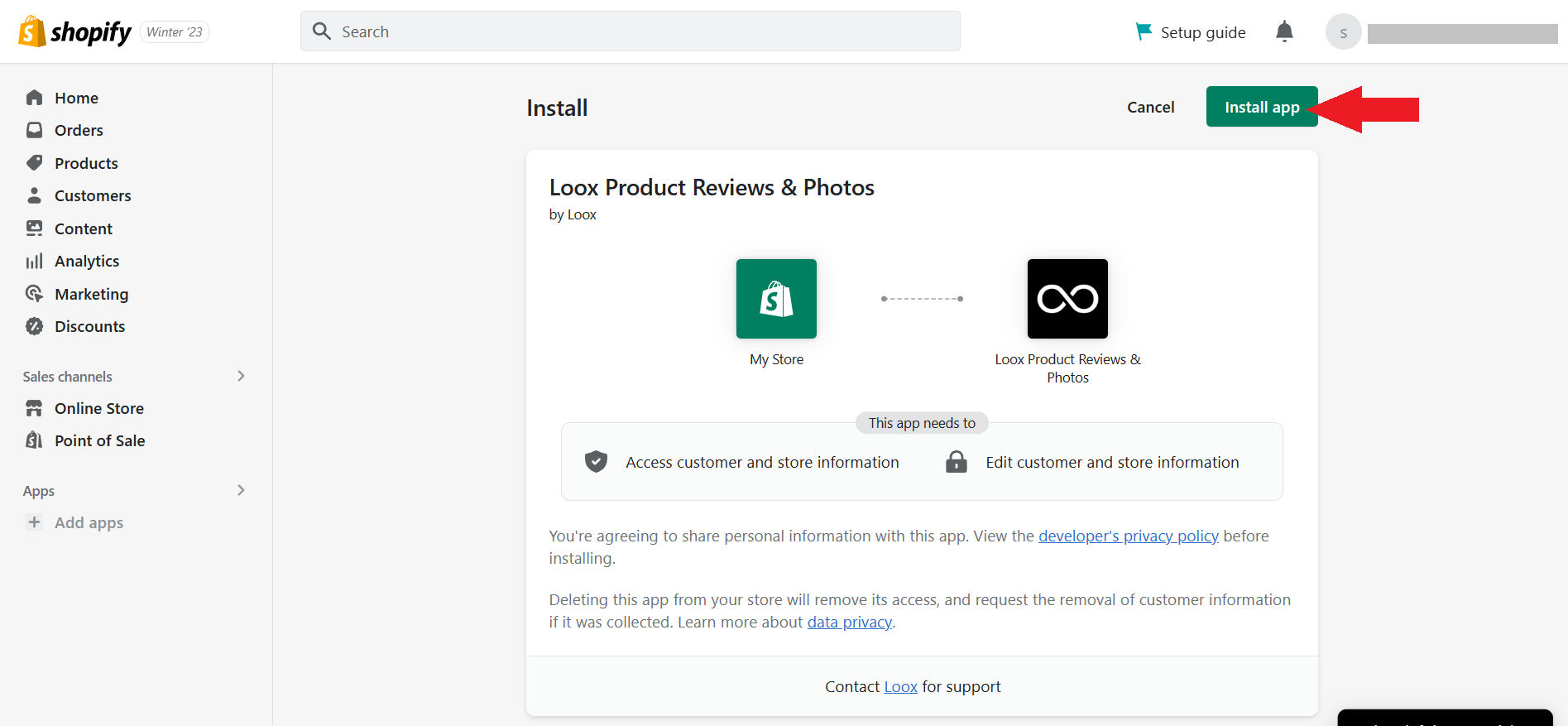
- You will then be redirected to the Shopify website to confirm the installation of the app. NOTE: Installing Klaviyo can give them access to customer and store information and edit customer and store information. If you are okay with this, click “Install app” to continue to process.
Setting Up Loox
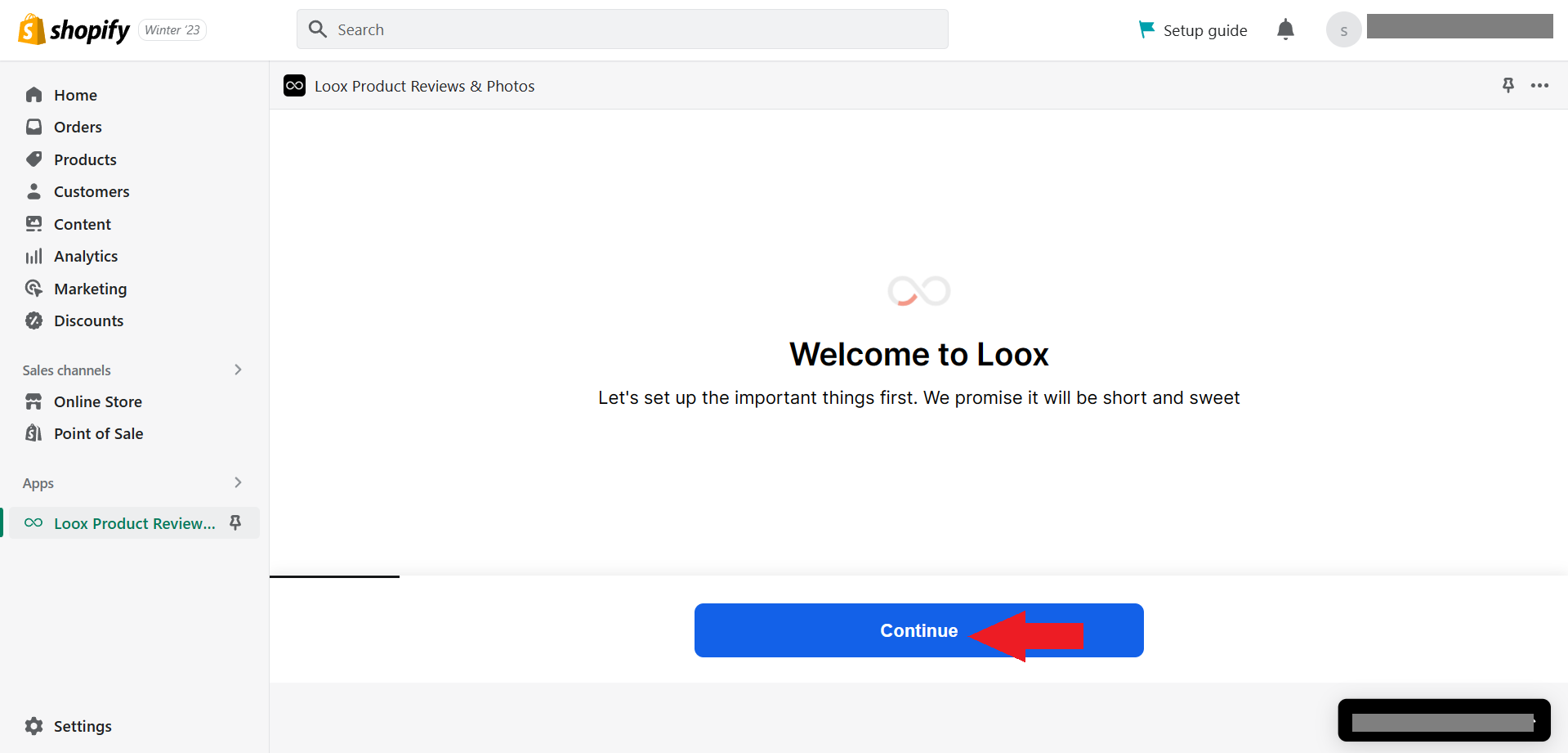
- After installing the app, you will be redirected to the Loox app. Click “Continue” to continue the process of setting up your app.
- You can then choose the store’s primary language by clicking the dropdown menu for languages available.
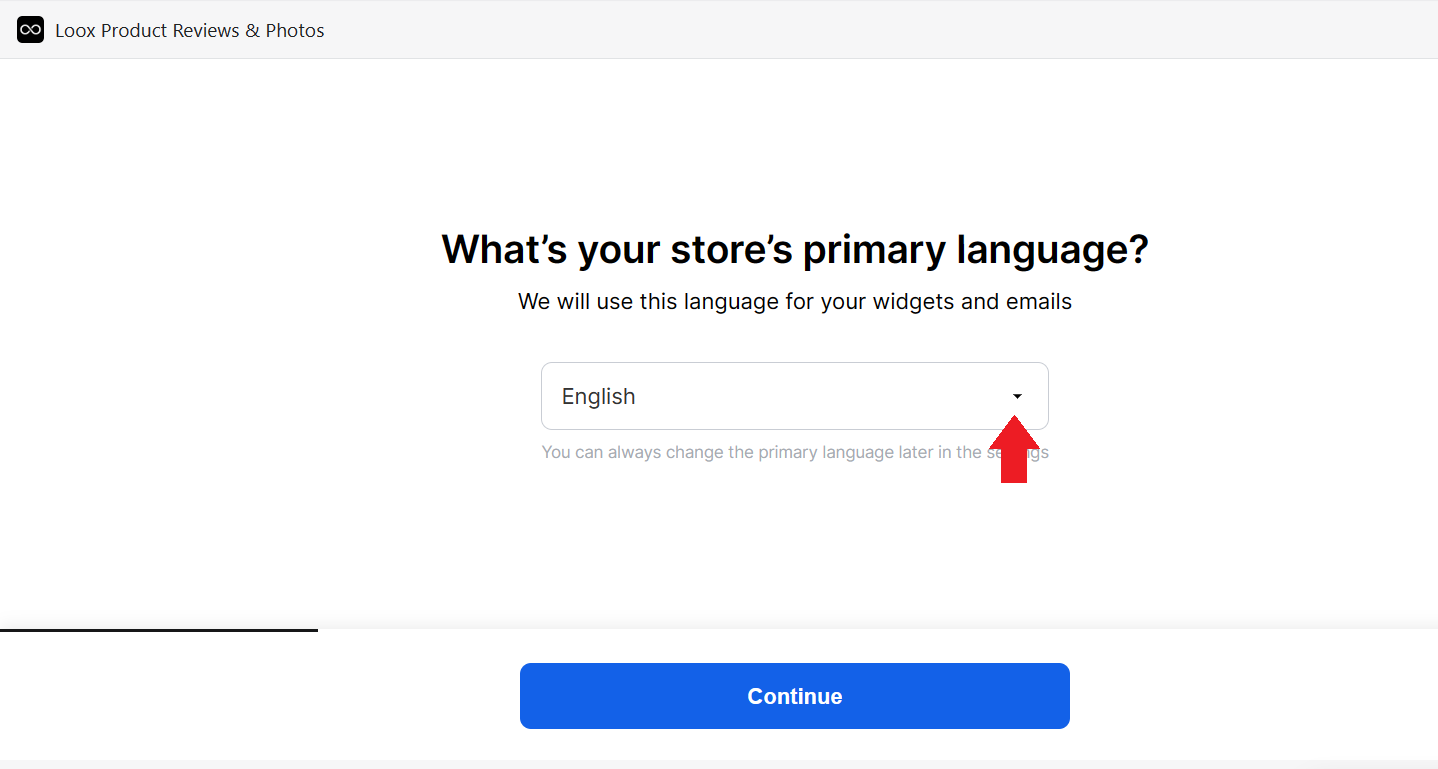
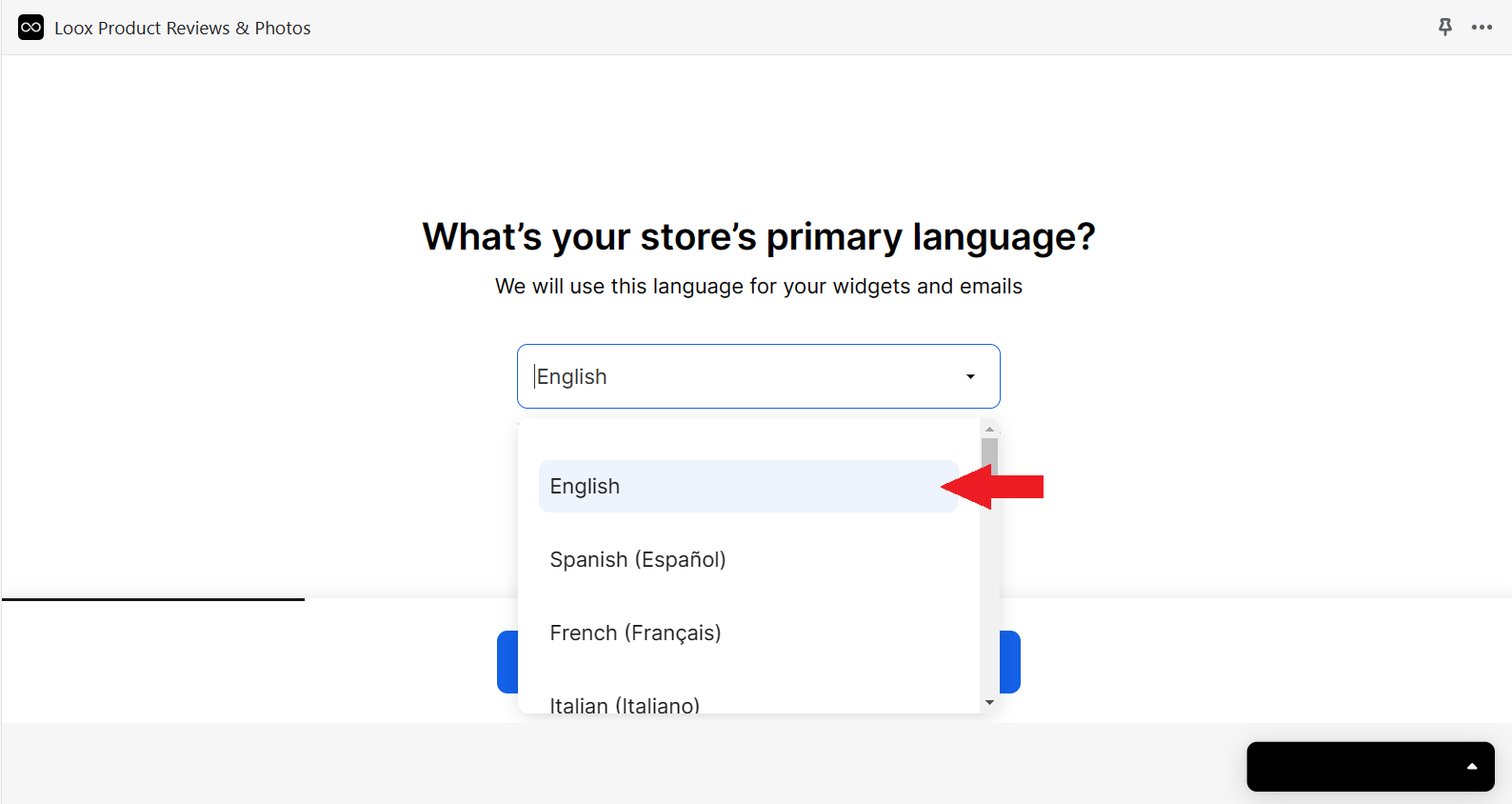
- Click your preferred language among the selection. Most of the time, English is the language used by most businesses because it is used in international countries.
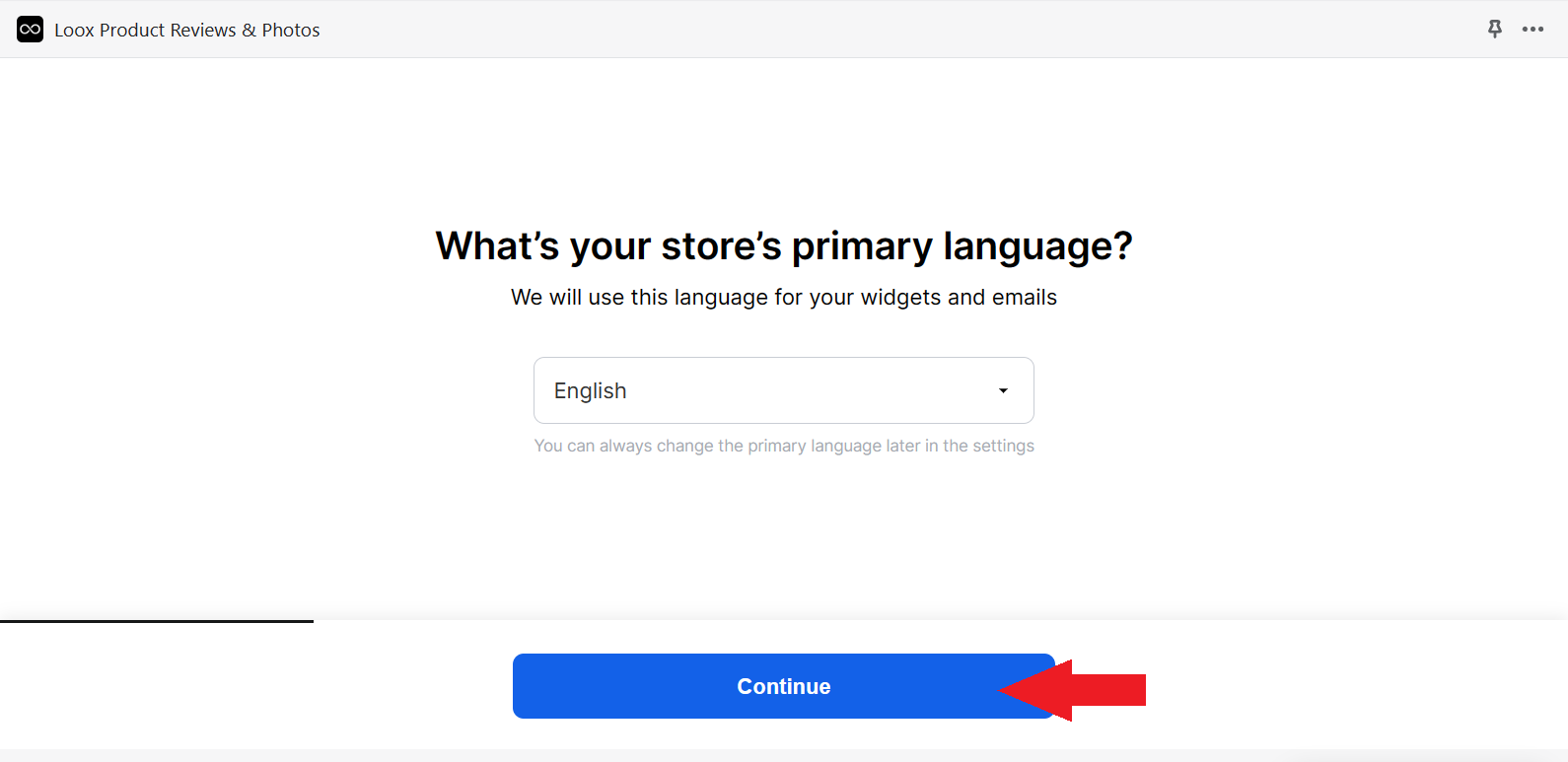
- After finalizing the primary language for your Shopify store, click “Continue”.
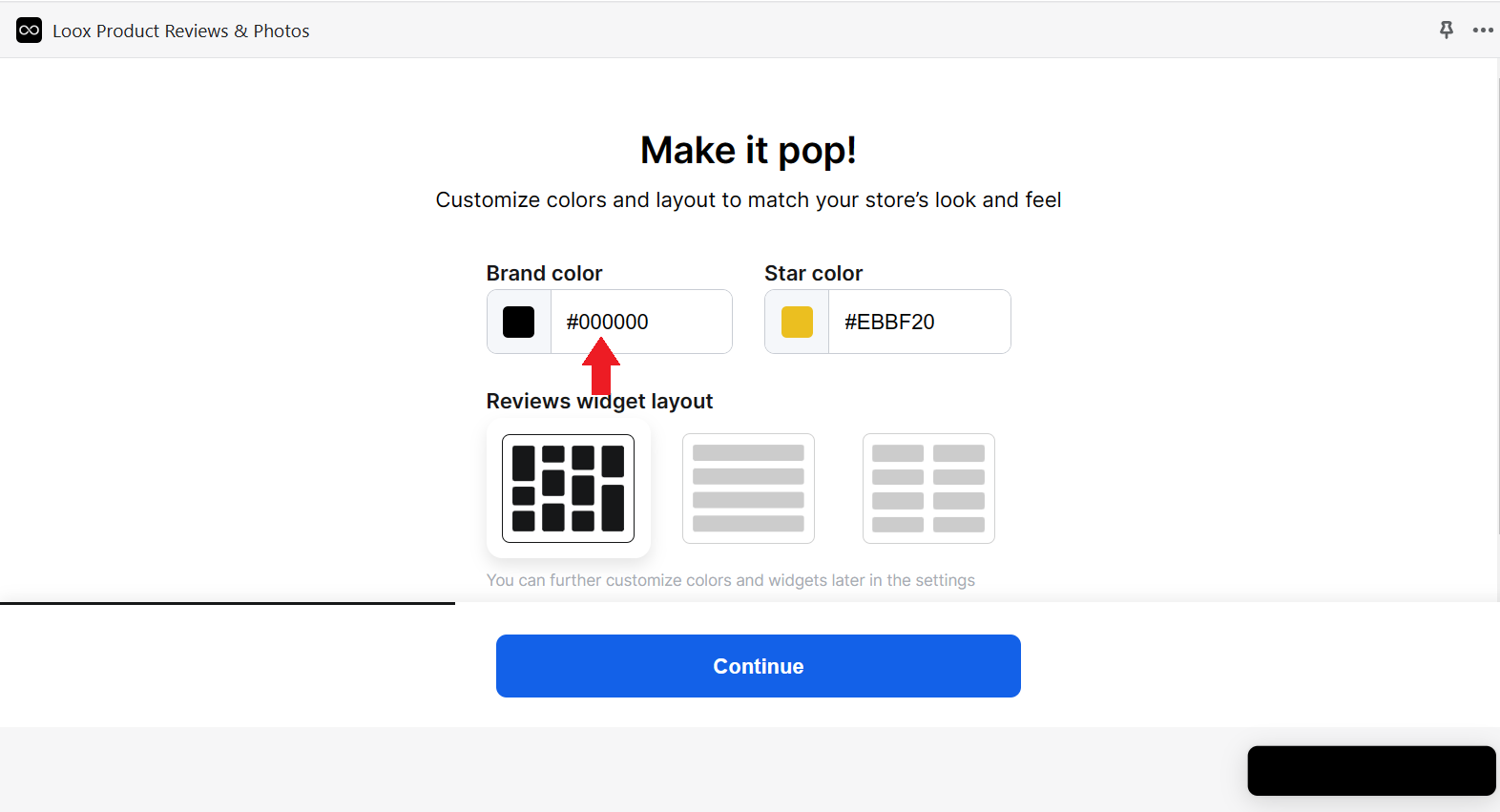
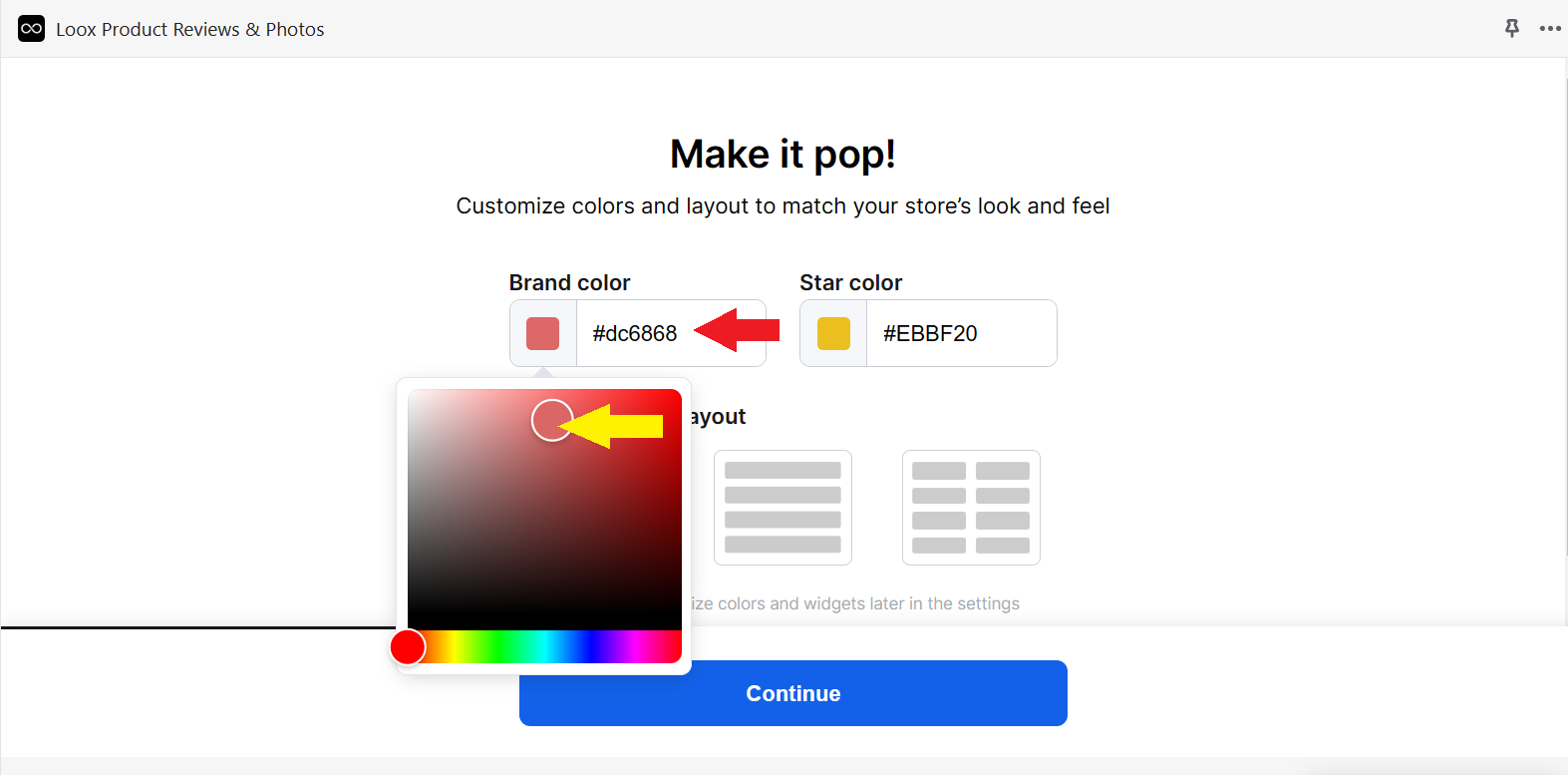
- You can now set up the colors of your review Brand and Star color. To change these colors, click the hexadecimal color codes (#000000) to view the available colors and choose from it. Make sure that this matches your Shopify store’s theme so it looks pleasing to the eyes.
- Drag the circle to your preferred color or type the hexadecimal color code (#000000) that you think is the closest to your Shopify store theme.
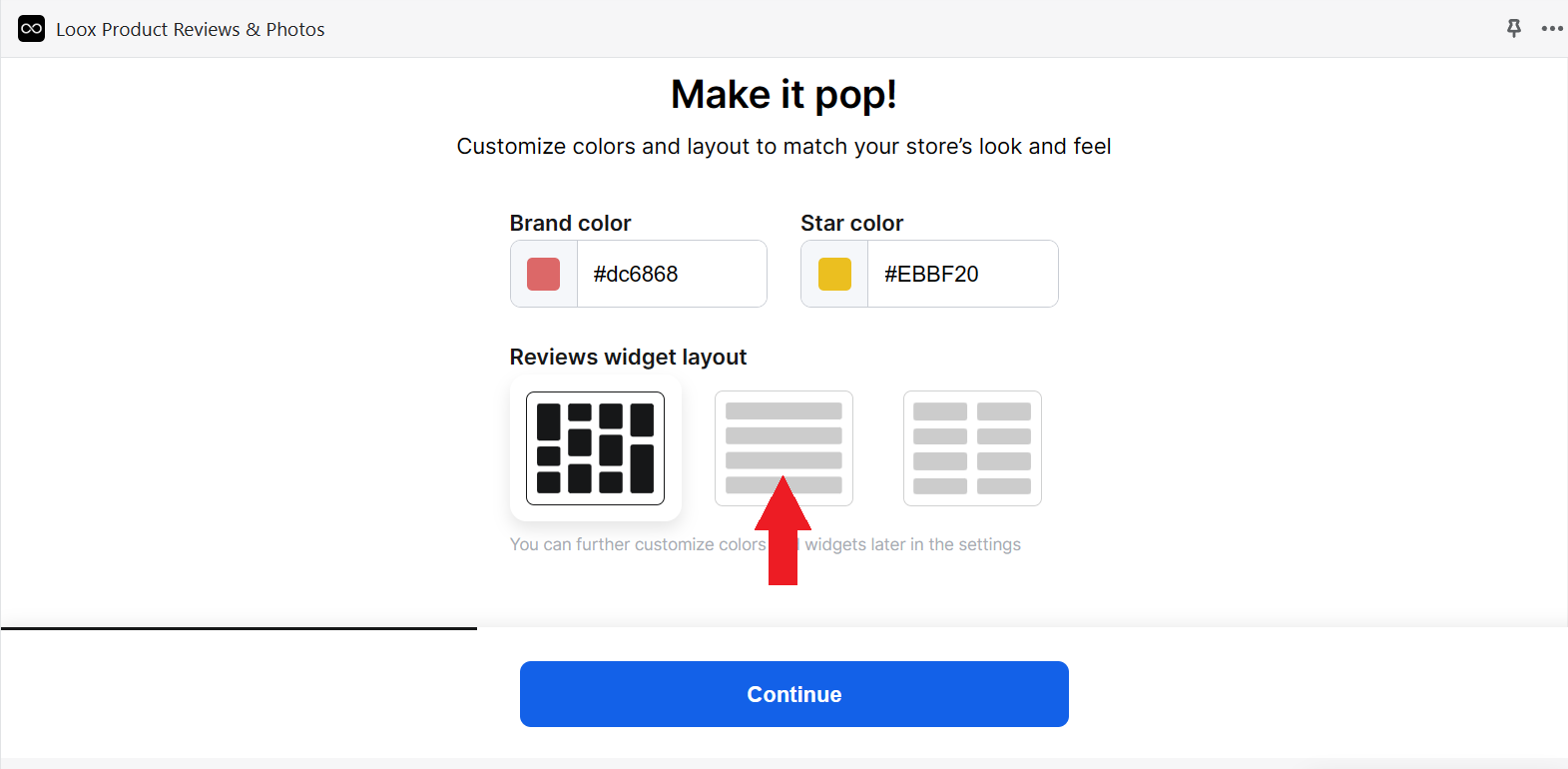
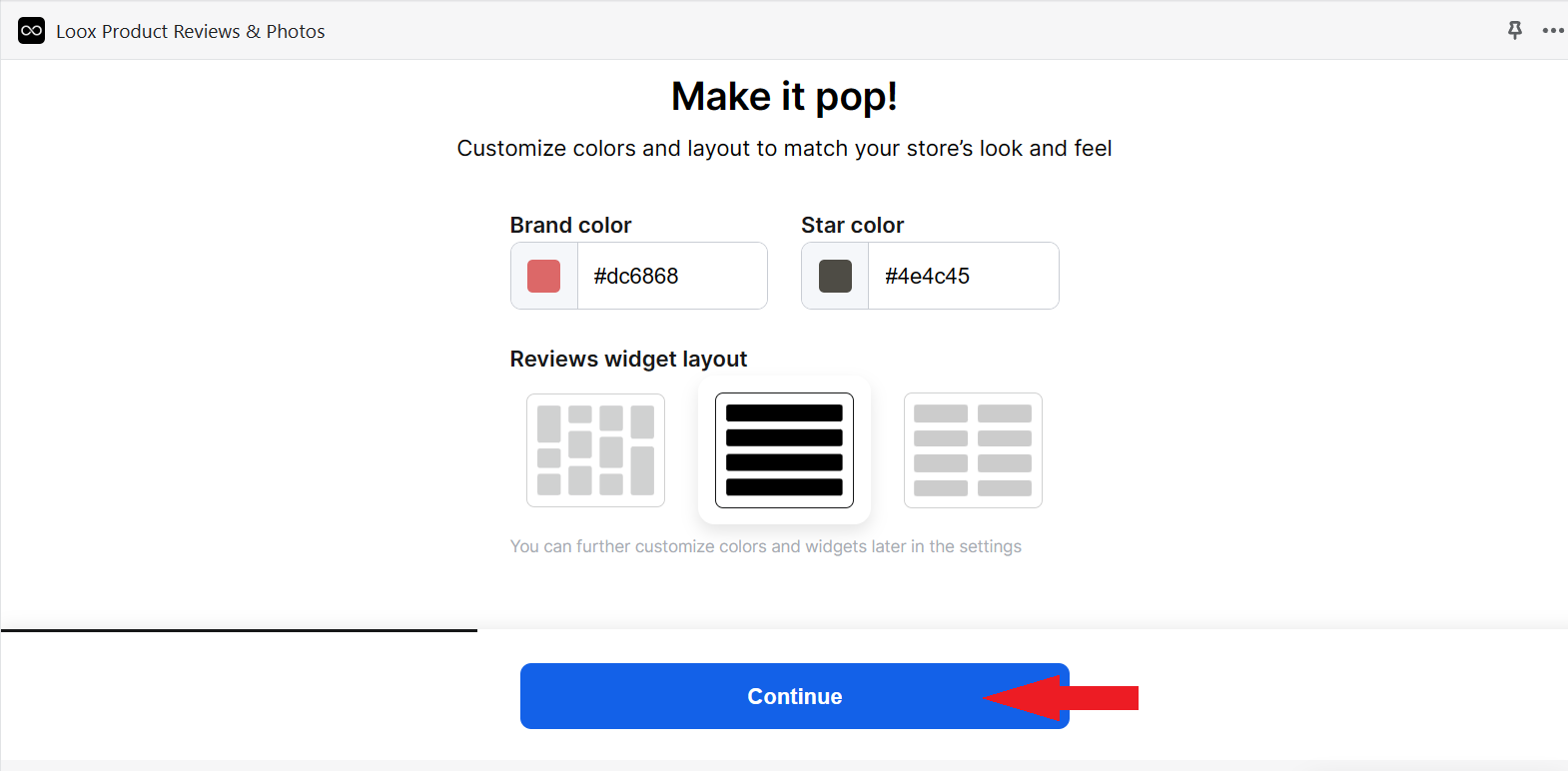
- Next is the Reviews widget layout. This is the position of the product reviews on your page, and it completely depends on your style. The first one is more on the creative side, second one is the most common format, and the third one is the two-column review which appears to be organized. Click your preferred layout to finalize the design of the review display.
- After finalizing the design, click the “Continue” button to proceed to the next step.
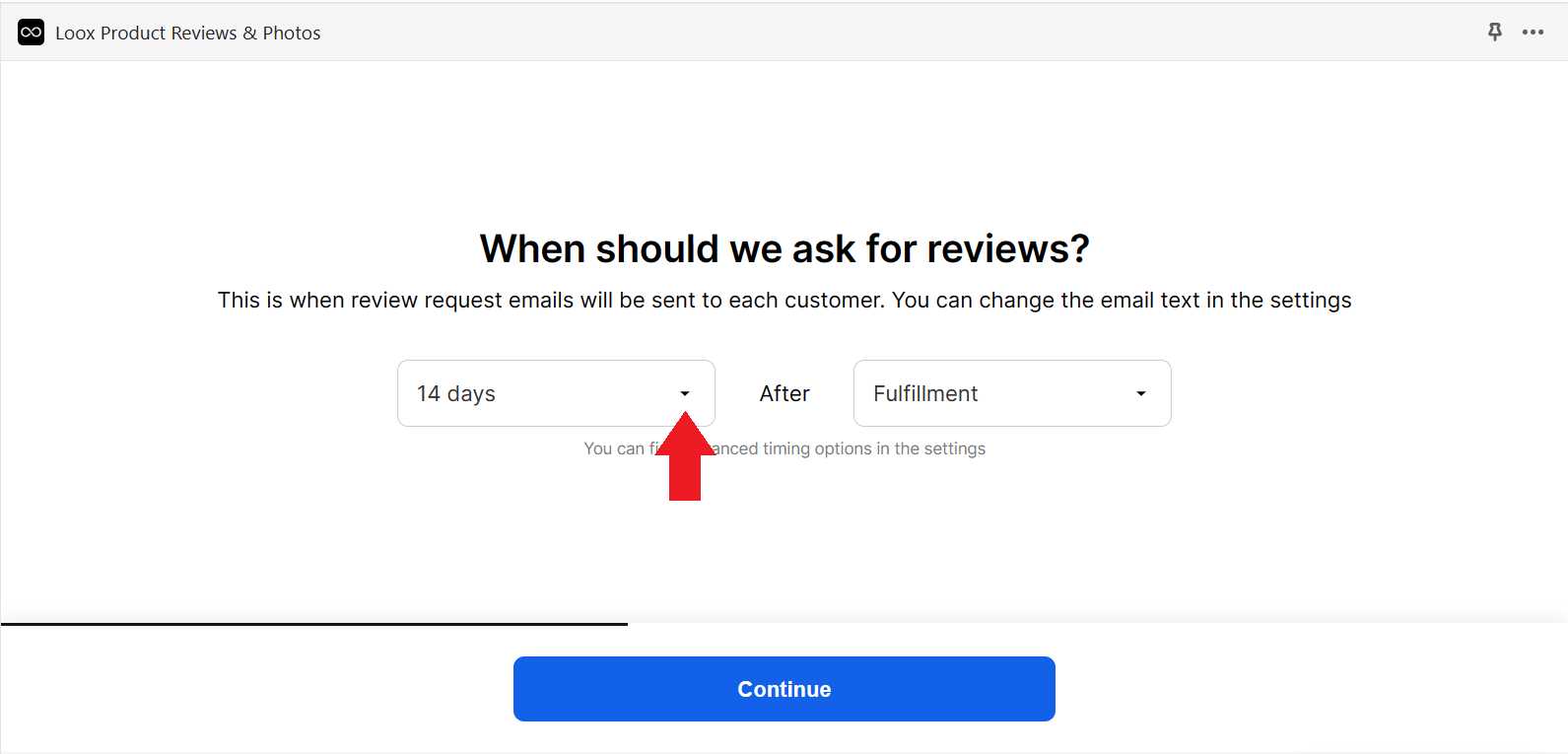
- The next part of setting up the Loox is the time interval where the software is automatically triggered to ask for reviews on the products purchased by each customer. To change this time interval, click the dropdown menu to view the option beside 14 days.
- After clicking the dropdown menu, you will be shown different options of 1 up to 70 days interval for Loox to send review request emails. Click your preferred time interval among the options presented.
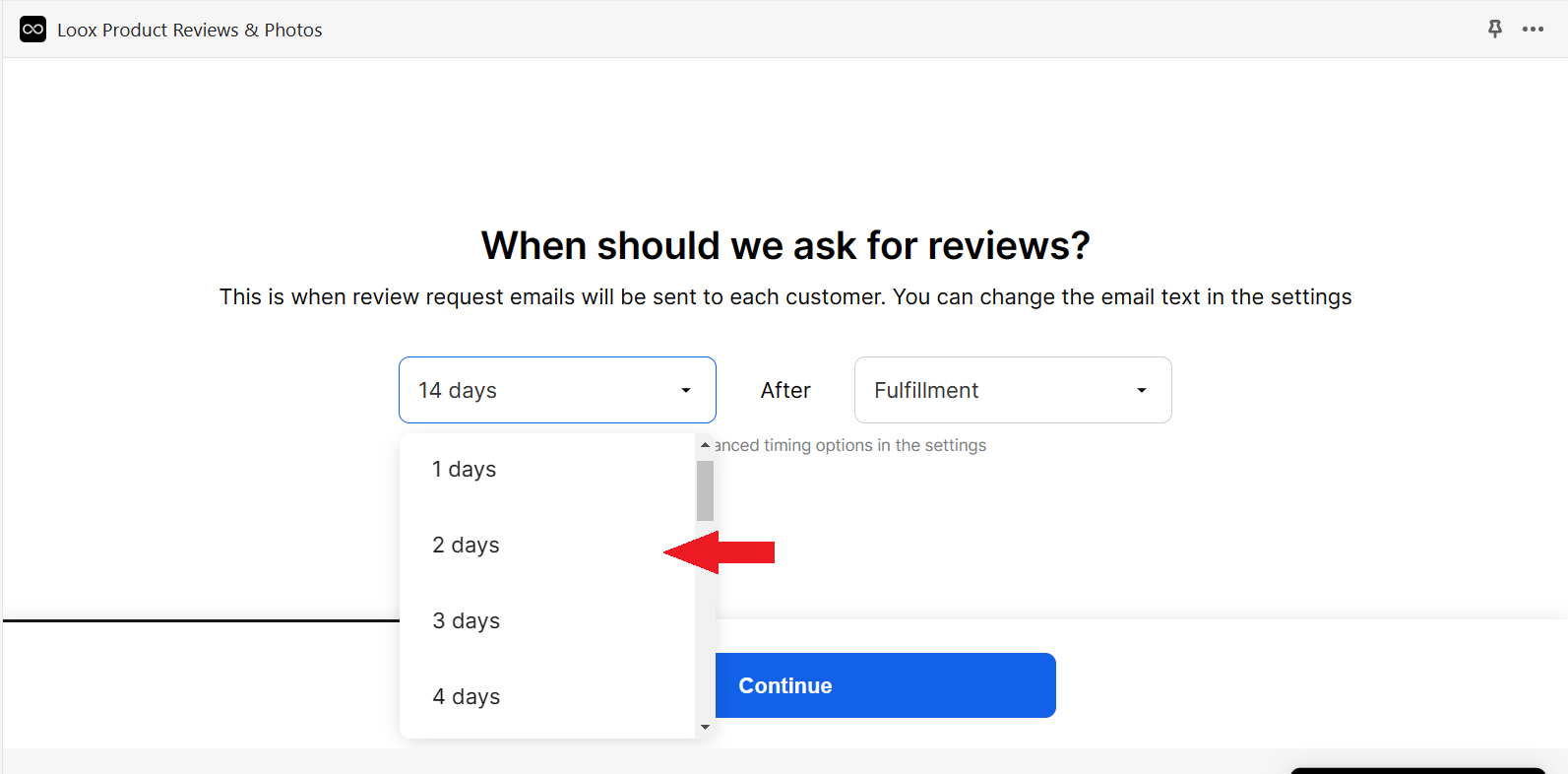
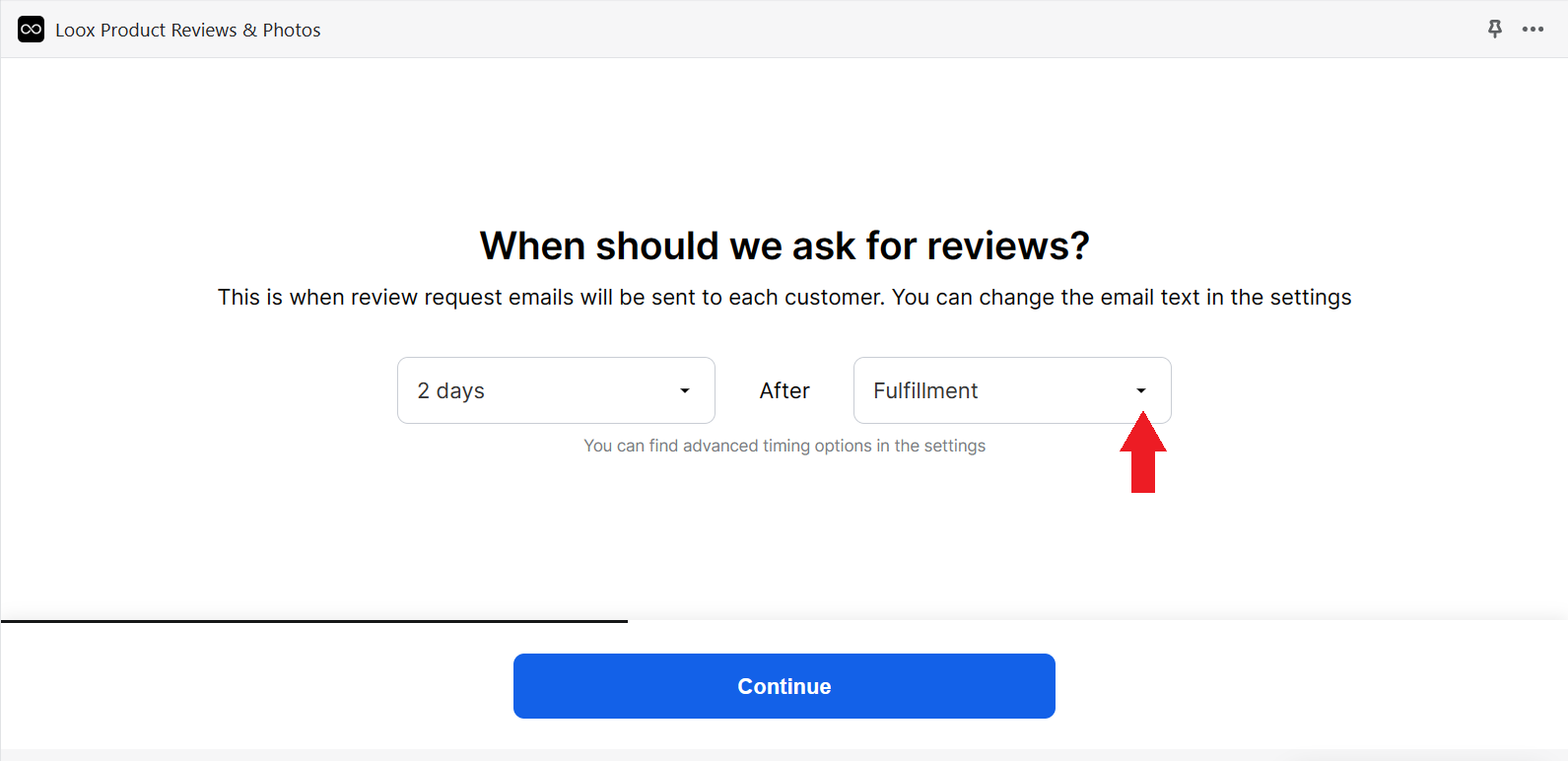
- After the time interval, you will be asked to enter the timing condition of this interval. To choose between the options, click the drop down menu beside Fulfillment.
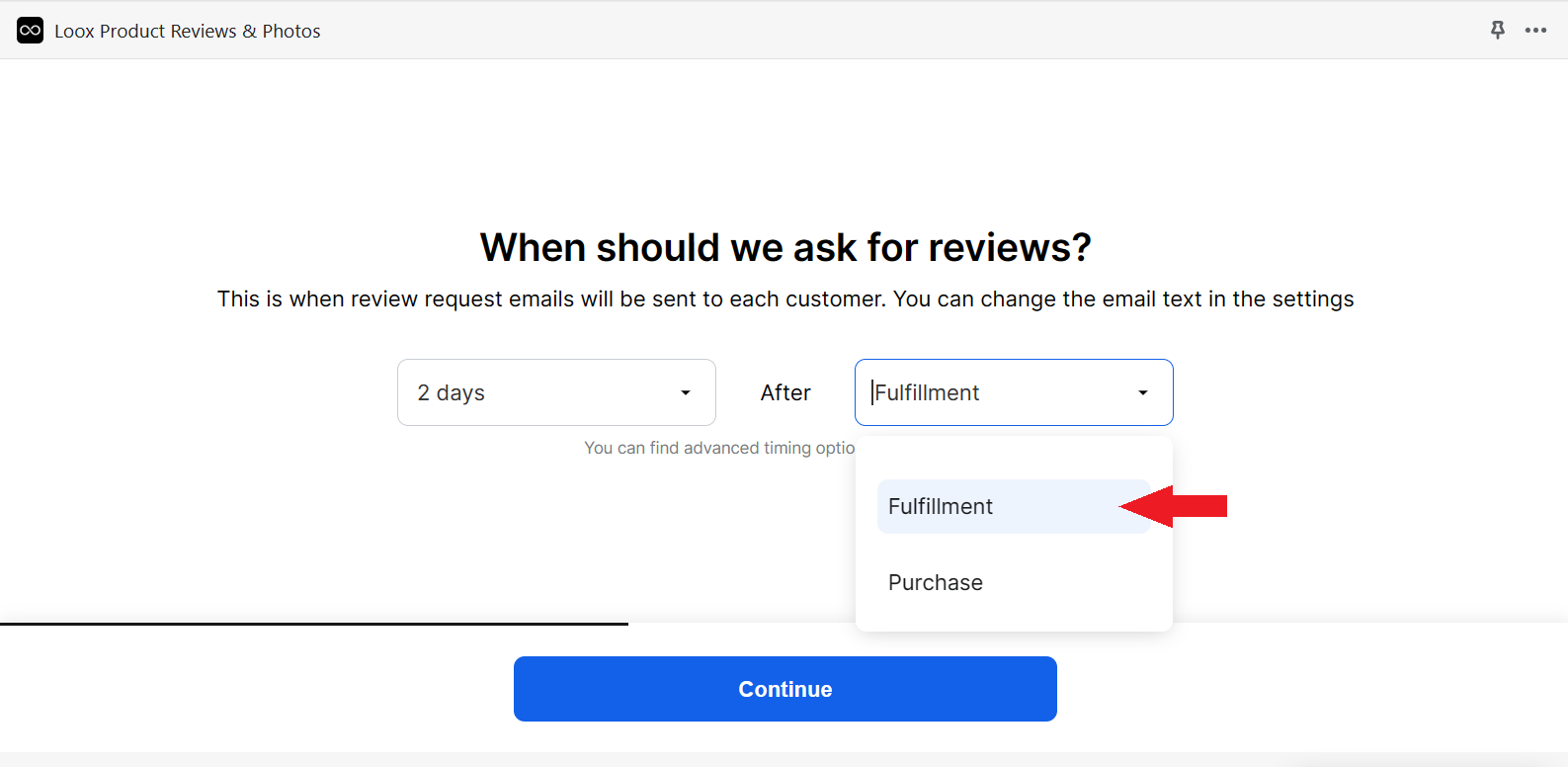
- You can set it to either after every Fulfillment or after every Purchase. Usually, reviews are useful especially after receiving the products so they can be motivated to leave reviews. Click your preferred timing condition.
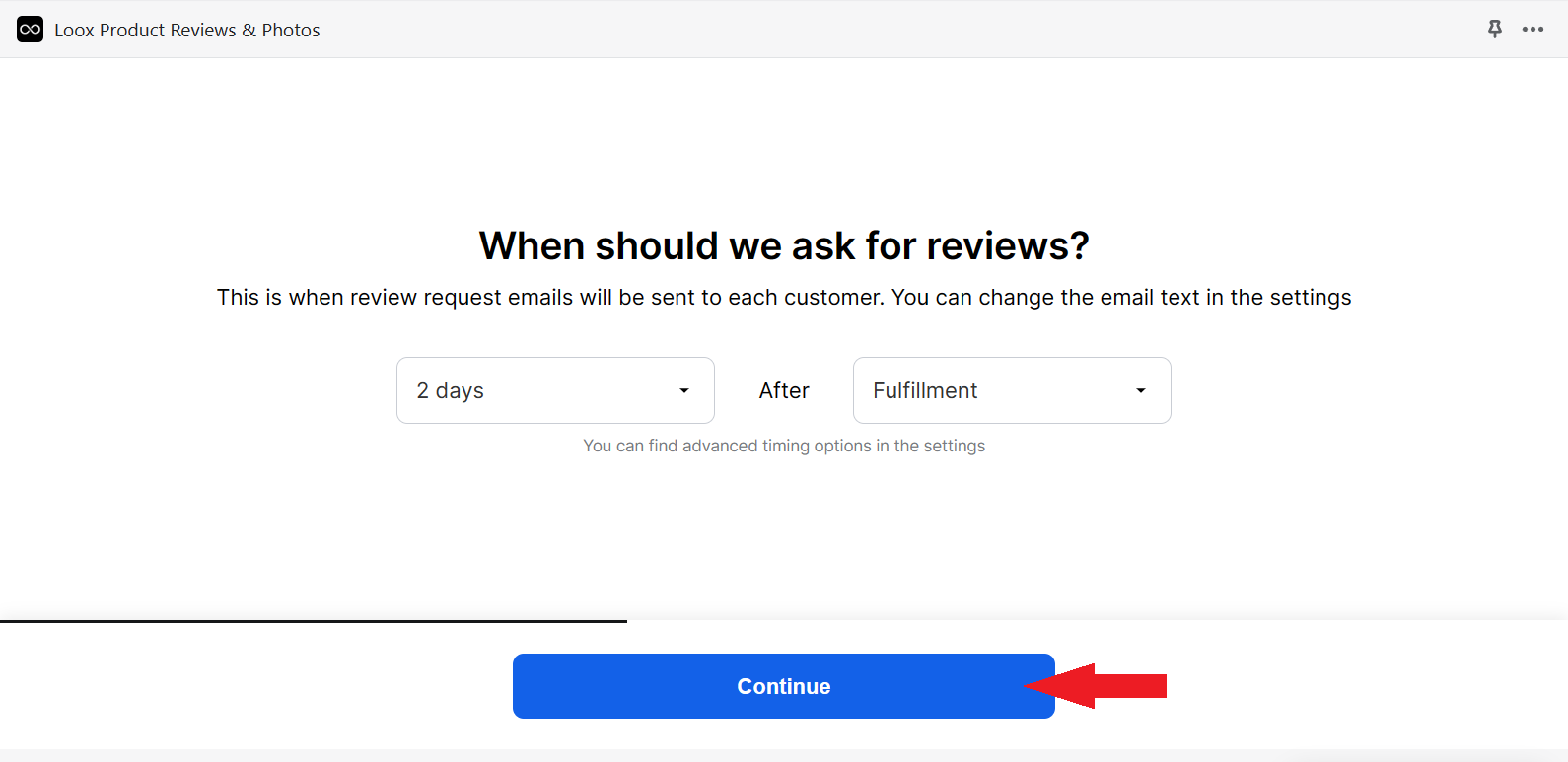
- After setting the timing interval and condition required before sending out emails for review requests to customers, click “Continue”.
- Next is the Discount that you may offer the customers to encourage them to submit photo and video reviews of the products. You have three options for this: 10, 15, and 20 percent discounts. According to Loox, 15% discount is the most popular among the users. Click your preferred option, but take note that you can change it later in the settings if you changed your mind.
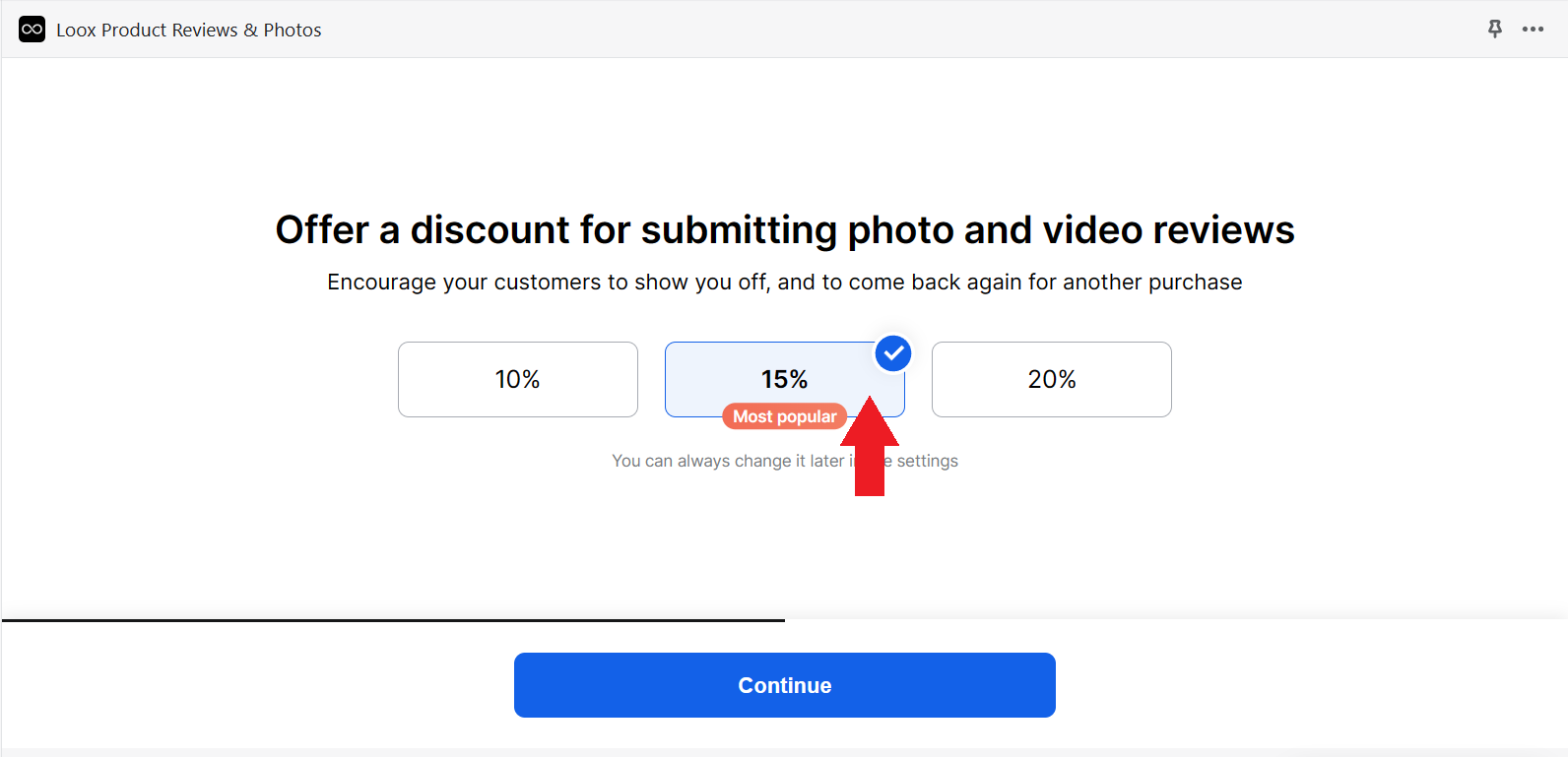
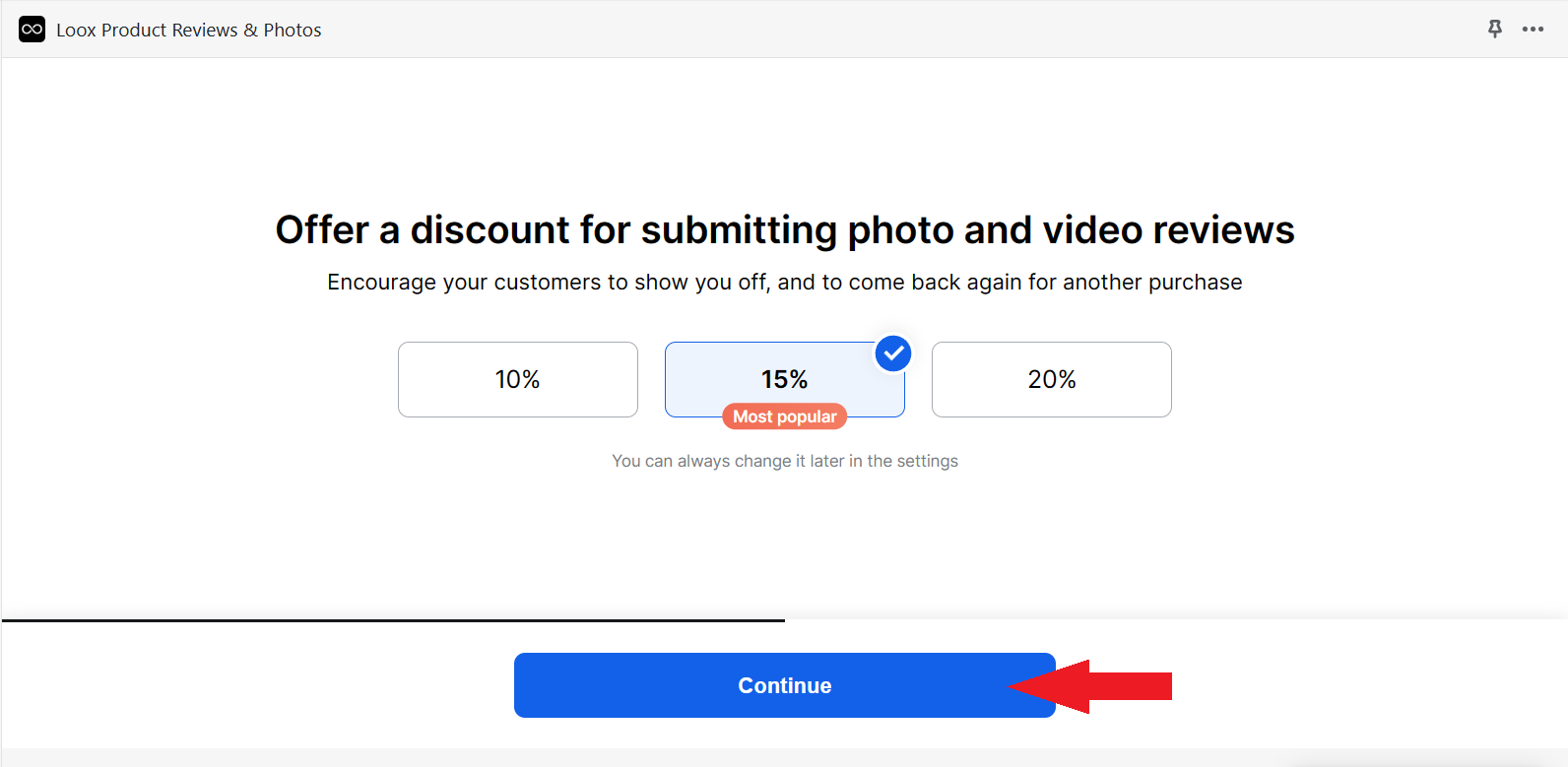
- After clicking the preferred discount, click the “Continue” button to proceed with the next step in setting up your Loox.
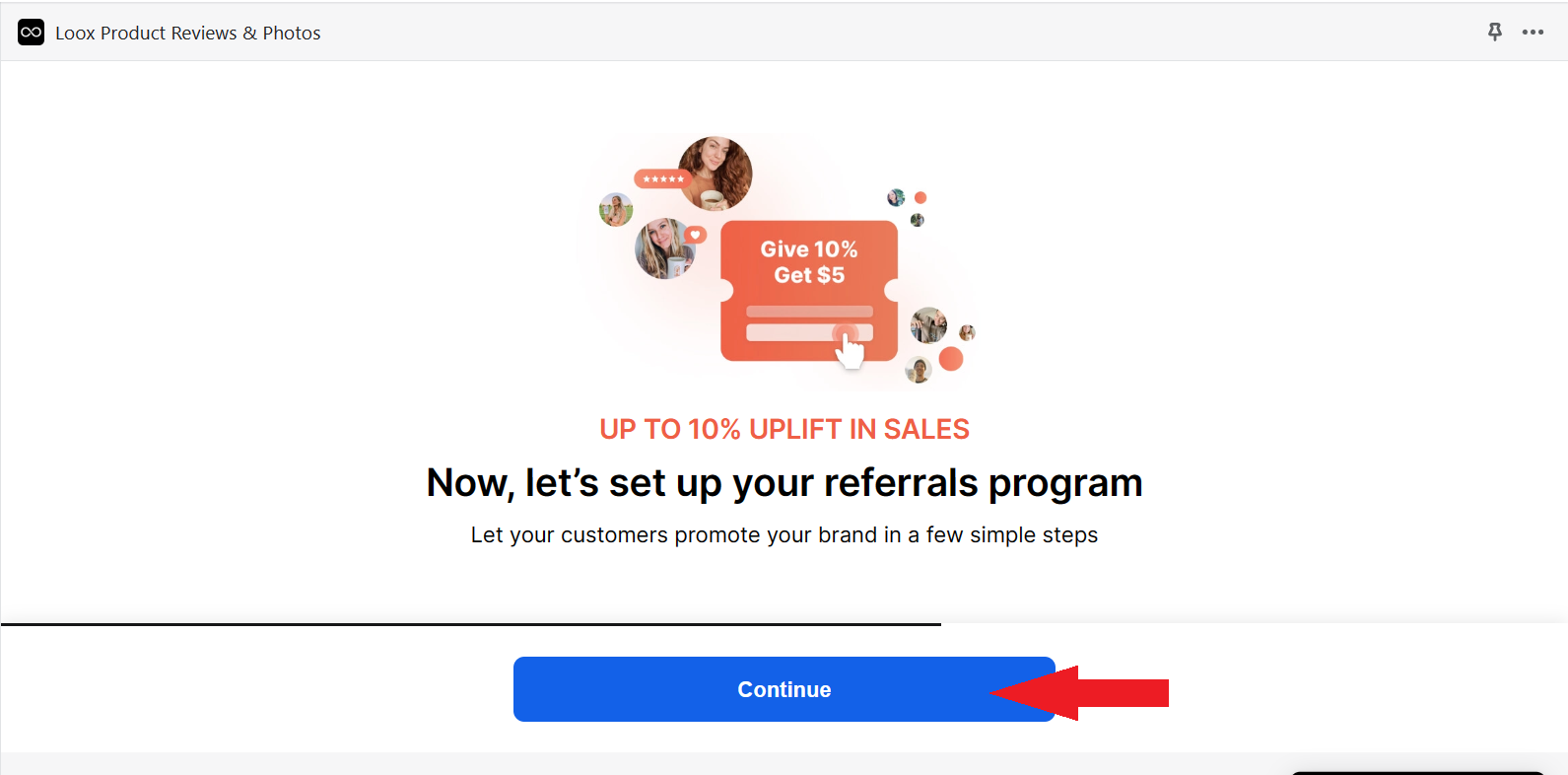
- Next would be the Referrals program. Customers who belong here are those who referred your business’ products to other people who they know would want to buy your products. In this way, they help your company in promoting your brand and induce sales out of it. Click “Continue” to set it up.
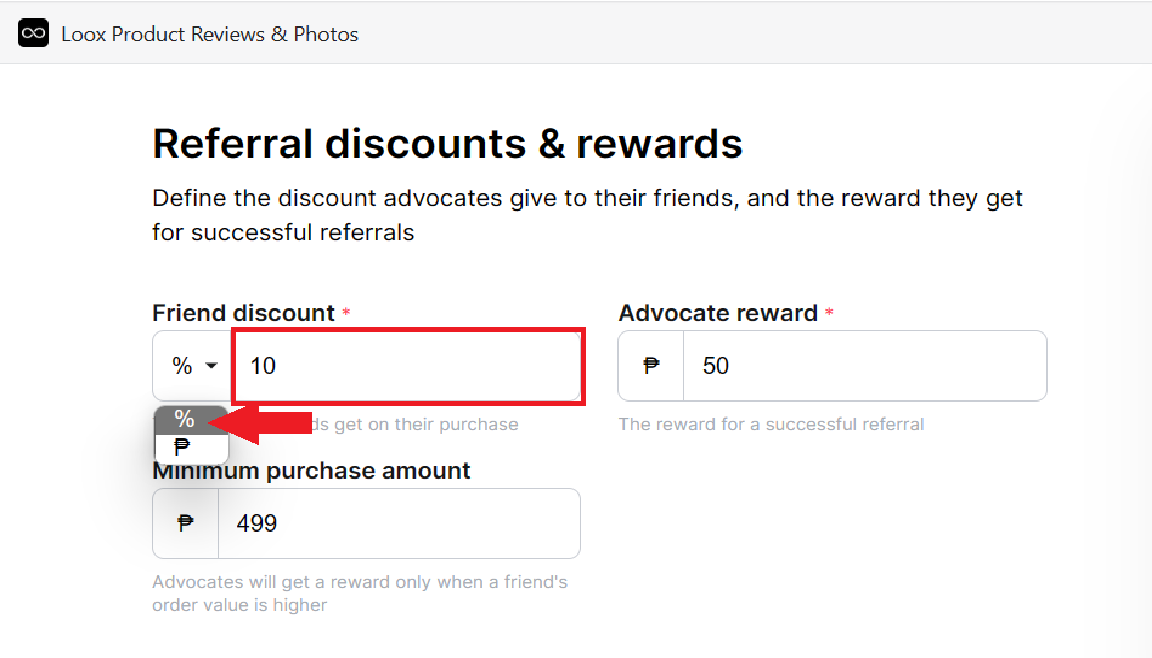
- For referral discounts and rewards, both the new customer and the person who referred him/her would receive rewards. To change the type of discount for the new customer, click the dropdown menu under Friend discount.
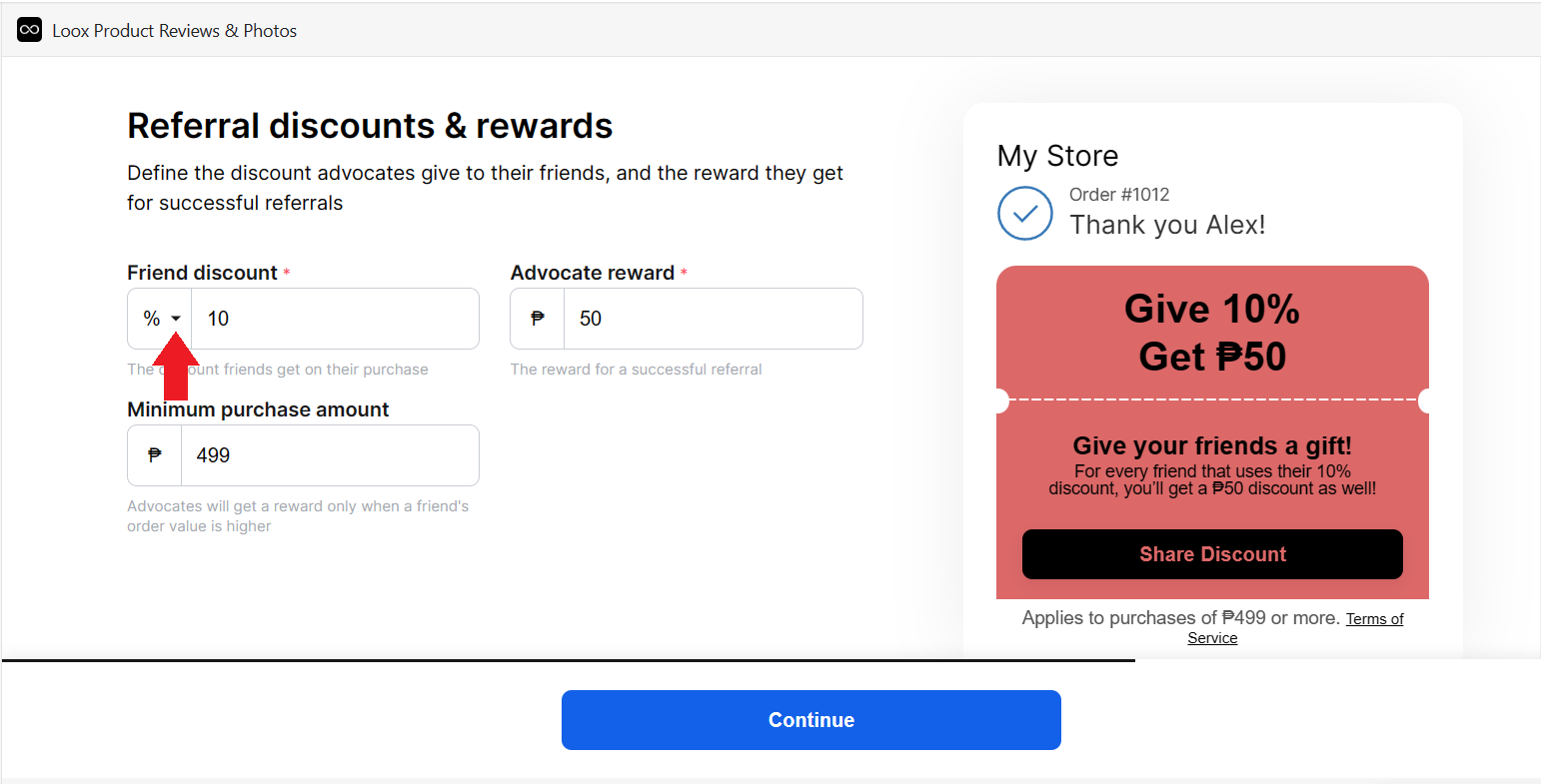
- Under the Friend discount, you can choose the type of discount that you want to give the new customer: it may be an amount in your currency or percentage. Then, put the preferred amount of discount in the field beside it.
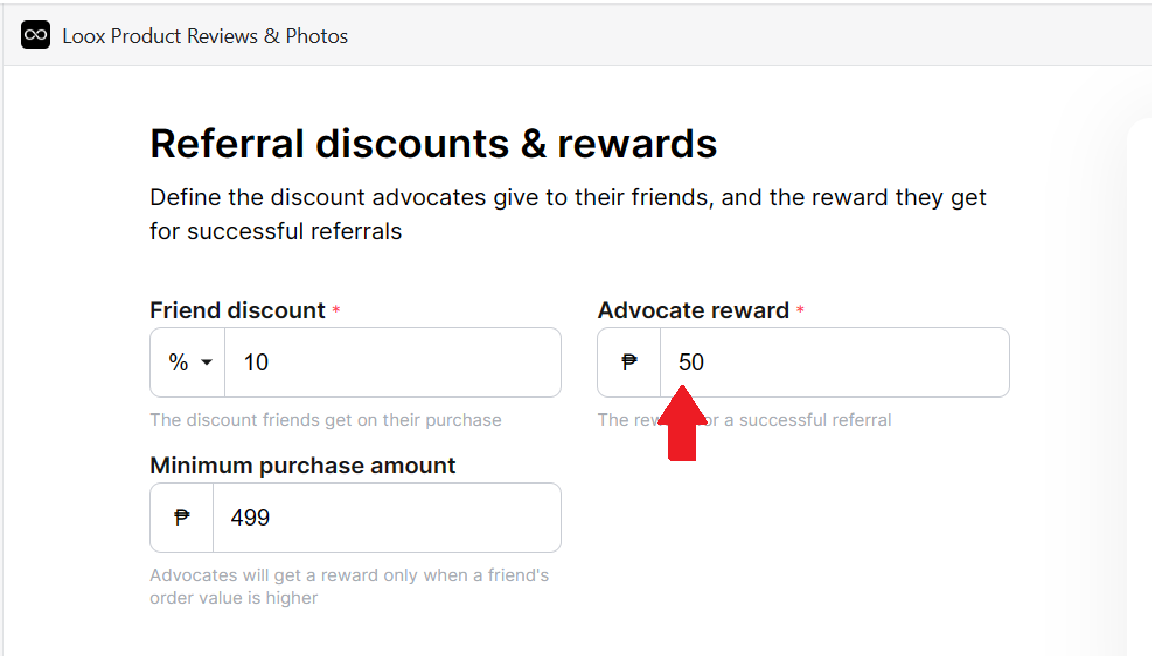
- Next is the Advocate reward. This is the reward for the person who referred the new customer. Since this person referred your product to another person, he would receive a certain amount in your currency. Enter it in the field indicated.
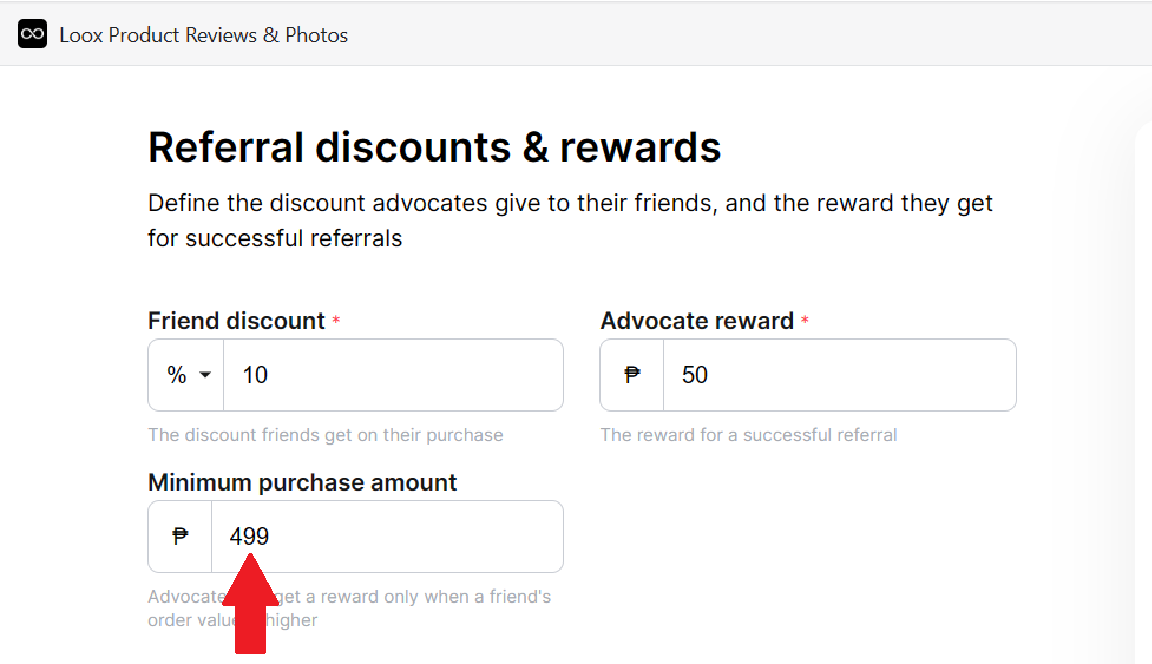
- Last is the Minimum purchase amount that the referred person must spend in your store for the Friend discount and Advocate reward to be applicable. Enter it in the field indicated.
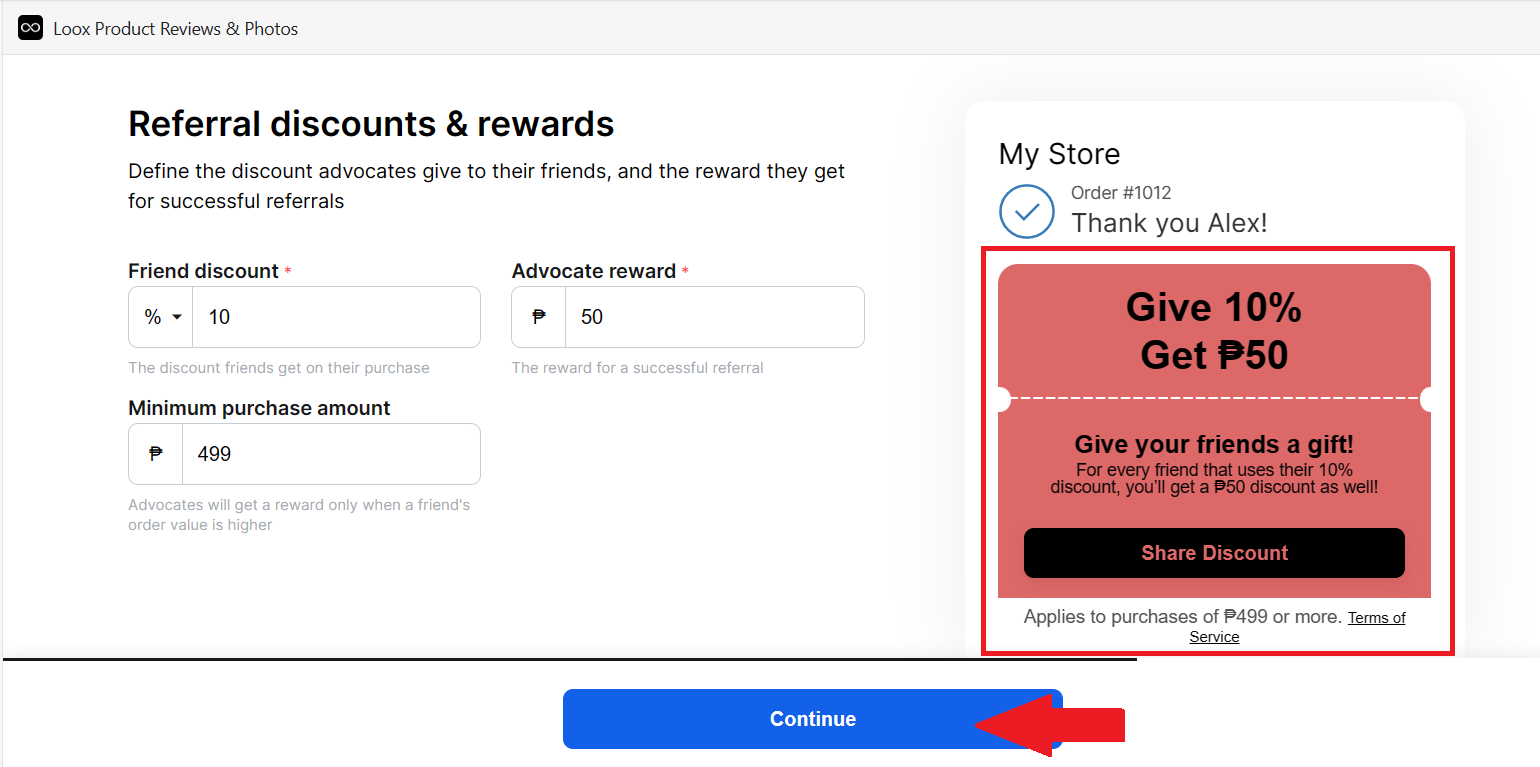
- After finalizing the Referrals program, you can see the preview of the email on the right side of the site. Click “Continue” to proceed with the process of setting up Loox.
- To encourage buyers to refer other people to buy from your Shopify store, toggle on the toggle switch for “Display referral widget after purchase”.
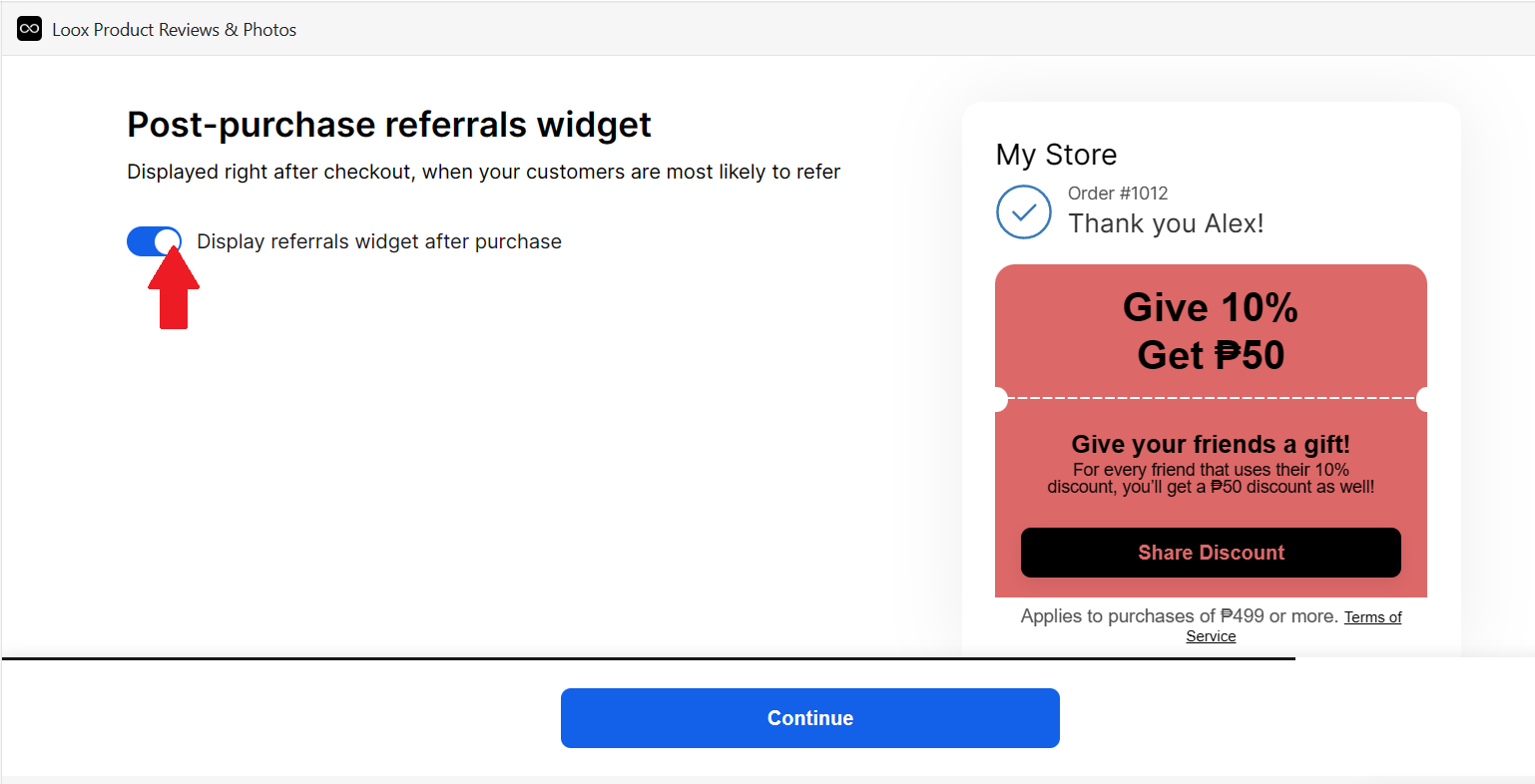
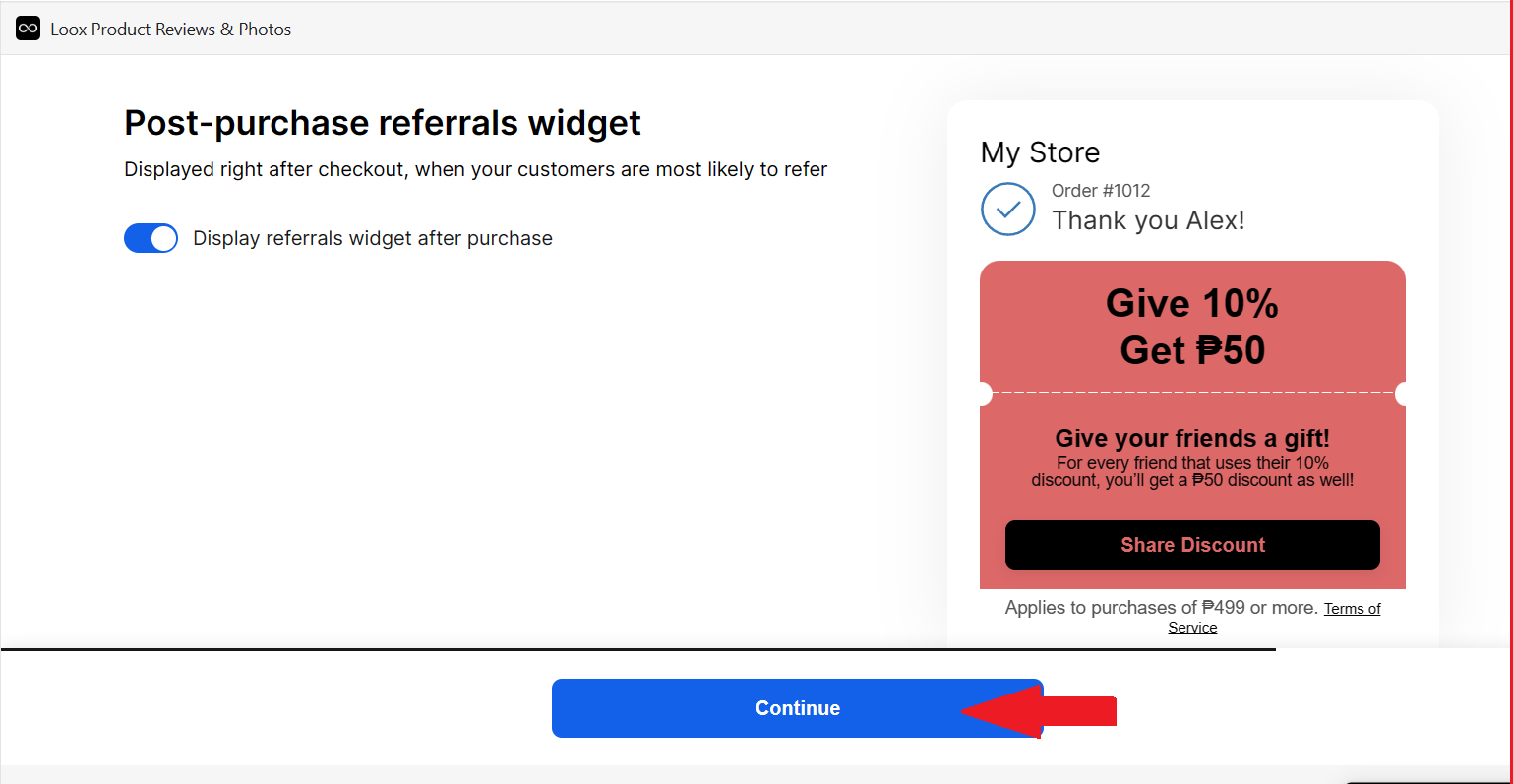
- Click “Continue” to proceed to the next step.
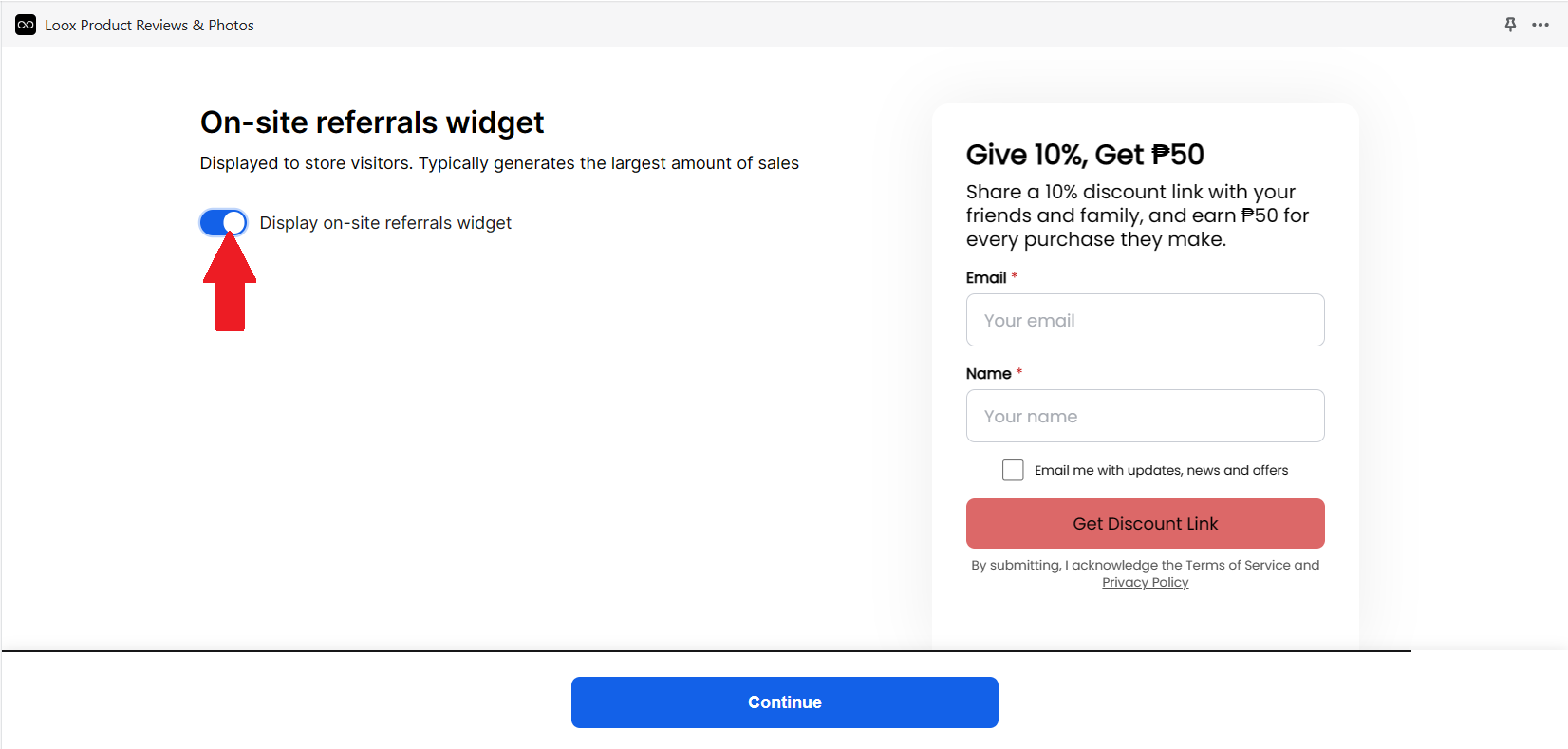
- Another feature of Loox for promoting referrals is to put an Onsite referrals widget in your Shopify store website for customers to easily see. As seen on the right side, the customer must put the email and their name to receive the discount link for a new customer that they would like to refer to your store. Toggle on the “Display on-site referrals widget” to activate it.
- Click “Continue” to proceed to the next step.
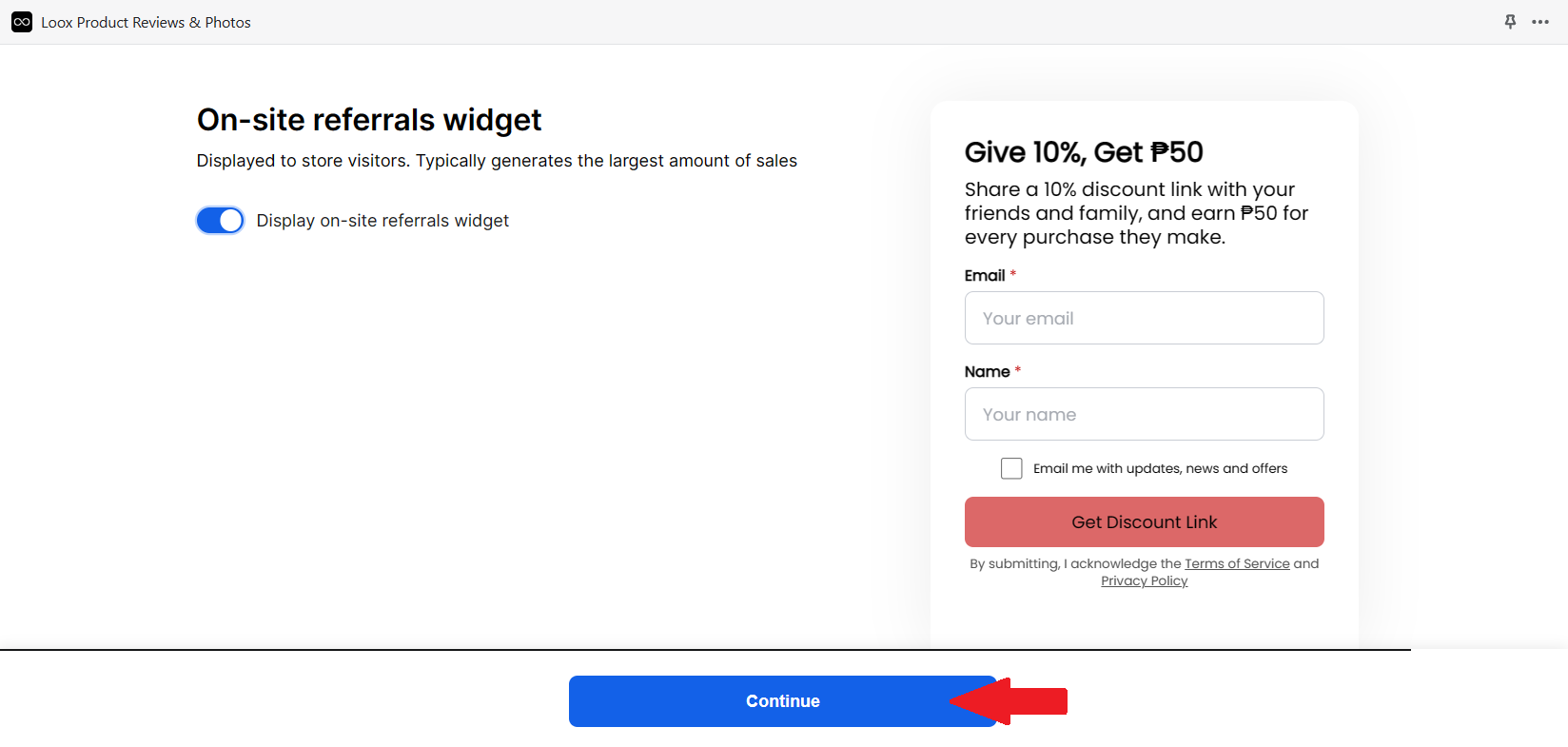
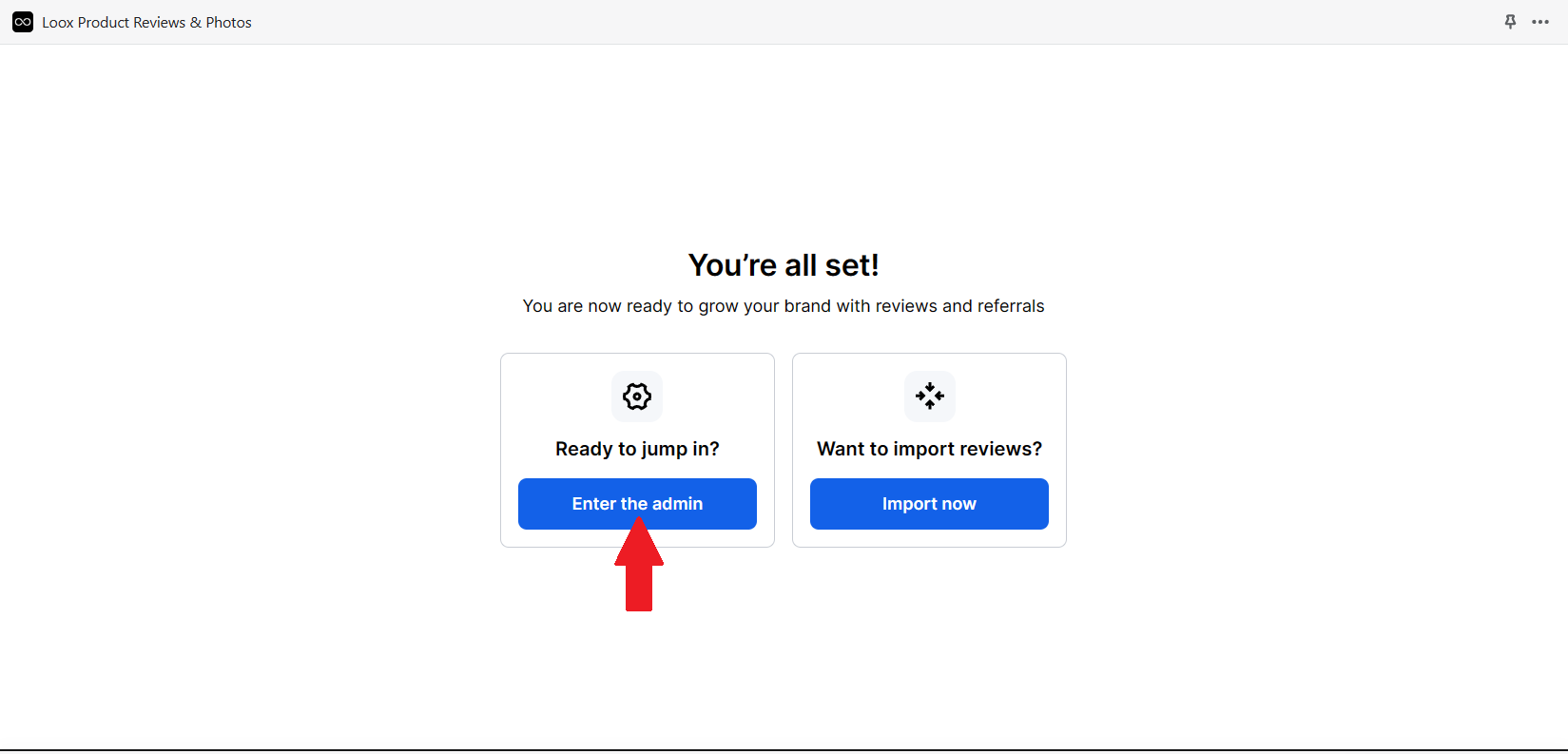
- After this, you have completed setting up Loox. However, you need to check the content of your email review request and incentivize video and image reviews in Loox settings. To do this, click “Enter the admin”.
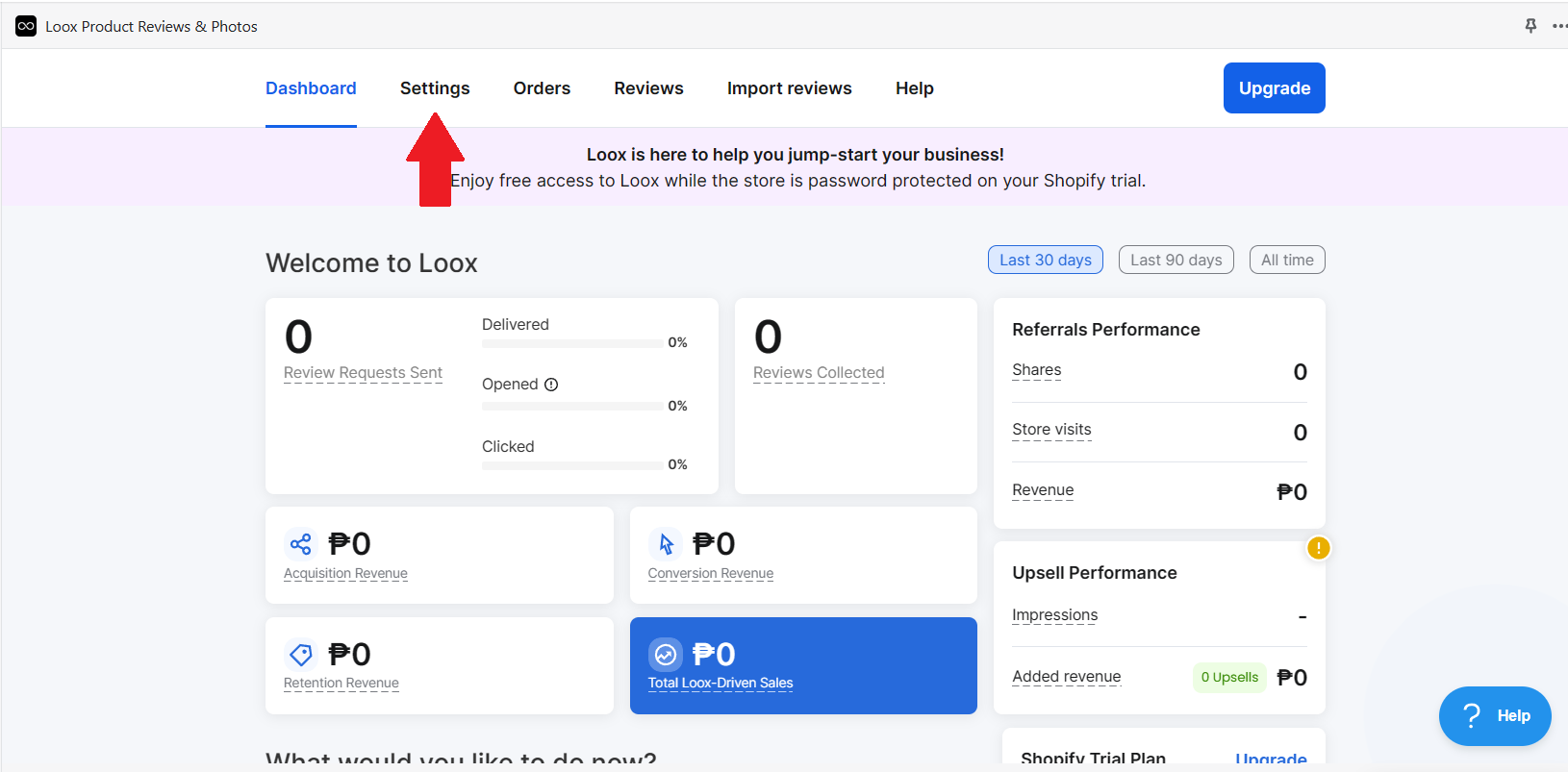
- Click the “Settings” located on the top dashboard of Loox app.
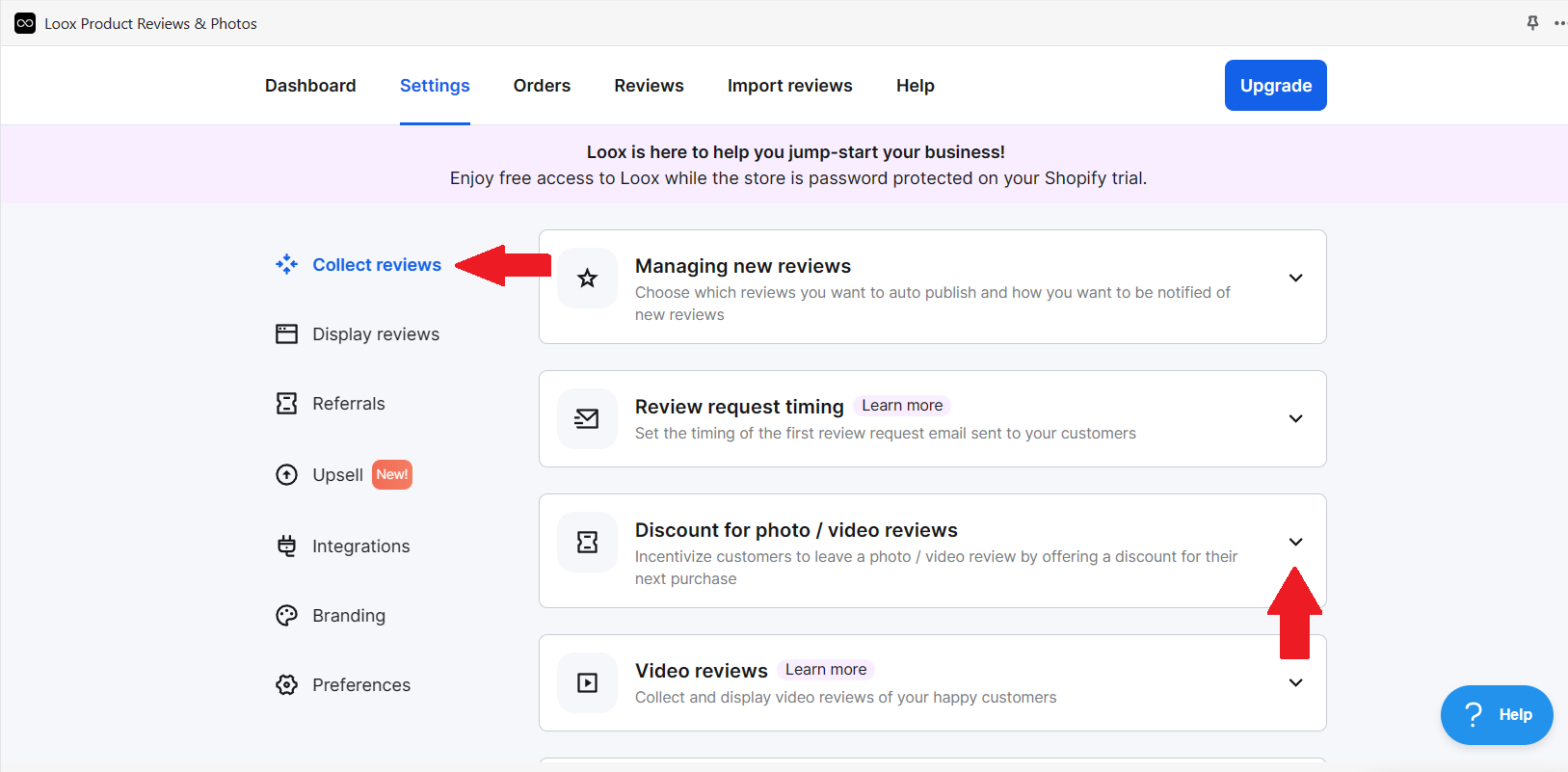
- To give incentives for customers who leave reviews accompanied with photos or videos, click Collect reviews > Discount for photo / video reviews.
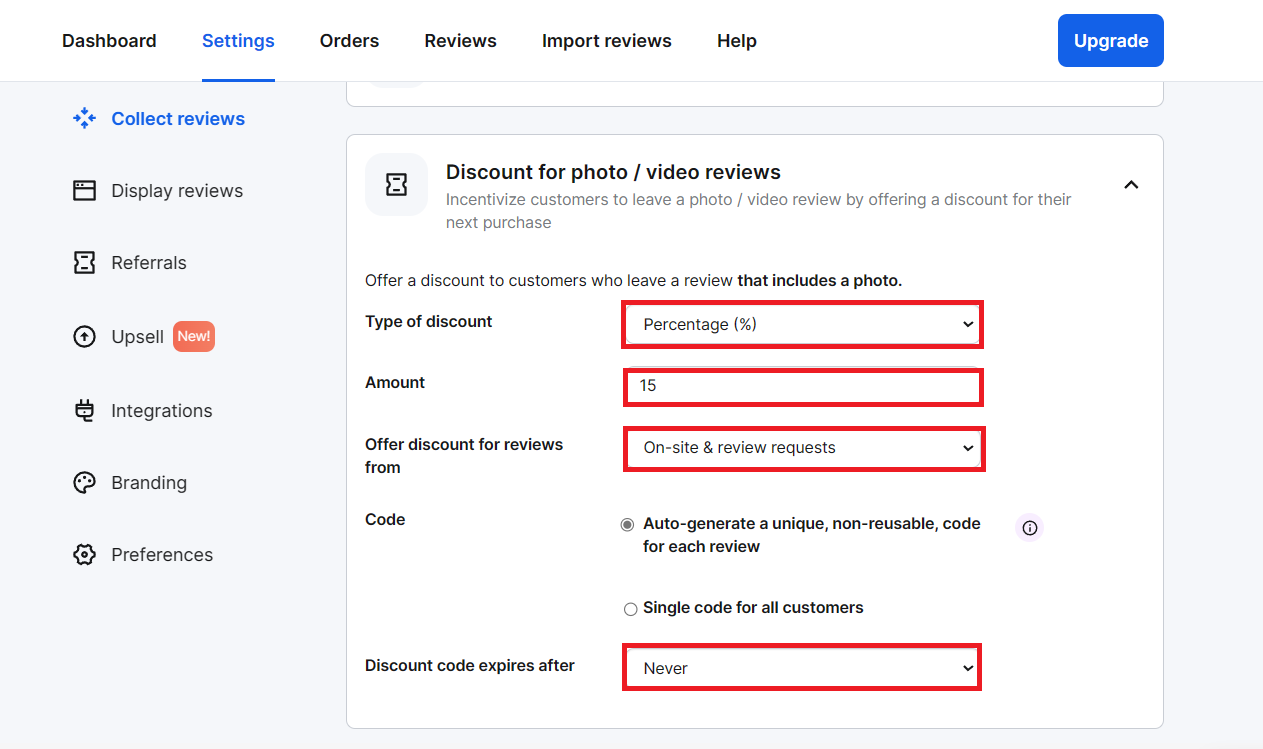
- This discount can be edited in the following fields: Type of discount, Amount, Offer discount for reviews from, Code, and the Expiration of the discount code. To edit these settings, just click the field beside each component.
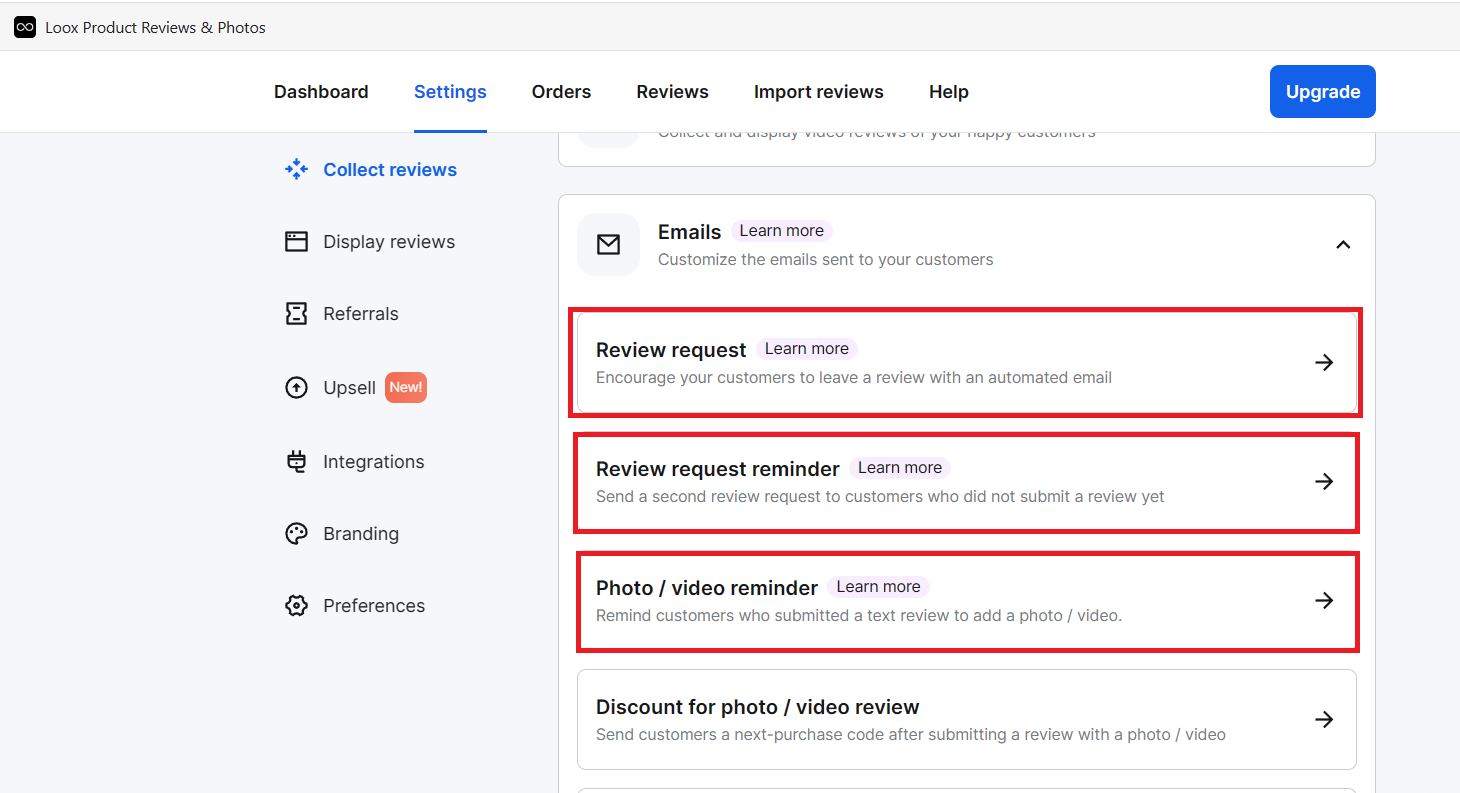
- Scrolling down the Collect reviews page, you can see the Email templates for every purpose of the review generation. This includes: Review request, Review request reminder, Photo / video reminder, and etc. These formats can be edited according to your liking and the appearance can also be edited based on how you would like your customers to view it.
Conclusion
You’re done! Keep in mind that automating review generation with Loox is an easy process especially for small businesses who want to grow their business. Since Loox is a trusted software for automatic generation of reviews, all of the reviews come from your own customers who have tried your product.
-
It is important that you have a Shopify store where you can bind your Loox from the Shopify App Store.
-
Setting up Loox is also setting up the automation system for review requests and incentives for customers who contribute to the growth of your business. By simply including photos and videos, your customers help you in attracting new visitors to try your product.
-
Referrals program is beneficial to the business as it is helpful to the person who refers and the person that was referred. By using discounts, you can accumulate more sales from your customers.
-
Aside from its useful functions, Loox also provides stimulating design for the ratings and reviews that it would attach to your website. The review listings can have a format that you prefer and its color display can be changed to align its aesthetic to your website.
-
Loox has a free 14-day trial for Shopify users, but you have to purchase a plan after those 14 days.