Link to relevant inner pages
This process aims to link relevant inner pages within your store, such as your products, collections, blog posts, and more.
Prefer a shortcut? 16 free tools do parts of this for you.

Aim: This process aims to link relevant inner pages within your store, such as your products, collections, blog posts, and more.
Optimal Outcome: The main objective of this process is linking inner pages in Shopify to help customers navigate your online store and find the information or products they are looking for conveniently.
What do you need to start: You must have a Shopify account to proceed on this process.
Why is this SOP Important: By creating links to your store's inner pages, you can guide visitors to specific sections of your store, such as product categories, collections, blog posts, or pages with information about your store's policies, shipping information, and more.
When and Where to execute: You should aim to review and update your internal linking strategy on a regular basis. Linking inner pages in Shopify should be done consistently as part of your overall website maintenance and optimization efforts.
Who Should Be Doing This: Creating links to inner pages in Shopify is typically the responsibility of the store owner or the person responsible for managing the store's website. This may be a website designer, developer, or a member of the marketing team.
What is inner pages?
Inner pages in Shopify refer to the pages within your online store that are not part of the main homepage or the checkout process. These pages typically provide additional information about your business, products, or policies, and can help customers navigate your store and make informed purchasing decisions.
Examples of inner pages in Shopify may include:
-
About Us page: A page that provides information about your store's history, values, and mission.
-
Contact Us page: A page that provides customers with a way to get in touch with your store's customer service team.
-
Product pages: Pages that provide detailed information about individual products, including pricing, images, and product descriptions.
-
Collection pages: Pages that group related products together and provide customers with a way to browse products by category or collection.
-
Blog pages: Pages that contain blog posts and other content related to your business or industry.
Execution
Grab the URL in Shopify Product
-
Log in to your Shopify account.
-
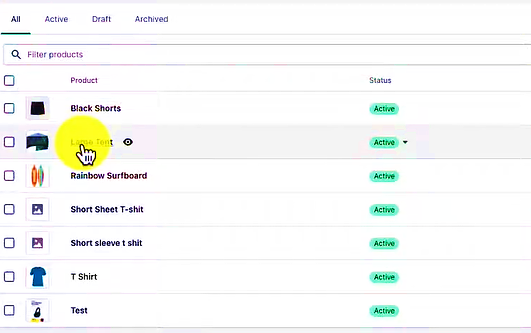
Navigate to Shopify Admin Panel > Products.
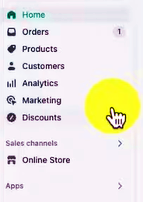
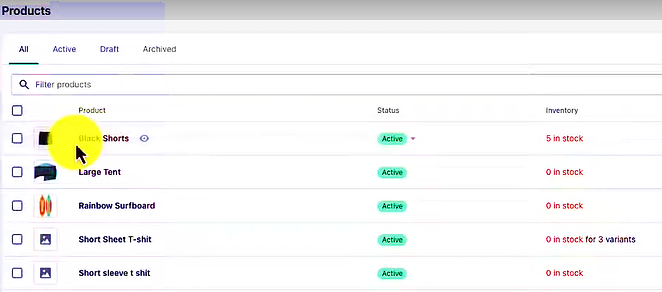
- Click on the product.
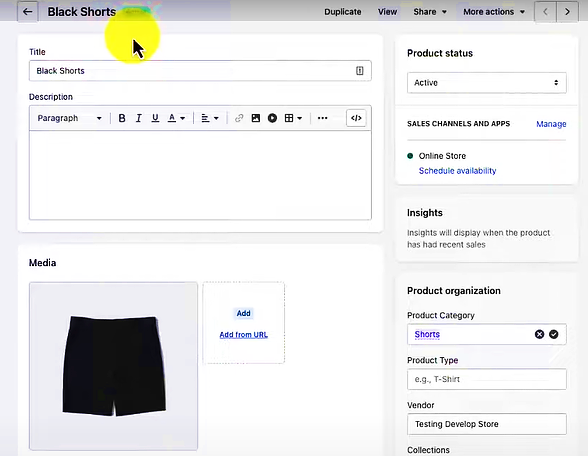
- Click View to display the URL of the product.
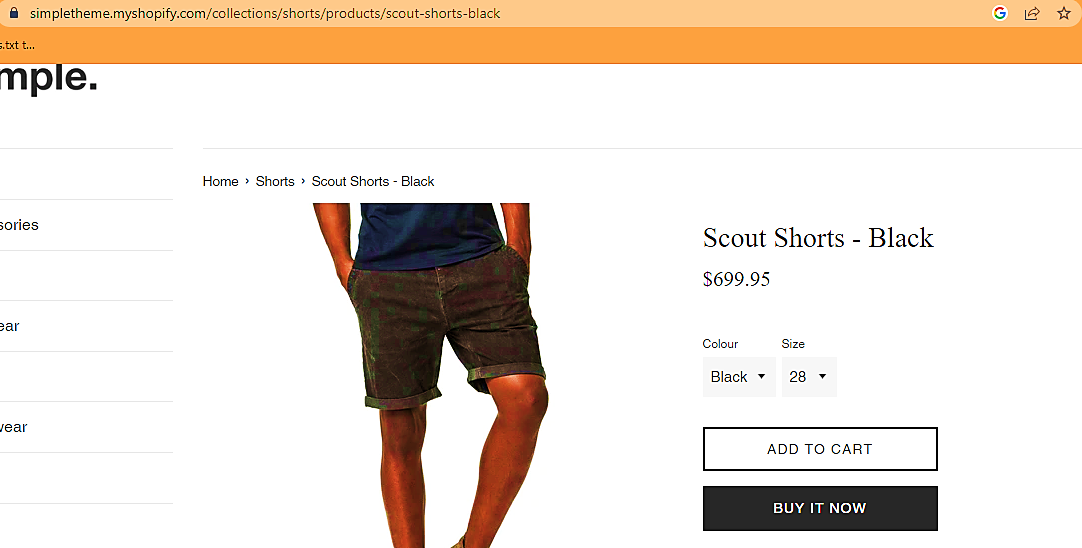
- Copy the link in the URL bar.
Add Link anywhere in Shopify store
-
In this illustration, a link will be added to a different product page.
-
Navigate back to Shopify Admin Panel > Products.
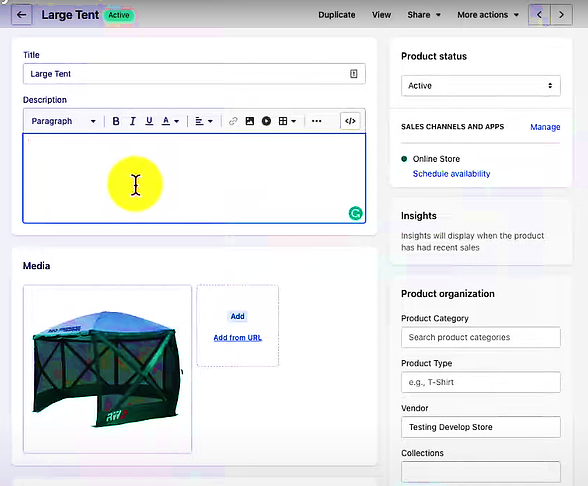
- Click on other Product.
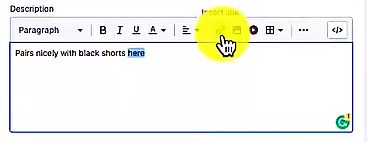
- Let us construct a description and pair it with another product, in this case, black shorts.
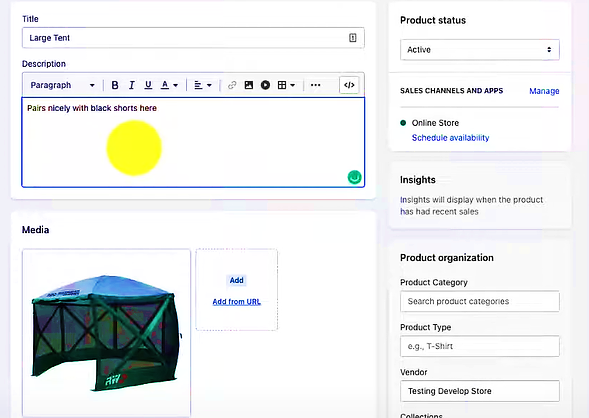
- Highlight the text to which you wish to add the link.
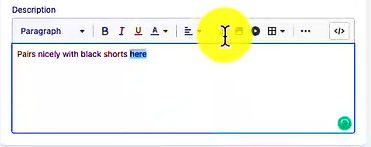
- Click Insert link button.
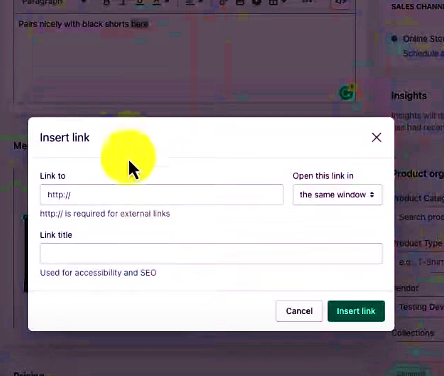
- A new window will appear. In the "Link to" box, paste the URL you copied and wanted to connect to.
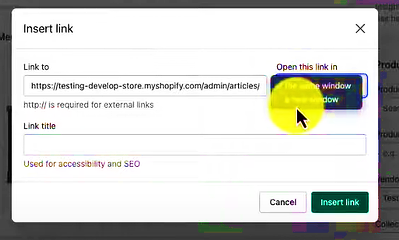
- Choose whether to open the link in the same or a new window.
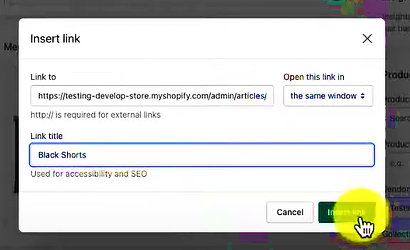
- Write a Link Title. Click Insert Link.
- Click Save.
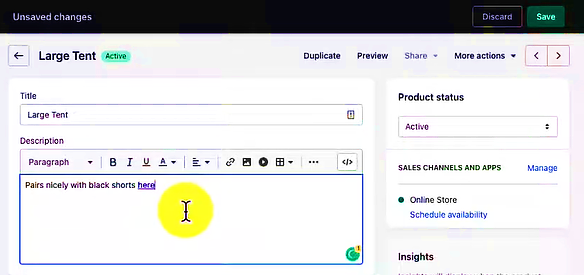
View the relevant link
- Navigate back to Shopify Admin Panel > Products.
- Click on the product to which the link has been added.
- The link is displayed below, highlighted, and bold. You will be taken to another product after clicking the link.
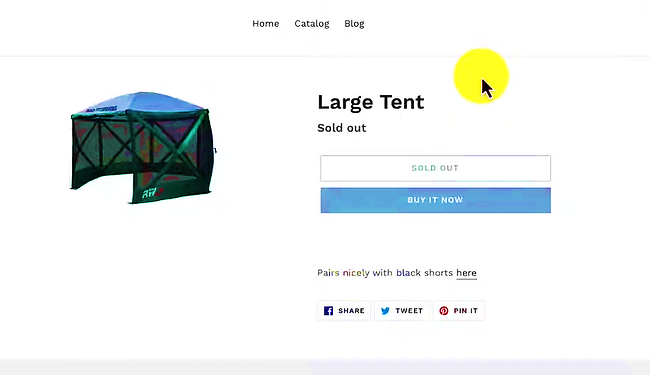
- Congratulations. You have successfully interlinked two products. This procedure will apply to any area of your Shopify Store that you would like to link.
Conclusion
You’re done! Always remember that creating and optimizing inner pages within your Shopify store is an important part of building a successful e-commerce business. By providing valuable information and optimizing your pages for search engines, you can improve the user experience and drive more traffic and sales to your store.
Execution Checklist:
To link pages together in Shopify, you can follow these step-by-step procedures:
-
Login to your Shopify account and access the "Online Store" option from the main menu.
-
Select "Pages" from the submenu and choose the page you want to edit.
-
Highlight the text or image that you want to use as a link and click the "Insert Link" button in the editor.
-
In the "Insert Link" window, you can choose to link to an existing page, a blog post, a product page, or an external website.
-
If you want to link to an existing page within your Shopify store, choose the "Page" option and select the page you want to link to from the drop-down menu.
-
If you want to link to a blog post or a product page, choose the respective option, and select the specific post or product you want to link to from the drop-down menu.
-
If you want to link to an external website, choose the "Web address" option, and enter the full URL of the website you want to link to in the provided field.
-
Click "Insert link" to add the link to your page.
-
Save the changes to your page and publish it to make the linked page live on your Shopify store.
-
Repeat the above steps to add links to other pages as required.
By following these steps, you can easily link pages together in your Shopify store and provide a better browsing experience to your customers.