Setting Up Payment Methods in Shopify
To walk you through setting up the payment methods in your Shopify store.
Prefer a shortcut? 16 free tools do parts of this for you.

Aim: To walk you through setting up the payment methods in your Shopify store.
Optimal Outcome: To provide flexible payment methods for your customers, especially to those who do not own any cards. It is also productive to implement in your store because it is a one-time setup and you can save your time for other necessary things.
What do you need to start: To follow this SOP, you need to have an account on Shopify to set up a Shopify payment method provider.
Why is this SOP Important: For any businesses, especially online, it is necessary to set up the payment methods before the opening of the store for orders. If you have a variety of products, then you will most likely have a variety of customer types. It means that any type of payment method should be available for utilization to increase the chance of generating sales from your potential customers.
When and Where to execute: This task should be done before establishing your business online, because unpreparedness in this field of preparing the Shopify store website would yield unsatisfied customers.
Who Should Be Doing This: The person-in-charge from the finance department would be responsible for doing this task, with the assistance of anyone that manages the store’s website.
Shopify Payment Methods
Shopify payment options are the means through which your consumers can pay for the goods they buy from your Shopify store. With the help of these payment options, you may securely and conveniently accept payments from your clients. The diversity of these payment methods but also be implemented to offer every customer the possible payment method that they are comfortable to use. In every country, there are different local ways to send and receive money from selling online so it is also crucial to take note of those things. Shopify is a trusted platform for businesses, so they are in-charge of protecting your business’ and your customers’ payment exchange.
Execution
Resources/Tools & Set up
- Shopify account
Setting Up Shopify Payment Methods
- Sign in to your Shopify store account by clicking “Log in” and entering your account details.

- Once you are redirected to the Shopify homepage, you will see a dashboard on the left. Click “Settings” located on the lower left corner of the page.
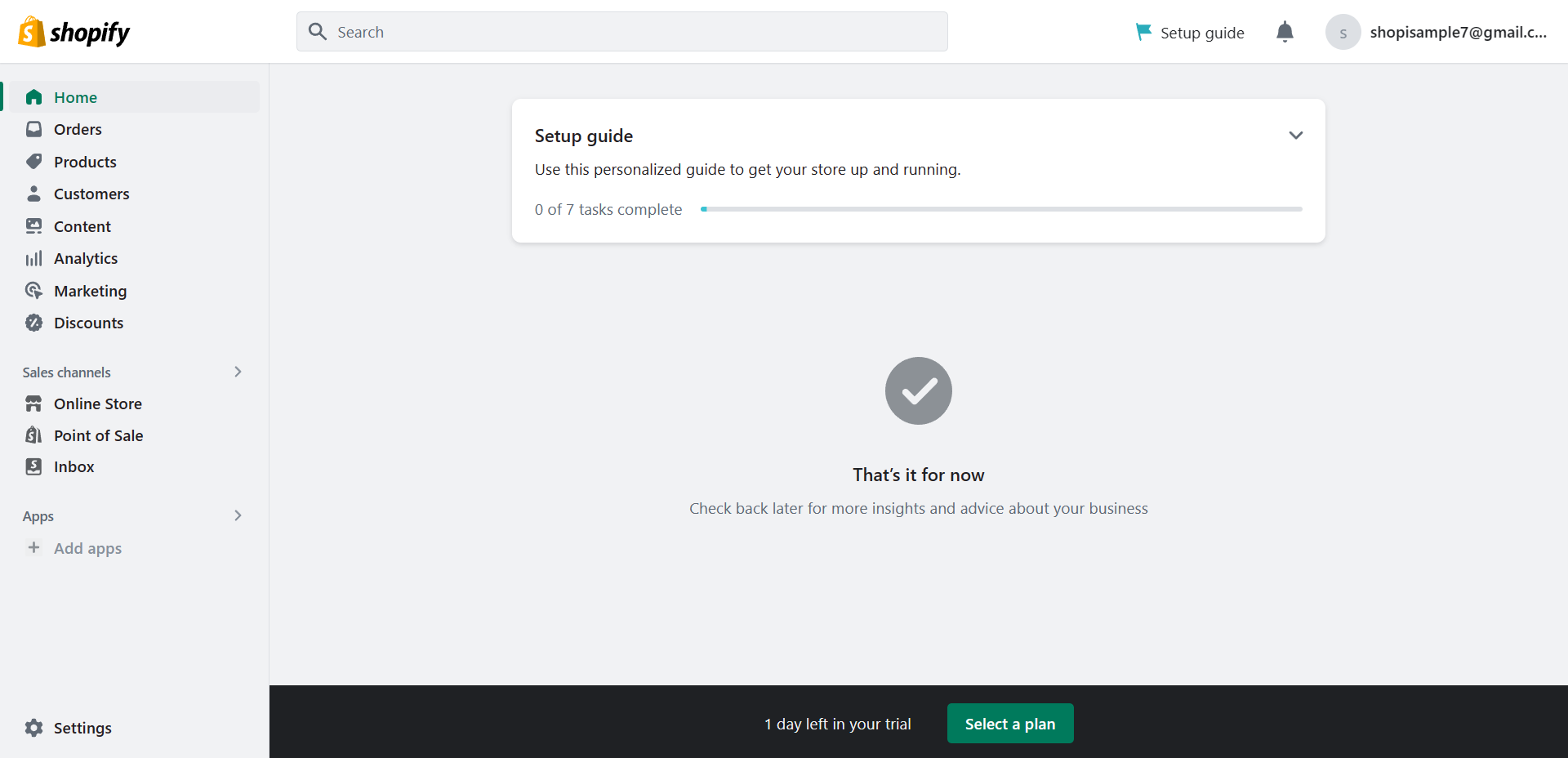
- After navigating to Settings, you will see another dashboard on the left. Click the “Payments” to add the payment methods.
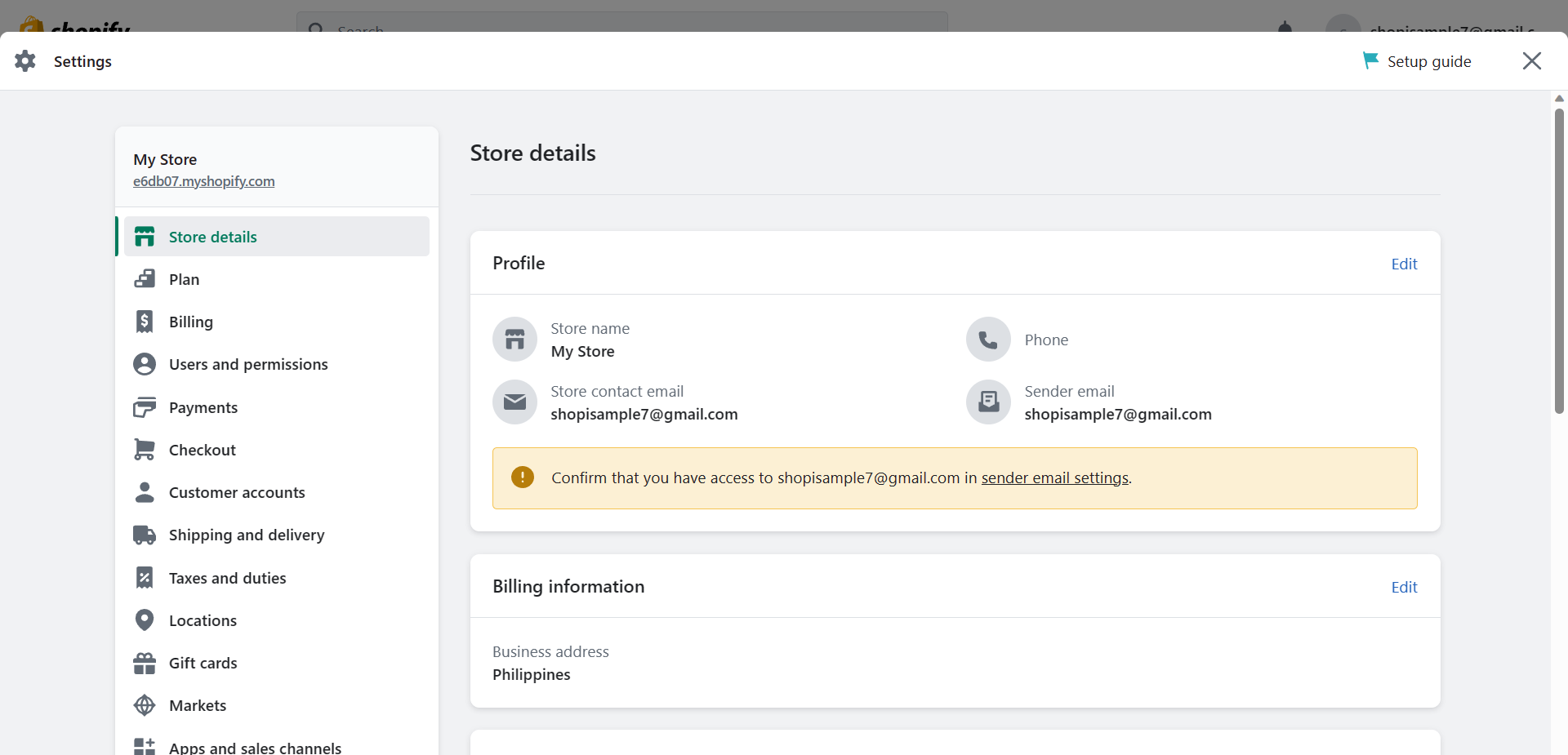
- In the Payments page, you will see the Payment providers first. Payment providers allow you to adopt payment methods by utilizing a third party. The use of Payment providers required additional fees to orders once you have established your store in a Shopify plan. To choose a provider for your store, click the “Choose a provider” button.
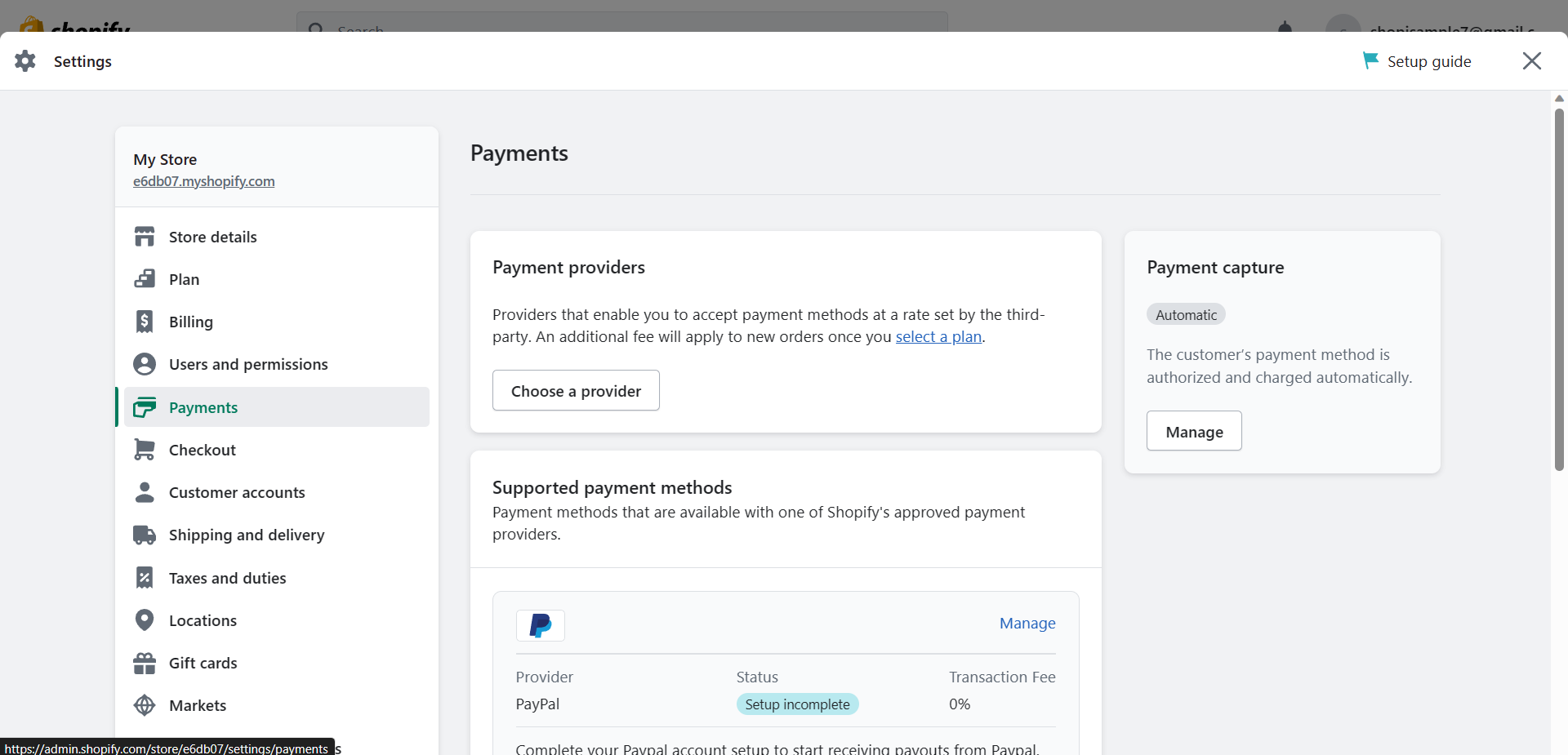
- After clicking the button, you will be allowed to search third-party payment providers for your store that would cater the payment methods that you want to allow. To search for one if you know a provider that is suitable for you, you can click the search bar and type in the name of that provider. NOTE: there might be some providers that are available in other countries but not in your country. On the right side of the search bar, you can filter the payment methods by clicking the drop down menu and checking the box of those payment methods that you want to choose.
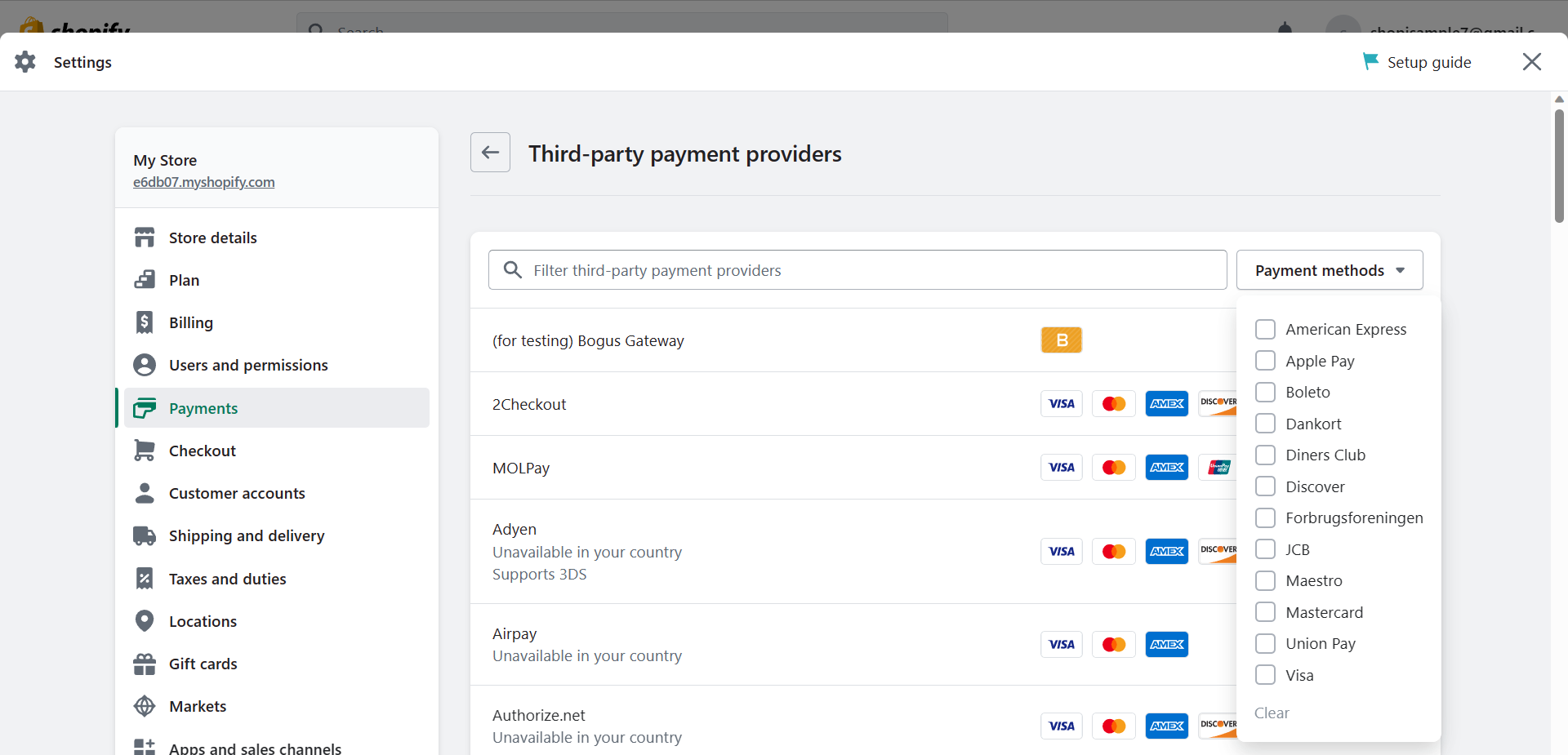
- On the right side of the search bar, you can filter the payment methods by clicking the drop down menu and checking the box of those payment methods that you want to choose.
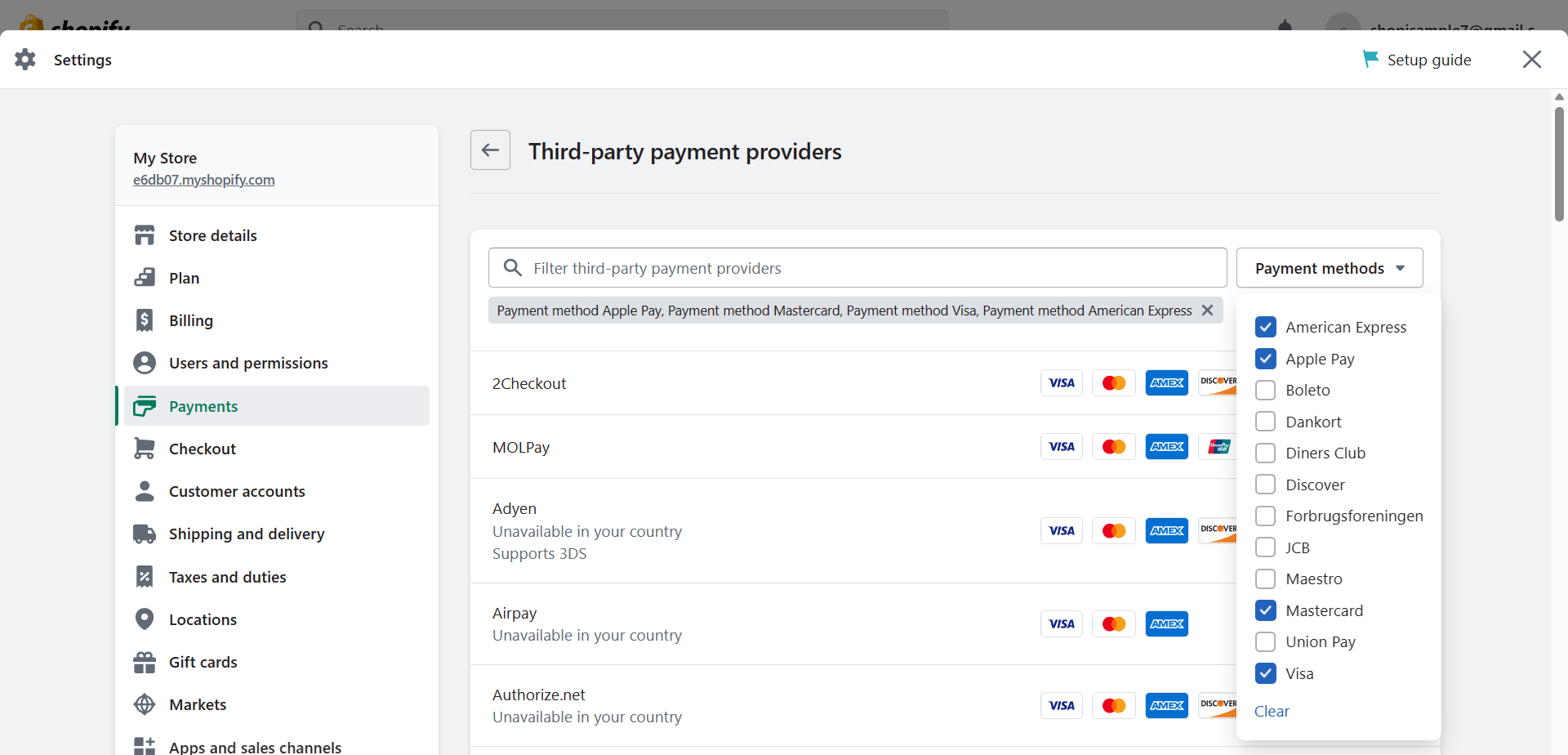
- After choosing the Payment methods, you can now click one of these providers that are indicated by Shopify to view its setup instructions and the other payment methods that it covers.
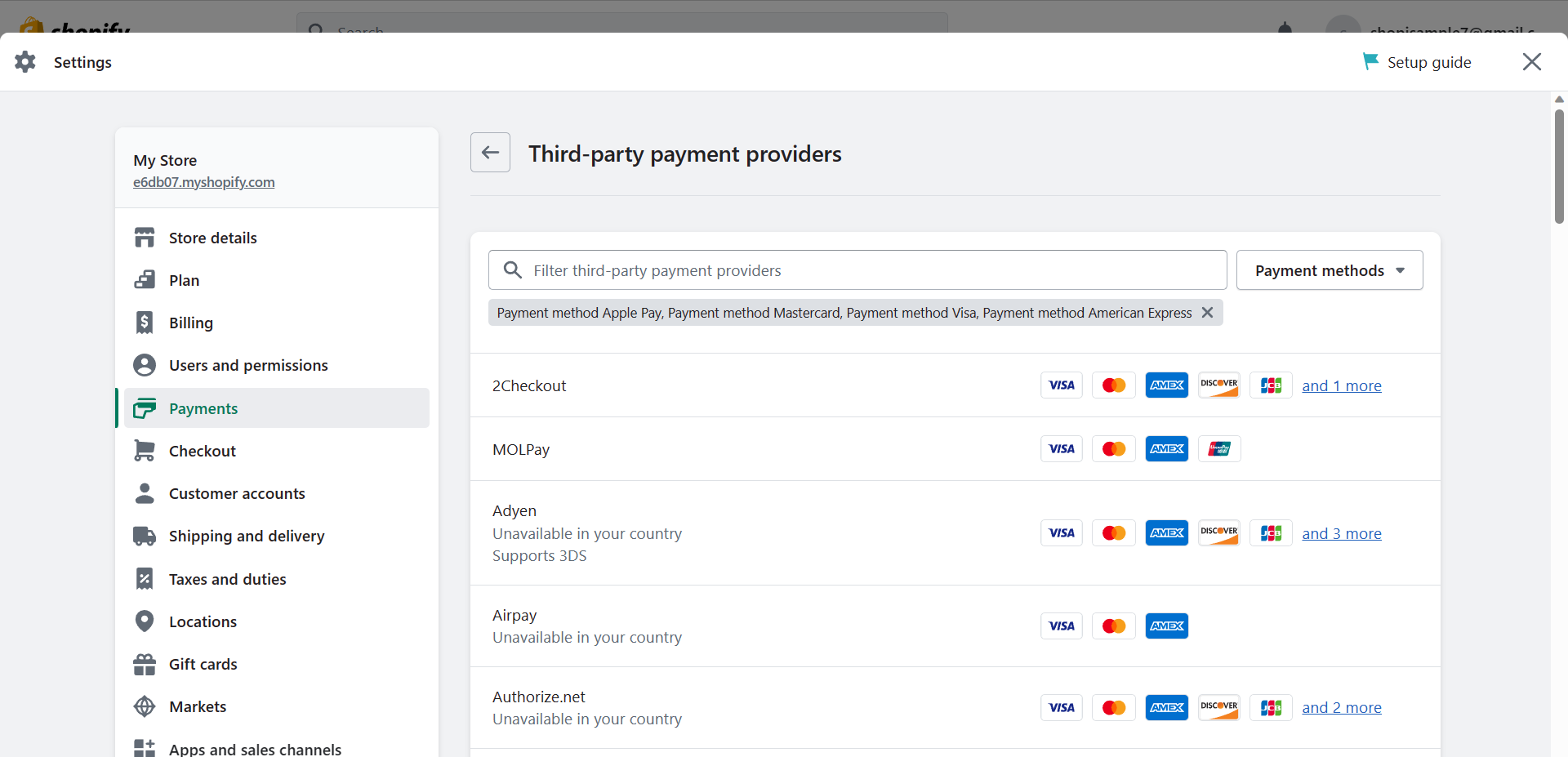
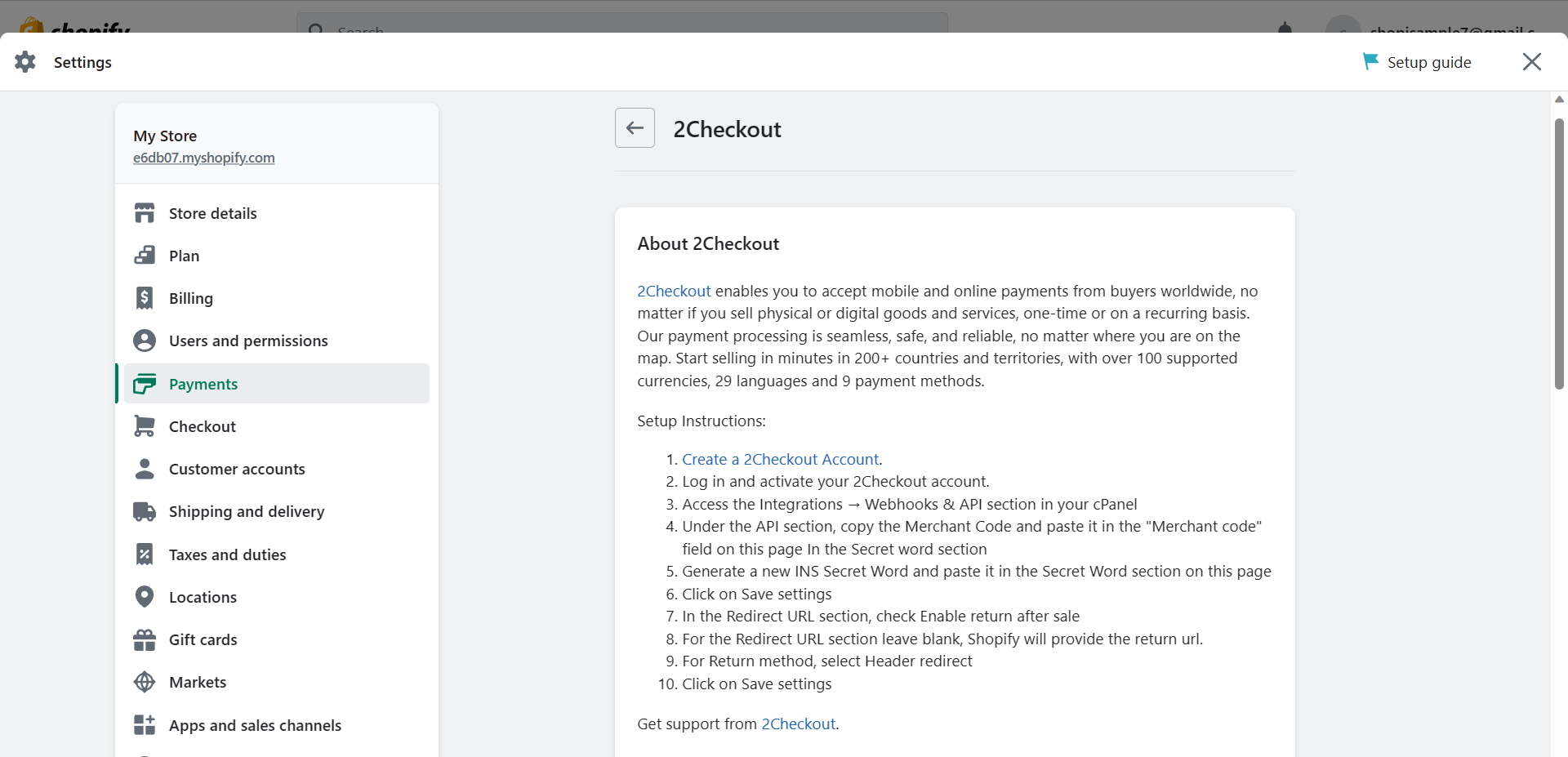
- After clicking one of the payment providers, you can see its description and setup instructions.
- Scrolling down, you can set up your Account information by entering your Merchant code and Secret Word in the blank fields provided.
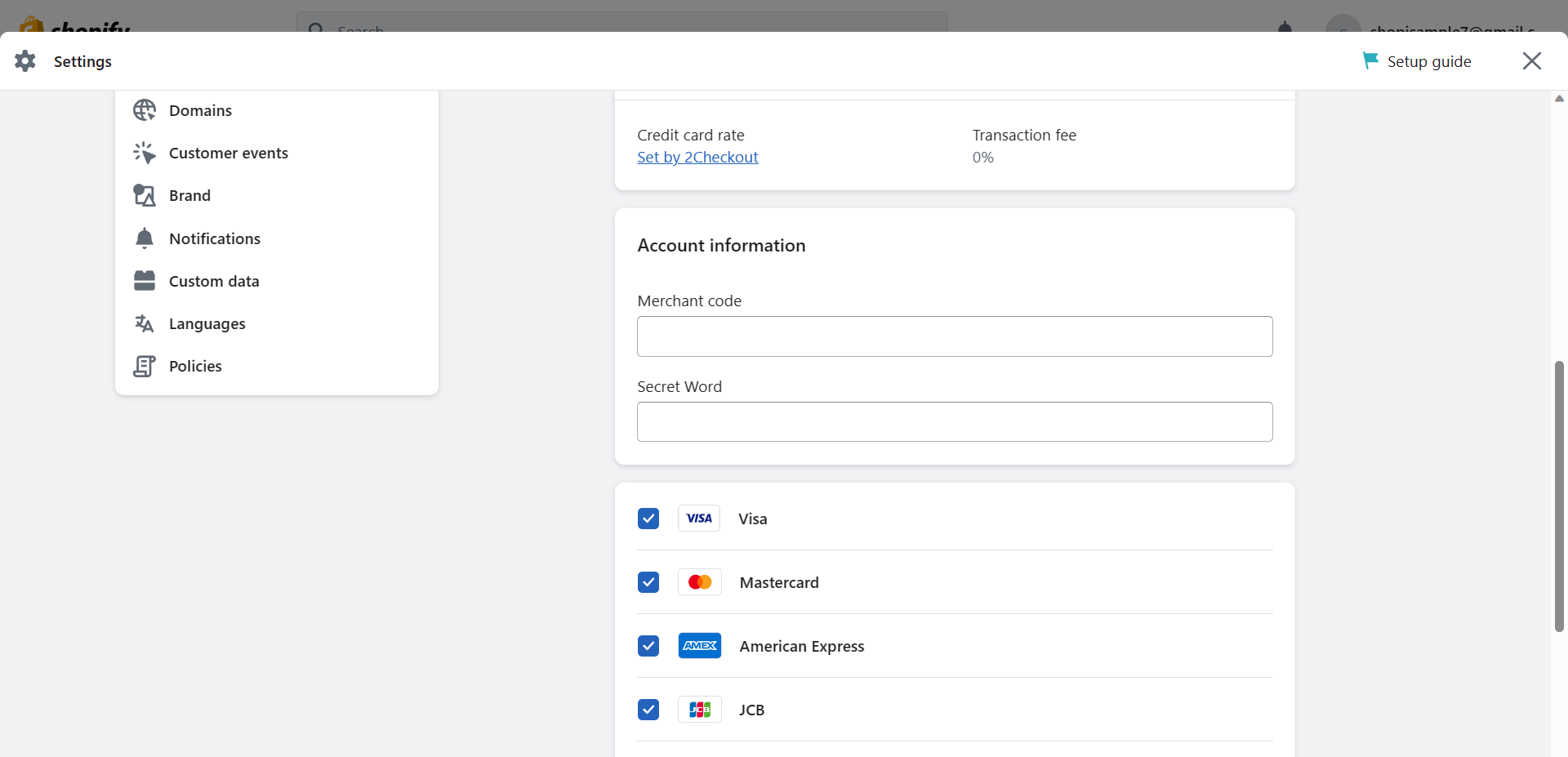
- The additional payment methods are listed under this provider, and also the options that you have entered in the filter search before. If you want to use 2Checkout setup in test simulations, check the checkbox provided.
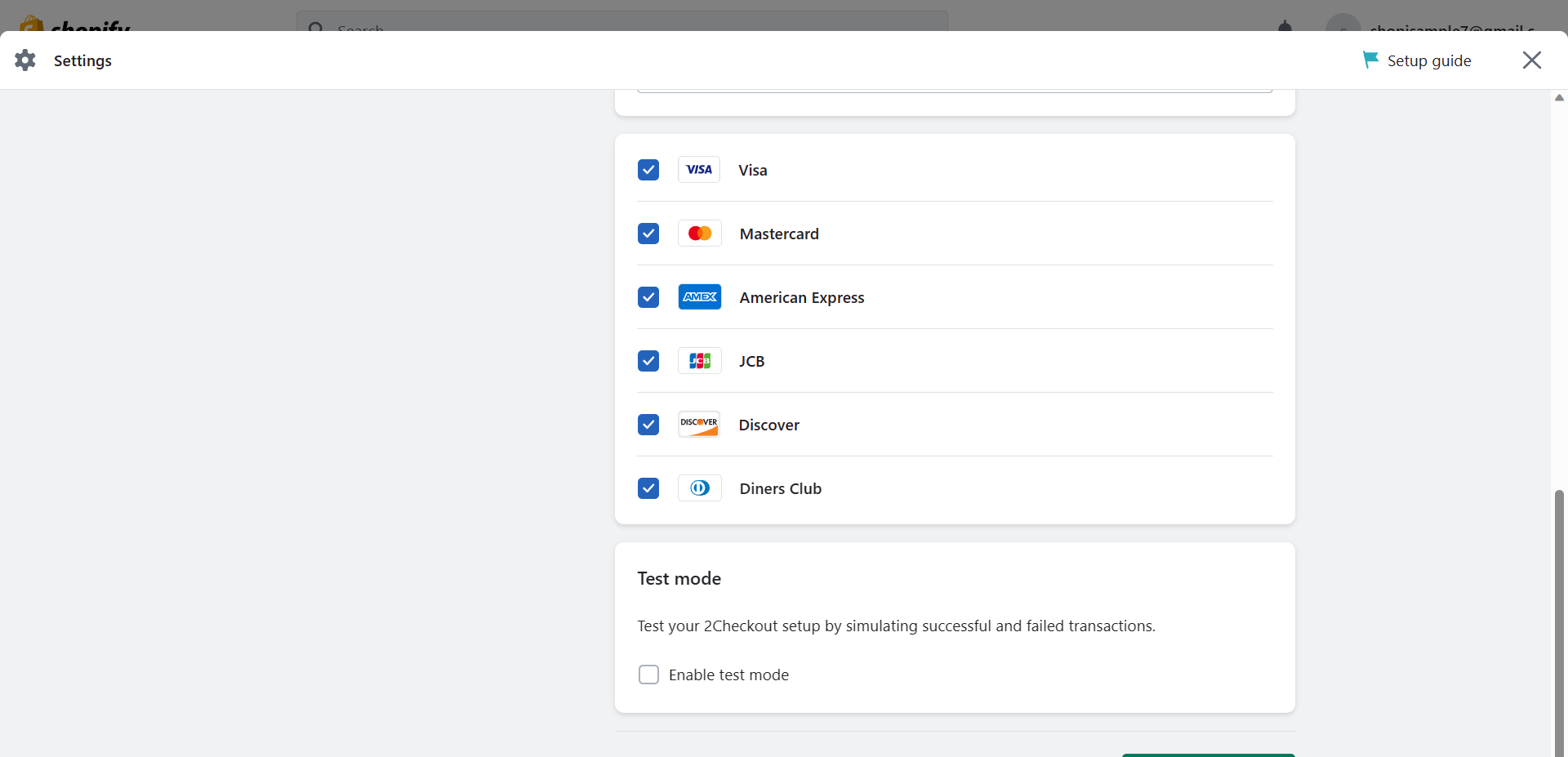
- Click the "Activate 2Checkout" button to activate the payment provider.
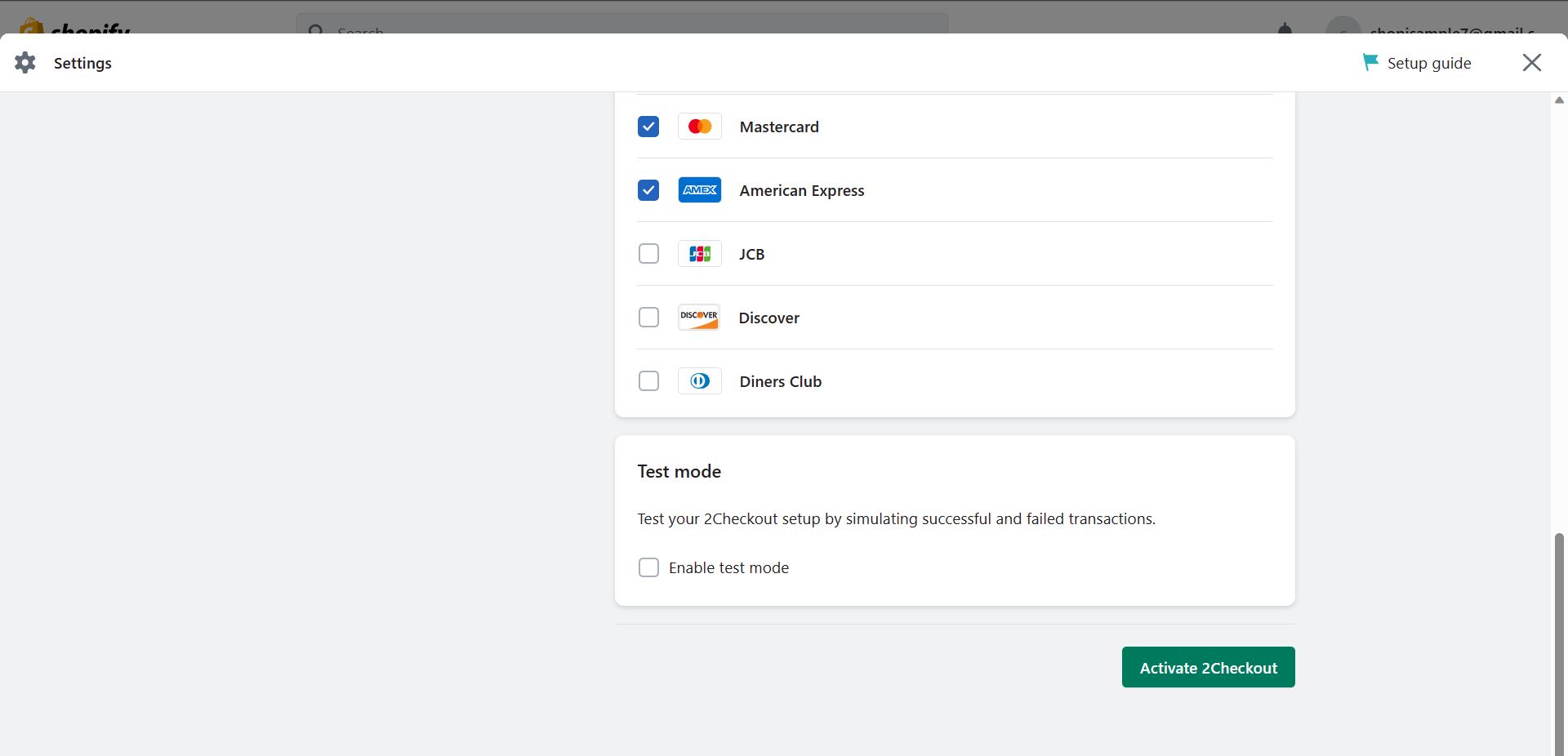
- Going back to the Payments page, you can add payment methods which are already available with one of Shopify's supported payment providers. To do this, click the "Add payment methods" button.
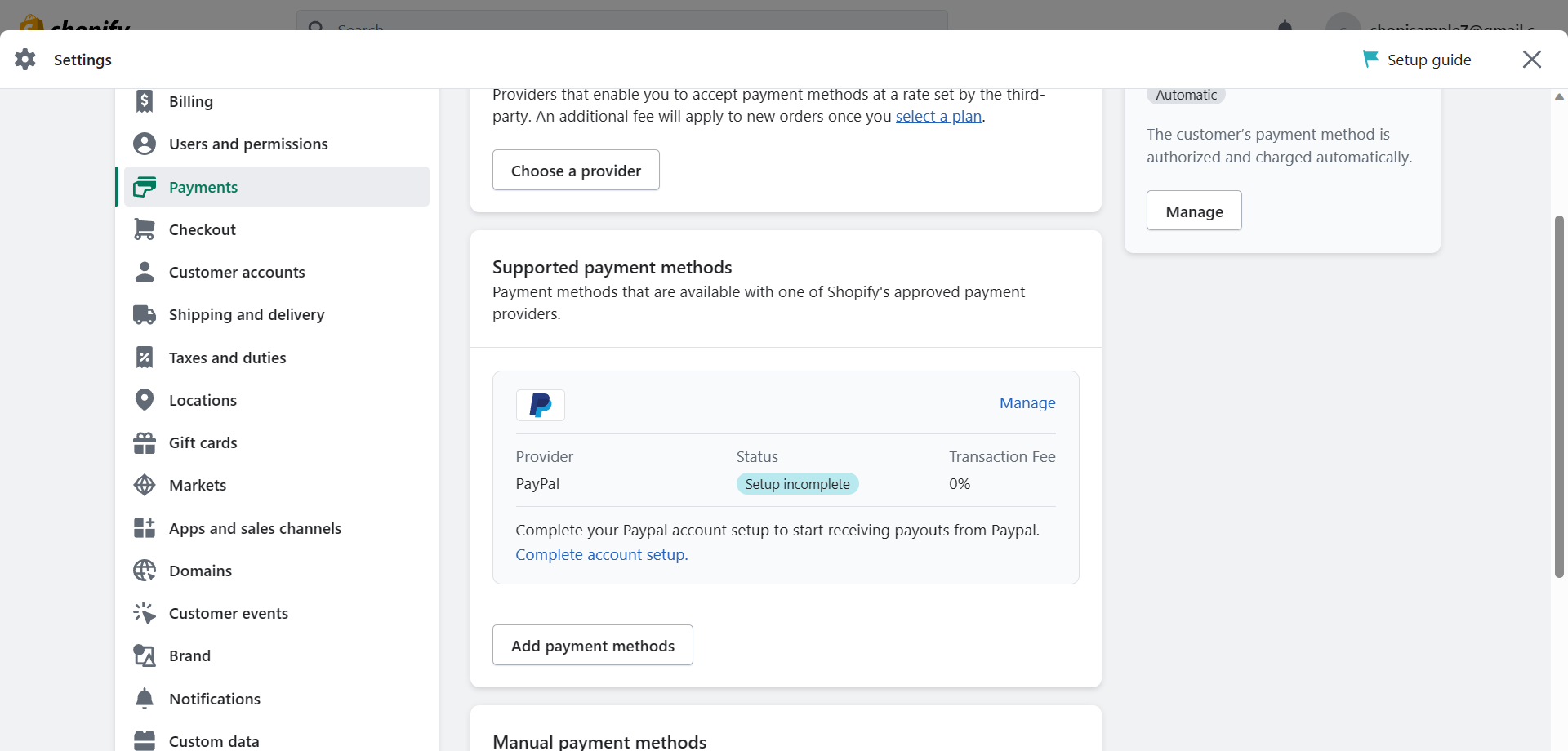
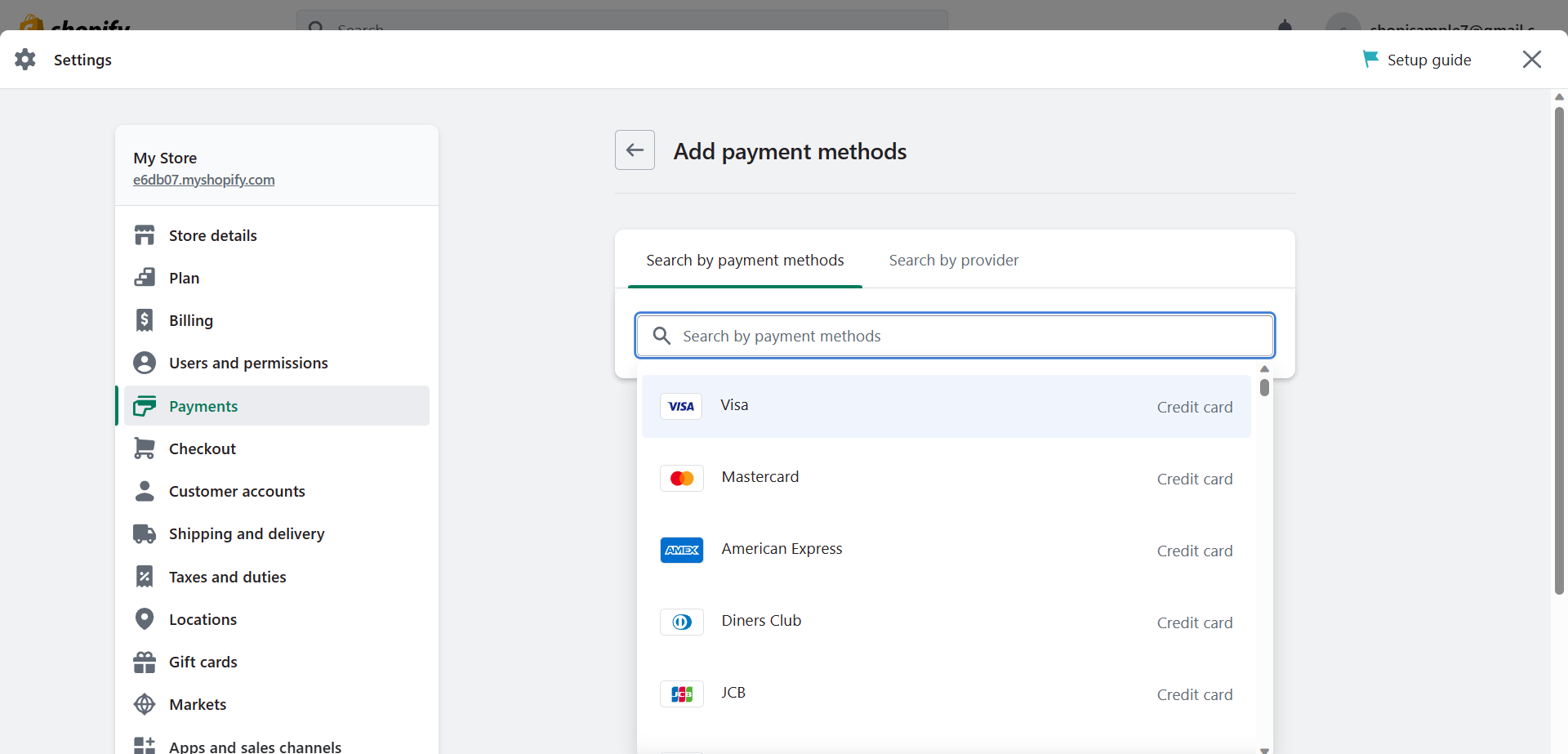
- To add a payment method, search the payment methods by clicking the search bar provided.
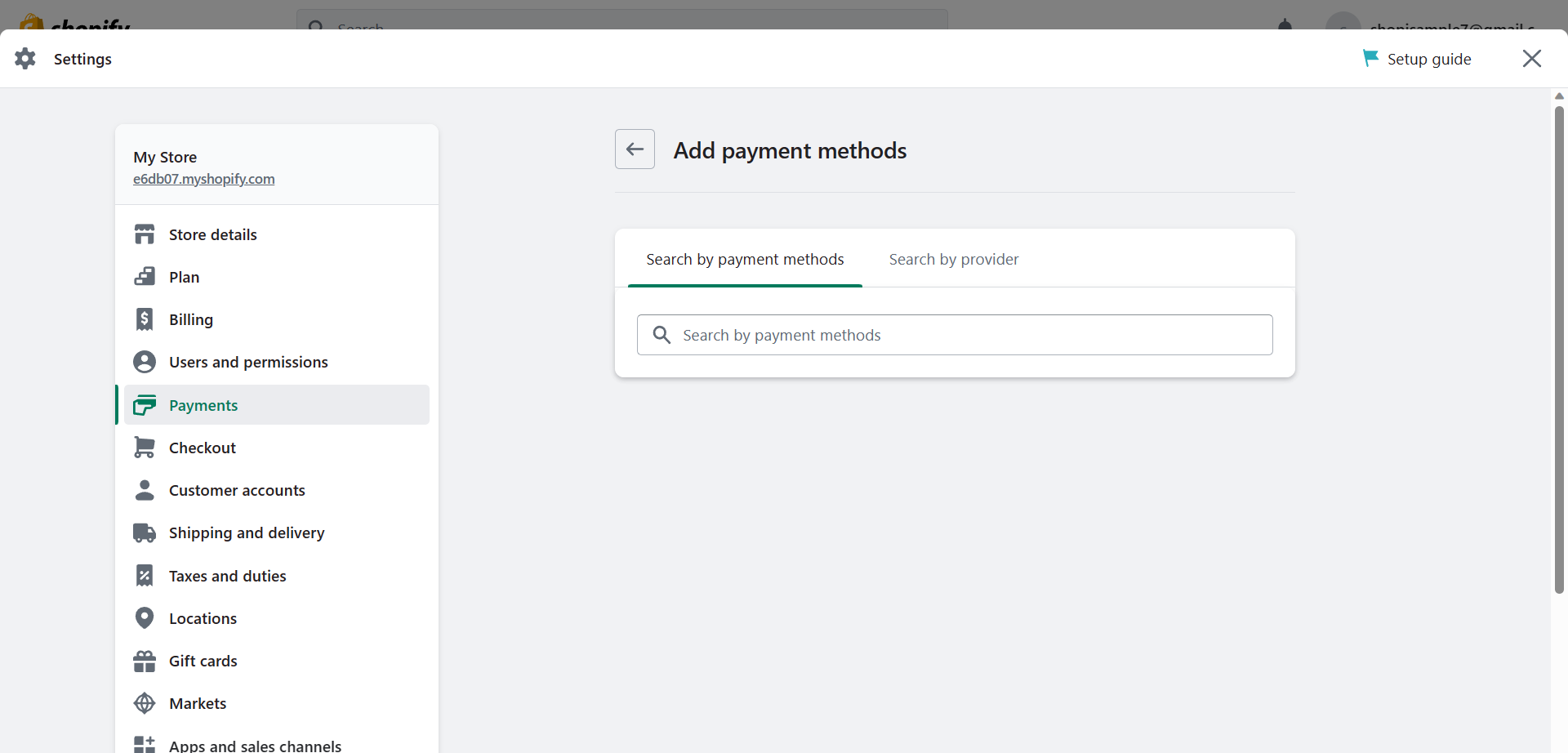
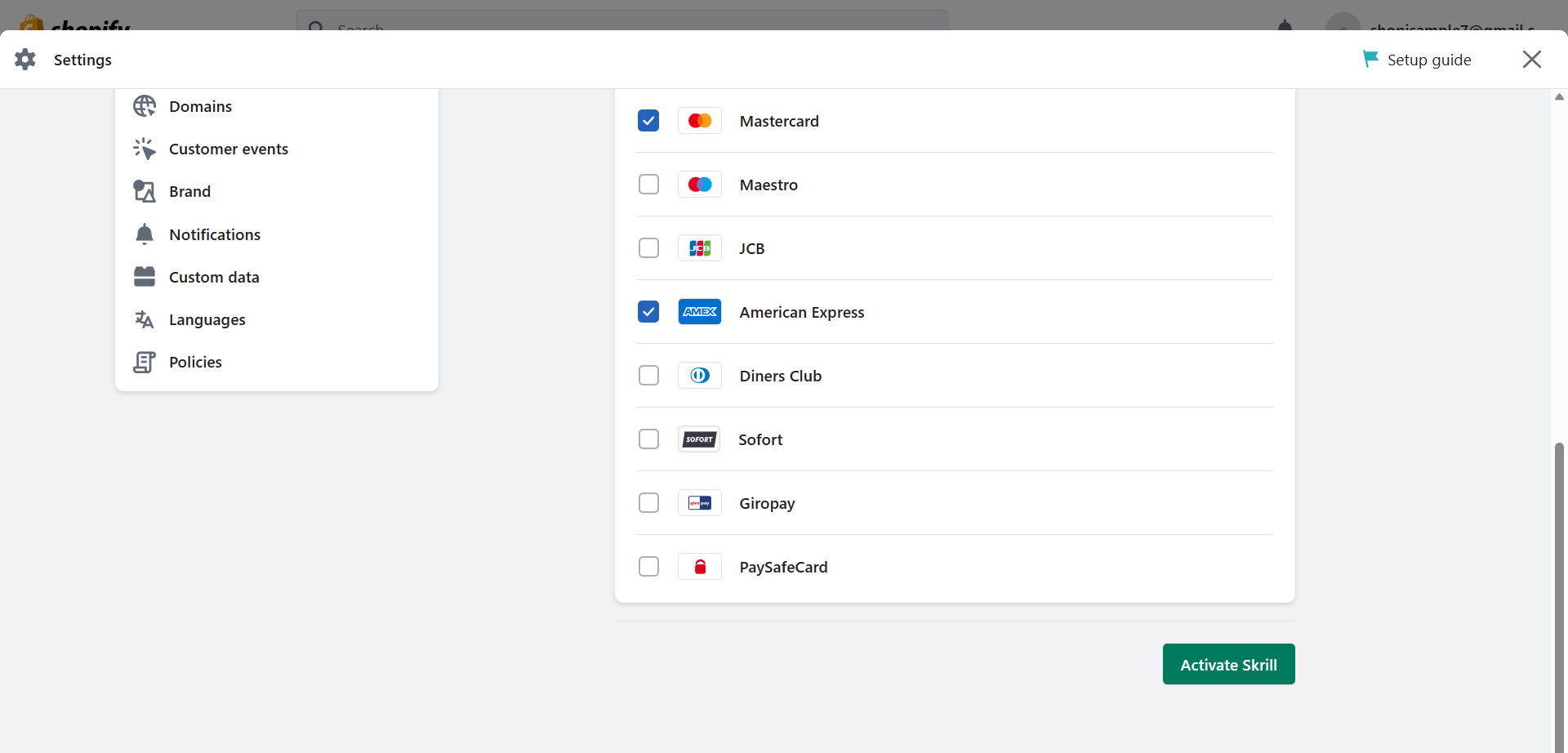
- Multiple payment methods will appear underneath the search bar. Click those payment methods that you want to include in your shop, so they will serve as the filter for payment providers that are suitable for your preferences.
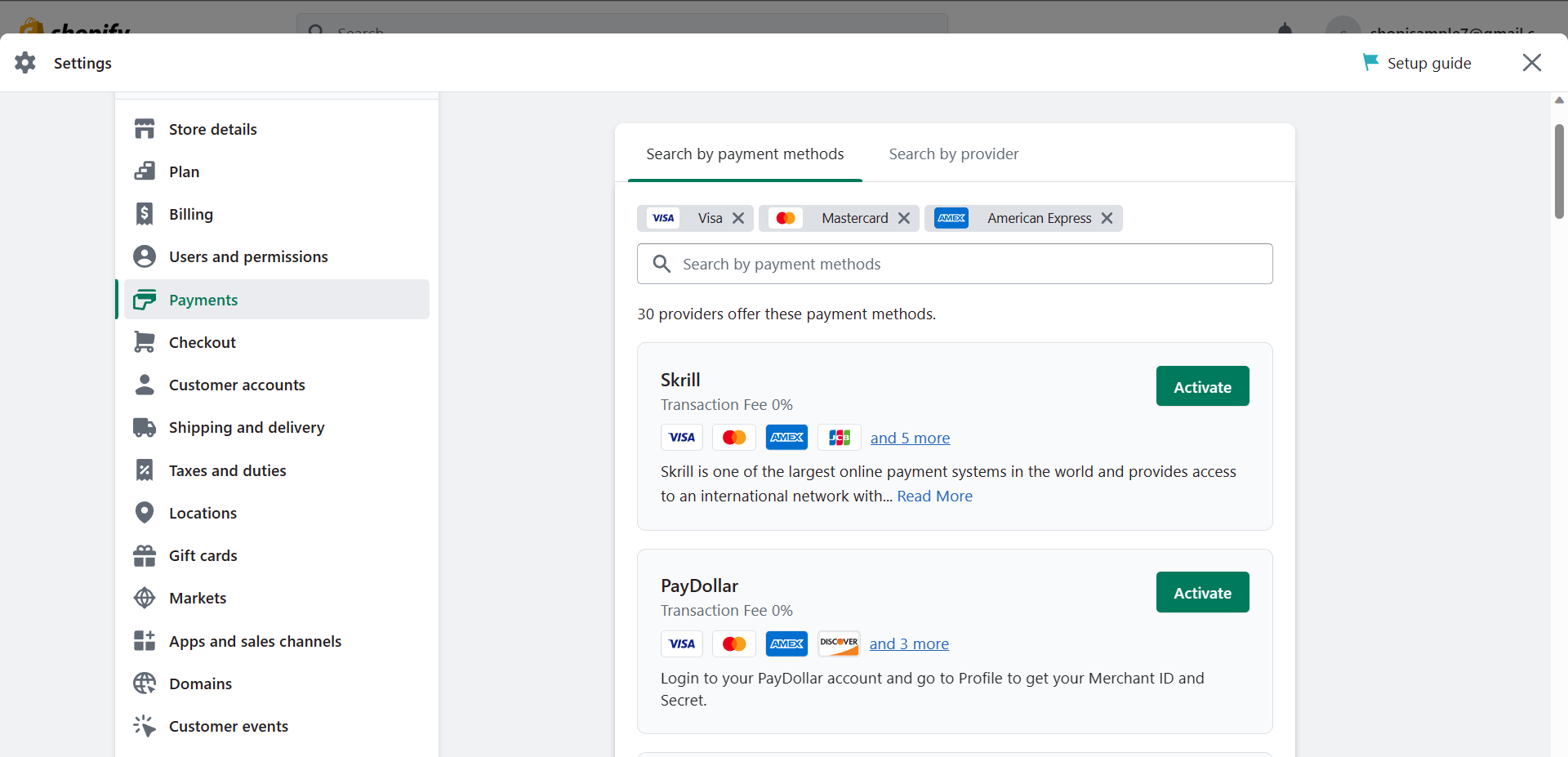
- After clicking the preferred payment methods, you can now see a list of payment providers that you might want to implement to your store. to activate one of these, click the Activate button beside the provider's name.
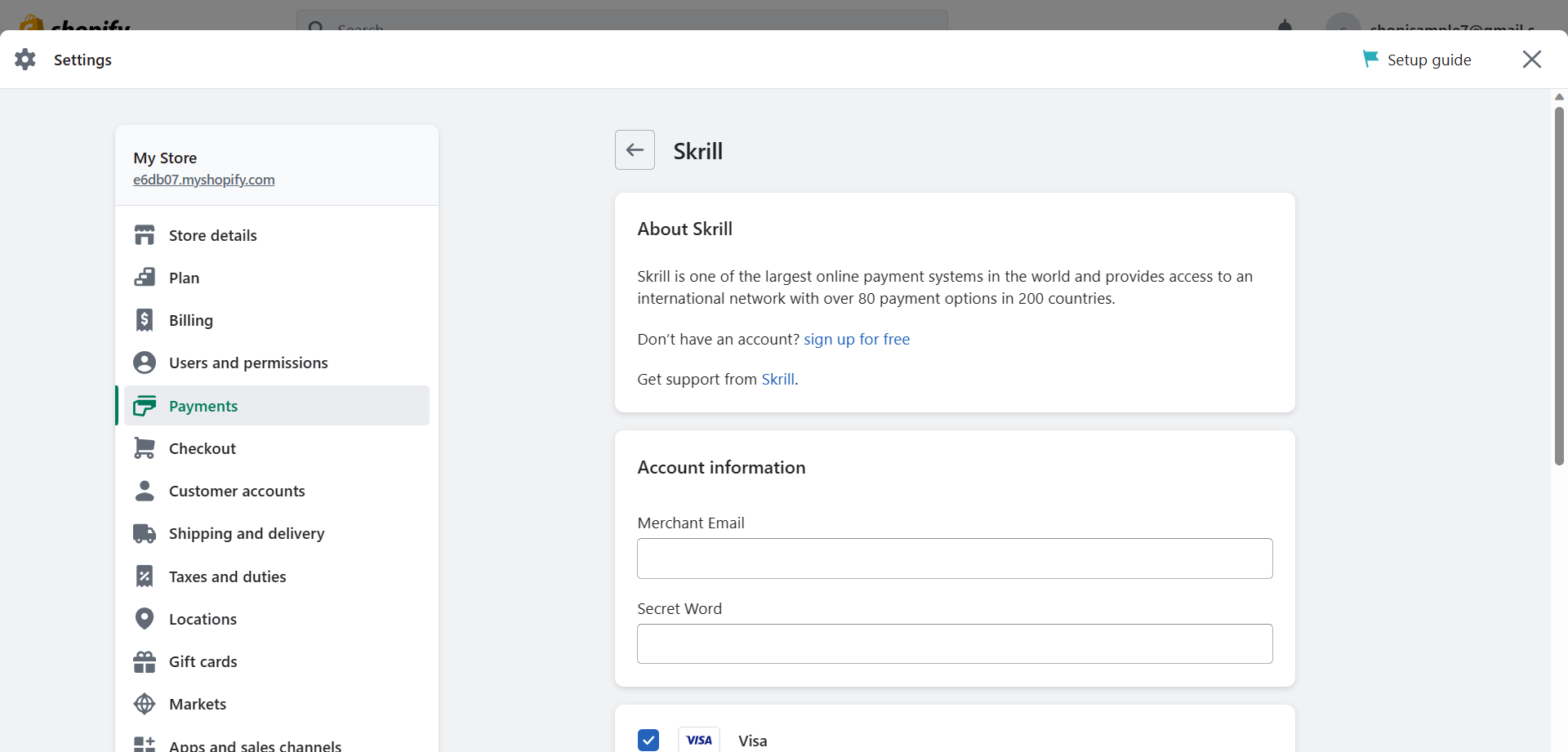
- After clicking the Activate button on one of the payment providers, you can see its description and setup instructions, and you can also set up your Account information by entering your Merchant code and Secret Word in the blank fields provided.
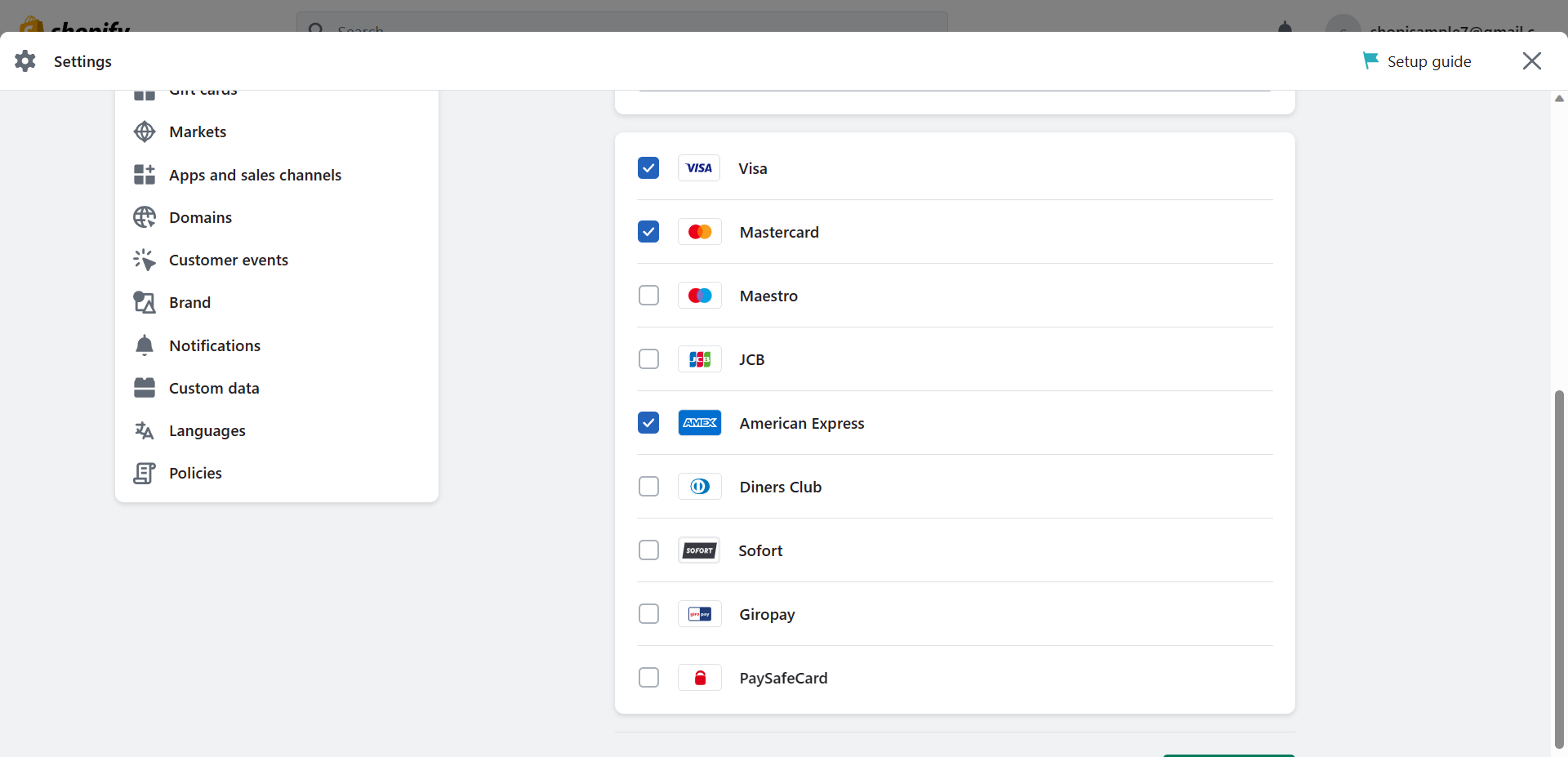
- The additional payment methods are listed under this provider, and also the options that you have entered in the filter search before.
- After modifying and finalizing the payment provider, you can activate this by clicking the "Activate Skrill" button.
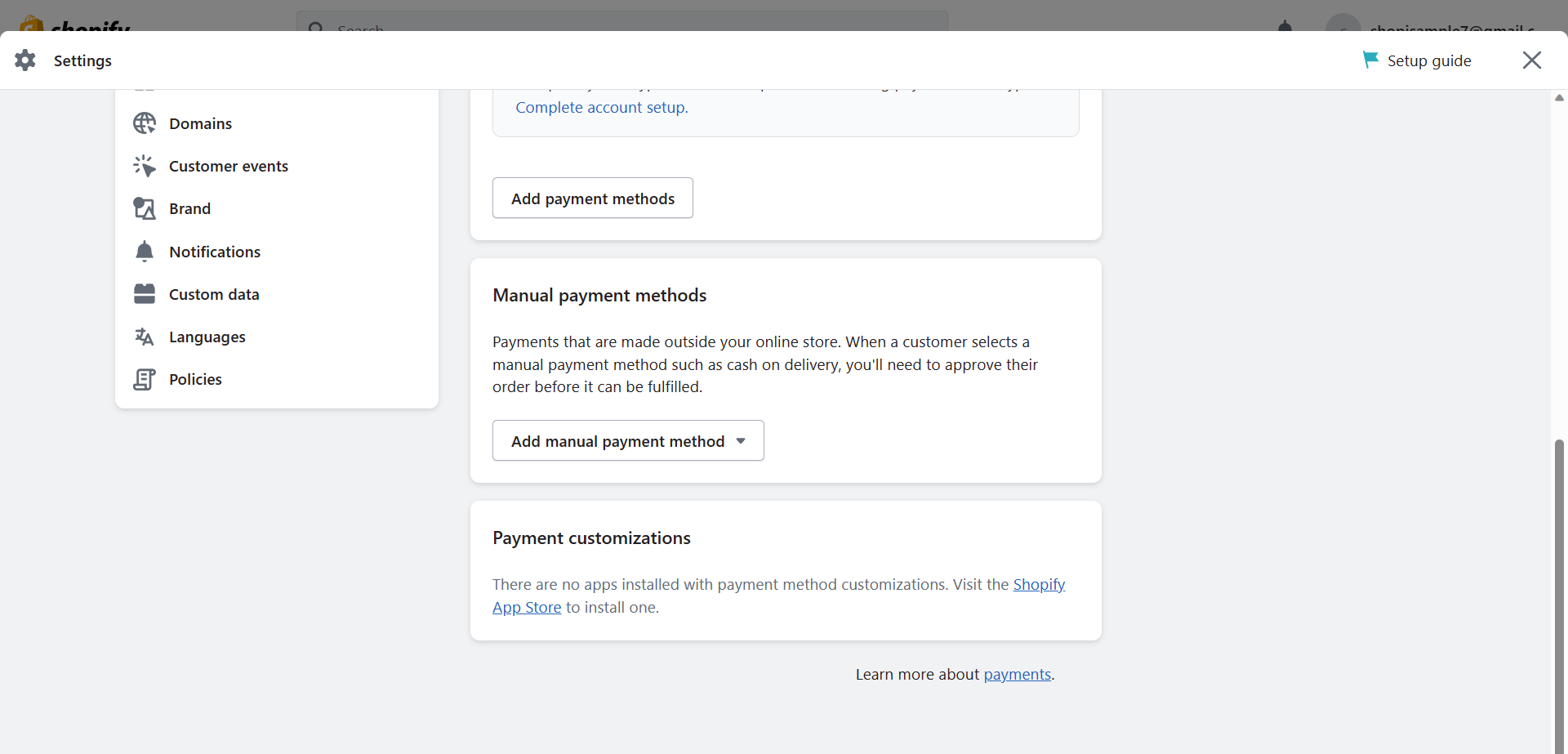
- Lastly, you can add manual payment methods in your Shopify store. To do this, click the "Add manual payment method" button. These are manual payments that happen outside your store, which cannot be included in your payment provider. These features allow non-cardholders to still be able to buy products or services from your business.
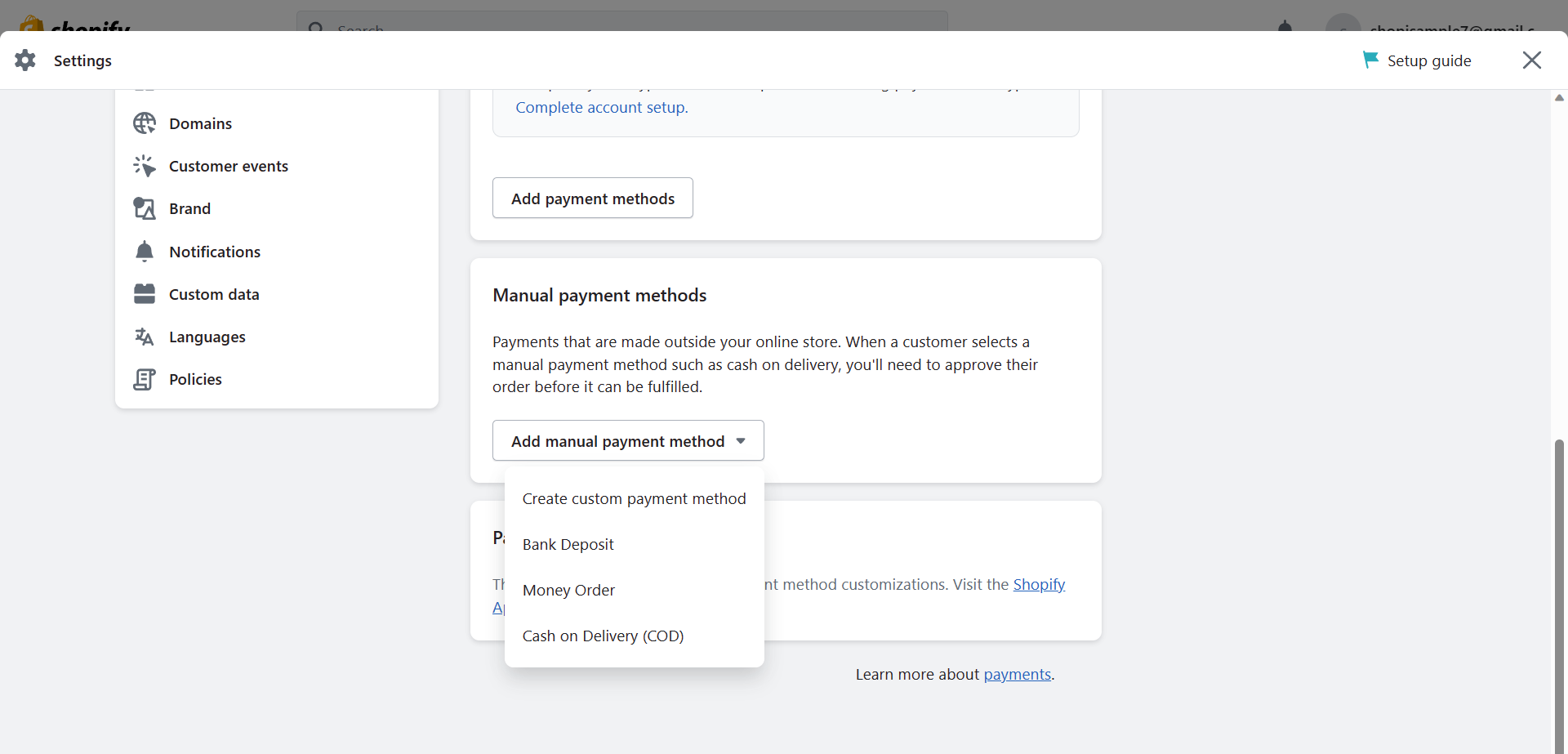
- First option is the "Create custom payment method". Click it to set it up for your Shopify store.
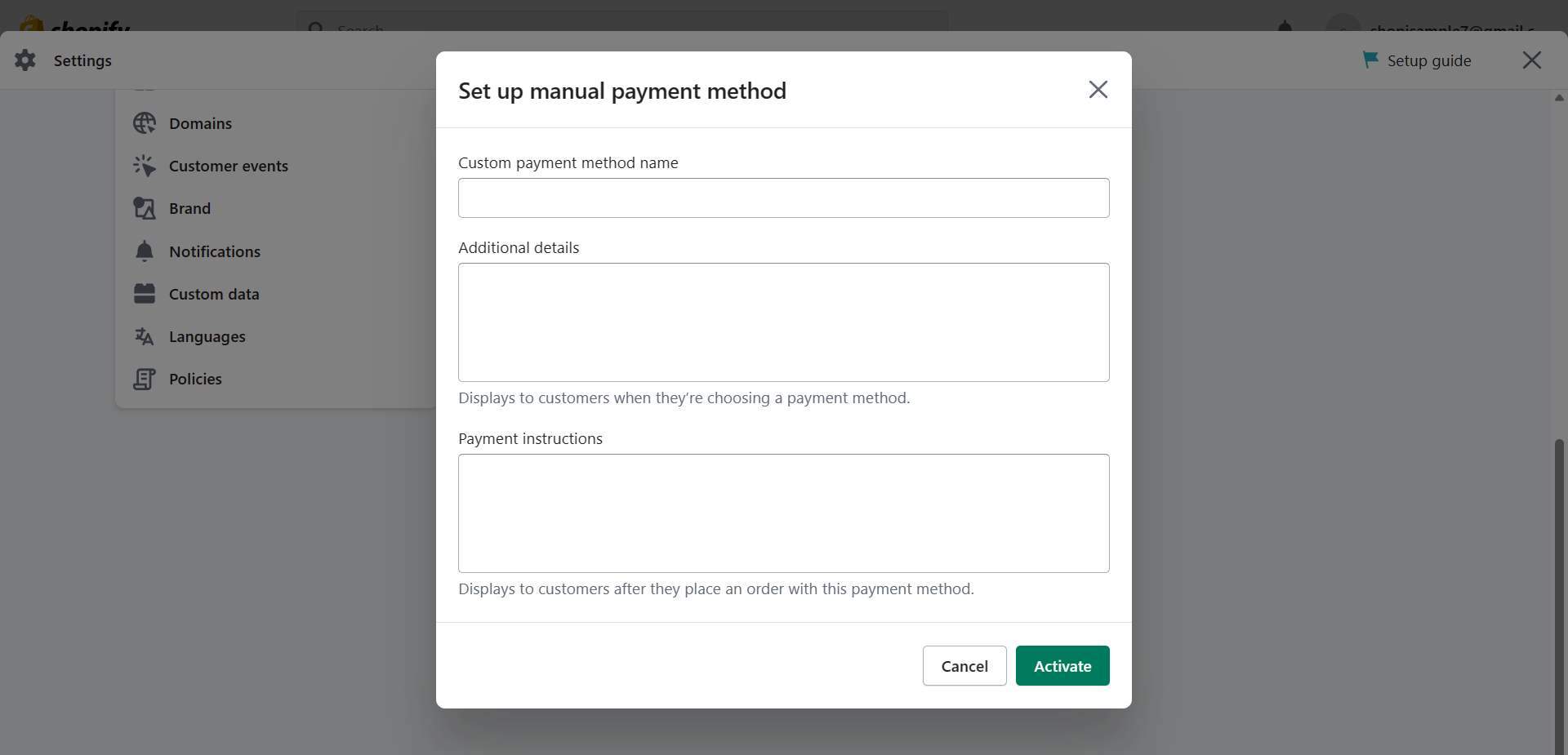
- To set up a custom payment method, you need to answer a few fields. You need to provide a Custom payment method name, Additional details about that payment method, and Payment instructions which your customers will follow once you have implemented this payment method. Click the “Activate” button once you’re done.
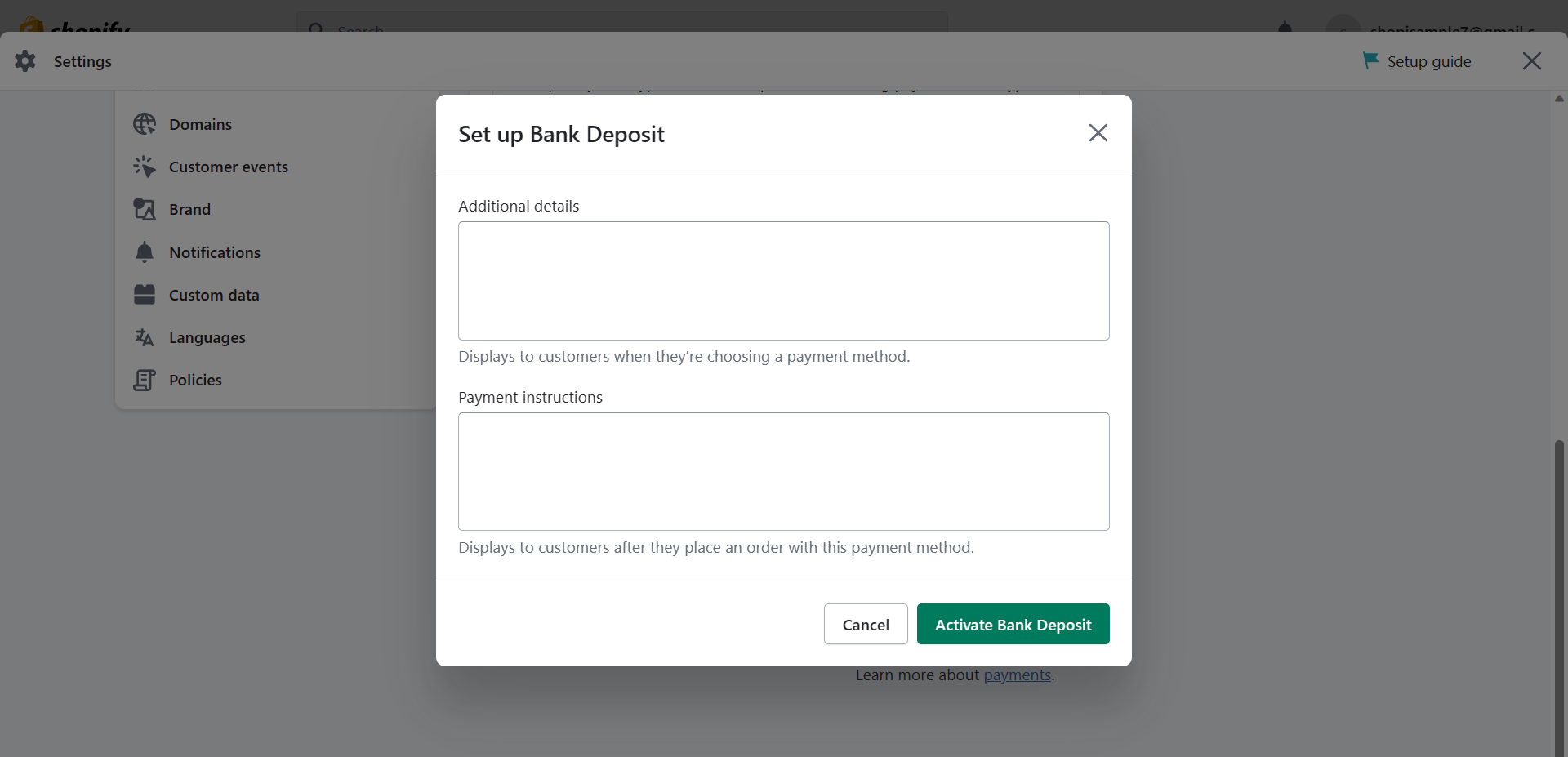
- Second option is the "Bank Deposit". Click it to set it up for your Shopify store.
- To set up a bank deposit, you need to answer two fields: Additional details about bank deposit and Payment instructions which your customers will follow once you have implemented this payment method. Click the “Activate Bank Deposit” button once you’re done.
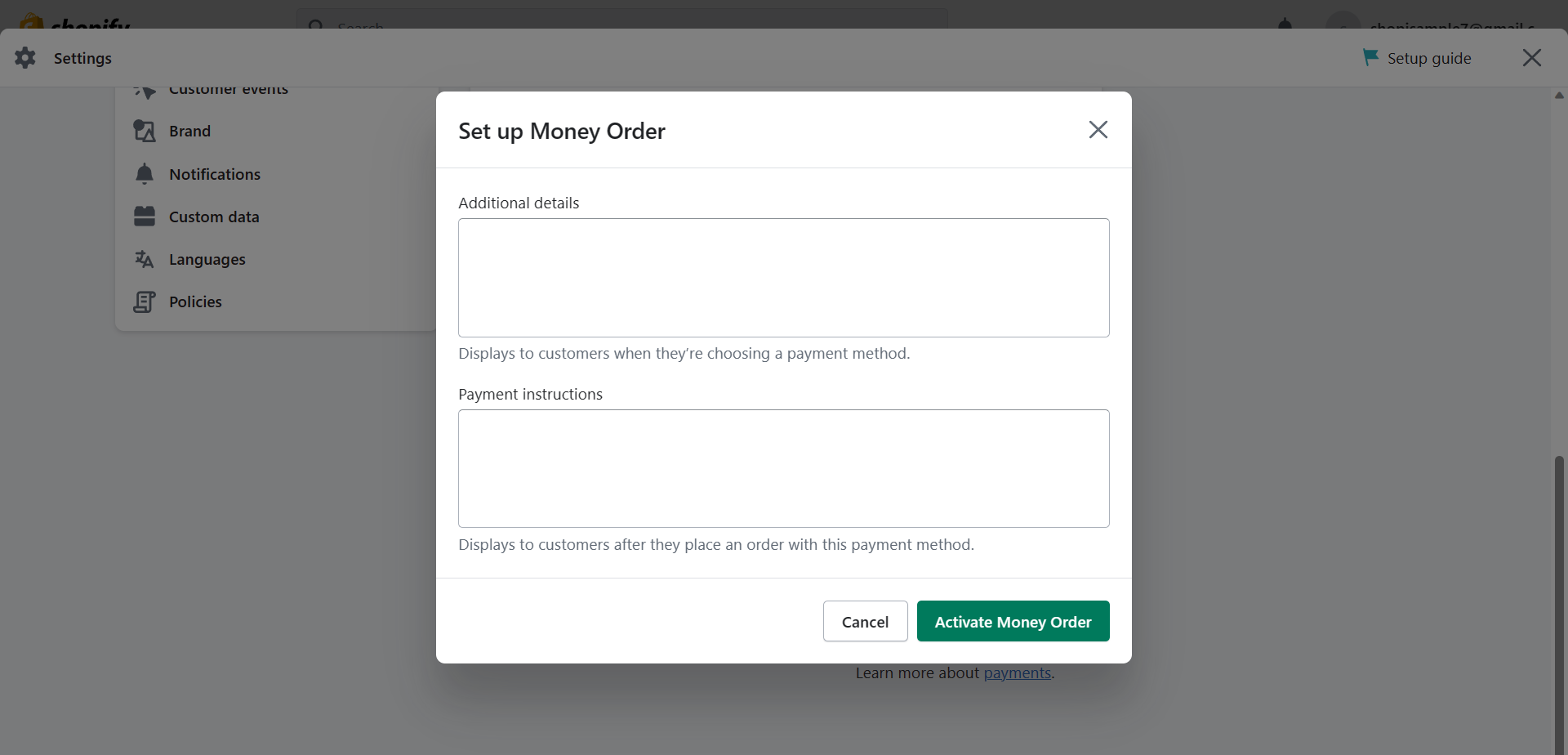
- Third option is the "Money Order". Click it to set it up for your Shopify store.
- To set up a money order, you need to answer two fields: Additional details about money order and Payment instructions which your customers will follow once you have implemented this payment method. Click the “Activate Money Order” button once you’re done.
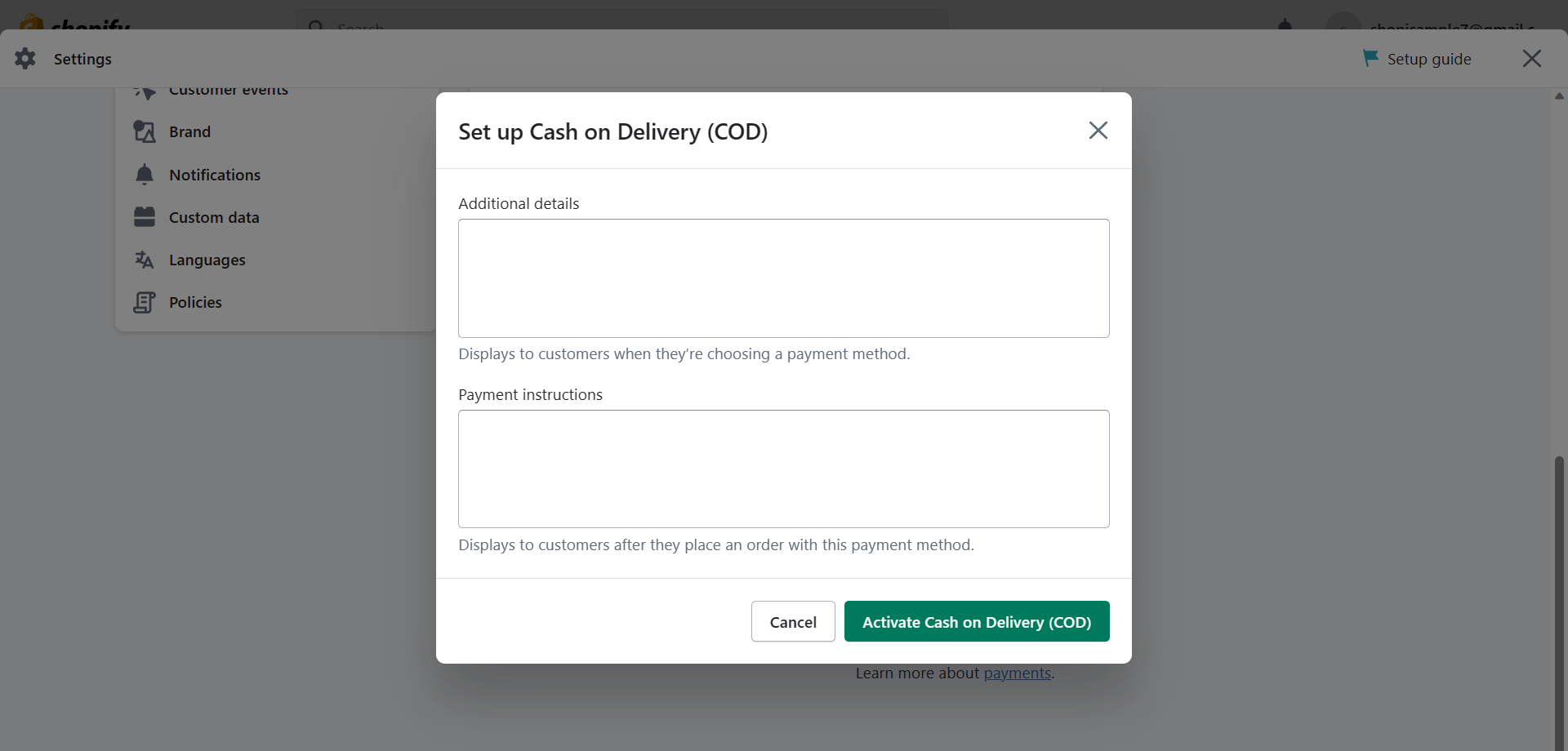
- The last option would be the "Cash on Delivery (COD)". Click it to set it up for your Shopify store. This would be preferable for customers who do not have a bank account or any online payment method that they can use.
- To set up the cash on delivery payment method, you need to answer two fields: Additional details about bank deposit and Payment instructions which your customers will follow once you have implemented this payment method. Click the “Activate Cash on Delivery (COD)” button once you’re done.
Conclusion
You’re done! Always keep in mind that setting up Shopify payment methods is crucial for your company’s growth, as it allows several options for your customers on how they want to proceed with their payments. This leads to customer service satisfaction and productivity.
-
Although you only need to use your Shopify account in navigating to the payment page, it is necessary that you have already prepared the receiving accounts for the payment methods that you want to include in your store.
-
Choosing a provider that fits within your payment method plan is relatively easy, if you follow the steps on applying the filters before searching. There are other providers that have additional payment methods which you won’t need at first, but you should also consider.
-
Take note that you need to have and activate a diversity of payment methods so you can make sure of the availability of the payment methods that your customer uses.
-
To allow more customers to order, you can set up manual payment methods such as custom payment methods, bank transfer, money order, or cash on delivery (COD).
-
Some of the payment methods would have additional fees once you decided on going public with your Shopify store.