Activating and Deactivating Shop Pay in Shopify
To walk you through the process of activating and deactivating the option for Shop Pay in your Shopify account.
Prefer a shortcut? 16 free tools do parts of this for you.

Aim: To walk you through the process of activating and deactivating the option for Shop Pay in your Shopify account.
Optimal Outcome: To allow the consumers to perform an accelerated checkout by Shop Pay which saves them time in purchasing items and records their information needed for checking out.
What do you need to start: To follow this SOP, you must have a Shopify account for your business. Activating and deactivating Shop Pay in Shopify is easy because it can be done in a desktop setting, iPhone, or Android.
Why is this SOP Important: Learning how to activate and deactivate your business’ Shopify account’s payments is helpful for the productivity of your business because Shopify automatically sends the payments coming from Shop Pay to the bank account that you have indicated when you set up your Shopify Payments settings.
When and Where to execute: To execute this SOP, it is important that you have already set up the payments settings of your Shopify account to be able to activate the Shop Pay.
Who Should Be Doing This: This should be done by the marketing team of your company.
Shopify Shop Pay Feature
Shopify has provided multiple methods to its customers on how they prefer to pay the items that they want to purchase. One of these methods is Shop Pay, which is an accelerated checkout provided to customers which enables them to prepare their payment methods ahead of time so during the checkout, they will just click the “Shop Pay” button. This is necessary for customers who are always in a rush, and those who always have a single payment method. Shop Pay also allows installments in paying.
Execution
Resources/Tools & Set up
- Shopify Account
Activating Shop Pay in Shopify
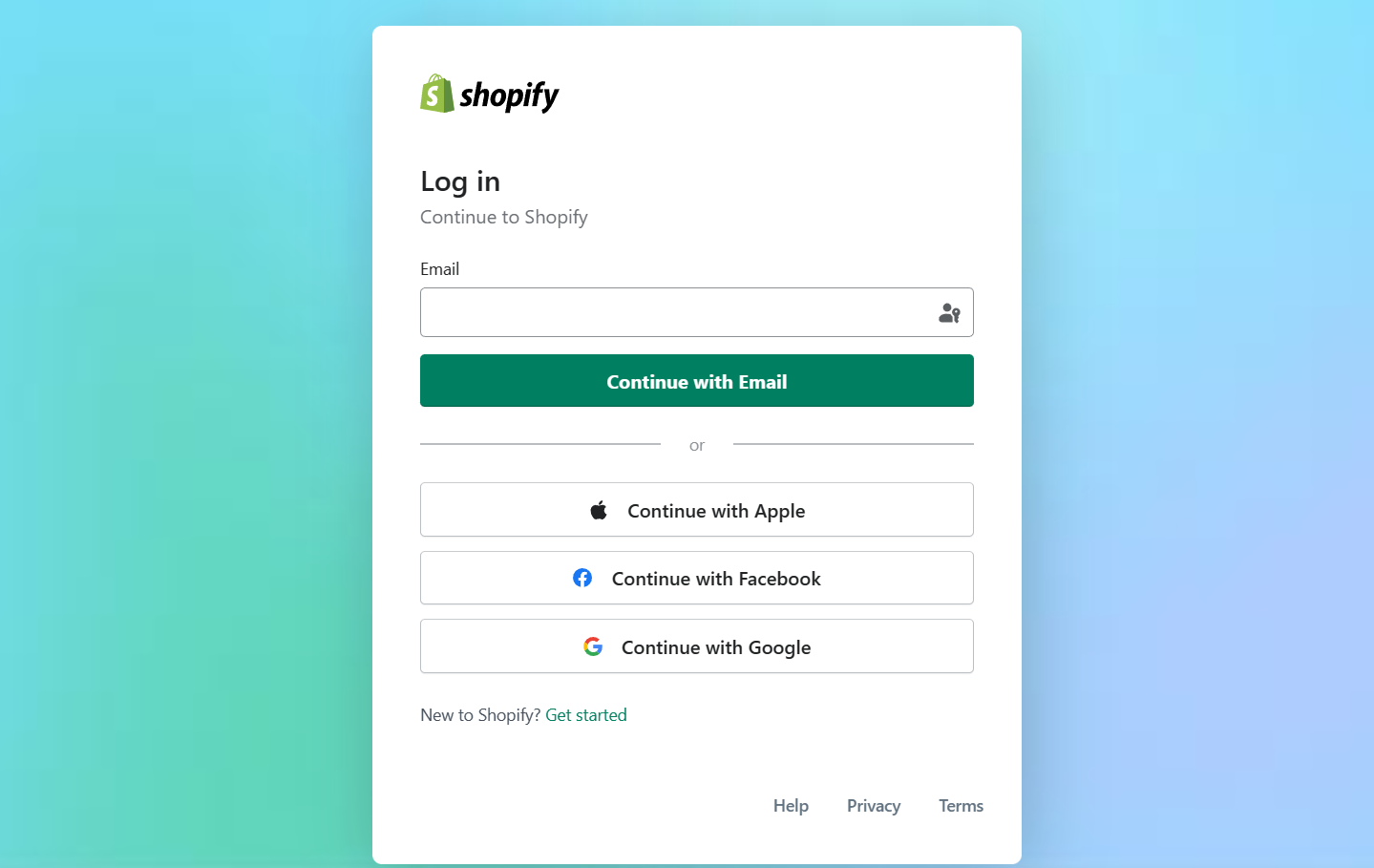
- Log in to your business Shopify account using either your email, Apple, Facebook, or Google account.
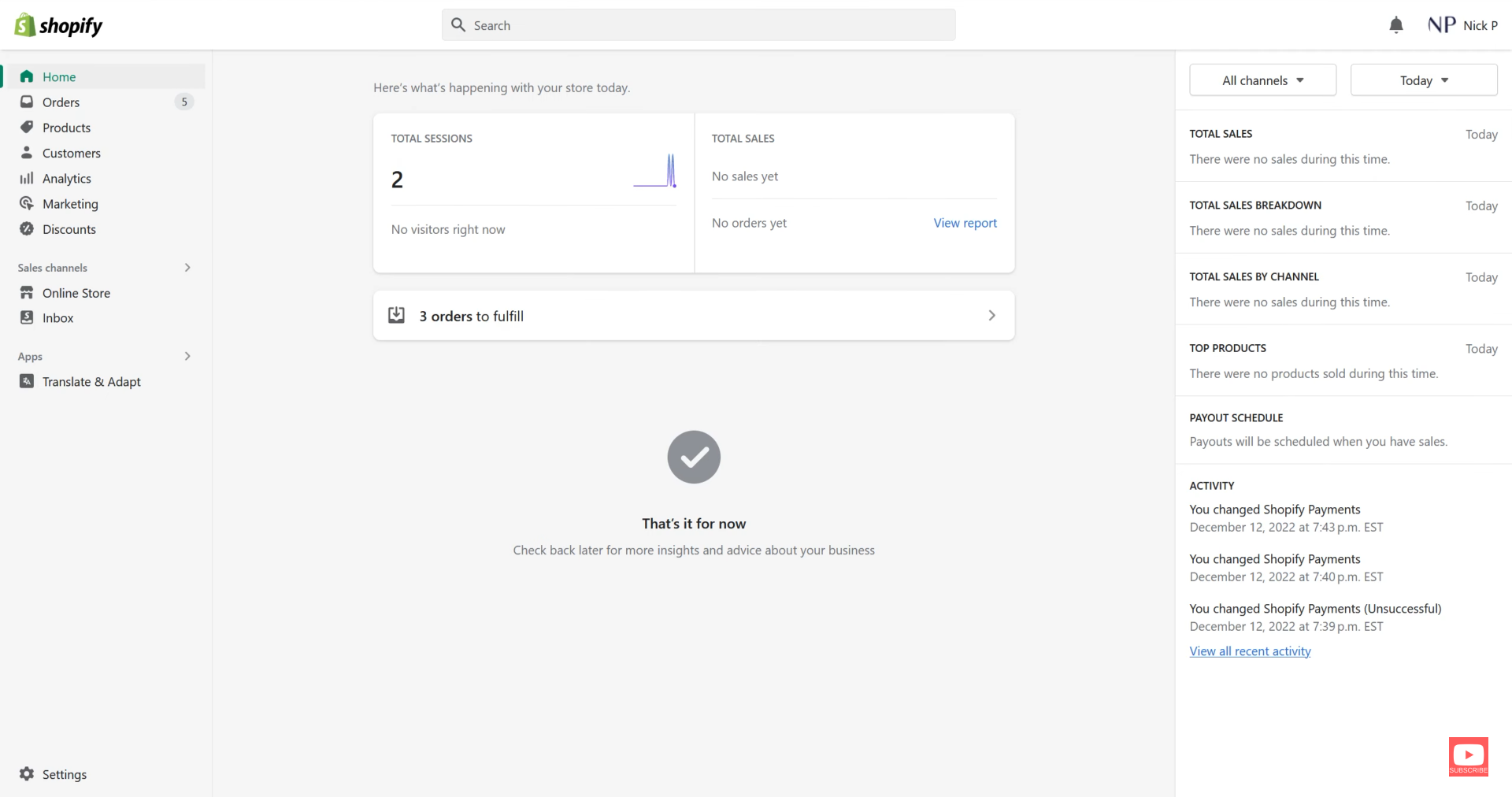
- In the Dashboard located on the left side, click on “Settings” that is located on the lower left corner of the site.
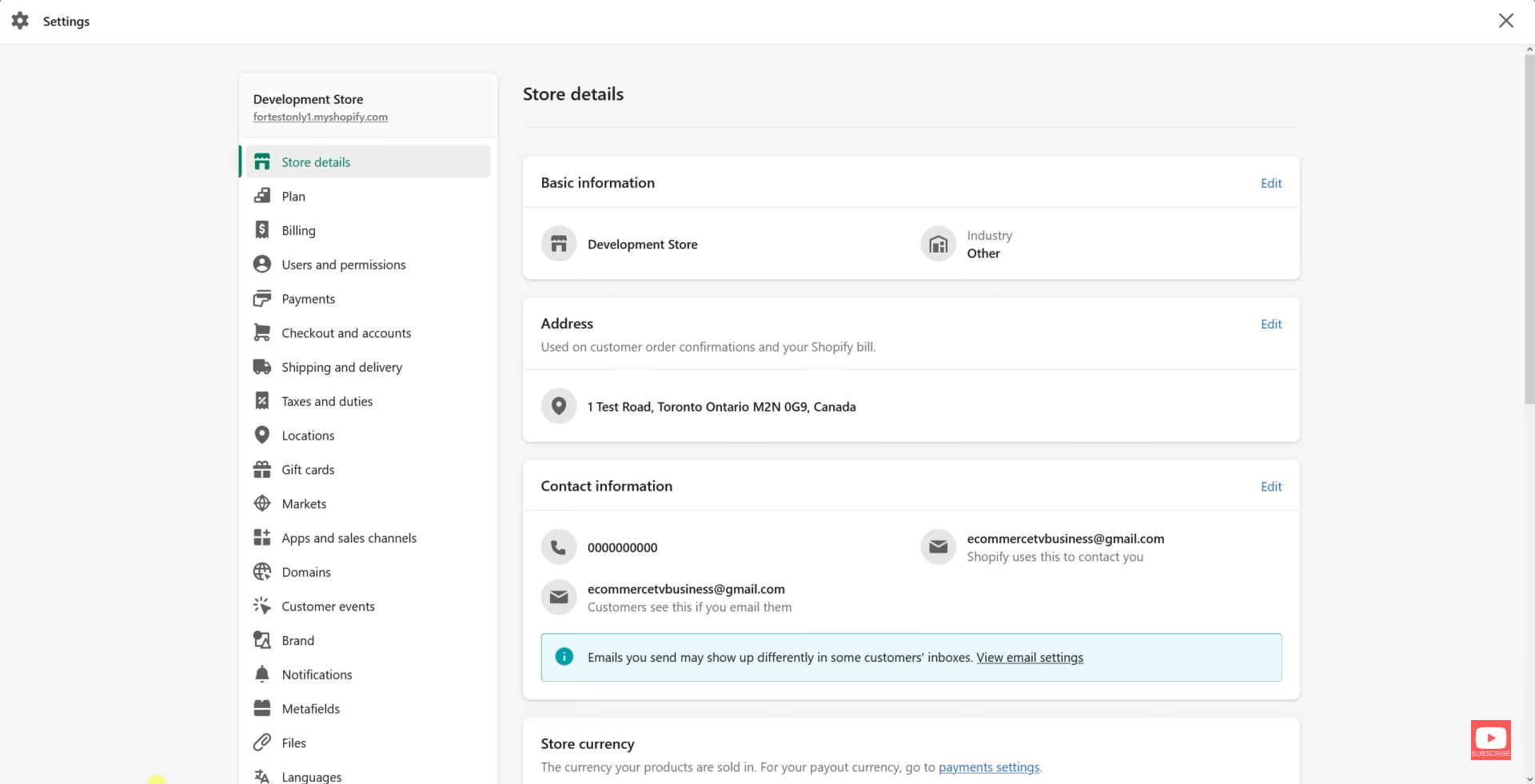
- After navigating to the Settings, you will see a dashboard on the left. Click “Payments” to go to Shop Pay settings.
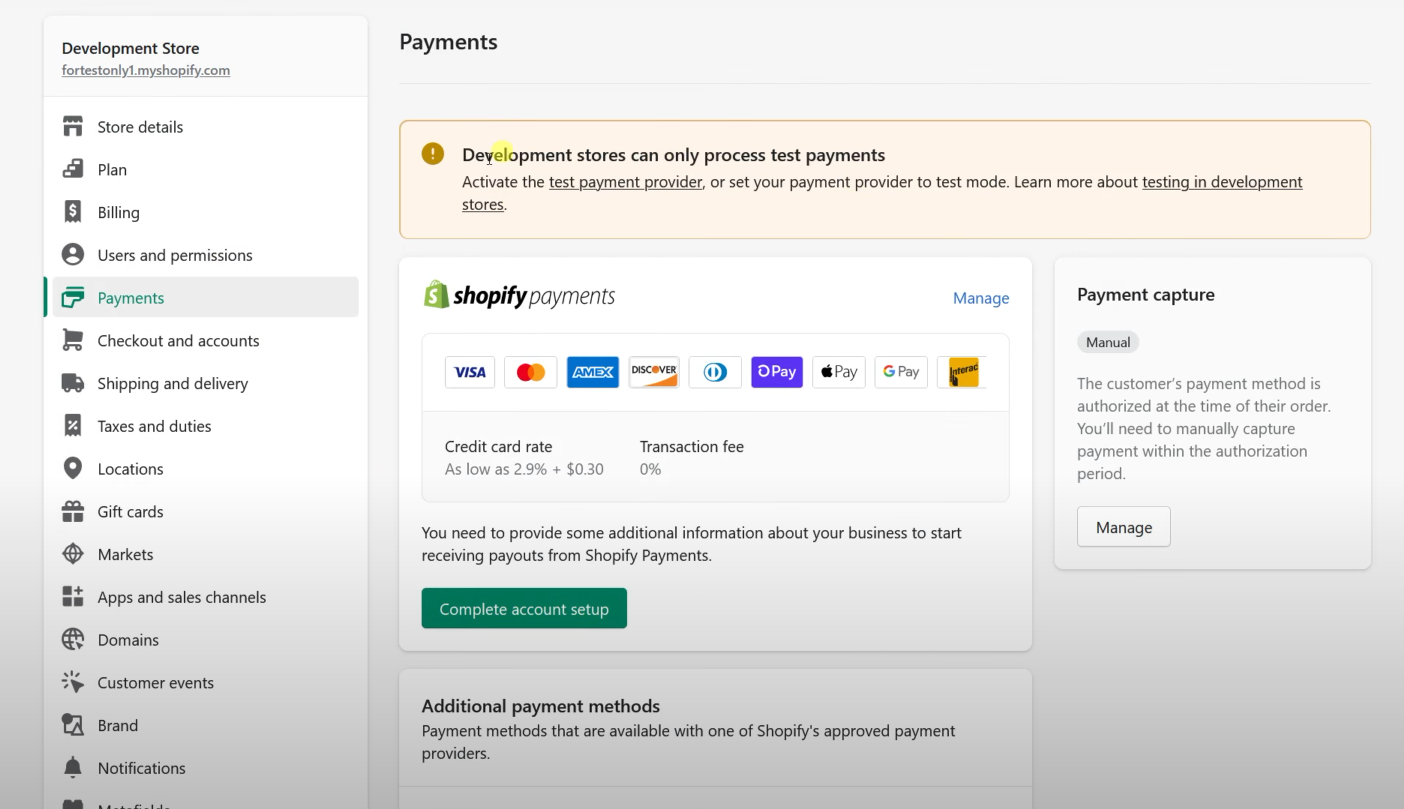
- When you go to Payments, you will see the Shopify Payments and to get to its settings, click the “Manage” button.
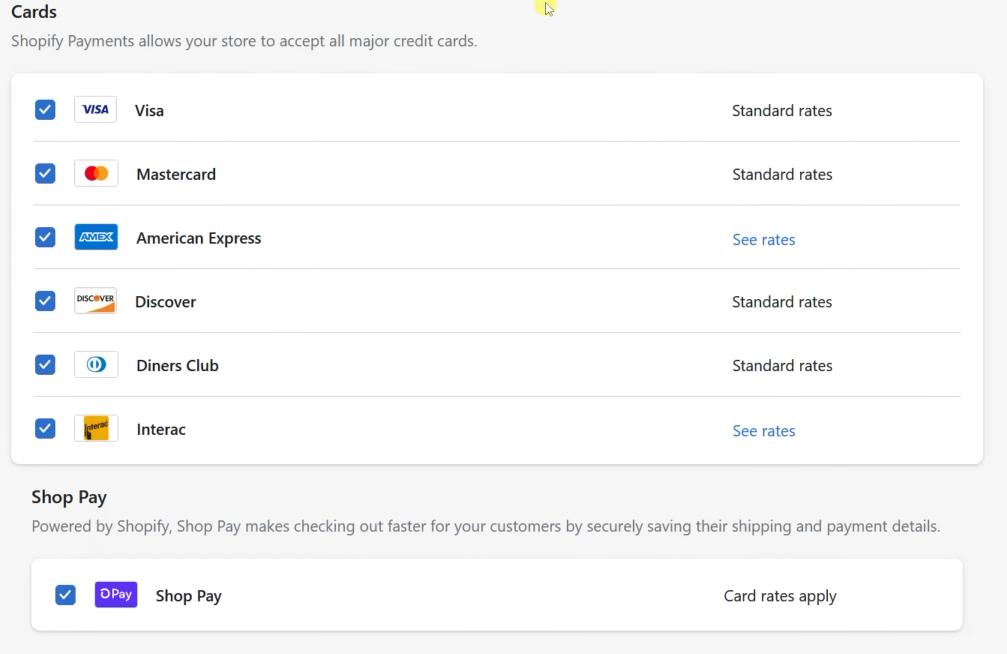
- You can see the Standard rates and Cards option of payment in Shopify. Scroll down to see the Shop Pay option.
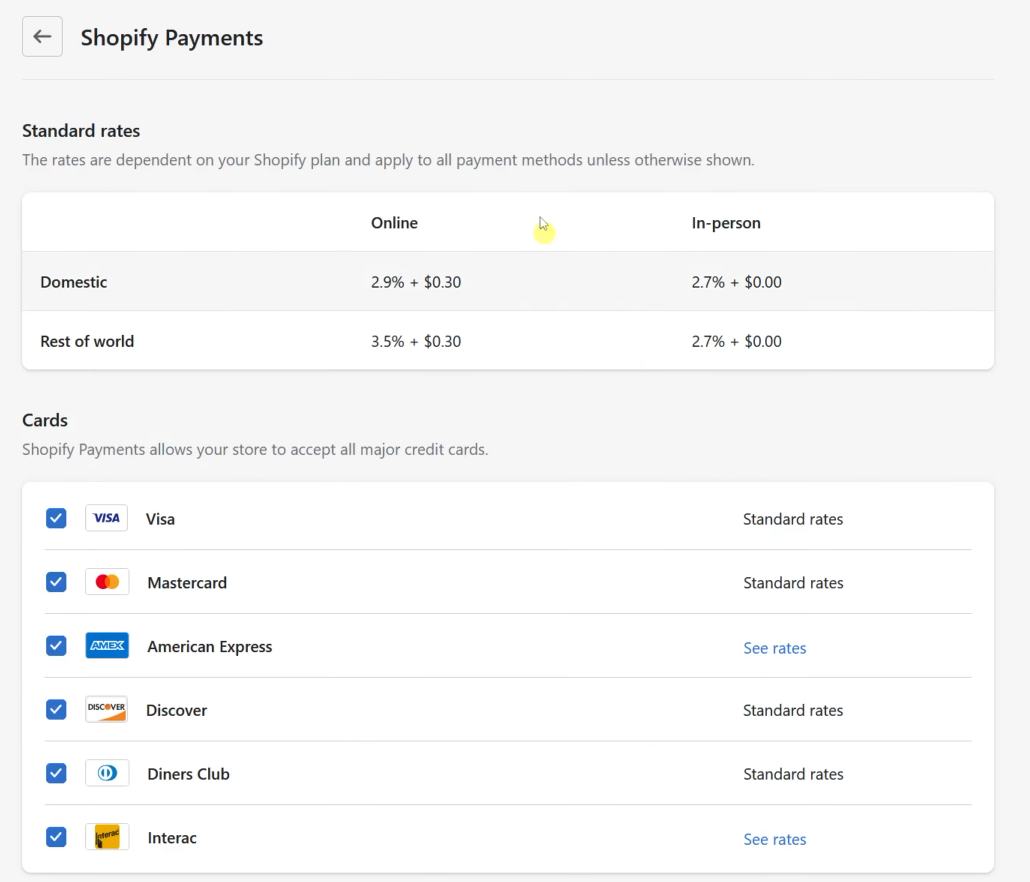
- Check the box on the left side of “Shop Pay” to activate it.
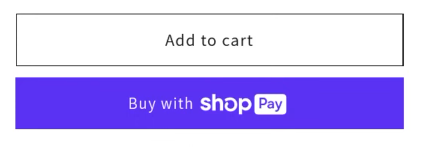
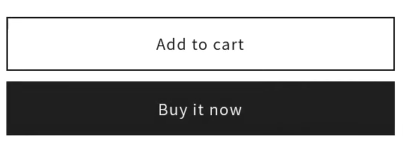
- In Shopify, the item should have this button after you activate the Shop Pay.
Deactivating Shop Pay in Shopify
- Log in to your business Shopify account using either your email, Apple, Facebook, or Google account.
- In the Dashboard located on the left side, click on “Settings” that is located on the lower left corner of the site.
- After navigating to the Settings, you will see a dashboard on the left. Click “Payments”.
- When you go to Payments, you will see the Shopify Payments and to get to its settings, click the “Manage” button.
- You can see the Standard rates and Cards option of payment in Shopify. Scroll down to see the Shop Pay option.
- Uncheck the box on the left side of “Shop Pay” to deactivate it.
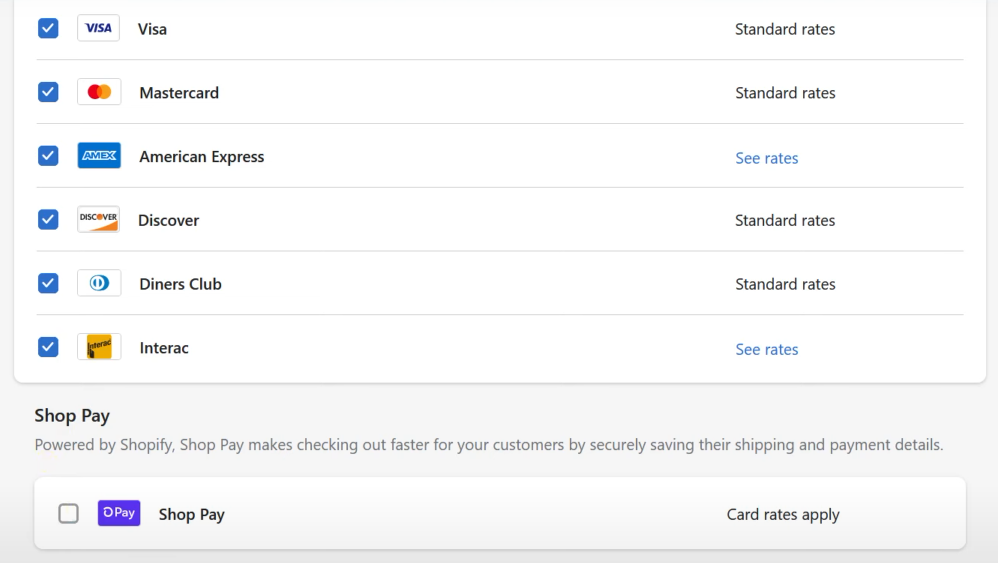
- In Shopify, the item should have this button after you deactivate the Shop Pay.
Conclusion
You’re done! Remember that the efficiency of your business will improve when you understand how to activate and deactivate Shop Pay on your account because Shopify automatically transfers Shop Pay payments to your bank account.
-
Shop Pay, a fast checkout service offered to consumers that allows them to arrange their payment options in advance, is one of the payment choices given by Shopify.
-
It is easy for both customers and business owners to activate their Shop Pay. For customers, they just have to indicate their billing and shipping information before checking out, and for business owners, they can do it in their Payments settings.
-
After activating or deactivating the Shop Pay, there will be a change in buttons on the customers view page.
-
The methods involving activating and deactivating the Shop Pay is just the same, by checking and unchecking the box.
-
Shop Pay is beneficial for customers especially those who are too busy to input their address and billing every time they place an order.